Hiring rarely slows down a growing business, and neither should the system tracking it. A single open role can pull in resumes from a careers page, forwarded emails, referrals, and job boards, all within the same week. Odoo 19's Recruitment app is built to catch every one of those applications in a single pipeline, so recruiters spend their time evaluating candidates instead of chasing down where an attachment went. This article walks through how job applications are organized, received, and moved forward inside Odoo 19, covering the Applications menu, candidate and degree records, tagging, refusal handling, and the automated stage emails that keep applicants informed.
The Applications Menu: By Job Position
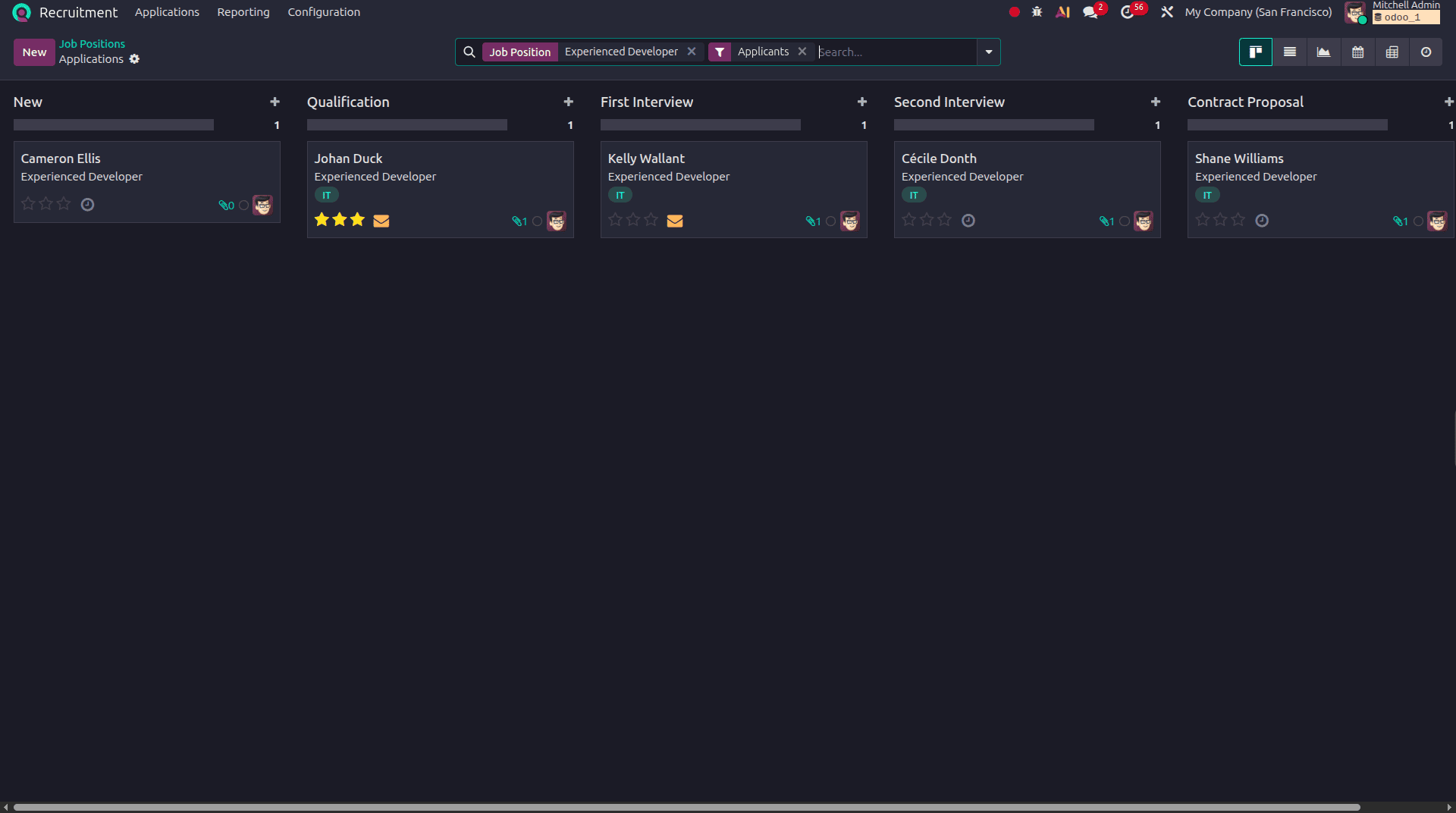
Inside the Recruitment app, the Applications menu opens with the By Job Position view, which groups every submitted application under the specific role it was submitted for. Each job position is represented as its own Kanban card on the main dashboard, and clicking into one reveals its dedicated pipeline, with applicants arranged in columns that mirror the hiring stages, such as Initial Qualification, First Interview, and Contract Proposal. This structure keeps a recruiter's attention on one role at a time, which matters most when several positions are open simultaneously, and each has its own pace, interview panel, and shortlist criteria.
The Applications Menu: All Applications
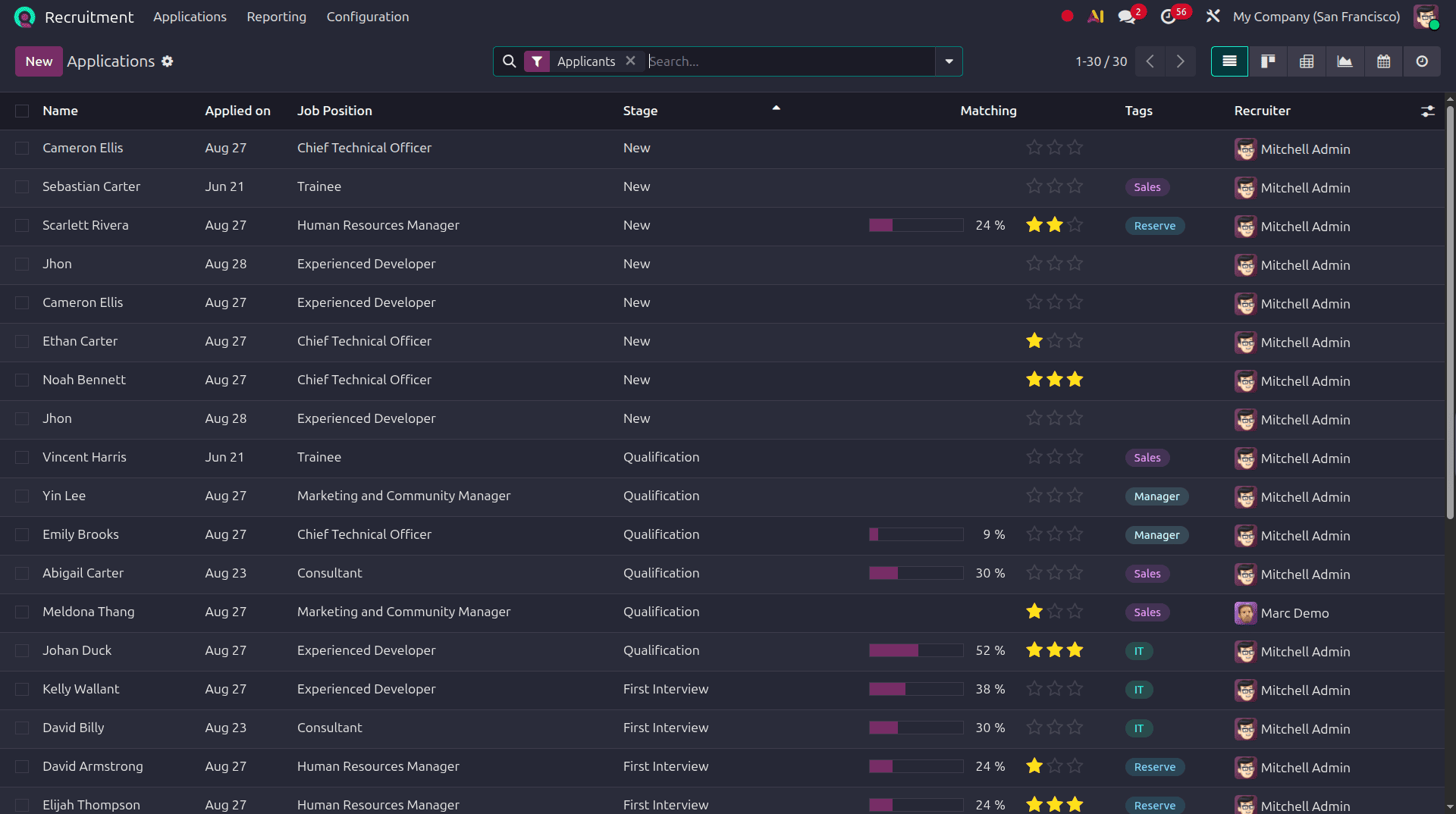
Whereas By Job Position is organized around a single role, the All Applications view lists every applicant across all open positions in one flat list, regardless of which pipeline they belong to. This view is better suited to tasks that cut across roles, such as searching for a specific candidate by name, filtering everyone tagged with a particular skill, or reviewing every application received in a given week. Because both views pull from the same underlying applicant records, switching between them never means looking at different data, only a different way of arranging it.
Receiving Applications Through the Website and by Email
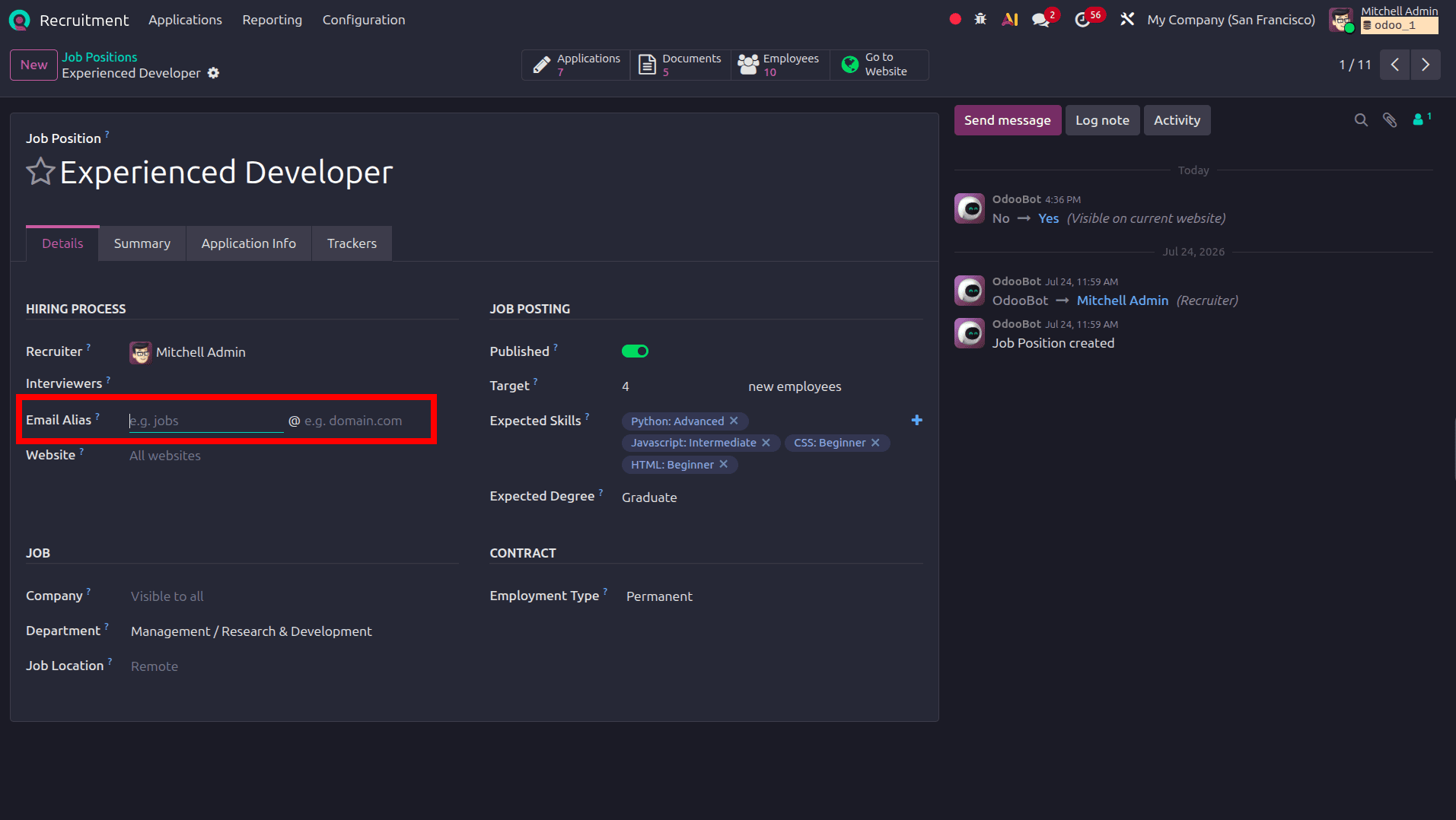
Odoo 19 accepts applications through two channels without requiring a recruiter to manually enter anything. When a job position is published on the company website, candidates can apply directly through a form, and Odoo automatically creates an applicant record from the details and resume they submit. Separately, every job position can be given its own application email alias, generated automatically when the position is created, so a resume emailed to that address is turned into a new application in the New Application stage without anyone needing to forward it. This dual intake means job boards, referrals, and direct website visits can all feed the same pipeline, whether a candidate applies through a browser or simply attaches their résumé to an email.
Displaying the Resume on the Application Form
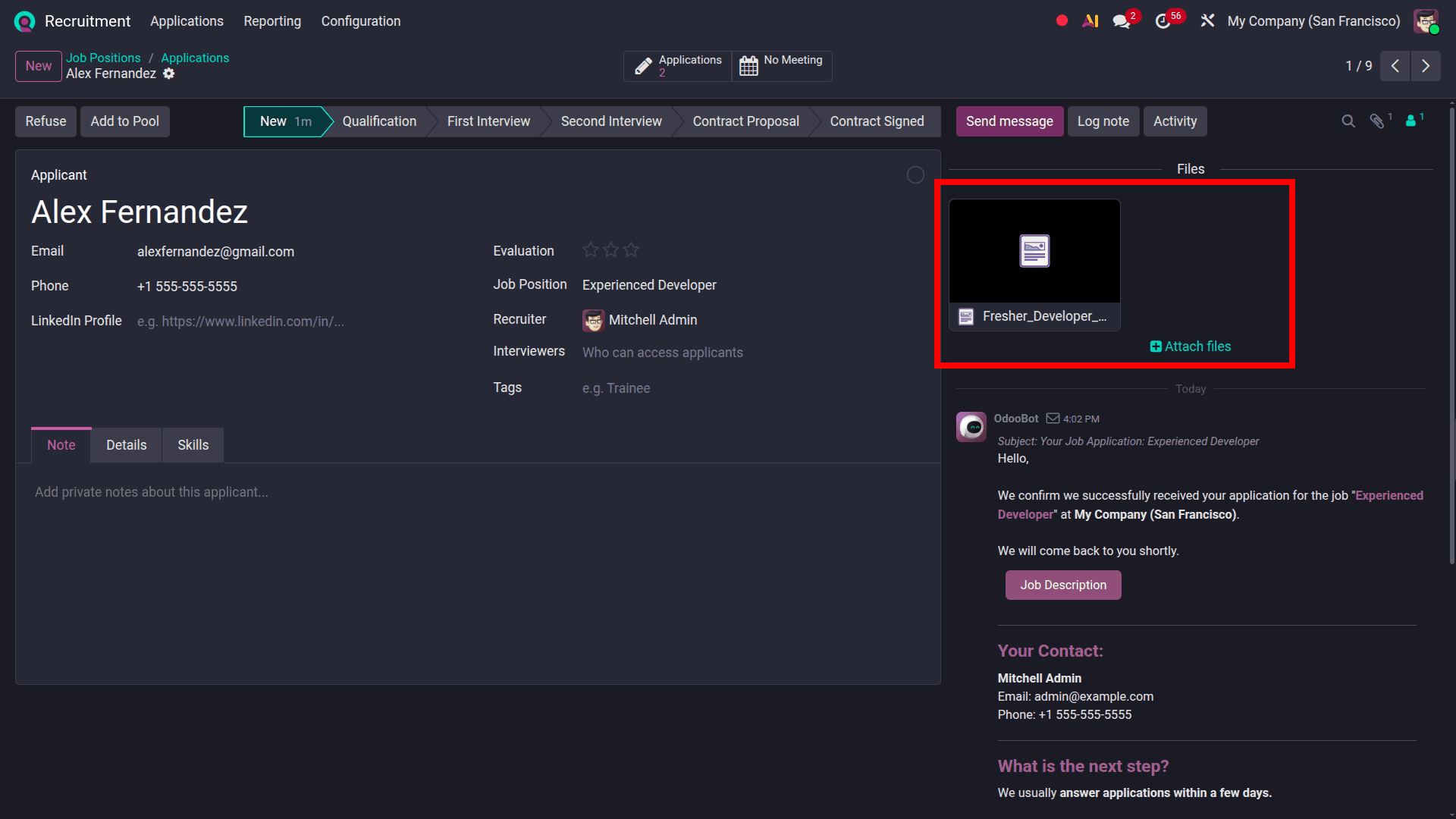
Once an application is created, whether from the website, an email alias, or manual entry, the applicant's resume is attached directly to their record and can be opened straight from the application form. This keeps the recruiter from switching to a separate mailbox or file folder mid-review; the document sits alongside the candidate's contact details, expected salary, and interview notes on the same screen. For applications received by email, resume digitization can also extract key details from the file automatically, populating fields on the form so the recruiter starts with a partially filled record instead of a blank one.
Candidates
Behind every application sits a Candidate record, a profile that represents the person independently of any single job they've applied for. Because the candidate and the application are kept as separate records, someone who applies for one role and later reappears for a different opening isn't treated as a stranger; their earlier interactions, documents, and evaluations remain attached to their candidate profile. This separation is also what supports Odoo's talent pool concept, letting recruiters hold onto promising candidates who weren't right for a past opening so they can be revisited when a matching role opens up later.
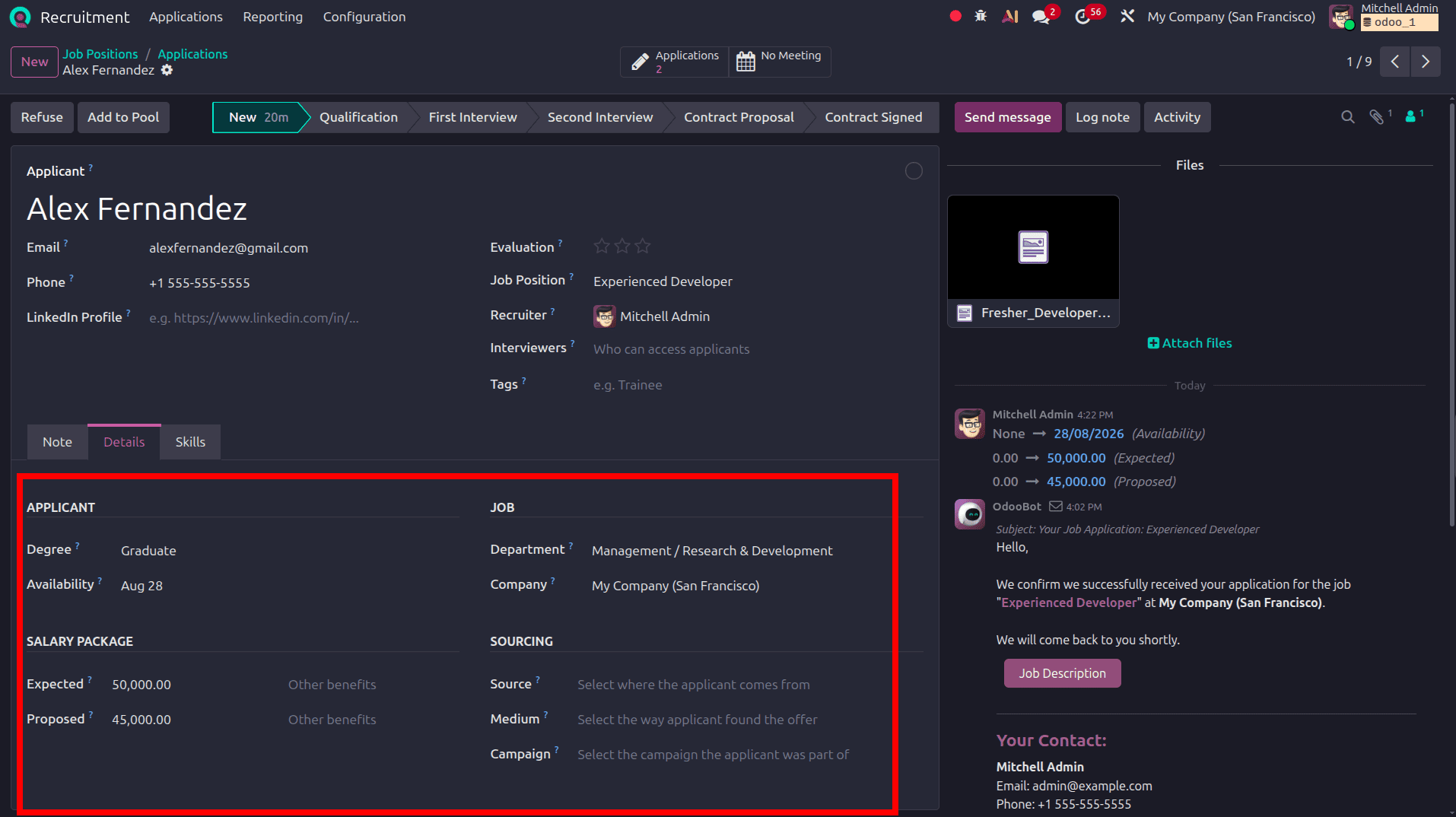
Degrees
Educational background is tracked on each candidate through the Degrees field, which records the qualification relevant to their application, whether that's a bachelor's degree, a master's, or a professional certification. Degrees can be set during manual entry or added later as more information about the candidate becomes available, and because they're stored as a structured field rather than free text buried in a resume, recruiters can filter or group applicants by educational qualification when screening a large pool of candidates for a role with specific academic requirements.
Tags
Tags provide a flexible way to label applicants with attributes that don't fit neatly into a dedicated field, things like a specific technical skill, a language spoken, or a note such as "referred by employee." Multiple tags can be applied to a single applicant, and because they're visible directly on the Kanban card, a recruiter scanning a pipeline can spot relevant candidates at a glance without opening each record individually. Tags are also fully searchable, so filtering the All Applications view down to everyone carrying a particular tag takes a single click in the search panel.
Refuse Reasons
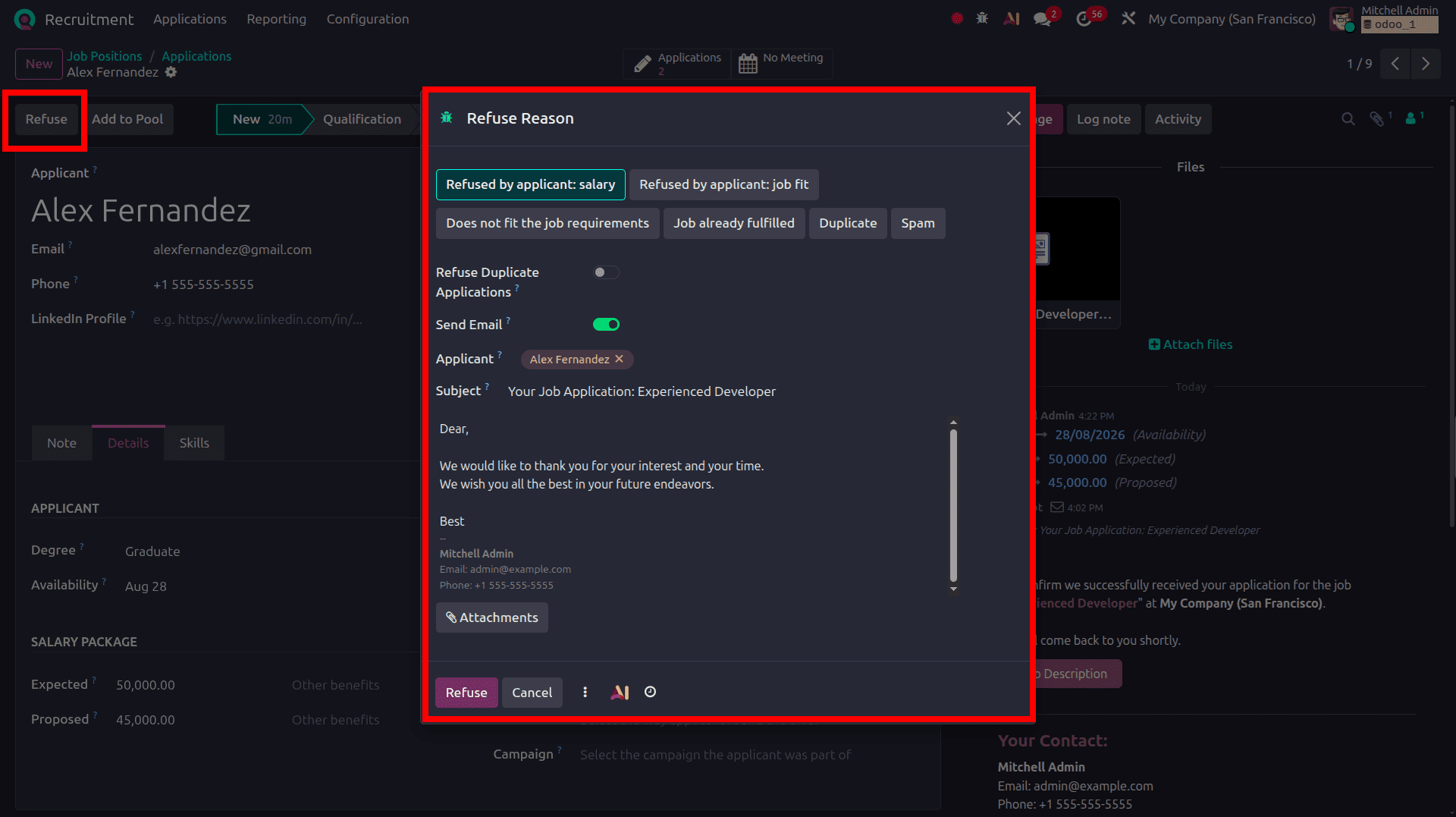
Not every applicant moves forward, and Odoo 19 gives recruiters a structured way to record why. Clicking Refuse on an applicant's form opens a Refuse Reason pop-up, where a reason such as "Doesn't fit the job requirements" or "The applicant is not interested anymore" is selected before the refusal is confirmed. Once refused, a red Refused banner appears on the applicant's card, and the record drops out of the active Kanban pipeline, though it remains accessible by filtering for Refused applicants from either the By Job Position or All Applications view. Recording a specific reason for every refusal keeps the recruitment history transparent and gives the team a consistent basis for later reporting on why candidates didn't proceed.
Mail Templates in Stages for Communication
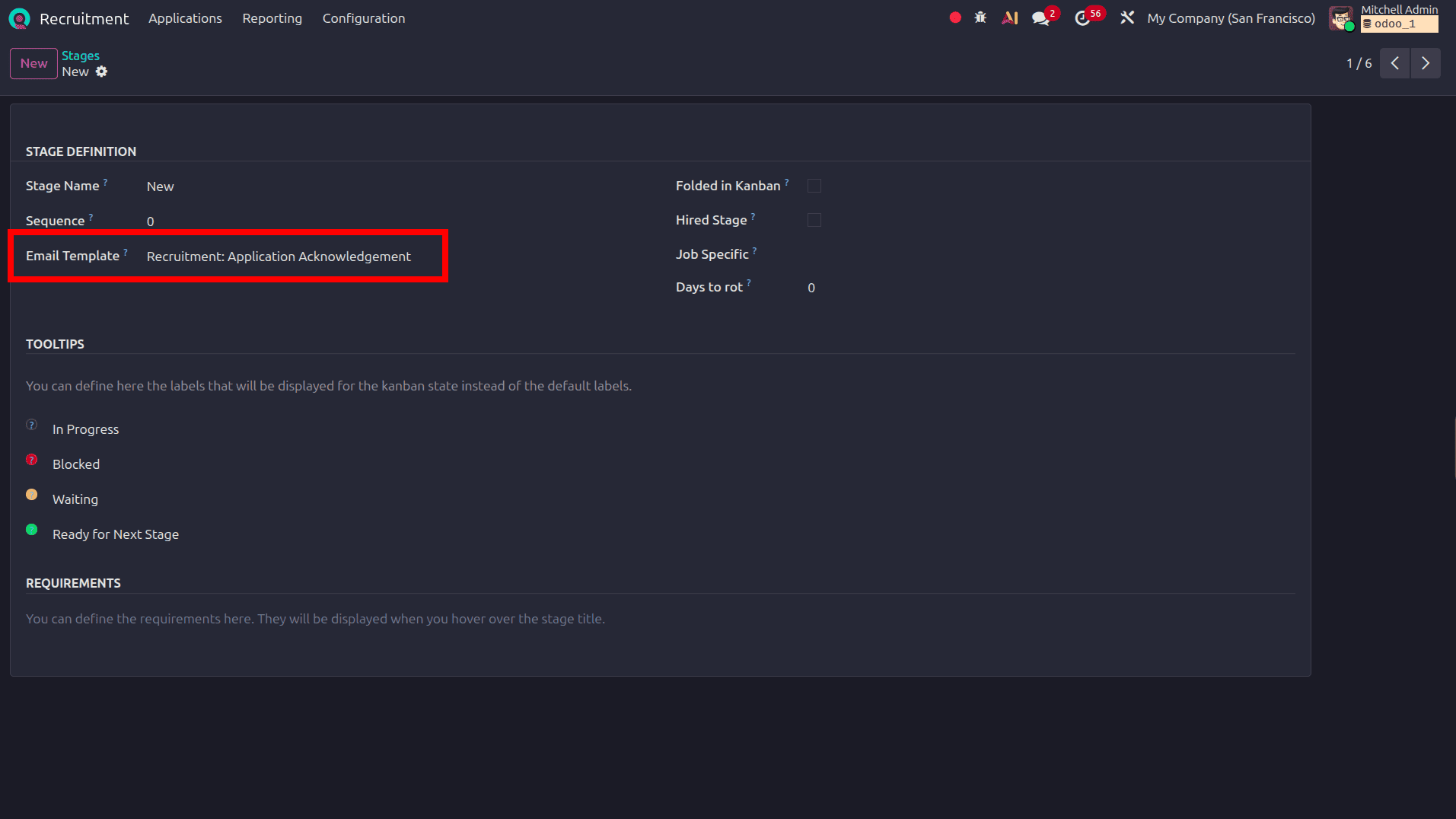
Every stage in the recruitment pipeline can be linked to its own email template, so moving an applicant's card from one stage to the next can automatically trigger a matching message. A template tied to the Refuse Reason, for instance, sends a refusal email worded for that specific reason, while a template linked to a later stage might let the applicant know they've cleared Initial Qualification and will soon be contacted to schedule an interview. These templates use dynamic placeholders that pull details, such as the applicant's name, straight from their record, so each email reads as a personal message rather than a generic notice, even though it was sent automatically as the card moved stages.
Taken together, these pieces turn Odoo 19's Recruitment app into a single system that carries an applicant all the way from a submitted resume to a final decision. Applications arrive automatically from the website or a dedicated email alias; resumes stay attached and visible on the record; candidates and their degrees are tracked independently of any one job; tags make large applicant pools easier to scan, and refusal reasons paired with stage-based email templates keep every candidate informed without extra manual effort. For a growing hiring pipeline, that combination means less time spent on administrative follow-up and more time spent actually evaluating who's right for the role.
To read more about How to Define and Manage Job Positions in Odoo 19, refer to our blog How to Define and Manage Job Positions in Odoo 19.