Odoo 19 has a Point of Sale module that makes it easy for businesses to set up payment methods.This allows customers to make payments using various methods, including cash, credit or debit cards, bank transfers, digital wallets, cheques, online payment gateways, gift cards, vouchers, and loyalty points. The Odoo 19 Point of Sale module is very helpful for businesses.
One of the features of the Odoo 19 Point of Sale module is that it allows payments. This means customers can use more than one payment method for a single transaction. For instance, customers may split a payment by paying a portion in cash and the remaining amount using a card. This flexibility allows businesses to configure their payment setup according to their needs.The Odoo 19 Point of Sale module is very flexible.
The Point of Sale interface in Odoo 19 is simple and easy to use. It supports multiple payment methods such as cash, bank transfers, customer accounts, and payment terminals. Each option can be tailored to suit business requirements, helping ensure transactions are handled efficiently and securely. The Odoo 19 Point of Sale module is very user-friendly.
When it comes to payment methods, the Odoo 19 Point of Sale module has options.
- Cash Payment: Cash is a way to pay. When customers pay with cash, the transaction is complete as soon as the money is received. In the Odoo 19 Point of Sale module, this option is called "Cash." To set it up, you need to define the journal, company, and intermediary account.
- Customer Account: This option allows repeat customers to buy things using their customer account, which is like a credit facility. Transactions are recorded in the account. To use this feature, you need to select the customer in the POS and enable the "Identify Customer" option.
- Payment Terminal: For card payments, the Odoo Point of Sale module supports integration with payment terminals such as Adyen, Vantiv, or Six. These devices can be set up through the Payment Terminal settings found under the Configuration menu.
This guide explains how to configure and manage payment methods in the Odoo Point of Sale module.This will help you create a checkout process for your customers. The Odoo 19 Point of Sale module is very helpful for creating a checkout process.
Configuring Payment Methods in Odoo 19 PoS
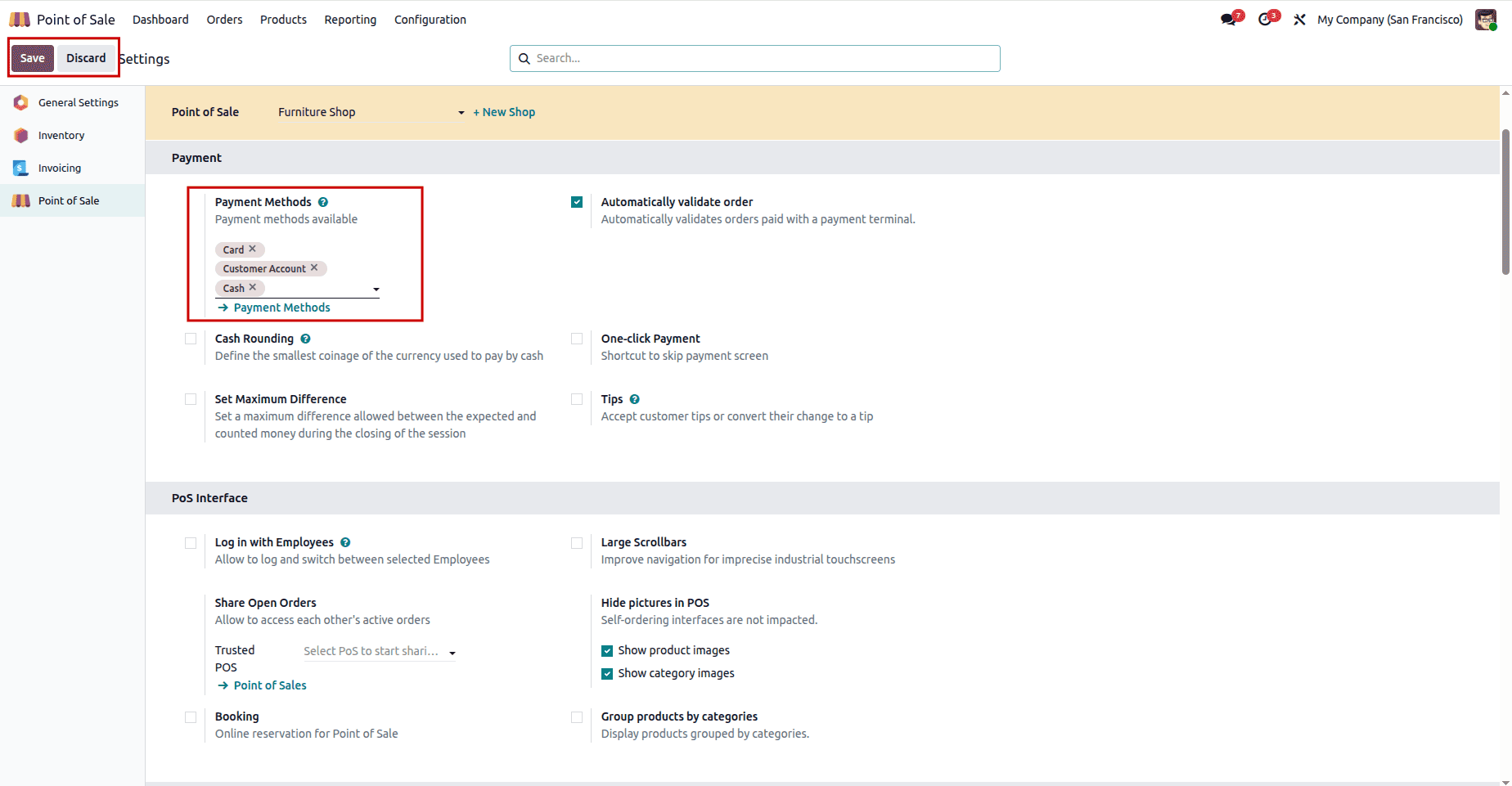
The Odoo Point of Sale module allows you to easily manage and customize payment methods. To access these settings, go to the Configuration tab and select Payment Methods, where you can view existing options or create new ones based on your business requirements.
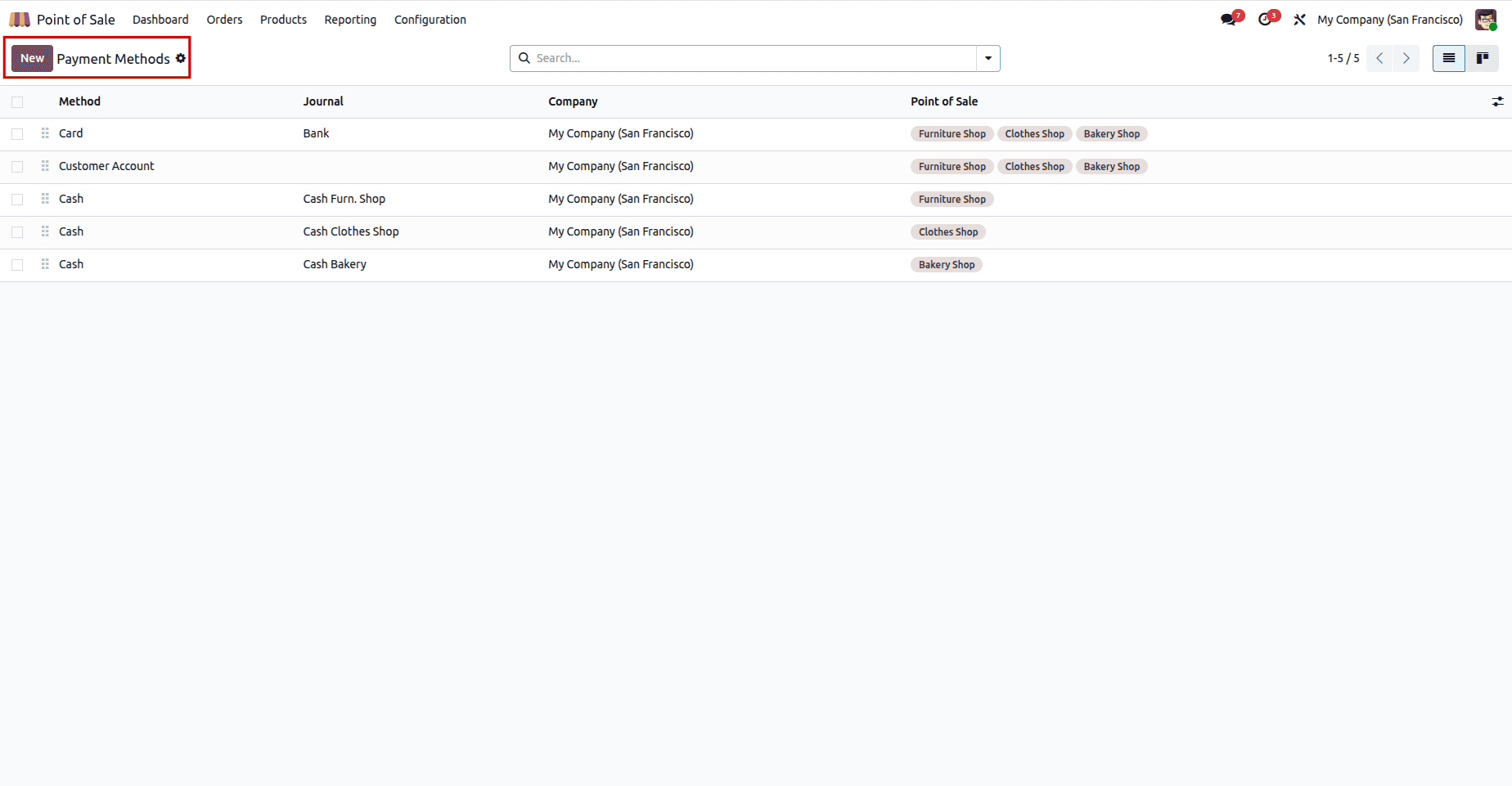
Once you have set up a payment method, you can manage it. Create ones from the Payment Methods option under the Configuration menu. This section displays all payment methods configured in your Point of Sale database, including details such as the method name, journal, company, and associated Point of Sale.
To create a new payment method, click the “New” button. This will open the Payment Method form, where you can enter the necessary details.You need to provide the information, such as the method name, whether it is a payment, and whether you need to identify the customer. You also need to define the journal, integration, company, and Point of Sale for the payment method.
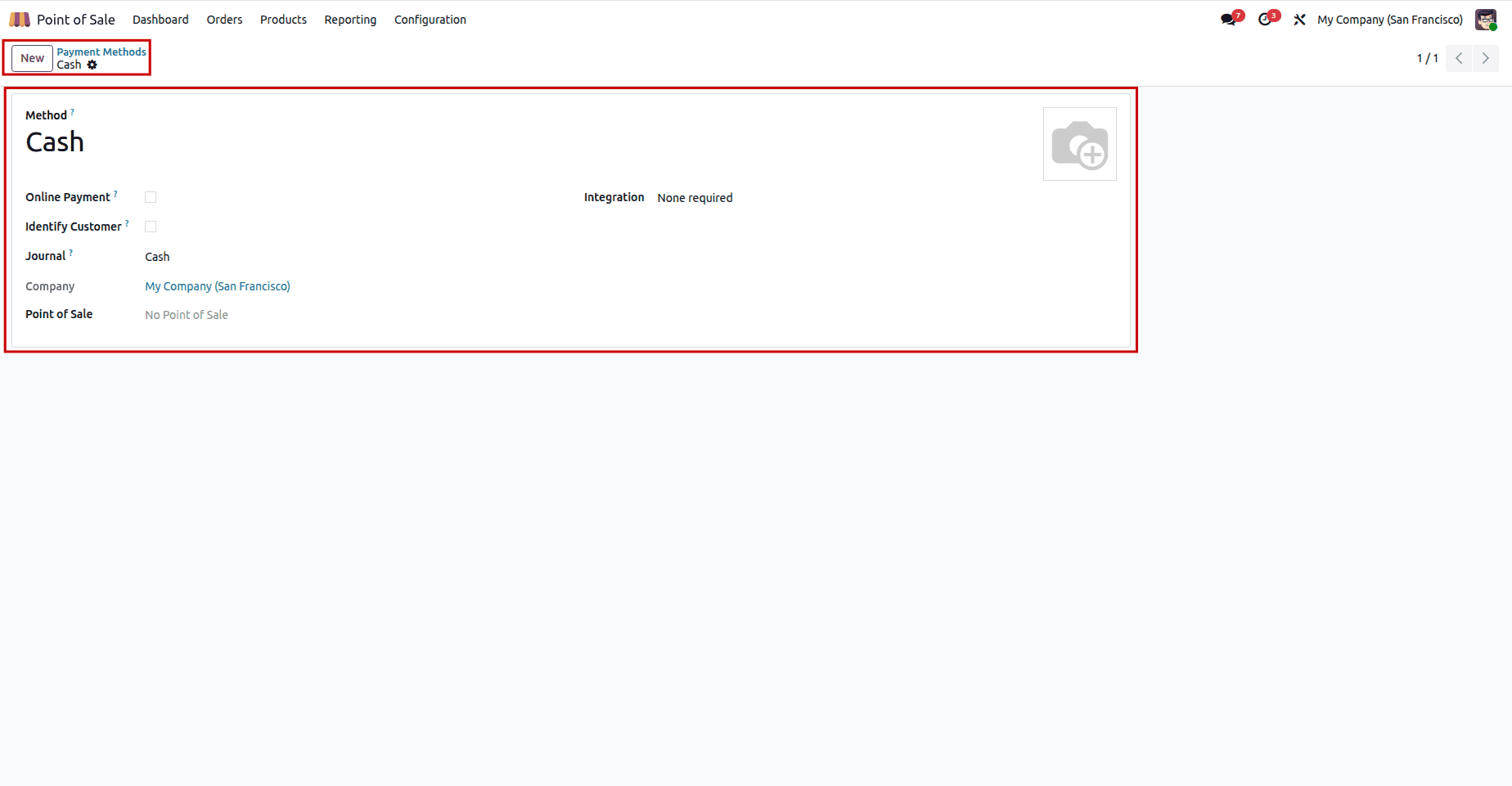
In the form that opens, provide the necessary information as outlined below:
- Method: This refers to the name of the payment method, such as Cash, Card, or Bank.It helps identify the payment option in the PoS interface.
- Online Payment: Enable this option if the payment method is used for online transactions or connected to an online payment provider.
- Identify Customer: When enabled, selecting a customer becomes mandatory for transactions using this method. This ensures payments are linked to specific customers.
- Journal: Defines the accounting journal where all transactions for this payment method will be recorded (e.g., Cash journal for cash payments).
- Integration: Displays the type of integration used (e.g., “None required” for manual methods or linked to a payment terminal/provider if configured).
- Company: Indicates the company associated with this payment method, useful in multi-company environments.
- Point of Sale: Specifies the PoS where this payment method is available. If left unset, it may be available across multiple PoS configurations.
After filling in all the required details, click “Save” to store the configuration.The Odoo 19 Point of Sale module makes it easy to configure payment methods.
Testing Payment Methods in a PoS Session
Once your payment methods are configured, you can try them out during a Point of Sale session. To do this, you need to navigate to the Configuration tab, Settings, and choose the PoS session you want to set up. In the Payment section, you can select and add the necessary payment methods for the session.
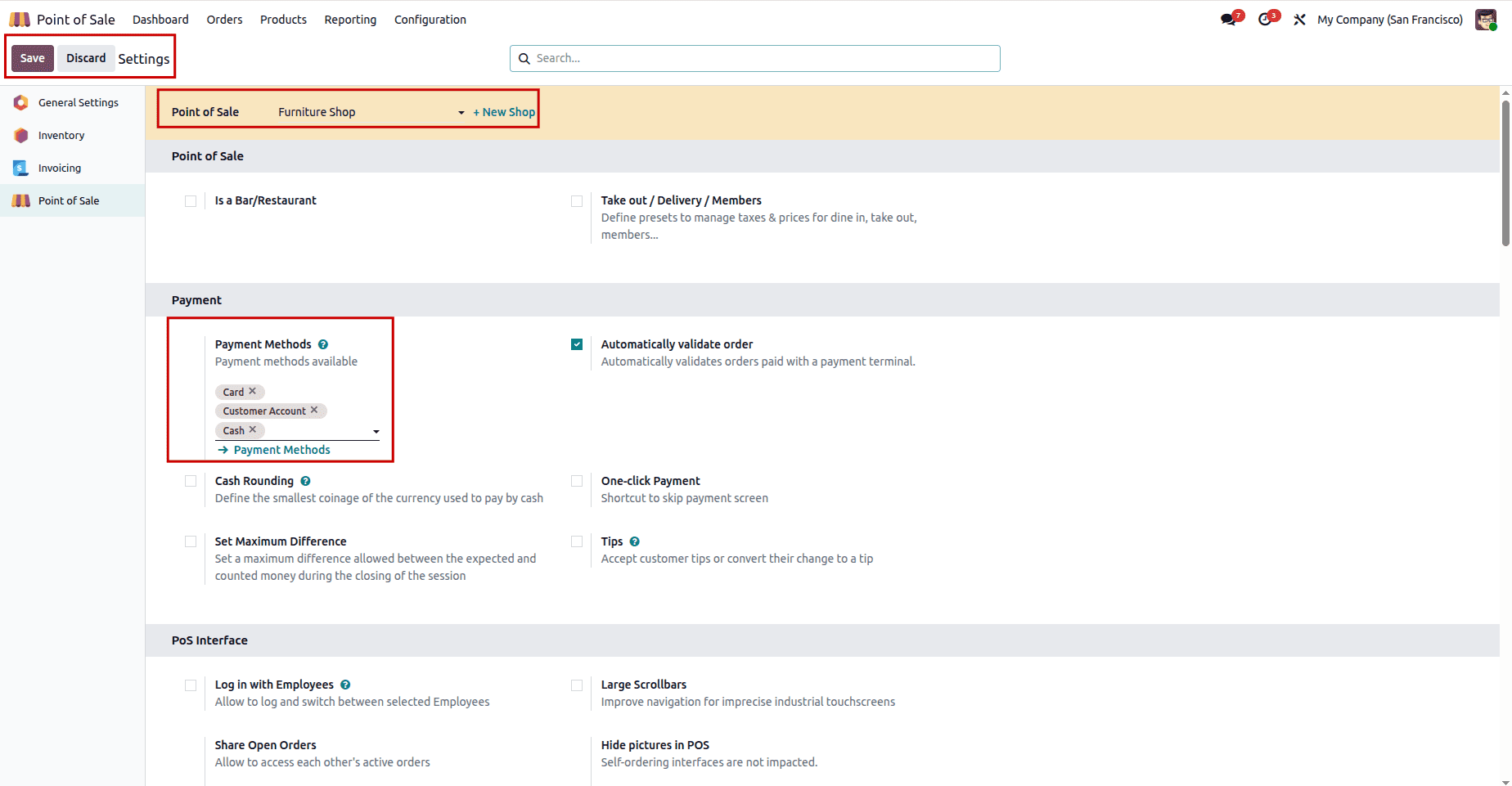
Then you can begin a sales session from the PoS Dashboard. You need to open the session for your shop, add the products the customer wants to buy, and then select the Payment button to start the checkout process.
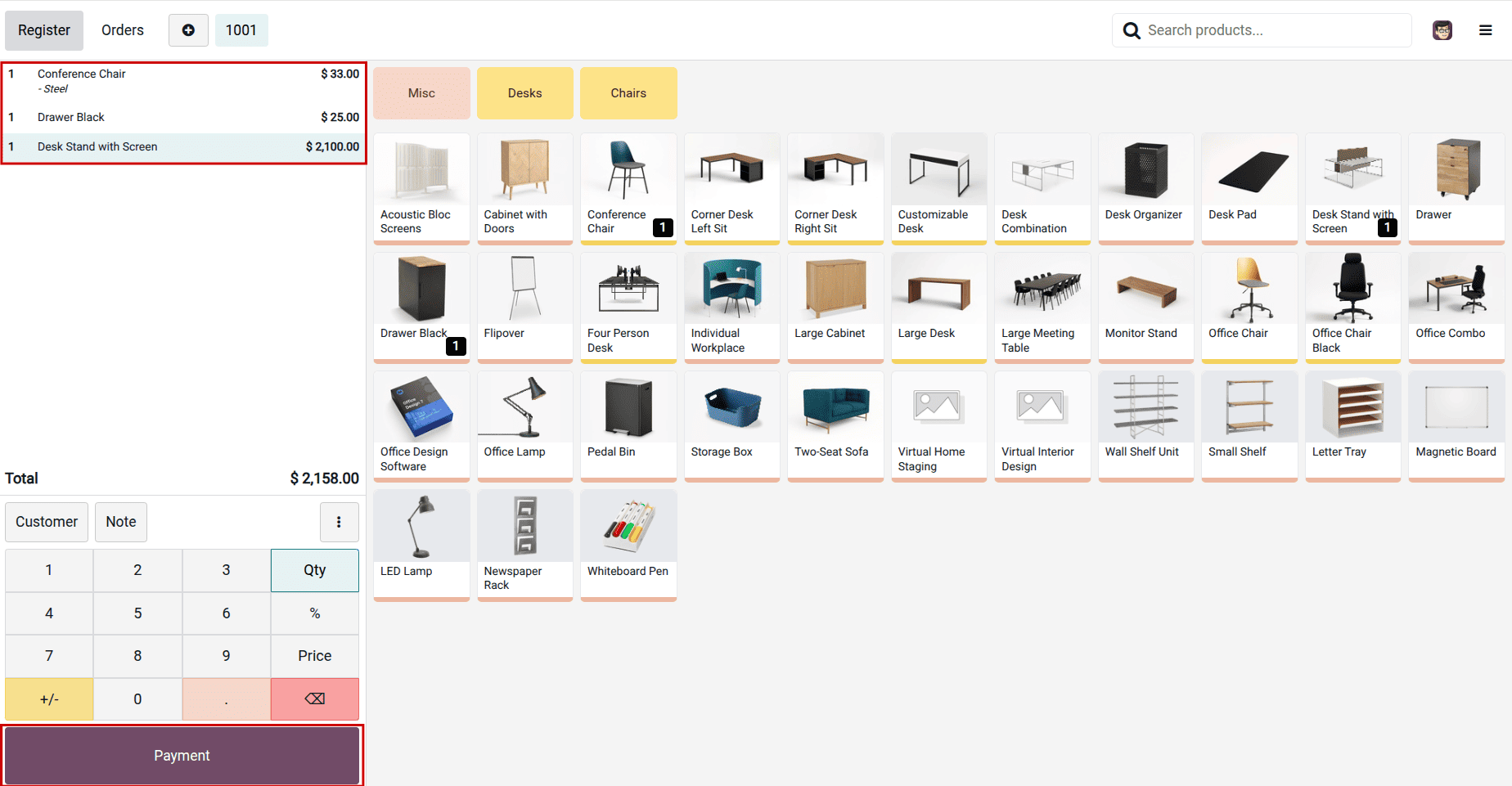
Then, select the Payment button to start the checkout process.This opens the payment screen, where you can select the suitable payment method to complete the transaction.
Choosing the Payment Method
In the Payments screen, all payment methods configured for the active PoS session are displayed. Choose the option that matches the customer’s preference to proceed. This setup ensures a fast and flexible checkout experience, as illustrated below.
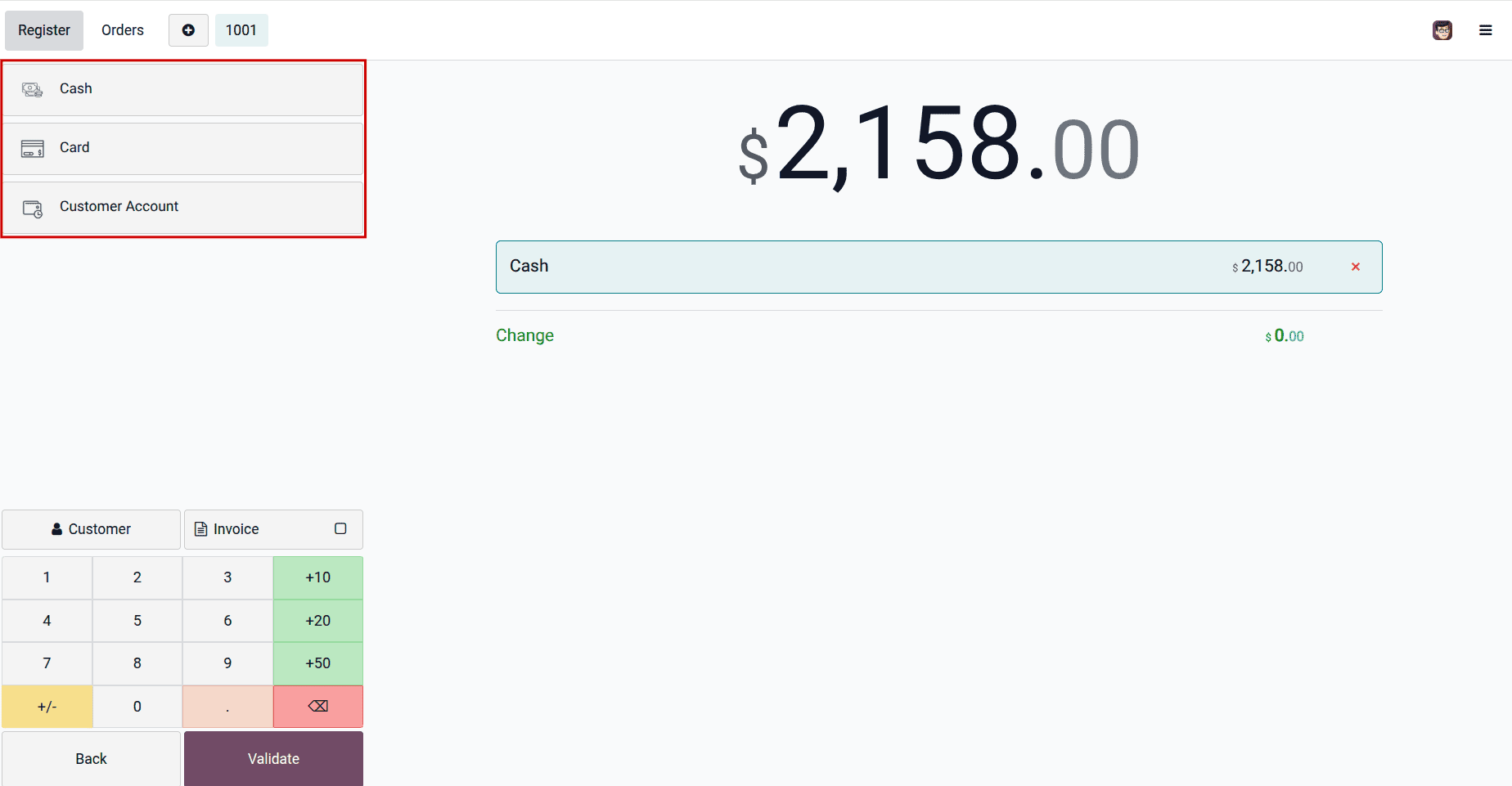
In this case, the “Cash” option is chosen as the payment method. The transaction is processed accordingly, and the amount is recorded based on the account configured in your PoS setup.After completion, you can view the invoice along with the payment confirmation details, as shown below.
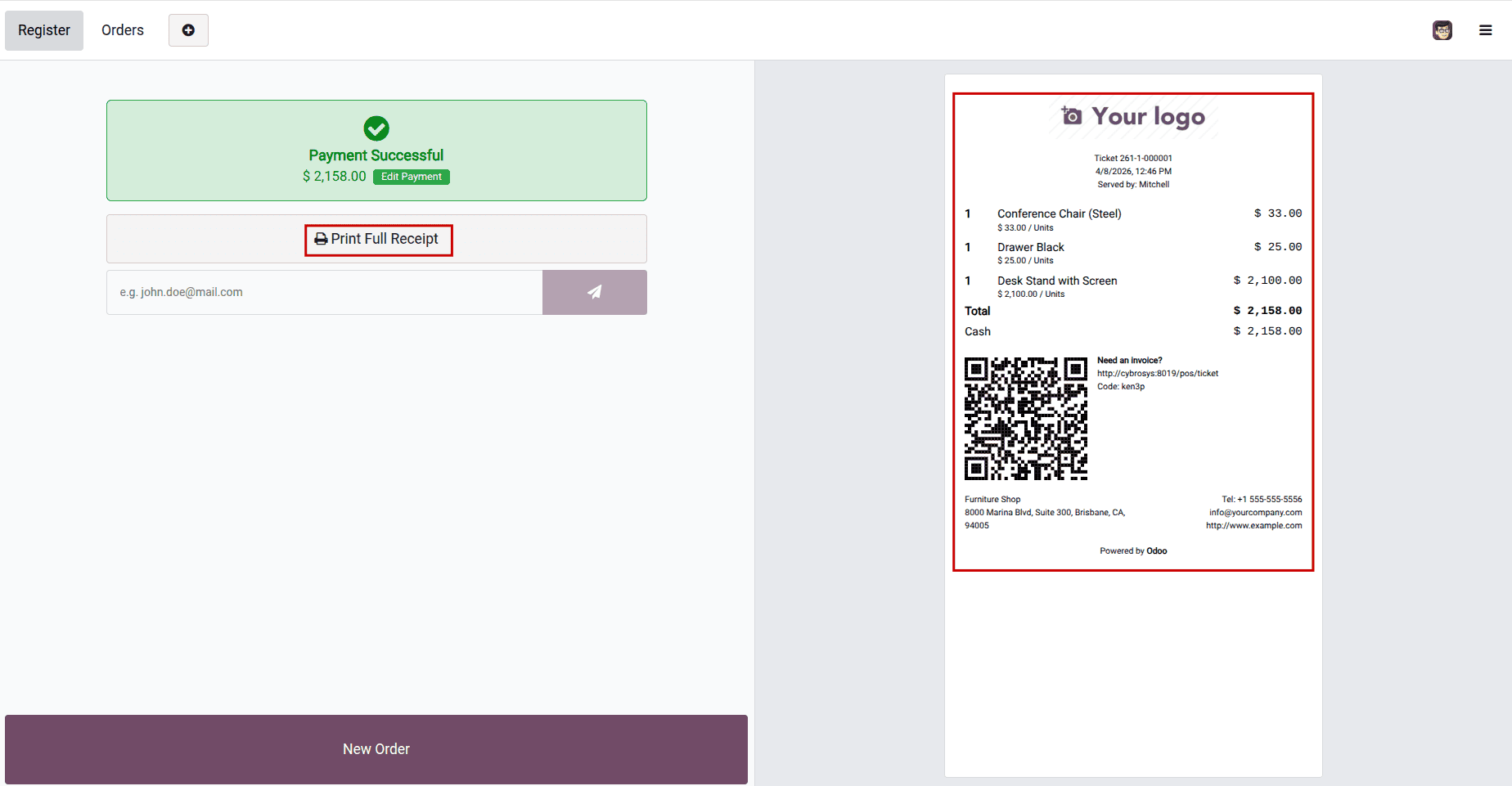
You can select the “Print Receipt” button in this window to quickly generate a customer receipt. A detailed invoice is also displayed on the right side.When you’re ready to handle another sale, simply select “New Order” to begin a new transaction.
By following these steps, you can effectively set up and manage payment methods in the Odoo Point of Sale module. It is also advisable to periodically review and update your payment configurations to ensure they remain aligned with your business needs.
To read more about How to Configure Payment Methods for Odoo 18 POS, refer to our blog How to Configure Payment Methods for Odoo 18 POS.