Using Odoo's frontend framework, interactive pop-up windows for notifications, alerts, or confirmations can be displayed in the user interface by creating an Odoo JavaScript Dialog or Popup in Odoo 19.
Attracting users at crucial times is frequently necessary when developing distinctive features for Odoo 19. This could entail sending out alerts, displaying error messages, or verifying crucial actions. JavaScript dialogues are essential for managing these exchanges.
The tutorial explains Odoo 19's various dialogue options and offers examples of how to use them efficiently.
Why Are Dialogues Beneficial?
Dialogues help the application give users important information. They pause the workflow to deliver critical messages or ask for confirmation. When used properly, they improve user navigation, prevent mistakes, and create a better overall experience.
ConfirmationDialog
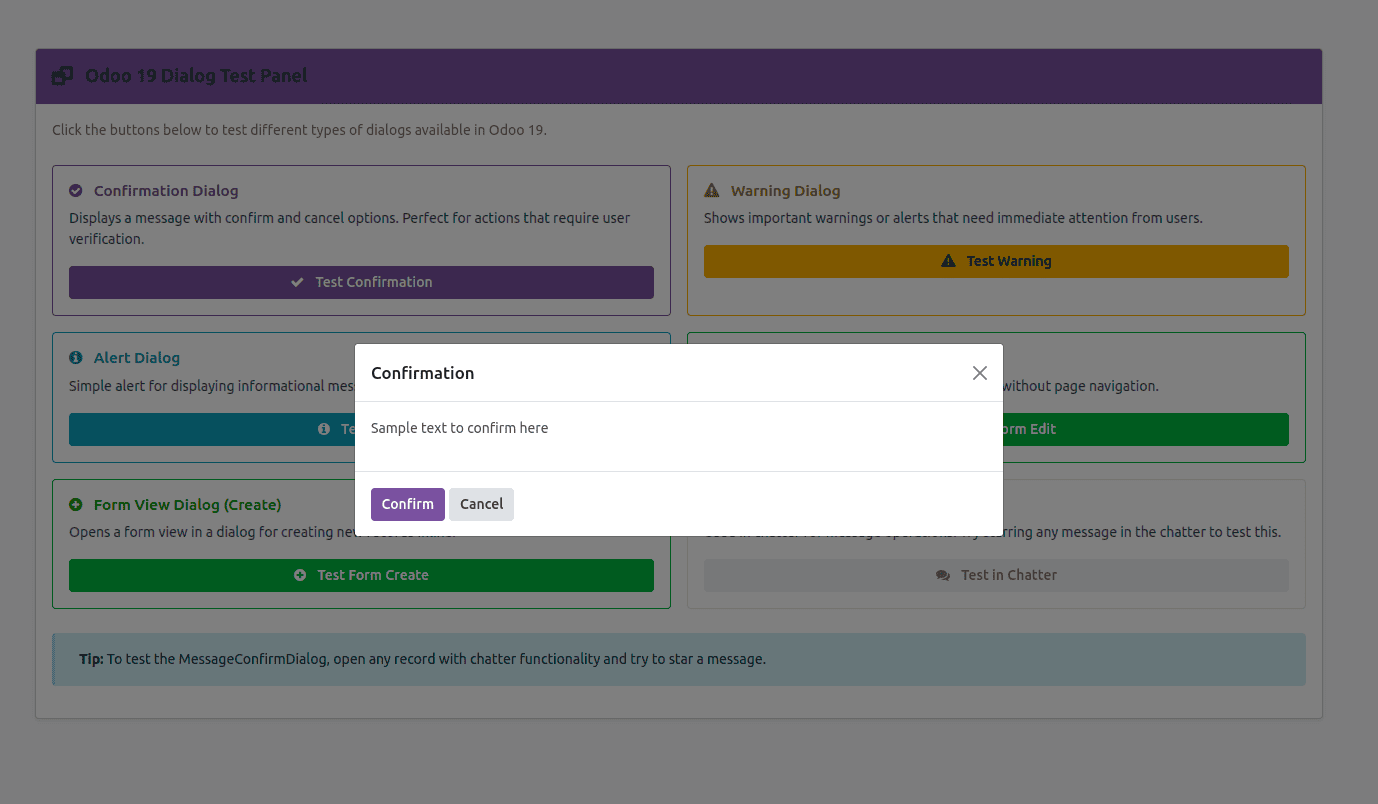
Let's begin with the most common type of dialogue. The ConfirmationDialog usually offers users "proceed" or "go back" options. It works well for those "are you sure?" situations that help prevent accidental actions.
Here's what we need in order to begin:
import { ConfirmationDialog } from "@web/core/confirmation_dialog/confirmation_dialog";
import { useService } from "@web/core/utils/hooks";
import { _t } from "@web/core/l10n/translation";
We'll set up the required services inside the component:
setup() {
  super.setup();
  this.notification = useService("notification");
  this.dialogService = useService("dialog");
}
When necessary, we can now initiate a confirmation dialog:
this.dialogService.add(ConfirmationDialog, {
   body: _t("Are you ready to proceed with this action?"),
   confirmClass: "btn-primary",
   confirmLabel: _t("Yes, Continue"),
   confirm: () => {
       this.notification.add(_t("Action completed successfully"), {
           type: "success",
       });
   },
   cancelLabel: _t("Not Now"),
   cancel: () => { },
});
This output displays the confirmation dialog:
WarningDialog: Emphasizing Important Details
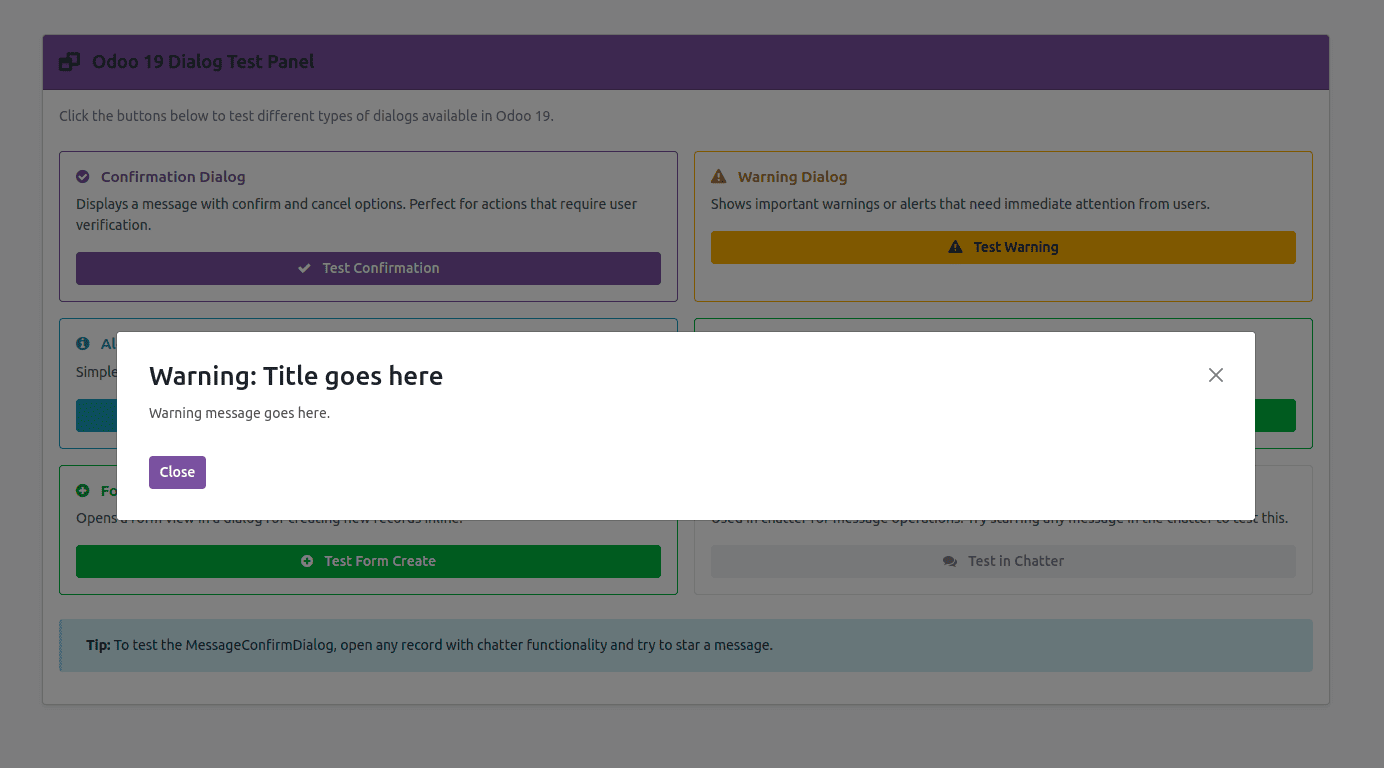
Warning dialogs are intended to highlight significant concerns or possible issues right away. To make sure users are aware of the seriousness of the situation before moving forward, they employ unique styling and messaging.
Fundamental Implementation
Bring in the warning dialogue element:
import { WarningDialog } from "@web/core/errors/error_dialogs";
import { useService } from "@web/core/utils/hooks";
Configure the dialogue service:
setup() {
   super.setup();
   this.dialogService = useService("dialog");
}
Show a cautionary message:
this.dialogService.add(WarningDialog, {
   title: _t("Warning: Title goes here"),
   message: _t("Warning message goes here."),
});
The output will appear as follows:
AlertDialog: Easy Alerts
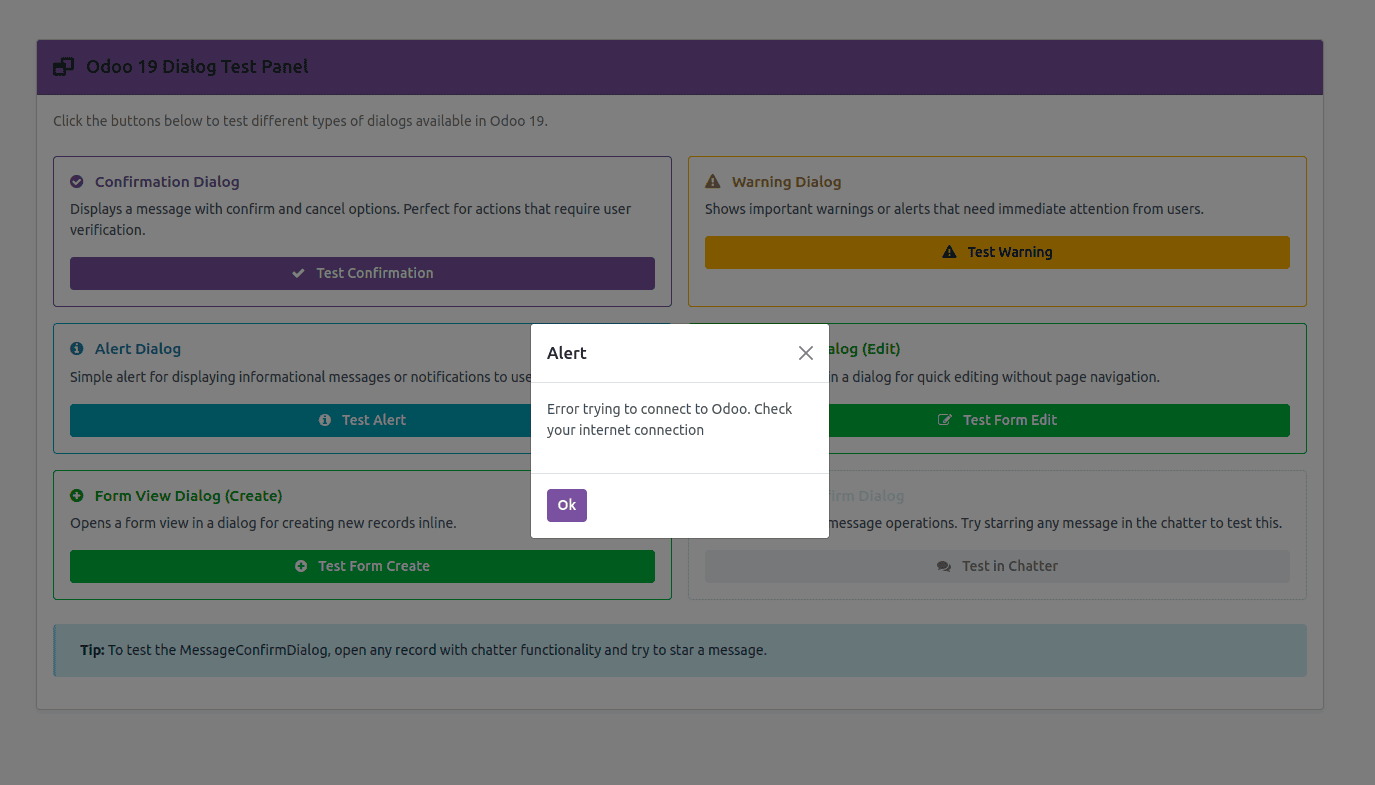
Alert dialogs don't require complicated user interaction to deliver clear notifications.
They are ideal for status updates, straightforward mistakes, and informational messages.
Implementation
Import the alert component:
import { AlertDialog } from "@web/core/confirmation_dialog/confirmation_dialog";
import { useService } from "@web/core/utils/hooks";
Initialize the dialog service:
setup() {
   super.setup();
   this.dialogService = useService("dialog");
}
Show an alert:
this.dialogService.add(AlertDialog, {
 body: _t("Error trying to connect to Odoo. Check your internet connection"),
});
The output will appear as follows:
FormViewDialog: In-Context Editing
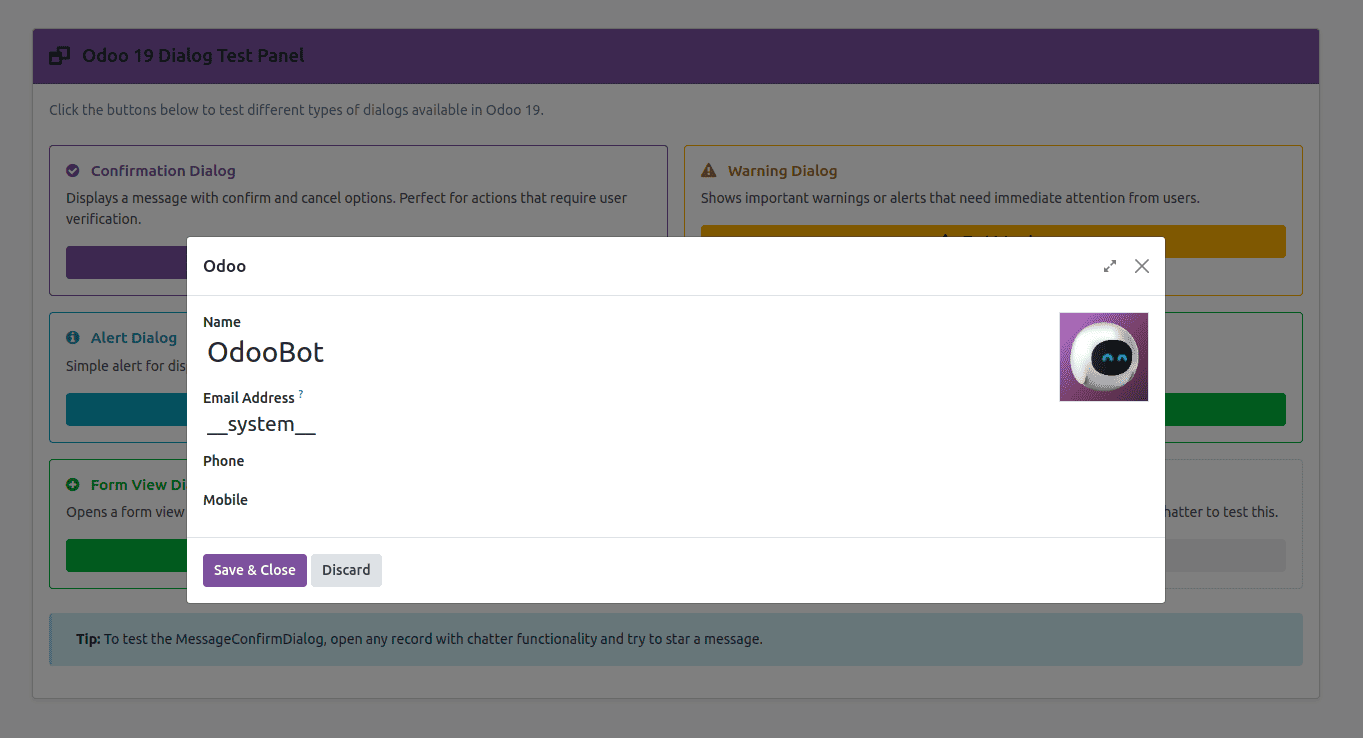
FormViewDialog integrates robust editing features right into a modal window. By displaying full form views without leaving the current page, this dialog type preserves user context and streamlines workflow.
Basic Setup
Import the required components:
import { FormViewDialog } from "@web/views/view_dialogs/form_view_dialog";
import { useService } from "@web/core/utils/hooks";
Initialize services:
setup() {
   super.setup();
   this.dialogService = useService("dialog");
}
Open a form view dialog:
FormViewDialog_test_button() {
   this.dialogService.add(FormViewDialog, {
       resModel: "res.users",
       resId: 1,
       onRecordSaved: async (record) => {
           //add the action here
           this.action.doAction({
               type: "ir.actions.act_window_close",
           });
       },
   });
}
The output will appear as follows:
MessageConfirmDialog: Chatter Integration
The MessageConfirmDialog was created especially for use with Odoo's messaging system. It offers a reliable confirmation experience for actions connected to messages.
Implementation Example
Let's add confirmation when starring messages in the chatter:
/** @odoo-module **/
import { patch } from "@web/core/utils/patch";
import { Message } from "@mail/core/common/message_model";
import { MessageConfirmDialog } from "@mail/core/common/message_confirm_dialog";
import { _t } from "@web/core/l10n/translation";
patch(Message.prototype, {
   async toggleStar() {
       this.store.env.services.dialog.add(MessageConfirmDialog, {
           message: this,
           onConfirm: async () => {
               await super.toggleStar();
           },
           prompt: _t("Mark this message as important? Starred messages can be quickly accessed from your inbox for follow-up actions."),
       });
   },
});
The output will appear as follows:

Conclusion
Odoo 19's JavaScript dialogs offer important tools for building user-friendly applications. ConfirmationDialog handles user decisions. WarningDialog takes care of critical alerts. AlertDialog is responsible for basic notifications. FormViewDialog focuses on contextual editing. MessageConfirmDialog manages messaging tasks.
Careful application of each type and understanding of when to use it are necessary for effective dialog usage. By avoiding mistakes, offering context, and optimizing workflows, well-designed dialogs enhance user experience. Dialogs with poor design can irritate users and lower productivity.
Developers can produce user-friendly Odoo applications that engage users and prevent expensive mistakes by adhering to the patterns and examples in this guide. Don't forget to conduct comprehensive user-perspective testing. Additionally, keep refining dialog messages in response to user input.
To read more about How to Create Odoo JS Dialog/Popup in Odoo 18, refer to our blog How to Create Odoo JS Dialog/Popup in Odoo 18.