Project management can become tough if the teams use multiple project management applications. The solution to such an issue is provided in the form of the Asana Odoo Connector, which allows companies to synchronize their projects and tasks between Odoo 19 and Asana. This integration helps users to import their Asana projects to Odoo and vice versa.
In this blog, we will set up the Asana Odoo connector, integrate Odoo with Asana, import Asana projects into Odoo, and export Odoo projects to Asana.
Configure the Asana Connection in Odoo
Open the Asana Configuration
Open the Projects app in Odoo, where you will be able to manage your projects.
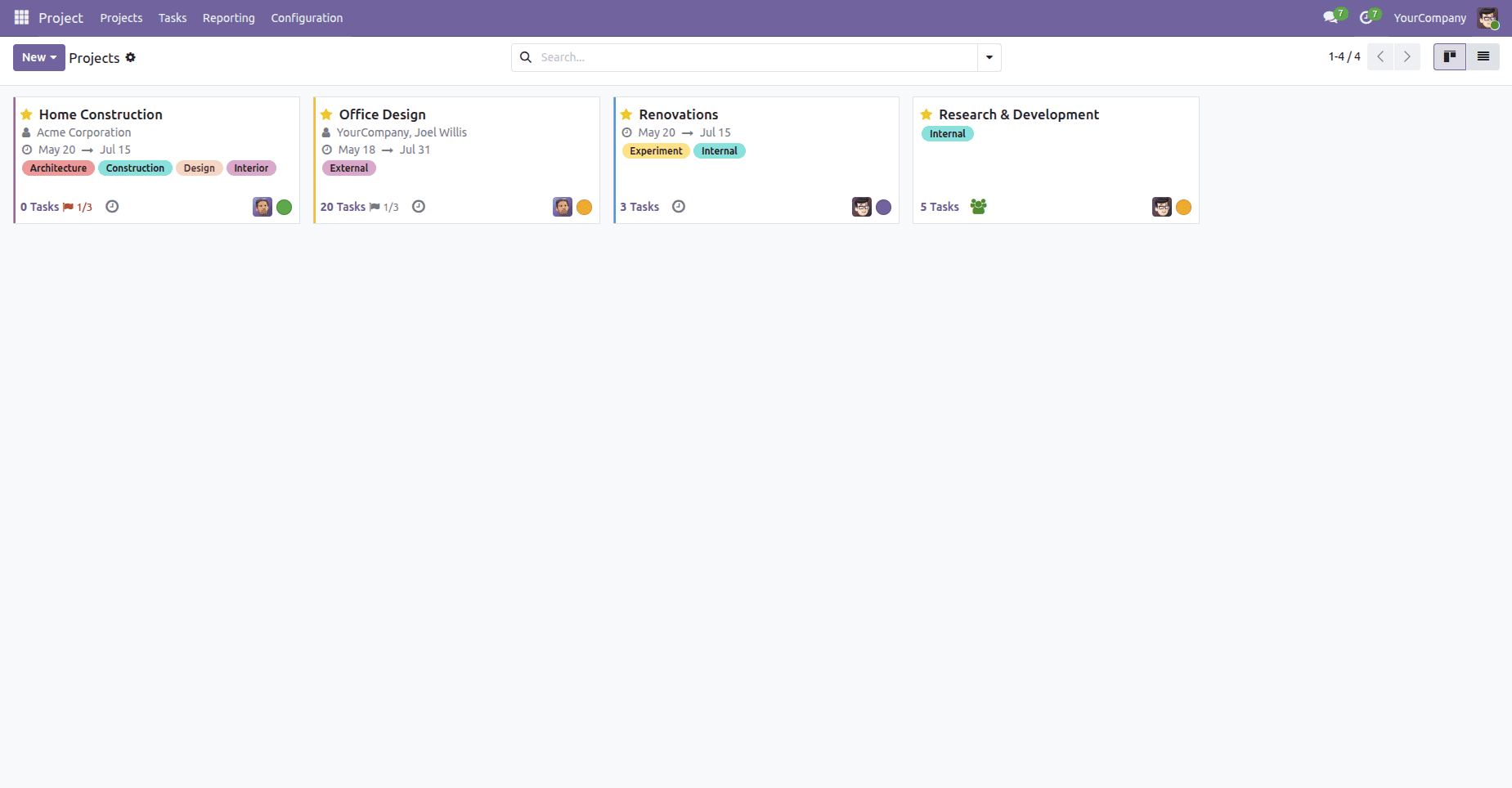
Then go to the following:
Configuration > Settings > Asana
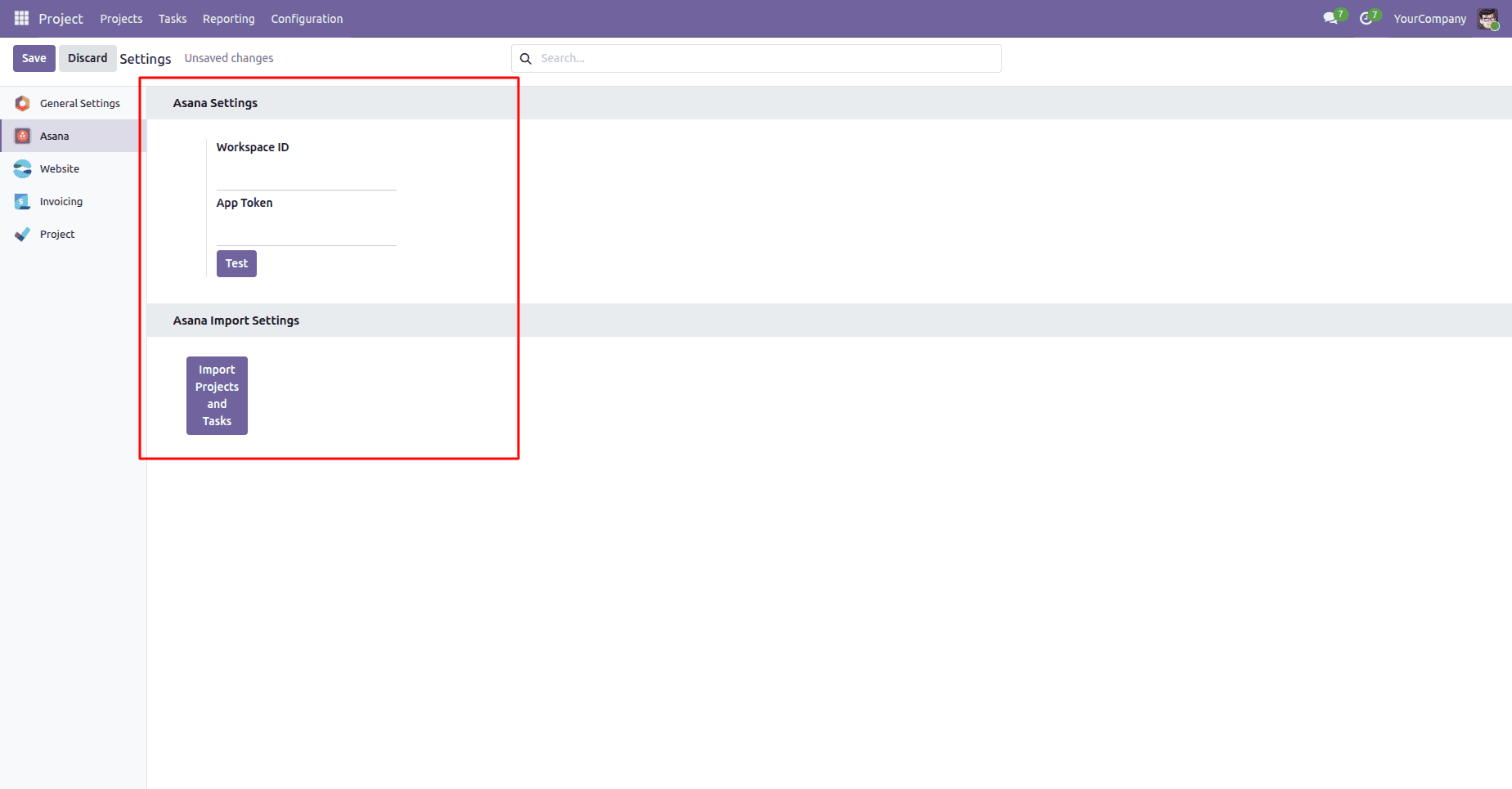
The Asana configuration screen looks as follows:
- Workspace ID: Your Asana workspace's unique identifier.
- App Token: Your Asana personal access token for authentication purposes.
- Test: Validates whether the provided credentials are correct.
- Import Projects and Tasks: Imports Projects and their tasks from Asana to Odoo
Sign In to Asana
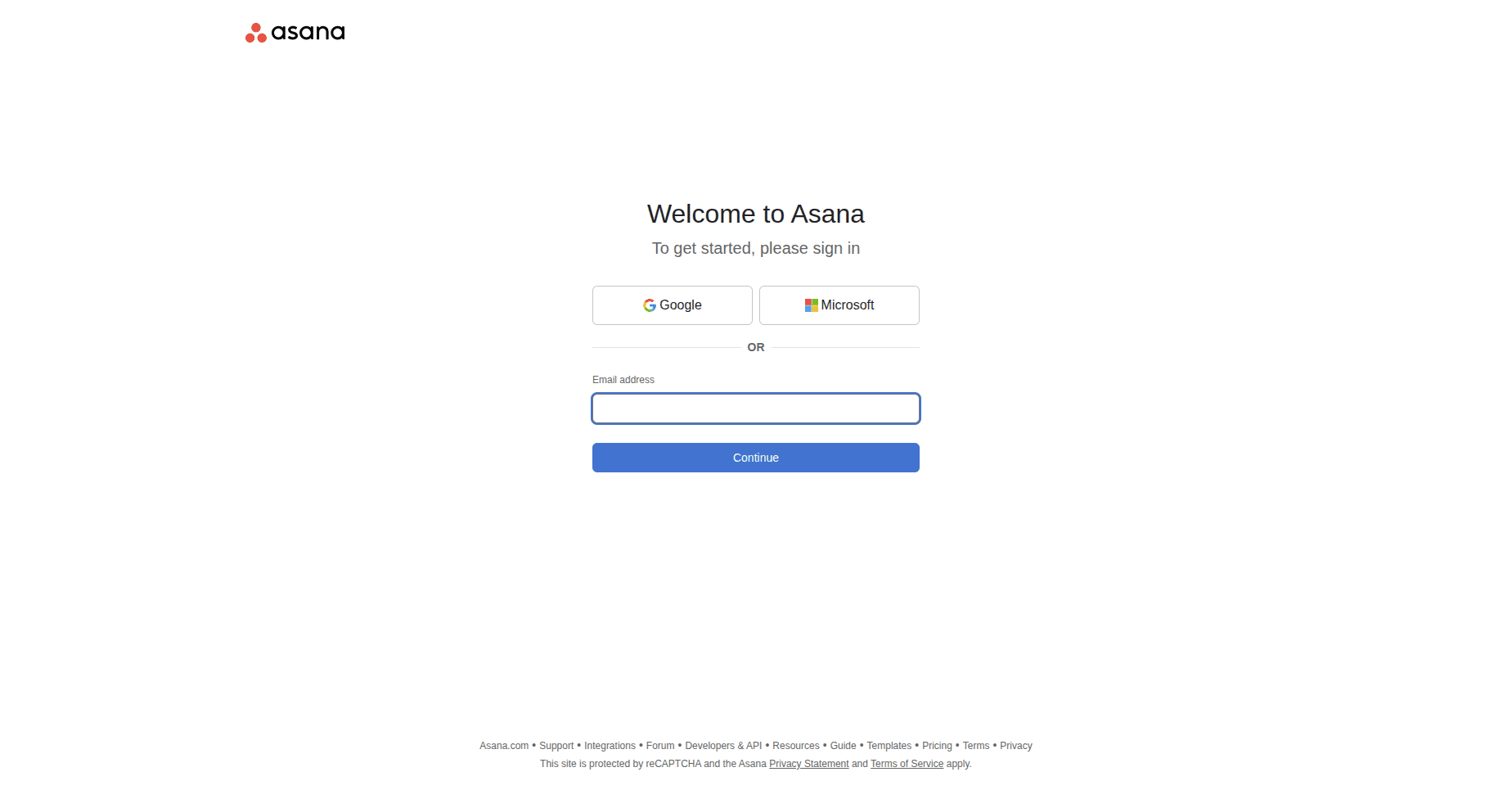
If you don't have an Asana account, create one. Otherwise, log in using your preferred sign-in method.
Generate an Asana Personal Access Token
To allow Odoo to communicate securely with Asana, you'll need a Personal Access Token.
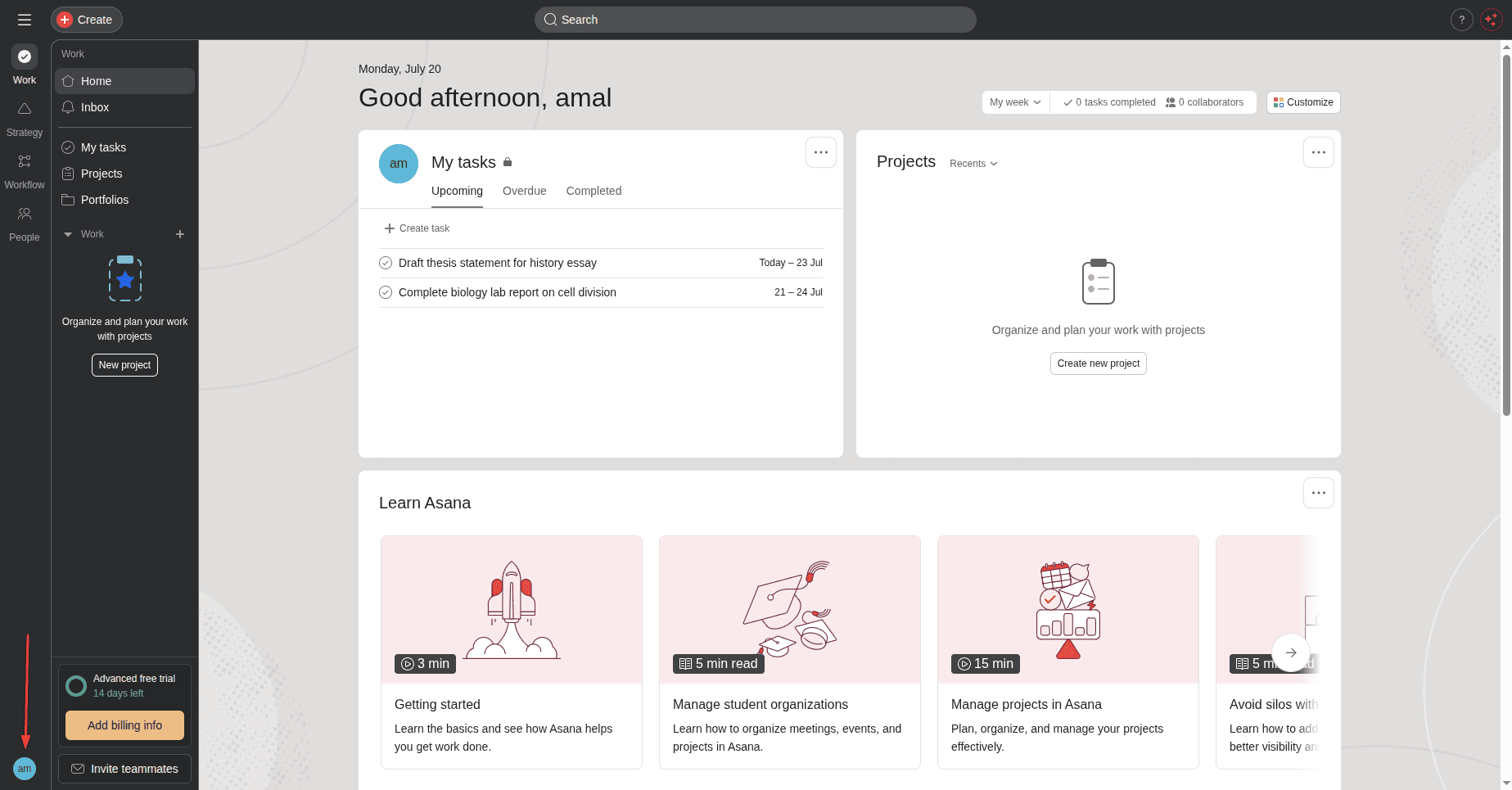
After logging in:
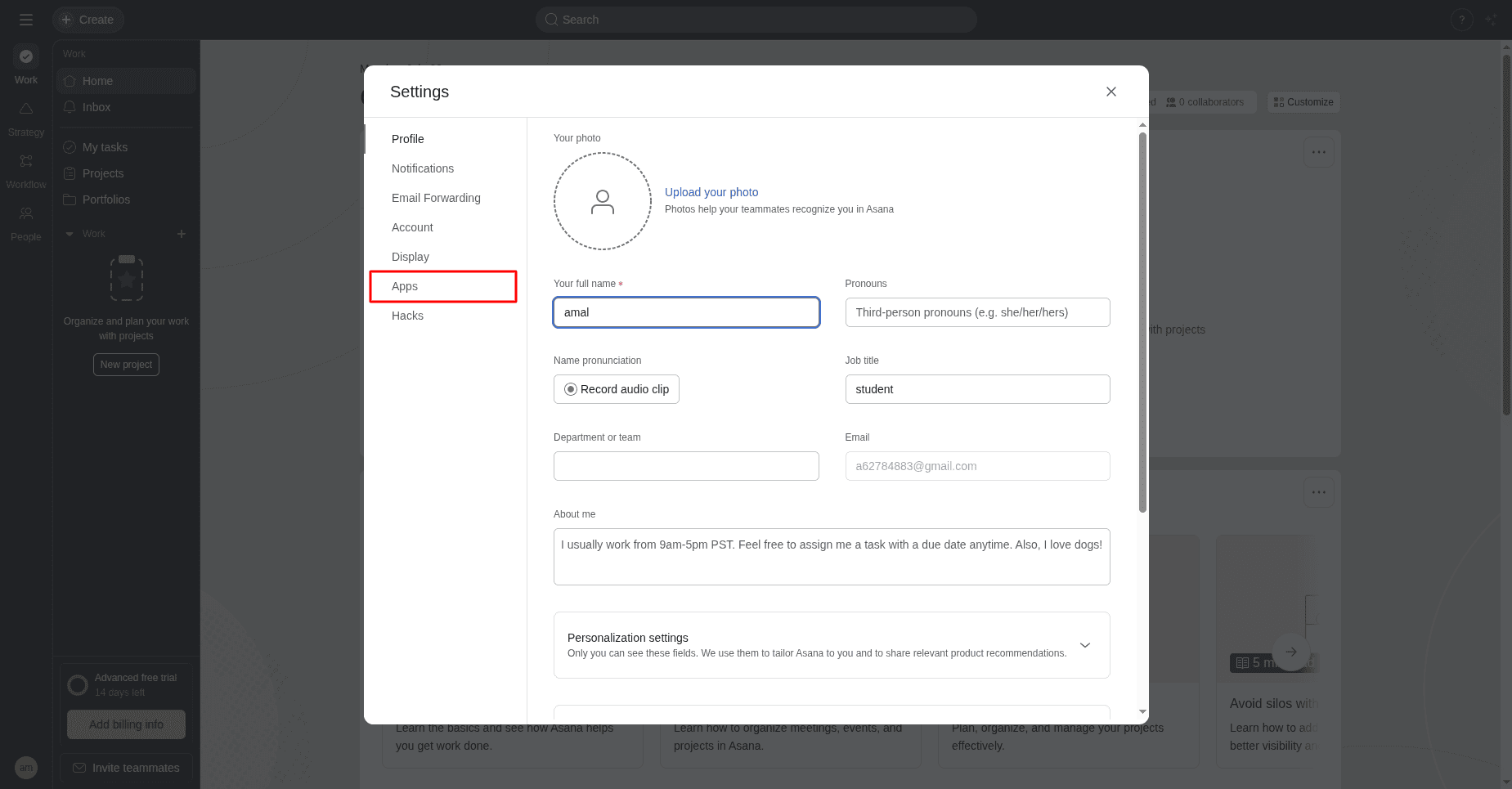
- Click your profile icon in the bottom-left corner.
- Select Settings.
In the Settings window:
- Open the Apps tab.
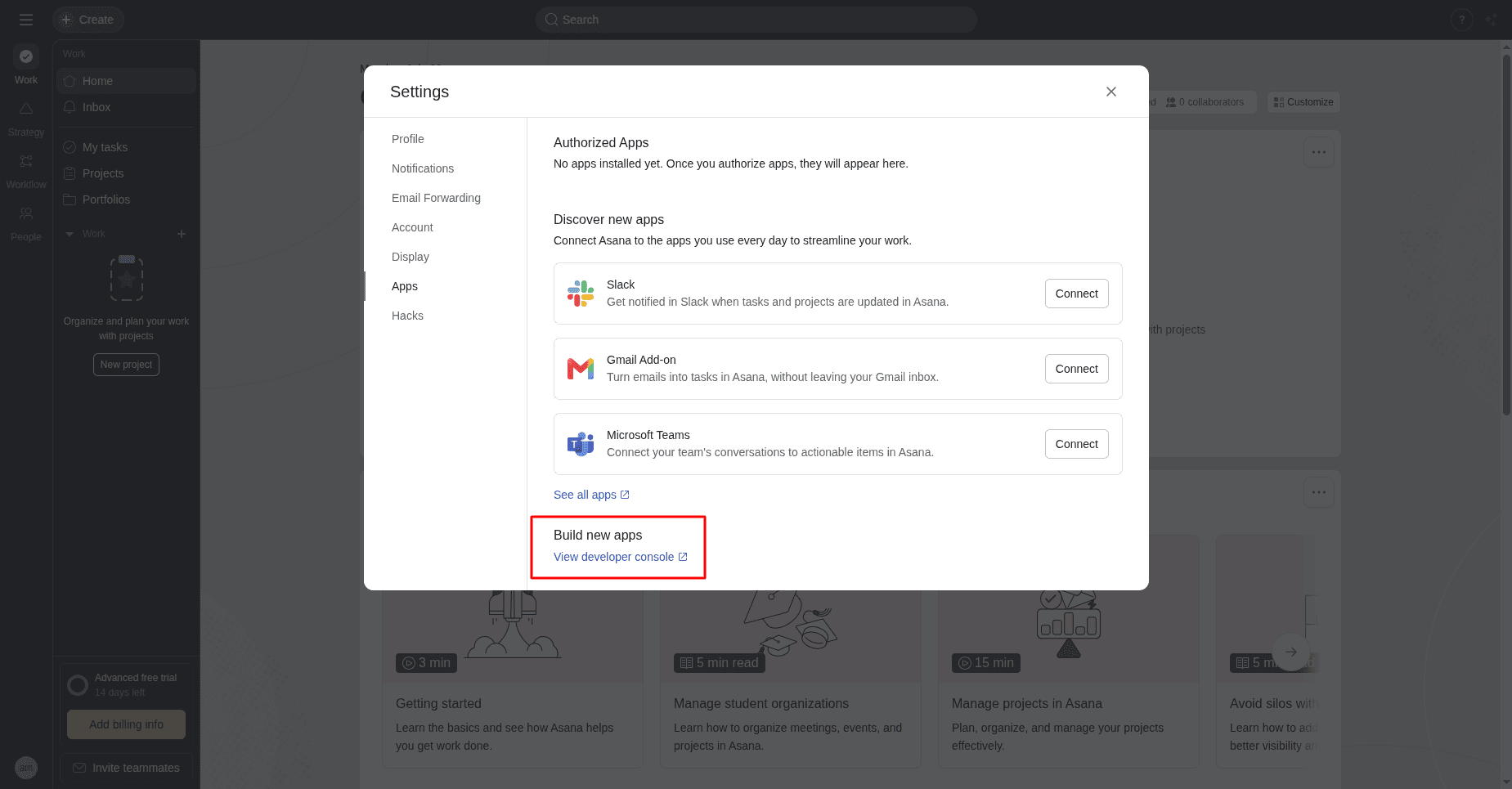
- Click View developer console.
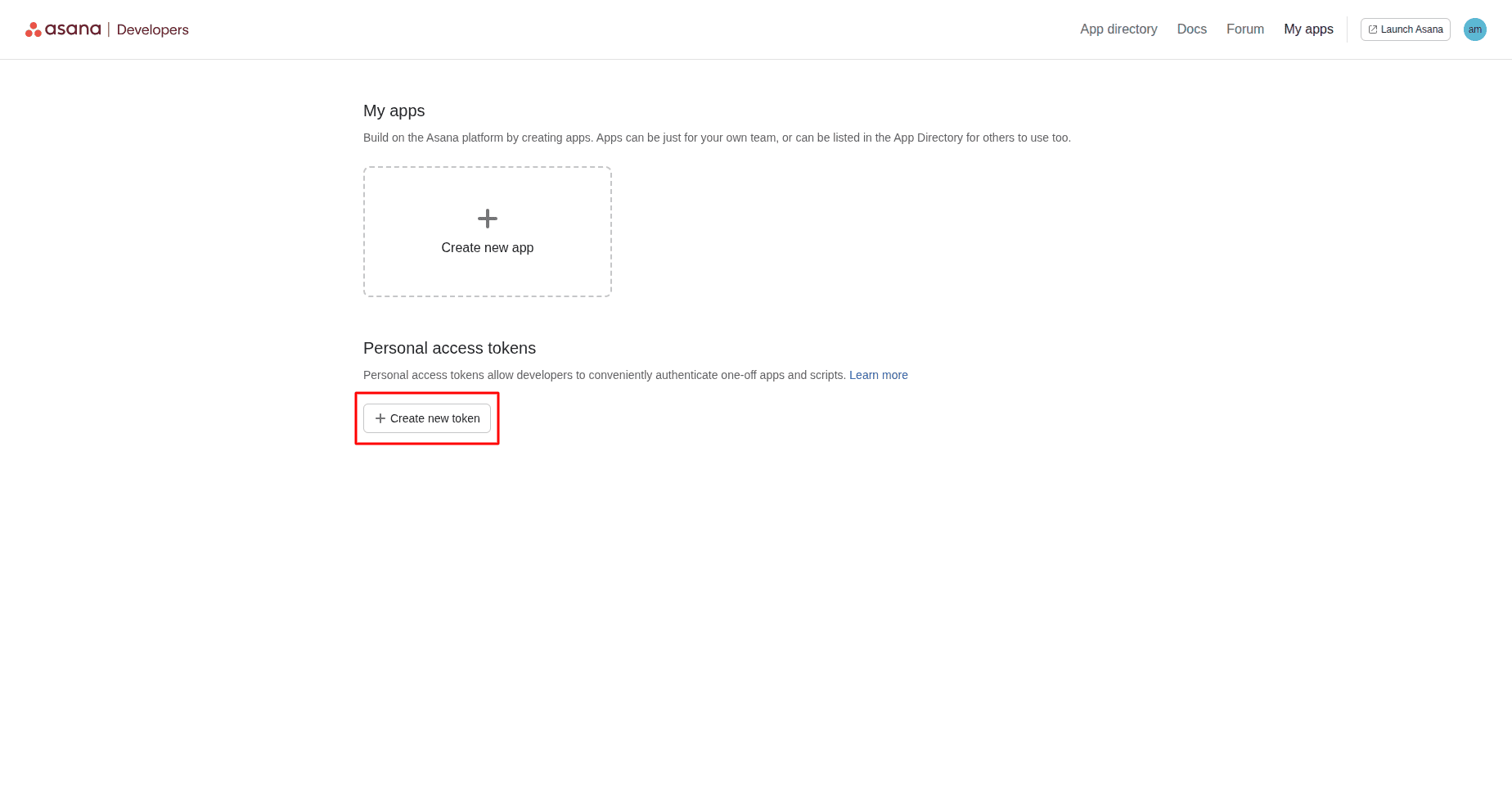
The Asana Developer Console opens.
Under Personal Access Tokens, click Create New Token.
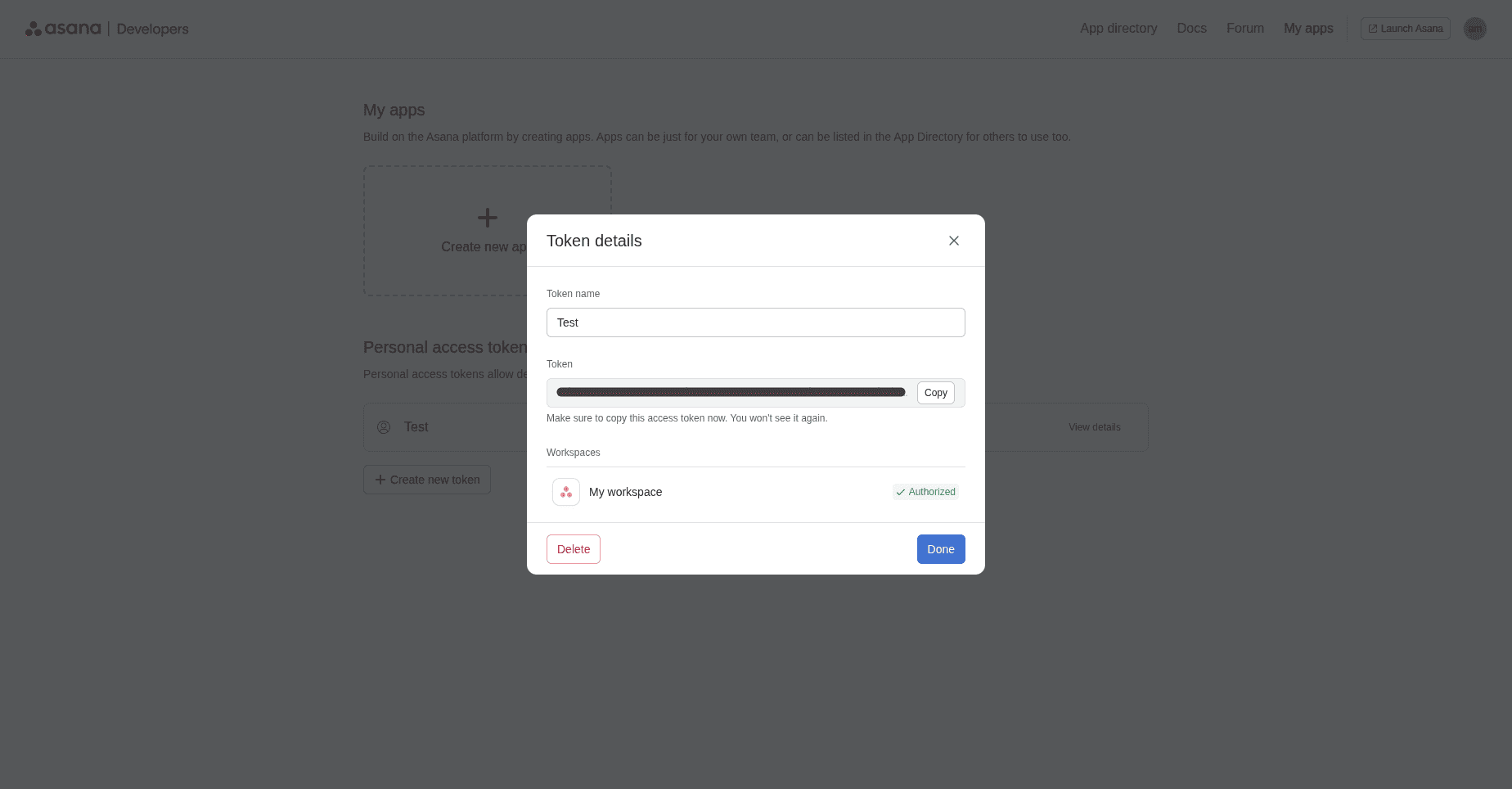
Provide a name for the token, accept the API Terms and Conditions, and then click Create Token.
The token is created, do not forget to save it, as Asana will display the token only once.
Get the Workspace ID
Workspace ID is the identifier for your Asana workspace that will be integrated with Odoo.
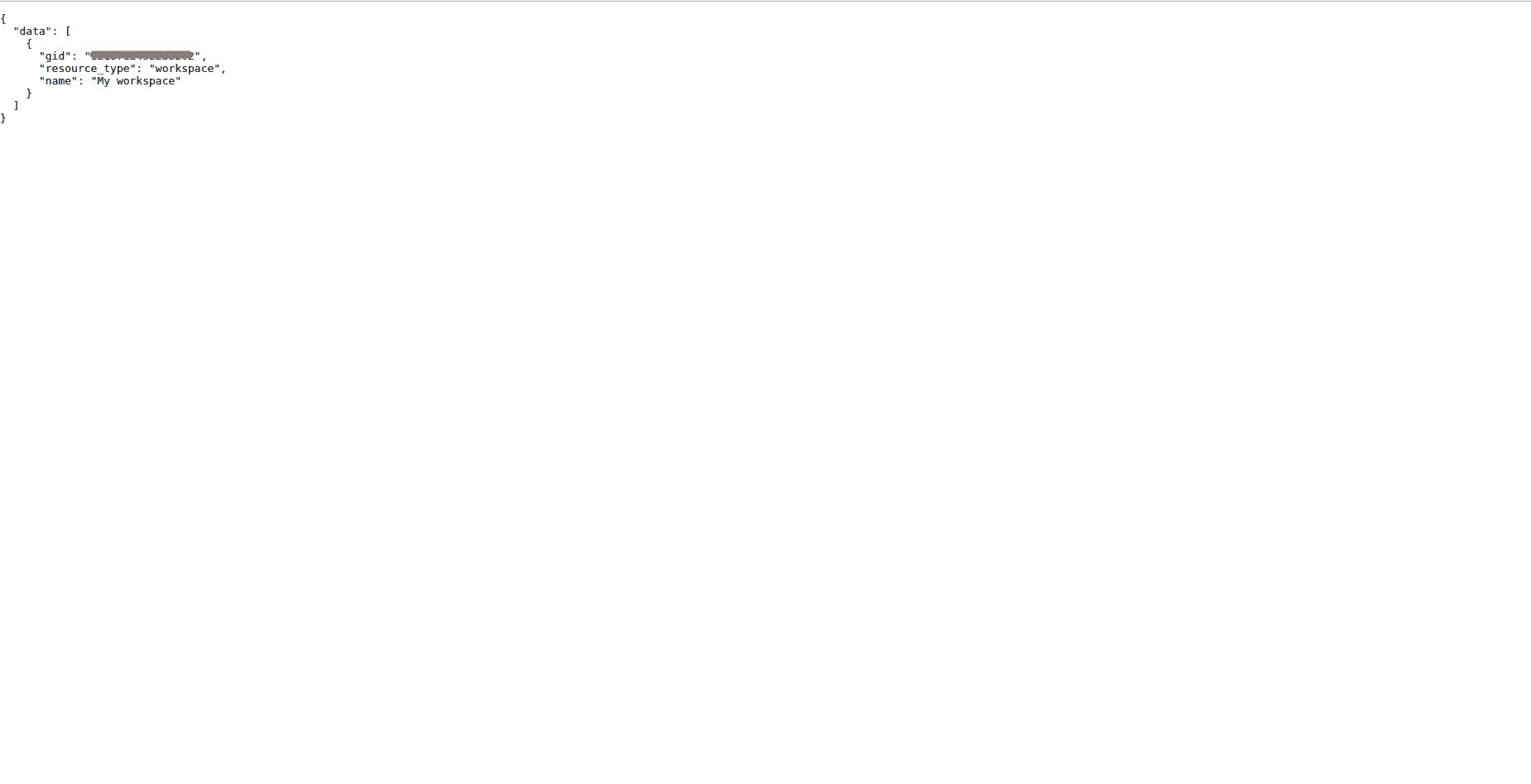
It can be received by making the following API request:
https://app.asana.com/api/1.0/workspaces
With this request, you will receive the data of your workspace, including its gid (it is your Workspace ID).
Example:
{
    "data": [
        {
            "gid": "120xxxxxxxxxxxx",
            "resource_type": "workspace",
            "name": "My workspace"
        }
    ]
}
Copy the gid value.
Test the Connection in Odoo
Go back to Configuration > Settings > Asana in Odoo.
Paste:
- Workspace ID
- Personal Access Token
Click Test.
When the provided credentials are valid, Odoo confirms that the connection has been established successfully. After the confirmation, save the configuration.
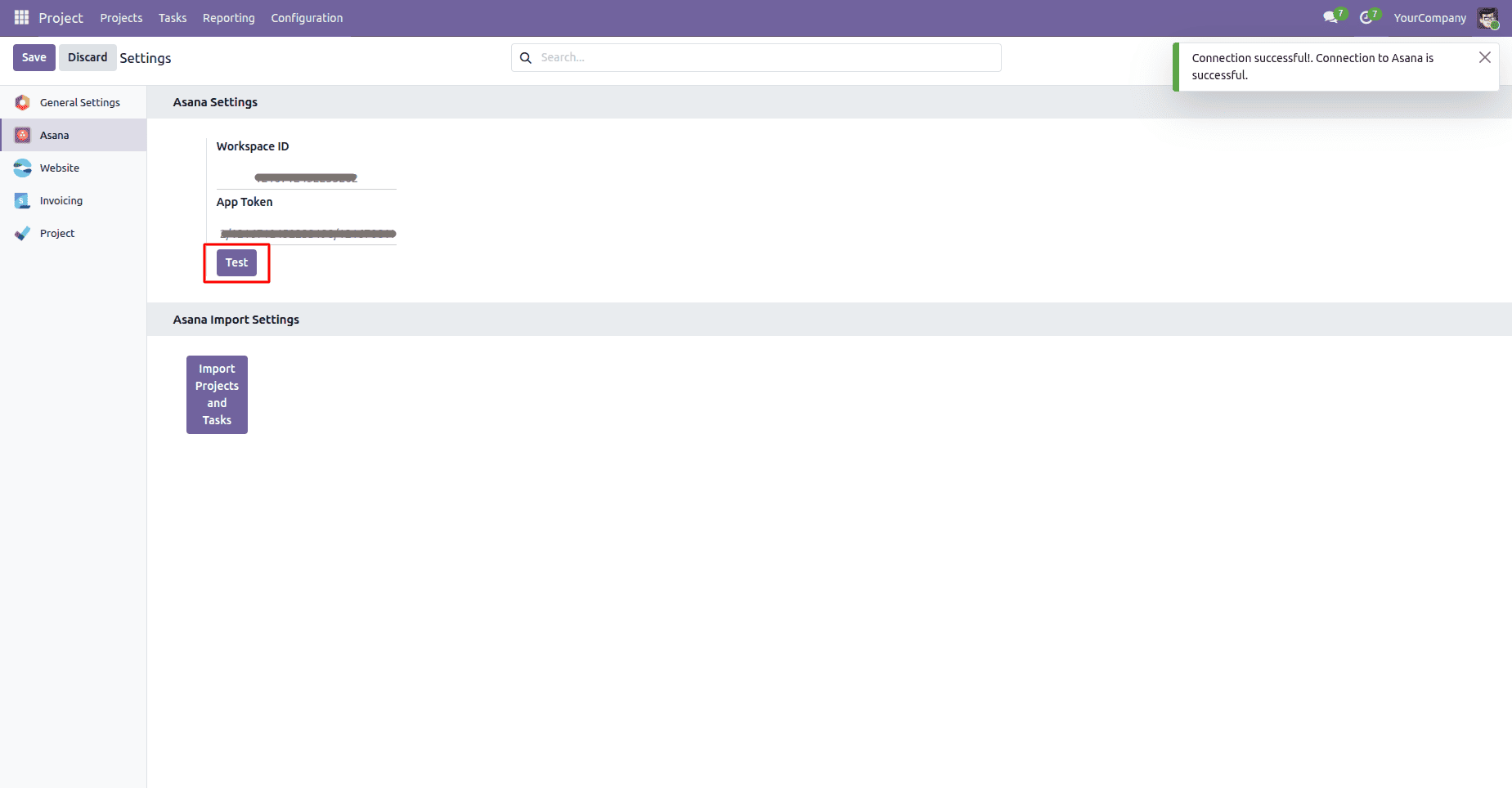
Save the configuration.
Create a Project in Asana
Create a New Project
In order to demonstrate the process of importing, we should create a project in Asana first.
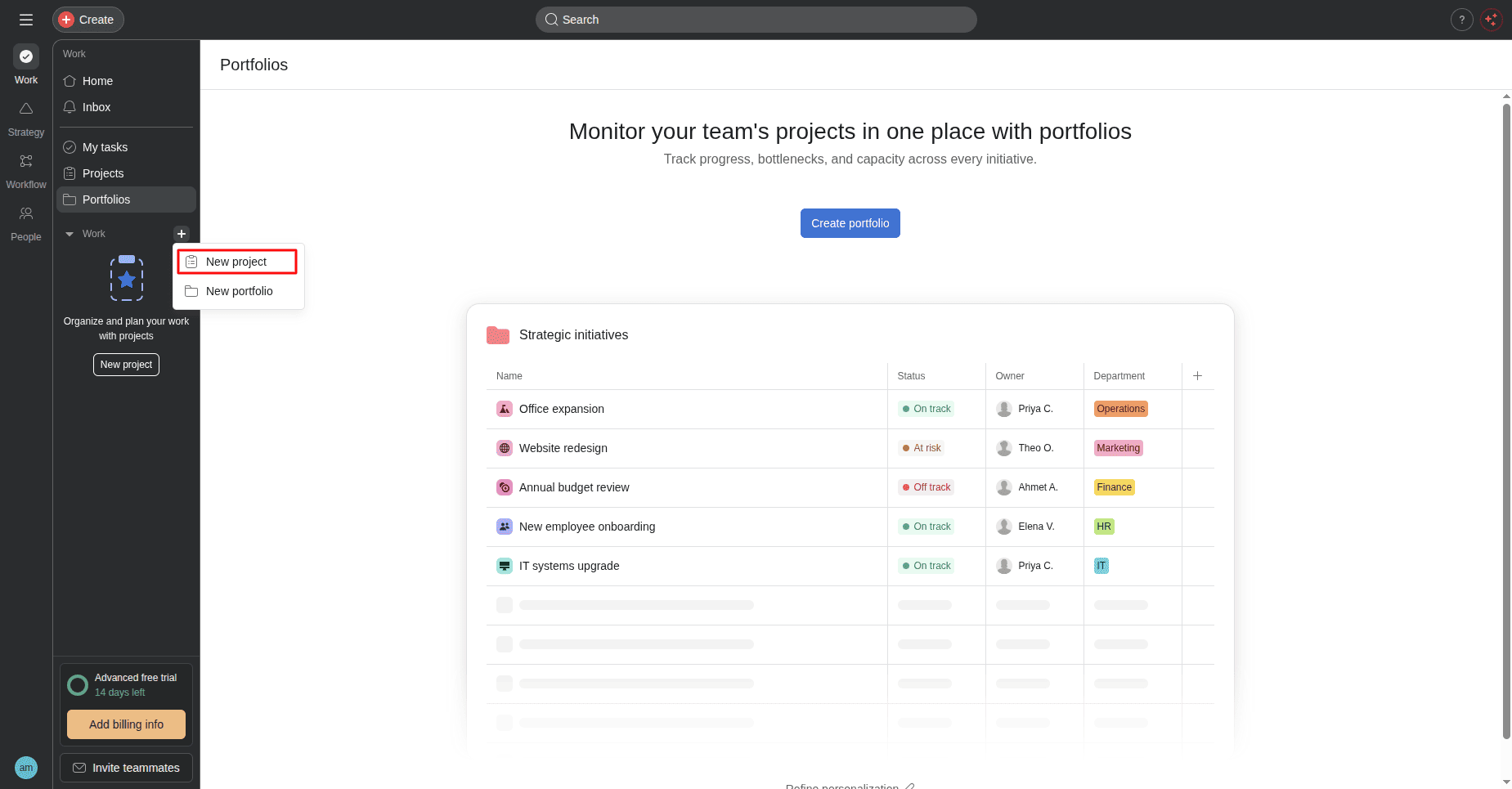
- Click the + button next to your workspace.
- Choose a New Project.
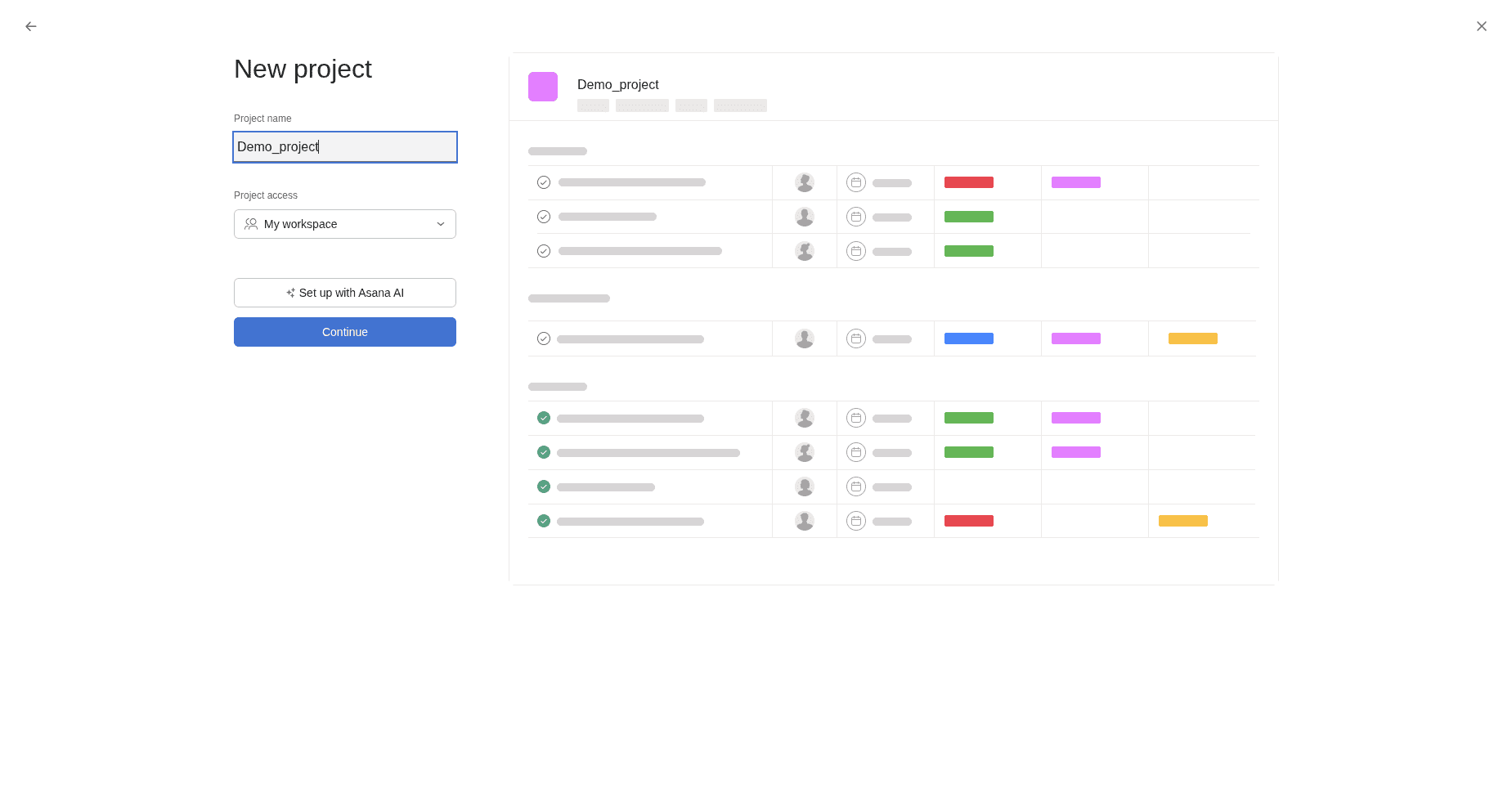
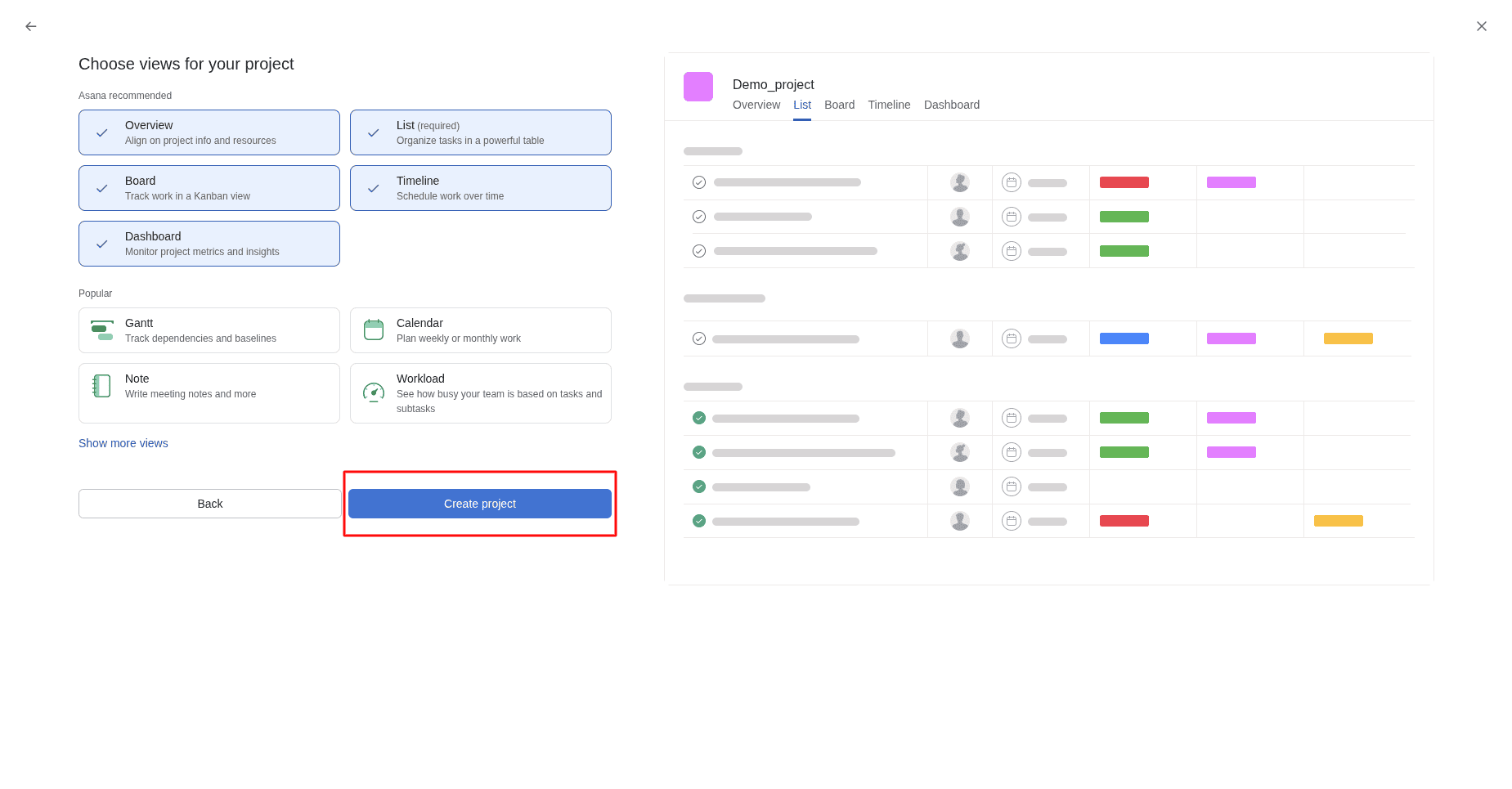
Type the project name and click Continue.
Select the project views and click Create Project.
Add Sample Tasks
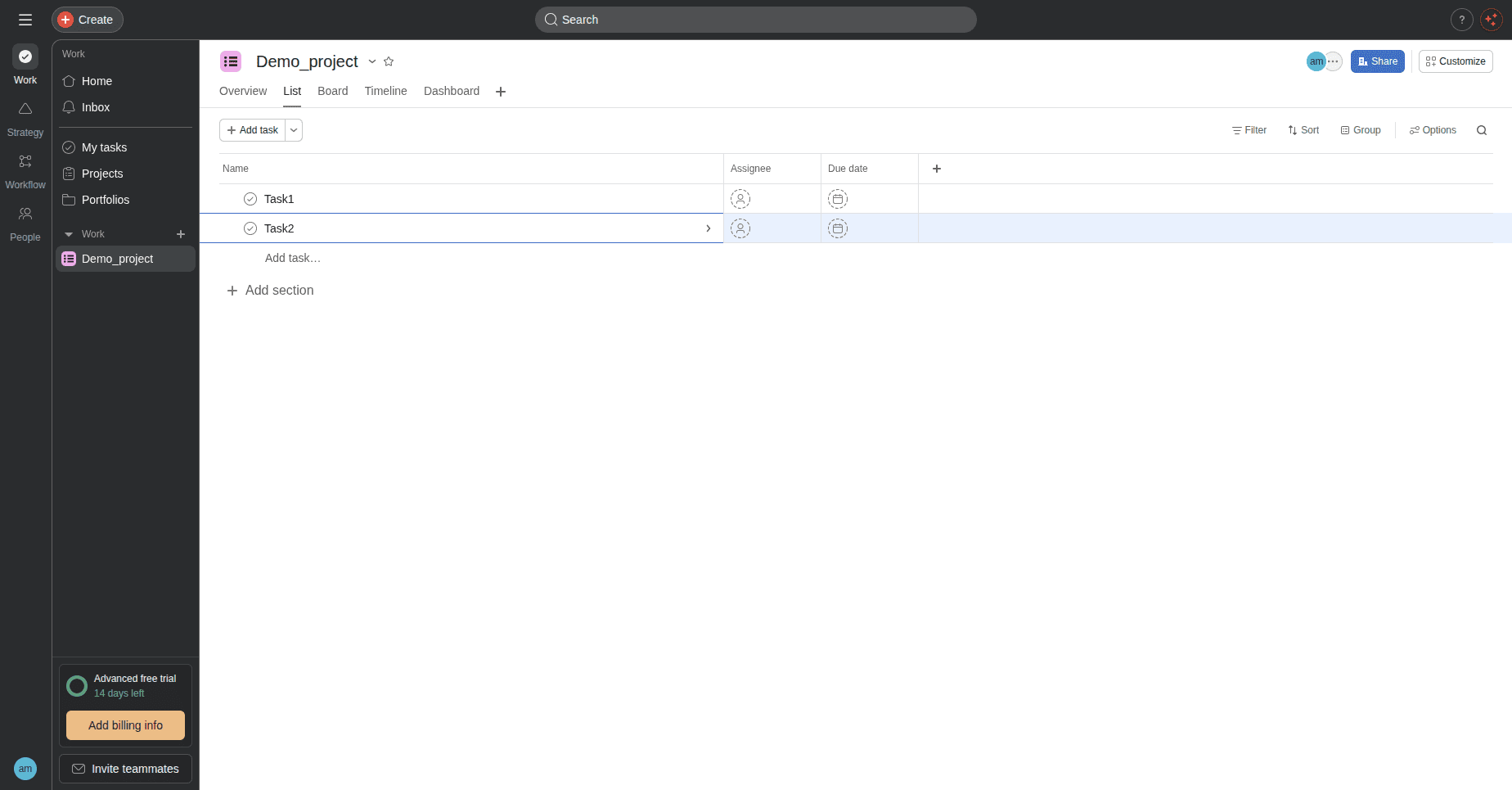
Once the project is created, add several sample tasks.
Import Projects and Tasks into Odoo
Import from Asana
Return to Configuration > Settings > Asana in Odoo.
Click Import Projects and Tasks.
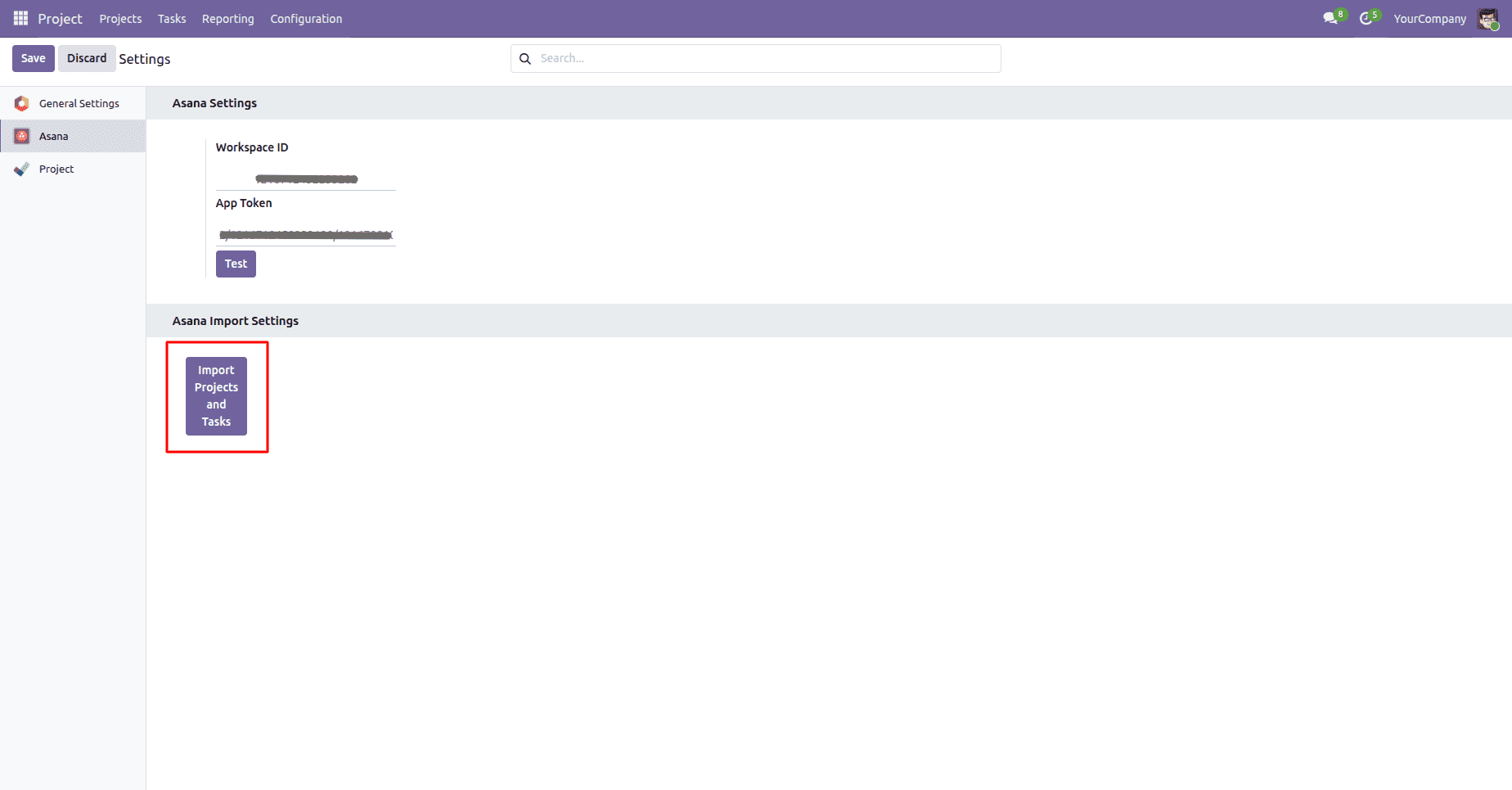
Odoo connects to Asana and imports all available projects and their corresponding tasks.
Verify the Imported Projects
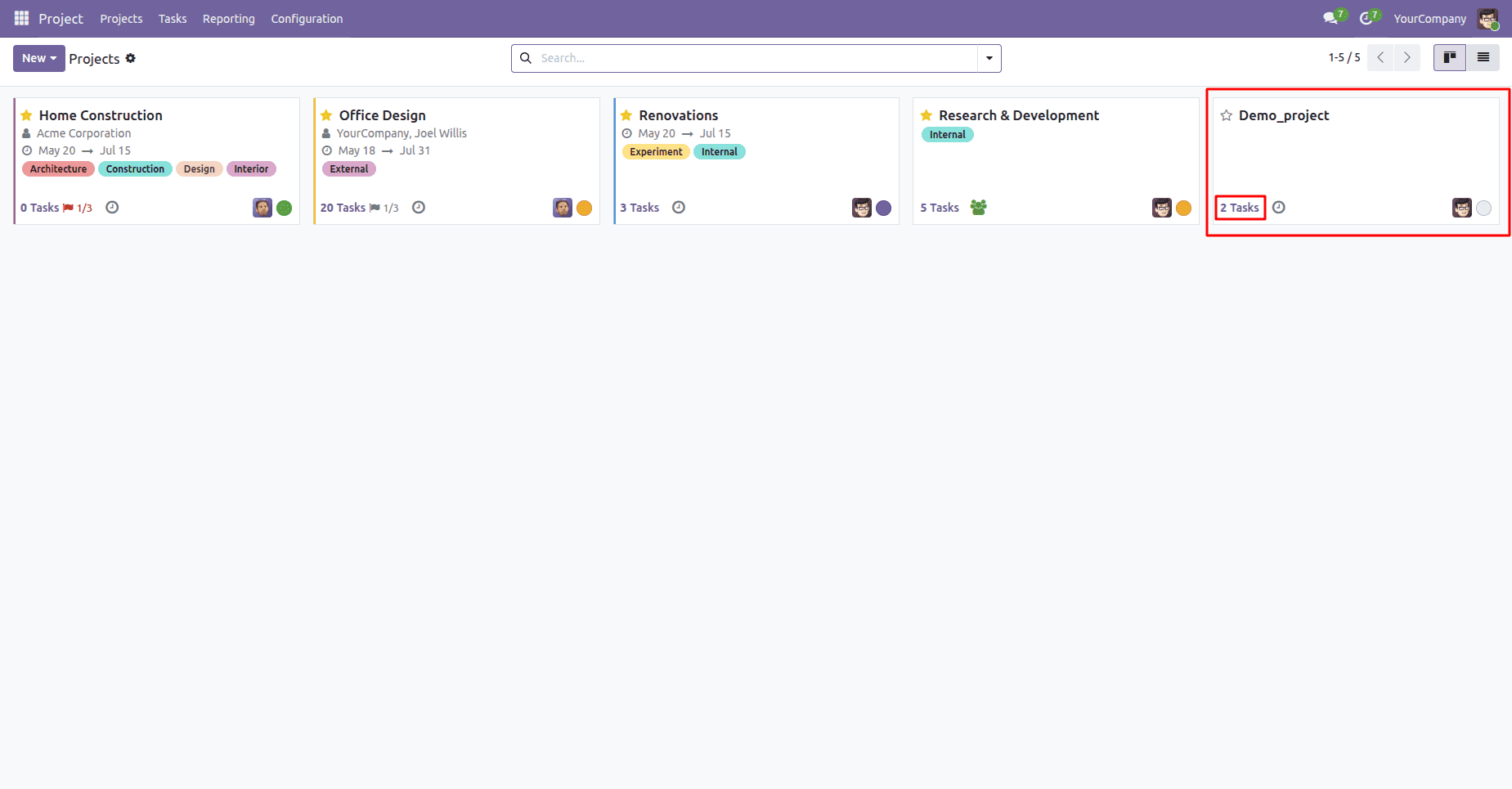
After the import is completed, navigate to the Projects menu.
The imported Asana project is now available in Odoo together with its tasks.
Export Odoo Projects to Asana
Other than being able to import projects from Asana to Odoo, the connector enables you to export the projects that have been developed in Odoo to Asana.
Export Projects
Click on Project > Projects, then change the view to List. Select one or more projects you would like to export, click on Actions, then choose the option Export to Asana.
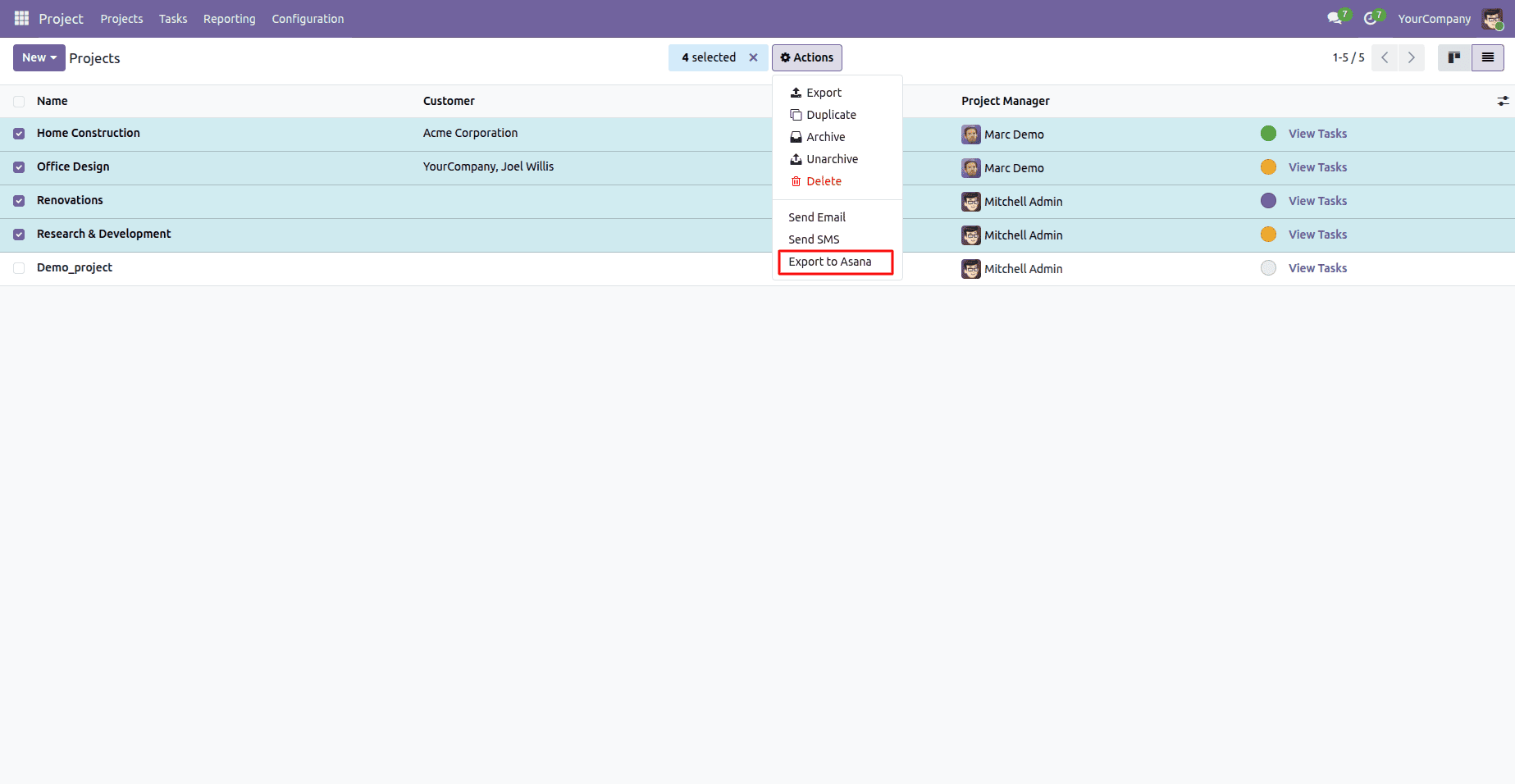
Through the connector, the selected projects as well as the respective tasks are sent to your configured Asana workspace. After exporting, log in to your Asana account to see the synchronization.
Verify the Export in Asana
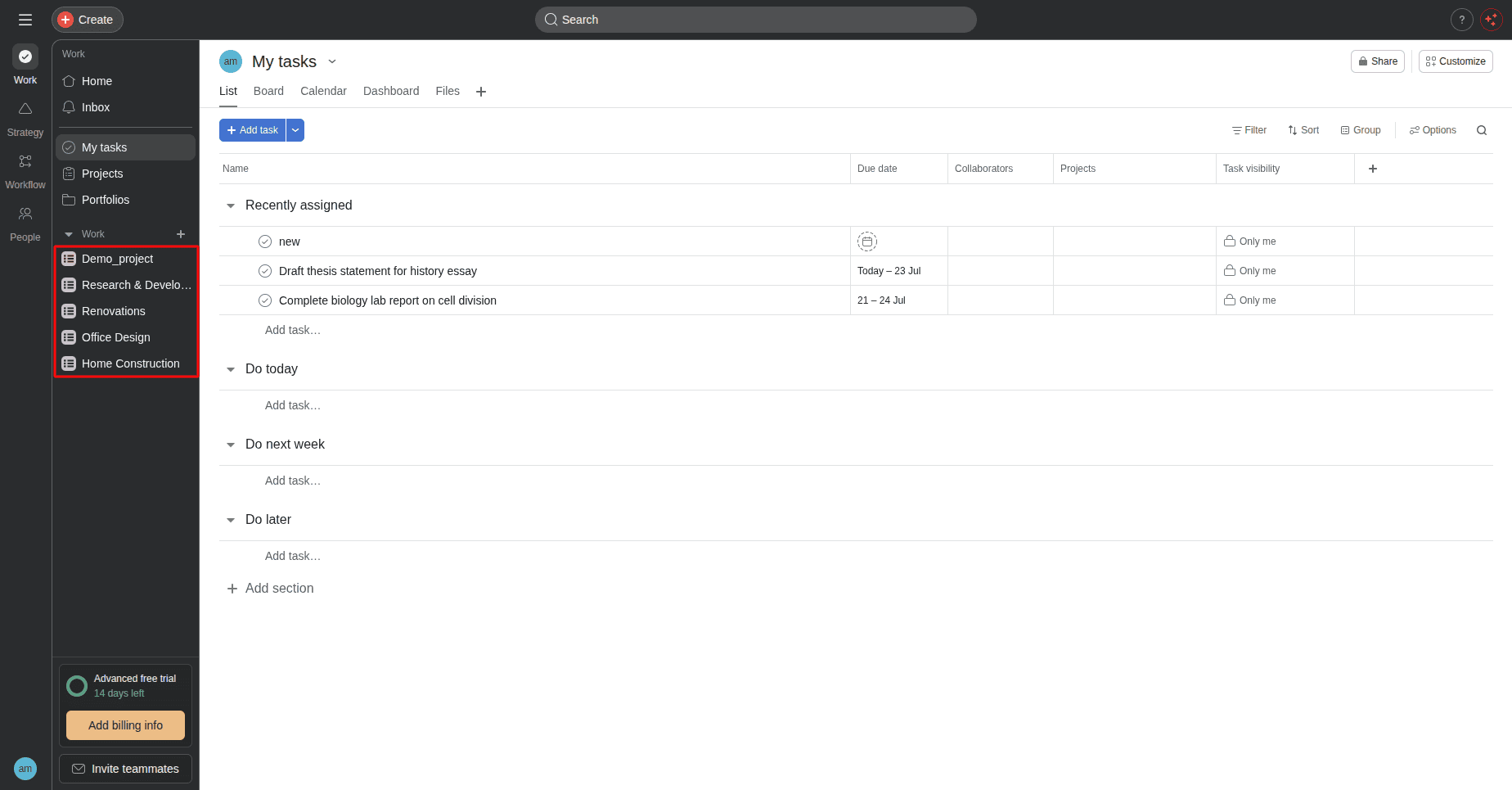
Once you have exported the projects, you will find them in your Asana workspace just like other Asana projects. Any tasks that belong to the exported Odoo projects will also be created in Asana, and therefore, the projects can be managed from either application.
The Asana Odoo Connector provides a simple and efficient way to integrate Odoo 19 with Asana. With the help of setting up the connection through Workspace ID and Personal Access Token, companies will be able to import their Asana projects into Odoo and export Odoo projects back to Asana. This will allow companies to ensure the consistency of project information and improve collaboration within the team, irrespective of whether they use one platform or another.
To read more about How to Easily Manage Incoterms, Shipping, and Integration Connectors in Odoo 19, refer to our blog How to Easily Manage Incoterms, Shipping, and Integration Connectors in Odoo 19.