The Project Module in Odoo 19 serves as a centralized and highly efficient platform for managing projects of all sizes and complexities. It supports the complete project lifecycle, from planning and task assignment to time tracking, collaboration, and performance analysis. Whether you are managing simple internal tasks or large-scale, multi-phase projects with dependencies and milestones, Odoo 19 provides the flexibility and control needed to handle diverse project requirements.
One standout feature of the Odoo 19 Project Module is its modern, user-friendly interface, designed to enhance productivity and encourage seamless collaboration among team members. With tightly integrated tools for task management, timesheets, sales, documents, and reporting, Odoo 19 ensures smooth project execution and complete operational visibility.
Benefits of Using Odoo 19’s Project Management Module
By leveraging the powerful features of Odoo 19’s Project Management Module, organizations can unlock several key benefits, including:
- Improved Operational Efficiency:
Automate routine processes, reduce manual workload, and streamline task handling, allowing teams to focus on high-value activities and deliver projects faster.
- Enhanced Team Collaboration:
Facilitate real-time communication and coordination through shared tasks, activities, mentions, and updates across all stages of a project.
- Greater Visibility and Control:
Gain real-time insights into project progress, timelines, workloads, and financials, enabling informed decision-making and proactive issue resolution.
- Optimised Resource Utilisation:
Allocate the right resources to the right tasks based on availability, skills, and workload to ensure balanced and efficient execution.
- Higher Customer Satisfaction:
Deliver projects on time, within budget, and with transparency, strengthening client relationships and long-term trust.
Projects Dashboard Menu
When you access the project module in Odoo 19, you are taken directly to the Projects Dashboard, which presents a Kanban-style overview of all projects. This dashboard provides a clear, structured snapshot of critical project data.
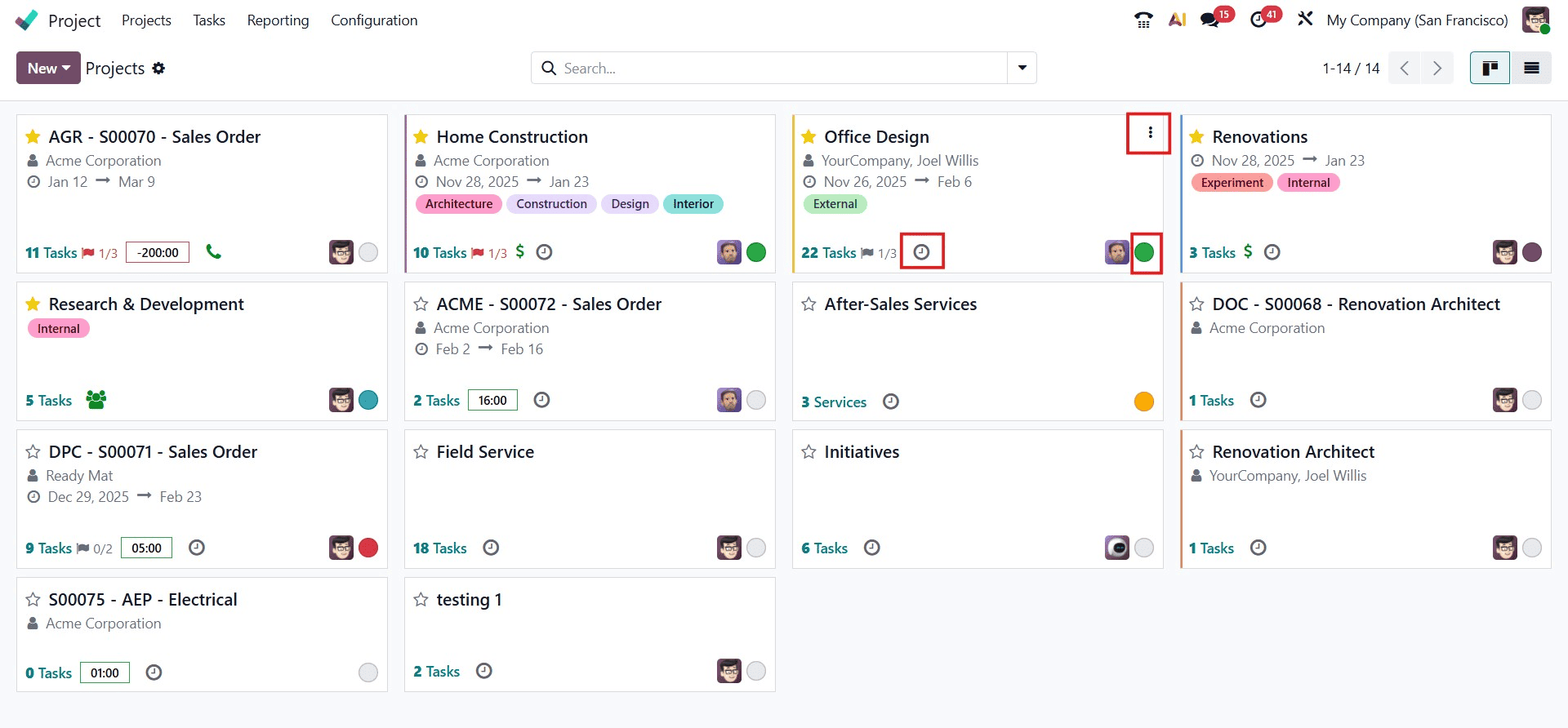
Each project card in the Kanban view presents essential project details at a glance, including project deadlines, associated customers or partners, customer satisfaction ratings, the total number of tasks and milestones, allocated and remaining effort hours, as well as the assigned project manager and responsible users. This consolidated visual overview enables users to quickly assess project status, monitor progress, and identify priorities without opening individual project records.
Projects are visually color-coded to indicate their status, such as On Track, At Risk, Off Track, On Hold, or Done. Users can also mark important projects as favorites using the star icon for quick access.
Clicking the Clock icon on a project card allows users to schedule activities through a pop-up window, making follow-ups and planning more efficient. The three-dot menu on each project provides quick access to tasks, milestones, timesheets, documents, dashboards, reports, and customer ratings.
Creating a New Project
To create a new project in Odoo 19, users can simply click the New button from the Projects Dashboard.
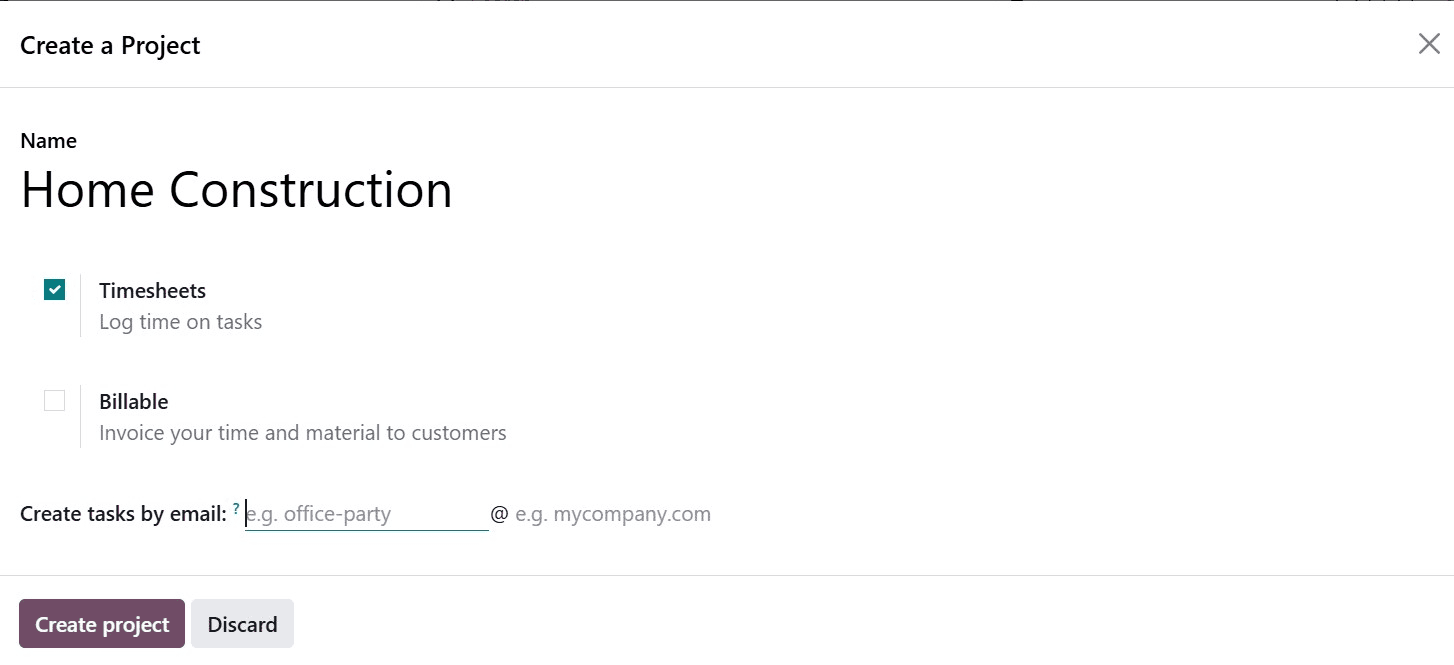
While creating the project Home Construction, you can configure key settings directly within the creation window to match the project’s operational requirements. In the Name field, the project title Home Construction is specified to clearly identify the initiative. The Timesheets option is enabled to allow team members to log time spent on tasks, ensuring accurate tracking of work hours throughout the construction process. If required, the Billable option can be activated to invoice customers for time and materials associated with the project; in this case, it remains optional depending on whether the project involves customer billing. Additionally, the Create tasks by email field allows you to define an email alias (for example, office-party@mycompany.com format), enabling tasks to be automatically generated in the Home Construction project whenever emails are sent to that address. After configuring these options, clicking Create Project finalizes the setup, ensuring that the Home Construction project is ready for task management, time tracking, and streamlined communication.
Defining Task Stages
Before adding or managing tasks in the Home Construction project, you can define task stages directly from the Kanban view. As shown, stages such as New, In Progress, and Done appear as columns that represent different phases of the construction workflow. To create a new stage, click the “>> Add stage” icon next to the existing stage columns. A field will appear on the right side, where you can enter the name of the new stage and confirm it using the checkmark icon. This allows you to customize the workflow according to the specific phases of the Home Construction project, such as Planning, Material Procurement, Inspection, or Handover. These stages act as the structural framework of the project, enabling teams to visually track task progress and move tasks across columns as work advances.
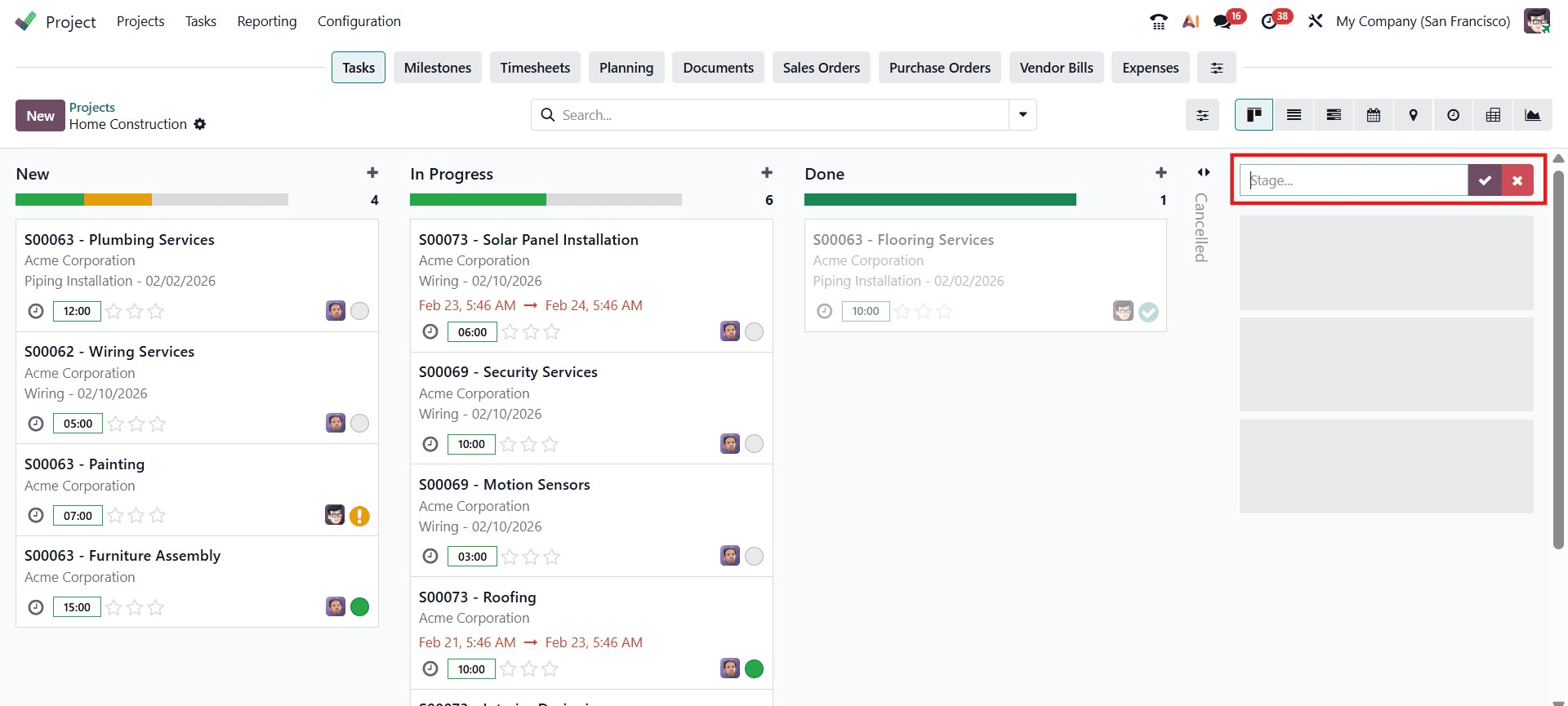
In addition to manual task creation within these stages, tasks can also be generated automatically via email if an email alias was configured during project setup. Any email sent to the specified project address will automatically create a task under the Home Construction project, ensuring seamless communication and efficient task management.
Adding Tasks and Sub-Tasks
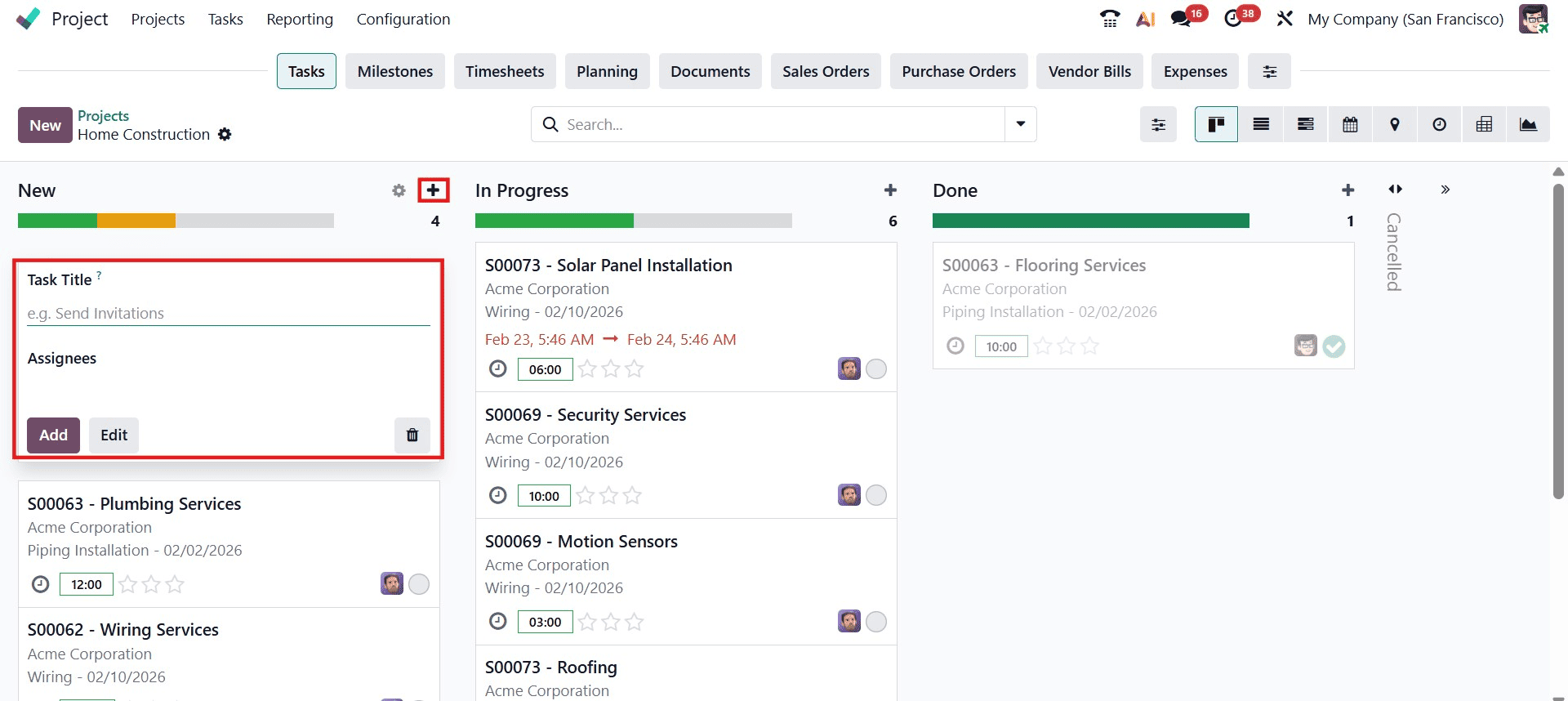
Tasks can be added directly under each stage in the Kanban view by clicking the “+” icon available at the top of each column, allowing users to create and organize work items according to their workflow quickly. When creating a task, users can enter essential information such as the task title, assign responsible team members, link the task to a specific milestone, set deadlines, define planned start and end dates, allocate planned hours, and apply relevant tags for better classification and reporting. Additionally, priority levels can be set to highlight urgent activities, and timesheets can be recorded to track the time spent on each task.
For more complex activities, tasks can be broken down into sub-tasks, each with its own assignee, deadline, stage, and planned hours. This structured approach enables teams to manage detailed operations efficiently, maintain clear accountability, monitor progress at both macro and micro levels, and ensure smooth coordination throughout the entire project lifecycle.
Top Bar for Navigating Related Project Records
From the Task Kanban view in Odoo 19, the top navigation bar provides quick and centralized access to all related project records and operations, allowing users to manage multiple aspects of a project without leaving the current screen. As shown, users can directly navigate to sections such as Tasks, Milestones, Timesheets, Planning, Documents, Sales Orders, Purchase Orders, Vendor Bills, and Expenses, along with additional related records depending on the installed modules. By clicking the settings (slider) icon on the right side, users can also customize which options are displayed in this top menu, enabling better control and personalization of the workspace.
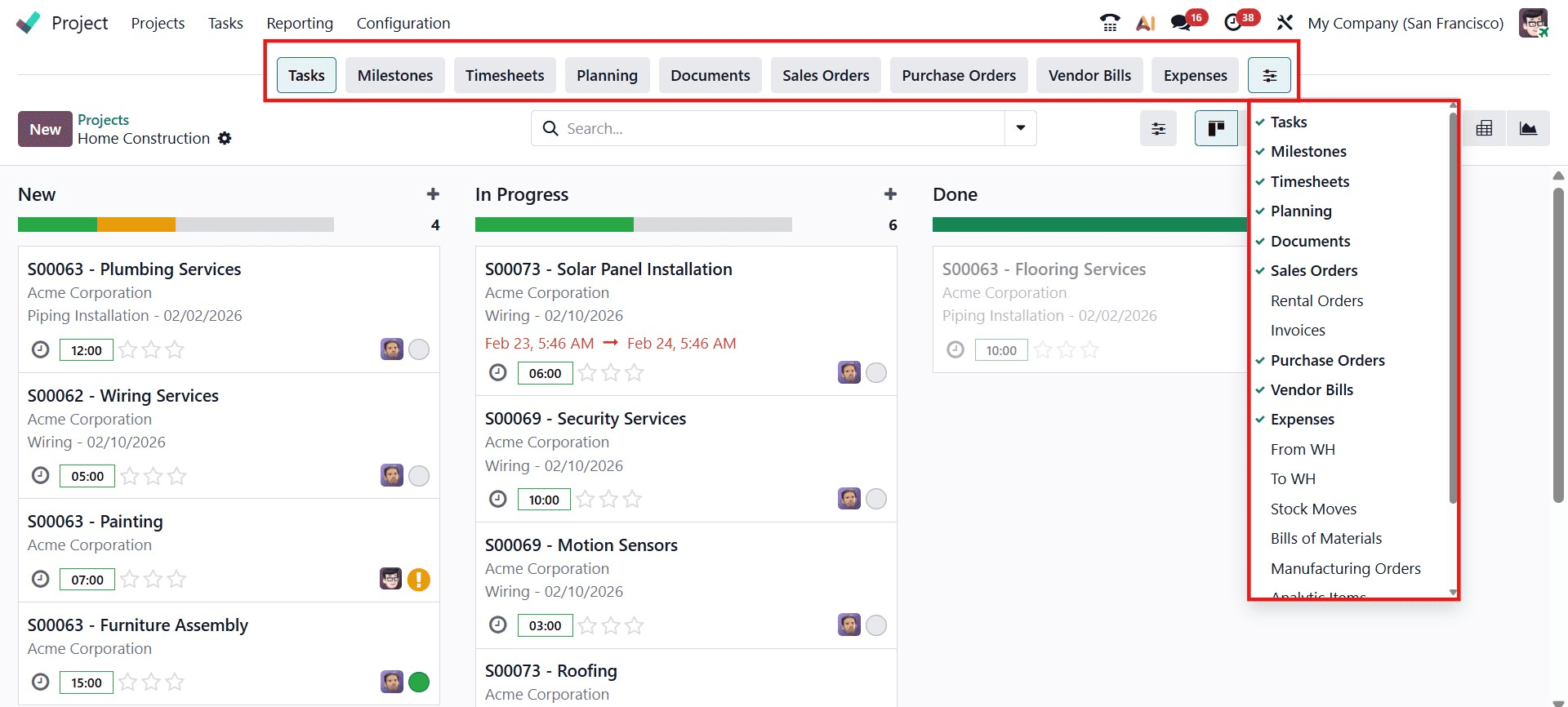
This centralized navigation significantly streamlines daily operations by minimizing the need to switch between different modules. For example, a project manager can quickly review logged timesheets, check scheduled planning shifts, access linked sales orders or invoices, verify purchase orders, or review vendor bills, all directly from the project interface. This integrated approach improves workflow efficiency, enhances cross-department collaboration, ensures better visibility over financial and operational data, and ultimately increases overall user productivity within the project management environment.
Adding New Tasks from the Kanban View
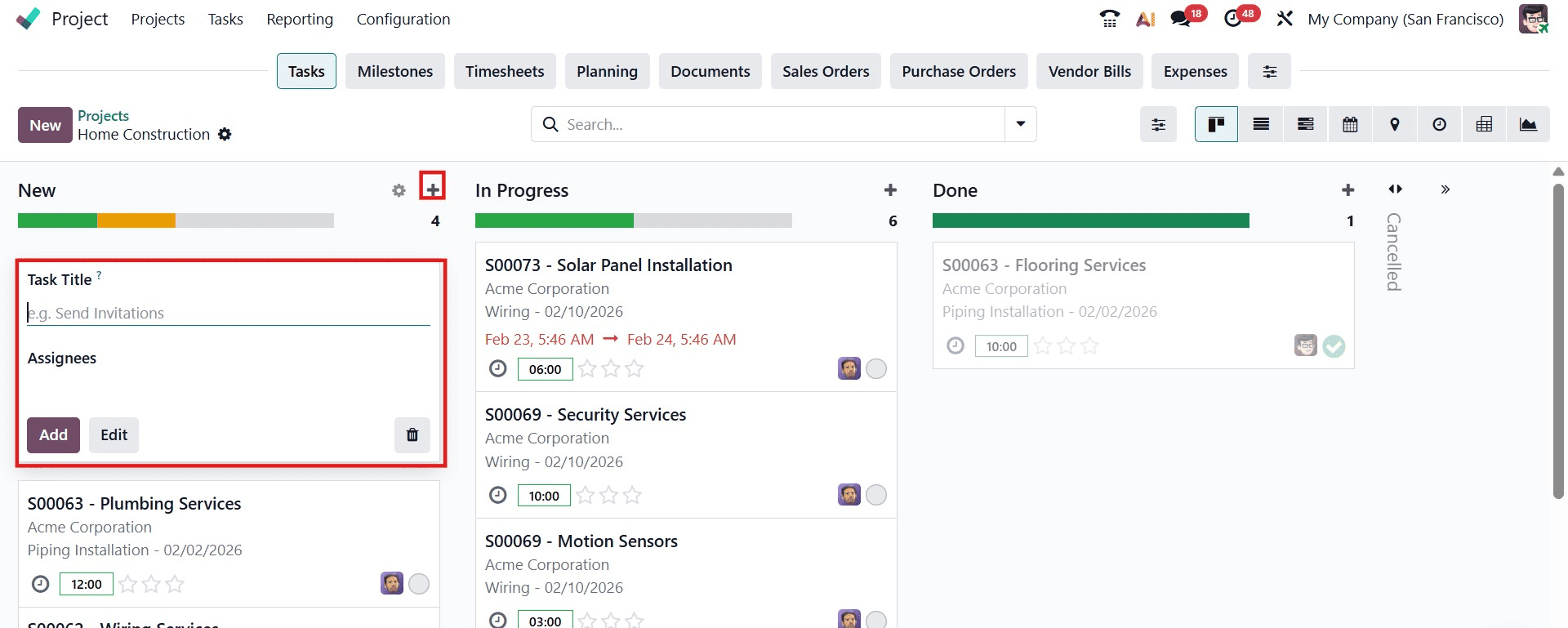
Once task stages are defined, users can quickly add tasks by clicking the ‘+’ button next to a stage name. A dropdown form appears where the task title and assignees can be entered. Clicking Add saves the task instantly, allowing teams to work without disruption.
Action Menu
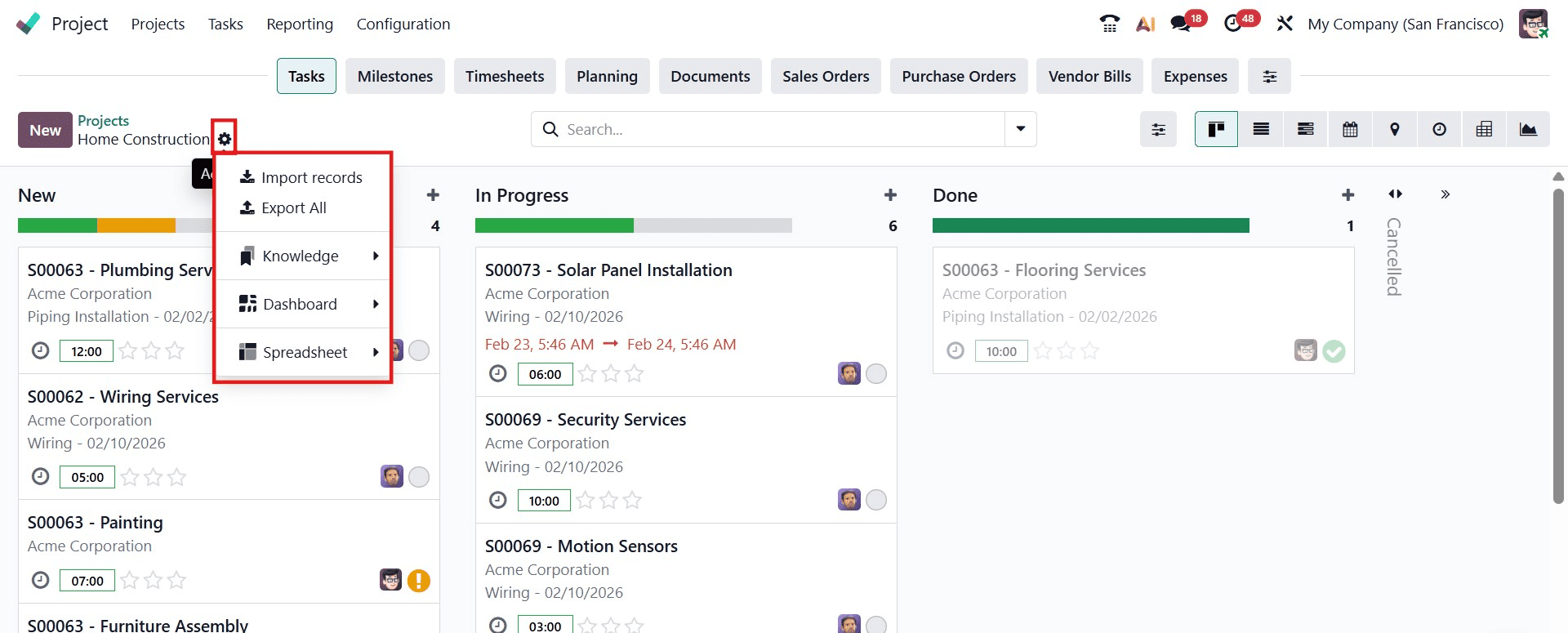
The Action menu, located next to the project name in the task Kanban view, provides several advanced management and analysis options that enhance project control and data handling. From this menu, users can Import Records to upload tasks in bulk, Export All data for reporting or external analysis, create interactive Dashboards for real-time performance tracking, generate dynamic Spreadsheets for deeper data analysis, and document processes or insights using the integrated Knowledge module. These tools allow project managers to efficiently organize information, monitor progress, and support data-driven decision-making without leaving the project interface.
In addition, Odoo 19 offers multiple task views to accommodate different working styles and project management requirements. The Kanban view visually organizes tasks by stages for easy drag-and-drop progress tracking, while the List view presents tasks in a structured tabular format with detailed fields. The Calendar view helps manage deadlines and scheduled activities over time, and the Gantt view provides a timeline-based representation of task durations, overlaps, and dependencies for effective planning. Furthermore, the Pivot and Graph views provide analytical reporting capabilities, enabling users to evaluate workload distribution, performance metrics, and project trends. In contrast, the Activity view helps manage scheduled calls, meetings, and follow-ups. Users can seamlessly switch between these views using the view icons located in the top-right corner, ensuring flexibility and improved productivity across different project management scenarios.
Advanced Search Bar
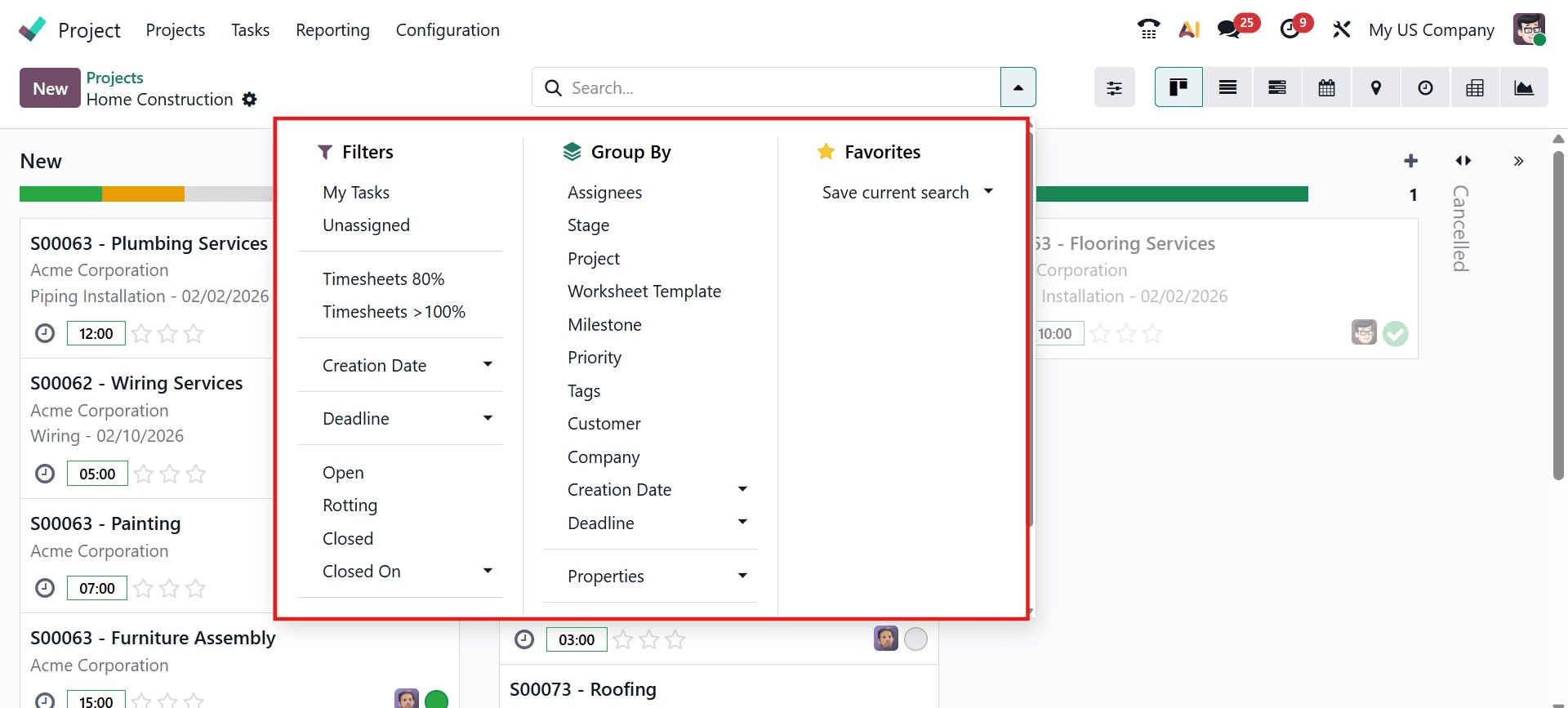
The advanced search bar enables users to efficiently filter, group, and sort projects and tasks using criteria such as project, assignee, task stage, priority, and deadline. Additionally, frequently used search configurations can be saved under Favorites, allowing users to quickly access their preferred views and streamline task and project tracking.
Tasks Menu
The Tasks menu in Odoo 19 serves as a centralized hub for managing tasks across all projects, enabling users to create, organize, track, and analyze work efficiently from a single interface. This menu is structured into two main sections: My Tasks and All Tasks.
My Tasks
The My Tasks section in Odoo 19 provides a focused and personalized workspace by displaying only the tasks assigned to the logged-in user, helping individuals concentrate on their responsibilities without distractions from unrelated work. From this view, users can easily monitor task progress, deadlines, planned hours, and upcoming activities, ensuring better time management and productivity. New tasks can be created directly using the New button or the ‘+’ icon, and users can update task details, change stages, and manage activities without leaving this interface.
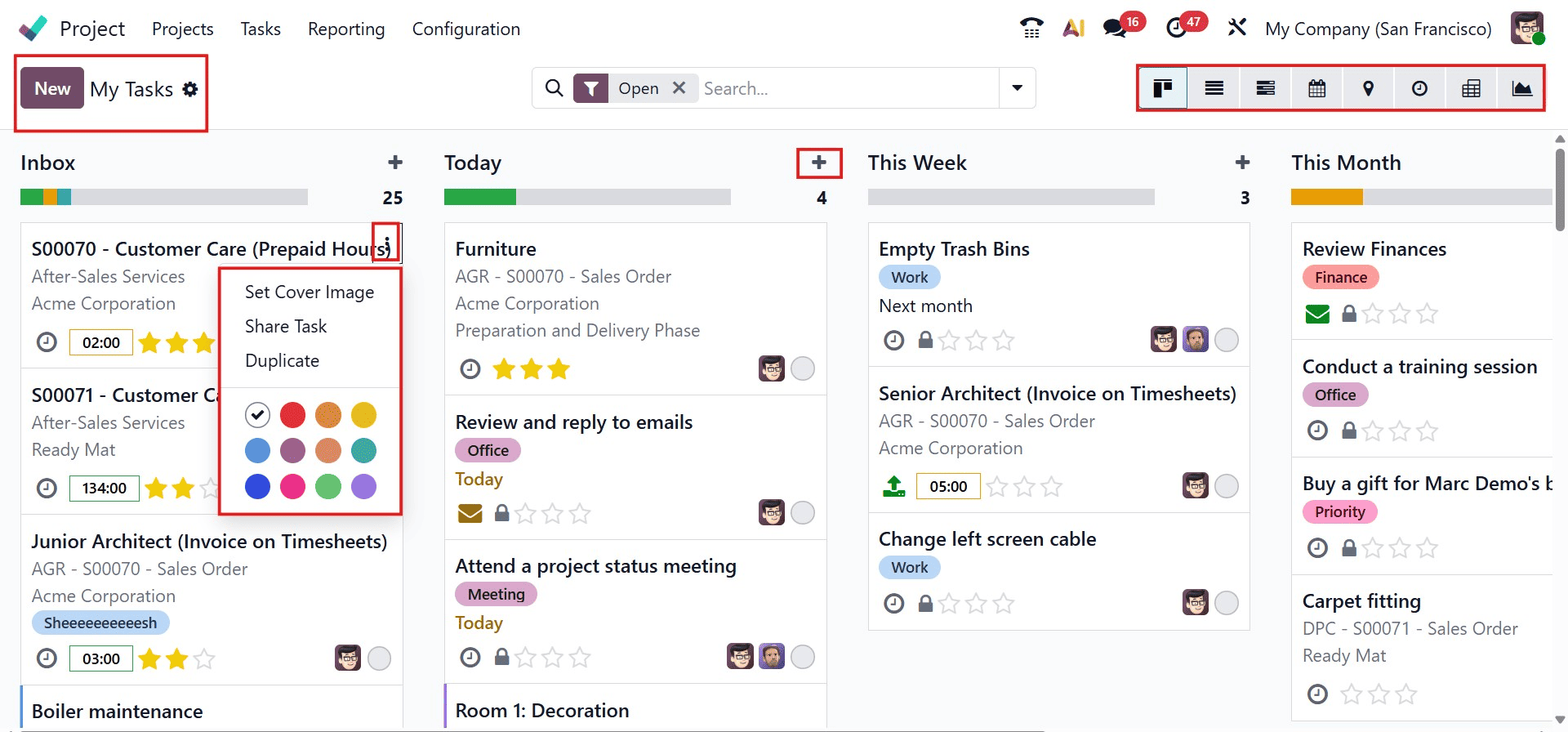
New tasks can be created directly using the New button or the ‘+’ icon, and tasks can be managed using multiple views such as Kanban, List, Calendar, Gantt, Pivot, Graph, and Activity views. Additional options available from the task menu allow users to set cover images, share tasks, automate actions, or update task stages, ensuring smooth task execution and better personal productivity.
All Tasks
The All Tasks section in Odoo 19 provides a unified and consolidated view of every task across all projects, making it an essential workspace for project managers, team leads, and administrators. This view displays comprehensive task details such as the task name, associated project, assignees, company, logged hours, progress status, tags, and upcoming activities, allowing users to monitor work across the organization from a single interface.
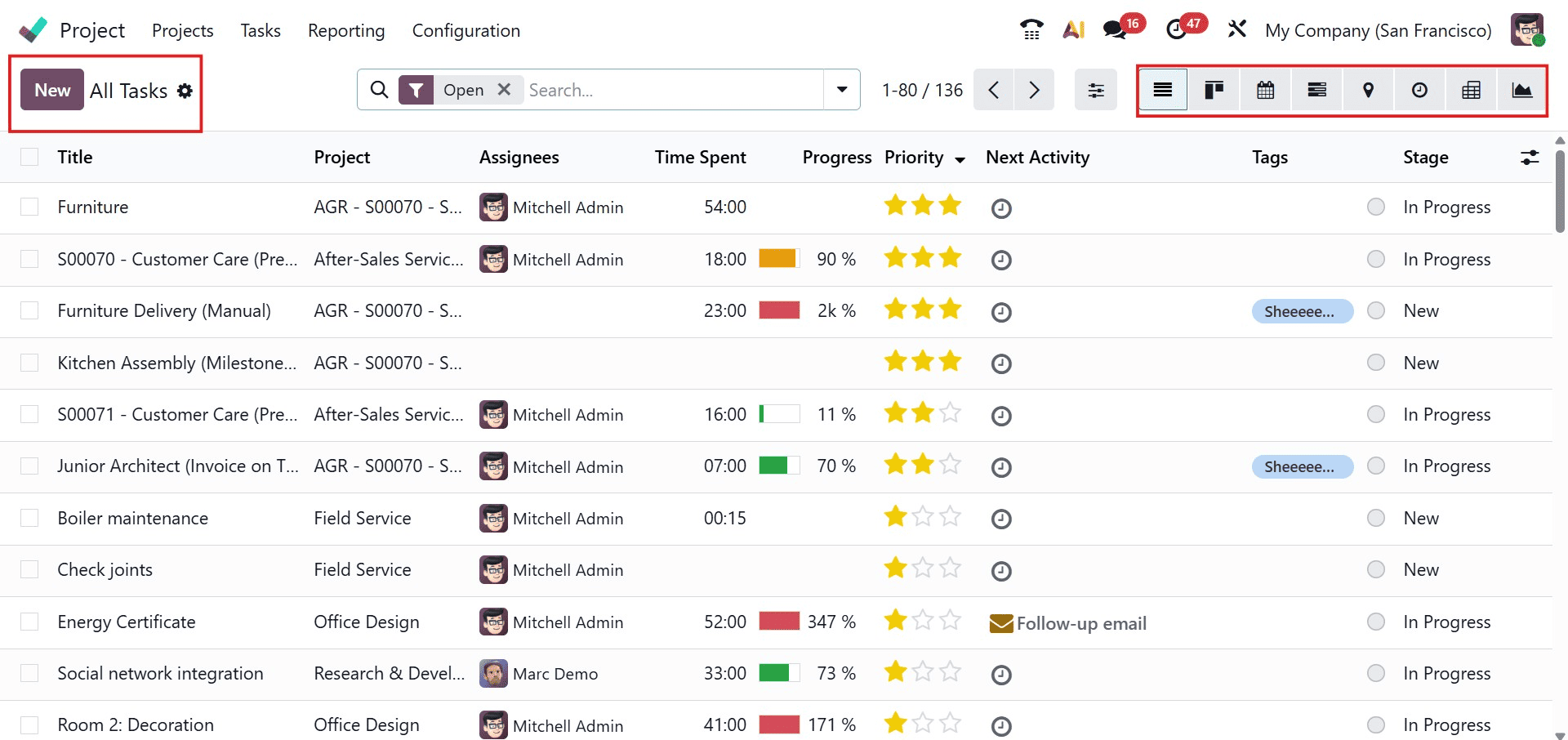
Advanced filtering, grouping, and sorting options help users analyze workloads, identify bottlenecks, and track deadlines efficiently. Tasks can be grouped by project, task stage, assignee, priority, or deadline, enabling better prioritization and planning of high-impact or time-sensitive work. Users can also save customized views for quick access and switch seamlessly between Kanban, List, Gantt, and reporting dashboards. Additionally, new tasks can be created directly from this menu using the New button, ensuring smooth task management and complete visibility into overall project execution.
Reporting Menu
The Reporting menu in Odoo 19 enables detailed analysis of both projects and tasks, helping organizations monitor performance, identify bottlenecks, and improve overall efficiency through data-driven insights. This menu includes two primary reporting tools: Task Analysis, which provides an in-depth evaluation of task progress, workload distribution, and performance metrics, and Customer Ratings, which captures client feedback to measure service quality and satisfaction levels across projects.
Task Analysis
The Task Analysis report in Odoo 19 provides clear graphical insights into task distribution and overall performance, enabling users to evaluate project execution effectively. Tasks can be analyzed using a wide range of metrics available under the Measures button, including planned hours, effective hours, progress, remaining time, and other key performance indicators. Users can further fine-tune their analysis by grouping and sorting tasks based on different attributes, making it easier to structure data, identify trends, and detect performance gaps.
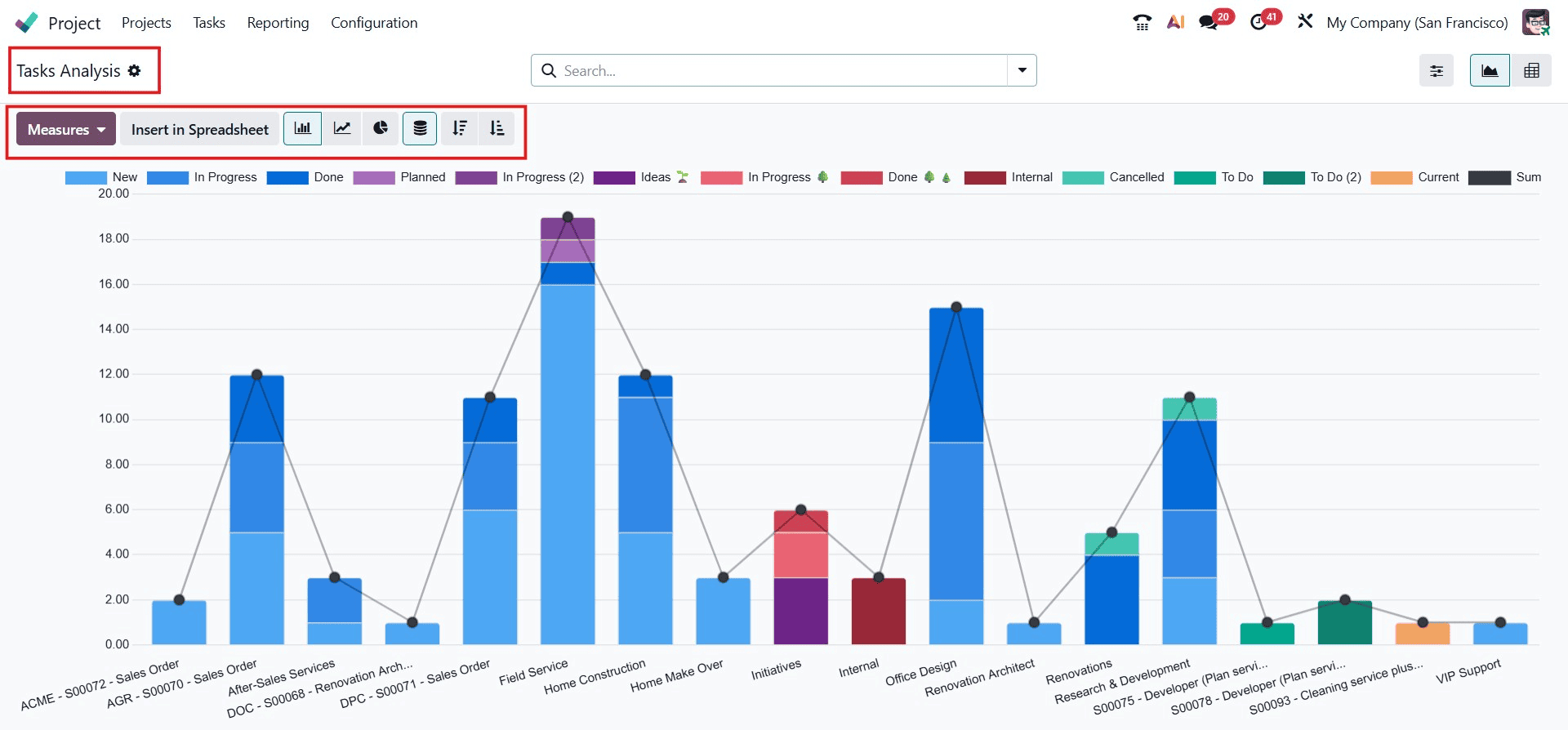
The reporting interface supports multiple visualization formats such as bar charts, line graphs, pie charts, pivot tables, and other analytical views for enhanced clarity. Additionally, users can customize reports by selecting specific task fields, adjusting layouts, and saving personalized report configurations for future reference, ensuring consistent and efficient performance monitoring.
Customer Ratings
The Odoo Project module makes it possible to track client satisfaction on jobs. Selecting and turning on the Customer Ratings option in Settings will do this.
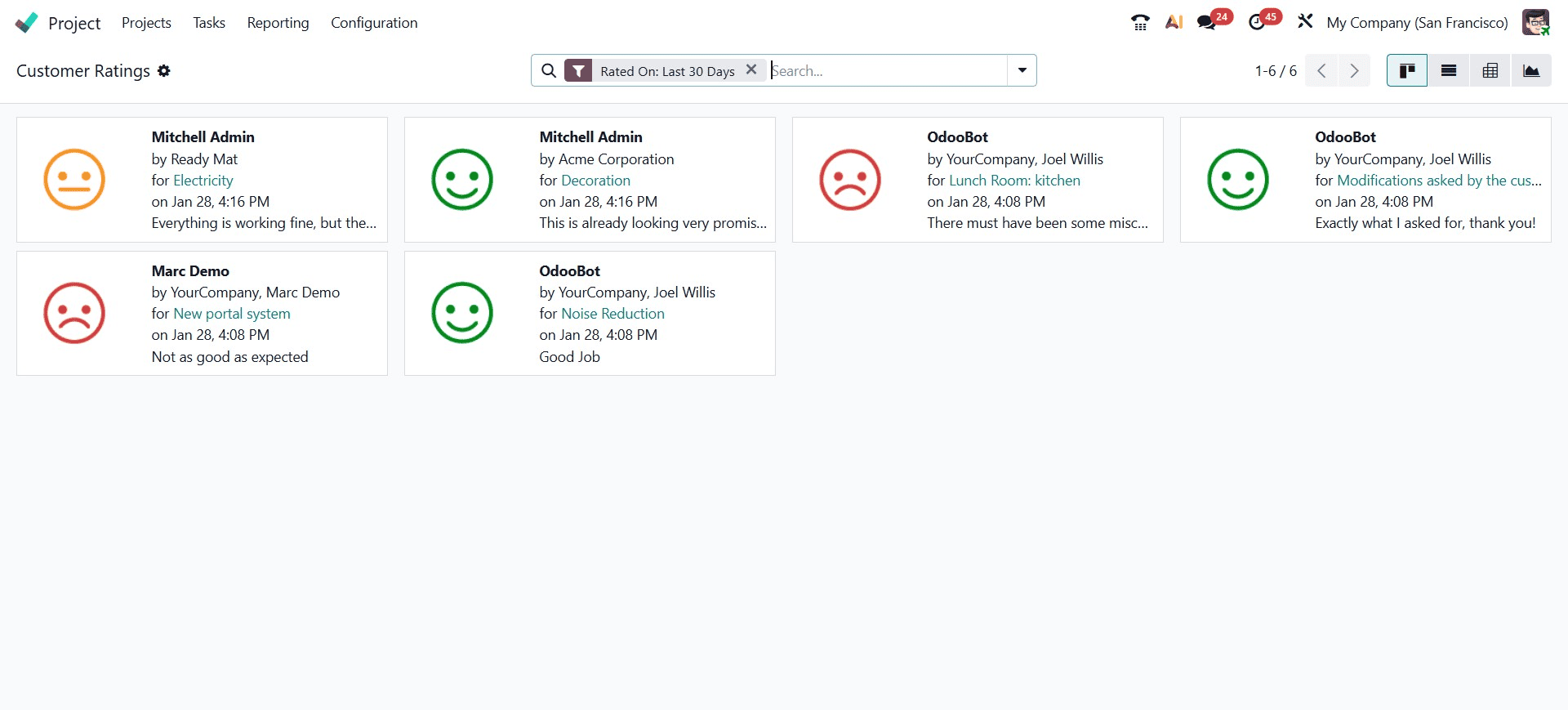
Once this feature is enabled, the Reporting menu will provide access to the Customer Ratings platform. Customers' ratings of your project will be tracked by this platform. In addition to the kanban view, the page can be viewed in list, pivot, and graphical formats. The image above displays the page in Kanban view.
Configuration Menu
In the Odoo 19 Project module, the Configuration menu provides access to a wide range of settings required to manage and customize project-related operations. This section includes options such as Settings, Projects, Project Stages, Task Stages, Tags, Project Roles, Activity Types, and Activity Plans.
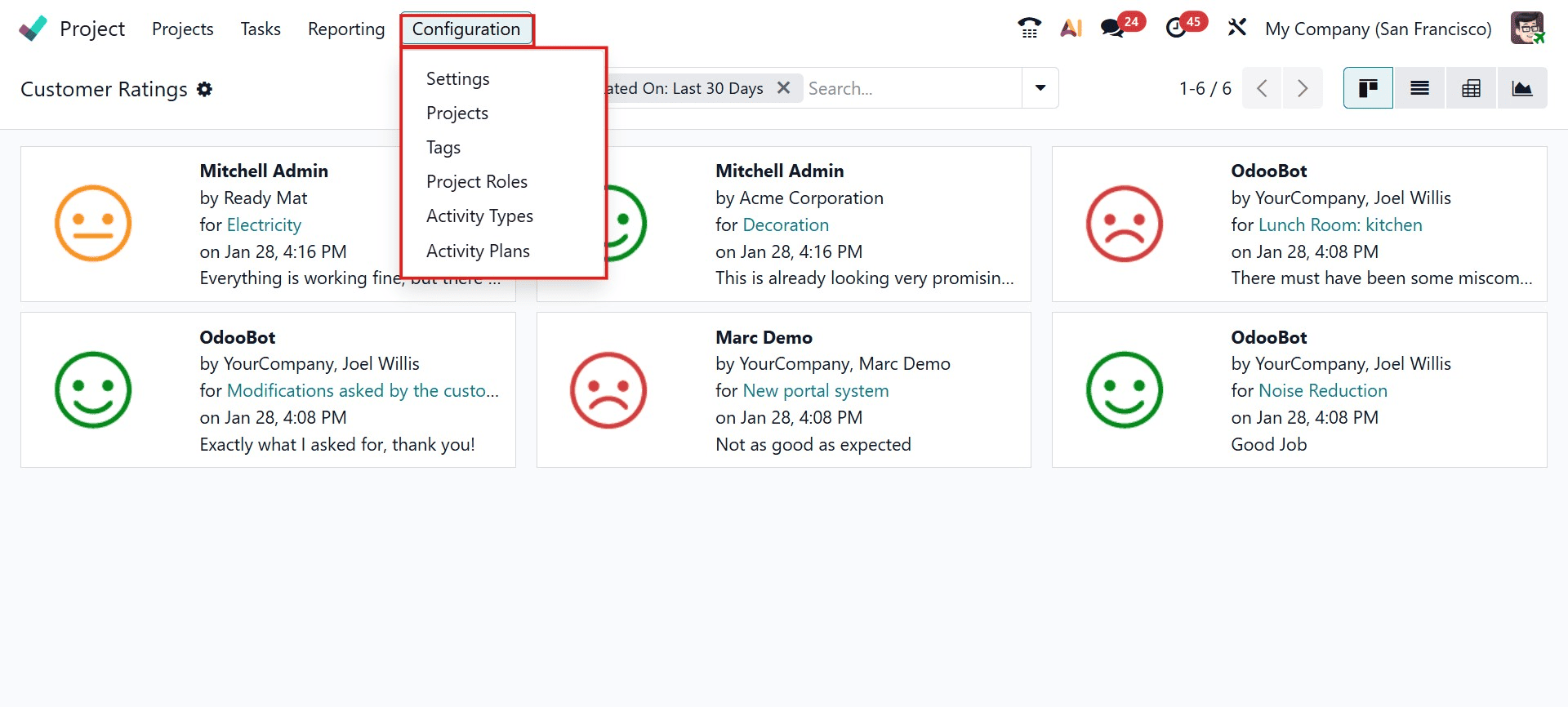
Many of these configuration elements play a crucial role during the creation and management of projects and tasks, allowing businesses to tailor workflows according to their operational needs.
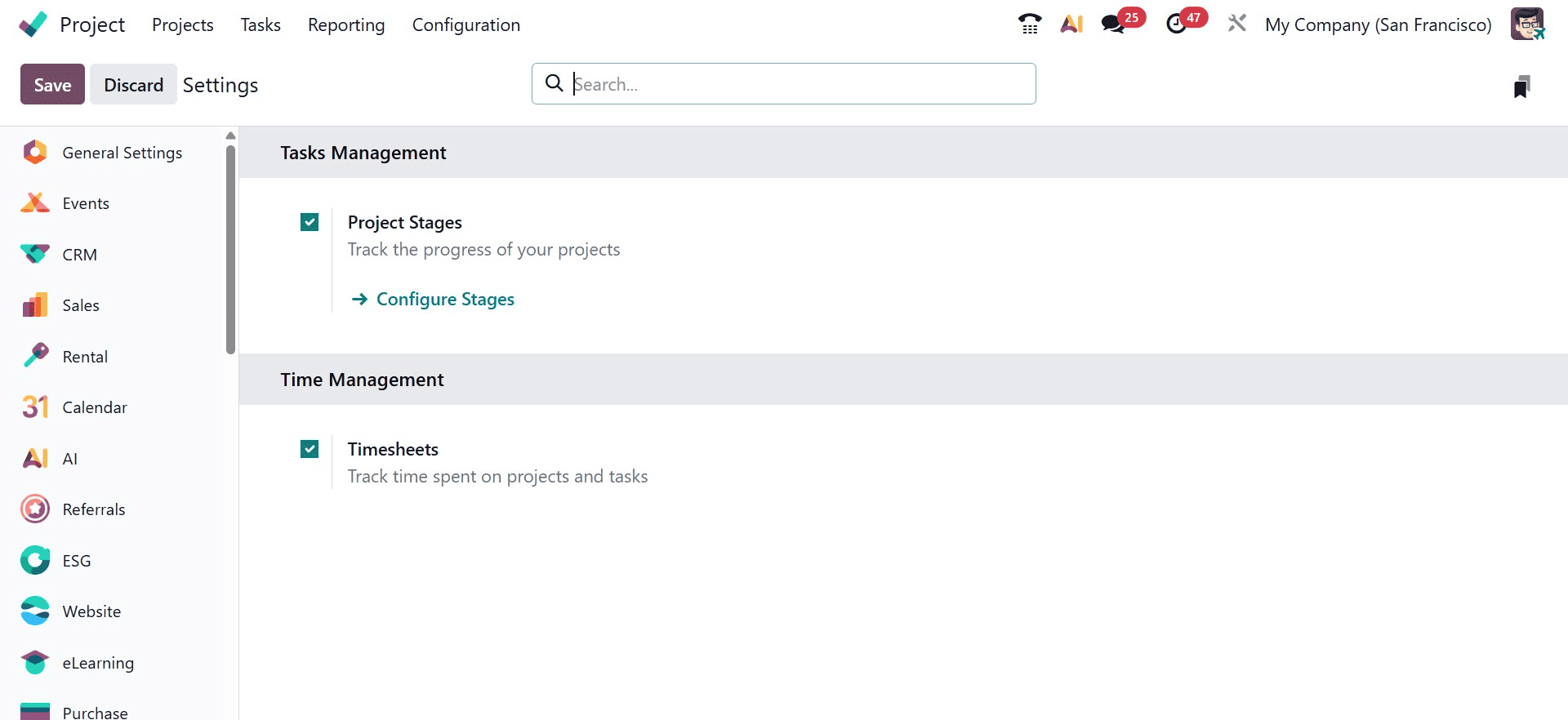
Task Management Settings
In the Task Management section, you can enable features such as Project Stages and Timesheets to optimize project tracking and reporting. The Project Stages feature helps organize projects by their progress, displaying them in distinct stages with visual indicators and counts for each stage. Users can view, edit, fold, automate, or delete stages, as well as create new custom stages through the configuration window.
The Timesheets feature can also be enabled here to track time spent on projects and tasks, supporting accurate reporting, billing, and performance analysis. Once activated, Project Stages become accessible directly from the Configuration menu for easy management.
Projects
The Projects option in Odoo 19 allows users to create, view, and manage all company projects from a centralized interface. It enables configuration of key project details such as project name, customer, company, project manager, stage, and communication and progress-tracking settings.
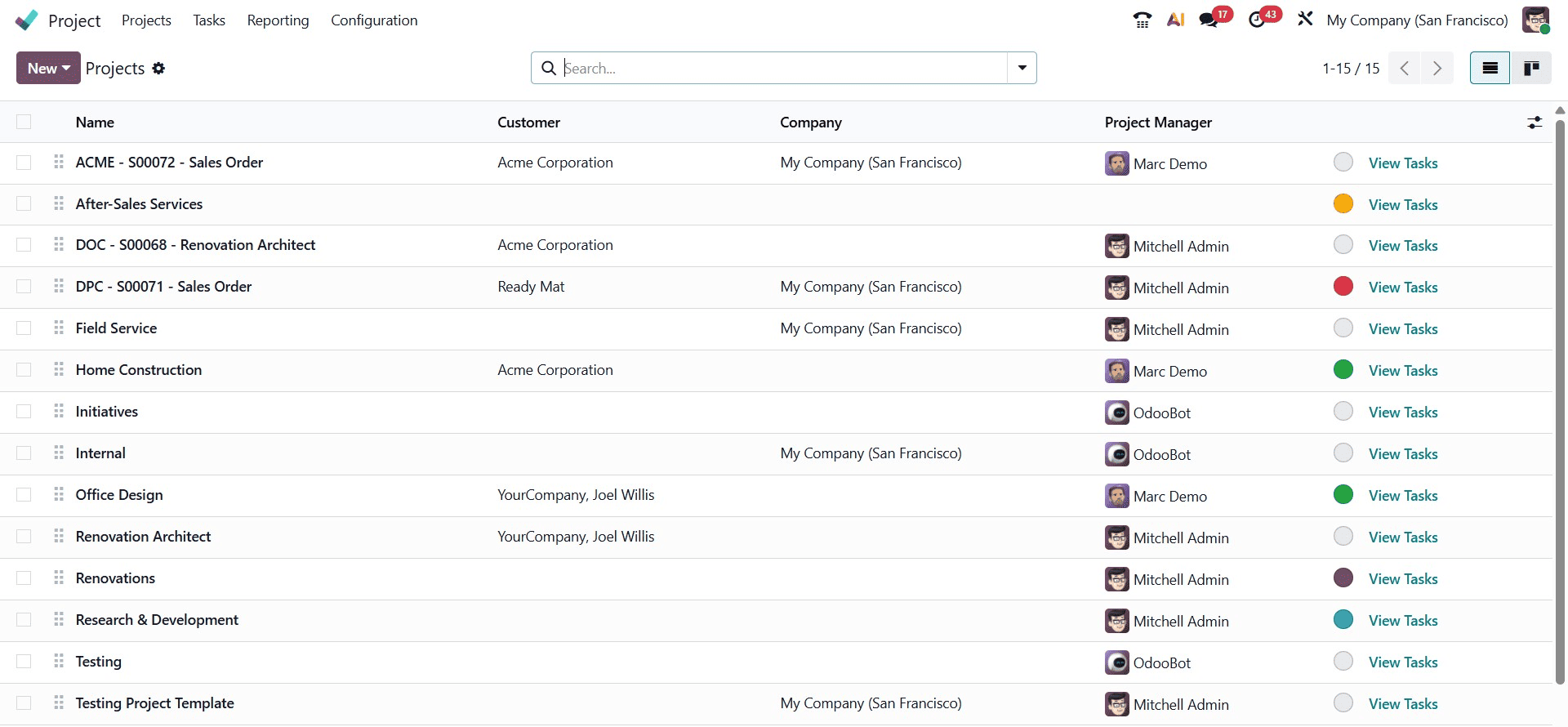
Users can create new projects directly from the Projects menu and optionally select a Project Template. Templates help save time and maintain consistency by automatically applying predefined tasks and configurations. Existing projects can also be converted into templates for future reuse.
Project Stages
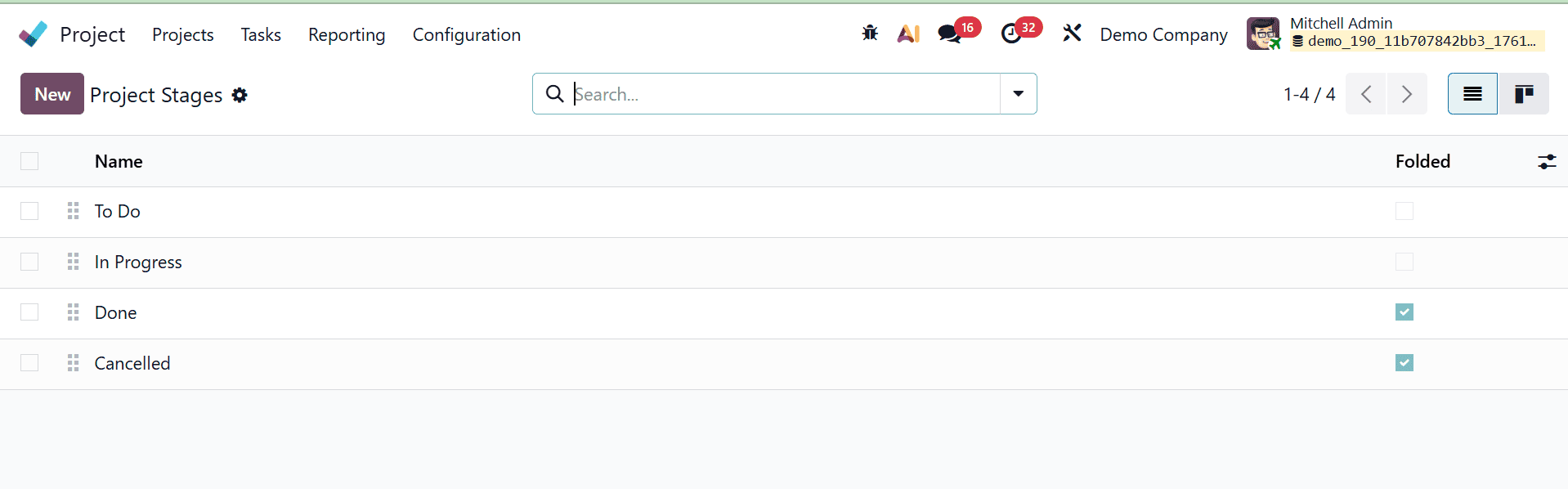
Project Stages represent the different phases a project goes through during its lifecycle. These stages help track project progress and workflow status. Users can create, edit, and manage stages, as well as choose whether a stage should be folded in the Kanban view for better visual organization.
Task Stages
Task Stages define the phases through which tasks progress within a project. Task stages can be managed from the Configuration menu, where users can create new stages, control their sequence, and decide their visibility in the Kanban view.
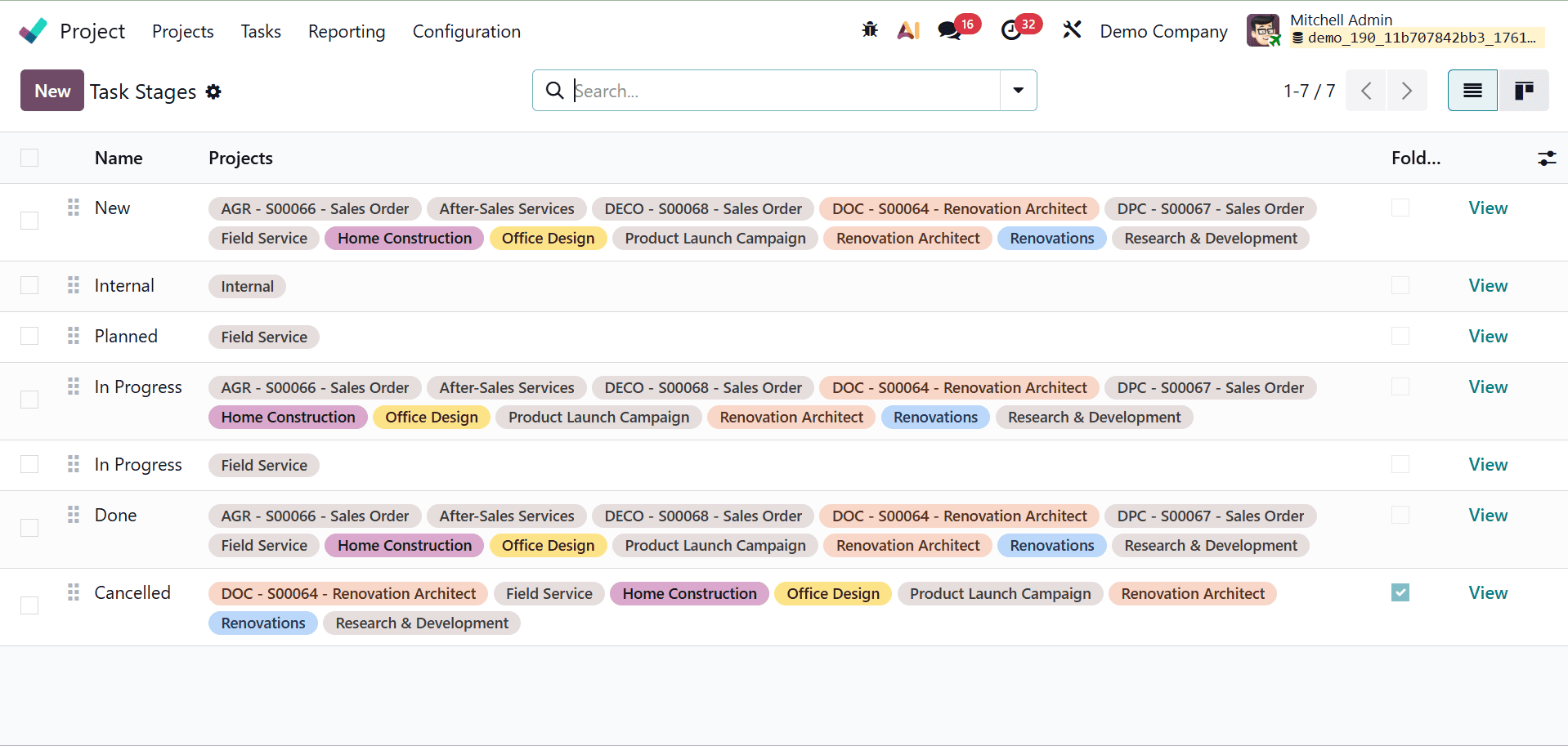
Additional options allow users to assign colors, automate email or SMS notifications, and enable customer ratings when tasks reach specific stages, improving communication and feedback collection.
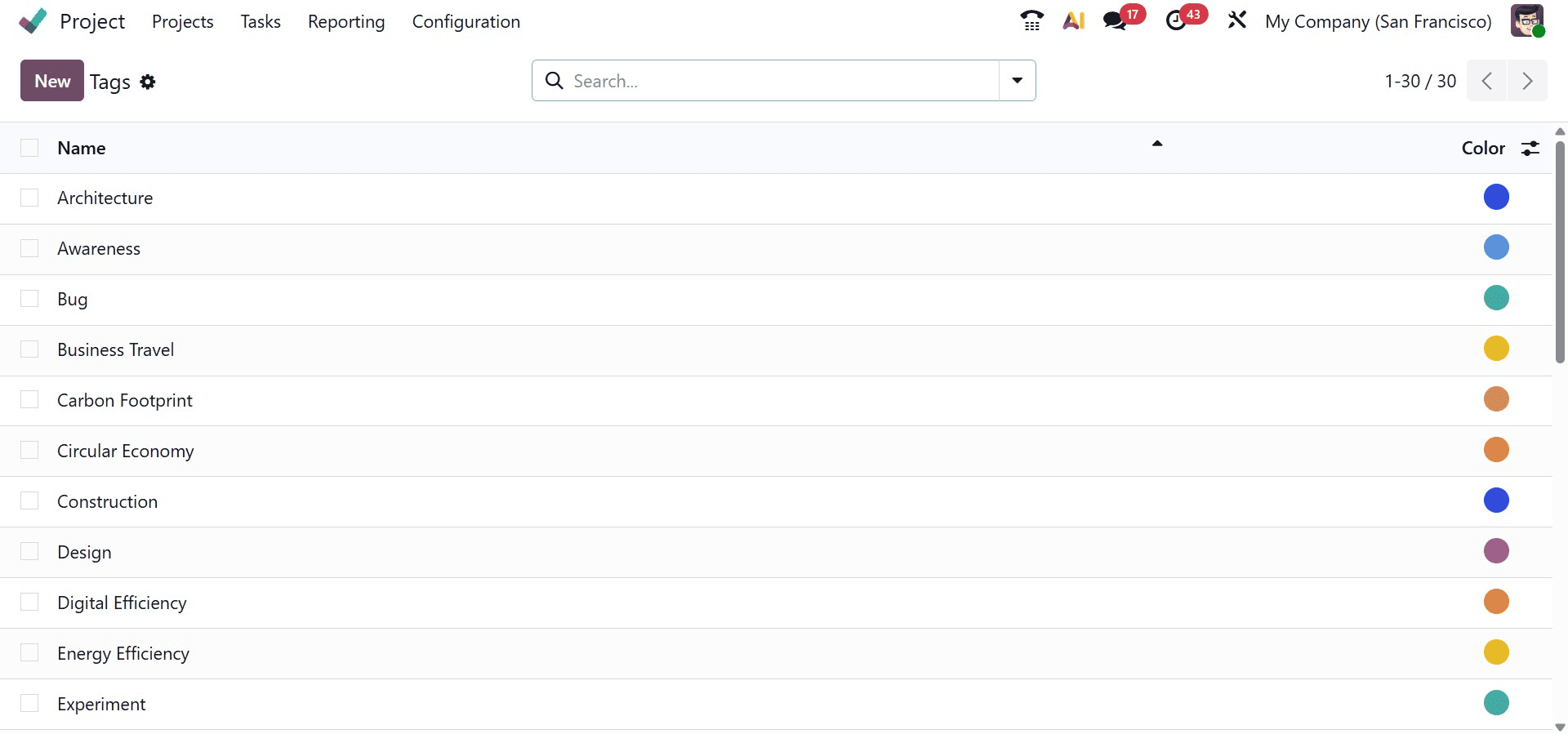
Tags
Tags are used to categorize and organize projects and tasks, making searching and filtering more efficient. Users can create and manage tags from the Configuration menu by defining a name and color for quick visual identification.
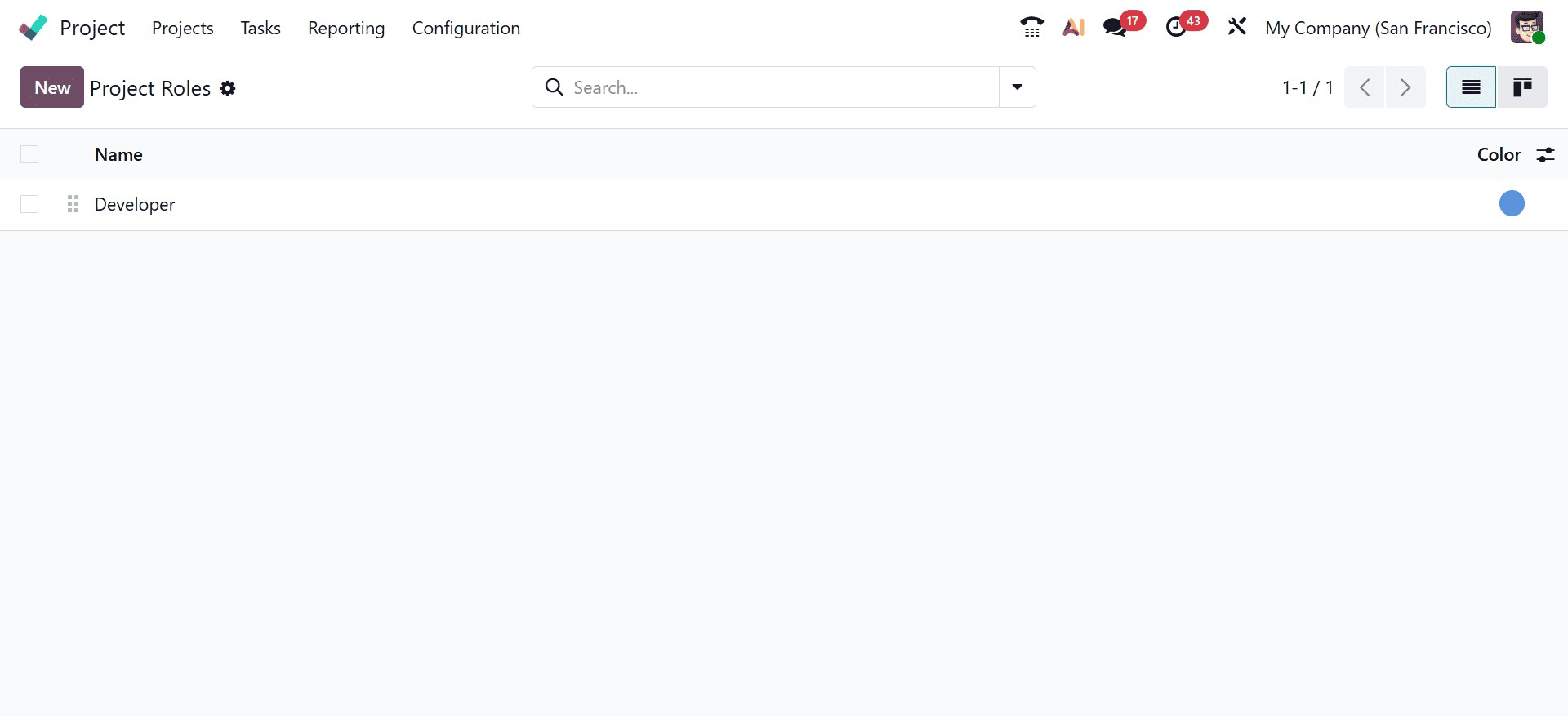
Project Roles
The Project Roles feature allows organizations to define specific roles or responsibilities for team members within a project. Users can create custom roles and assign colors to clearly distinguish responsibilities across project teams.
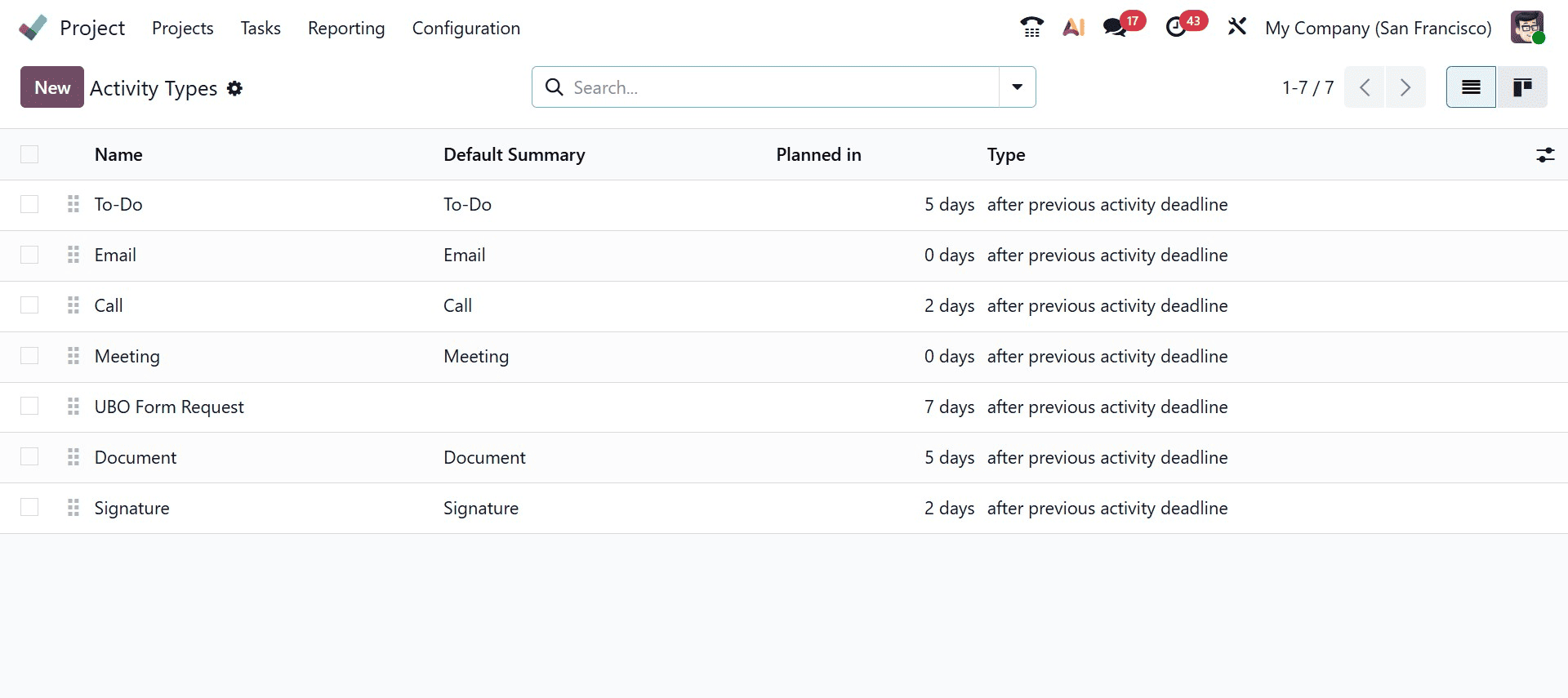
Activity Types
Activity Types are used to configure and manage scheduled actions such as calls, emails, meetings, and reminders. These predefined activity categories help standardize workflows across projects. Users can customize activity types by setting default users, schedules, summaries, actions, and related email templates.
Activity Plans
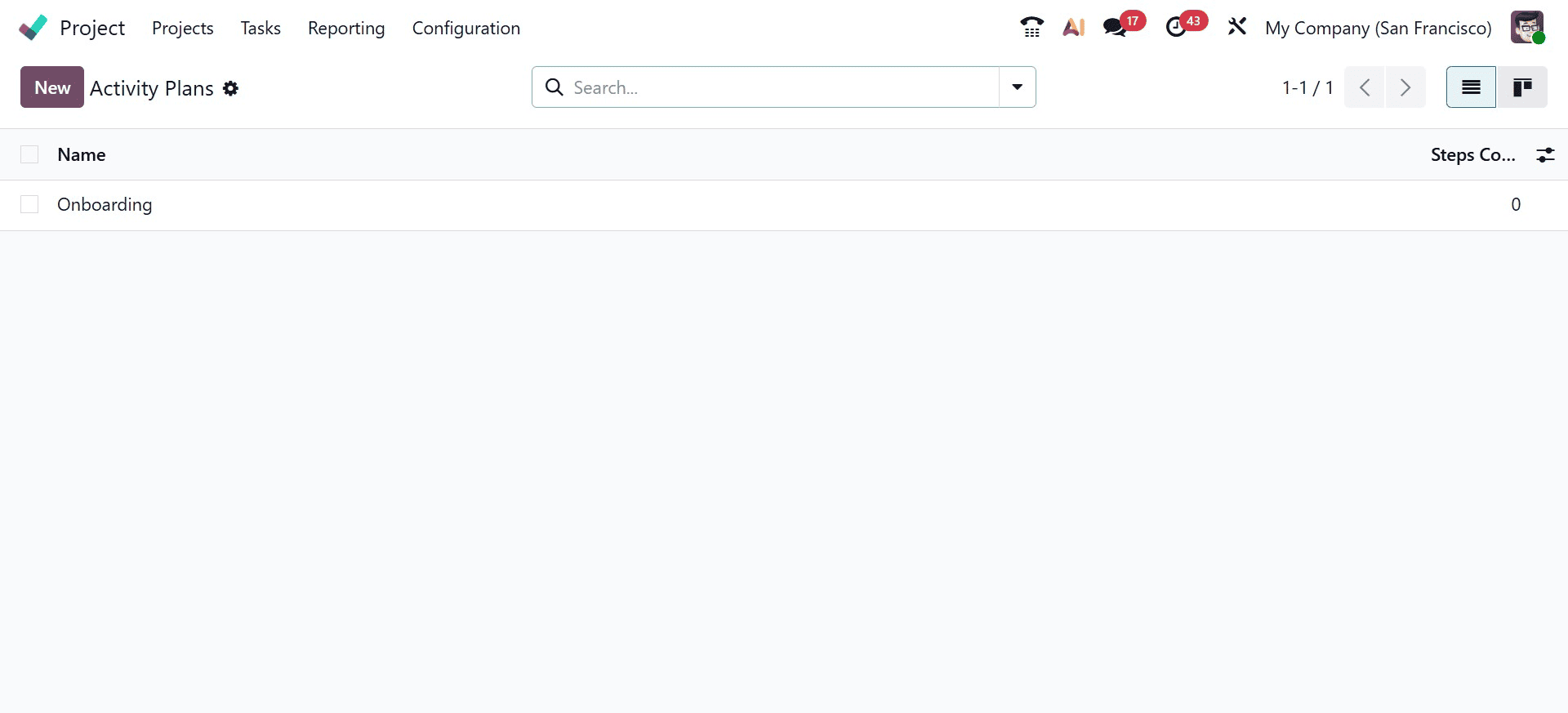
Activity Plans allow users to group multiple activity types into structured workflows. These plans help standardize recurring processes and ensure consistent execution across projects. Users can create custom activity plans by defining the company, strategy, and associated activity types from the Configuration menu.
In conclusion, Odoo 19’s Project Management Module is a powerful and flexible solution for modern businesses seeking efficient project execution, enhanced collaboration, and actionable insights. With its intuitive interface, extensive customization options, and seamless integration with other Odoo applications, it enables organizations to manage projects with confidence and precision.
Whether you are a growing startup or a large enterprise, Odoo 19 equips you with the tools needed to successfully plan, execute, and monitor projects, driving productivity and long-term success.
To read more about An Overview of the Odoo 18 Project Module, refer to our blog An Overview of the Odoo 18 Project Module.