A seamless sales process depends on effectively managing product categories in the Point of Sale (POS) system. Odoo 19's POS Product Category feature enables businesses to arrange products for easy access, enhancing checkout speed and user experience. This guide explains how to set up and utilize POS Product Categories in Odoo 19, making sure the POS interface is organized and simple to use.
For the Point of Sale system to run smoothly and quickly, merchandise must be arranged effectively. PoS Product Categories in Odoo 19 POS make it easier for cashiers to find products during sales by helping businesses organize items in an understandable and user-friendly way. Businesses like restaurants, retail stores, and supermarkets can enhance navigation, lower order errors, and expedite checkout times by classifying related products under distinct categories. Better control over how products display on the POS interface is made possible by the ability to configure these categories with colors, sequences, and parent-child hierarchies. All things considered, PoS Product Categories improve usability and make the selling process more structured and effective.
In Odoo 19, a POS Product Category is a classification that aids in grouping products according to their nature, usage, or business logic. POS product categories, in contrast to typical product categories used in inventory, are made especially to make it easier for cashiers and salespeople to choose products at the POS interface.
Go to the Point of Sale module and select the Configuration menu to set up POS Product Categories in Odoo 19.
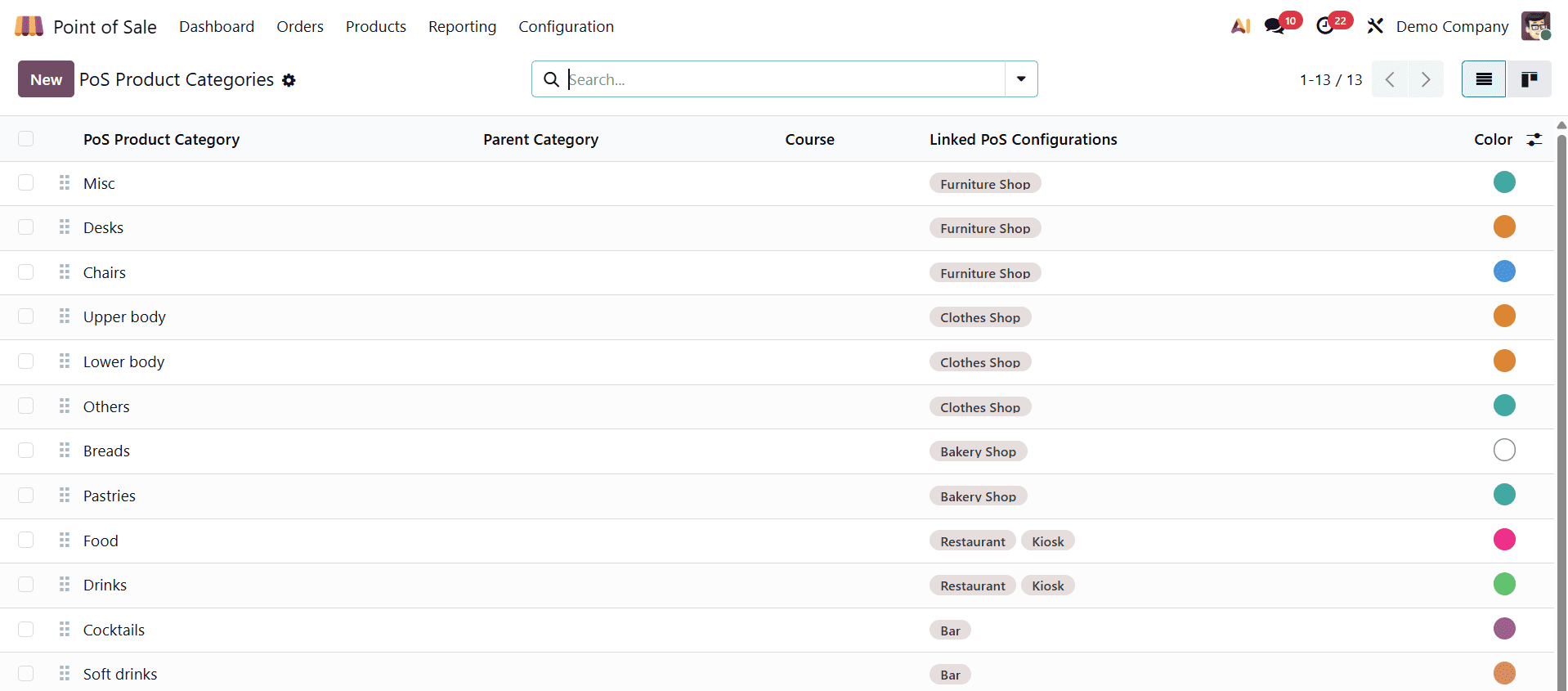
When you click on it, all of the current product categories are shown on a new page. Click the New button to start a new category. The form for the product category is displayed.
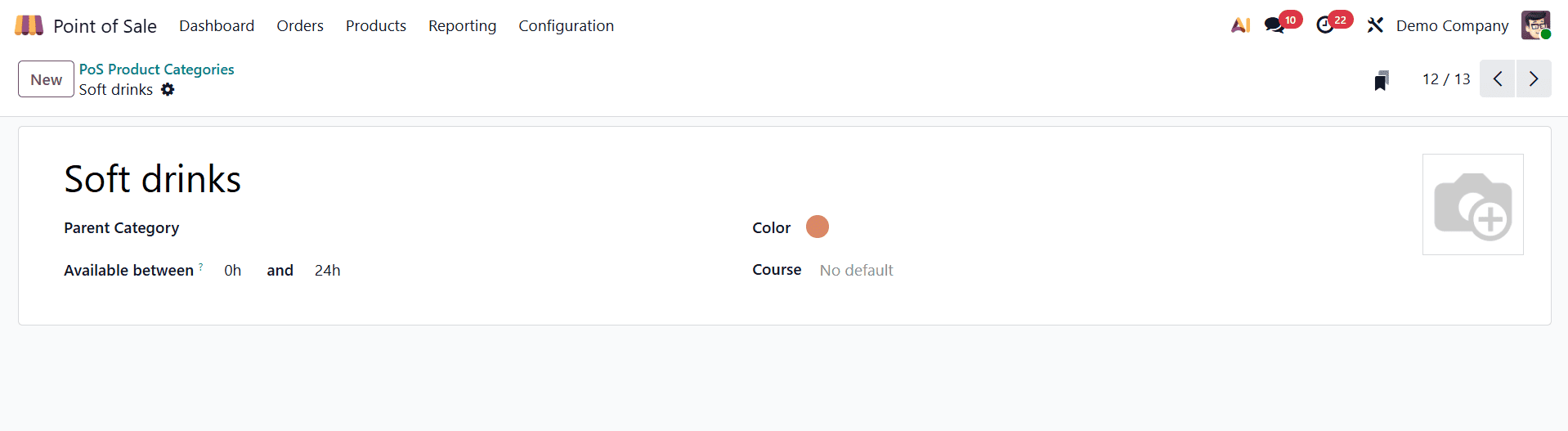
To establish a new product category, the following fields must be completed:
- Category Name: This feature lets users choose the product category's name.
- Parent Category: By designating a parent category and establishing a hierarchy, this feature aids in the organization of product categories. For instance, the "Soft drinks" category can be chosen in this field if it must fall under the "Drinks" category.
- Available Between: Indicates the window of time that this category will be accessible in the POS system (e.g., 00:00 to 24:00 for full-day availability).
- Color: In the POS interface, users can give the category a color to make it stand out visually.
The products that should fall under this category now need to be connected to this POS Product category. Go to Products > Products to accomplish this.
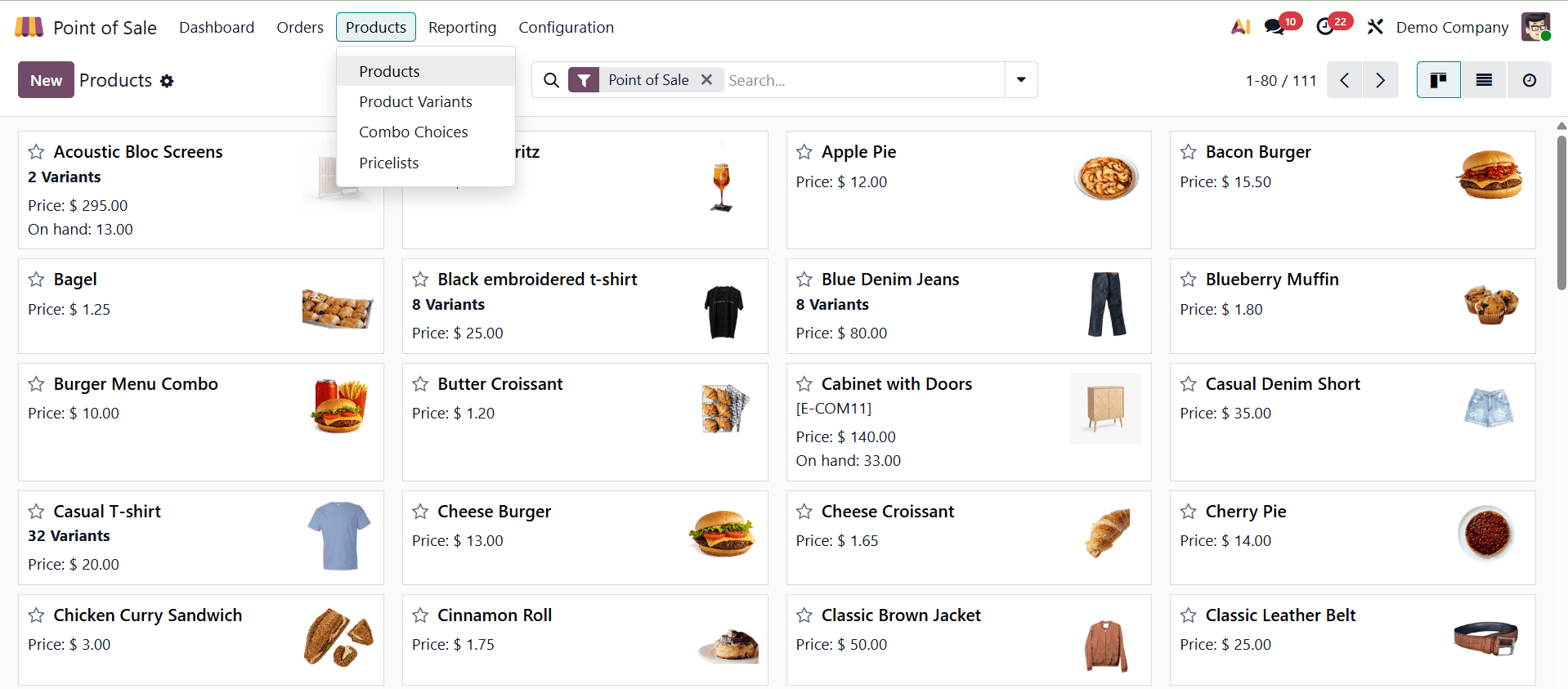
Choose the product that needs to be added under this category from the product page that displays. Navigate to the Point of Sale tab on the product page, where the Category field is located. Several categories can be added to the product in that field, making it available under that category and simple to choose from the POS session.
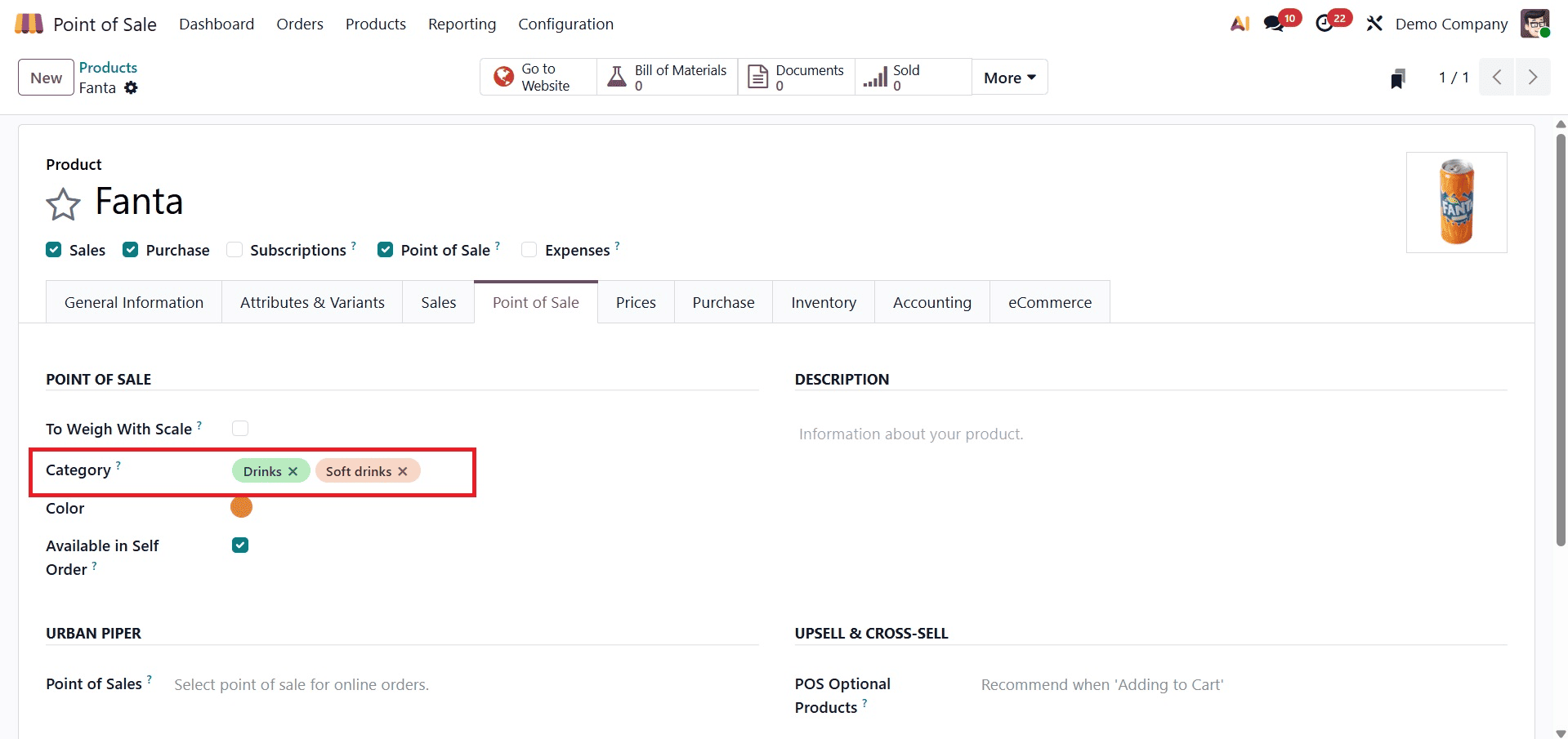
Here, the categories "Drinks" and "Soft Drinks" have been added for the product "Fanta."
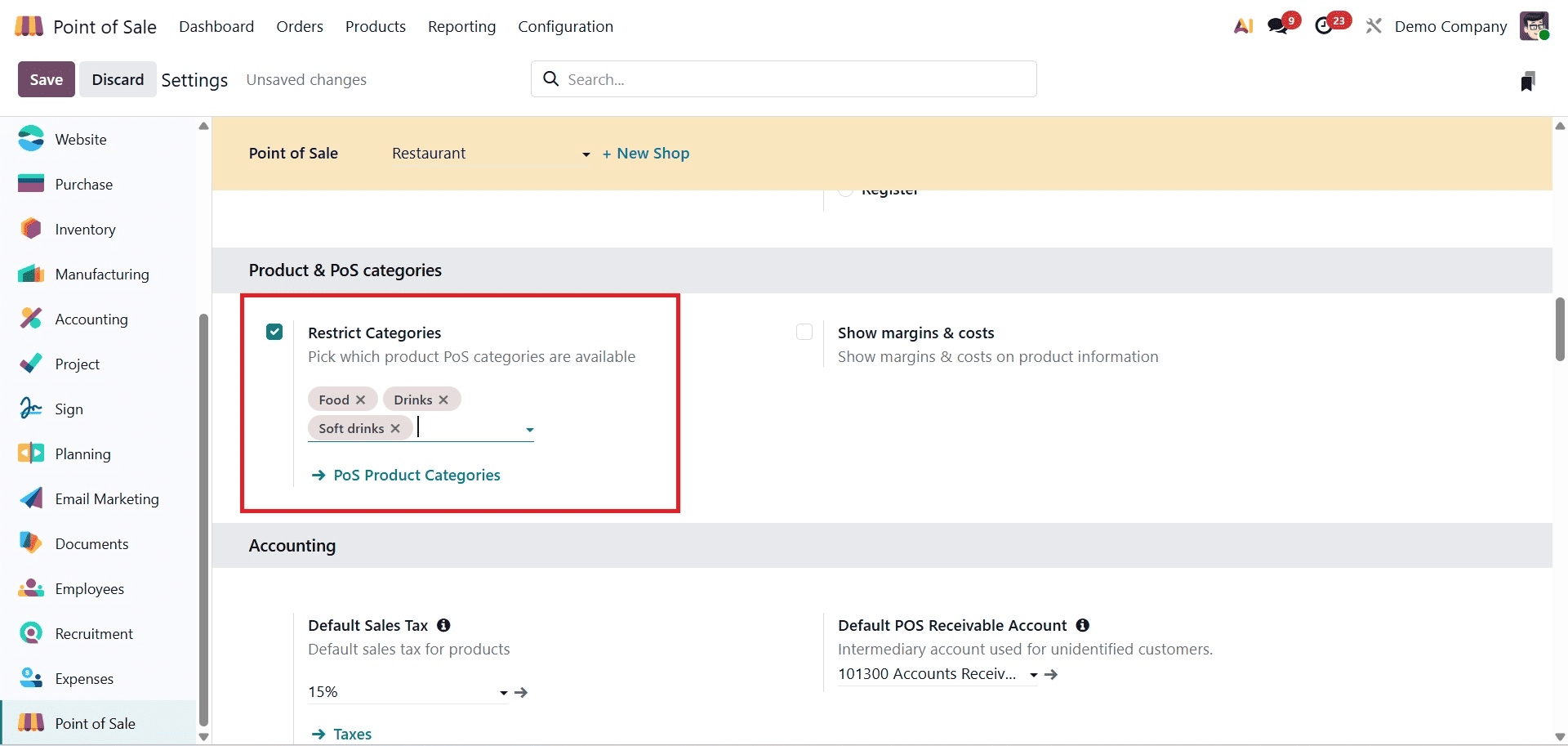
Additionally, it is possible to limit the categories that will be displayed during a POS session. In other words, categories like desks and chairs are not necessary for a restaurant POS session. Thus, a POS session may only display a restricted number of products. Go to Configuration > Settings to accomplish this.
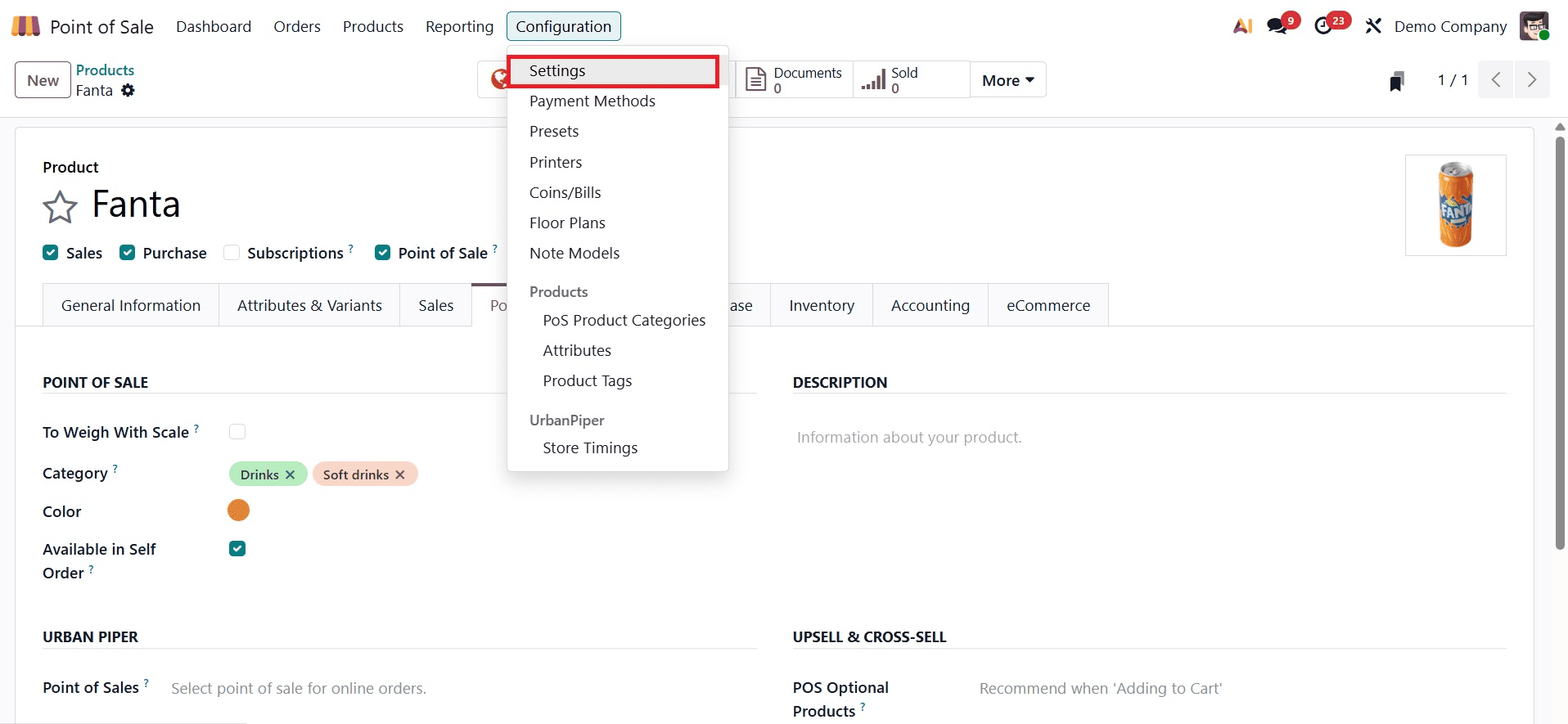
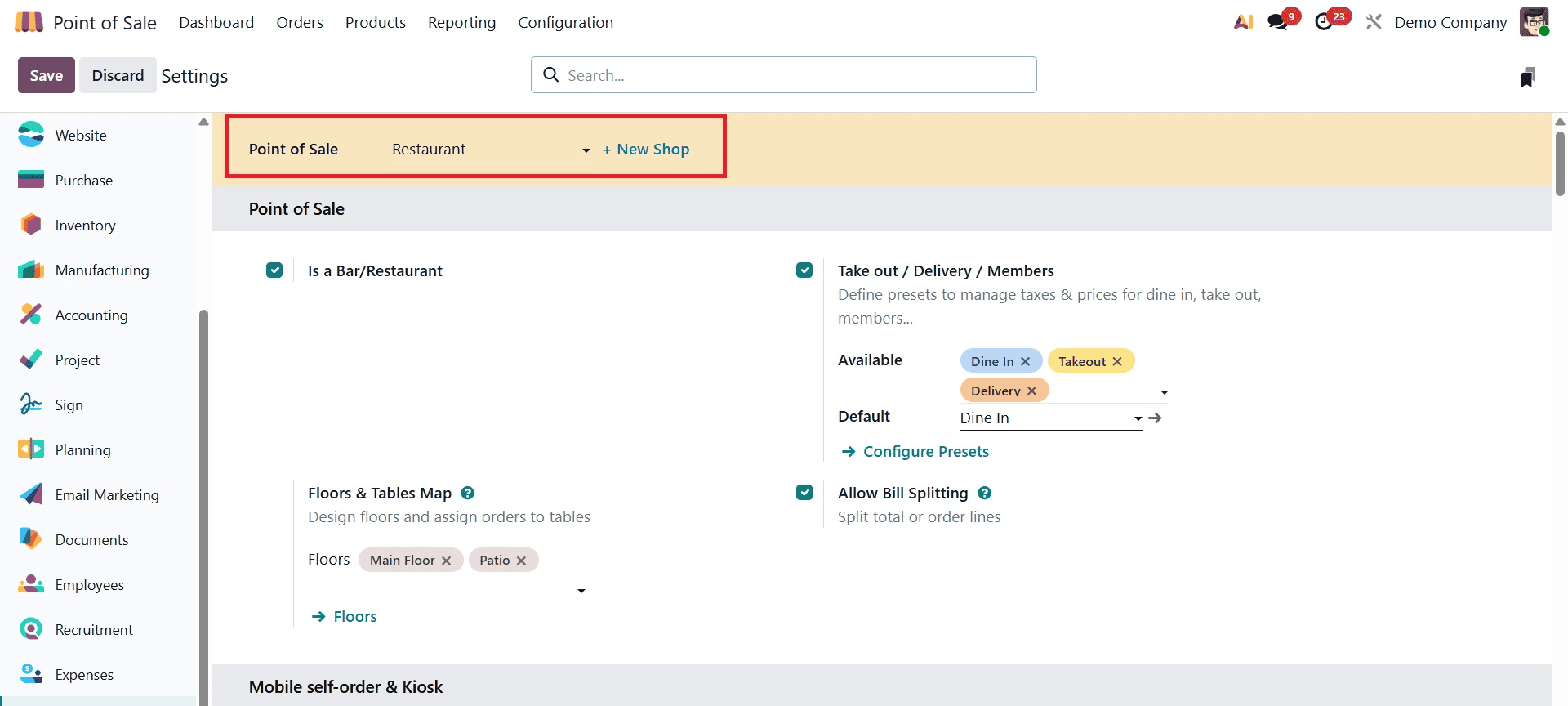
Choose the Point of Sale where the configuration needs to be made.
Restrict Categories is a feature included under the Product & POS Categories section. Add the categories that must be displayed during the POS session in that field.
Click on Open Register after navigating to the PoS session "Restaurant" on the POS dashboard.
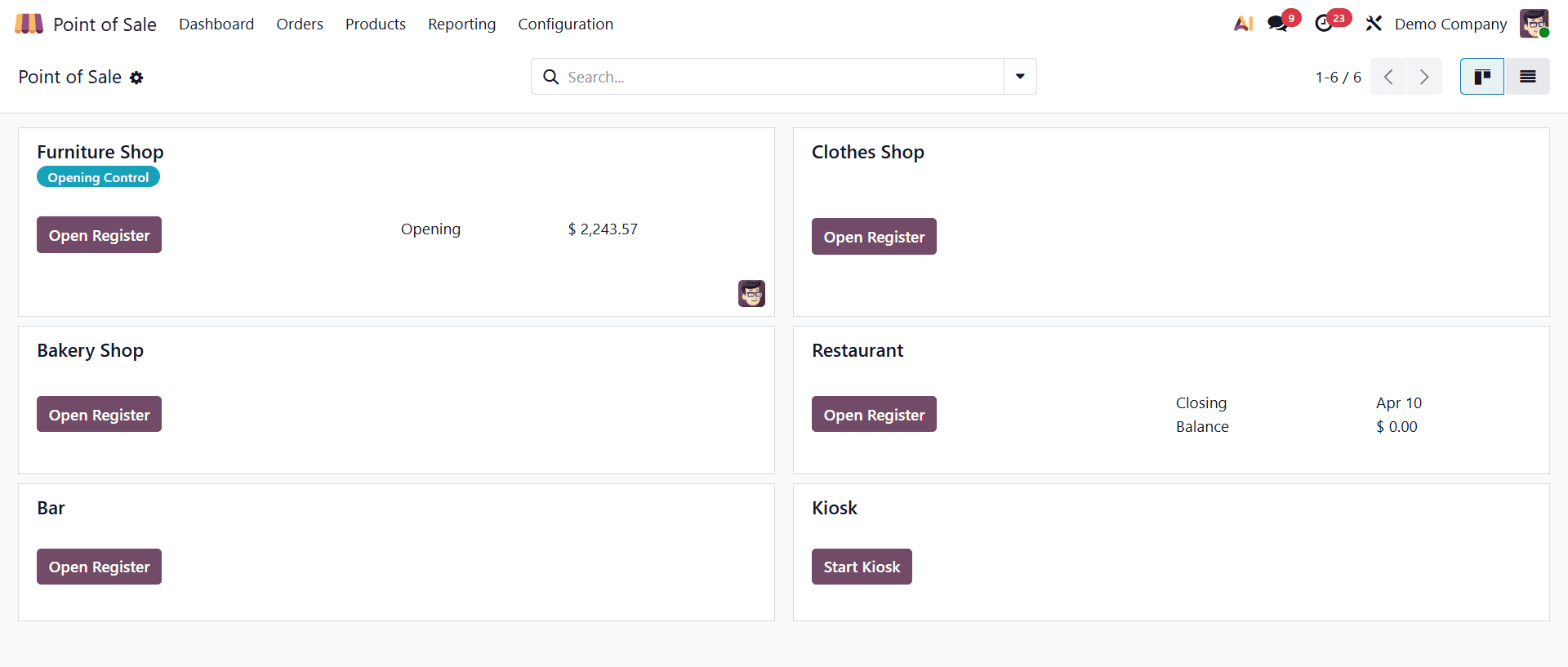
Click Open Register after adding the opening cash to the POS session.
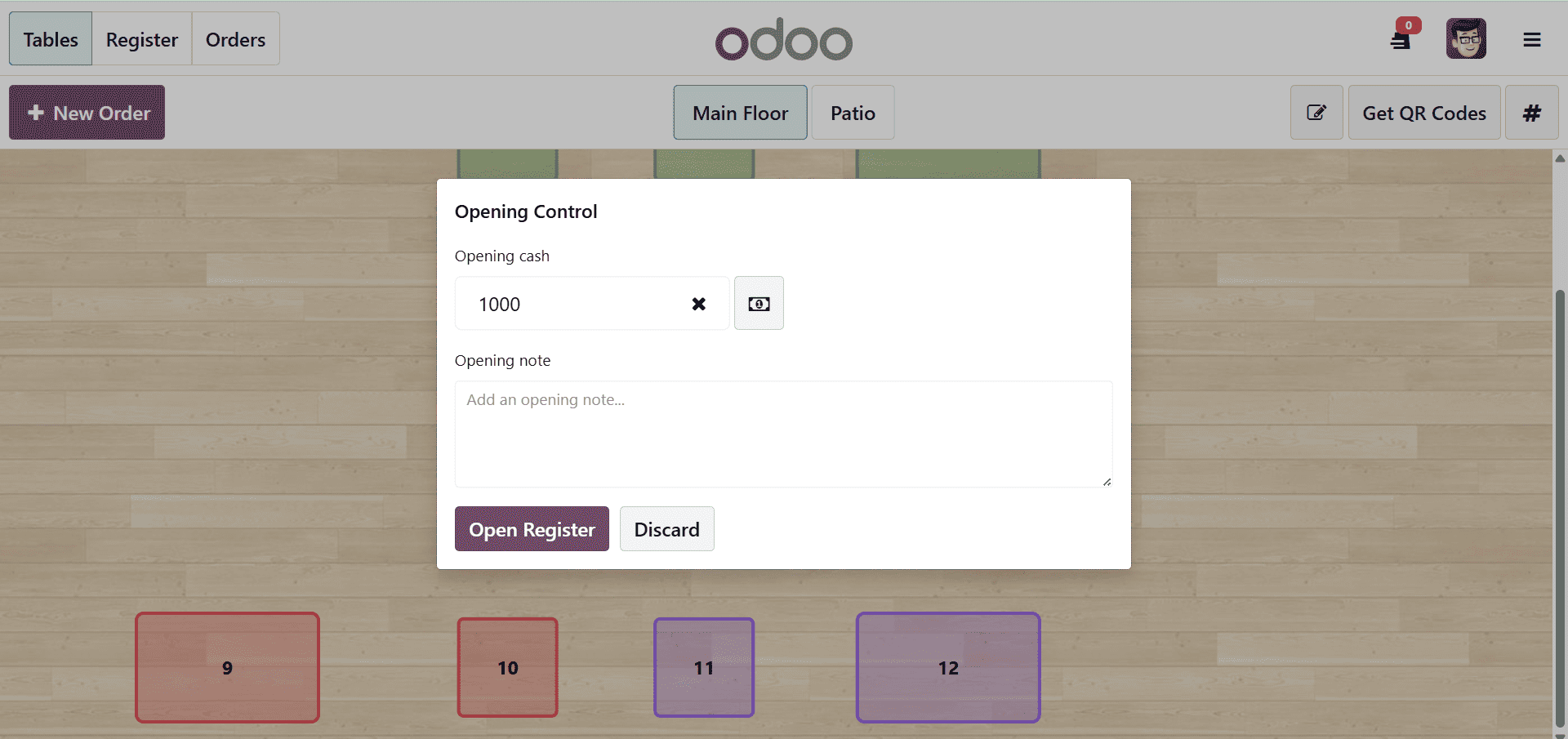
The PoS interface will appear when you select a table.
All of the POS Categories added for this session are visible at the top of the screen. Navigate to the newly formed "Soft drinks" category.
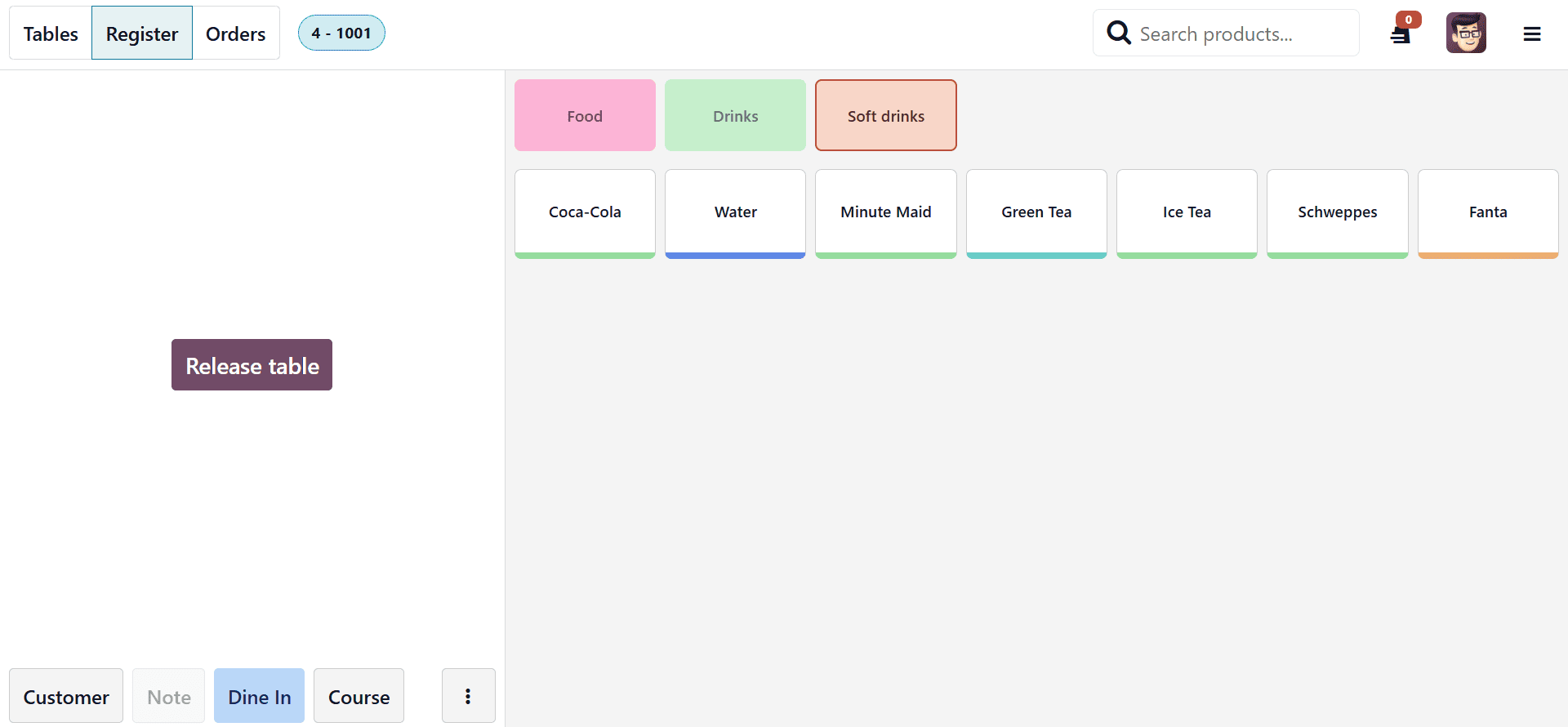
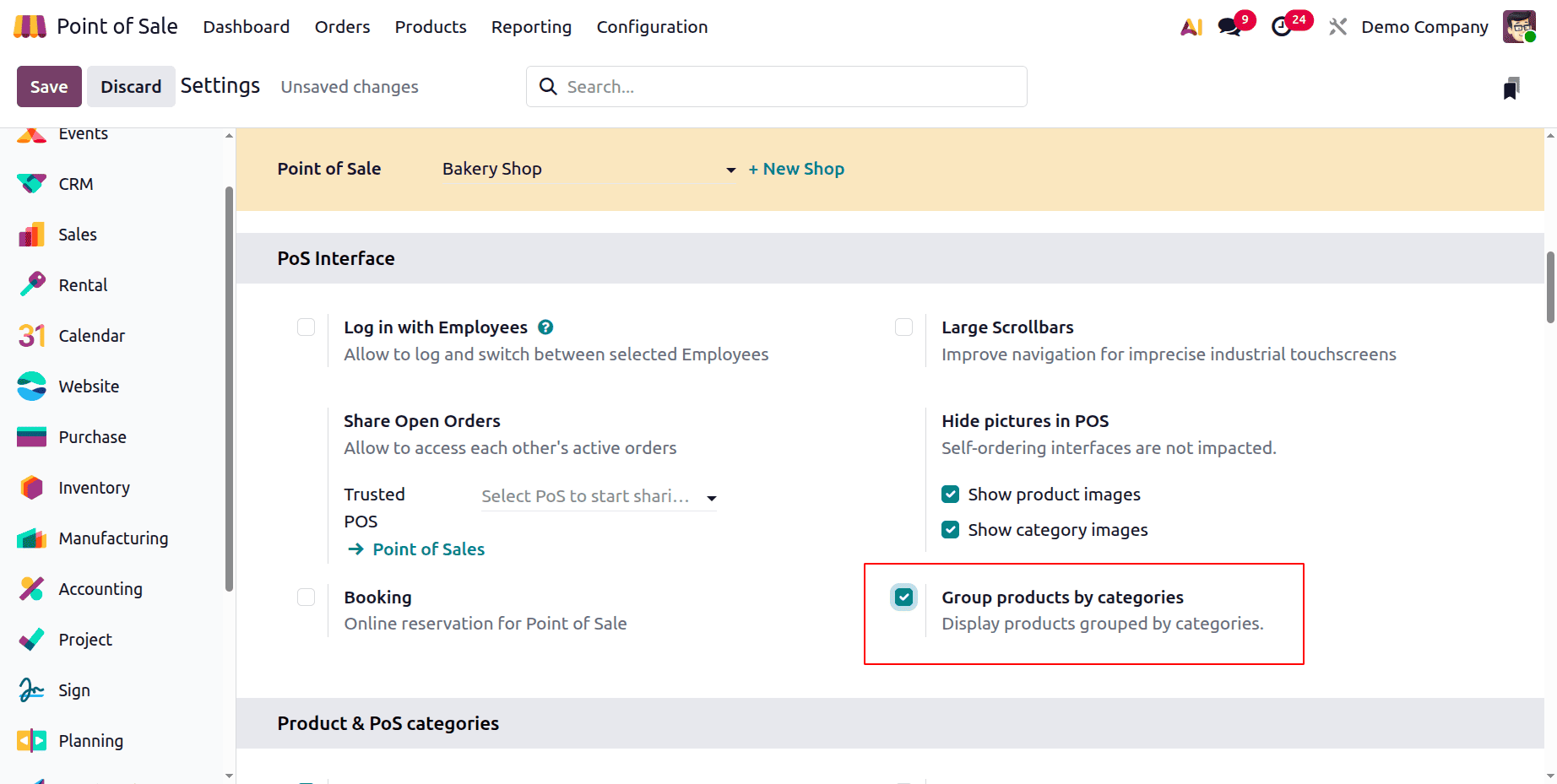
There is an additional option to view the category images inside the session. For that go back to the Settings again and enable Hide pictures in POS, as in the screenshot below.
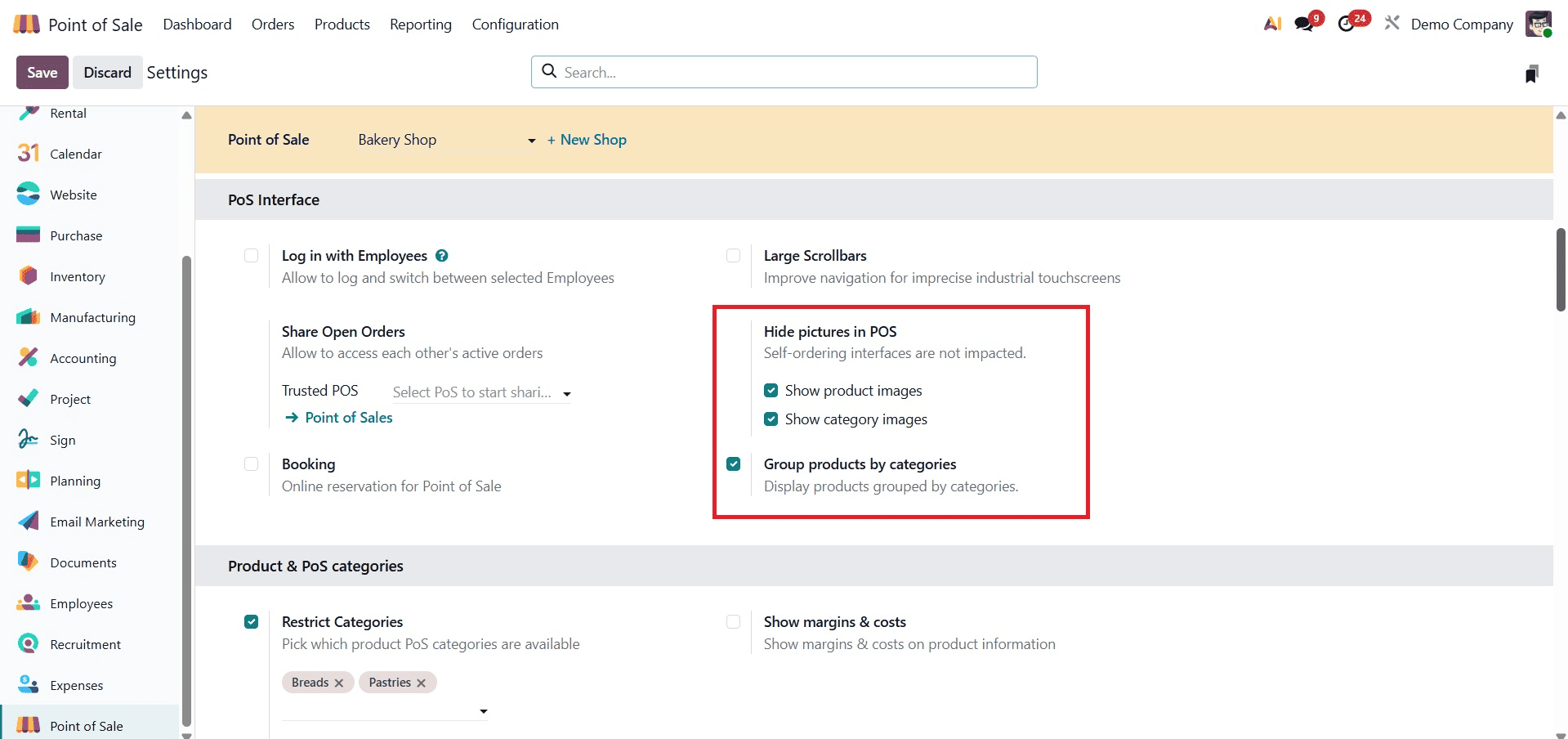
Hide Product/Category Pictures: To make the interface cleaner, especially in Odoo 19, check for interface options to turn off "Show product images" and "Show category images" inside the POS settings. The product catalogue window will not display any images if the "Show product images" and "Show category images" options are disabled, and vice versa.
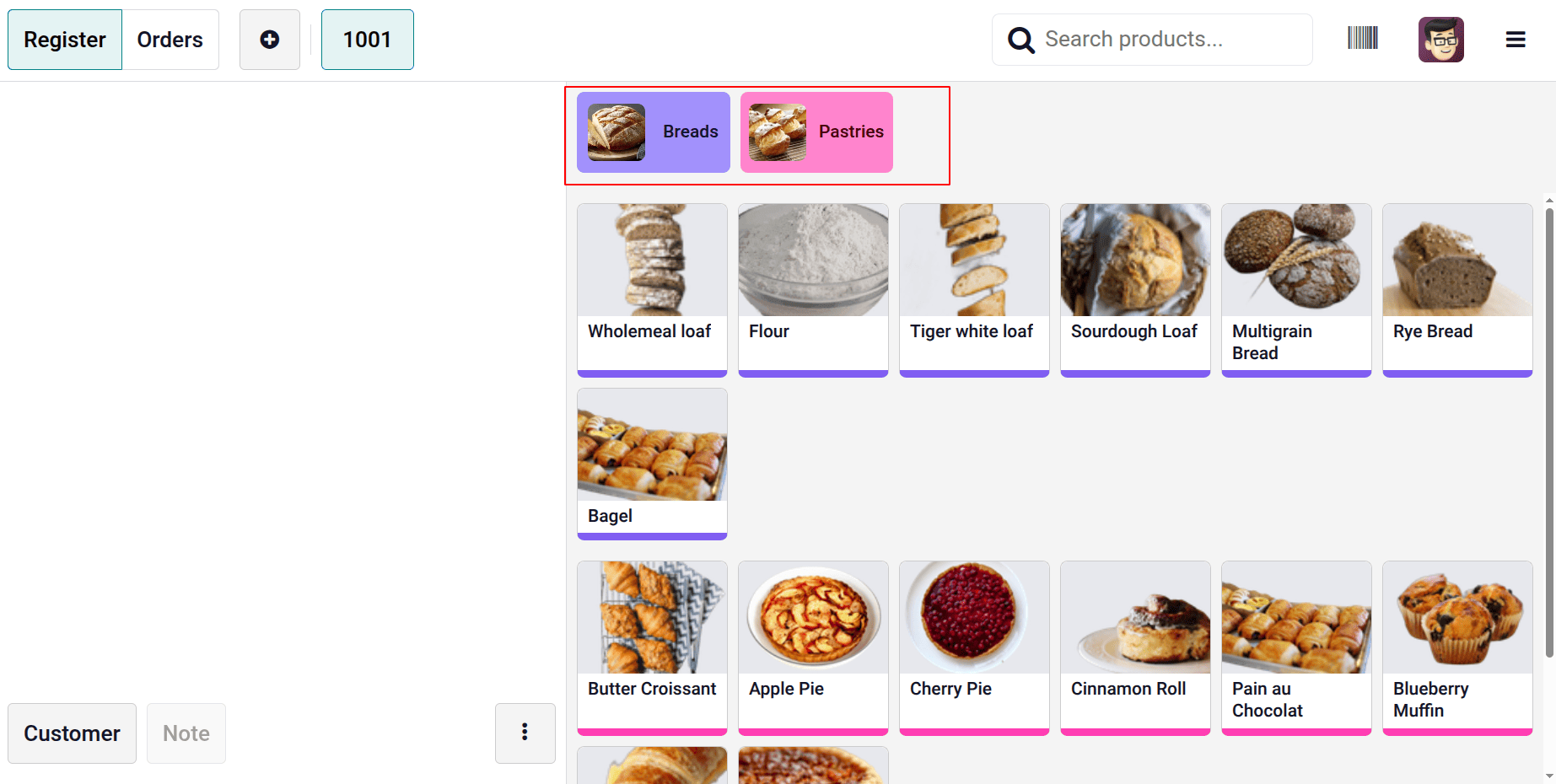
Group Products by Categories: You can set up the display to group products in the POS settings. You must give each product in the product configuration form a POS Product category in order to guarantee that they group appropriately.
You may examine all of the products for which this category has been added in the Category field here. Additionally, this category function might be quite helpful for quickly identifying the products. The products are arranged according to the various categories that have been supplied, as may be seen here.
Odoo 19's POS Product Categories are essential to keeping the Point of Sale environment effective and well-organized. Businesses may streamline item selection, increase cashier productivity, and guarantee a more seamless checkout process by classifying things properly. By cutting down on wait times and errors, this methodical approach not only increases operational efficiency but also raises customer satisfaction. Large product lists can be easily managed by companies with properly defined categories, which makes Odoo 19 POS more user-friendly and efficient for day-to-day sales operations.
Setting up POS Product Categories in Odoo 19 facilitates efficient product organization, improving checkout speed and ease of navigation. The POS interface can be made more user-friendly by defining availability, creating categories, and altering images. By putting these categories into practice, a well-organized system that improves the whole sales experience is ensured.
To read more about How to Configure & Use POS Product Categories in Odoo 18, refer to our blog How to Configure & Use POS Product Categories in Odoo 18.