Odoo is one of the most powerful ERPs, offering advanced built-in translation tools. Its language translation feature allows you to translate words, labels, and text strings into any required language with ease. With Odoo, text can be translated from one language to another without the need for additional customizations. Different users can work in different languages, and even website pages can be displayed in multiple languages.
Activate Languages
To load and use a translation in Odoo, the required language must first be activated in the system. Odoo identifies languages using both the language name and its locale (short code), so it’s important to verify these details before proceeding.
General Settings > Languages > activate the language you need.
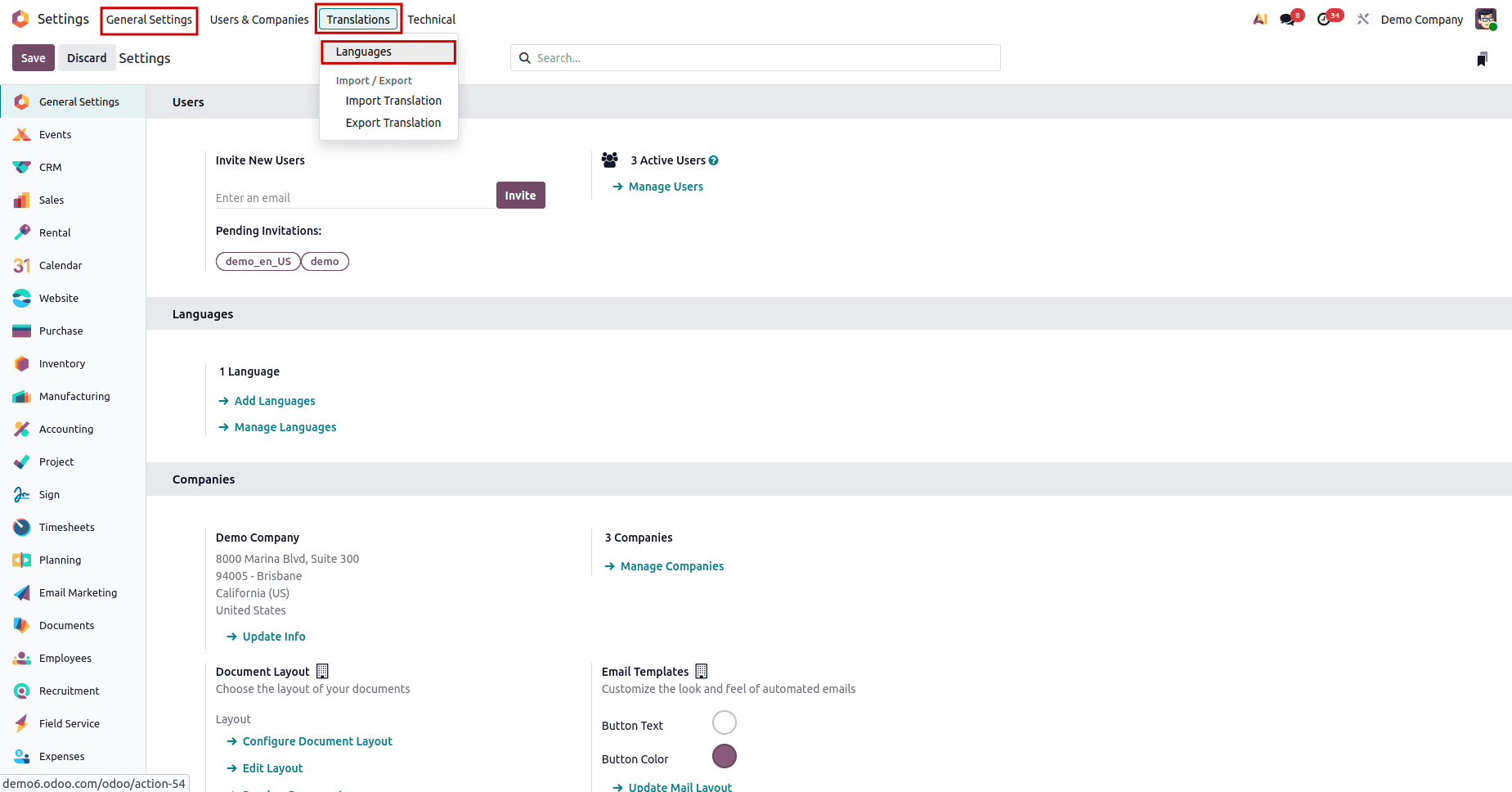
Since multiple languages are listed, the first step is to activate the required language.
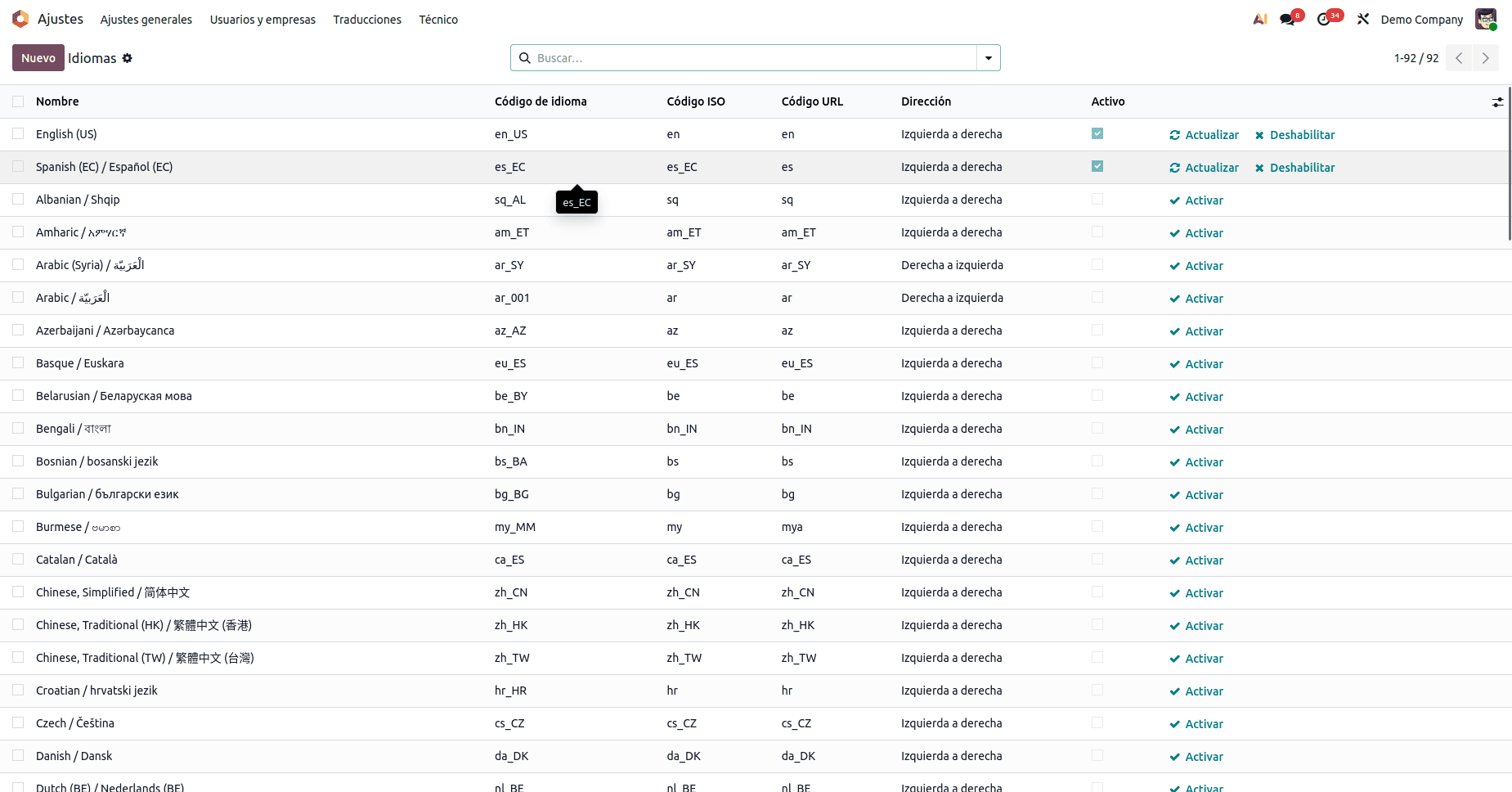
Export Translations
The next step is to export the corresponding translation file.
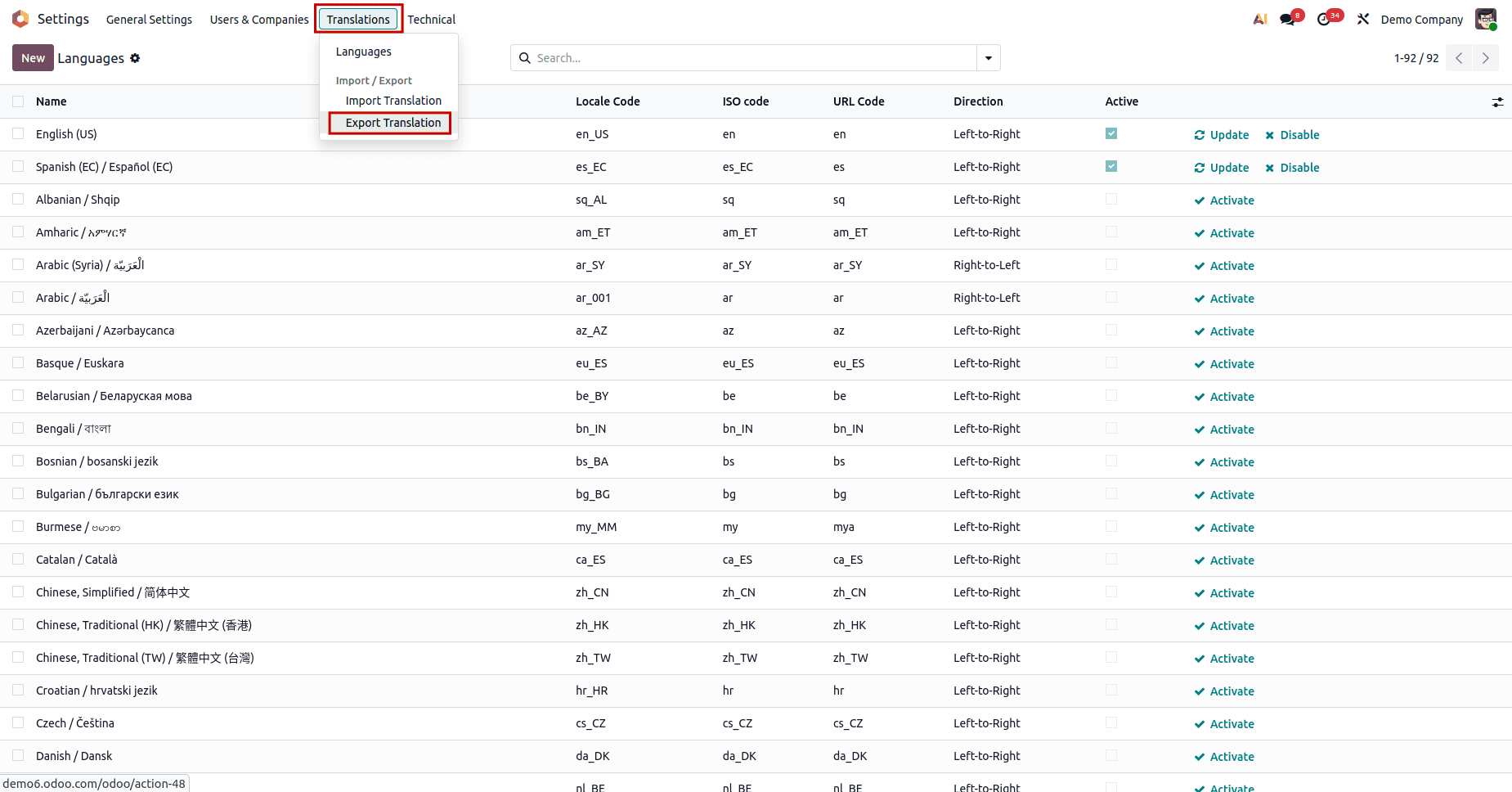
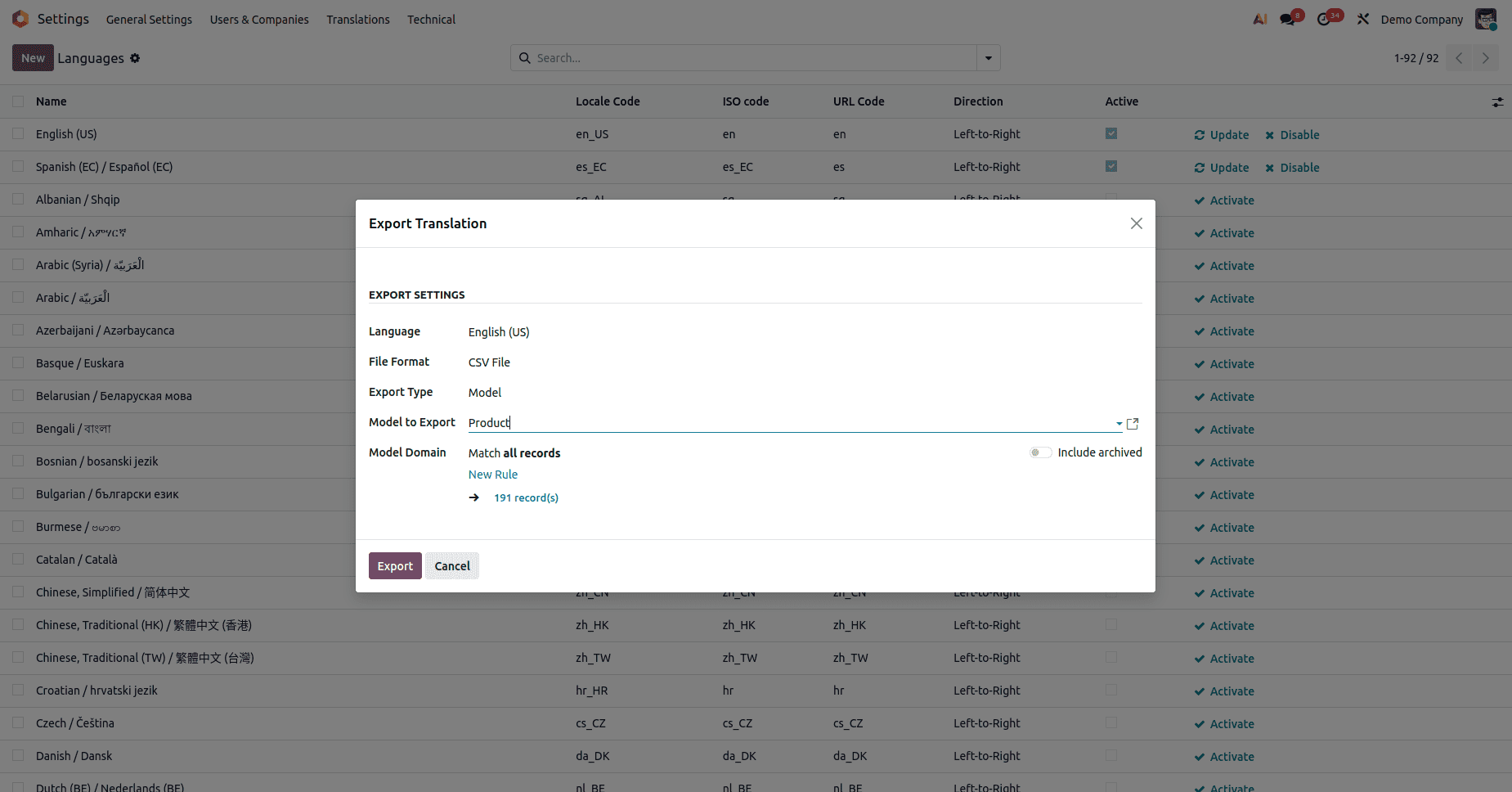
Go to Settings > Translations > Export/Translation. Select the language you want to export.
Note: Only one language can be exported at a time.
Choose the export format: CSV for spreadsheet-based editing PO for standard translation workflows.
In the Model to Export field, select the relevant model based on your requirement.
Click Export to download the translation file.
A CSV file will be downloaded, for example: en_us.csv.
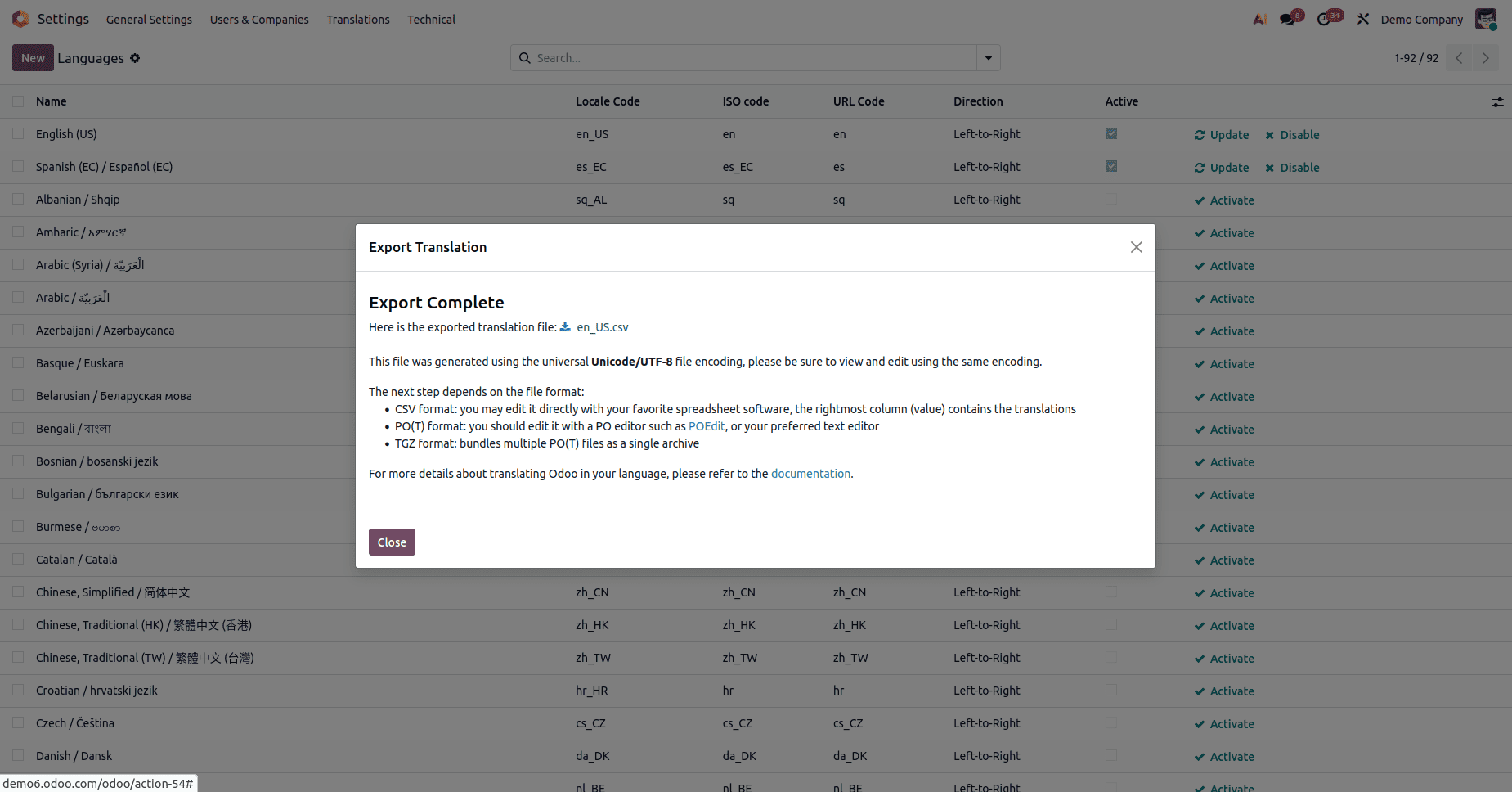
Edit the CSV File
In the SRC column, the original product name in the default language is displayed.
In the Value column, enter the translated text for the selected language.
After completing all required translations, save the CSV file to preserve the changes.

Import Translations to Odoo
To apply the translated values in Odoo, import the updated translation file as follows:
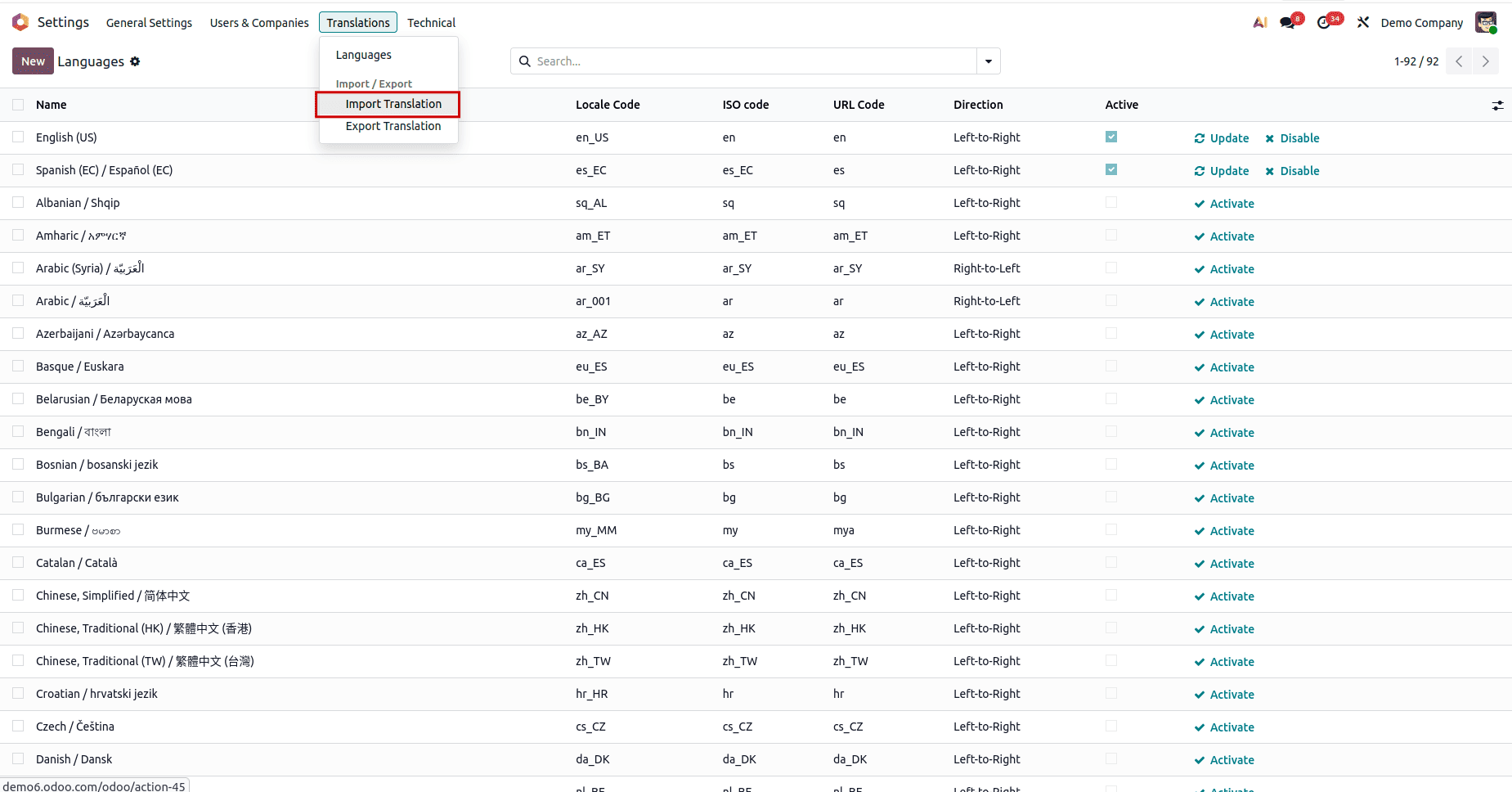
Go to Settings > Translations > Import / Translations.
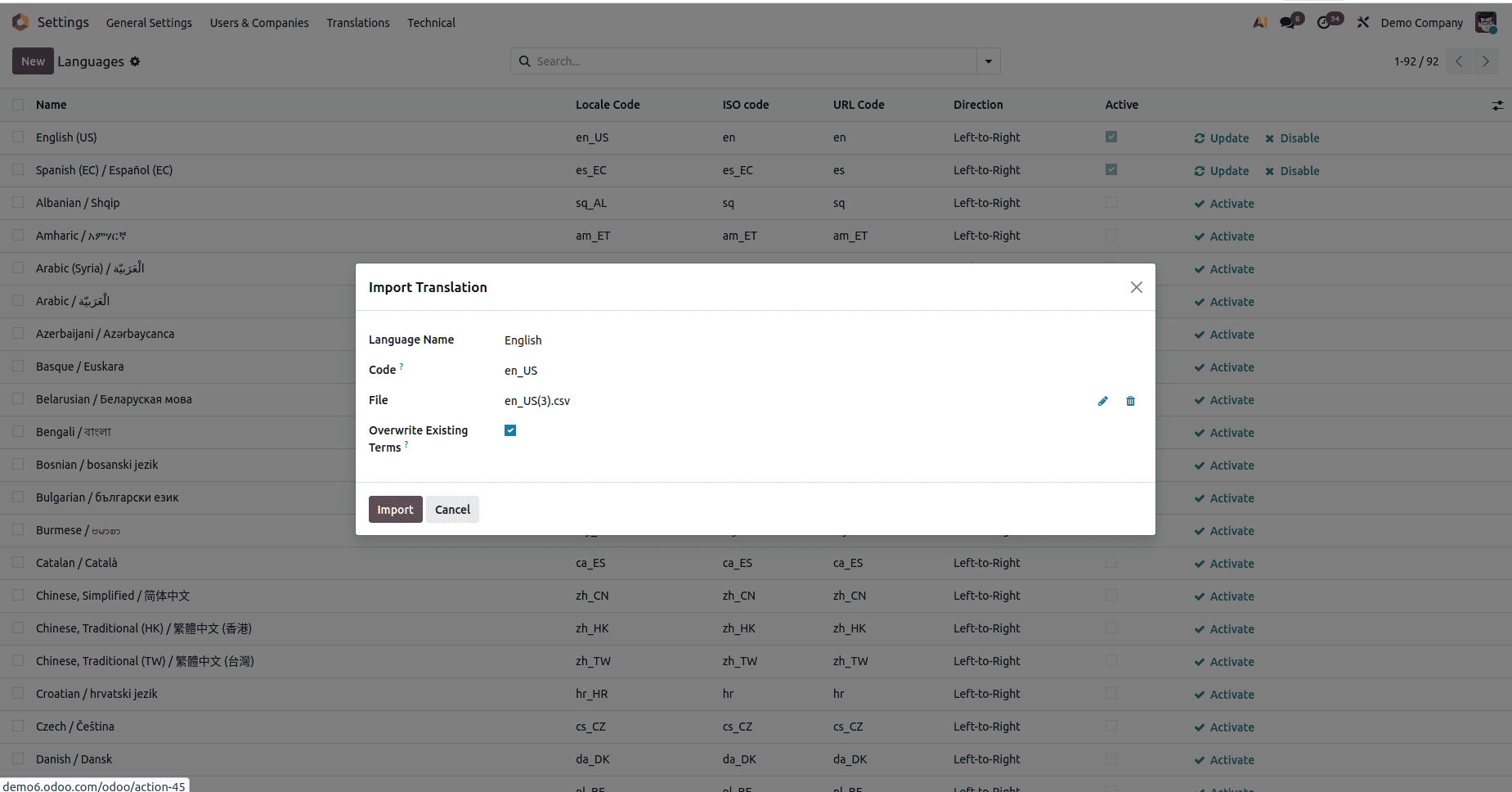
After clicking Import Translation from the Translations menu, this wizard opens, allowing you to select the language, upload the translation file.
Enter the language name and language code corresponding to the translation.
Click Upload Your File and select the edited CSV file.
Once uploaded, the translations are automatically imported into Odoo.
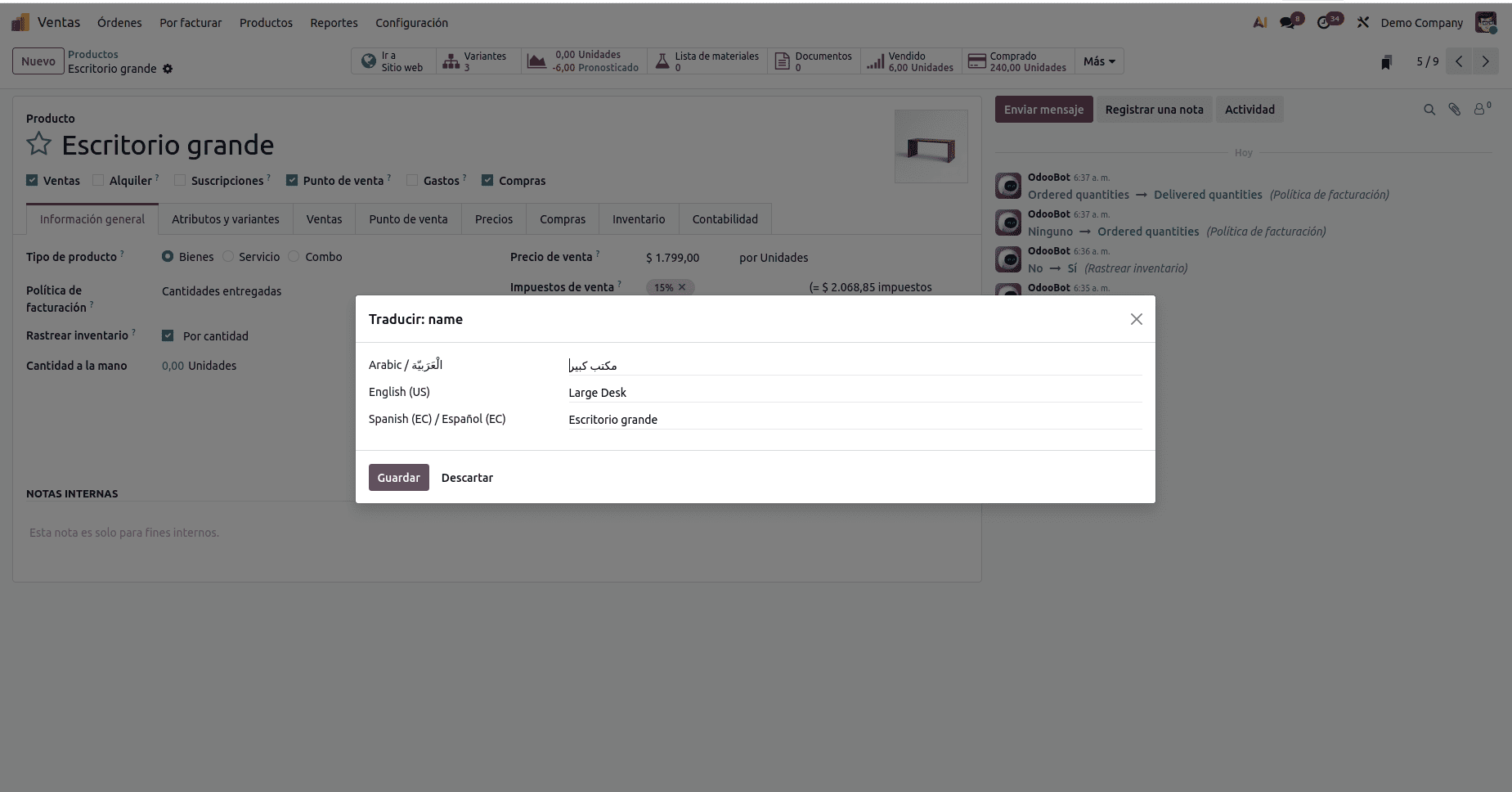
You can click the translation icon displayed next to the Odoo field to view and manage the translated content for that field.
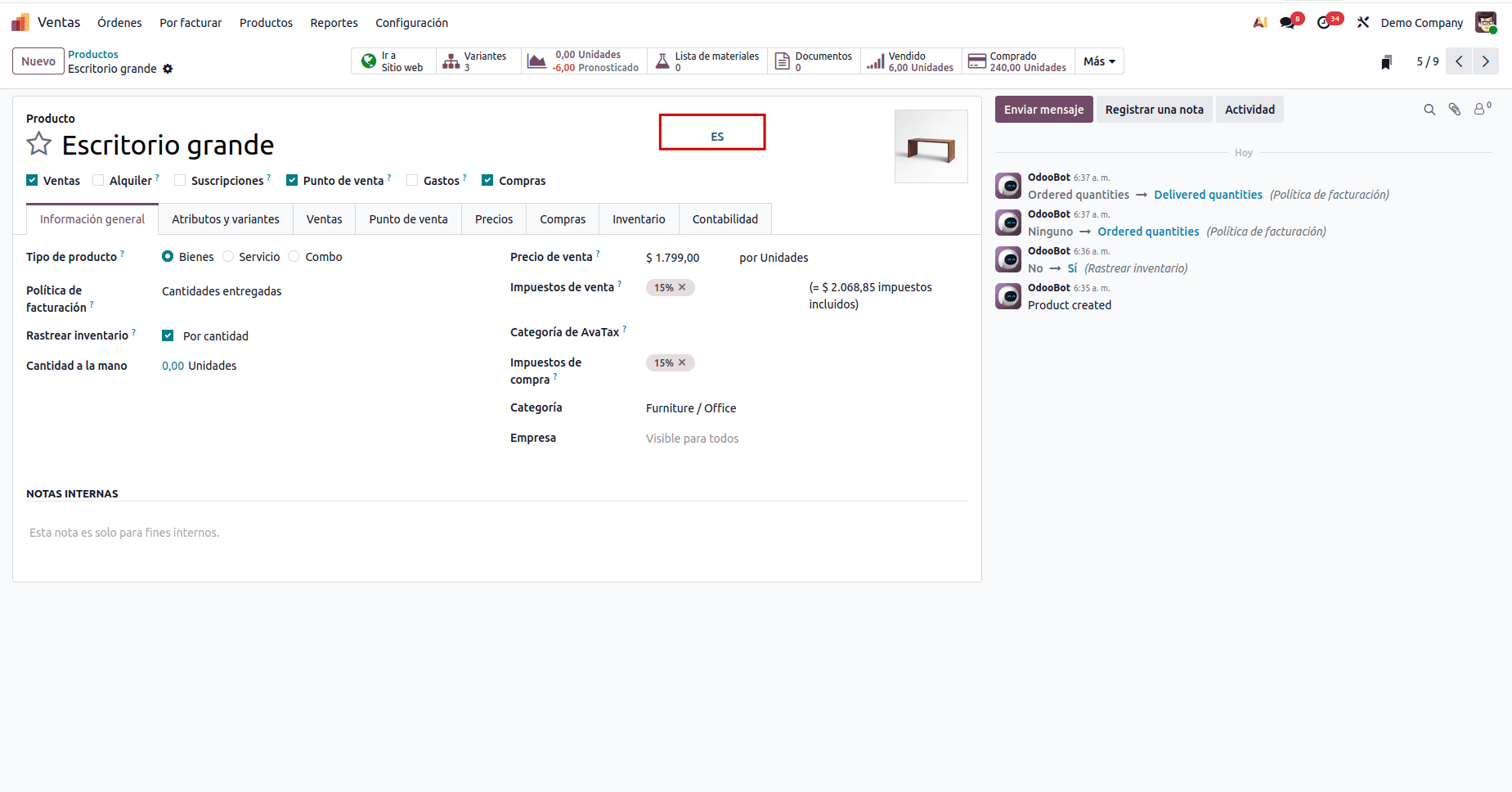
Clicking the translation icon it opens the translation popup, where values can be entered for each language
Odoo 19 provides a flexible translation mechanism that lets you activate languages, export and edit translation files, and re-import them to apply changes. This makes managing translations straightforward and scalable.
To read more about How to Define Translations in a Custom Module & Add a New Language in Odoo 18, refer to our blog How to Define Translations in a Custom Module & Add a New Language in Odoo 18.