In most companies, the trouble with vendor bills isn't paying the wrong supplier. It's paying the right supplier too early.
A bill for ten chairs arrives on Monday. The truck shows up on Thursday with six. If accounts payable already settled the full amount, someone now has to chase the vendor for four chairs that were paid for and never delivered. Release to Pay, the feature most people simply call 3-way matching, exists to catch this before the money leaves.
With it switched on, Odoo 20 compares every vendor bill with its purchase order and with what was actually received, then gives the bill a status in the Should Be Paid field: Yes, No, or Exception. It's an Enterprise feature, so you won't find it in the Community.
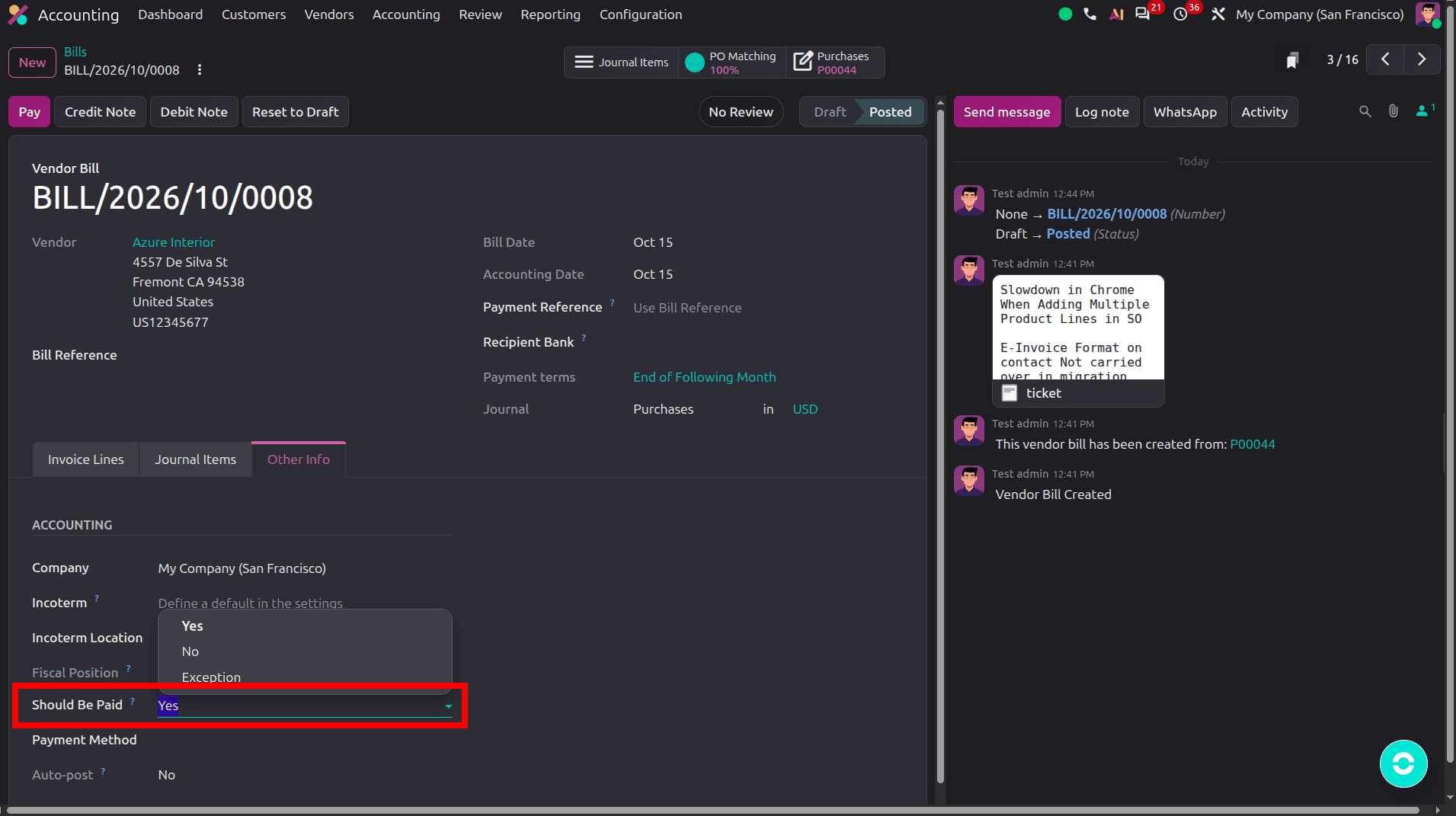
It Flags Bills, It Doesn't Block Them
A bill marked as No can still be paid, as the 3-way matching feature does not prevent users from registering payments. The Register Payment option continues to work as usual.
The status determines how vendor bills are categorized in the filters and reflected in the counters on the Accounting dashboard. So the protection depends on one habit: pay from the Bills to Pay list, not from the full list of open bills. If you pick bills from the full list, a bill marked No can still slip through.
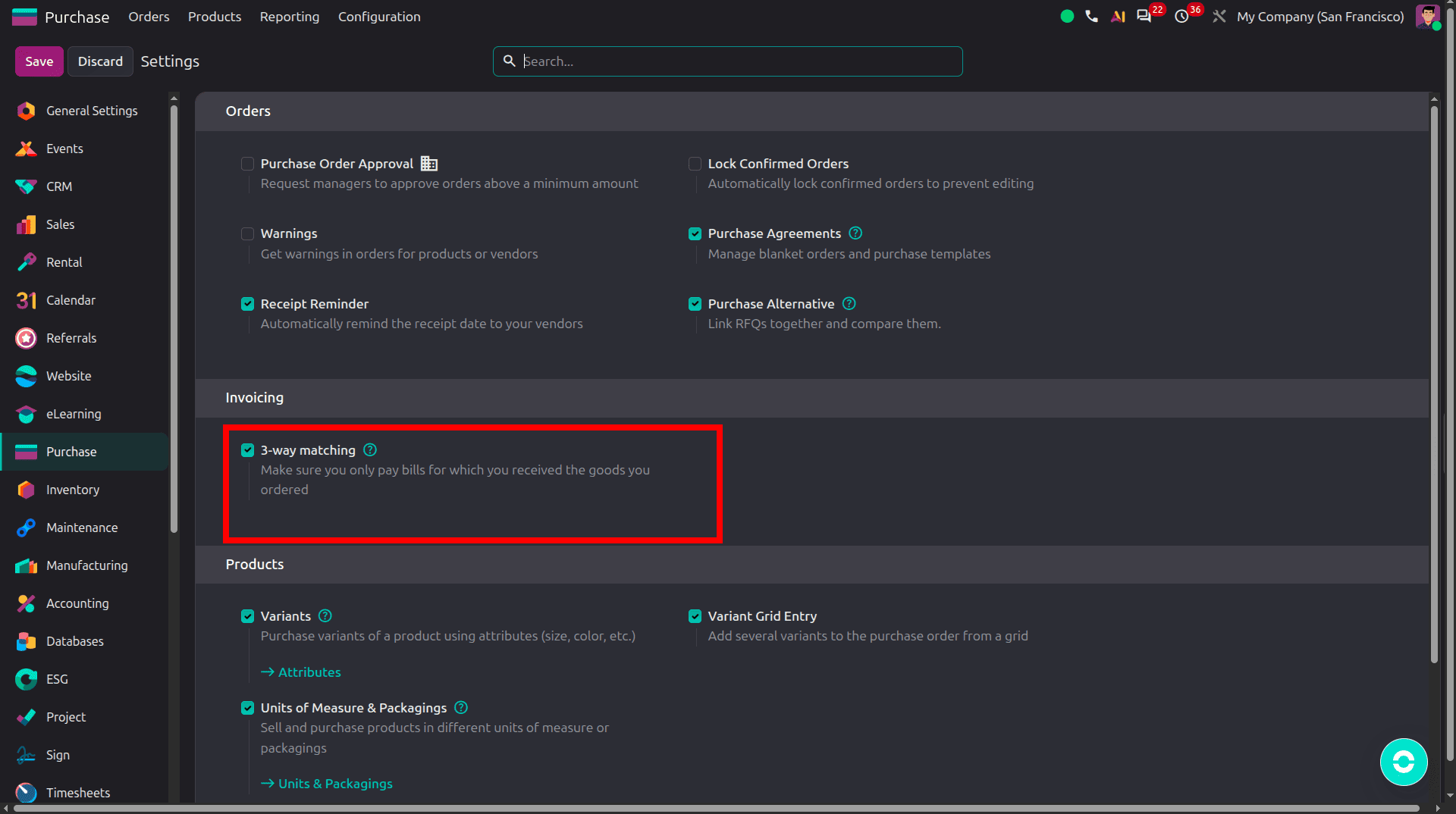
Enabling 3-Way Matching
In Purchase > Configuration > Settings, go to the Invoicing section, tick 3-way matching, and save. That's all there is to the setting itself. If you don't see Purchase settings, you don't have administrator rights; ask your Odoo administrator to switch it on for you.
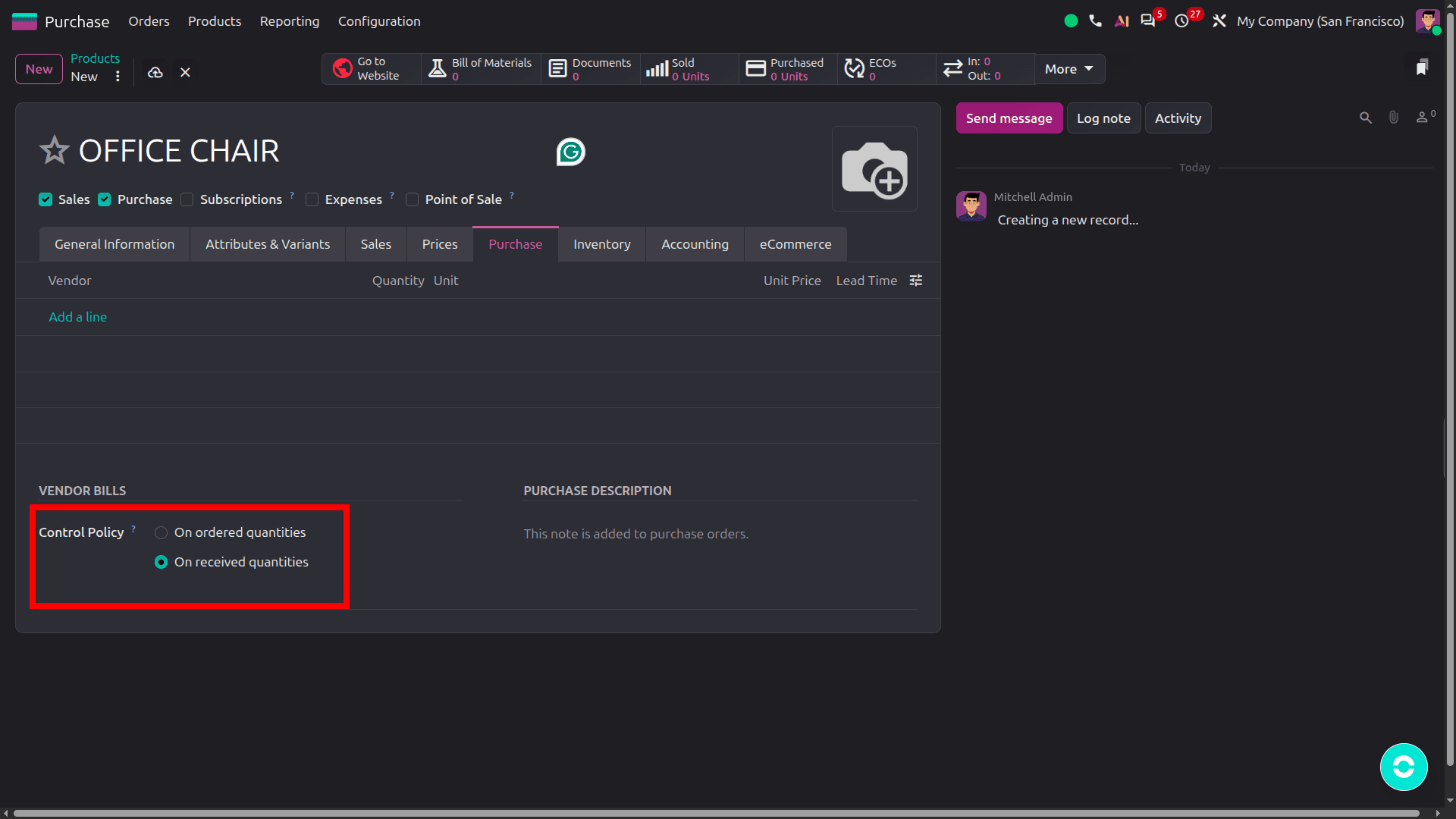
The setting that really matters sits on the product. Open a product, go to the Purchase tab, and look for Control Policy under Vendor Bills. Only Purchase administrators can see this field, so if it isn't there for you, ask your purchasing manager or Odoo administrator to check it.
If it's set to On received quantities, the bill is checked against what you received. That's proper 3-way matching. If it's set to On ordered quantities, Odoo compares the bill with the order and ignores the receipt, so a bill for goods still on the road can show Yes. Services default to ordered quantities, which is fine since nothing gets received. For physical goods, you'll almost always want received quantities. If you ever see a bill marked 'Yes' for goods that haven't arrived, this field is the first thing to check
How Odoo Works Out: Yes, No, or Exception
Odoo first looks at each bill line on its own. For every line, it checks three things, in this order:
- Is the line linked to a purchase order line? Lines added to the bill by hand aren't, and they go straight to Exception.
- Has the price changed? Odoo converts the bill's unit price into the PO currency and compares it with the PO price. Any difference means an exception.
- Do the quantities add up? That depends on the control policy.
| Control policy | Yes | No | Exception |
| On received quantities | Billed < received | Nothing received yet, and billed < ordered | Billed more than received after a partial delivery, or more than ordered |
| On ordered quantities | Billed < ordered | The order line was already fully billed before this bill | Billed more than ordered |
“Billed” here means the total billed on that order line across all bills, including the one you are looking at. That catches duplicate bills. After that, the line results are combined. If all lines agree, the bill gets that status. If one line is in Exception, or the lines disagree (say one Yes and one No), the whole bill is in Exception. Bills that are already paid are set to No. Everything recalculates by itself when a receipt is validated, another bill is posted on the same order, or a price changes.
An Example: Ten Chairs, Two Deliveries
You order 10 office chairs at 120.00 each, with the control policy on received quantities. The vendor bills all 10 before anything ships.
| What happens | Received | Billed | Should Be Paid |
| The bill arrives before delivery | 0 | 10 | No |
| Six chairs arrive, and the receipt is validated | 6 | 10 | Exception |
| The last four arrive | 10 | 10 | Yes |
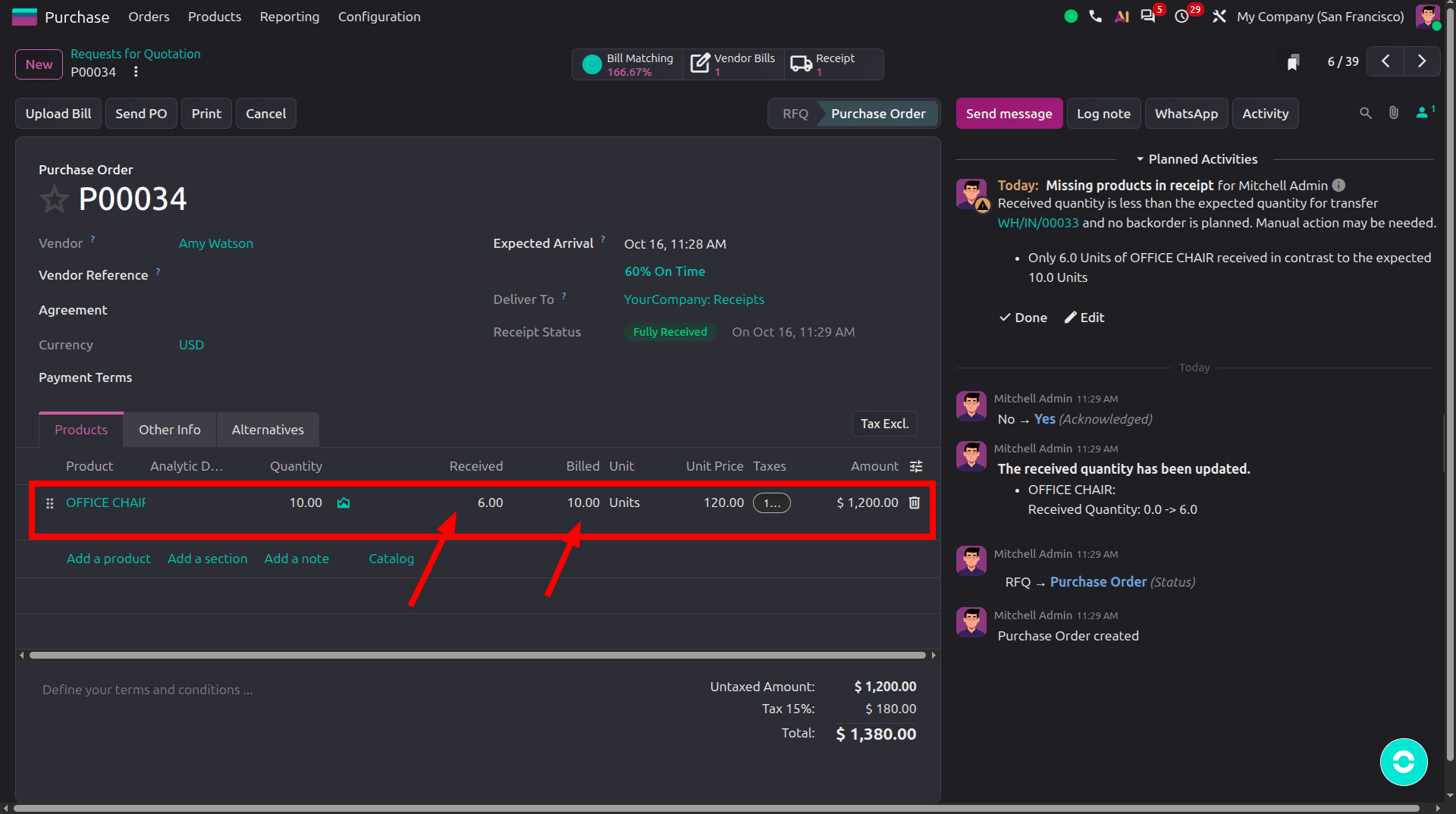
When we move to the bill, in the Should be paid field, the value will be Exception.
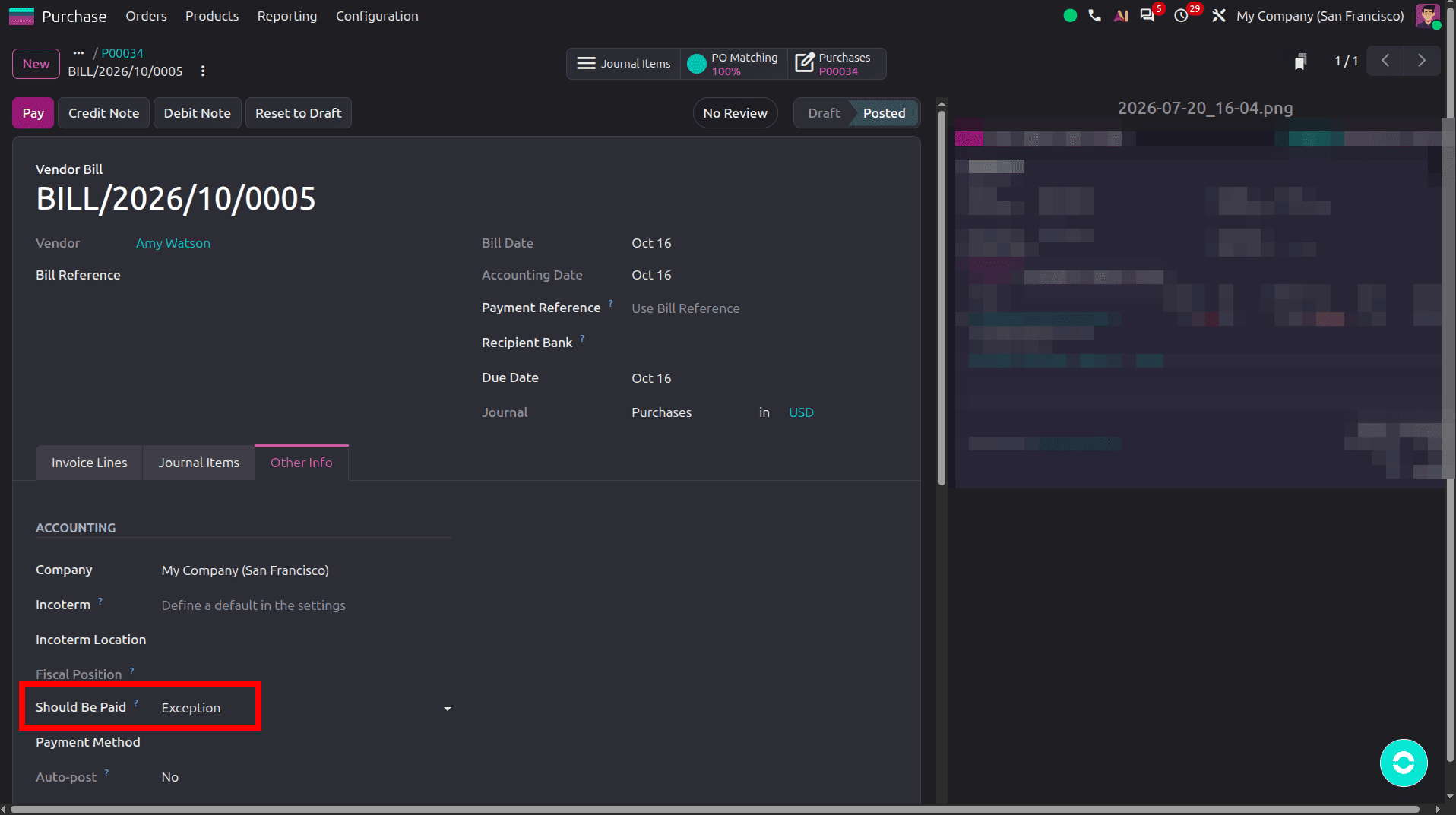
The vendor had to send two bills, one for six chairs and one for four; each would have turned Yes as soon as its chairs arrived. For suppliers who regularly deliver in parts, asking them to bill per delivery keeps your exception list short.
When You Need to Pay Anyway
Sometimes a bill that doesn't match should still be paid: a price increase agreed over the phone or a deposit you've committed to. Open the bill, go to the Other Info tab, and change Should Be Paid yourself. Odoo ticks Force Status next to it and stops recalculating that bill. Untick it, and Odoo takes over again.
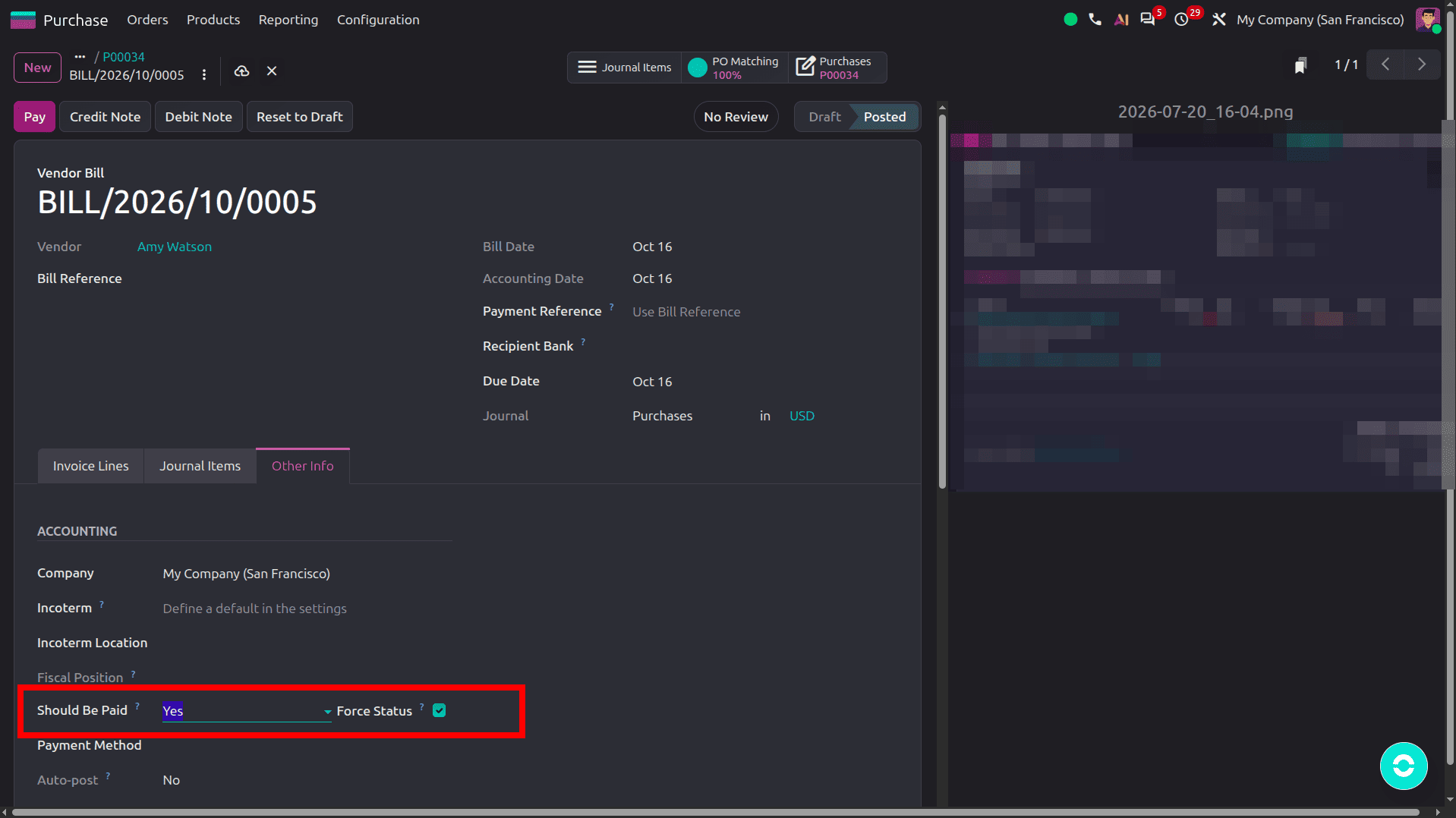
When you override a status, leave a short note in the chatter saying why. It takes ten seconds, and it answers the question your manager or the auditor will ask later.
How 3-Way Matching Affects the Vendor Bills Dashboard
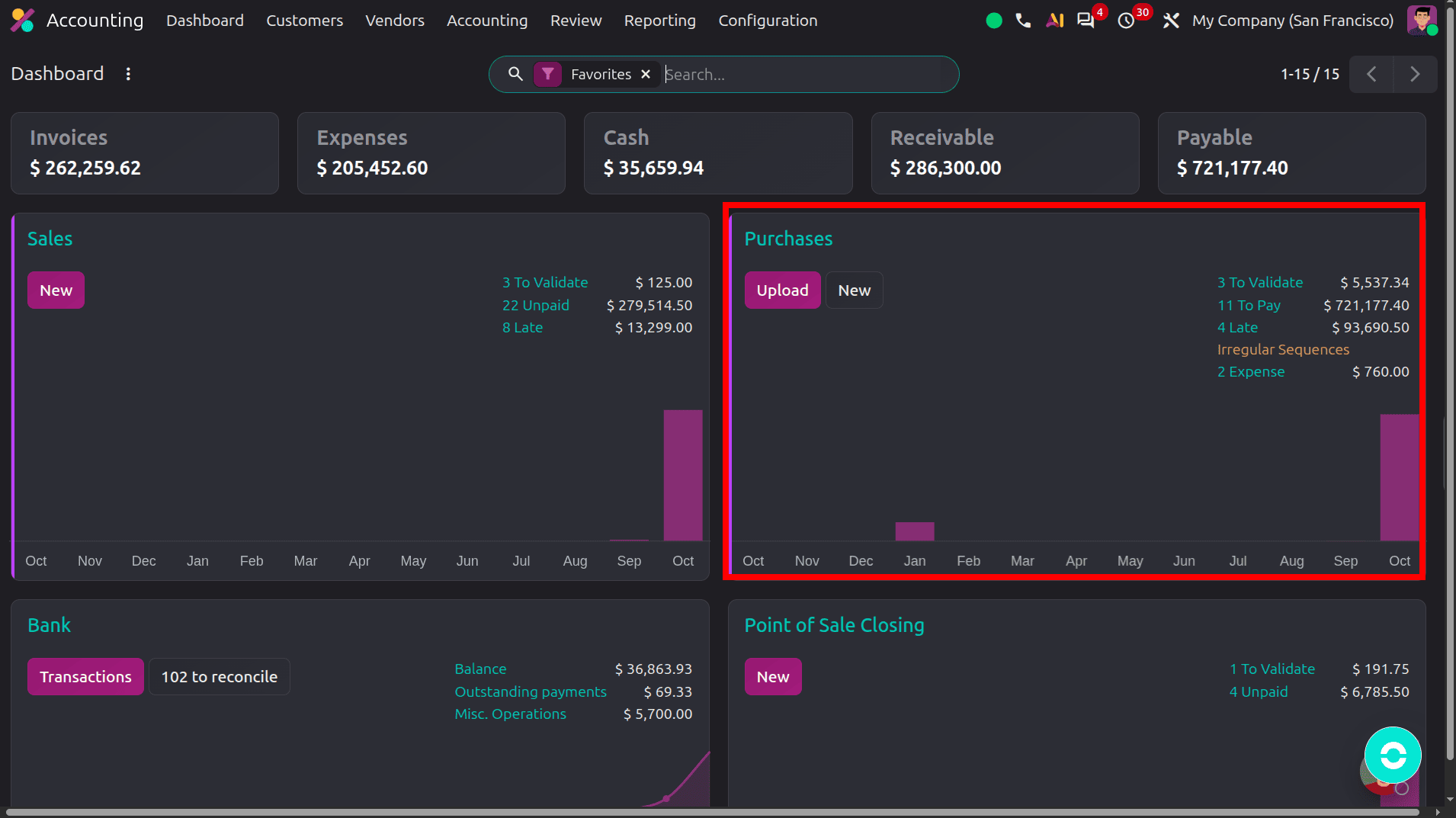
Once 3-way matching is on, the Vendor Bills card on the Accounting dashboard uses the new status. To Validate counts of draft bills that are ready to post (Should Be Paid is Yes) or already past due. To Pay counts are posted, unpaid bills are marked Yes or Exception, and exceptions are included on purpose so they don't get forgotten. Late shows overdue bills.
Under Accounting > Vendors > Bills, you also get three filters: Bills to Validate, Bills to Pay, and Bills in Exception.
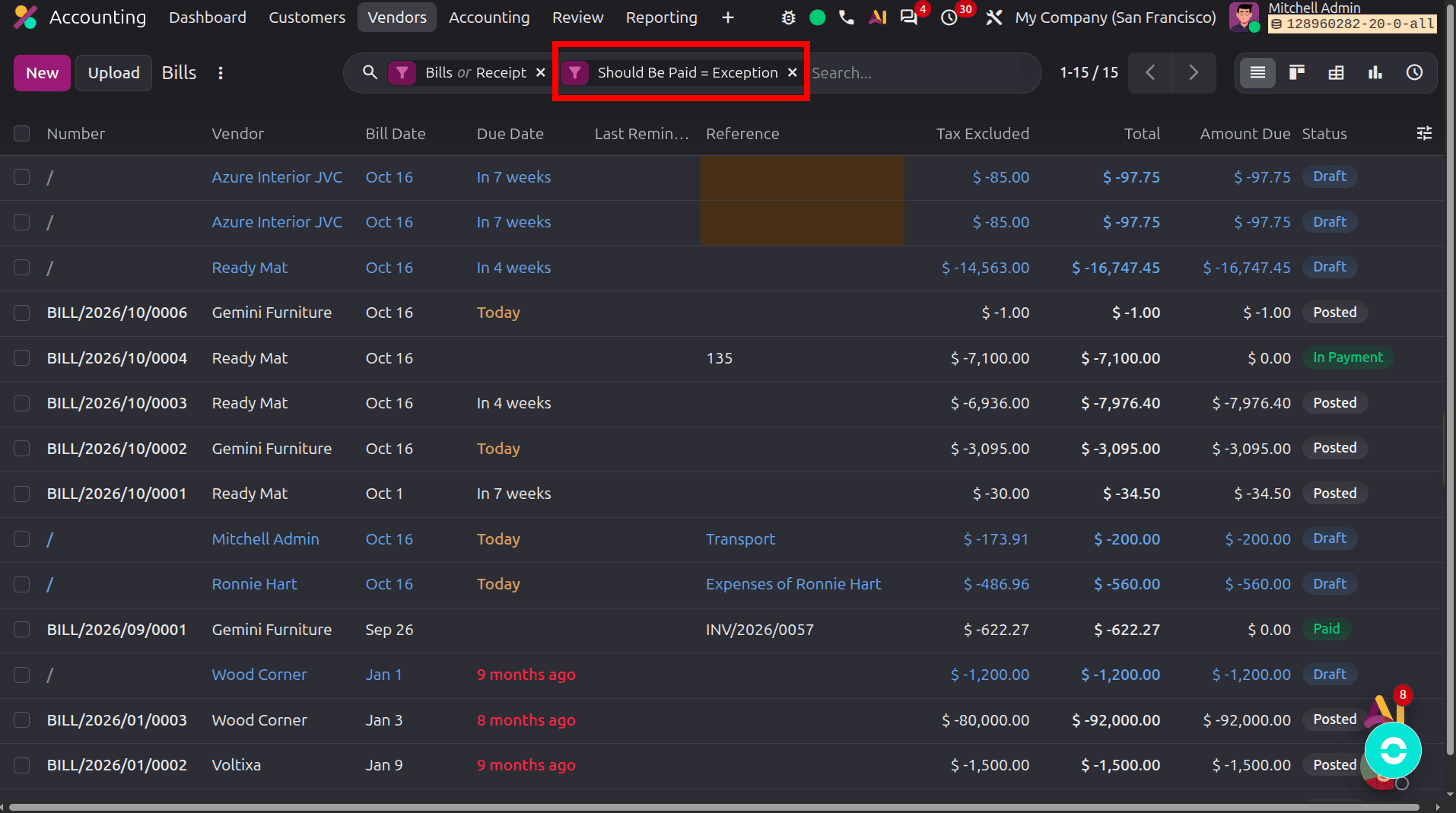
Your payment-run routine then becomes short. Before each payment run, go through Bills in Exception and sort each one out: check the receipt, ask the vendor for a corrected bill, or override the status with a note. Then open Bills to Pay, select the bills marked Yes, and pay them one by one or as a batch payment. The key change is that nobody pays from the full bill list anymore.
Habits That Make It Work
- Create bills from the purchase order, or match uploaded bills to it. Unlinked lines will always land in Exception.
- Ask the warehouse to validate receipts on the day goods arrive. A bill can't turn Yes before that, so slow receipts meant slow payments.
- If a vendor's price has changed for good, ask purchasing to update it on the purchase order instead of overriding the status every month.
- Agree with your manager, who is allowed to force a status. Usually it's one senior person in finance.
Odoo 20 3-way matching helps businesses improve vendor bill management by comparing purchase orders, vendor bills, and received quantities before making payments. By enabling this feature and configuring the appropriate Control Policy under the product’s Purchase tab, companies can identify billing discrepancies and avoid paying for goods that have not been received. The Should Be Paid field clearly shows bills marked Yes, No, or Exception, helping accounting teams prioritize payments and investigate mismatches. Although this feature does not automatically block payments, using the Bills to Pay and Bills in Exception filters supports a more controlled payment process. With accurate receipt validation, proper purchase order management, and documented status overrides, businesses can strengthen accounts payable operations and maintain better financial control in Odoo 20.
To read more about How to Protect Your Business from Fake Bills Using 3-Way Matching in Odoo 19, refer to our blog, How to Protect Your Business from Fake Bills Using 3-Way Matching in Odoo 19.