In Odoo 19, Kanban views give a clean and easy way to view records at a glance. They are visually appealing and help users quickly understand important information without opening each record. Because of this, Kanban views are commonly used for dashboards and day-to-day operations.
But Kanban views can do more than just open a form view. With a small customization, you can make a Kanban tile open a wizard pop-up instead. This allows users to perform quick actions—such as entering details, confirming an action, or following a short guided process—without leaving the current screen.
Opening a wizard in a pop-up keeps the experience simple and focused. Users stay in context, avoid unnecessary navigation, and complete tasks faster. Overall, this makes the workflow smoother, more intuitive, and better aligned with the modern user experience that Odoo 19 aims to provide.
This blog explains how to trigger a wizard when a user clicks a Kanban tile, using an example of the Warehouse model.
The module includes:
- A method that returns a wizard action
- A Kanban view that calls this method on tile click
- A method can be called from Kanban click by adding action and type parameters to the Kanban tag.
<kanban action="your_action" type="object">
<templates></templates>
</kanban>
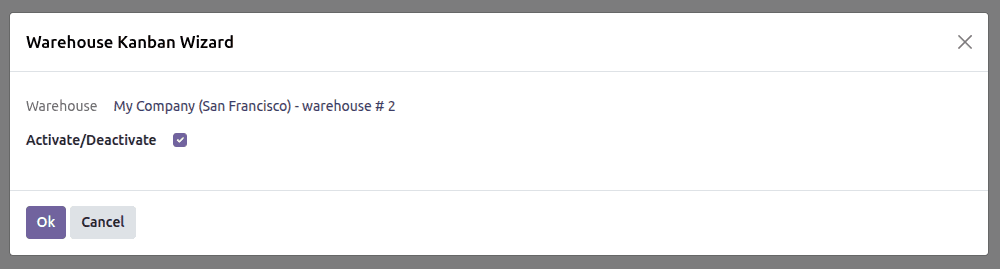
- A pop-up wizard that can archive/unarchive the warehouse without using a server action
Wizard:
Create a python package ‘wizard’ in your module and add these files
1) Warehouse_kanban_wizard.py
- Add this file in __init__.py
# -*- coding: utf-8 -*-
from odoo import fields, models
class PartnerTagWizard(models.TransientModel):
   """Transient model which can archive/unarchive warehouse without using server action"""
   _name = "warehouse.kanban.wizard"
   _description = "Warehouse Kanban Wizard"
   warehouse_id = fields.Many2one('stock.warehouse', readonly=True)
   is_active = fields.Boolean('Activate/Deactivate')
   def action_change_active(self):
       self.warehouse_id.write({
           'active': self.is_active,
       })
2) Warehouse_kanban_wizard.xml
- Add this file to __manifest__.py as data
<?xml version="1.0" encoding="UTF-8" ?>
<odoo>
   <!-- Wizard Form View -->
   <record id="warehouse_kanban_wizard_form" model="ir.ui.view">
       <field name="name">warehouse.kanban.wizard.form</field>
       <field name="model">warehouse.kanban.wizard</field>
       <field name="arch" type="xml">
           <form string="Warehouse Kanban Wizard">
               <group>
                   <field name="warehouse_id"/>
               </group>
               <group>
                   <field name="is_active"/>
               </group>
               <footer>
                   <button name="action_change_active" string="Ok"
                           type="object" class="btn-primary"/>
                   <button string="Cancel" class="btn-secondary" special="cancel"/>
               </footer>
           </form>
       </field>
   </record>
   <!--     Wizard Action -->
   <record id="warehouse_kanban_wizard" model="ir.actions.act_window">
       <field name="name">Warehouse Kanban Wizard</field>
       <field name="res_model">warehouse.kanban.wizard</field>
       <field name="view_mode">form</field>
       <field name="target">new</field>
   </record>
</odoo>
3) ir.model.access.csv
id,name,model_id/id,group_id/id,perm_read,perm_write,perm_create,perm_unlink
access_warehouse_kanban_wizard,access.warehouse.kanban.wizard,model_warehouse_kanban_wizard,base.group_user,1,1,1,1
Note: This wizard can archive and unarchive warehouses.
Extend the stock.warehouse model:
- Models> stock_warehouse.py
# -*- coding: utf-8 -*-
from odoo import models

class StockWarehouse(models.Model):
   """Inheriting warehouse model to add a method to open kanban view"""
   _inherit = "stock.warehouse"
   def action_warehouse_kanban_wizard(self):
       self.ensure_one()
       return {
           'type': 'ir.actions.act_window',
           'name': 'Warehouse Kanban Wizard',
           'res_model': 'warehouse.kanban.wizard',
           'view_mode': 'form',
           'target': 'new',  # optional: opens as popup
           'context': {
               'default_warehouse_id': self.id,
               'default_is_active': self.active,
           },
       }
- Views> stock_warehouse_views.xml
<?xml version="1.0" encoding="UTF-8" ?>
<odoo>
   <record id="stock_warehouse_view_kanban" model="ir.ui.view">
       <field name="name">stock.warehouse.kanban</field>
       <field name="model">stock.warehouse</field>
       <field name="arch" type="xml">
           <kanban string="Warehouse"
                   action="action_warehouse_kanban_wizard"
                   type="object">
               <templates>
                   <t t-name="card">
                       <field name="name" class="fw-bolder fs-5"/>
                   </t>
               </templates>
           </kanban>
       </field>
   </record>
   <record id="stock.action_warehouse_form" model="ir.actions.act_window">
       <field name="view_mode">list,form,kanban</field>
   </record>
</odoo>
- This model adds a Kanban view to warehouse action.
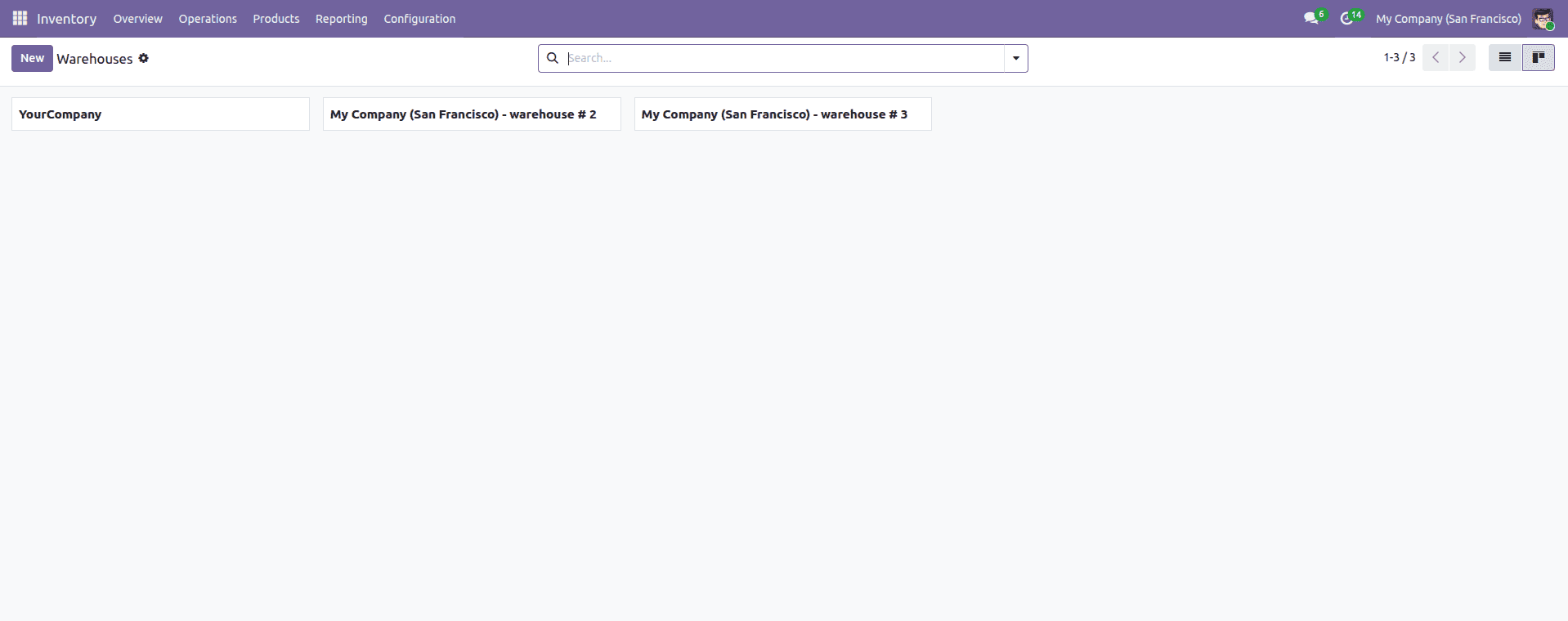
- When clicking on any warehouse, it opens a wizard with an archiving option through which we can archive and unarchive that warehouse by checking the Activate/Deactivate field.
Conclusion:
Opening a wizard straight from a Kanban tile in Odoo 19 is a simple and effective way to make everyday workflows smoother and more intuitive. Instead of taking users to a different screen, you can connect the Kanban card to an action. This keeps the interaction focused and contextual, allowing users to complete tasks quickly without losing their place. Overall, this pattern enhances usability, minimizes unnecessary navigation, and fits naturally with Odoo 19’s modern user interface, delivering a better and more efficient user experience while staying fully aligned with the framework’s standards.
To read more about How to Open a Wizard When Clicking on the Kanban Tile in Odoo 18, refer to our blog How to Open a Wizard When Clicking on the Kanban Tile in Odoo 18.