Understanding invoicing policies in Odoo Sales is essential for maintaining healthy cash flow and aligning billing practices with day-to-day operations. Depending on how a business sells and delivers its products or services, it may be more effective to invoice customers immediately after an order is confirmed or only once the goods have been delivered.
Odoo Sales offers two alternatives for invoicing policies to accommodate these various company requirements: Invoice what is ordered and Invoice what is delivered. Each policy regulates the calculation of quantities and the timing of invoice generation, enabling companies to select the method that best suits their operation. Invoicing policies in Odoo define the point at which a customer is billed for goods or services.
- The Invoice what is ordered policy allows businesses to invoice customers as soon as a sales order is confirmed, regardless of delivery status.
- The Invoice what is delivered policy ensures that customers are billed only for the quantities that have actually been delivered. These policies are managed within the Sales app and are applied at the product level, giving businesses granular control over how different products are invoiced.
- To configure a default invoicing policy in Odoo, users must navigate to the Sales app and open the Settings window from the Configuration menu section. Within the Invoicing tab area, one of the two invoicing policy options can be selected and saved.The Automatic Invoice feature commonly used for online payments cannot be activated. In this case, draft invoices can only be generated after the related delivery has been validated, as shown in the screenshot below.
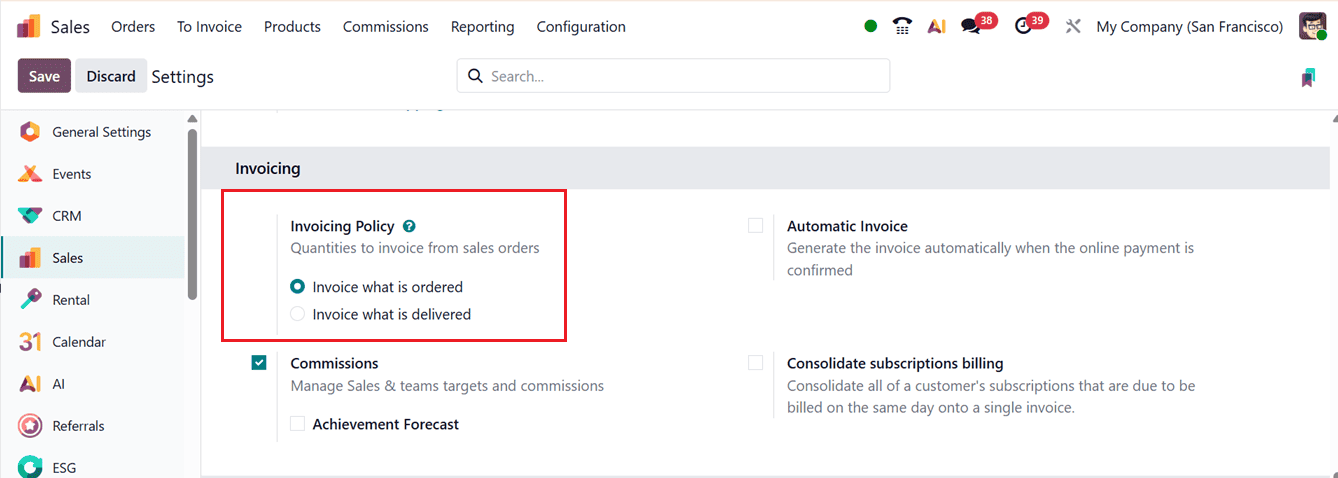
After this configuration is enabled, it will be set automatically as the default option for any new products created. However, existing products do not update automatically and must be adjusted individually on their respective product forms. However, for products that are already in the system, the invoicing policy needs to be changed manually if the “Invoice what is delivered” option is activated.
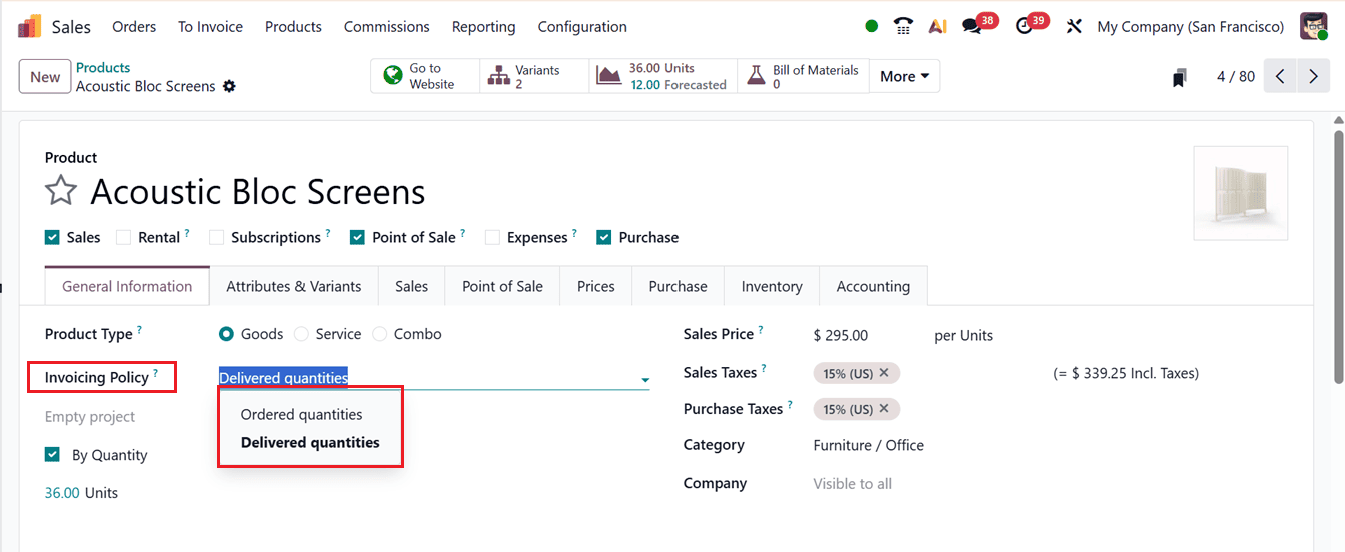
For products that already exist in the system, the invoicing policy must be updated manually. This is done by opening the Product configuration from the Sales app, navigating to the General Information tab, and selecting the desired invoicing policy from the ‘Invoicing Policy’ field. This allows businesses to apply different invoicing rules to different products, even when a default policy has already been set at the system level, as shown in the screenshot below.
1. Invoice what is ordered Policy
The ‘Invoice what is ordered’ policy is the default invoicing method in Odoo Sales and is designed for businesses that want to bill customers immediately after an order is confirmed.
Then, you can check the functionality of this feature by creating a new Sales order or quotation from the ‘Orders’ menu of the Sales Module by providing all the order details.
Then, save and confirm the order using the ‘Confirm’ button.This approach does not change the standard Odoo sales workflow and works well for businesses with reliable inventory levels and straightforward fulfillment processes. Delivery and payment can then proceed independently. Once a quotation is sent and accepted, it is converted into a sales order, and an invoice can be generated right away using the ‘Create Invoice’ button, as shown in the screenshot below.
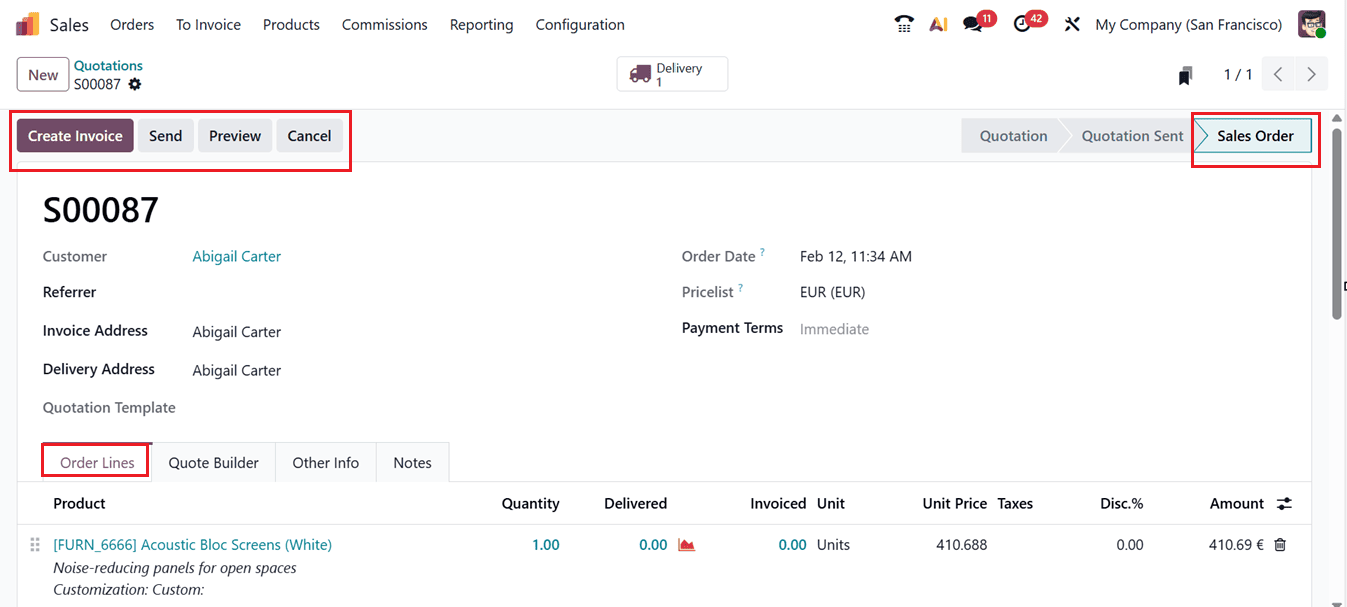
When you click the “Create Invoice” button, you can select the invoice type such as; Regular Invoice, Down Payment (Percentage), or Down Payment (Fixed Amount). Then, click on the “Create Draft” button to generate the draft invoice, as illustrated in the screenshot below.
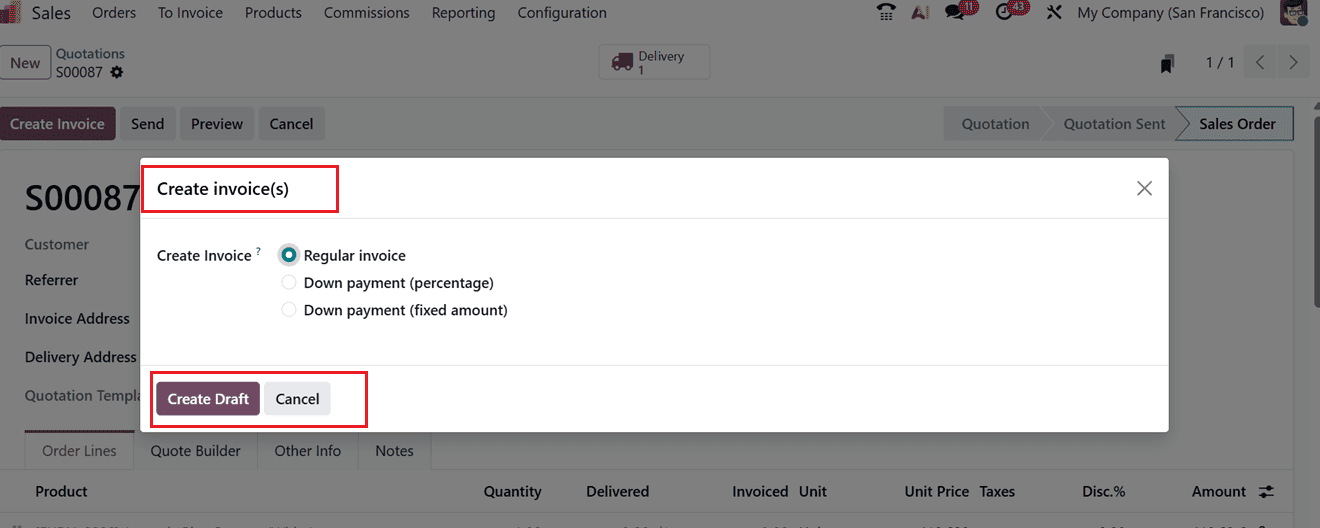
- Regular Invoice: Used to bill customers for confirmed sales orders, based on ordered or delivered quantities, with support for partial invoicing and full accounting integration. This invoice is ideal for standard product or service sales.
- Down Payment (Percentage): Allows you to request an advance based on a set percentage of the total order, creating a separate invoice that is later adjusted in the final bill. These invoices are best for large or high-value projects.
- Down Payment (Fixed Amount): Lets you charge a specific advance amount upfront, which is deducted from the final invoice. This is suitable for contracts, milestones, or agreed advance payments.
After clicking on the ‘Create Draft’ button, Odoo will generate a draft bill with all the bill details. So, you can confirm the bill after reviewing all the bill details using the ‘Confirm’ button, as shown in the screenshot below.
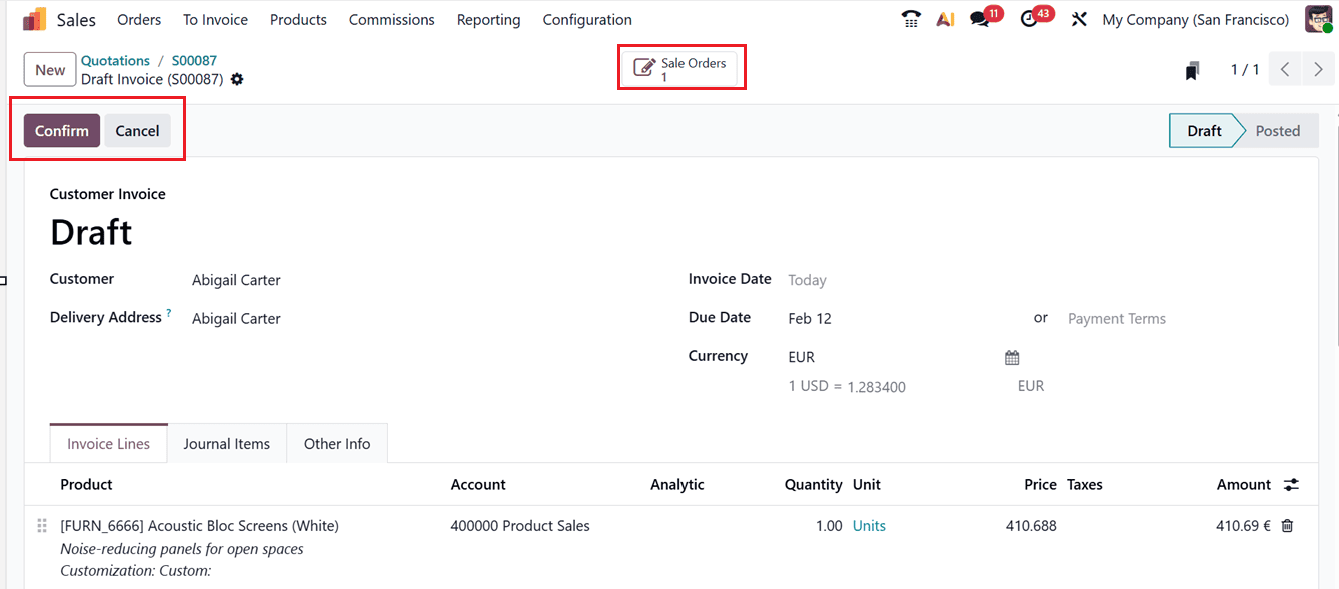
After confirming the bill, the final invoice bill will be created and then, you can pay the bill directly using the ‘Pay’ button or you can send the bill to the customer using the ‘Send’ button.
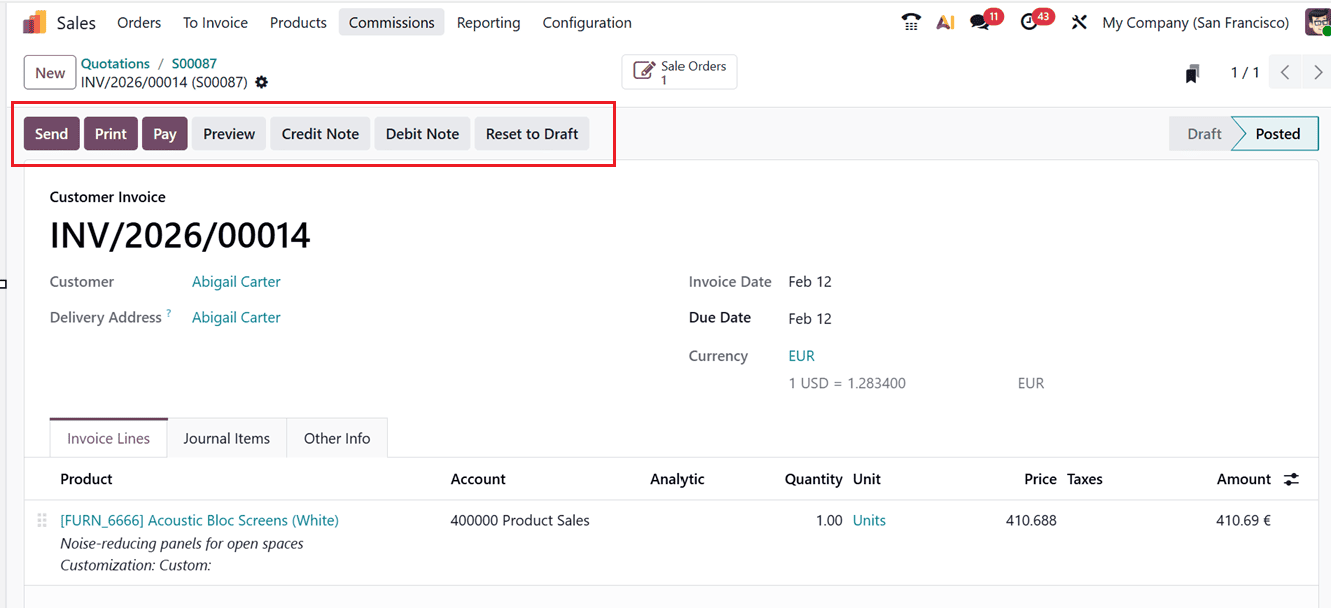
Finally, you can proceed with the next payment procedures or print the invoice using the ‘Print’ button.
- Example: Using this invoicing policy features in Odoo, a freelance small business seller who sells products online may prefer to invoice customers as soon as an order is confirmed. Because inventory is fully controlled and each item is shipped individually, there is little risk of quantity discrepancies.
So, the seller can confirm the sales order, send the invoice immediately, receive payment, and then ship the product, completing the transaction efficiently and without additional steps.
2. Invoice what is delivered Policy
The ‘Invoice what is delivered’ policy is the customer invoicing policy based on the product quantities that are actually delivered rather than what was originally ordered. This policy is commonly used by businesses that sell physical goods in large or variable quantities, where partial deliveries or slight differences between ordered and delivered quantities are common. Odoo tracks delivered, invoiced, and remaining quantities directly on the sales order, and inventory levels are automatically updated when delivery orders are validated. By doing this, customers are guaranteed to only be charged for what they actually receive. When using the delivered quantity invoicing policy, a product must be delivered either partially or fully before an invoice can be created.
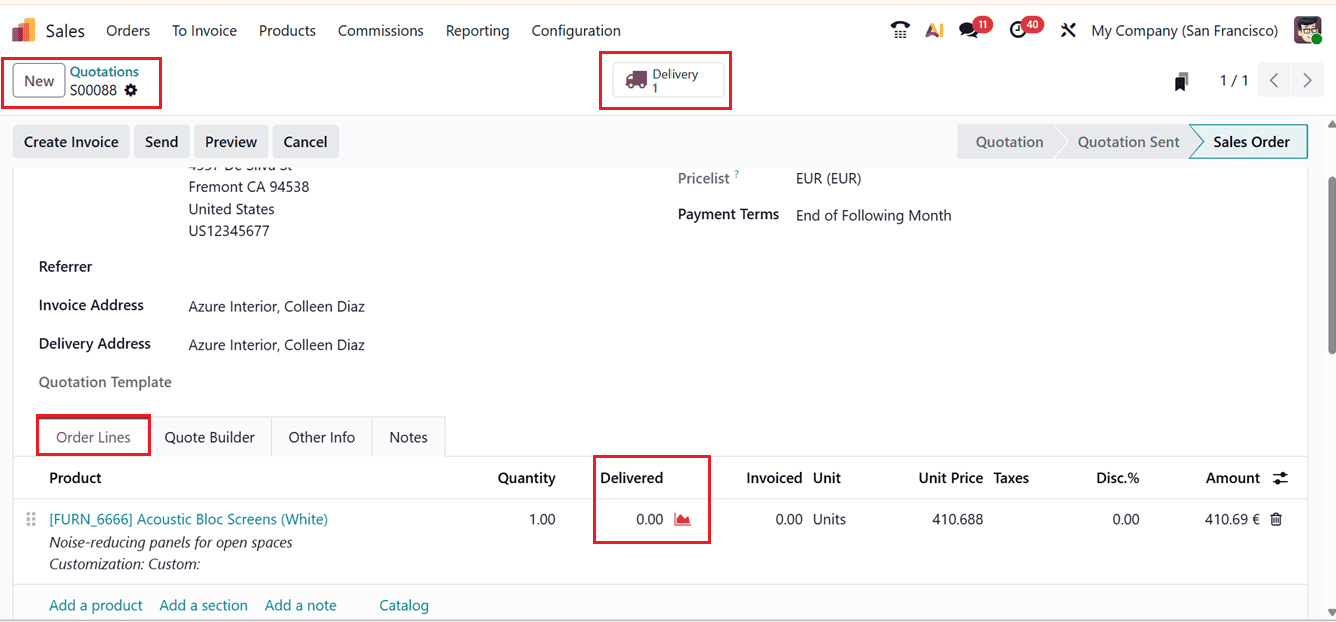
To check this feature, create a sample quotation and provide all the order details and required products. After a quotation is confirmed and the sales order is generated, the delivery must be processed through the Delivery smart button on the sales order. Additionally, as seen in the screenshot below, Odoo will display an "Create Invoice" button.
Then, you can try to create a draft invoice bill using the ‘Create Draft’ button, as shown in the screenshot below.
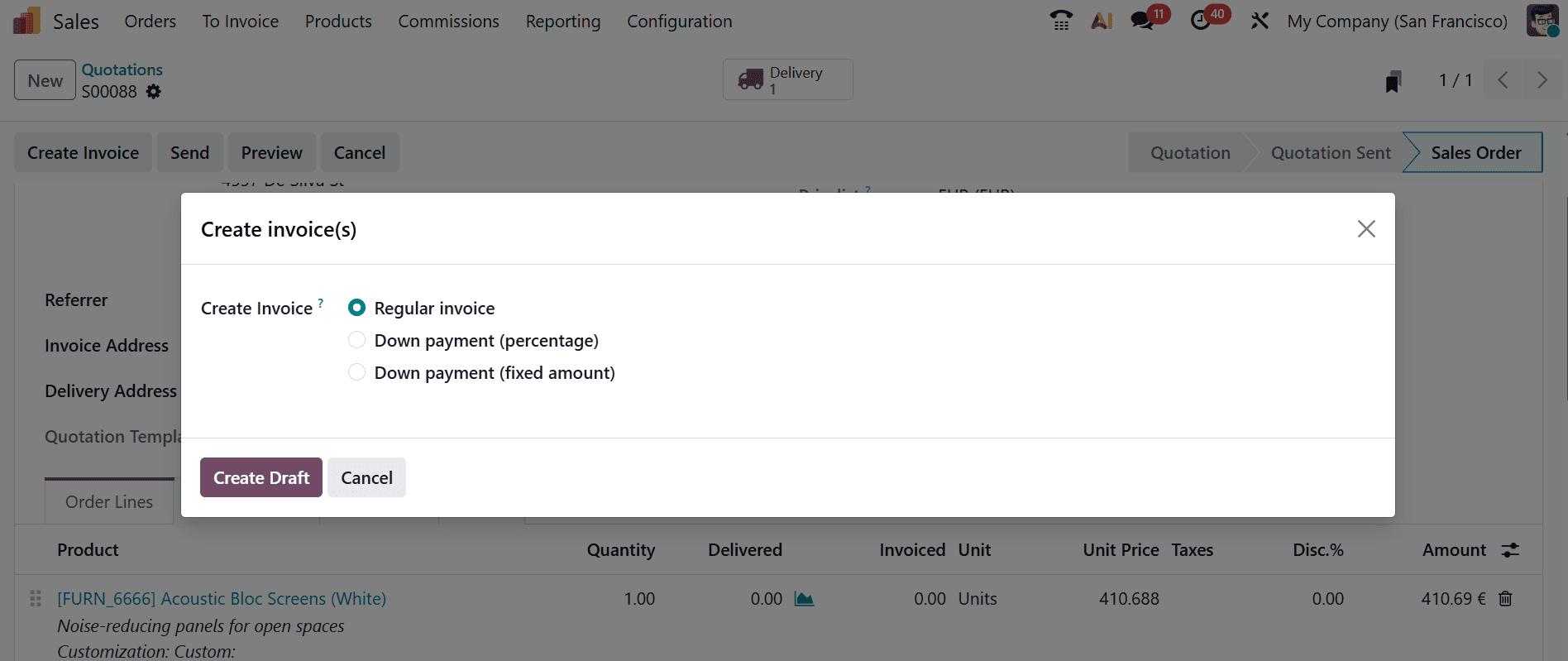
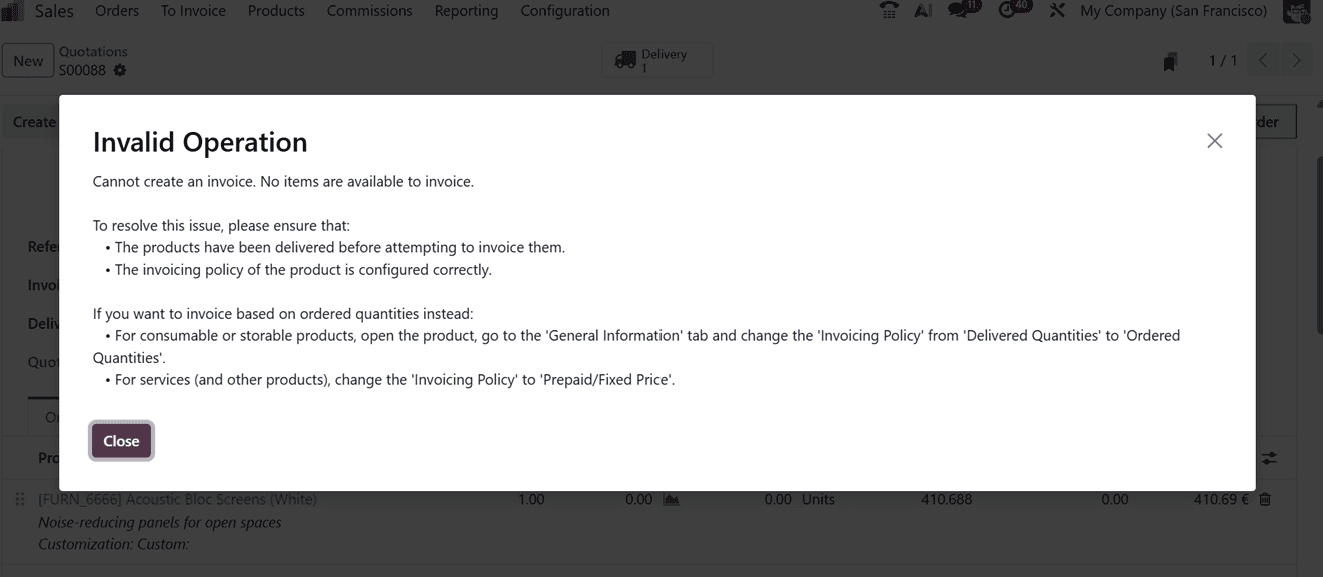
If you try to generate an invoice without validating the Delivery as we have seen in the previous scenario, Odoo will display an error message stating that it is impossible to create invoice without validating the delivery details, as shown in the screenshot below.
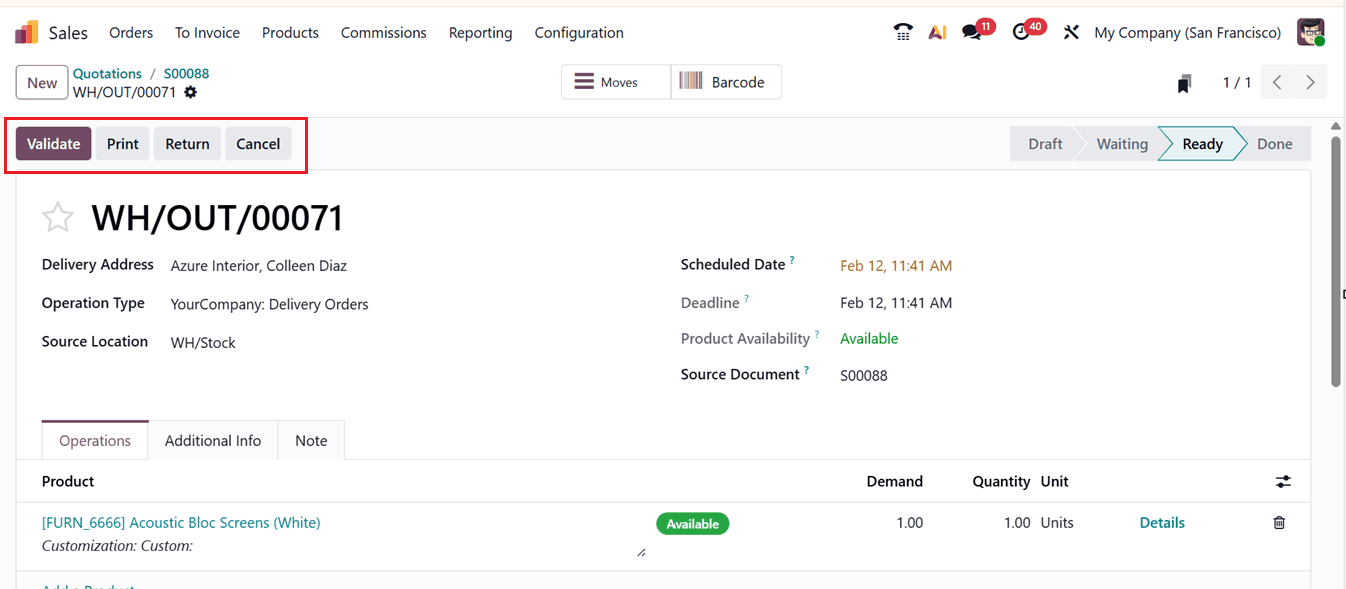
So, go to the ‘Delivery’ smart button and validate the delivery using the ‘Validate’ button.
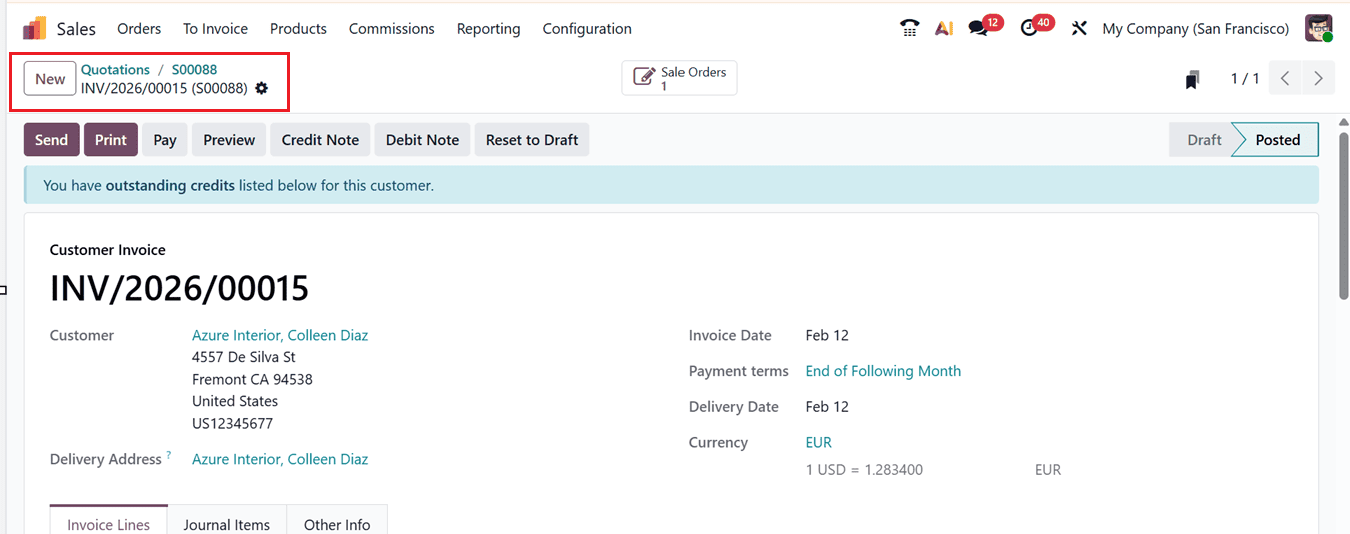
After the delivery has been verified, you can use the ‘Create Invoice’ button to create the invoice and proceed with the next procedures, as shown in the screenshot below.
Example: A common example of this policy in real-time is a wholesale produce distributor selling goods to any retail shops. If a customer orders 100 units of a product but only 70 are available at the time of delivery, the distributor can deliver the available quantity and generate an invoice for those 70 units. When the remaining 40 products become available, a second delivery and invoice can be created to complete the order.
This approach ensures accurate billing and avoids charging customers for products they have not yet received.
Selecting the best invoicing policy for your business mostly depends on the nature of the business’s operations. Companies with stable inventory and quick delivery processes often prefer invoicing ordered quantities to speed up billing and improve cash flow, while businesses handling partial shipments, changing stock levels, or bulk items benefit from invoicing delivered quantities to ensure invoices match actual deliveries. By choosing the appropriate invoicing policy in Odoo Sales, businesses can enhance billing accuracy, simplify operations, and align invoicing with their daily workflows.
To read more about How to Configure Invoicing Policies in Odoo 18, refer to our blog How to Configure Invoicing Policies in Odoo 18.