Odoo 20 is the latest Odoo business management platform, releasing several advancements and modifications for companies and software engineers to use. It supports the use of Python 3.12 or a newer version of Python and PostgreSQL 16 or later.
In this blog, we will guide you on how to install Odoo 20 using the PyCharm IDE on Ubuntu.
Before setting up PyCharm for Odoo development, you need to install the necessary libraries and packages. The process also involves preparing PostgreSQL, configuring the Python environment, and handling project dependencies.
Now, let’s go through these initial steps in detail to make sure your system is properly set up and ready for Odoo development.
PyCharm IDE Installation
| Requirement | Minimum | Recommended |
| RAM | 4 GB free | 8 GB total system RAM |
| CPU | Any modern CPU | Multi-core CPU (PyCharm uses multithreading) |
| Disk Space | 3.5 GB | SSD with at least 5 GB free |
| Monitor Resolution | 1024×768 | 1920×1080 |
| Operating System | 64-bit Ubuntu/Debian with GLIBC 2.27+ | Ubuntu 22.04 LTS or 24.04 LTS |
Install PyCharm Community Edition via snap:
sudo apt-get update
sudo apt-get upgrade
sudo snap install pycharm-community --classic
Installing Python 3.12
Odoo 20 requires Python 3.12 or later to run — this is now a hard minimum, not just a recommendation as it was for Odoo 20.
- Ubuntu 24.04 ships Python 3.12 by default, so no extra repository is needed.
- Ubuntu 22.04 ships Python 3.10 by default, so you must add the deadsnakes PPA first:
sudo add-apt-repository ppa:deadsnakes/ppa
sudo apt-get update
Confirm the package is available:
apt list | grep python3.12
Install Python 3.12:
sudo apt-get install python3.12
Install the required system packages (both Ubuntu versions):
sudo apt-get install python3.12-dev build-essential libjpeg-dev libpq-dev libjpeg8-dev libxml2-dev libssl-dev libffi-dev libmysqlclient-dev libxslt1-dev zlib1g-dev libsasl2-dev libldap2-dev liblcms2-dev
Install Web Dependencies
sudo apt-get install -y npm
sudo ln -s /usr/bin/nodejs /usr/bin/node
sudo npm install -g less less-plugin-clean-css
sudo apt-get install -y node-less
Install Wkhtmltopdf
sudo wget https://github.com/wkhtmltopdf/wkhtmltopdf/releases/download/0.12.5/wkhtmltox_0.12.5-1.bionic_amd64.deb
sudo wget http://archive.ubuntu.com/ubuntu/pool/main/o/openssl/libssl1.1_1.1.1f-1ubuntu2_amd64.deb<br>sudo dpkg -i libssl1.1_1.1.1f-1ubuntu2_amd64.deb |
If Package libssl1.1 is not installed and any issue occurs, run,
wget http://archive.ubuntu.com/ubuntu/pool/main/o/openssl/libssl1.1_1.1.1f-1ubuntu2_amd64.deb
sudo dpkg -i libssl1.1_1.1.1f-1ubuntu2_amd64.deb
sudo apt --fix-broken install
Install fonts required for PDF rendering:
sudo apt-get install -y xfonts-75dpi
Install the wkhtmltopdf package:
sudo dpkg -i wkhtmltox_0.12.5-1.bionic_amd64.deb
Install PostgreSQL 16 or Later
Odoo 20 sets its minimum supported PostgreSQL version to 16, to line up with what's already available in Ubuntu 24.04 and to allow the use of newer PostgreSQL features. Where you get PG16 from depends on your Ubuntu version:
On Ubuntu 24.04 - the default repository already provides PostgreSQL 16, so a plain install is enough:
sudo apt install postgresql postgresql-client
On Ubuntu 22.04 - the default repository only provides PostgreSQL 14, which is below Odoo 20's minimum. Add the official PostgreSQL (PGDG) APT repository first:
sudo apt install curl ca-certificates
sudo install -d /usr/share/postgresql-common/pgdg
sudo curl -o /usr/share/postgresql-common/pgdg/apt.postgresql.org.asc \
  --fail https://www.postgresql.org/media/keys/ACCC4CF8.asc
sudo sh -c 'echo "deb [signed-by=/usr/share/postgresql-common/pgdg/apt.postgresql.org.asc] \
  https://apt.postgresql.org/pub/repos/apt $(lsb_release -cs)-pgdg main" \
  > /etc/apt/sources.list.d/pgdg.list'
sudo apt update
sudo apt install postgresql-16 postgresql-client-16
Verify the installed version on either system:
psql --version
Configure a Database User Role for Odoo
sudo su - postgres
createuser --createdb --username postgres --no-createrole --no-superuser --pwprompt odoo20
Grant superuser privileges to the new role:
psql
ALTER USER odoo20 WITH SUPERUSER;
Exit the psql shell and the postgres session:
\q
exit
Get the Odoo 20 Source Code
The Odoo 20 Community source code is available on Odoo's GitHub repository. You can also clone it using Git. To do this, first install Git by executing the following command:
sudo apt-get install git
Next, run the following command to clone the Odoo code into a directory named odoo20 in your home folder:
git clone https://www.github.com/odoo/odoo --depth 1 --branch 20.0 --single-branch odoo20
Open the Cloned Project in PyCharm
Open the odoo20 directory in PyCharm Community Edition. If prompted to create a virtual environment automatically, cancel it - we'll set it up manually via the terminal.
Open the terminal, then create a virtual environment with Python 3.12:
curl -sS https://bootstrap.pypa.io/get-pip.py | python3.12
sudo apt install python3.12-venv
python3.12 -m venv your_venv_name

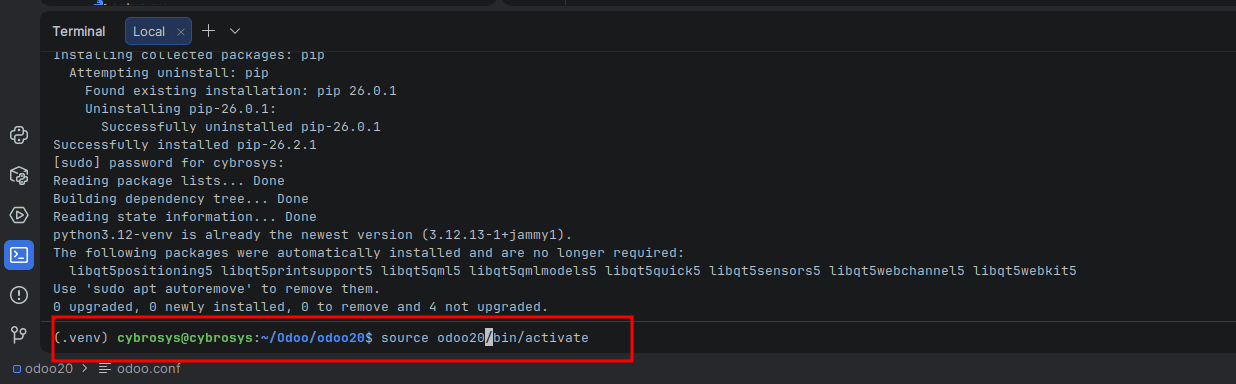
Restarting the terminal should auto-activate the environment. If not, activate it manually:
source your_venv_name/bin/activate
Install Required Python Packages
Odoo requires multiple Python packages specified in the requirements.txt file within the odoo20 directory. Install them by running the following command in the terminal:
pip install --upgrade pip
pip install -r requirements.txt
Verify installed packages:
pip list
If any package fails, install it individually:
pip install requirement_name
In most cases, to complete the installation of an entry, only one successful installation is needed. Therefore, a failure while installing duplicates should cause no problems. Any package that has a dependency which is set to sys_platform == 'win32' should be skipped while working on Ubuntu.
In case the build of psycopg2 fails, it is recommended to perform the installation of the binary wheel instead.
pip install psycopg2-binary
Create the odoo.conf File
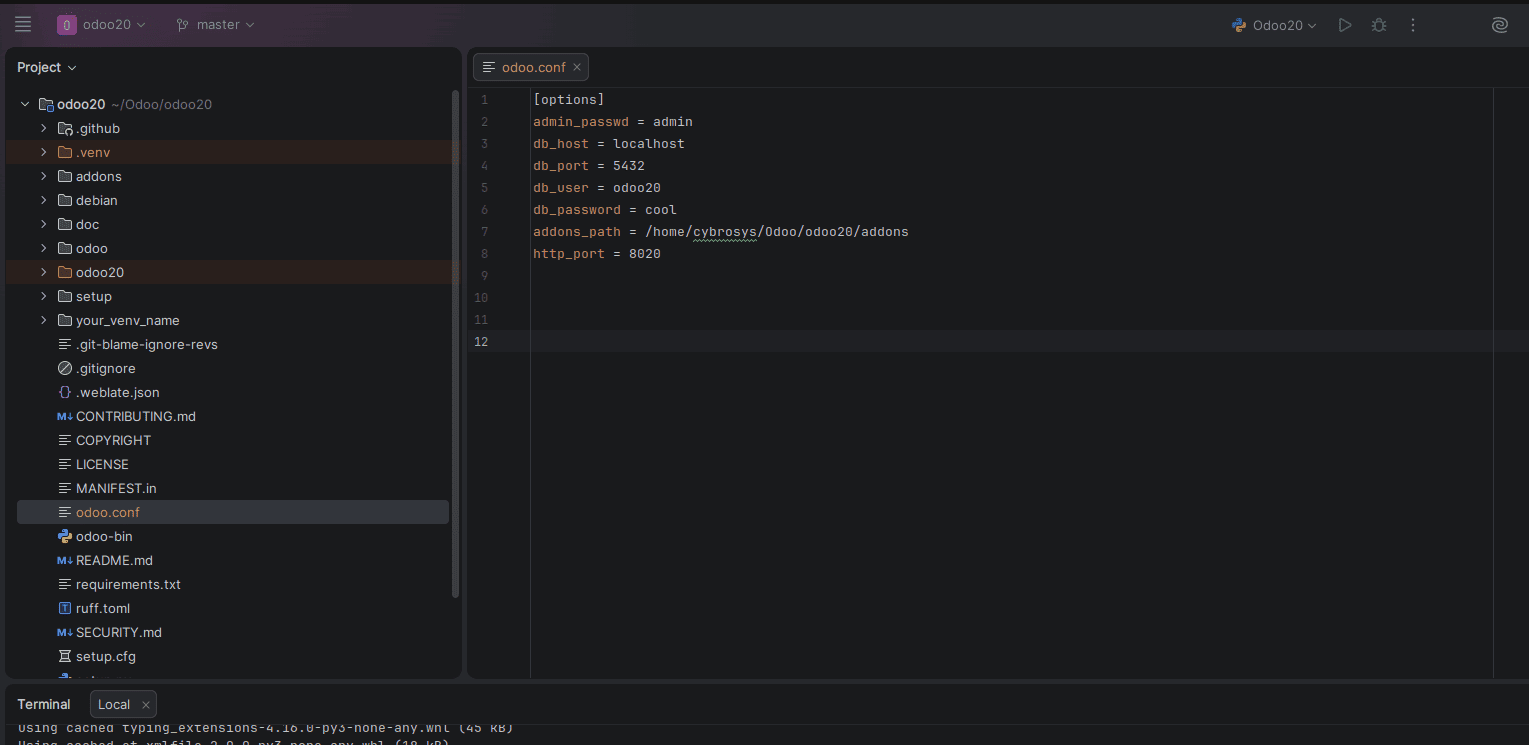
Right-click the odoo20 directory in PyCharm > New > File > name it odoo.conf. Add the following, replacing db_password with the password set earlier:
[options]
admin_passwd = admin
db_host = localhost
db_port = 5432
db_user = odoo20
db_password = your_password
addons_path = /home/user/odoo20/addons
http_port = 8020
Update addons_path with the actual path to your odoo20/addons folder. Append any custom addons path, comma-separated:
addons_path = /home/user/odoo20/addons, /home/user/odoo20/custom_addons
Add Python Interpreter
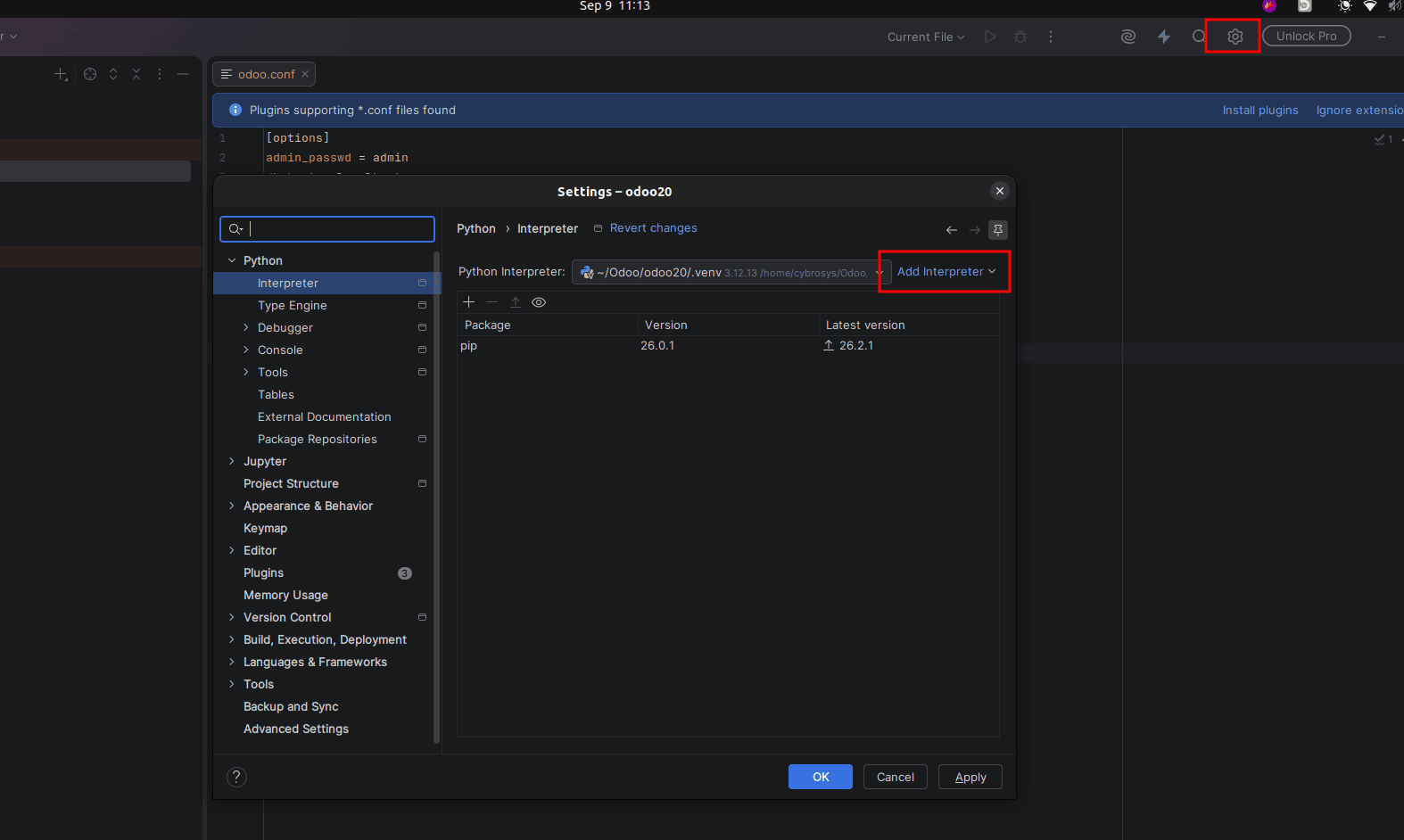
Go to Settings > Project: odoo20 > Python Interpreter. If the interpreter from your odoo20 virtual environment (Python 3.12) isn't already selected, click Add Interpreter.
Configure the Project in PyCharm
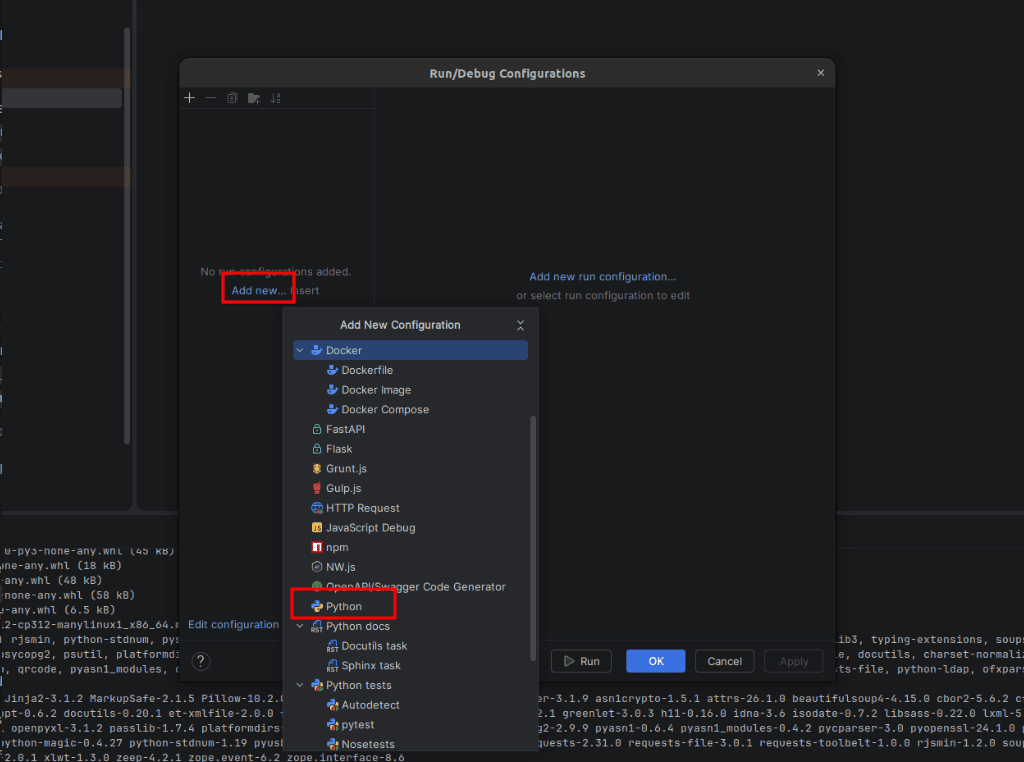
Go to Edit Configurations,
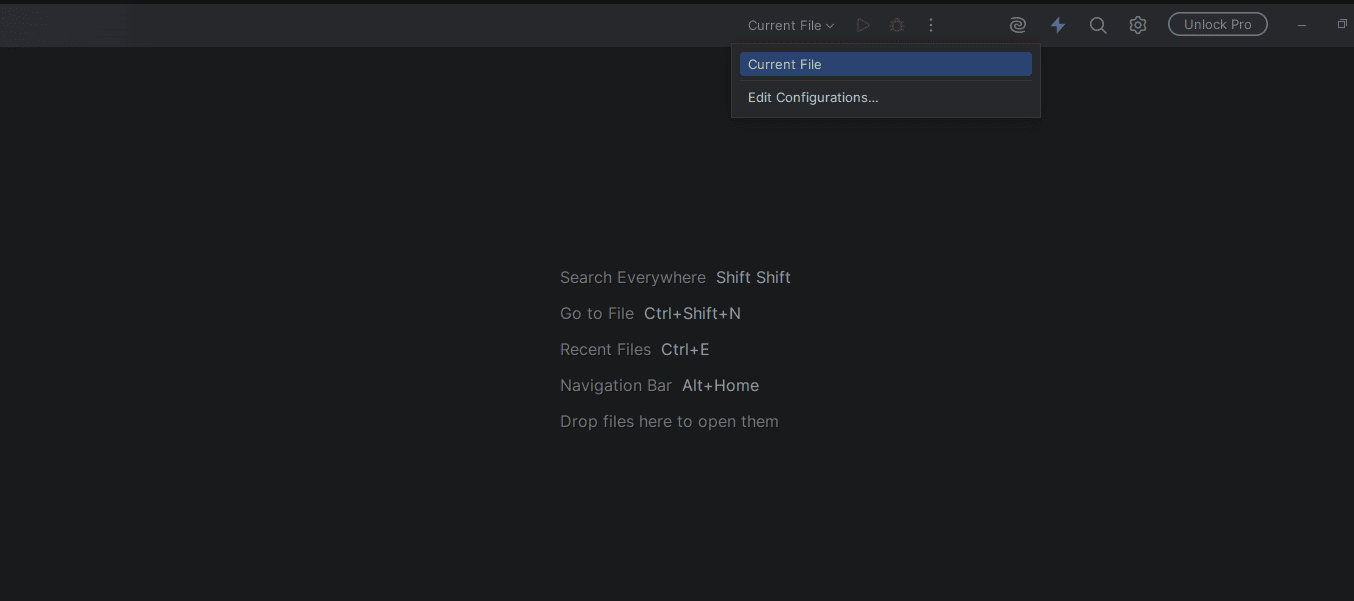
click +, and select Python. Fill in:
Next, complete the fields according to the example shown in the image below.
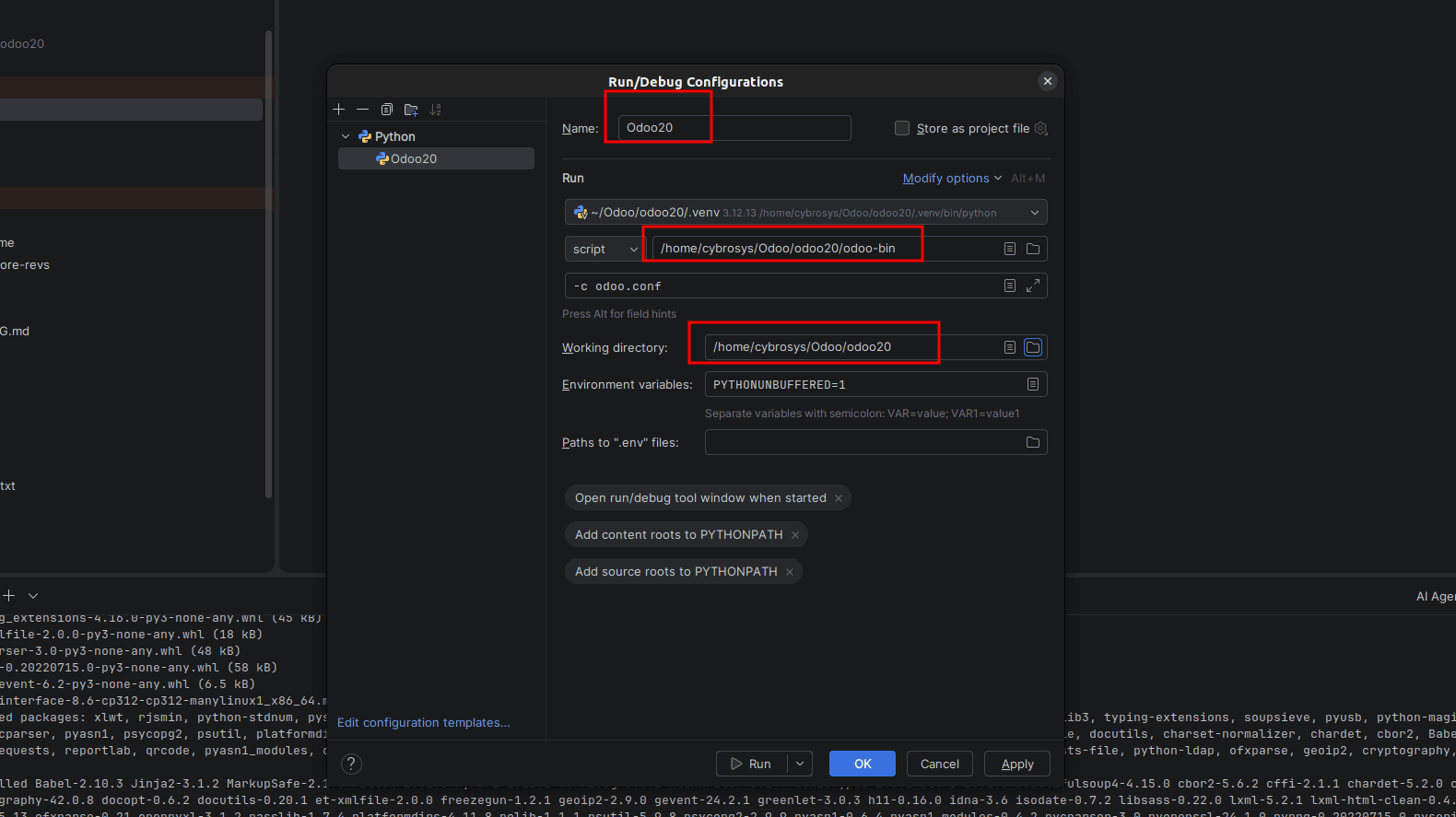
- Name: any identifier you prefer
- Python Interpreter: the interpreter configured above
- Script Path: the odoo-bin file inside the odoo20 directory
- Parameters: -c followed by the path to odoo.conf (mandatory)
- Working Directory: your project's root path
Test Run Odoo 20
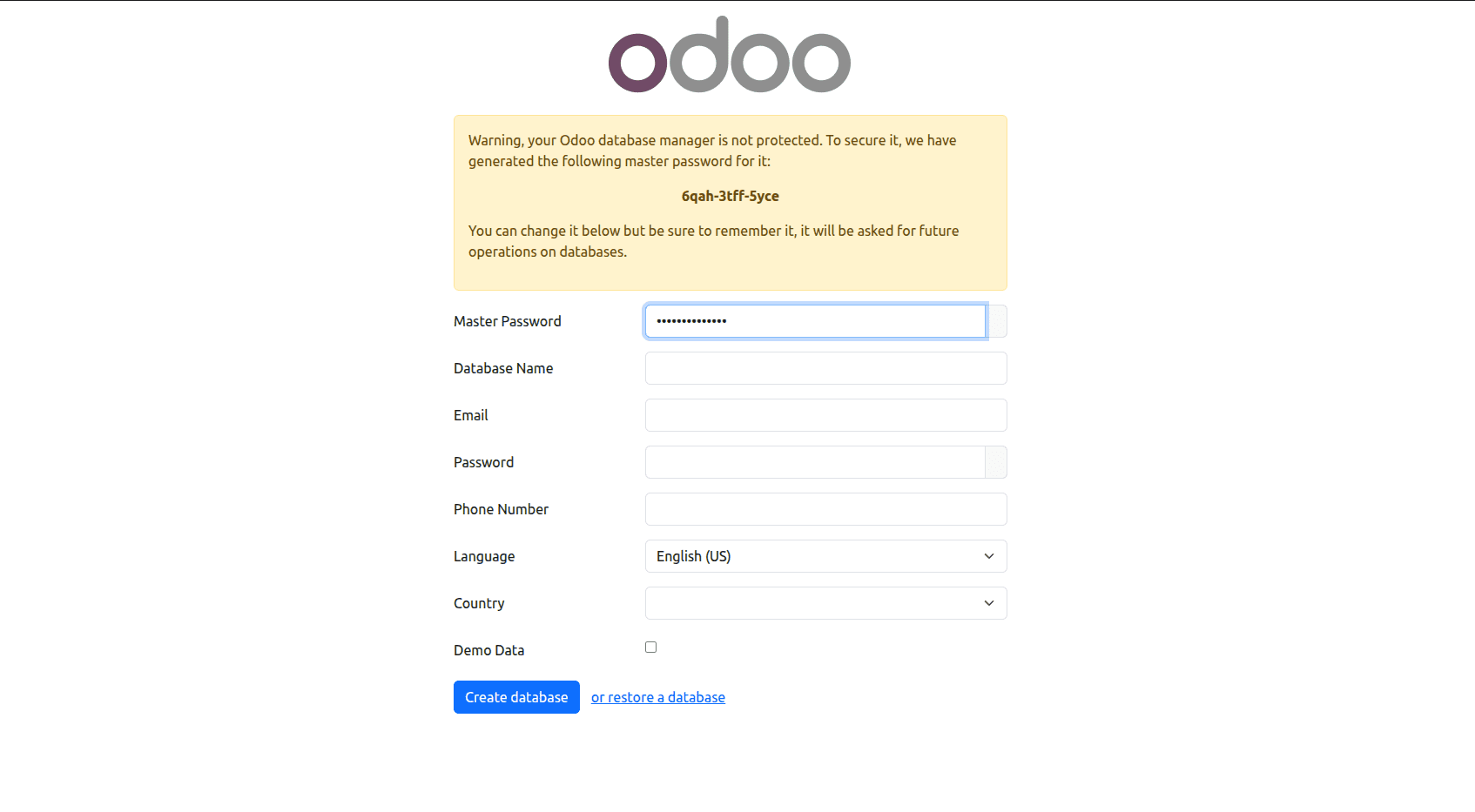
Run the configuration. If everything is set up correctly, open localhost:8020 in your browser - you should land on the Odoo database management page.
If you need any assistance with Odoo, feel free to reach out - we're online and happy to help.
To read more about How to Install Odoo 20 on Ubuntu 24 LTS Server, refer to our blog How to Install Odoo 20 on Ubuntu 24 LTS Server.