In this blog, we are going to discuss the studio approval rule in Odoo 19. Let’s take an example where the admin of the system or the sales admin of the system has to approve a sale order. Let's discuss how we can achieve this in Odoo 19 through the studio.
We can set multi-level approval for a single button action at the user level or for a specific group. Also, we have the option to notify users.
Let's see how we can achieve this in Odoo 19, a step-by-step guide.
Activate Studio mode in your Odoo 19, click on the Confirm button, and view the available options in it. See the attached image below for a better understanding.
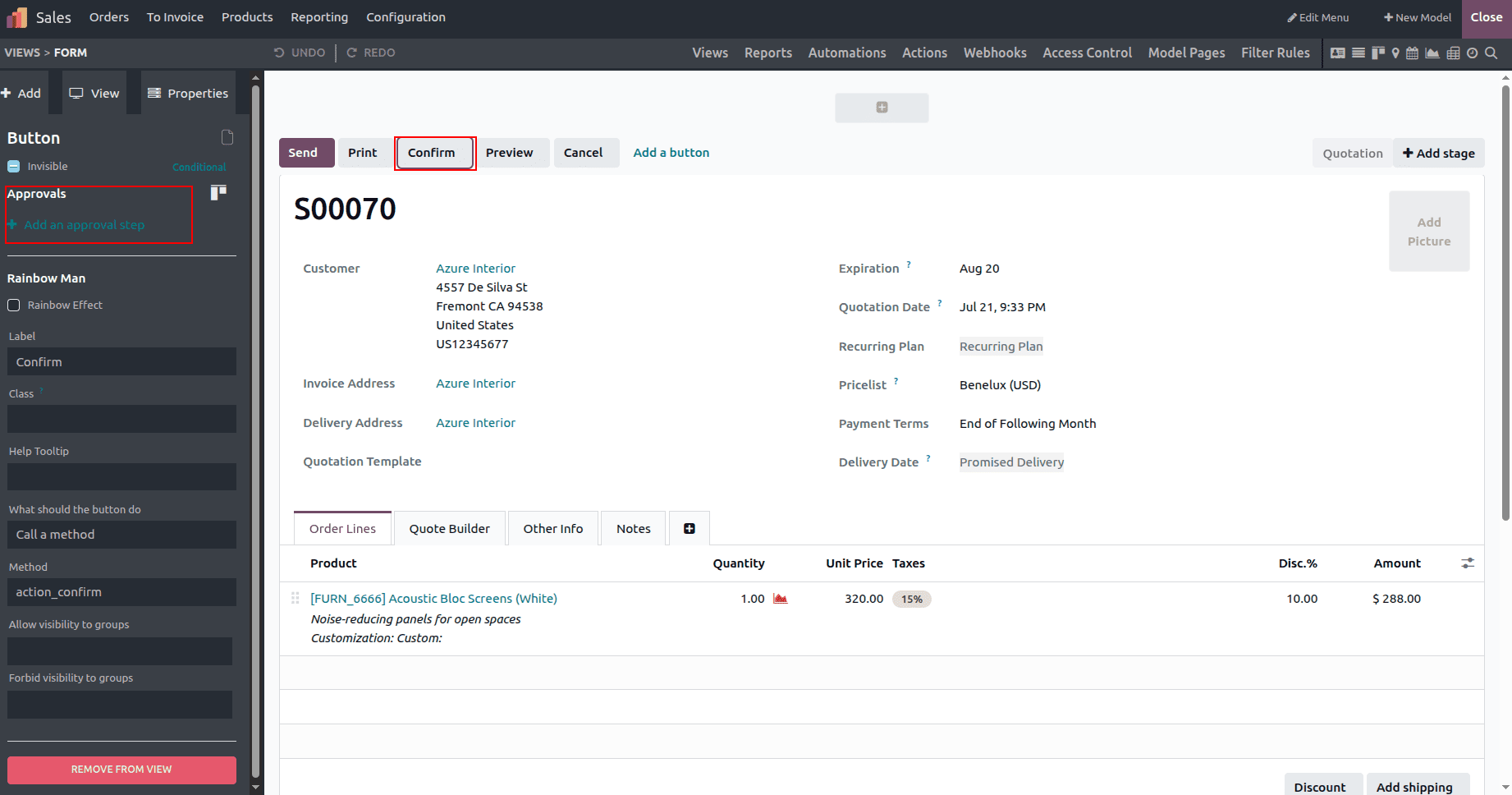
Here, you can see the Add an approval step in the sidebar. Click on that button to view the available options to set approvers for the confirm button, as shown below.
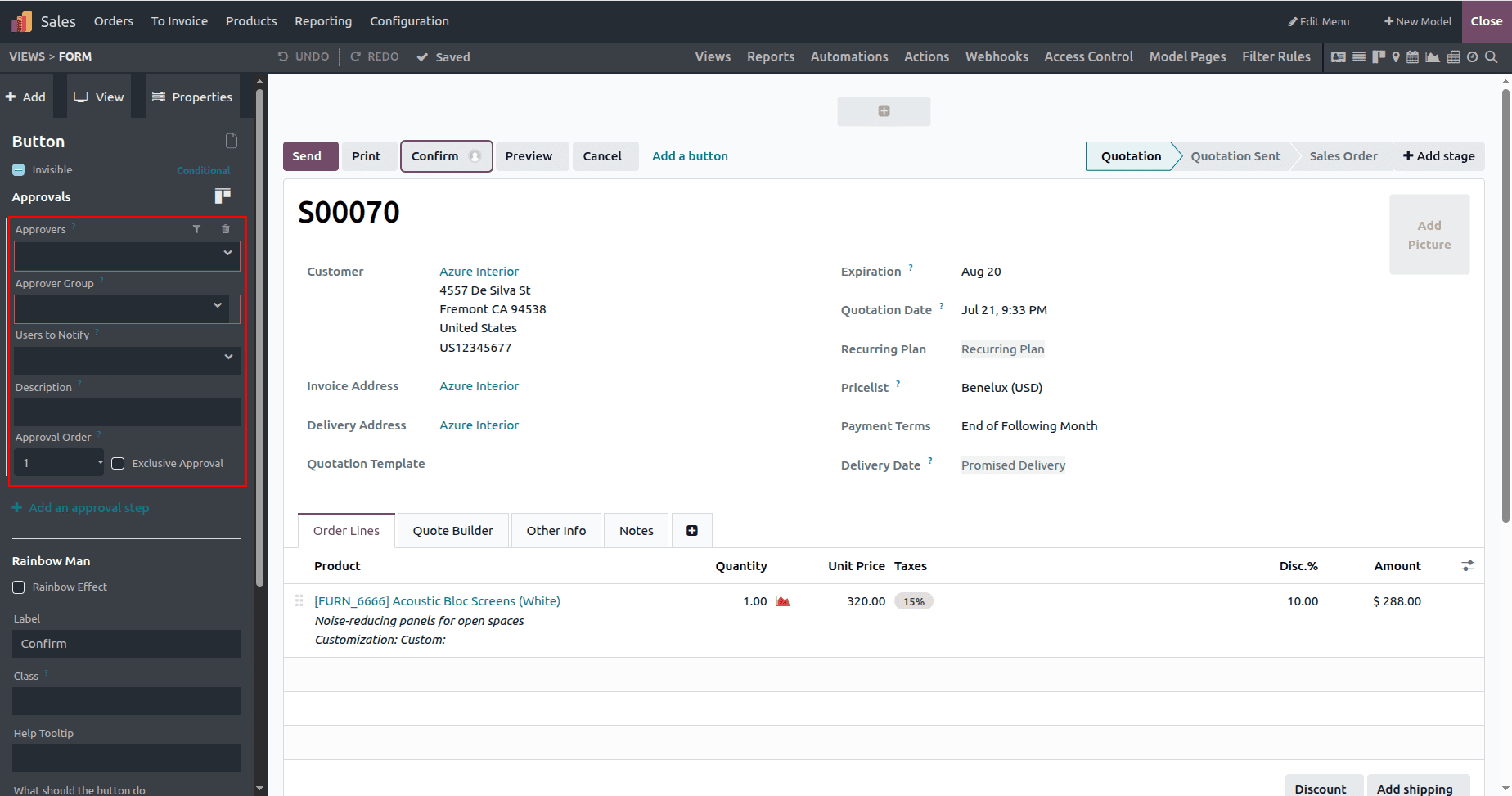
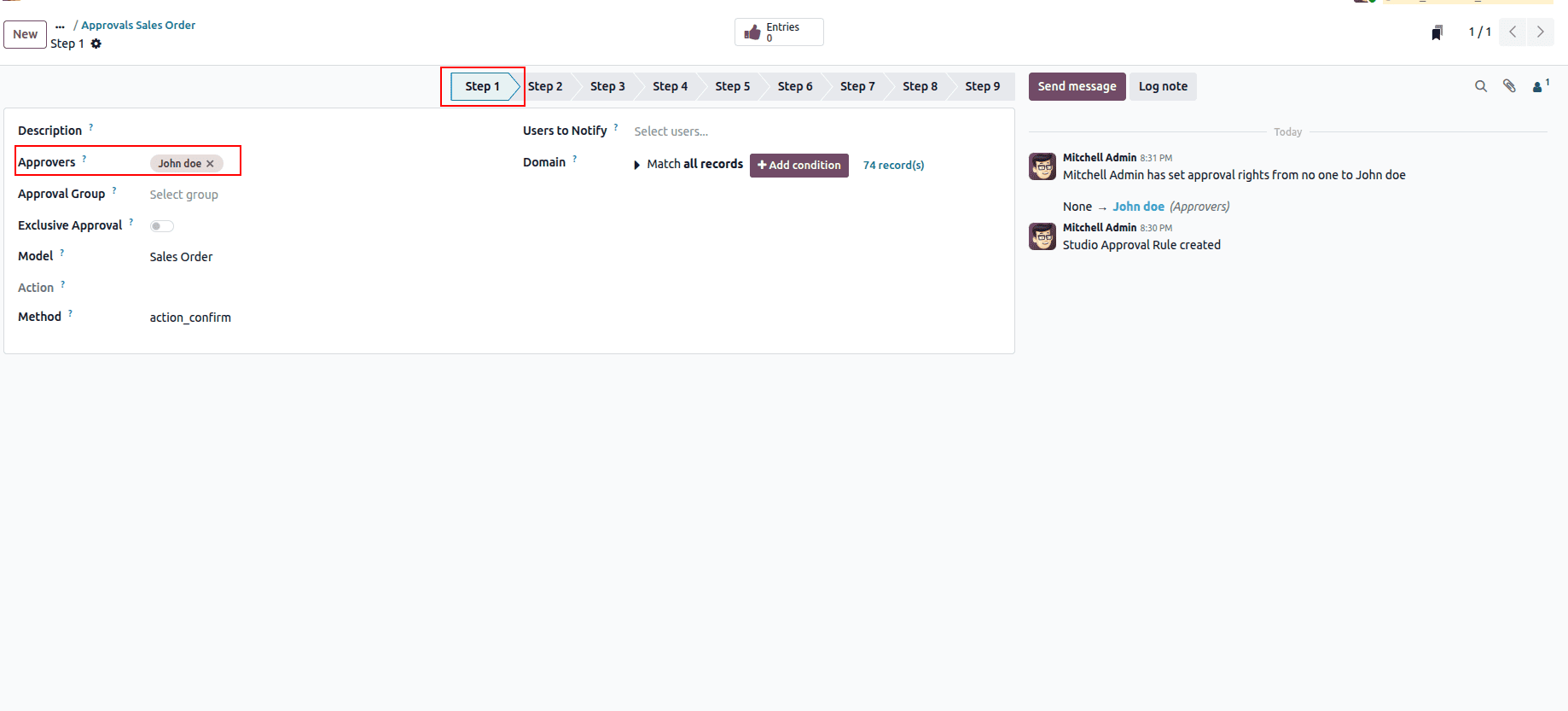
Here, you can either set the specific user as approver, or you can set a certain Approver group, and you have the option to notify the user.
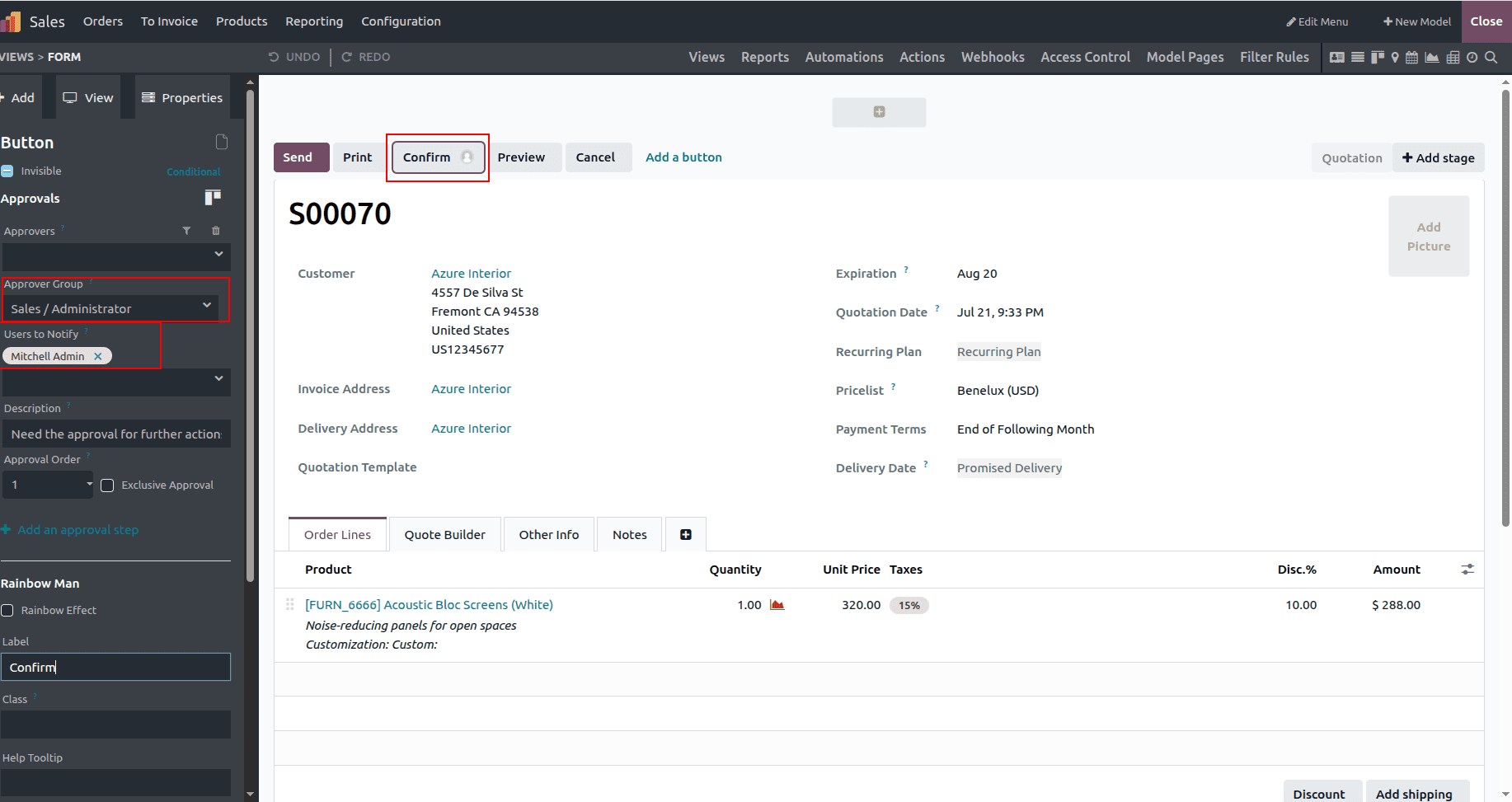
Here, I have configured the button approval setup as follows:
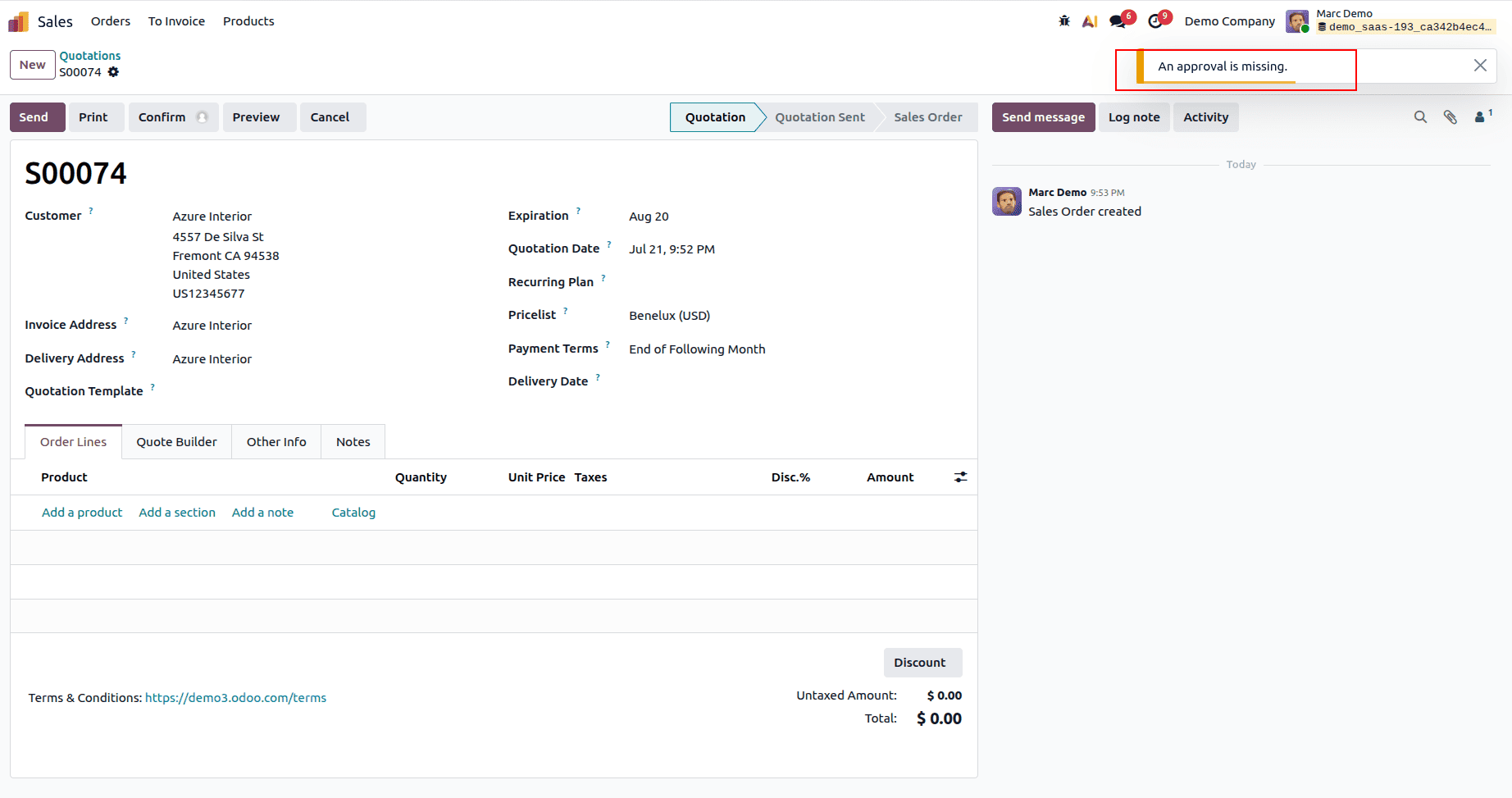
Now, I have logged in as Marc Demo, created a sale order, tried to confirm the order, and you can see a warning popup throwing while user marc demo try to confirm the order.
On clicking the small profile icon near the confirm button, you can see more details about the approval setup.
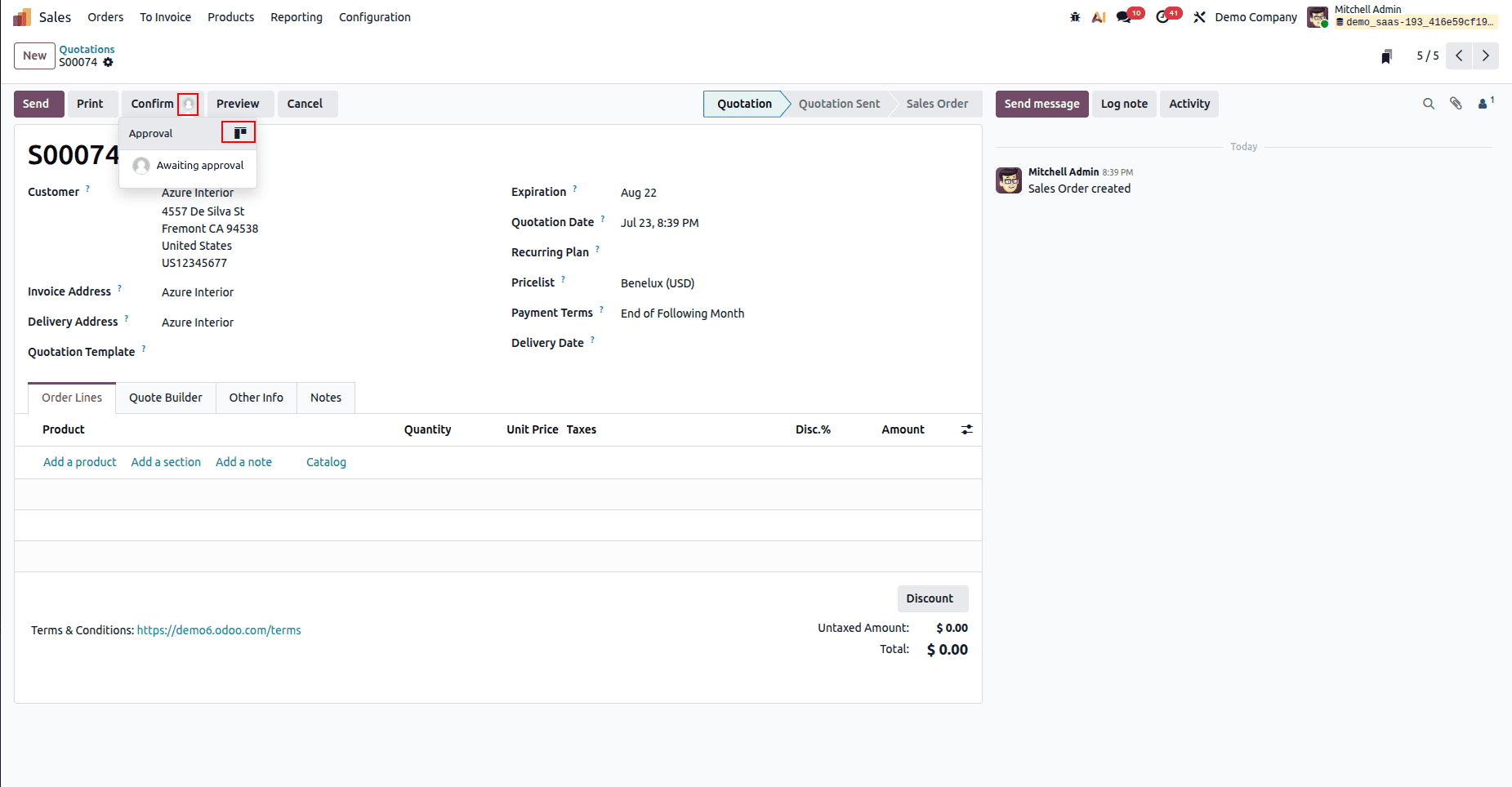
Since we have only configured single-step approval, we can see the Kanban details of the approval step
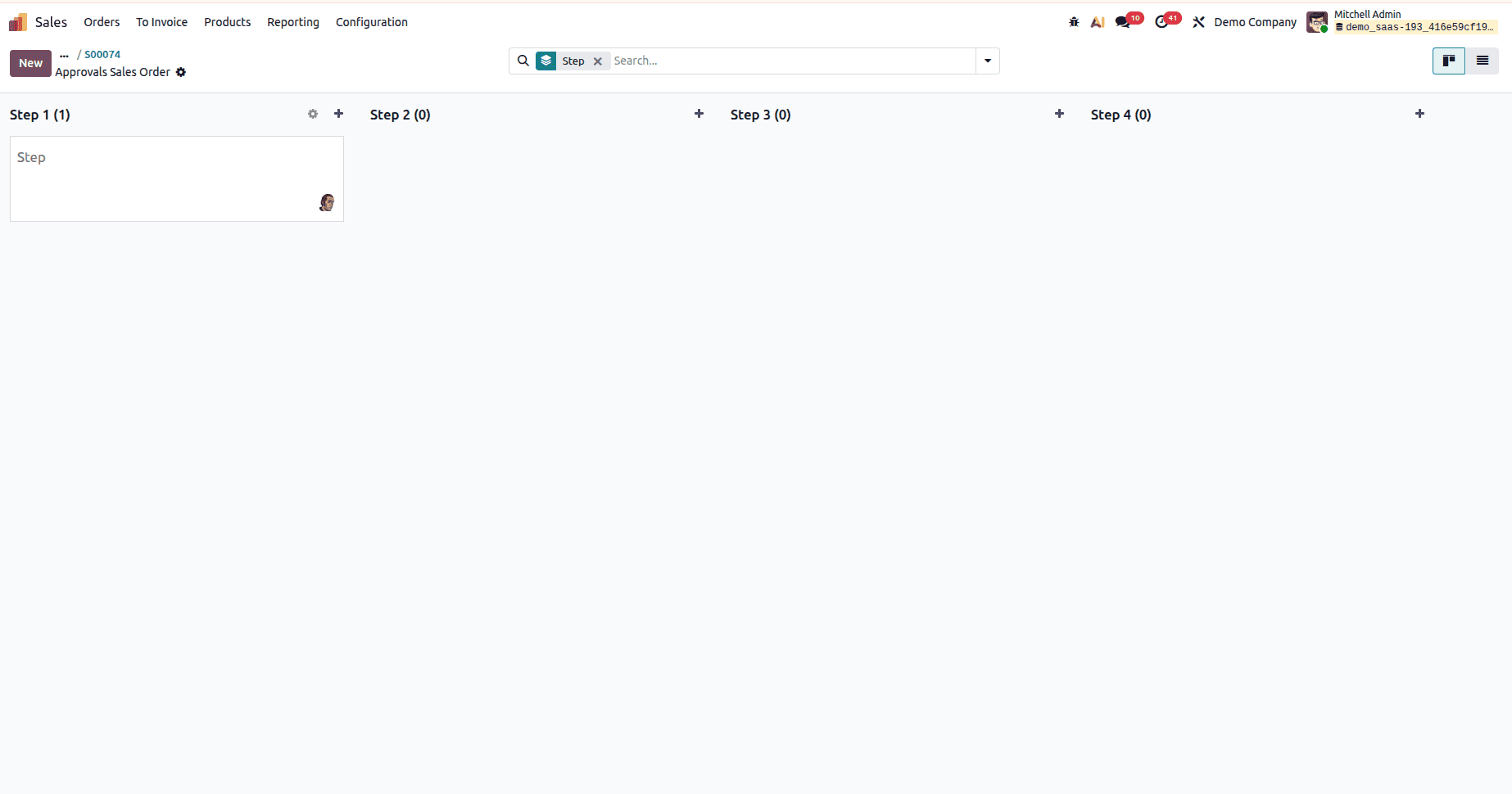
On clicking the kanban record, we can see more information about the specific step.
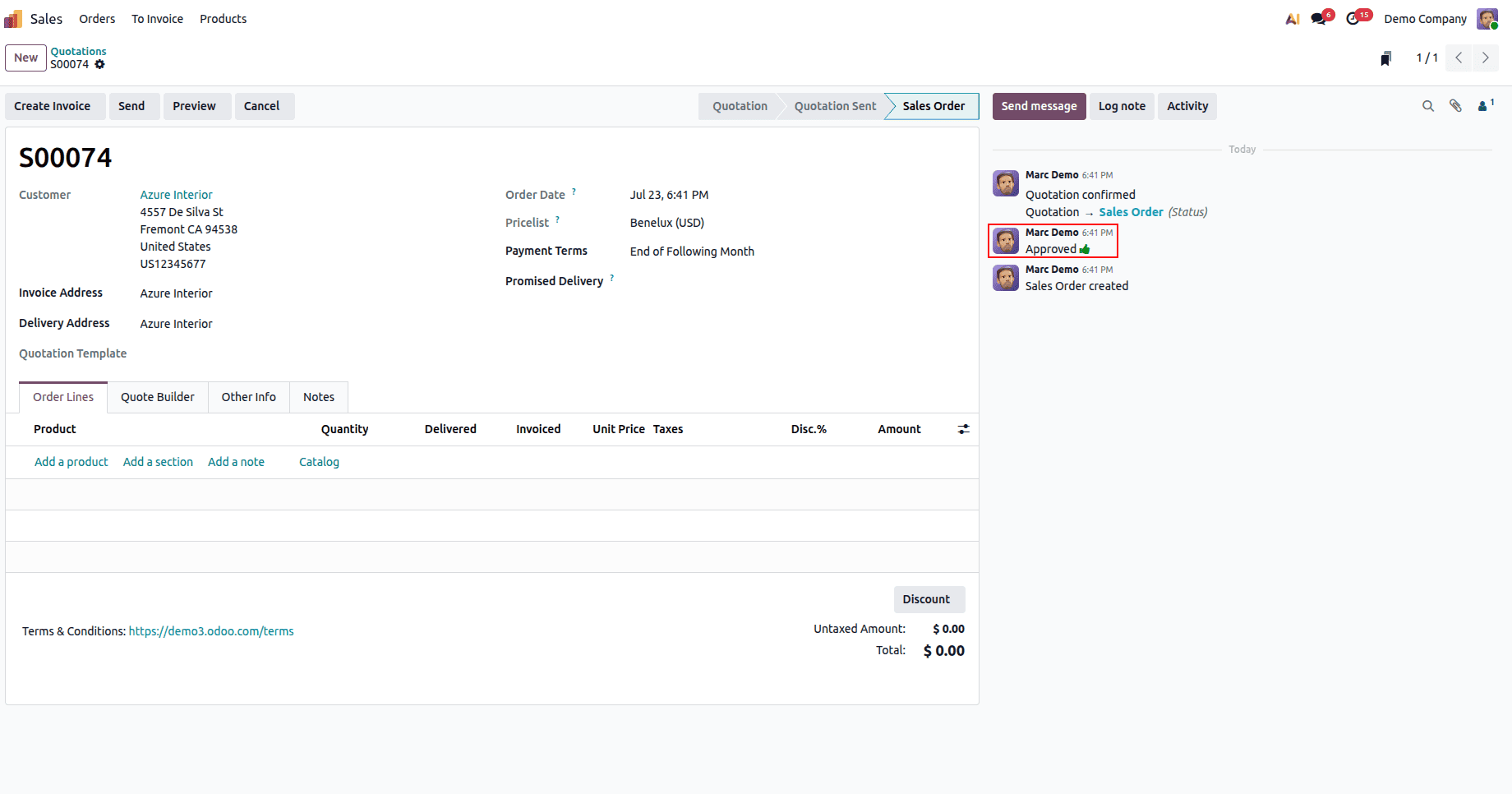
Once the approver is approved in the chatter section, you can see the corresponding messages
In this blog, we have discussed how to set up the approval rule in Odoo 19 using Studio. This is an effective Odoo-built-in method to set up control over the actions to prevent normal users from using the button actions.
To read more about How to Set Up Approval Rules for ECO Stages in Odoo 19, refer to our blog How to Set Up Approval Rules for ECO Stages in Odoo 19.