Efficient management of product changes is crucial in manufacturing, and Odoo 19’s PLM module simplifies this process through Engineering Change Orders (ECOs). ECOs help track product revisions, design modifications, and process updates, ensuring that every change is documented and controlled. One of the key elements of effective ECO management is defining approval rules across different stages. Approval rules ensure that changes are validated by the right personnel before progressing, reducing errors, maintaining compliance, and safeguarding product quality. In Odoo 19 PLM, you can configure these rules based on user roles, departments, or conditions to create a structured workflow that matches your organizational needs. This guide explores how to set up approval rules for ECO stages, enabling engineering and manufacturing teams to maintain accountability, streamline collaboration, and efficiently manage product lifecycles while preventing unauthorized or accidental changes.
Firstly, select the PLM (Product Lifecycle Management) module from Odoo.
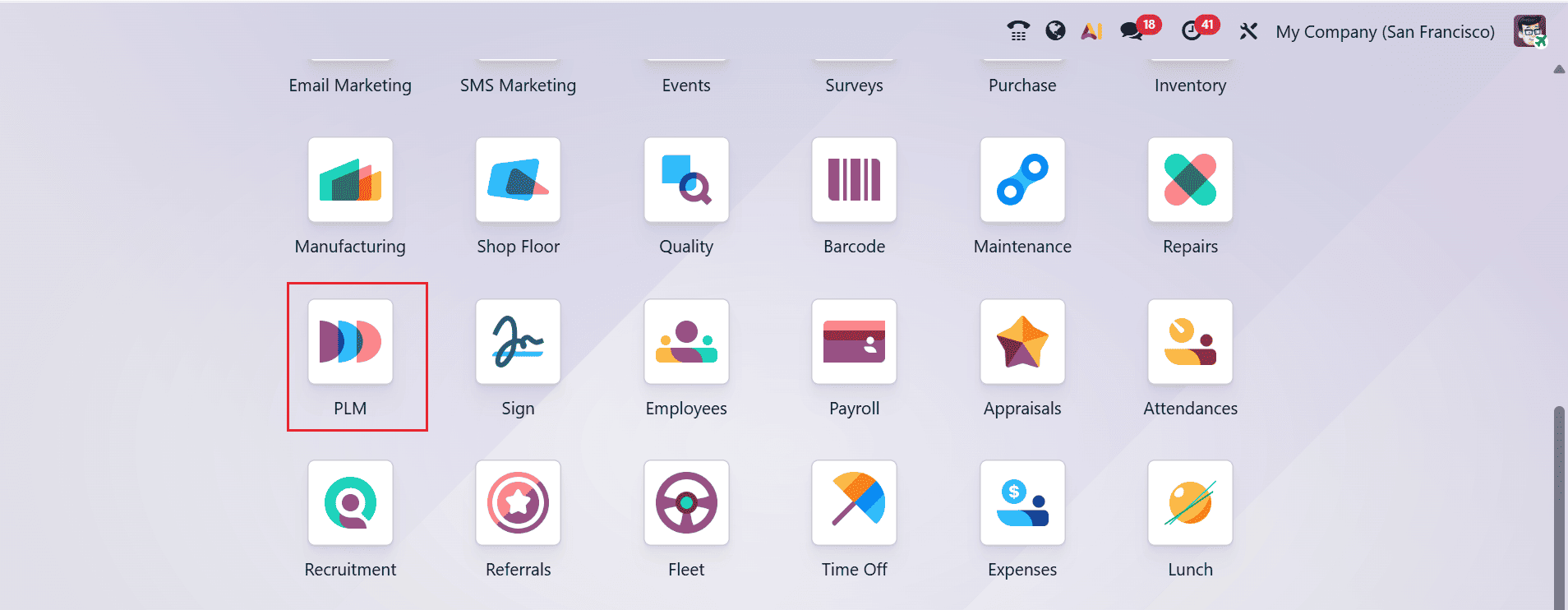
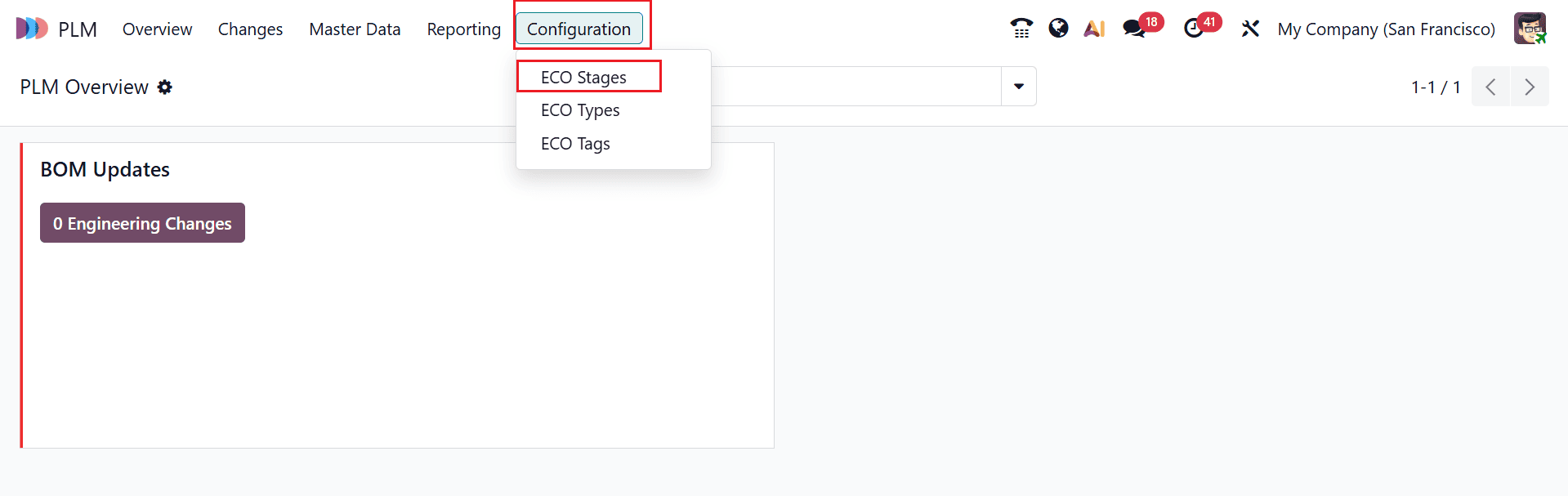
To manage the ECO Stages in the PLM module, navigate to Configuration > ECO Stages as shown below:
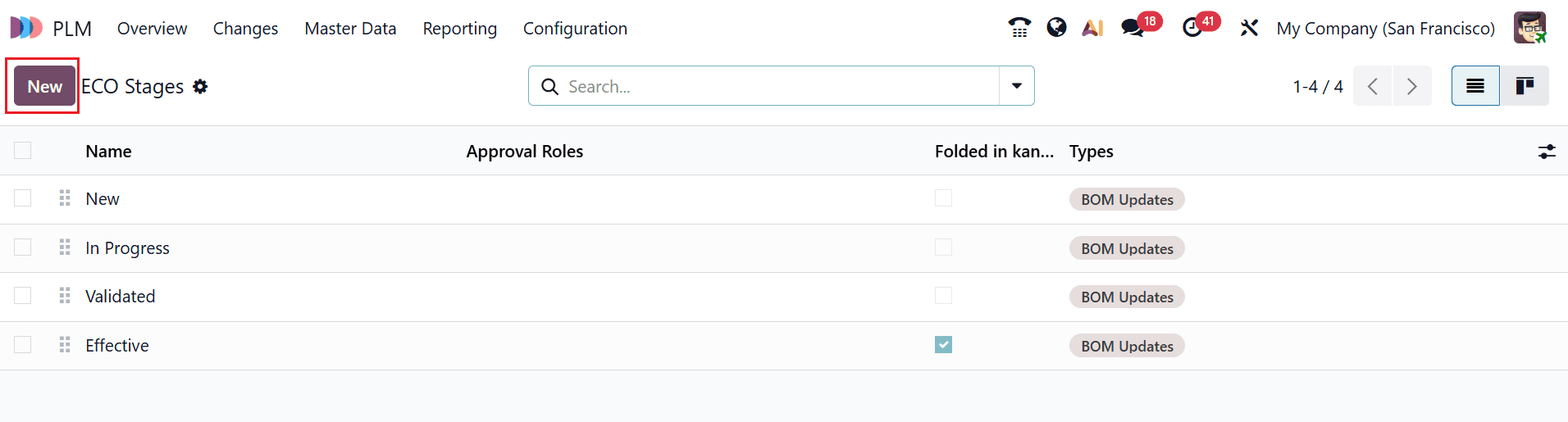
Here, you can see a list of ECO Stages with details such as Name, Approval Roles, Folded in kanban, and Types. Select the New button to create a new ECO stage.
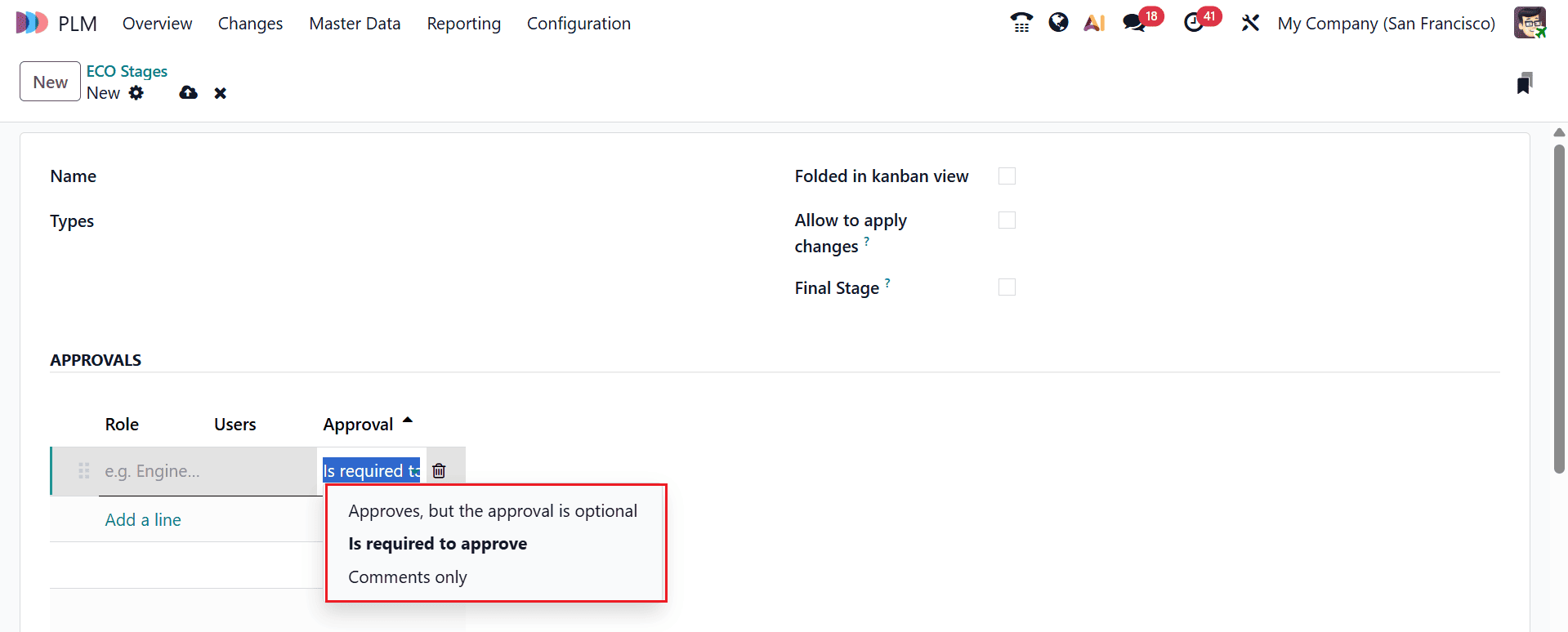
Here, add a name for the ECO Stage in the Name field and select an ECO Type. Enable the Folded in Kanban view option to fold the ECO stage in the Kanban view. Enable Allow to apply changes option to allow applying changes to the stage. Enable the Final Stage option if the created ECO stage is the final stage.
Under the Approvals tab, click on the Add a line button to add details such as Role, Users, and Approvals. You can see three types of Approvals:
- Approves, but the approval is optional: The user can choose to approve, but the workflow does not depend on it. The process will move forward even if no approval is given.
- Is required to approve: The user must approve before the process can proceed.
- Comments only: Comments are included only to explain the decision.
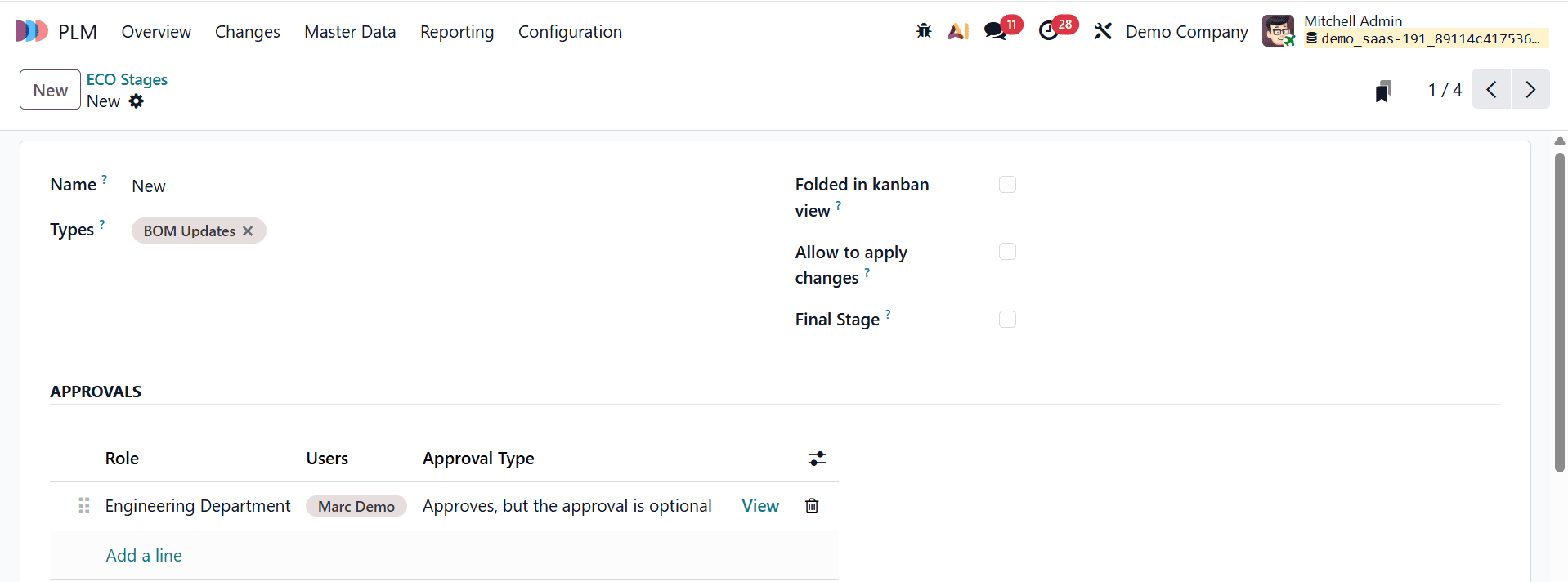
Here, the ECO Stage is named as New and the type as BoM Updates. In the Approvals tab, select a role, assign Marc Demo as the user, and set the Approval Type as Approves, but the approval is optional.
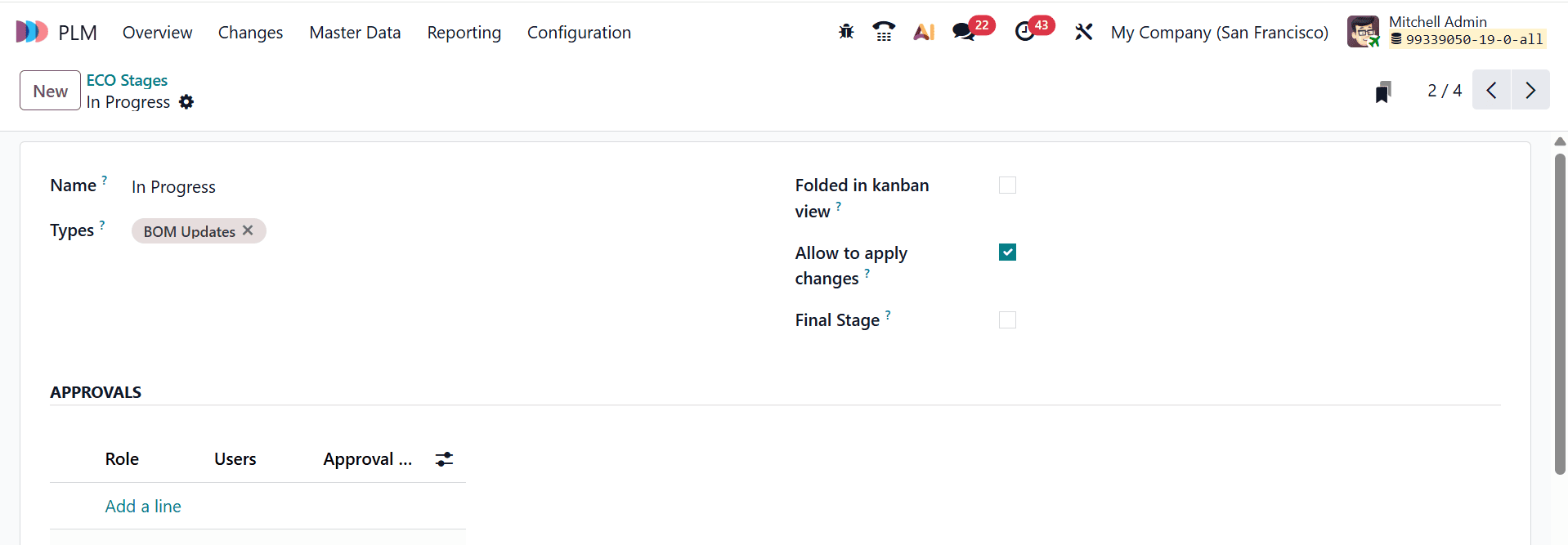
Here, the next ECO Stage is named as In Progress and the type as BoM Updates. Enable the Allow to apply changes field to let users apply changes. No approval is required at this stage
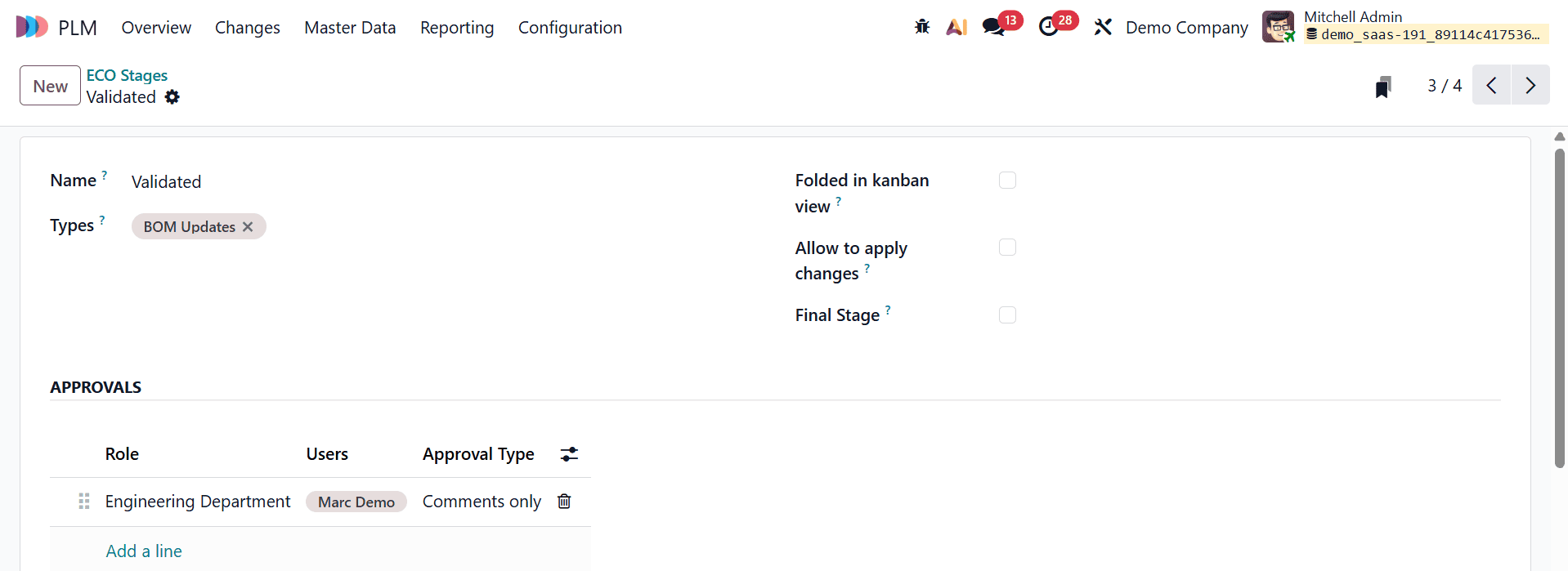
Here, the next ECO Stage is named as Validated and the type as BoM Updates. Under the Approvals tab, add a role, user as Marc Demo, and approval type as Comments only.
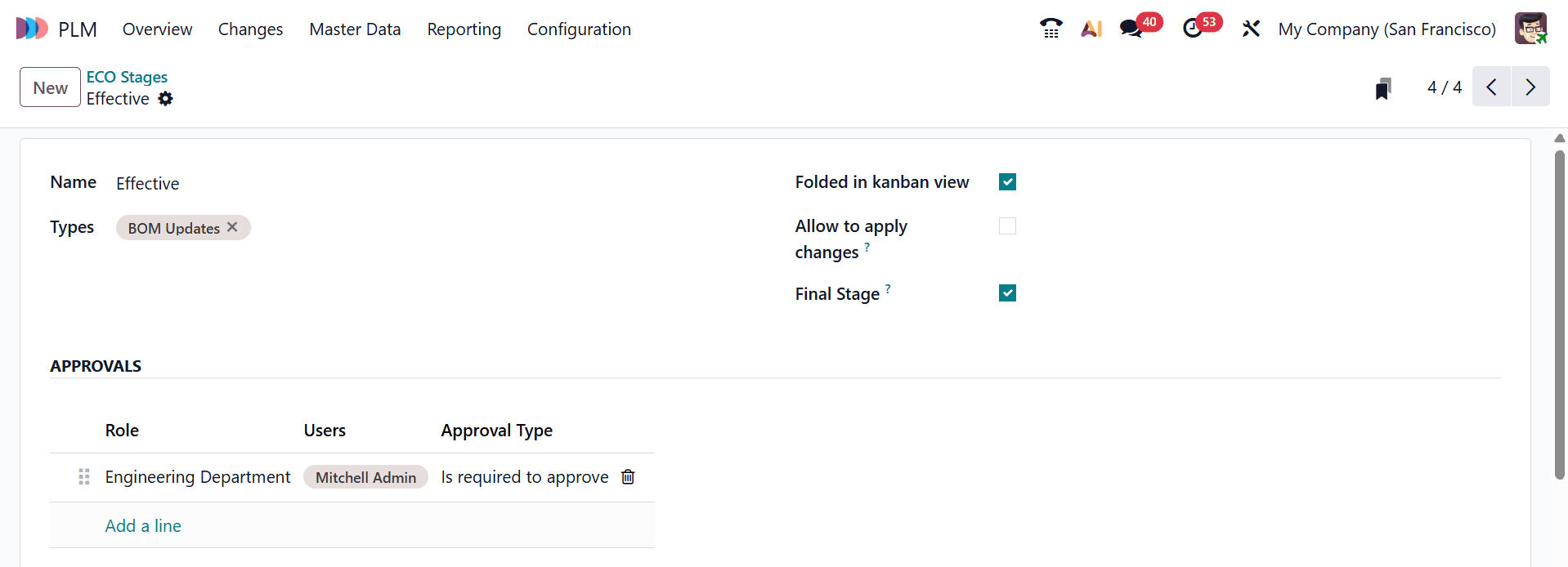
Here, the final stage is named as Effective, and the type as BoM Updates. As the final stage, enable the Final Stage option. Enable the Folded in kanban view option to fold the Effective stage in the kanban view. Under the Approvals tab, add a role, user as Mitchell Admin, and approval type as Is required to approve.
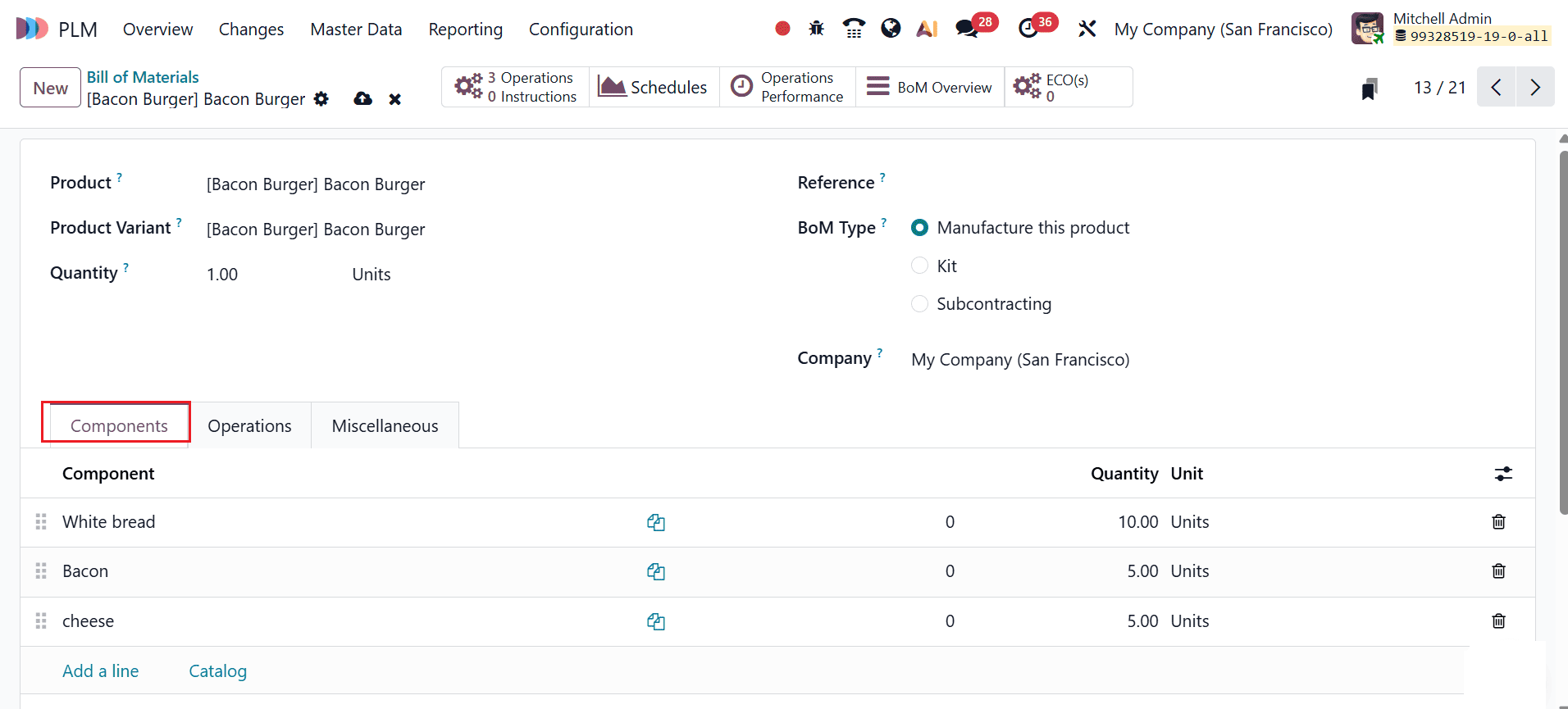
Let’s check how these ECO Stages work in the Bill of Materials. In the PLM module, navigate to the Master Data > Bill of Materials, and click on the New button. In the new window, add a product—for example, Bacon Burger. Under the Components tab, add components such as White bread, Bacon, and Cheese as shown below:
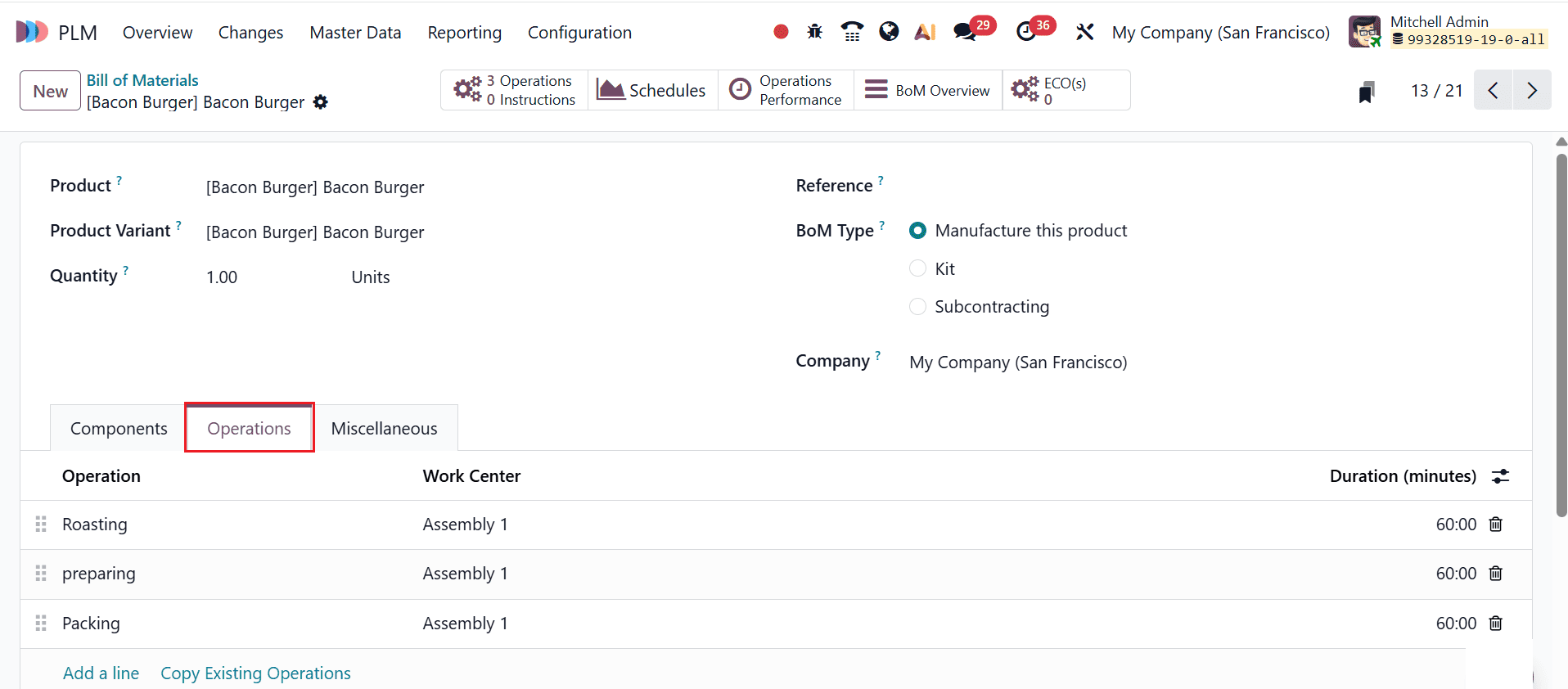
Under the Operations tab, add operations such as Roasting, Preparing, and Packing.
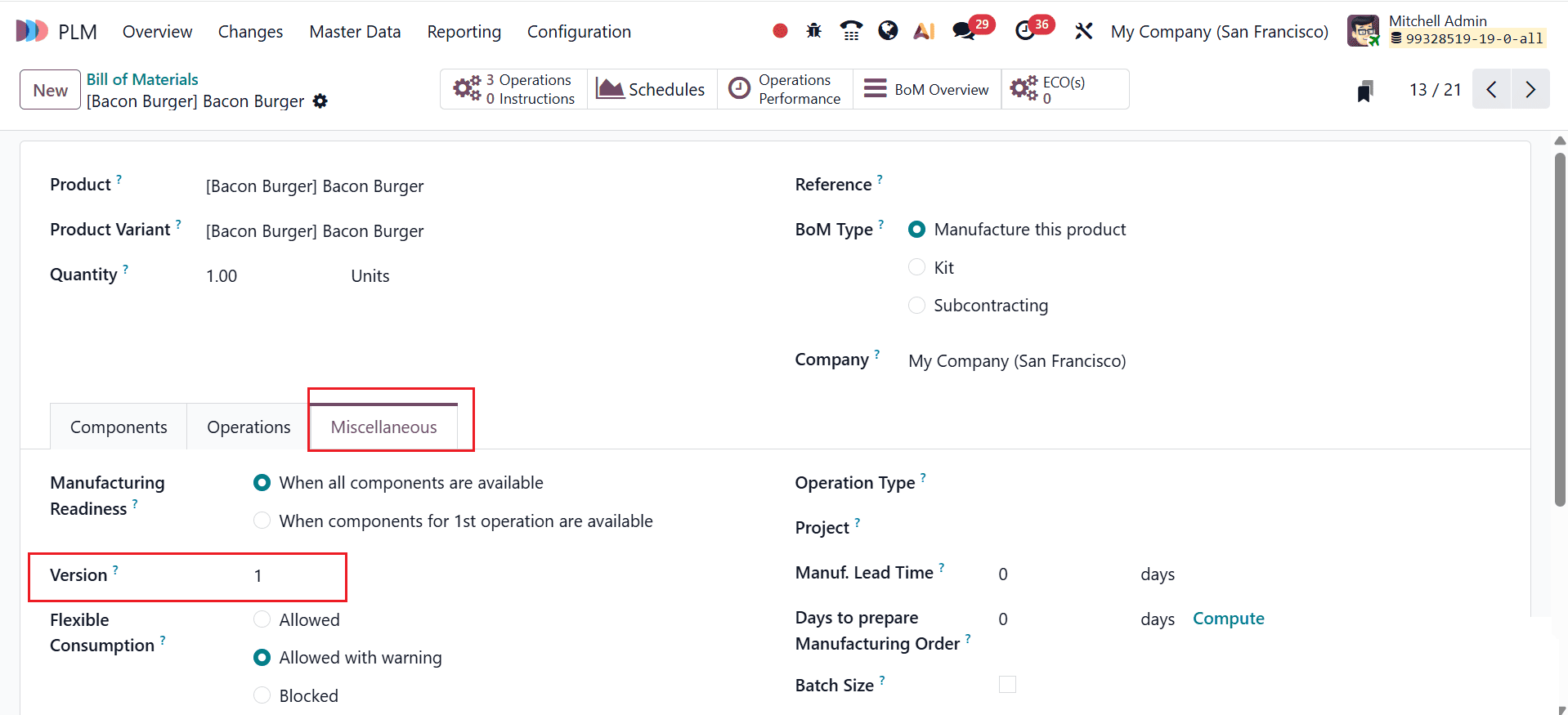
Under the Miscellaneous tab, you can Version as 1 as shown below:
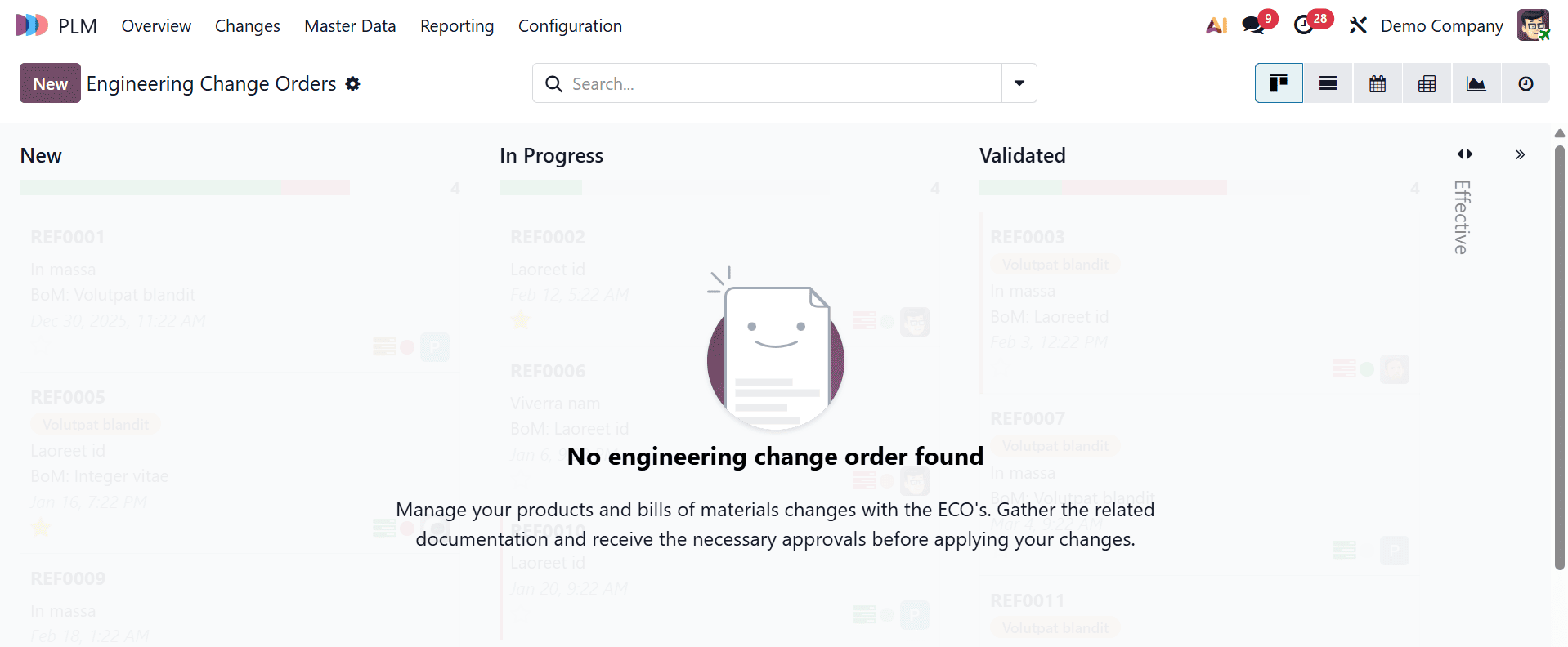
Then, move to the Changes menu and click on the New button to add ECO changes to the new BoM. Here, you can see already created ECO Stages.
Under the Description field, add the title for the ECO and select the type as BoM Updates. Select Bill of Materials in the Apply on field and specify both the product and the bill of materials. Choose As soon as possible in the Effective field. To change the version of the BoM, enable the Update Version option. Then, click the Start Revision button as shown below.
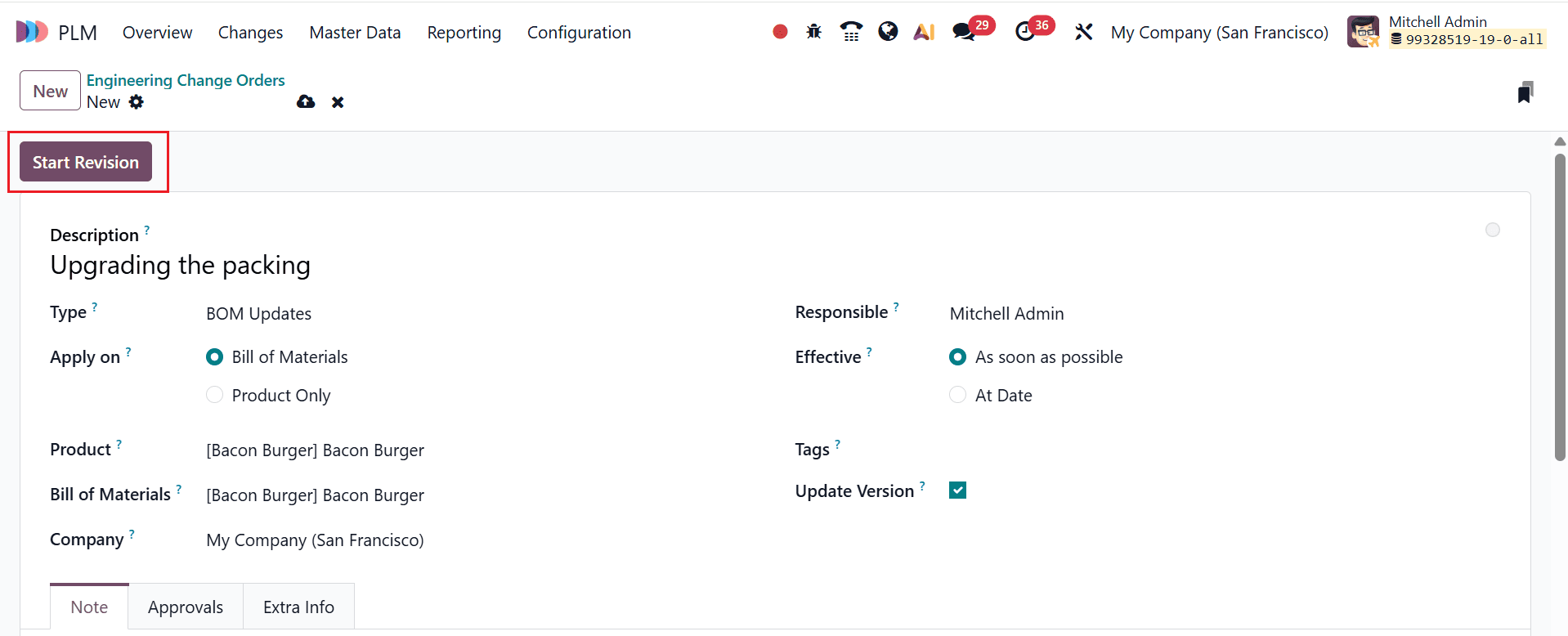
At this point, the ECO is in the New stage. The approval type for this stage is Approval, but it is optional. Under the Approvals tab, you can view details such as Role, Approved by, Status, Approval Date, Approval Stage, and Requested Users. Then, move to the next stage.
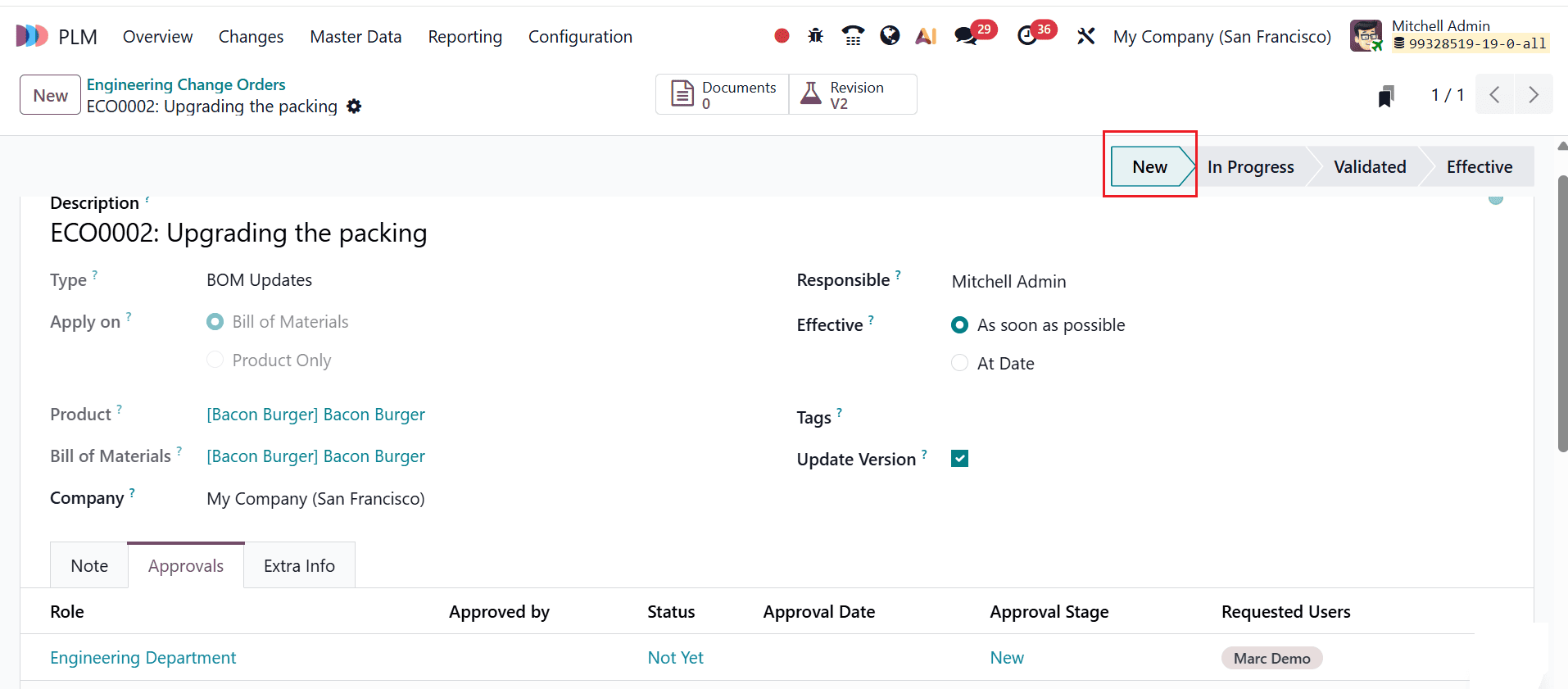
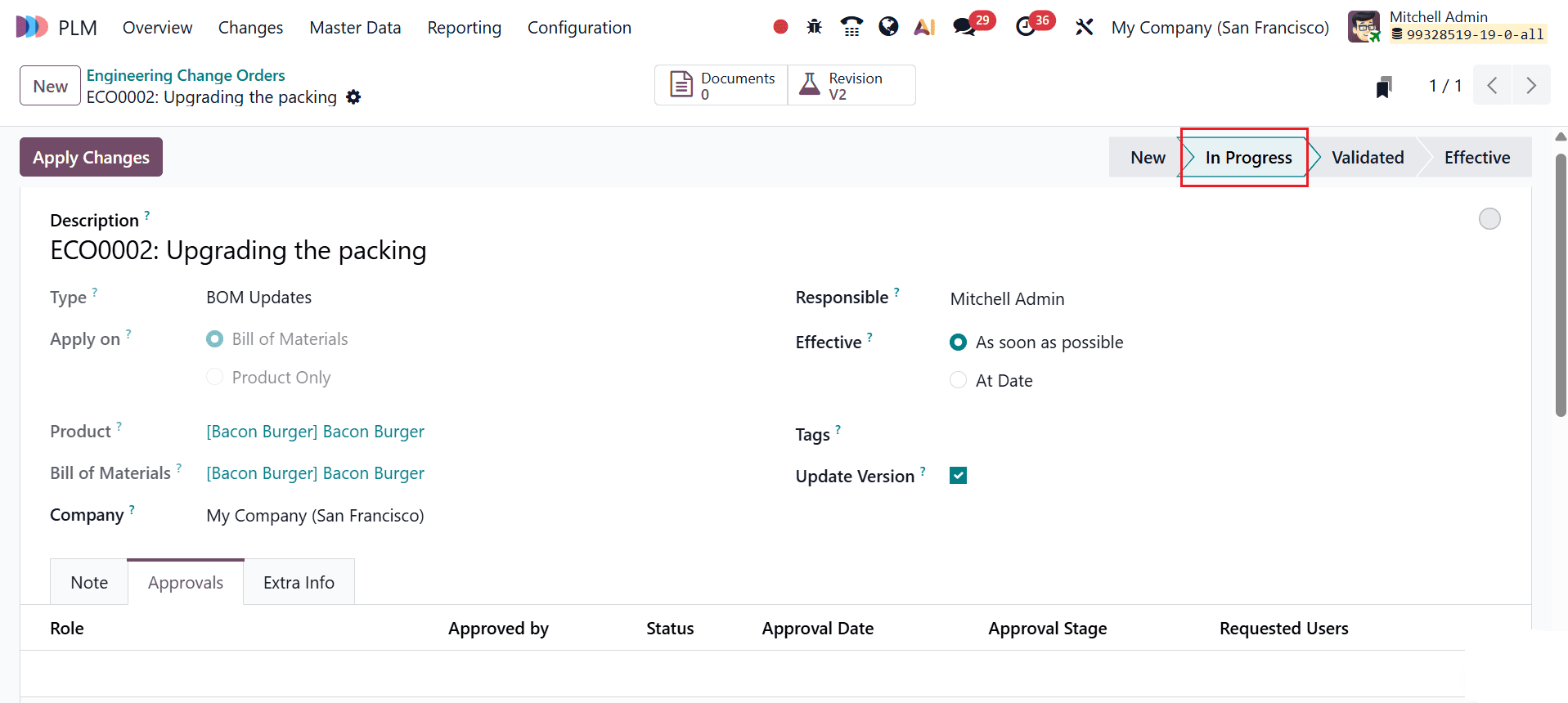
Here, the ECO Stage is in the In Progress stage. To add a new component to the BoM, click on the Revision smart tab.
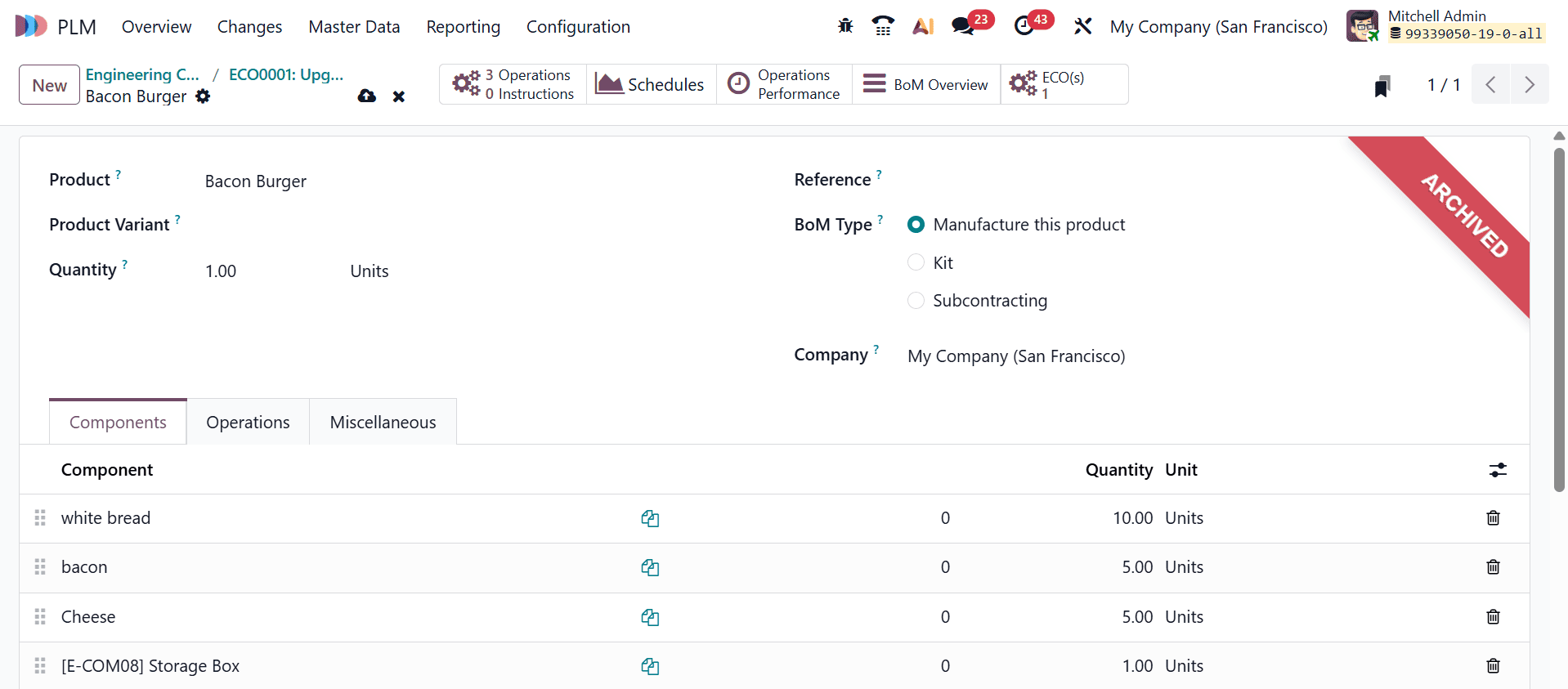
Here, you can see that the bill of materials is in the Archived stage, as shown below. Under the Components tab, add a new component named Storage Box. Then, go back to the ECO.
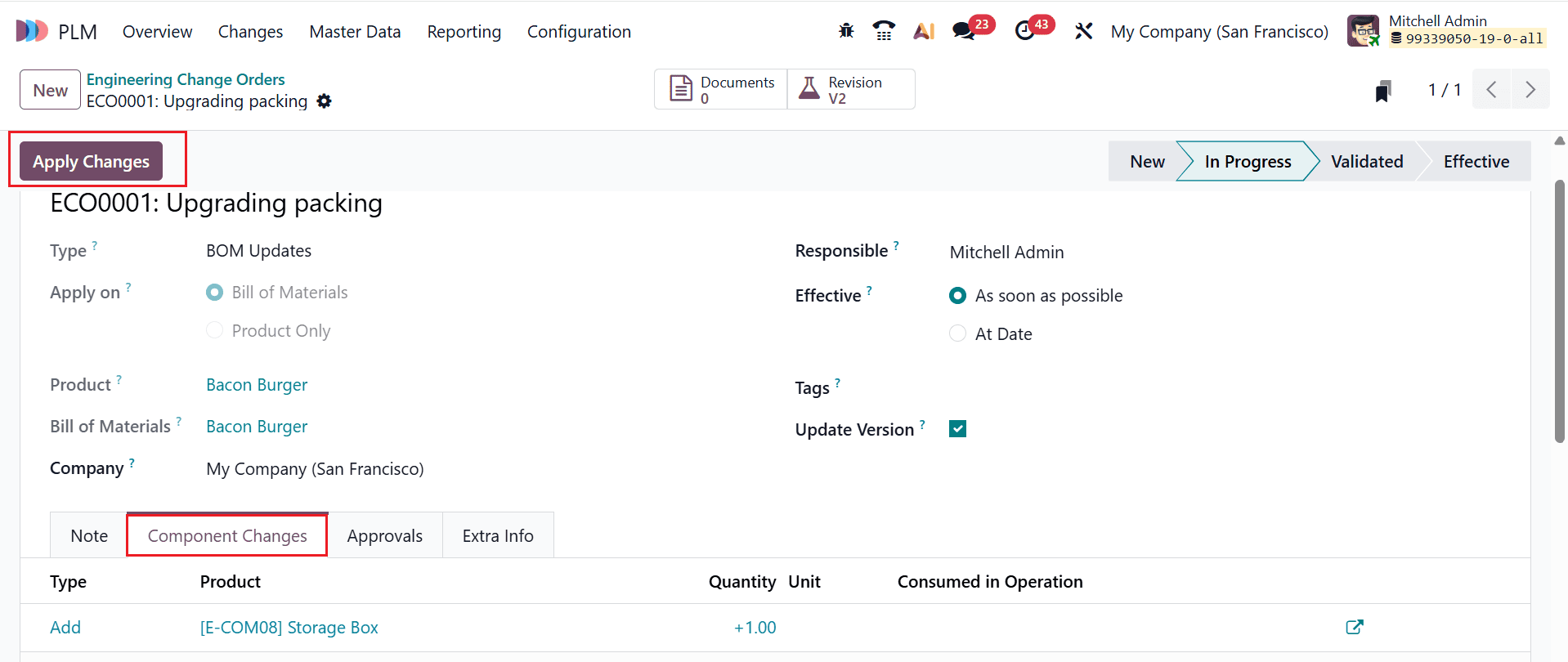
After adding a new component to the bill of material, a new tab named as Component Changes is added in the ECO as shown below. Under the Components Changes field, you can see the newly added component updated. Then, click the Apply Changes button.
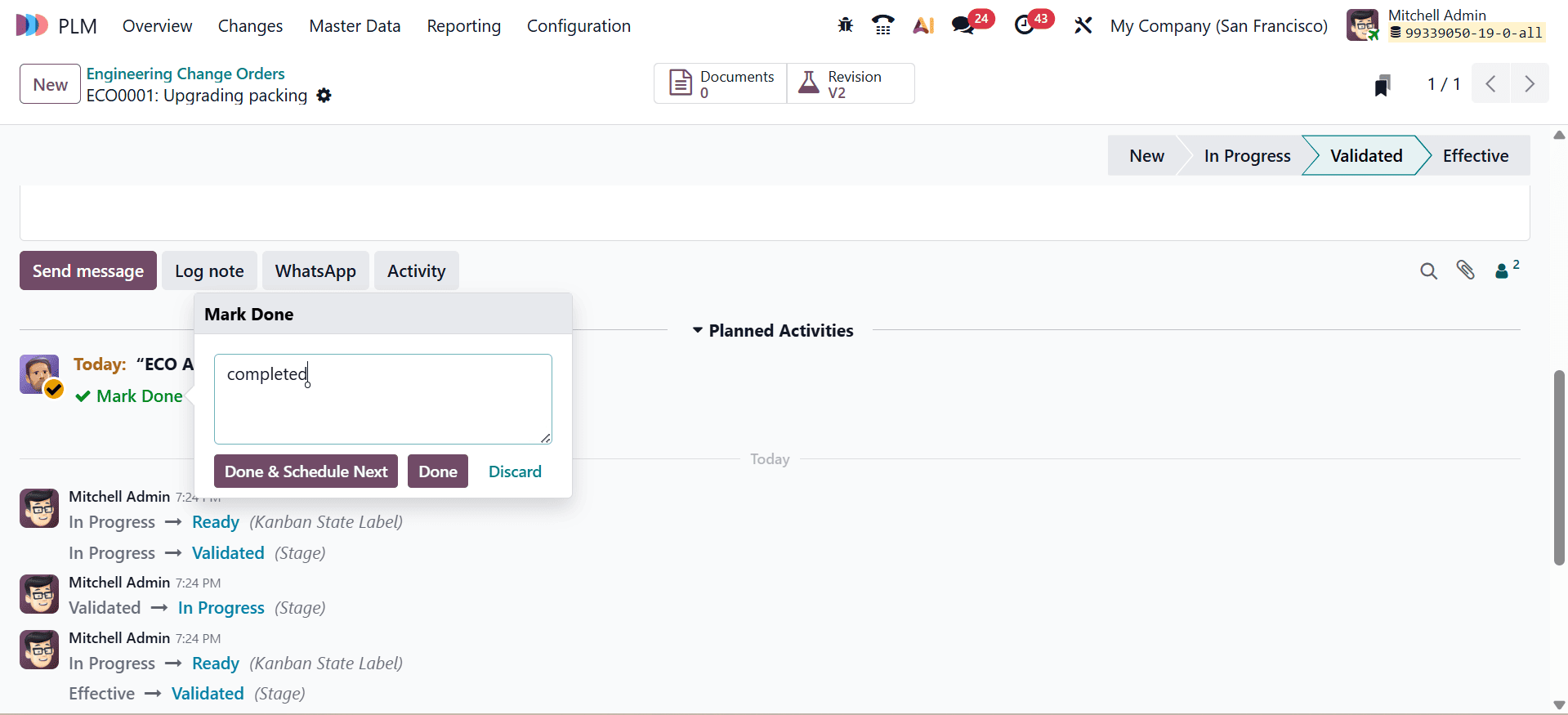
The ECO moves to the Validated stage. As you select the user as Marc Demo and the approval type for the validated stage as Comments only, add a comment and click on the Done button as shown below:
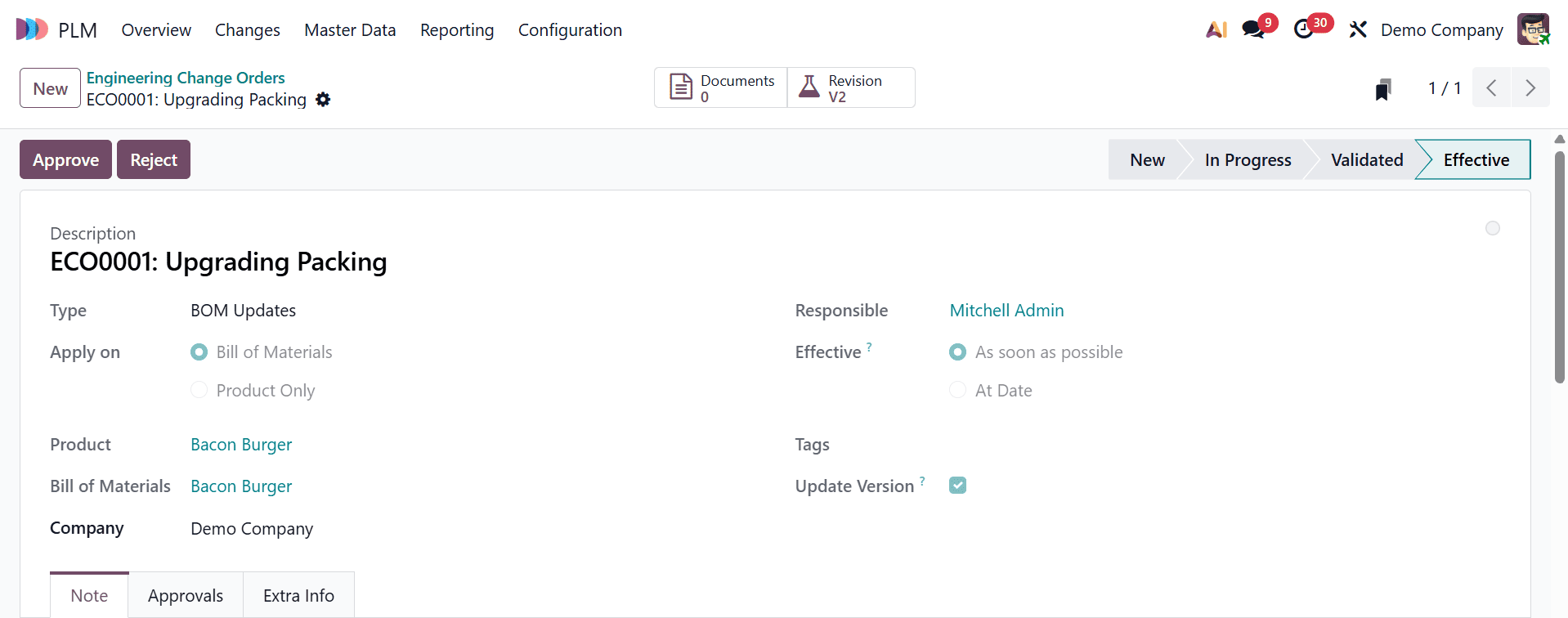
Here, the final stage is in the Effective stage. In this stage, the user is Mitchell Admin, and the approval type is the Is required to approve option. Approval from Mitchell Admin is required at this stage. Click Approve to proceed.
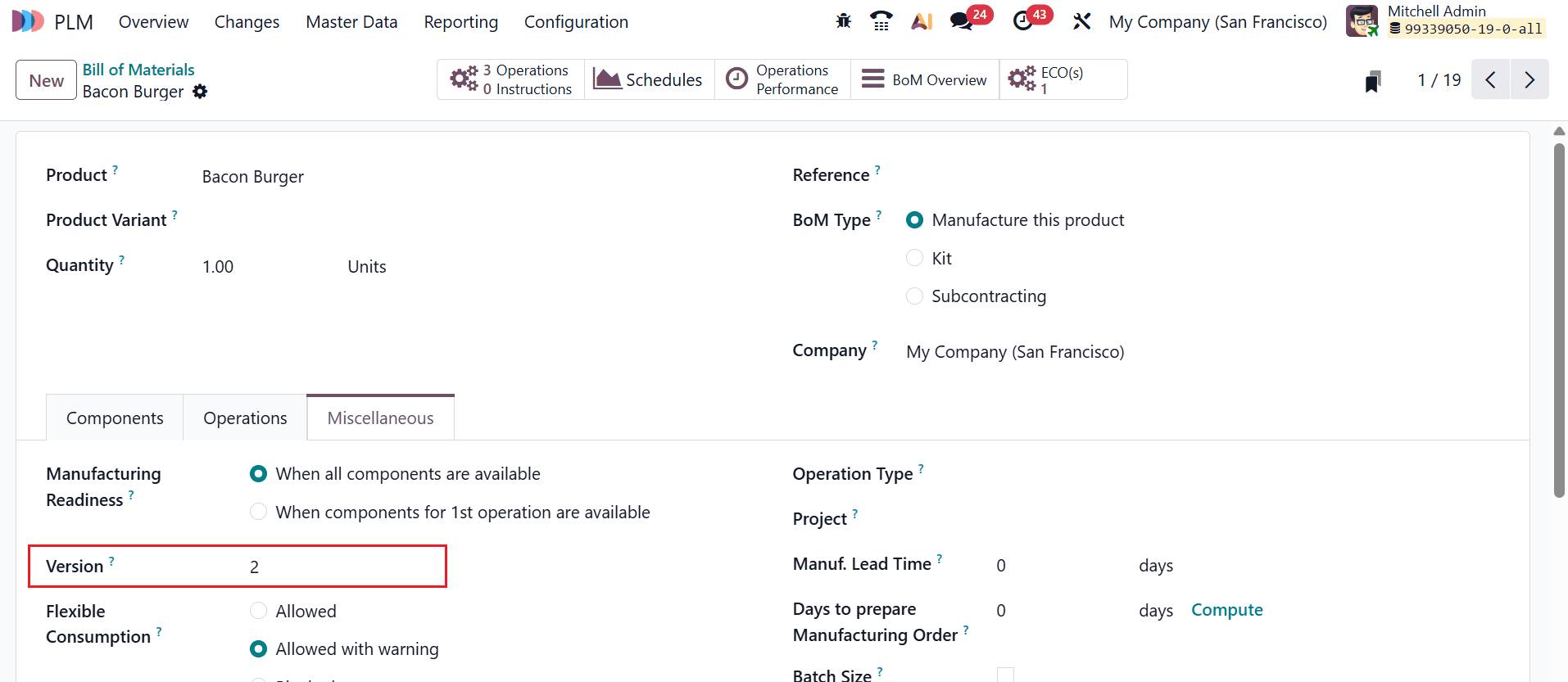
Here, the ECO for the Bill of Materials for Bacon Burger is completed, and the version of the BoM has changed as shown below:
Setting up approval rules for ECO stages in Odoo 19 PLM is essential for controlling product lifecycle changes and ensuring compliance across departments. By defining specific approvers for each stage, companies can prevent unreviewed or incorrect changes from affecting production, improving overall product quality, and reducing costly mistakes. Odoo 19 PLM offers flexible configuration options, allowing organizations to tailor approval workflows to match their team structure, product complexity, and regulatory requirements. Structured ECO approvals increase transparency, enhance accountability, and accelerate decision-making while maintaining traceability of every change. For engineering and manufacturing teams, this means smoother transitions between stages, faster project execution, and more reliable outcomes. Implementing approval rules early in the ECO process helps create a consistent, scalable workflow that grows with the organization. Ultimately, mastering Odoo 19 PLM approval rules ensures efficient, secure, and well-governed product lifecycle management.
To read more about How to Configure and Manage ECO Approvals on ECO Stages in Odoo 18, refer to our blog How to Configure and Manage ECO Approvals on ECO Stages in Odoo 18.