Using file attachments in Odoo to store backup files is okay; however, each backup will be saved in the file store or pulled via the Odoo database. This solution isn't suitable for big files, and there is no nice way to provide a link to download a file to a person who doesn't have shell access to the server. In this case, the task is about creating a custom Odoo module that will use the S3 API for storing backup files in MinIO. This will allow users to upload, download, and delete a backup directly from Odoo and without using a filesystem.
This blog is going to describe how to create an Odoo module called minio_backup which allows:
- To configure a connection to MinIO directly from Odoo
- To upload a file directly from Odoo to a MinIO bucket
- To download backup files through Odoo via a special secure controller
- To provide error pages for both missing backup records and MinIO files
- To delete a MinIO object which corresponds to a backup record automatically on its deletion from Odoo
- To validate bucket names and manage common MinIO errors properly
We'll describe all files one by one and then give a list of needed screenshots in order to make a post easier to follow.
1. Module Structure
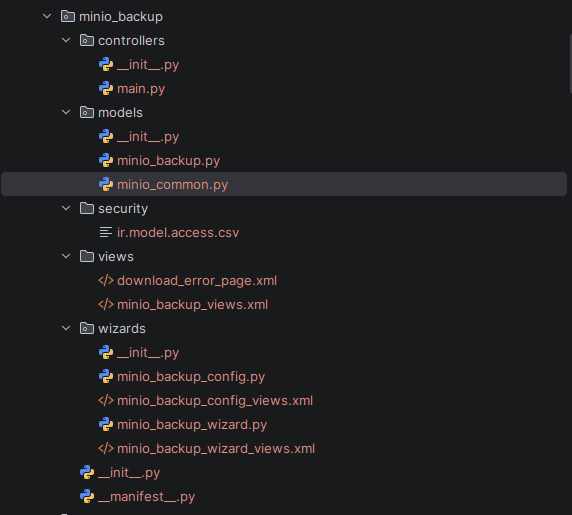
The structure of this module consists of:
- controllers/ responsible for handling HTTP download requests.
- models/ containing the backup model and the common MinIO methods.
- security/ defining the access permissions.
- views/ containing the backup views and the download failure page.
- wizards/ containing the MinIO setup and upload wizards.
2. Initialization of the Module
__init__.py
from . import models
from . import wizards
from . import controllers
Root __init__.py loads modules with models, wizards and controllers so Odoo can register python components of the module.
3. The Manifest - Declaring the Module
__manifest__.py
{
   'name': 'Minio Backup Module',
   'version': '1.0',
   'category': 'Tools',
   'summary': 'Upload, download, and manage files in Minio storage',
   'description': """
       Module to interact with Minio storage.
       Features:
       - Upload files to Minio.
       - Download files through an Odoo controller.
 - Handle missing files with a user-friendly error page.
       - Delete files from Minio.
   """,
   'author': 'Your Name',
   'depends': ['base', 'web'],
   'external_dependencies': {
       'python': ['boto3'],
   },
   'data': [
       'security/ir.model.access.csv',
       'wizards/minio_backup_wizard_views.xml',
       'wizards/minio_backup_config_views.xml',
       'views/minio_backup_views.xml',
       'views/download_error_page.xml',
   ],
   'installable': True,
   'application': True,
   'auto_install': False,
   'license': 'LGPL-3',
}
Why it's written this way:
external_dependencies.python: ['boto3'] - MinIO uses the S3 protocol; instead of implementing an HTTP client, we can use the standard AWS SDK for Python, boto3, configured to use the MinIO endpoint instead of AWS. This will ensure Odoo won't allow installation of the module properly if boto3 is not installed on the server, but give a proper error about it instead of a mysterious ModuleNotFoundError.
4. Access rights
security/ir.model.access.csv
id,name,model_id:id,group_id:id,perm_read,perm_write,perm_create,perm_unlink
access_minio_backup,minio.backup,model_minio_backup,base.group_user,1,1,1,1
access_minio_backup_wizard,minio.backup.wizard,model_minio_backup_wizard,base.group_user,1,1,1,1
access_minio_backup_config,minio.backup.config,model_minio_backup_config,base.group_system,1,1,1,1
The regular internal users can see the backup records and have access to the Upload Wizard. The MinIO setup is only available to the system administrator as it holds the server address and credentials to access the storage.
The view for the backup records and form is not designed to allow any creation and editing of backup records directly from there, as the records should be added as part of the upload process.
5. Controller - Handling Backup Downloads
controllers/__init__.py
from . import main
controllers/main.py
import urllib.parse
from botocore.exceptions import ClientError
from odoo import http
from odoo.exceptions import AccessError
from odoo.http import request
from odoo.addons.minio_backup.models.minio_common import get_minio_credentials, get_s3_client

def _friendly_error_page(env, message, status=404):
   html = env['ir.qweb']._render('minio_backup.download_error_page', {
       'message': message,
   })
   return request.make_response(html, headers=[('Content-Type', 'text/html; charset=utf-8')], status=status)

class MinioBackupController(http.Controller):
   @http.route('/minio_backup/download/<int:backup_id>', type='http', auth='user')
   def download_backup(self, backup_id, **kwargs):
       backup = request.env['minio.backup'].browse(backup_id)
       if not backup.exists():
           return _friendly_error_page(
               request.env,
               "This backup record no longer exists. It may have "
               "already been deleted.",
           )
       try:
           file_name = backup.file_name
           bucket = backup.minio_bucket
       except AccessError:
           return _friendly_error_page(
               request.env,
               "You don't have access to this backup record.",
               status=403,
           )
       creds = get_minio_credentials(request.env)
       s3 = get_s3_client(creds)
       try:
           obj = s3.get_object(Bucket=bucket, Key=file_name)
       except ClientError:
           return _friendly_error_page(
               request.env,
               "The file \"%s\" for this backup could not be found in "
               "MinIO storage (bucket \"%s\"). It may have been deleted "
               "directly from MinIO outside of Odoo." % (file_name, bucket),
           )
       data = obj['Body'].read()
       quoted_name = urllib.parse.quote(file_name)
       headers = [
           ('Content-Type', obj.get('ContentType') or 'application/octet-stream'),
           ('Content-Length', str(len(data))),
           ('Content-Disposition',
            "attachment; filename=\"%s\"; filename*=UTF-8''%s" % (
                file_name.replace('"', ''), quoted_name)),
       ]
       return request.make_response(data, headers=headers)
The controller creates an HTTP endpoint to perform backup downloads.
This endpoint looks like this:
The endpoint requires authentication via the Odoo user. Initially, the controller tries to determine whether the backup is available. Then, the bucket and file data are retrieved from the backup, and the controller connects to MinIO by means of the common MinIO functions.
Once the file is located, the controller downloads the file from MinIO and returns it in the HTTP response with the proper content-type and Content-Disposition headers.
In this way, the browser will download the file by its original name.
6. Model Initialization
models/__init__.py
from . import minio_backup
models/minio_backup.py
from odoo import models, fields
from odoo.exceptions import UserError
from odoo import _
from botocore.exceptions import ClientError
from .minio_common import get_minio_credentials, get_s3_client
_ALREADY_GONE_CODES = {'NoSuchKey', 'NoSuchBucket', '404'}

class MinioBackup(models.Model):
   _name = "minio.backup"
   _description = "Minio Backup Record"
   _order = "backup_date desc, id desc"
   name = fields.Char(string='Description', required=True)
   minio_bucket = fields.Char(string='Bucket Name', required=True)
   file_name = fields.Char(string='File Name in Minio', required=True)
   backup_date = fields.Datetime(string='Backup Date', default=lambda self: fields.Datetime.now())
   download_url = fields.Char(
      string='Download URL',
      compute='_compute_download_url'
   )
   def _compute_download_url(self):
      base_url = self.env['ir.config_parameter'].sudo().get_param(
          'web.base.url'
      )
      for record in self:
          record.download_url = (
              f'{base_url}/minio_backup/download/{record.id}'
          )
   def action_download_backup(self):
       self.ensure_one()
       creds = get_minio_credentials(self.env)
       s3 = get_s3_client(creds)
       try:
           s3.head_object(Bucket=self.minio_bucket, Key=self.file_name)
       except ClientError as e:
           code = e.response.get('Error', {}).get('Code')
           status = e.response.get('ResponseMetadata', {}).get('HTTPStatusCode')
           if code in _ALREADY_GONE_CODES or status == 404:
               raise UserError(_(
                   "This backup's file (\"%s\") no longer exists in the "
                   "\"%s\" bucket on MinIO.\n\nIt may have been deleted "
                   "directly from MinIO outside of Odoo. You can remove "
                   "this backup record, or re-upload the file if you "
                   "still have a copy."
               ) % (self.file_name, self.minio_bucket))
           raise UserError(_('Could not reach MinIO to check the file: %s') % str(e))
       except Exception as e:
           raise UserError(_('Could not reach MinIO to check the file: %s') % str(e))
       return {
           "type": "ir.actions.act_url",
           "url": "/minio_backup/download/%s" % self.id,
           "target": "self",
       }
   def unlink(self):
       for record in self:
           creds = get_minio_credentials(record.env)
           s3 = get_s3_client(creds)
           try:
               s3.delete_object(Bucket=record.minio_bucket, Key=record.file_name)
           except ClientError as e:
               code = e.response.get('Error', {}).get('Code')
               if code not in _ALREADY_GONE_CODES:
                   raise UserError(_('Failed to delete backup from Minio: %s') % str(e))
           except Exception as e:
               raise UserError(_('Failed to delete backup from Minio: %s') % str(e))
       return super(MinioBackup, self).unlink()
Why the download is done via a controller: The model does not generate a presigned URL for downloading. First, it verifies the existence of the object in MinIO through the head_object() method. When the object exists, the model redirects the browser to the download controller of the module.
The controller will fetch the object from MinIO and return it to the browser with the proper response headers.
This allows us to keep the responsibility of checking the object for validity at the model's level and of returning the HTTP response at the controller's level.
Why Content-Disposition is used: The Content-Disposition header instructs the browser to download the file rather than trying to open it within the browser. Also, it provides the original filename of the file so it can be downloaded with the correct filename.
Why unlink() is overridden: Since Odoo records correspond to the backups stored in MinIO, the object in MinIO must be removed after the Odoo record is deleted. The override of unlink() allows the MinIO deletion to occur before the Odoo record removal.
If the object is already removed from MinIO, the module considers the operation as done since the desired final state was reached.
In case other errors happen in MinIO during the operation, a UserError exception will be raised to avoid silent removal of the Odoo record if storage cleanup fails.
Why delete_object() handles cases when the object is already removed: The module attempts to remove the MinIO object directly. If the MinIO server reports the object or the whole bucket is gone, the module considers the deletion done and proceeds with the Odoo record removal.
Why deletion failures abort the entire unlink: It is clearly expressed in the comment of the code – the storage cleanup operation is vital for this module. If the MinIO service is inaccessible or some other error occurs while deleting an object, a UserError will be raised, and the Odoo record won't be removed. This way the module avoids a situation where the database record is gone, but the file occupies space in the MinIO without any record in Odoo tracking it.
7. Common MinIO Functions
models/minio_common.py
# -*- coding: utf-8 -*-
import re
import boto3
from botocore.client import Config
from odoo import _
from odoo.exceptions import UserError
# Simplified S3/MinIO bucket naming rules: 3-63 chars, lowercase letters,
# digits, dots and hyphens only, must start and end with a letter or
# digit. MinIO/S3 reject anything else with a bare "400 Bad Request" on
# HeadBucket/CreateBucket, with no further detail -- which is exactly
# the confusing error this validation exists to catch early.
_BUCKET_NAME_RE = re.compile(r'^[a-z0-9][a-z0-9.\-]{1,61}[a-z0-9]$')

def validate_bucket_name(name):
   """Raise a UserError with a clear explanation if `name` is not a
   valid S3/MinIO bucket name. Call this BEFORE sending anything to
   MinIO, since MinIO's own error for a bad name is just a generic
   400 Bad Request with no indication of what's wrong.
   """
   name = (name or '').strip()
   if not name:
       raise UserError(_("Bucket name cannot be empty."))
   if not _BUCKET_NAME_RE.match(name):
       raise UserError(_(
           "\"%s\" is not a valid MinIO/S3 bucket name.\n\n"
           "Bucket names must:\n"
           "- be 3-63 characters long\n"
           "- contain only lowercase letters, numbers, dots (.) and hyphens (-)\n"
           "- start and end with a letter or number\n"
           "- NOT contain uppercase letters, spaces, or underscores\n\n"
           "Example of a valid name: my-backups"
       ) % name)
   return name

def _clean_endpoint(value):
   if not value:
       return value
   value = value.strip()
   for prefix in ('https://', 'http://'):
       if value.lower().startswith(prefix):
           value = value[len(prefix):]
   return value.rstrip('/')

def get_minio_credentials(env):
   icp = env['ir.config_parameter'].sudo()
   endpoint = _clean_endpoint(icp.get_param('minio_backup.endpoint'))
   username = icp.get_param('minio_backup.username')
   password = icp.get_param('minio_backup.password')
   bucket = icp.get_param('minio_backup.bucket', 'backups')
   secure = icp.get_param('minio_backup.secure', 'False') == 'True'
   if not (endpoint and username and password):
       raise UserError(_(
           "MinIO is not configured yet.\n\n"
           "Go to MinIO Backups > Configuration and set the Server "
           "Address, Username, and Password for your MinIO server."
       ))
   bucket = validate_bucket_name(bucket or 'backups')
   return {
       'endpoint': endpoint,
       'username': username,
       'password': password,
       'bucket': bucket,
       'secure': secure,
   }

def get_s3_client(creds):
   protocol = "https" if creds['secure'] else "http"
   return boto3.client(
       's3',
       endpoint_url=f"{protocol}://{creds['endpoint']}",
       aws_access_key_id=creds['username'],
       aws_secret_access_key=creds['password'],
       config=Config(signature_version='s3v4'),
   )
minio_common.py file is where all common functions for MinIO are kept. They can be utilized in various parts of the module.
To avoid writing MinIO connections and configuration in all separate Python files, the common functions have been consolidated into one file.
There are three main functions available in the file:
- validate_bucket_name() - validates the bucket name before initiating the request to MinIO.
- get_minio_credentials() - retrieves the MinIO configuration from the ir.config_parameter in Odoo and validates the same.
- get_s3_client() - creates the boto3 S3 client using the configured MinIO endpoint and credentials.
Note: minio_common.py is not required to be imported in models/__init__.py as it is imported by the other Python files which require the functionalities of minio_common.py.
8. Wizard – Setting the MinIO Connection Once
wizards/minio_backup_config.py
from odoo import models, fields, api
from odoo.addons.minio_backup.models.minio_common import validate_bucket_name

class MinioBackupConfig(models.TransientModel):
   _name = 'minio.backup.config'
   _description = 'MinIO Backup Configuration'
   minio_endpoint = fields.Char(
       string="MinIO Server Address",
       help="host:port only -- do NOT type http:// or https:// here, "
            "that's what 'Use HTTPS' below is for. This is the address "
            "Odoo uses to reach MinIO, e.g. localhost:9000. It must be "
            "MinIO's API port, not the Console/web-UI port (in a MinIO "
            "docker-compose or Kubernetes NodePort setup these are two "
            "different ports, commonly 9000 for the API and 9001 for "
            "the console -- use the API one)."
   )
   minio_username = fields.Char(
       string="Username",
       help="MinIO Access Key. If you set up MinIO with root "
            "credentials, this is your MINIO_ROOT_USER."
   )
   minio_password = fields.Char(
       string="Password",
       help="MinIO Secret Key. If you set up MinIO with root "
            "credentials, this is your MINIO_ROOT_PASSWORD."
   )
   minio_bucket = fields.Char(string="Default Bucket", default="backups")
   minio_secure = fields.Boolean(string="Use HTTPS")
   @api.model
   def default_get(self, fields_list):
       res = super().default_get(fields_list)
       icp = self.env['ir.config_parameter'].sudo()
       res.update({
           'minio_endpoint': icp.get_param('minio_backup.endpoint', ''),
           'minio_username': icp.get_param('minio_backup.username', ''),
           'minio_password': icp.get_param('minio_backup.password', ''),
           'minio_bucket': icp.get_param('minio_backup.bucket', 'backups'),
           'minio_secure': icp.get_param('minio_backup.secure', 'False') == 'True',
       })
       return res
   def action_save(self):
       self.ensure_one()
       bucket = validate_bucket_name(self.minio_bucket)
       icp = self.env['ir.config_parameter'].sudo()
       icp.set_param('minio_backup.endpoint', self.minio_endpoint or '')
       icp.set_param('minio_backup.username', self.minio_username or '')
       icp.set_param('minio_backup.password', self.minio_password or '')
       icp.set_param('minio_backup.bucket', bucket)
       icp.set_param('minio_backup.secure', str(self.minio_secure))
       return {'type': 'ir.actions.act_window_close'}
wizards/minio_backup_config_views.xml
<?xml version="1.0" encoding="utf-8"?>
<odoo>
   <record id="view_minio_backup_config_form" model="ir.ui.view">
       <field name="name">minio.backup.config.form</field>
       <field name="model">minio.backup.config</field>
       <field name="arch" type="xml">
           <form string="MinIO Configuration">
               <sheet>
                   <p class="text-muted">
                       Set your MinIO connection details once here. This is
                       the address, username, and password Odoo uses to
                       reach MinIO. The same settings work whether MinIO is
                       running as a plain binary, in Docker, Docker Compose,
                       or Kubernetes -- only the Server Address changes
                       between environments.
                   </p>
                   <group>
                       <field name="minio_endpoint" placeholder="localhost:9000 (no http://)"/>
                       <field name="minio_username" placeholder="MinIO access key / root user"/>
                       <field name="minio_password" password="True" placeholder="MinIO secret key / root password"/>
                       <field name="minio_bucket" placeholder="backups"/>
                       <field name="minio_secure"/>
                   </group>
               </sheet>
               <footer>
                   <button name="action_save" string="Save" type="object" class="btn-primary"/>
                   <button string="Cancel" class="btn-secondary" special="cancel"/>
               </footer>
           </form>
       </field>
   </record>
   <record id="action_minio_backup_config" model="ir.actions.act_window">
       <field name="name">MinIO Configuration</field>
       <field name="res_model">minio.backup.config</field>
       <field name="view_mode">form</field>
       <field name="target">new</field>
   </record>
</odoo>
Why password="True" on the secret key field: This hides the entered value in dots in case of entering a password for the same reason – not to reveal it to someone who may be looking at the screen.
Why target="new": This opens the wizard in a modal window. This should be a UX approach for a settings wizard, not a page within the application.
9. Upload Wizard – Sending a File to MinIO
wizards/minio_backup_wizard.py
import base64
import io
import logging
import mimetypes
from botocore.exceptions import ClientError
from odoo import models, fields, _
from odoo.exceptions import UserError
from odoo.addons.minio_backup.models.minio_common import get_minio_credentials, get_s3_client
_logger = logging.getLogger(__name__)

class MinioBackupWizard(models.TransientModel):
   _name = "minio.backup.wizard"
   _description = "Minio Backup Wizard"
   name = fields.Char(string='Description', required=True)
   file_data = fields.Binary(string='File', required=True)
   file_name = fields.Char(string='File Name', required=True)
   def action_upload(self):
       self.ensure_one()
       if not self.file_data:
           raise UserError(_("Please provide a file to upload."))
       creds = get_minio_credentials(self.env)
       try:
           file_content = base64.b64decode(self.file_data)
           s3 = get_s3_client(creds)
           try:
               s3.head_bucket(Bucket=creds['bucket'])
           except ClientError as e:
               error_code = e.response.get('Error', {}).get('Code')
               status = e.response.get('ResponseMetadata', {}).get('HTTPStatusCode')
               if error_code in ('404', 'NoSuchBucket') or status == 404:
                   try:
                       s3.create_bucket(Bucket=creds['bucket'])
                   except Exception as create_err:
                       raise UserError(_('Failed to create bucket: %s') % str(create_err))
               else:
                   raise UserError(_('Could not reach the MinIO bucket: %s') % str(e))
           content_type, _enc = mimetypes.guess_type(self.file_name)
           extra_args = {'ContentType': content_type} if content_type else {}
           file_obj = io.BytesIO(file_content)
           s3.upload_fileobj(file_obj, creds['bucket'], self.file_name, ExtraArgs=extra_args)
       except UserError:
           raise
       except Exception as e:
           raise UserError(_("Upload to Minio failed: %s") % str(e))
       self.env['minio.backup'].create({
           'name': self.name,
           'minio_bucket': creds['bucket'],
           'file_name': self.file_name,
       })
       return {'type': 'ir.actions.act_window_close'}
The upload operation first fetches the valid MinIO configuration and instantiates an S3 client using the shared helper methods.
Before the actual upload operation is executed, the module checks whether the configured bucket exists. If the MinIO server indicates that the bucket doesn't exist, the module creates it automatically. Other errors in connection or permissions are communicated to the user instead of trying to create the bucket where it isn't necessary.
The module determines the MIME type of the file using the mimetypes Python module and passes it to the MinIO service as the object's ContentType if it's available.
Upon successful completion of the upload, a minio.backup object is created in Odoo, including the description, bucket name, file name, and backup date.
Why file_data is an Odoo Binary field: The Odoo web client already includes native support for Binary fields via the file picker widget. This provides the drag-and-drop/choose file behavior in the form without writing a widget or JavaScript code ourselves.
Why decode file_data in base64: Odoo stores Binary fields' data in base64-encoded text format internally (this is how it transfers binary data through JSON-RPC to the browser and back). boto3.upload_fileobj requires the binary data, so we decode it using base64.b64decode method first.
Why wrap the decoded bytes with io. BytesIO: upload_fileobj method expects a file-like object (i.e., something with .read() method), not a binary string of bytes. We can wrap the decoded bytes in BytesIO to turn them into an in-memory file-like object that boto3 will be able to use.
Note: Actual backup files are stored in MinIO, while only the backup metadata is stored in Odoo. In the current implementation, file data is fetched from Odoo and uploaded to MinIO entirely in memory. It might be worth considering streaming/multipart transfer for the very large backup files.
Why use head_bucket then create_bucket: head_bucket is a cheap existence check. If the target bucket doesn't exist yet, the module creates it automatically on the first upload operation. This way, a brand new MinIO server with no buckets configured still "just works" the first time anyone uploads a file.
wizards/minio_backup_wizard_views.xml
<?xml version="1.0" encoding="utf-8"?>
<odoo>
<record id="view_minio_backup_wizard_form" model="ir.ui.view">
<field name="name">minio.backup.wizard.form</field>
<field name="model">minio.backup.wizard</field>
<field name="arch" type="xml">
<form string="Upload File to Minio">
<sheet>
<p class="text-muted">Uploads using the connection details set under MinIO Backups > Configuration.</p>
<group>
<group string="File Information">
<field name="name"/>
<field name="file_name"/>
<field name="file_data" filename="file_name"/>
</group>
</group>
</sheet>
<footer>
<button name="action_upload" string="Upload" type="object" class="btn-primary"/>
<button string="Cancel" class="btn-secondary" special="cancel"/>
</footer>
</form>
</field>
</record>
<record id="action_minio_backup_wizard" model="ir.actions.act_window">
<field name="name">Upload to Minio</field>
<field name="res_model">minio.backup.wizard</field>
<field name="view_mode">form</field>
<field name="target">new</field>
</record>
</odoo>
Why filename="file_name" on the file_data field: This creates a connection between the two fields such that once the user selects the file, Odoo will automatically put the real name of the selected file in file_name so that the user does not have to enter the name manually.
10. Backup Views
views/minio_backup_views.xml
<?xml version="1.0" encoding="utf-8"?>
<odoo>
   <!-- Tree View -->
   <record id="view_minio_backup_tree" model="ir.ui.view">
       <field name="name">minio.backup.tree</field>
       <field name="model">minio.backup</field>
       <field name="arch" type="xml">
           <list string="Minio Backups" create="false" edit="false">
               <header>
                   <button name="%(action_minio_backup_wizard)d" string="Upload New File" type="action" class="btn-primary" display="always"/>
               </header>
               <field name="name"/>
               <field name="file_name"/>
               <field name="minio_bucket"/>
               <field name="backup_date"/>
               <button name="action_download_backup" type="object" string="Download" icon="fa-download" class="btn-success"/>
           </list>
       </field>
   </record>
   <!-- Form View -->
   <record id="view_minio_backup_form" model="ir.ui.view">
       <field name="name">minio.backup.form</field>
       <field name="model">minio.backup</field>
       <field name="arch" type="xml">
           <form string="Minio Backup" create="false" edit="false">
               <header>
                   <button name="action_download_backup" type="object" string="Download Backup" class="btn-primary"/>
               </header>
               <sheet>
                   <div class="oe_title">
                       <h1>
                           <field name="name" readonly="1"/>
                       </h1>
                   </div>
                   <group>
                       <group>
                           <field name="file_name" readonly="1"/>
                           <field name="backup_date" readonly="1"/>
                       </group>
                       <group>
                           <field name="minio_bucket" readonly="1"/>
                       </group>
                   </group>
                   <group>
                       <field name="download_url" readonly="1"/>
                   </group>
               </sheet>
           </form>
       </field>
   </record>
   <!-- Action -->
   <record id="action_minio_backup" model="ir.actions.act_window">
       <field name="name">Minio Backups</field>
       <field name="res_model">minio.backup</field>
       <field name="view_mode">list,form</field>
       <field name="help" type="html">
           <p class="o_view_nocontent_smiling_face">
               No backups found.
           </p>
           <p>
               Click "Upload to Minio" in the menu or the button in the list to add a new backup.
           </p>
       </field>
   </record>
   <!-- Menus -->
   <menuitem id="menu_minio_backup_root" name="Minio Backups" web_icon="minio_backup,static/description/icon.png"/>
   <menuitem id="menu_minio_backup_records" name="Backups" parent="menu_minio_backup_root" action="action_minio_backup" sequence="10"/>
   <menuitem id="menu_minio_backup_upload" name="Upload to Minio" parent="menu_minio_backup_root" action="action_minio_backup_wizard" sequence="20"/>
   <menuitem id="menu_minio_backup_config" name="Configuration" parent="menu_minio_backup_root" action="action_minio_backup_config" sequence="30" groups="base.group_system"/>
</odoo>
The backup views deliberately prevent direct create and edit functionality because backups will be created using the wizard so that the Odoo record will be created only after the file is uploaded successfully to MinIO.
Why create="false" edit="false" for the list and form: Creating/editing directly on this model allows the creation of a "backup record" pointing at a non-existent file in MinIO or editing the credentials/fileName so that they do not match the actual content in the bucket. By preventing any such behavior and directing all creation through the wizard, we ensure that the record will always be accurate.
11. Download Error Handling
views/download_error_page.xml
<?xml version="1.0" encoding="utf-8"?>
<odoo>
   <template id="download_error_page" name="Minio Backup Download Error">
       <html>
           <head>
               <meta charset="utf-8"/>
               <title>Backup Not Available</title>
               <style>
                   body {
                       font-family: -apple-system, "Segoe UI", Roboto, Helvetica, Arial, sans-serif;
                       background: #f6f6f7;
                       color: #2b2b2b;
                       display: flex;
                       align-items: center;
                       justify-content: center;
                       height: 100vh;
                       margin: 0;
                   }
                   .card {
                       background: #ffffff;
                       border: 1px solid #e0e0e0;
                       border-radius: 8px;
                       padding: 40px;
                       max-width: 480px;
                       text-align: center;
                       box-shadow: 0 1px 4px rgba(0,0,0,0.06);
                   }
                   .icon {
                       font-size: 40px;
                       margin-bottom: 12px;
                   }
                   h1 {
                       font-size: 20px;
                       margin: 0 0 12px 0;
                       color: #714B67;
                   }
                   p {
                       font-size: 14px;
                       line-height: 1.5;
                       color: #555;
                       margin: 0 0 20px 0;
                   }
                   a.button {
                       display: inline-block;
                       background: #714B67;
                       color: #ffffff;
                       text-decoration: none;
                       padding: 8px 20px;
                       border-radius: 4px;
                       font-size: 14px;
                   }
               </style>
           </head>
           <body>
               <div class="card">
                   <div class="icon">??</div>
                   <h1>Backup Not Available</h1>
                   <p t-esc="message"/>
                   <a class="button" href="/odoo">Back to Odoo</a>
               </div>
           </body>
       </html>
   </template>
</odoo>
The download error page provides a simple solution when it is not possible to download the backup.
The custom download error page is generated when the request for download gets to the download controller, but the required backup cannot be downloaded. It is generated, for instance, in cases when the required Odoo backup does not exist anymore, the user does not have access rights to the backup, and the download controller cannot find the object in MinIO.
In contrast to the custom error page, the regular Download Backup button has its own validation. It uses the action_download_backup(), which checks the MinIO object using the head_object() before requesting the controller. If the object is missing, Odoo generates a UserError and the Invalid Operation dialog appears.
12. The Full Flow
- Configuring MinIO – Admin opens MinIO Backups > Configuration and inputs MinIO server URL, username, password, bucket name, and HTTPS option.
The configuration is saved in ir.config_parameter of Odoo.
- Bucket validation – On save, bucket name is validated to conform to MinIO/S3 naming convention.
- File upload by user – User opens MinIO Backups > Upload to MinIO, chooses file, adds description, and presses Upload button.
The wizard reads the saved configuration, generates a MinIO client, checks whether the bucket exists, creates it in case of its absence, detects the file type, and uploads the file to MinIO.
- Backup record creation – After successful upload, Odoo creates a minio.backup record, which contains the backup description, bucket name, file name, backup date, and the computed download URL.
- Download of backup file by user – After clicking on Download, the function action_download_backup() first checks whether the object exists in MinIO.
If it exists, Odoo redirects the user to the controller of the module.
- Handling download – The controller downloads the object from MinIO, reads the file content, and sends it back to the browser with correct Content-Type and Content-Disposition headers.
- Download error handling – The model first checks the MinIO object before sending the request to the controller. If the object is missing, the model raises an Odoo UserError, which is displayed as an Invalid Operation popup. If the request reaches the controller and the backup record no longer exists, the user does not have access to the record, or the controller cannot retrieve the MinIO object, the controller renders the custom download error page.
- Backup deletion by user – In case the backup record is deleted in Odoo, the function unlink() removes the corresponding object from MinIO first.
In case the object is already deleted from MinIO, the module considers it deleted already. Any other deletion errors prevent Odoo record deletion.
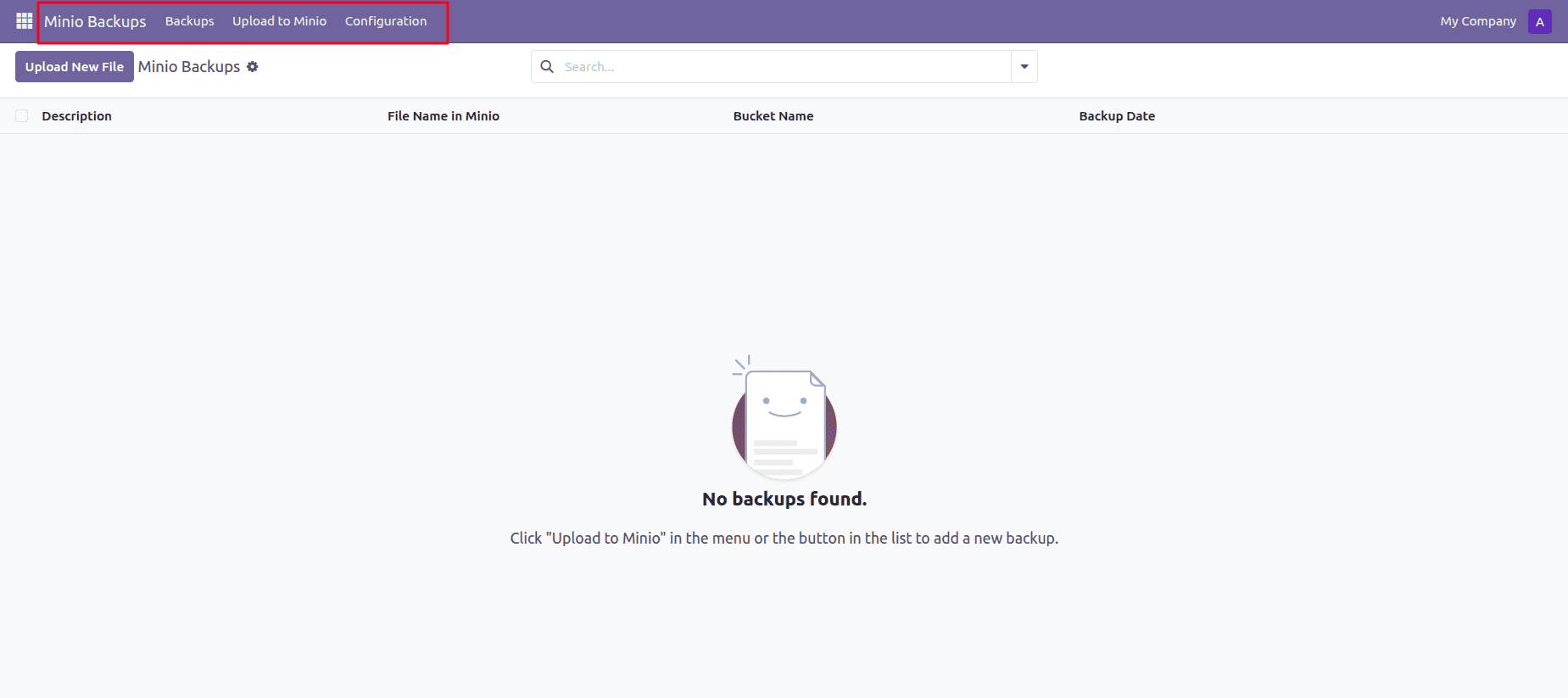
After installing the module, there appears a new menu item, MinIO Backups, appears in Odoo. It includes three items: Backups, Upload to Minio, and Configuration. The Configuration menu can be accessed only by the system administrator; the backup and upload options are available for regular users.
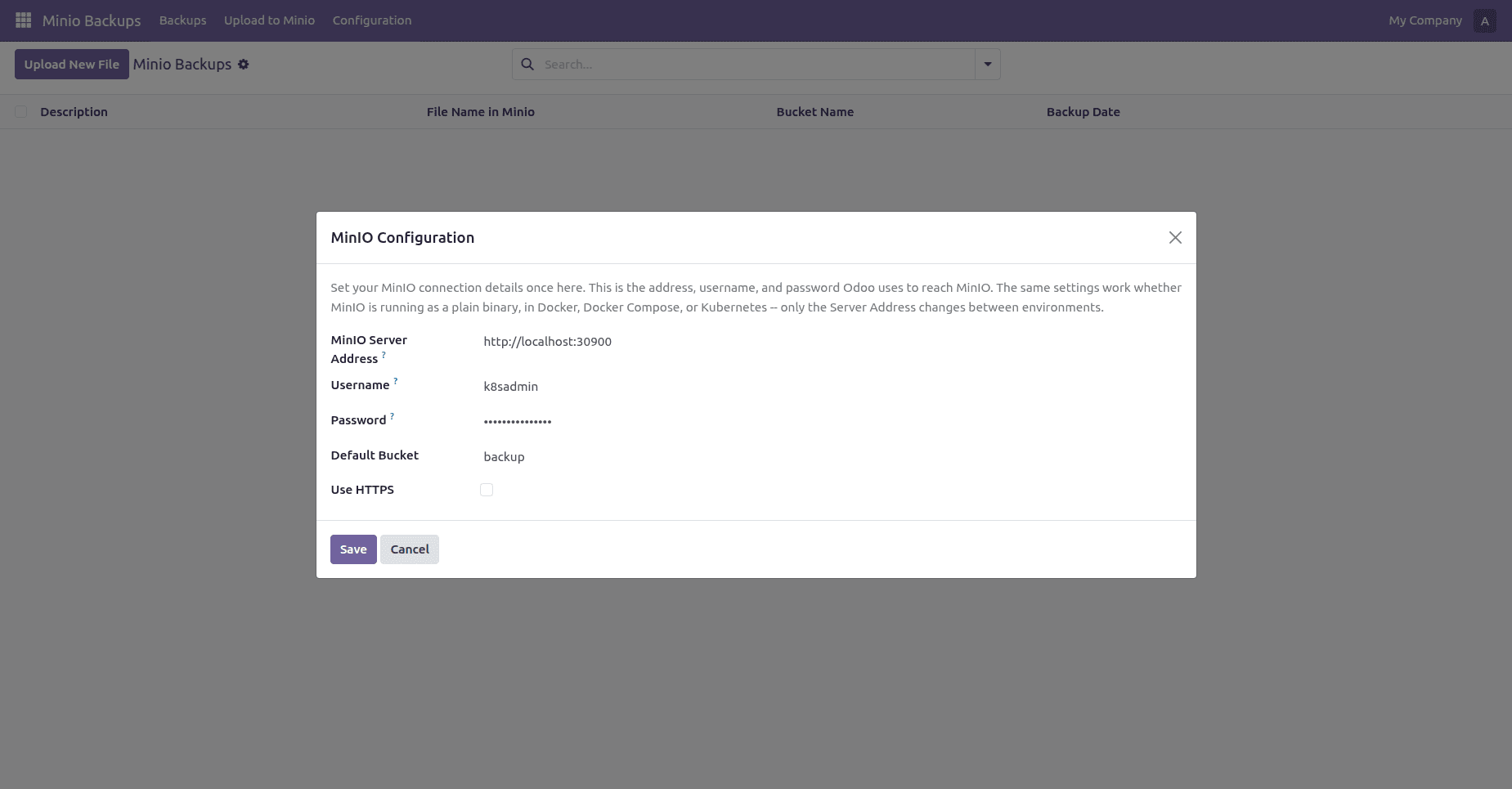
Configuration view is designed for saving the settings of the MinIO connection, which are used for uploading, downloading, and deleting backups. The administrator specifies the MinIO server address, username, password, bucket name, and uses HTTPS protocol.
Saving the settings in the Configuration view, the module saves the connection data as Odoo configuration parameters and not on every record of a backup.
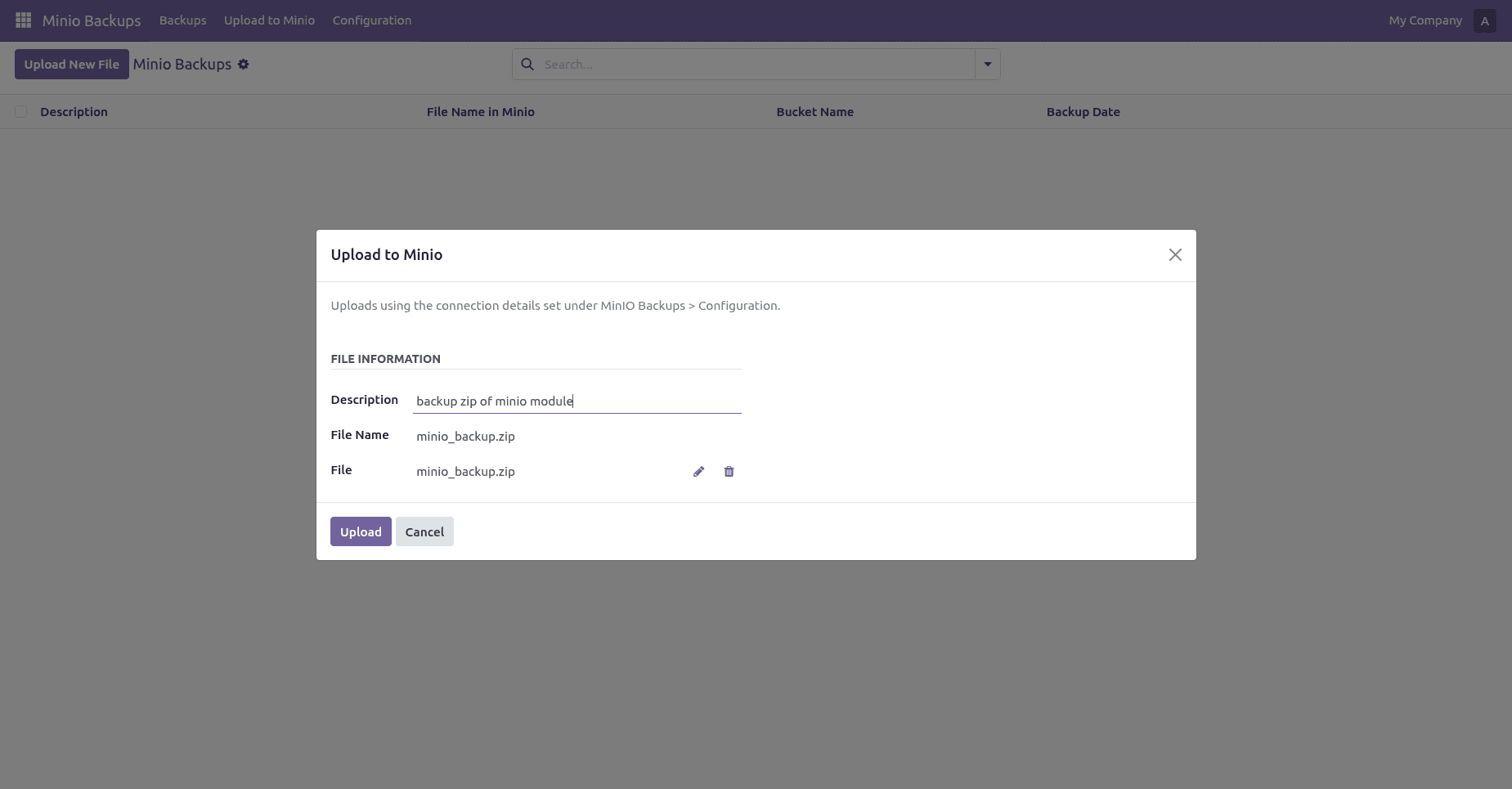
Upload to Minio wizard, which is used to upload a backup file into the specified bucket of MinIO. User specifies the description of the file, selects the file, and presses the Upload button.
The wizard loads the saved settings of the MinIO connection, verifies the bucket, establishes the connection with the server, uploads the file, and creates a backup record in Odoo after the success of the operation.
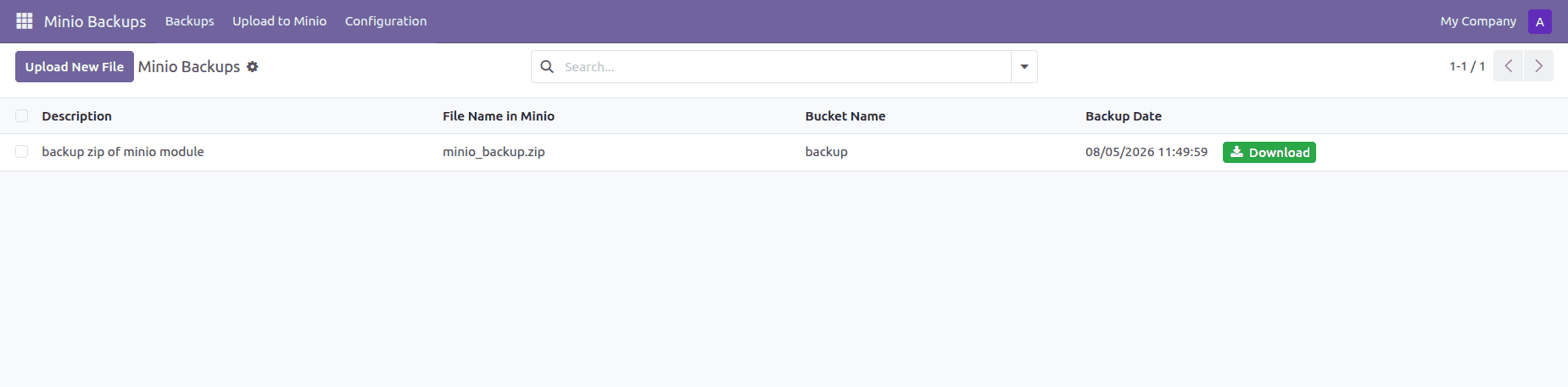
As a result of the successful upload, the module creates a record minio.backup in Odoo. The Backups list shows the description of the backup, the name of the file, its bucket name, and the date of the backup.
Editing of the records in the view is not allowed. Creation of a backup record is done through the upload wizard to make sure that the Odoo record corresponds to the uploaded file.
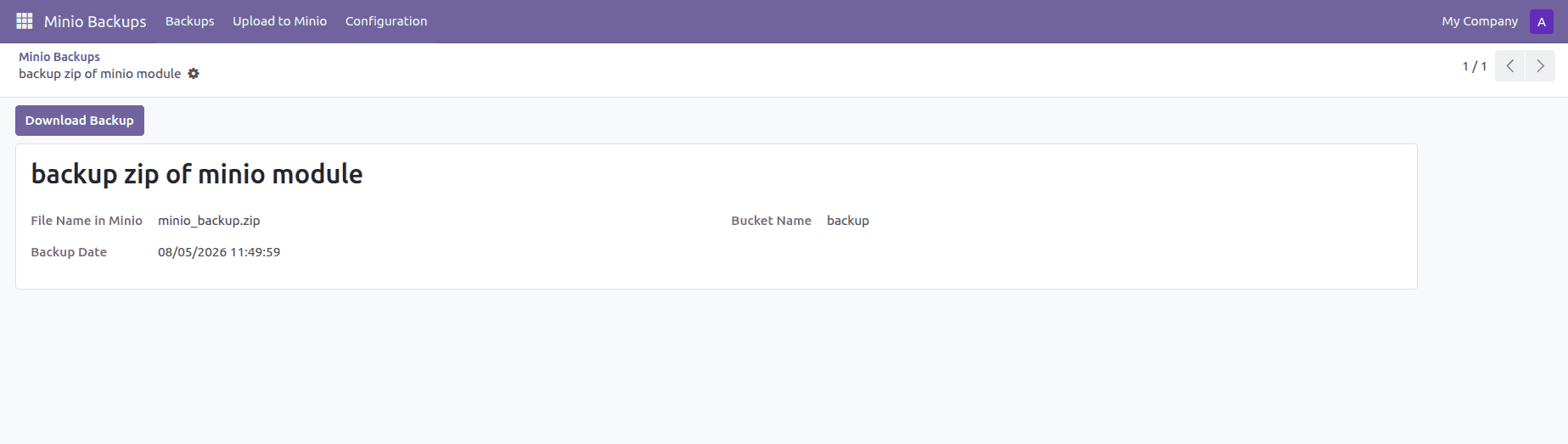
This backup form contains all information that has been saved for this backup, such as filename, bucket name, date of backup, and URL for authenticated Odoo users to download the backup.
Pressing the Download Backup button launches the regular process of downloading. This URL is connected to the download controller of the module and can also be accessed by an authenticated user of Odoo.
Once the Download Backup button is pressed, the model checks if the corresponding object exists on MinIO. If it does exist, then the browser redirects to the download controller.
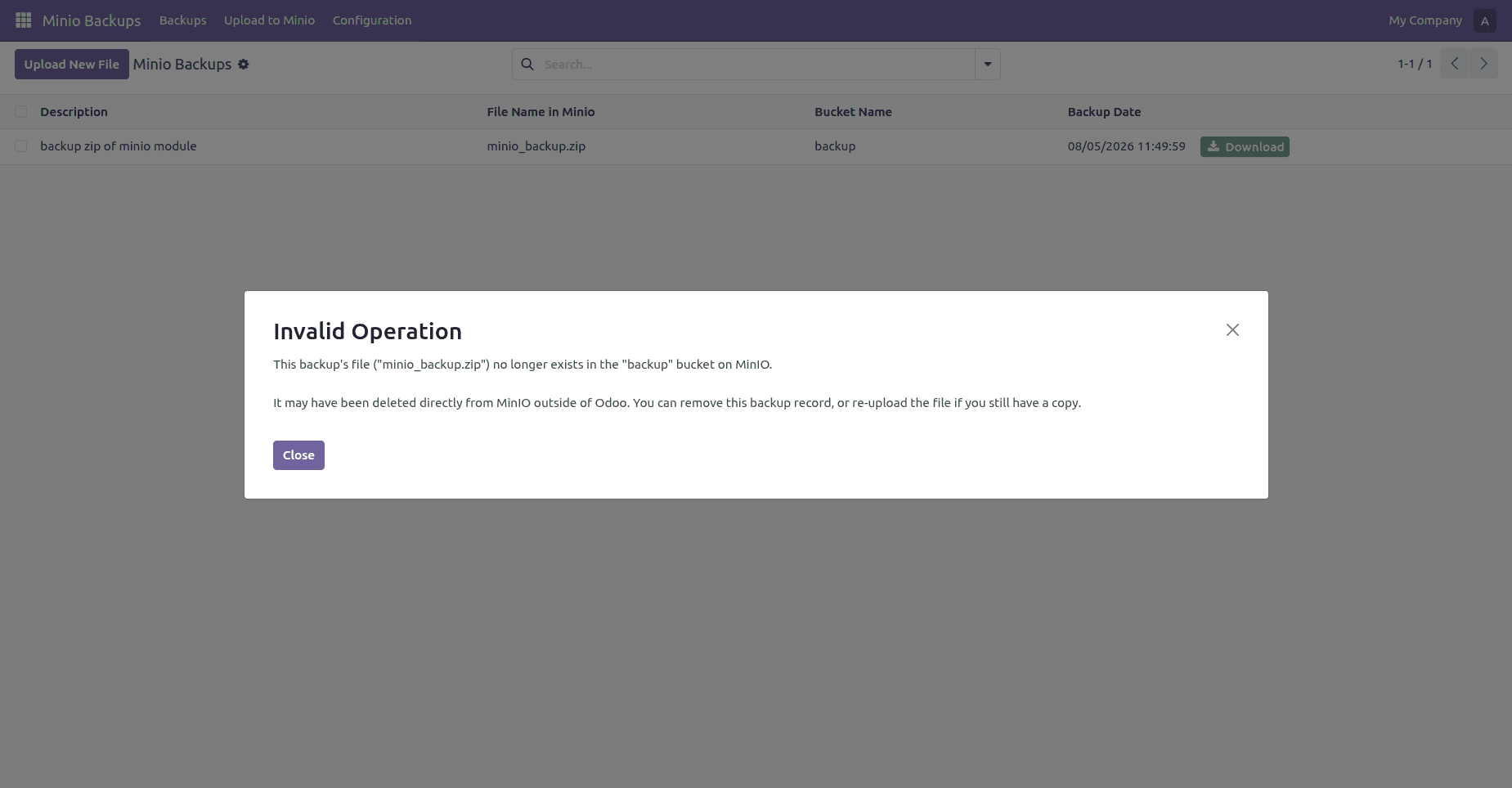
If the backup record exists in Odoo but the corresponding file is no longer available in MinIO, clicking the Download Backup button causes the model's head_object() check to fail. The module raises an Odoo UserError, which is displayed as an Invalid Operation popup.
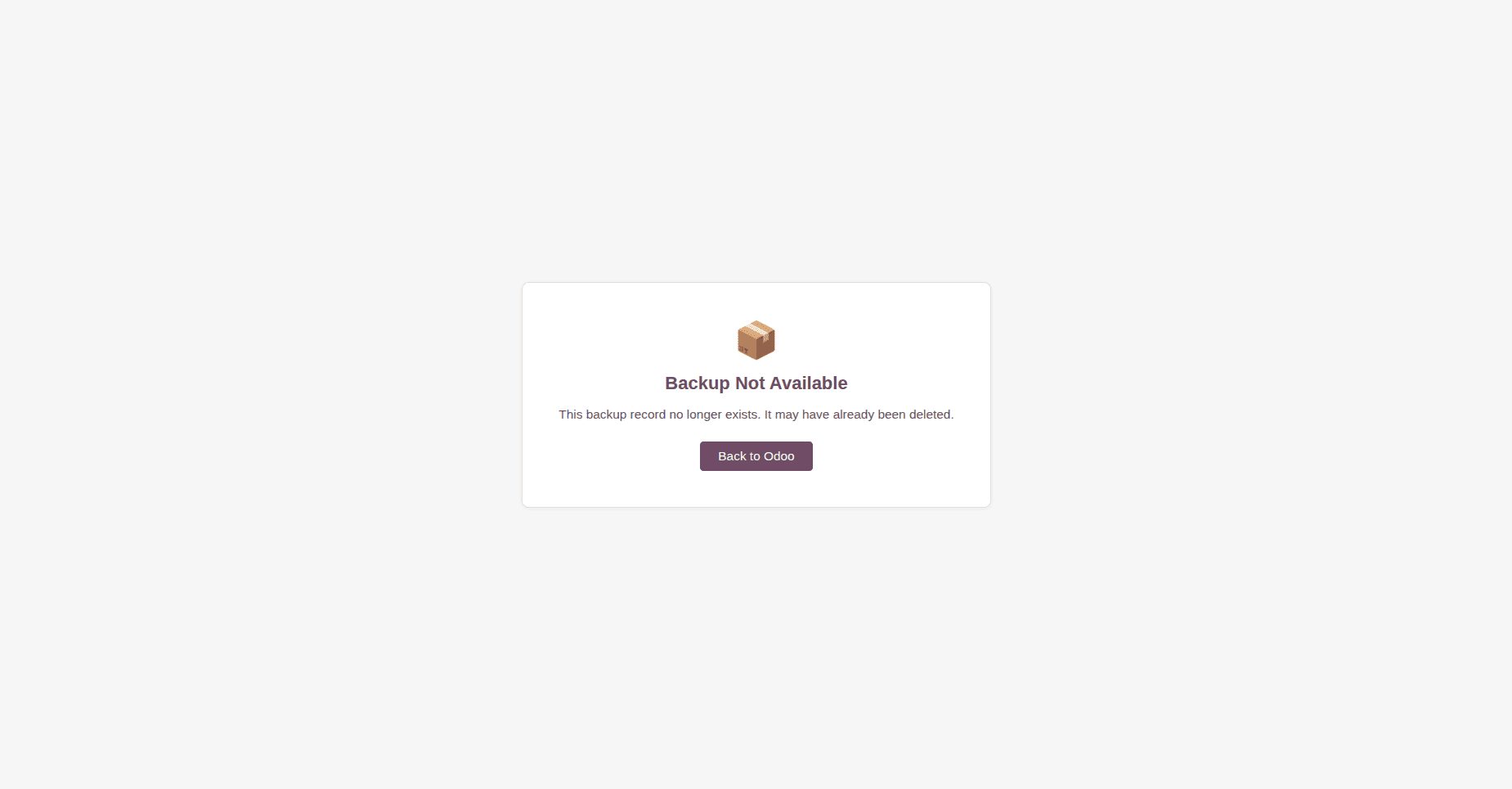
If a previously generated download URL is opened after the corresponding Odoo backup record has been deleted, the request reaches the download controller. The controller detects that the record no longer exists and renders the custom download_error_page.xml template.
This MinIO Backup module allows you to manage backup files in MinIO from Odoo easily. It does not contain a separate backup record configuration but uses common MinIO configuration, which could be reused in all the module functions.
This module allows uploading files to MinIO, creating and maintaining backup records in Odoo, downloading files from MinIO using the Odoo controller, and deleting the corresponding object in MinIO if the backup record is deleted.
Moreover, this module has a validation process and error handling, which allow to show the user the proper errors while he works with the module.
The combination of the Odoo interface with MinIO allows for a practical approach for managing the backup files.
To read more about How to Deploy MinIO: Single Binary, Docker, Docker Compose & Kubernetes, refer to our blog How to Deploy MinIO: Single Binary, Docker, Docker Compose & Kubernetes.