Manufacturing operations now extend far beyond traditional machines and manual labour. It is about smart, connected operations where every device, every measurement, and every action feeds directly into your ERP in real time. Odoo's IoT Box bridges that gap beautifully, bringing your physical shop floor devices into the digital world of Odoo's Manufacturing module without the need for any complex technical setup.
In this blog, we will walk through what the Odoo IoT Box is, how it integrates specifically with the Manufacturing module, and what devices and facilities you can leverage on the shop floor.
What is the Odoo IoT Box?
The Odoo IoT Box is a Raspberry Pi-based hardware solution designed for seamless integration with Odoo. It facilitates communication between Odoo and various external devices, such as printers, cameras, scanners, footswitches, calipers, and other connected equipment, enabling greater automation and operational efficiency.
The IoT Box makes it easy to connect your Odoo database with external devices, enhancing productivity and ease of use. IoT integration can be implemented without specialized technical knowledge. With its user-friendly setup, flexible customization options, and robust security, the IoT Box seamlessly integrates with existing business processes, helping organizations improve efficiency and productivity.
The IoT Box acts as a gateway or hub between hardware devices and the Odoo database. Once a device is plugged in, Odoo automatically detects it. No manual driver installation is needed.
Why Use IoT in Manufacturing?
Manufacturing businesses deal with a high volume of repetitive, precision-sensitive tasks. Without IoT integration, operators must manually log measurements, capture images, trigger print jobs, and navigate screens while simultaneously performing production tasks. This creates delays, increases workload, and often leads to errors.
Benefits of Odoo IoT Box connected to the Manufacturing module:
- Higher Productivity - Smart devices communicate with each other and with Odoo in real time, reducing manual entries and speeding up work order progression.
- Better Quality Control - Measurement devices send precise readings directly to quality control points in Odoo, eliminating transcription errors and ensuring every check is logged accurately.
- Automation - Connected devices can automatically update work orders, trigger print jobs, and store quality measurements, allowing continuous, traceable production without manual data entry.
- More Data - Every action on the shop floor generates records in Odoo, feeding dashboards, OEE reports, and traceability logs.
Devices You Can Use with IoT in Manufacturing:
1. Footswitch (Pedal):
In a manufacturing environment, operators often need both hands free to perform their tasks efficiently and safely. Odoo's IoT Box supports the use of a footswitch, allowing operators to navigate between screens and execute actions without using their hands. This hands-free functionality improves workflow efficiency and can be easily configured in the Manufacturing app by setting up the footswitch at the relevant work center.
To set it up, navigate to Manufacturing > Configuration > Work Centers, select the desired work center, and in the IoT Triggers tab, add the footswitch device and assign the Next Step action. Any USB footswitch, including single- and triple-pedal models, is compatible with the Odoo IoT Box right out of the box.
Use Case: An assembly line operator working with both hands can advance a work order step simply by pressing a floor pedal, avoiding the need to touch a keyboard or screen.
2. Measurement Tools (Calipers, Micrometers, Gauges):
Measurement tools such as digital calipers, micrometers, feeler gauges, height gauges, and other precision instruments can be connected through the Odoo IoT Box. The captured measurements are automatically linked to the products being processed, enabling operators to validate quality standards and either proceed with or reject a product at each stage of production.
With Odoo's IoT Box, measurement tools can be seamlessly connected to the Odoo database, which can be used in the Quality app during quality control points and quality checks, as well as at work centers throughout the manufacturing process. Devices connected by USB appear automatically in the Odoo database; Bluetooth devices are connected by activating Bluetooth on the device, and the IoT Box connects to them automatically.
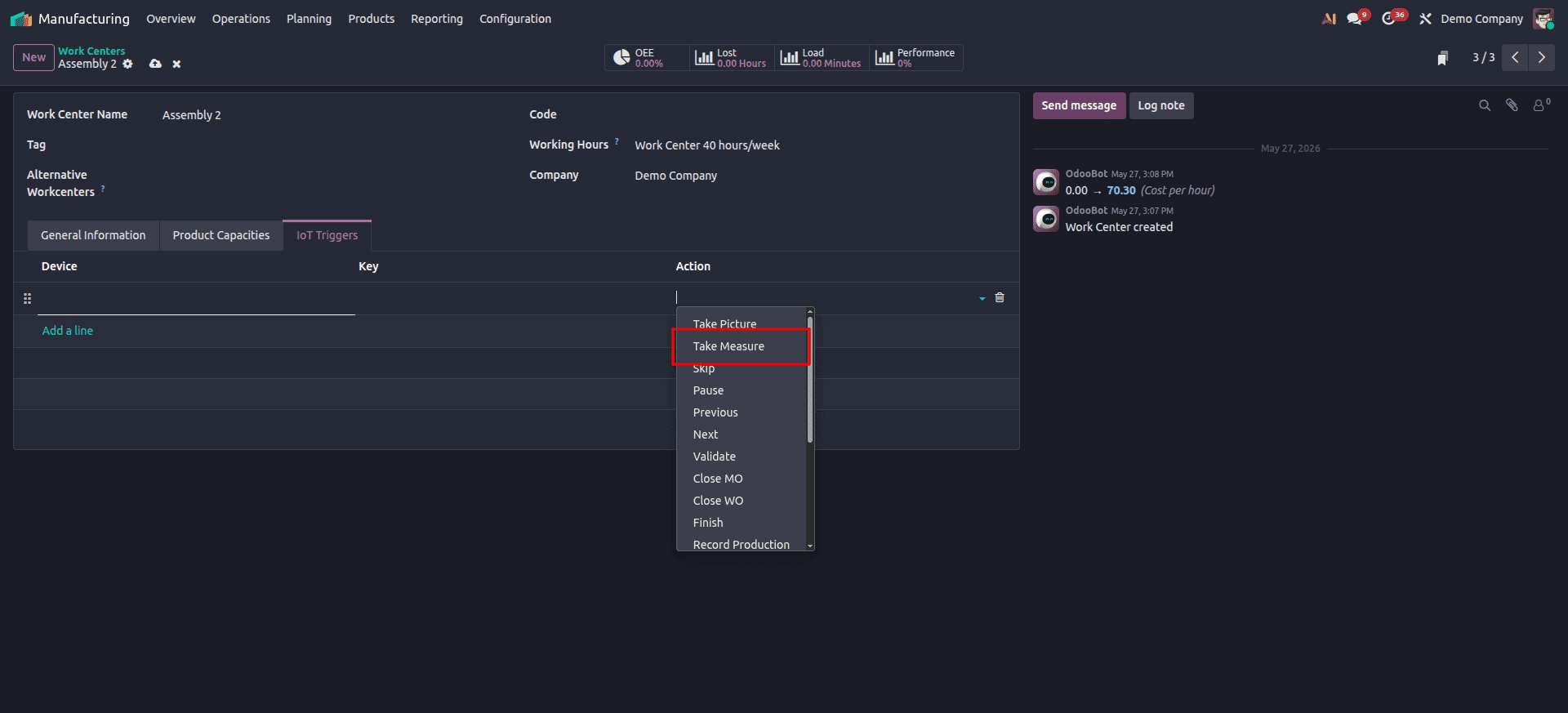
To configure a measurement tool at a work center, go to Manufacturing > Configuration > Work Centers, select the work center, add the device in the IoT Triggers tab, and set the action to Take Measure.
For quality integration, go to Quality > Quality Control > Control Points, open the relevant control point, set the Type to Measure, and assign the device.
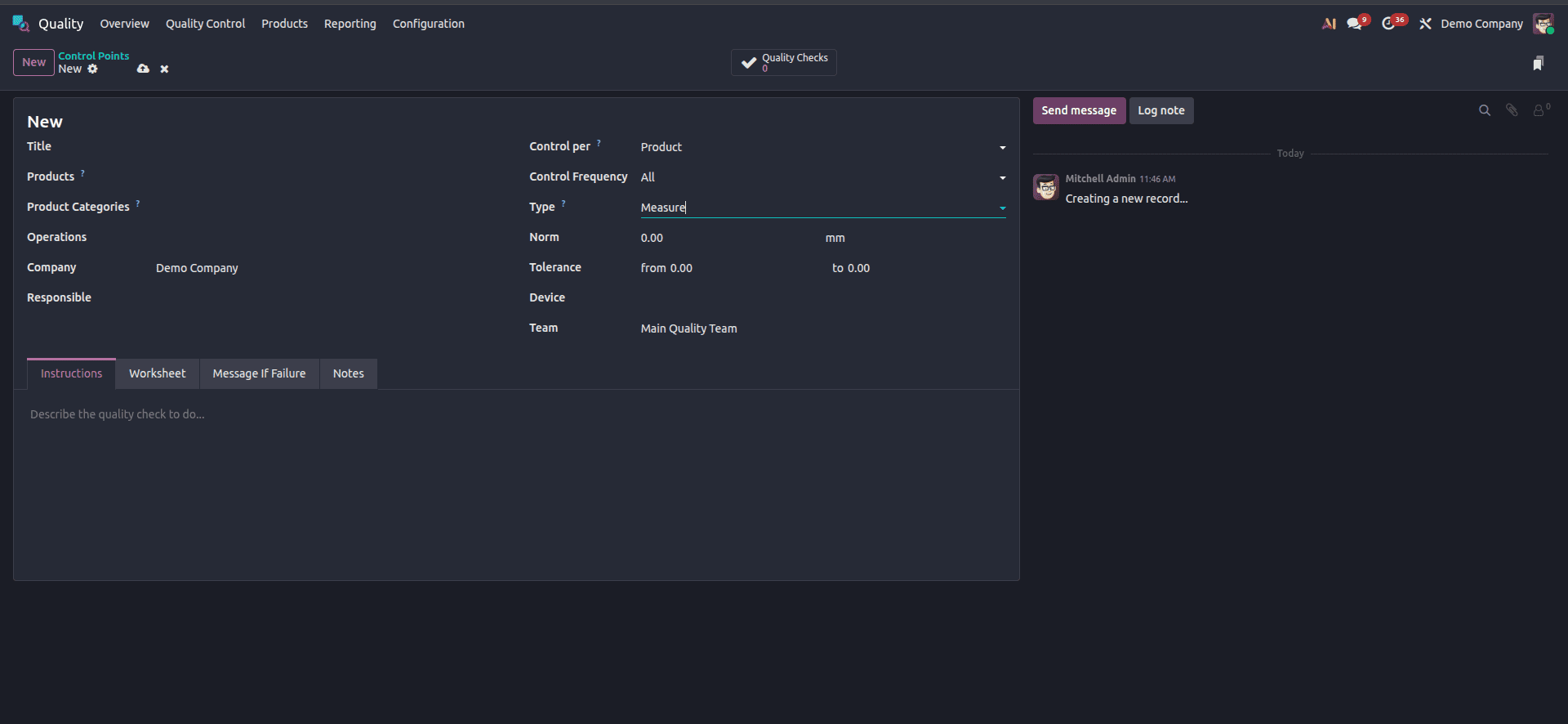
Use Case: During a precision machining work order, the operator uses a connected digital calliper. The reading is instantly captured into the quality check record, flagging a pass or fail without any manual input.
3. Web Camera / USB Camera:
A camera can be easily connected to the Odoo IoT Box and integrated with an Odoo database in just a few steps. Once configured, it can be used during manufacturing operations or linked to quality control points and quality checks. This enables operators to capture images automatically when a designated quality control point is reached or manually by pressing a predefined key during the manufacturing process, enhancing traceability and quality assurance.
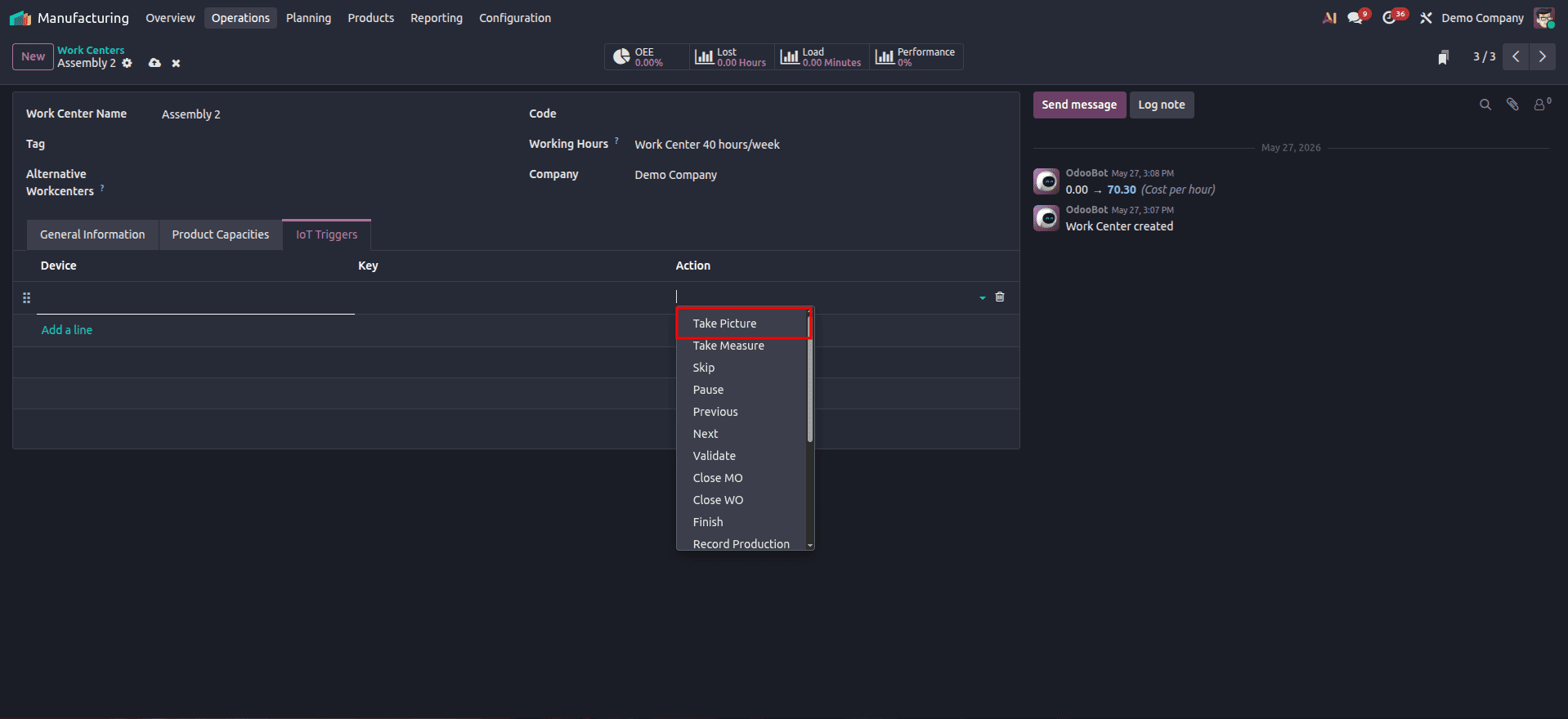
To configure, navigate to Manufacturing > Configuration > Work Centers, select your work center, and in the IoT Triggers tab, add the camera device with the action Take a Picture.
For quality checks, go to Quality > Quality Control > Control Points, set the Type to Take a Picture, and link the camera.
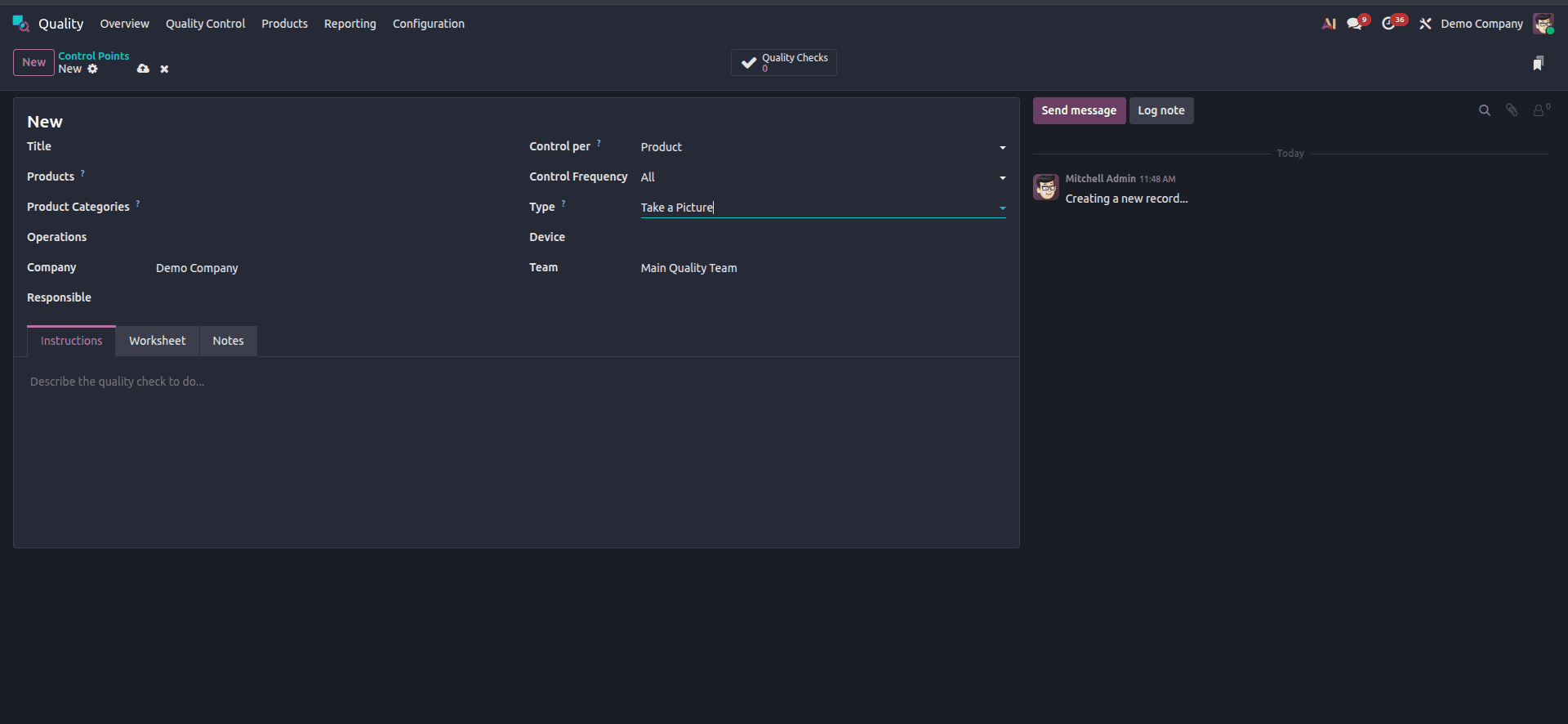
Use Case: At a final inspection step of a work order, the operator snaps a photo of the finished product. The image is automatically stored against the production record and quality check in Odoo.
4. Printers:
The Odoo IoT Box supports printers connected via USB, network, or Bluetooth. Compatible printers are automatically detected and displayed in the Devices list within the IoT app. By linking printers to quality control points, work orders can automatically generate and print labels for manufactured products, improving efficiency and ensuring accurate product identification throughout the production process.
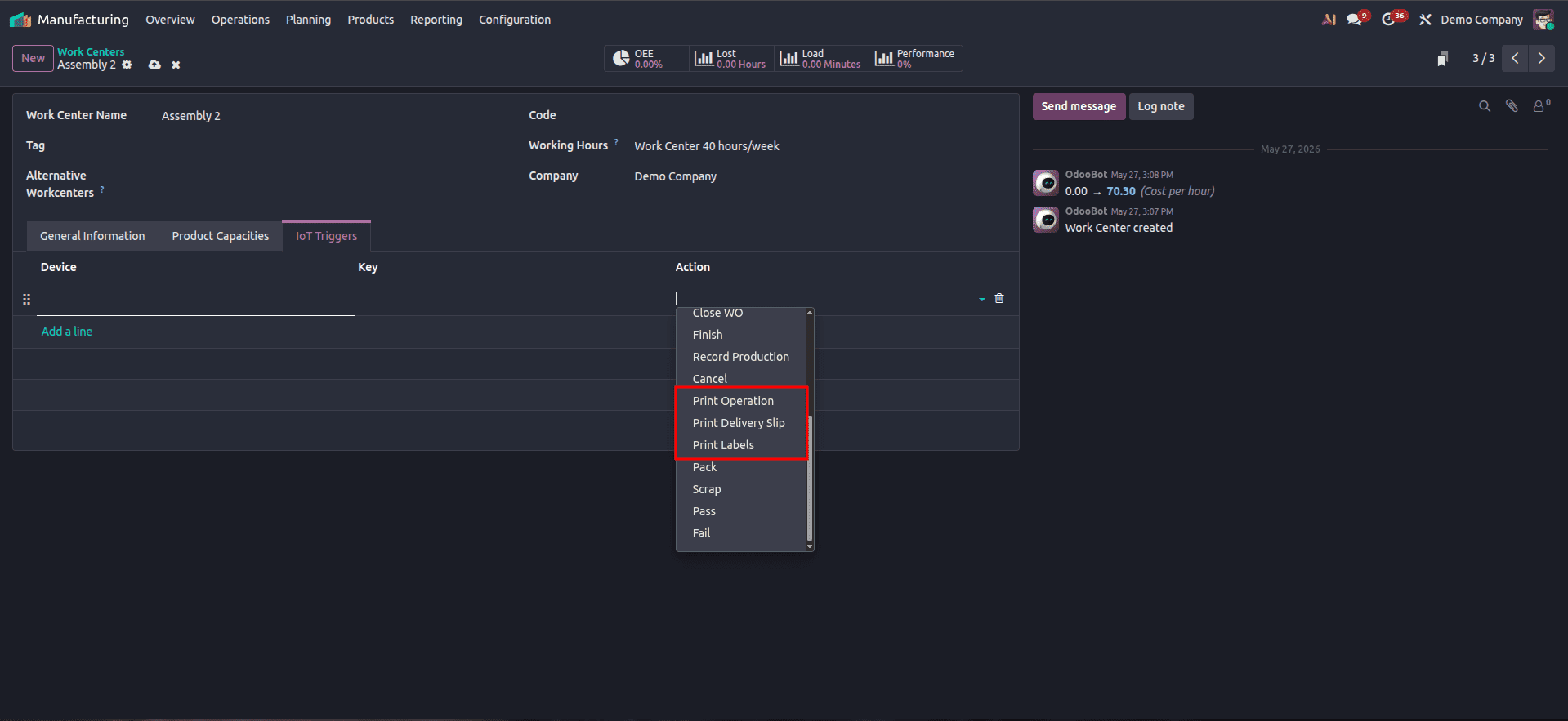
Printer actions available at a work center include Print Labels, Print Operation, and Print Delivery Slip. These can be triggered by a key press or automatically at a given step.
For label printers, Zebra ZD411 is recommended as it supports the ZPL protocol for automatic printing.
Use Case: As soon as a new serial number is generated for a produced item, the connected label printer automatically prints the product label - no extra clicks needed.
5. Barcode Scanners:
Barcode scanners connected to the IoT Box allow operators to scan raw materials, finished goods, and work order references directly on the shop floor. This speeds up tracking of components, IoT numbers, and serial numbers during production without relying on manual keyboard entry.
Use Case: An operator scanning the barcode of an incoming component auto-populates the material line in the manufacturing order, verifying against the Bill of Materials in real time.
6. Scales and Weighing Sensors:
The Odoo IoT Box supports a range of weighing scales with different drivers. Depending on the model, scales can be connected via WiFi, HDMI, or USB, and used seamlessly in both the Point of Sale and Inventory applications. In a manufacturing context, scales can be used to weigh raw material consumption or finished goods against expected values.
7. Sensors (Temperature, Pressure, Vibration):
Temperature sensors, pressure gauges, and vibration sensors can be connected through the Odoo IoT Box to monitor machine health and automatically trigger maintenance tasks in Odoo. Production data such as cycle time, output counts, or downtime can be automatically logged, improving traceability and Overall Equipment Effectiveness (OEE).
Use Case: A vibration sensor on an assembly machine detects abnormal readings and automatically creates a maintenance request in Odoo's Maintenance module, preventing unexpected breakdowns.
IoT Triggers Tab in Work Centers:
The IoT Triggers tab on the Work Center configuration form is the core of IoT-manufacturing integration. Here is what you can configure:
- Device - Select the connected IoT device (camera, caliper, footswitch, printer, etc.)
- Action - Choose what the device will do when triggered. Options include: Take a Picture, Take Measure, Next Step, Print Labels, Print Operation, Print Delivery Slip.
- Key - Optionally bind the action to a specific keyboard key, making it easy for operators to trigger it from a mounted tablet on the shop floor.
The order of triggers matters - the first listed trigger is executed first, and they can be reordered by dragging.
Tablet View on the Shop Floor:
One of the most practical aspects of the Odoo IoT + Manufacturing combination is the Tablet View for work orders. Operators working at a work center can open the tablet view of their assigned work order, which shows all steps in sequence. As they progress through each step - with IoT devices doing the data capture - the work order advances automatically.
Work order quality checks are required to be performed through the tablet view. Operators navigate to Manufacturing > Operations > Manufacturing Orders, select the order, and open the tablet view using the tablet button. Steps are listed on the left-hand panel, while the instructions for each quality check are shown at the top of the screen as the step is reached.
The Odoo IoT Box transforms the manufacturing floor into a fully connected, data-driven environment. By linking devices like footswitches, calipers, cameras, printers, barcode scanners, and industrial sensors directly to Odoo's Manufacturing module through simple Work Center configuration, businesses can achieve seamless hands-free operation, real-time traceability, and automated quality control - all within a single ERP platform.
Whether you are running a small assembly unit or a large production facility, the IoT integration in Odoo offers a scalable and easy-to-configure solution to modernize your manufacturing operations. If you need assistance in setting up or customizing Odoo IoT for your manufacturing processes, we are here to help.
To read more about How to Install and Configure the Odoo IoT Box, refer to our blog How to Install and Configure the Odoo IoT Box.