Managing business documents across multiple platforms, that can be challenging as your organisation grows. Teams need a secure way to store, access, and share files while keeping business processes organised inside Odoo. The Nextcloud Connector connects Odoo and Nextcloud simply. It allows users to upload, download, browse, search, and manage files directly from Odoo without switching between applications. This integration helps businesses to manage their business documents, improves collaboration, and ensures files remain synchronised between both platforms.
This blog explores the Nextcloud Connector and its features.
In this blog, we will discuss what Nextcloud is, the Nextcloud Connector, and how to connect Nextcloud to Odoo.
What is Nextcloud?
Nextcloud is an open-source file hosting and collaboration platform that provides some services for organisations to securely store, sync, and share files. It empowers you to manage your data with confidence, offering secure file storage, effortless sharing, seamless team collaboration, and reliable access.
By integrating Nextcloud with Odoo, users can simply access cloud-stored files directly within their Odoo system.
Why Use the Odoo Nextcloud Connector?
The connector reduces the need to manually upload and download files between Odoo and Nextcloud.
Some benefits:
- Secure cloud-based file storage
- Reduce manual work
- Easy searching and filtering
- Direct upload and download
How to Connect?
Before connecting, ensure that the Nextcloud Connector is installed.
After that, open Nextcloud. If you already have an account, then log in; otherwise, create an account.
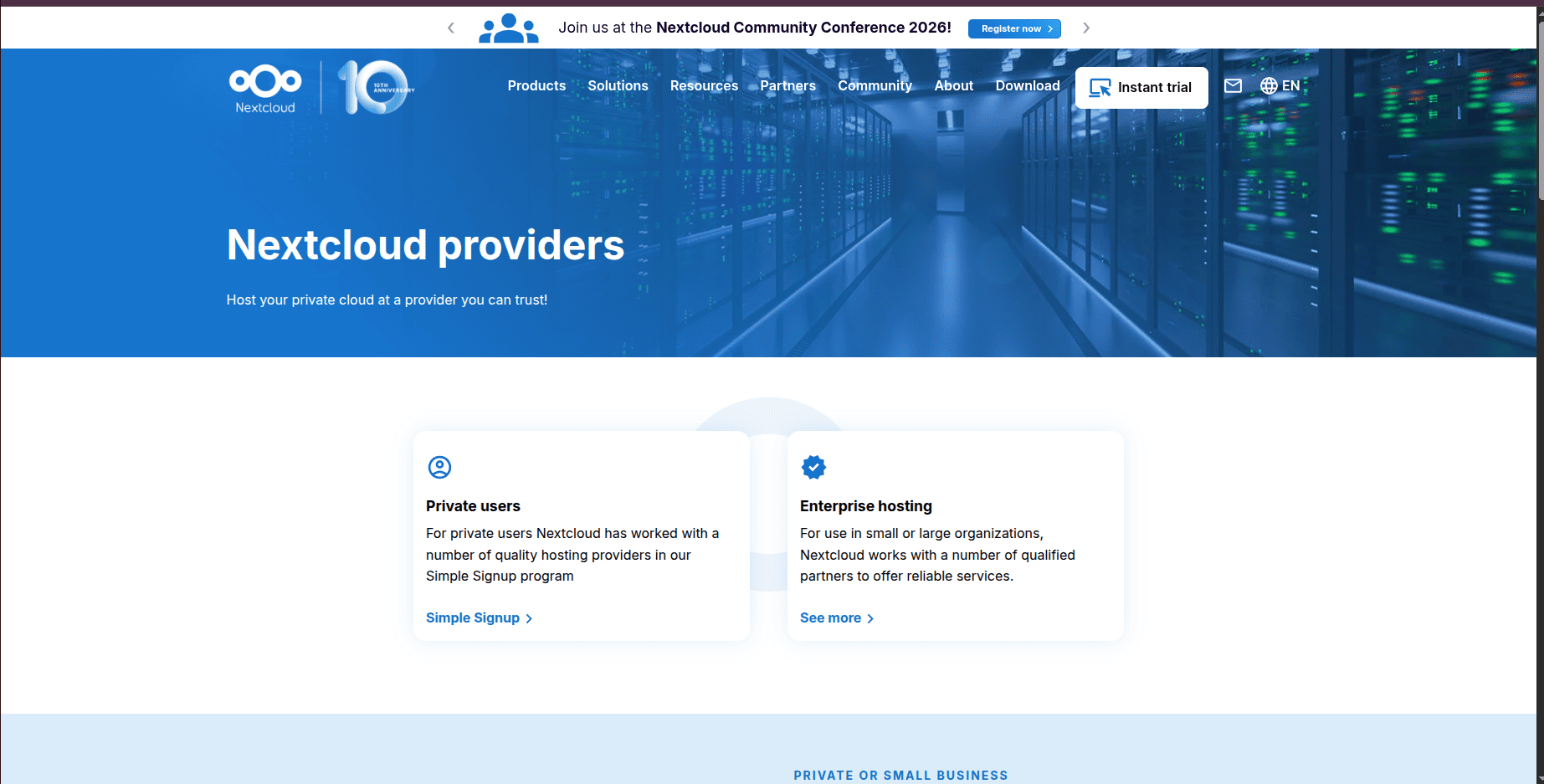
After creating the account, you are redirected to the Nextcloud providers page. This helps users choose where to host their Nextcloud instance. If you do not want to install Nextcloud on your own server, you can select a trusted hosting provider from this page. These providers offer ready-to-use Nextcloud environments.
Here you have two options:
- Private users: The Private Users option is designed for individuals or small teams who want a simple way to create a Nextcloud account. By clicking Simple Signup,
- Enterprise Hosting: The Enterprise Hosting option is intended for businesses and large organizations.
Choose your option.
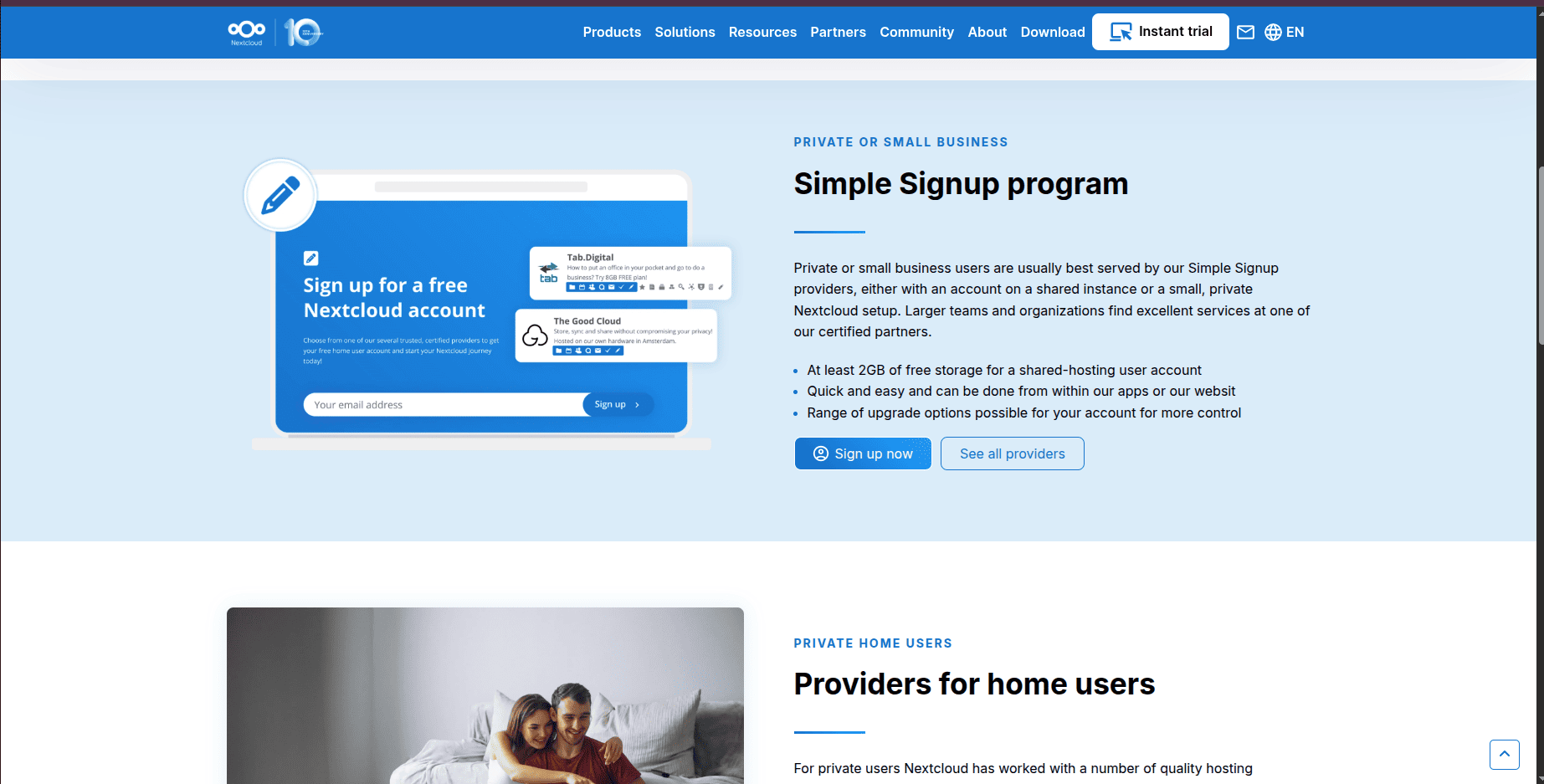
On the next page, you will find a button: Sign up now. Click it to proceed.
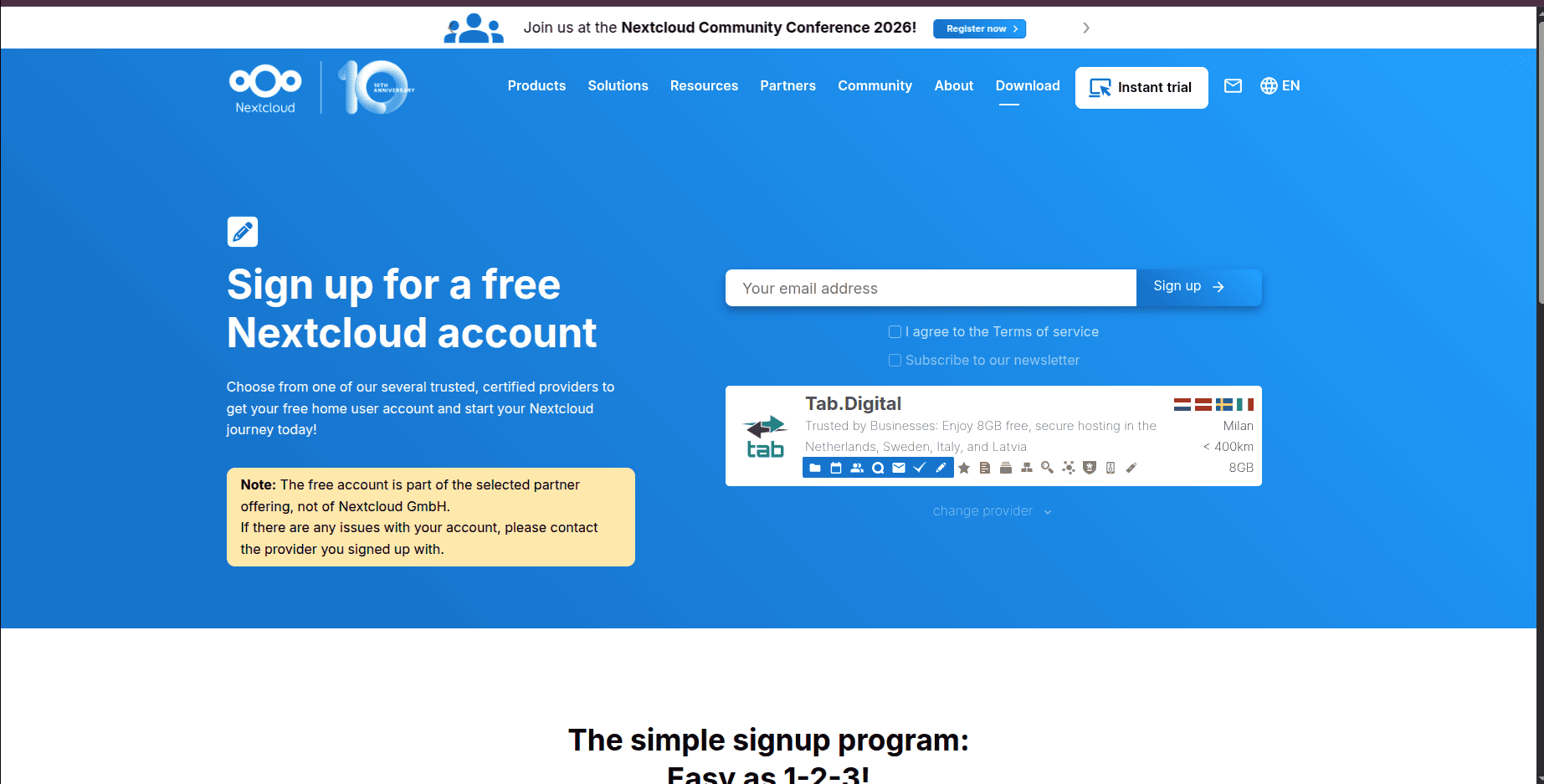
Here, add the email address and sign up.
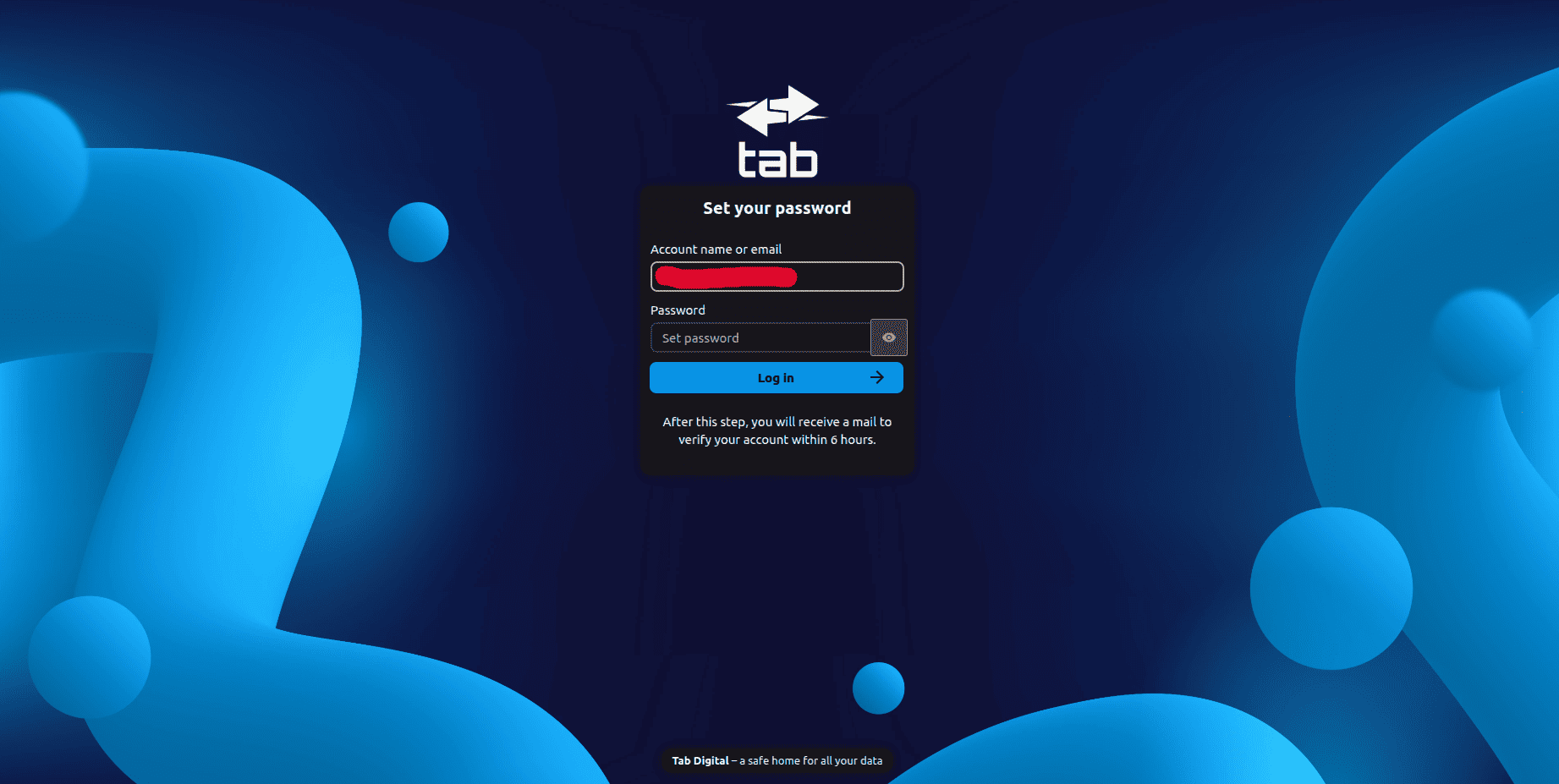
Set your account password. After filling the password field, you will be redirected to the Nextcloud Dashboard.
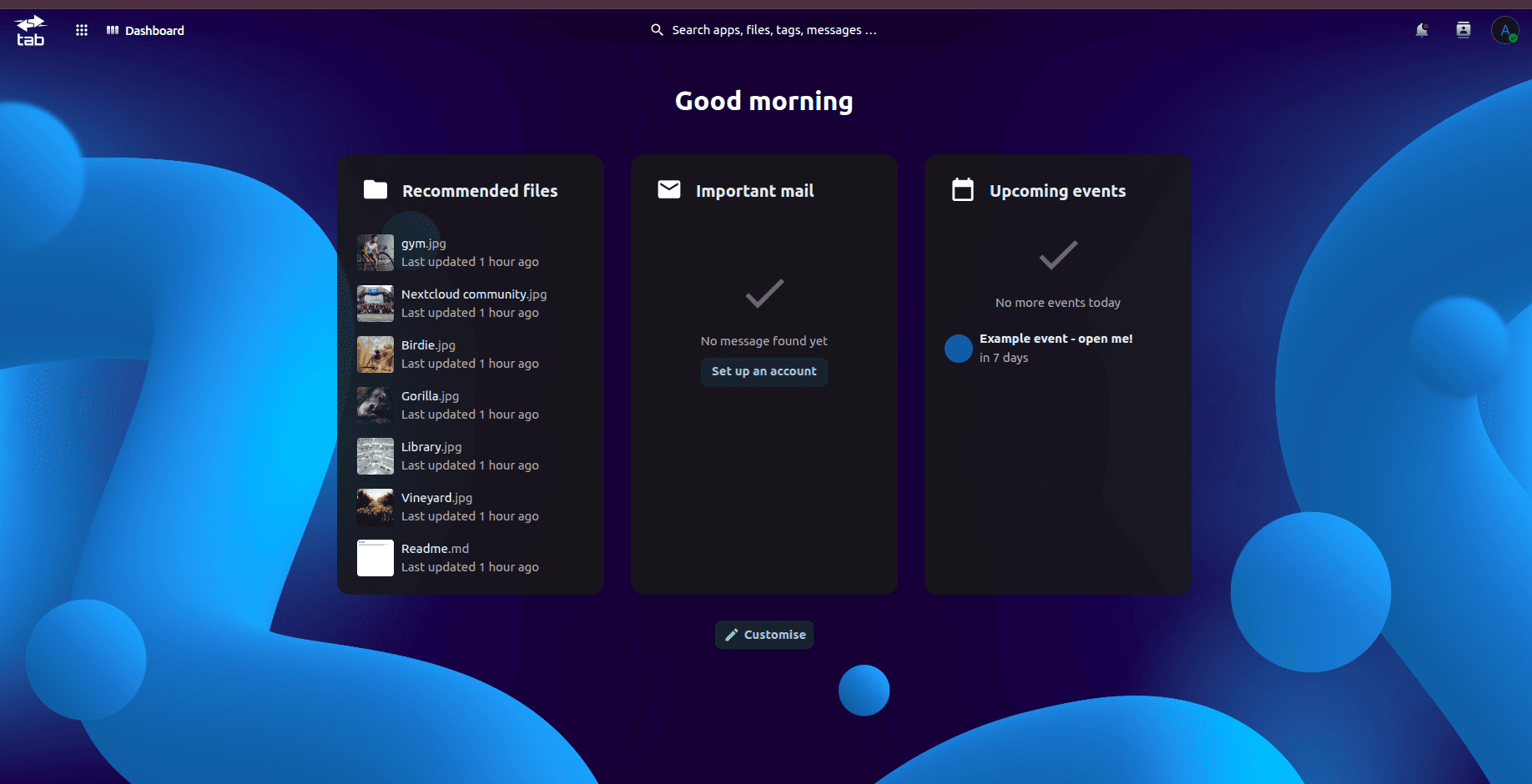
The dashboard contains several sections that provide quick access to important information and features.
Click the menu icon. This menu displays all the applications installed in your Nextcloud instance, allowing you to manage files, calendars, contacts, tasks, and more from a single place.
At this stage, your Nextcloud instance is ready for configuration with the Odoo Nextcloud Connector.
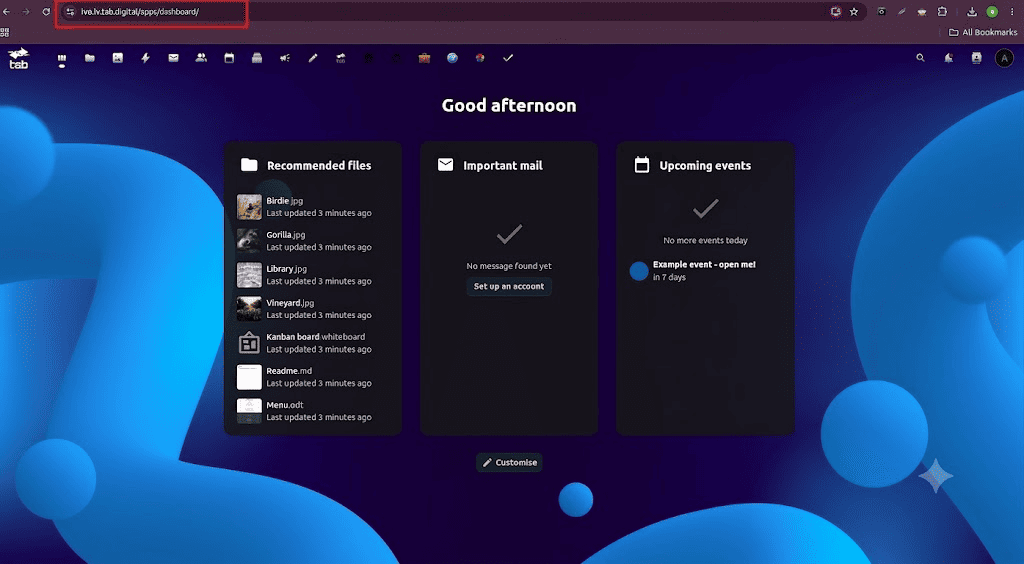
https://ivo.lv.tab.digital/ URL text is your server address. Copy that and open the Odoo instance. And go to Settings > Nextcloud Cloud storage, enable it, and configure your Nextcloud credentials in Odoo.
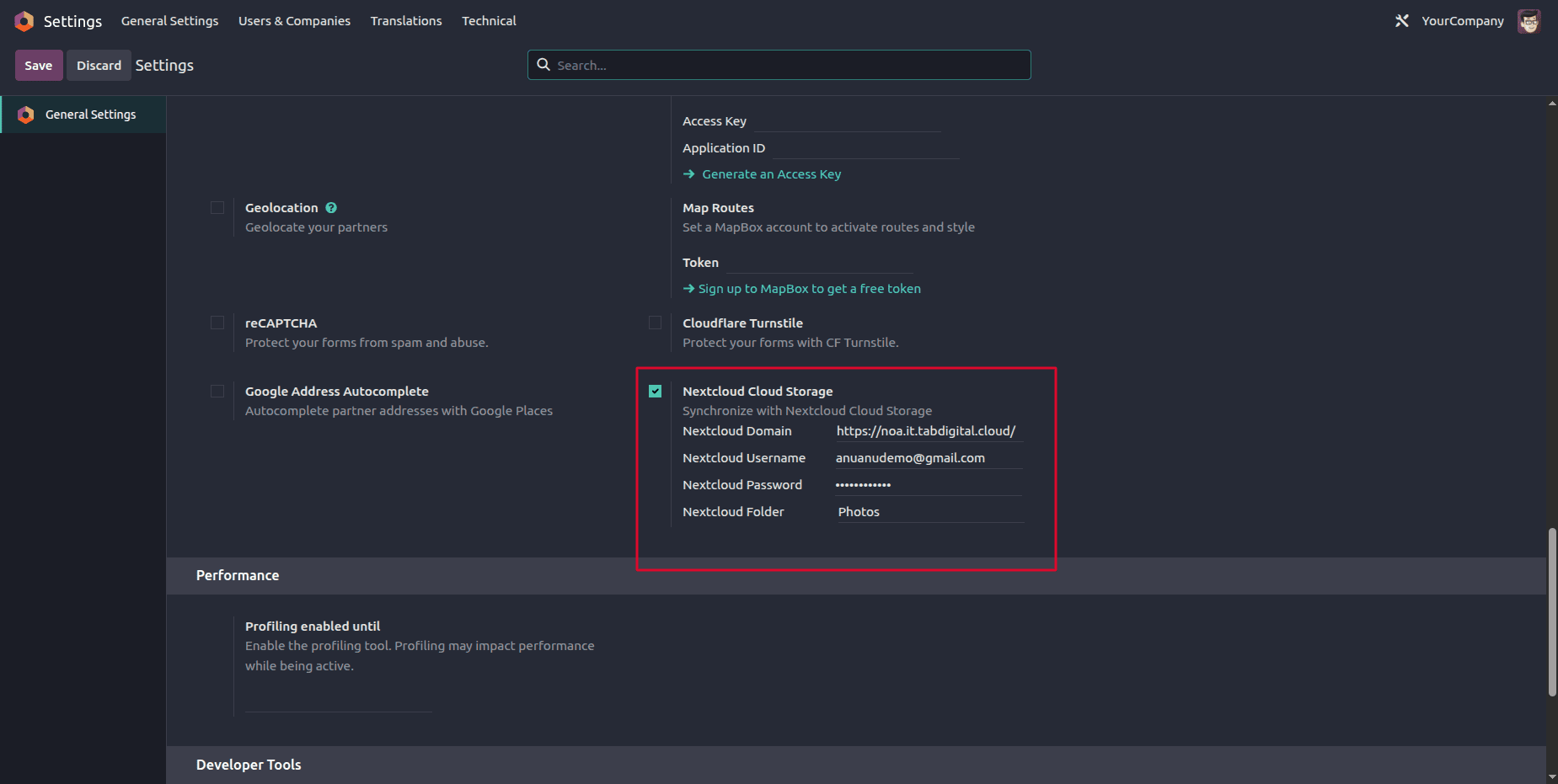
- Nextcloud Domain: your copied server address/URL
- Nextcloud Username: your Nextcloud account username
- Nextcloud Password: your Nextcloud account password
- Nextcloud Folder: Specify the folder in your Nextcloud storage where Odoo should upload and manage documents.
After that, click the save button to complete the configuration process.
Then, open the Nextcloud Connector app. You will see all the files stored in the selected Nextcloud folder.
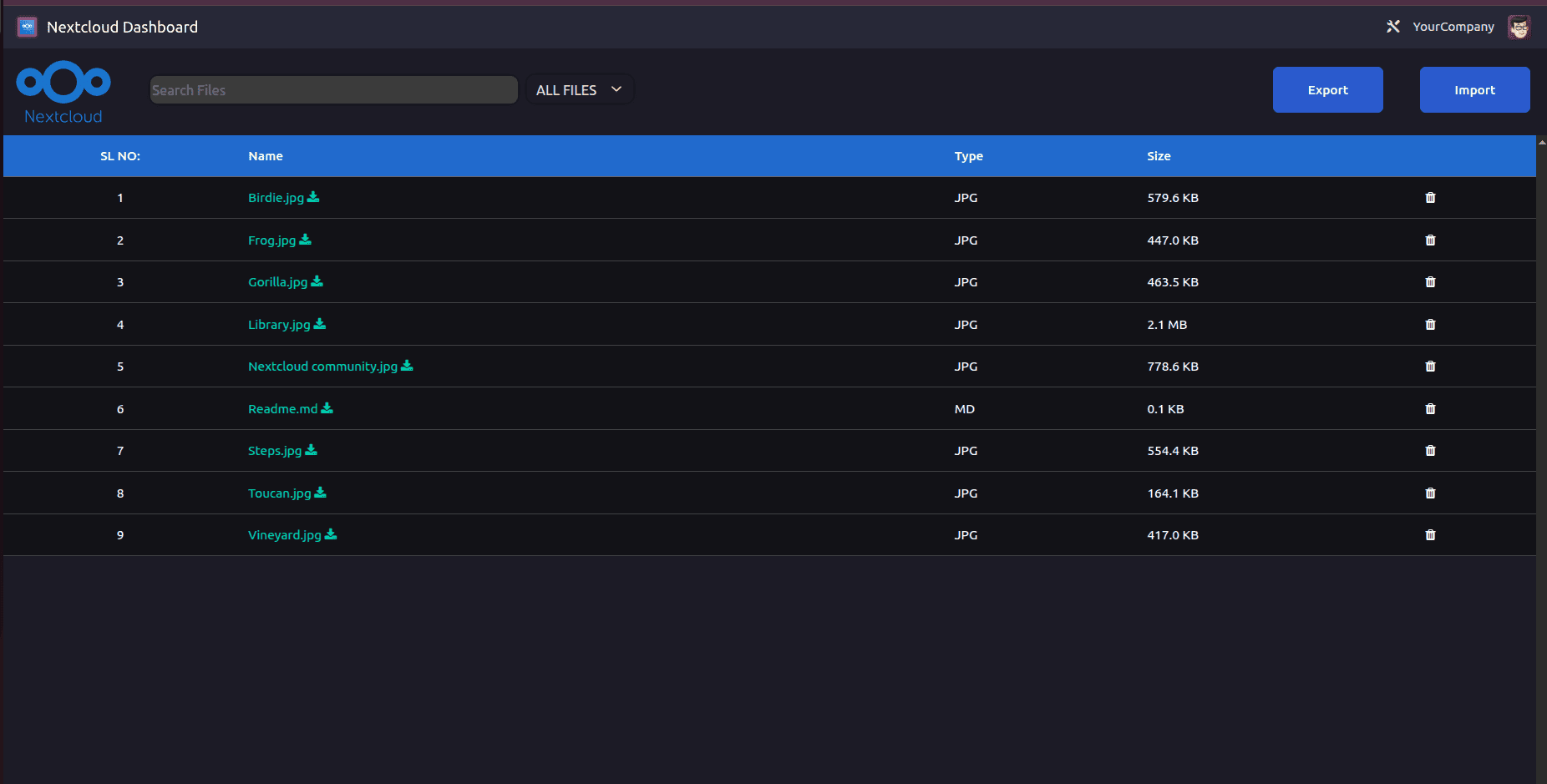
The Nextcloud Dashboard provides the simplest and best interface for viewing, importing, exporting, searching, downloading, and deleting files directly from Odoo.
If you want to import files, simply click the Import button. To export files from Odoo to Nextcloud, click the Export button.
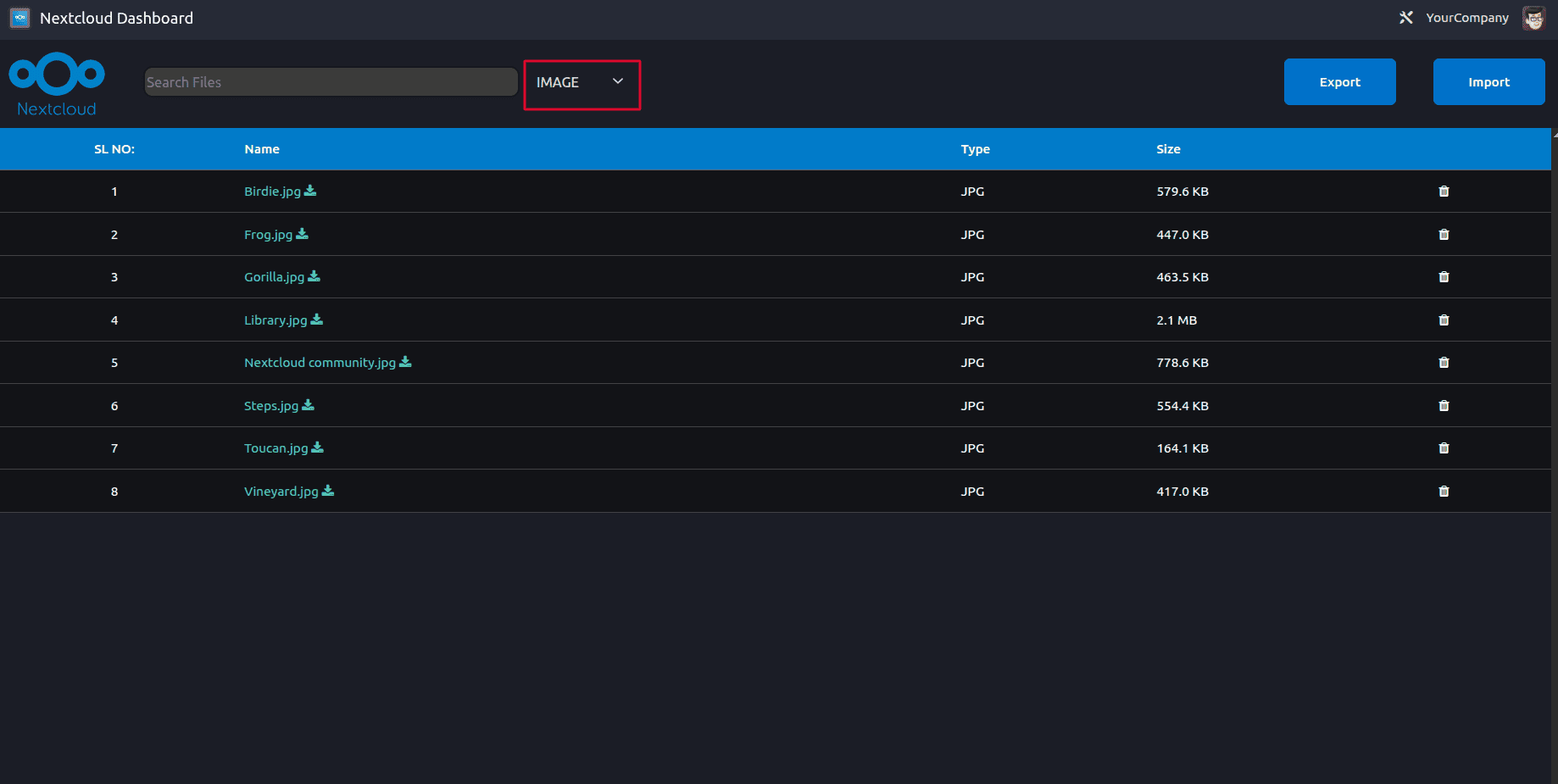
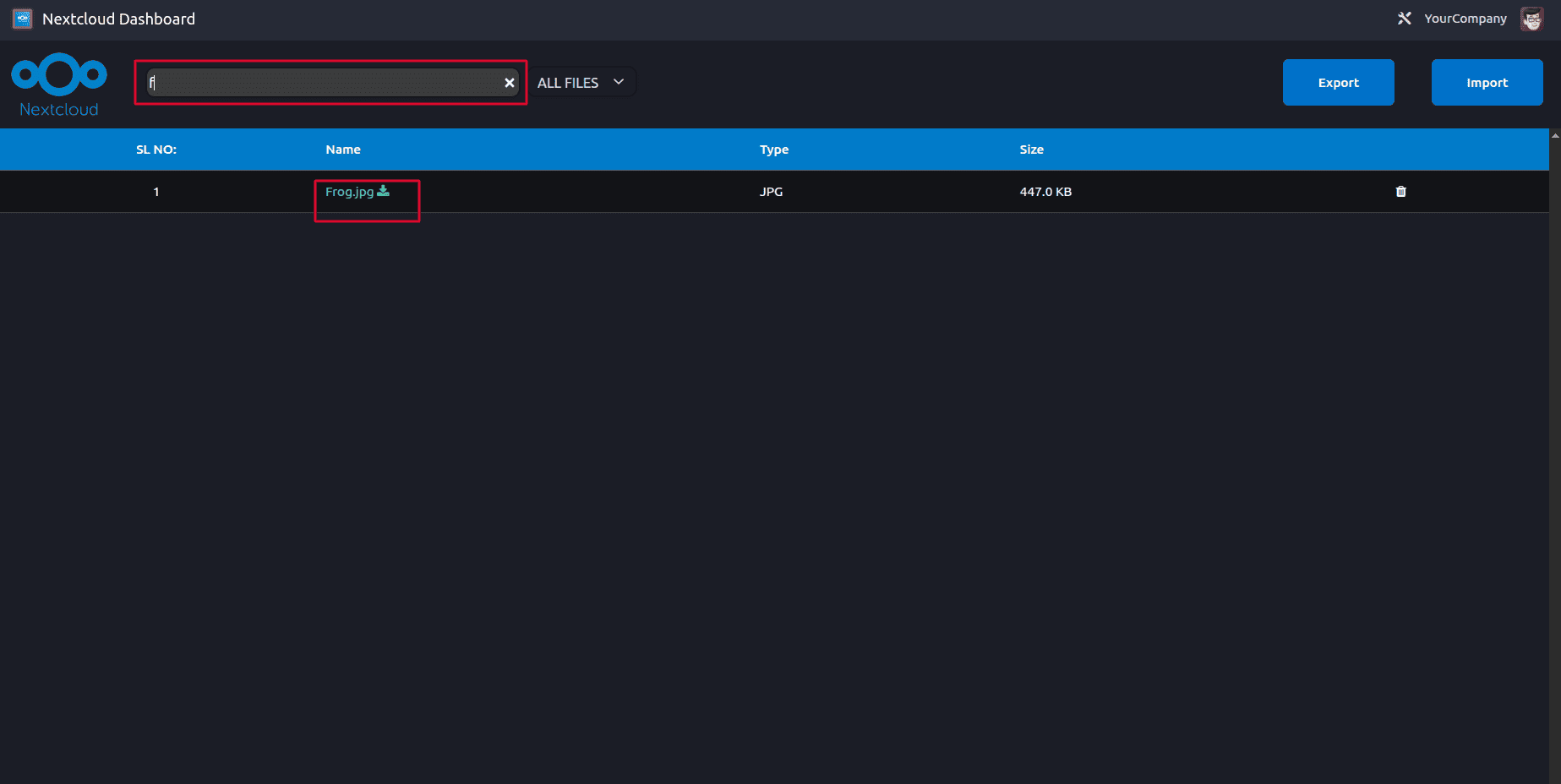
You can also filter the files. You can also search the files based on the name of the file.
Exporting Files to Nextcloud
These files have already been imported. To add a new file to Nextcloud, click the Export button and select the file you want to upload.
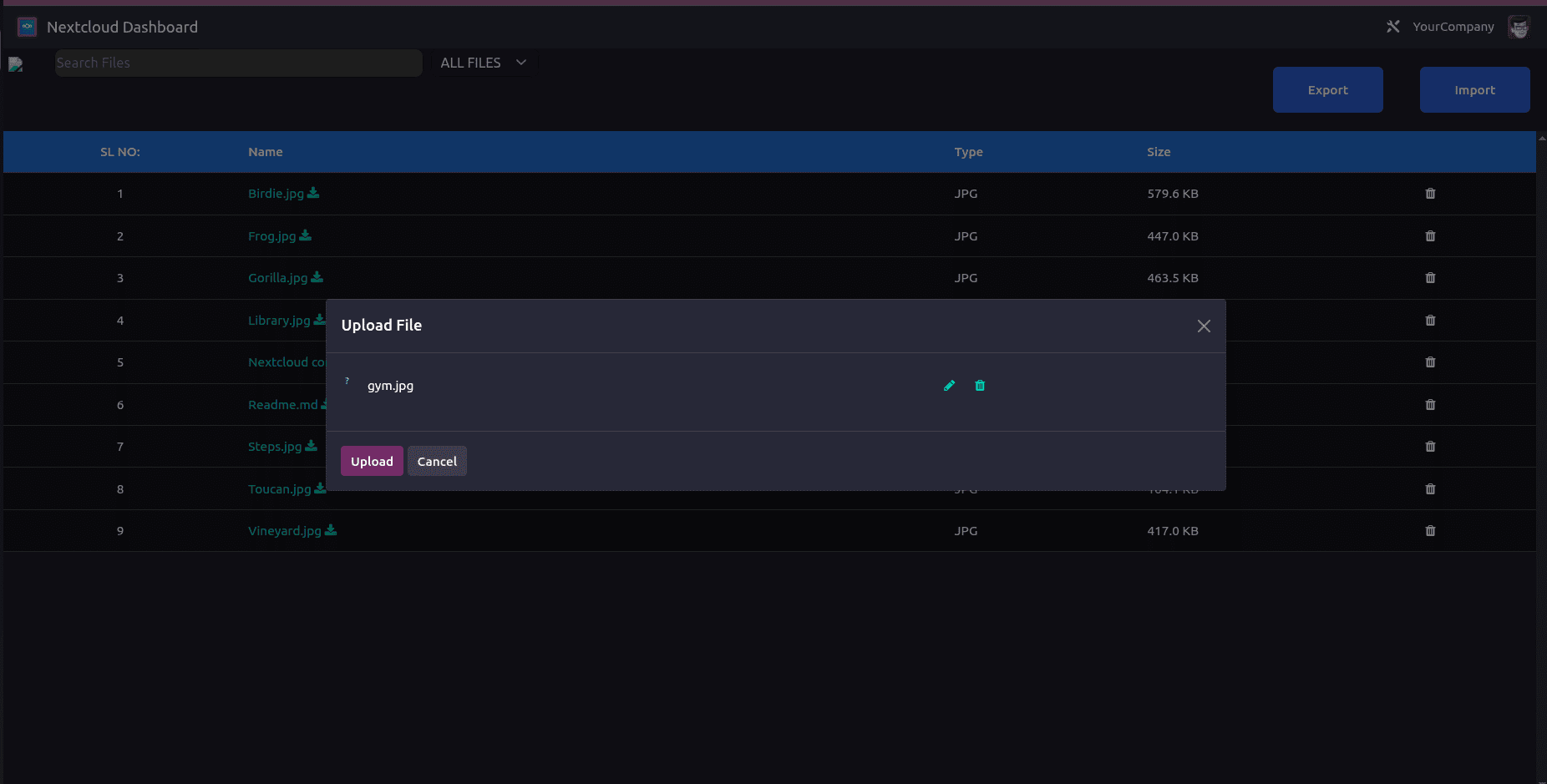
To upload a file to Nextcloud, simply click the Upload button.
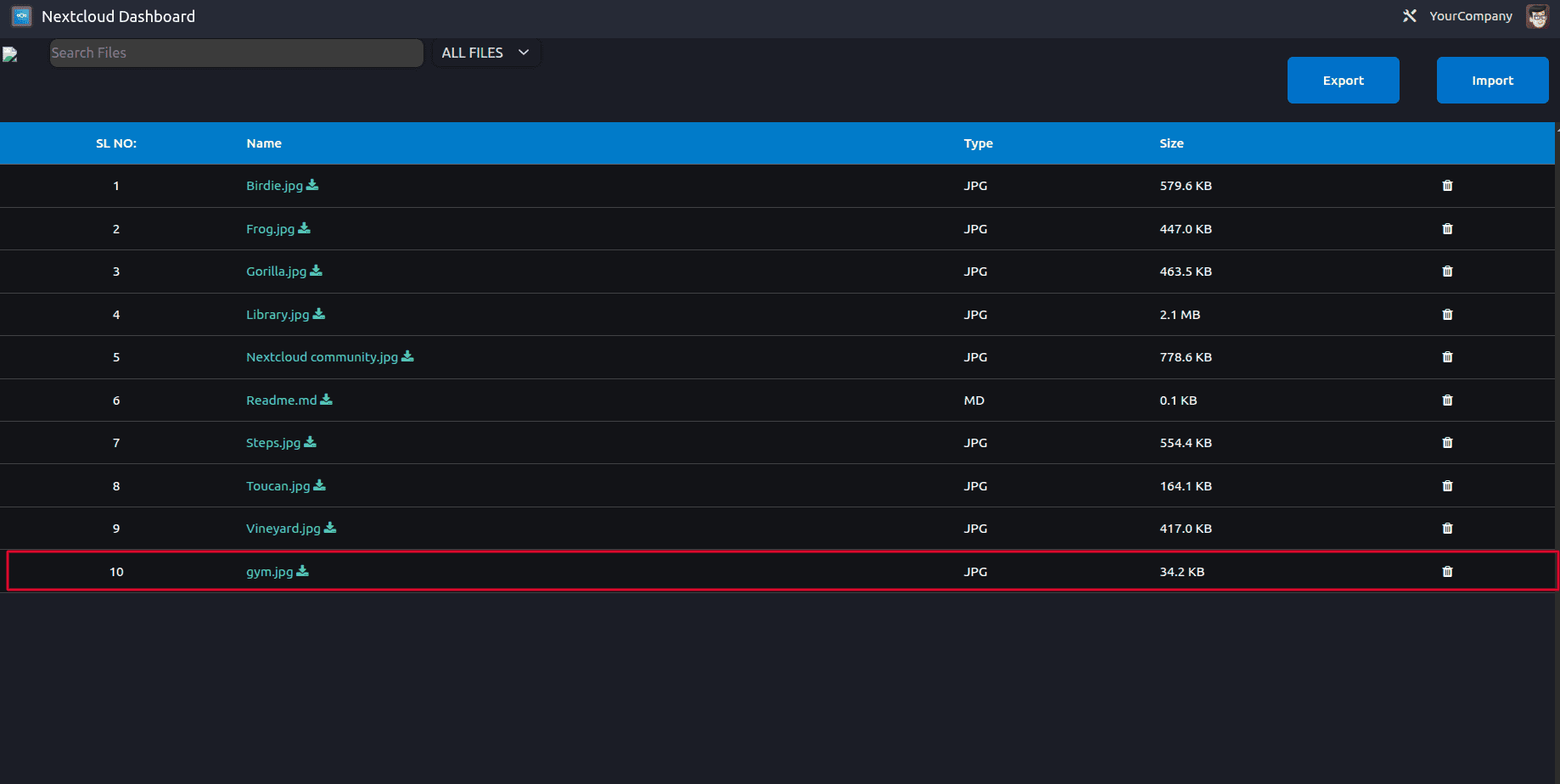
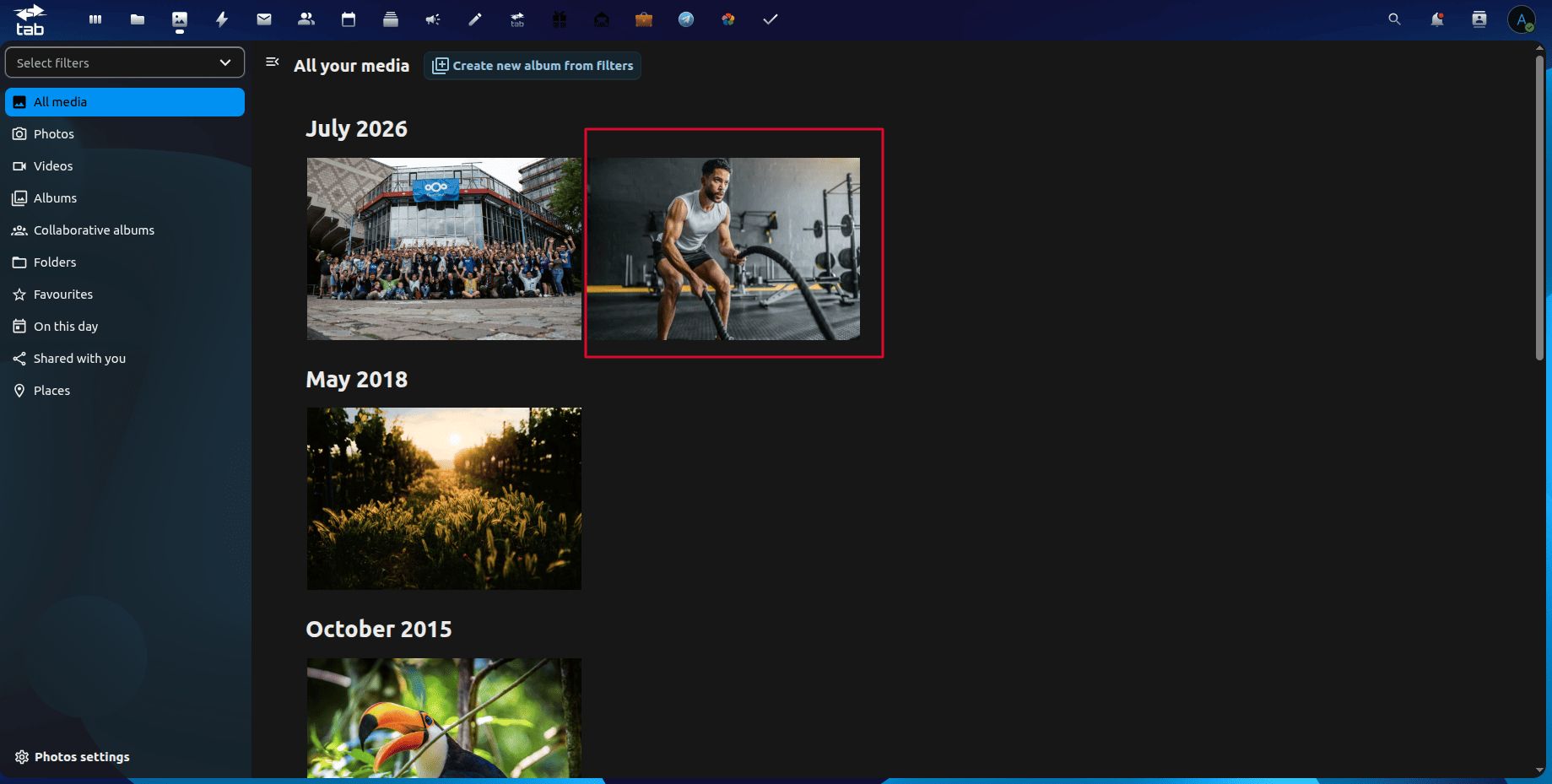
Here, you can see the uploaded file.
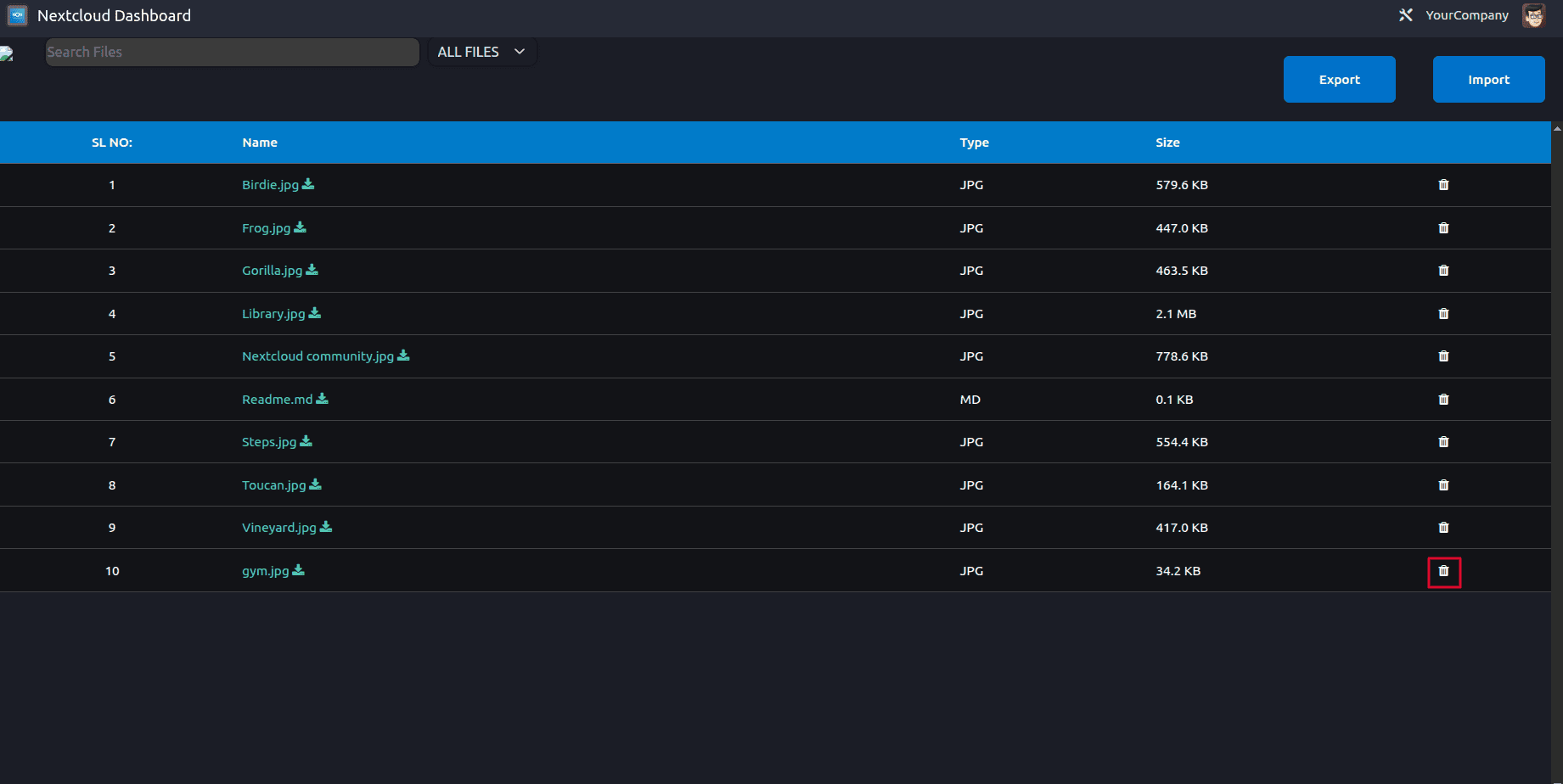
Delete File
Users can delete the file by clicking the delete icon. The delete icon allows users to remove files from the connected Nextcloud folder. When a file is deleted through the dashboard, it is also removed from the linked Nextcloud storage.
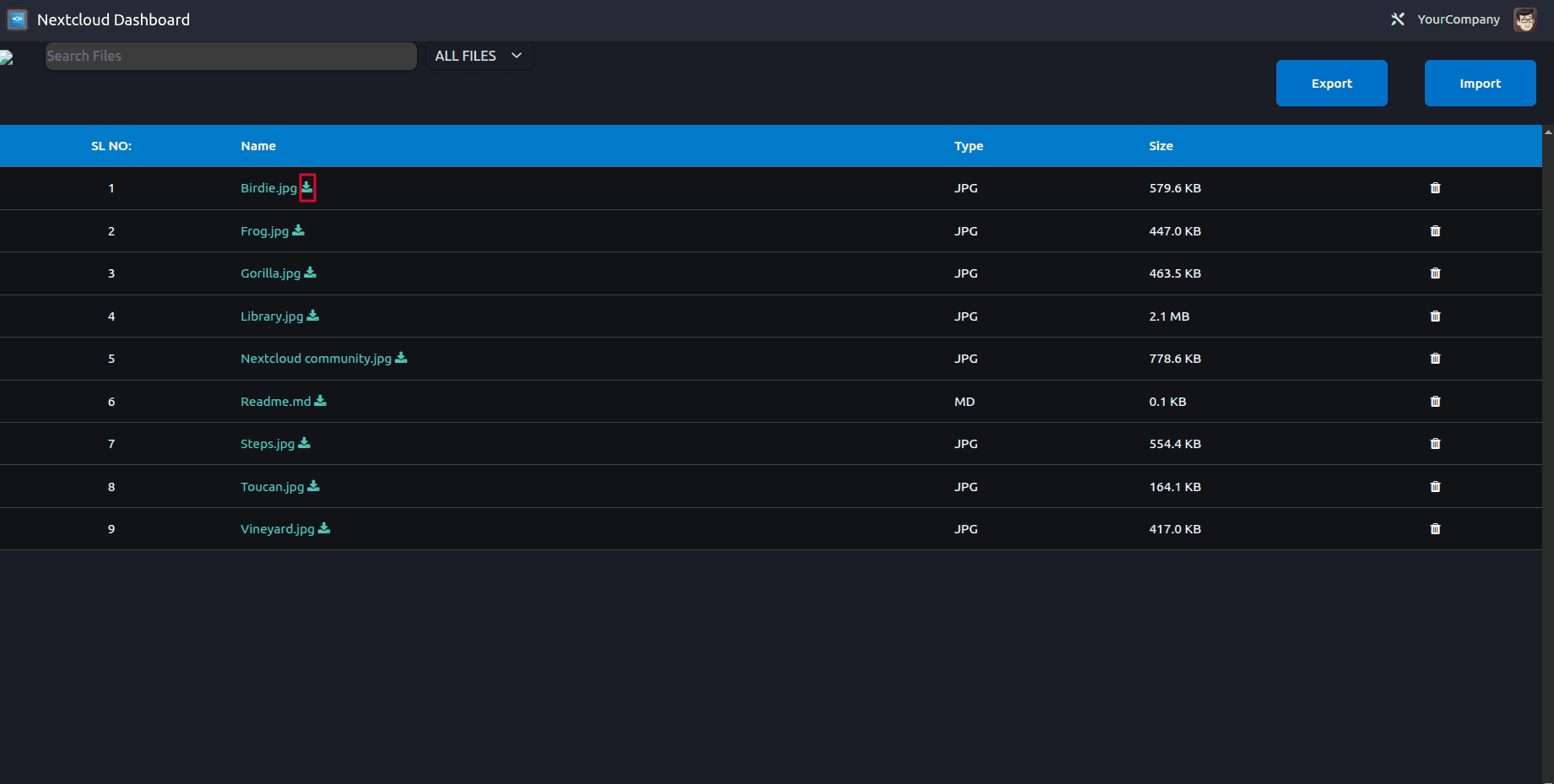
Download Files
Each file contains a Download icon with its name. Clicking this icon downloads the selected file directly from Nextcloud.
The Odoo Nextcloud Connector offers a simple and secure way to integrate Nextcloud with your Odoo environment. By allowing users to import, export, search, filter, download, and manage files directly from Odoo, it streamlines document handling and improves team productivity. Whether you are managing invoices, contracts, project files, or internal documents, the connector helps keep your data organised and easily accessible without leaving your Odoo system.
To read more about How to Integrate Moodle with Odoo 19 Using the Odoo Moodle Connector, refer to our blog How to Integrate Moodle with Odoo 19 Using the Odoo Moodle Connector.