Odoo 19 activity reports provide a comprehensive way of organizing teams by providing a summary of all the activities planned, pending, and accomplished on record types such as sales orders, leads, invoices, etc. This not only creates alerts but also allows for tracking performance within teams.
Define Activity Reports
The Odoo 19 Activity Report is a professionally structured document, usually generated in PDF format, that contains all mail activities such as tasks, phone calls, meetings, reminders, follow-ups, and more. These reports help users track assigned activities, identify responsible users, and monitor upcoming due dates efficiently.
Step 1: Create Your Module Structure
First, create a custom module with this structure:
activity_reports/
+-- __init__.py
+-- __manifest__.py
+-- models/
¦   +-- activity_reports.py
+-- report/
¦   +-- activity_report_template.xml
¦   +-- activity_report_action.xml
Step 2: Module Manifest
   "name": "Activity Report",
   "version": "19.0.1.0.0",
   "depends": ["mail"],
   "data": [
       "report/activity_report_action.xml",
       "report/activity_report_template.xml",
   ],
  "installable": True,
  "application": False,
}
Step 3: Create Report Model — activity_reports.py
The report utilizes an AbstractModel, the common Odoo reporting practice for QWeb report providers. The database table is not created as part of this procedure.
from odoo import models, fields, api
class ActivityReport(models.AbstractModel):
   _name = 'report.activity_reports.report_activity_template'
   @api.model
   def _get_report_values(self, docids, data=None):
       if docids:
           activities = self.env['mail.activity'].browse(docids)
       else:
           activities = self.env['mail.activity'].search([])
       return {
           'doc_ids': docids,
           'doc_model': 'mail.activity',
           'docs': activities,
       }
Step 4: Create Report Action — activity_report_action.xml
The ir.actions.report definition integrates the report into the Odoo reporting engine and associates it with the mail.activity model. This makes it available through the Print button menu.
<?xml version="1.0" encoding="UTF-8"?>
<odoo>
   <record id="action_activity_report" model="ir.actions.report">
       <field name="name">Activity Report</field>
       <field name="model">mail.activity</field>
       <field name="report_type">qweb-pdf</field>
       <field name="report_name">activity_reports.report_activity_template</field>
       <field name="report_file">activity_reports.report_activity_template</field>
       <field name="binding_model_id" ref="mail.model_mail_activity"/>
       <field name="binding_type">report</field>
   </record>
</odoo>
Step 5:Create QWeb Template: activity_report_template.xml
The template relies on standard Odoo QWeb directives to display activity data in an HTML table, which is then converted into a PDF using wkhtmltopdf.
<?xml version="1.0" encoding="UTF-8"?>
<odoo>
   <template id="report_activity_template">
       <t t-call="web.html_container">
           <t t-call="web.external_layout">
               <div class="page">
                   <div class="oe_structure"/>
                   <div class="row">
                       <div class="col-12 text-center">
                           <h2>Activity Report</h2>
                       </div>
                   </div>
                   <br/>
                   <table class="table table-sm o_main_table border-bottom">
                       <thead>
                           <tr class="bg-light">
                               <th class="text-start">Summary</th>
                               <th class="text-start">Activity Type</th>
                               <th class="text-center">Due Date</th>
                               <th class="text-end">Assigned To</th>
                           </tr>
                       </thead>
                       <tbody class="activity_tbody">
                           <t t-foreach="docs" t-as="activity">
                               <tr>
                                   <td class="text-start"><span t-field="activity.summary"/></td>
                                   <td class="text-start"><span t-field="activity.activity_type_id.name"/></td>
                                   <td class="text-center"><span t-field="activity.date_deadline" t-options='{"widget": "date"}'/></td>
                                   <td class="text-end"><span t-field="activity.user_id.name"/></td>
                               </tr>
                           </t>
                       </tbody>
                   </table>
                   <div class="oe_structure"/>
               </div>
           </t>
       </t>
   </template>
</odoo>
My Activities List View
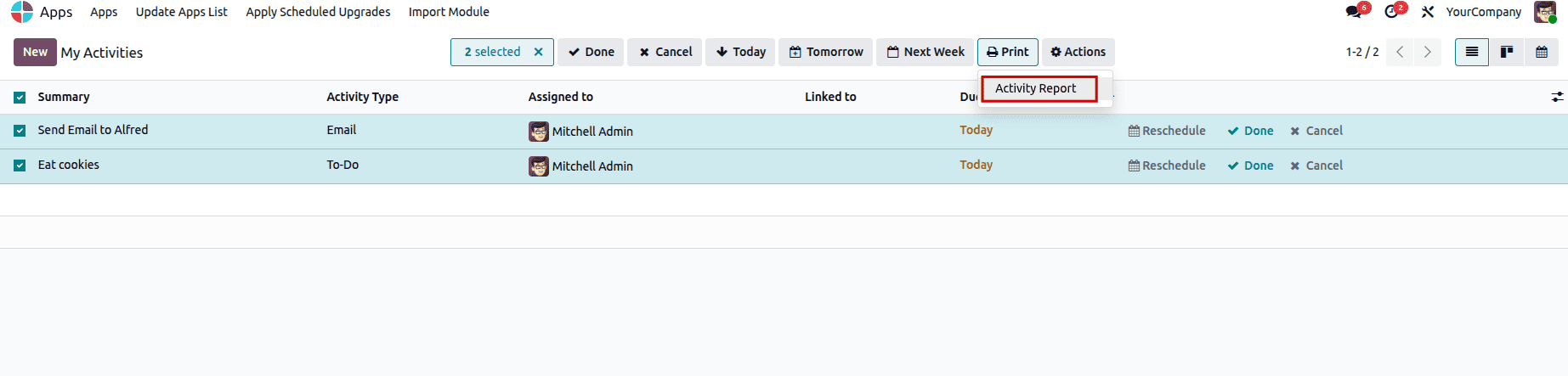
The report can be accessed from the My Activities list view. Standard action buttons are available in the toolbar, and the Activity Report appears under the Print dropdown menu.
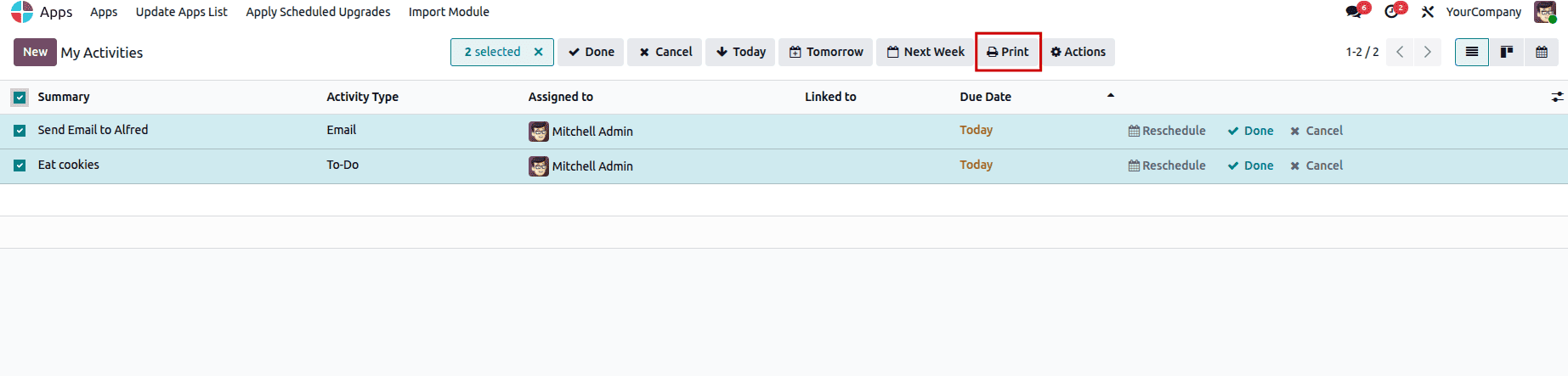
Accessing the Report via Actions Menu
When records are selected, click the Actions button in the toolbar. The Activity Report option appears in the dropdown.
PDF Output
Selecting the Activity Report option initiates an instant PDF download. The document follows the company’s external layout, including the logo, header, and footer, and presents the chosen activities in a neatly structured table.
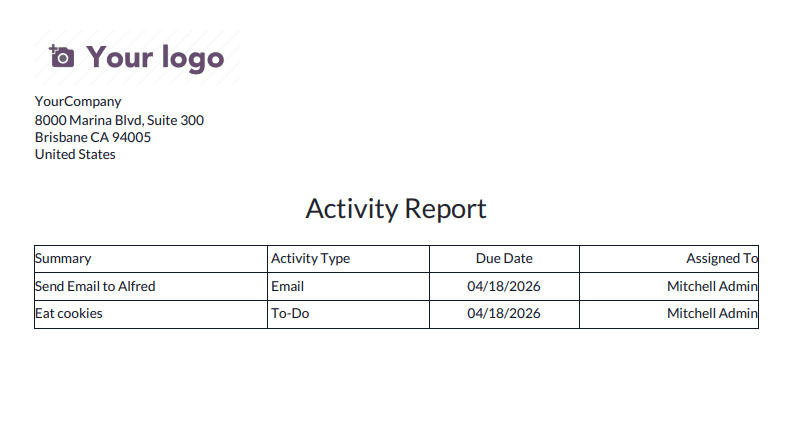
Odoo Activity Report 19 is a great way to keep track of activities because it comes in a well-organized PDF file. Users can avoid having to switch between pages and keep track of and manage their daily tasks accurately by being able to see all of their activities in one report.
To read more about How to Manage Activities in Odoo 19, refer to our blog How to Manage Activities in Odoo 19.