Comparing quotation prices in Odoo 19 plays a crucial role in helping businesses make smarter purchasing decisions and optimize procurement costs. By enabling RFQ price comparison, organizations can evaluate multiple suppliers for the same product and quickly identify the most cost-effective option. This approach improves vendor selection by providing better visibility into pricing, delivery terms, and overall value, allowing businesses to reduce purchasing expenses while maintaining quality standards. Instead of manually reviewing and tracking multiple quotations, Odoo 19 consolidates supplier pricing data within the Purchase module, streamlining the decision-making process and improving efficiency across procurement operations.
To use the quotation comparison feature, users must first configure the necessary settings in the Purchase module. By navigating to Configuration and selecting Settings, the Purchase Agreements option can be enabled under the Orders section.
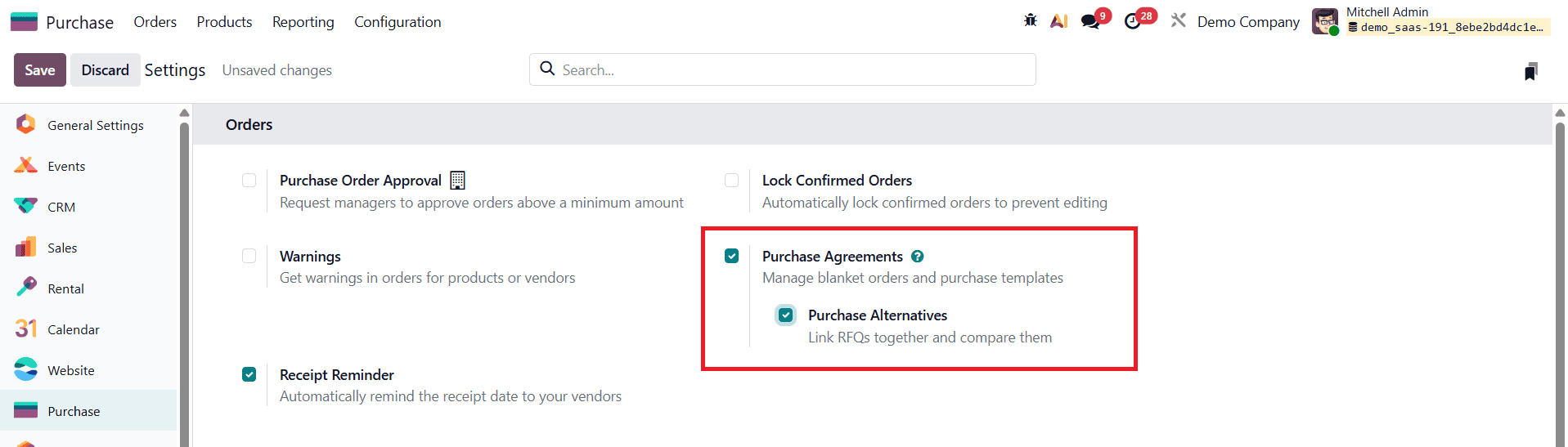
Once activated, an additional field called Purchase Alternatives becomes available. Enabling the Purchase Alternatives checkbox allows users to generate alternative RFQs directly from a purchase order. These alternatives make it possible to request quotations from multiple vendors for the same products and quantities, ensuring a fair and accurate comparison of prices and terms.
With purchase alternatives enabled, Odoo 19 links all related RFQs together, allowing procurement teams to compare unit prices, total costs, and delivery schedules in one place. This structured comparison helps businesses select the best supplier based on value rather than price alone and also provides documented justification for purchasing decisions. After choosing the preferred quotation, the remaining alternatives can be cancelled, keeping procurement records organized and transparent.
To compare RFQ prices in Odoo 19, begin by navigating to the Purchase module and selecting the Orders menu, followed by the Requests for Quotation sub-menu.
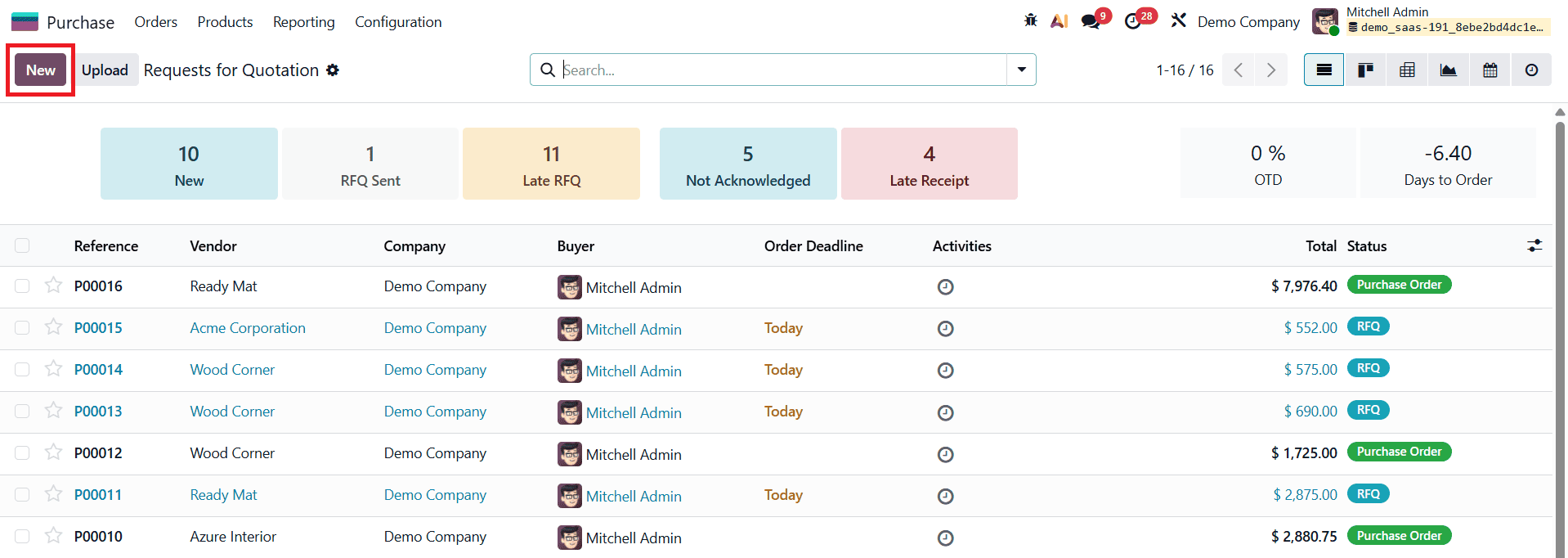
This section displays all RFQs and purchase orders in various stages. From here, click the New button to create a new request for quotation. While creating the RFQ, users can enter essential details such as the product to be purchased, required quantity, unit price, and other relevant purchase information within the purchase order form.
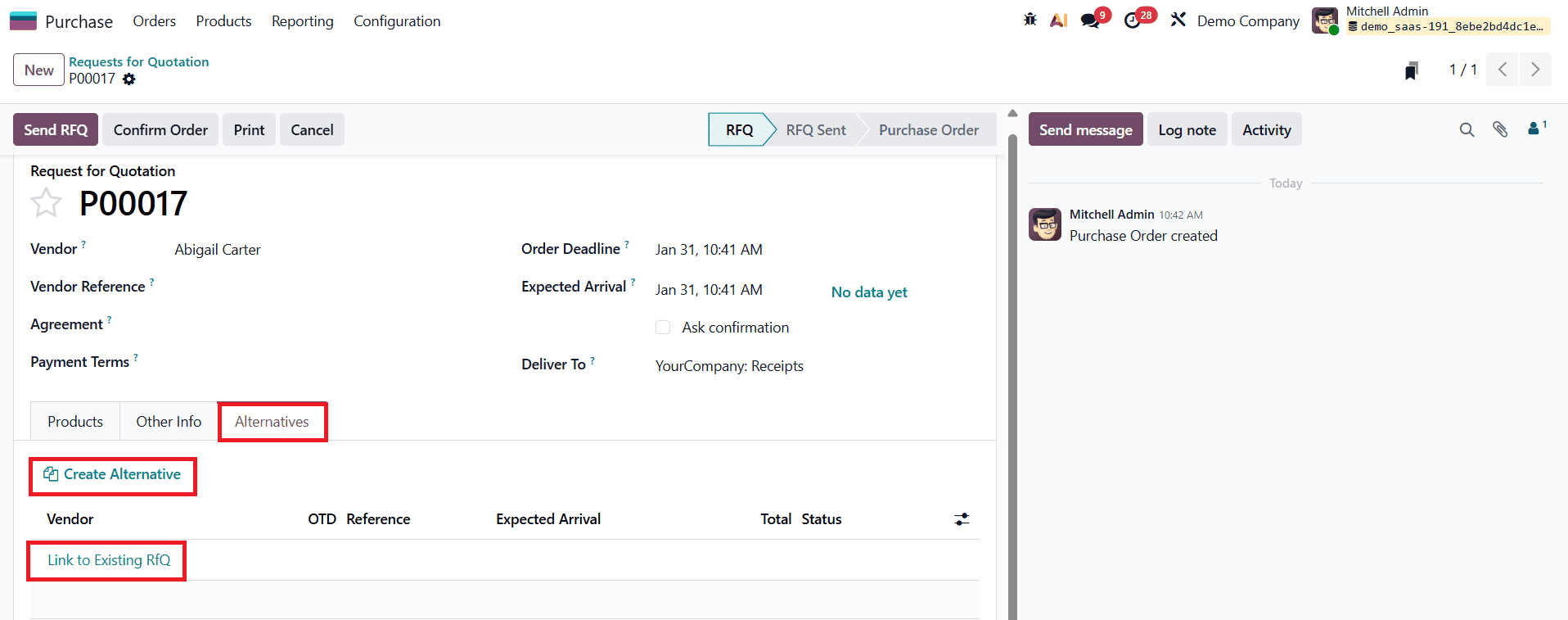
In Odoo 19, once the required configuration is enabled, an additional tab named Alternatives becomes available in the RFQ form. This tab allows users to manage multiple quotations for the same purchase requirement. Within the Alternatives tab, there are two options: Create Alternative and Link to Existing RFQ. The Link to Existing RFQ option displays a list of previously created RFQs, enabling users to select and link an existing quotation for comparison. On the other hand, selecting Create Alternative opens a pop-up window where users can choose a different vendor to generate a new RFQ.
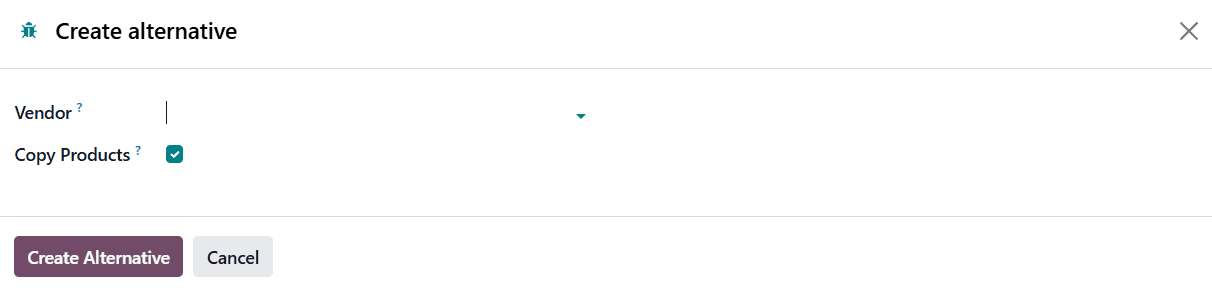
While creating an alternative RFQ, Odoo 19 provides a Copy Products checkbox. When this option is enabled, the product details from the original RFQ are automatically copied into the alternative quotation, ensuring consistency and saving time. If the checkbox is left unchecked, the alternative RFQ will be created without any product lines, allowing users to manually add products if required. After confirming the details, clicking the Create Alternative button generates the new RFQ and links it to the original one.
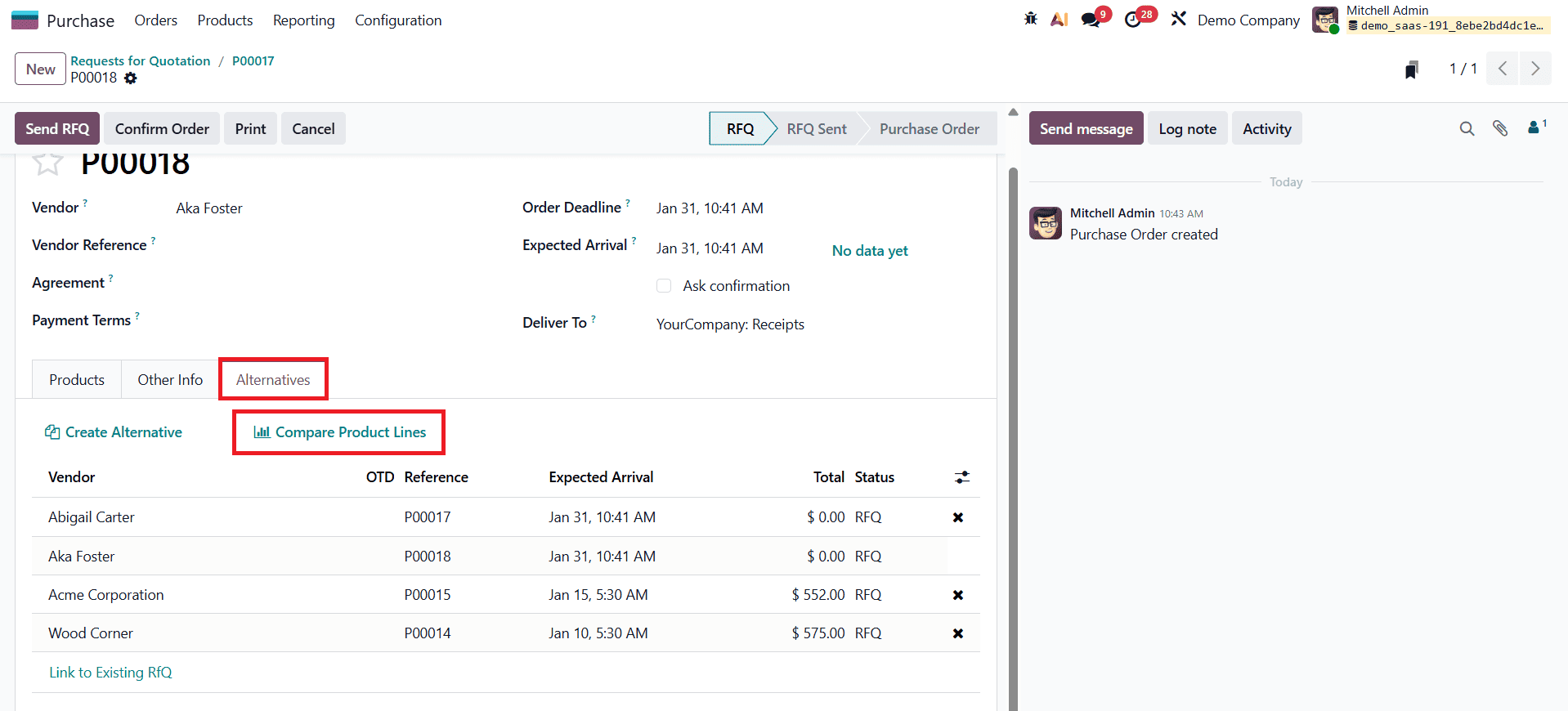
Once the alternative purchase order is created, users can modify quantities, unit prices, delivery dates, or other terms based on the supplier’s quotation. This structured approach to managing multiple RFQs in Odoo 19 allows procurement teams to compare vendor pricing efficiently, make informed purchasing decisions, and select the most suitable supplier based on overall value rather than price alone.
When returning to the Alternatives tab in Odoo 19, all linked purchase orders are displayed together, making it easy to view and manage multiple RFQs for the same purchase requirement. If additional alternative purchase orders are required, users can continue adding them either by linking existing RFQs or by creating new alternatives directly from this tab. This flexibility allows procurement teams to gather quotations from multiple vendors and maintain them within a single comparison framework.
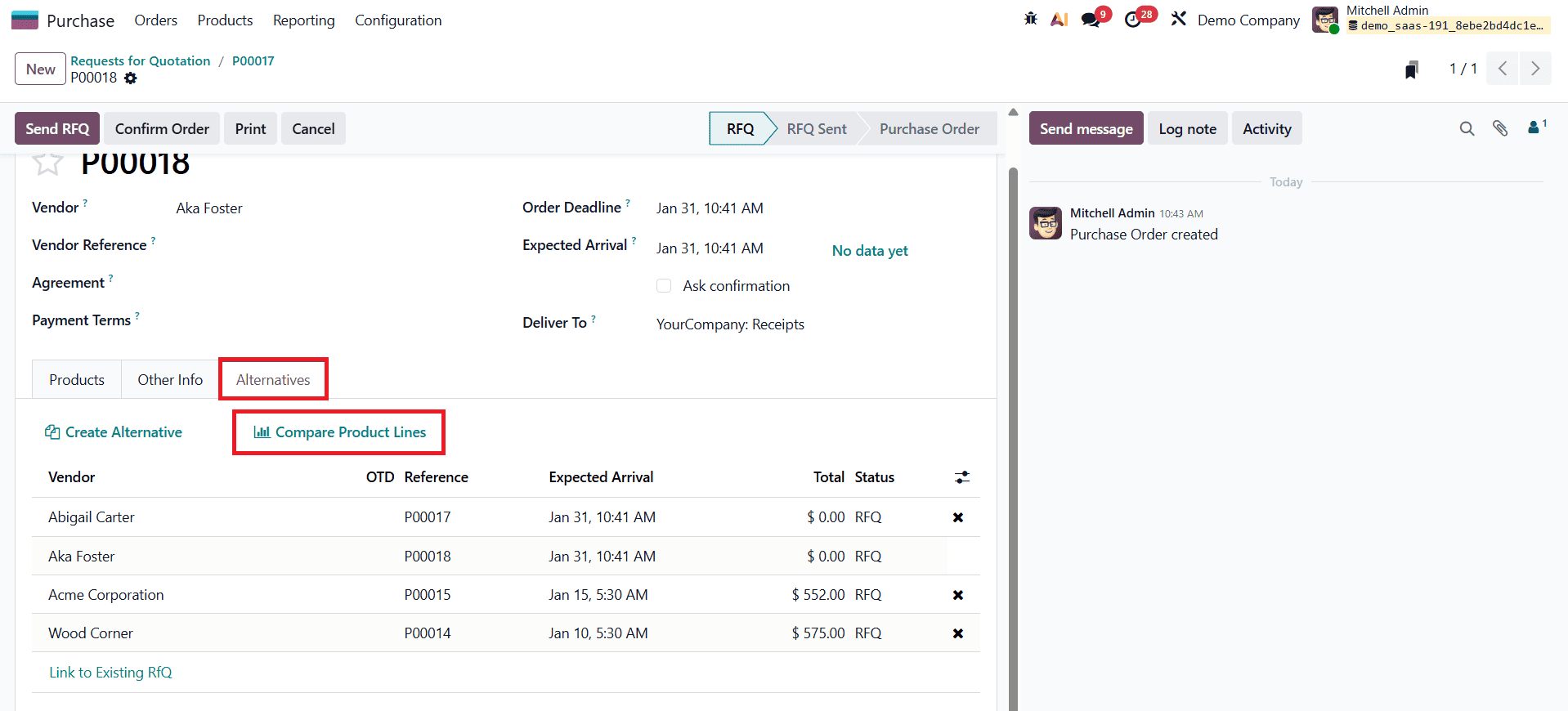
Once multiple RFQs are linked, Odoo 19 redirects users to a comparison view where key details such as expected arrival dates, ordered quantities, unit prices, and total costs for each quotation are displayed side by side.
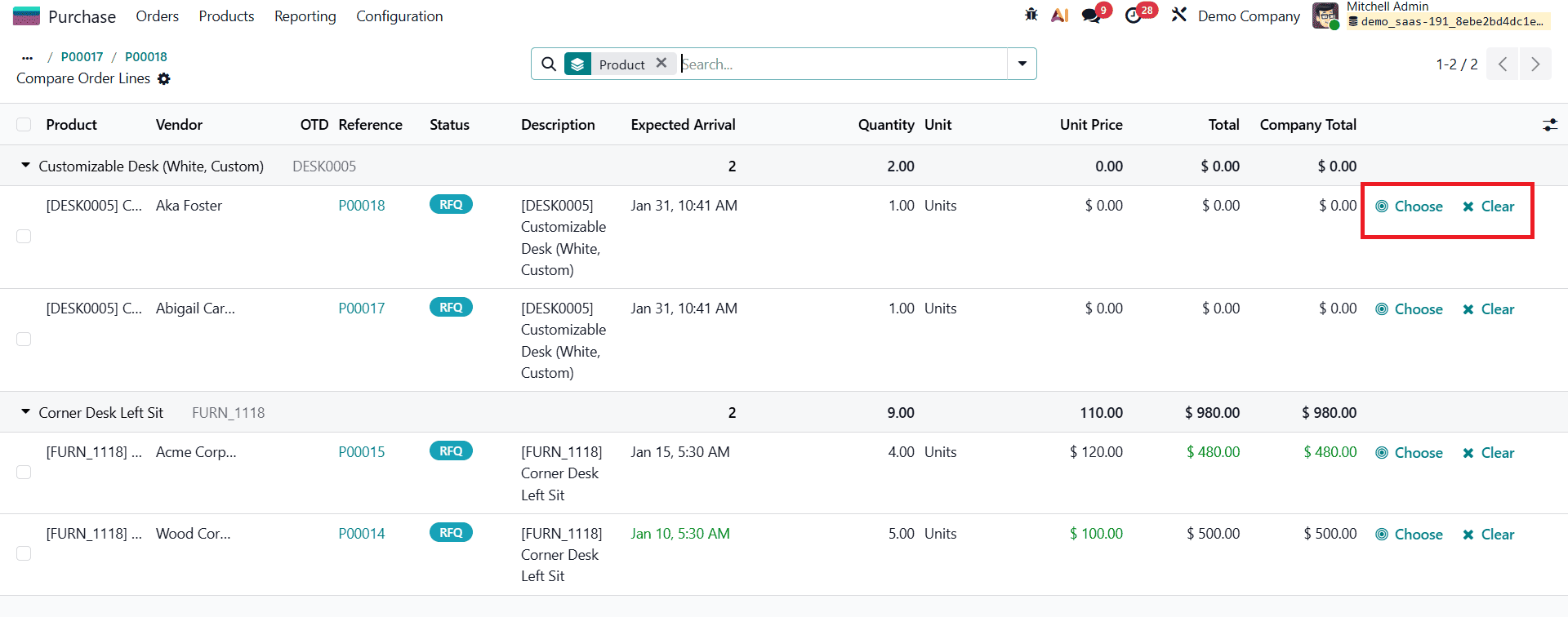
In this view, Odoo visually highlights the most favorable values using color indicators, making it easier to identify the best option at a glance. At the end of each RFQ row, Choose and Clear buttons are available, enabling users to select the most suitable quotation based on pricing, delivery timelines, or overall value.
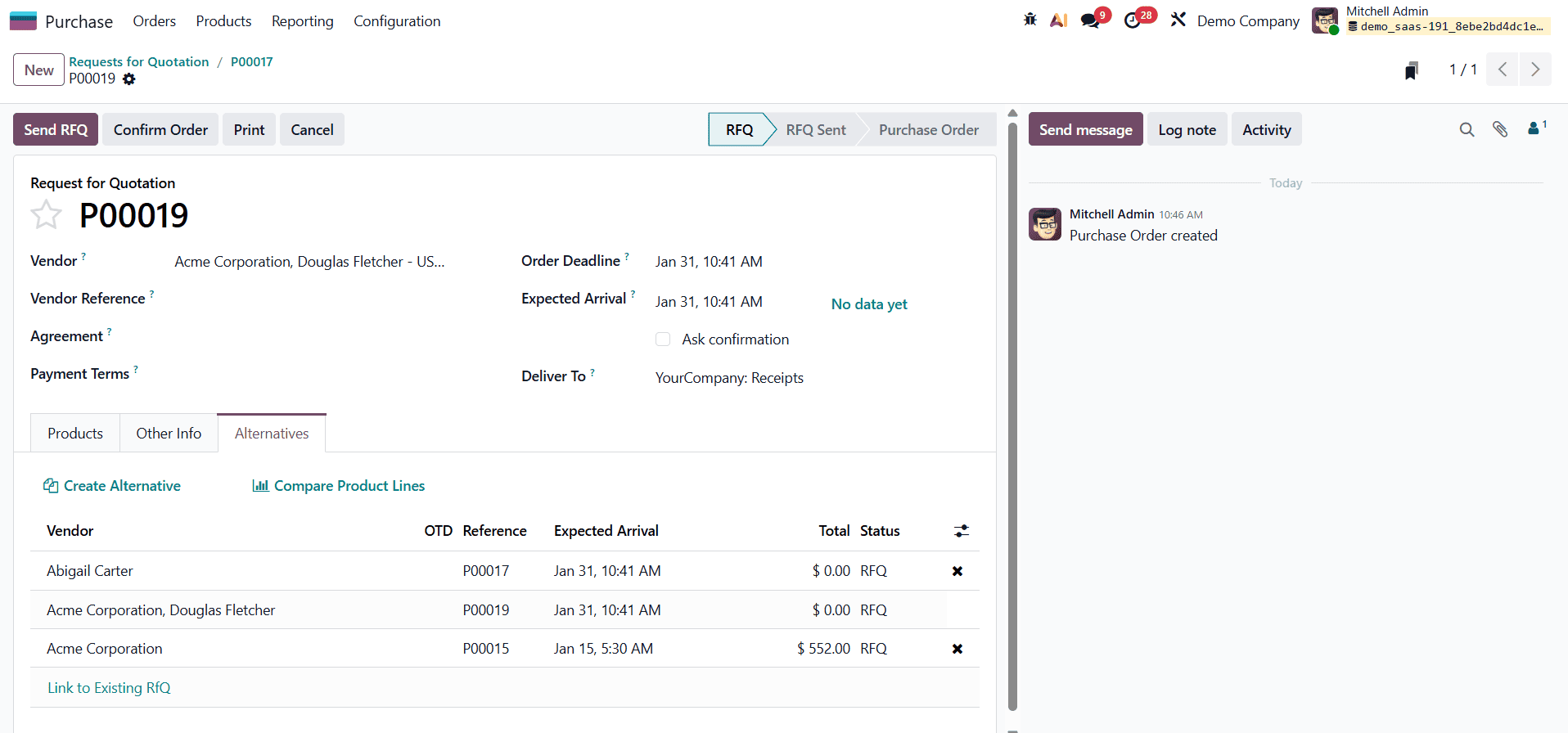
After selecting the preferred RFQ, users can send the quotation to the vendor by clicking the Send RFQ button. The vendor’s response is automatically recorded in the chatter, ensuring clear communication and traceability. If a printed copy is required, the Print option can be used. Based on the vendor’s confirmation, the user can then proceed to confirm the purchase order.
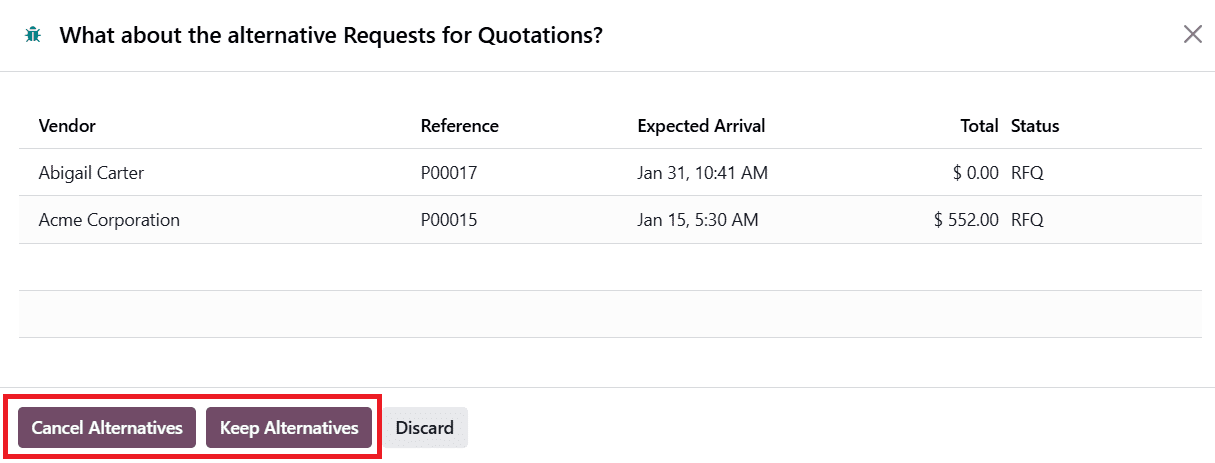
When confirming the purchase order in Odoo 19, a pop-up window appears with two options: Keep Alternative and Cancel Alternative. If the remaining alternative RFQs are no longer required, users can cancel them to keep procurement records clean and organized. Alternatively, selecting Keep Alternative allows all RFQs to remain active, which can be useful for future reference or parallel negotiations.
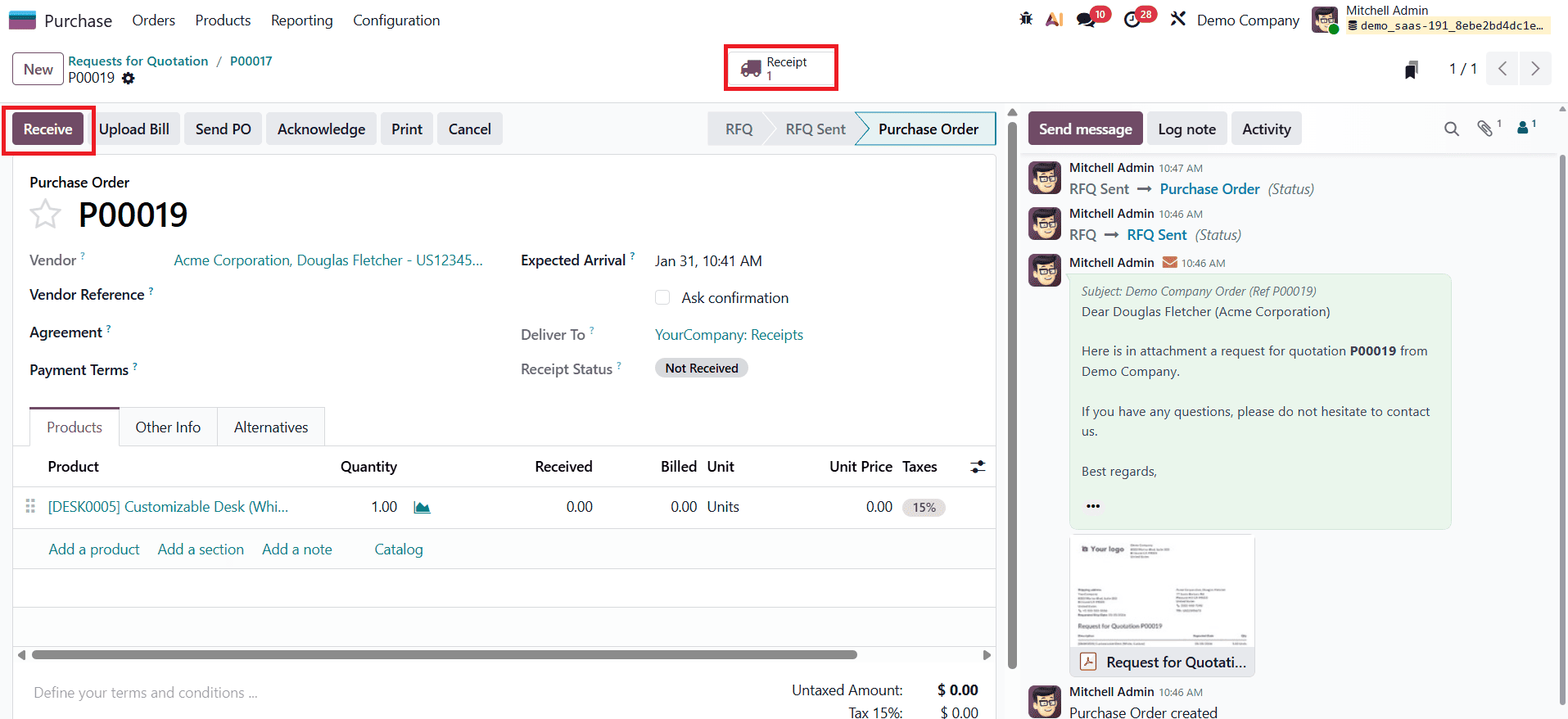
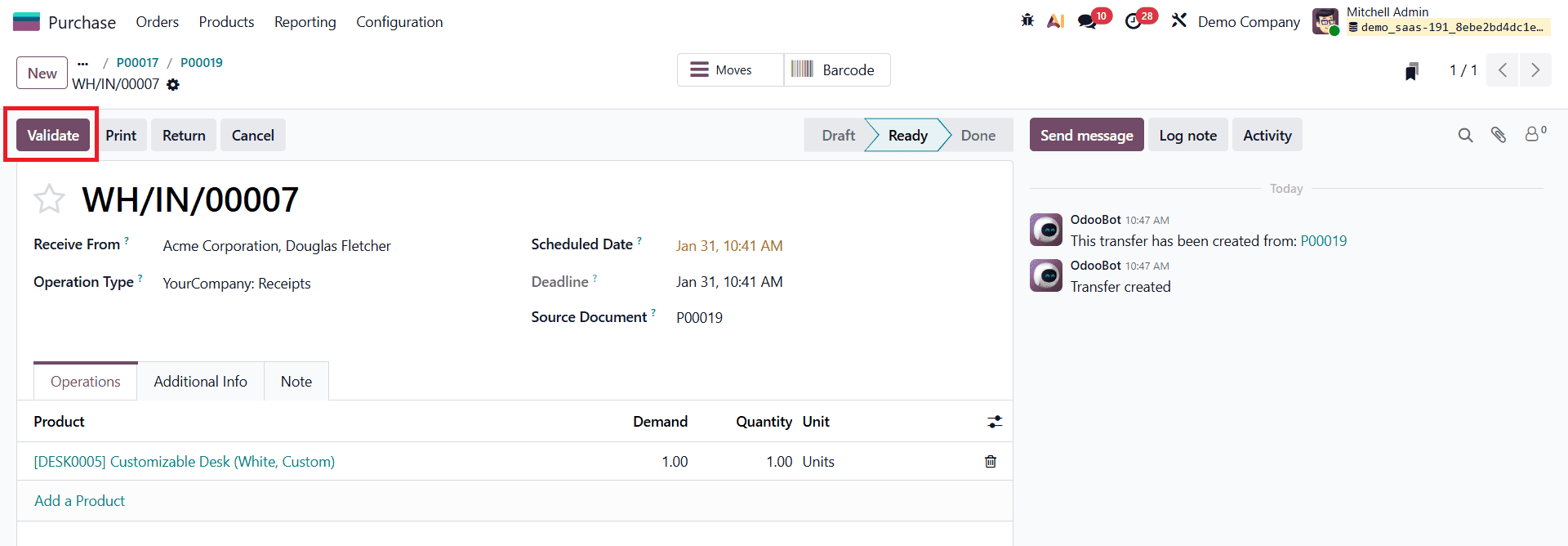
Once the purchase order is confirmed, a Receipt smart tab becomes available. Clicking this tab opens the receipt associated with the purchase order, where the received products can be validated by clicking the Validate button.
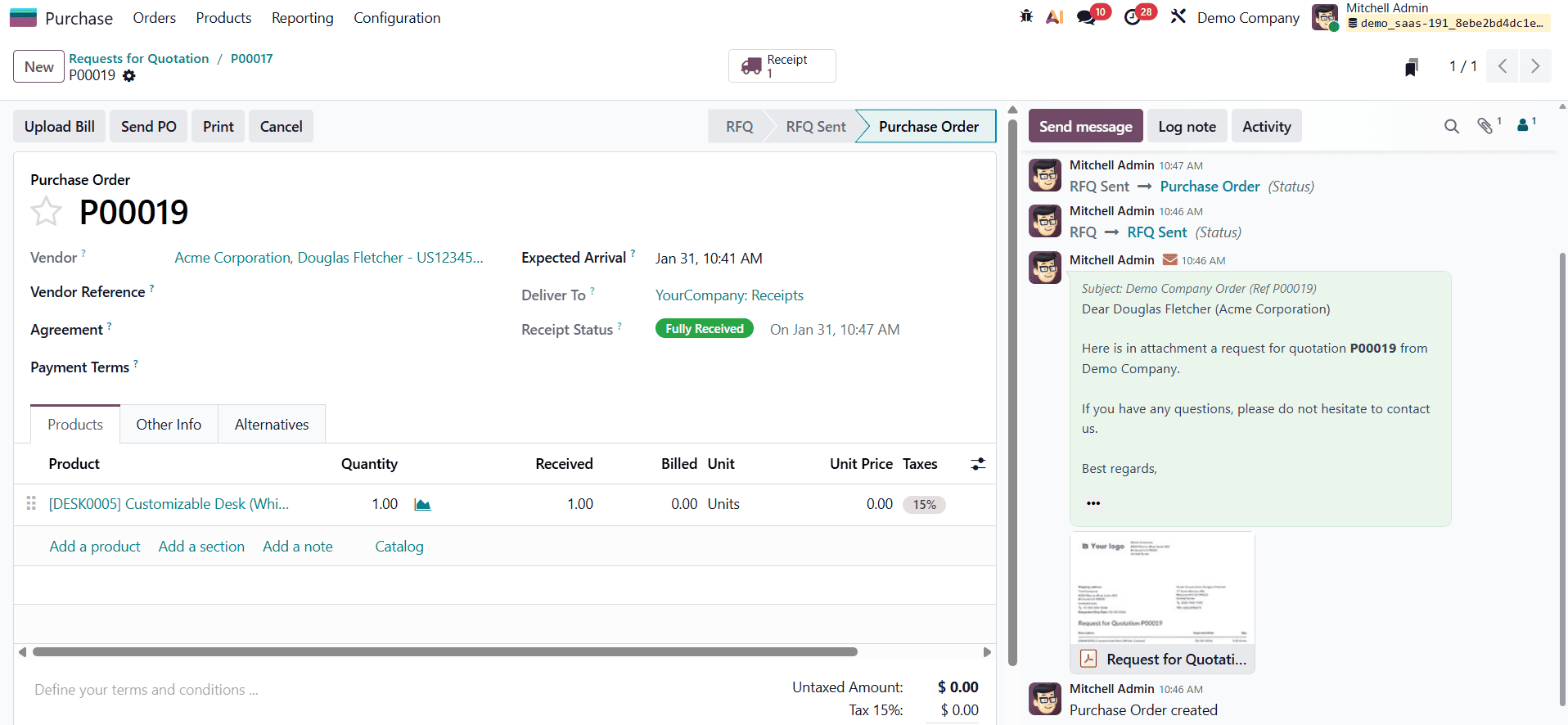
If the Cancel Alternative option was chosen earlier, the related alternative RFQs will automatically move to the cancelled state.
The final step in the procurement workflow is vendor billing. To generate a bill, users can click the Bill button from the confirmed purchase order. This opens the bill form displaying relevant details such as product quantities, unit prices, and total amounts. After reviewing the information, the bill can be confirmed to complete the purchasing cycle.
By comparing RFQs from multiple suppliers in Odoo 19, businesses can identify the most competitive pricing and evaluate vendors based on cost, reliability, and delivery schedules. This structured comparison process enables more strategic, cost-effective purchasing decisions and helps organizations select suppliers that best align with their operational and financial goals.
To read more about What are the Best Practices for Comparing RFQ Prices in Odoo 18, refer to our blog What are the Best Practices for Comparing RFQ Prices in Odoo 18.