Project management is not only about task completion; it is about efficient and accurate billing and payment processing. For service companies, especially those dealing with client projects, a highly customizable invoicing process becomes necessary in order to ensure that payments will always be made on time, the process will be transparent, and the clients will be satisfied. There are many options when it comes to invoicing within the Odoo 19 Project Module.
Be it charging your customers for time spent on a job, fixed pricing of services, milestones reached in a project, or quantity delivered, Odoo 19 provides you with flexible methods to handle and optimize your complete billing process. Starting from the configuration of the service product and associating the service product to the project and tasks, and ending with creating the invoice, everything is done with the aim of increasing the efficiency and accuracy of your billing process. This blog post discusses the various policies of invoicing services provided by the Odoo 19 Projects module.
Odoo 19 project invoicing allows users to use an organized and effective way to invoice their billable services. In the Project module, users may create or choose the project that needs to be invoiced. Before performing any invoicing, the Billable feature needs to be enabled via Project settings. This will enable invoicing capabilities and help the business choose the right way to bill for its services.
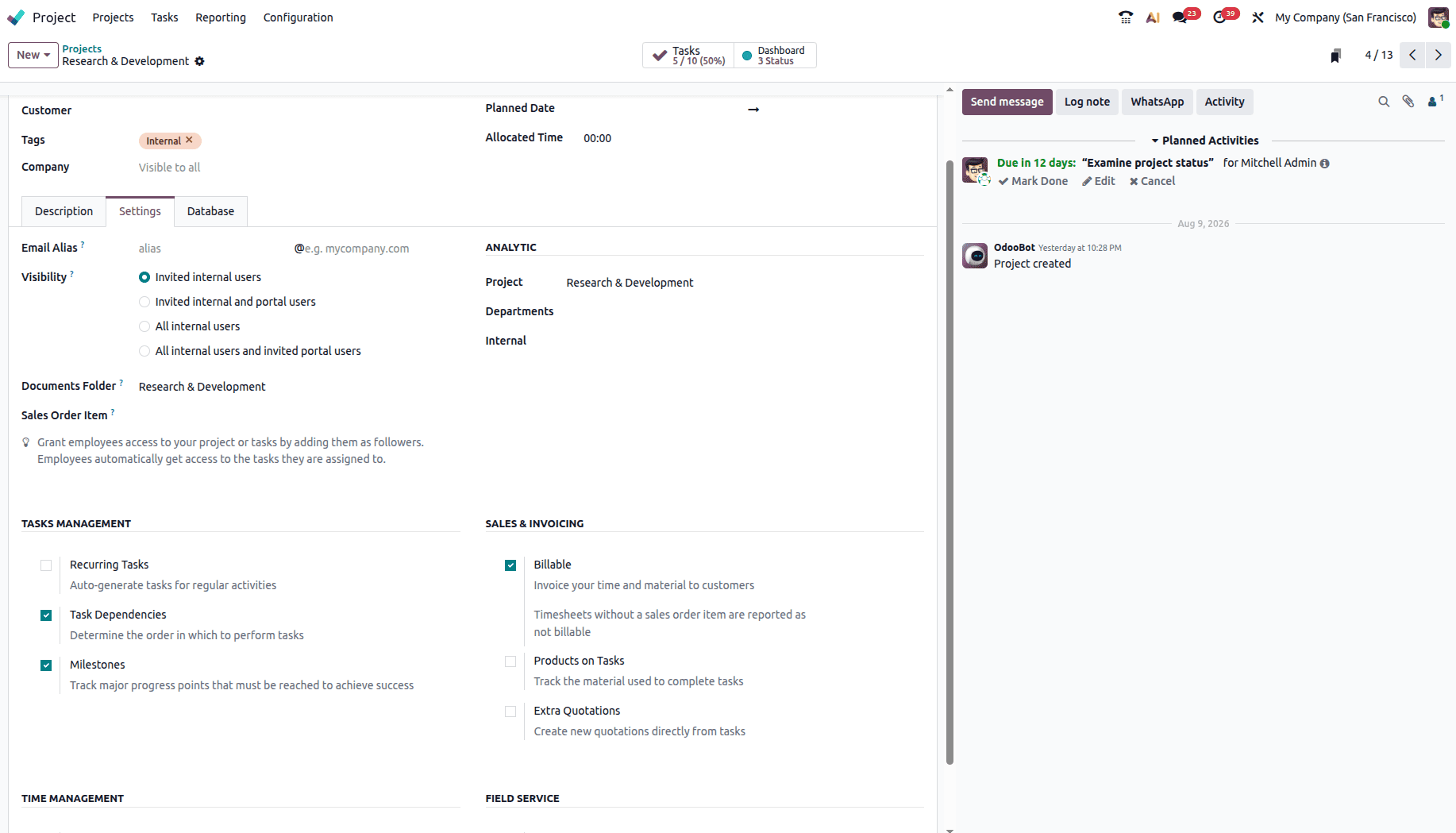
Once the billable setting is activated, the user can access the invoice tab from the project settings section.
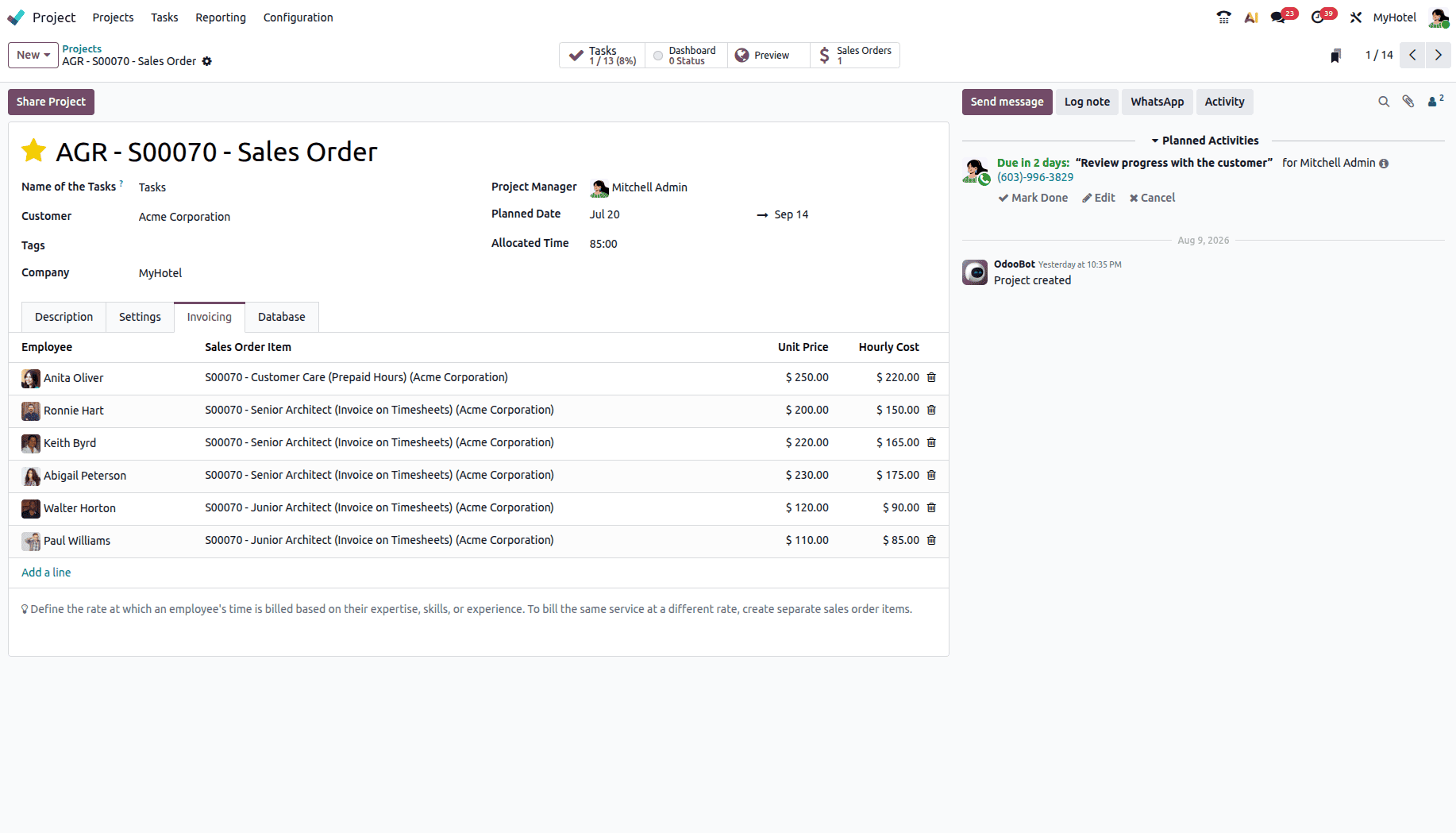
Users can enter essential billing details, including the service unit cost, total hours worked, and the employees involved in completing the task.
Odoo 19 contains four major options for invoicing in the Project module, which vary depending on the business requirements. Such types of invoicing include Timesheet Invoicing, Fixed/Prepaid Invoicing, Manual Invoicing by Quantity, and Milestone Invoicing. All these options may be chosen in accordance with the requirements of the business billing process. Timesheet Invoicing is especially convenient for businesses where clients are charged according to the actual time worked. Timesheet invoicing requires creating and setting up a sales order that invoices on timesheet hours.
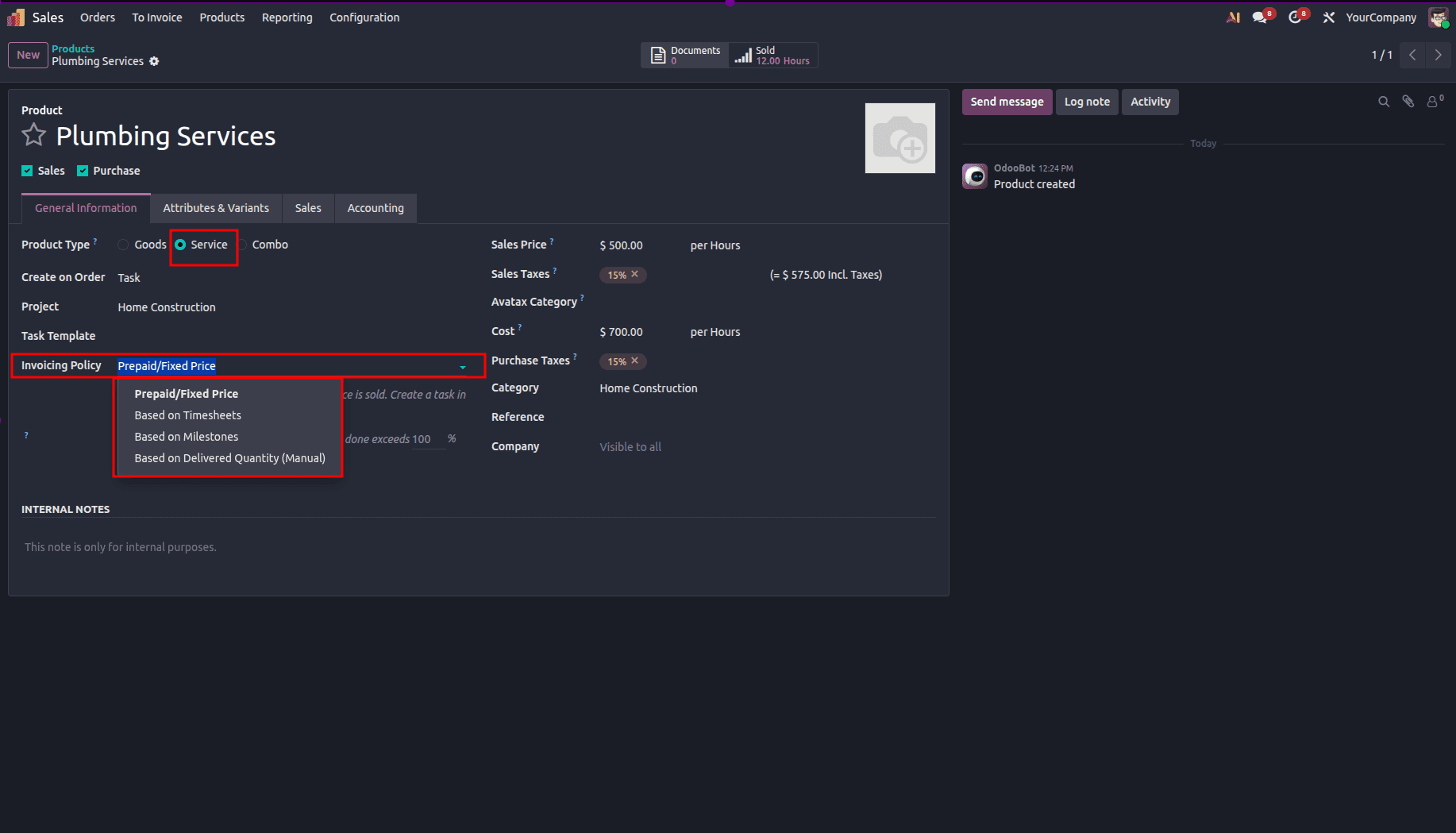
For service-based projects, selecting the right invoicing policy is essential. Odoo provides several options to suit different billing requirements, including:
- Prepaid/Fixed Pricing: This option allows businesses to invoice the full service quantity upfront or immediately after the order is confirmed.
- Based on Timesheets: This method ensures that clients are invoiced strictly according to the actual hours recorded for the work performed.
- Based on Milestones: This method allows businesses to make staged payments based on the completion of predefined milestones throughout the project.
- Based on Delivered Quantity (Manual): This technique ensures that businesses bill their customers according to the manual updating of progress in service delivery.
Projects with milestone-based invoicing have their billing process broken down into distinct phases, which could include designing, developing, testing, and delivering the project. Milestones are invoiced independently, offering a more flexible approach to billing and better financial clarity for both businesses and their clients.
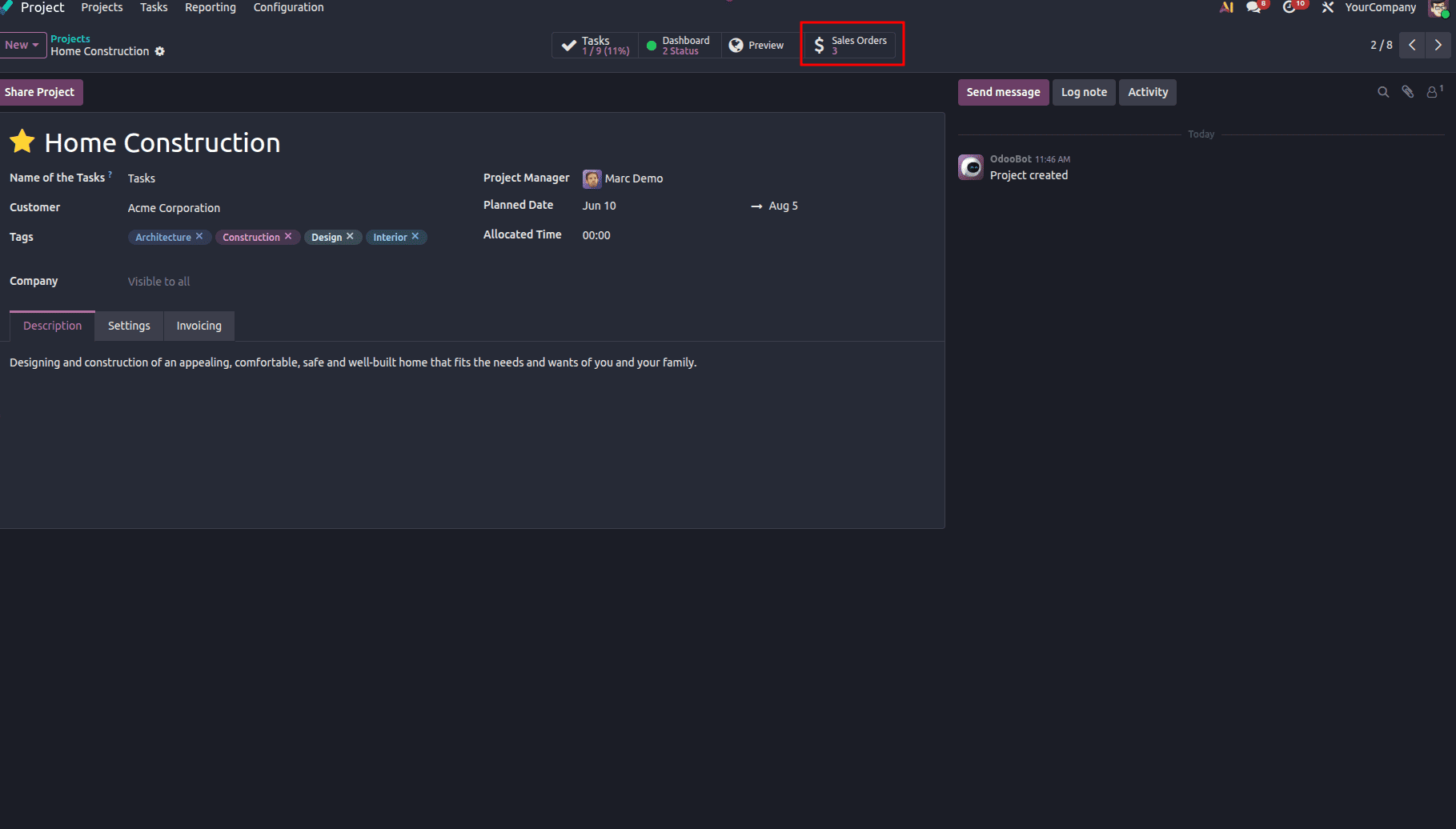
After the appropriate sales order has been approved, the user is able to proceed with creating an invoice from the sales order form. Using the smart button within the project screen, one is able to link to the sales orders and click on the Create Invoice button.
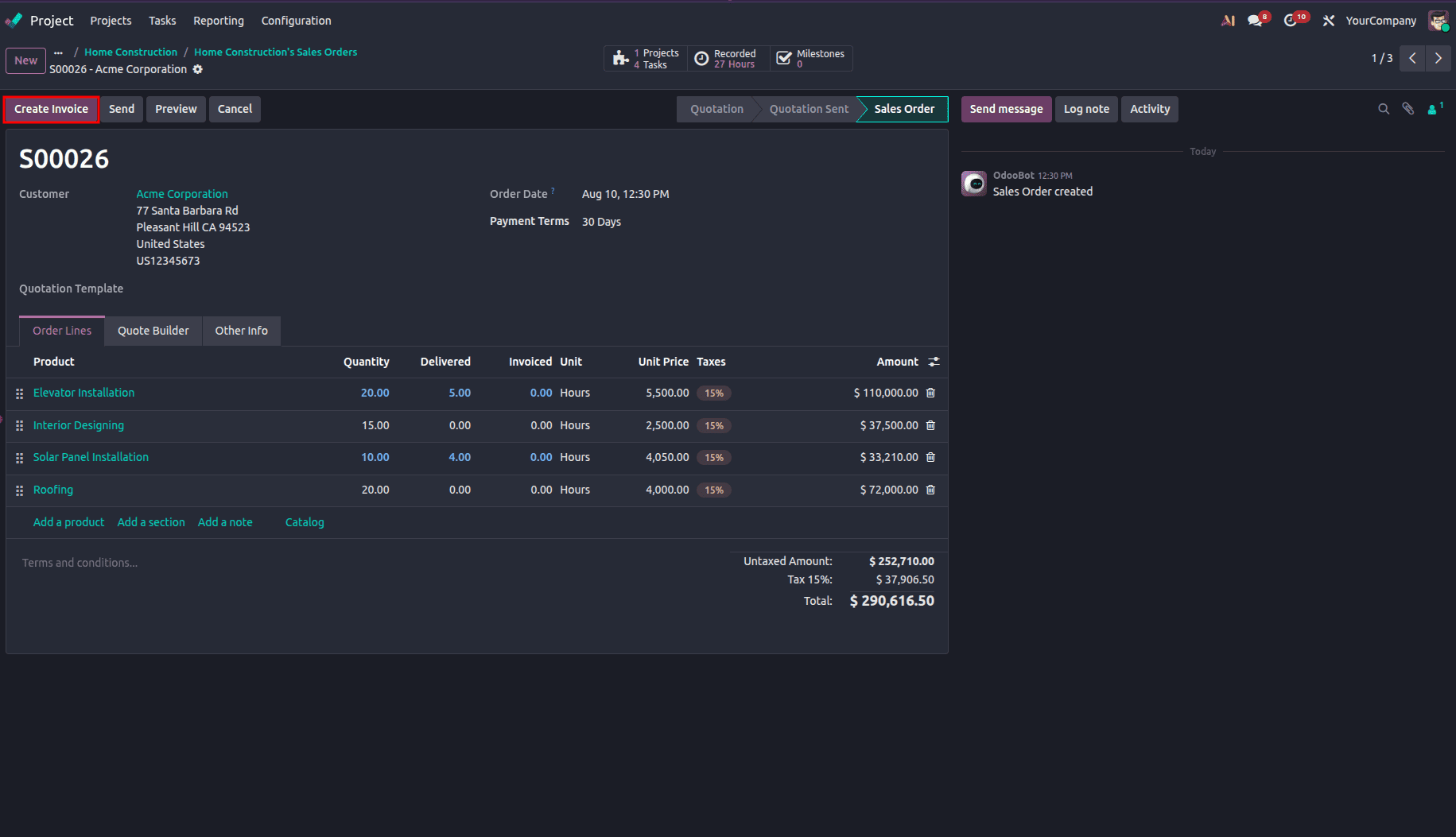
Upon pressing this button, a pop-up window will appear in which the user will be required to select an invoice type, such as Regular Invoice or Down Payment Invoice. The quantity on the invoice should tally with the delivered or done quantity before pressing the Confirm button.
Invoicing Based on Timesheets
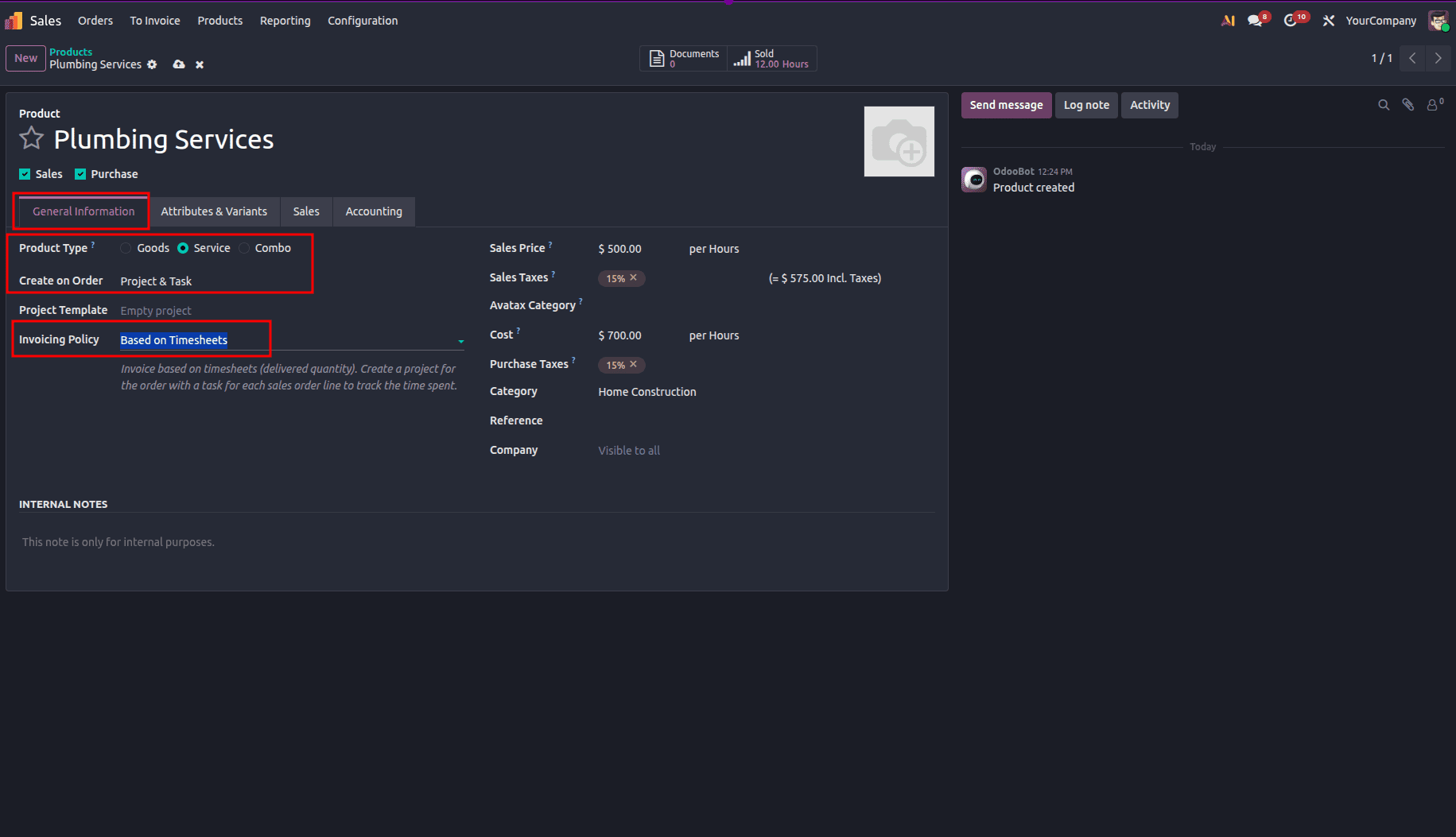
Among the billing techniques that are very accurate in Odoo 19 is Timesheet-Based Invoicing. It helps organizations bill their customers according to the amount of time taken by their workers for each individual task. One can configure this process by following the steps outlined below: Go to Sales > Products > Products and choose or add the service product. Select the Product type as Service and select Based on Timesheets in the Invoicing policy field.
As soon as the Sales Order for the service product is generated, the related Project and Tasks are automatically created in the Odoo Project module.
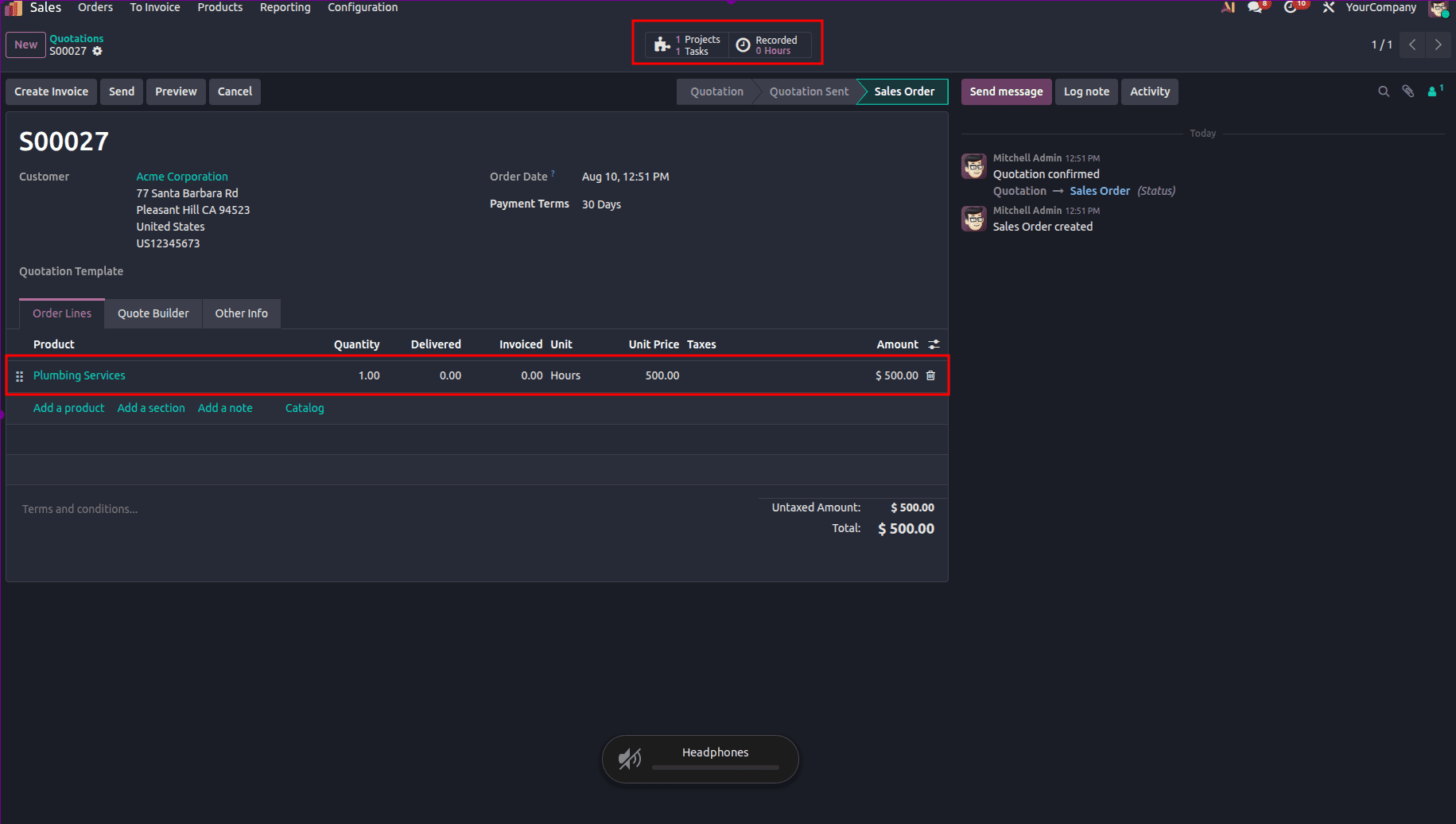
However, the corresponding task/project may be accessed easily with the help of “Project” or “Task” buttons, which are smart options available on the Sales Order screen. However, the entries could be accessed directly from the Project module.
Pressing the Tasks smart button will activate the timer since this will open up the task form.
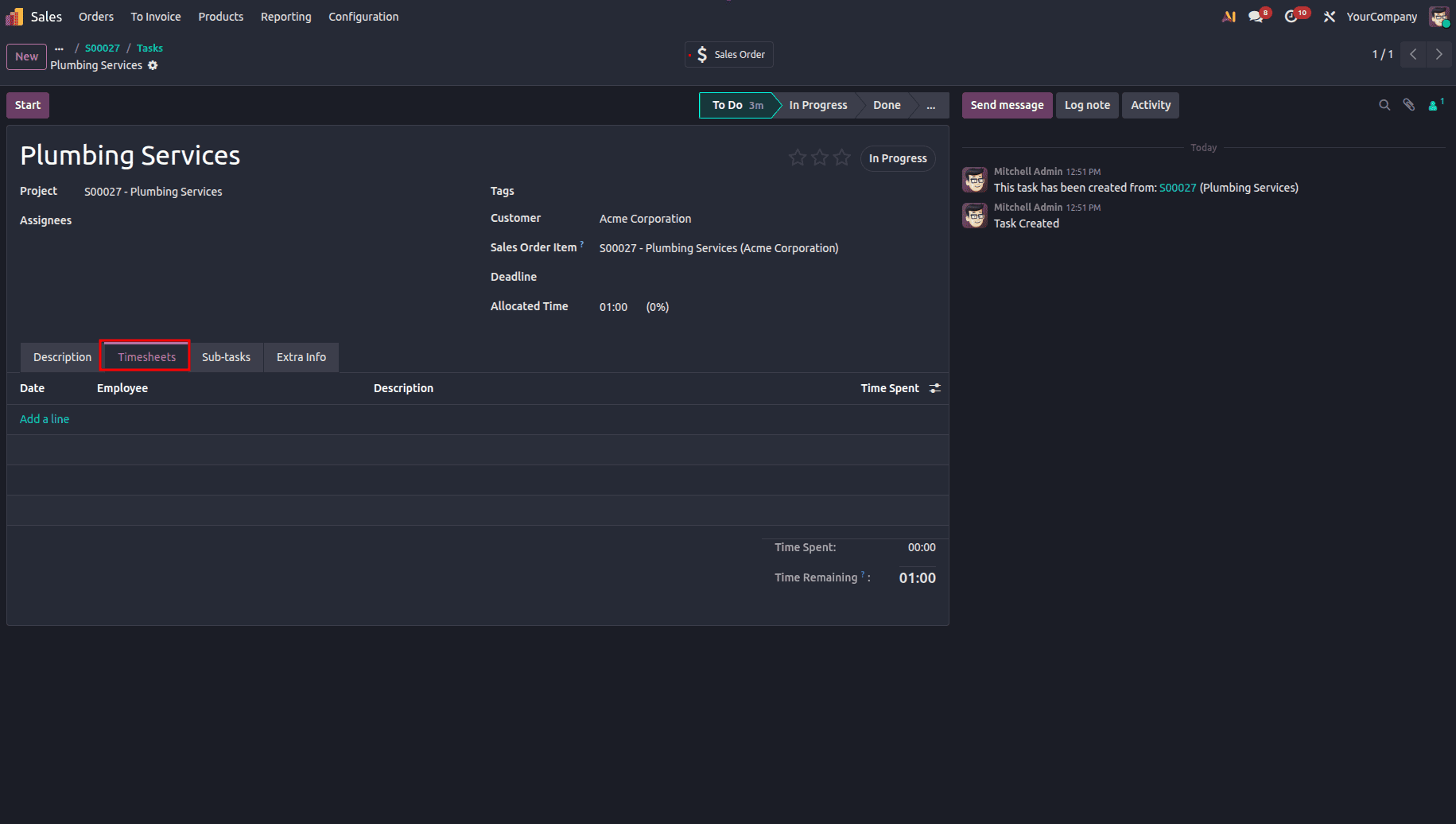
Under the Timesheets tab, employees can be assigned, and the amount of time allocated for the task can be entered. To add a time entry manually, click Add a line, select the date, employee, and optionally provide a brief description of the work completed. The hours worked can then be entered in the Time Spent field.
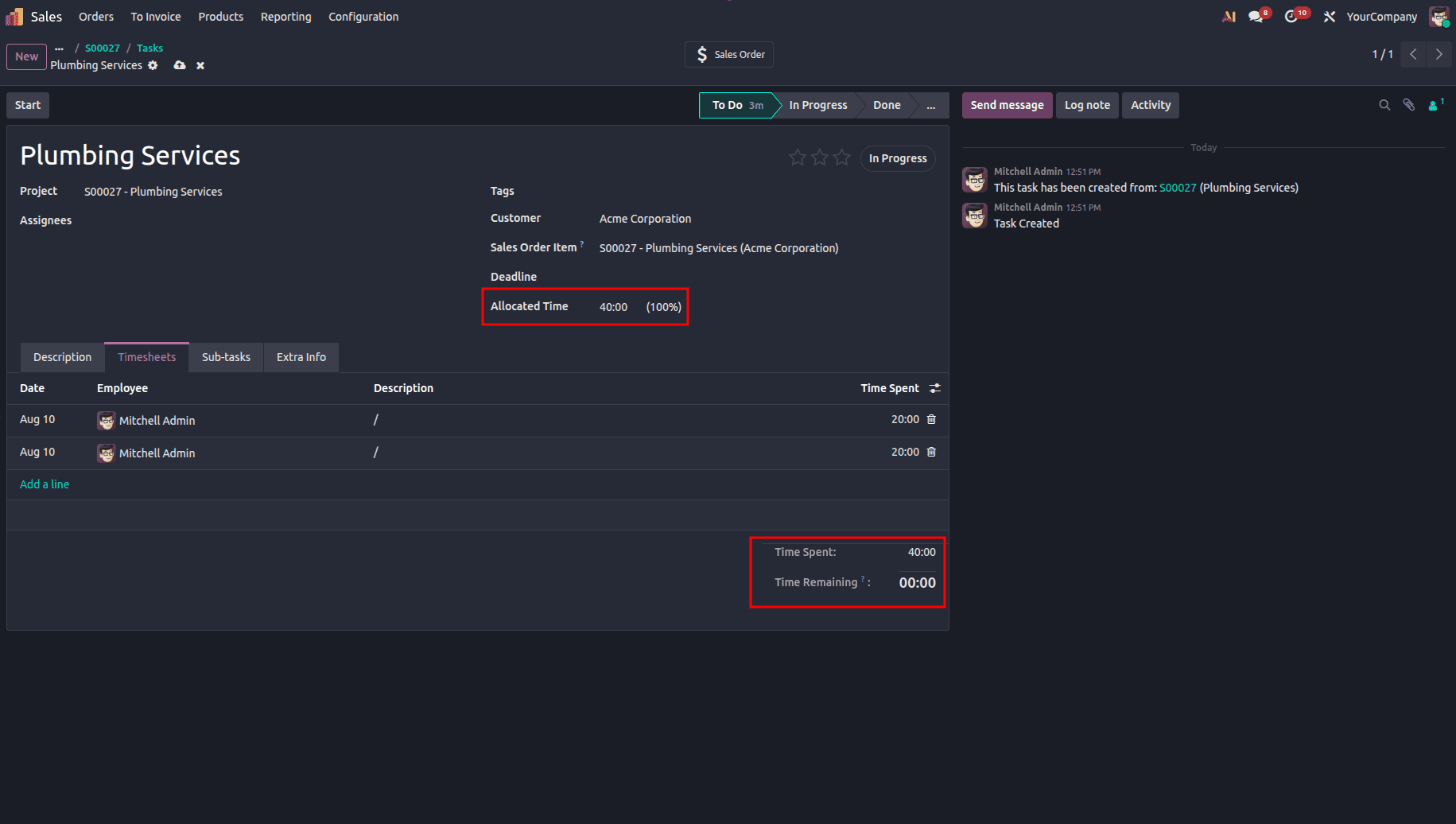
As more time entries are entered, Odoo will update the Allocated Time field automatically and compute the total hours that appear in the Time Spent and Time Remaining fields.
Once the entry of time is complete, then one goes back to the sales order to create the invoice.
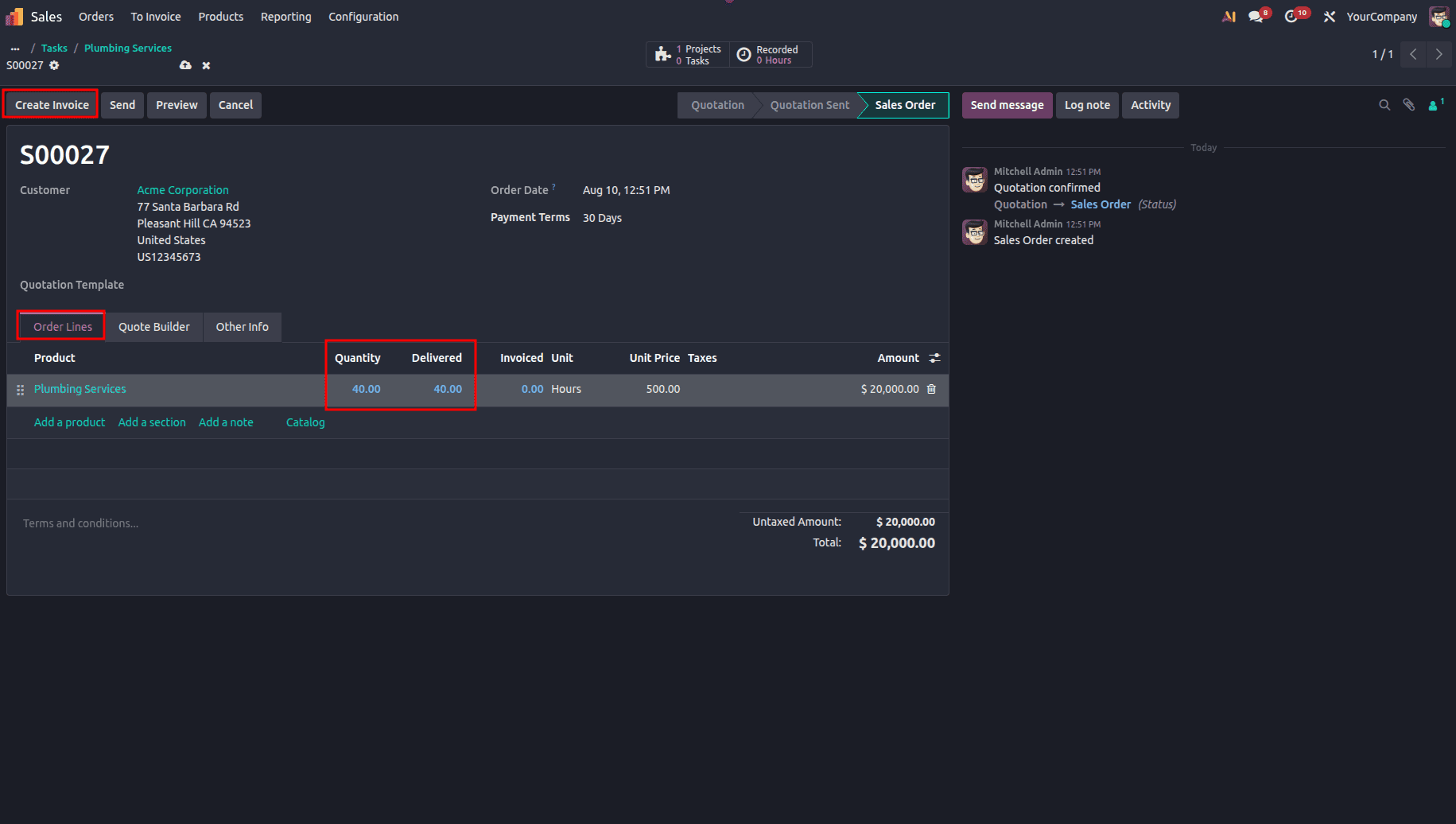
The Delivered field in the Order Lines tab will update itself according to the number of hours entered. Once one clicks Create Invoice and selects Regular Invoice in Odoo, a draft invoice will be generated showing the work hours logged in the Invoice Lines tab.
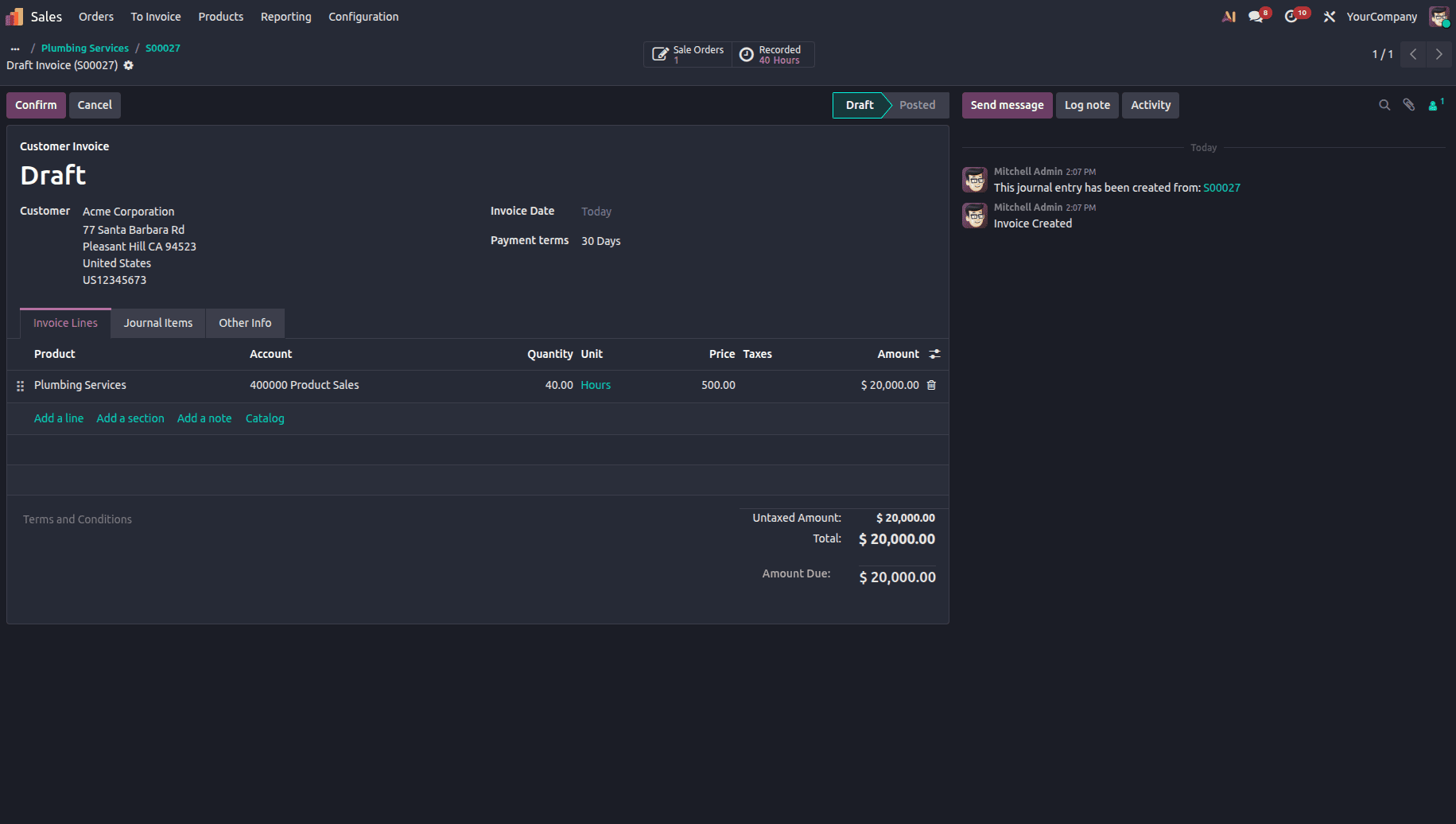
After confirmation and review, the invoice is made final to allow accurate billing of hours worked.
Invoicing Based on Project Milestones
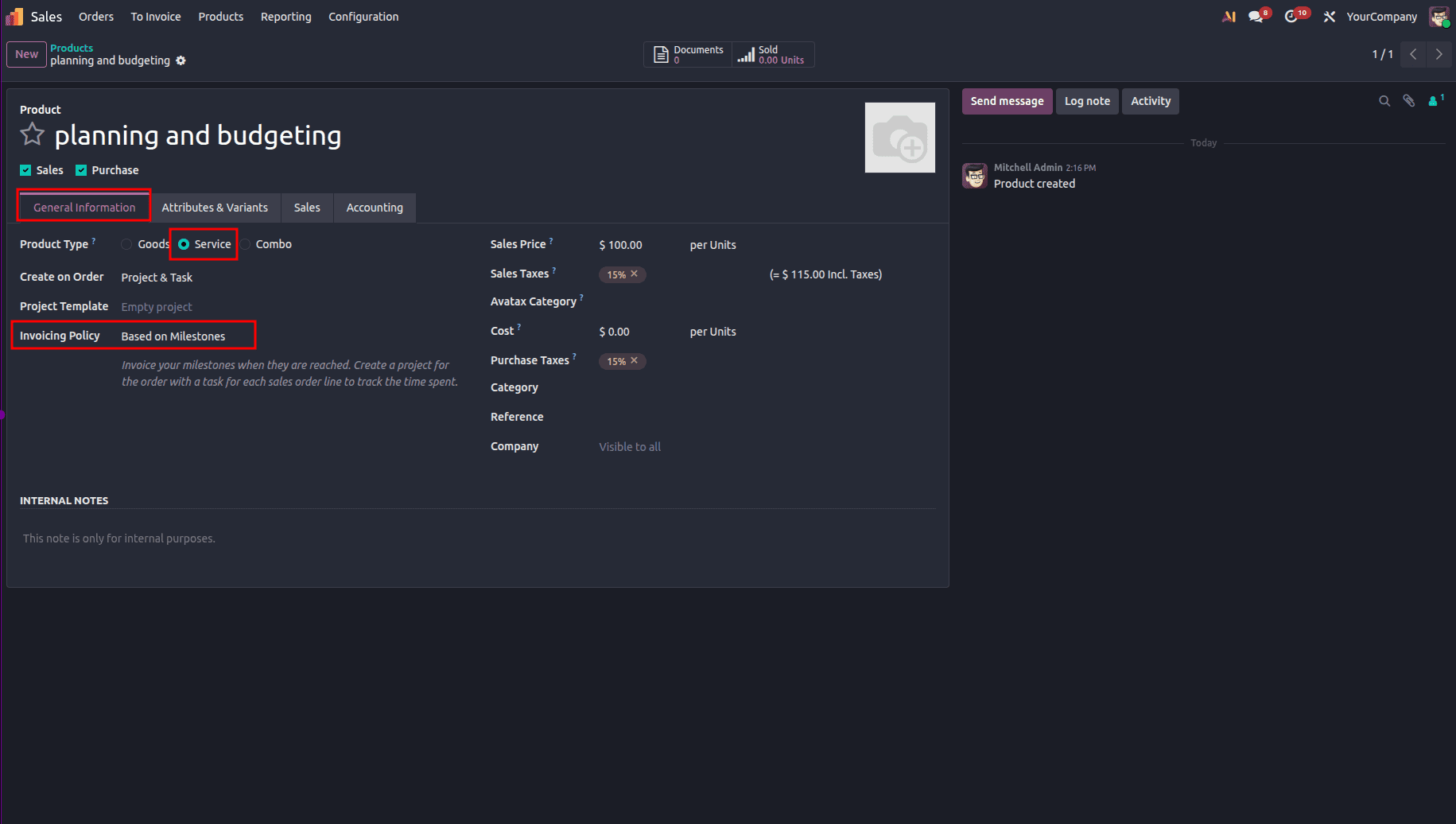
In the case of projects that involve significant resources or have higher values attached to them, Milestone-Based Invoicing allows for a realistic means of breaking down billing into smaller units. The milestone is essentially a specific stage in the project, including design, implementation, testing, etc., which allows the client to pay for the project. In Odoo 19, each milestone is set up as an individual service product. Setting this up requires going to Sales > Products > Products and selecting an existing product or creating a new product. Then, select the Invoicing Policy as Based on Milestones and configure the Create on Order field accordingly.
Once milestone products have been created, the process can be started by first creating a Sales Quotation and entering the milestone products within the Order Lines tab.
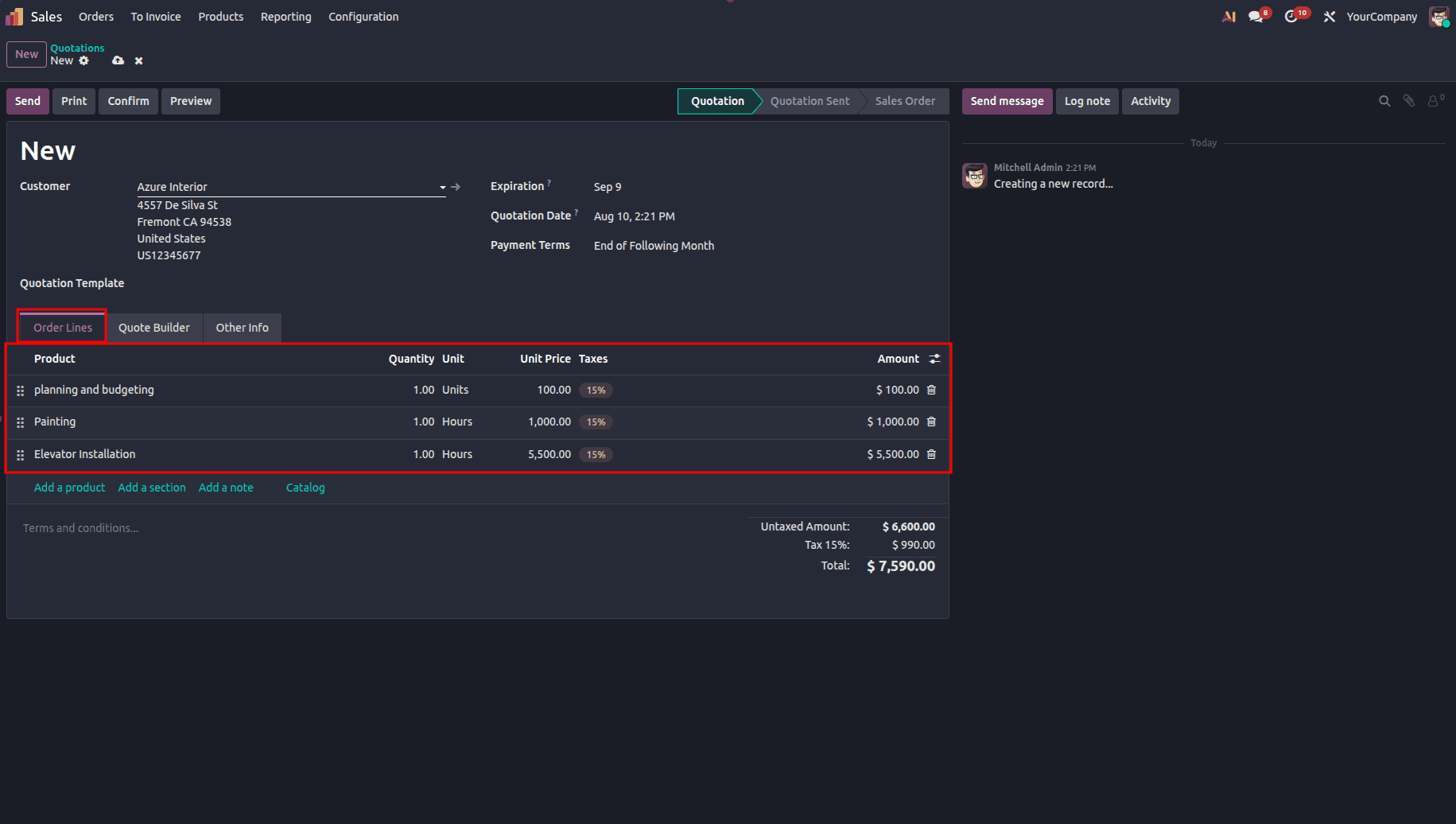
Upon verification of the quote, the same is turned into a sales order, and the appropriate smart buttons are shown depending on the Create on Order setup of the product. In this list of options, the Milestones button gives direct access to the milestone management interface.
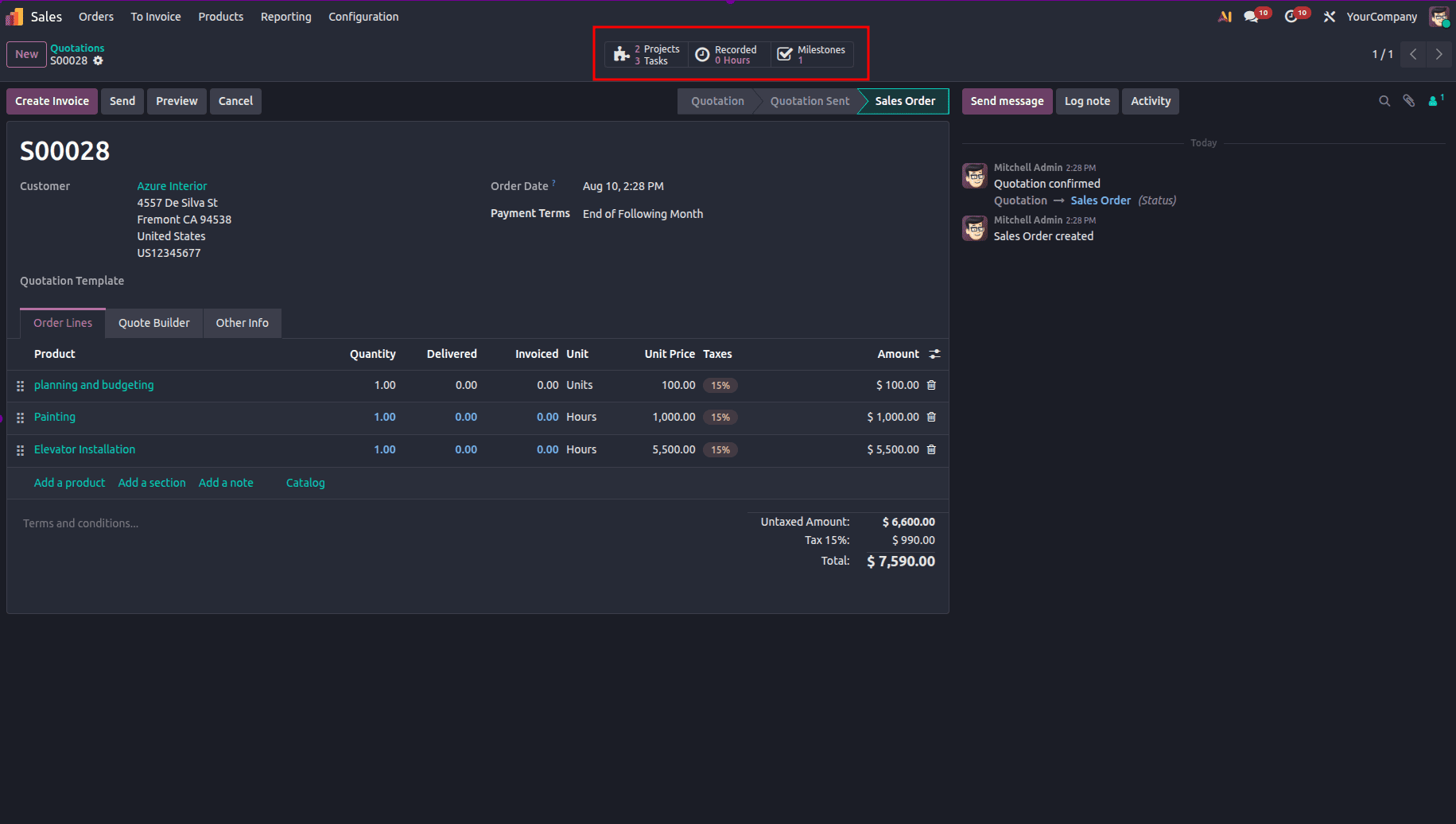
Tasks can be generated for each milestone manually or automatically, depending on how the product is configured. Users can access the task form through the Tasks smart button, fill in the task form, and select the right value for the Milestone field.
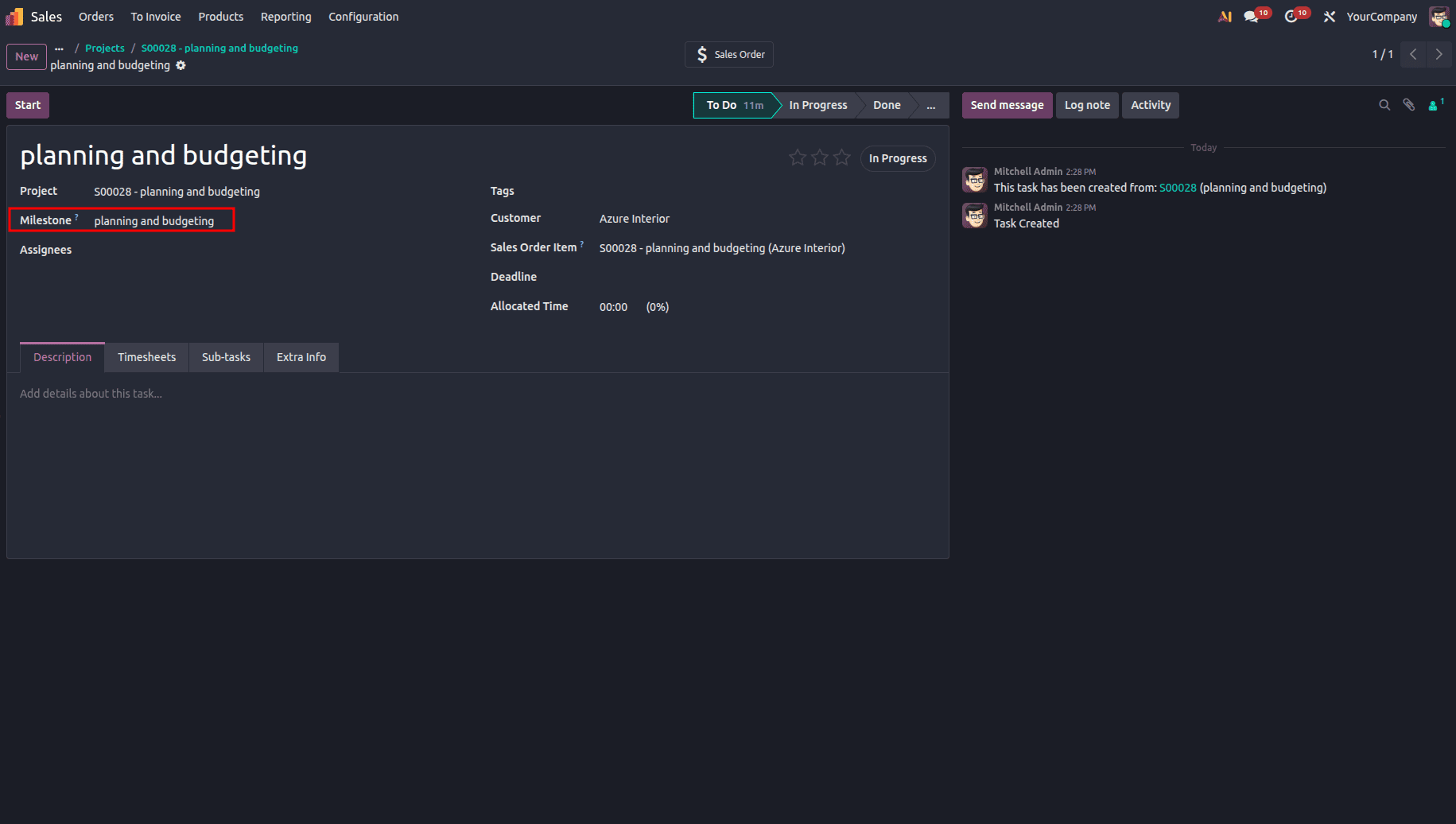
To make sure that everything has been properly set up, go through the same steps for each task relating to a project milestone. After connecting all tasks to their respective milestones, the employees will be able to enter their progress using the task forms. When a task is done, then its milestone has been accomplished.
At this stage, you can now proceed with invoicing the milestone. How can you accomplish this? You need to go back to the sales order.
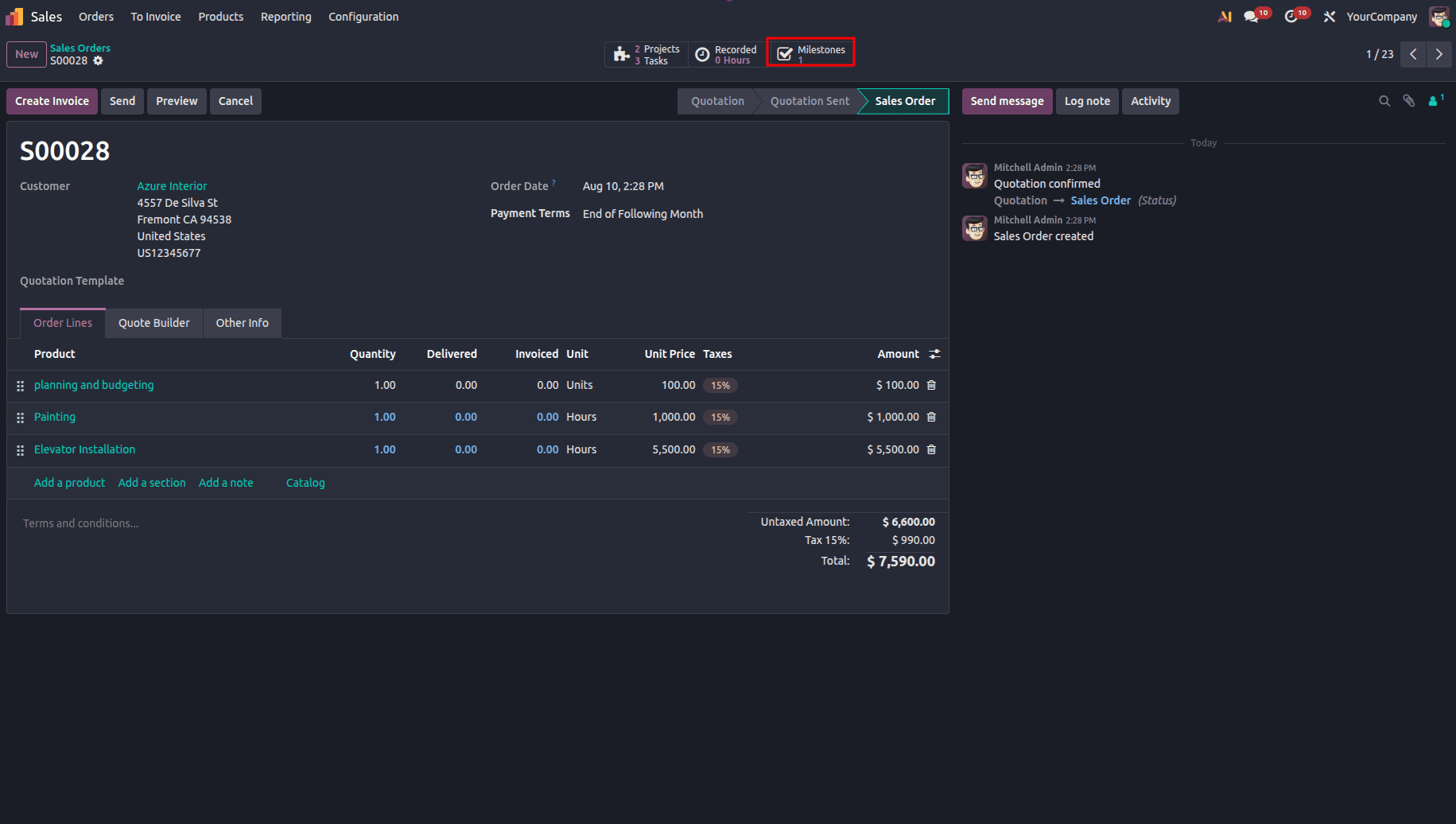
For this, navigate to the Sales Order form and click on the smart button for Milestones to see the list of milestones for this sales order. You have to find the milestone related to the completed task and tick the checkbox under the Reached column.
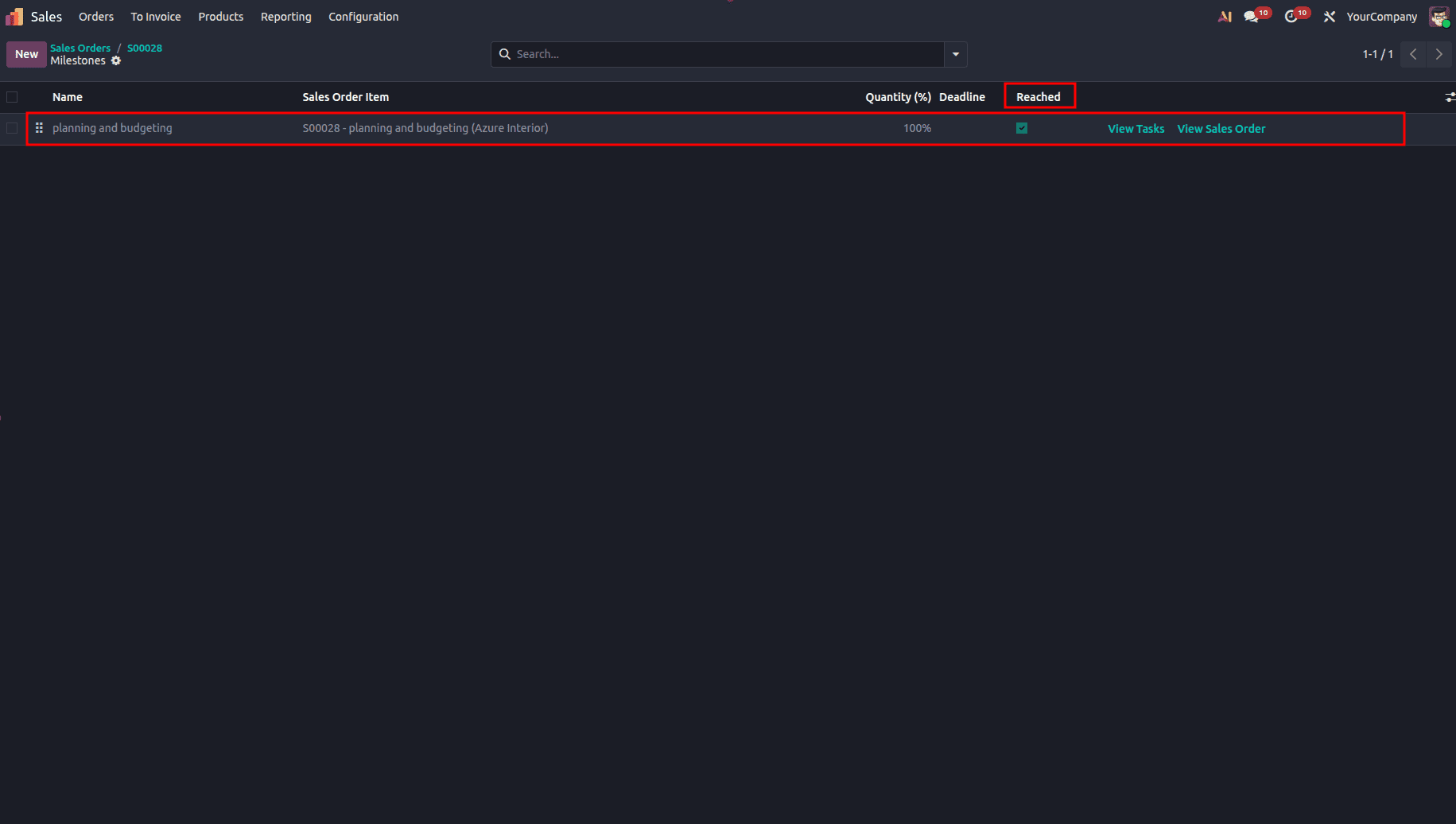
This shows that the milestone has been accomplished and is now available for billing. After that, go back to the main sales order through the View Sales Order button or via the breadcrumb navigation. You will notice that there is a new value present in the Delivered cell.
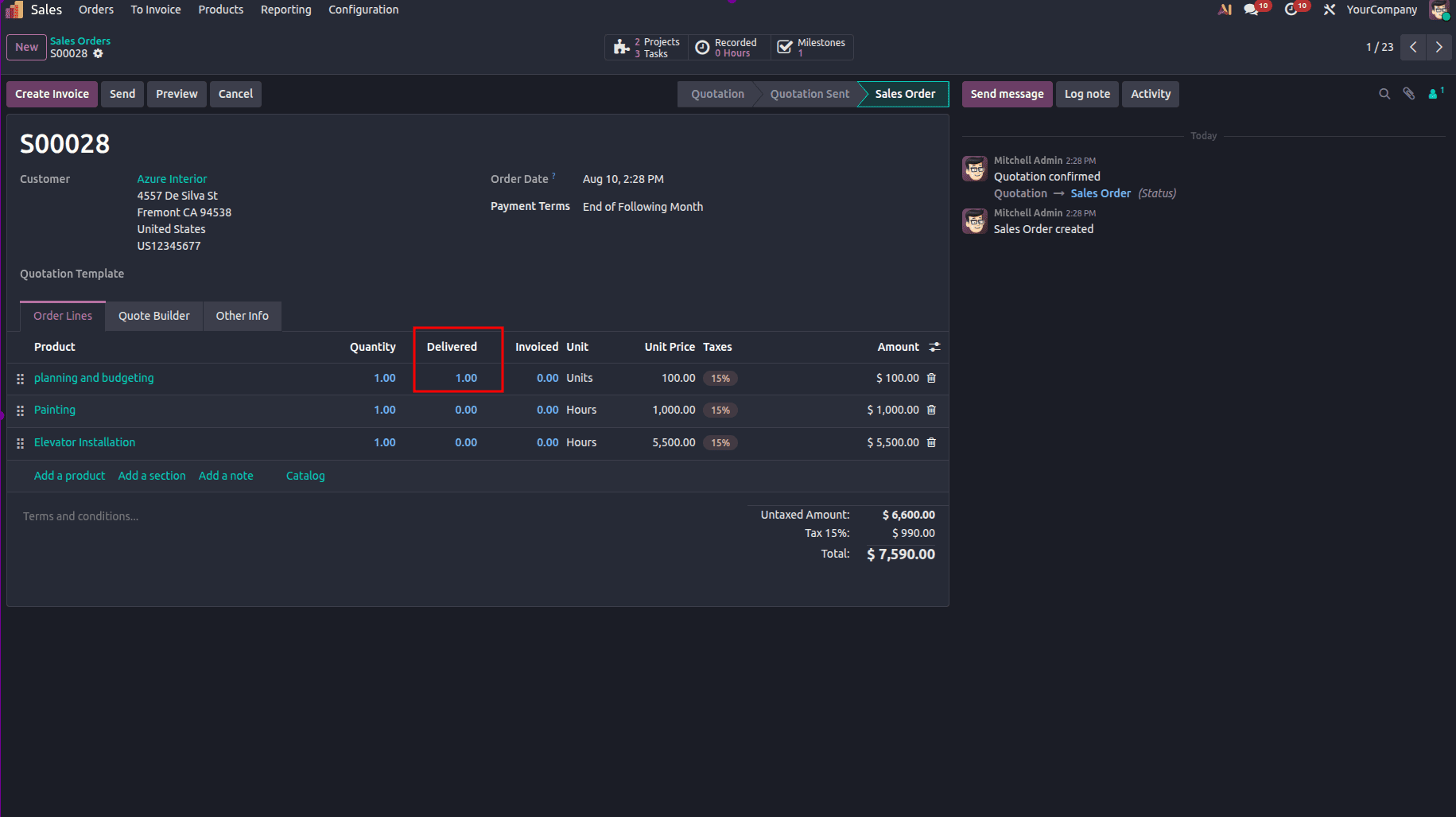
For generating an invoice for this milestone, you need to click the Create Invoice option that appears on the top left side of the sales order form.
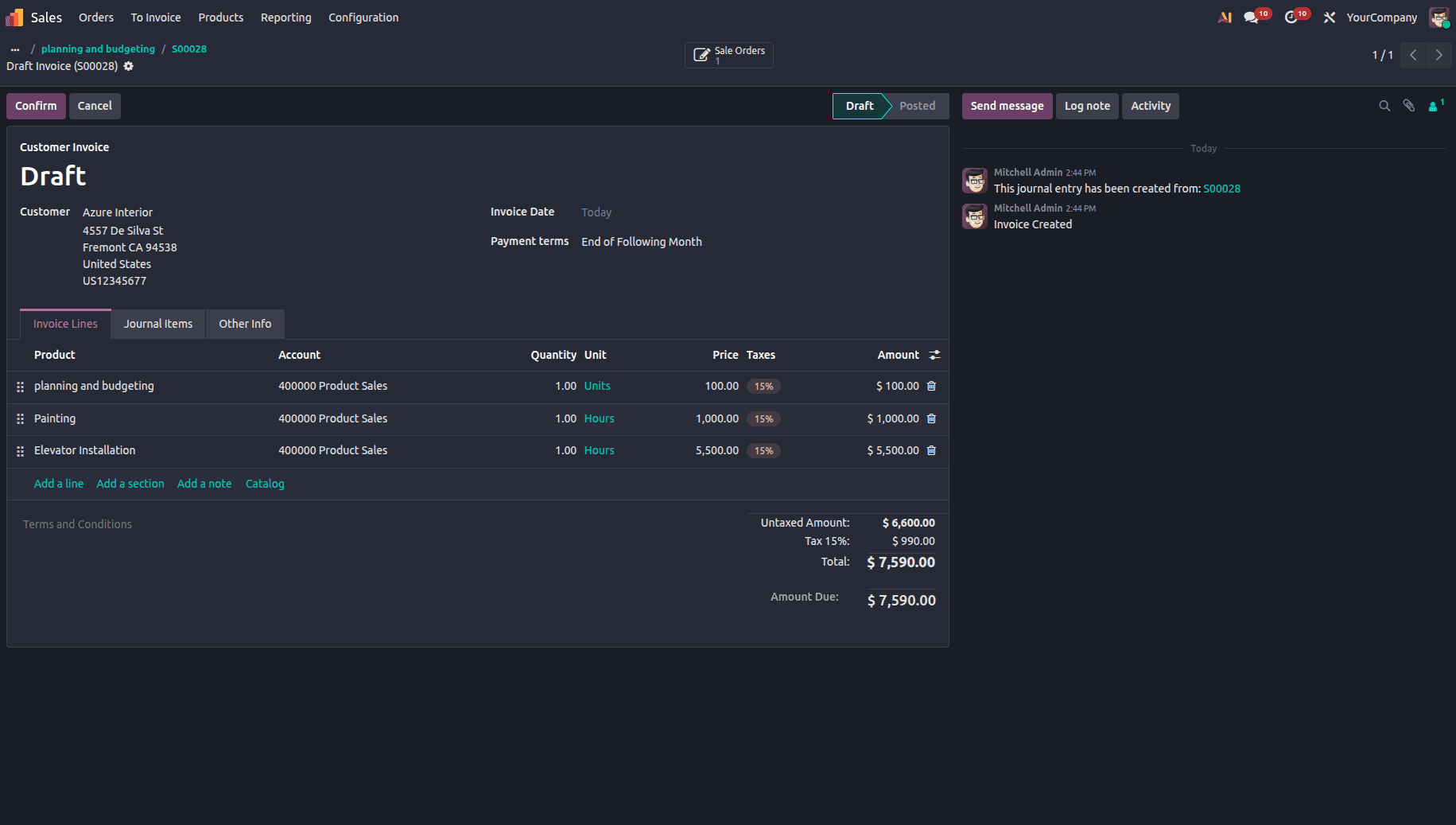
After creation of the invoice and completion of the payment by the customer, the Invoiced field in the sales order is updated automatically.
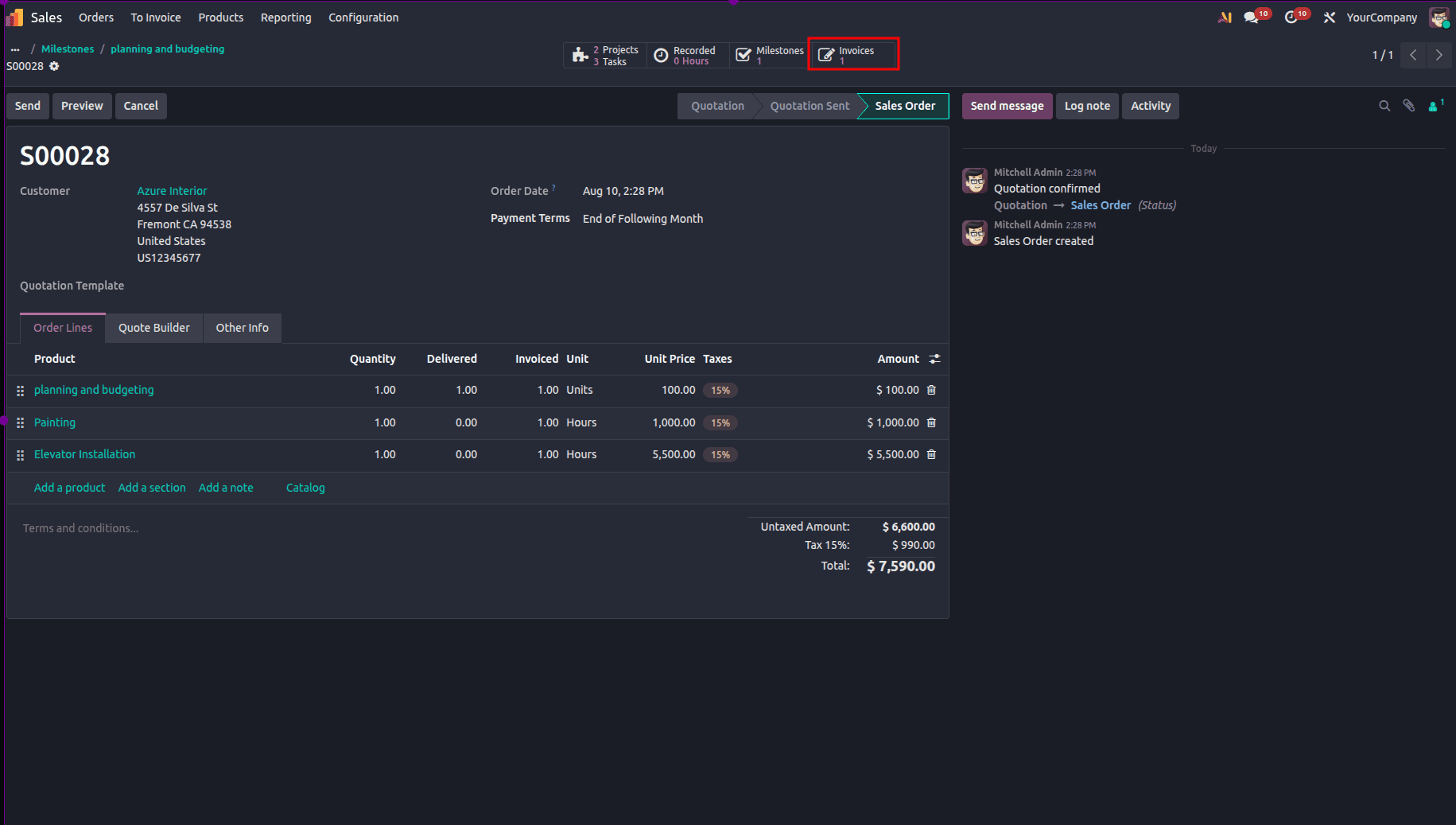
There will be another smart button known as Invoices, located at the top of the screen, that will allow you to view all invoices associated with the sales order. Follow the same steps as each milestone is completed, creating the relevant invoice and making the payment. Follow this procedure until you have accomplished all milestones in the project and settled the total sales order.
Invoicing Based on Prepaid/Fixed Pricing
Prepaid/Fixed Pricing is a convenient way to bill for those providers who use cash on delivery or charge fixed fees for their services. To enable this option, you need to choose the Service Product type and mark Prepaid/Fixed Pricing for the Invoicing Policy.
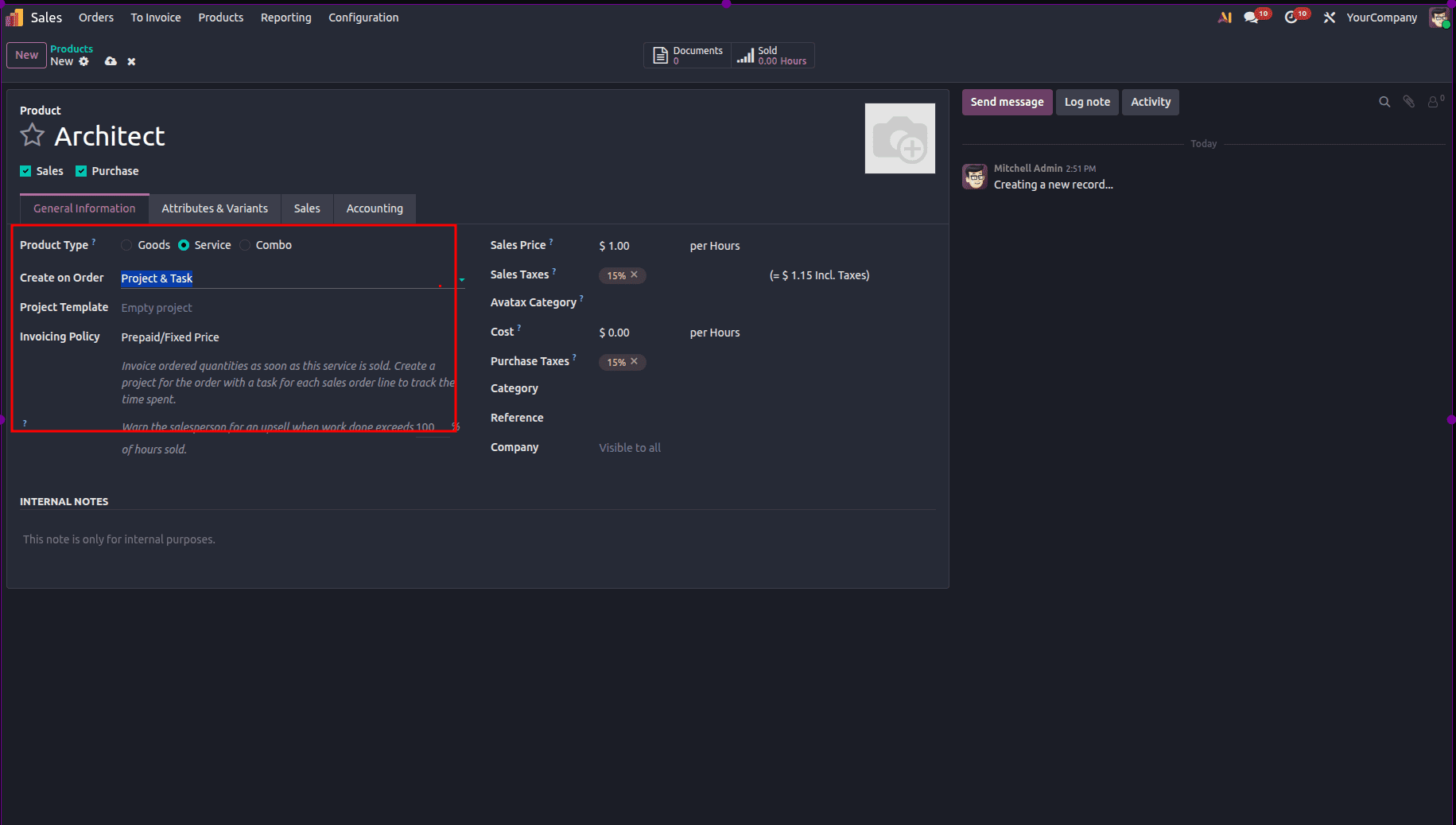
When the product is set up, one is able to create and validate a sales order. Through this kind of invoicing approach, there is an option to invoice the total cost of the services that have been ordered before starting the project.
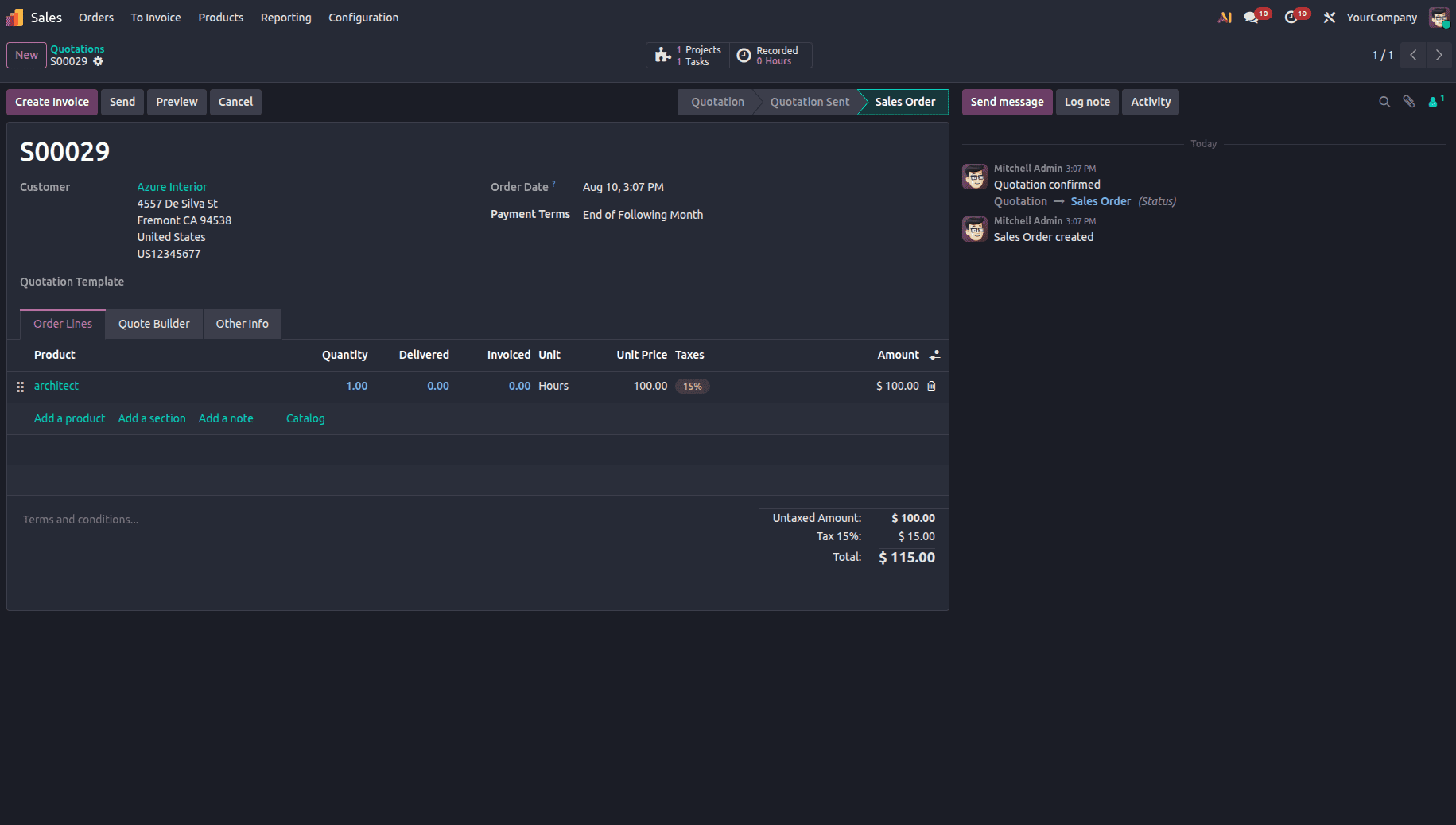
After confirming the sales order, the users will get access to the project through the smart button. They will use the button named “Create Invoice” to create invoices. Various types of invoices are available, such as Regular Invoice, Down Payment (Percentage), Down Payment (Fixed Amount), etc. They will create the invoice that will appear in the Invoices tab of the sales order.
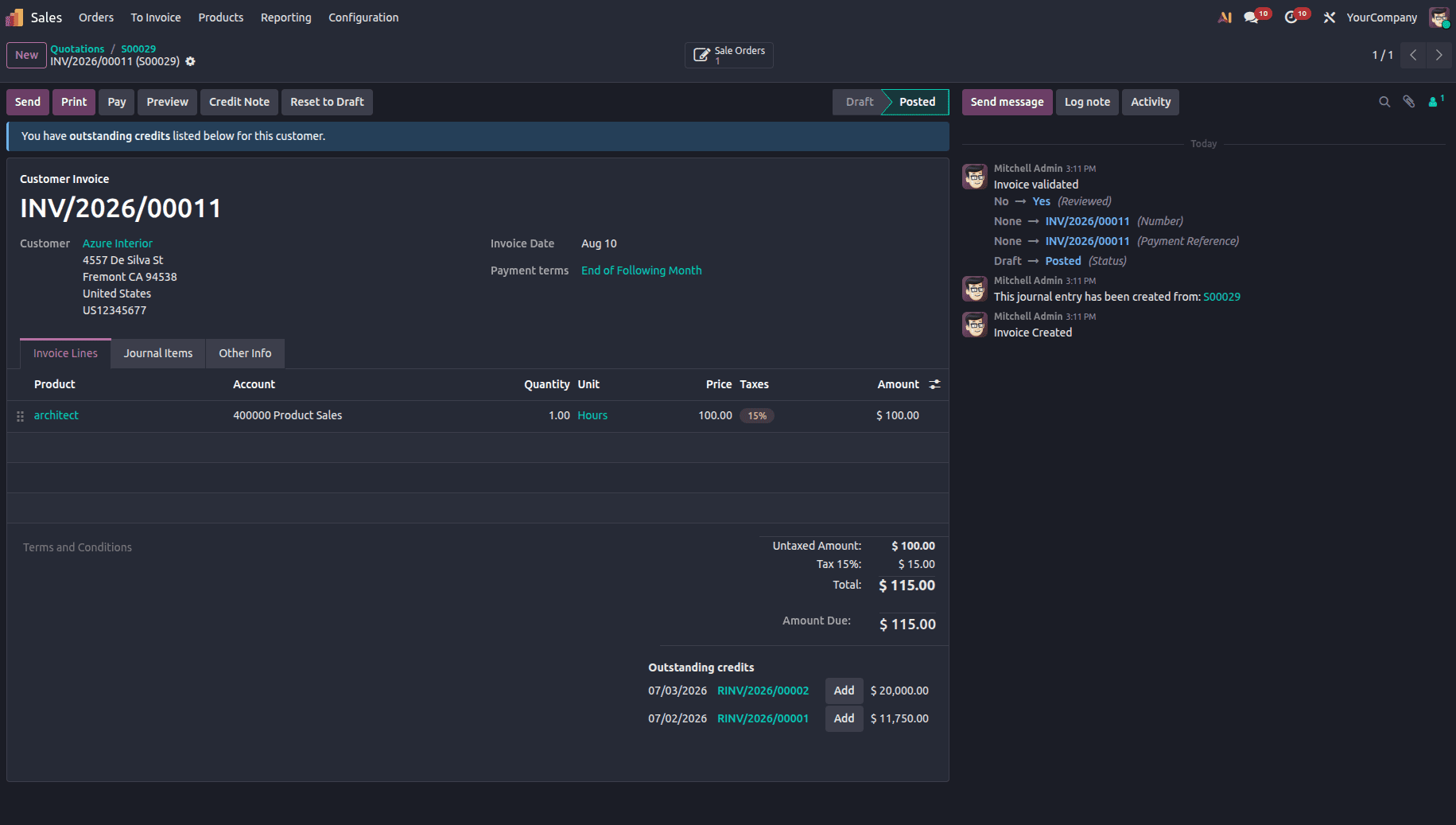
This will guarantee correct linking and tracing of fixed price services with their invoices.
Invoicing Based on Delivered Quantity (Manual)
This approach gives the flexibility of invoicing the customer depending on the services that have been completed, without following predefined measures. This method would be ideal for business cases whereby the completion of services follows an incremental approach and is not related to any milestone or timesheet.
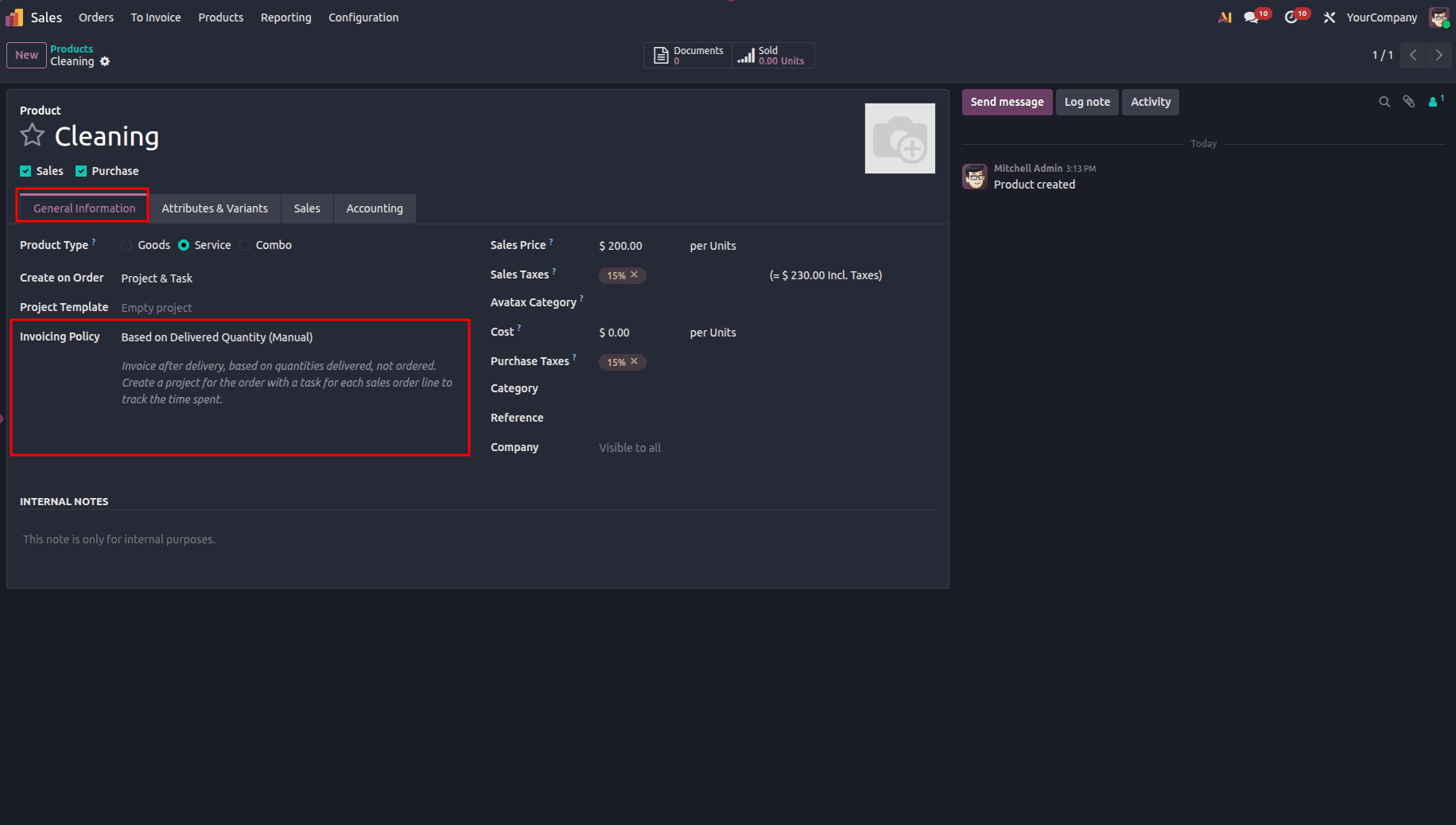
Configuring this is done by setting the Invoice Policy of the product to “Based on Delivered Quantity (Manual)” and setting the Create on Order field to “Project and Task”.
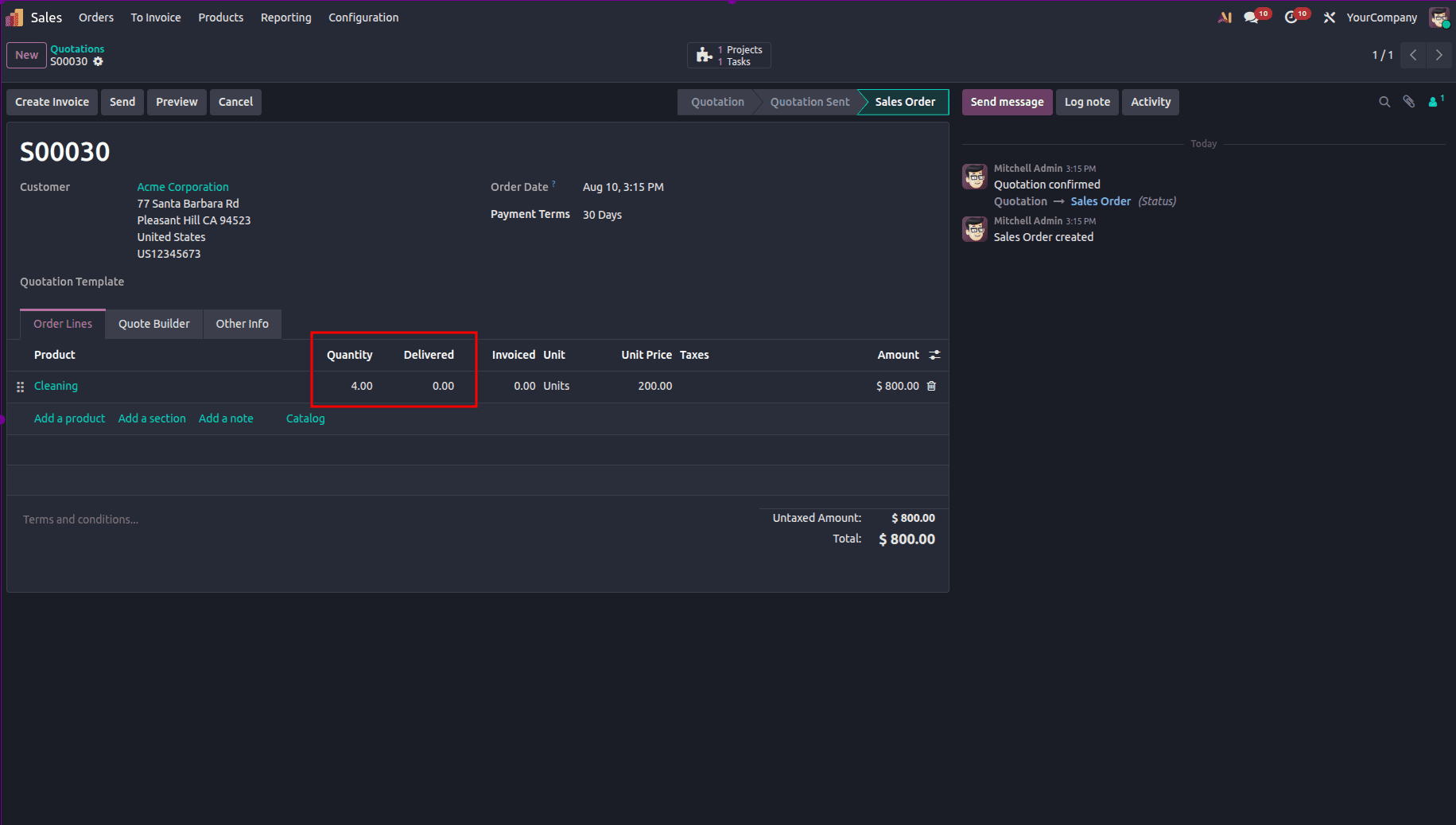
In case this service product is used to create the sales order, Odoo will automatically generate a project and its tasks. The initial value of Delivered Quantity will be zero, but as the process develops, users will be able to manually change its value based on the real delivered quantity of services.
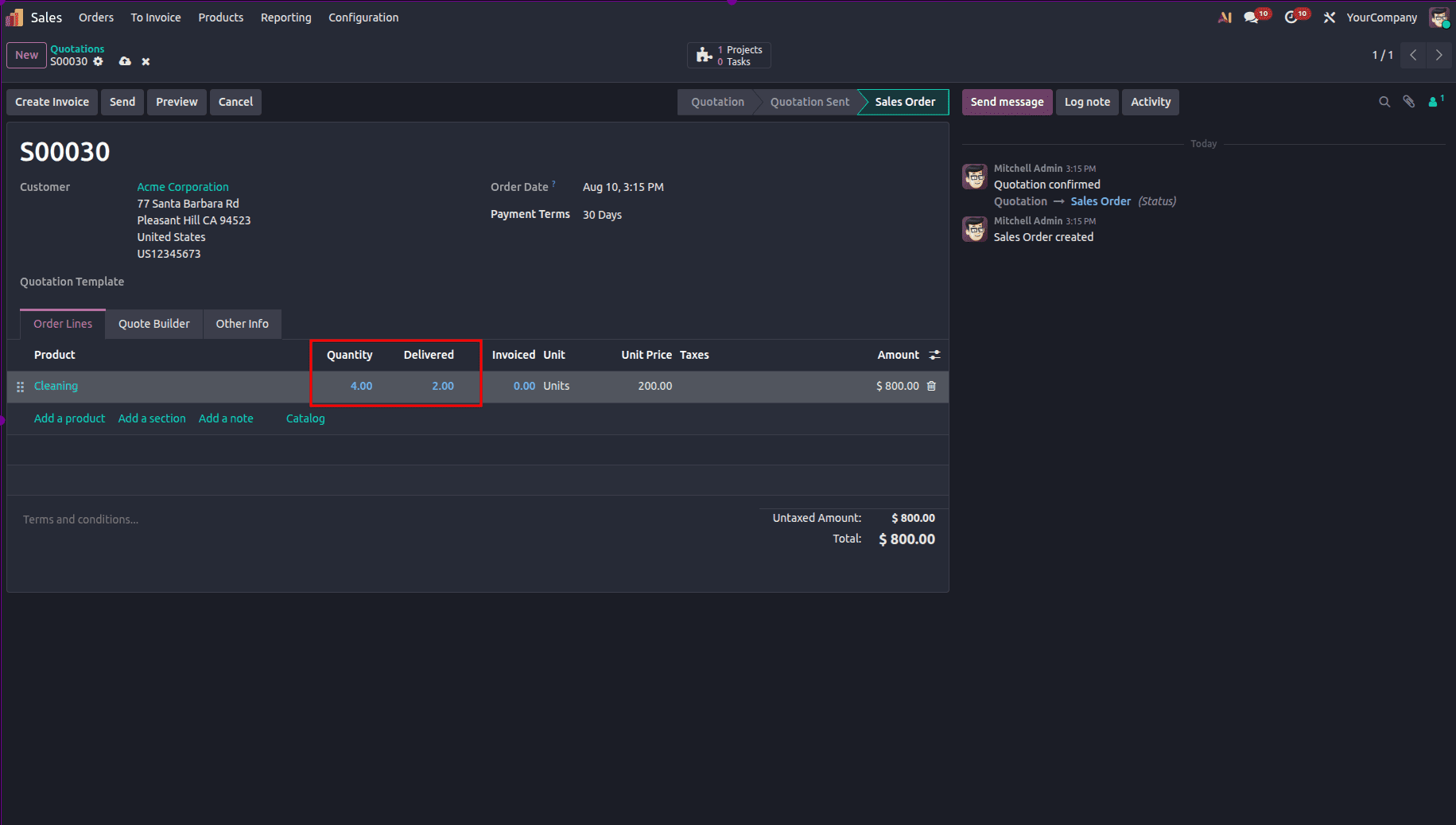
After the update is made, the “Create Invoice” button can be clicked to create an invoice.
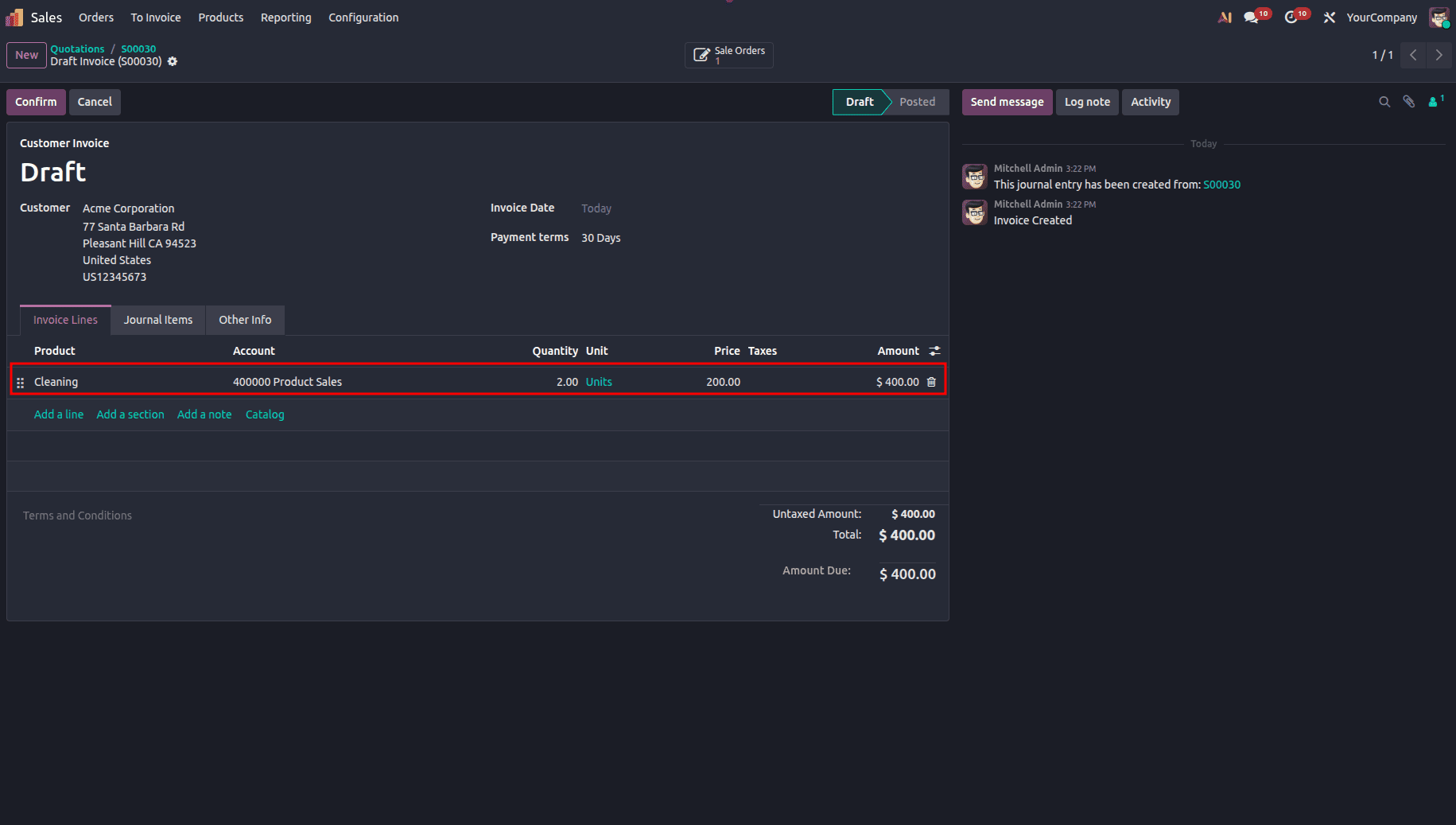
After verification and validation, the invoice can be validated and viewed through the Invoices smart button.
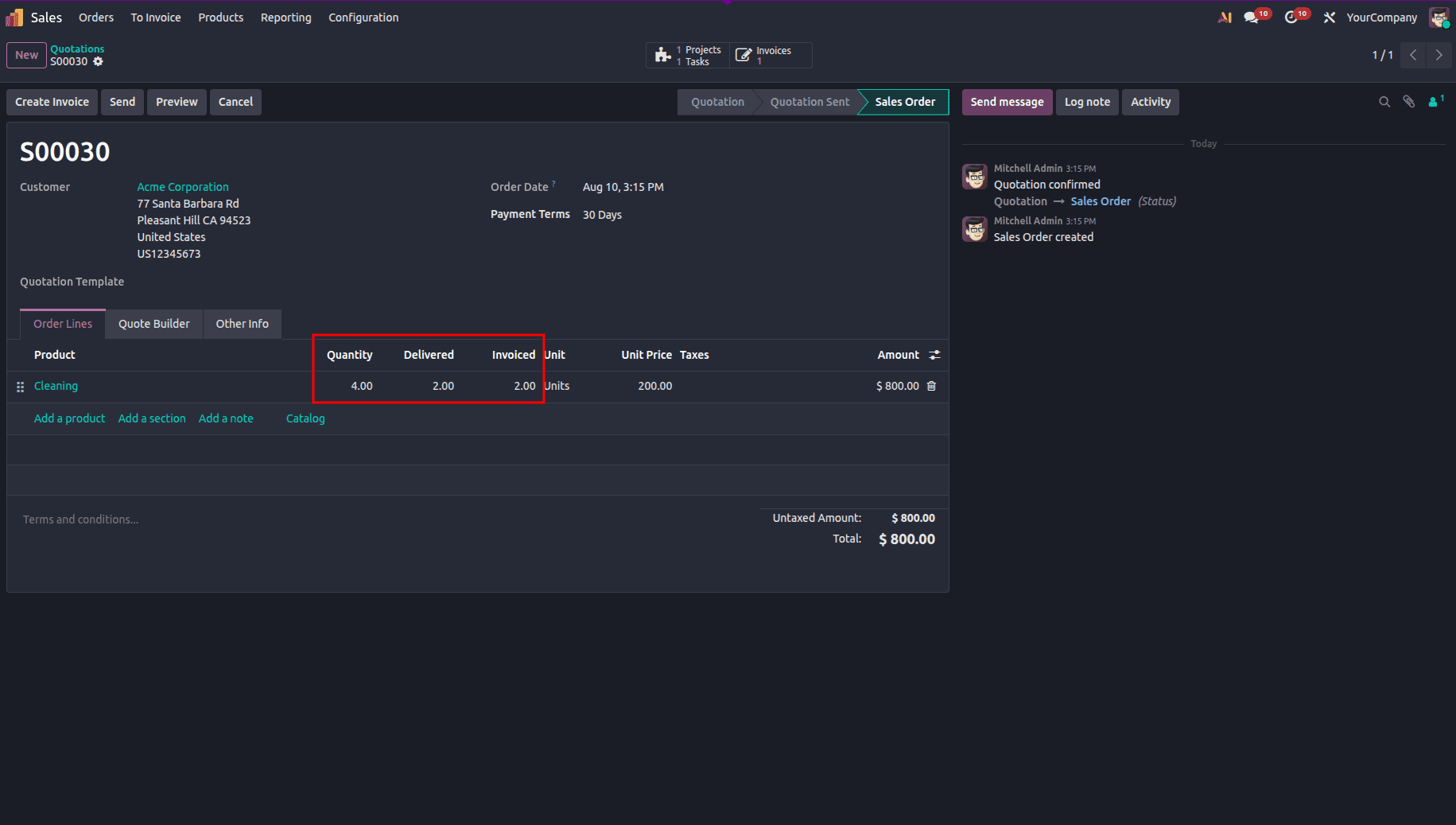
This process ensures that the client pays only for the work that is already done and provided.
The complete invoicing feature in Odoo 19 offers organizations the opportunity to tailor the process of billing to fit their unique service delivery models. These include organizations that bill according to hours tracked, fixed costs, project milestones, or phased service delivery. By choosing and setting up the right invoicing strategy, organizations can effectively invoice their projects.
To read more about Overview of Service Invoicing Policies in Odoo 18 Project Module, refer to our blog, Overview of Service Invoicing Policies in Odoo 18 Project Module.