The Point of Sale (POS) system in Odoo 19 provides a smooth and user-friendly approach to handling retail transactions from a single, integrated platform. Odoo POS is made to streamline the sales process while maintaining consistency throughout your company, regardless of whether you own a café, supermarket, boutique, or multi-location retail chain.
With only a few clicks, employees can swiftly add items to an order, apply discounts, handle payments, and even print receipts thanks to its user-friendly design. Odoo provides you with real-time insights into your company's success by automatically updating inventory levels, connecting sales to customer records when necessary, and preparing data for accounting and reporting. The finest aspect? Odoo POS is essential for any fast-paced retail setting because it operates both online and offline, guaranteeing continuous operation even during internet disruptions.
We'll walk you through every step of the Odoo 19 POS sales process in this article, from product setup to transaction completion. The Products menu in the POS module allows you to configure products. Product development and associated features are comparable to those found in the Sales module.
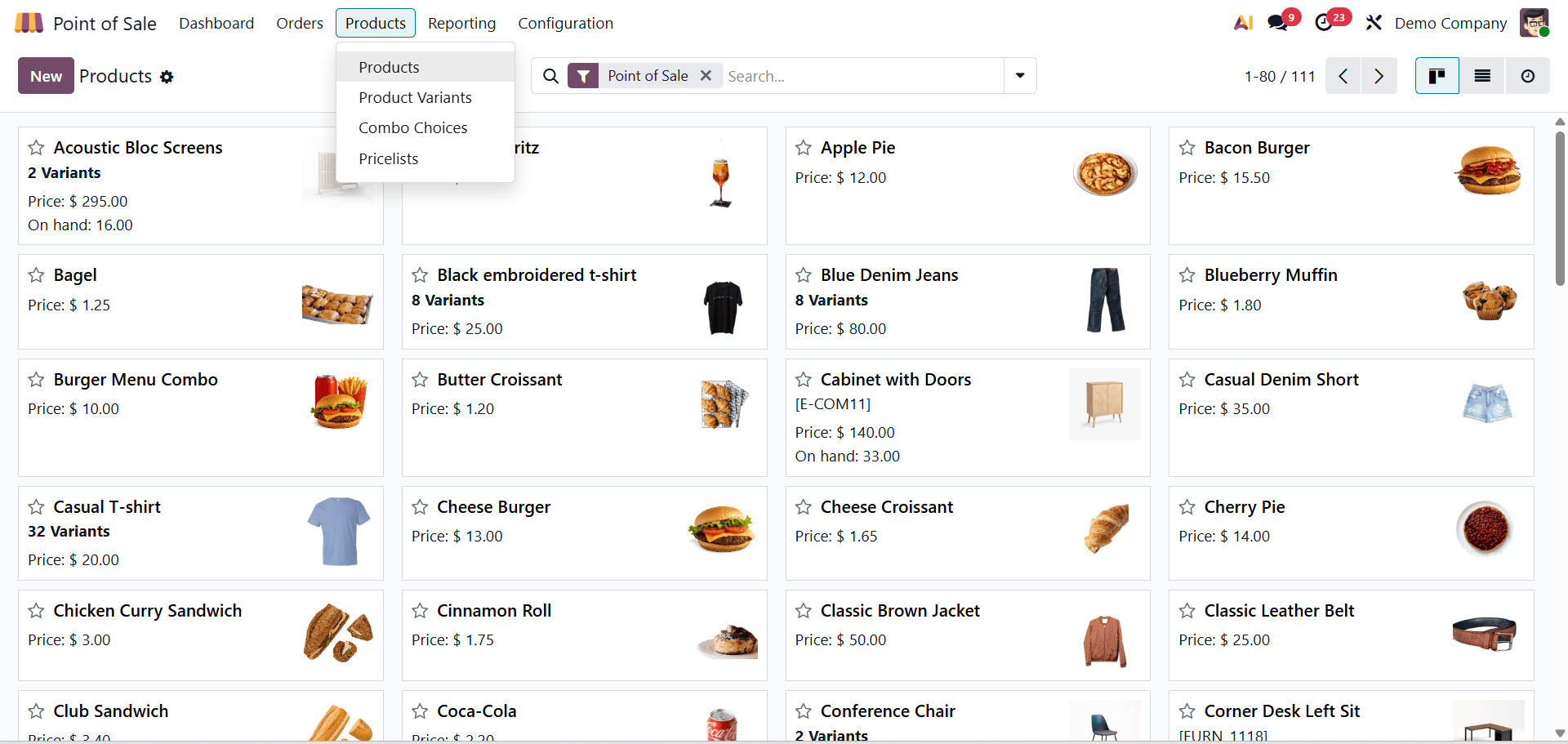
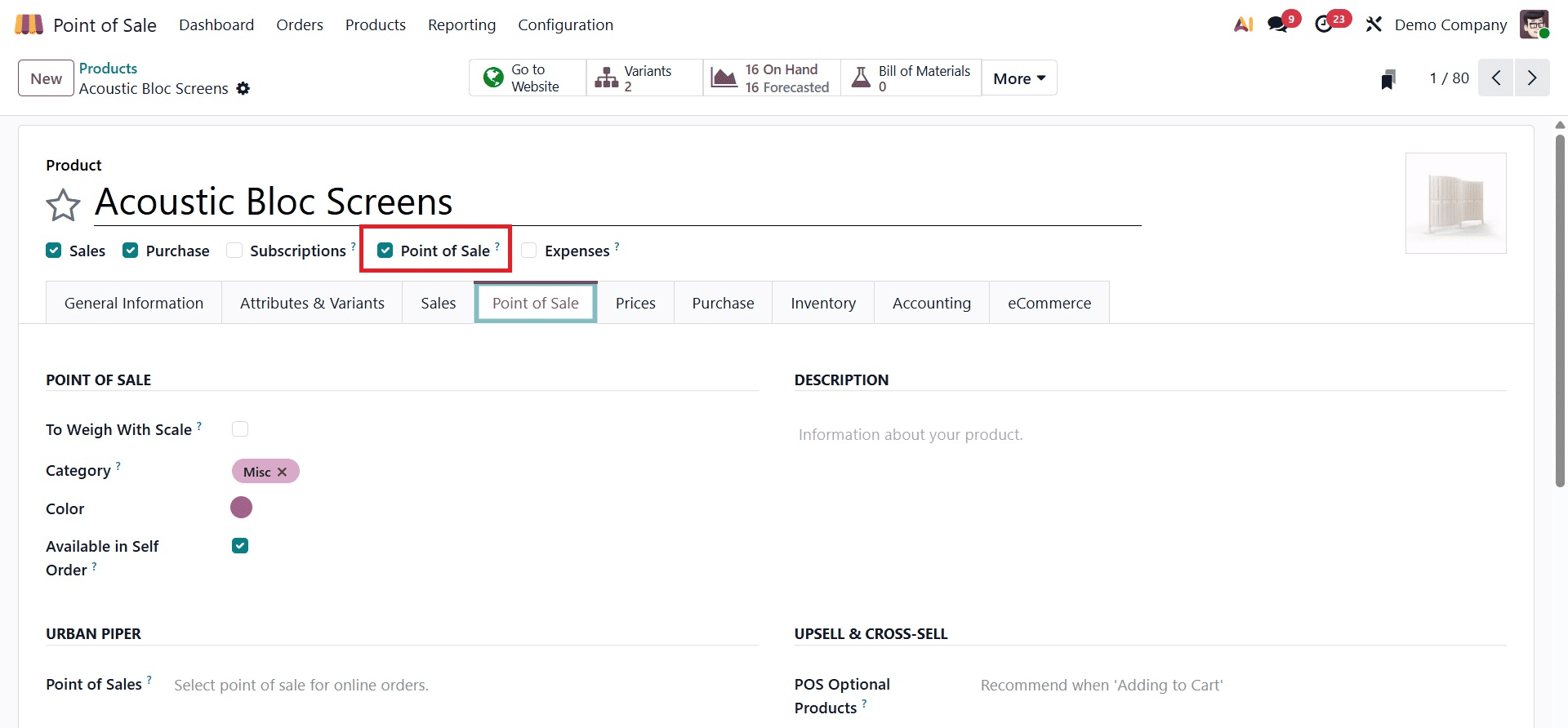
A product does not automatically show up for sale in the POS session after it is generated. We need to manually add the product to the POS. To do this, enable the Point of Sale boolean button on the product page. The PoS screen will then display this product.
This product's category might be mentioned within the Point Of Sale tab. This guarantees that the product will show up on the POS screen under the relevant category section.
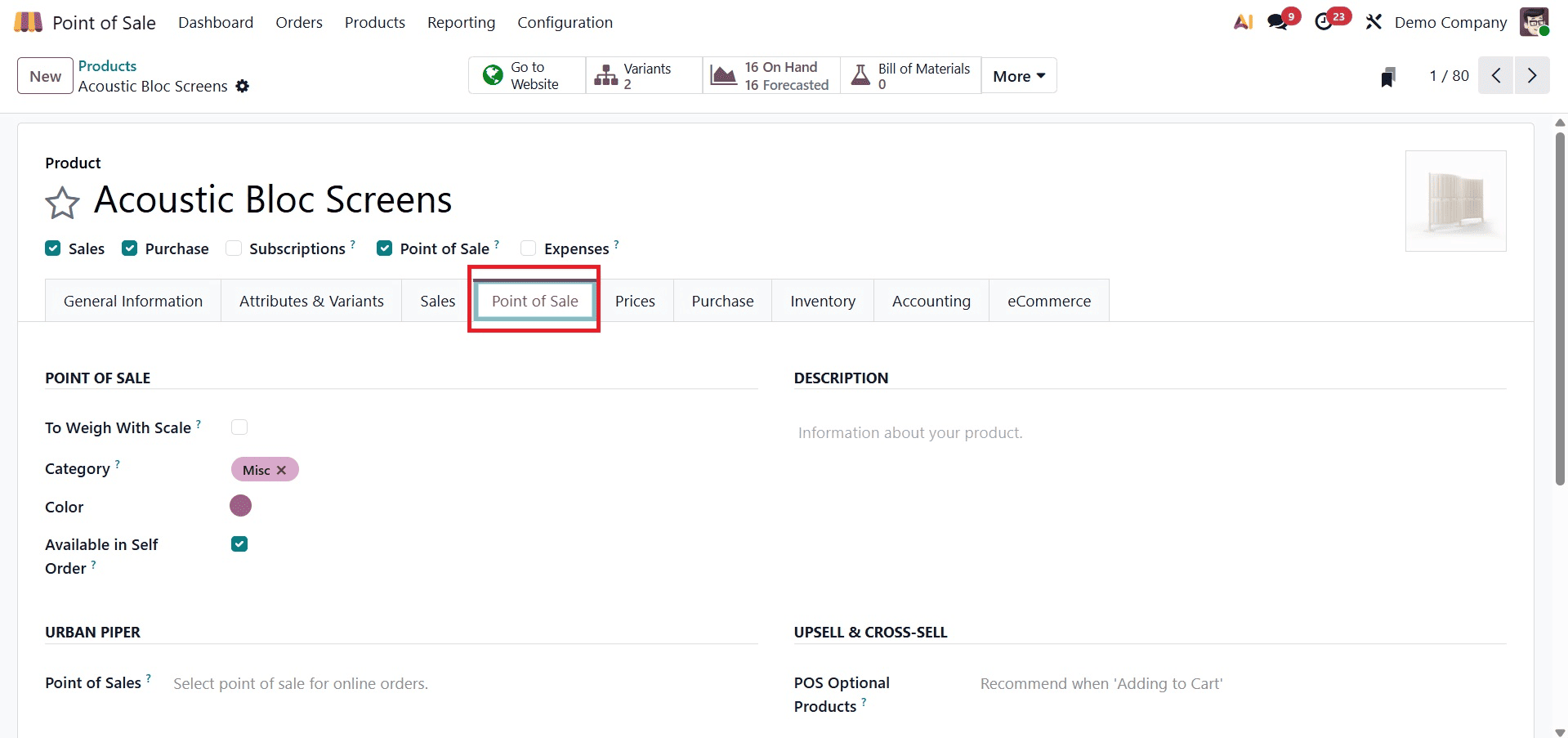
This product's category might be mentioned within the Point Of Sale tab. This guarantees that the product will show up on the POS screen under the relevant category section.
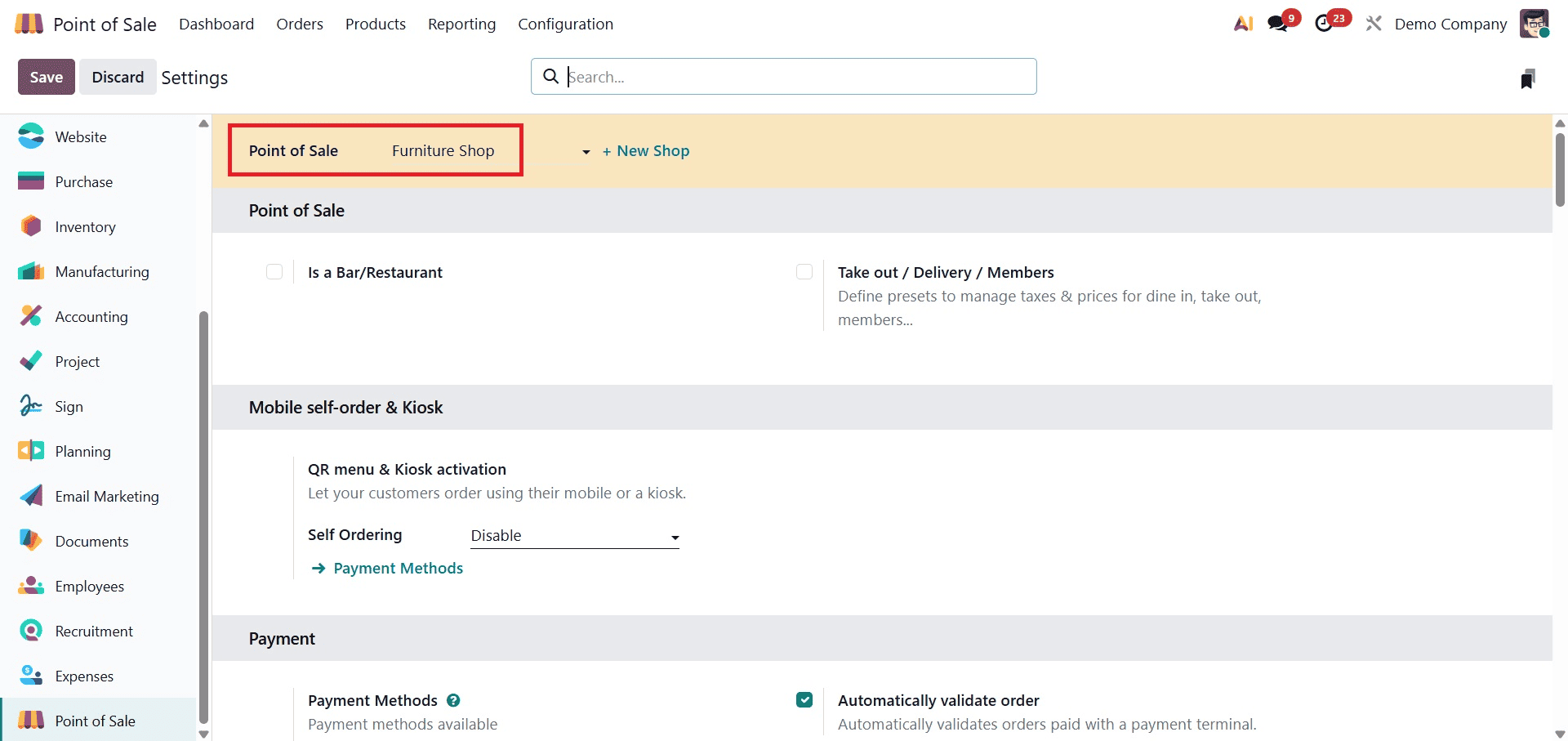
Next, locate the Restrict Categories option in the Product & POS Categories area. The categories that should be offered in the POS shop can be specified here.
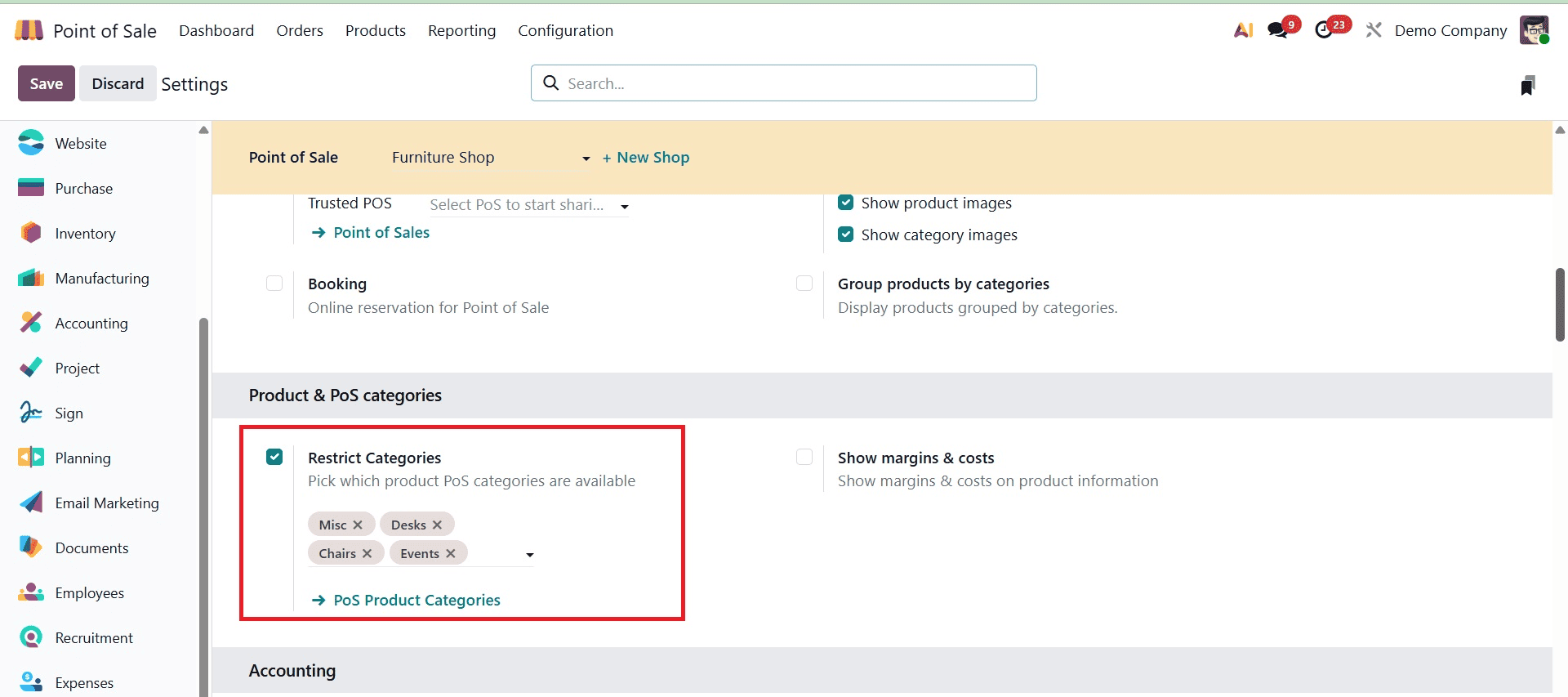
We must market our items now that we have them. From the dashboard, open the store.
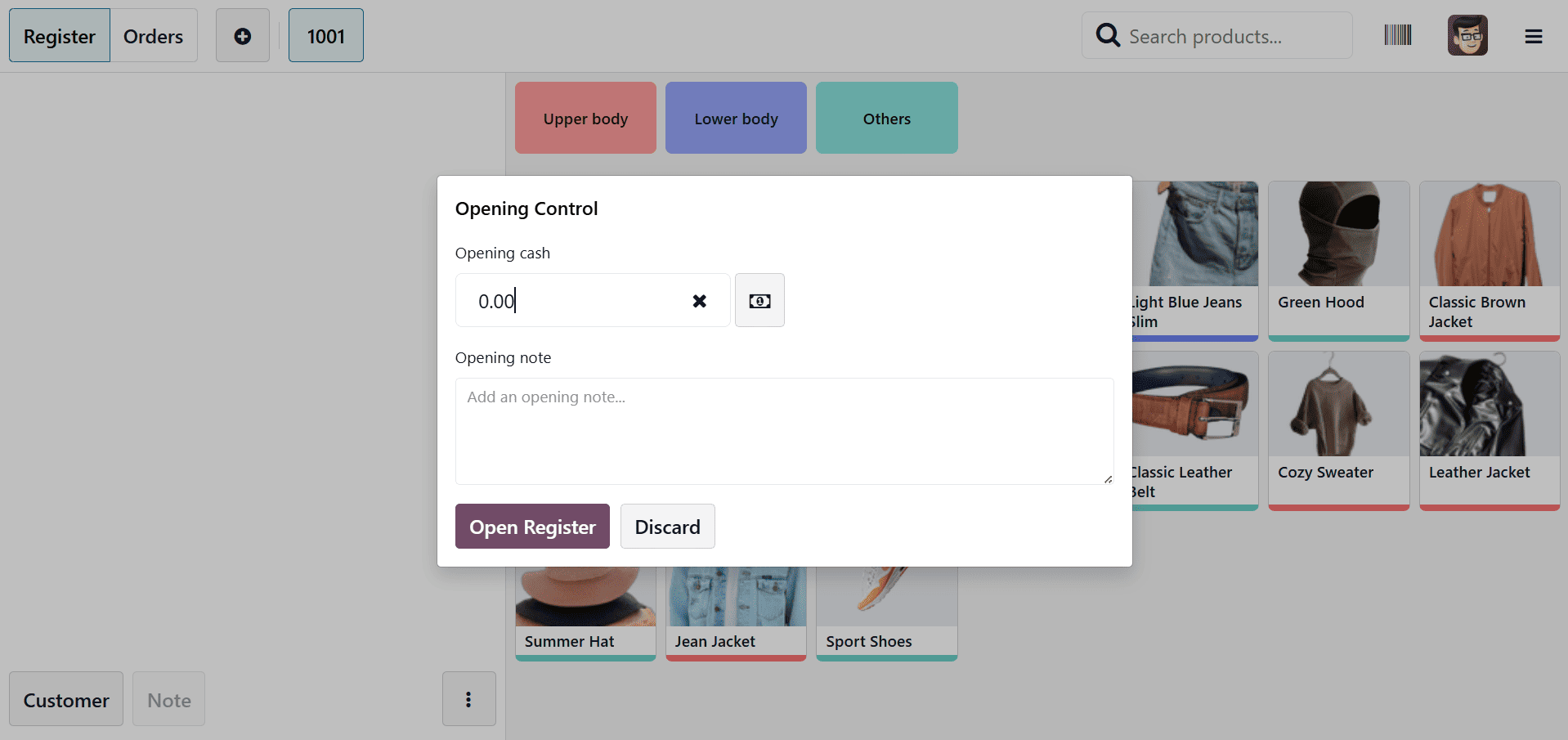
Additionally, you may manage all operations seamlessly and effectively by using the Mobo POS app, which can be downloaded from the Play Store and App Store. An opening control pop-up dialog box appears when the POS shop is opened, as seen above. You can choose to add pertinent notes and specify the session's initial balance in this dialog.
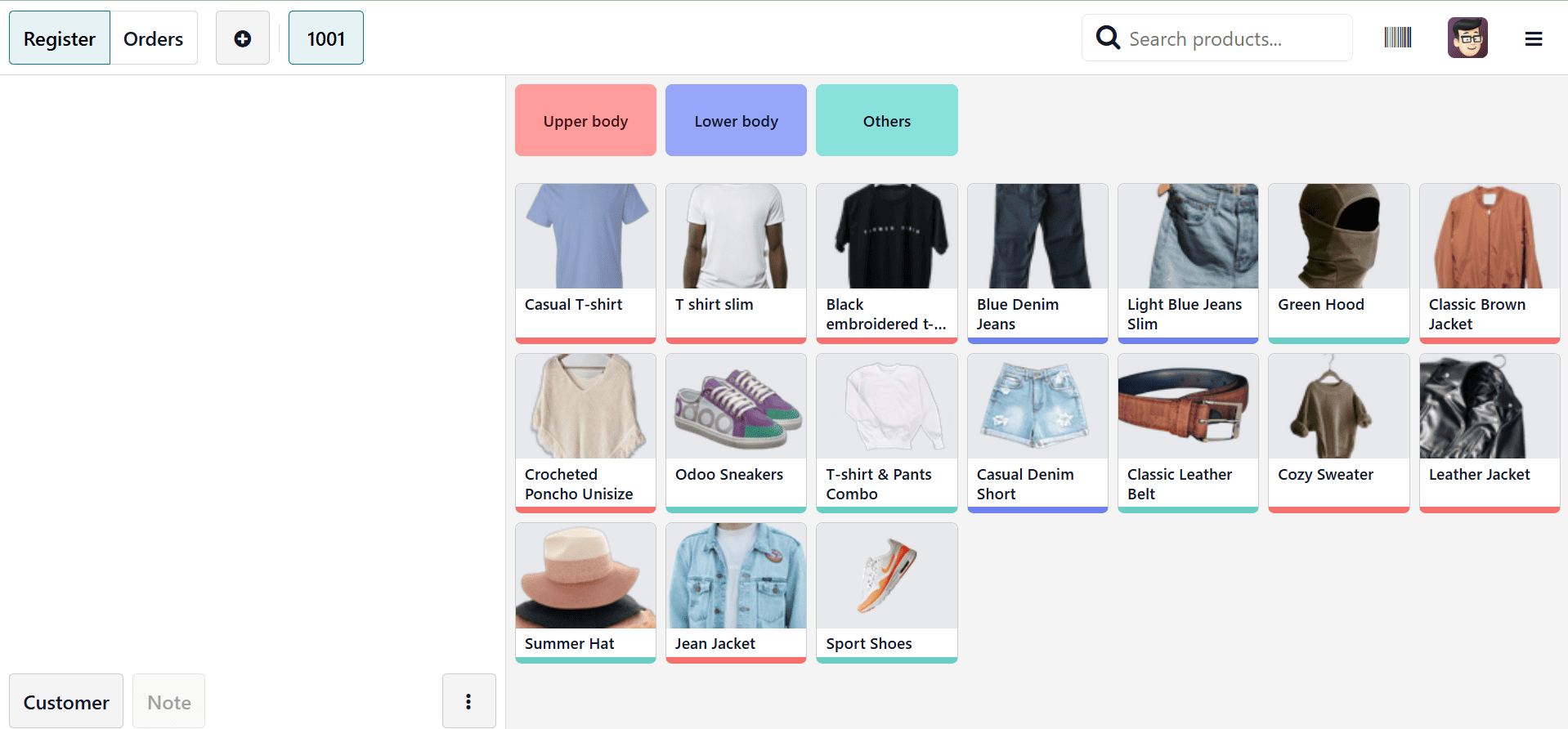
The screen shows a number of listed products that are available for purchase when you launch the POS.
To add a product to the bill, choose it from the screen. You can use the Qty button or choose the product once more to change the amount. Enter the desired quantity after choosing the Qty option; this will be noted for the product. In a similar vein, you can customize the product's price by choosing the Price button. The similar method can be used to apply discounts.
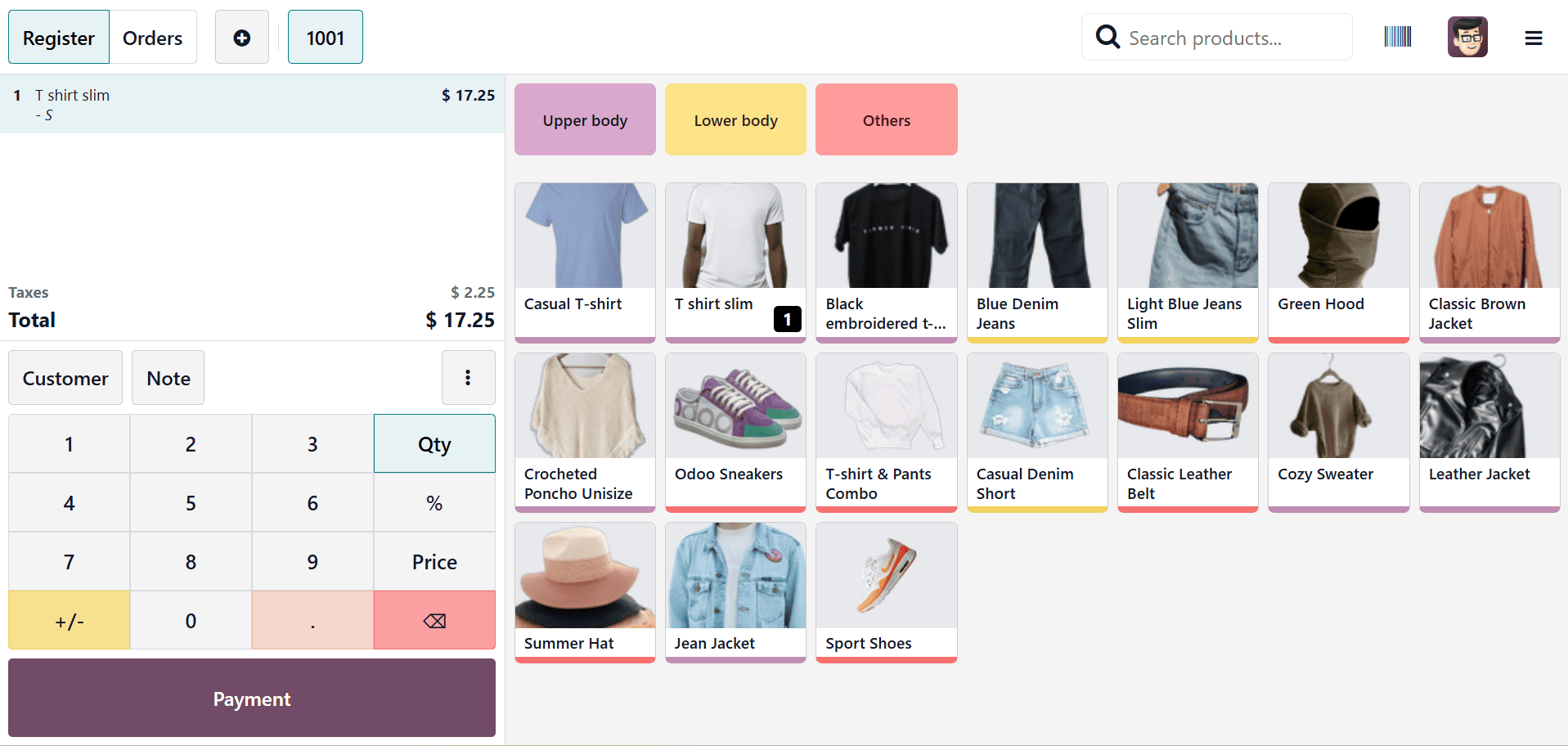
Thus, we can go to the payment area after choosing products in PoS. There will be a new interface for creating invoices and making payments.
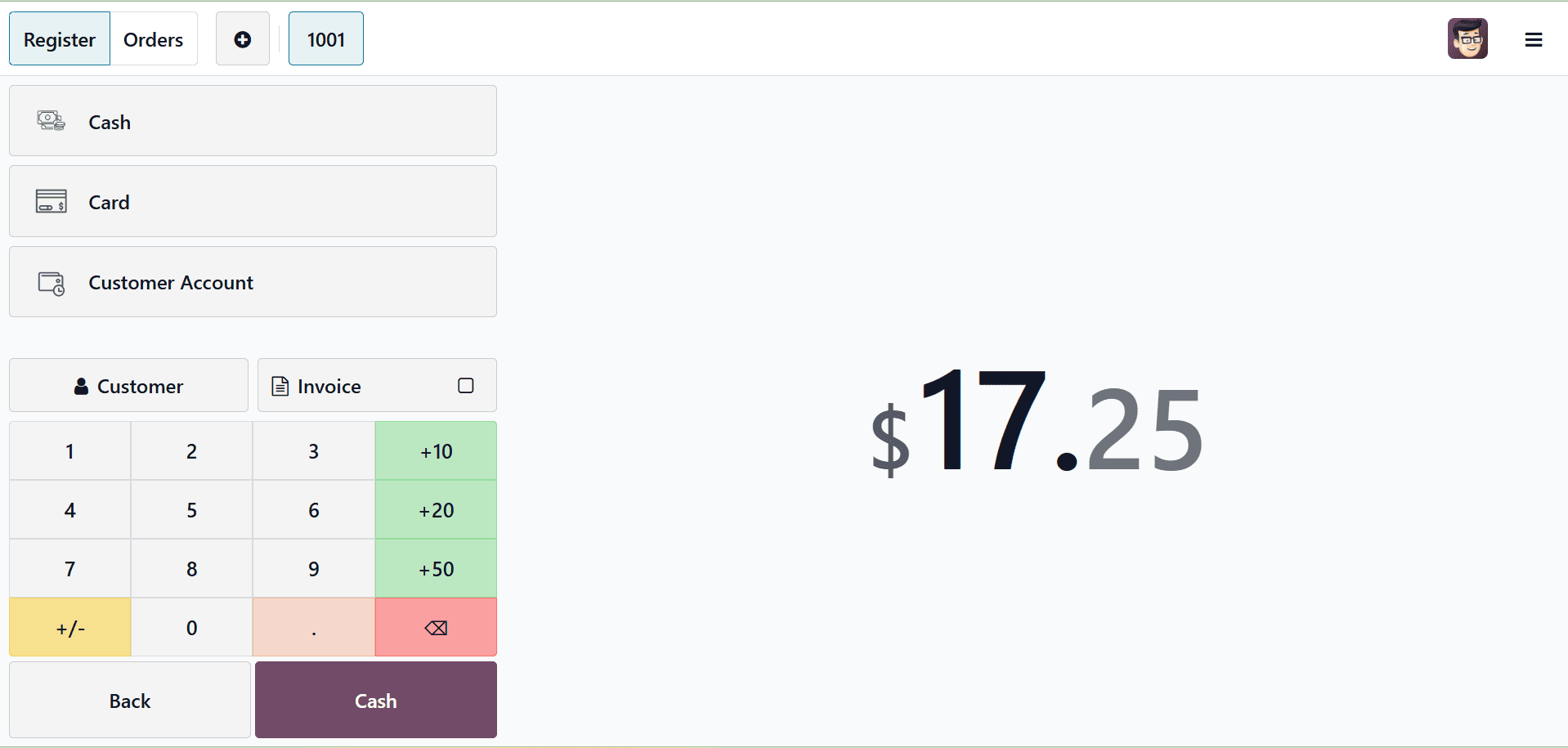
From this section, choose the suitable payment option. By selecting the appropriate payment option, the system can precisely track whether the customer paid with cash or a credit card. After that, we can print the bill and verify it. The customer must provide their information in the Customer area if they require shipping or want an invoice. And allow the invoice to be generated from this point on.
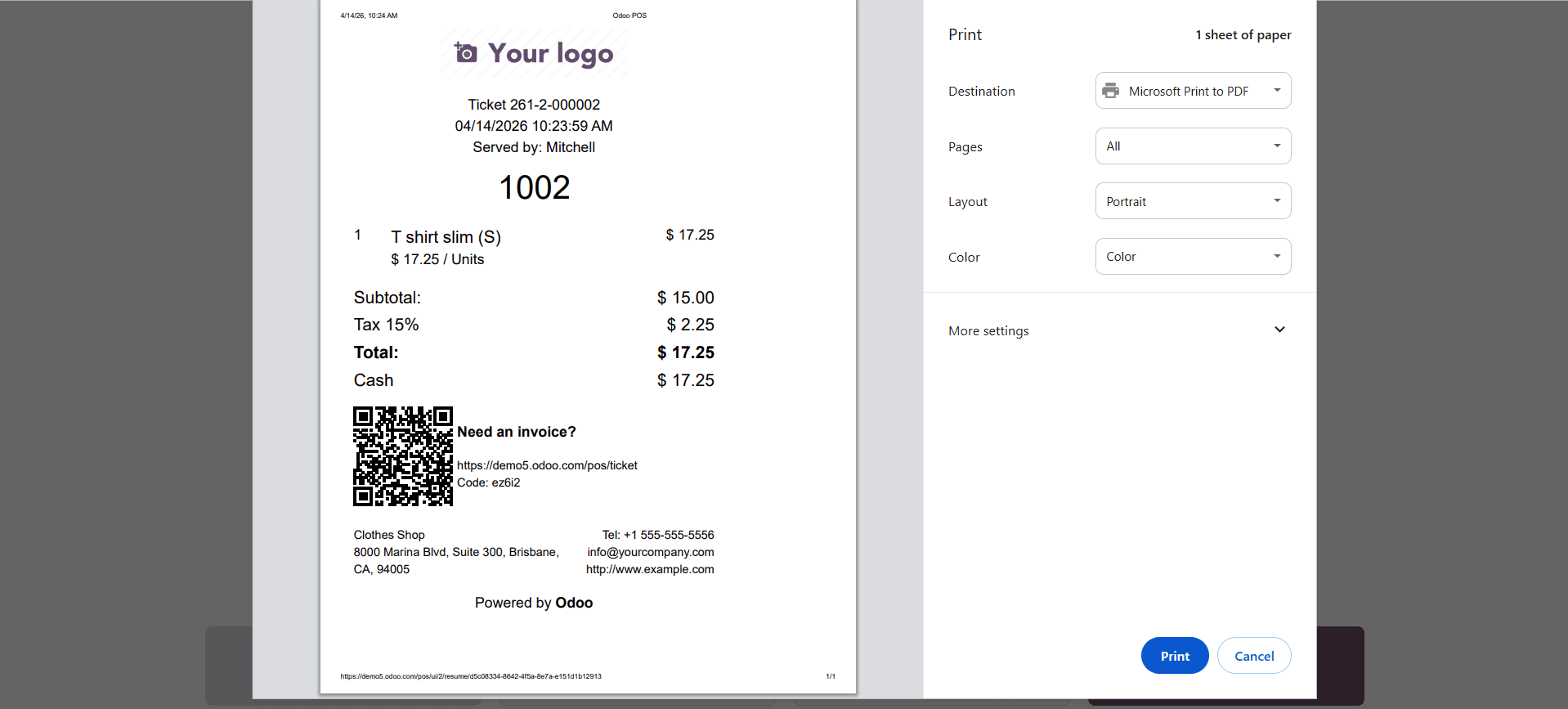
You may view the produced receipt here. Additionally, you can send the receipt straight to the customer's email or print it. The POS system's product sales process is now complete.
Product with Variants
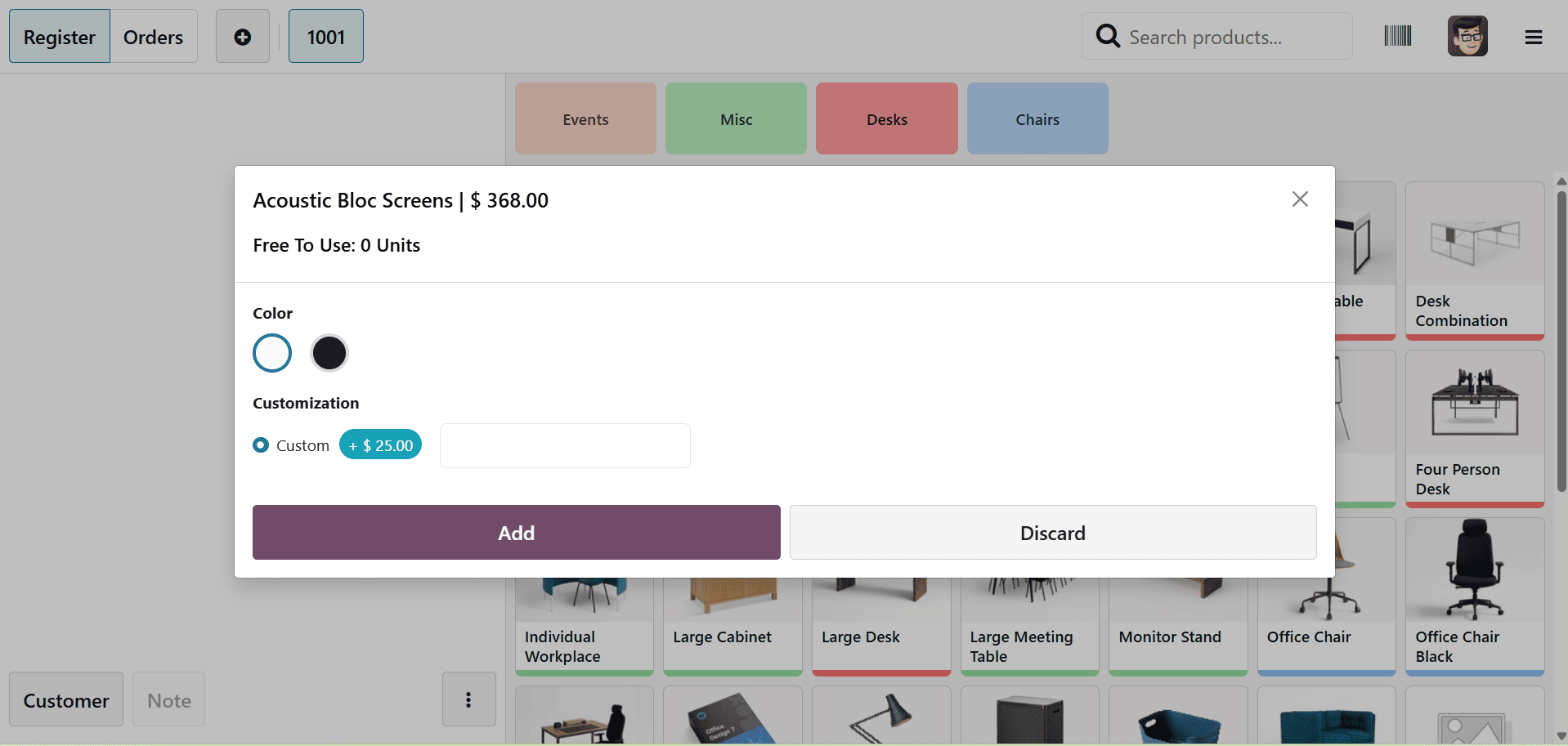
Selling product variations straight from the PoS interface is completely supported by Odoo PoS. The system makes it simple to maintain and sell different variants of a product, such as those with varied sizes, colors, or materials. You can configure a new variant straight from the PoS app. You can specify particular attributes like "Size" or "Color" in the Attributes section of the configuration settings (Configuration > Attributes).
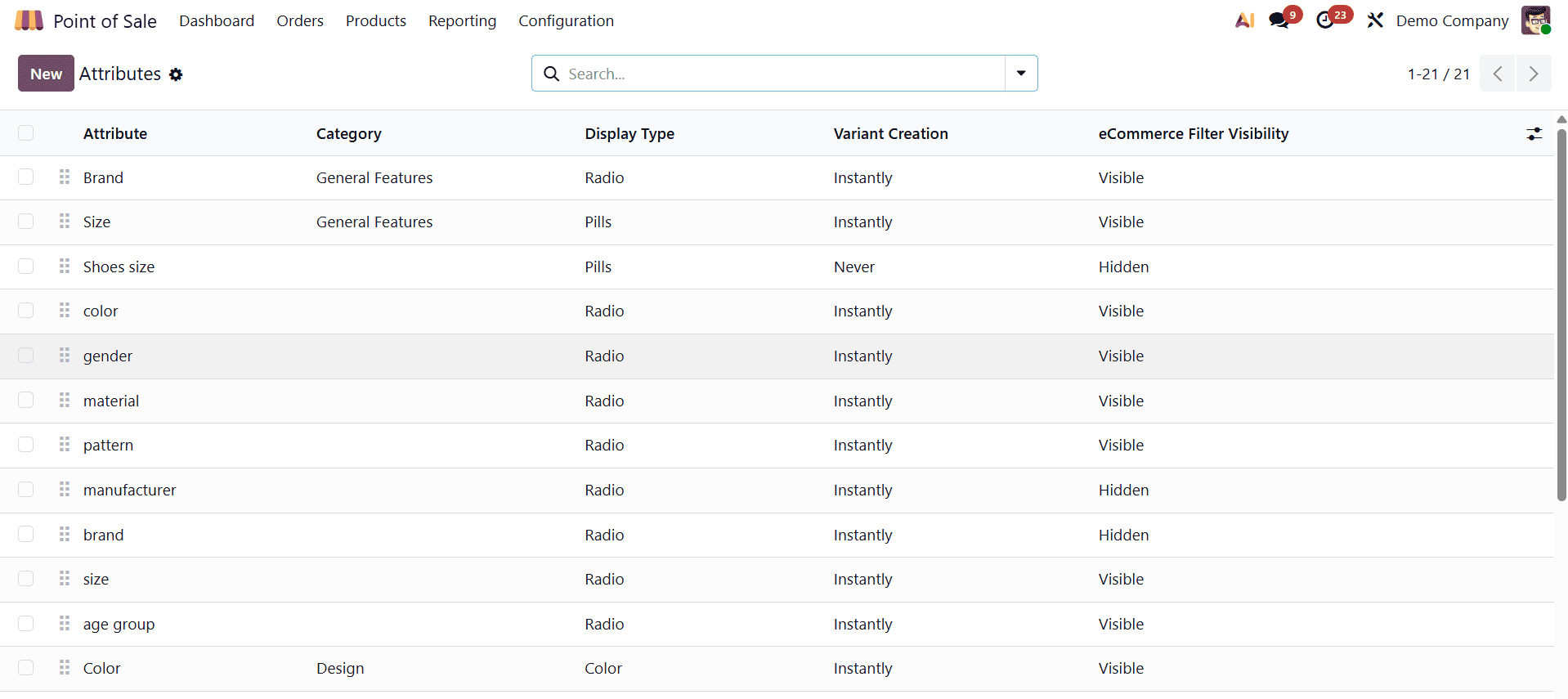
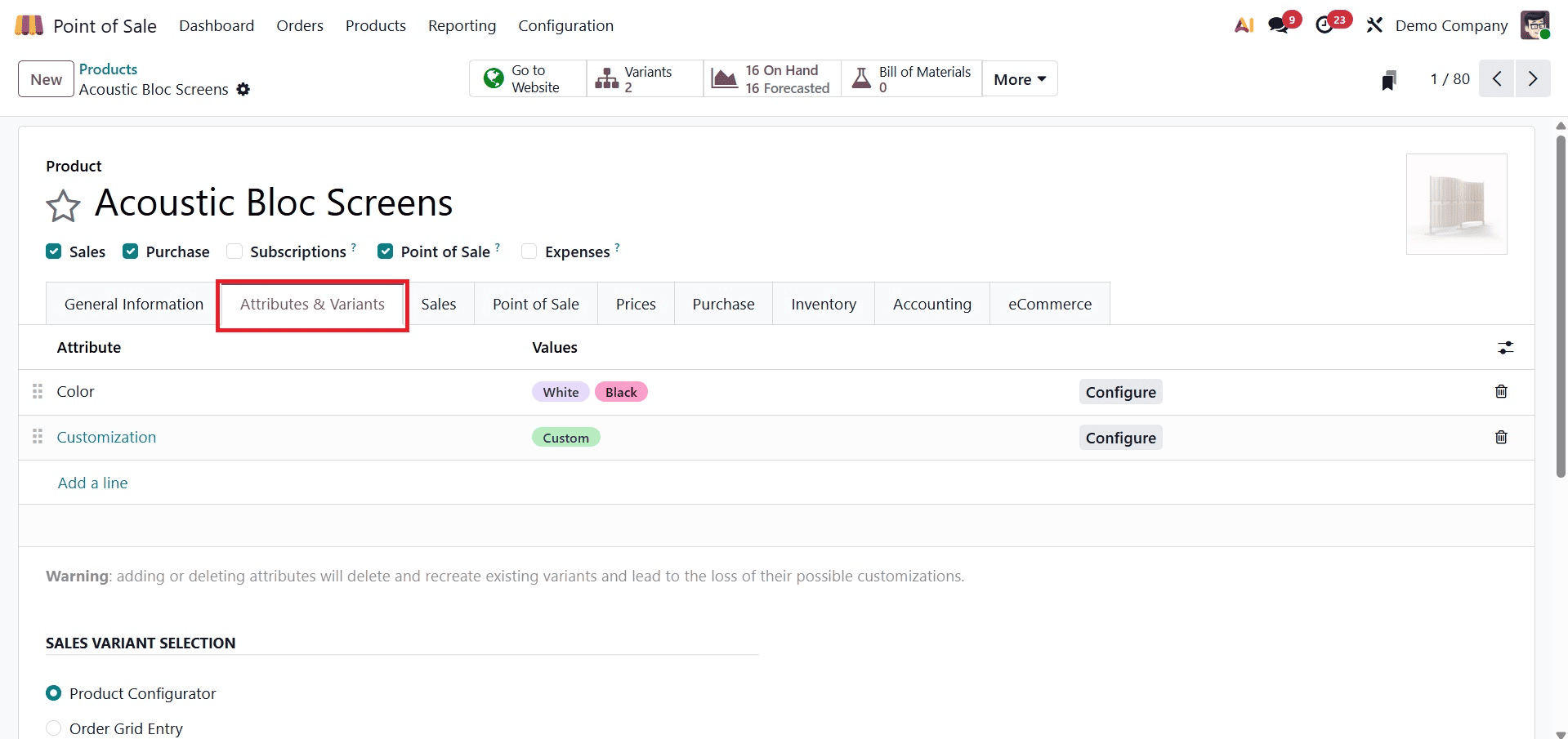
The goods menu allows you to apply these qualities to goods after they are created. You can either make a brand-new product with those features or alter an already-existing one to incorporate the new variations.
Choosing a product with variants on the POS screen is simple. A pop-up will show up when you select a product with variations, as seen in the picture below. The variation can be selected here and added to the cart.
Combo Products
Within the Sales module, combo product sales are likewise comparable. You can use this link to create a combo product: Combo products.
Additionally, the Point of Sale (POS) module can be used to configure combo products directly. The first step in generating combo products is to create combo options under the Products menu. You can build a combo product by going to Products > New after making two or more selections. The page of combo choice will be, as in the image below.
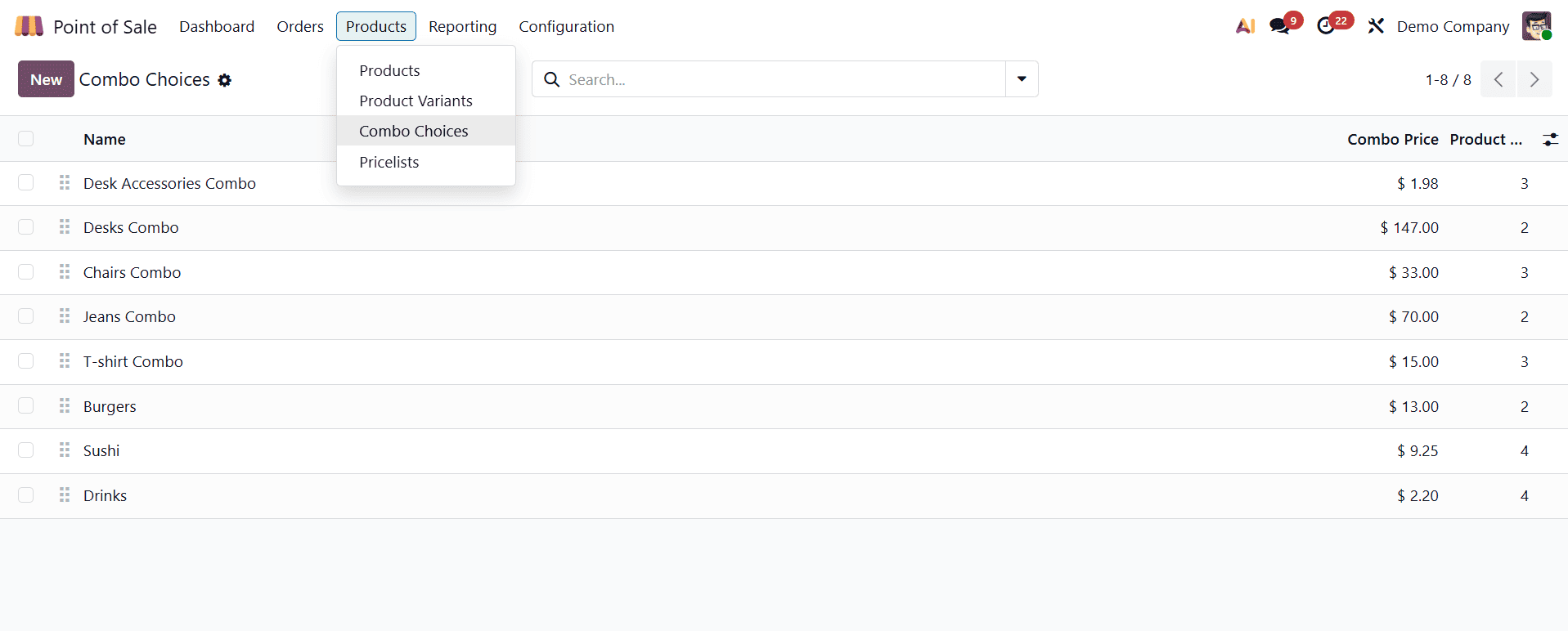
Here, using the New icon, you can go to the creation page.
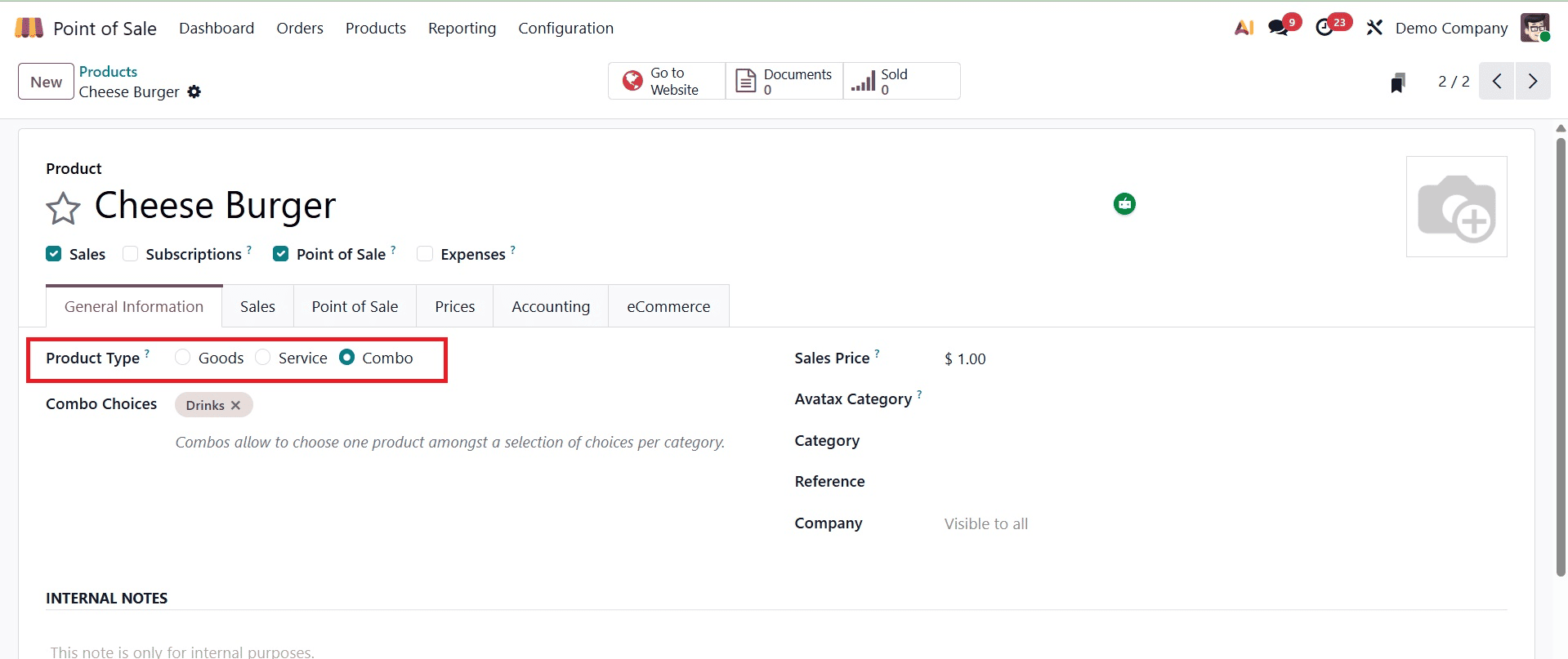
An extra field called "Combo choice" will be added to the product form when the product type is set to a combo. There are several combo options that can be added, which can be created from the combo choices. Thus, include the recently developed "Burgers" and "Juices" combo options. Next, give the "Burger menu combo" combo product's sales price, which will be applied to both of the combo's goods. You can use PoS to sell a combo product once it has been configured.
You can choose a combo product from the display to offer it in PoS. A wizard that shows the matching option products appears when a combo product is chosen. After making your selections, you can add them to the cart by clicking the "Add to Order" button.
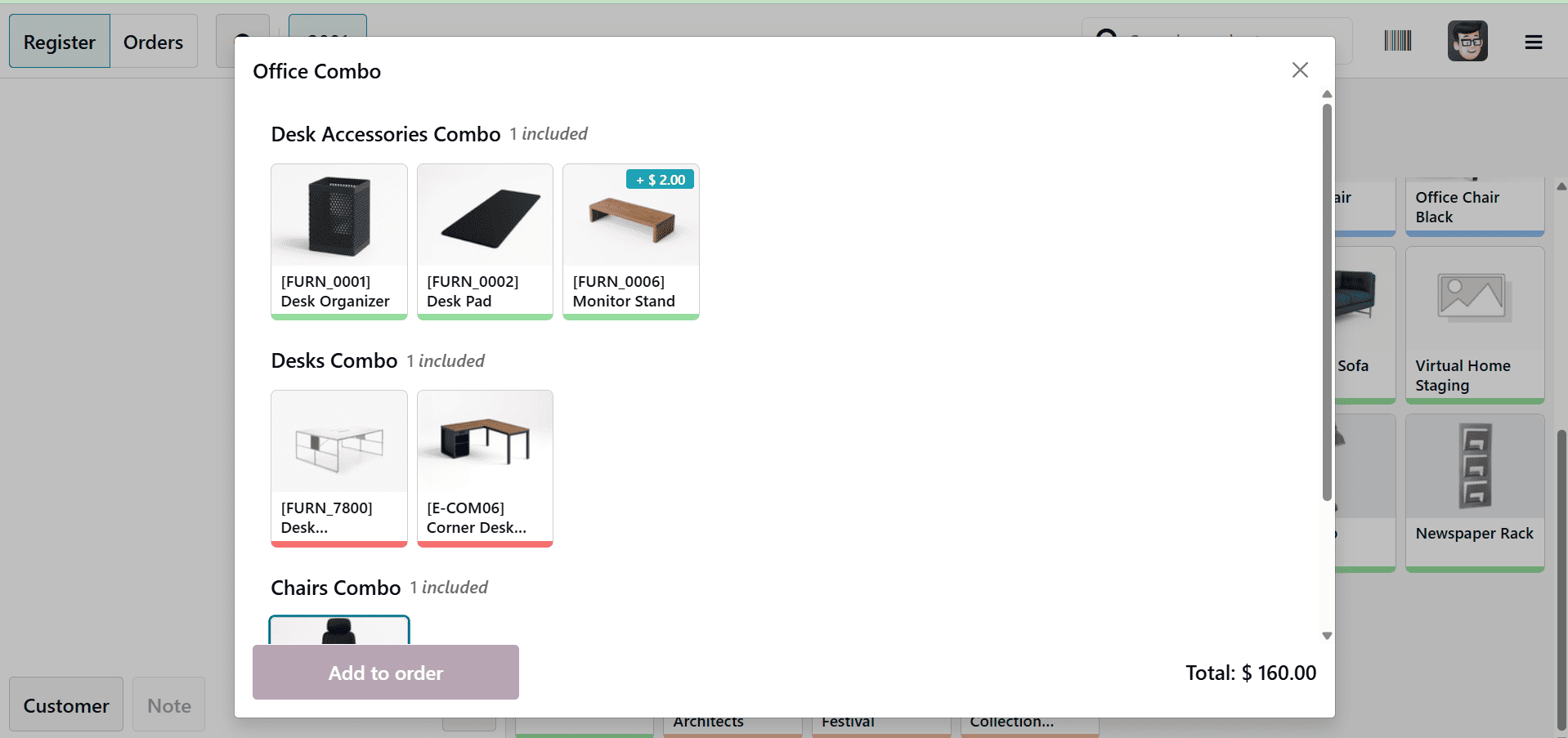
Clicking the confirm button is only available if one product has been chosen from each combo option.
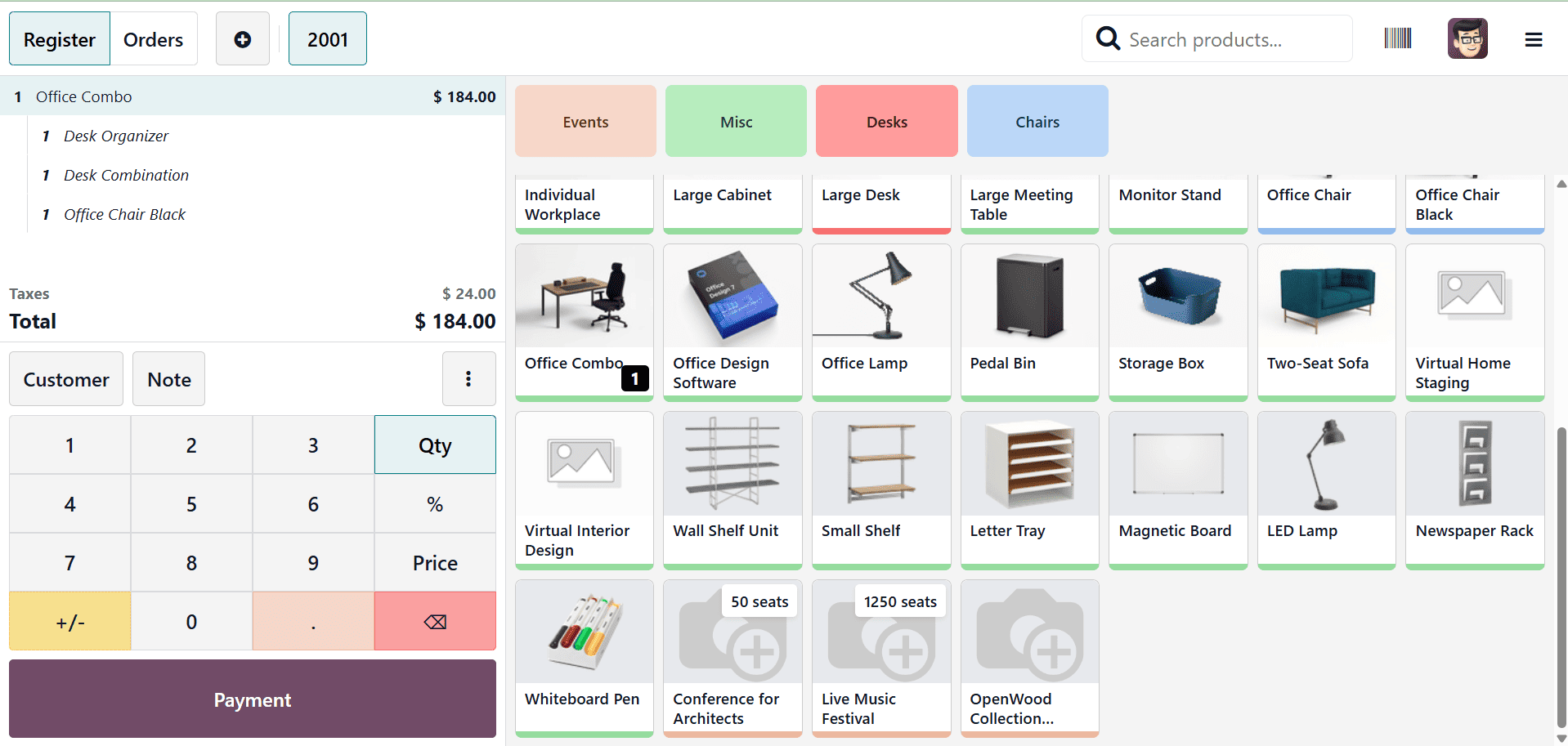
The amount can be changed straight from the cart area once the product has been added. The identical procedure that was previously shown is used to place the order and make the payment.
Products with Lot/Serial Number
Items are tracked from the point of manufacture to the point of sale using lots and serial numbers. They are assigned during production and sometimes added during packing. Serial numbers are unique numbers assigned to a specific object, while lots are groupings of numbers or codes applied to a group of objects sharing a similar attribute.
Here, we'll look at how to use the Point of Sale (POS) module to sell a product with a lot or serial number. Products can have their serial numbers manually added or configured during the purchase process.
You can activate the Track Inventory feature in the product settings to create a new product. When adding a product to inventory, this enables you to assign a lot or serial number to it. You can pick the one you require when choosing a product from PoS that already has a lot/serial number. One product that has a lot of numbers added by the consumer is the cheese sandwich.
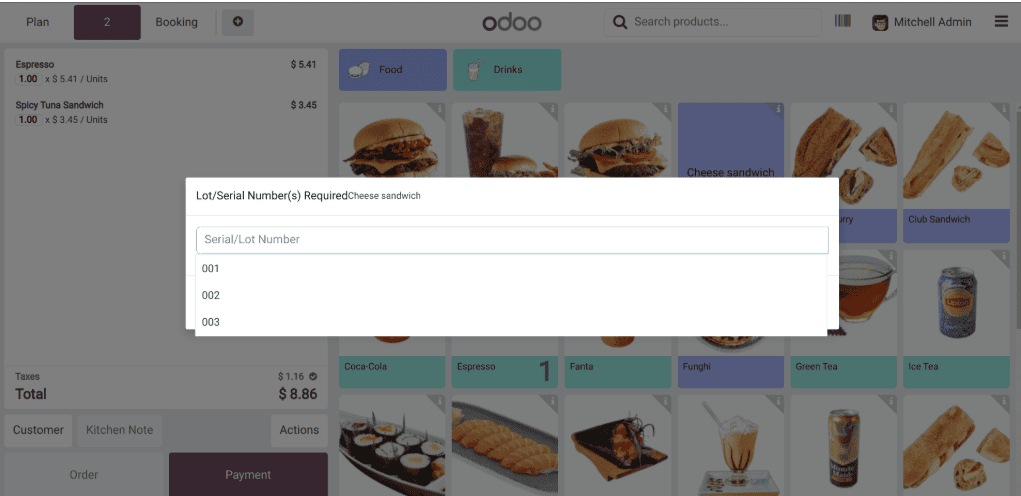
A list to choose a lot number will appear while choosing this product. The identical procedure that was previously shown is used to place the order and make the payment.
An effective and flexible framework for managing a range of sales scenarios is provided by Odoo 19 Point of Sale. The system guarantees a seamless selection and payment process for standard products, variants, combos, and items requiring lot or serial number tracking. Its user-friendly interface and useful features enable employees to work more quickly, make fewer mistakes, and give clients a better experience. With these features, Odoo POS is ideal for retail and hospitality companies that want to efficiently and accurately handle sales.
To read more about How to Sell a Product on Odoo 18 Point of Sales, refer to our blog How to Sell a Product on Odoo 18 Point of Sales.