Running a retail or restaurant business involves handling countless daily transactions, each requiring a clear and accurate receipt. In modern POS systems, receipts go beyond simple proof of purchases. They play a crucial role in enhancing customer experience, reinforcing brand identity, and ensuring proper financial tracking. With the latest updates in Odoo 19, the Point of Sale module offers improved flexibility and control over how receipts and bills are generated, customized, and managed.
In this blog, we’ll explore how Odoo 19 streamlines the printing and management of POS receipts and bills, covering everything from configuring receipt layouts to managing both digital and printed copies, helping businesses of all sizes deliver a more professional checkout experience while staying organized, compliant, and customer-friendly.
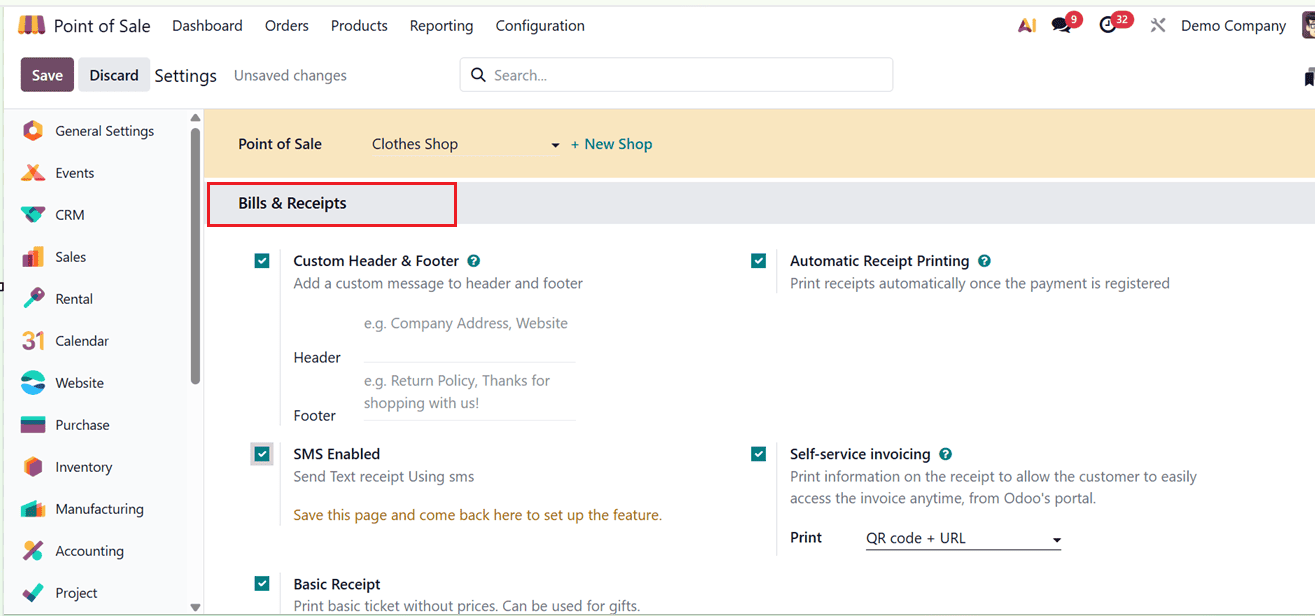
The “Bills & Receipts” section in the Settings menu of Odoo 19 POS includes several options for configuring and managing customer receipts and invoices. These settings help businesses personalize sales documents and improve the checkout experience.
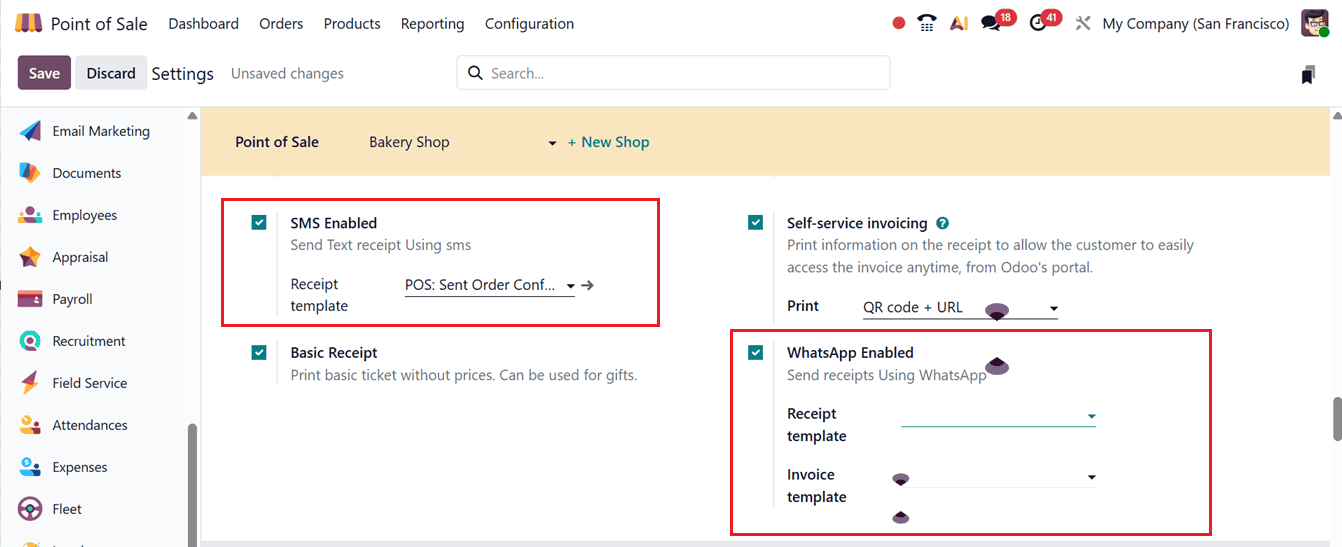
Here, the available features include Custom Header & Footer, Automatic Receipt Printing, SMS Enabled, WhatsApp Enabled, Self-Service Invoicing, and Basic Receipt options, as depicted in the screenshot below.
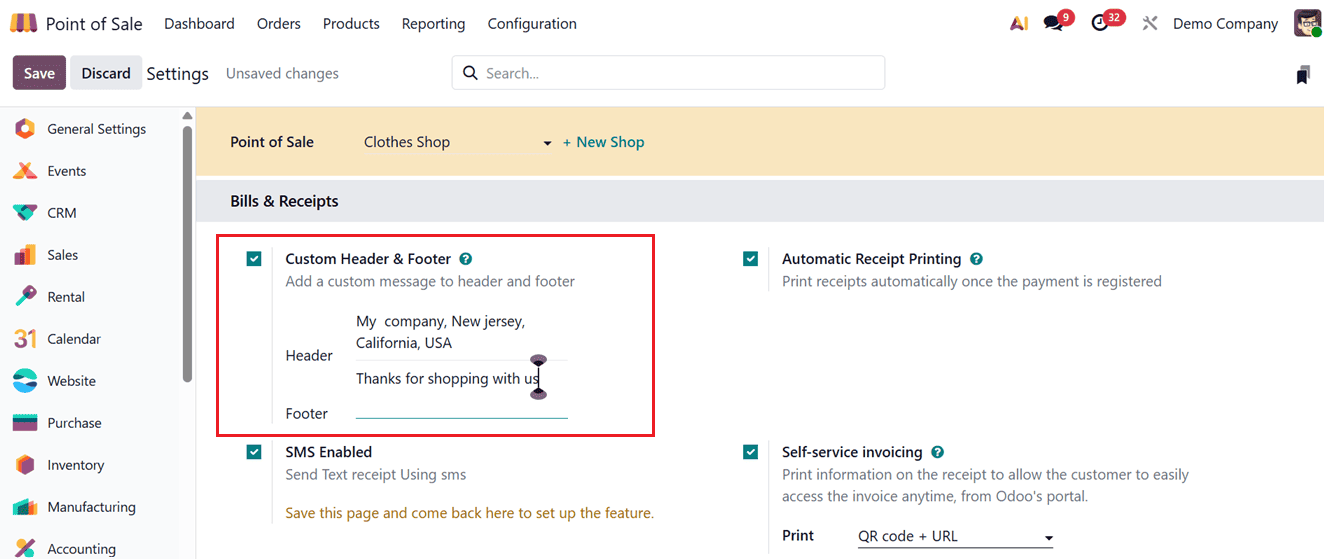
Using the Custom Header & Footer feature, businesses can add personalized text or messages to the top and bottom of receipts and invoices, as shown in the screenshot below.
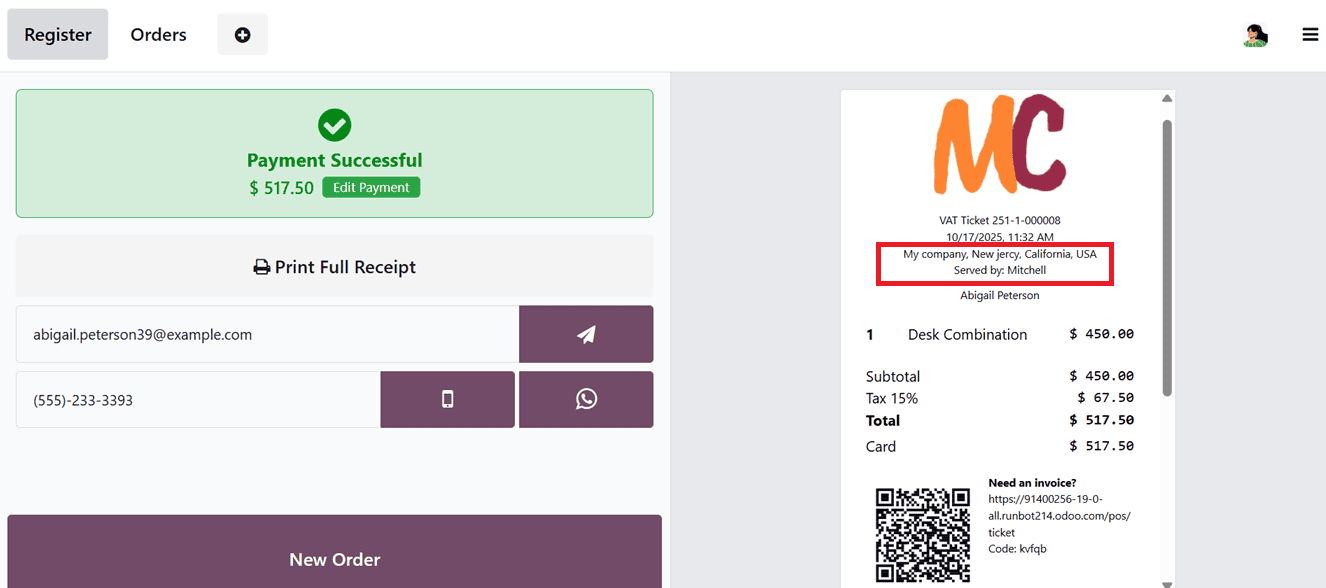
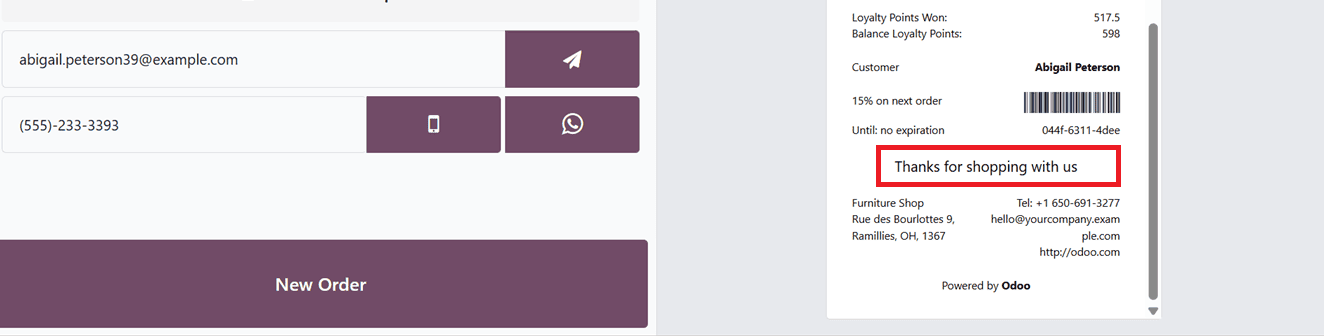
Once configured, these messages automatically appear on printed customer receipts, as shown in the screenshots below.
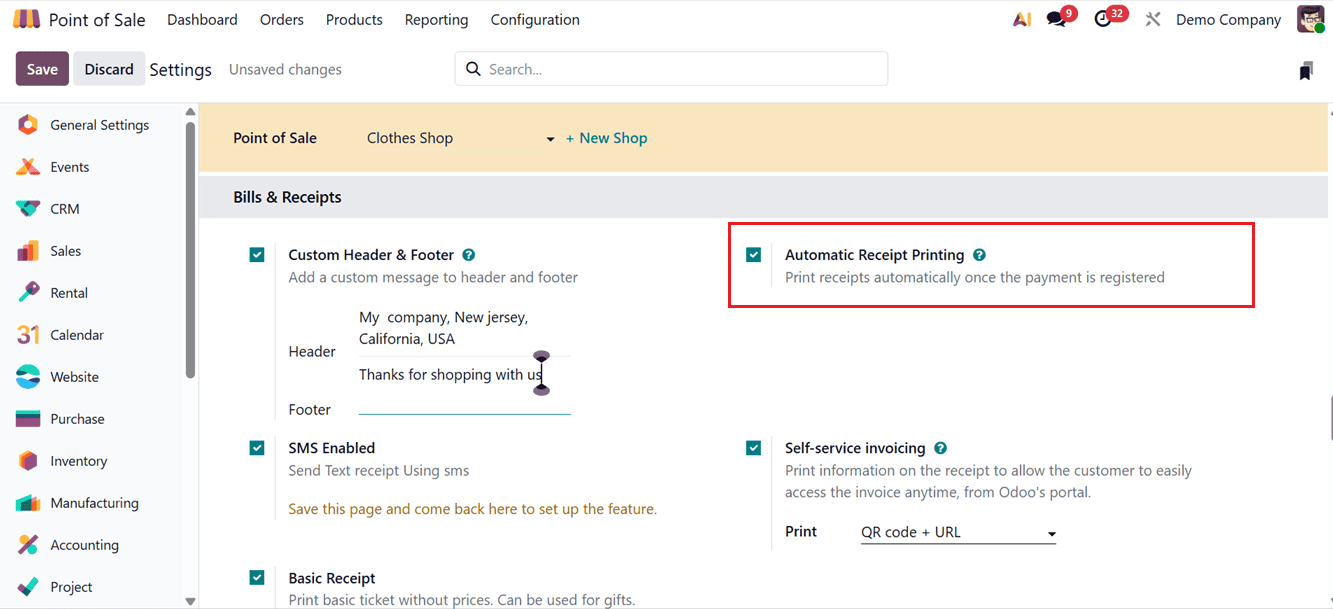
When the Automatic Receipt Printing option is activated, receipts are printed immediately after payment validation without displaying the standard receipt preview screen.
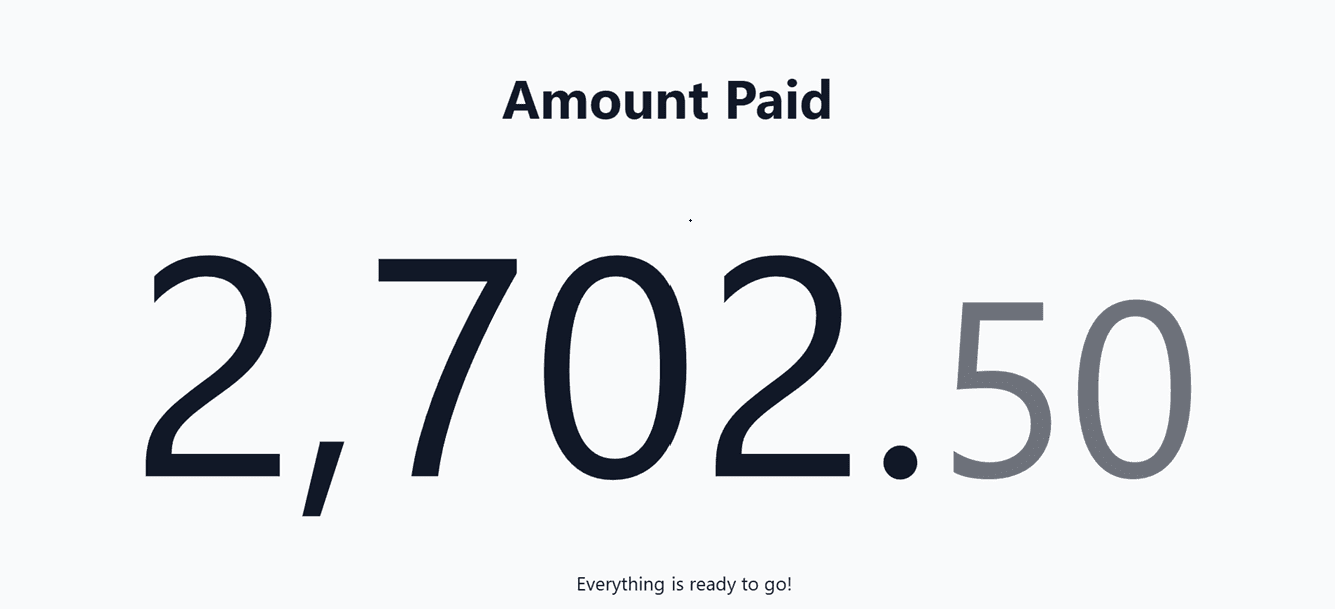
However, the payment confirmation screen will still display the paid amount while generating the receipt instantly for faster checkout processing, as shown in the screenshot below.
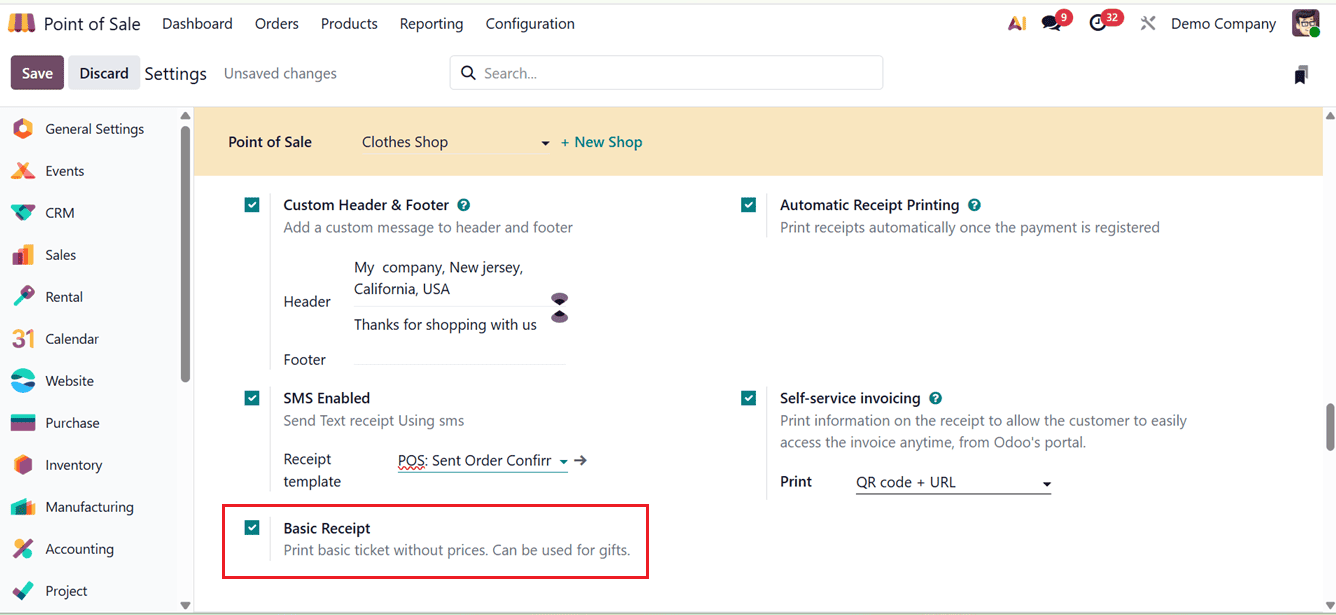
For businesses that prefer minimal receipt details, the Basic Receipt option allows printing a simplified receipt format without detailed pricing information.
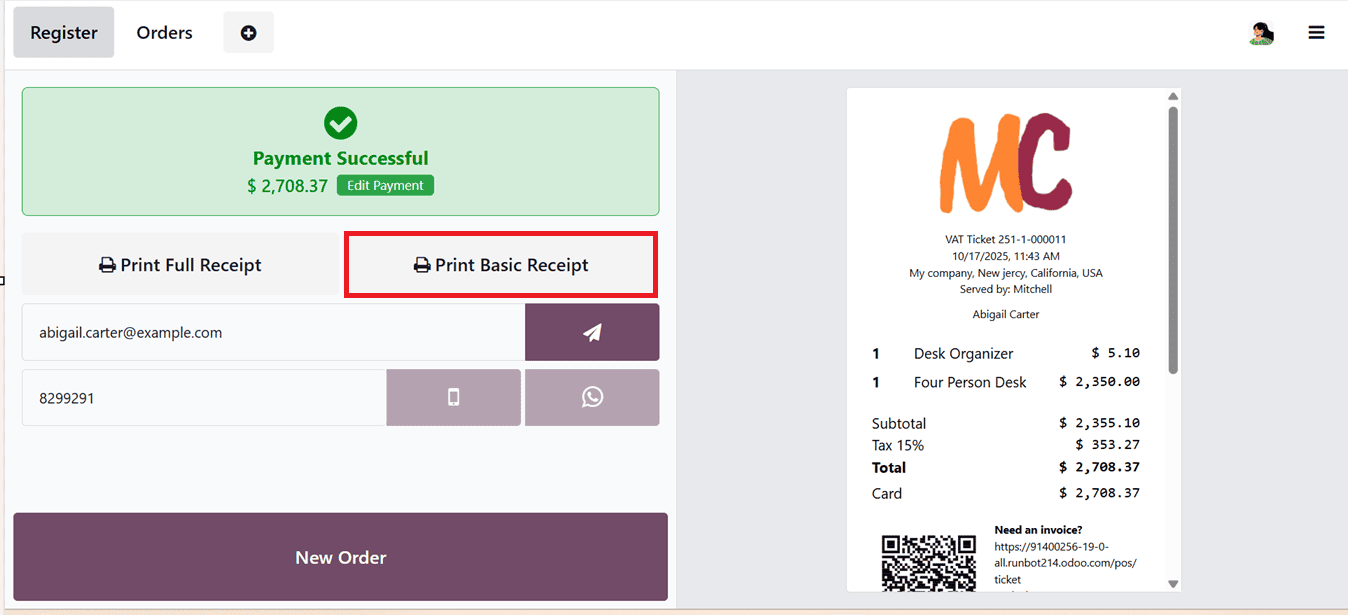
So, after completing a POS order, you can generate this version using the Print Basic Receipt button, as shown in the screenshot below.
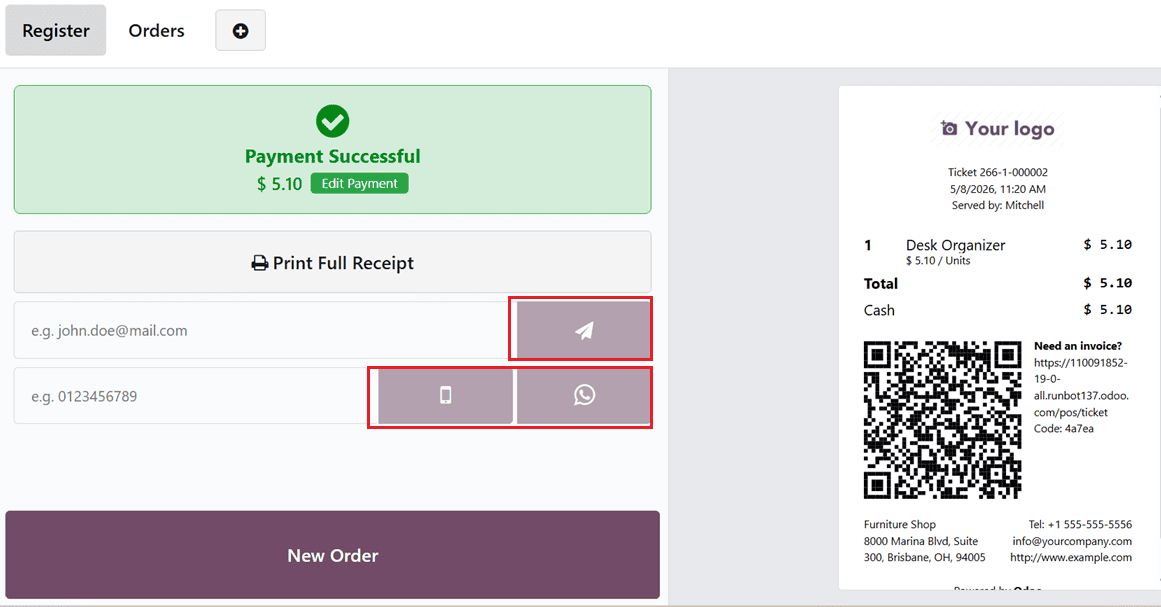
The SMS Enabled and WhatsApp Enabled features make it possible to send receipts digitally to customers through text messages or WhatsApp.
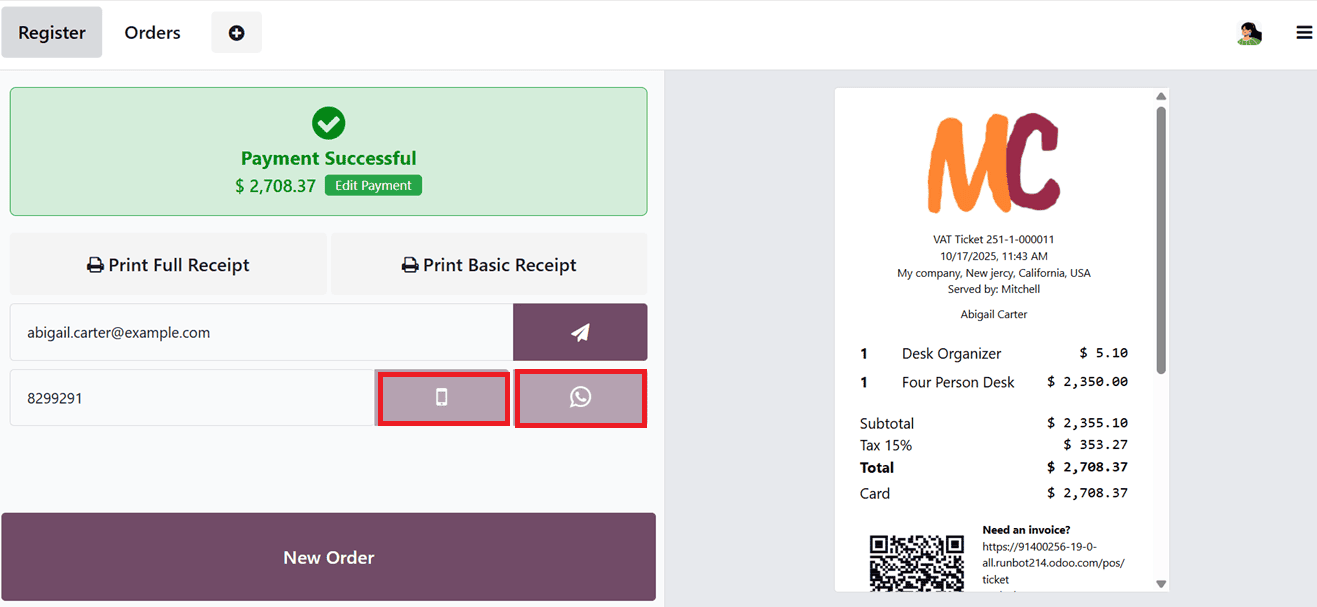
Once payment is completed, dedicated phone and WhatsApp icons appear on the payment confirmation screen, allowing receipts to be shared instantly, as shown in the screenshot below.
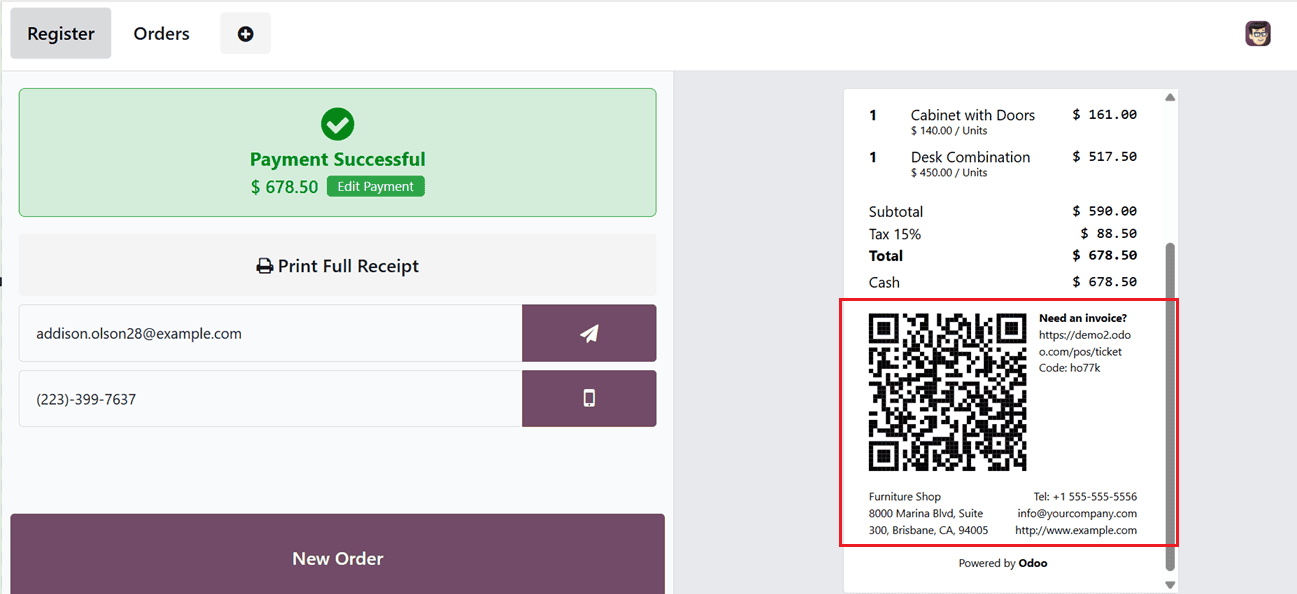
Lastly, with the Self-Service Invoicing feature, customers can request invoices by scanning a QR code printed on the receipt.
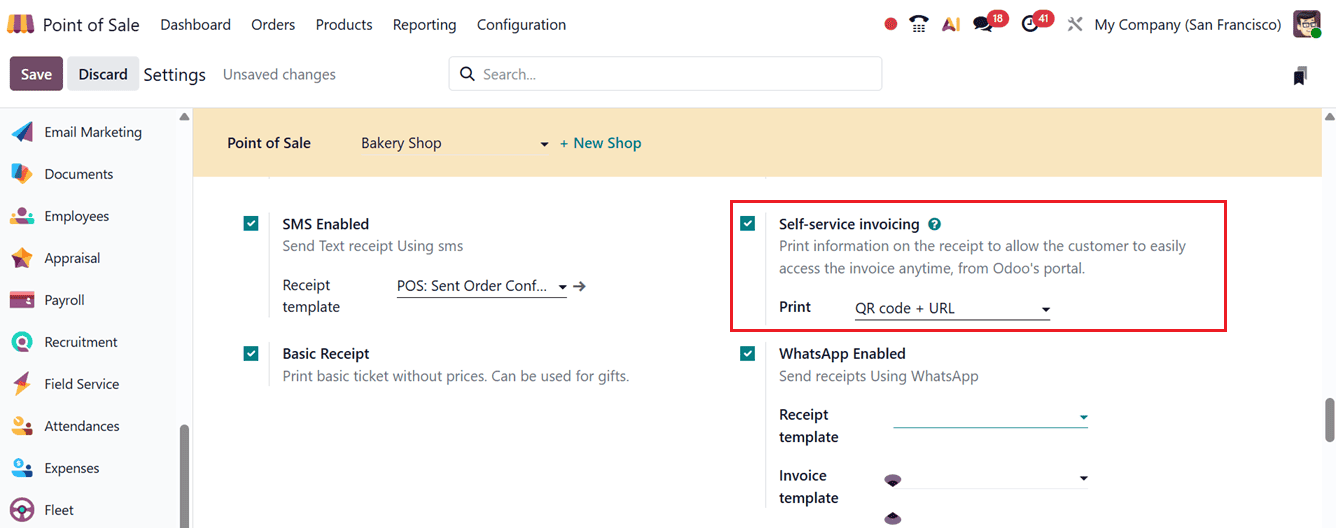
When enabled, the receipt includes both a QR code and a direct URL for easy invoice access. as shown in the screenshot below.
Additionally, Odoo 19 supports self-ordering functionalities such as QR Menu and QR Menu + Ordering modes. These options are especially useful for restaurants aiming to reduce staff interaction and speed up service.
By selecting the QR Menu mode, the system generates configuration links for previewing the web interface, printing QR codes, downloading QR codes, configuring payment methods, and more, as depicted in the screenshot below.
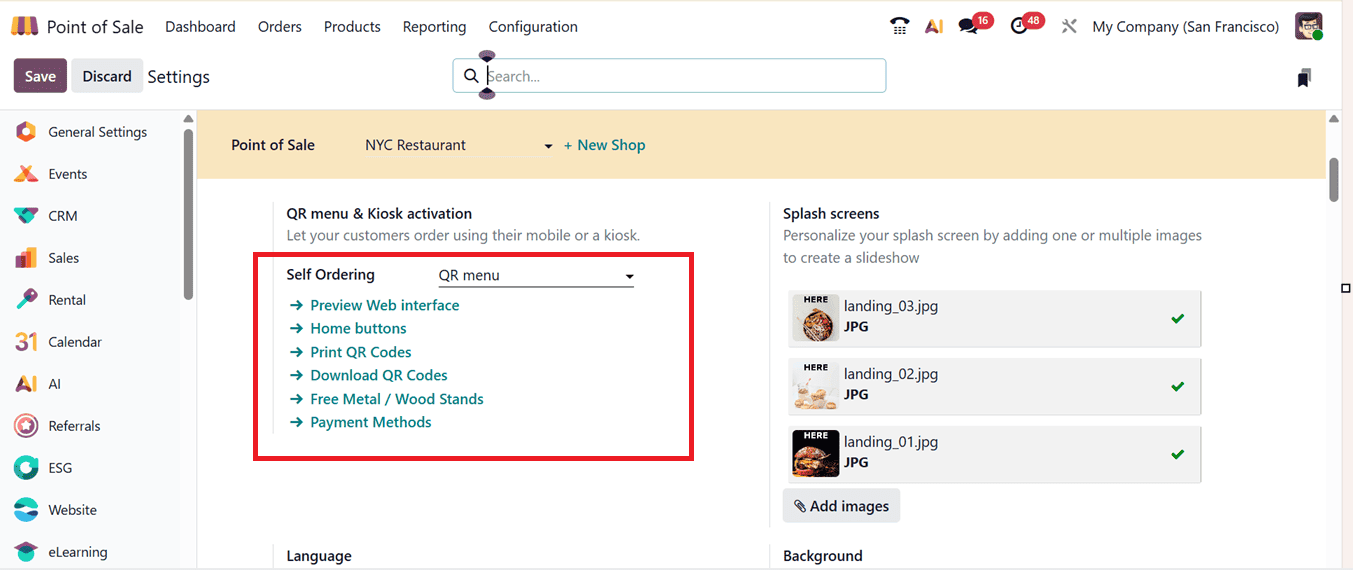
The available links includes; Preview Web Interface, Home Buttons, Print QR Codes, Download QR Codes, Free Metal/Wood Stand and Set Payment Methods.
Based on the restaurant’s table and floor setup, the Download QR Codes option automatically generates the required QR codes, while the Print QR Codes option prepares them for printing, as shown in the screenshot below.
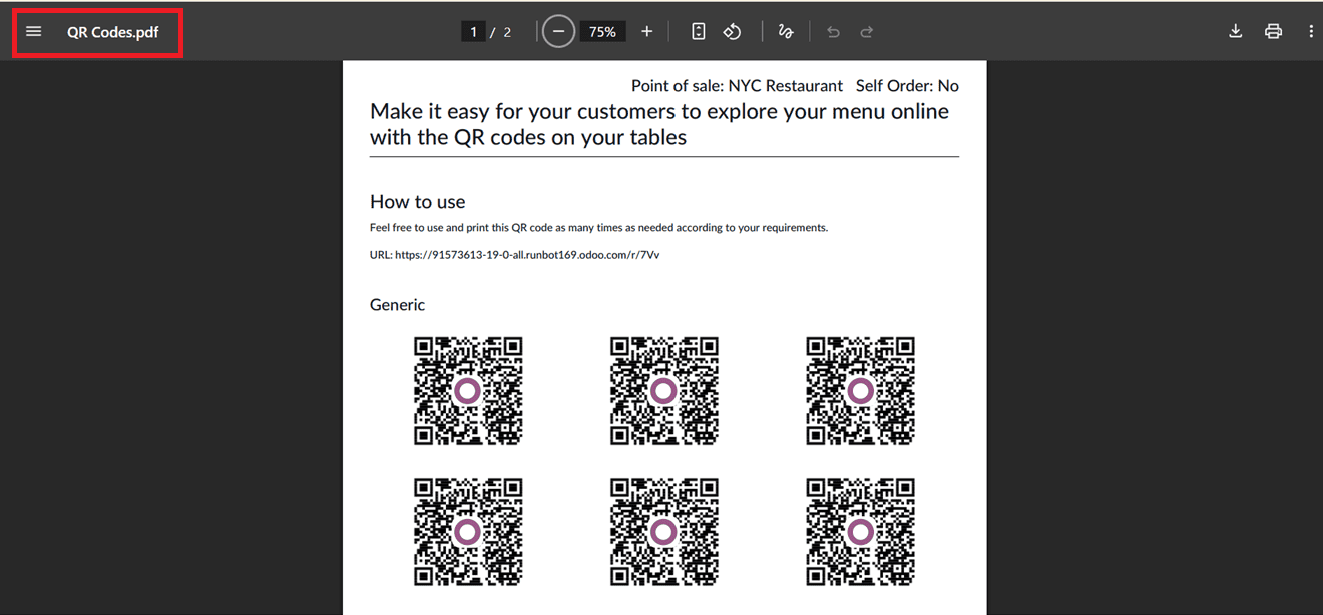
So, the restaurants can place these QR codes on tables so customers can scan them using their smartphones to browse menus, customize orders, and place orders directly from their devices. This feature speeds up service and reduces staff workload.
After completing an order, users can finalize the payment using the Validate button. A confirmation screen then displays a receipt preview, as illustrated in the screenshot below.
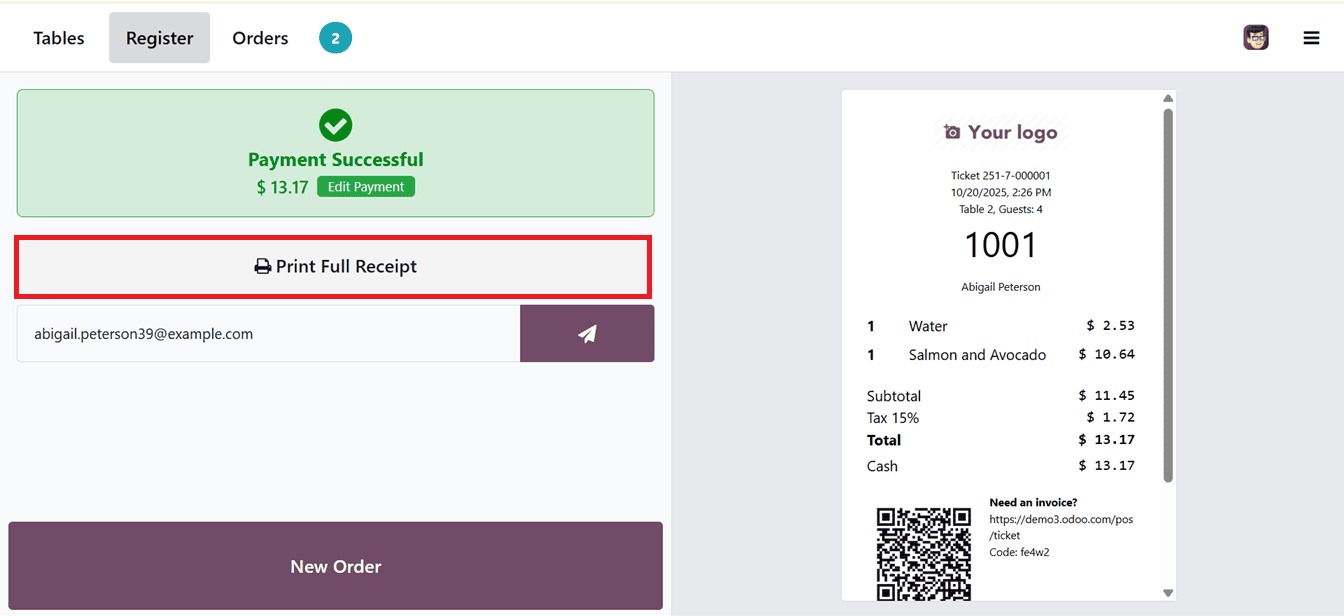
After validating the order, you can print either a “Print Basic Receipt” or “Print Full Receipt” to provide the customer with a physical bill copy. The receipt can also be shared through email using the send option available next to the customer’s email address. In addition, once the required settings are configured, receipts can be sent directly through WhatsApp or SMS using their respective sharing icons, as highlighted in the screenshot below.
Overall, efficient receipt and bill management is essential for accurate transactions and a better customer experience. With the advanced Point of Sale features in Odoo 19, businesses can easily print, customize, and manage POS receipts and bills, helping improve billing accuracy and streamline daily operations.
To read more about How to Customize PoS Receipts in Odoo 19, refer to our blog How to Customize PoS Receipts in Odoo 19.