With Odoo 18 Studio, creating your own data models and adding fields is simpler than ever. Whether you're building from scratch or enhancing existing apps, Studio allows you to create fully functional modules tailored to your business, without writing a single line of code.
Start by Opening Studio
Click the Studio icon from the top-right corner of the screen. This opens the customization workspace, where you can start creating models and editing views.
Creating a New Model
To build a new application or module:
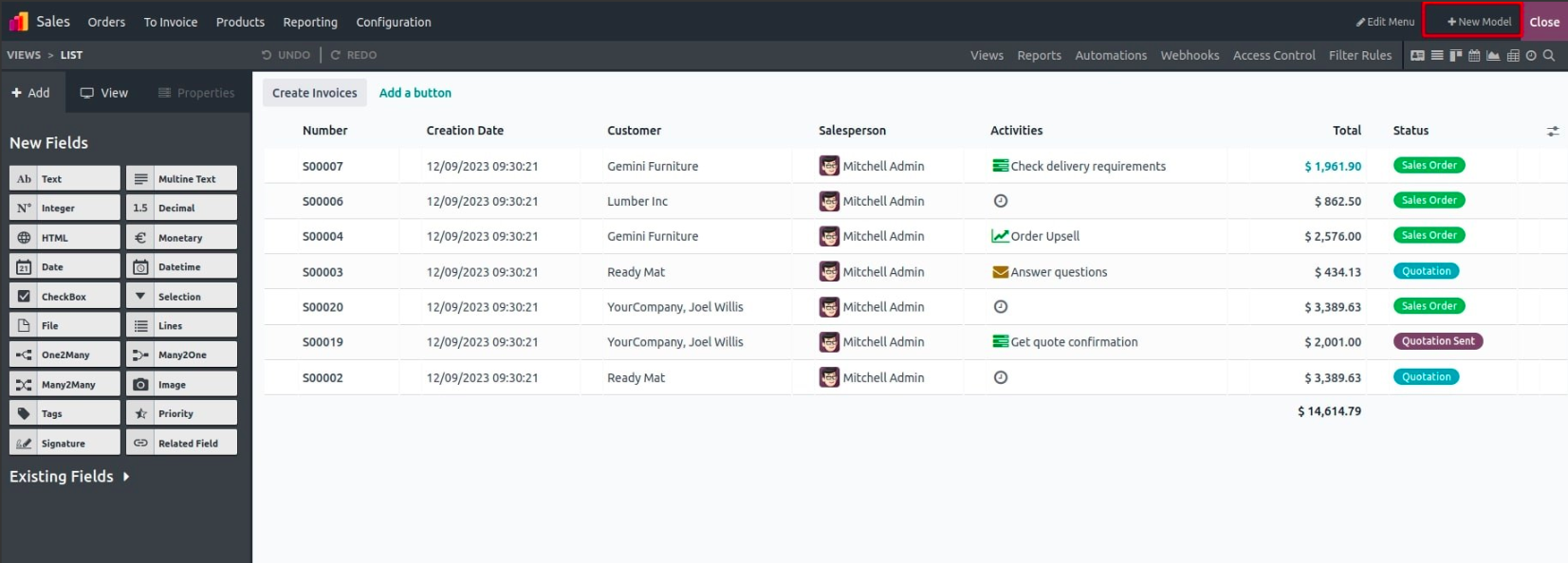
- Click on "New Model".
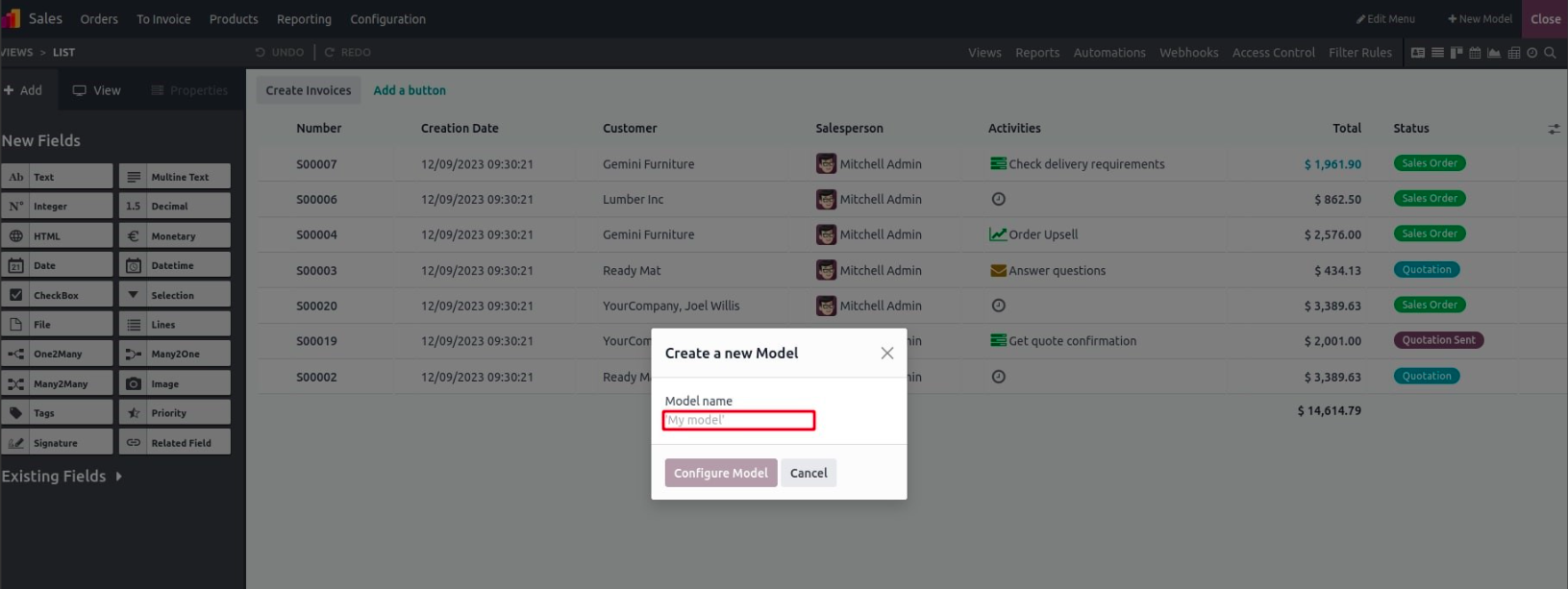
- Enter the model name (for example, "Fleet Maintenance" or "Project Reviews").
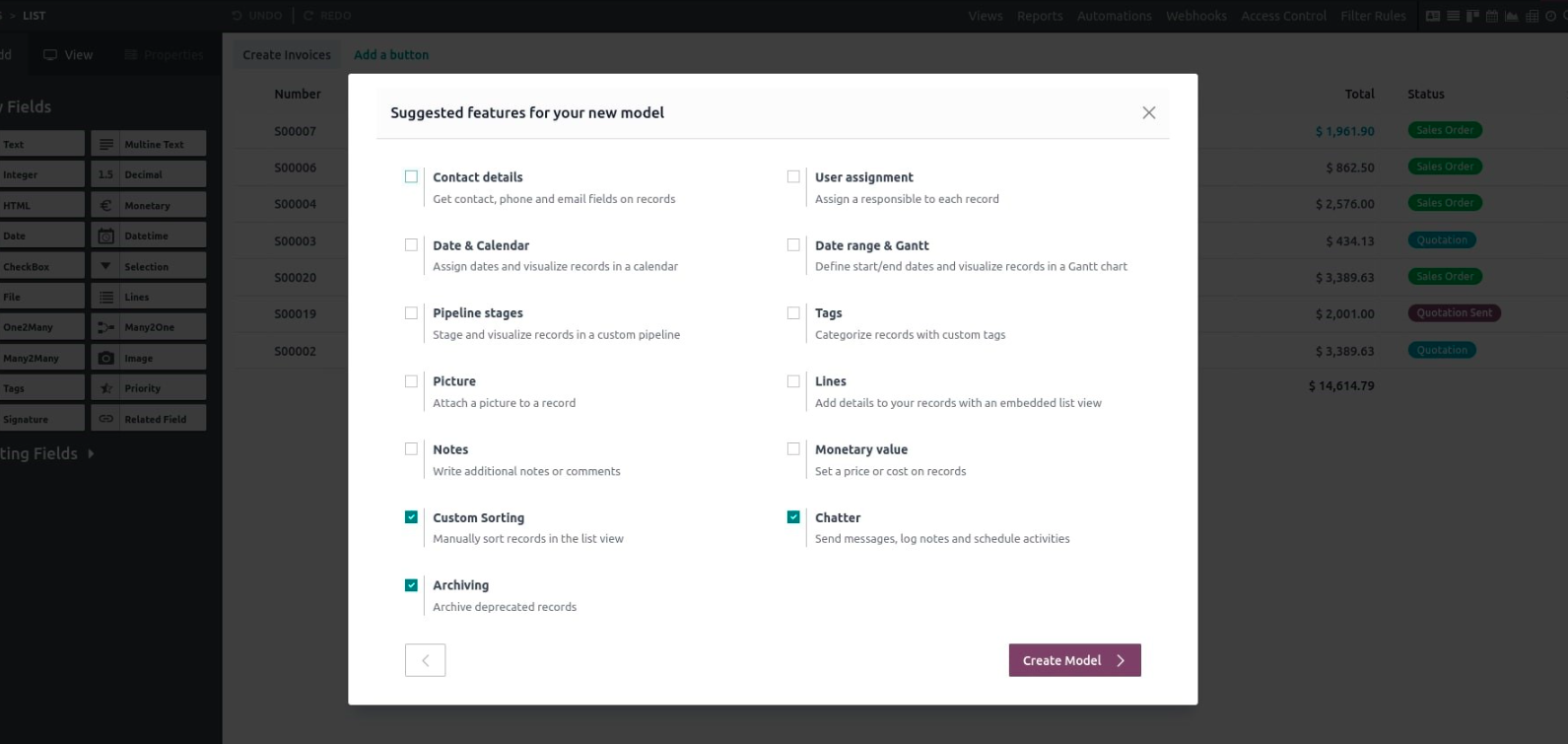
After naming your model, you can choose to enable features such as chatter, notes, or company-specific rules.
Customizing Views in the New Model
Odoo Studio offers multiple view types to present and interact with your data. You can easily toggle between views and design them to your preference.
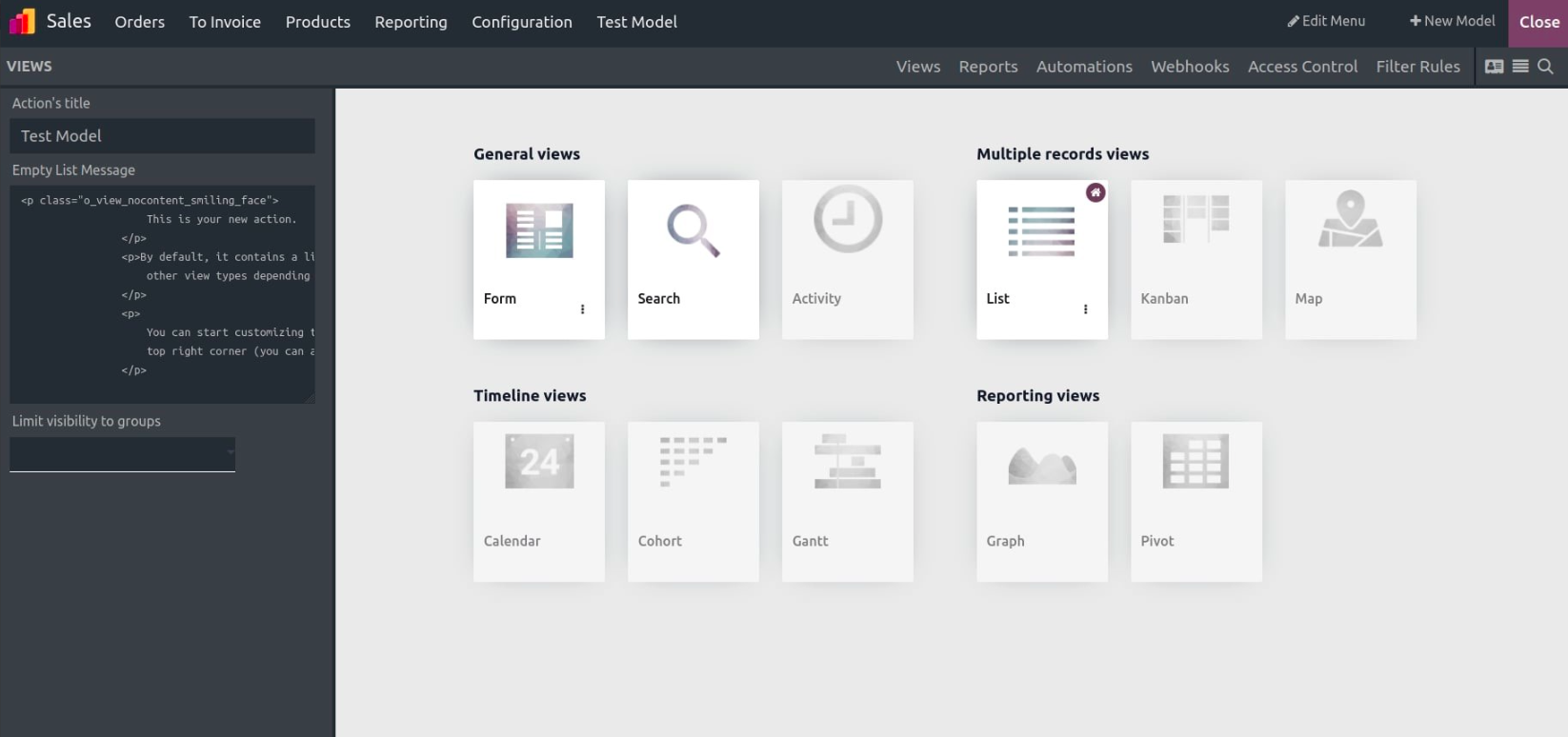
Form View – For Editing Individual Records
The form view displays one record at a time and is commonly used for data entry or editing. You can drag components and fields directly into the layout, rearrange them freely, and structure the form with tabs, pages, or groups.
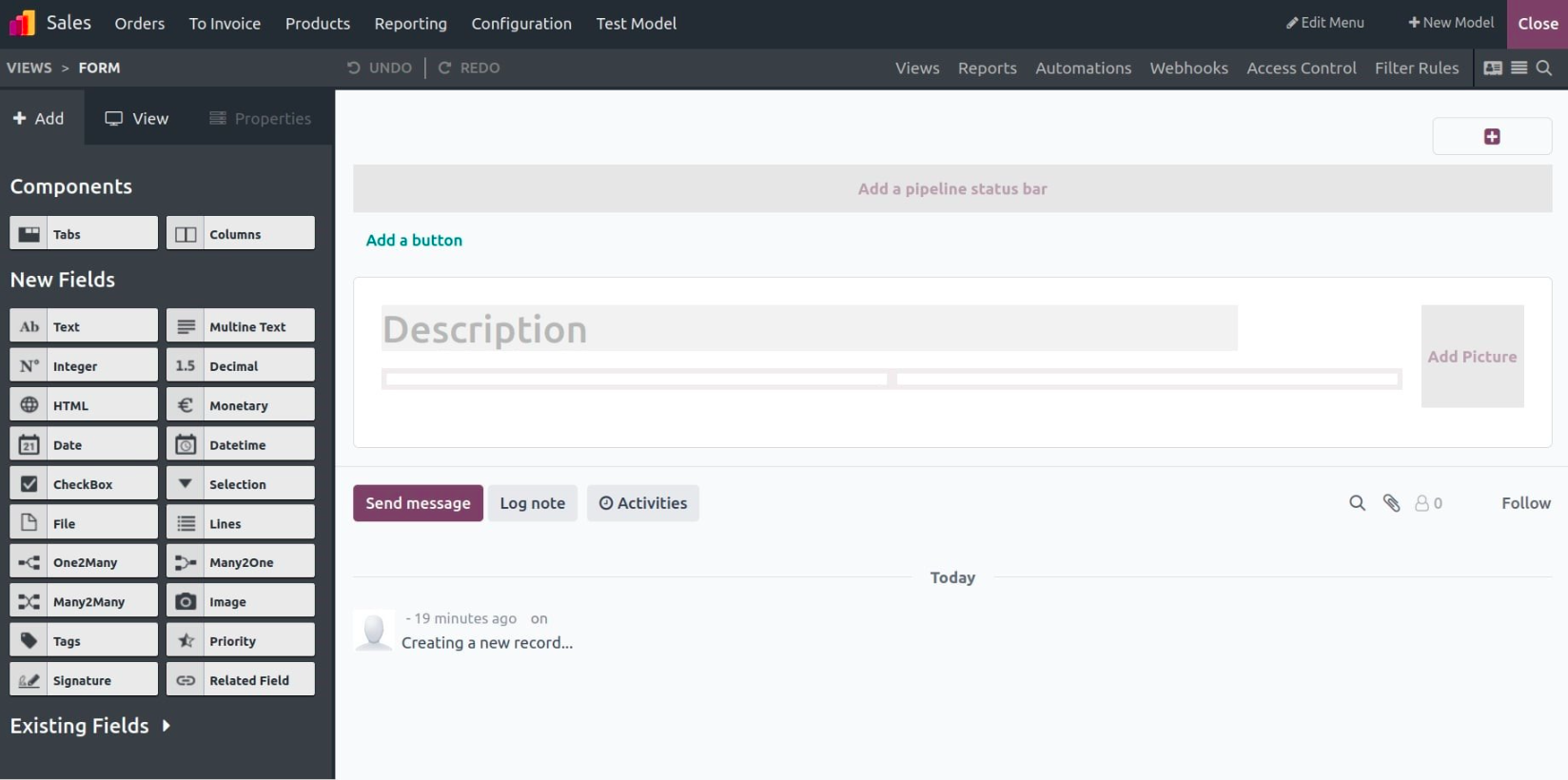
Adding Fields with Full Control
In Studio, the “New Fields” panel gives you access to all field types. Once you drop a field into your view, you can modify its behavior through the properties panel, where you can set:
- Widget type
- Required or read-only status
- Default values
- Help tooltips
- Group-based visibility
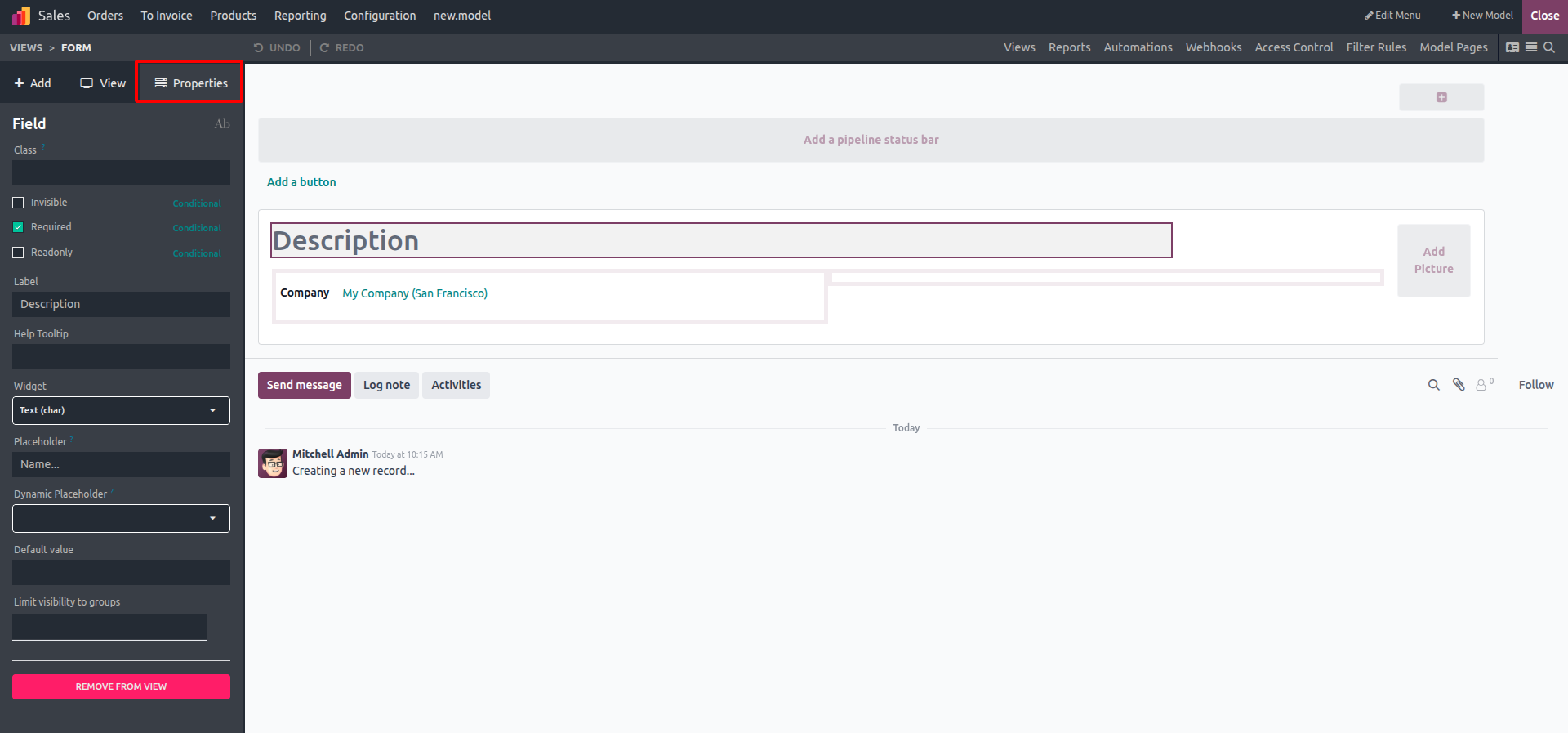
Text Fields
Basic text fields can be configured to be required, invisible, or grouped by access rights. You can also remove them easily if no longer needed.
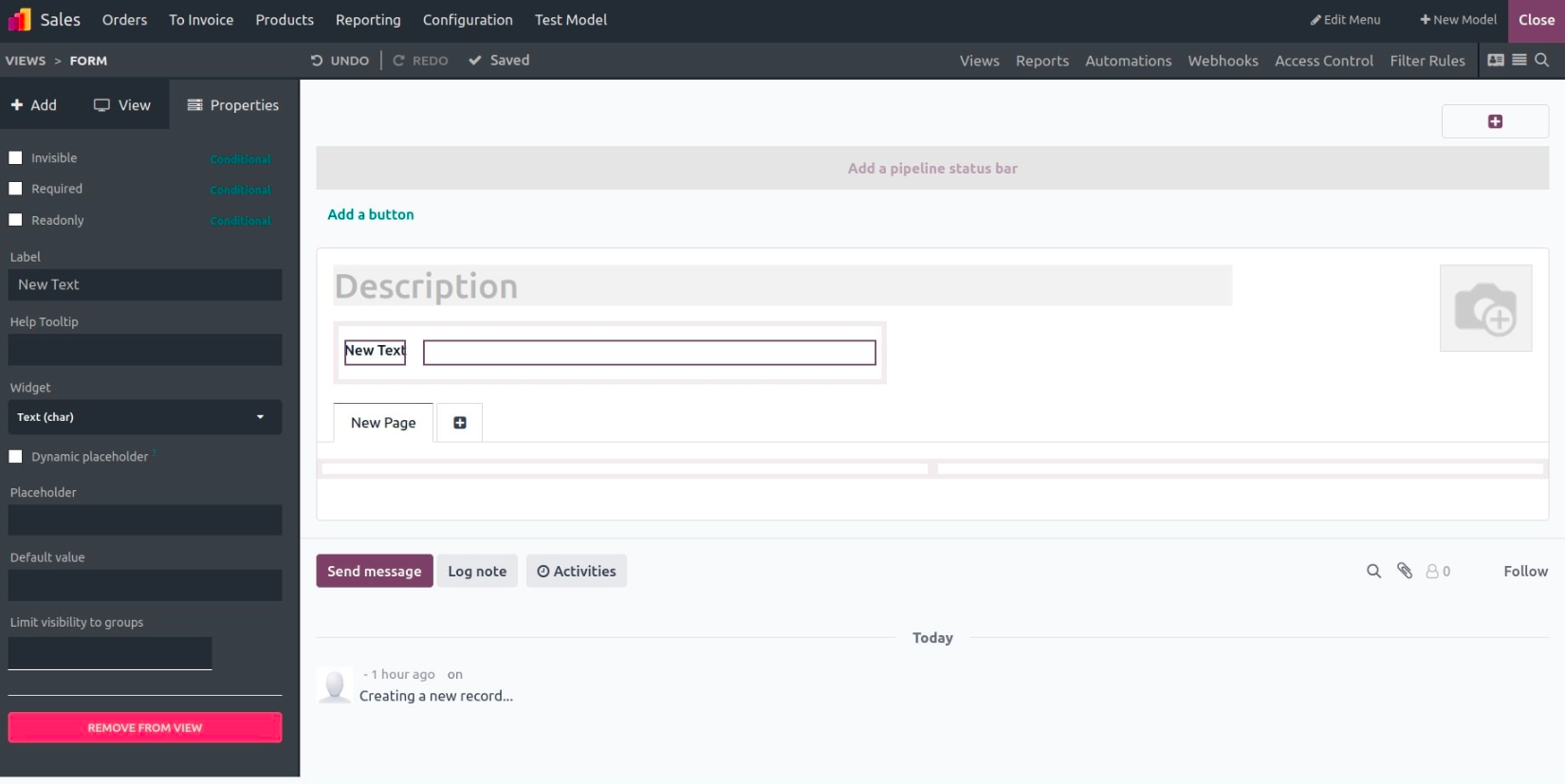
To view fields marked invisible, simply toggle on “Show Invisible Elements”.
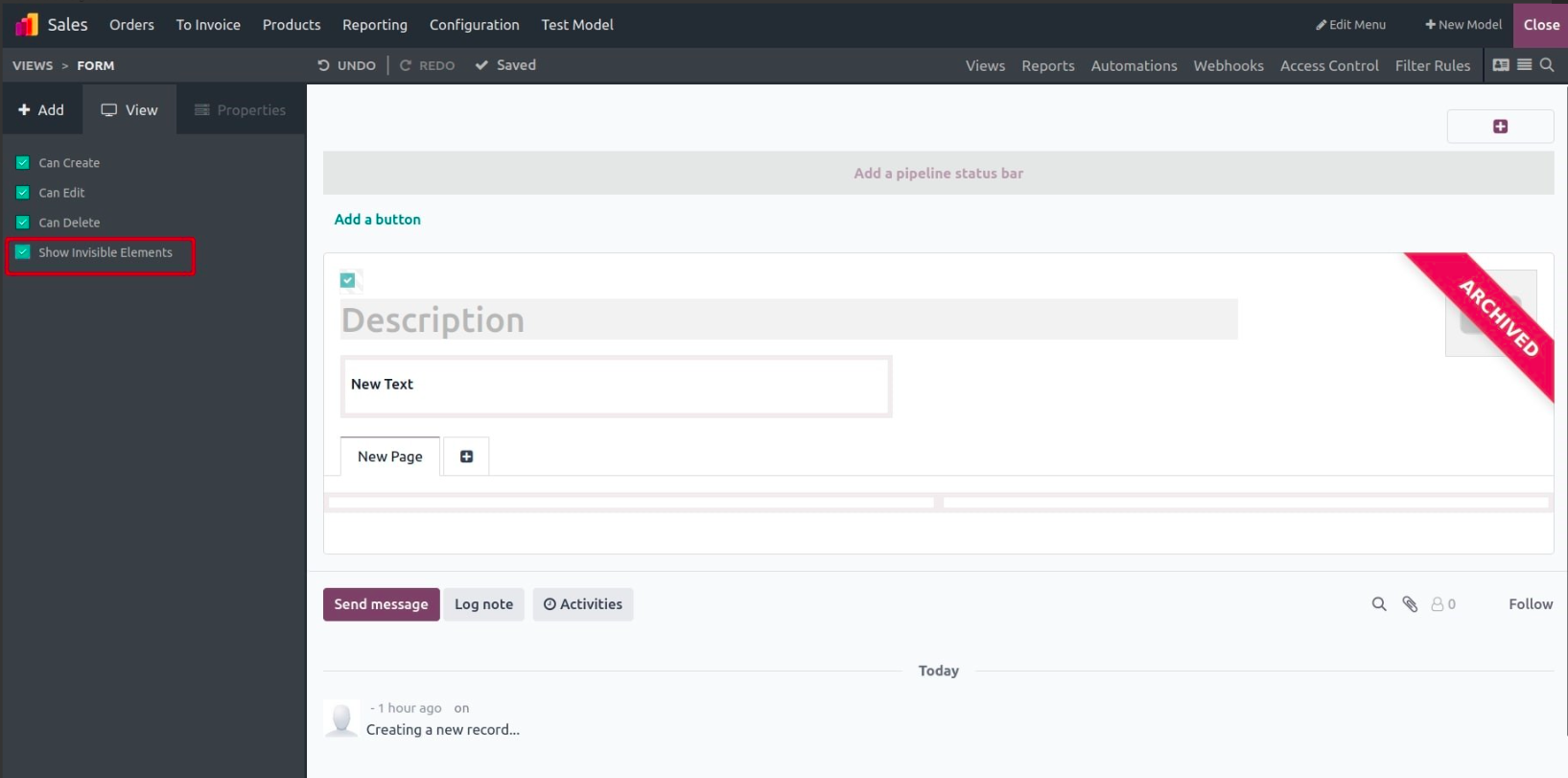
Field Types in Studio
Here’s a breakdown of field types you can use in Odoo 18 Studio:
- Multiline Text: Perfect for entering long paragraphs or notes.
- Integer: Handles whole numbers. The default value is 0.
- Decimal: Used for values requiring decimal precision.
- HTML: Provides a rich text editor for HTML content.
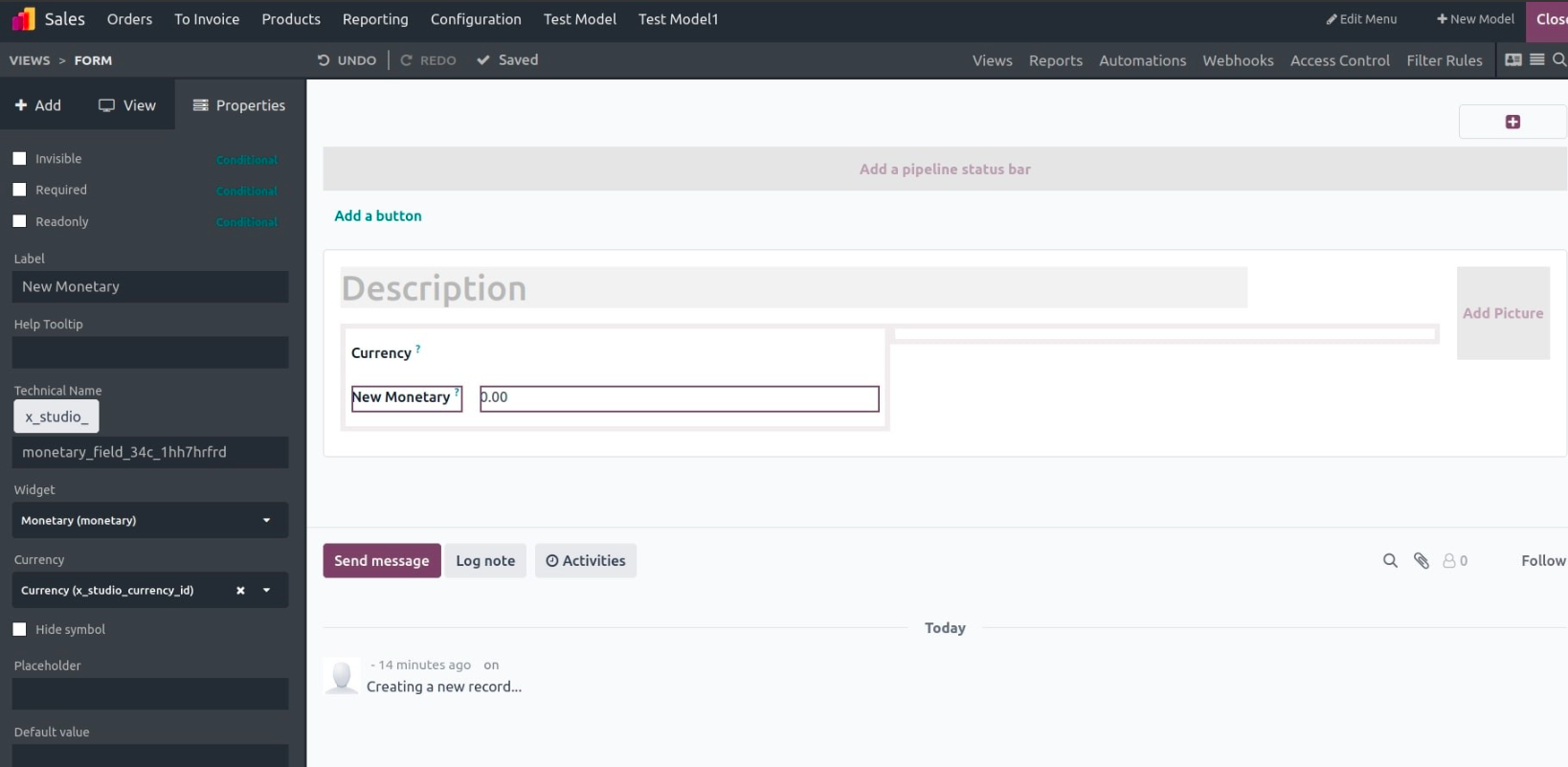
- Monetary: Used to capture currency values. Requires you to define a currency field first.
- Date / Datetime: Used to input date or timestamp values.
- Checkbox: Boolean field for Yes/No (True/False) inputs.
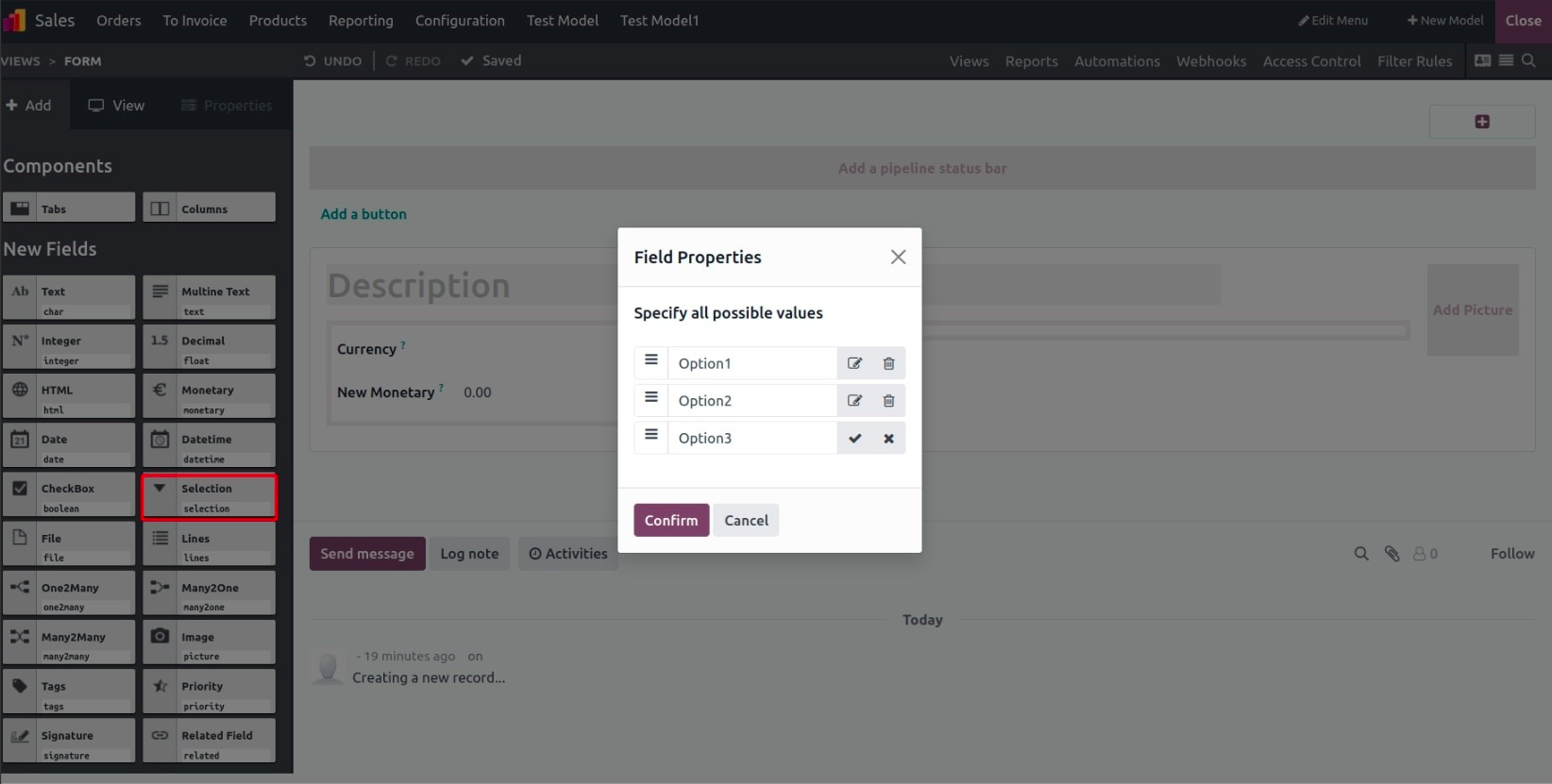
- >Selection: Create dropdown options by manually defining the possible values.
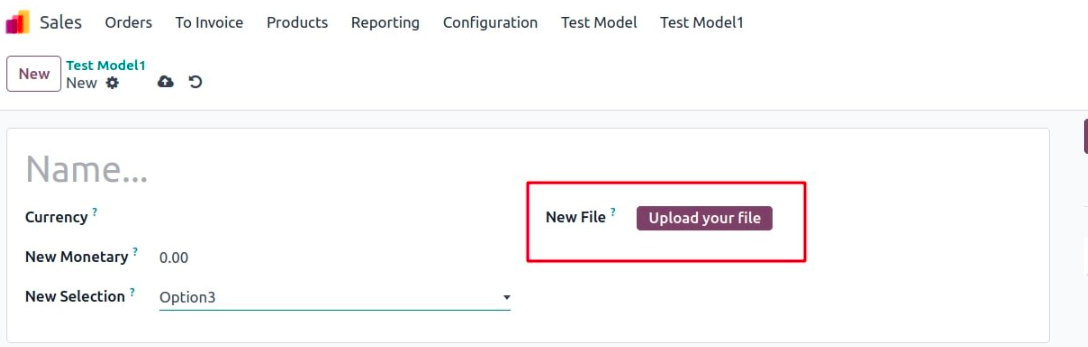
- File Upload: Used to store attachments like PDFs or images.
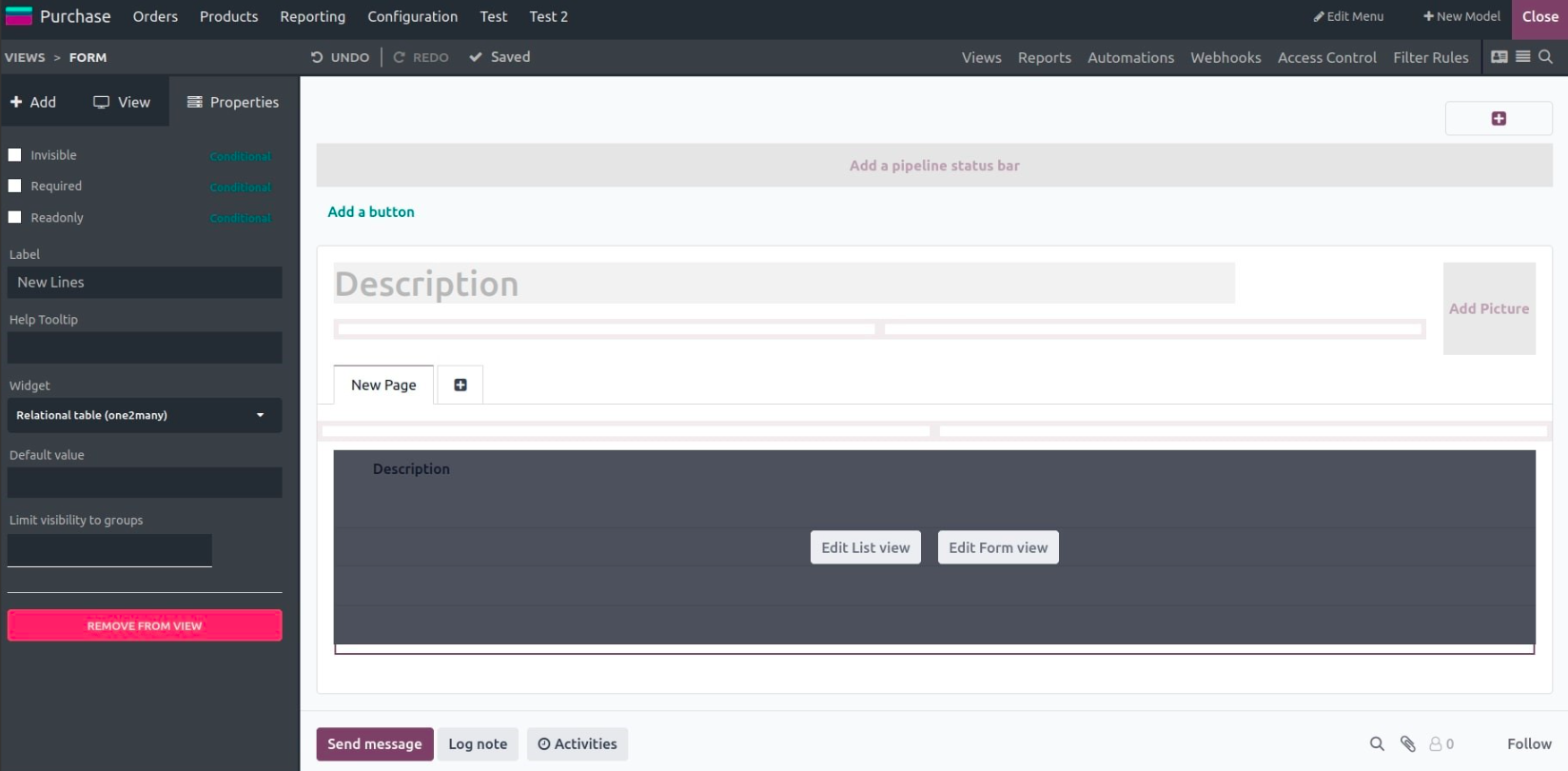
- Lines (One2many inline): Allows structured input of multiple line items inside a section. Supports form and list view editing.
Relational Fields
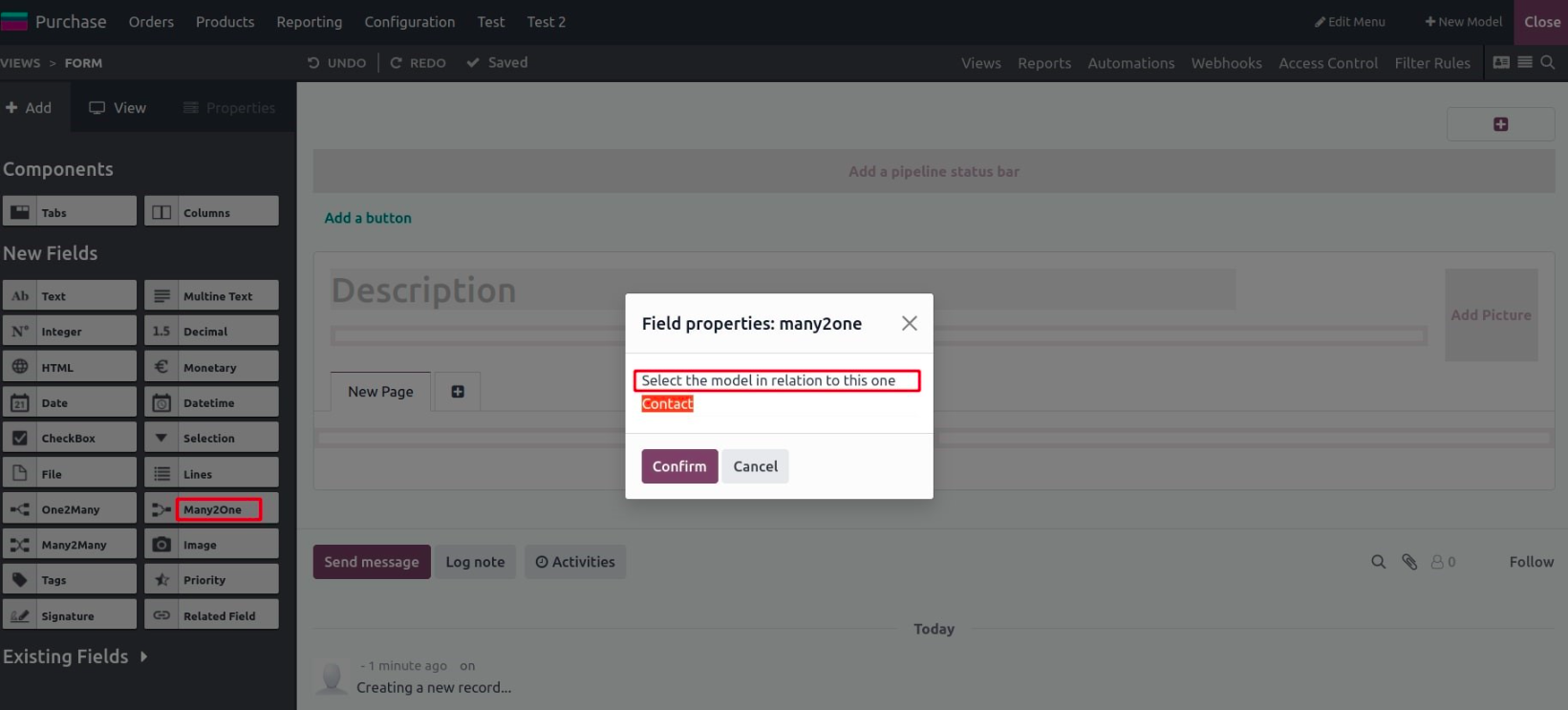
- Many2One:Links the record to another model. You must define the related model.
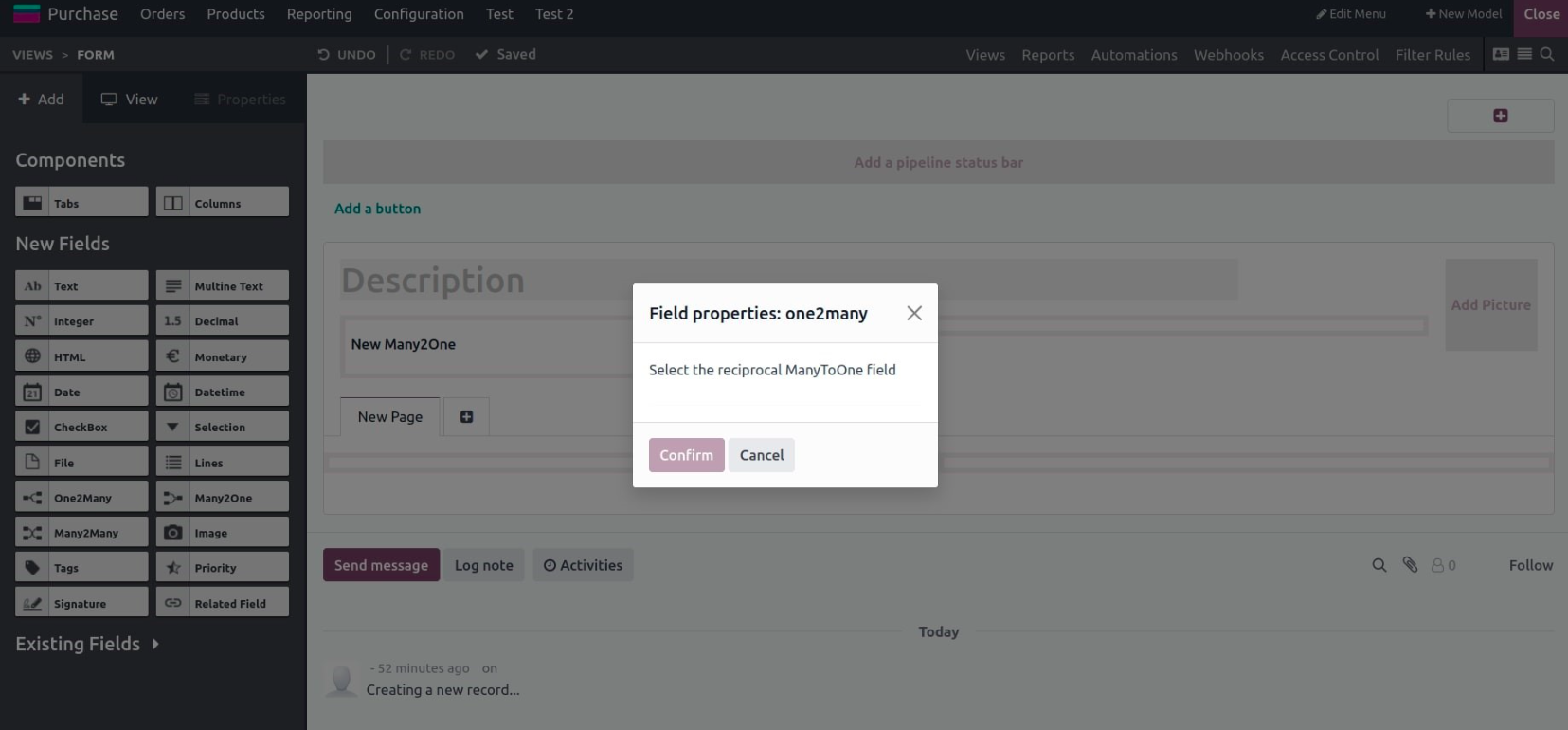
- One2Many: Creates a one-to-many relationship; must refer to a reciprocal Many2One field.
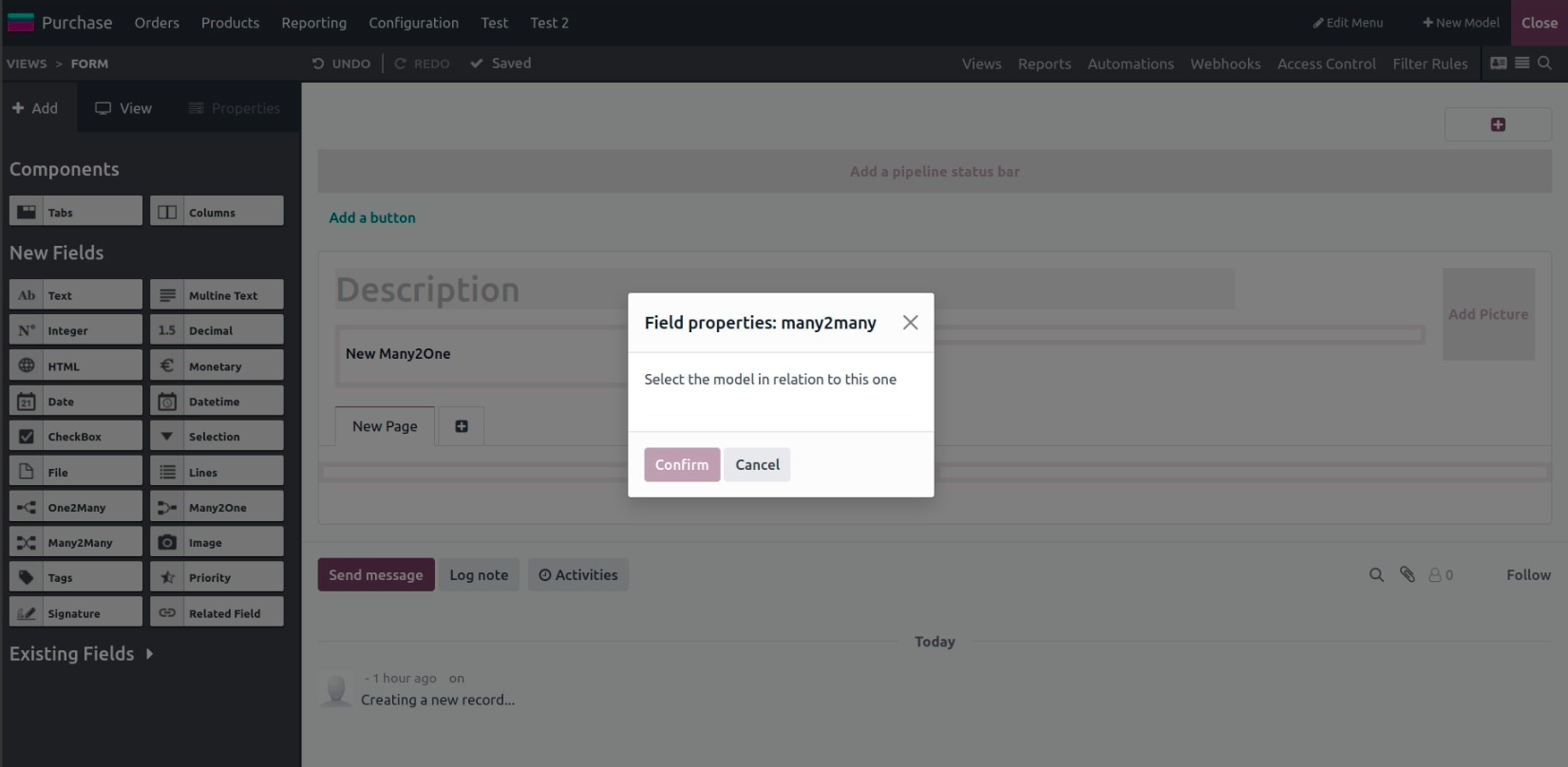
- Many2Many: Enables linking with multiple records in another model. Requires model selection.
Media & Utility Fields
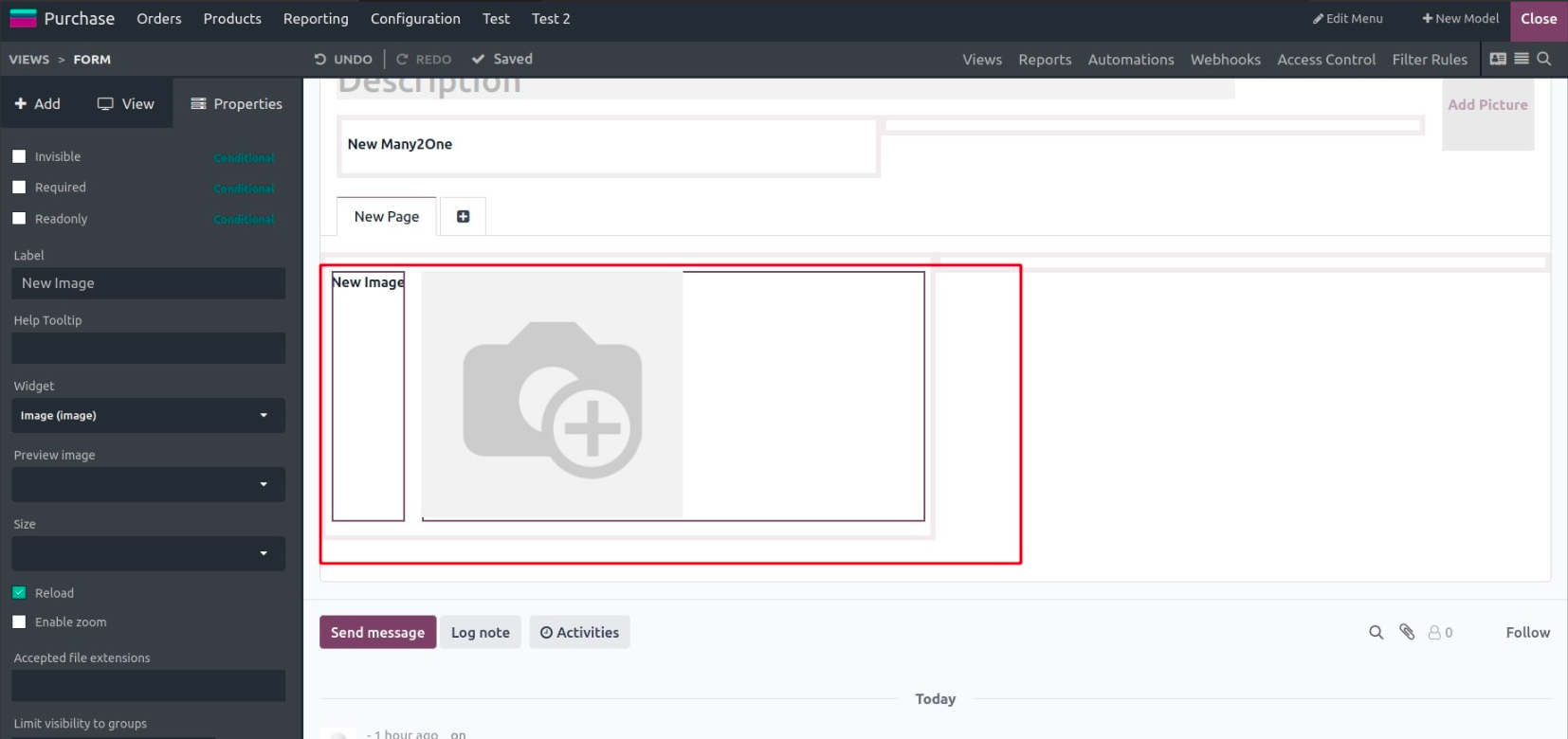
- Image: Used to upload and display image files (e.g., JPG).
- Tags:Technically a Many2Many field, used for labeling and categorization.
- Priority:Selection field for setting priority levels (e.g., low, medium, high).
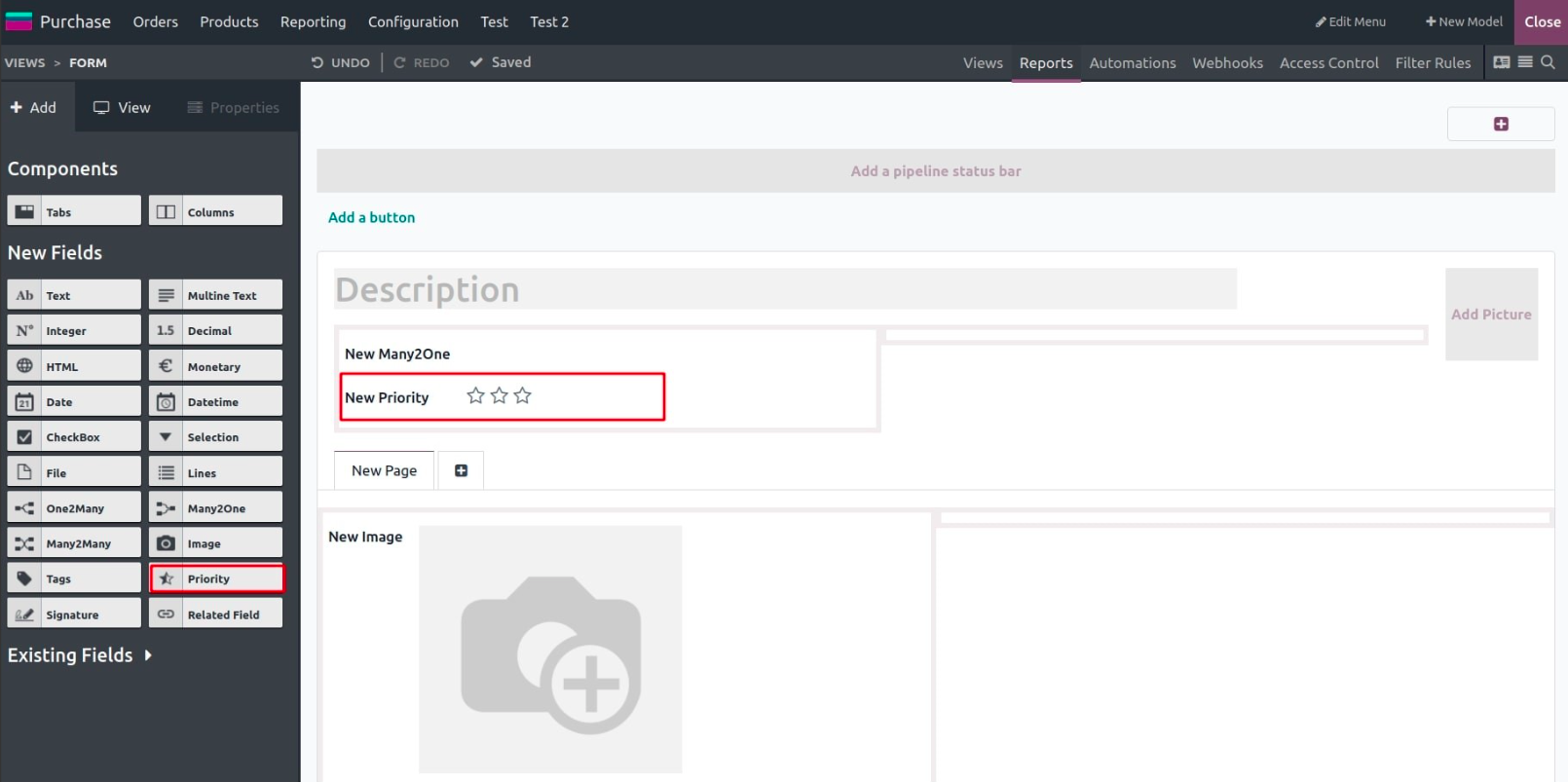
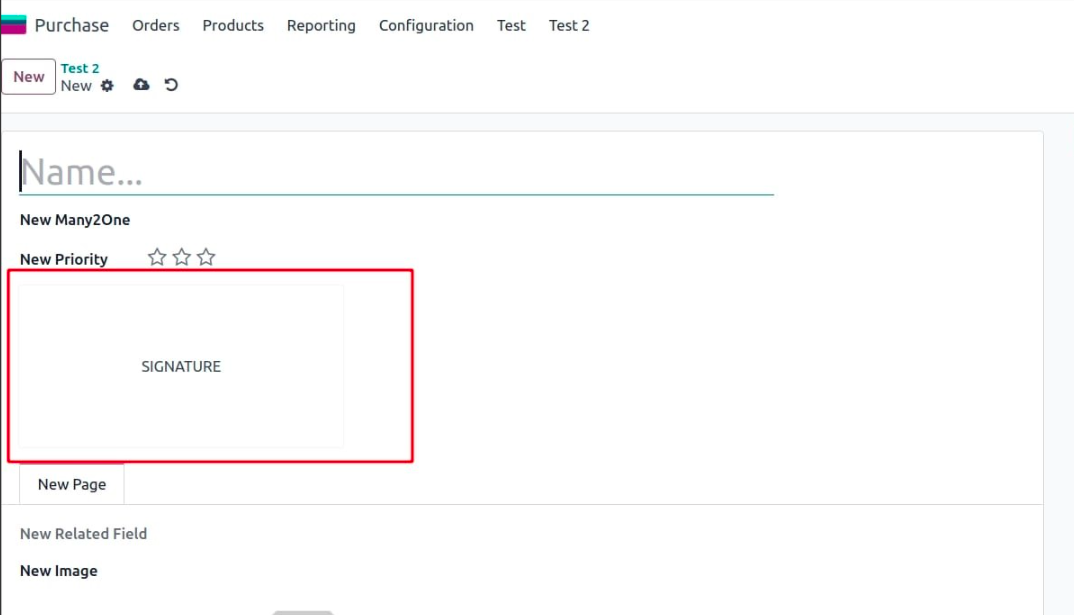
- Signature: Captures e-signatures. You can configure it to auto-fill contact info as well.
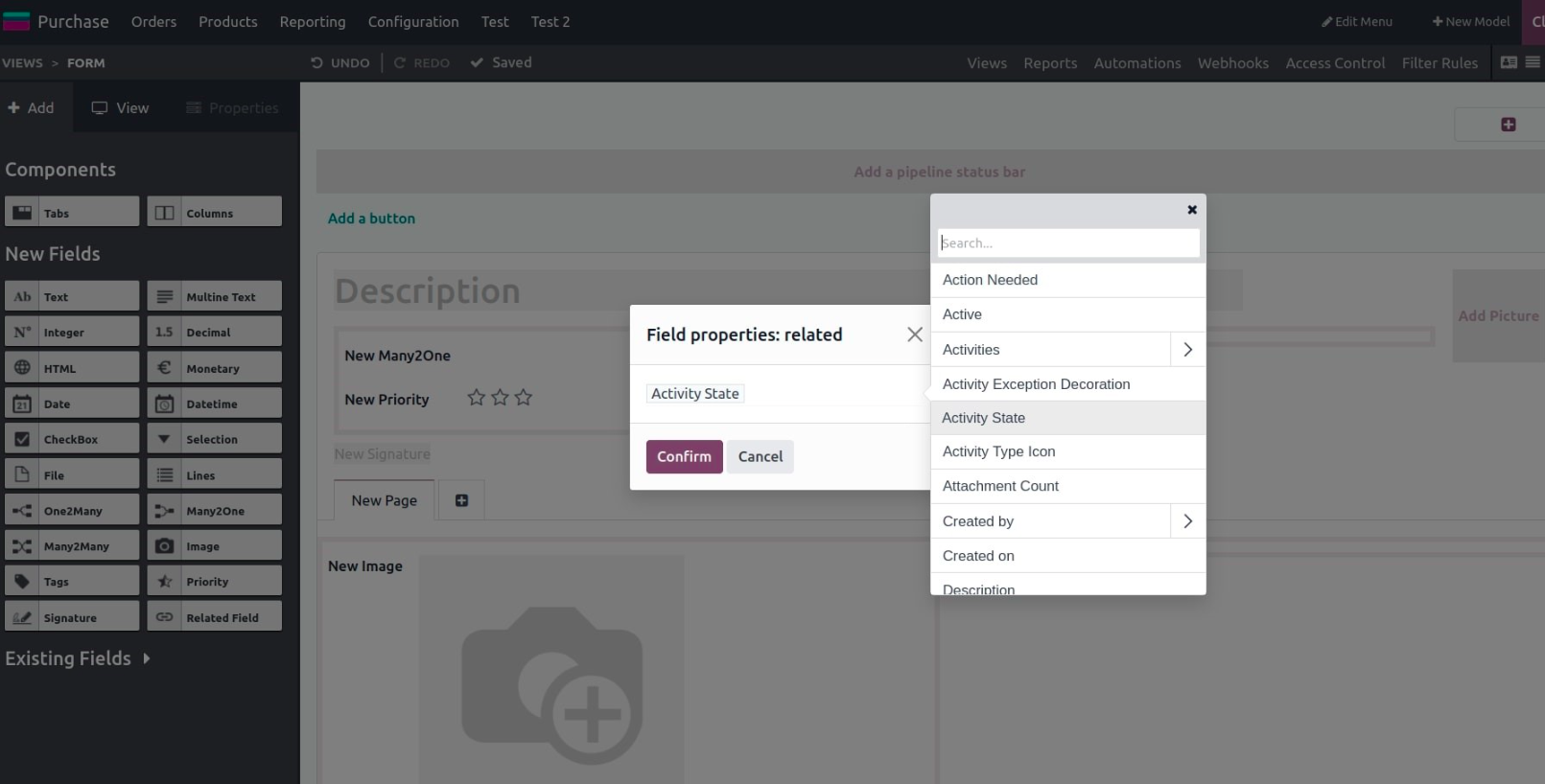
- Related Fields:These display the value of a field from a related model—great for showing linked info without creating new relationships.
Adding Existing Fields
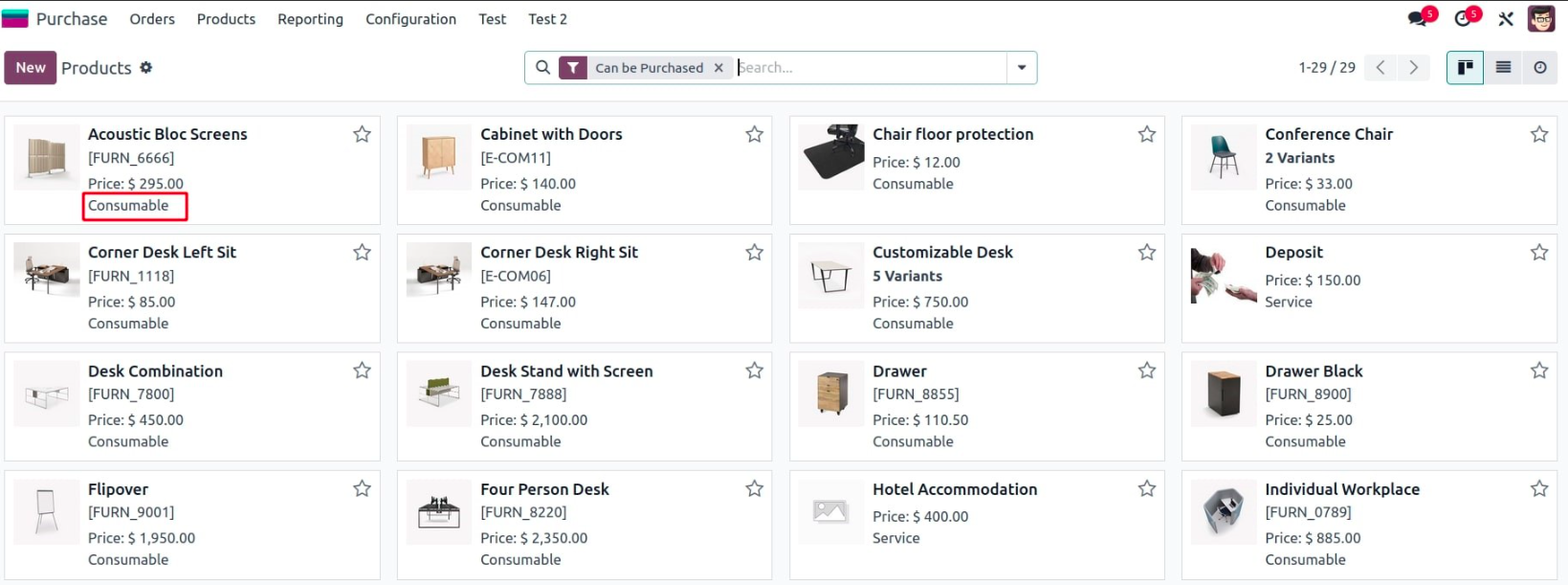
Studio also allows you to reuse existing fields in different views by dragging them in. In this case, the field “Product Type” exists in the model but isn't shown in the Kanban view yet.
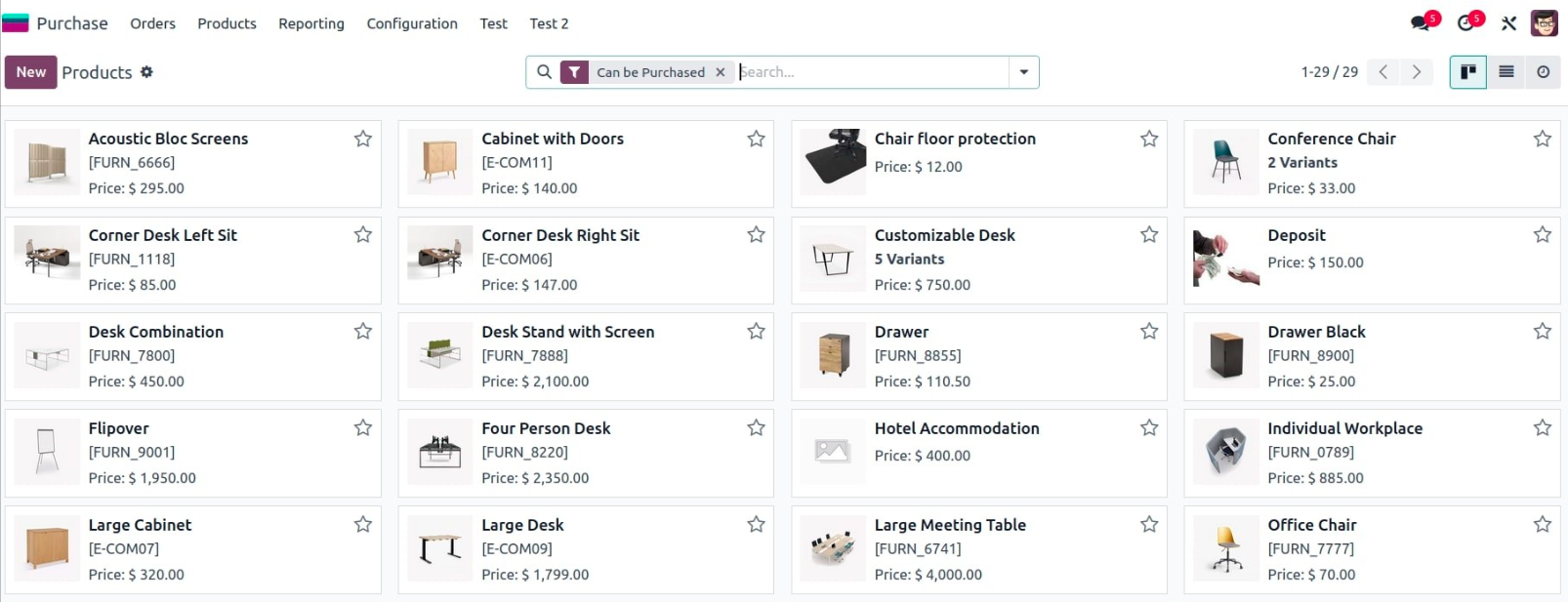
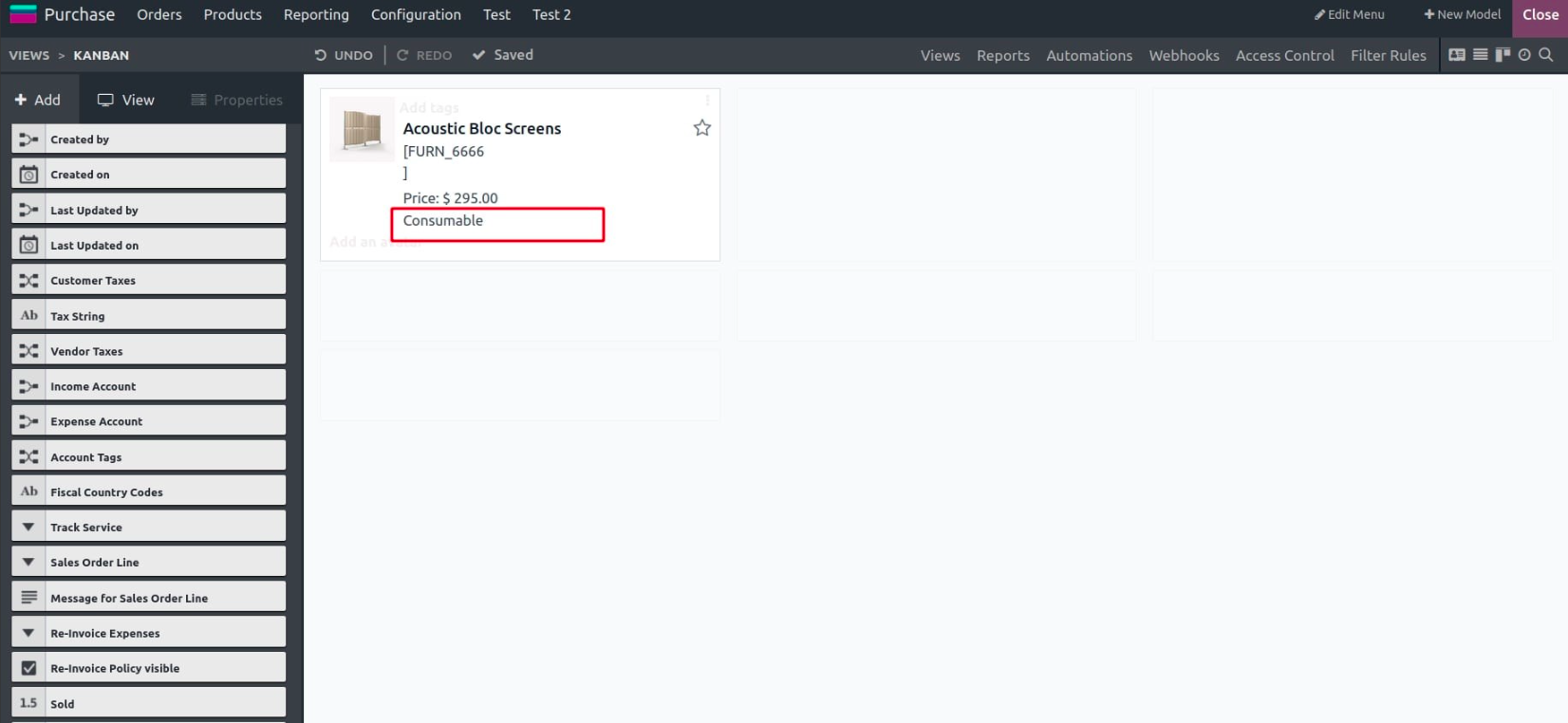
Once added, it becomes visible and functional in the desired view.
Odoo 18 Studio makes model creation and field customization a fast, code-free process. Whether you're building a custom app or refining an existing one, you have complete control over data structure, input, and presentation, all from a clean, drag-and-drop interface.