Odoo Studio provides an easy-to-use interface for creating and customizing various templates, which is especially useful for modifying report layouts to fit specific requirements. In this section, we’ll walk through the process of building a new template using the Studio module.
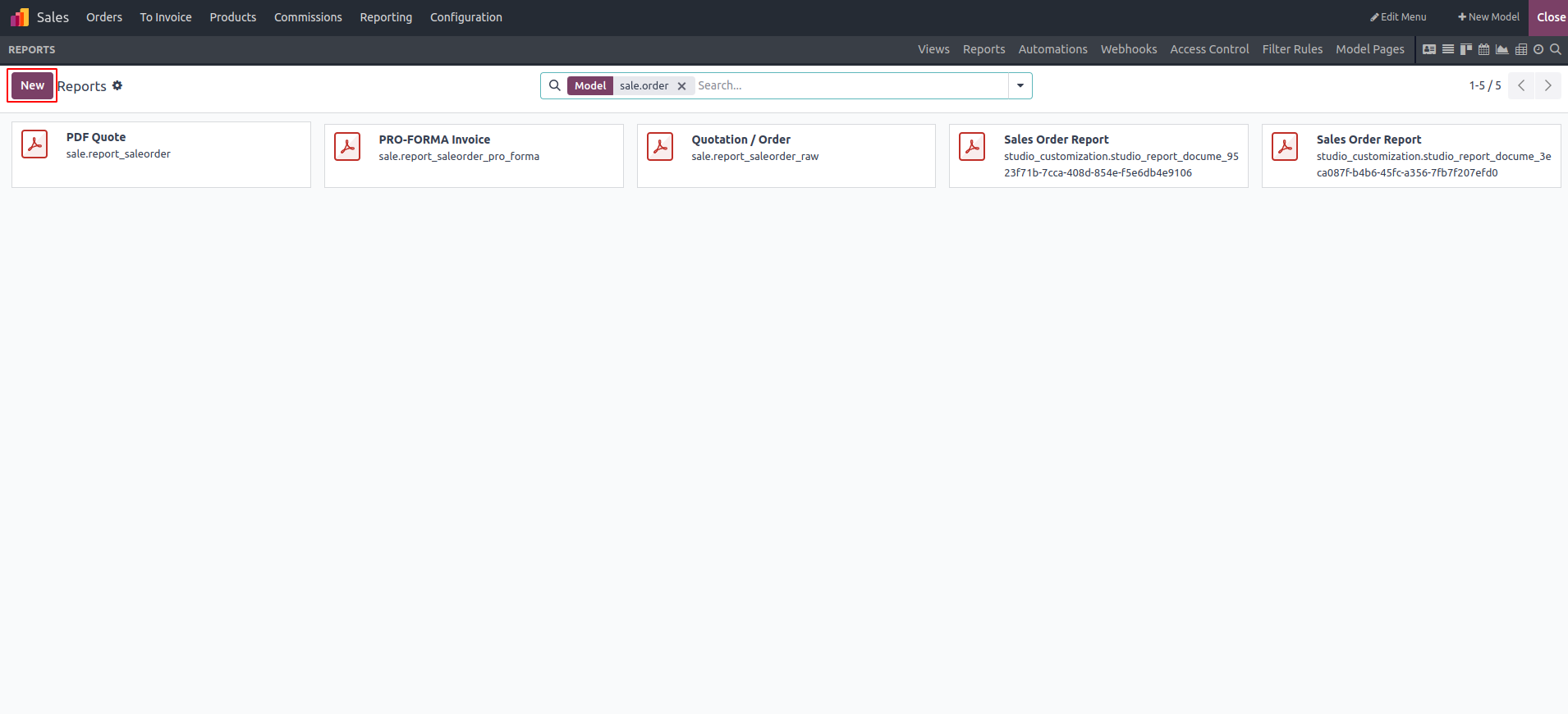
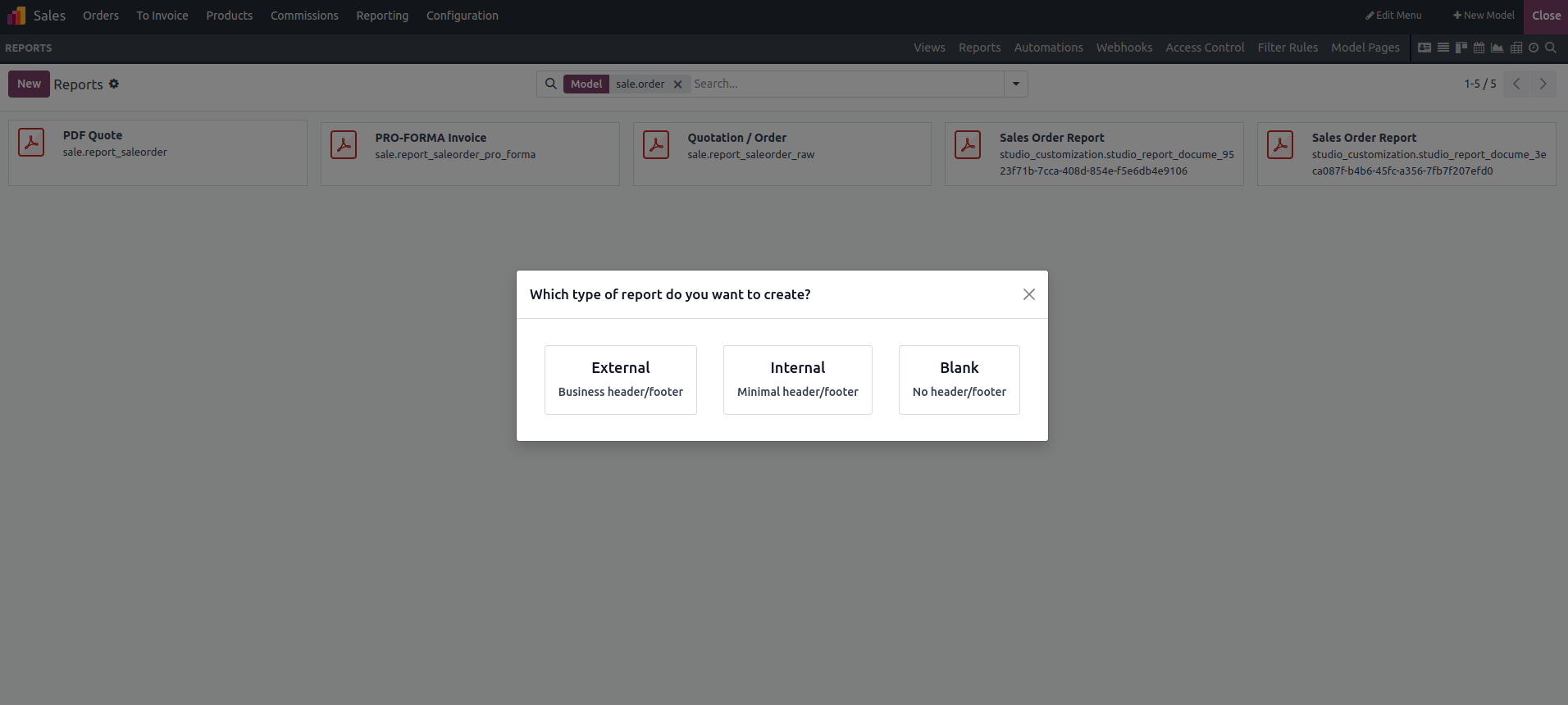
Clicking the 'Create' option will open a pop-up window prompting you to select a report type. This selection determines the structure and elements included in the template. You can choose from three predefined options: External (with a business header and footer), Internal (with a minimal header and footer), or Blank (with no header or footer).
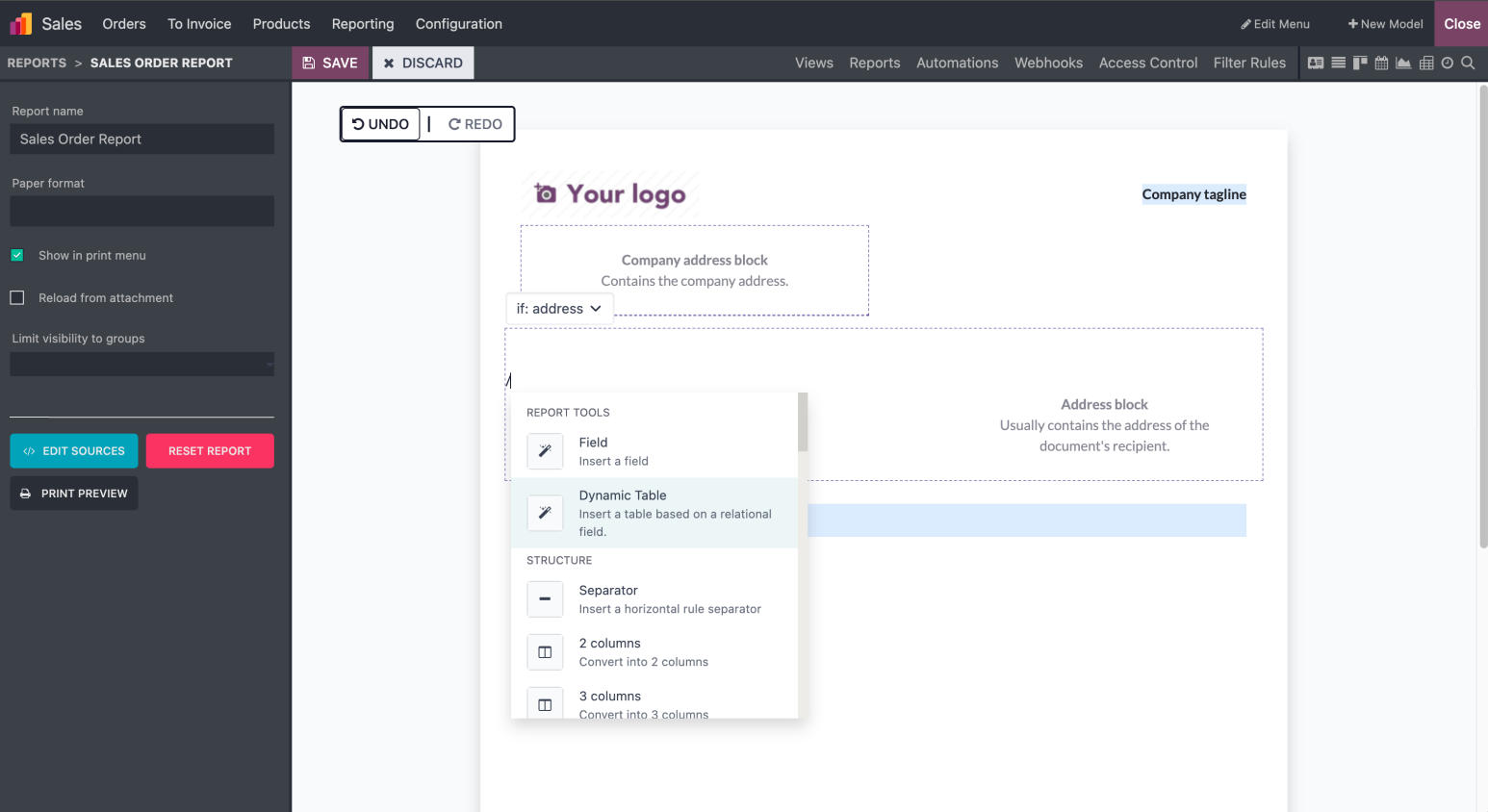
When you select the External report type, the template will display both the header and footer.
The report name defines the title of the report.
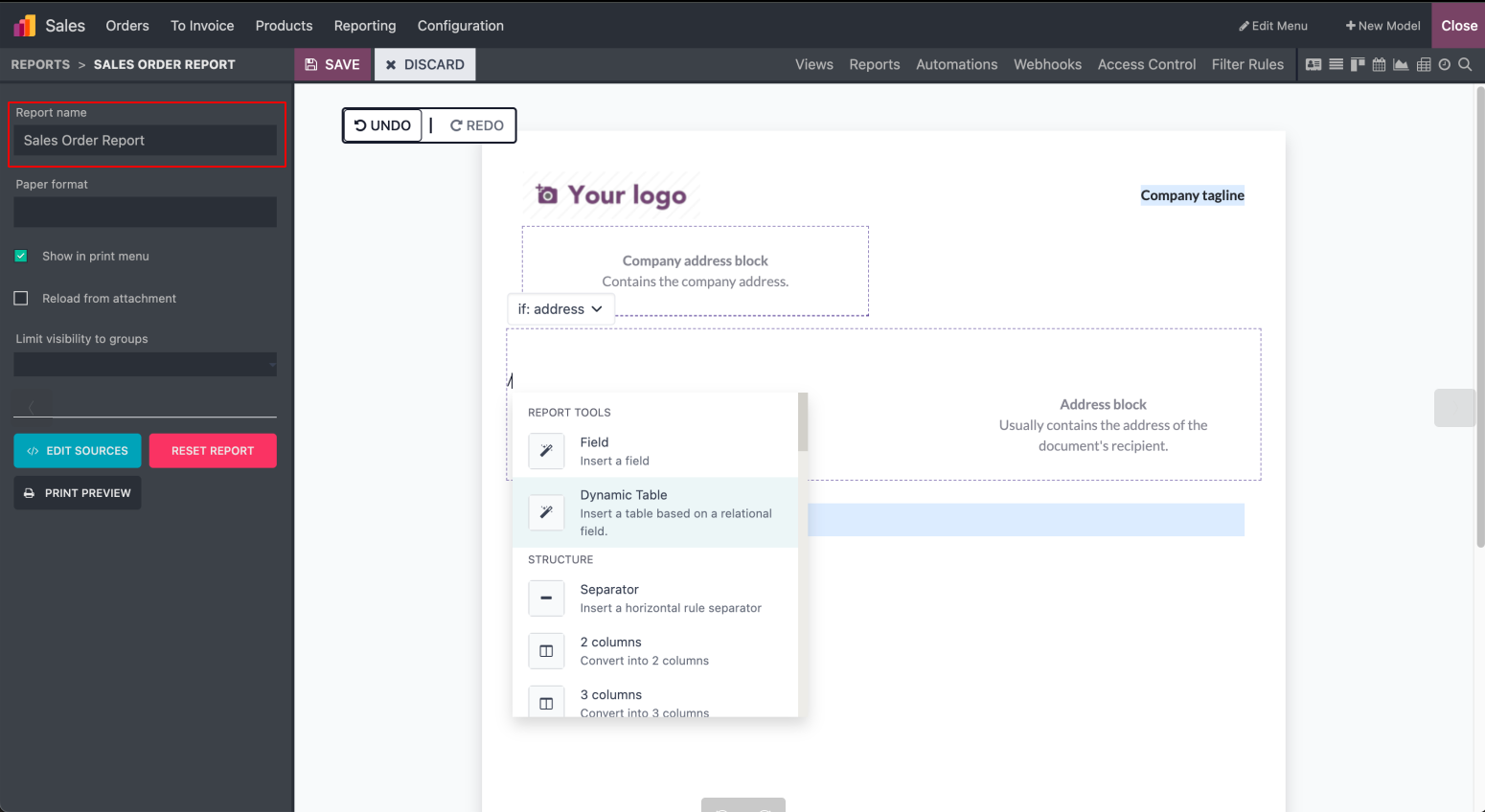
Fields and other additional properties can be added to the template by typing the '/' symbol.
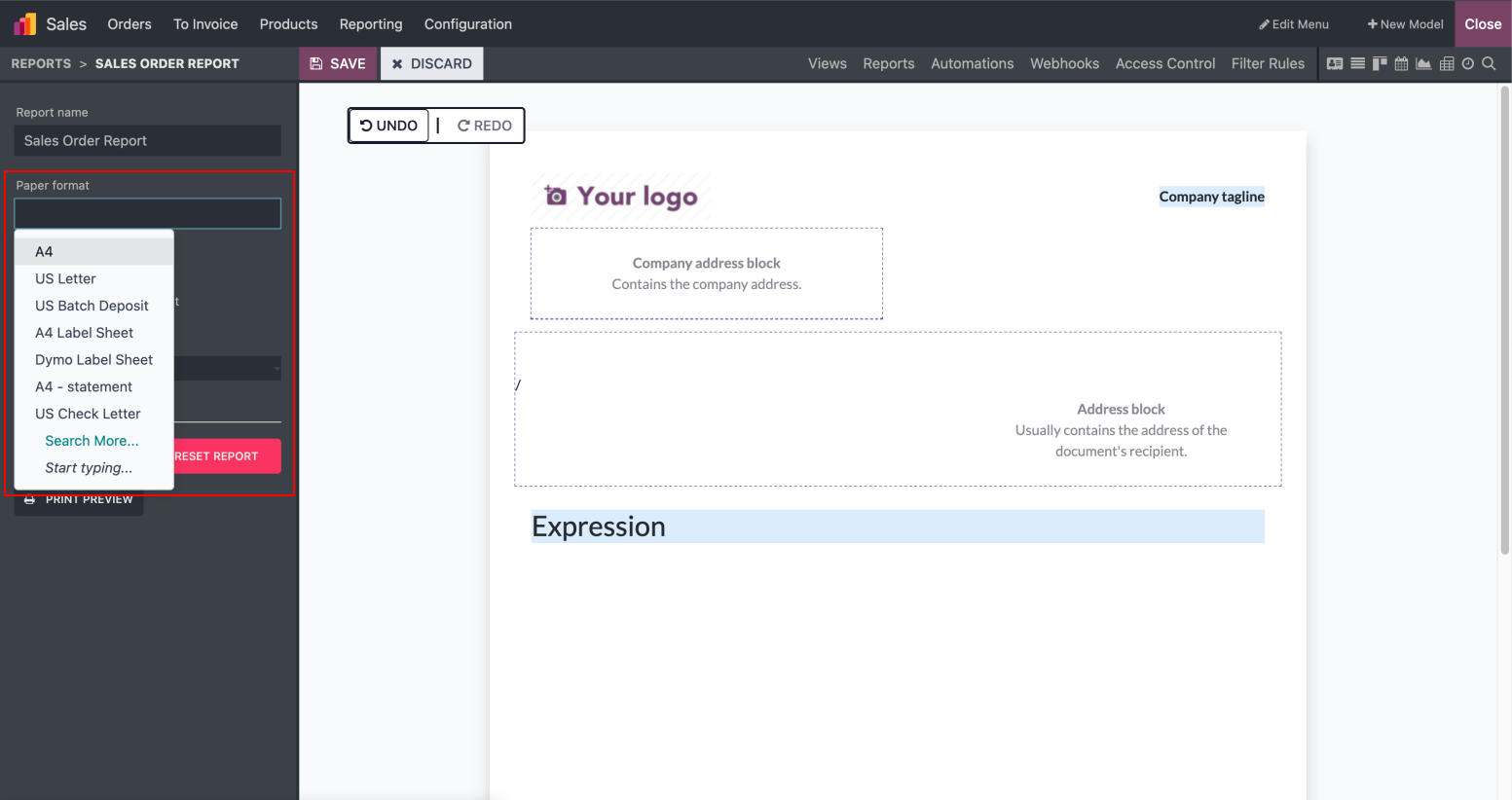
The Paper Format defines the layout and dimensions required for generating the template.
Enable the Boolean field to display the report in the print menu of the model view.

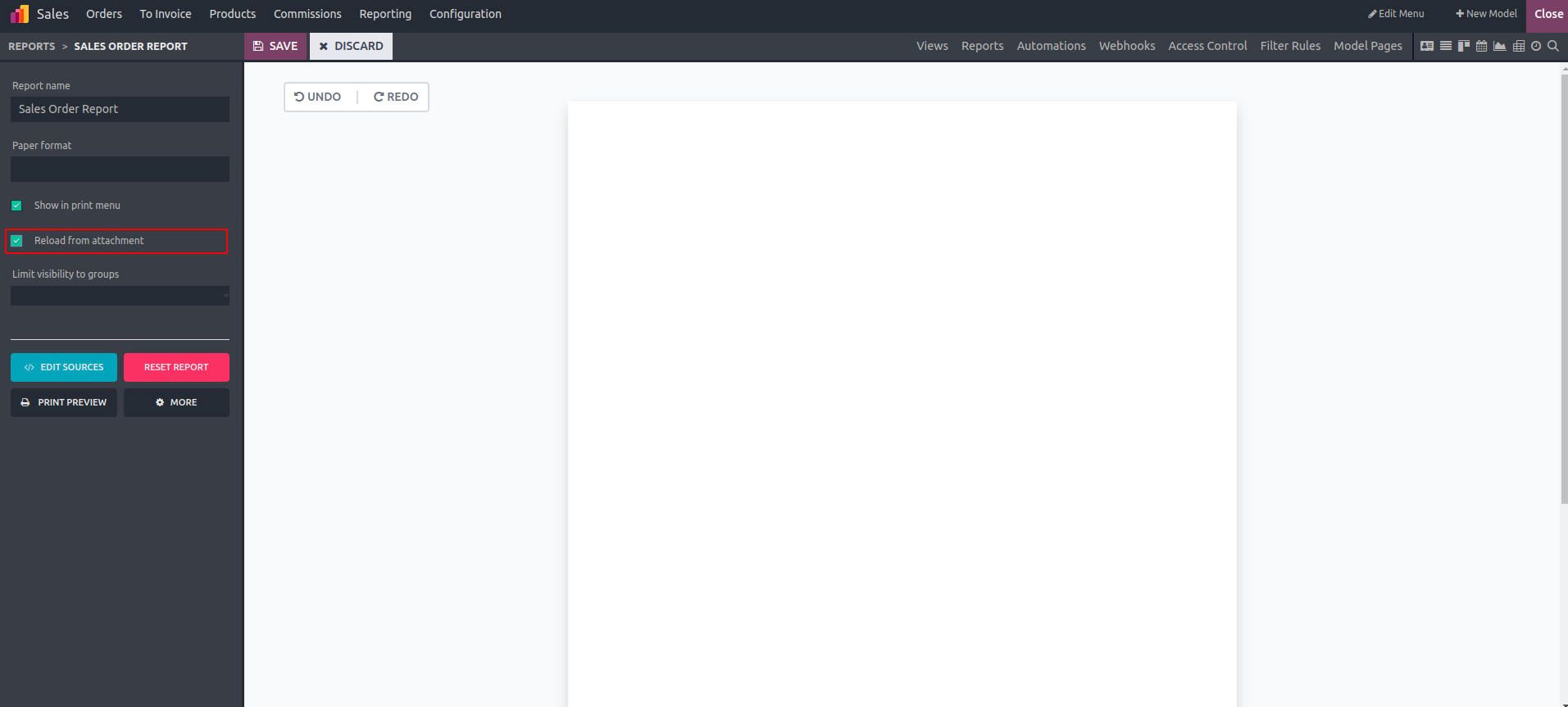
When Reload from Attachment is enabled, printing the report again with the same attachment name will display the previously saved version instead of generating a new one.
Configuring a group in the Limit visibility to group field restricts report visibility within the model to users who belong to that designated group.

When using the Internal report type
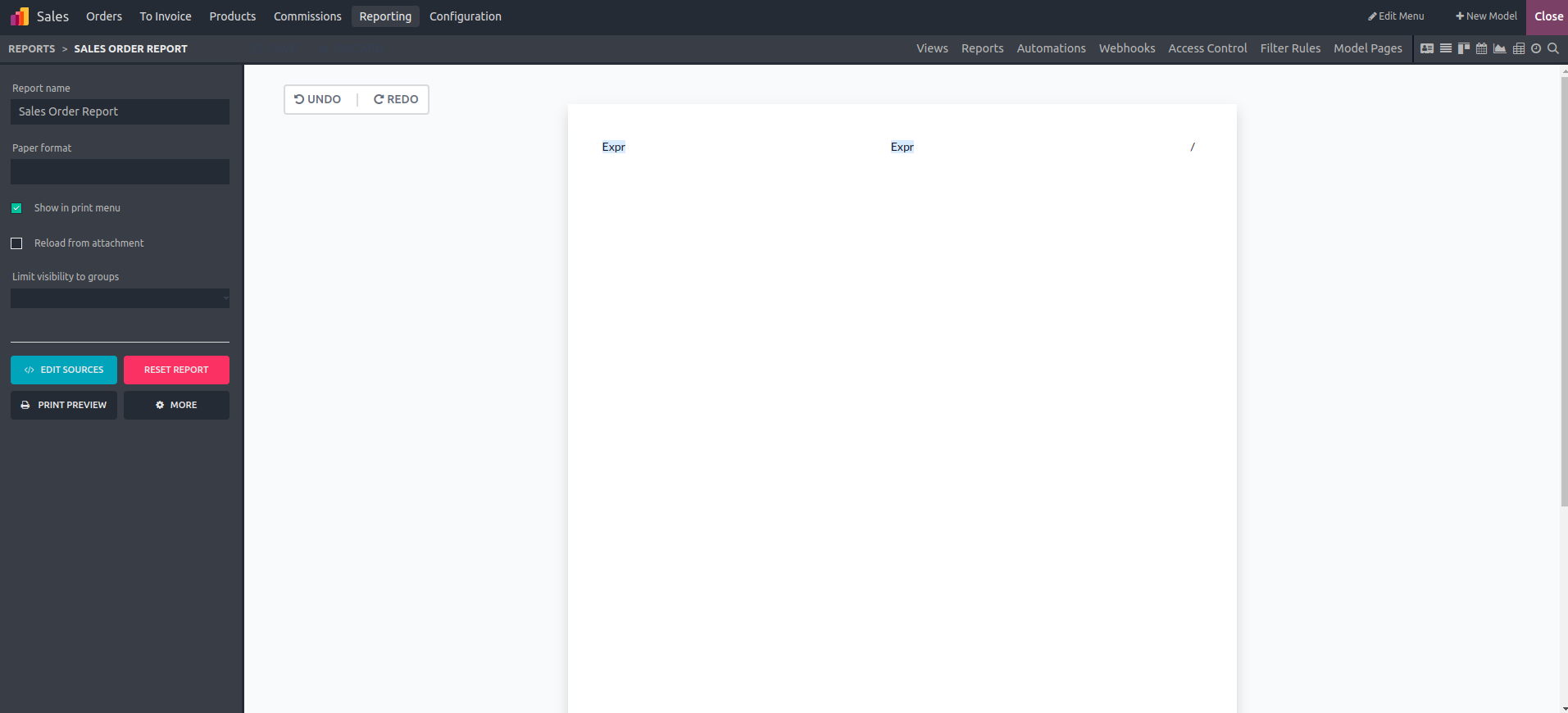
When using the Blank report type
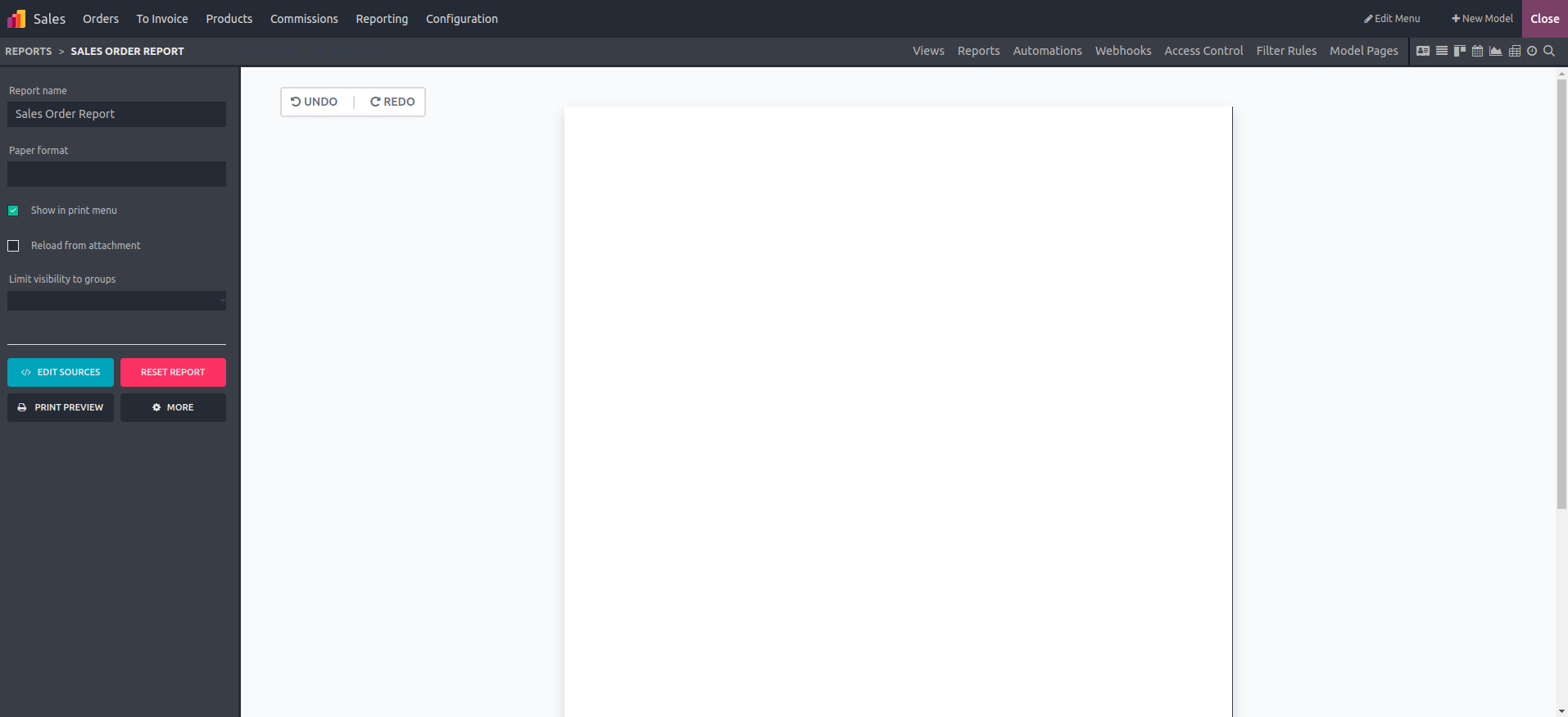
Customizing the Report.
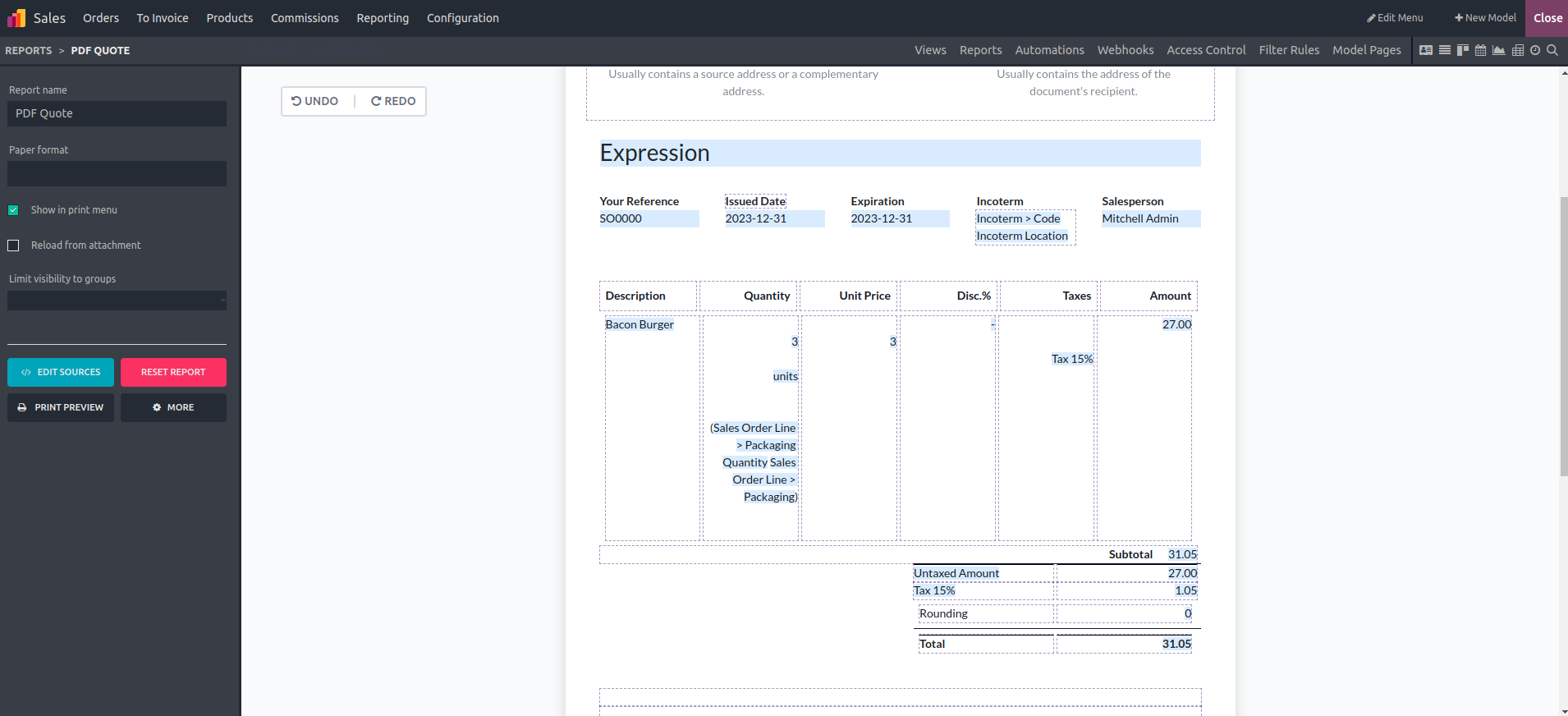
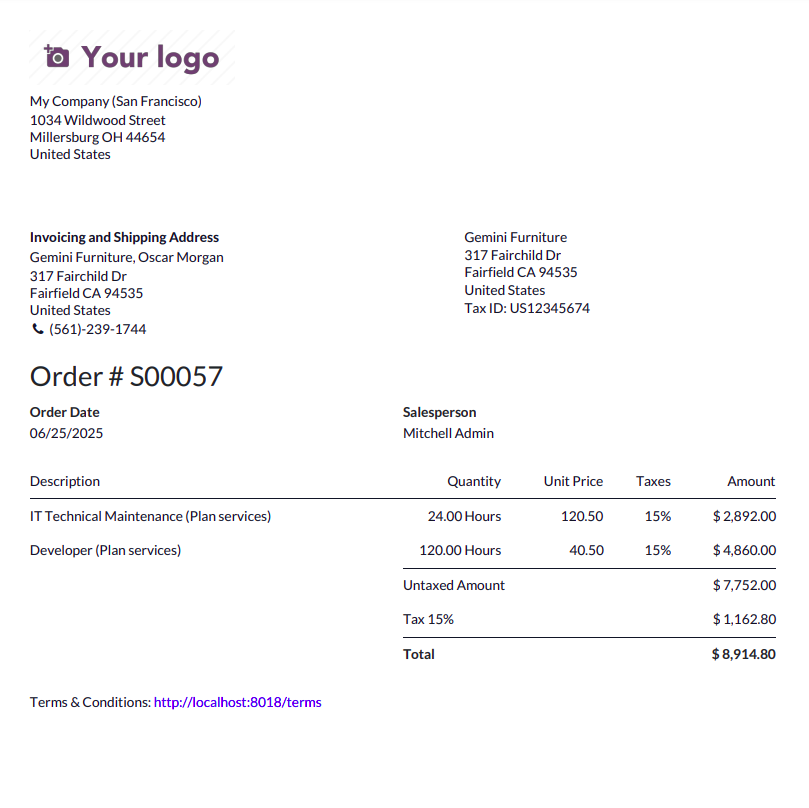
The resulting output will be: