In Odoo, the Developer Mode (also referred to as Debug Mode) is a feature that provides access to advanced technical functionalities. It allows users to view and modify fields, menus, views, and other backend elements. This mode is mainly used by individuals with technical knowledge to perform configuration, customization, and troubleshooting tasks.
Different Methods to Activate Developer Mode
- Activated from the general settings menu.
- Activated through the developer mode extension.
- Activated through a command.
- Activated through a URL.
Activated from the General Settings Menu
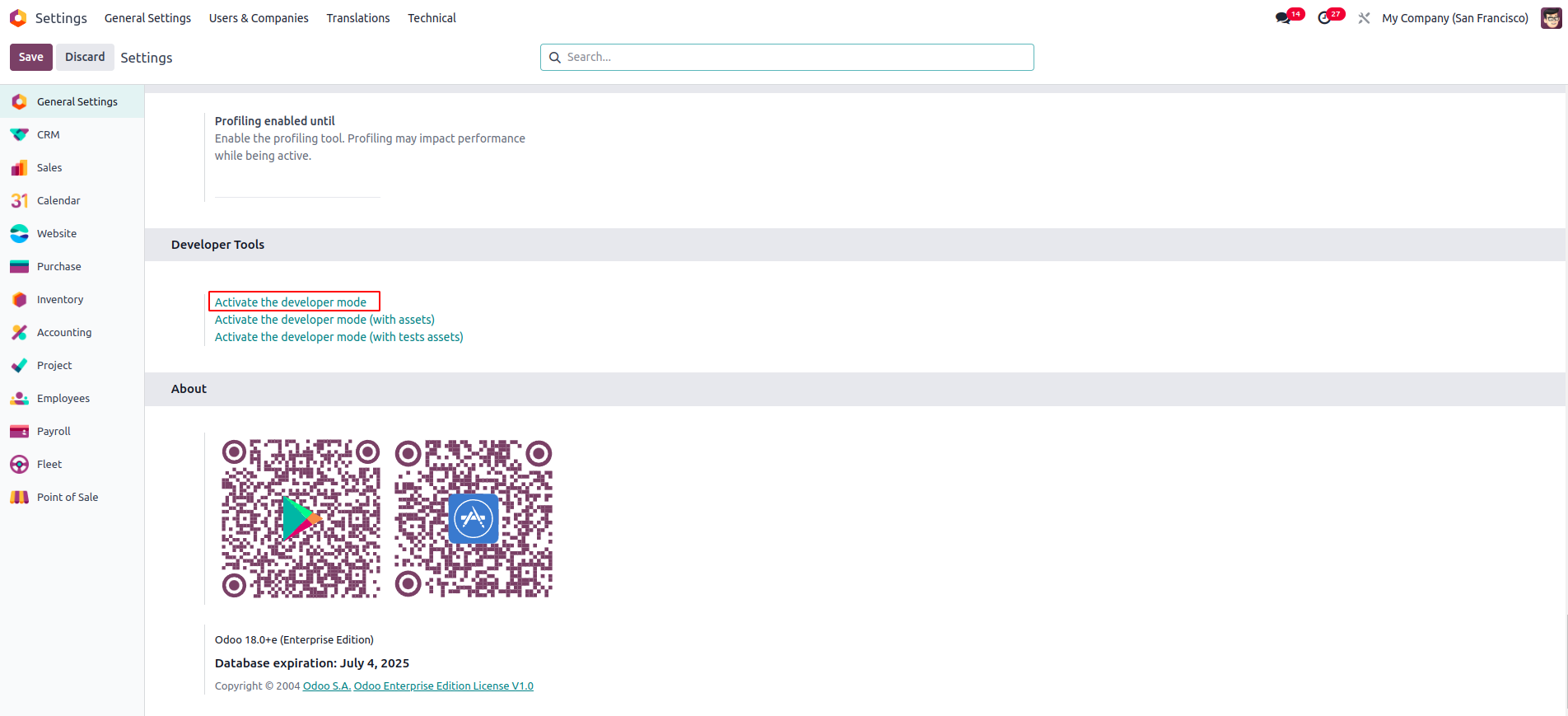
Within the General Settings, scroll down to the Developer Tools section where you'll find the "Activate the developer mode" option. Clicking this link, as highlighted in the screenshot above, will turn on developer mode. An option to disable it is also available when needed.
Activated Through the Developer Mode Extension
You can simplify the process of enabling developer mode by using a browser extension like "Odoo Debug," which lets you activate it quickly with just one click.
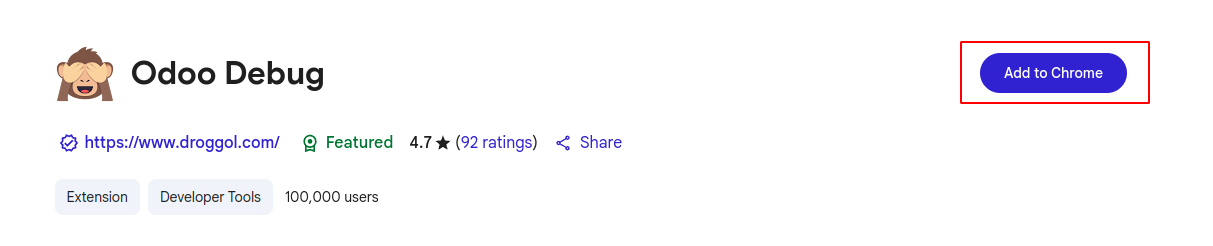
To install the extension, just click on "Add to Chrome." If you're using a different browser, you can add the extension in a similar way specific to that browser.
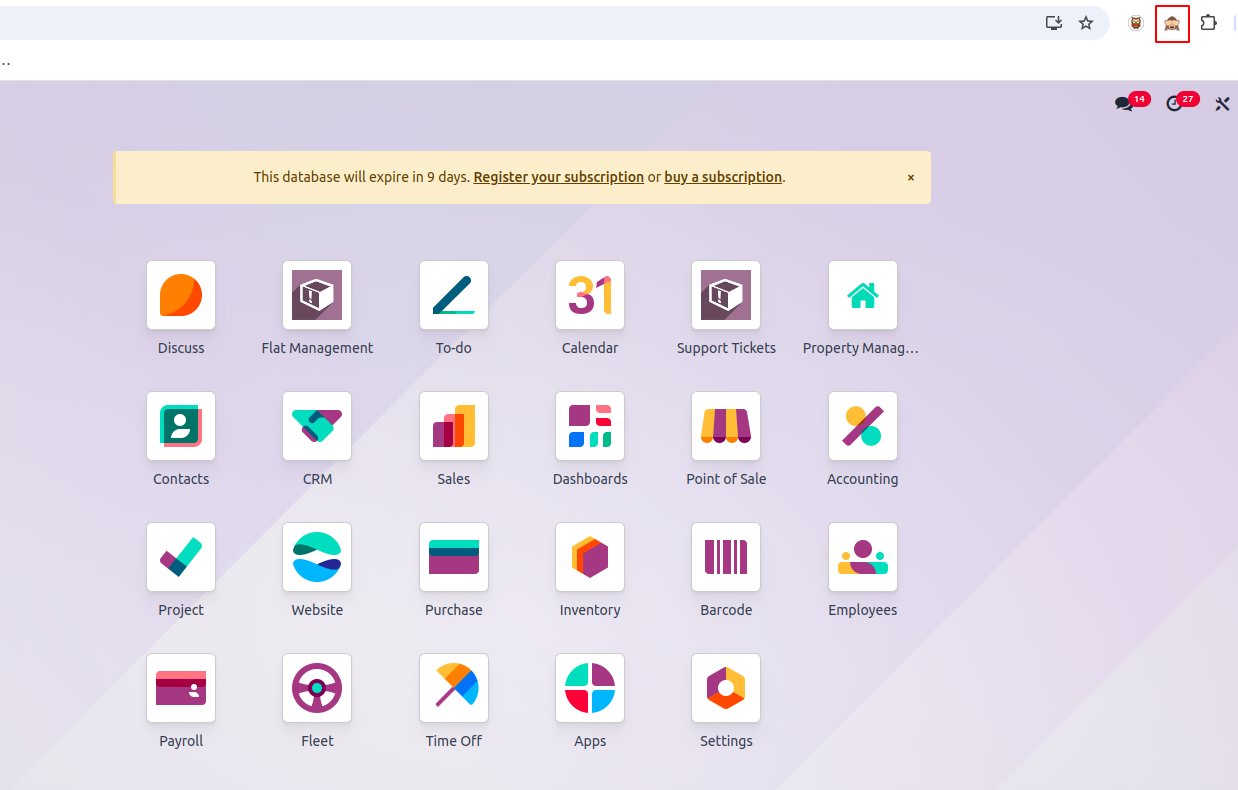
You can activate developer mode with a single click, and a double-click will enable developer mode along with assets (CSS and JavaScript files). To deactivate it, simply click once more.
Activated Through a Command
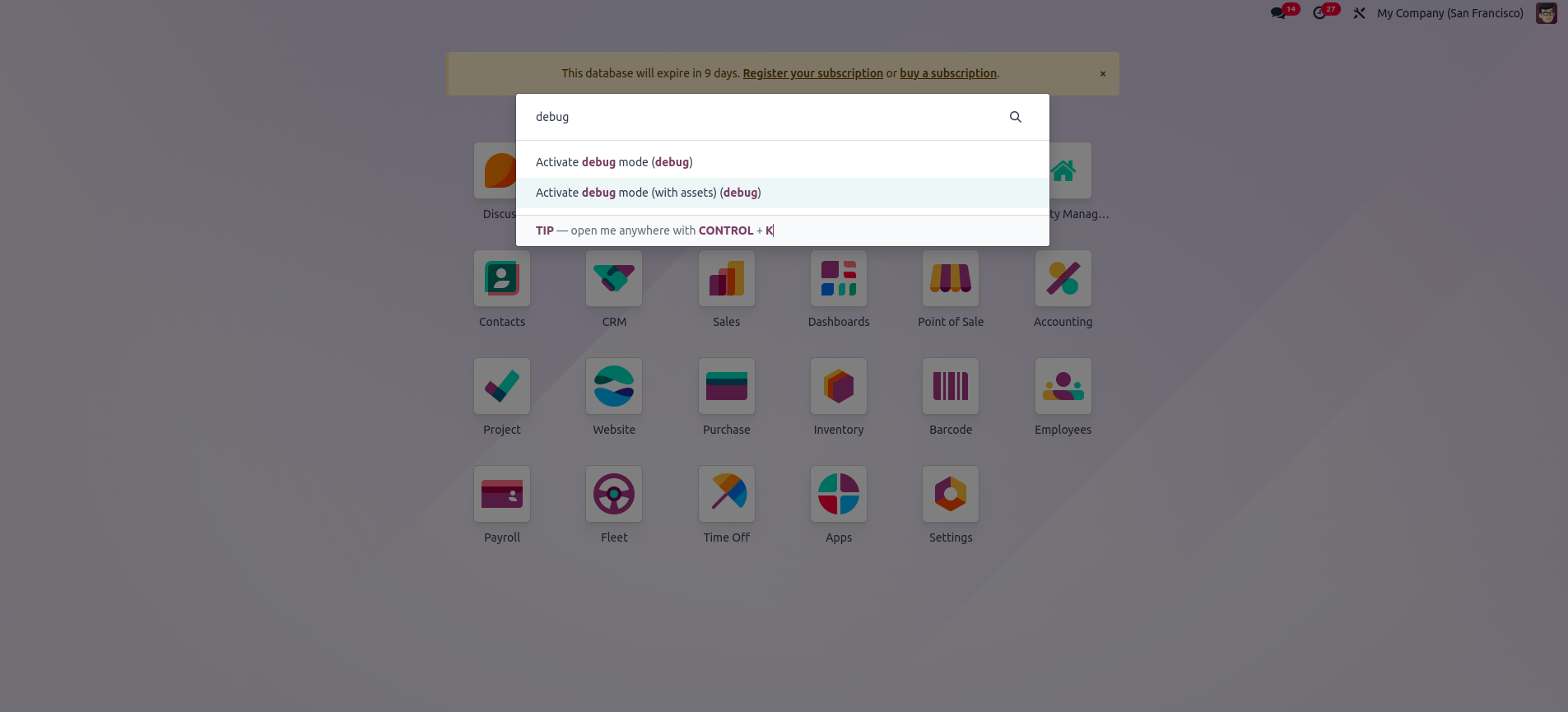
In Odoo, developer mode can be activated using a command. Press the shortcut key Ctrl+K to open the command palette, type "debug," and press Enter. Once done, you'll notice that developer mode is now enabled.
Activated Through a URL
Another way to activate developer mode in Odoo is by modifying the web URL. Simply add "?debug=1" or "?debug=true" after "/web". To deactivate developer mode, replace it with "?debug=0" or "?debug=false".
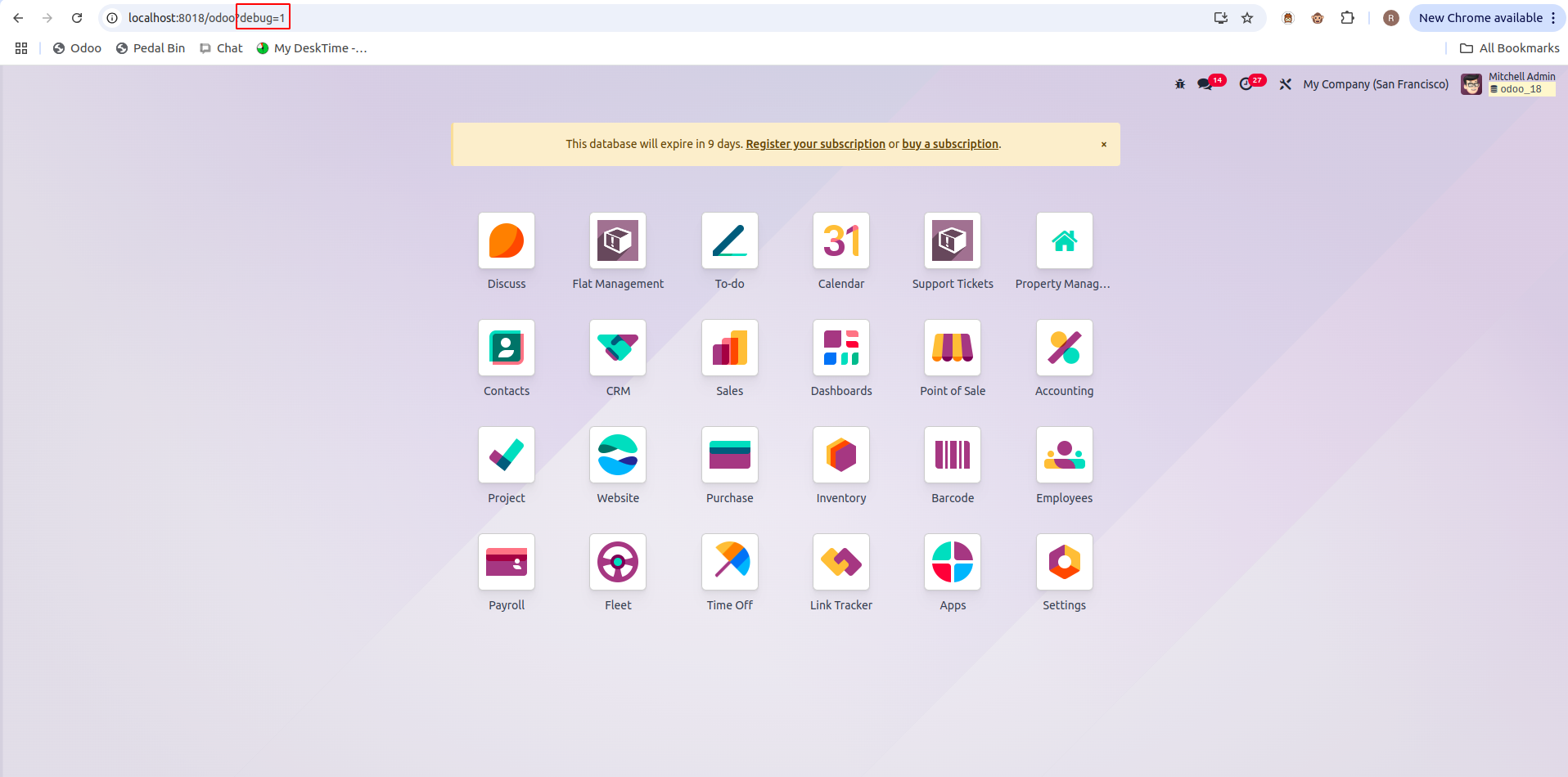
Developers can access additional models by appending ?debug=assets to the URL. After activating developer mode, a bug icon will appear, as shown in the screenshot above. This menu provides access to extra tools that are useful for viewing or modifying technical information.
