The Studio module in Odoo 18 is a highly user-friendly tool that allows users to create fields in various modules with ease using a drag-and-drop interface. Completely free to use, it empowers users to build applications without requiring developer assistance. Some of the most commonly used features in Odoo Studio include:
Export a Module
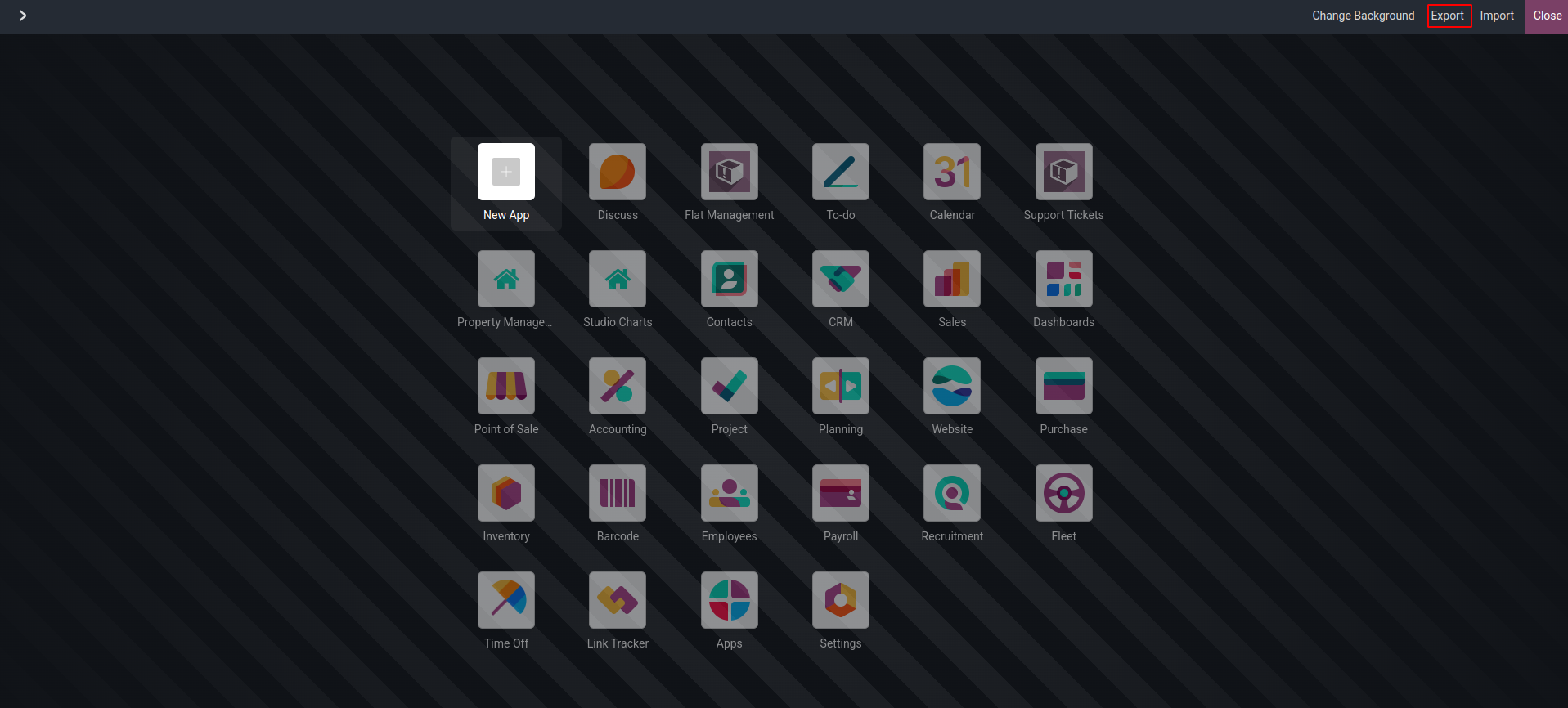
In Odoo Studio, you can customize apps by using the export and import features. When you open the customization menu, you'll see an export option. Clicking this will export your customized module from Odoo and download it as a customization.zip file.
Let’s explore the process of importing and exporting modules and data using the Odoo Studio module, along with utilizing the email gateway to protect internal mail servers. We'll also look into the search functionality for locating records within record sets, and the power of automation in delivering results with minimal human intervention. Automation proves especially useful for triggering specific actions based on predefined conditions, significantly reducing manual effort.
Additionally, the API offers a powerful way to access all custom items without requiring complex coding, simplifying both customization and integration. The menu editor also plays a key role by allowing the creation of new menus triggered by button clicks. Explore the flexibility of extra properties, which let you control field visibility, set fields as read-only, or mark them as required, providing a complete set of tools to customize the Odoo Studio experience according to your specific business requirements.
Import a Module
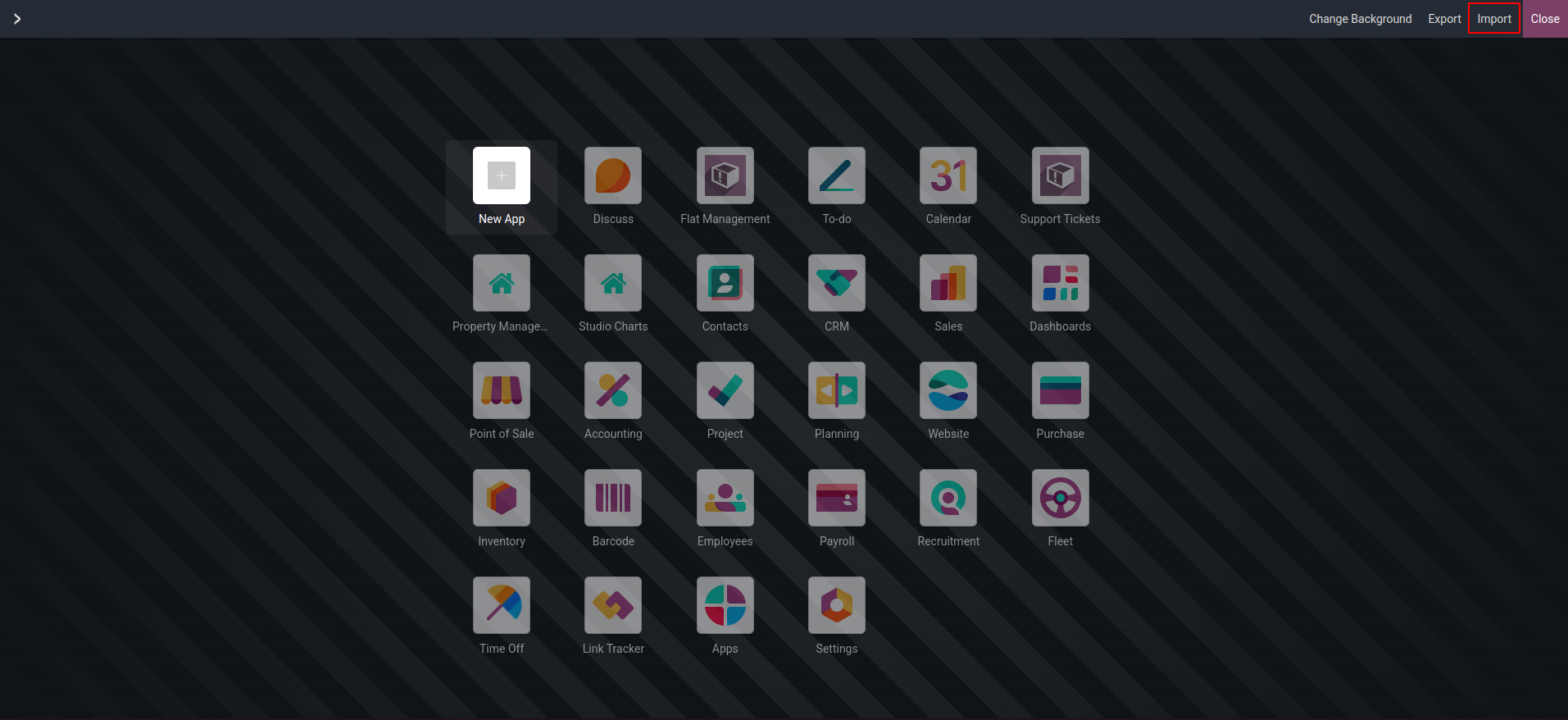
After the Odoo Studio module is installed, the customization menu provides access to the import feature. This allows users to smoothly import tailored configurations, making it simple to incorporate customized modules and data into the Odoo system.
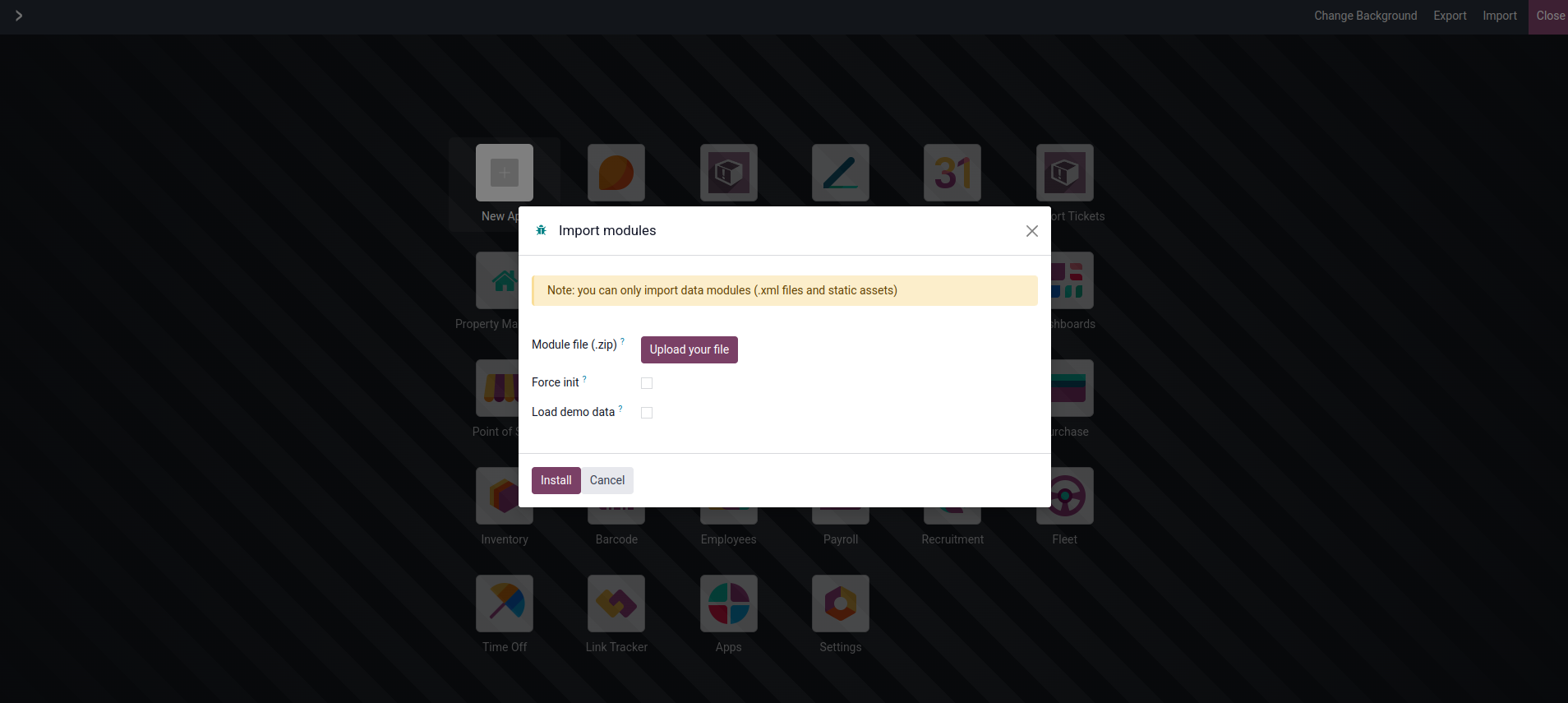
When the import menu is selected, a popup window appears with an option to upload a file. Users must upload the .zip file containing their custom module to begin the import process. Enabling the "Import demo data" option includes pre-configured sample data, which helps with module testing, speeds up setup, and improves the overall user experience and learning process.
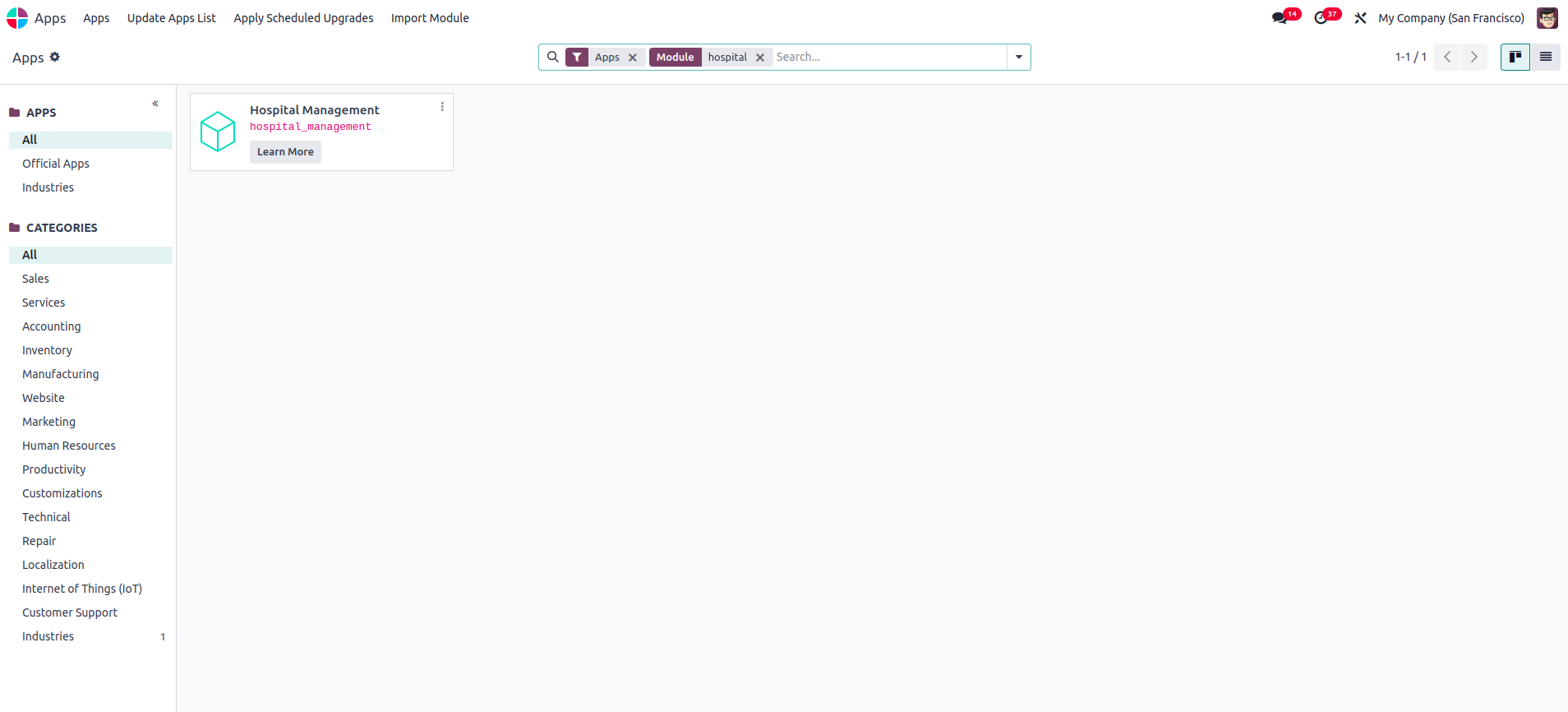
Once the custom module has been imported and processed, close the Odoo Studio module. Then navigate to the "Apps" section to confirm that the imported app has been successfully installed.