Filters
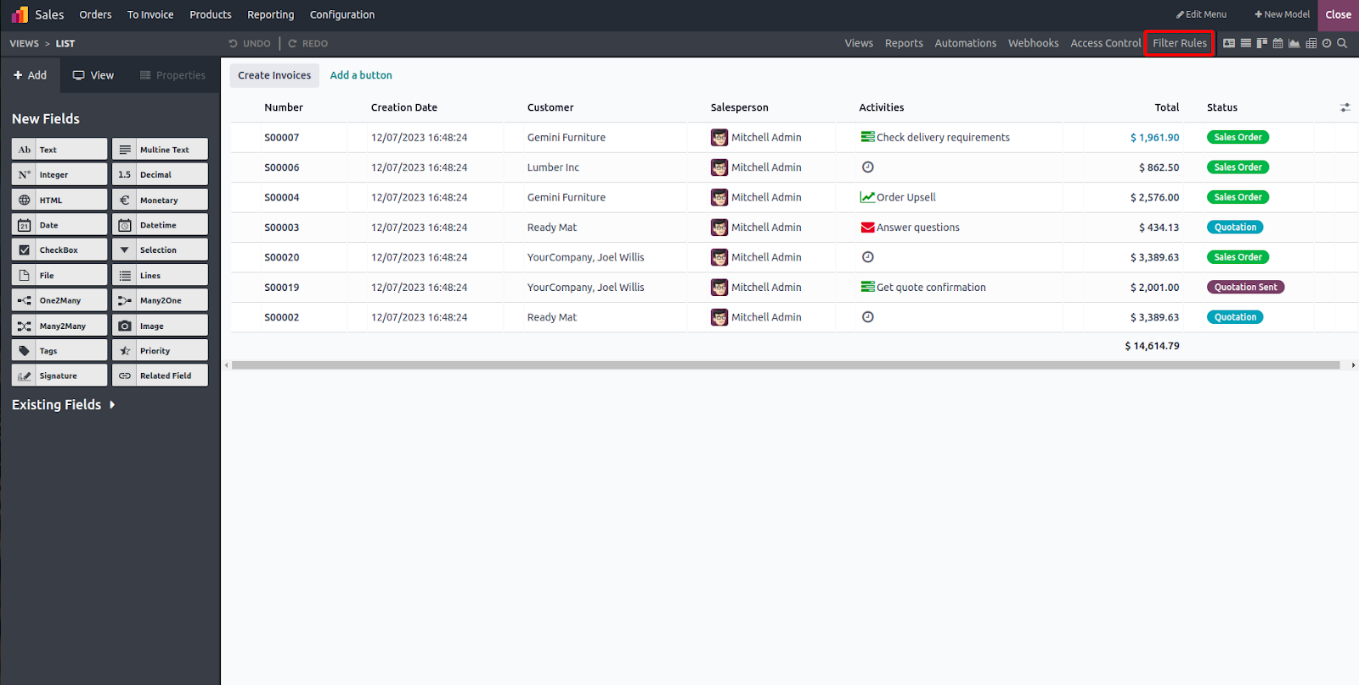
Within the Odoo Studio module, filter rules can be used to easily narrow down records based on specific criteria. As shown in the image below, the Filter Rules button is located in the top menu bar.
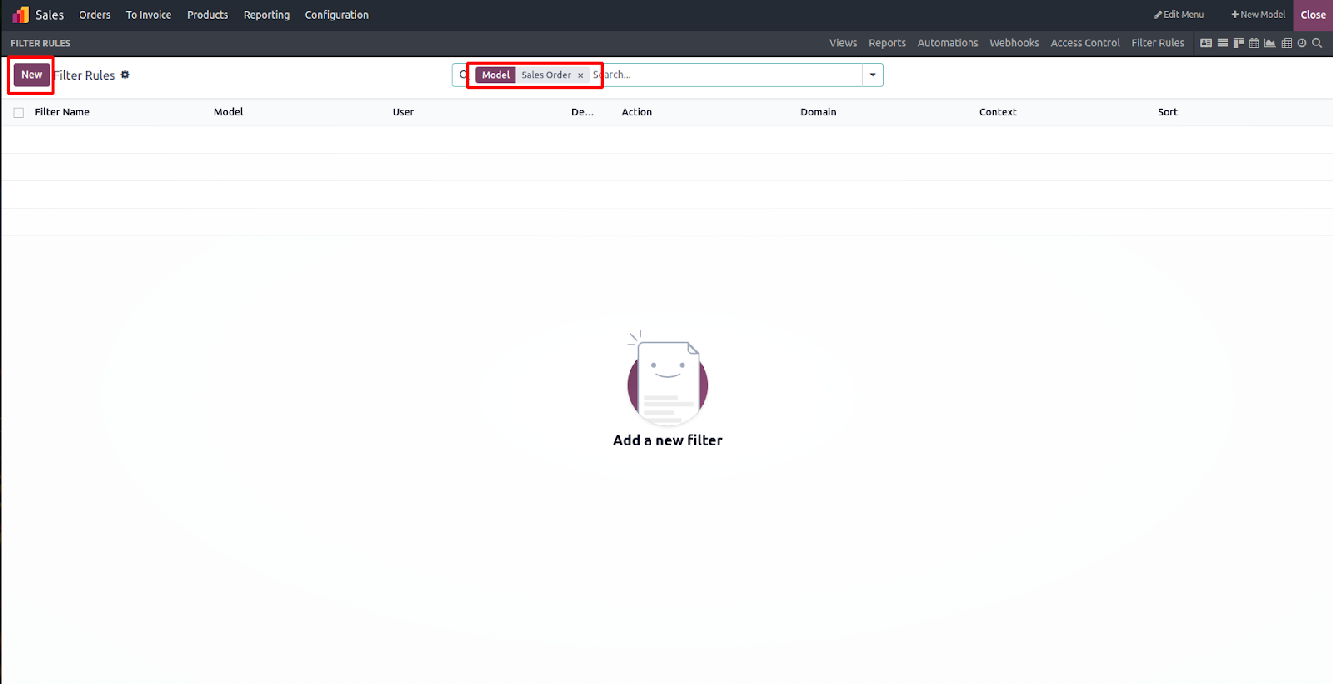
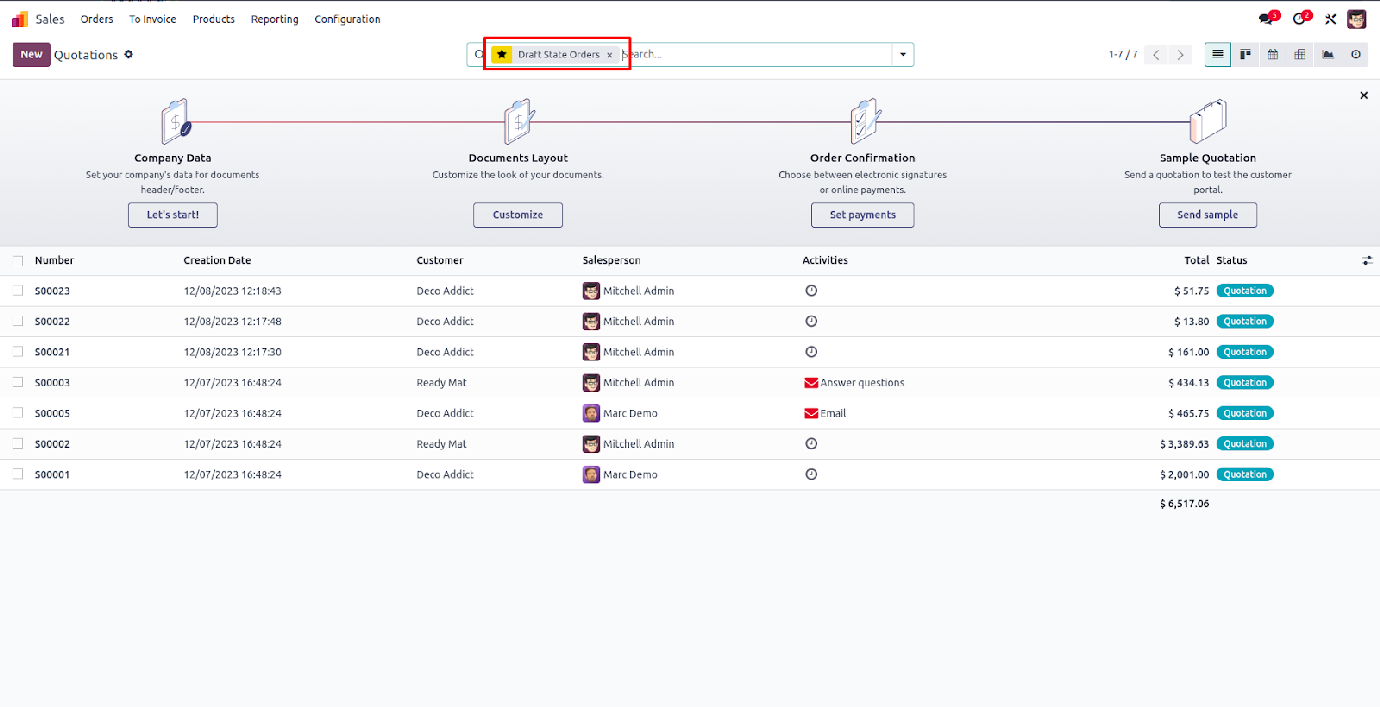
In that section, you’ll see the default filter already applied. To add additional filters, simply click the "New" button and configure the filter based on your requirements.
When you open the filter rules section, you can create a new filter by specifying a name, mode, and action. You also have the option to set it as the default filter and define a domain to control which records are displayed based on specific conditions.
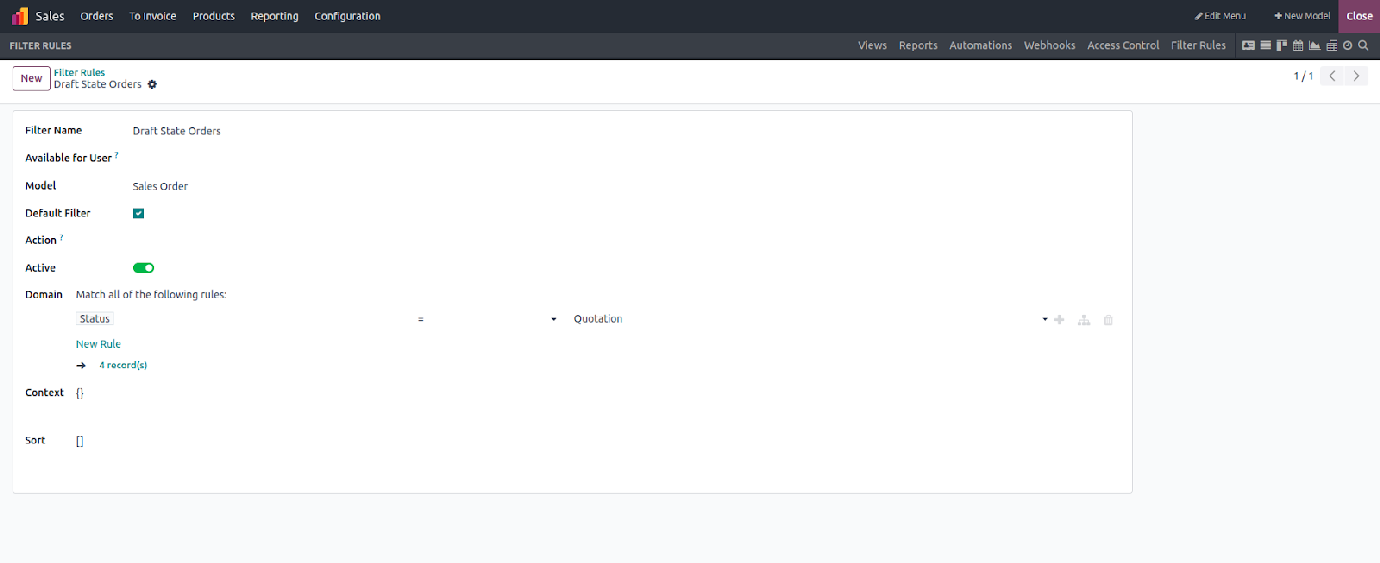
After applying the domain, the total number of matching records will be displayed. As a result, all records in the "quotation" state will appear in the user interface.
Status Bar
In the Odoo Studio app, the status bar offers a clear visual representation of a record's workflow. When you access the app, you'll find an option within the status bar to add a pipeline, allowing you to define and manage different stages in the process.
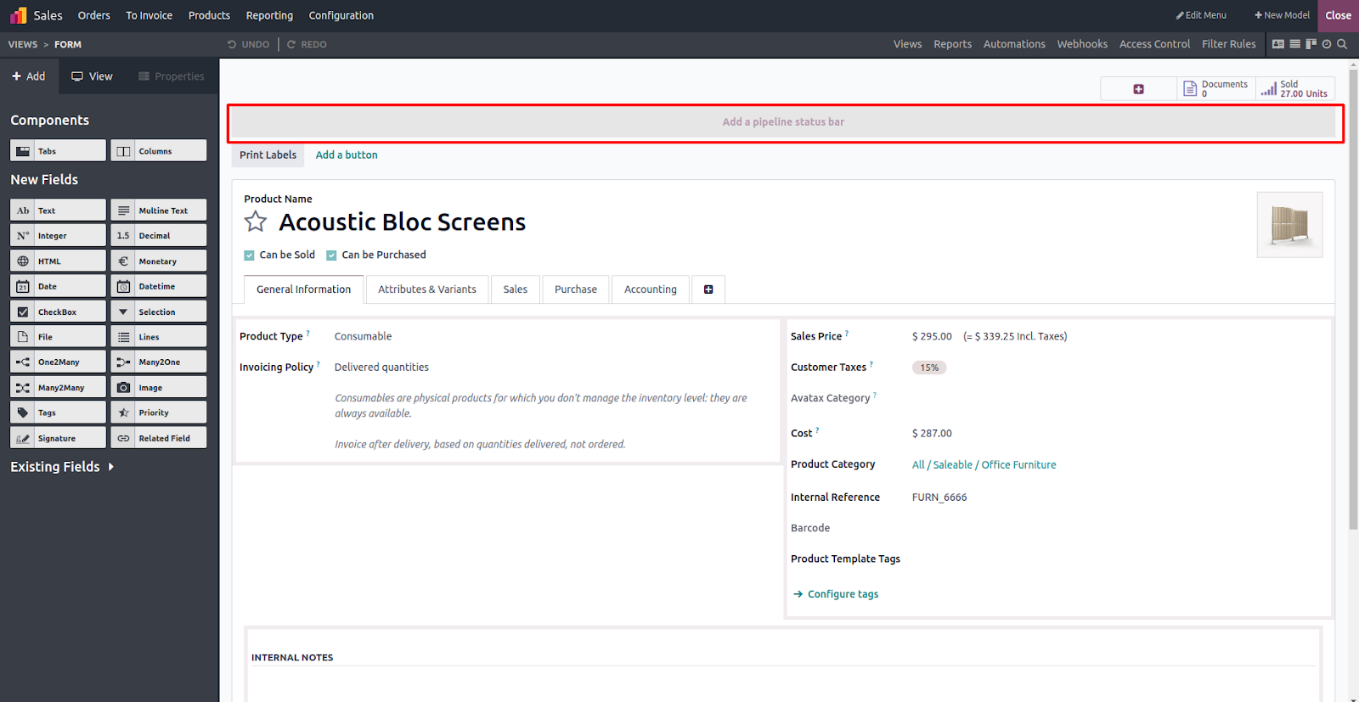
Click on the Pipeline tab in the status bar, and a popup will appear showing the existing stages. From there, you can easily add new statuses to customize the workflow.
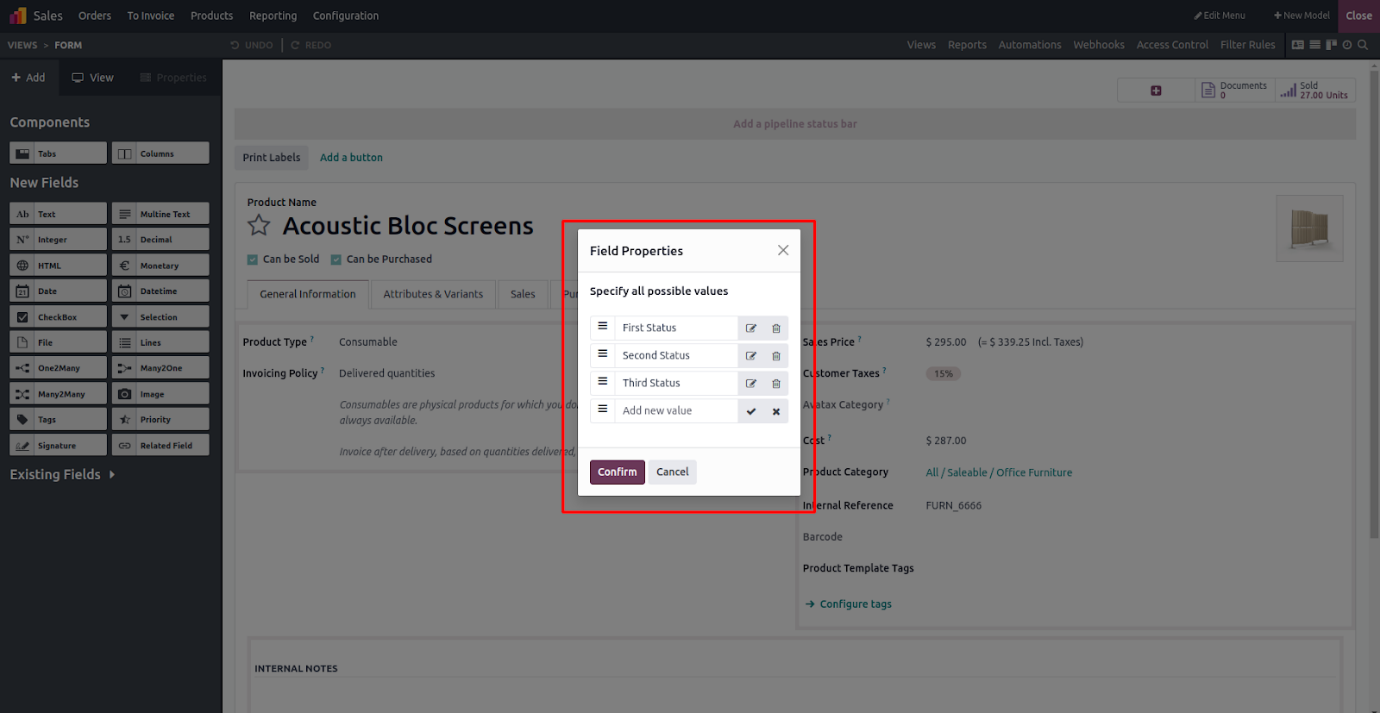
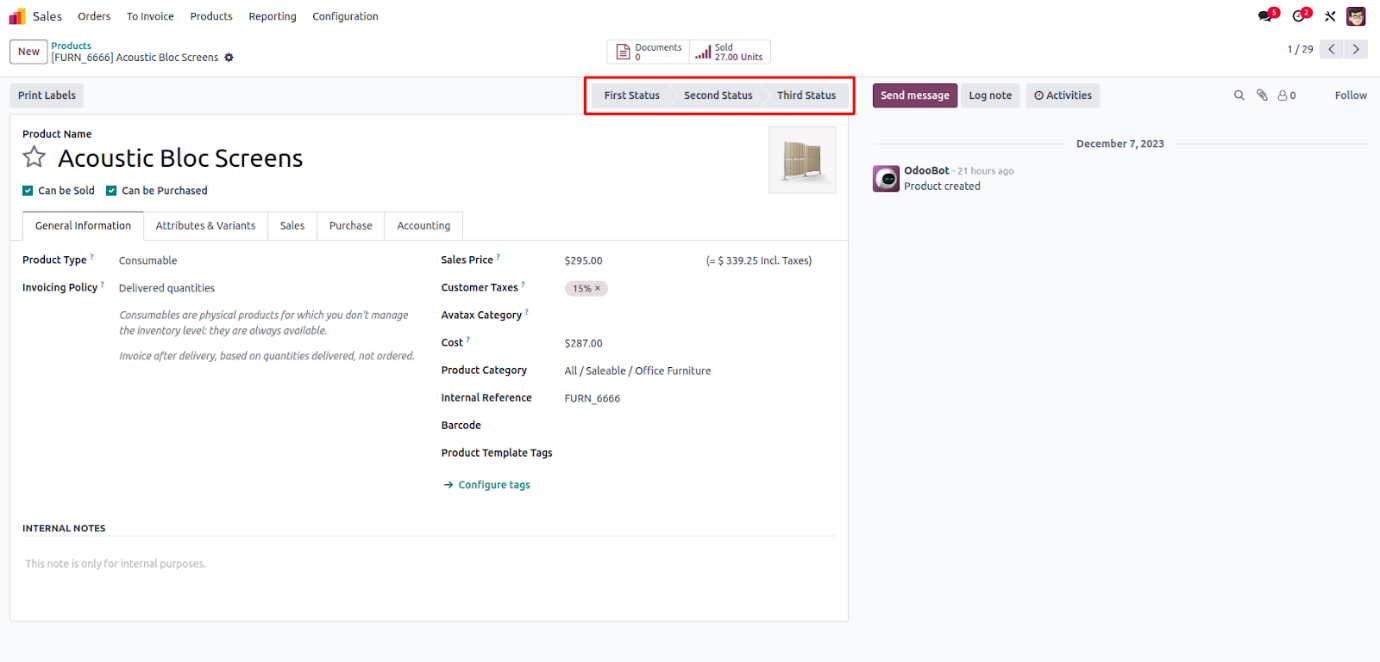
After clicking the Confirm button, all defined stages will be added and shown in the top-right corner of the screen. You can also edit or delete the status bar stages using the available options. Once you exit the Studio app, the status bar will appear in the form view as shown below.