The Form View displays information in a structured layout focused on a single record. Users have the flexibility to customize the view by adding, removing, or repositioning fields as needed.
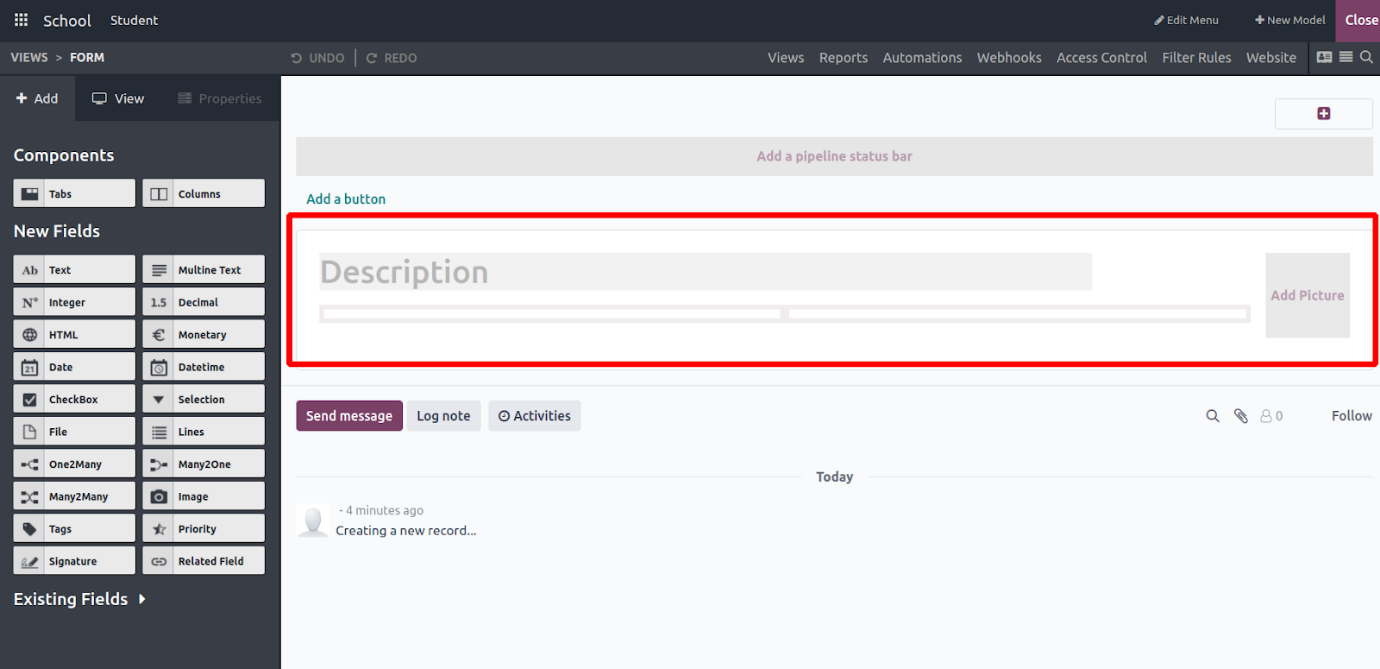
Here is an example of a default form layout. It can be easily customized by removing existing fields and adding new ones based on your requirements. On the left side, under the 'Add' panel, you'll find a variety of field types and components. You can personalize the form by simply dragging and dropping these elements into the layout to suit your specific needs.
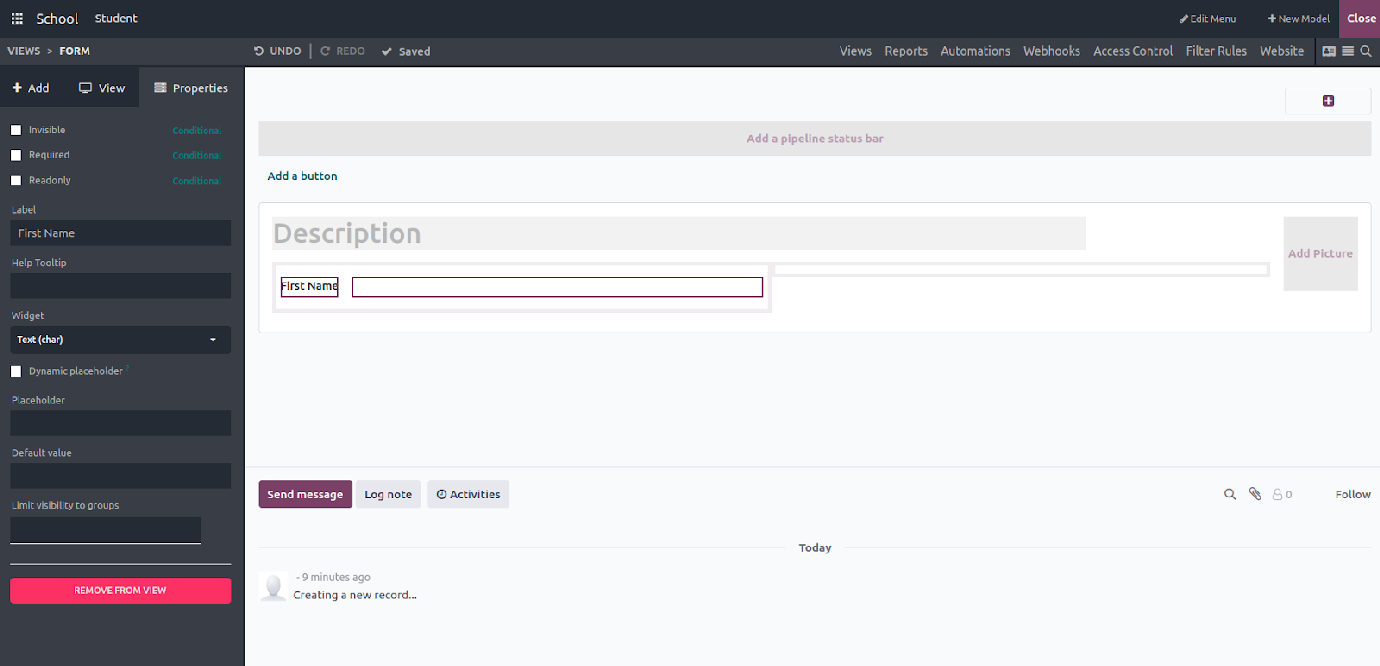
Text: The Text field type allows you to insert a text input area into the form by dragging and dropping it wherever needed. You can set a label to name the field, select a widget type, define a default value, and control its visibility by restricting it to specific user groups if required.

Additionally, by enabling the corresponding checkboxes, you can apply specific field attributes such as making the field invisible, setting it as required, or marking it as read-only.
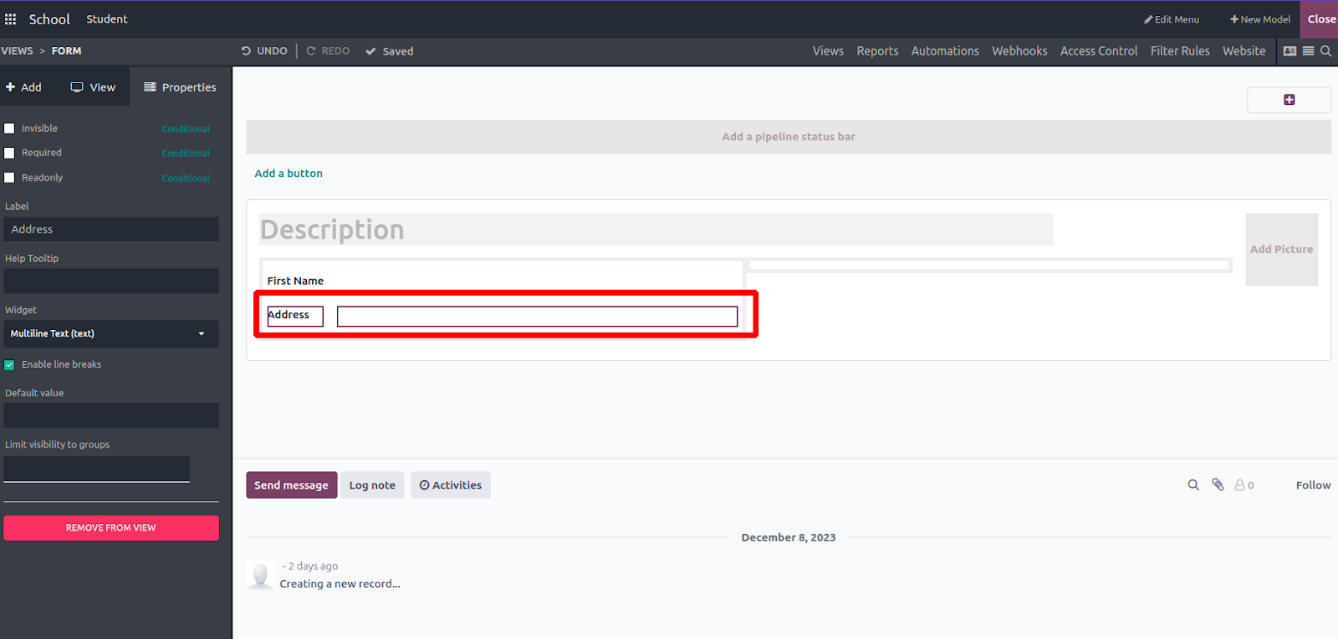
- Multiline Text: This option enables the inclusion of text fields that support multiple lines of input within the form view, making it ideal for capturing detailed information such as addresses or descriptions.
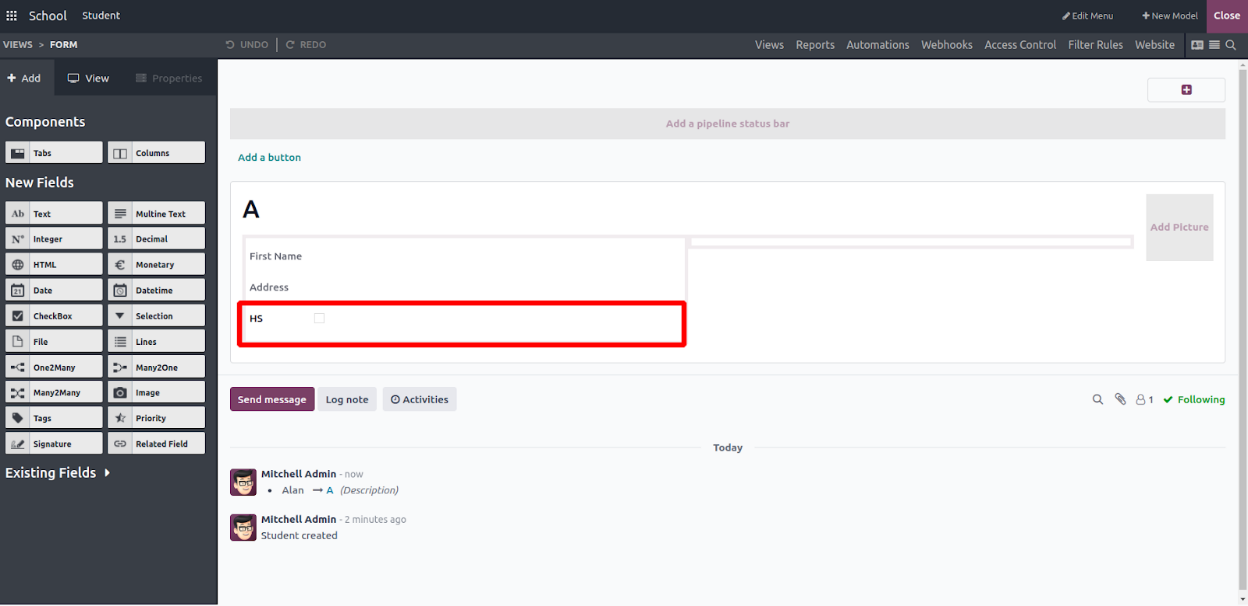
Checkbox: This feature adds a checkbox to the form view, where you can define a field label and set a default value, either True or False. You can also control its visibility by limiting access to specific user groups if necessary.

- ‘Integer’: This function incorporates an Integer field into the form, enabling the addition of a label, restricting field visibility to specific groups, and setting a default value (which is 0 by default).
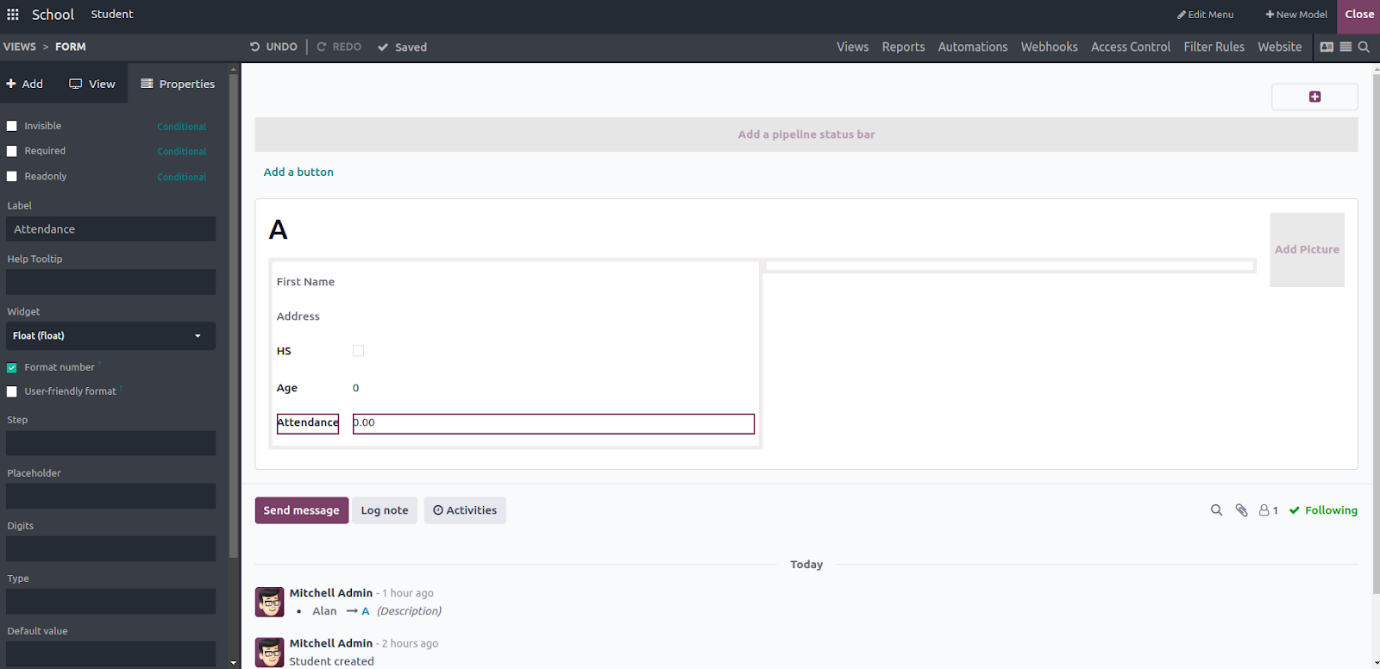
- Decimal: This field type is used to allow users to enter numeric values with decimals in the form view, suitable for fields like prices, percentages, or measurements.
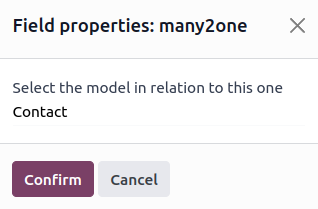
- Many2One: This field type lets users create a relationship between the current model and another model. For example, you can link to the Contact model by selecting it as the related model, allowing users to choose a contact from a dropdown list.