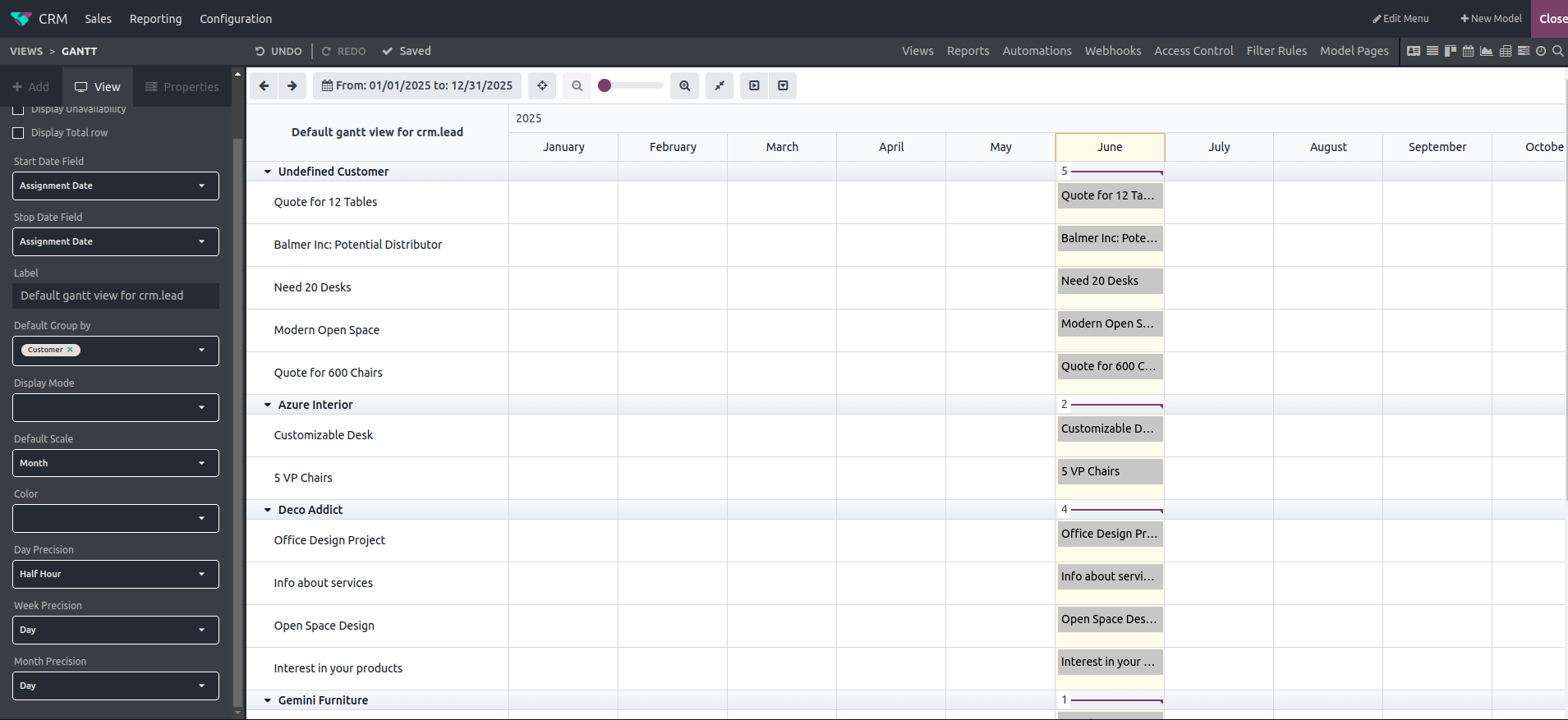
The Gantt chart, developed by Henry Gantt in the early 1900s, is a visual tool used to display a project's timeline. It highlights the start and finish dates of various tasks, making it useful for scheduling and managing complex manufacturing projects.

Now, let’s take a look at how to add a Gantt view using the Studio module. Choose the module where you want to add a Gantt view, and then click the Studio icon.
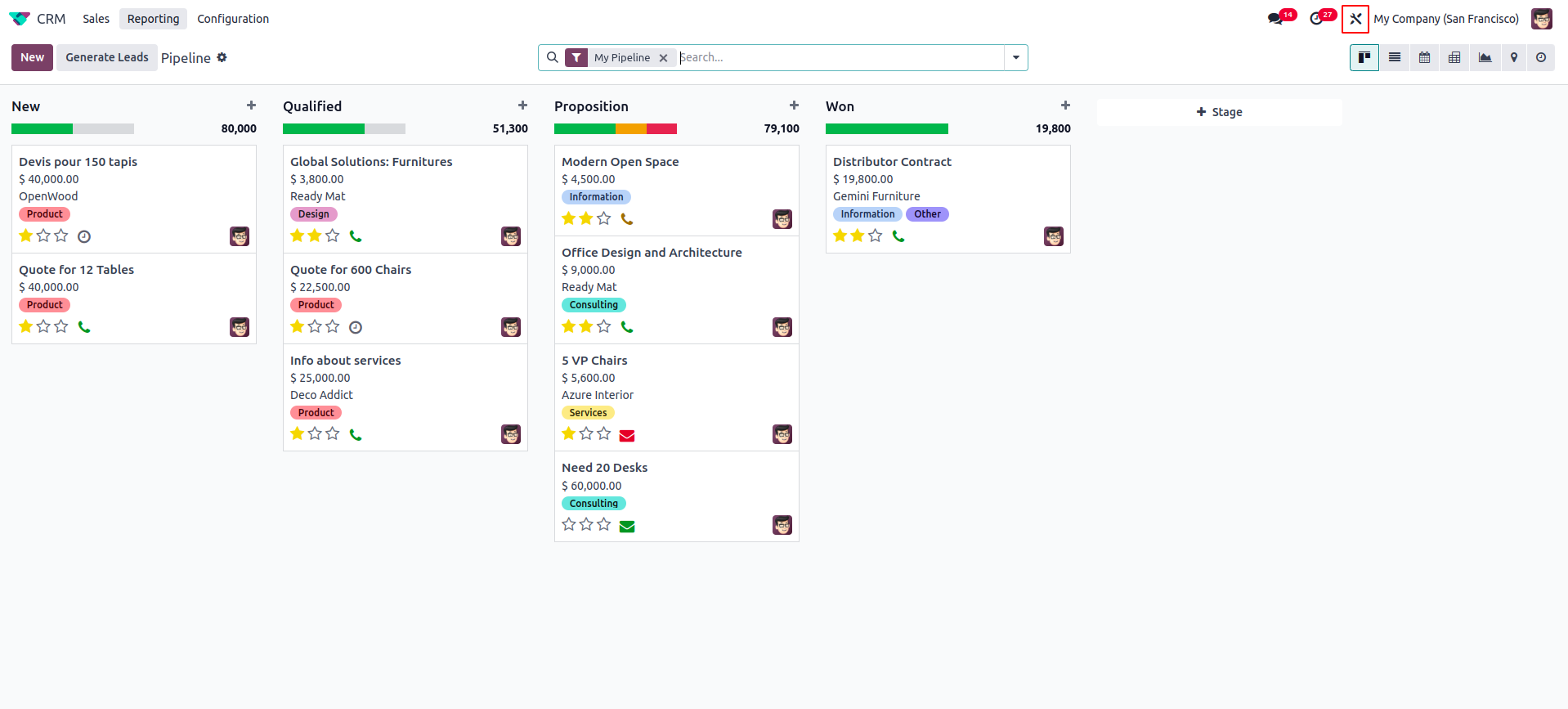
Click on the "Views" option.
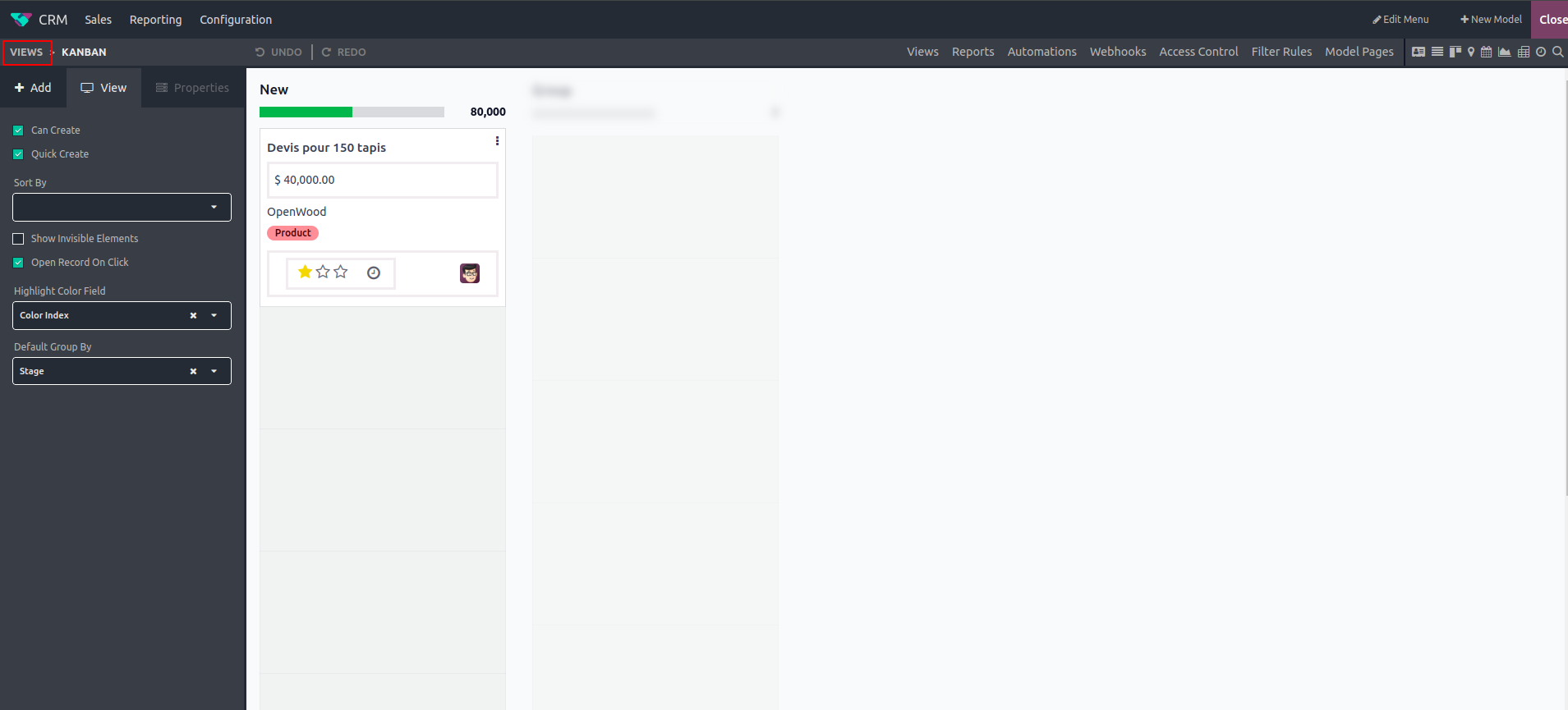
When you click on "Gantt," a compact widget will be displayed, automatically generating the Gantt view based on the defined start and end dates.

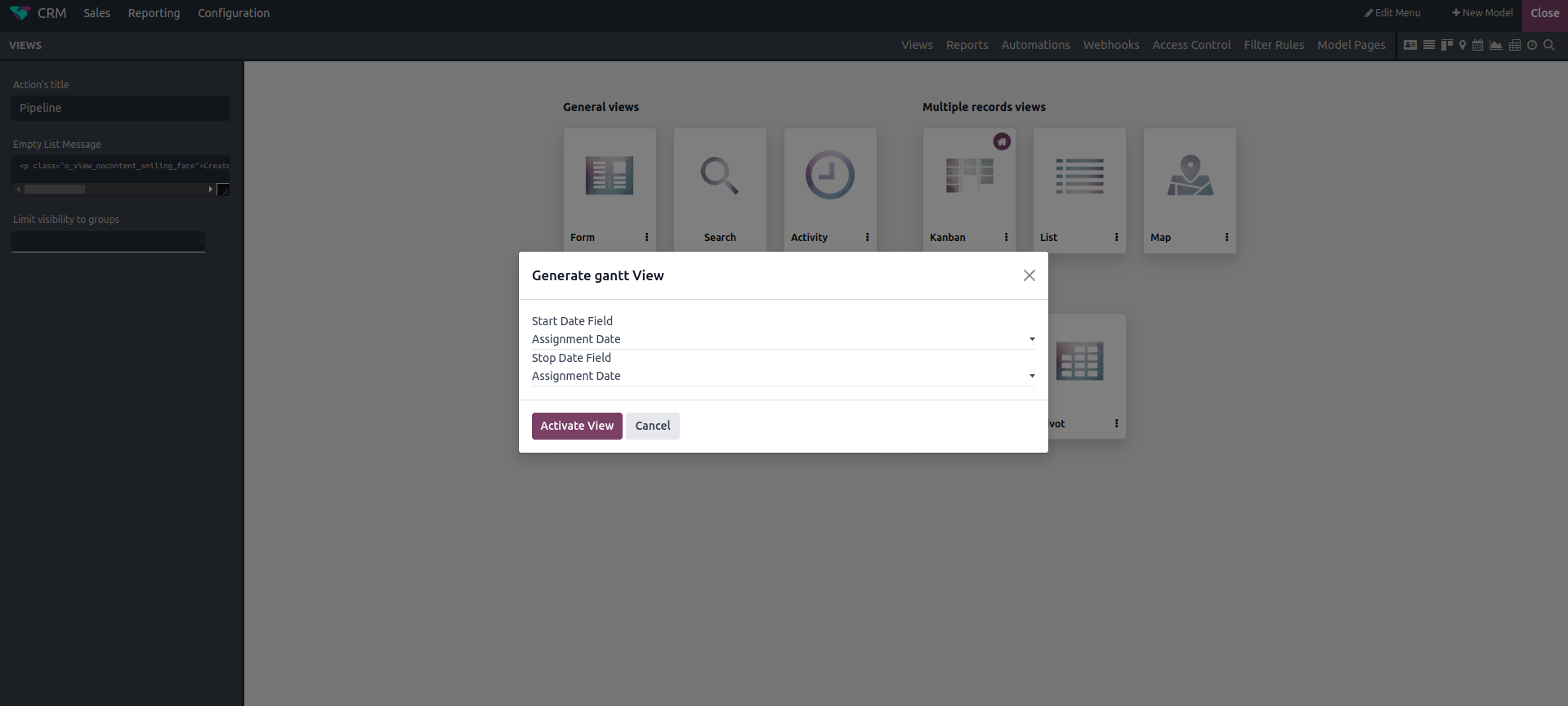
Click the “ACTIVATE VIEW” option to enable the view.

The Gantt settings include the following key components:
- Display Unavailability: Shades cells in gray to indicate periods when record creation is not allowed.
- Display Total Row: Adds a summary row at the bottom to show totals.
- Start Date Field: Defines the start date for each item in the Gantt view.
- Stop Date Field: Specifies the end date for each item in the Gantt view.
- Label: Defines the label displayed in the Gantt view, defaulting to the view’s title.
- Default Group By: Specifies how data should be grouped in the Gantt view.
- Default Scale: Defines the initial time scale for the view, such as day, week, month, or year.
- Color: Uses field values to assign colors to boxes for visual distinction.
- Day Precision: Allows selection of time precision within a day, such as quarter-hour, half-hour, or hour intervals.
- Quarter Hour: Rounds time to 12:15 when the input is 12:10.
- Half Hour: Rounds the time to 12:30.
- Hour: Rounds the time to 1:00.
- Week Precision: Allows for time precision by half-day or full day.
- Half Day: Round times like 10 AM to 12 PM.
- Day: Aligns to a full day, recording the time as 11:59:59 PM for either the current or previous day.
- Month Precision: Functions the same as week precision in terms of values and behavior.
Once you’ve filled in the necessary details, close the Studio module, and the Gantt view will appear in the list of available views.