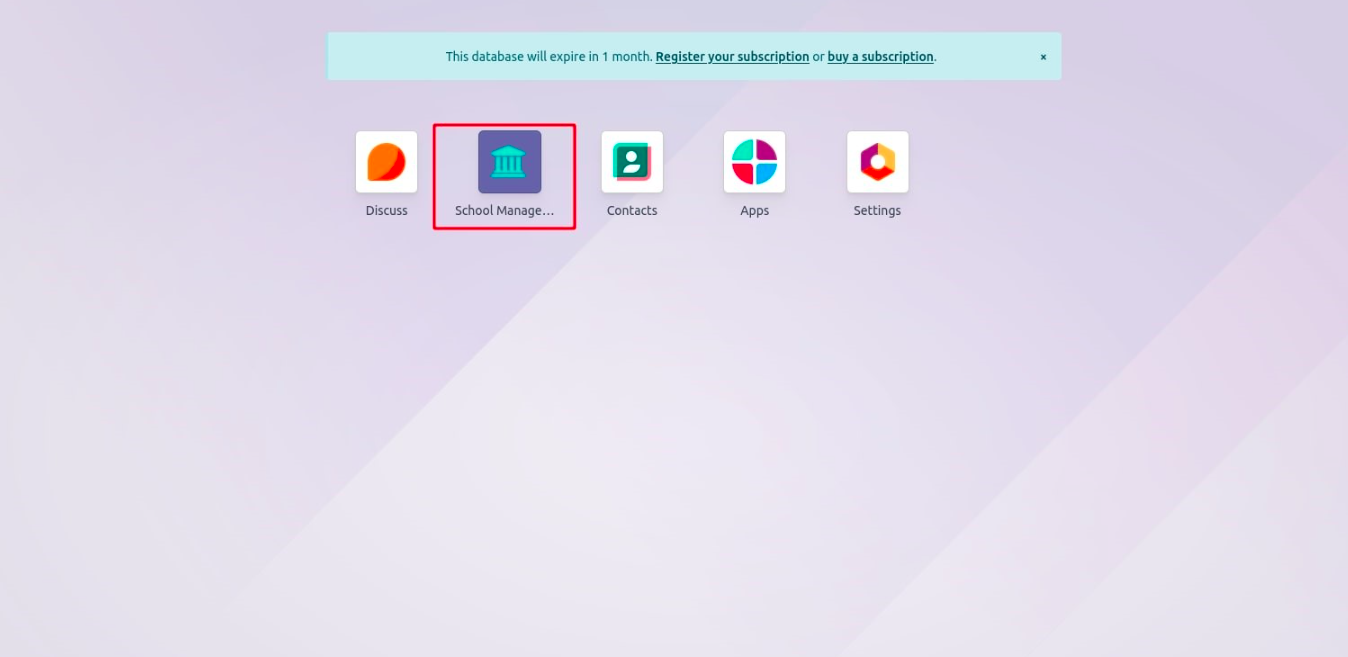
Icons do more than look pretty, they provide a visual shorthand for your application's purpose. With Odoo 18 Studio, customizing your app’s icon is easy and intuitive:
Step 1: Start Creating a New App
- Click the Studio icon.
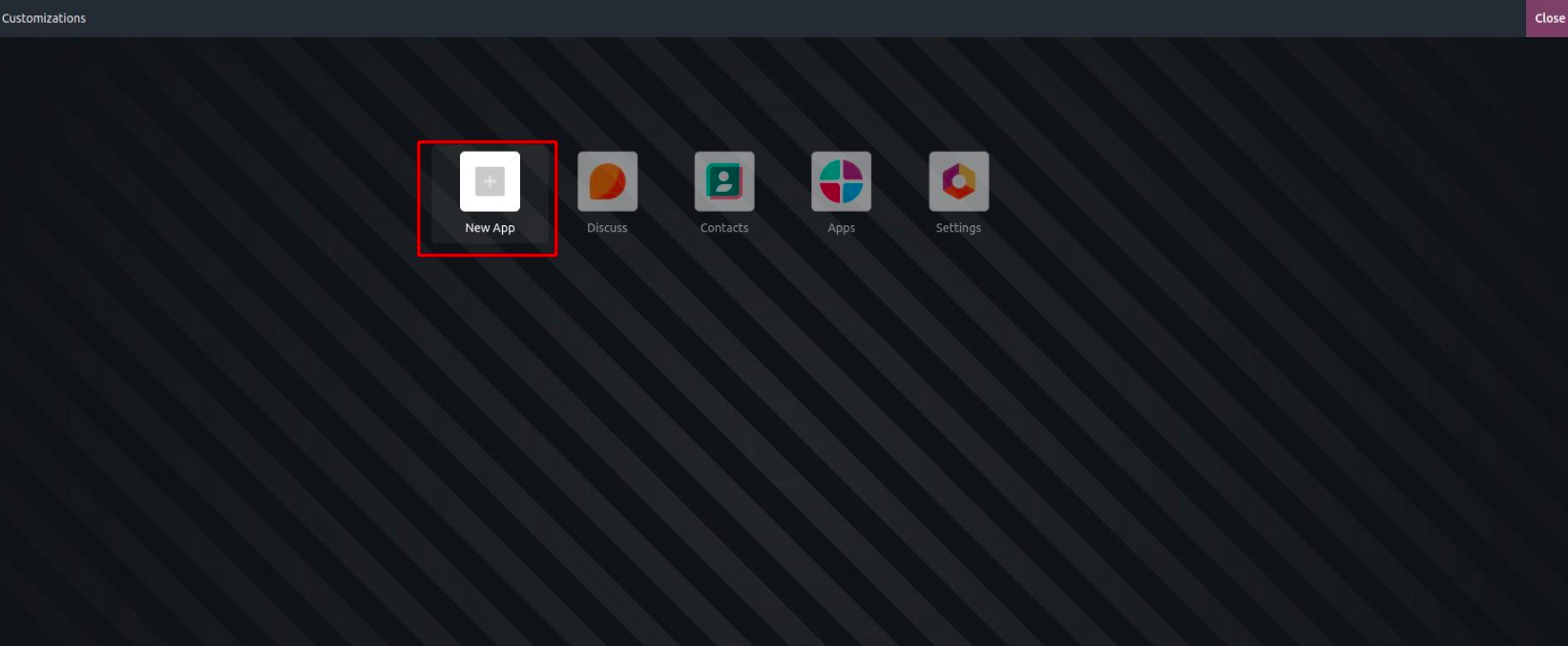
- Click “New App” to launch the app creation wizard.
Step 2: Navigate Through the Setup
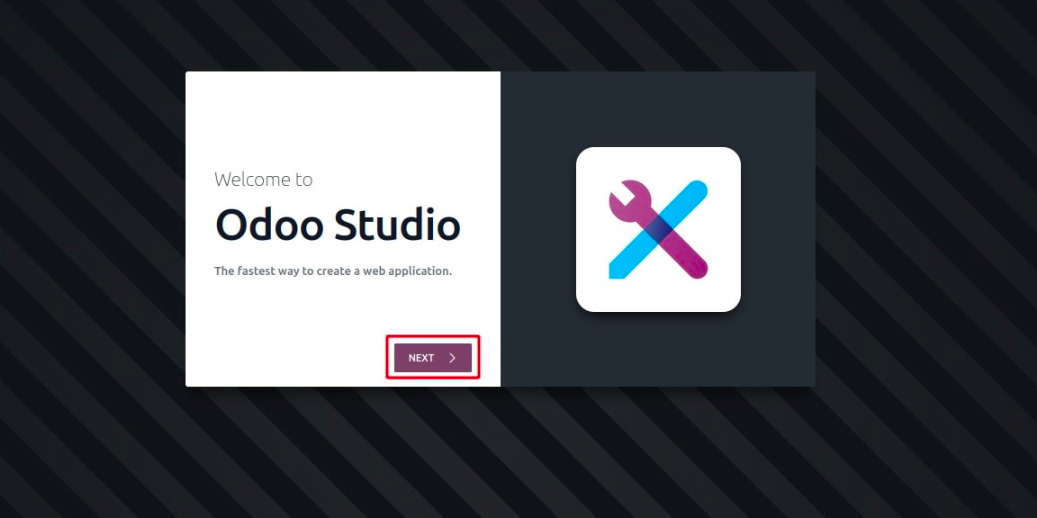
Select “Next” to proceed through the initial setup screens.
Step 3: Design Your Icon During Setup
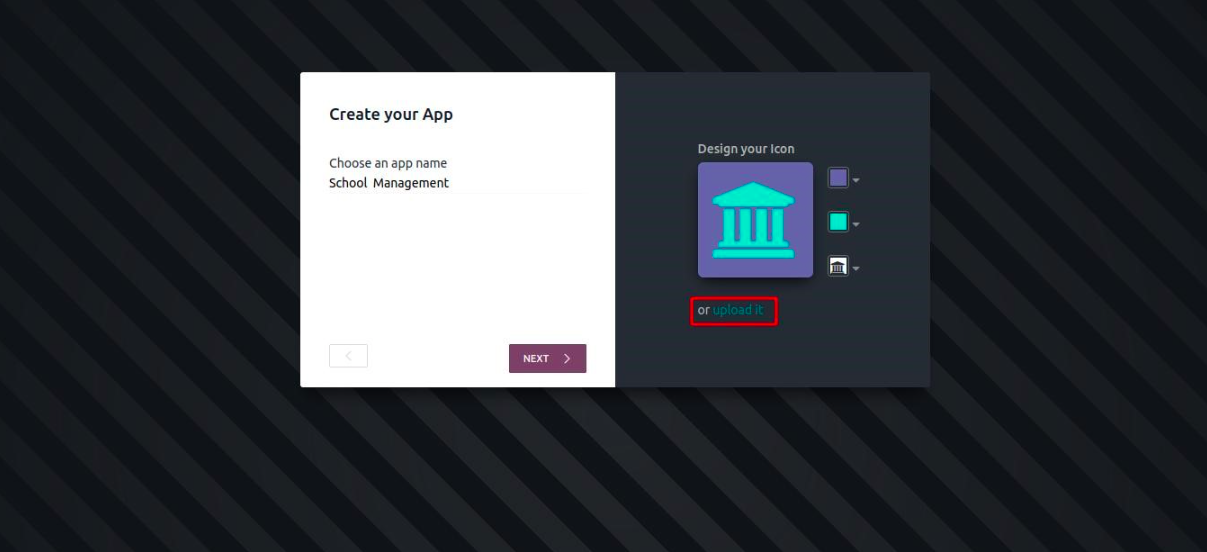
Once the setup reaches the name-and-icon screen:
- Enter a descriptive application name.
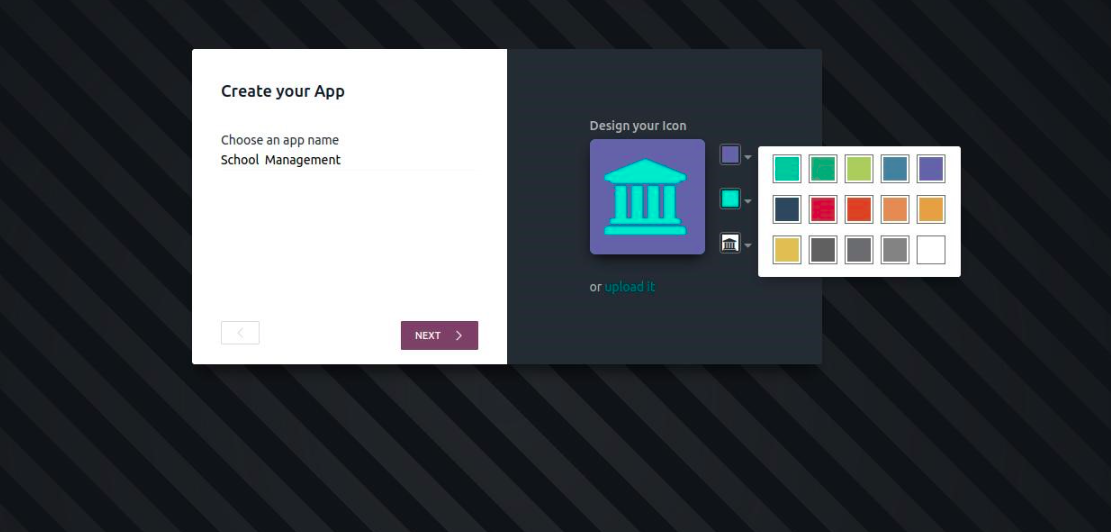
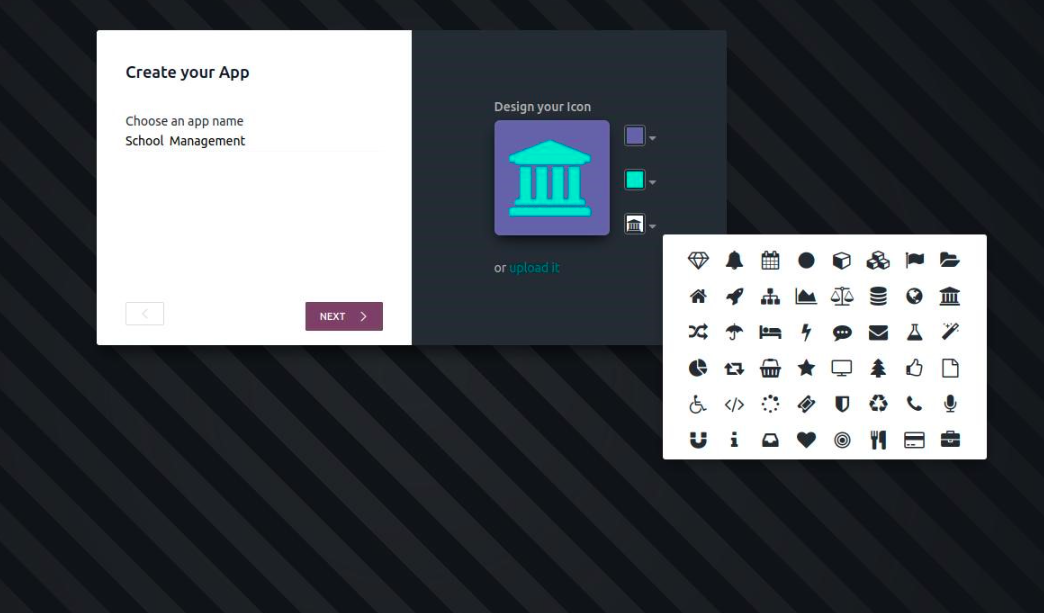
- Design your icon using three simple tools:
- Background Color: Choose from a color palette.
- Symbol Color: Pick a contrasting hue for the icon symbol.
- Symbol Shape: Select from Odoo's library of icons, including standard and FontAwesome-style choices.
Optionally, you can upload a custom SVG or PNG icon using the “Upload” feature.
Step 4: Edit the Icon at Any Time
Once the app is created, you can still change the icon:
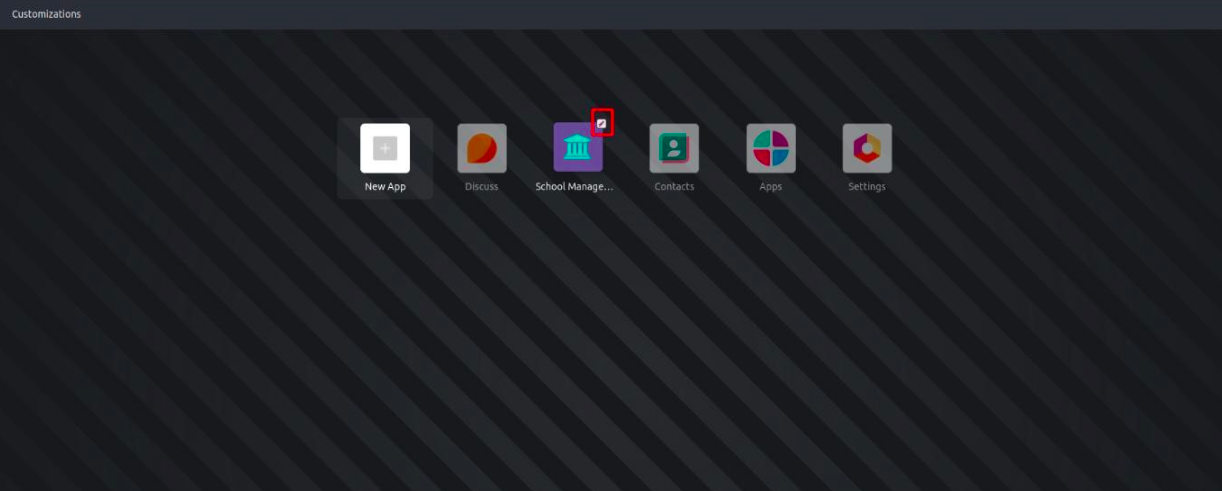
- Hover over the app icon in the menu or app dashboard.
- Click the small “Edit” (pencil) icon.
- Reopen the icon designer to adjust colors or swap the symbol.
Changes update dynamically, no need to recreate your app.