The List View (also known as Tree View) in Odoo displays records in a structured, row-by-row format, ideal for viewing and managing multiple entries at once. Whether you’re working with sales orders, employees, or inventory items, the list view provides a clean overview of your data. With Odoo Studio, you can customize this view to show exactly the fields and layout your team needs, without writing any code.
Accessing the List View in Studio
To start customizing the list view:
- Open Odoo Studio by clicking the Studio icon.
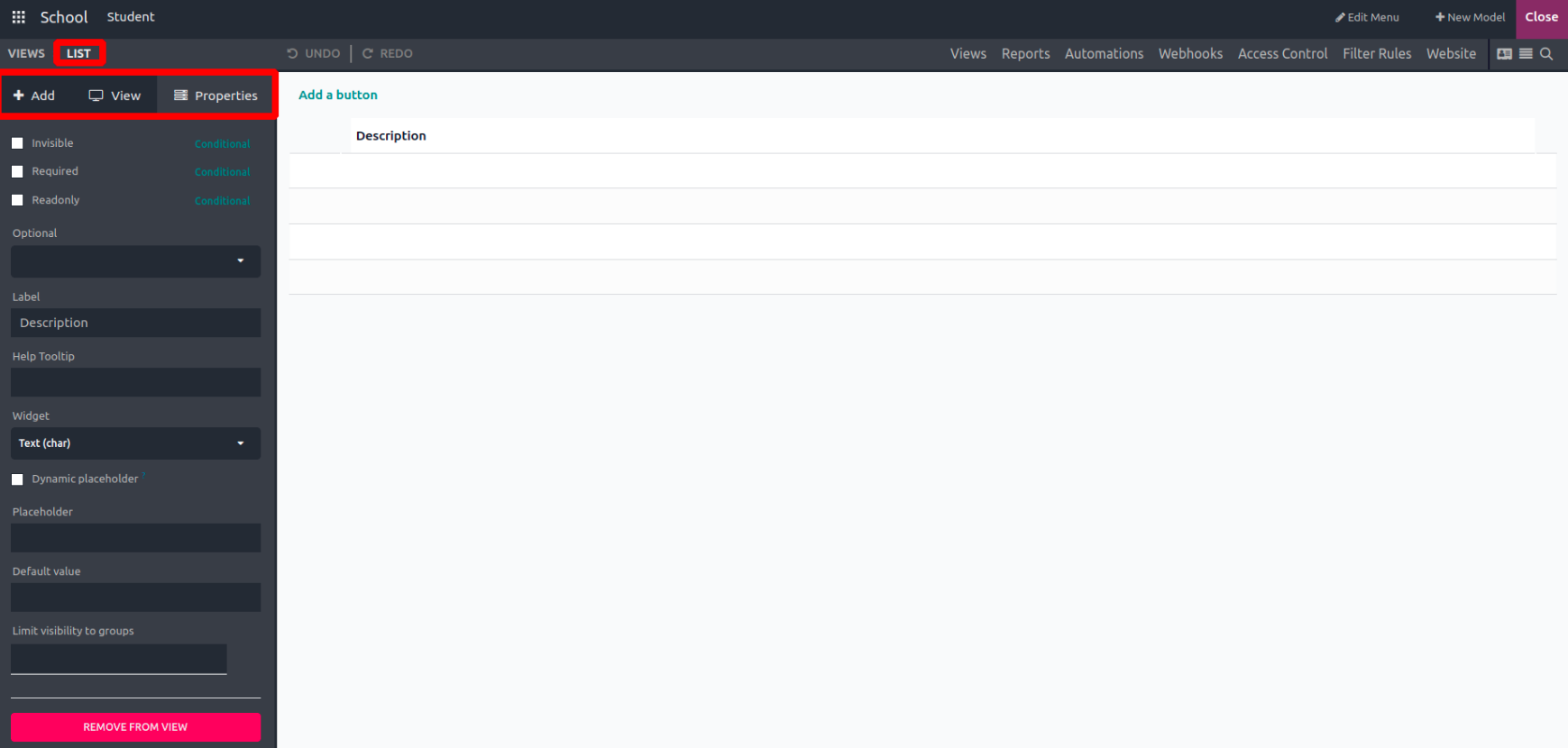
- Select the “List View” from the top-right of the screen, or find it under the ‘Views’ tab when editing a model.

Viewing the Default Layout
Once you click into the List View, you’ll see the default layout for that model’s records. This includes several predefined columns based on the existing fields.
You can edit this layout freely:
- Add new fields using the options on the left,
- Reorder or remove existing fields,
- Preview changes in real time.
Customizing Columns and Fields
To add a new column, simply drag a field from the “Add” tab into the list layout. You can choose from a variety of field types depending on your needs, such as text, number, date, or relational fields.
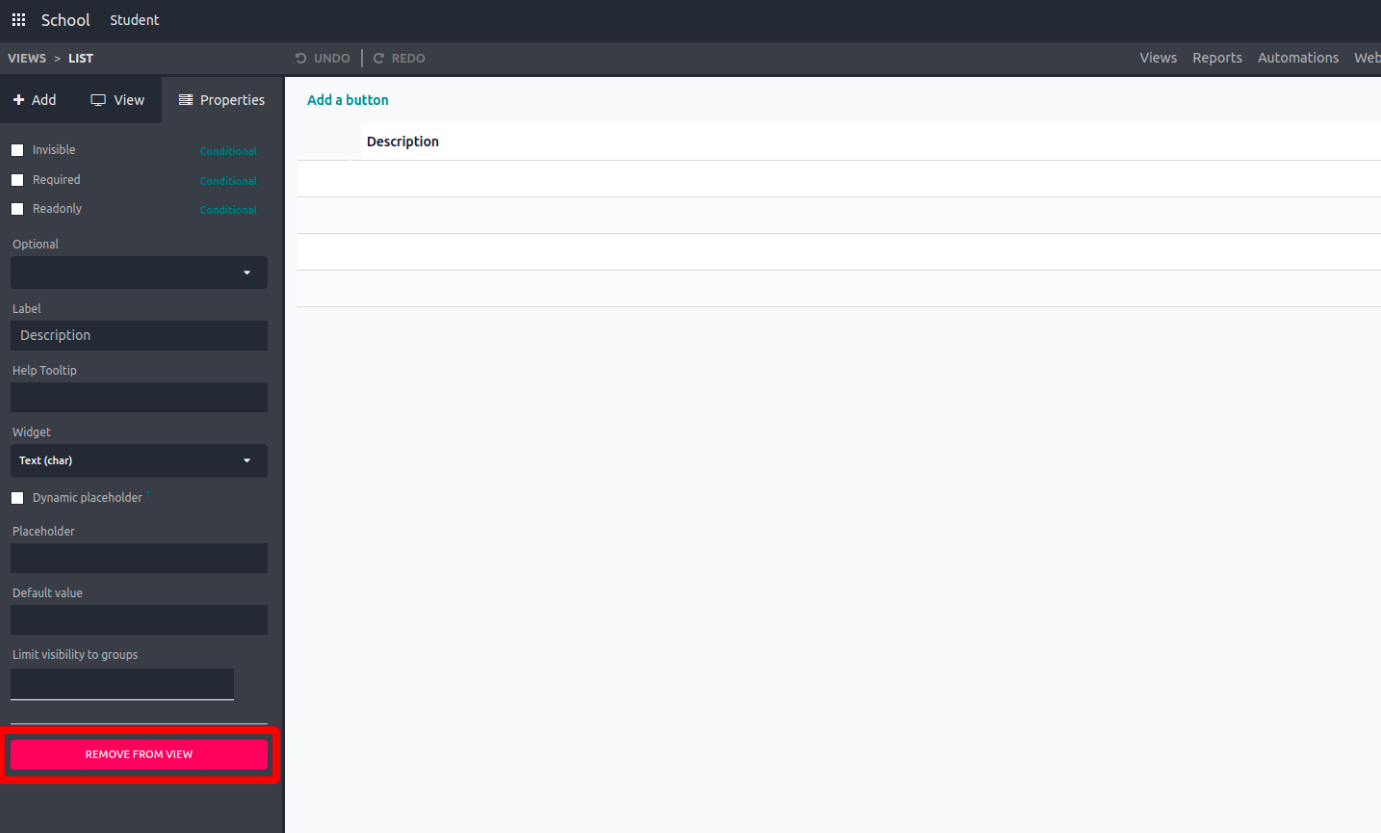
You can also remove columns by selecting a field in the view and clicking the “Remove from View” option.

Editing Field Properties
Clicking on any field in the list view opens its property editor. Here, you can define behavior and visibility rules for that field. Available options include:
- Invisible: Hide the field from view.
- Required: Make the field mandatory.
- Read Only: Disable editing.
- Label: Customize the field’s label.
- Widget: Choose a display type (e.g., status bar, progress bar).
- Domain: Apply filters based on conditions.
- Context: Set contextual values for advanced use.
- Limit Visibility to Group: Show the field only to users in specific groups.
Additional List View Settings
Along with field-level customization, you can manage general behavior of the list view using these toggles:
- Can Create: Allow users to add new records.
- Can Edit: Enable editing of existing records.
- Can Delete: Permit deletion of records.
- Editable Position: Choose whether inline record creation/editing appears at the top or bottom of the list.
- Field Visibility: Fine-tune who sees what.
- Sort: Predefine the sort order based on any field (e.g., sort by date or status).
These settings help you shape how users interact with your data, offering a streamlined experience that fits your business process.
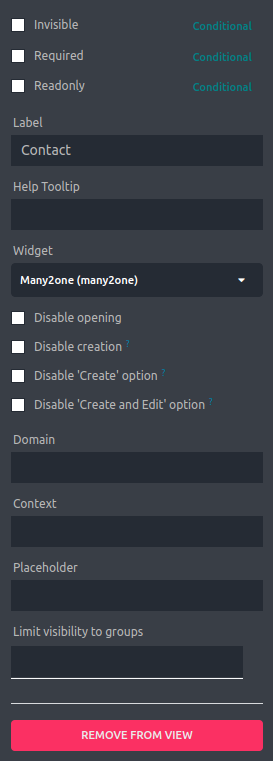
Unlike earlier configurations, this setup allows you to define both a domain and context for the Many2One field. A domain expression helps filter the selection options based on certain criteria, ensuring users only see relevant records. Setting a context allows you to assign default values to related fields when a record is selected.
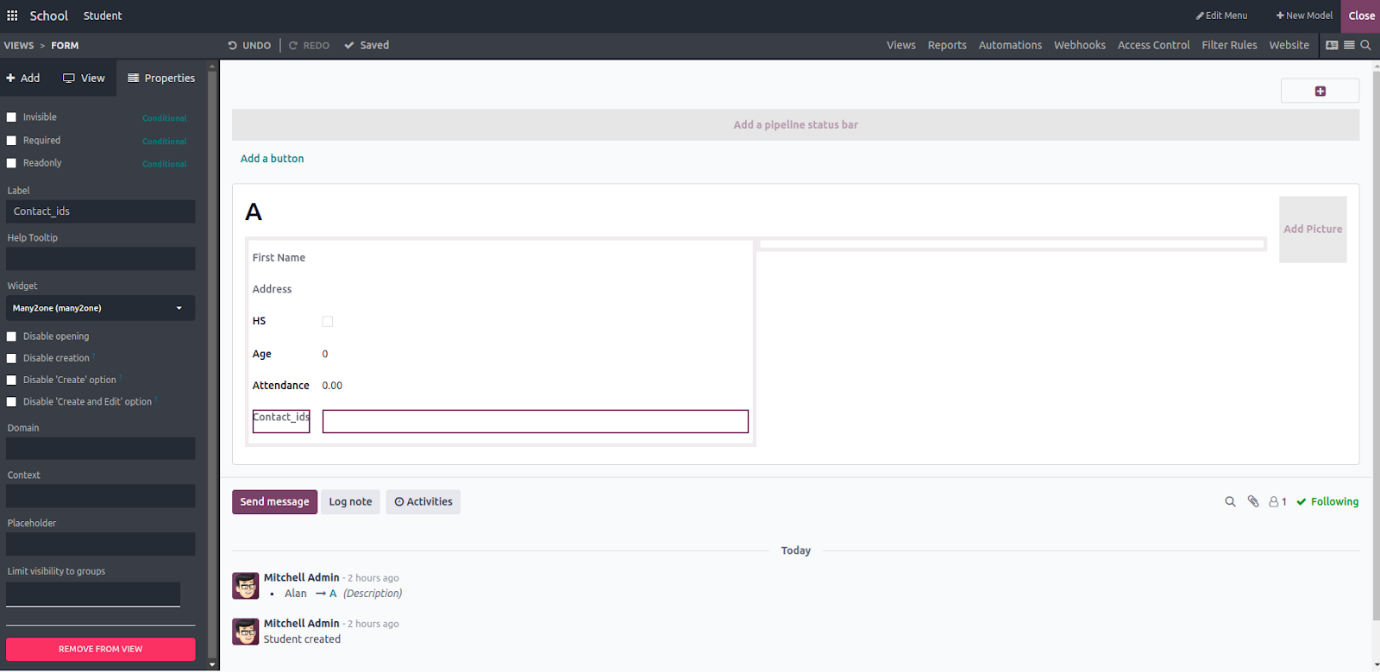
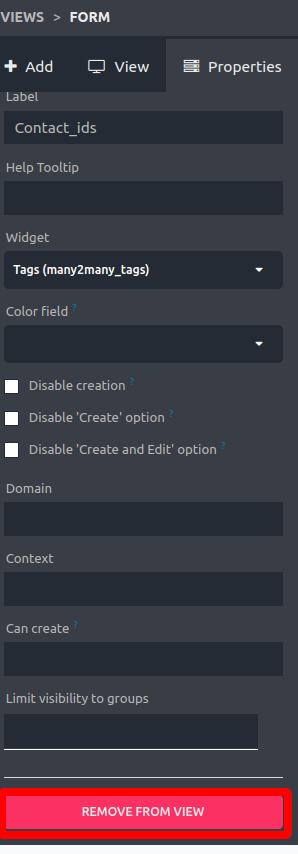
Similarly, you can create Many2Many fields and select the Many2Many Tags widget to display multiple selections in a tag-style format.
- Date: This field enables users to enter and view a date. You can also define a label and provide help text for user guidance.
- Date & Time: This field extends the functionality of the Date field by allowing both date and time to be captured and displayed.
- HTML: This field type is used to create an HTML input area within the form view, suitable for entering long-form text such as descriptions or formatted content.
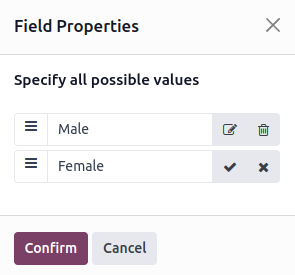
Here, you have the ability to define multiple selectable options and confirm them, allowing users to choose from a predefined list of values within the field.
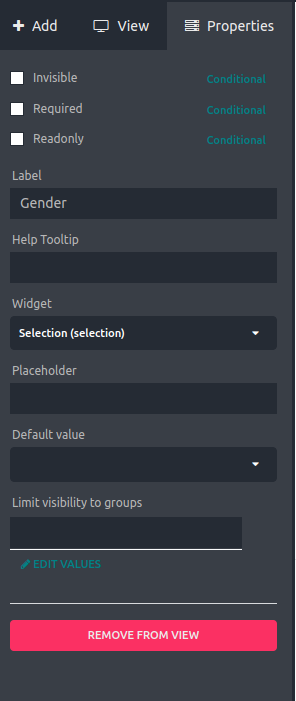
- Selection: Enables users to choose a value from a predefined set of options configured within the field.
- Image: Allows users to upload and display an image directly in the form view.
- Priority: Lets users assign a priority level to a record, often represented visually (e.g., with stars or color indicators).
- File: Provides the option to upload and attach files to a specific record for reference or documentation.
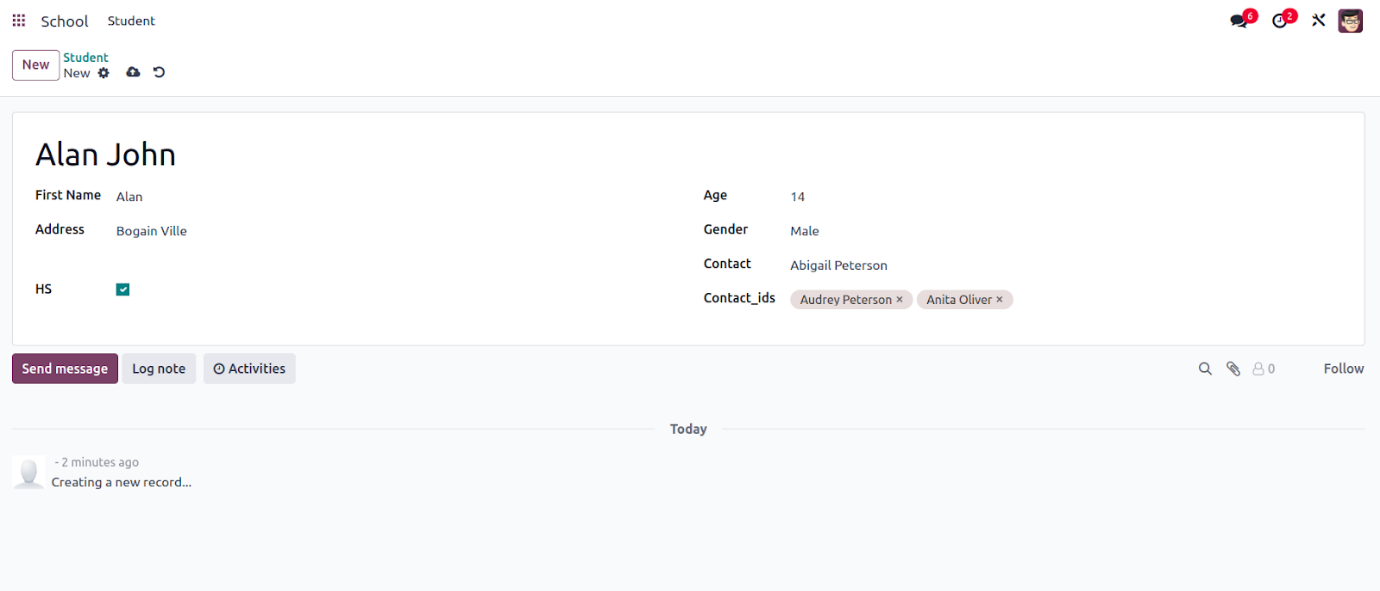
This is the completed version of the form view with values filled in the fields. The layout remains flexible, allowing you to rearrange the positions of fields easily using drag-and-drop functionality.
This is the completed version of the form view with values filled in the fields. The layout remains flexible, allowing you to rearrange the positions of fields easily using drag-and-drop functionality.