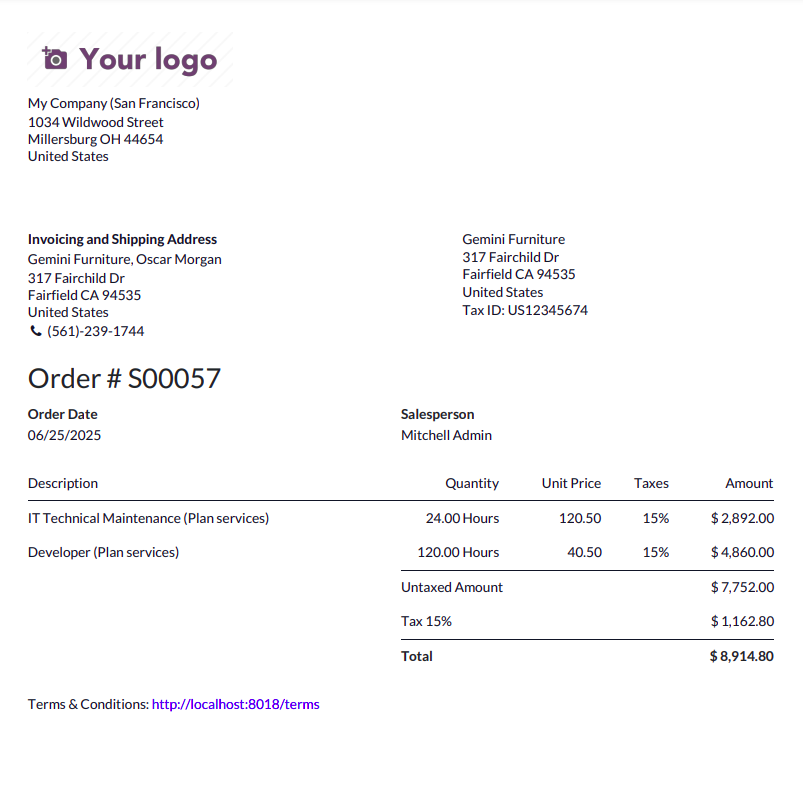
The Studio feature enables the creation of custom PDF reports that can be printed directly from the front end, providing flexibility to tailor reports according to specific business needs.
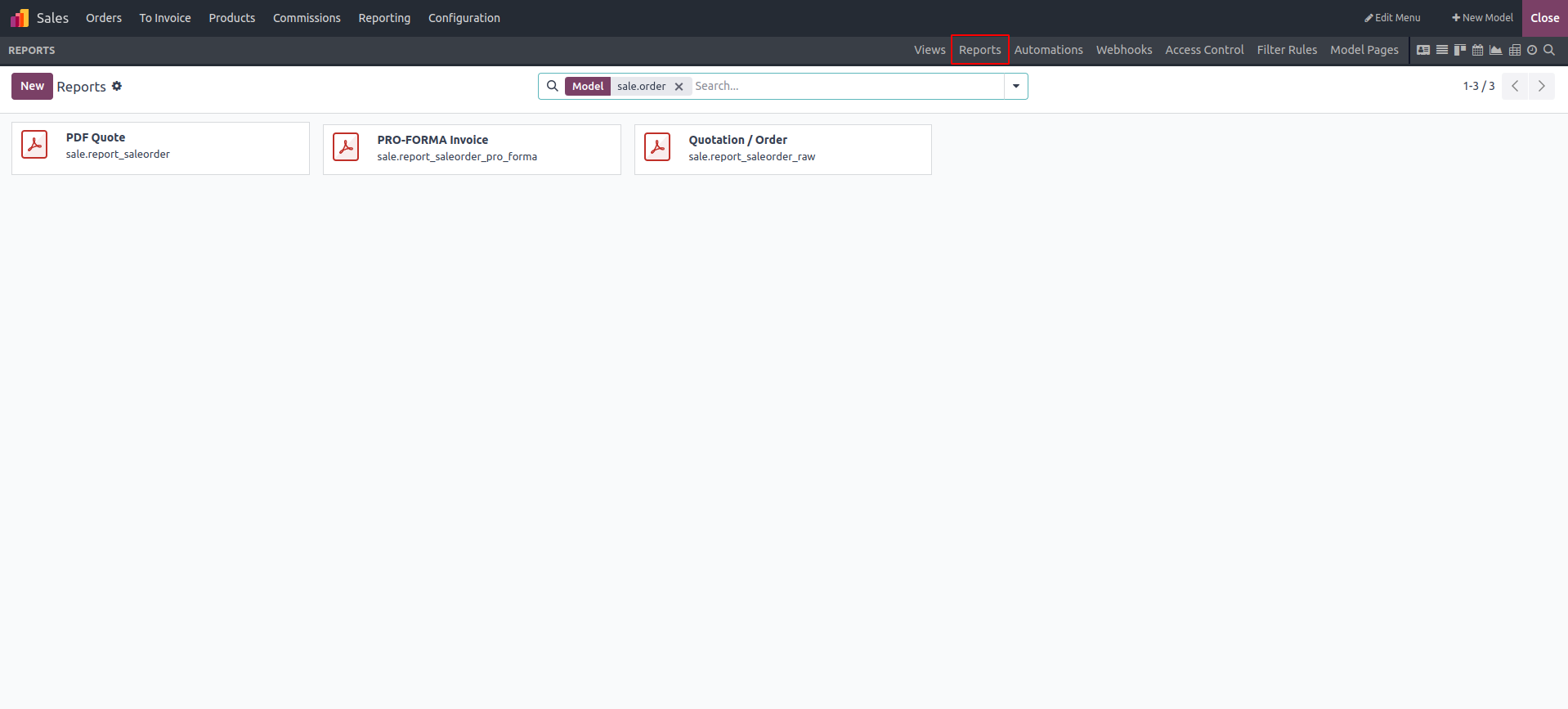
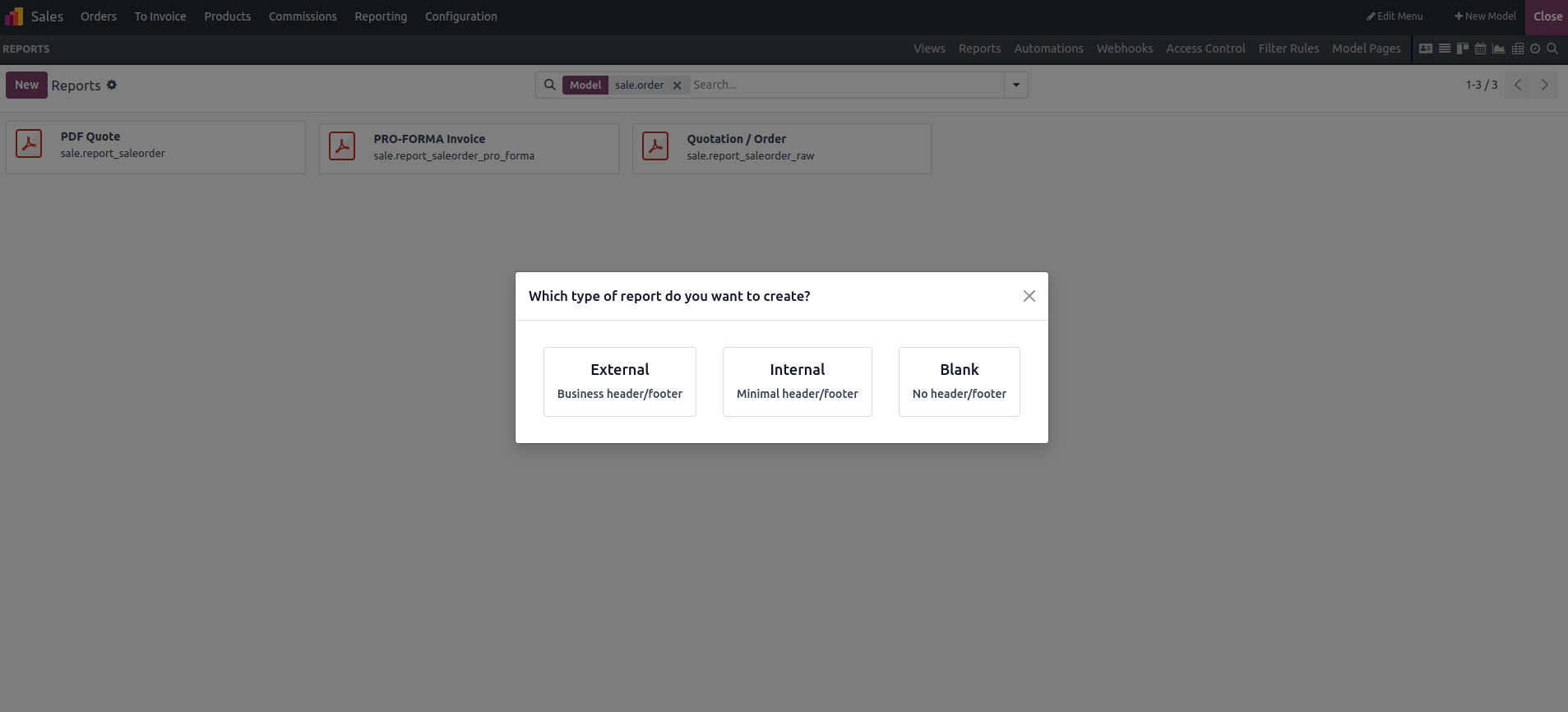
The reporting feature allows users to create reports by clicking the New button, with three format options available: blank, internal, and external. The difference between these formats lies in the visibility of the header and footer. Blank reports exclude both header and footer, External reports display a full business-style header and footer, while Internal reports include only minimal header and footer elements.
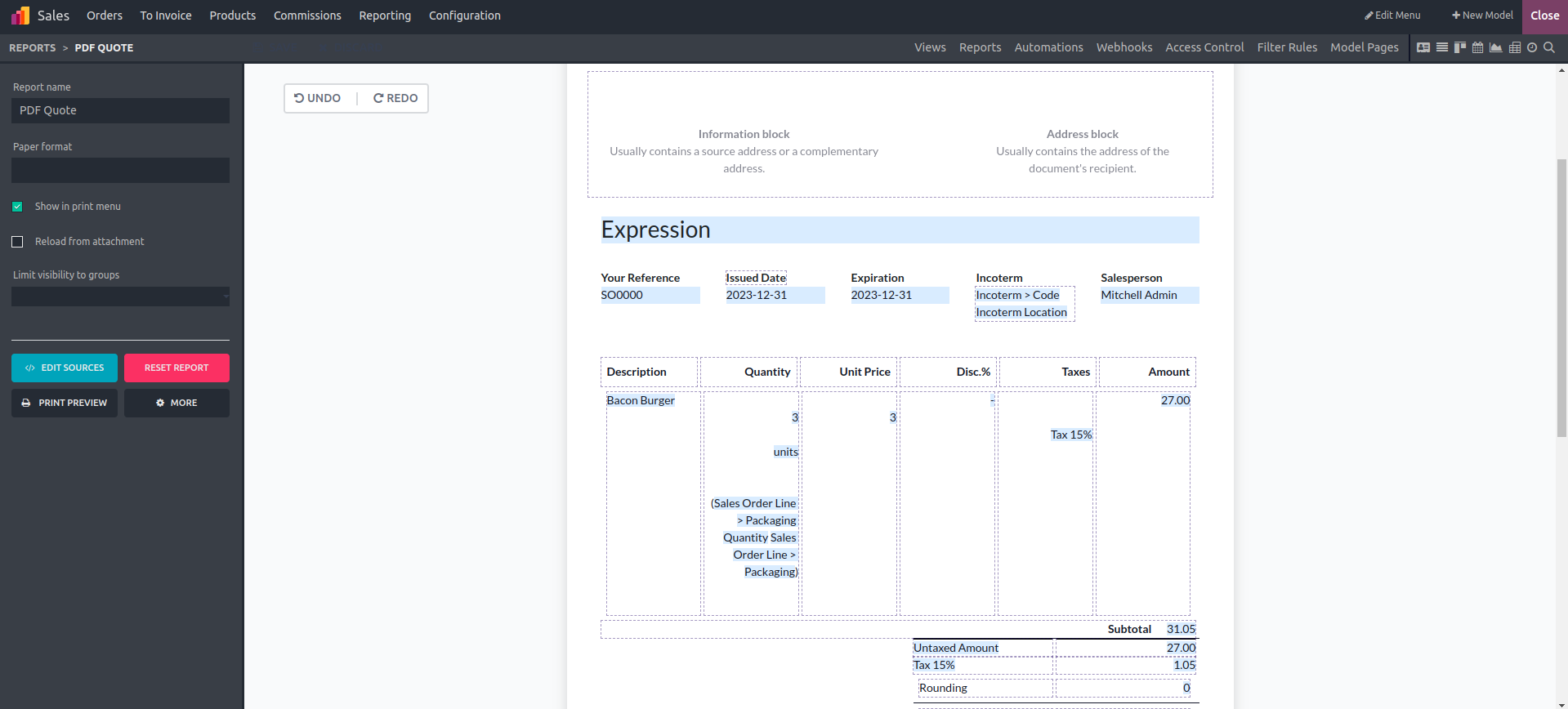
When you select External, the view shown below will appear. Your company’s logo will be displayed by default. You can use the available fields to structure and customize the report to suit your specific needs.
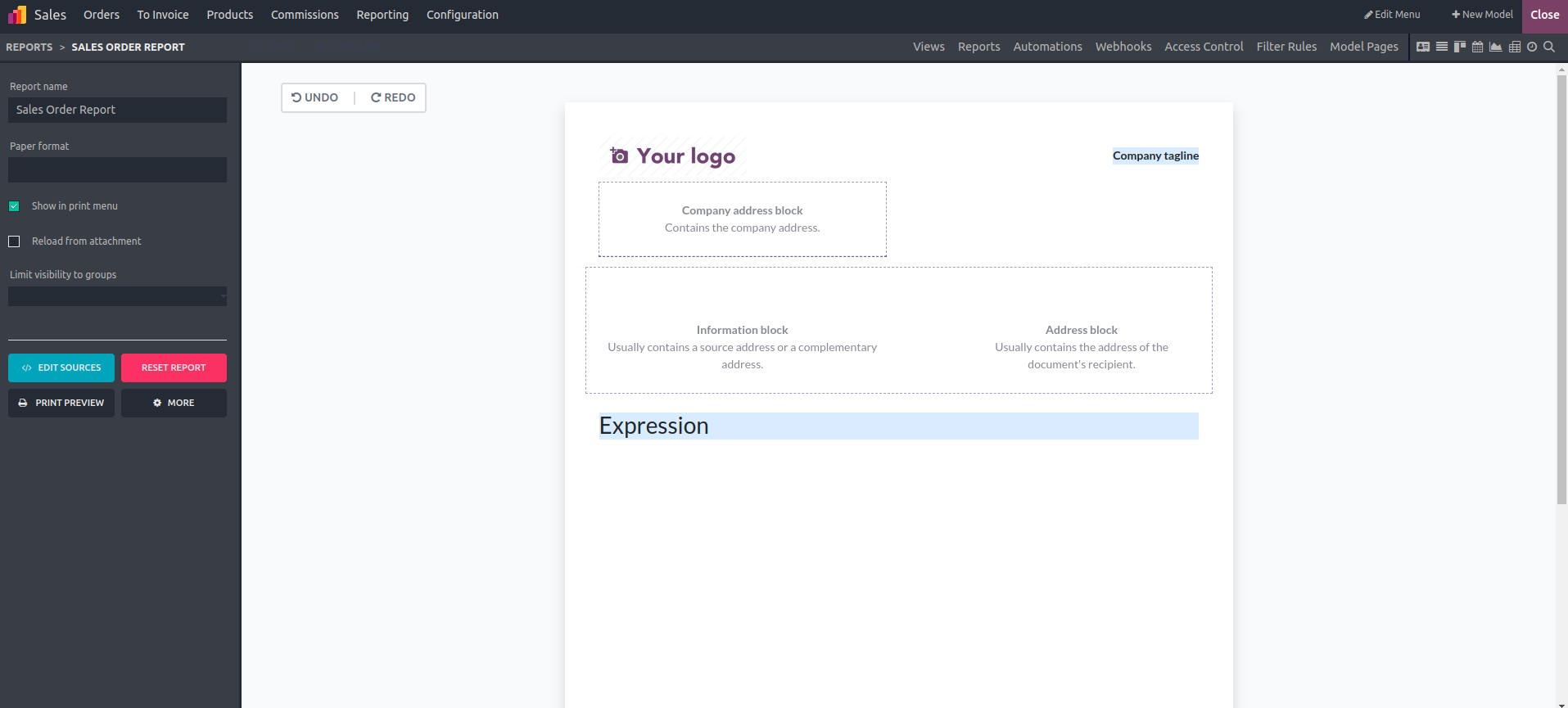
You can add new fields, change their labels, and control their visibility as needed.
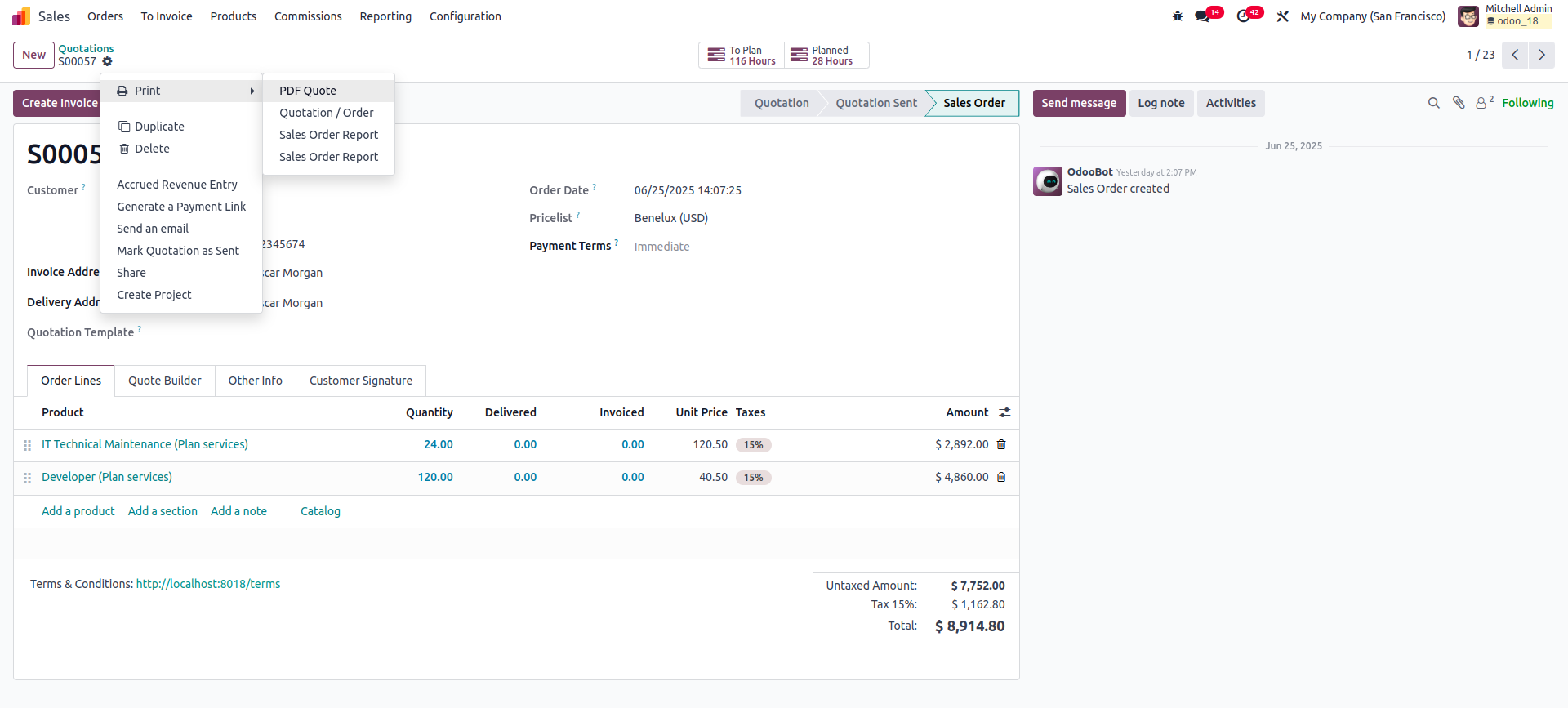
After closing the Studio, the PDF report can be downloaded directly from the view by clicking the Print option. There's also the option to include additional content, such as details and images, in the report.
A print option is available in the view, allowing you to download the PDF report.
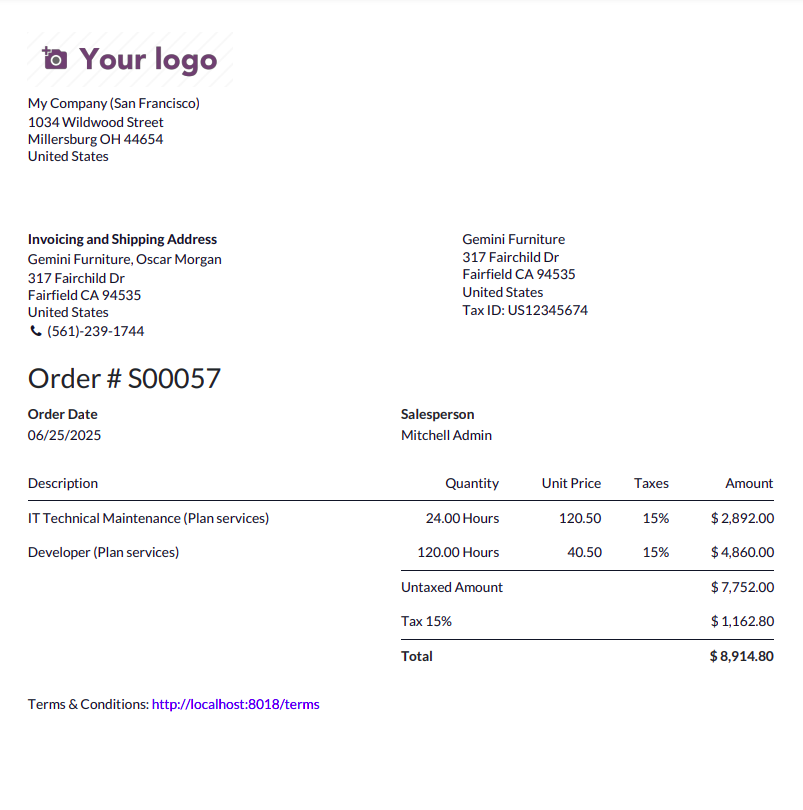
The downloaded PDF is displayed below.