In Odoo, the Search View helps users quickly find records based on field values or keywords. With Odoo 18 Studio, you can customize the search functionality by adding your own fields as filters or auto-complete options, making searches more relevant and efficient for your specific business needs.
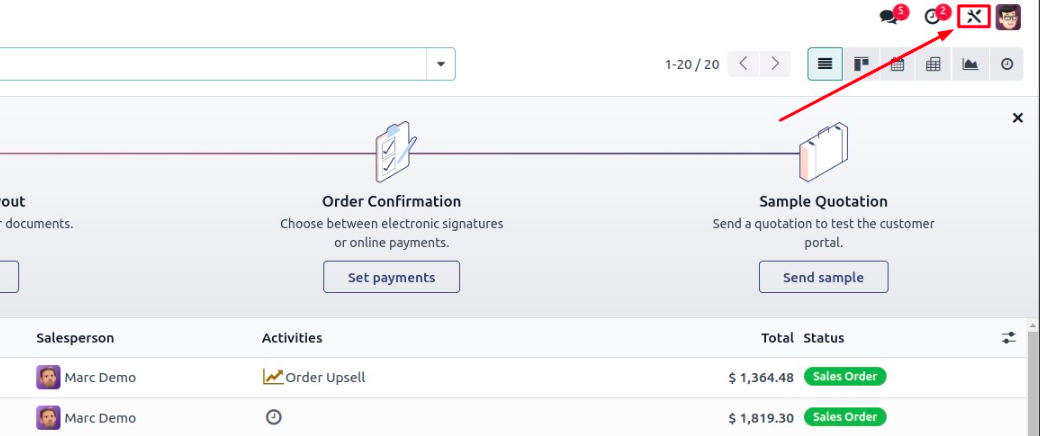
Step 1: Open the Studio Module
Begin by clicking the Studio icon from the top-right corner of your screen to enter customization mode.
Step 2: Access the Search View
Navigate to the model you want to customize (for example, Sales Orders), and then:
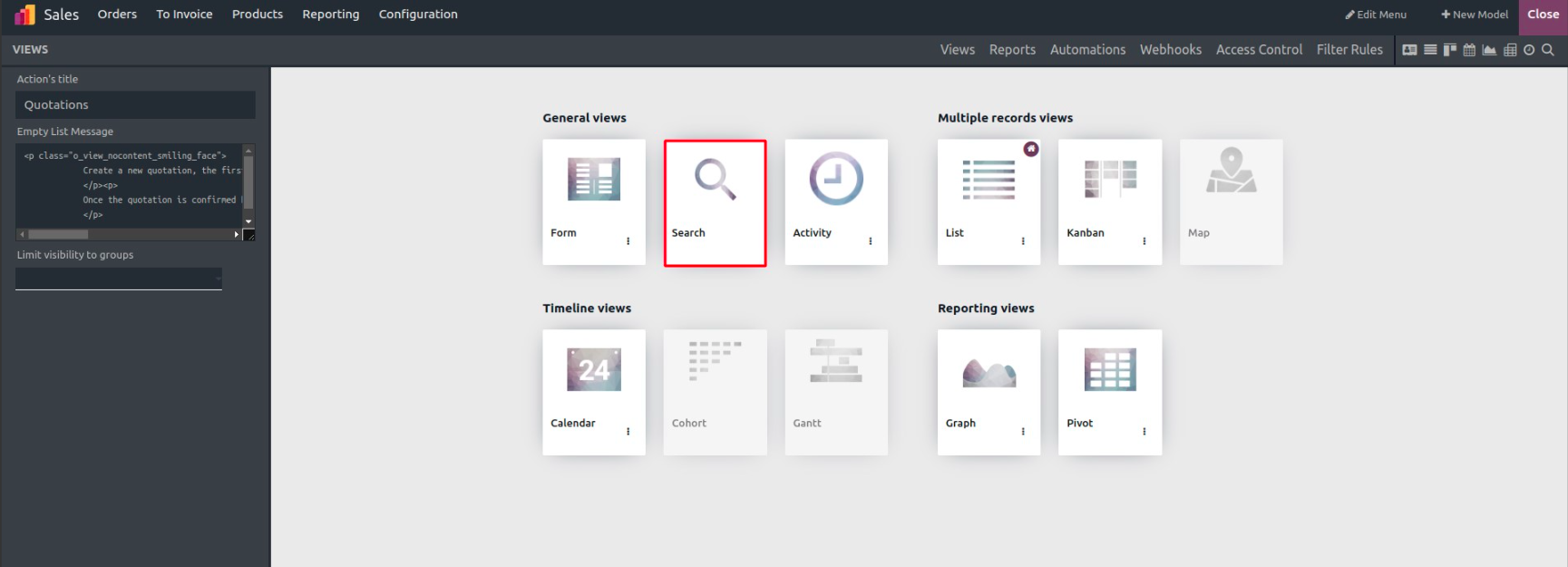
- Click on the "Views" tab in Studio.
- Select the Search View from the list of available views.
Step 3: Add Fields to the Search Filter
You’ll now see the Search View layout, which consists of a list of fields that are currently searchable. Below this layout, under “Existing Fields”, you’ll find all available fields in the model.
To make a field available in search, simply drag and drop it from Existing Fields into the Auto-complete Fields or Filters area.
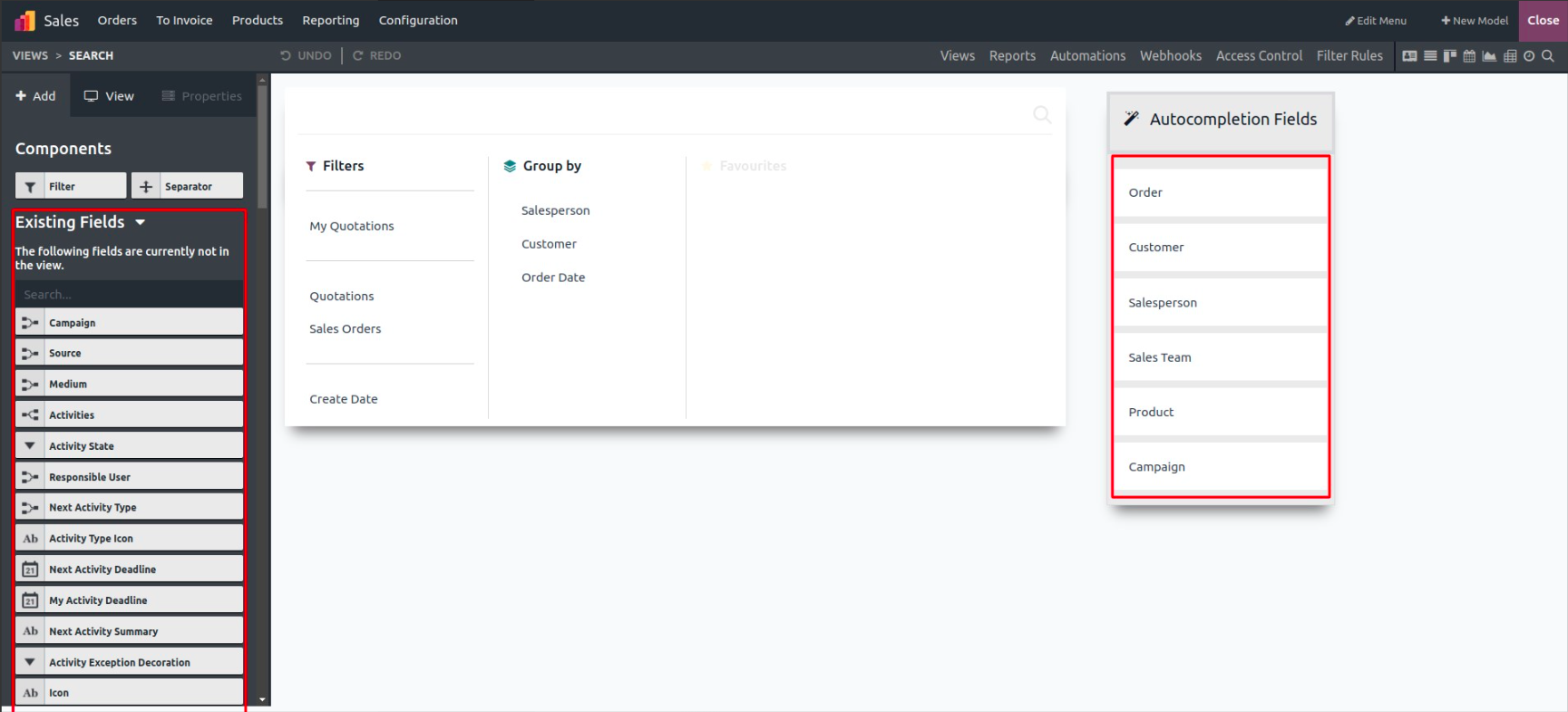
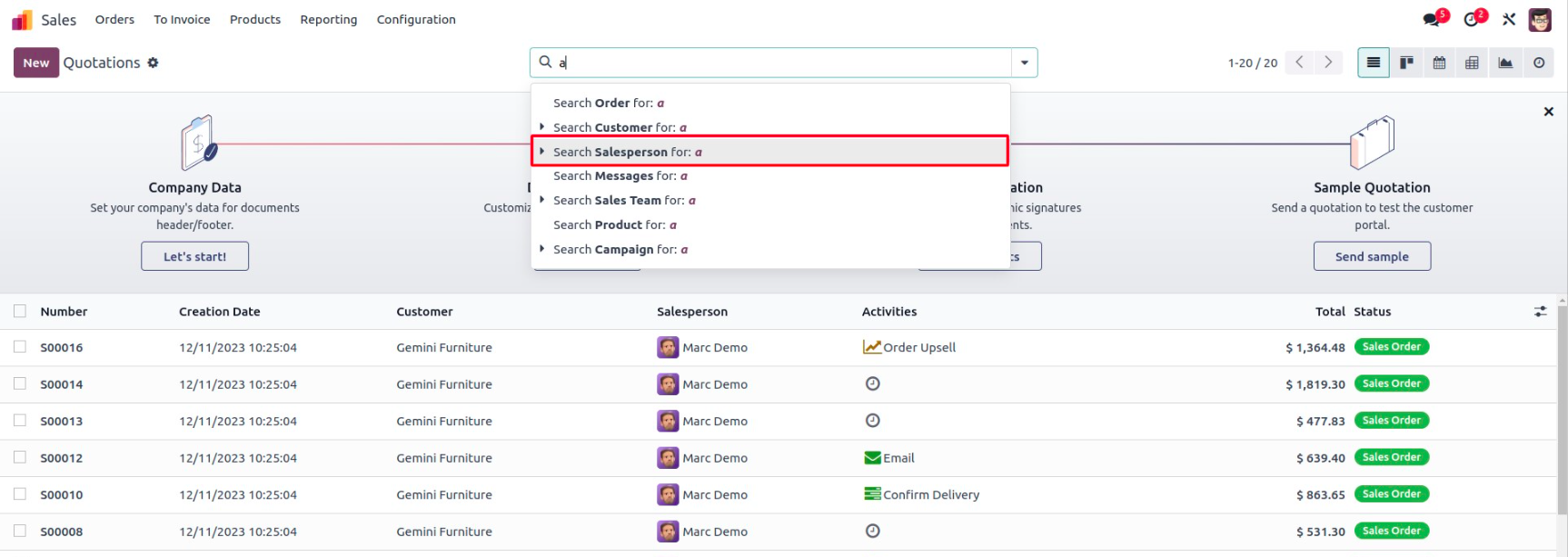
Example: Add “Sales Team” as a Search Field. Let’s say we want to filter records by the Sales Team. We drag the Sales Team field into the Search View.
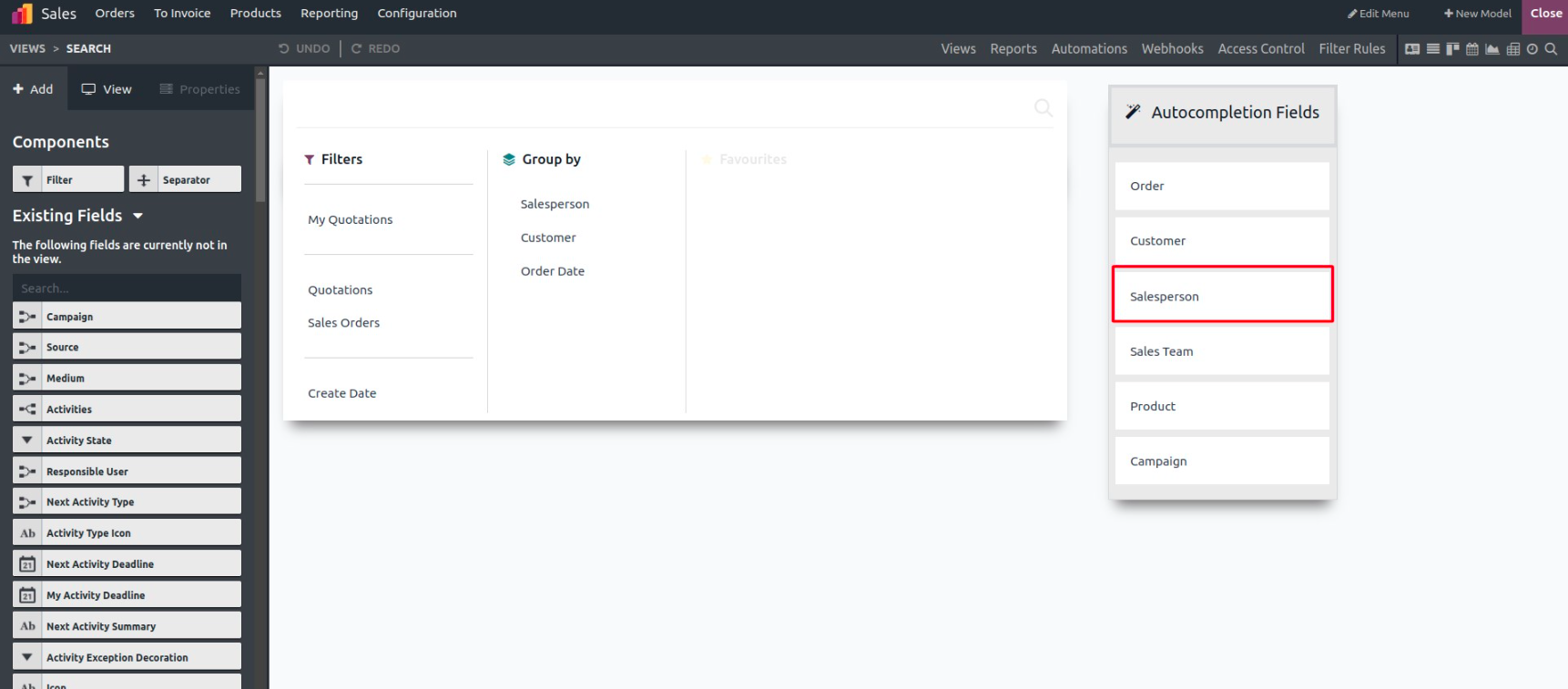
Now that the field has been added, it will appear in the search dropdown when users click the filter icon or begin typing.
Customizing the Search View in Odoo 18 Studio is a fast and effective way to: Improve usability for end-users, Add business-specific filters, Tailor data exploration to your operational needs.