To begin using the features provided by the Studio module, start by installing it from the Odoo Apps section. After installation, a customization tool button will appear in the top navigation bar, allowing easy access to Studio’s functionalities, as shown in the illustration below.
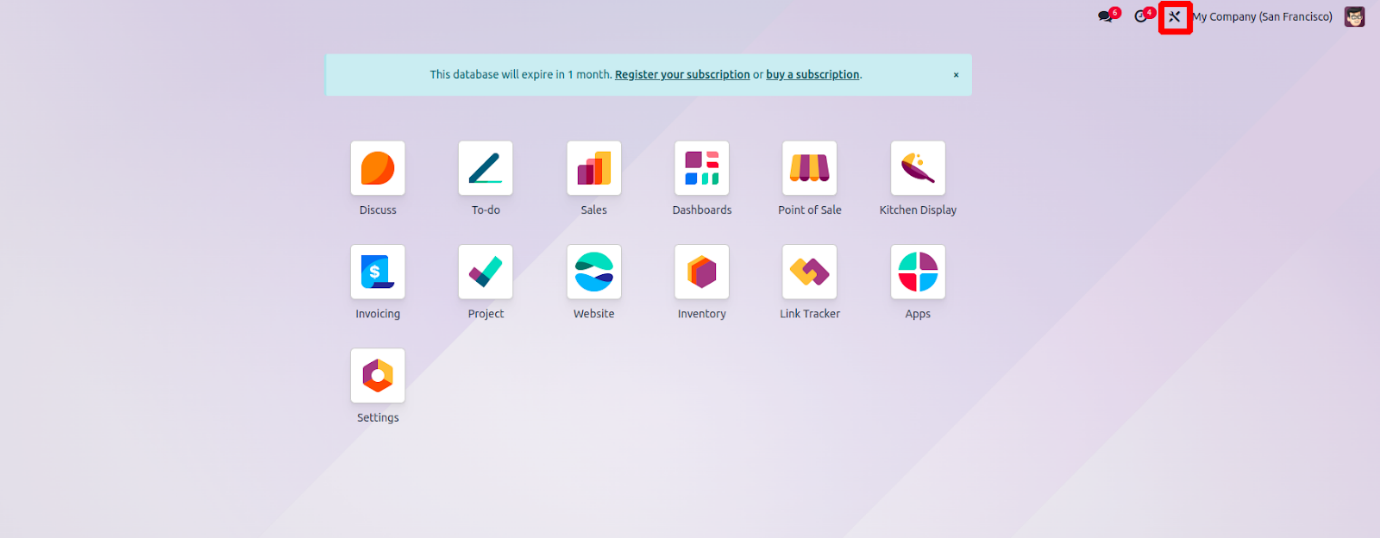
Clicking on the Studio tool will display various customization options on the top left corner, while the Notes and Close buttons will be located on the top right. Within the main interface, you’ll also find tools to edit existing applications or create entirely new ones.
The Customizations menu provides three key features:
- Change Background: Customize the background of the app interface.
- Import: Load previously exported Studio configurations.
- Export: Save and download the current customization setup for reuse or backup.
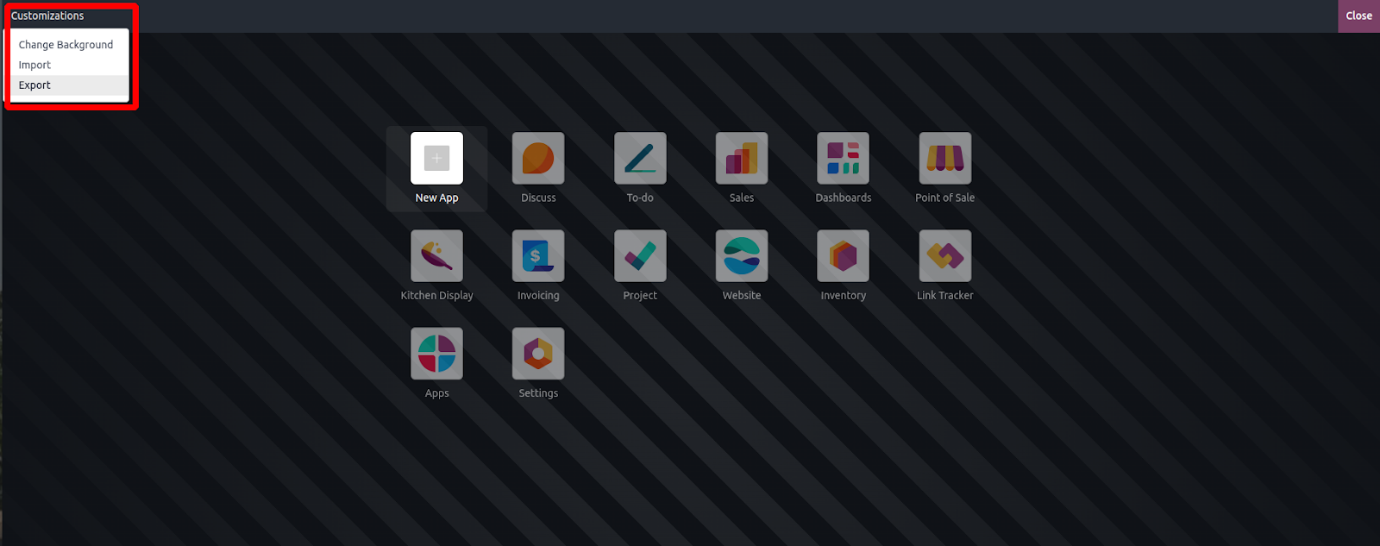
The Change Background feature allows users to personalize their interface by selecting a background image of their choice. The Import option enables users to load previously created custom modules into the system, while the Export function simplifies the process of saving and downloading current customizations for use elsewhere or as a backup.