The Odoo 19 Meeting Rooms module is one solution for organising and managing meeting room reservations within a company. By allowing employees to reserve available meeting places directly from the system, it reduces scheduling problems. The module offers a calendar view that displays all scheduled meetings and room availability in real time. Rooms can be sorted by features like projectors or video conferencing equipment, as well as by location and capacity. Its interaction with the Odoo Calendar app allows for the seamless scheduling of meetings and hotel reservations. Because it supports both one-time and recurring reservations, the module may be tailored to different meeting needs. Send messages and reminders to participants and room managers to ensure seamless communication and collaboration. Administrators can change room settings, manage access permissions, and impose booking limits. The module also provides room utilisation data to enhance space management. Overall, the Odoo 19 Meeting Rooms module helps streamline meeting management with a more organized workflow, better room utilization, and improved scheduling efficiency.
In this blog, we'll explore its key features and see how they simplify the process of booking and managing meeting spaces. We will discuss the various dashboard displays that provide a succinct overview of available rooms and reservations. You will learn how to arrange meeting areas, schedule meetings, and identify available or occupied places. Additionally, we'll explore how to manage room appearances and amenities to ensure better planning and efficient use of meeting spaces.
- Many dashboard perspectives,
- Setting up meeting spaces,
- Setting up meetings,
- Real-time room availability status
- Room appearance and amenities
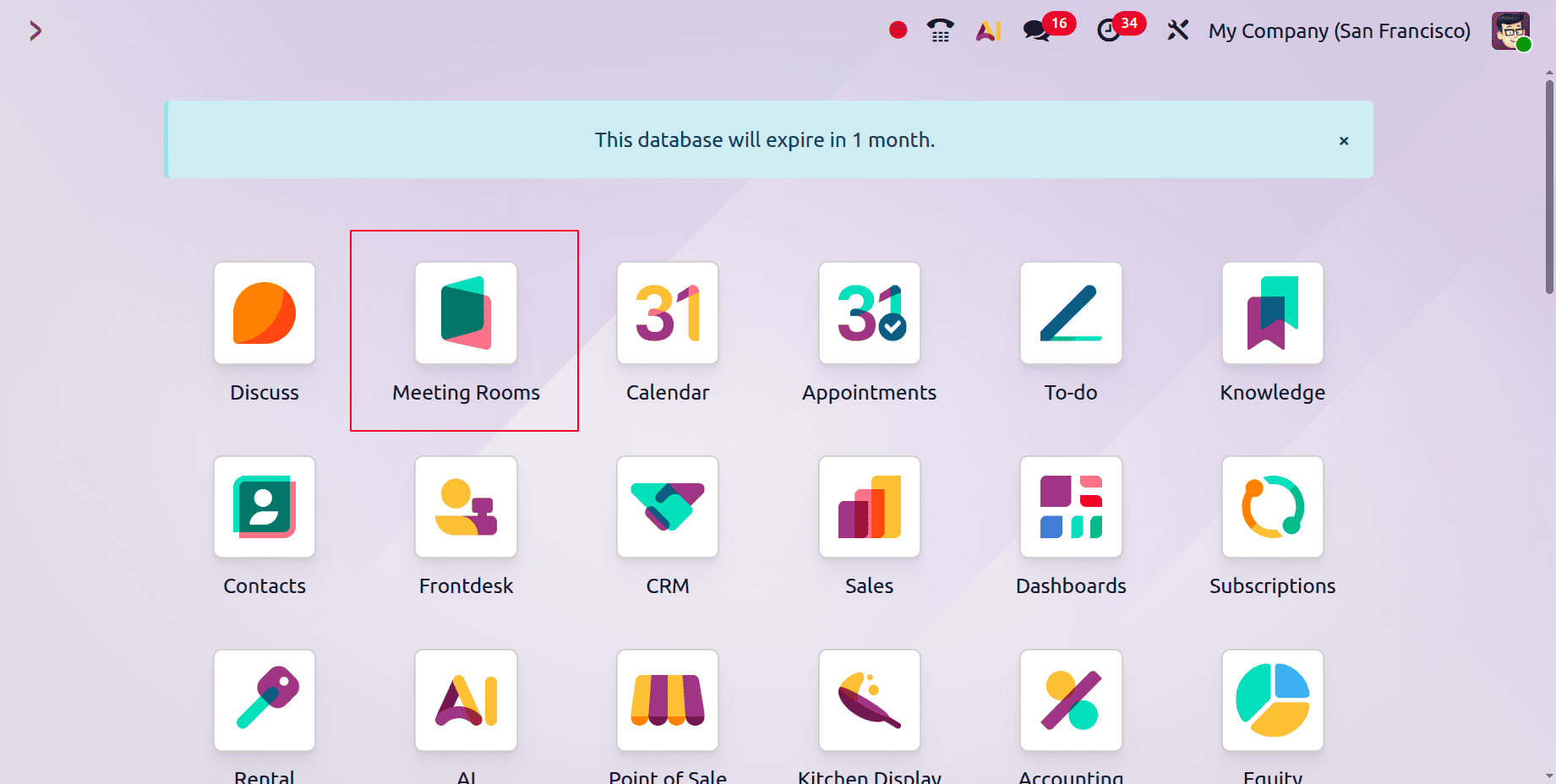
Let's start by installing the "Meeting Rooms" module from the Apps. Search for the module and install it. Once the installation is complete, the Meeting Rooms module will appear, as shown below. To open it, click on it.
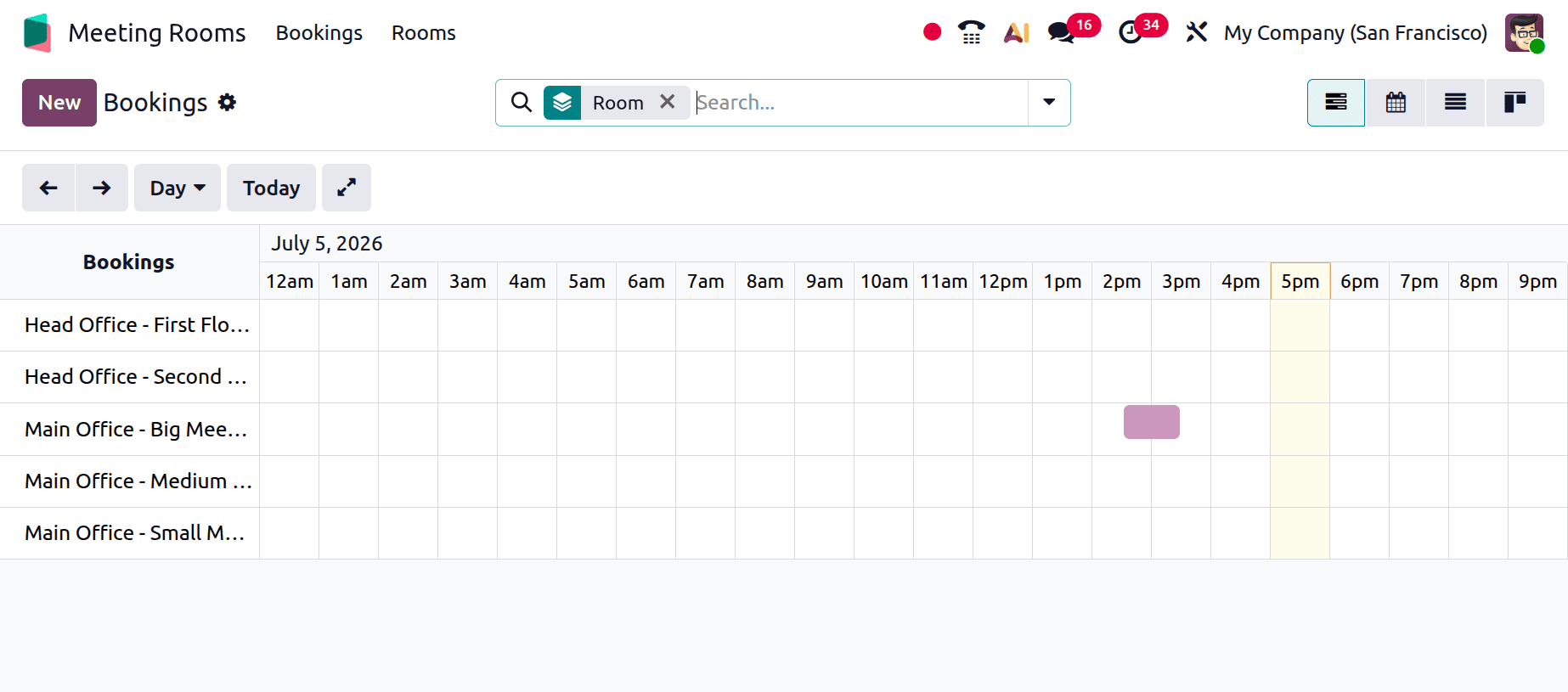
The dashboard for the meeting rooms is displayed on the screen below. The bookings are displayed on the dashboard. Let's start by examining the process of setting up a new meeting room.
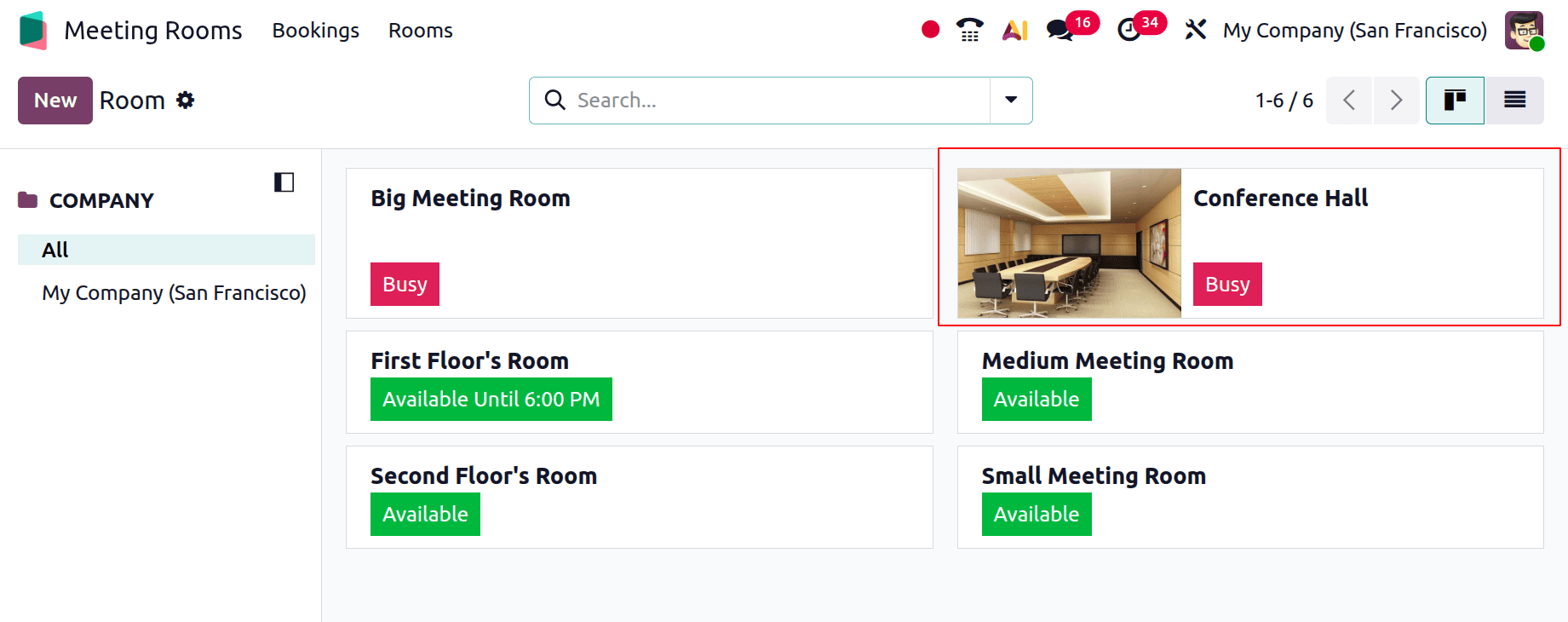
Click on the Rooms to do that. The Meeting Rooms' Kanban view is then displayed there. The room's availability can be seen on the screen.
Five meeting rooms are now on show. The first is called the "Big Meeting Room," and it's currently occupied. The second room is called "First Floor's Room" and is open till 6:00 PM. Since no meeting is scheduled, the remaining three rooms are "Medium Meeting Room," "Second Floor's Room," and "Small Meeting Room."
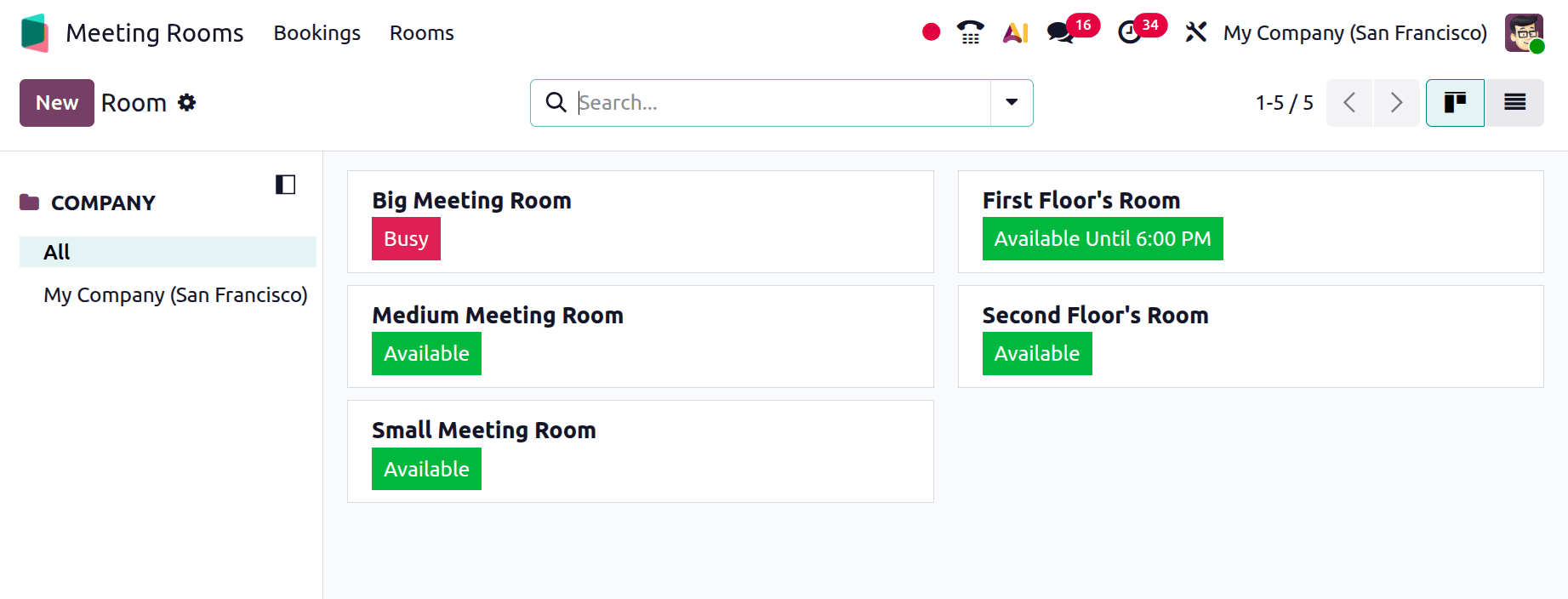
When a room is available, it's indicated by green; when it's not, it's indicated by red. To add a new meeting room, select the New button. Select the Headquarters after adding the name of the room. The Room Link will then appear there.
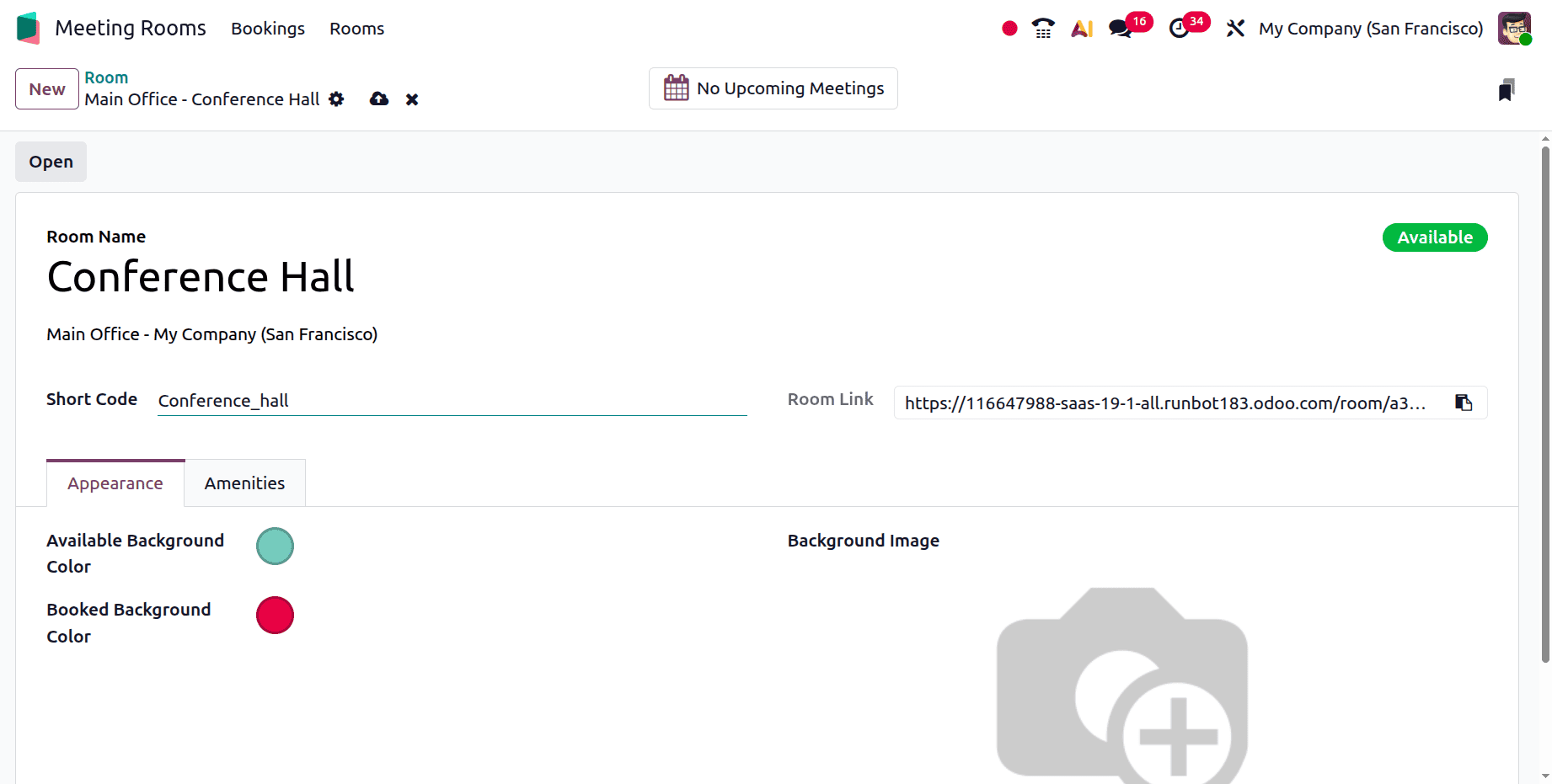
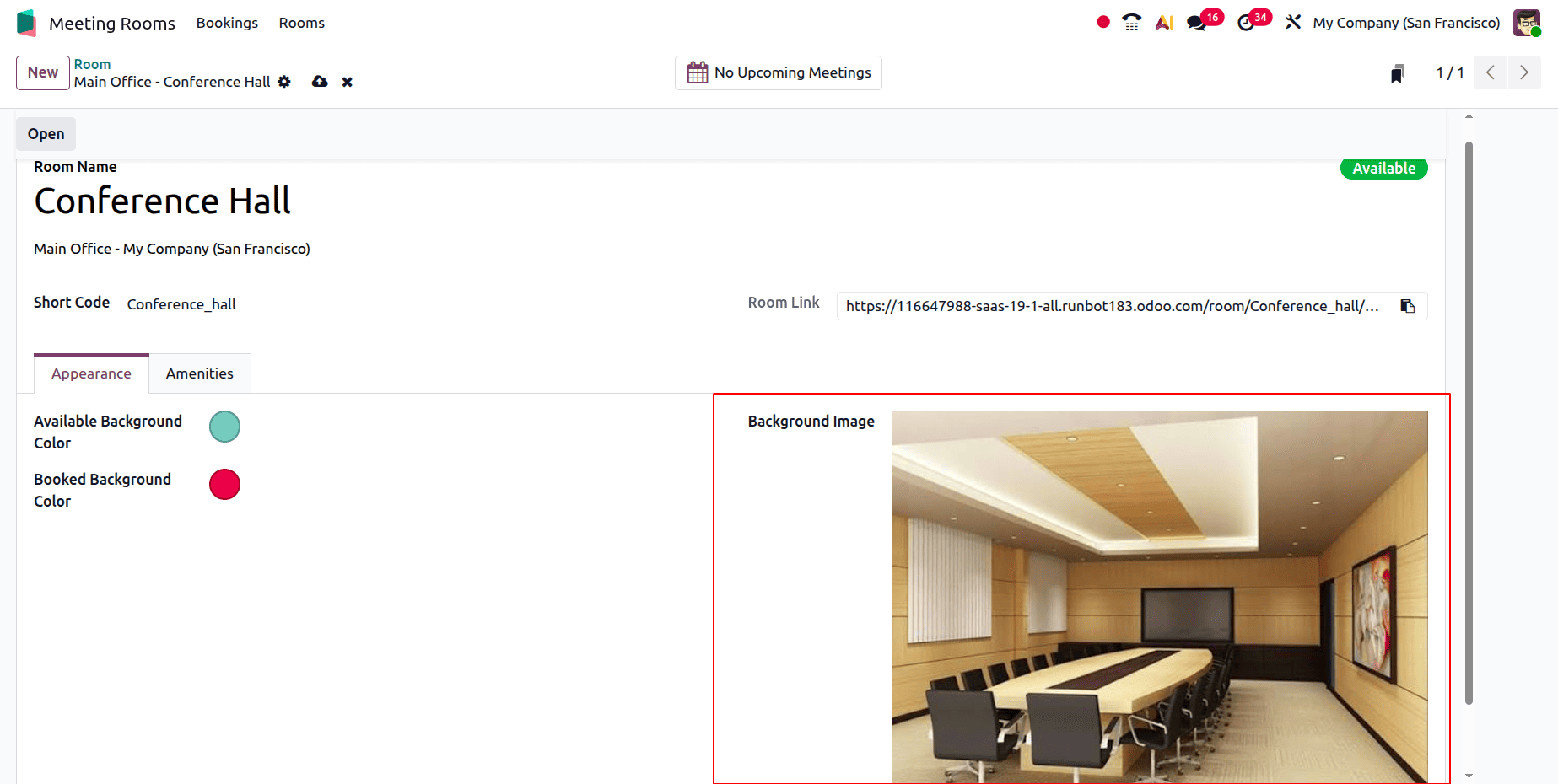
Users can alter the room's appearance by selecting the Appearance option. Users can alter the background colour and Booked Background Colour from this tab. To quickly change the colour, click on it.
The technology allows users to upload background photos. To upload photographs, click the pencil symbol and select an image from the system. By selecting the delete icon, the image can be removed.
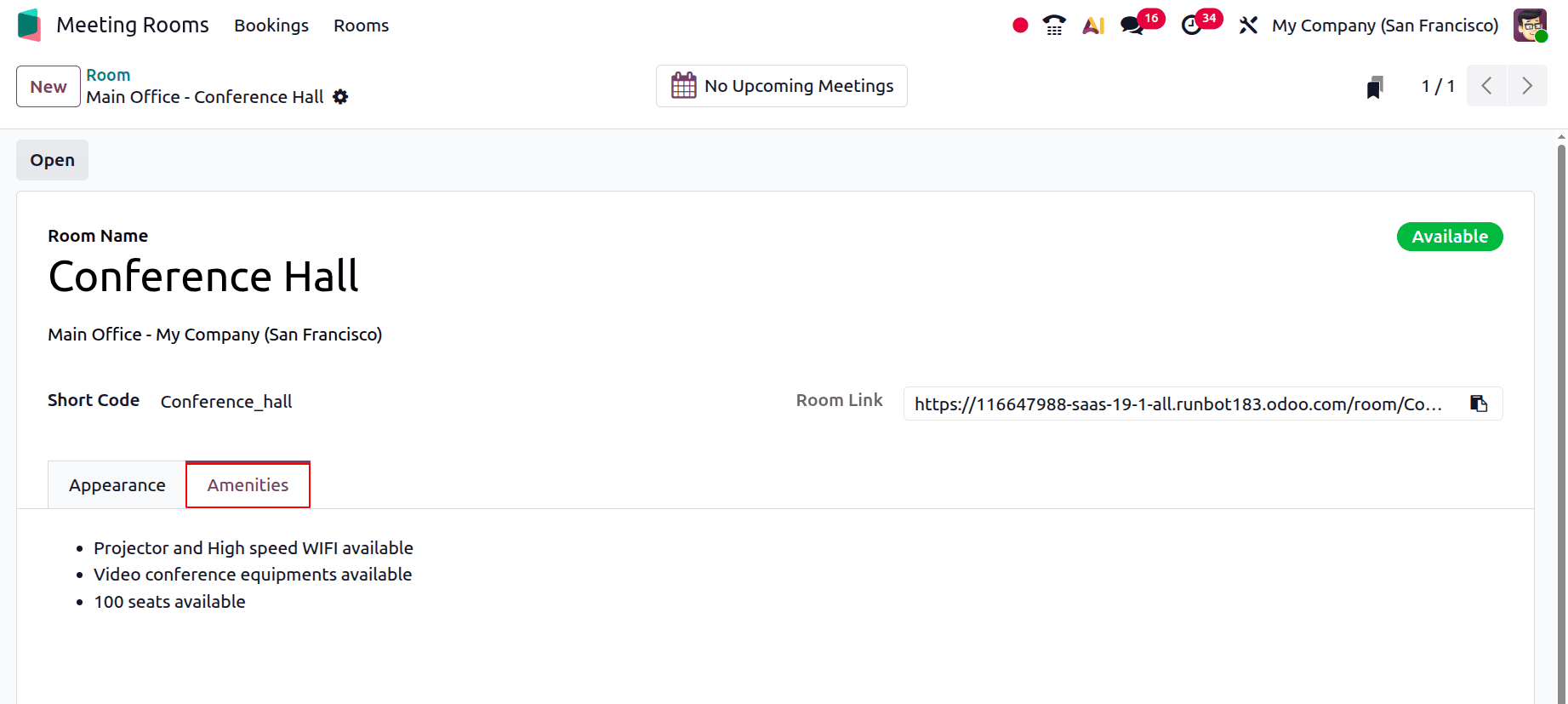
The Amenities tab comes next. Conference room amenities are the facilities and equipment required to support effective meetings and presentations. To create a comfortable and productive meeting environment, you can include amenities such as projectors, whiteboards, Wi-Fi, video conferencing equipment, comfortable seating, and refreshments.
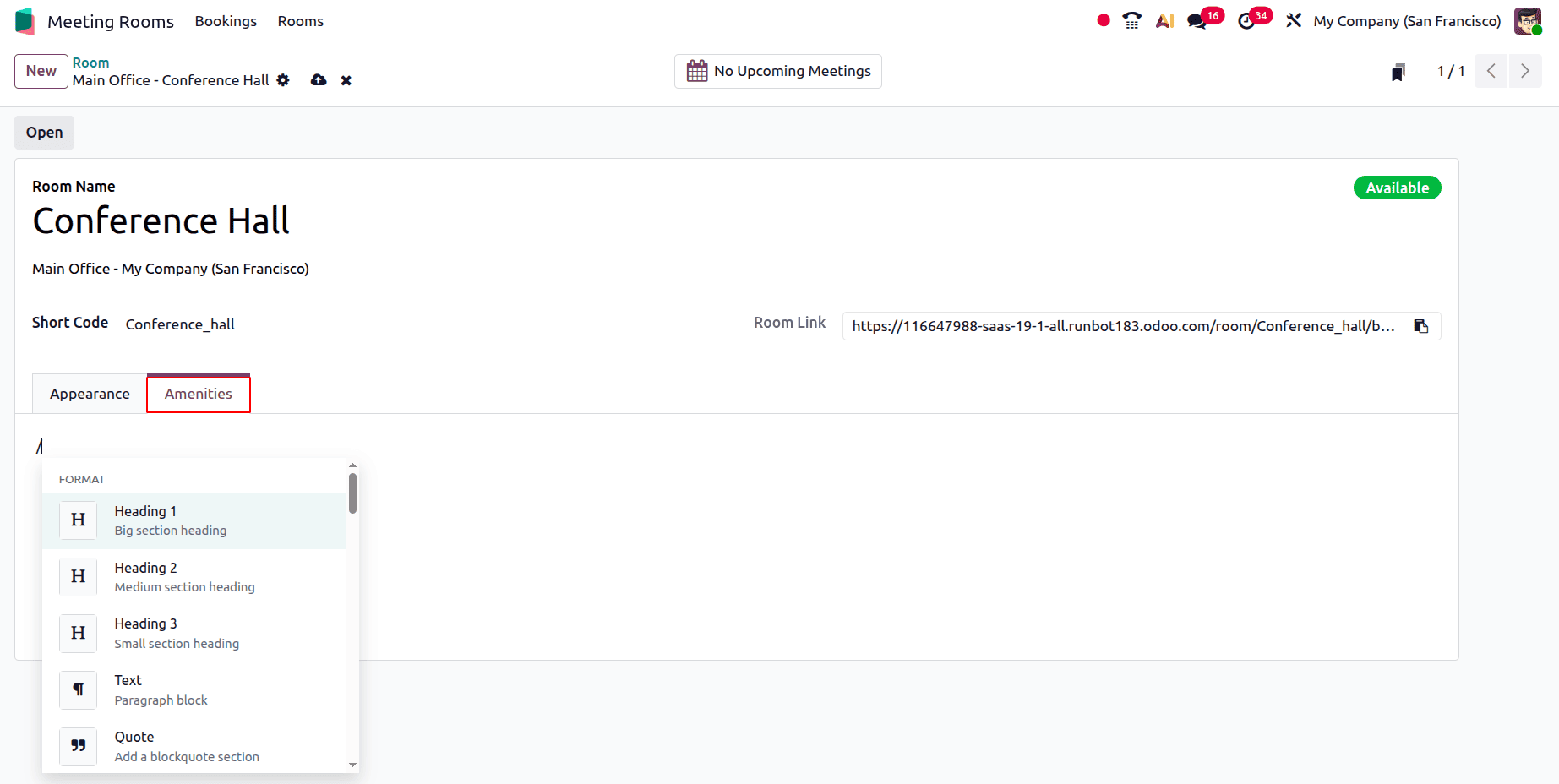
Checkboxes, bullets, and similar graphics can be uploaded by users. Here, a few amenities are included along with the tick box. The configurations should be saved.
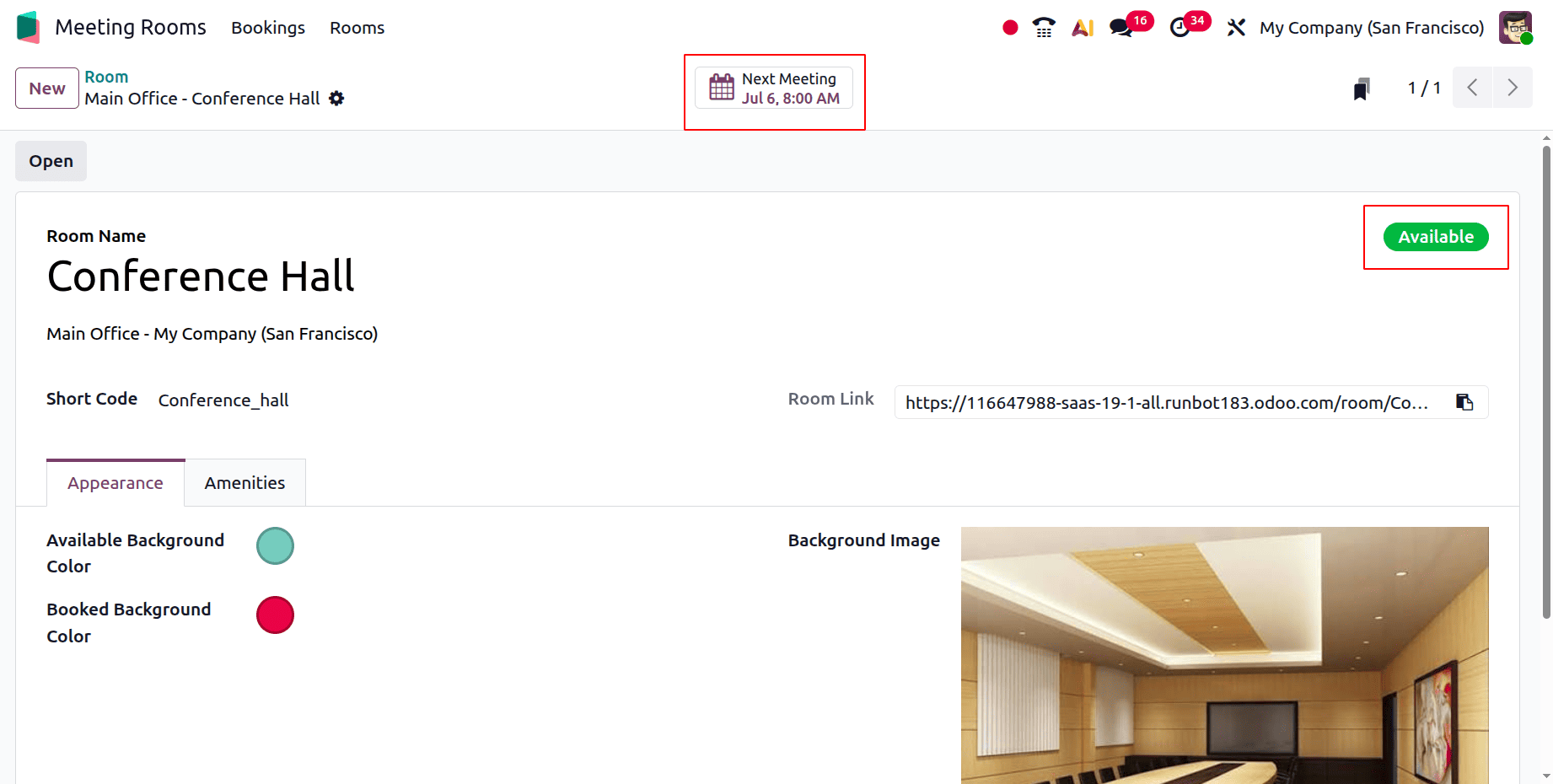
The room's status is displayed as Available since there are no planned meetings there. To access the Conference Room, click the Open button.
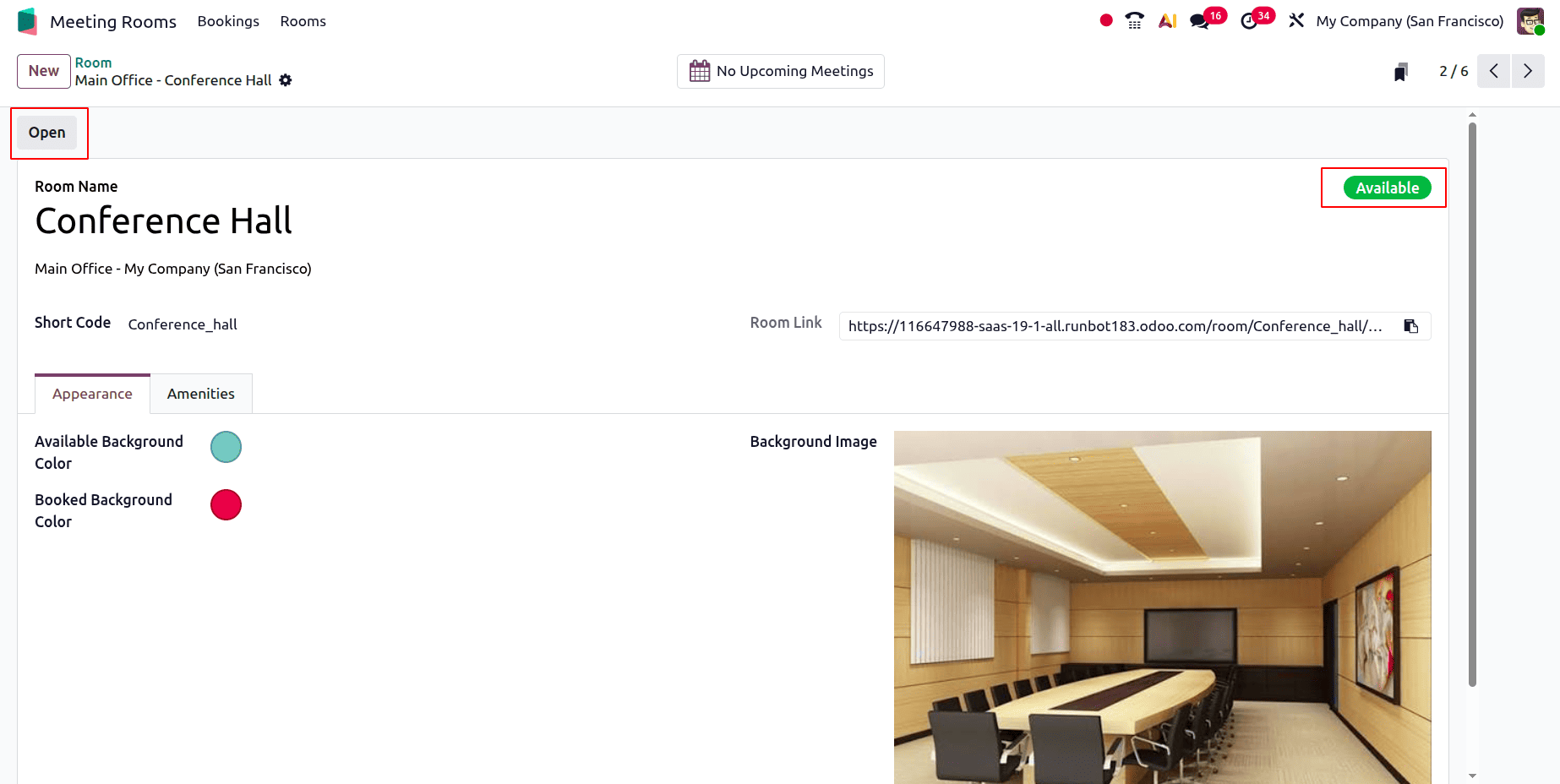
The dashboard colour is displayed when the Available Background Colour is set. The left side of the screen displays the available amenities, while no reservations have been made yet.
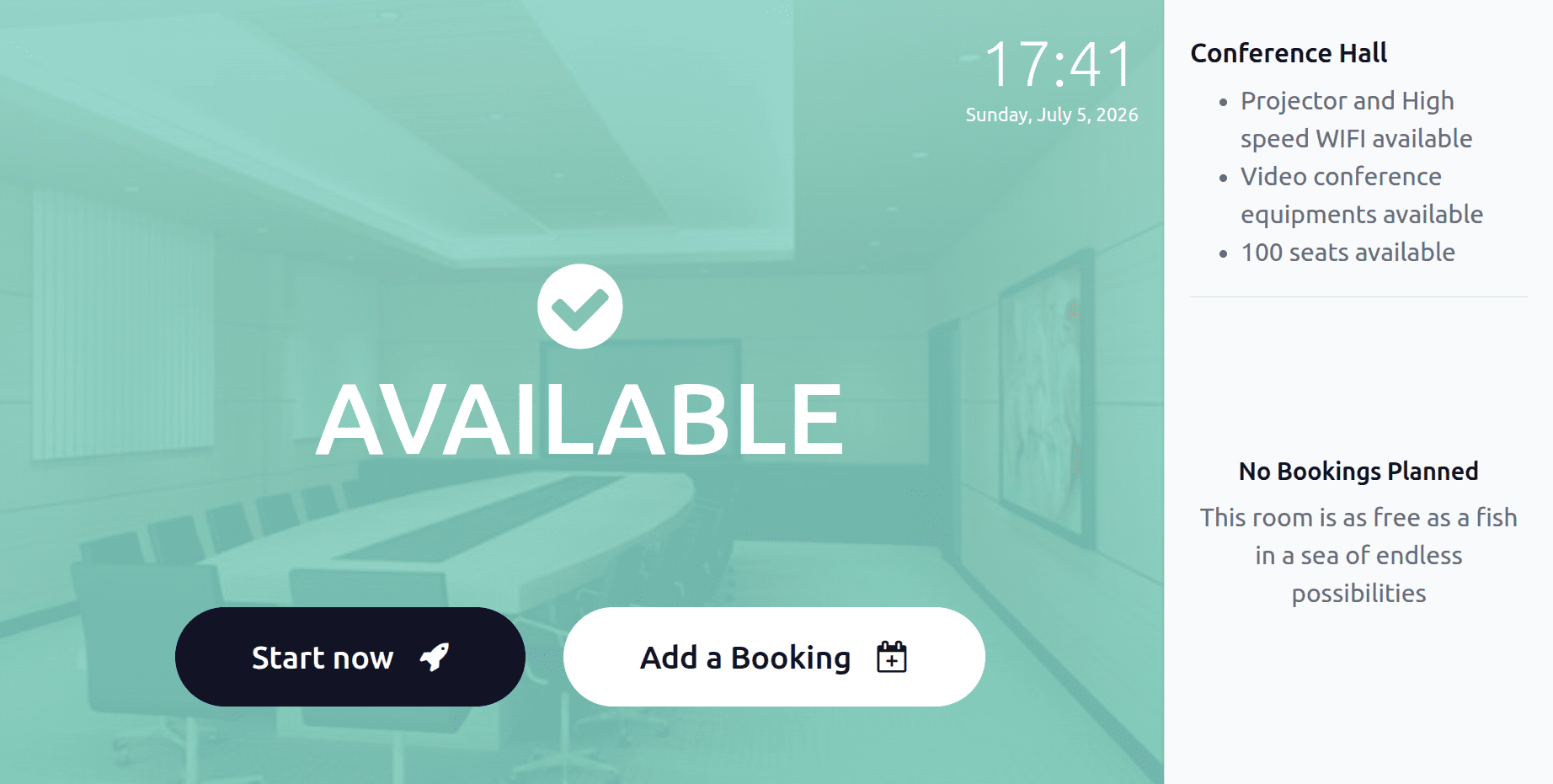
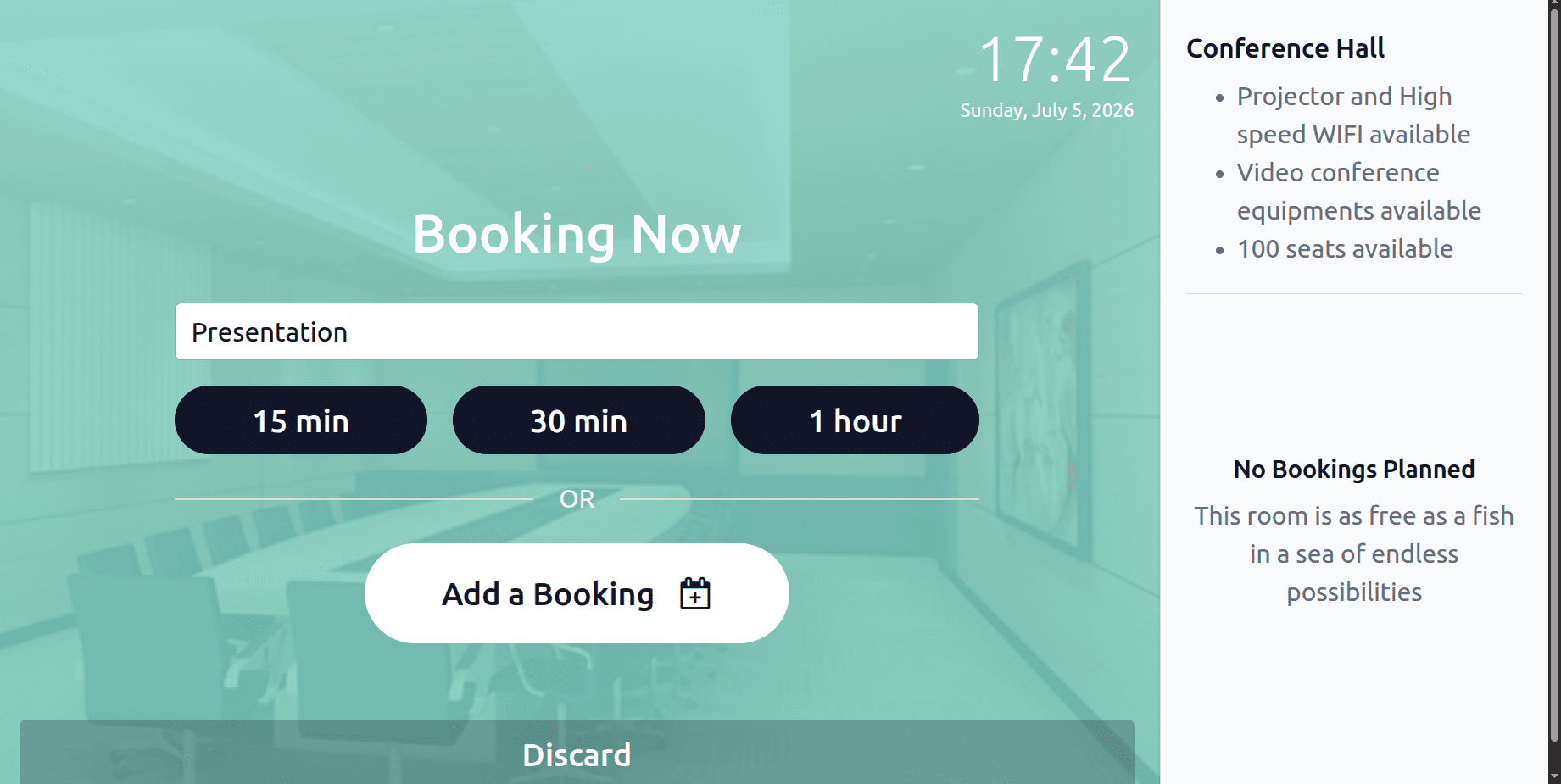
Click the "Start now" button to reserve the meeting space. Prior to selecting the required time, add the user name. Mitchell Admin is the user in this instance, and 0 minutes have been chosen.
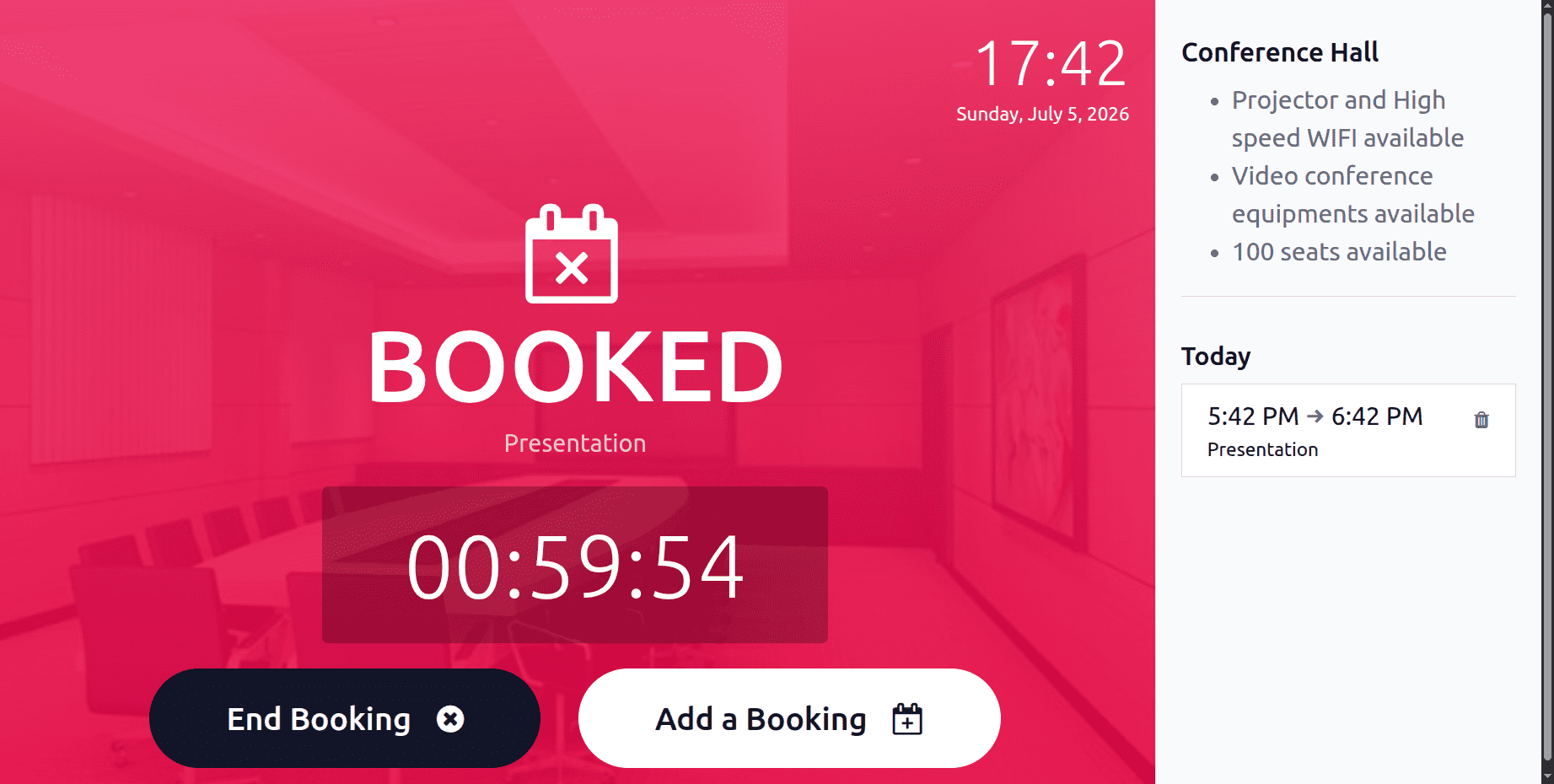
The conference room is now reserved for the next one hour. The timer is operating as the screen indicates. Additionally, the booking time is displayed there.
As you can see below, the meeting room's status has now changed to Busy. The status automatically changes to Available after the allotted few seconds have passed.
To cancel an accommodation reservation, users simply click the End Booking option. Next, click the Add a Booking button to make a future reservation.
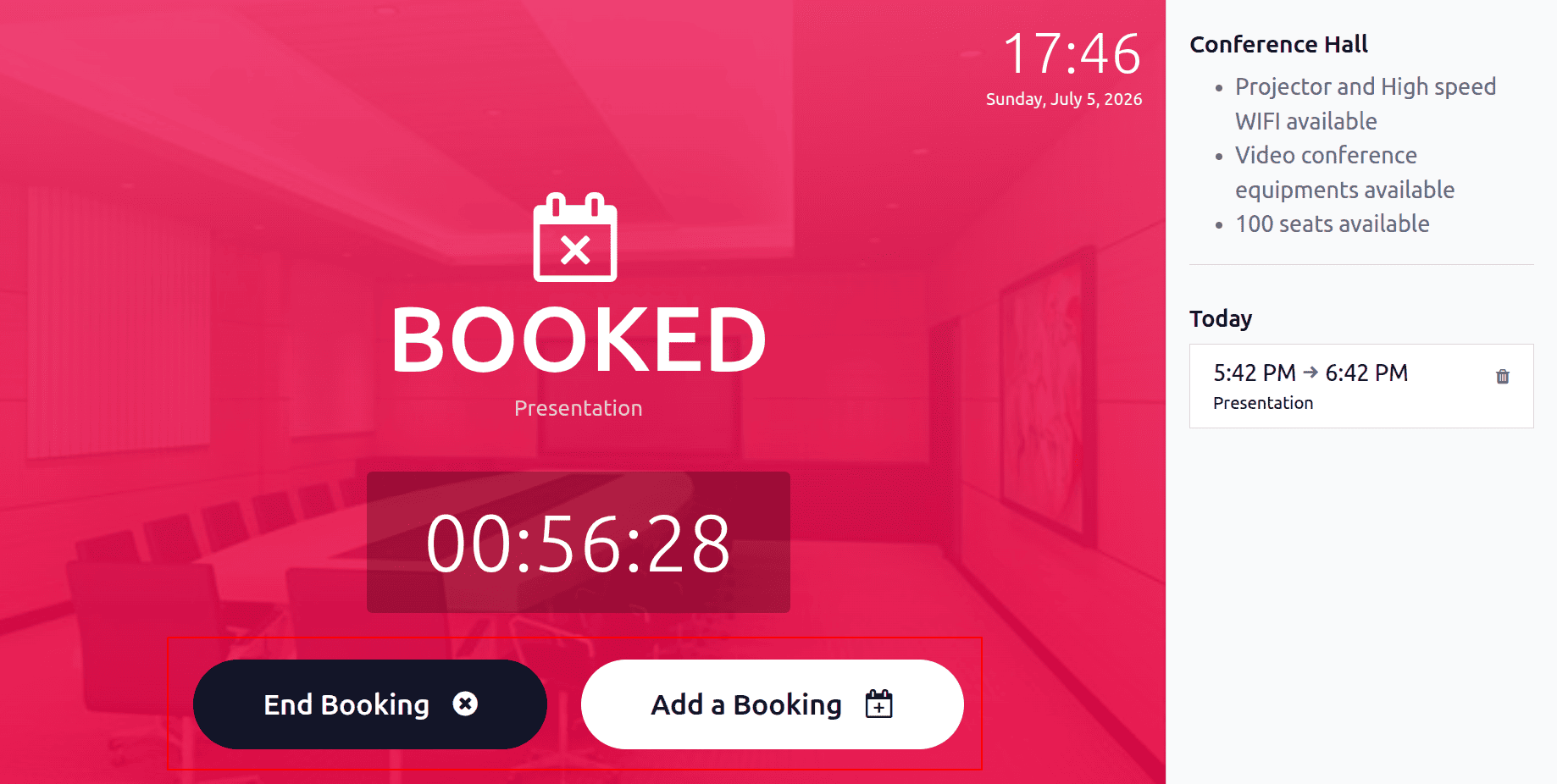
Then, a new window will open as shown below. Enter the booking name, then choose the preferred date and time for the reservation. Next, press the "Add" button.
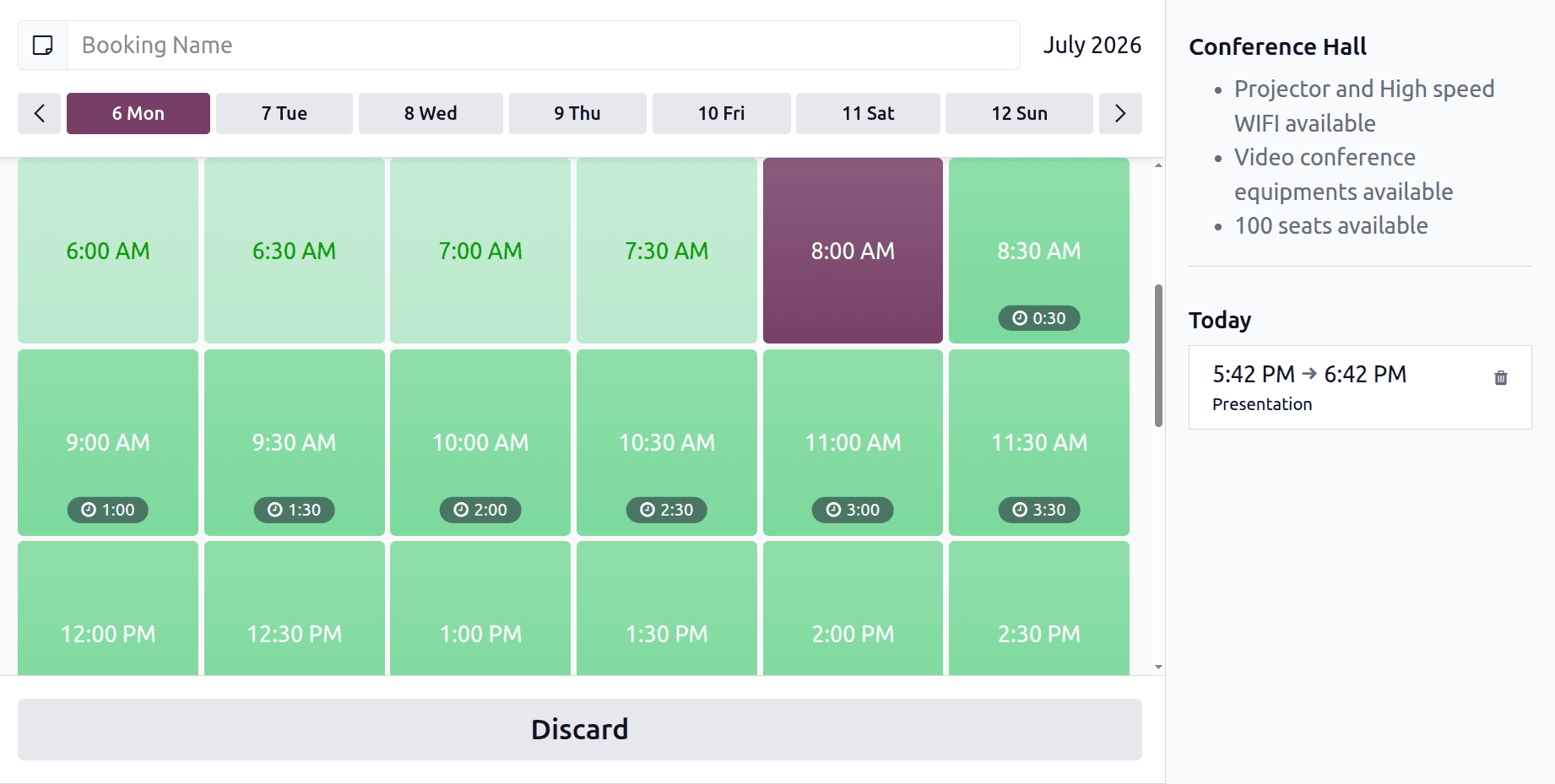
As indicated below, the new reservation will also be added.
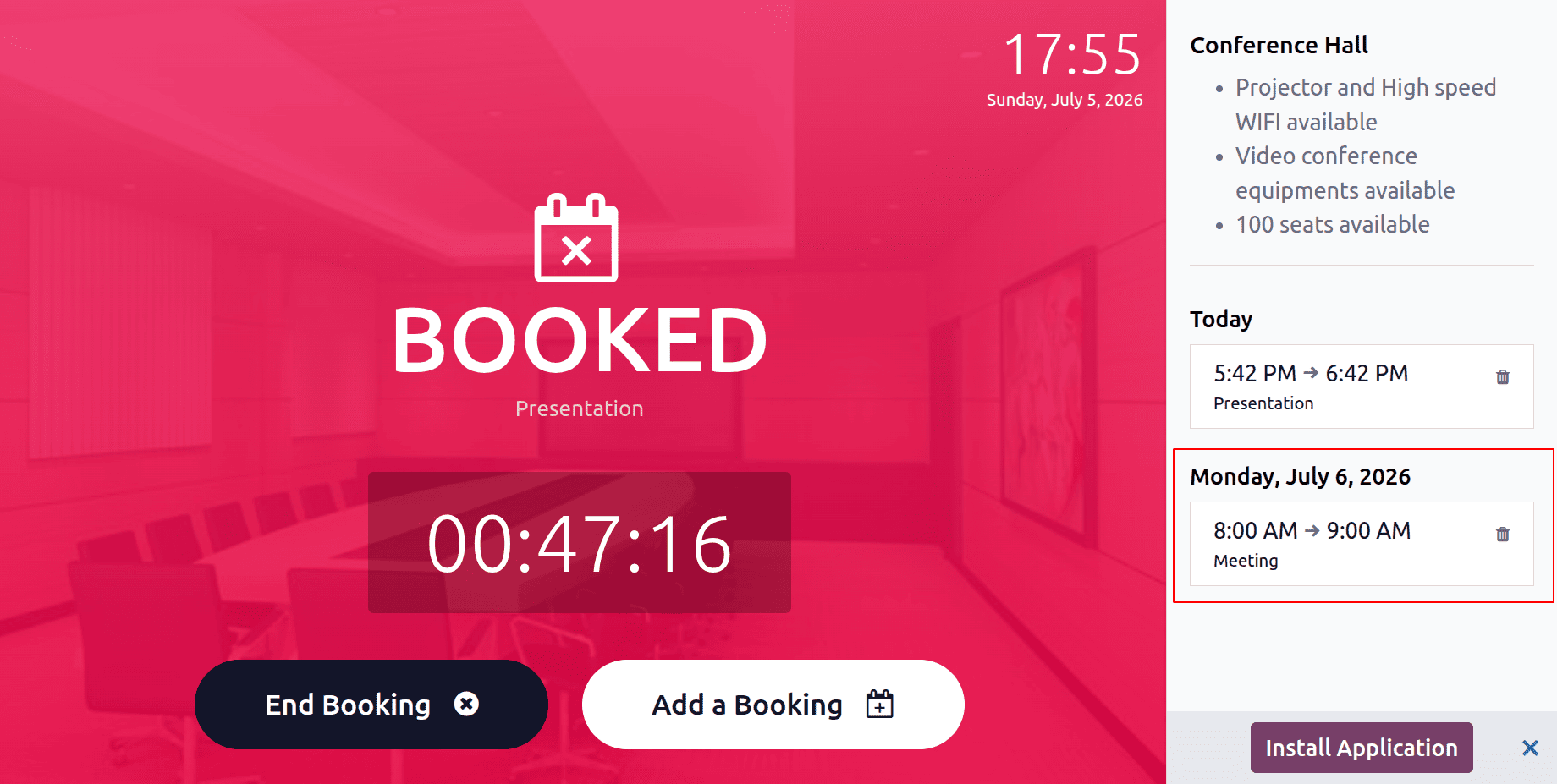
A fresh confirmation message will appear if the user attempts to cancel the reservation by clicking on the End Booking. Click the End Booking button.
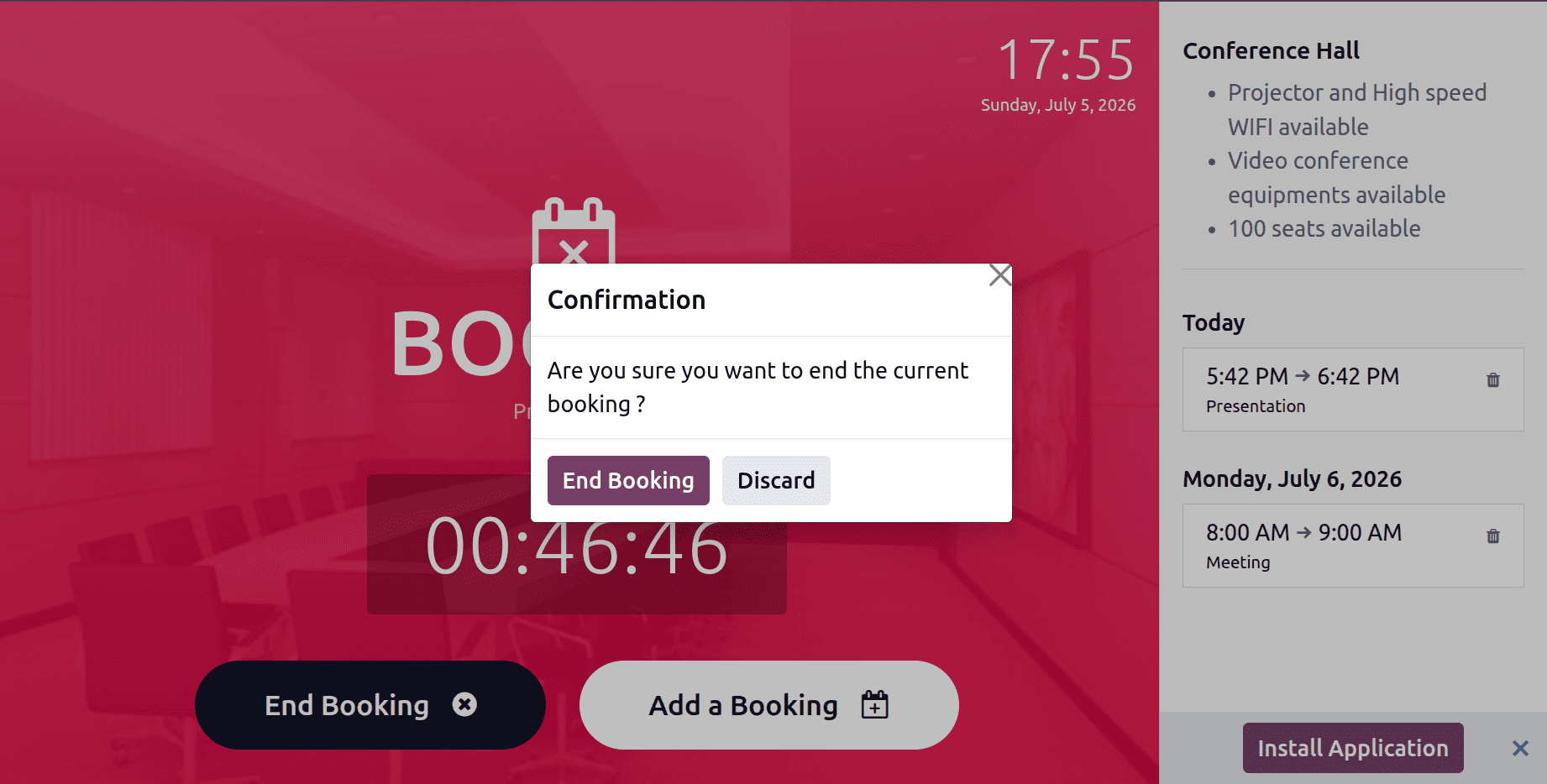
Once the reservation is cancelled, the room status changes back to Available. You can view the forthcoming meeting room reservations directly from the room. Select the Next Booking smart tab.
Click the Booking menu to see the reservations. This opens the module's dashboard. Here, the kanban perspective is exhibited.
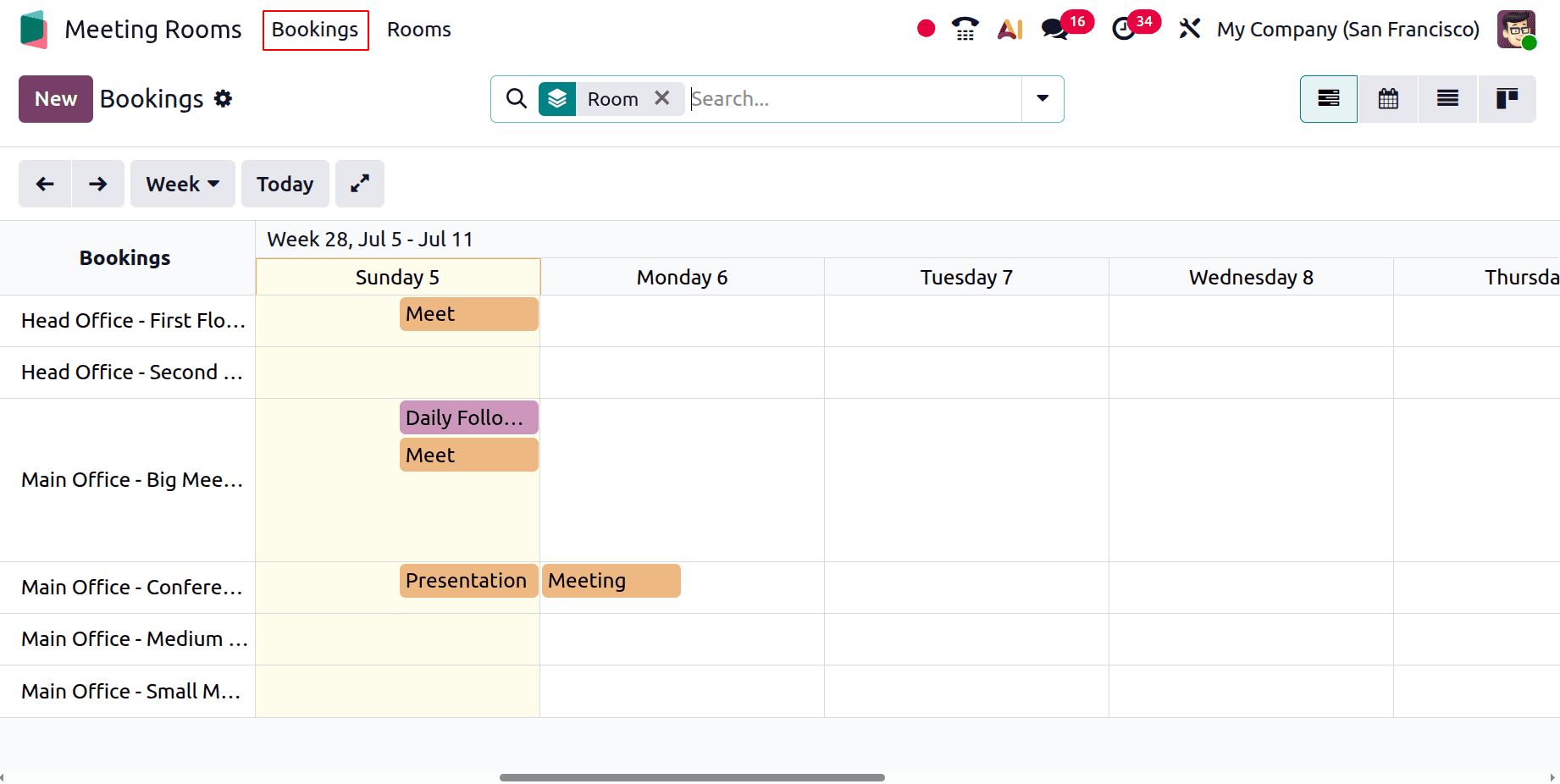
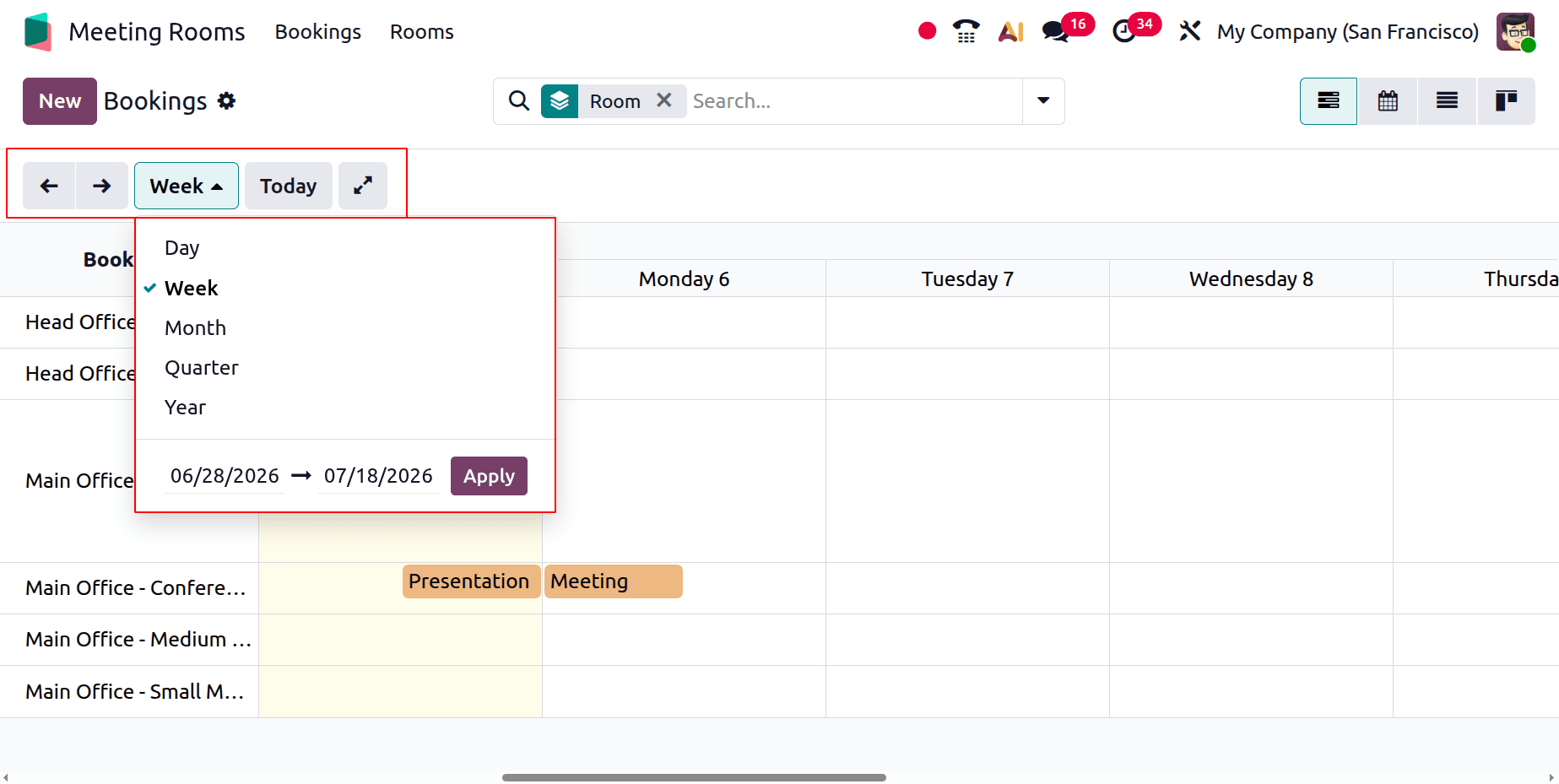
Users can view reservations in the Gantt view by day, week, month, quarter, or year. They can also set custom start and end dates to filter the schedule. They can also specify start and end dates. It may also travel forward and backward with two arrows.
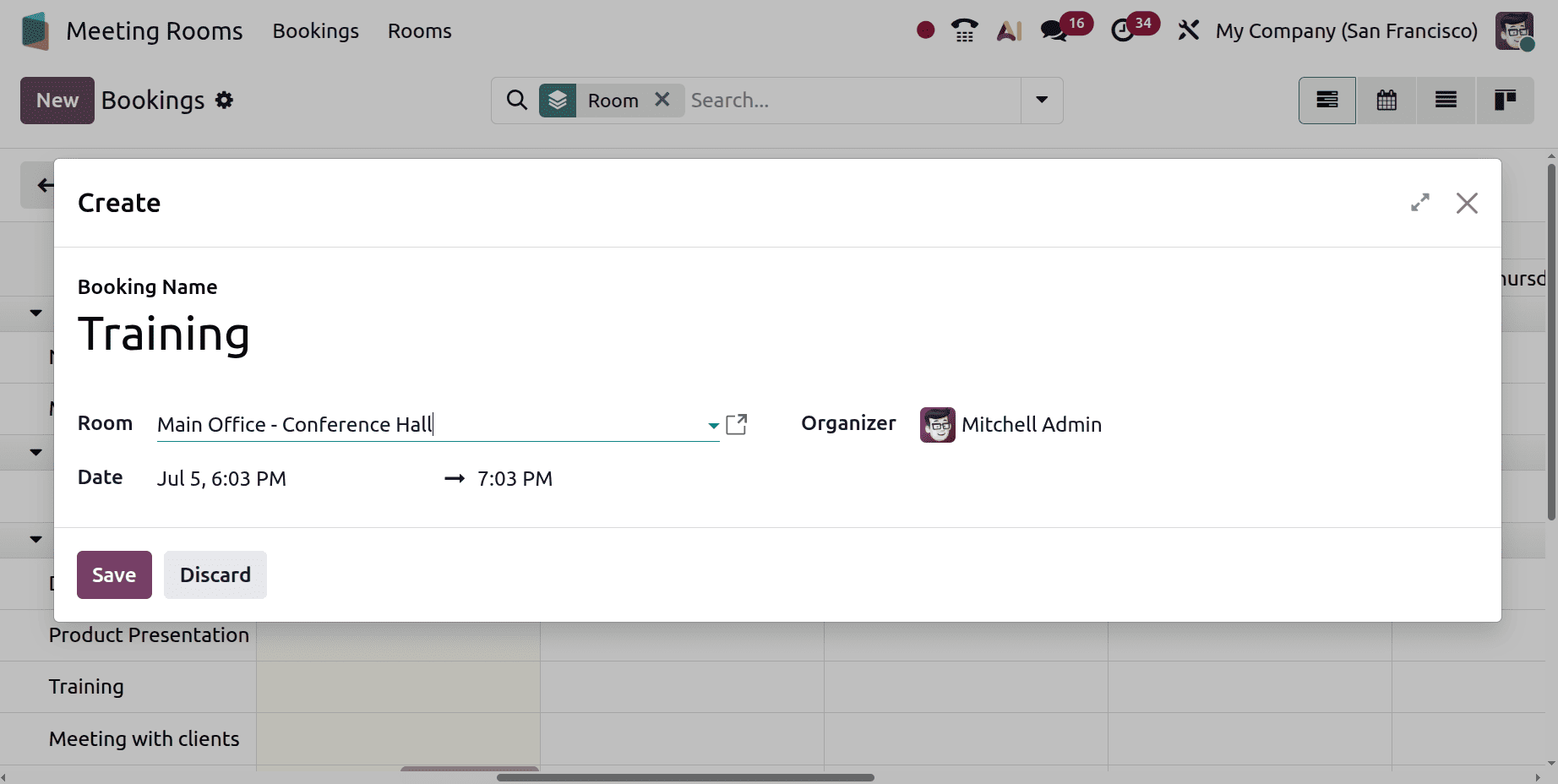
Click the New button to create a new reservation. Add the name of the reservation, the room, the start and end times, and the organiser. Next, press the "Save" button.
As seen below, the new reservation will be added to the dashboard.
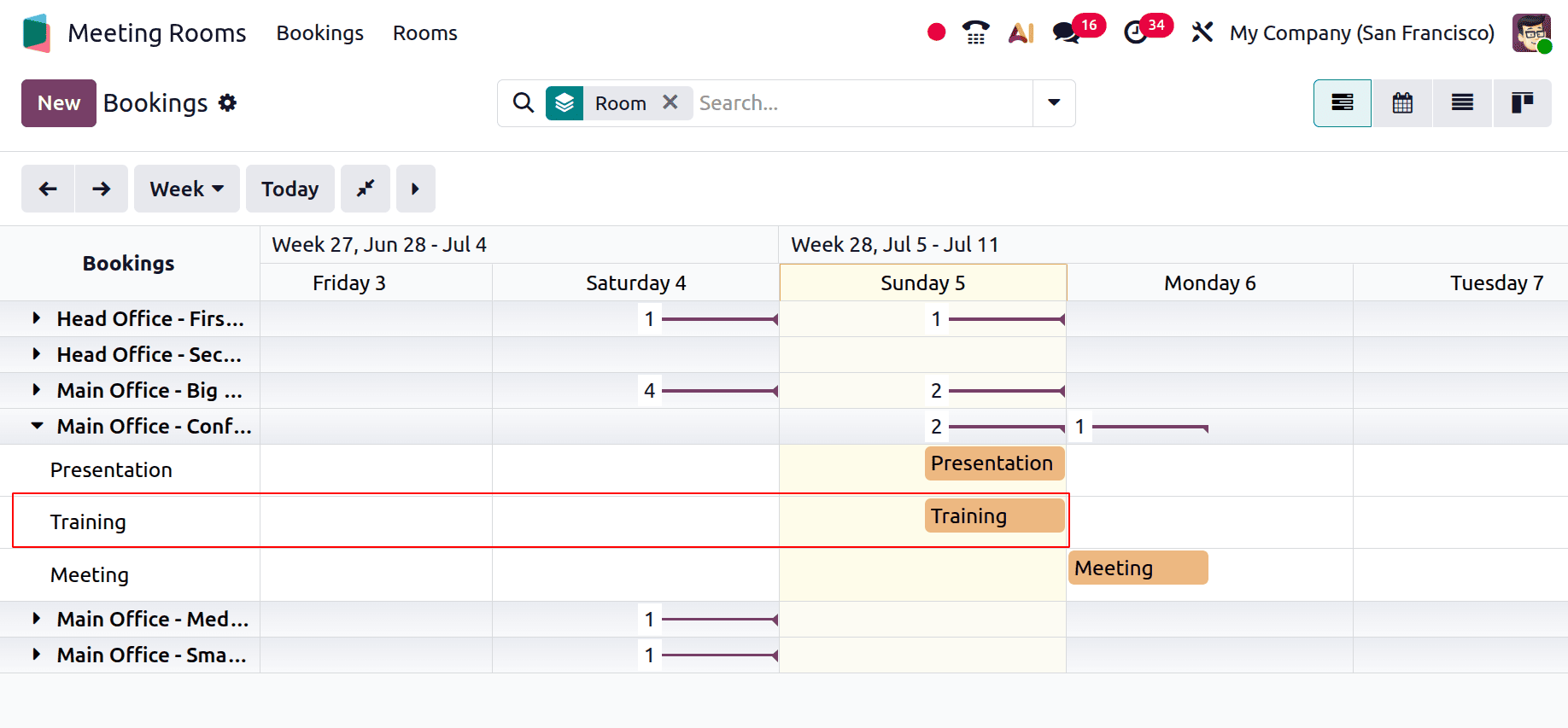
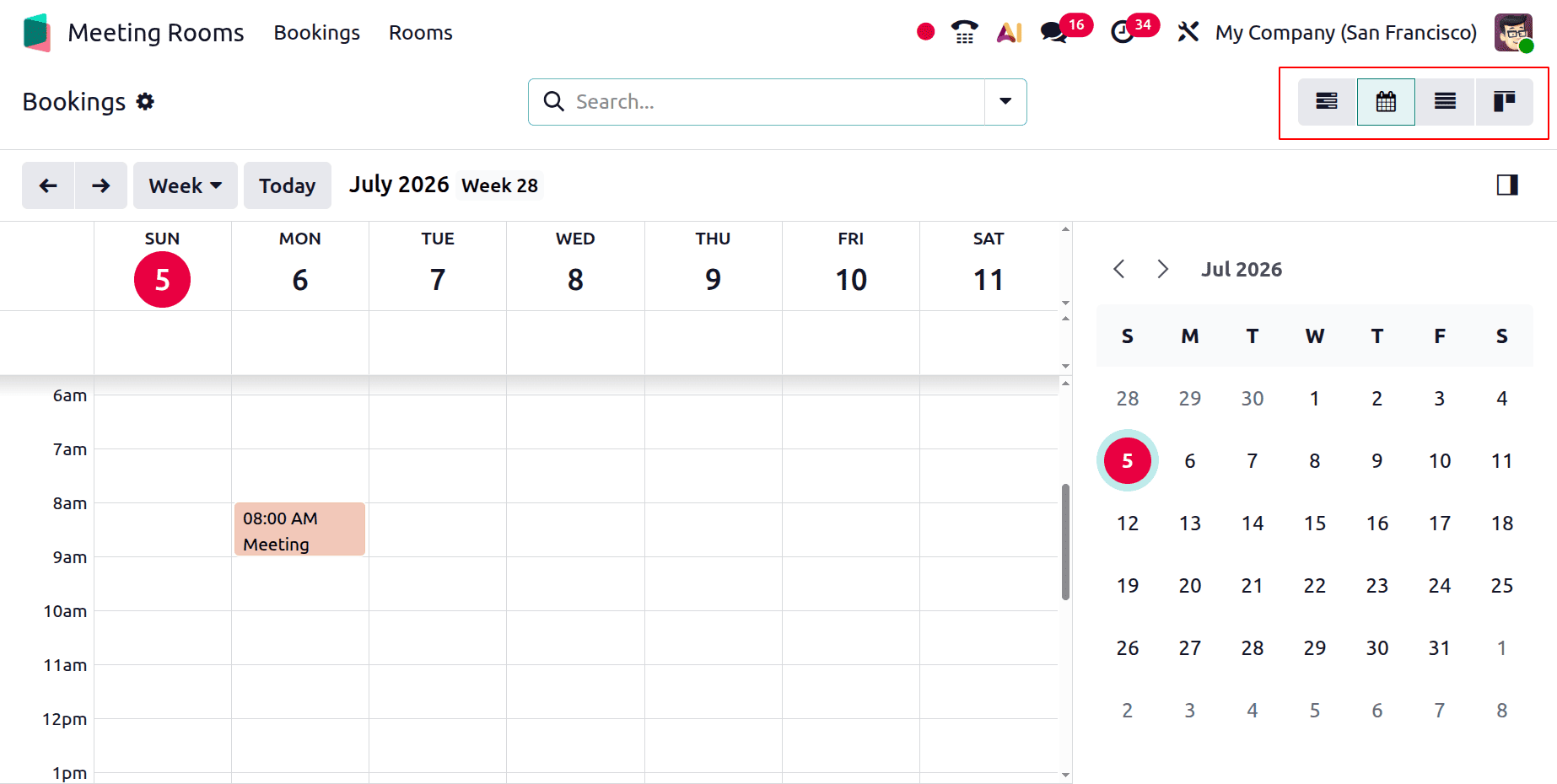
Other views include the Calendar, List, and Kanban views.
The Odoo 19 Meeting Rooms module may help any company handle meeting spaces more efficiently. With features like real-time availability, customisable room settings, and seamless scheduling, it enhances teamwork and reduces scheduling conflicts. All things considered, it's a powerful solution that improves workstation organization and boosts productivity through more intelligent room management.
To read more about Overview of Odoo 18 Meeting Rooms Module, refer to our blog Overview of Odoo 18 Meeting Rooms Module.