For any organisation to preserve data integrity, operational transparency, and user responsibility, effective access control is crucial. Odoo 19 makes it simpler and more organised to control who can see, create, or edit purchase-related information. In order to assist you achieve safe and effective procurement procedures, this blog will guide you through configuring and differentiating access privileges for users in the Odoo 19 Purchase module.
User types in Odoo specify how much access and interaction a person can have with the system. Users can be broadly divided into three roles:
- Internal Users: These are people who work for your company and actively utilise Odoo's main business apps. Depending on their responsibilities, they are given roles like Purchase User or Purchase Administrator, which allow them to oversee procurement tasks.
- Portal Users: Customers, suppliers, and stakeholders who engage with the system via a restricted-access interface are referred to as portal users. They have restricted, read-only access to some information that is pertinent to them, such as orders or invoices. They are unable to change records and do not belong to internal user groups.
- Public Users: These are anonymous users who visit your website without logging in or creating an account. Public users are unable to interact with backend modules such as Purchase and can only access content that is publicly available on the website.
There is an update for users in Odoo 19. Users and Administrators are the two categories of roles in Odoo 19.
- User: Depending on the permissions granted to them, a user's access is restricted. They are limited to using the features and apps that the administrator has approved. Users are unable to control other users or change system settings.
- Administrator: All programs and system configurations are fully accessible to an administrator. They have the ability to control security policies, manage users, and configure modules. Administrators have complete control over the system and are unrestricted in what they may do.
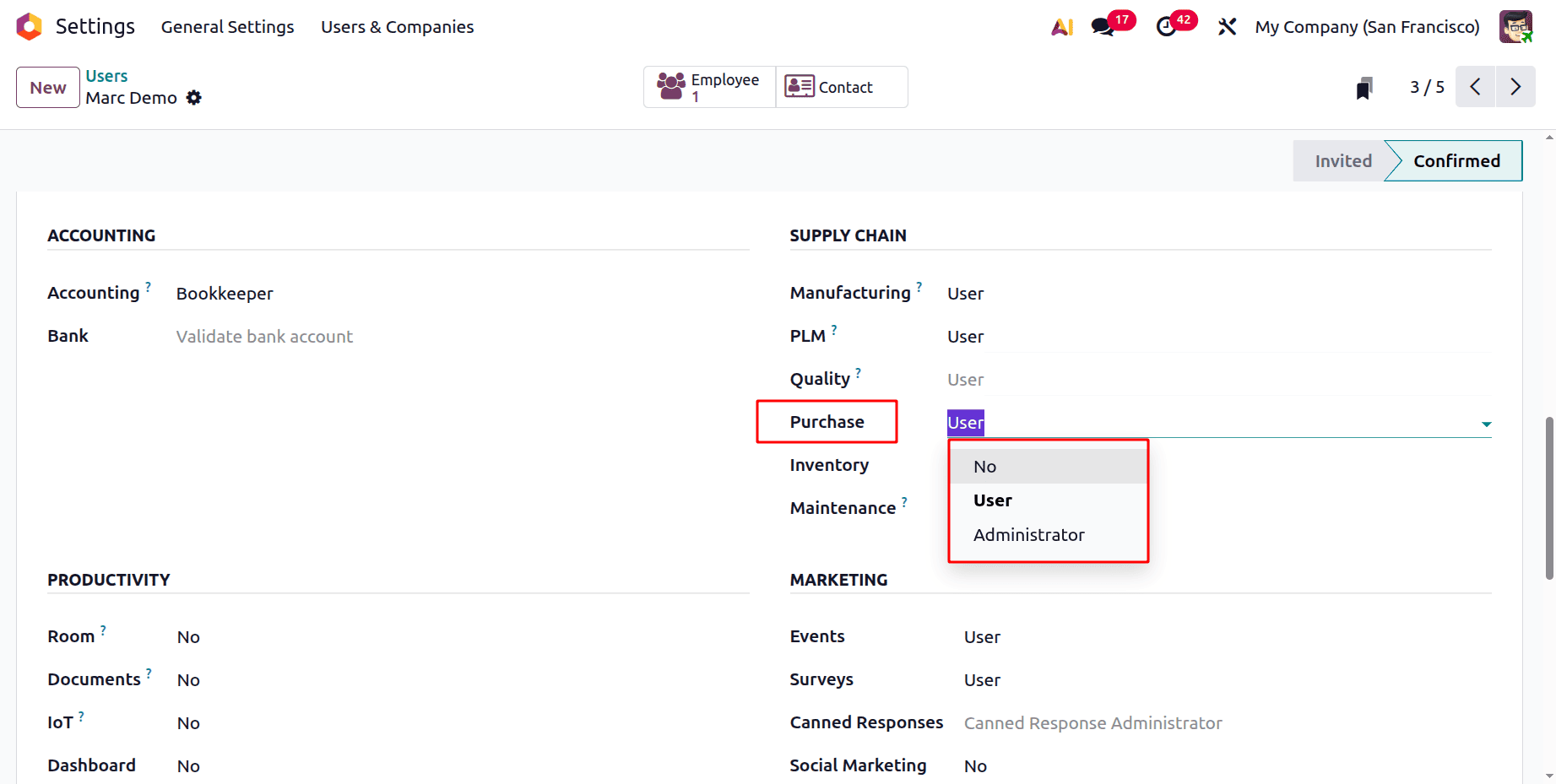
There are 3 types of Access rights for purchase modules. They are Administrator, Users, and No. Let's check each one separately.
Controlling the Purchase Module's Access Rights
Navigate to Settings > Users & Companies > Users to set up access rights. To access a user's configuration form, click on them. Under the Access Rights tab, you can then change access rights.
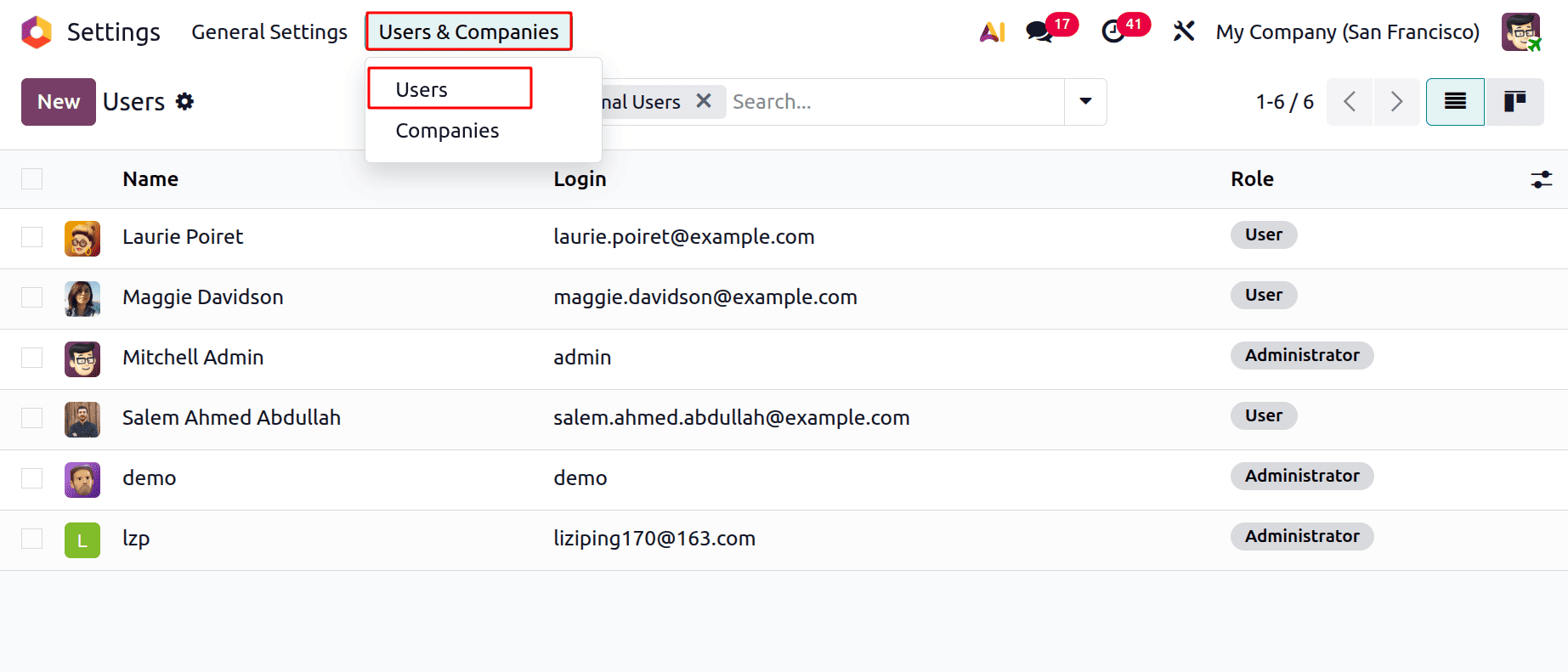
You can also designate a default business and specify which companies a user can access (Allowed companies) under the Multi Companies section. The Role has two options, like User and Administrator.
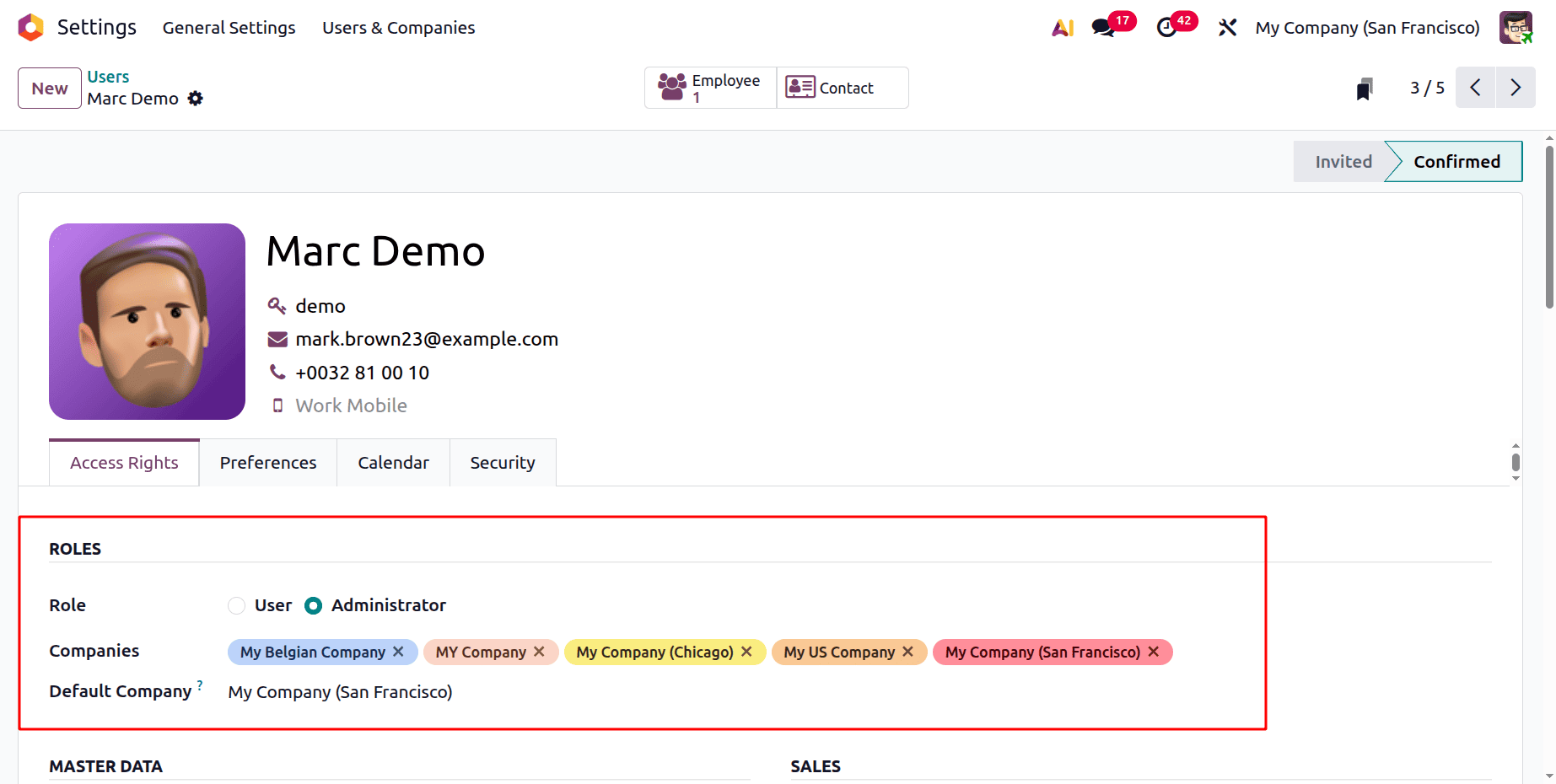
Three main roles—Administrator, User, and No—are used to organize access in the Odoo 19 Purchase module. Each user's degree of control and capability within the system is determined by these roles. To preserve data security and guarantee that new users engage with the platform properly, it is essential to specify their rights precisely. By limiting access to exactly what is required for each user's duties, proper role assignment helps prevent misunderstandings.
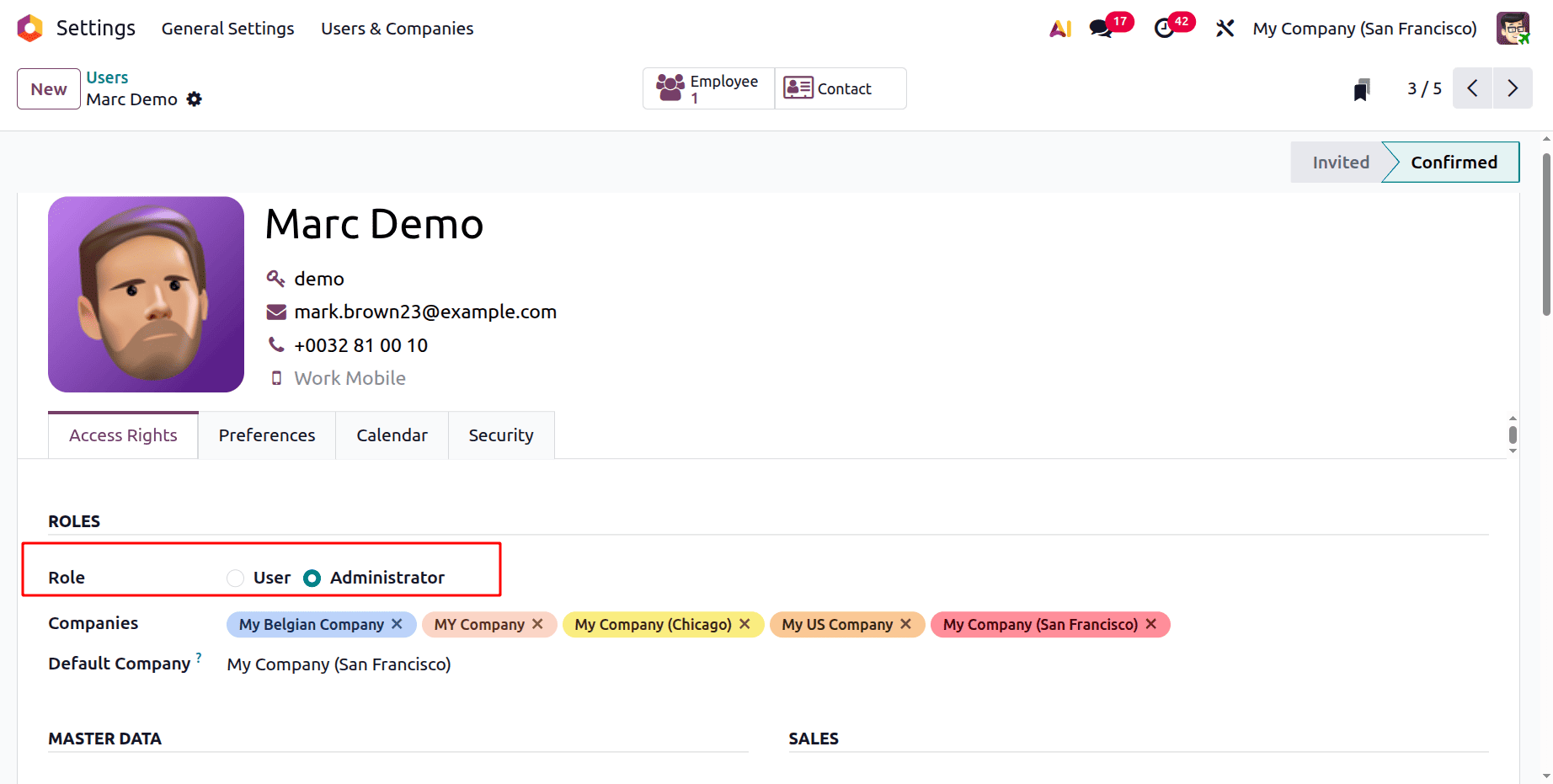
Role as Administrator
The greatest level of access in the Purchase module is provided by the Administrator position in Odoo 19. This position allows users to manage procurement operations from start to finish, control user permissions, and adjust system settings.
Access rights as Administrator
Let's check the Access rights for this user role. The first access rights is Administrator.
Administrators can evaluate departmental performance and modify access levels in accordance with the Purchase module's integration with other business areas, such as Inventory, Accounting, and Sales.
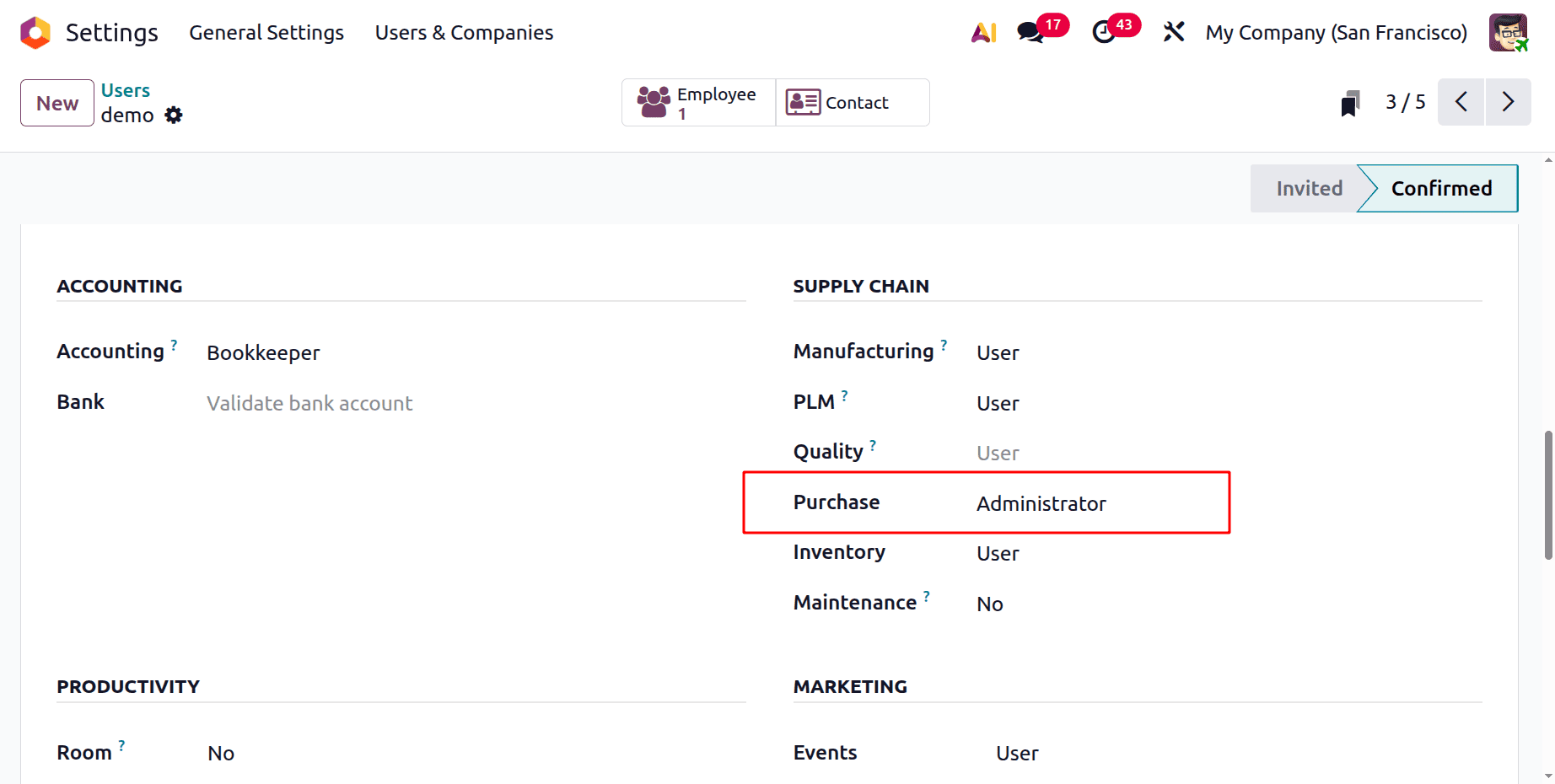
Log in as the User Marc Demo, with Role as Administrator, and Access Rights as Administrator.
With the ability to import supplier price lists and reference information, administrators can make better-informed purchasing decisions based on contractual terms, volume discounts, and supplier bids. Additionally, they may watch order progress immediately within the application and keep an eye on stock levels at vendor locations.
Apart from managing Purchase Orders and RFQs (Requests for Quotation), admin users can also create and oversee Purchase Agreements, manage vendor data, update product details, and deal with billing and approvals. This position guarantees total visibility and control over all Odoo 19 procurement operations.
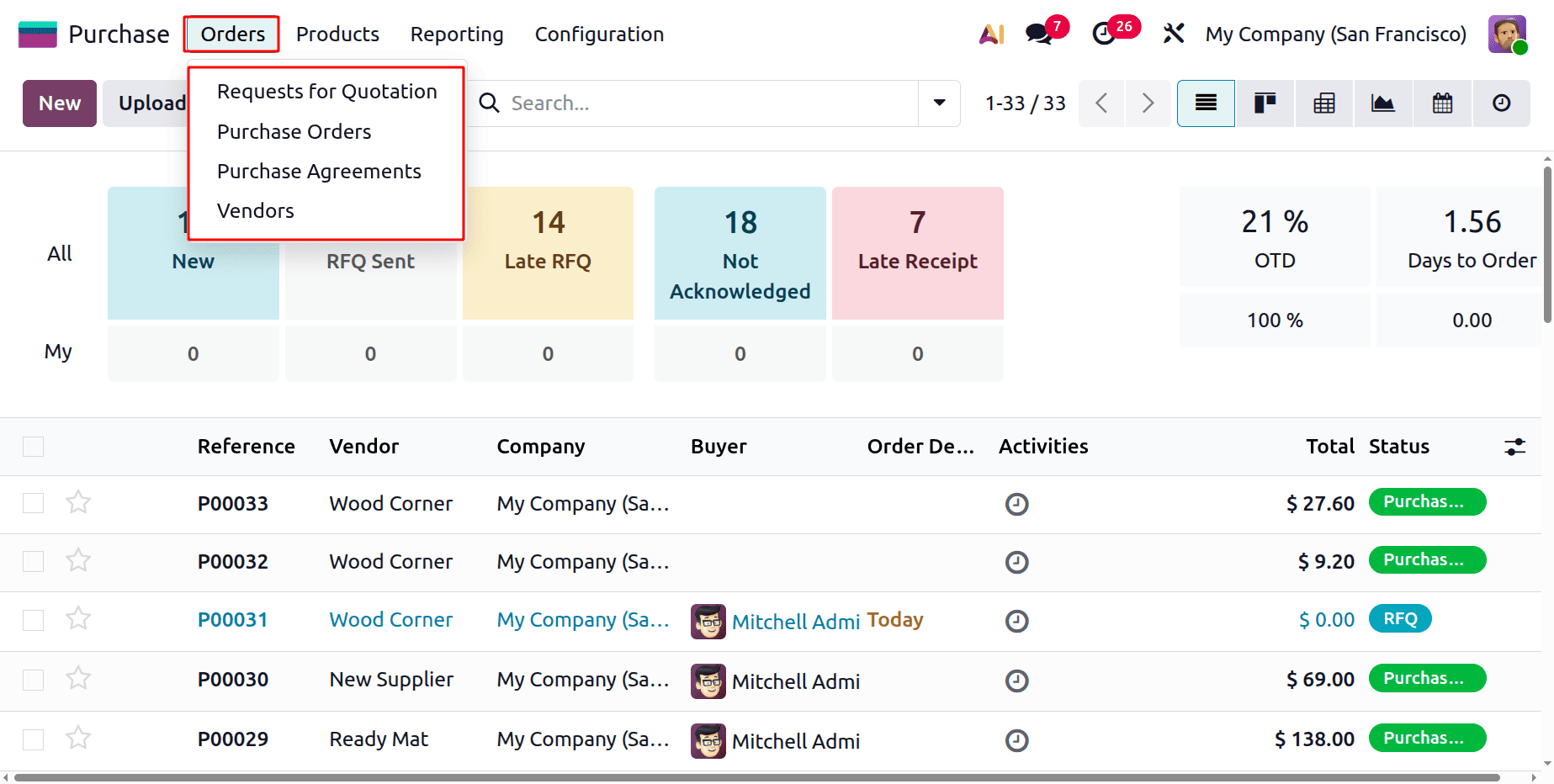
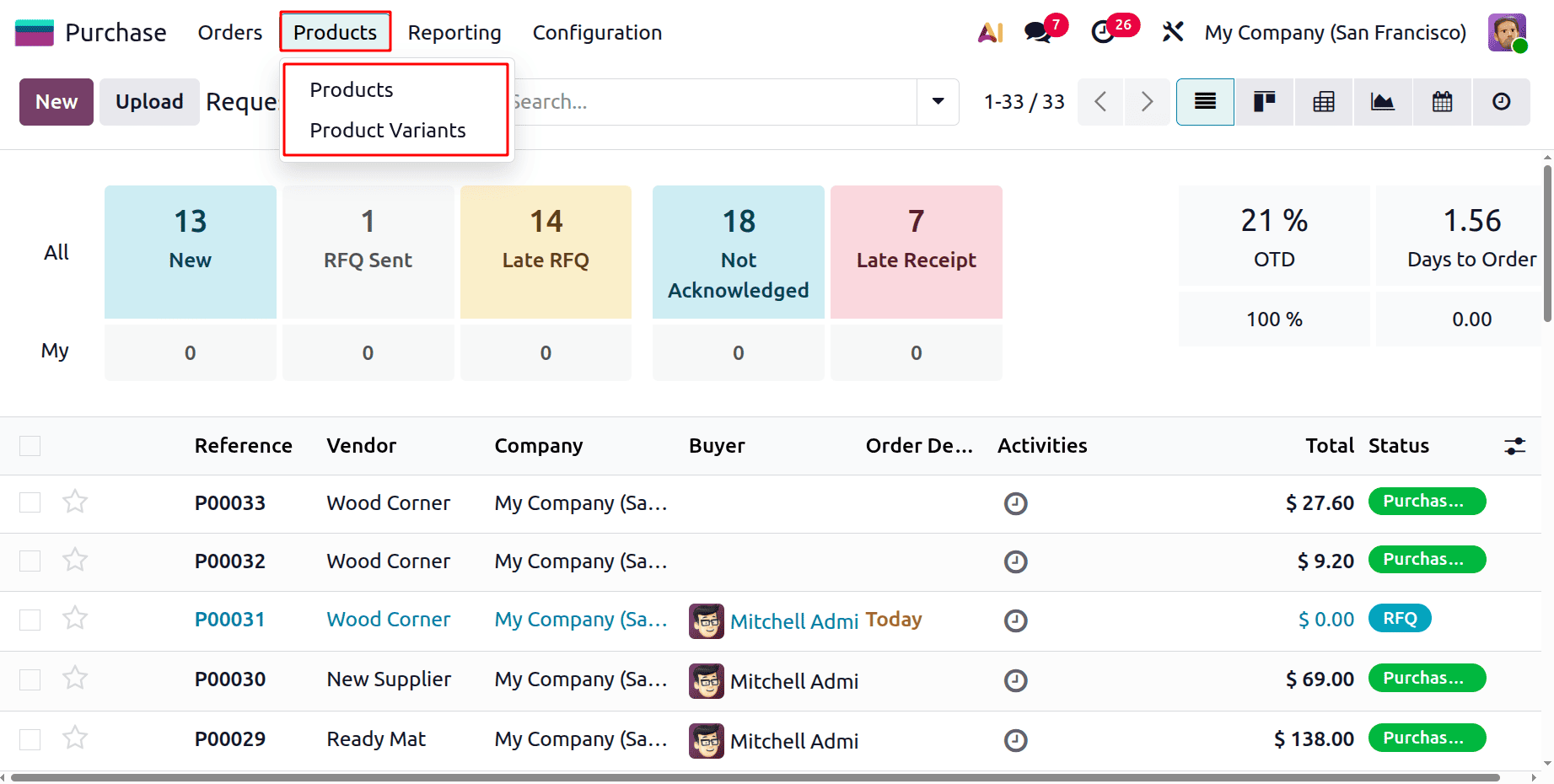
Next is the Products tab. The tab contains two options: one is Product, and the second is Product Variants.
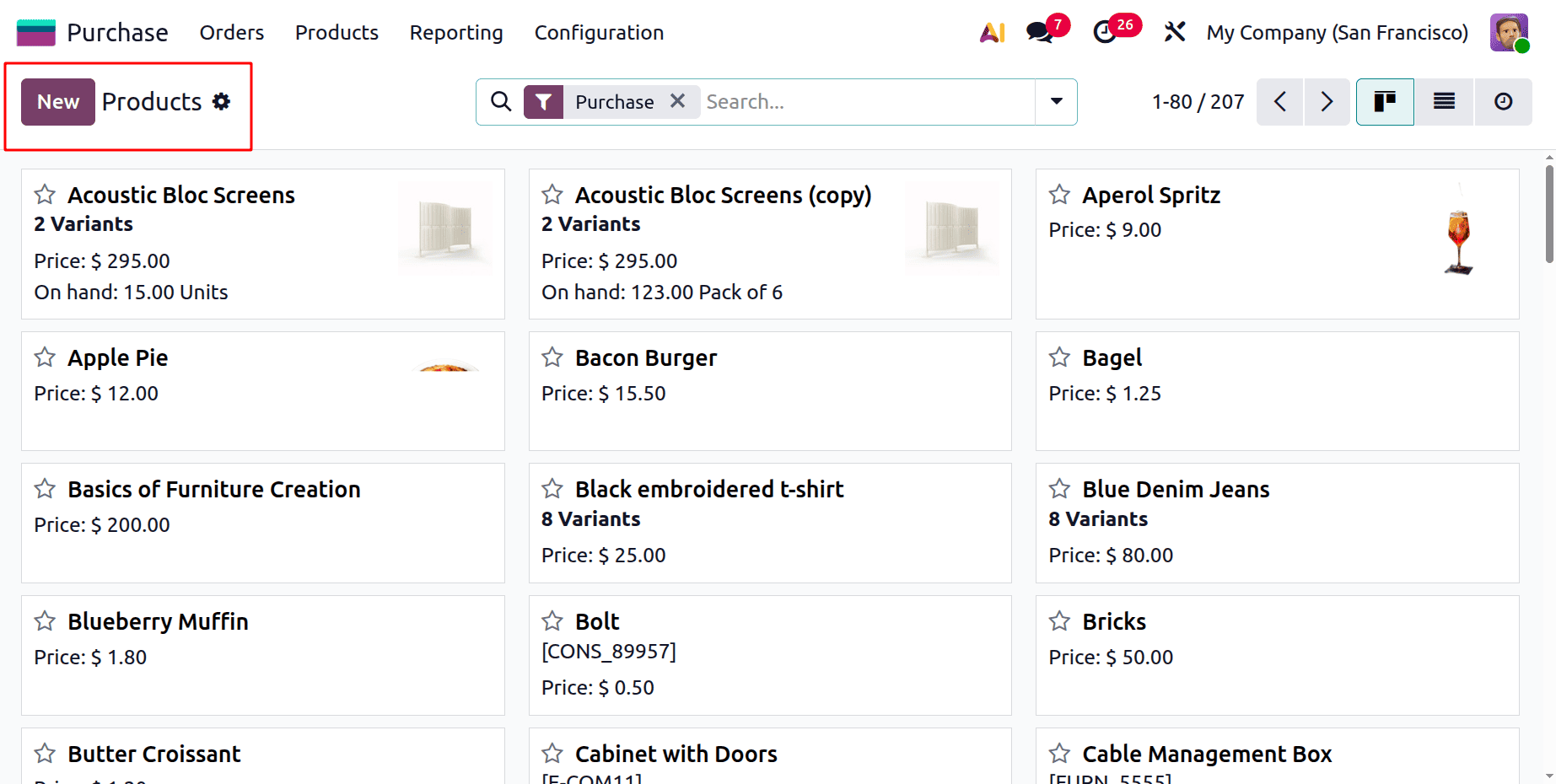
The Products menu helps to create and change the configurations of products. The user can create a new product by clicking on the New button.
Next is the Reporting menu. The Purchase report is available for the user.
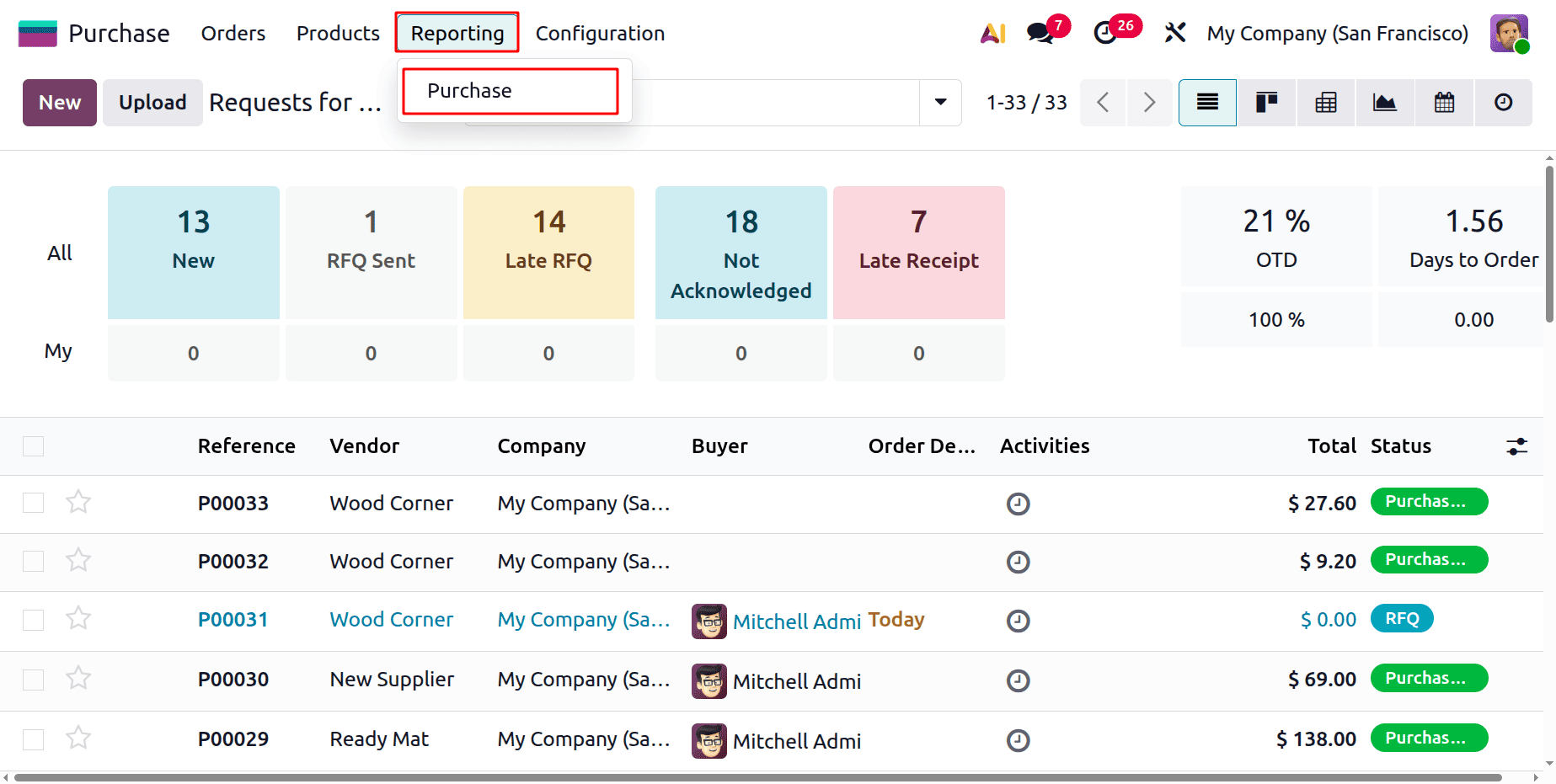
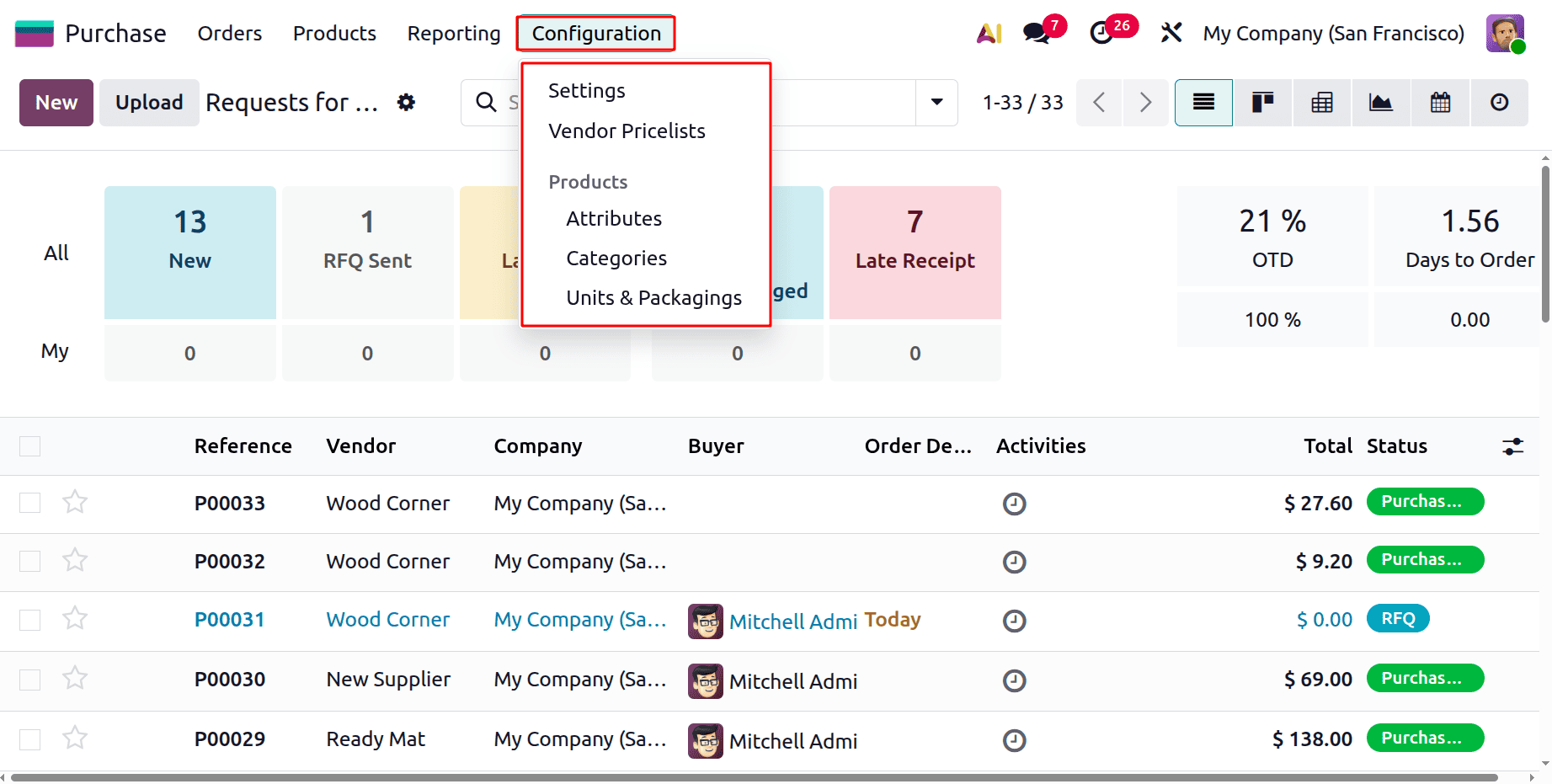
The Configuration menu contains Settings, Vendor Pricelists, Attributes, Categories, and Units & Packagings. Users can create new records of these and can alter the configurations.
The Settings contains many options like Purchase Order Approval, Lock Confirmed Orders, Warnings, Purchase Agreements, Purchase Alternatives, Receipt Reminder, 3-way matching, Variants, Variant Grid Entry, Units of Measure & Packagings and Dropshipping.
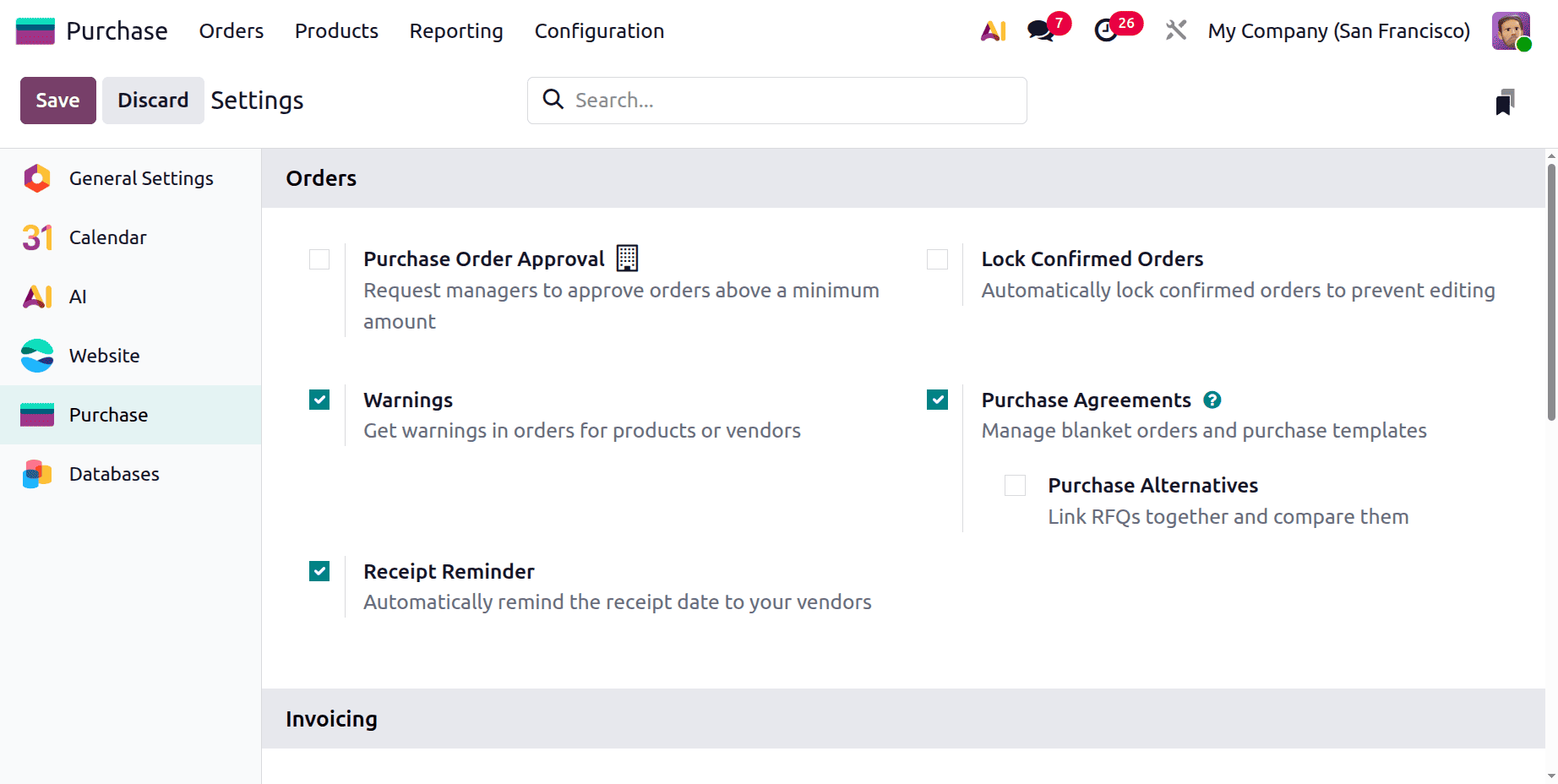
The users with Administrator access can view and add changes on configurations as mentioned above.
Access rights as Users
Next access rights is Users. Change the access rights of the user, but the role is still Administrator.
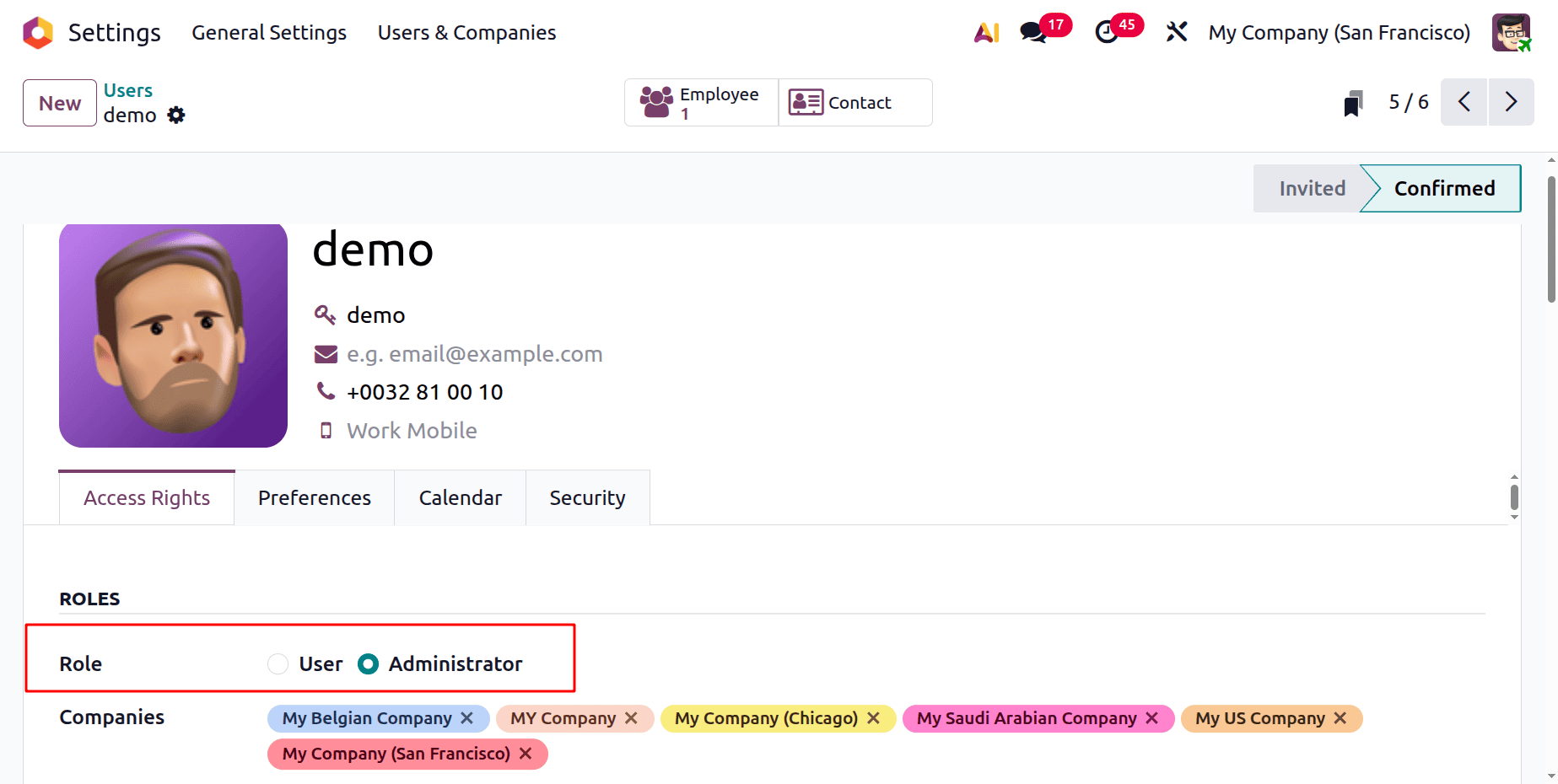
Employees that actively use the Purchase module but don't need administrative rights can use Odoo 19's User role. It's crucial to remember that not every employee in the company must be an Odoo user—just those who engage with the system—because users are verified by their login credentials.
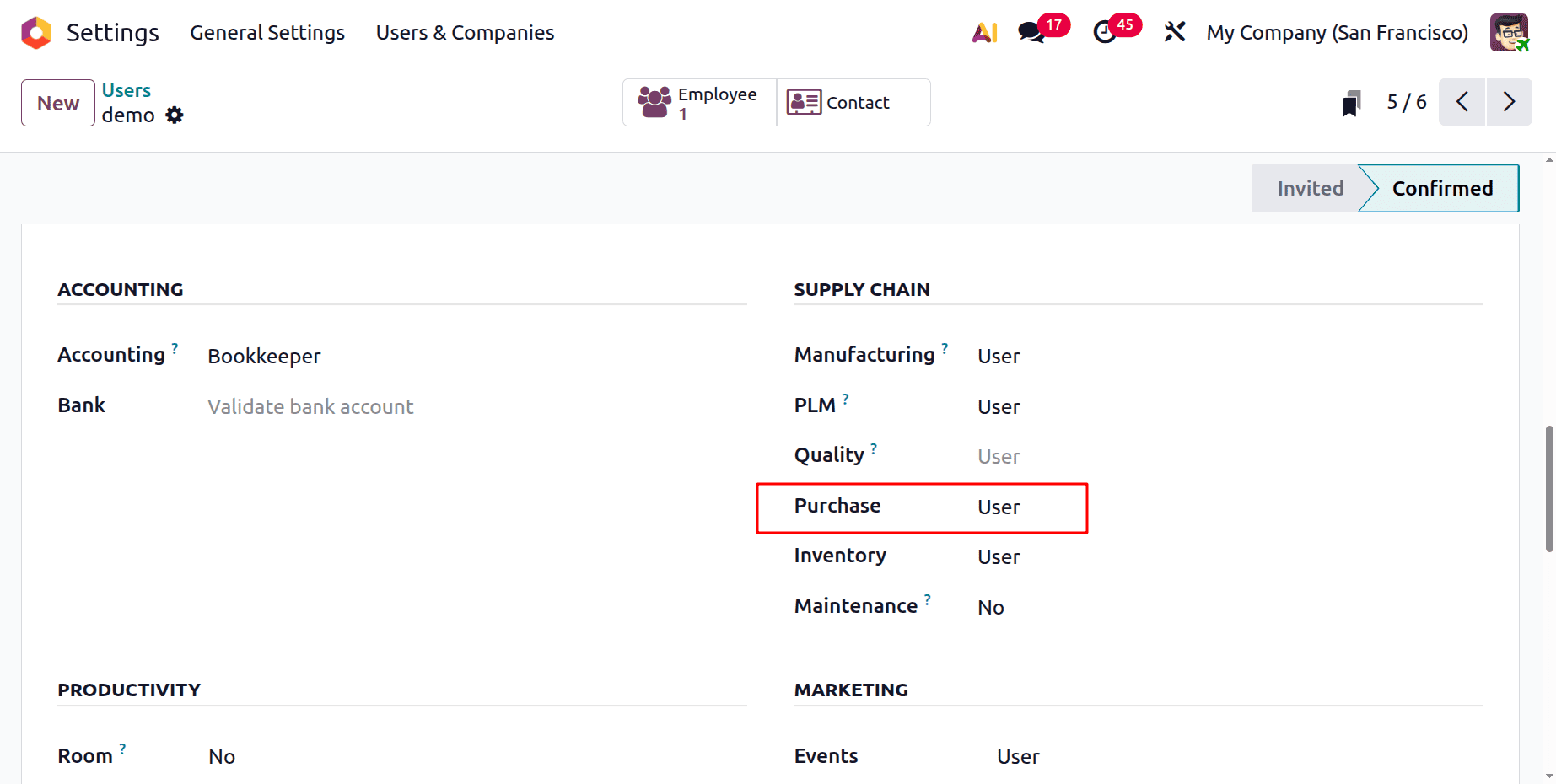
Assigning the User role guarantees that team members may effectively participate in the procurement process. By providing access to essential functions like generating purchase orders and maintaining vendor and product data without disclosing private configurations or administrative settings, it facilitates a more efficient workflow.
Log in as the employee with Role as Administrator and Access right as Users.
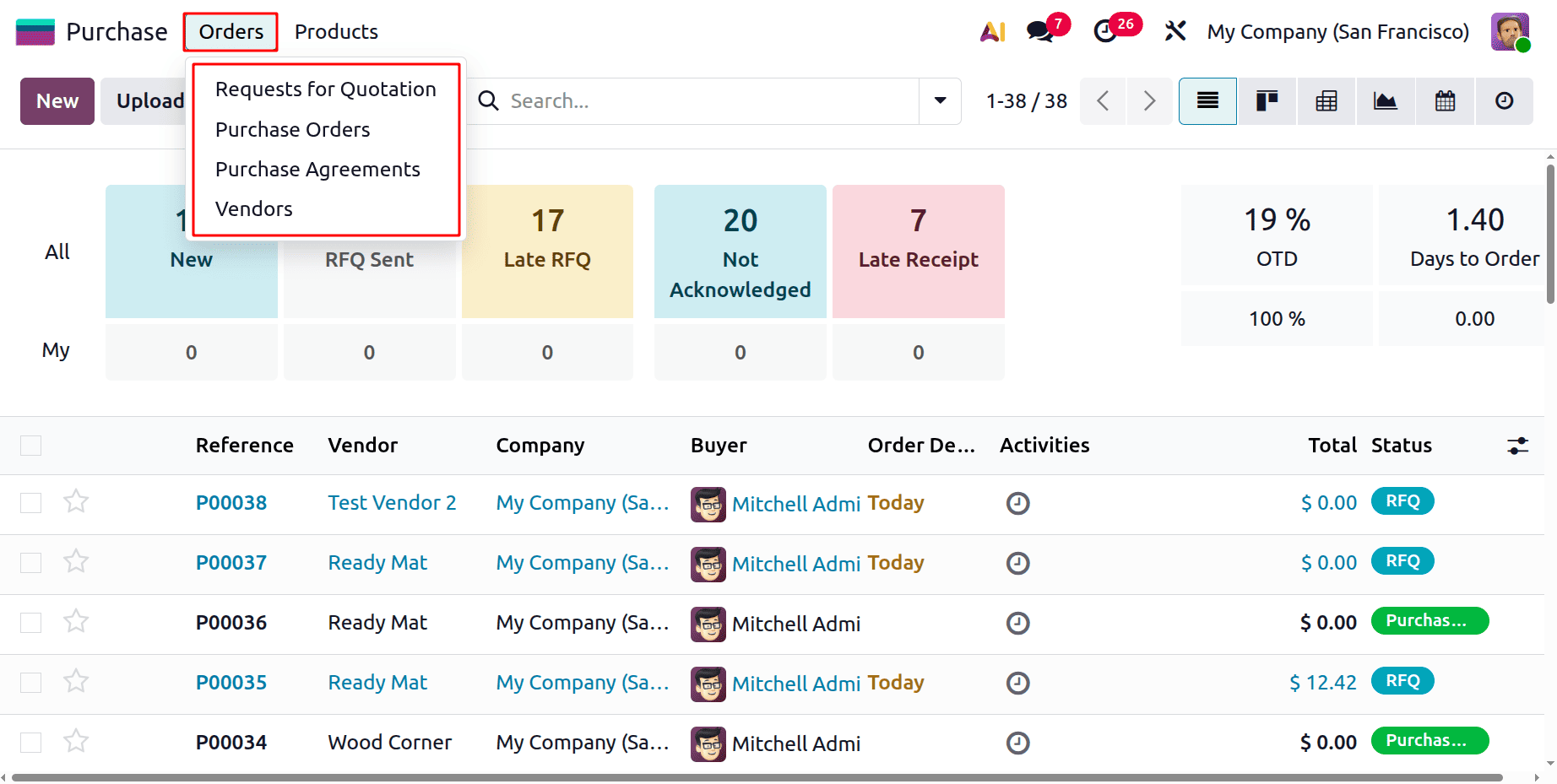
The users can only see two menus, one is Orders and the other one is Products. The user can create new records of Request for Quotations, Purchase Orders, Purchase Agreements and Vendors.
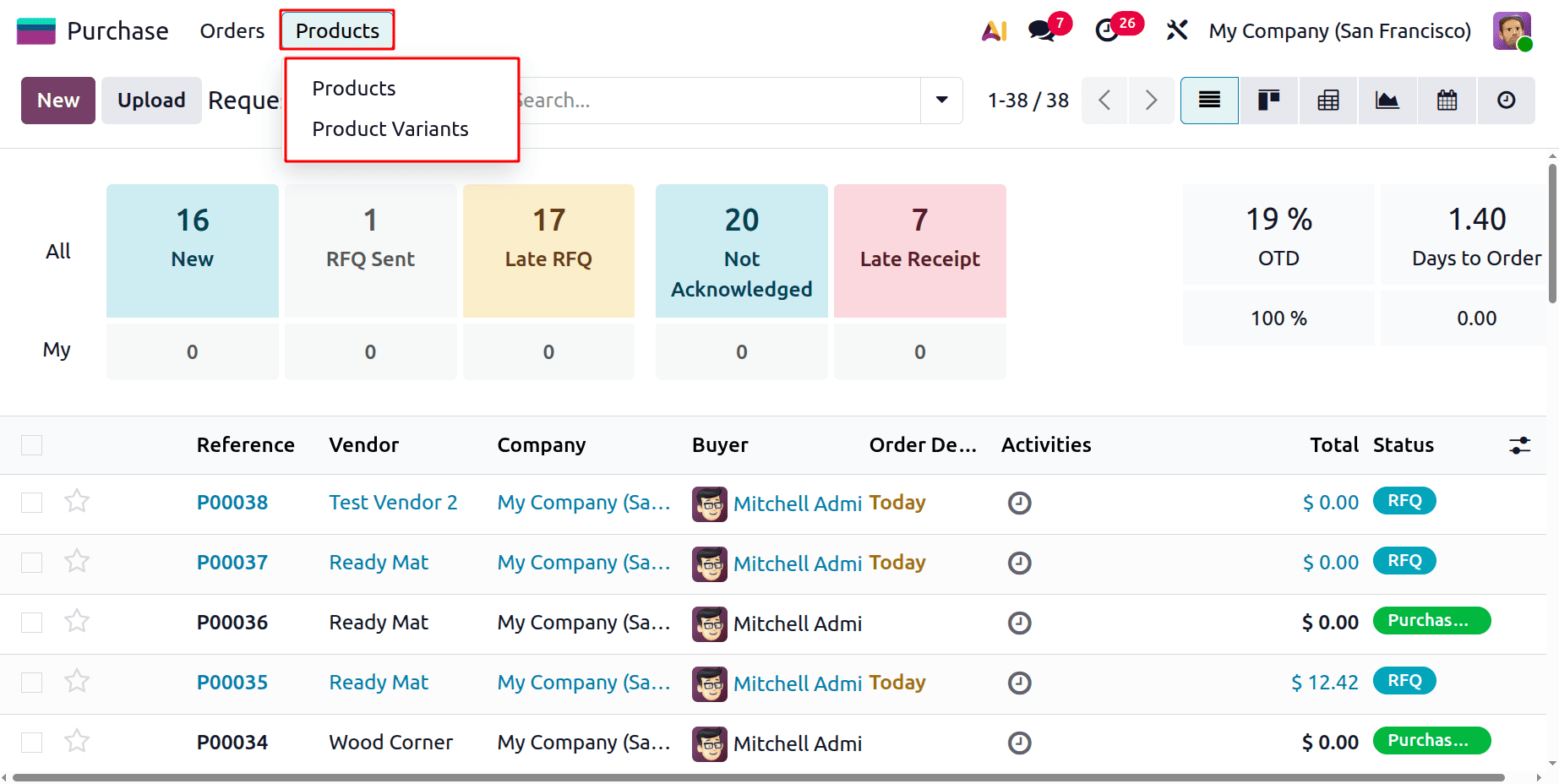
The Products menu shows two more options like Products and Products Variants.
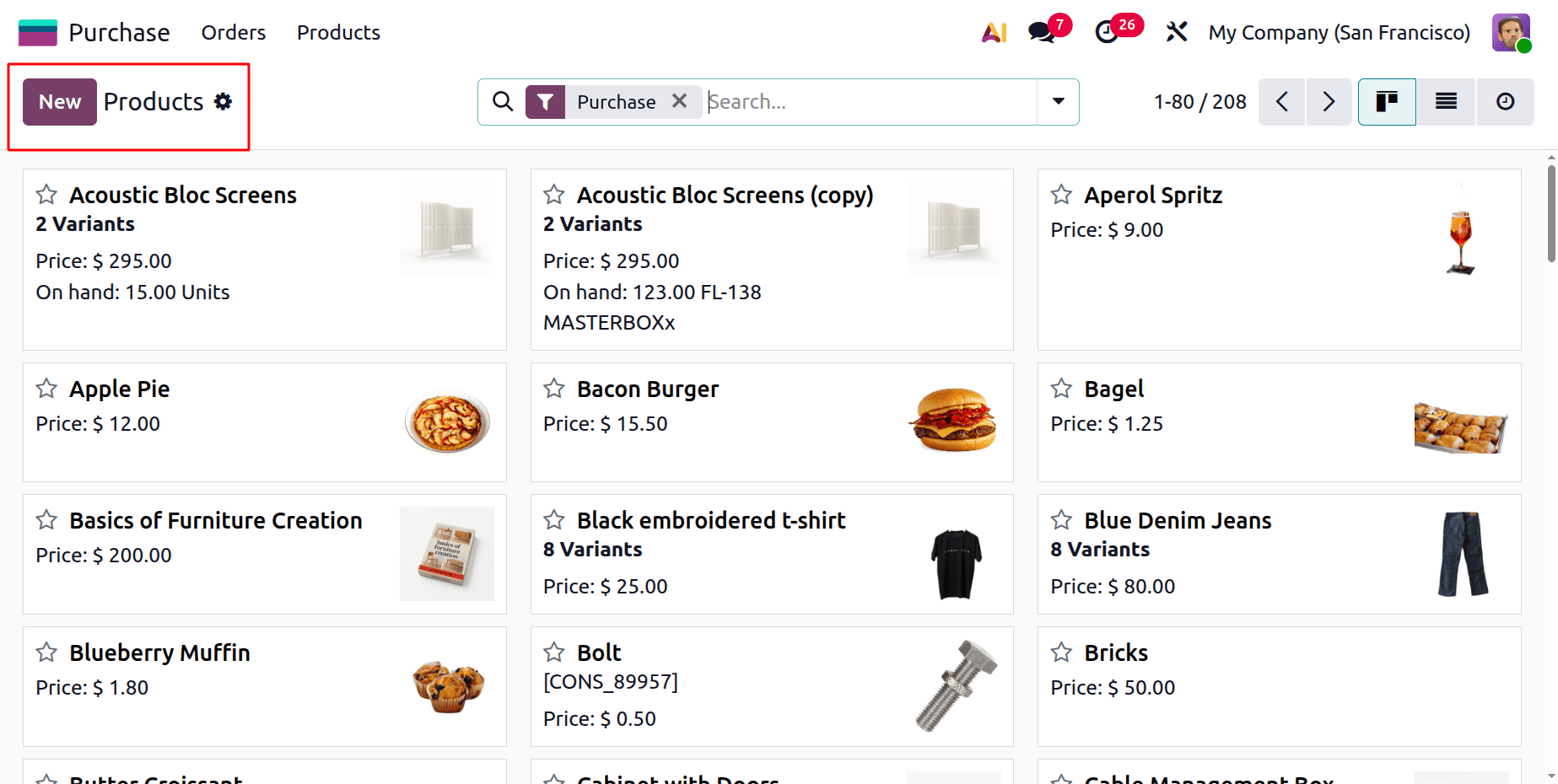
Users can create new products by clicking on the New button. And also the users can change the configuration of existing products and Variants.
But the user can’t view the Reports, Configuration and Settings menu.
Access rights as None
"No" is the last access level, which can be set from the user's profile's Access Rights tab. If this option is chosen, the user loses all access to the Purchase module and all of its functions.
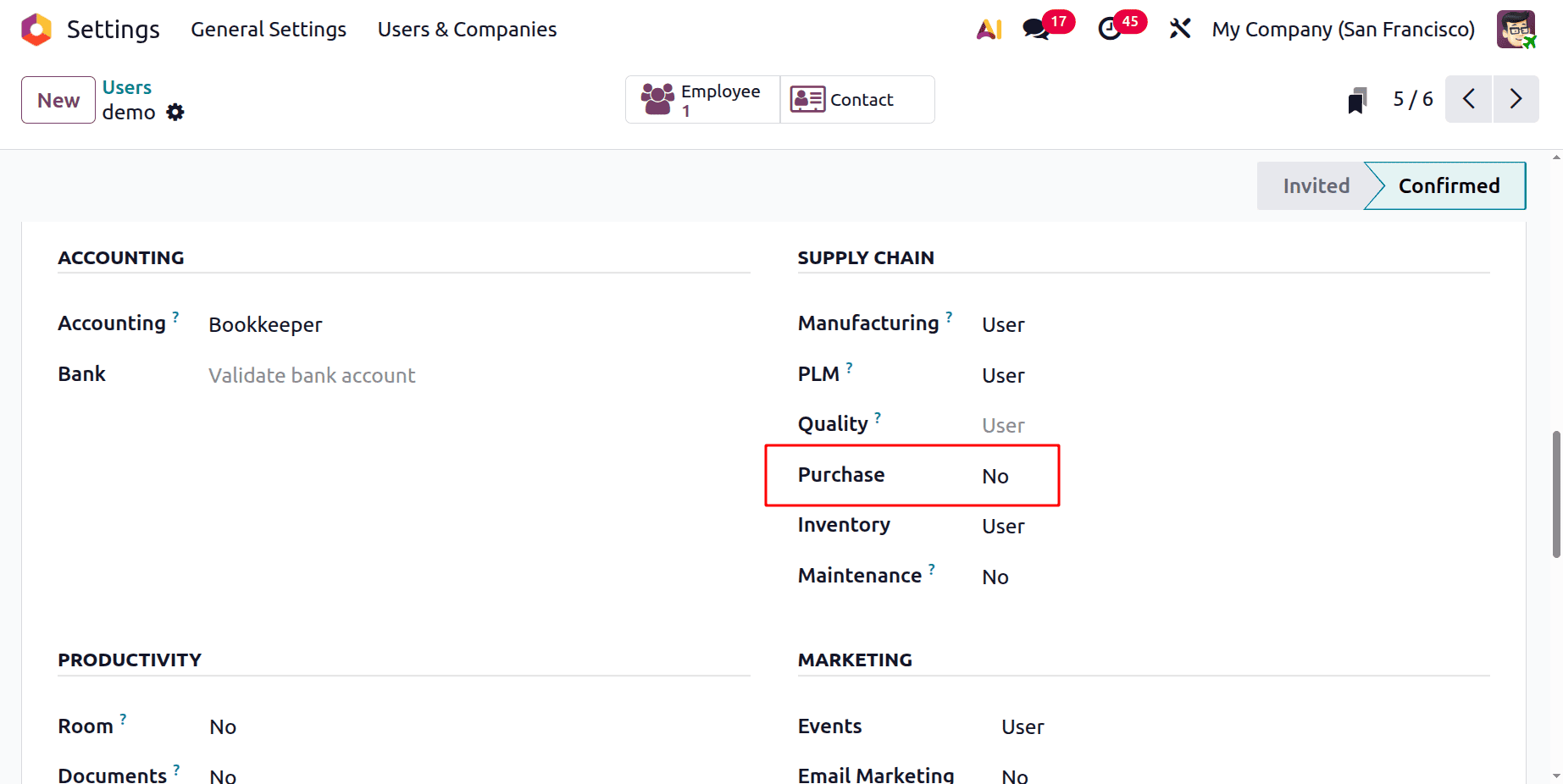
Users who have the Purchase module's "No" role are completely prohibited from using it or doing any associated tasks.
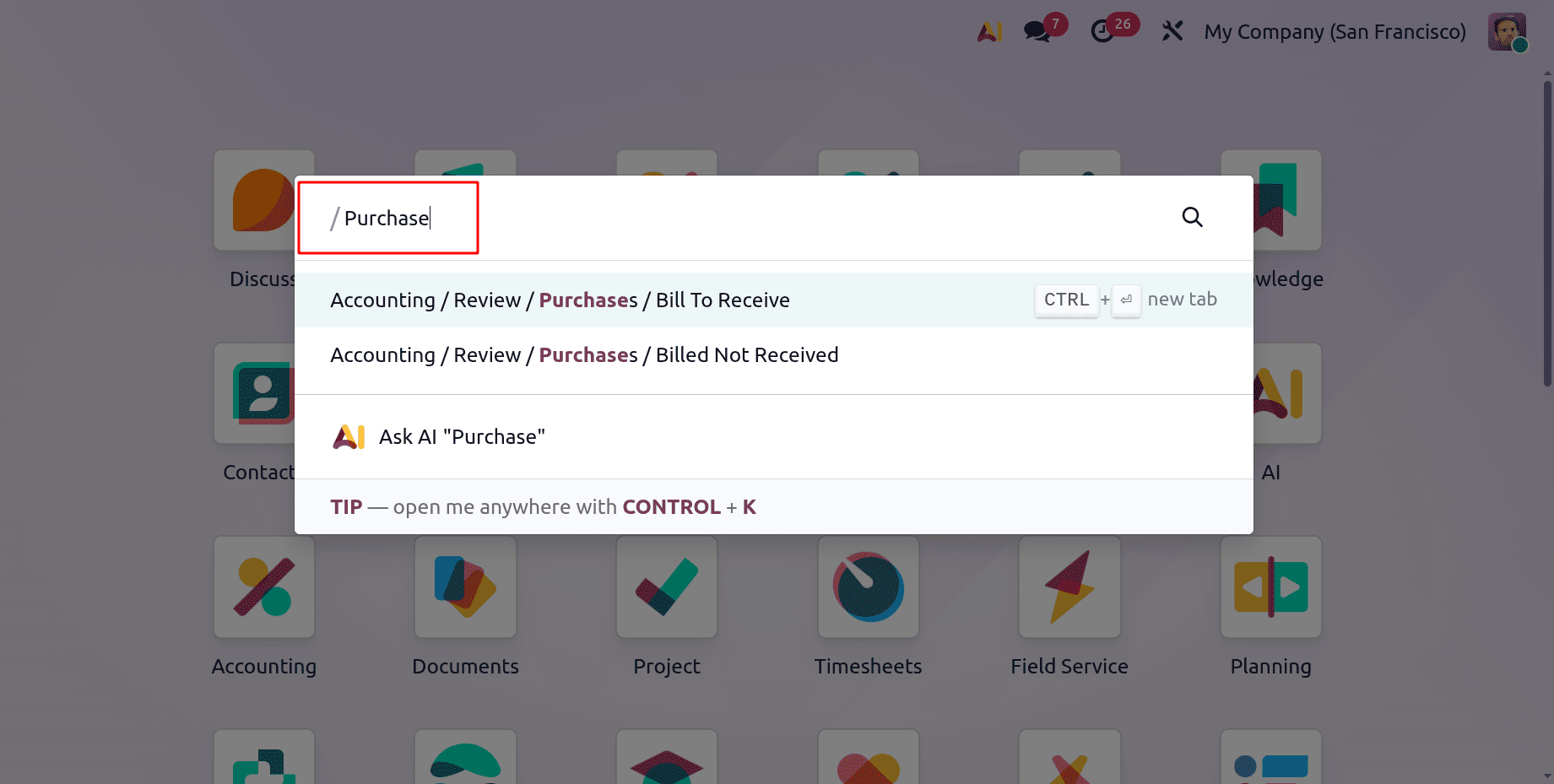
Role as Users
Next is the second user Role which is Users. The user with Role as Users has limited actress while comparing to the Administrator role.
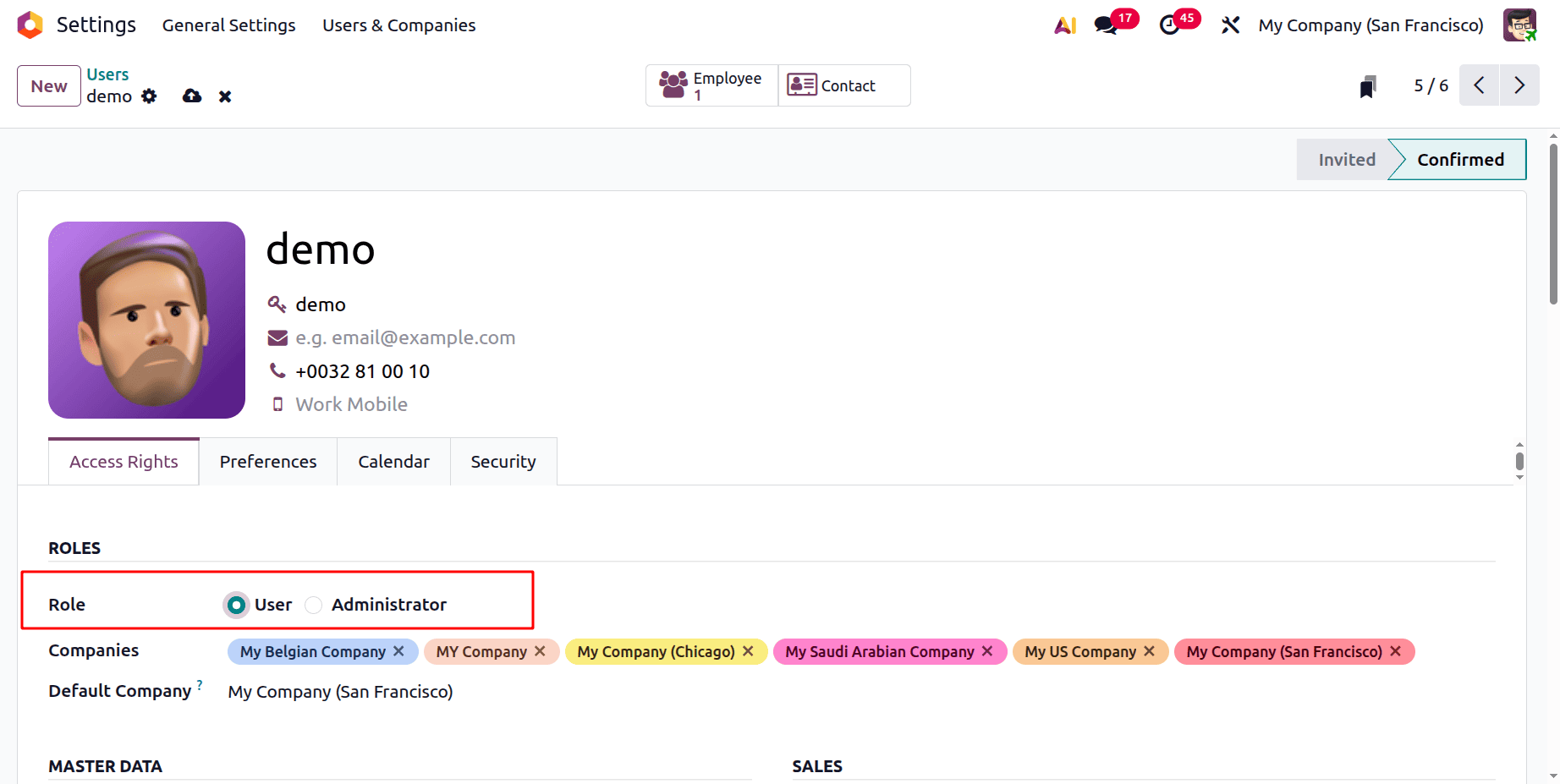
Access rights as Administrator
Let's set the Access rights for the purchase module as Administrator.
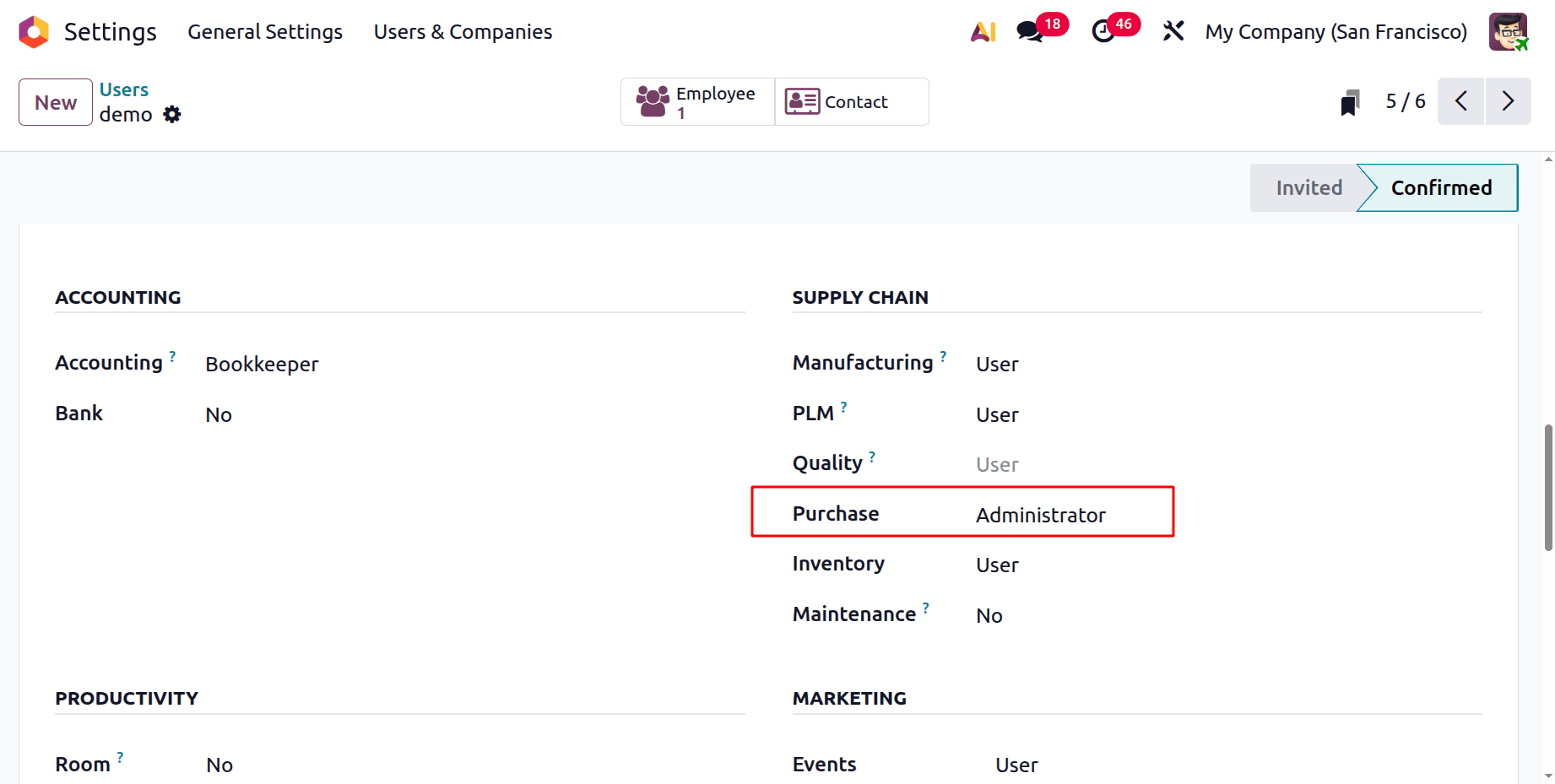
Log in as user with Role as Users and Access rights as Administrator. Here the users can view the menu Orders, Products, Reporting and Configuration.
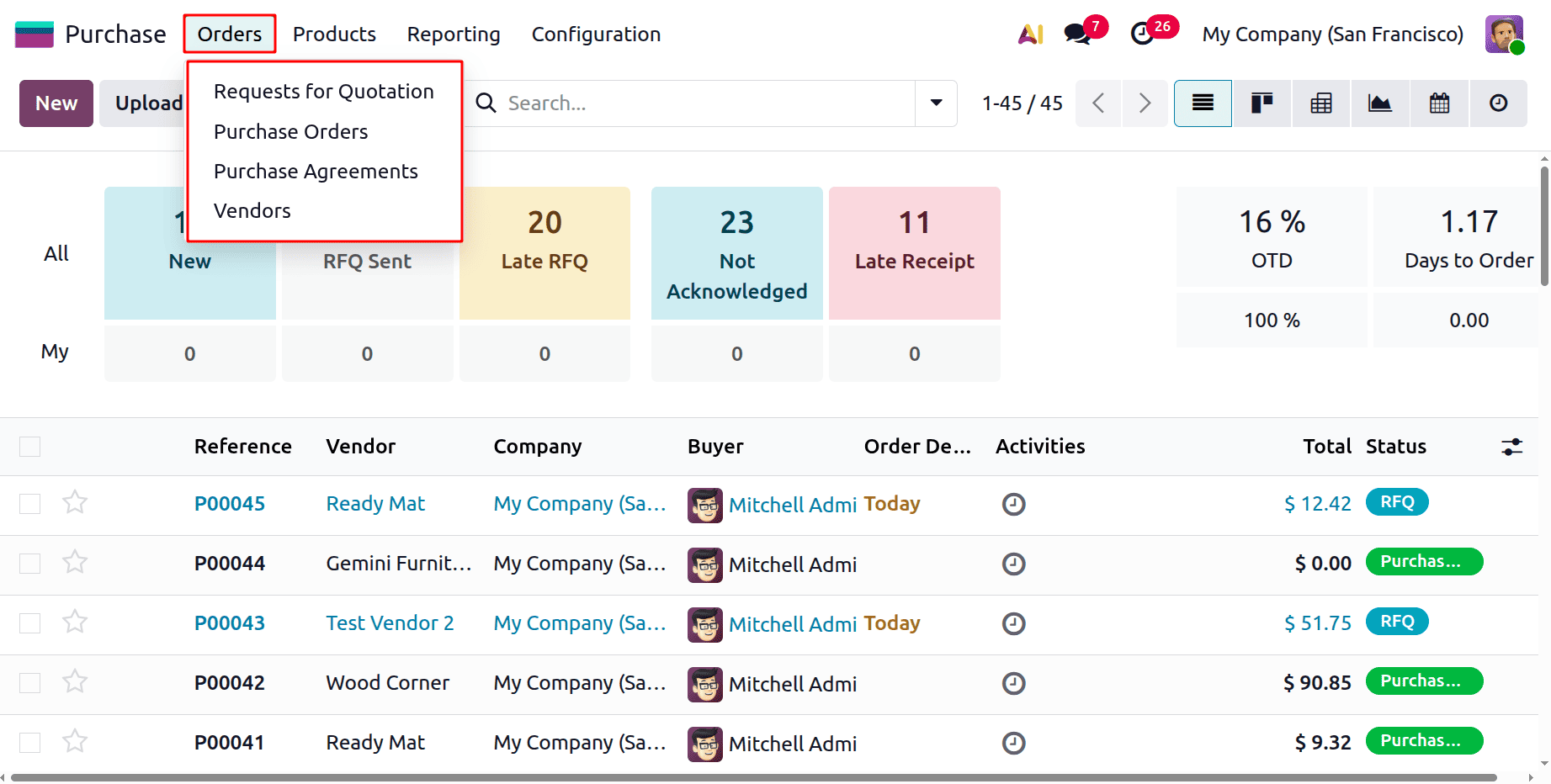
The user can view Requests for Quotation, Purchase Orders, Purchase Agreements and Vendors. The user can create new records of them and can alter the existing records.
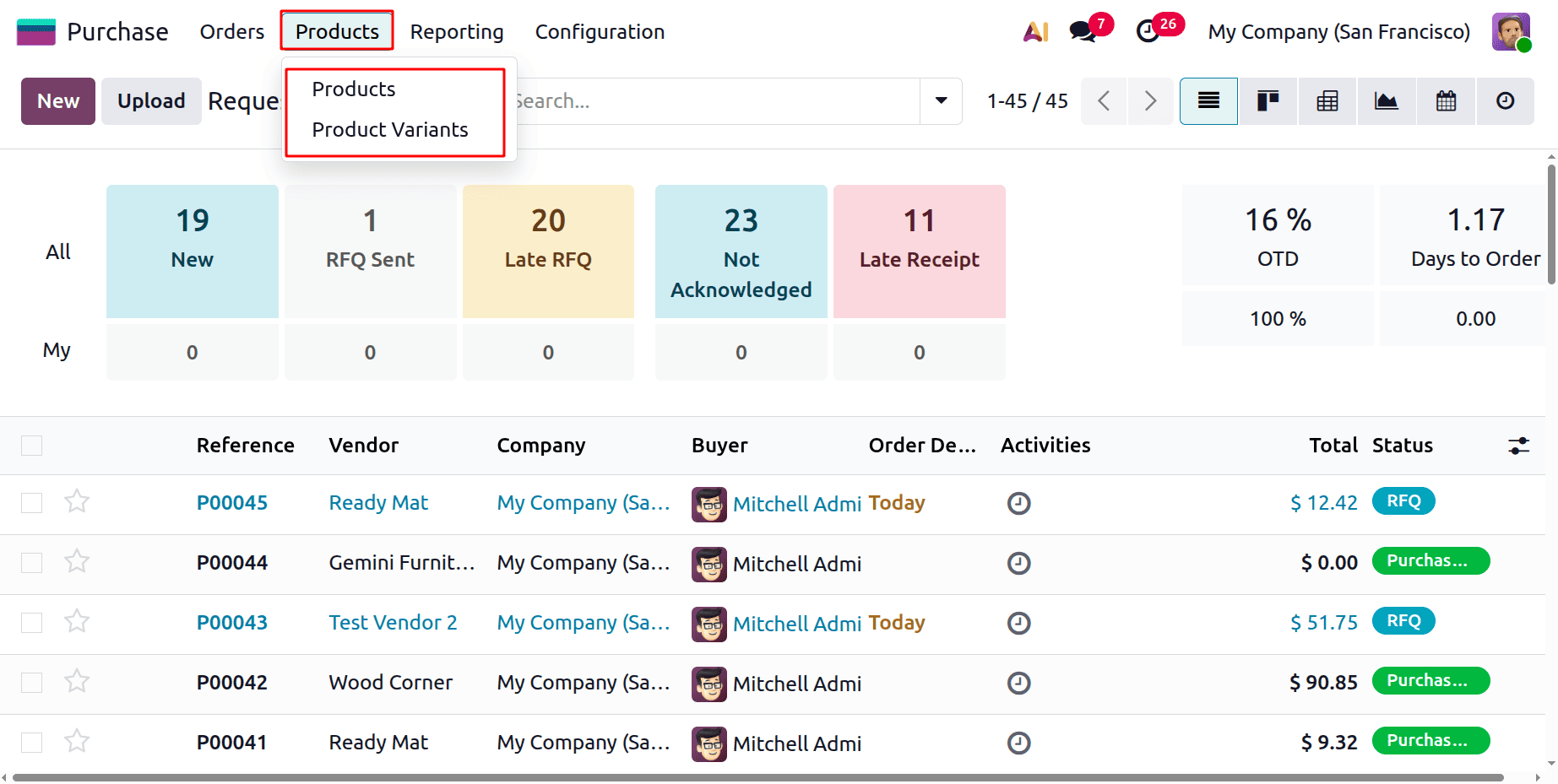
The next is Product tab, which contains Products and Product Variants.
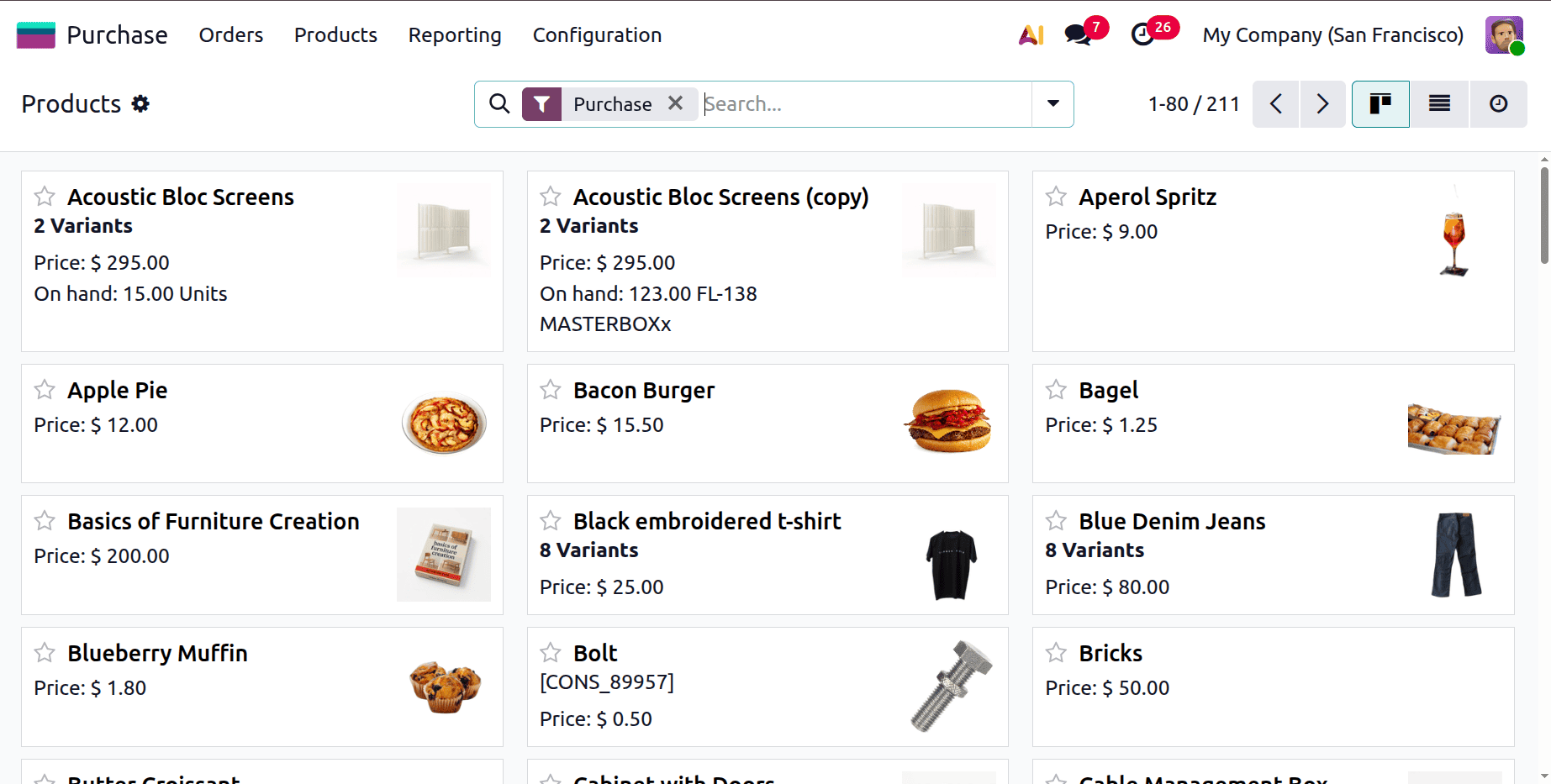
Here the users can view the whole created products. But the users can’t create new products. Also the user can’t change the existing settings of the products.
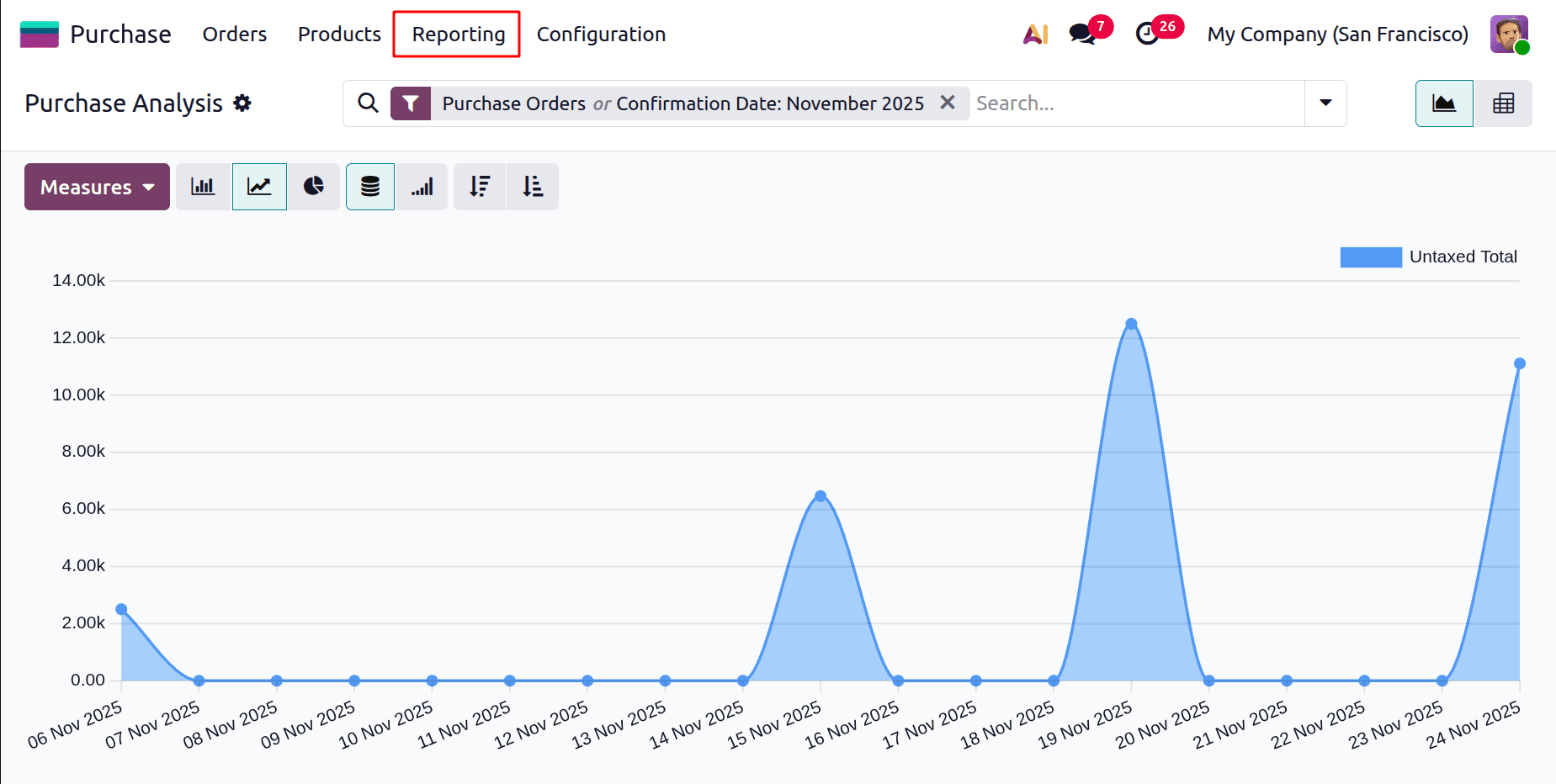
The next menu is Reporting. Here the user can view the Purchase Analysis Report as shown below.
The last menu is Configuration. The list shows Vendor Price lists, Attributes, Categories and Unit & Packagings.
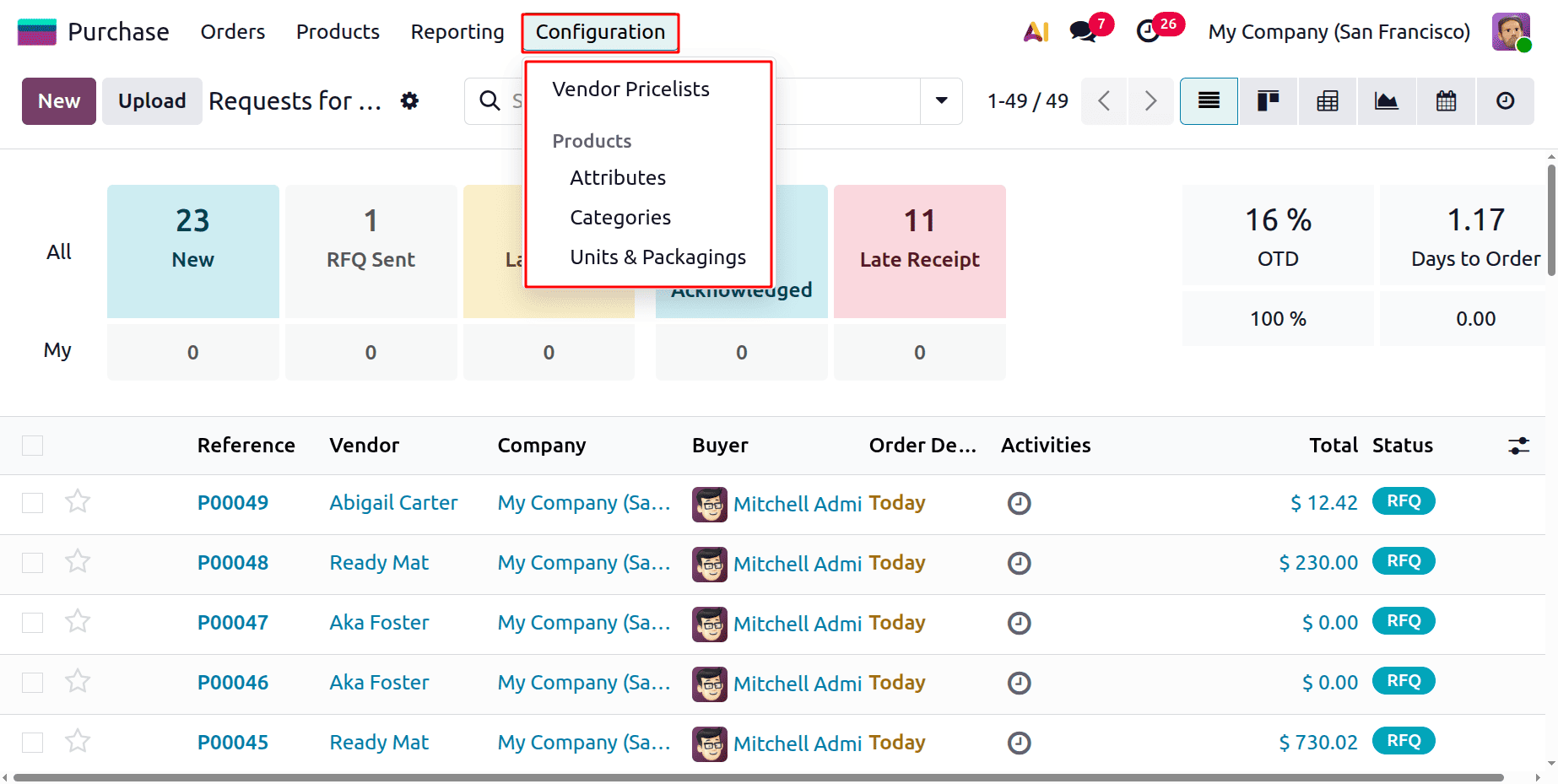
But here the Settings menu is not visible. So the user with Role as Users, but Access rights as Administrator can’t change the Settings.
Access rights as Users
Change the access rights and User. But the User Role is still Users. Let's log in as the employee.
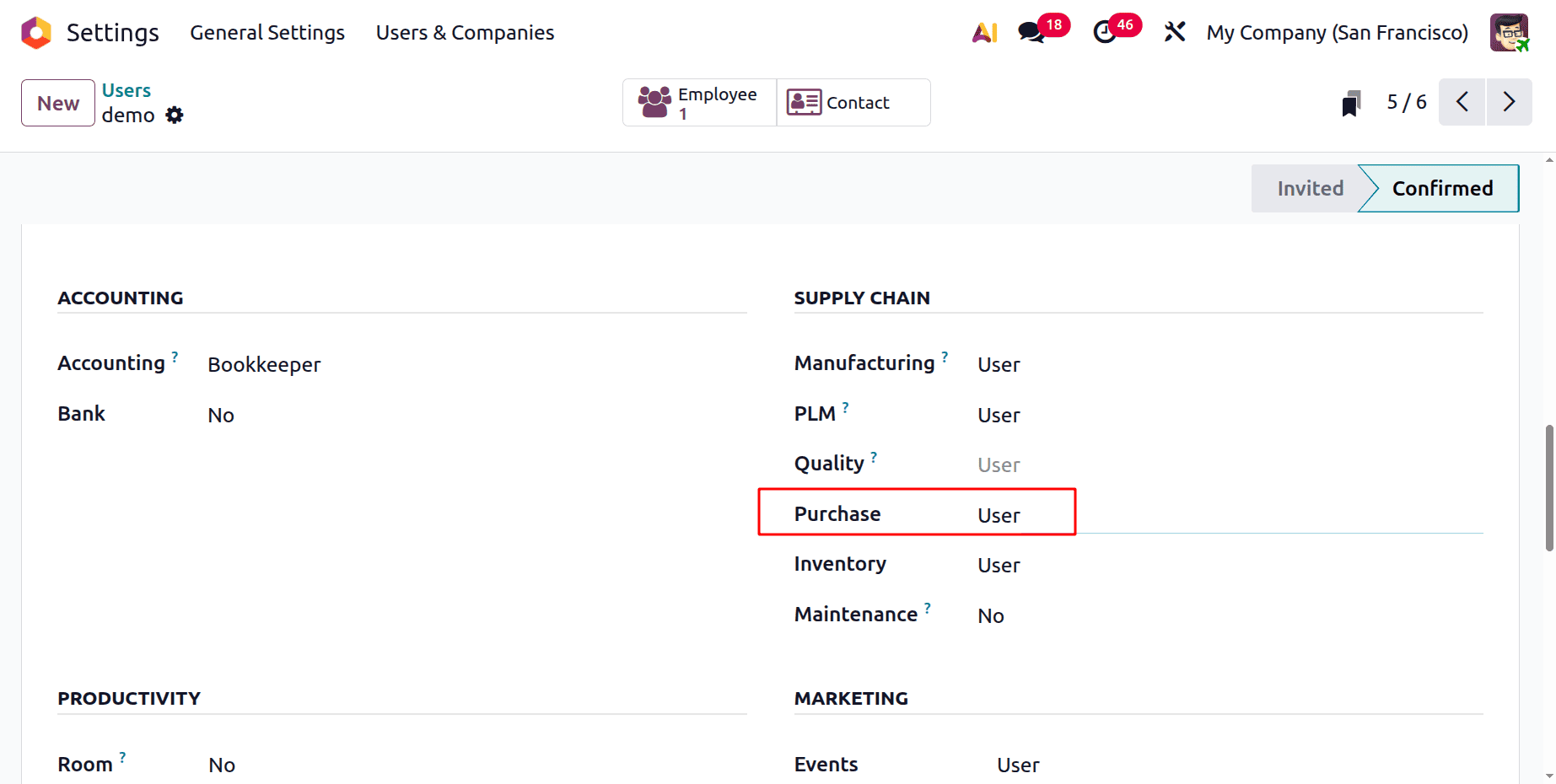
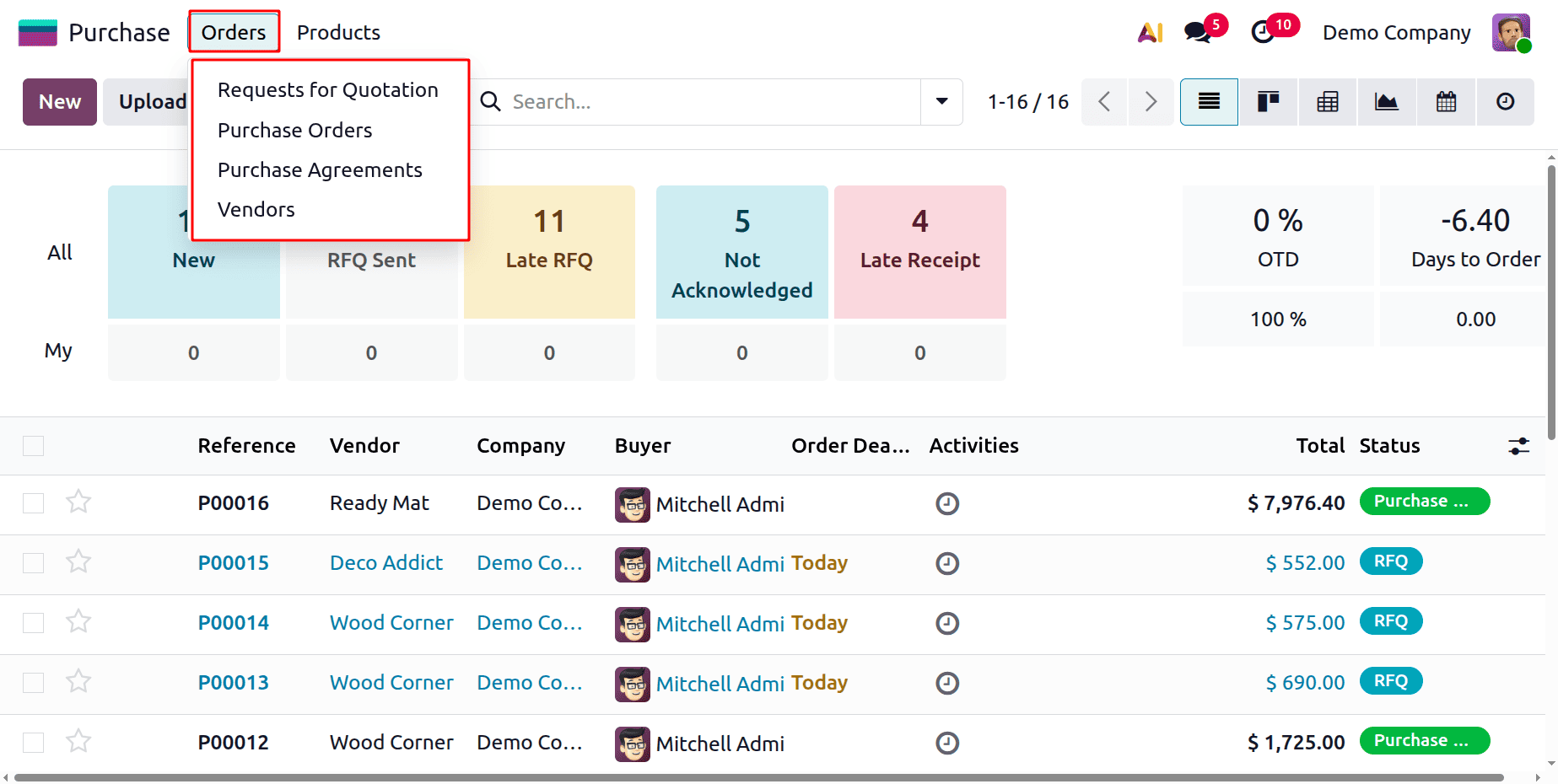
Here, the users can view only two menus. One is Orders, and the second is Products. The orders menu contains Request for Quotations, Purchase Order, Purchase Agreements, and Vendors. Users can create these records, and change the configurations.
Next is the Products menu, which contains Products and Products Variants. But here, the users have no permission to create new products. Also, the users can’t change the existing configurations of the products.
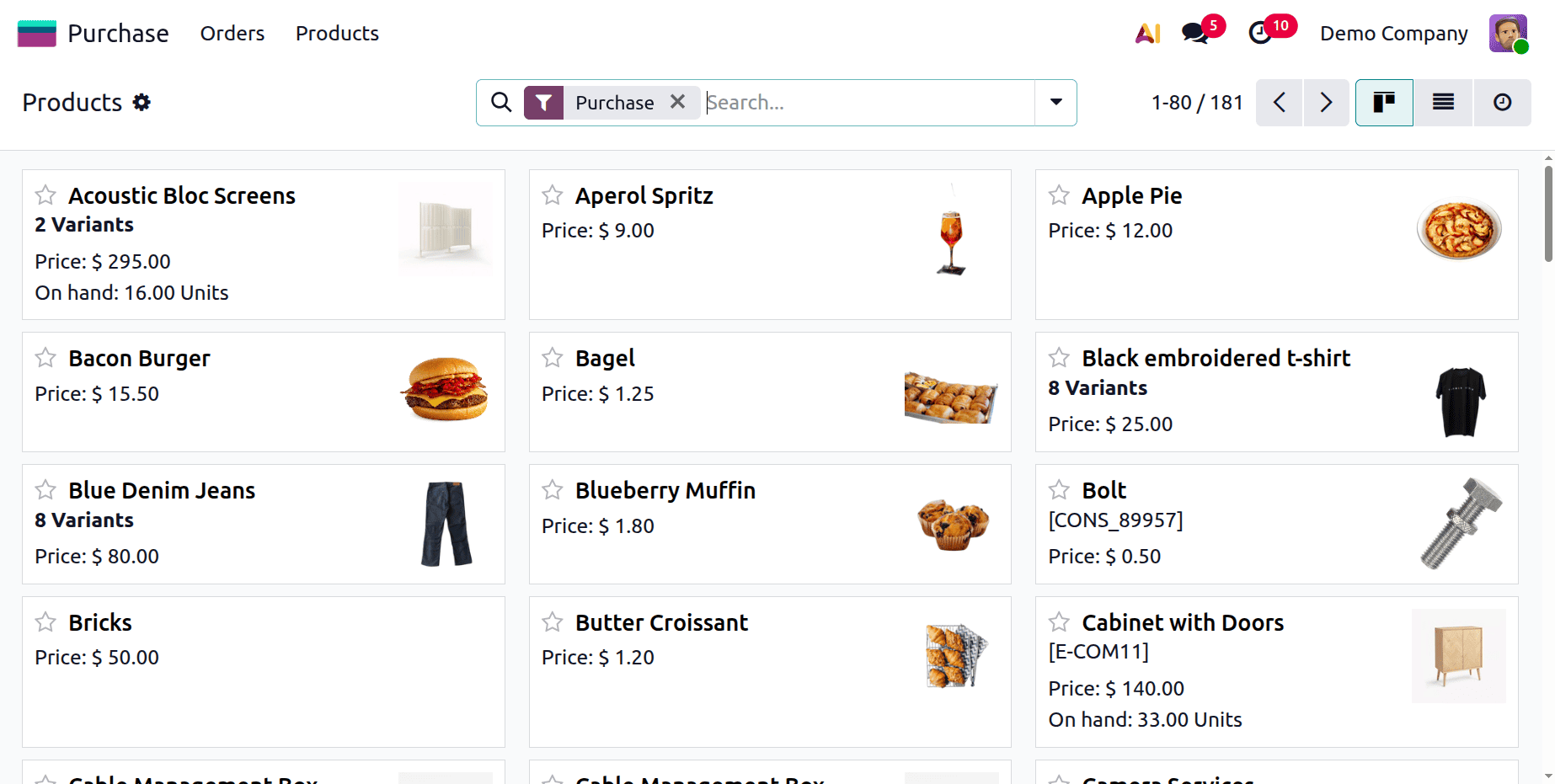
The users can’t view the Configuration menu, and the Settings menu is also not available there.
Effective access control in the Purchase module of Odoo19 guarantees that each user's rights correspond to their role and responsibilities. Establishing roles like Administrator, User, or None helps safeguard private data, reduce errors, and maintain efficient procurement procedures. Teams may operate more productively, preserve data integrity, and concentrate on their particular responsibilities within the purchase pipeline when authorization settings are clear.
To read more about How to Manage Access Control in Odoo 18 Purchase Module, refer to our blog How to Manage Access Control in Odoo 18 Purchase Module.