Modern businesses need systems that are accessible and adaptable at all times. Mobo, the Odoo Mobile Suite, enables you to manage POS operations and core business activities directly from your mobile device.
With Mobo POS, you can manage your sales operations from anywhere, whether you’re using a mobile phone or tablet. No need to stay tied to a desk or counter, your business moves with you.
Why Choose Mobo POS?
- Operate from Anywhere
Run your POS operations on the go using iOS or Android devices, with full support for laptops and tablets.
- Real-Time Data Synchronization
Every transaction, inventory update, and customer record is synced instantly with your Odoo system, no delays, no manual updates.
- Seamless Odoo Integration
Mobo POS is deeply integrated with Odoo, ensuring consistent data across sales, inventory, accounting, and reporting.
- Open-Source & Scalable
As an open-source Mobile ERP solution, Mobo gives you the freedom to customize and scale as your business grows.
Logging In
The Mobo POS mobile application offers a secure and user-friendly login process that seamlessly connects the mobile interface with the Odoo backend. Users can begin by downloading the Mobo POS app from the Android Play Store or the iOS App Store. Once the application is installed and launched, the initial screen prompts users to configure the server connection before accessing the system.
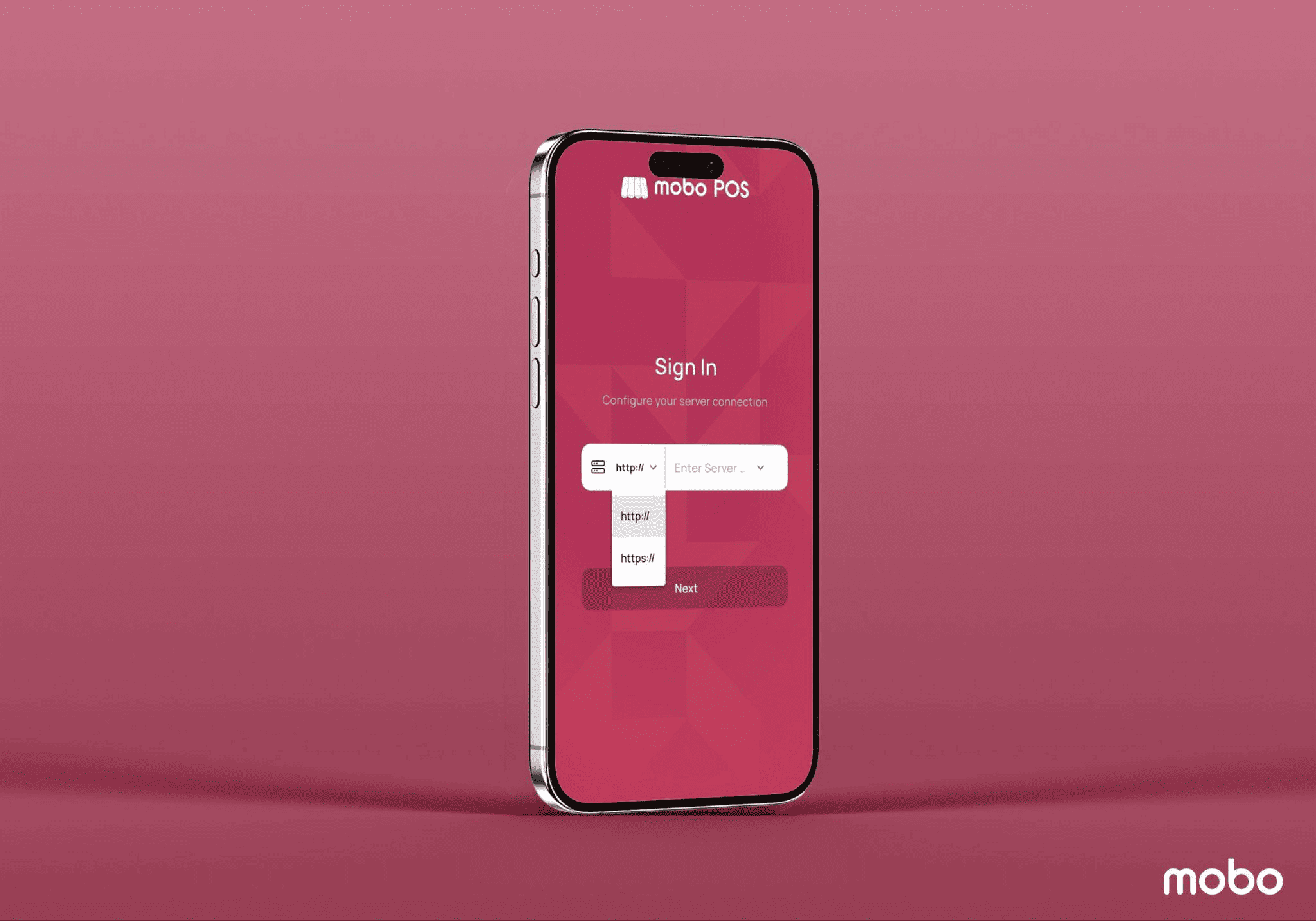
On the first login screen, users are required to enter the Server URL of their Odoo instance. This URL represents the complete address of the Odoo server and is used by the application to establish communication with the backend. At this stage, only the server URL field is visible. Once a valid server URL is entered and verified, the application dynamically displays the database selector field, allowing users to choose the appropriate database associated with the server.
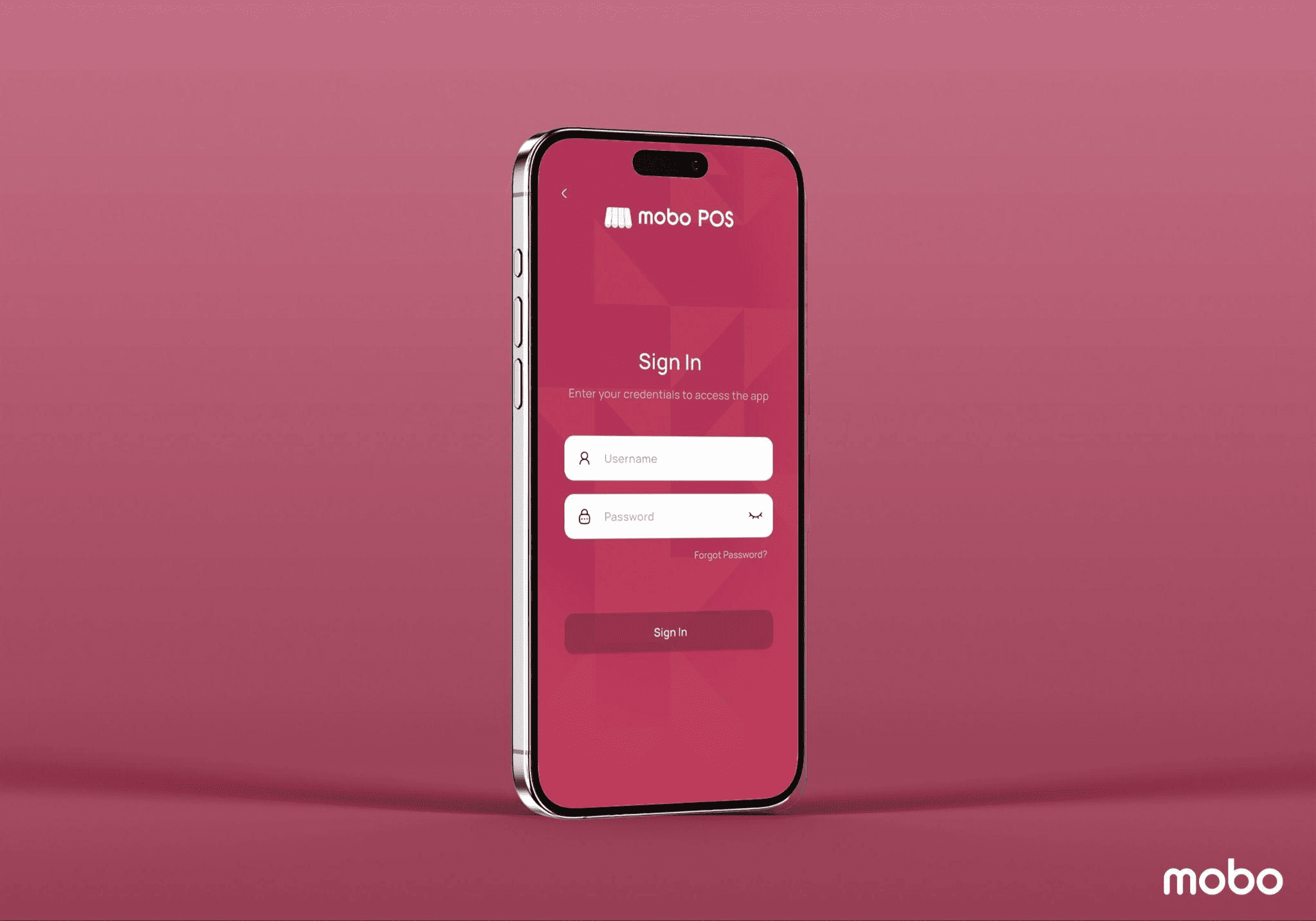
After selecting the database, users can proceed to the authentication screen where they enter their username and password. Upon successful login, the Mobo POS application loads the configured Point of Sale environment, enabling users to start billing, manage sessions, and perform POS operations directly from their mobile device. The workflow closely follows the standard Odoo POS behavior, ensuring a familiar experience for existing users.
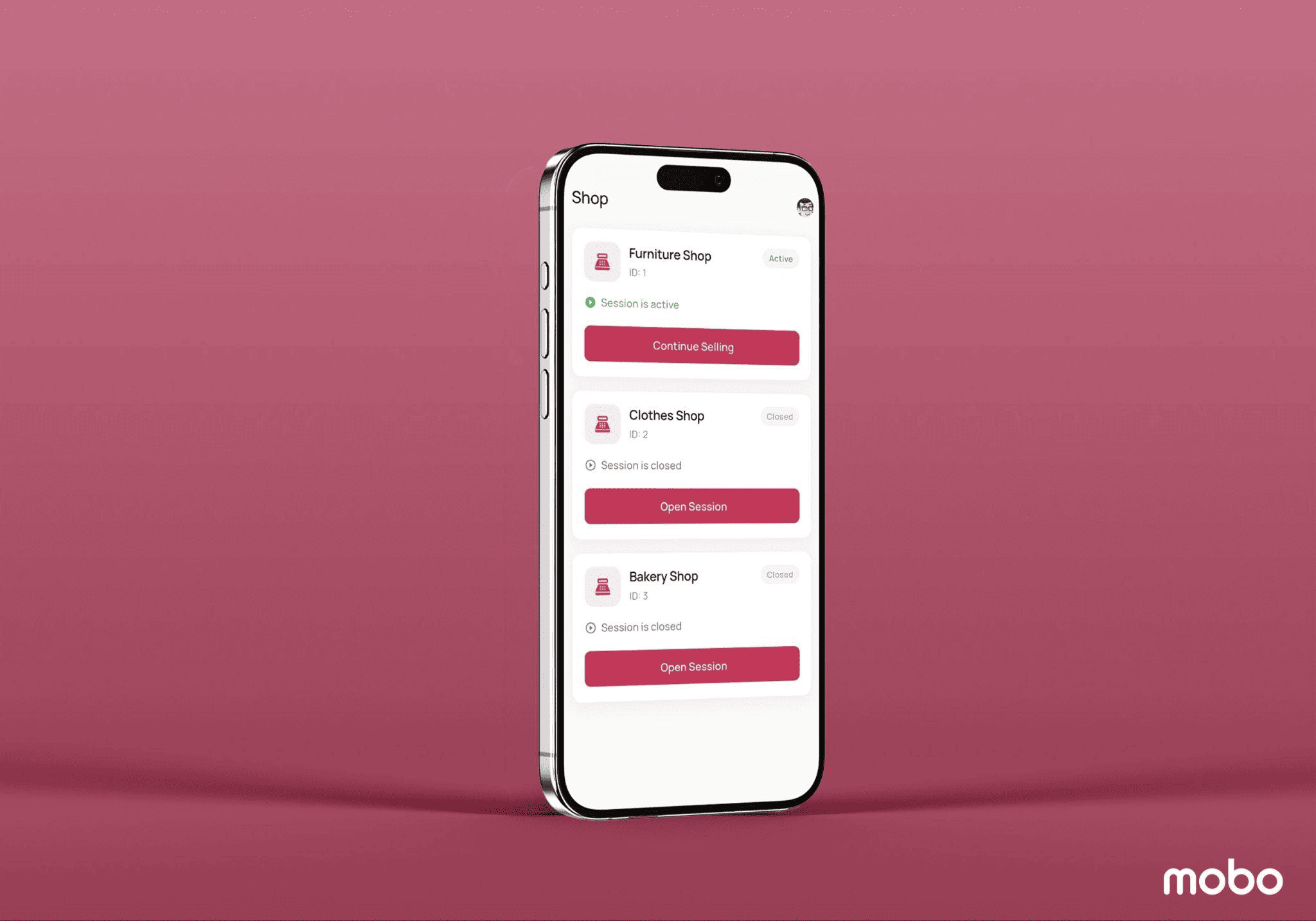
The Mobo Point of Sale module makes it simple to handle the retail process. This module can be used for retail operations, restaurant operations, or bar operations.
The Mobo Point of Sale (POS) module streamlines day-to-day sales activities and supports a wide range of business types, including retail stores, restaurants, and bars. Within the Configuration menu, users can access the Point of Sale option, which displays a complete list of all configured POS operations in a single window.
You can view the choices for managing orders and sessions under the Order tab. An order is a documentation of a completed transaction. It contains information about the goods sold, the quantity sold, the cost, and the mode of payment. Additionally, orders are taken during the session. It begins with the creation of a new order and concludes with the closing of the session.
An order, similar to the one above, is generated when a customer places a purchase order.
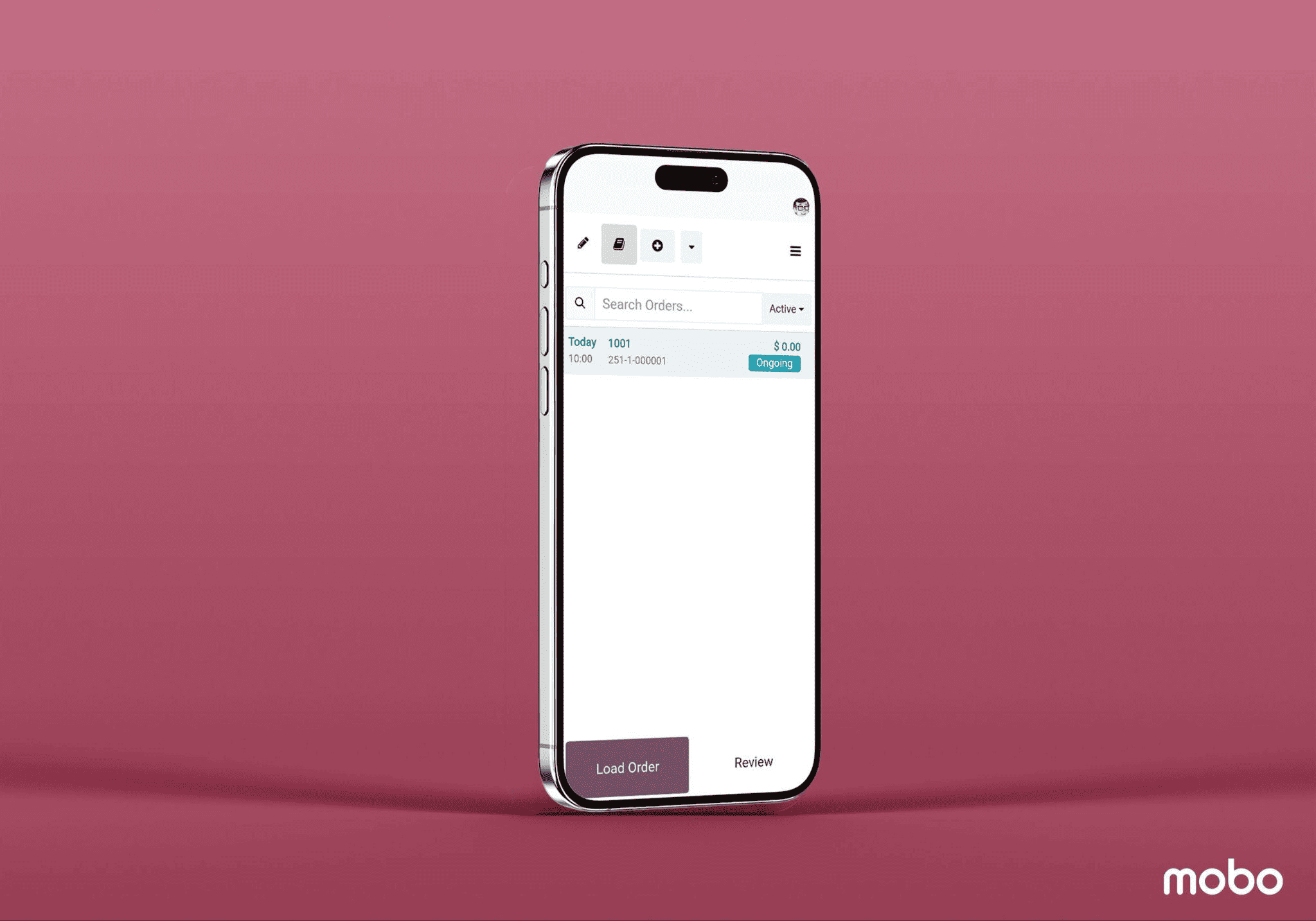
By selecting Orders, you can view all transactions completed during the current session, including the order date, receipt number, cashier name, customer name, and order status.
The Point of Sale module also allows multiple orders to be processed simultaneously. To begin a new transaction, click the Load Order button shown above. This will redirect you to the active session, where you can create and process a new order.

The new order you made inside the current session is visible here.
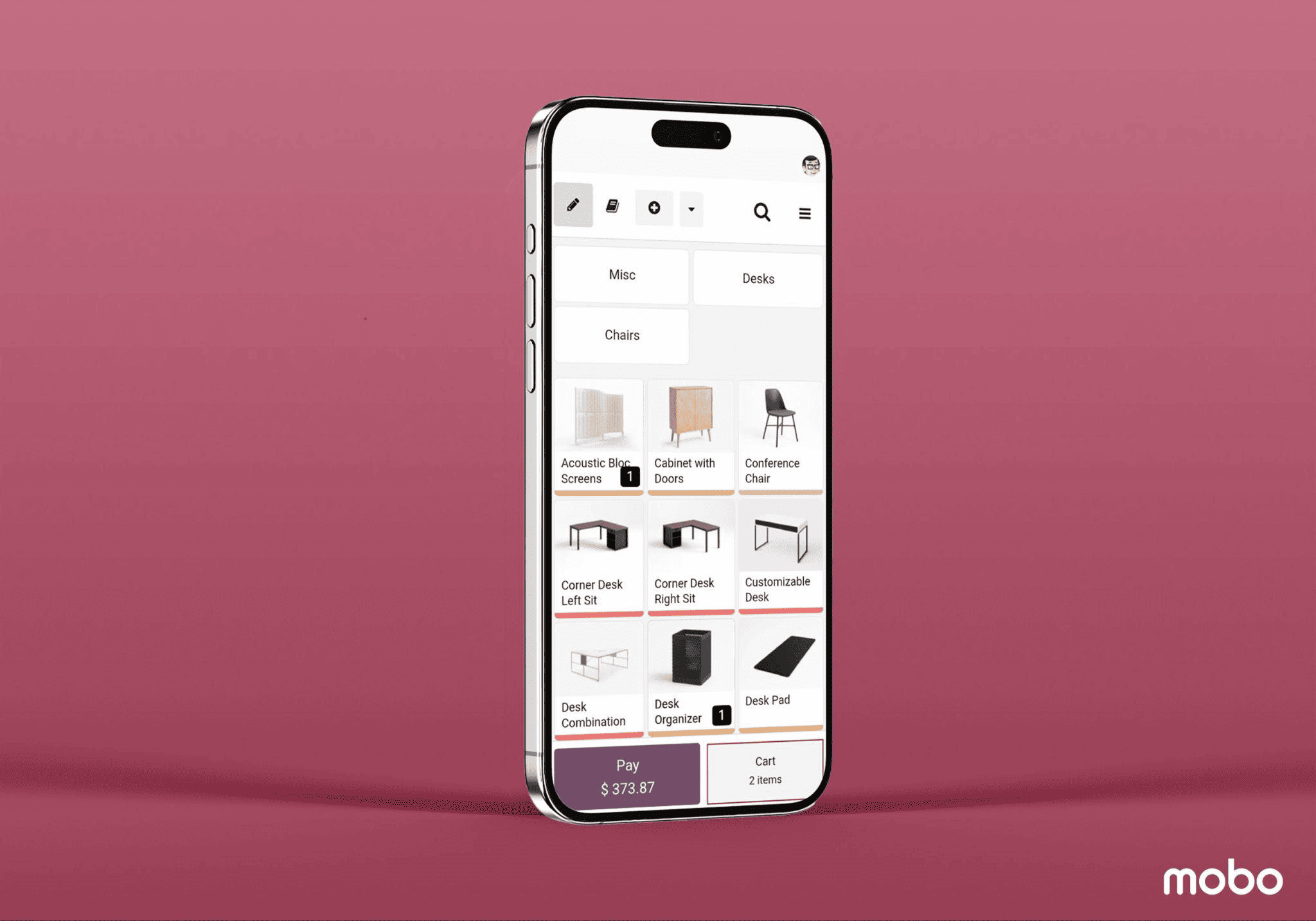
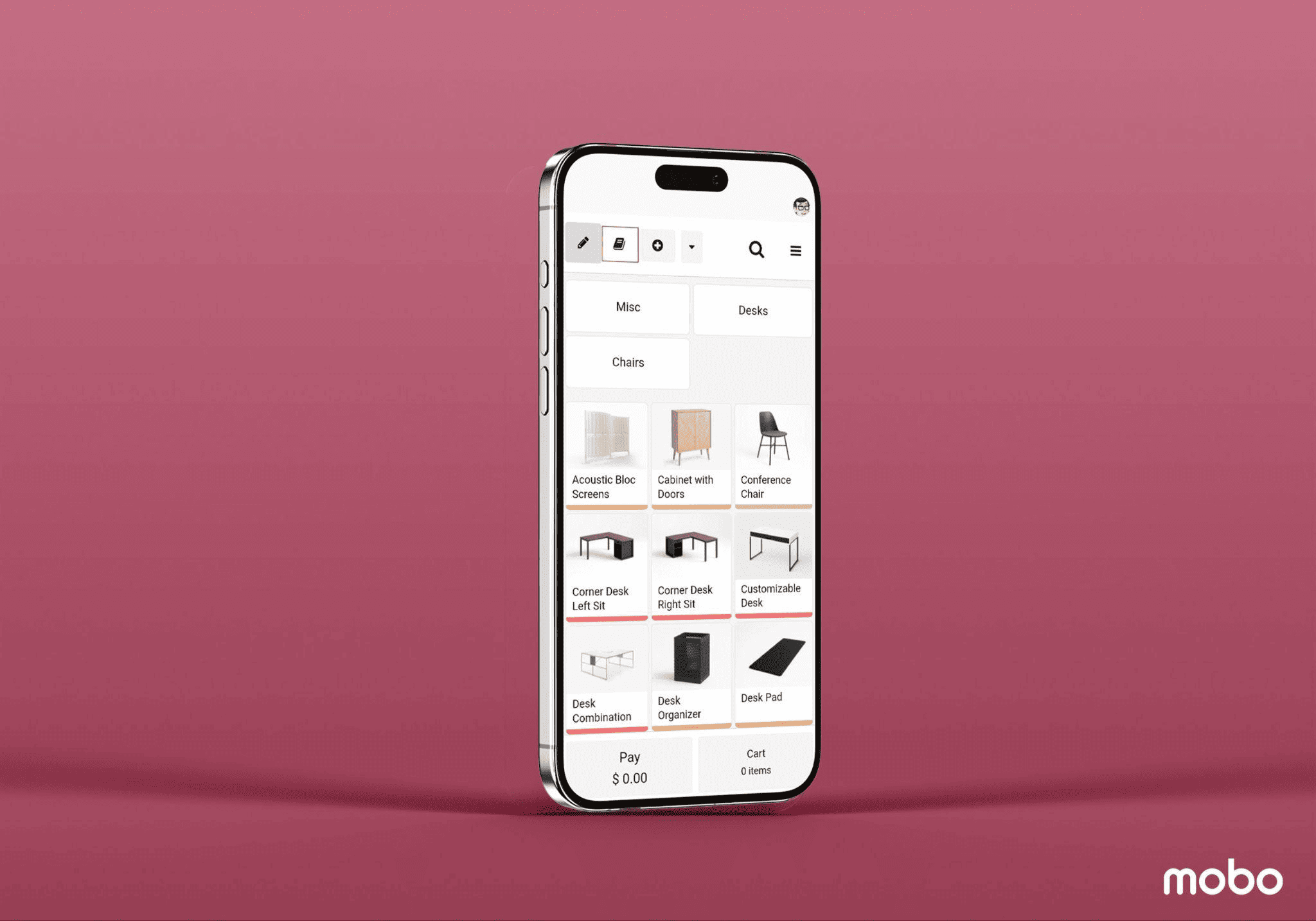
When you select an item, it is added to the cart and displayed in the Cart window, as shown in the image below. From this window, you can modify the product quantity and price, apply discounts to individual items, and select a customer for the order.
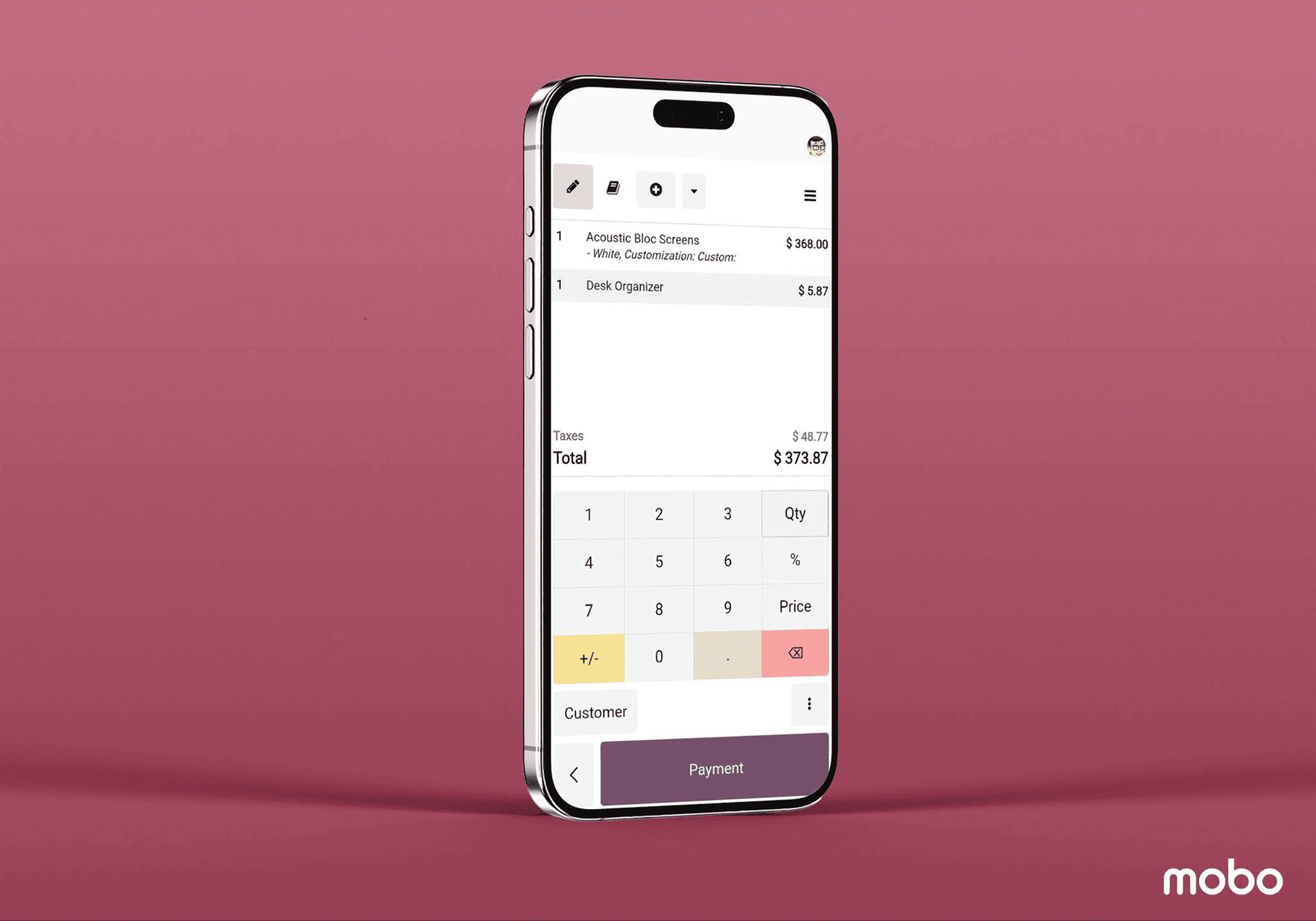
The newly created order within the current session is displayed here, and the order count in the navigation bar is updated accordingly. You can now proceed to complete the payment for the order.
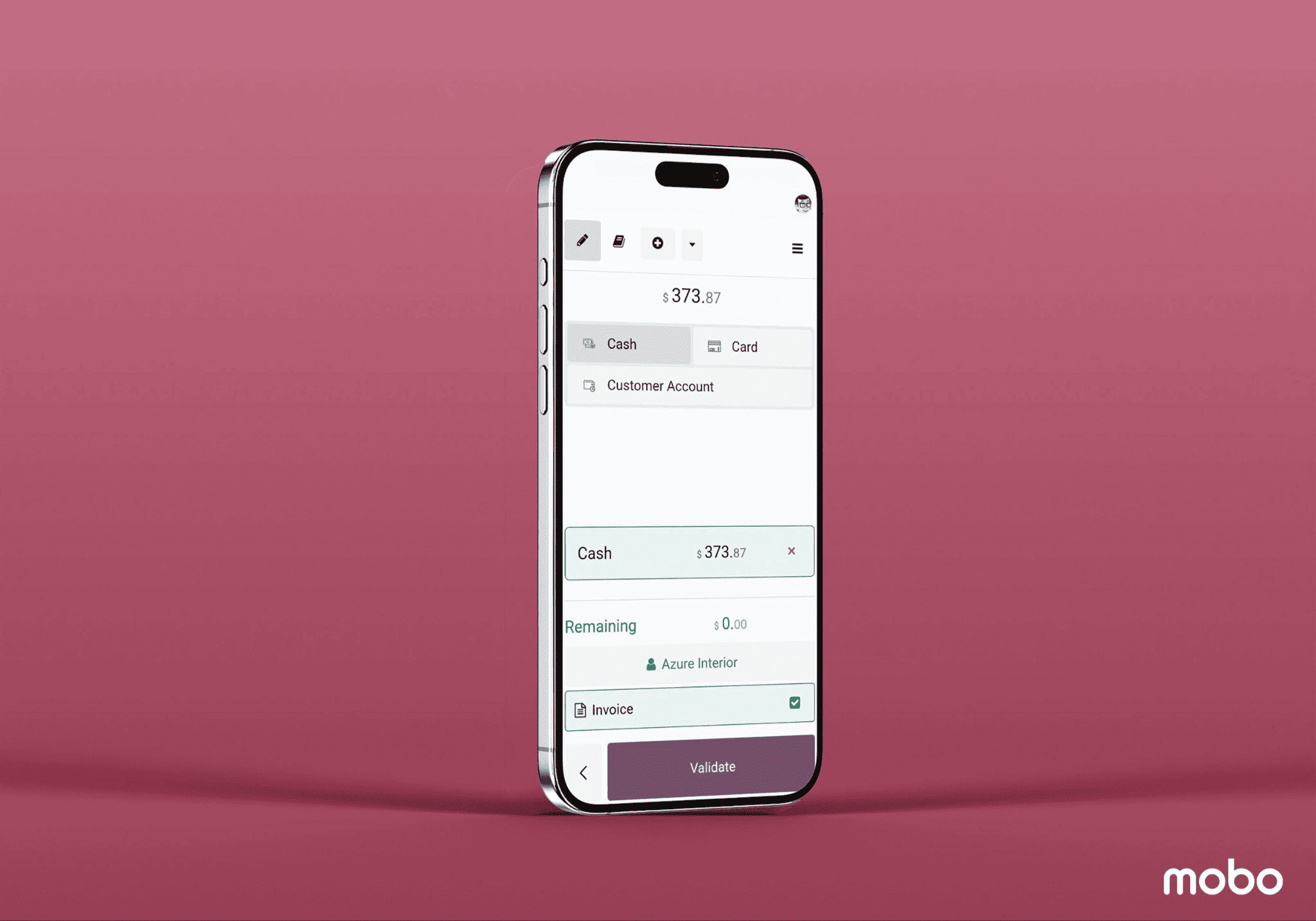
As a result, one order is in the payment state while the other is still in progress. You may view the various states of every order you've placed inside the orders.
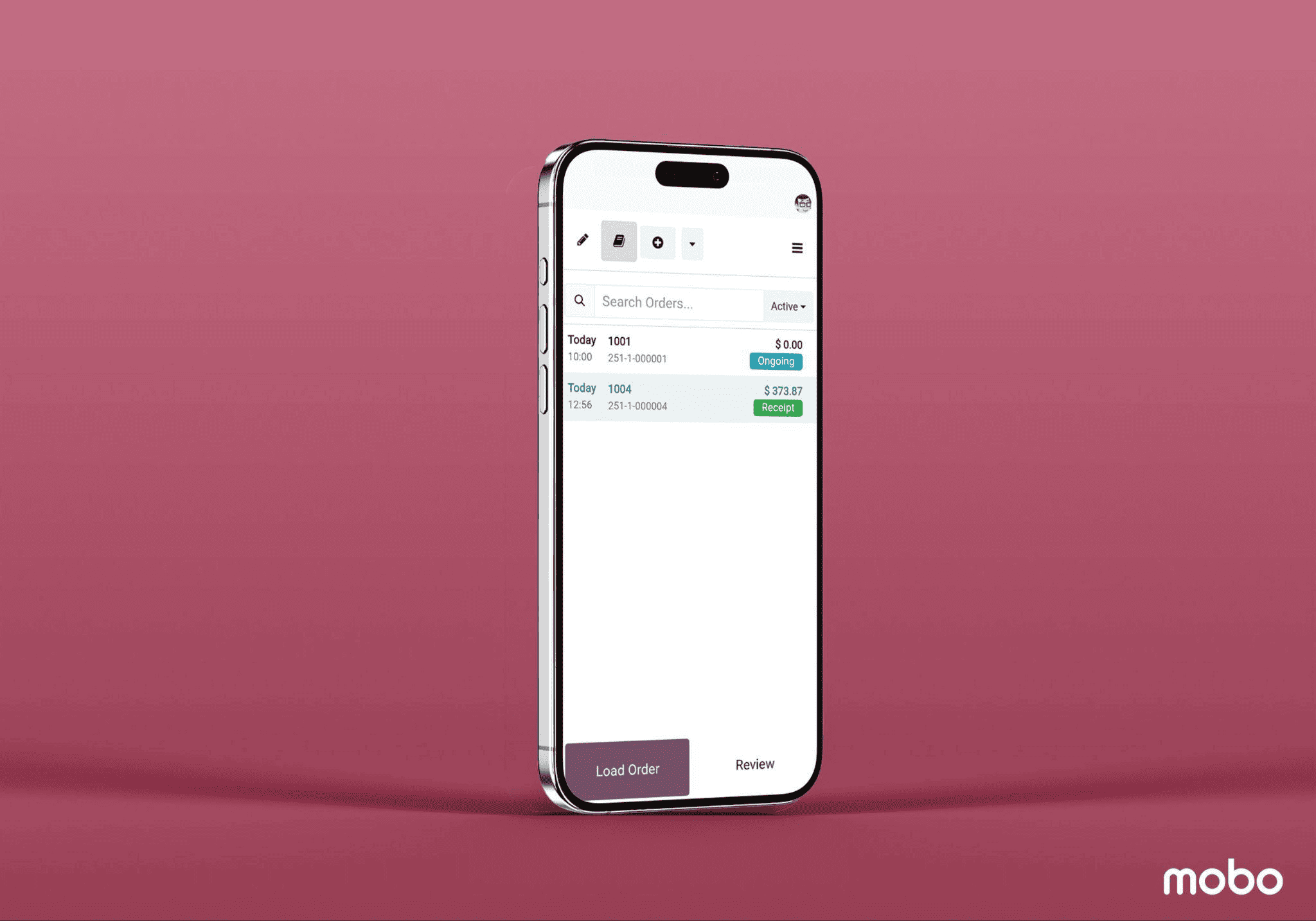
All open orders for the current session are displayed in the Orders view. By using the order search feature along with the available filters, you can quickly locate orders based on their status. This functionality is especially useful for businesses with high customer volume or those that need to manage multiple customers simultaneously.
A session is crucial since it lets companies monitor sales and inventory information. All orders placed during a closed session, as well as the overall sales amount, the number of orders placed, and the anticipated and counted cash, are saved.
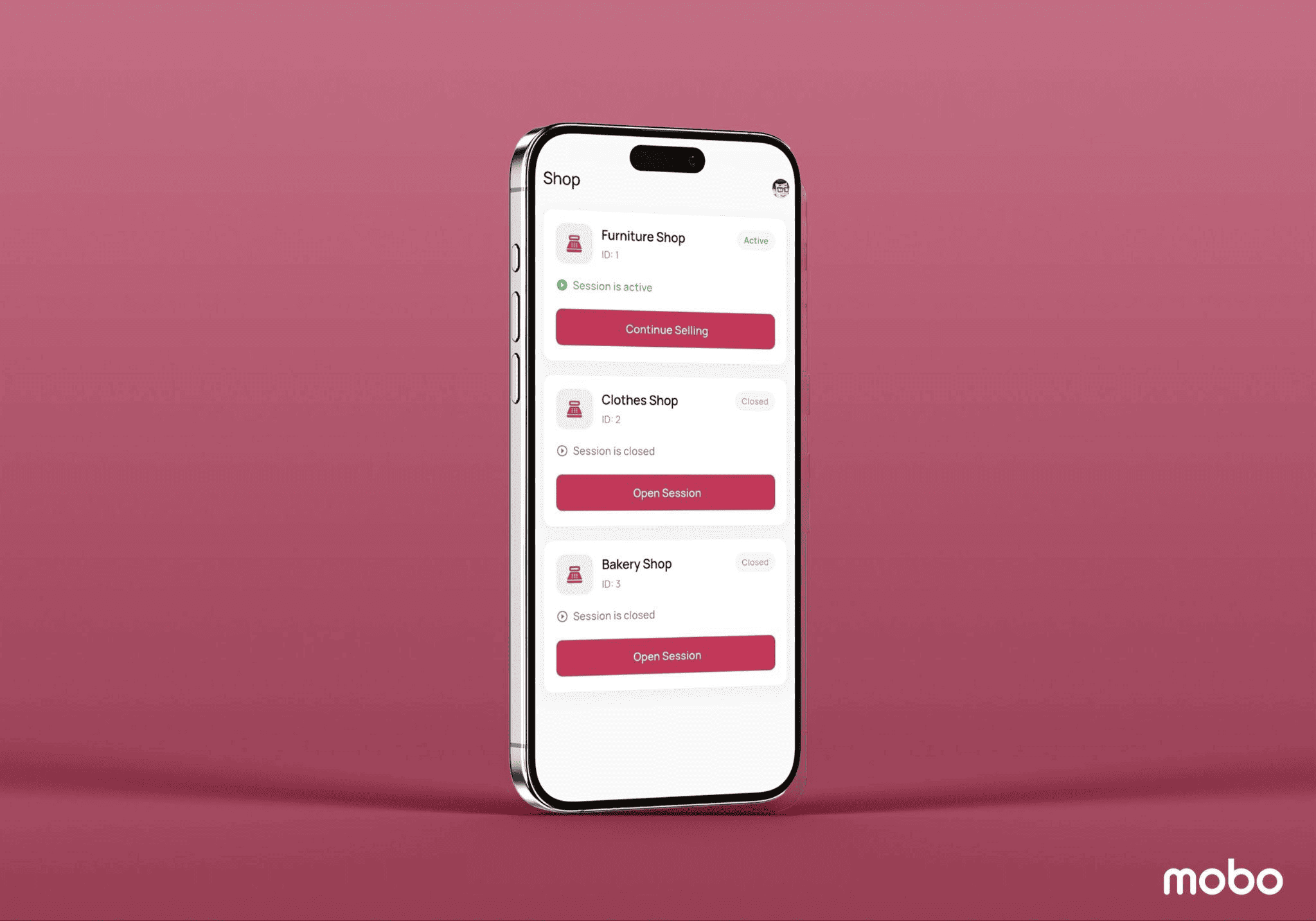
A new session will be created upon the launch of the new store or restaurant within the PoS.
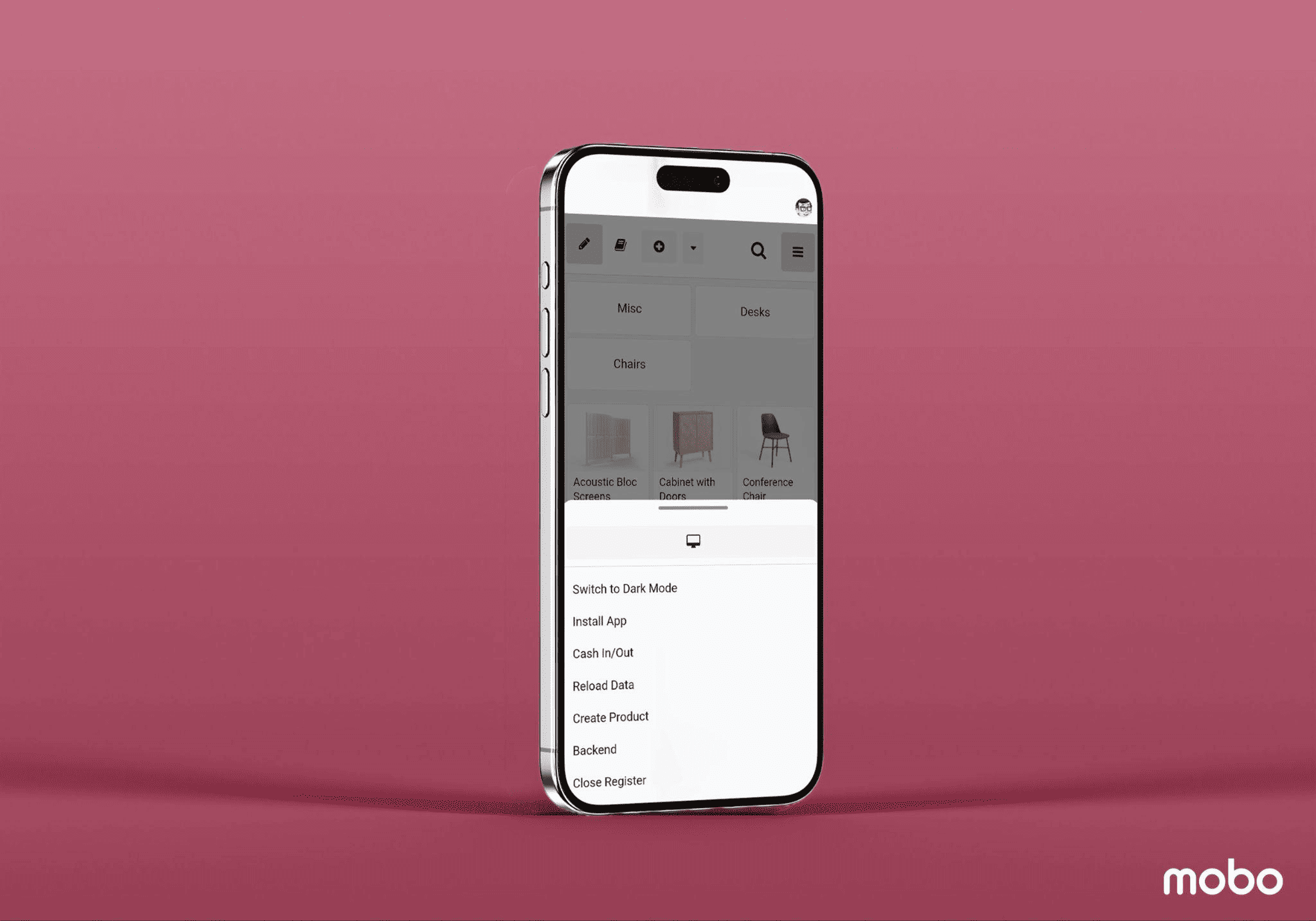
You can confirm that a new session has been created by selecting New Session within the store or restaurant. Once the order is completed, you can proceed to close the session.

You can view session details such as the user who initiated the session, the point of sale used, the opening and closing dates and times, and the store’s opening and closing cash balances.
Logging Out
Logging out of the Mobo POS application is simple and secure. By tapping the user profile icon displayed at the top of the screen, users are taken to the profile section. This area provides access to options such as Settings, Switch Account, and Logout. Selecting the logout option immediately signs the user out of the application and redirects them to the login screen, helping protect sensitive business data, especially when the device is shared.
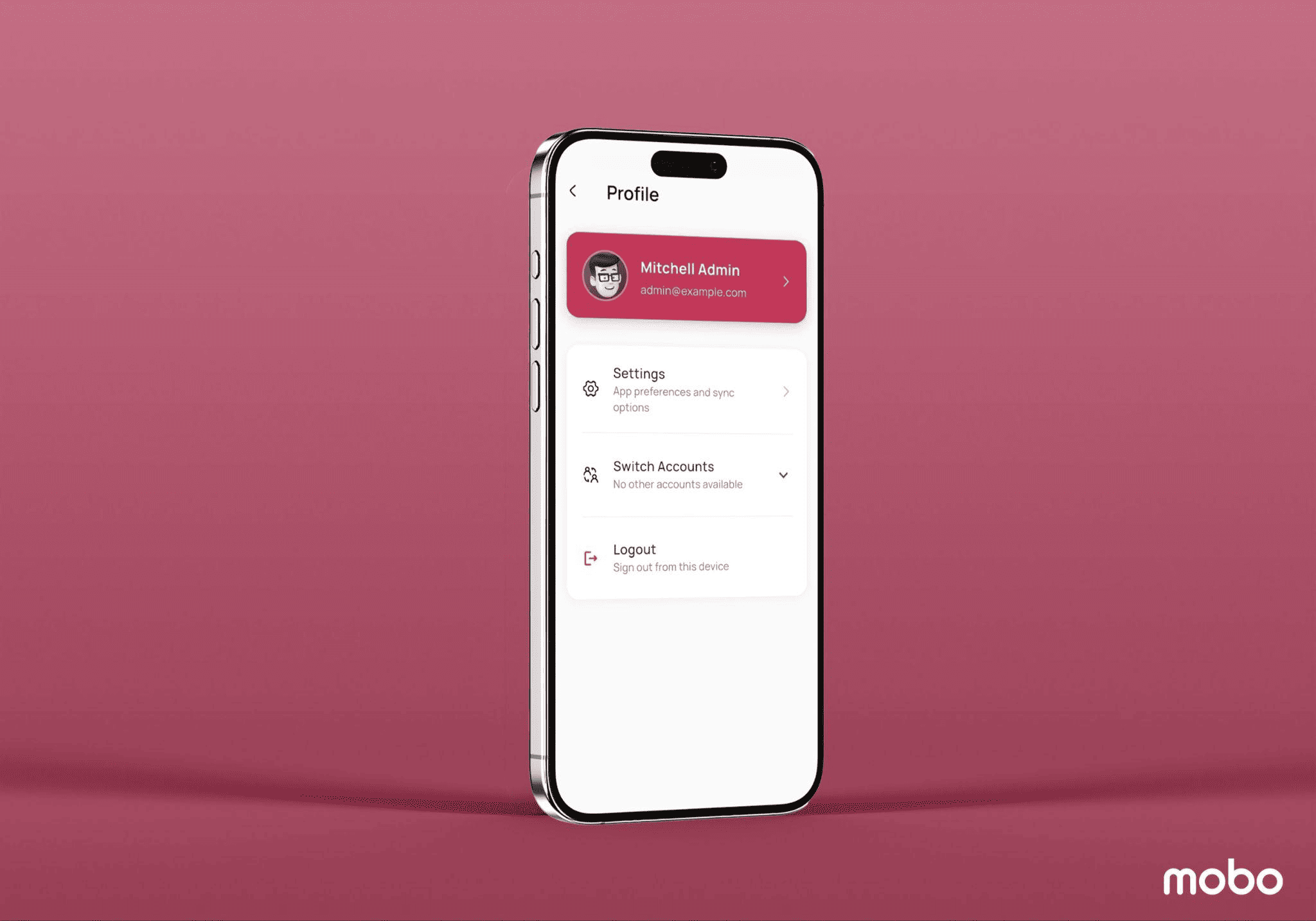
Overall, the Mobo POS login and logout flow is designed to be intuitive, secure, and efficient. By using a server URL–based connection and a structured authentication process, the application ensures reliable access to Odoo POS functionality while maintaining strong data security standards.
To read more about Why Mobo CRM Is the Secret Weapon for Mobile Sales Success, refer to our blog Why Mobo CRM Is the Secret Weapon for Mobile Sales Success.