In Odoo 19 Accounting, recording and managing supplier bills is a core function that ensures accurate tracking of a company’s payables and overall financial health. The Bills feature continues to play a vital role in handling vendor-related financial transactions, offering an improved, intuitive, and highly automated workflow designed to reduce manual effort and accounting errors.
Vendor bills in Odoo represent the amounts a business owes to its suppliers for goods purchased or services received. Odoo 19 seamlessly integrates the Purchase and Accounting modules, allowing businesses to automatically generate vendor bills directly from confirmed Purchase Orders. This automation ensures that supplier obligations are recorded promptly and accurately, eliminating the need for duplicate data entry and enhancing financial consistency.
Once created, all vendor bills generated through the Purchase module are automatically synchronized with the Accounting module. This real-time synchronization provides centralized visibility into outstanding payables, supports better cash flow management, and strengthens financial control across the organization. Accountants and finance teams can easily track bill statuses, validate amounts, and prepare timely payments without switching between modules.
Odoo 19 also offers a centralized interface to access and manage supplier bills. Users can navigate to Accounting > Vendors > Bills to view, validate, post, and manage all vendor invoices from a single dashboard. With built-in features such as bill validation, tax computation, due-date tracking, and reconciliation, Odoo 19 simplifies the entire supplier billing process while maintaining compliance with accounting standards.
This blog explores how to efficiently record and manage supplier bills in Odoo 19 Accounting, guiding users through the process and highlighting best practices to maintain accurate and transparent financial records.
To access and manage vendor bills, navigate to Accounting > Vendors > Bills.
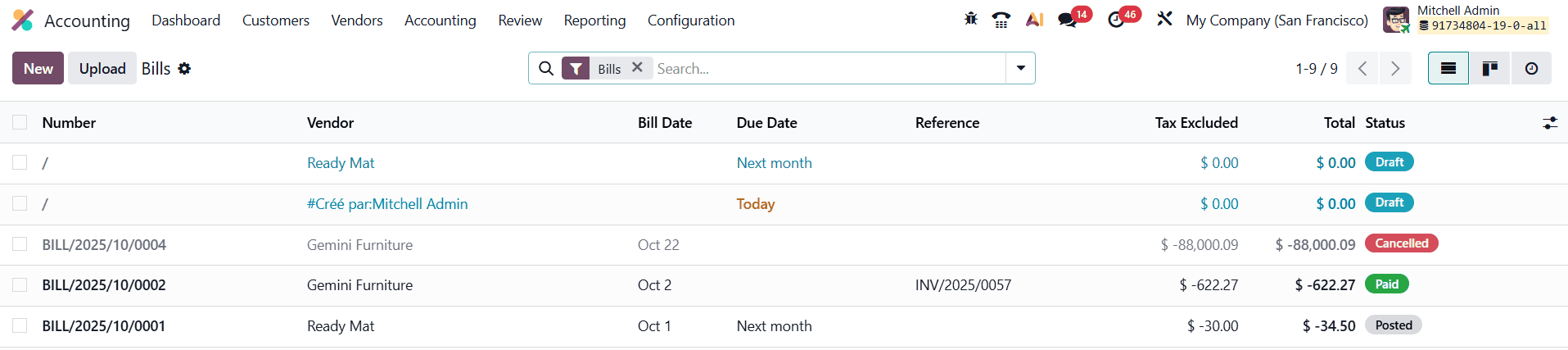
The Bills dashboard in Odoo 19 Accounting offers a flexible and user-friendly interface to monitor and manage all vendor bills efficiently. It provides both List view and Kanban view, allowing users to choose the layout that best suits their workflow and operational preferences.
In the List view, bills are displayed in a structured, tabular format with key details such as Bill Number, Vendor Name, Bill Date, Due Date, Reference, Payment Status, Tax Excluded Amount, Total Amount, and Bill Status. This view is especially useful for accountants and finance teams who need to quickly review multiple bills, compare amounts, track due dates, and identify outstanding or overdue payments at a glance. The Kanban view presents vendor bills as visual cards grouped by their current status, such as Draft, Posted, or Paid, making it easier to track the progress of each bill through the accounting workflow.
To enhance usability, Odoo 19 allows extensive customization of the Bills dashboard. Using the Column Configurator, users can show or hide specific fields based on their reporting needs.
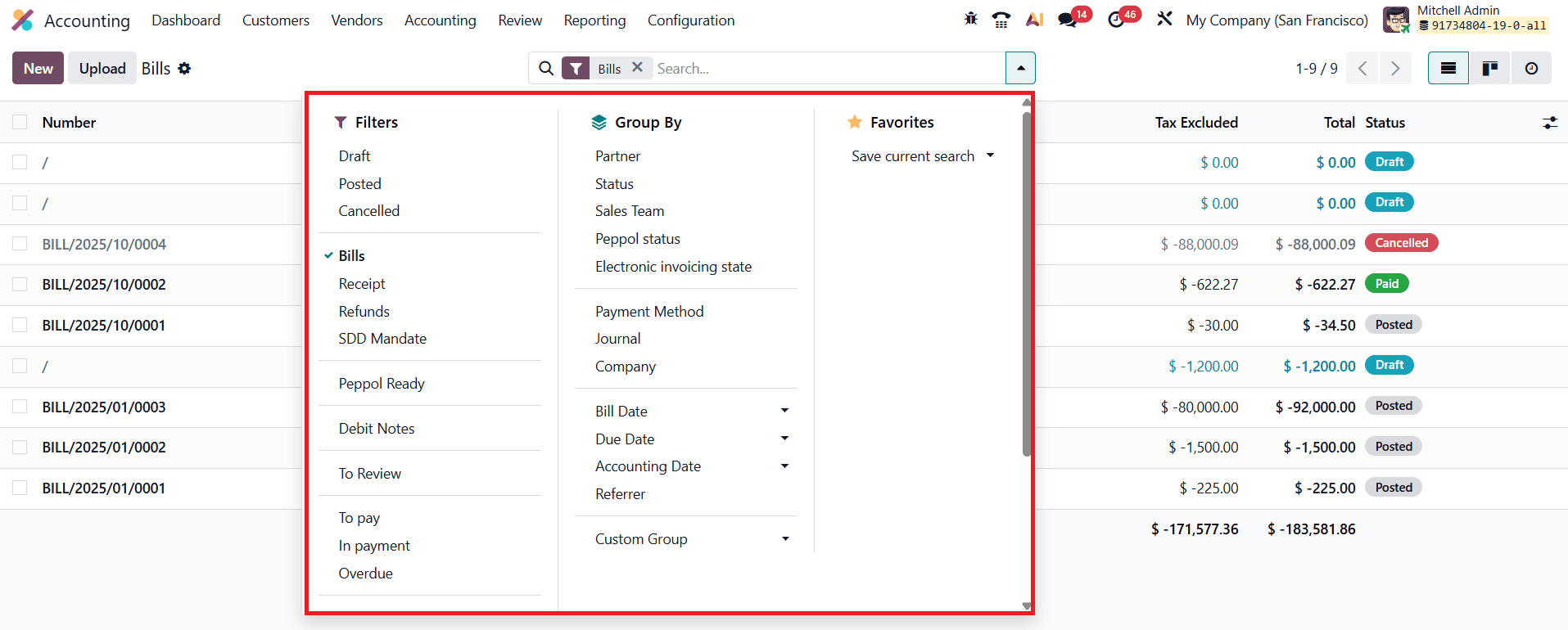
The Bills dashboard in Odoo 19 Accounting comes with a comprehensive set of default filters that help users quickly sort and manage vendor bills based on their current status and processing stage. These include Draft, Posted, Cancelled, To Review, To Pay, In Payment, and Overdue, enabling finance teams to instantly identify bills that require attention. Additional filters such as Bills, Refunds, Receipts, SDD Mandates, and Debit Notes allow users to distinguish between different types of vendor-related documents, ensuring accurate classification and streamlined processing.
Beyond the default options, Odoo 19 offers powerful customization capabilities through Custom Filters and advanced Group By functions. Users can group and analyze payable data by Partner (Vendor), Sales Team, Peppol Status, Electronic Invoicing Status, Journal, Bill Status, Payment Method, Company, or Date. These tools provide deeper insight into vendor liabilities, support regulatory compliance such as e-invoicing requirements, and help businesses generate more meaningful financial reports.
For creating and managing vendor bills, Odoo 19 provides flexible input options. Users can upload digital copies of supplier invoices directly from the Bills dashboard using the Upload button. Odoo’s intelligent document processing automatically extracts key information, such as vendor details, bill dates, totals, and taxes, reducing manual data entry and improving accuracy. Alternatively, users can create a vendor bill manually by clicking the New button, allowing full control over bill details, accounting entries, and tax configurations.
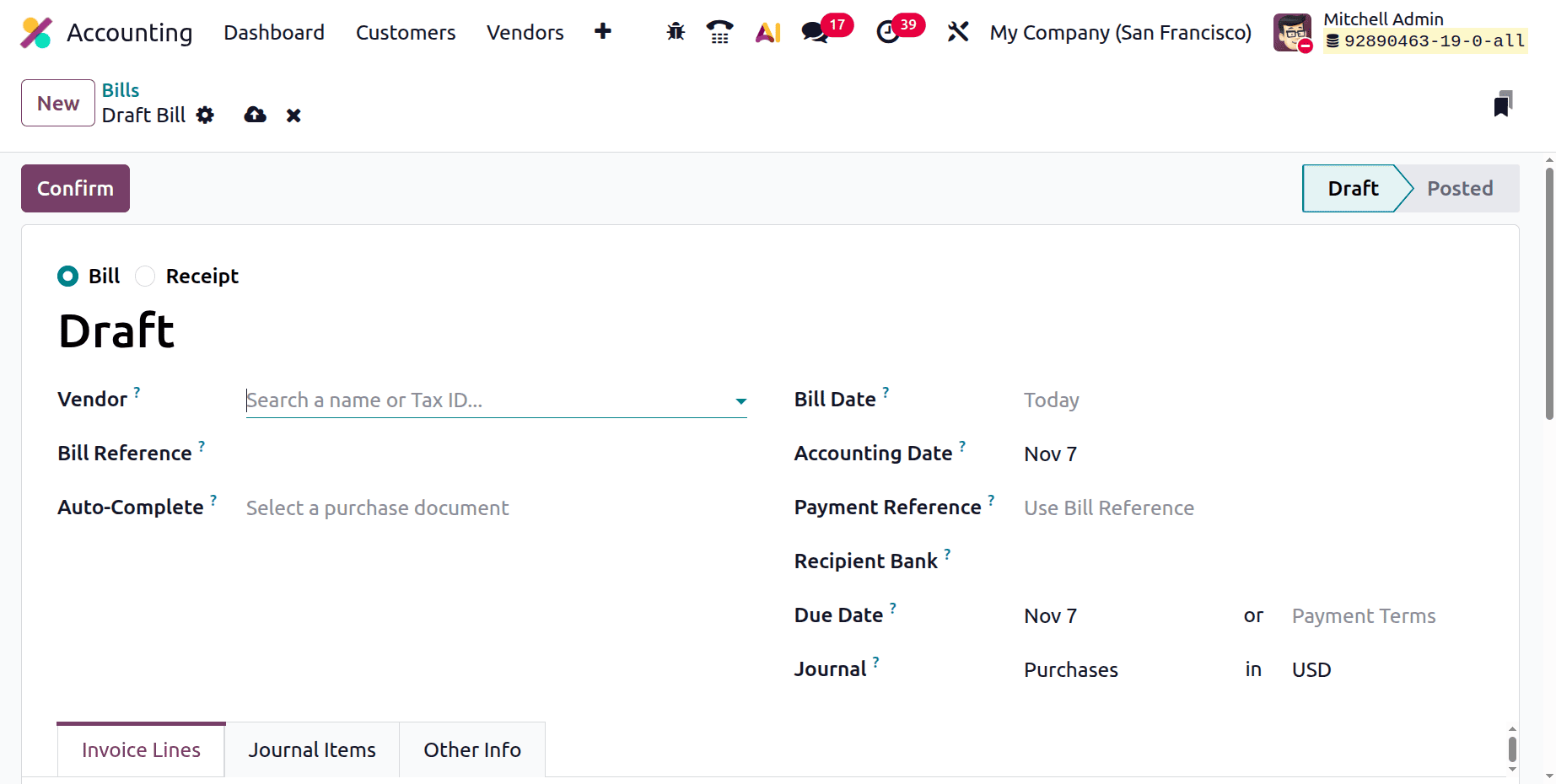
In Odoo 19 Accounting, the bill creation form includes an enhanced boolean selection field that allows users to specify whether they are creating a Vendor Bill or a Purchase Receipt, offering greater flexibility by managing different financial transactions from a single interface. By selecting the appropriate option, users can clearly define the nature of the document. A Vendor Bill is used to record the amount payable to a supplier for goods or services received, which will later be settled through payment. In contrast, a Purchase Receipt is used when the payment to the supplier is made immediately at the time of purchase, meaning no outstanding liability remains. This distinction helps ensure accurate classification of transactions and proper accounting treatment from the outset.
When creating a new bill, users must enter several essential details to maintain accuracy and traceability within the accounting system. These include the Vendor, which identifies the supplier issuing the invoice; the Bill Reference, used to record the vendor’s invoice number for tracking and reconciliation; the Bill Date, indicating when the invoice was issued; and the Accounting Date, which determines when the transaction is recorded in the company’s books. Additional fields, such as the Payment Reference, a reference used to identify the payment linked to the vendor bill, while the Recipient Bank Account specifies the vendor’s bank details for fund transfers. The Due Date is automatically calculated based on the vendor’s payment terms, supporting effective payment scheduling, and the selected Journal ensures that the transaction is recorded in the appropriate accounting ledger.
Odoo 19 further streamlines the bill recording process through its Auto-Complete functionality. From a previous bill, refund, or purchase order, the system automatically extracts and fills in key information such as the vendor name, invoice reference, total amount, and applicable taxes. This intelligent automation significantly reduces manual data entry, minimizes errors, and accelerates the overall bill creation workflow, enabling businesses to manage their payables more efficiently and accurately.
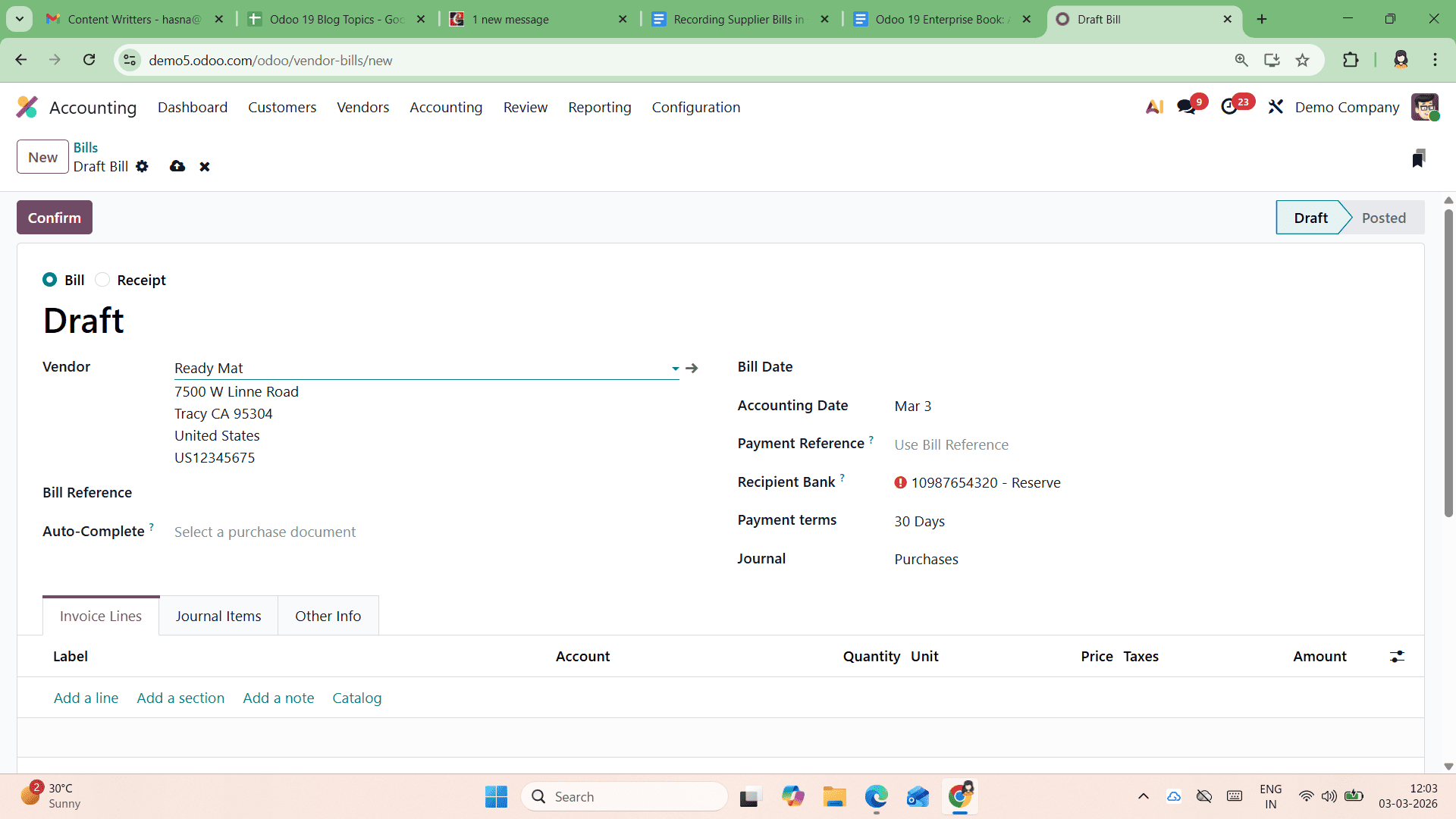
In Odoo 19 Accounting, the bill creation form is organized into three major tabs that help structure and manage bill information efficiently. The Invoice Lines tab is where users record the core transaction details, including the products or services received, quantities, unit prices, applicable taxes, and analytic accounts for cost tracking. The Journal Items tab displays the accounting entries automatically generated by Odoo based on the invoice lines, allowing users to review and verify debit and credit postings before the bill is finalized. The Other Info tab is used to capture additional metadata related to the bill, such as the Purchase Representative, Fiscal Position, Payment Terms, Bank Account, Sales Team, and Campaign information, providing greater context and control over financial reporting.
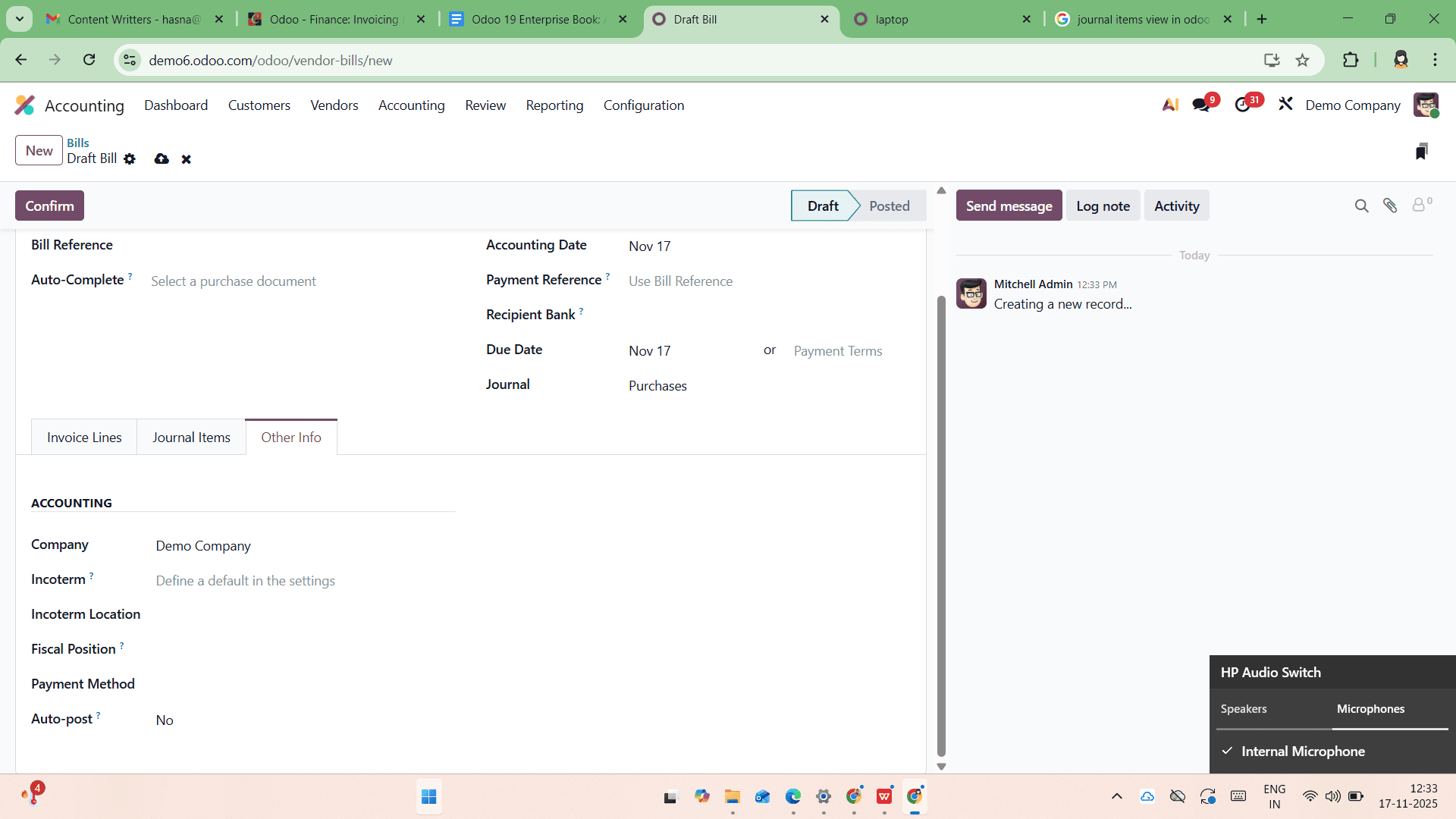
Within the Other Info tab, the Company field simply indicates the company under which the vendor bill is being recorded, which is particularly useful in multi-company environments. The Incoterm field allows users to define the international commercial terms that specify delivery responsibilities between the buyer and the supplier; if required, a default Incoterm can be configured in the system settings for consistency. The Incoterm Location field records the specific place associated with the selected Incoterm, adding clarity to logistics and contractual terms. The Fiscal Position field plays a crucial role in tax compliance, as it automatically adjusts applicable taxes and accounts based on the supplier’s tax status or geographical location. Additionally, the Payment Method field specifies how the bill will be settled, supporting accurate payment processing and reconciliation.
Finally, the Auto-post option determines whether the vendor bill should be automatically posted on its accounting date. When enabled, Odoo confirms and records the bill without requiring manual intervention, making it especially useful for scheduled, recurring, or high-volume vendor invoices.
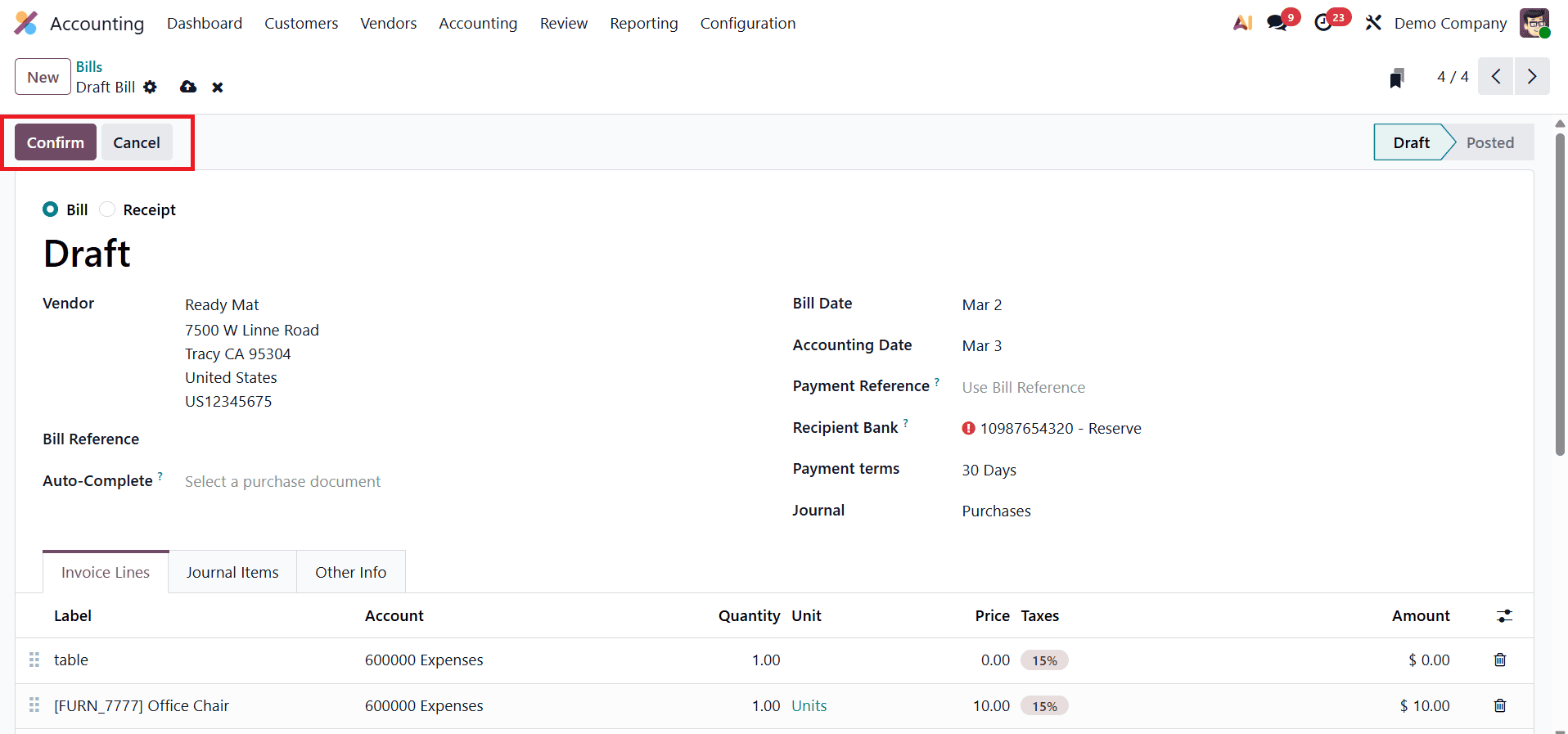
Once all the bill details have been carefully reviewed and verified, clicking Confirm changes the bill’s status from Draft to Posted.
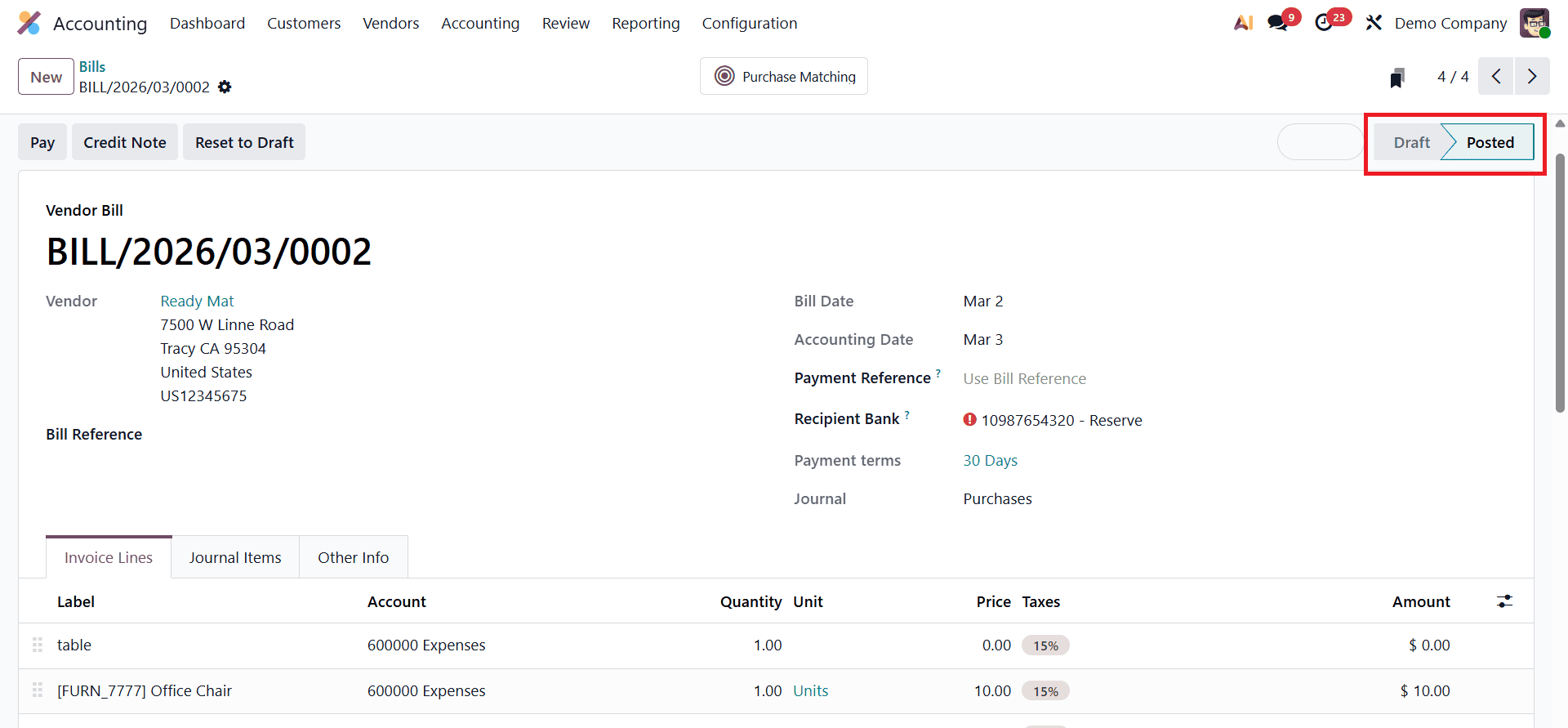
Posting the bill officially records the transaction in the accounting books, locking the entries to prevent unintended changes. At this stage, the vendor bill becomes ready for payment processing and reconciliation, allowing finance teams to proceed with settling the payable and matching it with bank statements or payment records in Odoo 19 Accounting.
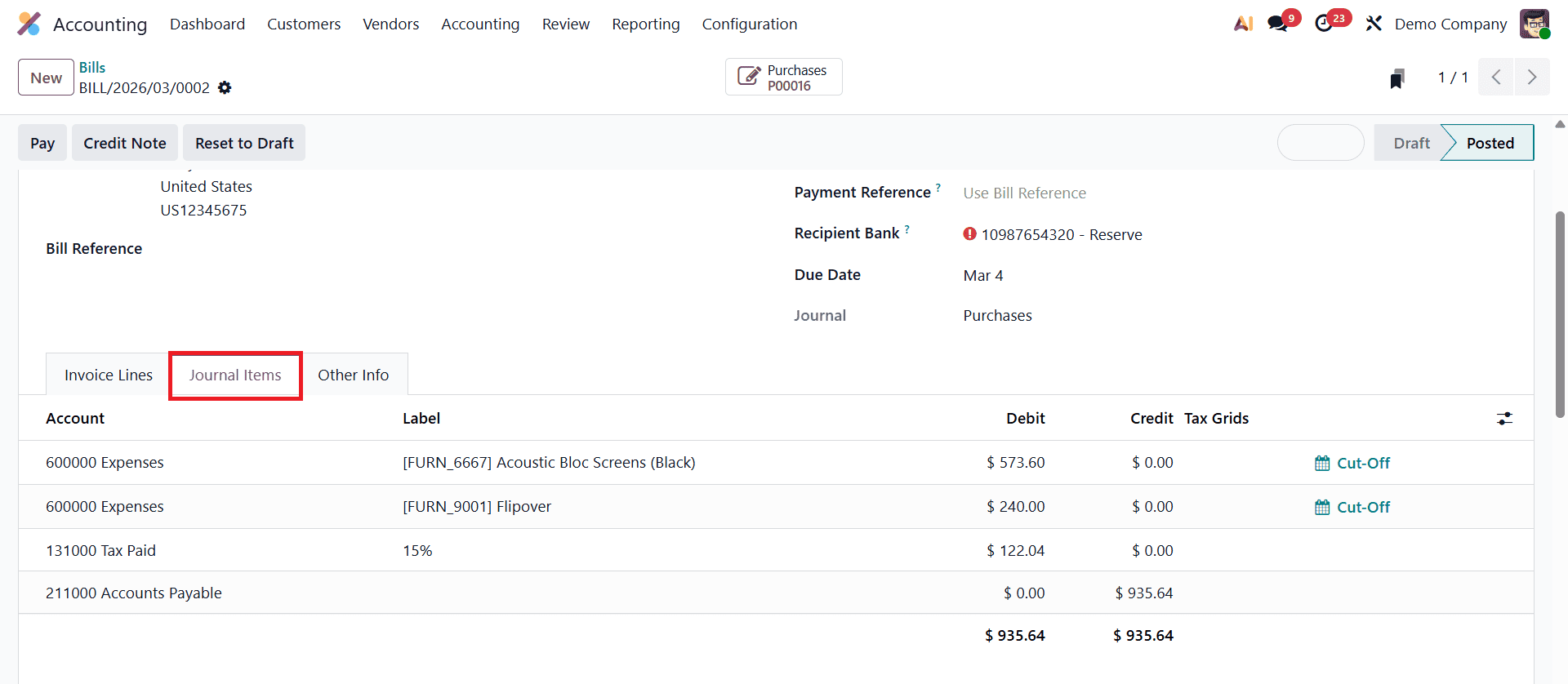
When a Vendor Bill is confirmed in Odoo 19 Accounting, the system automatically generates the corresponding journal entries that are recorded in the general ledger. These entries follow the double-entry accounting principle. The expense or purchase account is debited to record the cost of the goods or services received, while the Accounts Payable account is credited to show the liability owed to the supplier. If taxes are applied, Odoo also creates additional ledger postings for the relevant tax accounts. Once the bill is posted, these entries appear in the Journal Items tab of the bill and are reflected in the company’s ledger, ensuring accurate financial records and easier tracking of supplier liabilities.
Odoo 19 Accounting offers a robust and streamlined approach to recording and managing supplier bills, combining automation, accuracy, and flexibility within a single platform. From creating vendor bills manually or through document uploads to leveraging auto-complete features, customizable views, and advanced filtering options, Odoo simplifies every stage of the payable workflow. The structured bill form, detailed tabs, and intelligent accounting entries ensure transparency and compliance, while features such as fiscal positions, payment methods, and auto-posting enhance control and efficiency. By effectively utilizing these tools, businesses can maintain accurate payable records, improve cash flow management, and strengthen overall financial governance using Odoo 19 Accounting.
To read more about How to Use and Customize Accounting Reports in Odoo 19 Accounting, refer to our blog How to Use and Customize Accounting Reports in Odoo 19 Accounting.