Odoo 19's reputation as a comprehensive business management system is further cemented by the robust reporting tools offered by its Accounting module. These accounting reports are essential for keeping an eye on financial health, ensuring compliance, and supporting informed decision-making. From straightforward balance sheets and profit and loss statements to complex analytical reports and tax filings, Odoo 19 provides real-time, flexible insights for businesses of all sizes.
The latest version provides improved user interfaces, faster report generation, and deeper interaction with other modules, including inventory, sales, and purchases. These advancements simplify financial processes and allow businesses to delve deeper into transactional data with greater accuracy. This paper examines the structure, key features, and possible uses of Odoo 19's basic accounting reports for operational effectiveness and strategic financial planning.
Accounting Reports
You may customize your accounting reports with a new feature in Odoo 19, making them more comprehensible and educational. By choosing the Accounting Reports option from the Accounting module's Configuration menu, you can modify your company's accounting reports to meet your needs. You can create reports with this platform that are tailored to your needs. By choosing the appropriate choice from the provided list, you can even modify the settings of reports that are already in place, as shown below.
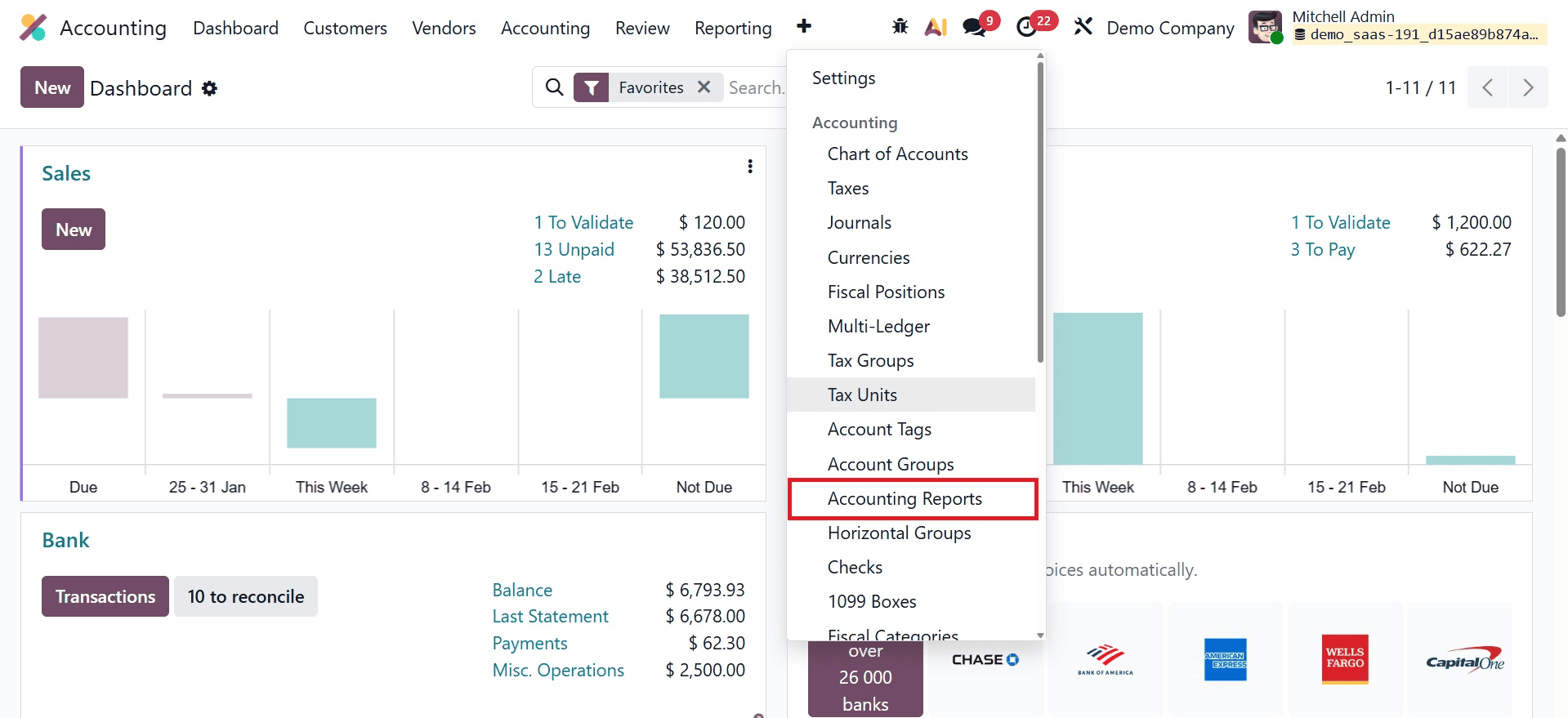
Let's use an example to illustrate this functionality. In this part, we will customize the aged receivables report. You can choose the Aged Receivable for this purpose from the list.
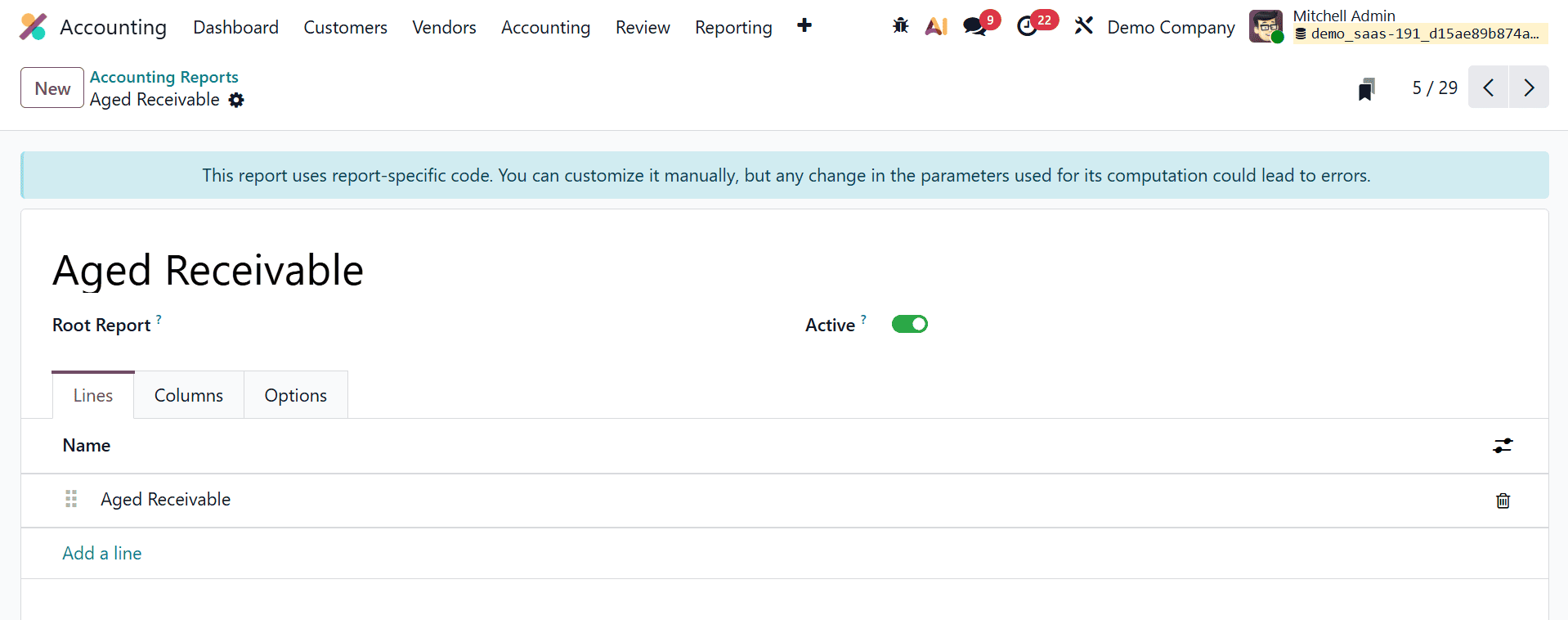
This is where the report's title will show up. The root report you choose in the Root Report box will have the current report as a variable. The Add a Line button under the Lines tab allows you to add new report lines. A pop-up box will show up to configure the new report line's details.
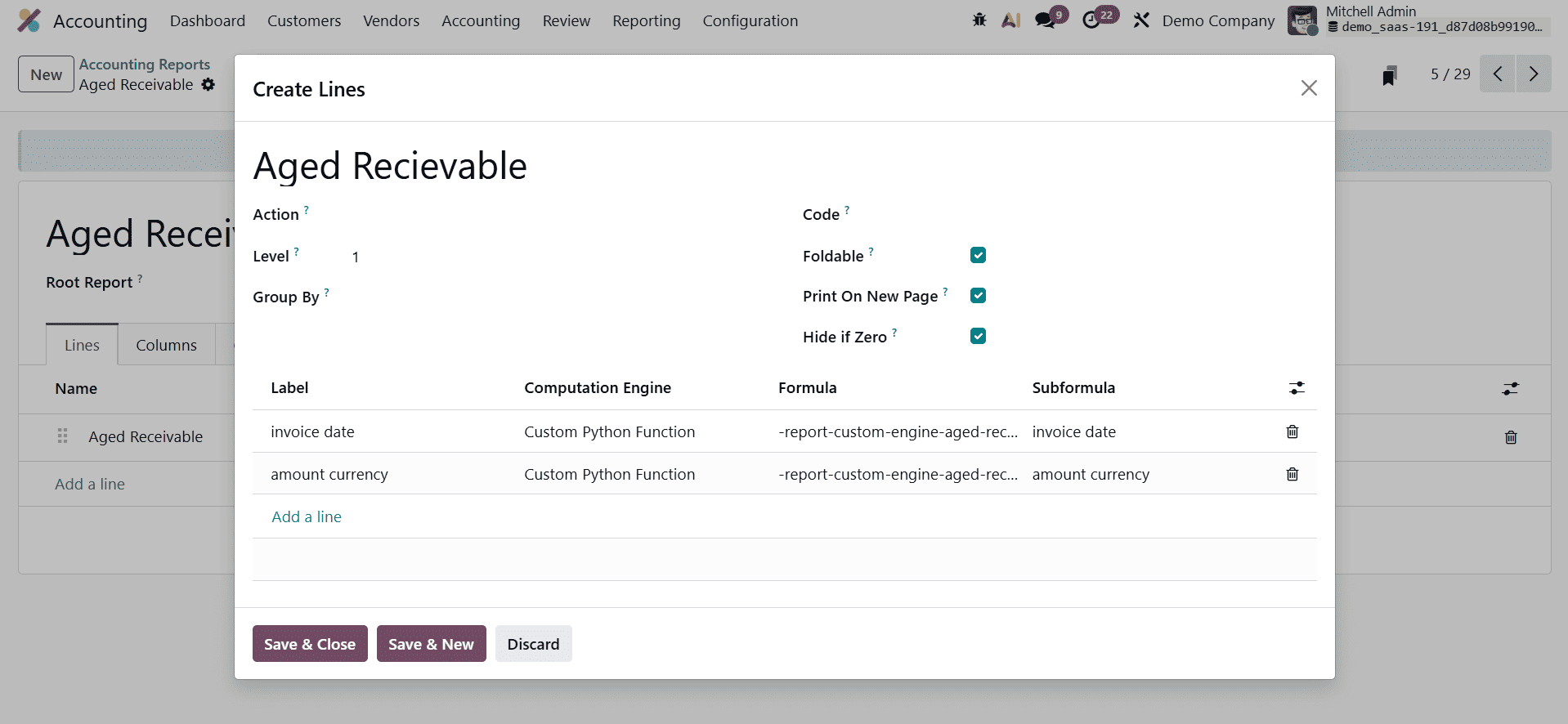
We are adding a new report line to our financial report called Aged Receivable. You can specify the partner ID for this reporting line in the Partner Line. If the keys are entered in the Group By field, a different list of fields will show up in the report line. Use the Action box to make the report line a link. The Level field will display the hierarchical level of this report line. In the Code section, you can give this line a special identification. When the Foldable field is chosen, a button to fold this line will show up on the report. Pressing the Print on New Page button will start printing on a new page.
When all of Odoo's columns are zero, a line will be automatically hidden if the Zero functionality is enabled. The Label, Formula, Subformula, and Computation Engine can all be defined using the Add a Line button. As seen below, you can see a newly produced line in the Aged Receivable report.
Now let's update the report with a new column. You may add new columns to the Aged Receivable report by clicking the Add a Line option on the Column page.
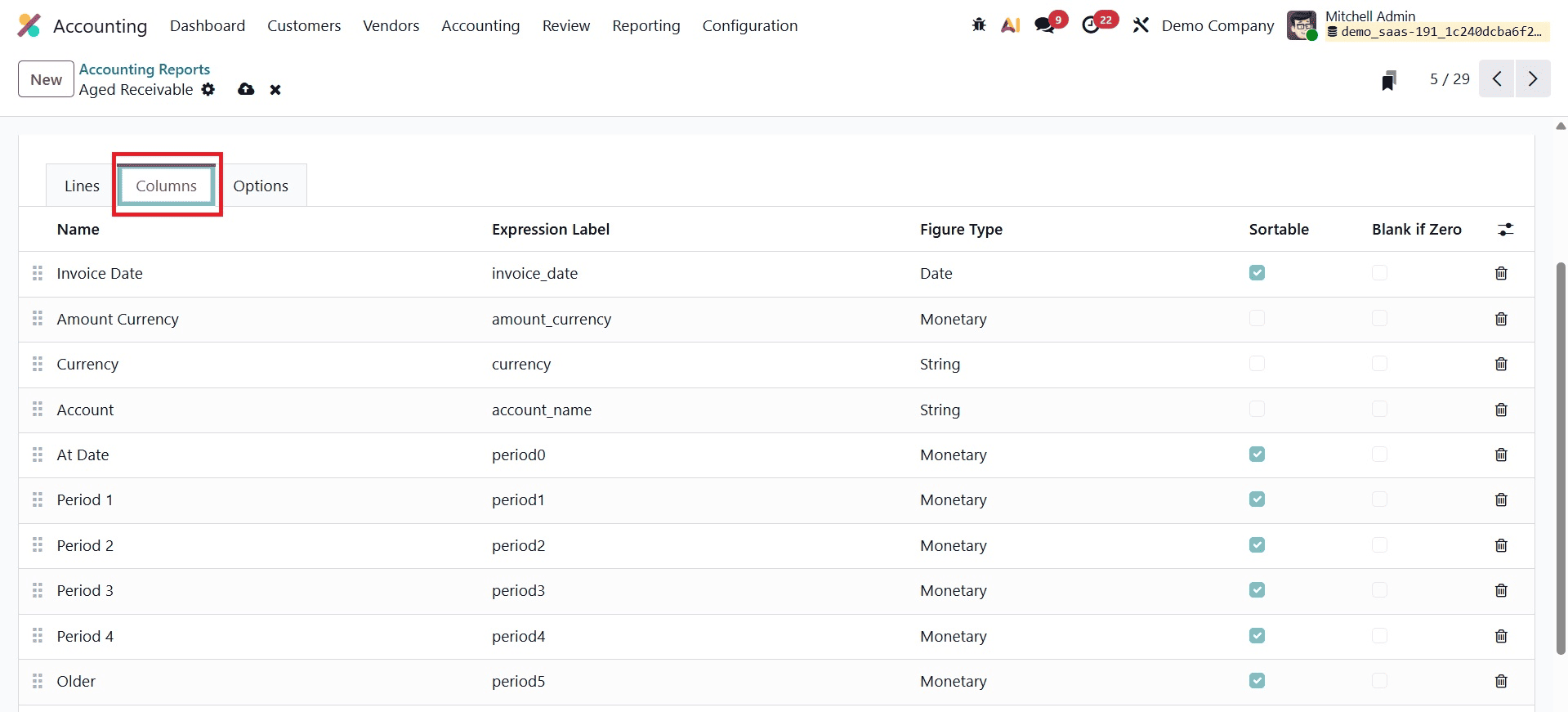
We are now including the Currency column in our report. In the relevant fields, you can mention the Name, Express Label, and Figure Type. If necessary, you can turn on the Sortable and Blank if Zero fields.
You can further modify the report using the wide range of customization options available on the options tab.
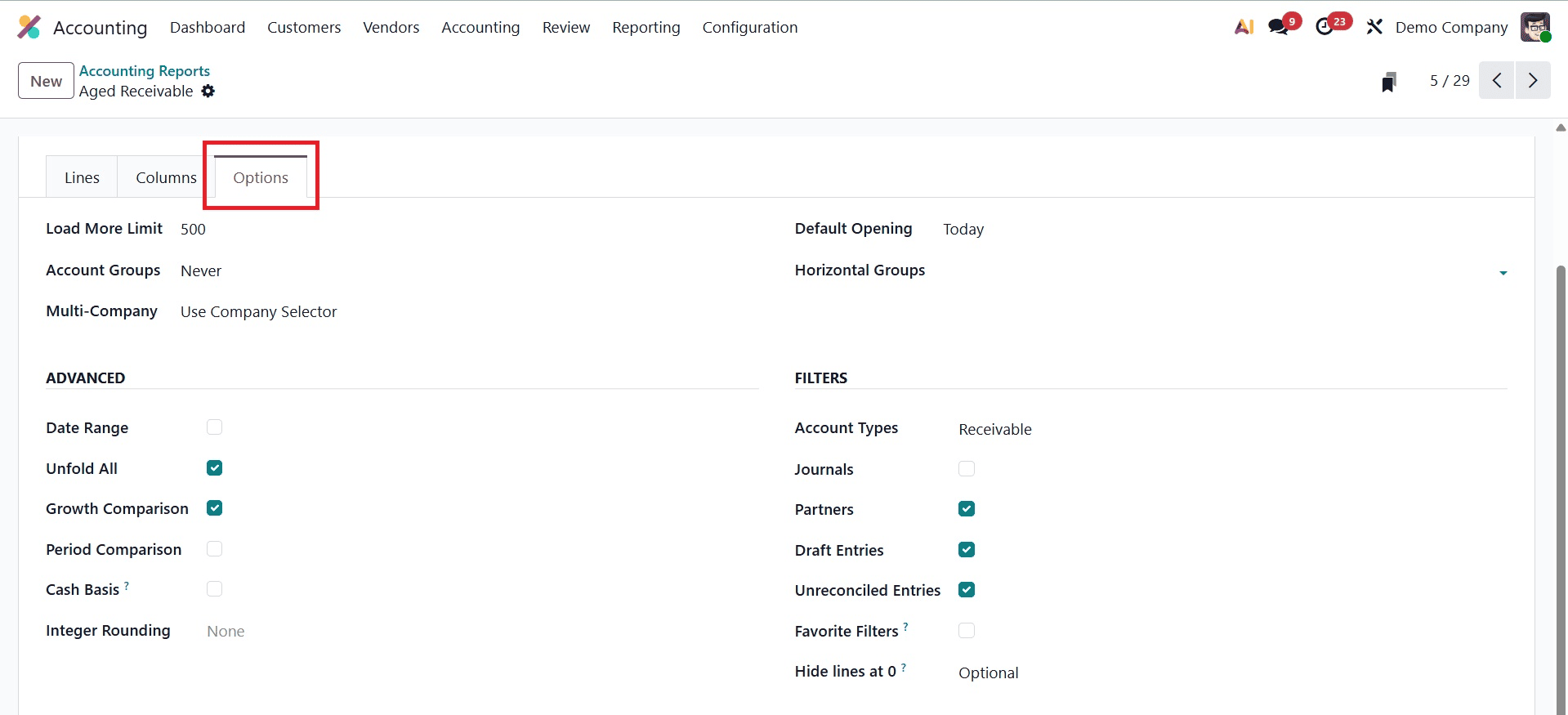
The Load More Limit box allows you to modify the limit value. The Account Groups feature has three options: Enabled by Default, Always, and Optional. The Use Company Selector or Use Tax Unit can be used to modify the Multi-Company filter. If you wish to turn off the Multi-Company filter, set the field to Disabled. The Aged Receivable report for the selected time period can be displayed by default when viewing it in Odoo by entering a time period in the Default viewing area.
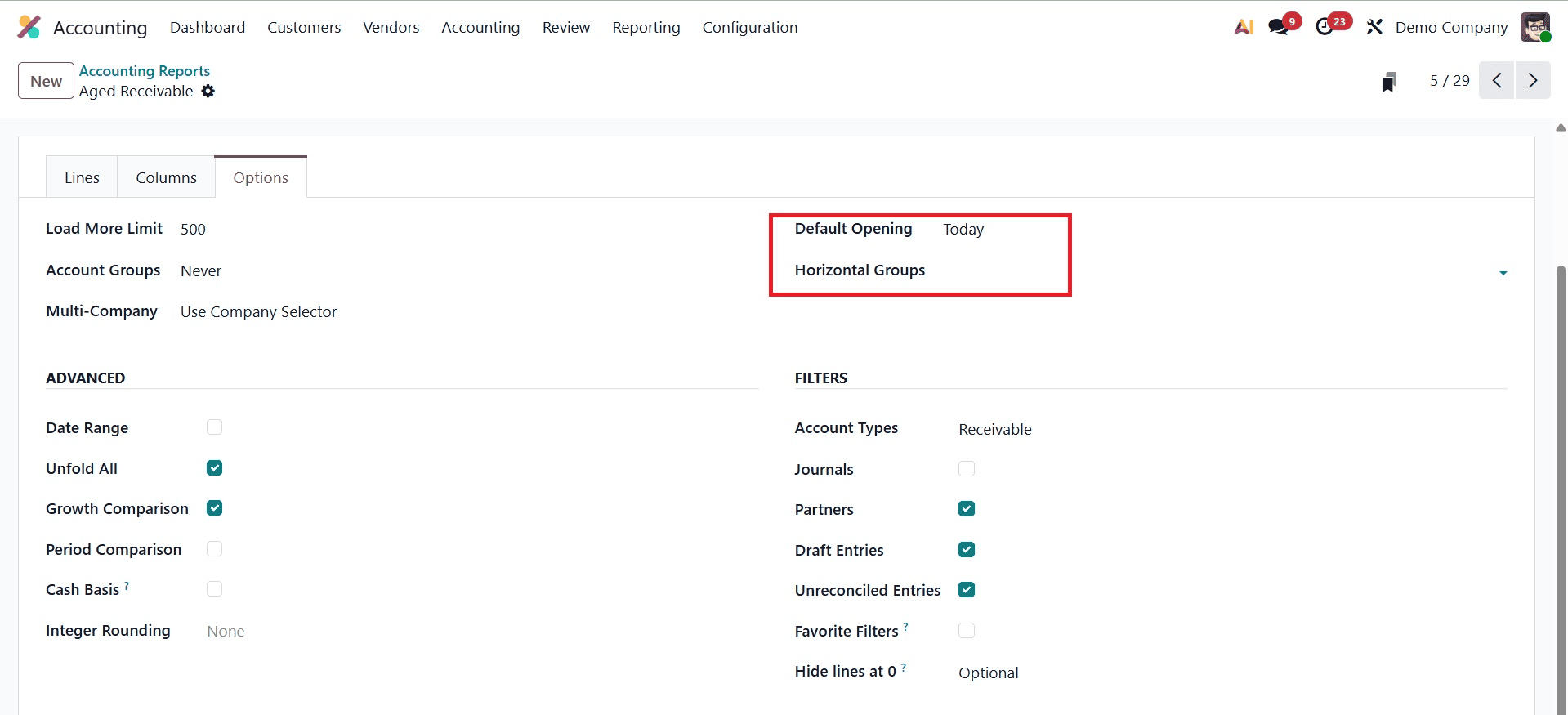
The available area can be expanded to include the necessary Horizontal Groups. Add a horizontal group, such as currency, for it, as seen in the illustration below.
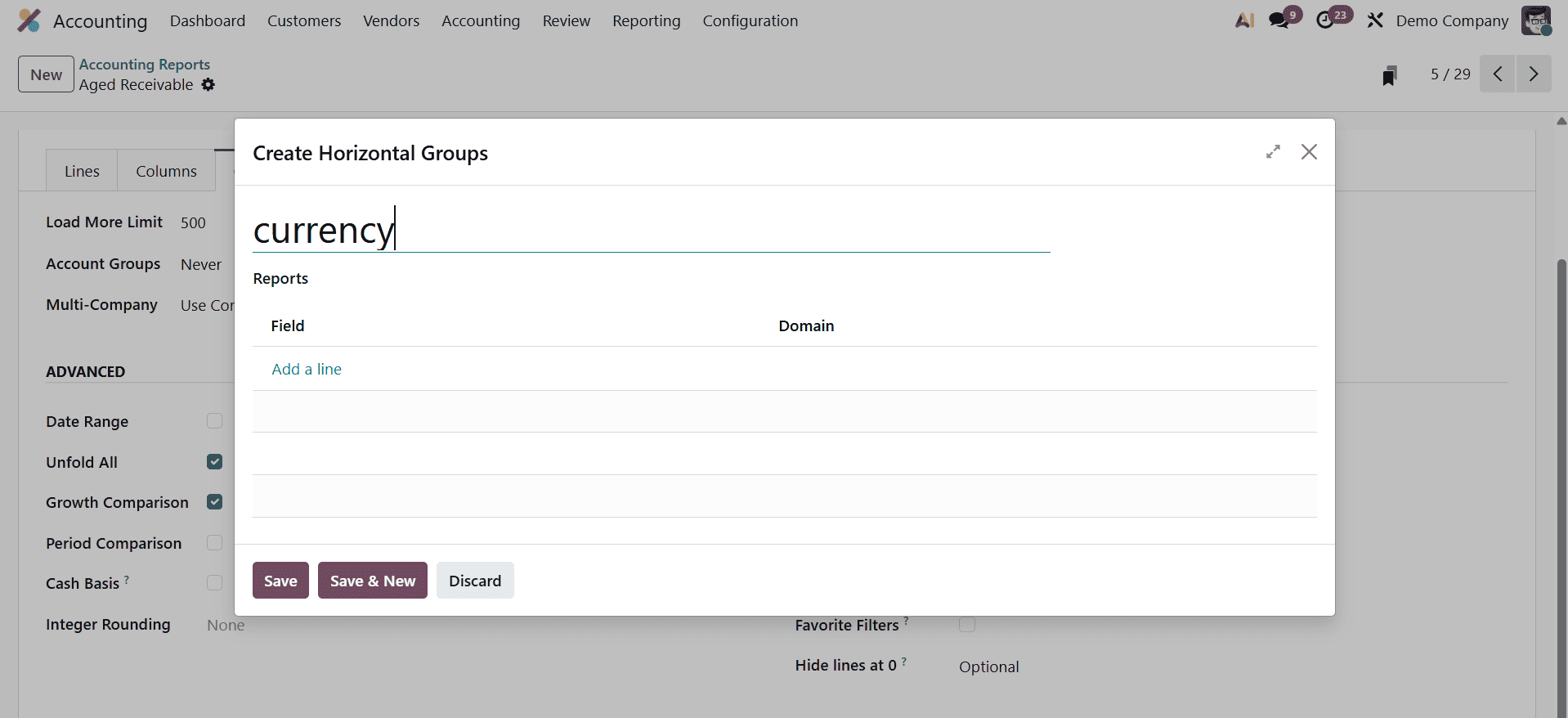
Here, use the add a line option to add the field. Here, the Currency Contains INR filter has been added.
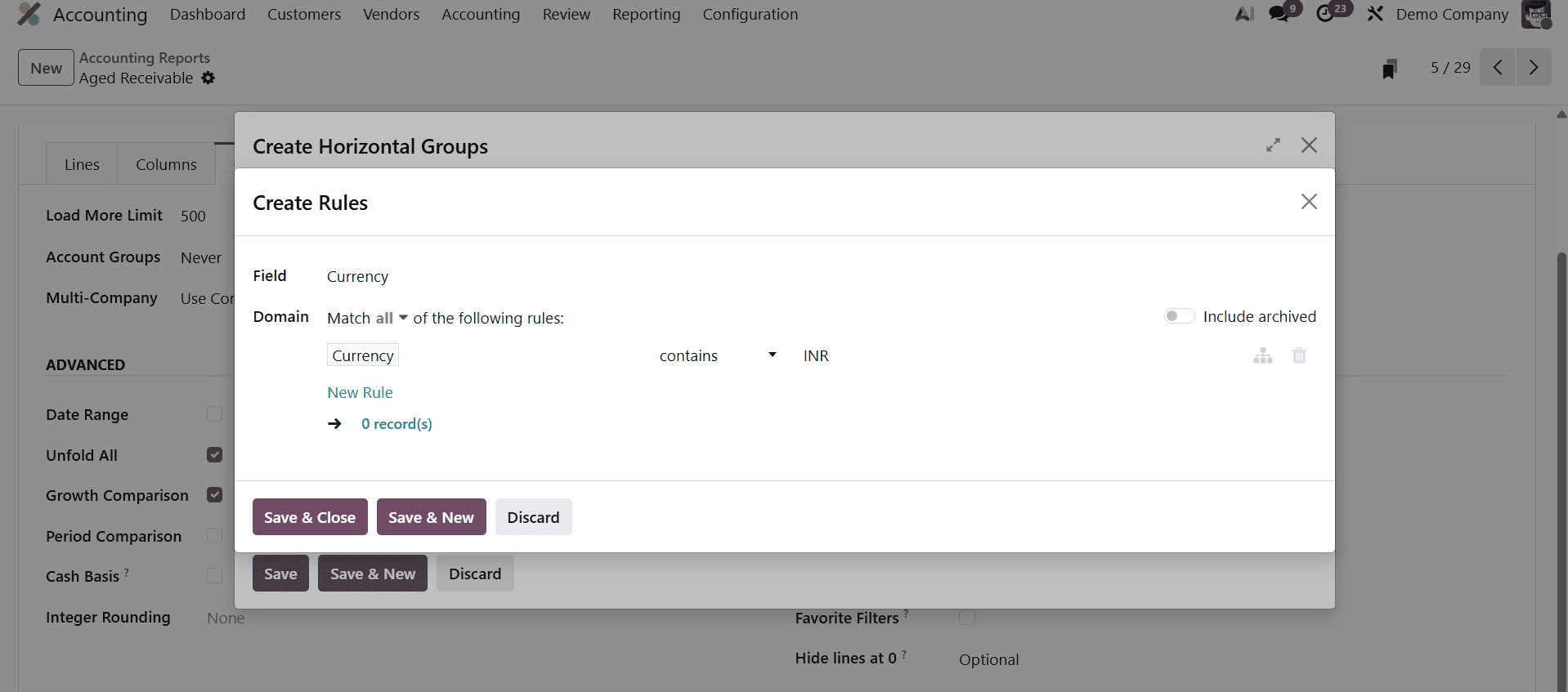
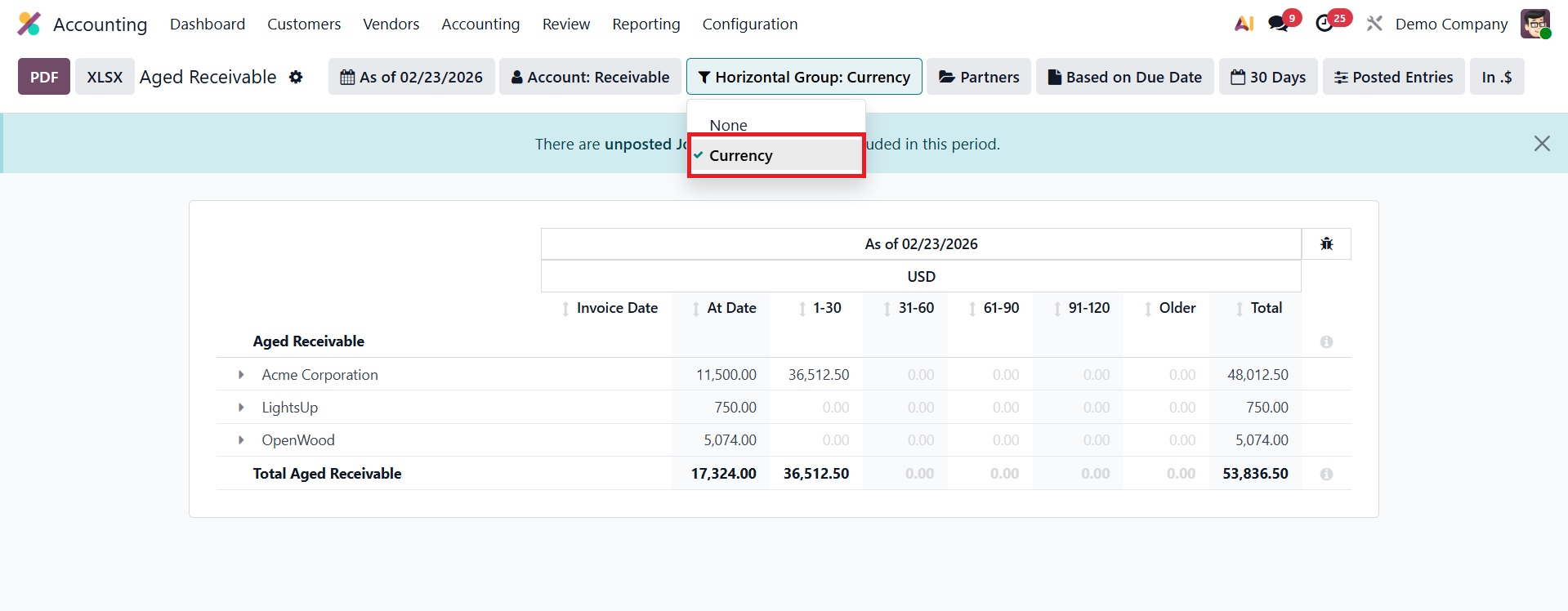
You can observe that the generated currency was added to the Aged Receivable under reporting after saving the data.
To add more sorting options to your reports, you can enable the Analytic Filter and Analytic Group By options.
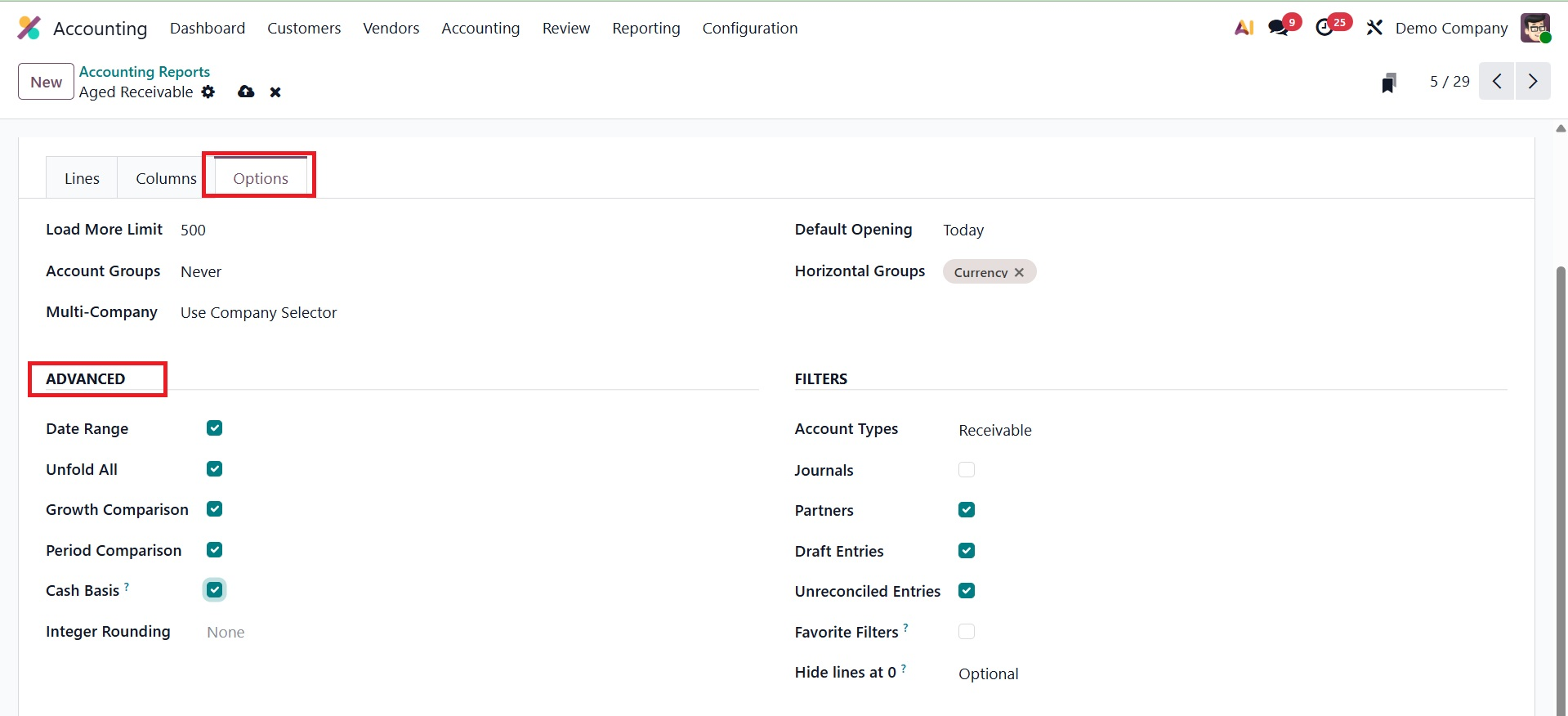
On the Aged Receivable report, you can activate the appropriate fields from the Advanced session to display the Date Range, Unfold All, Growth Comparison, and Period Comparison capabilities. The option to convert to cash basis mode is visible after the Cash Basis field is selected.
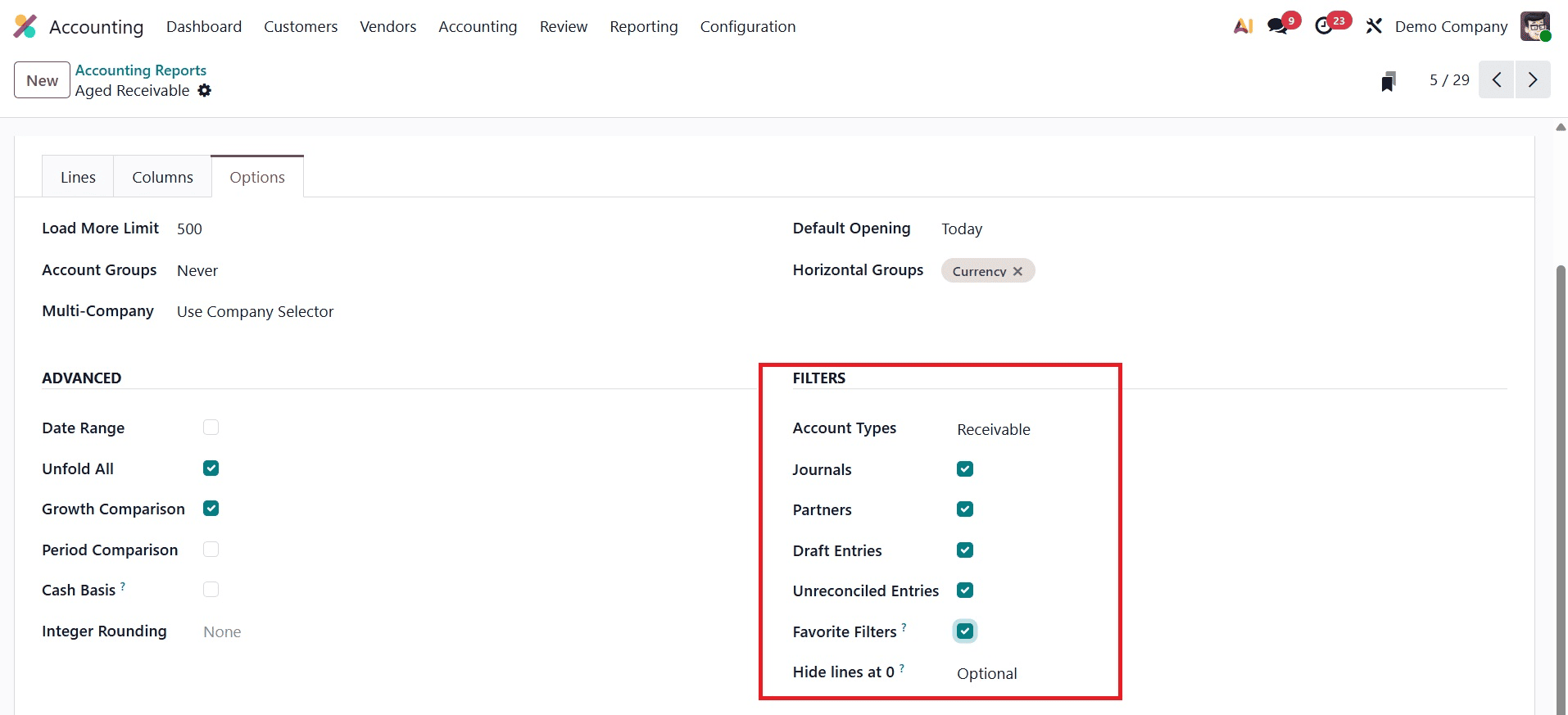
The Filters session's Account Types, Journals, Partners, Draught Entries, and Unreconciled Entries filters can be activated to add more filters to the report.
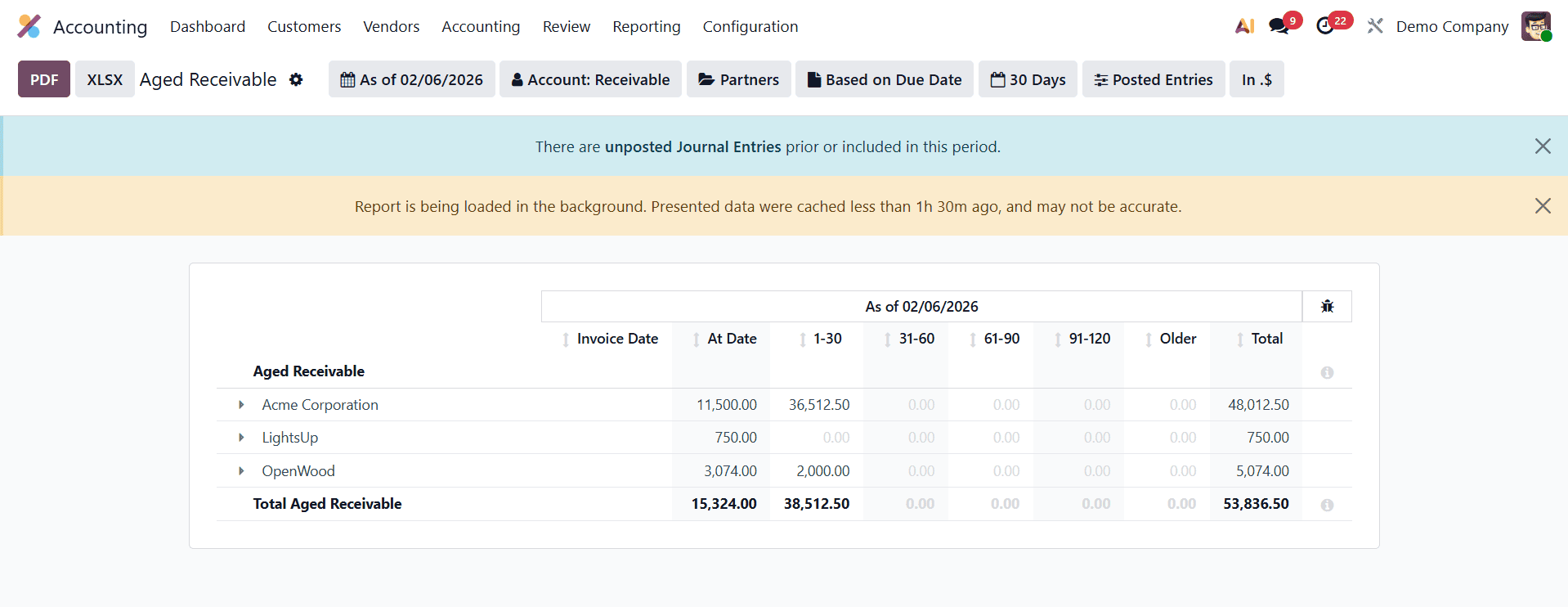
You can see similar changes on the reporting platform after making the necessary adjustments to the Aged Receivable report's settings, as seen in the image below.
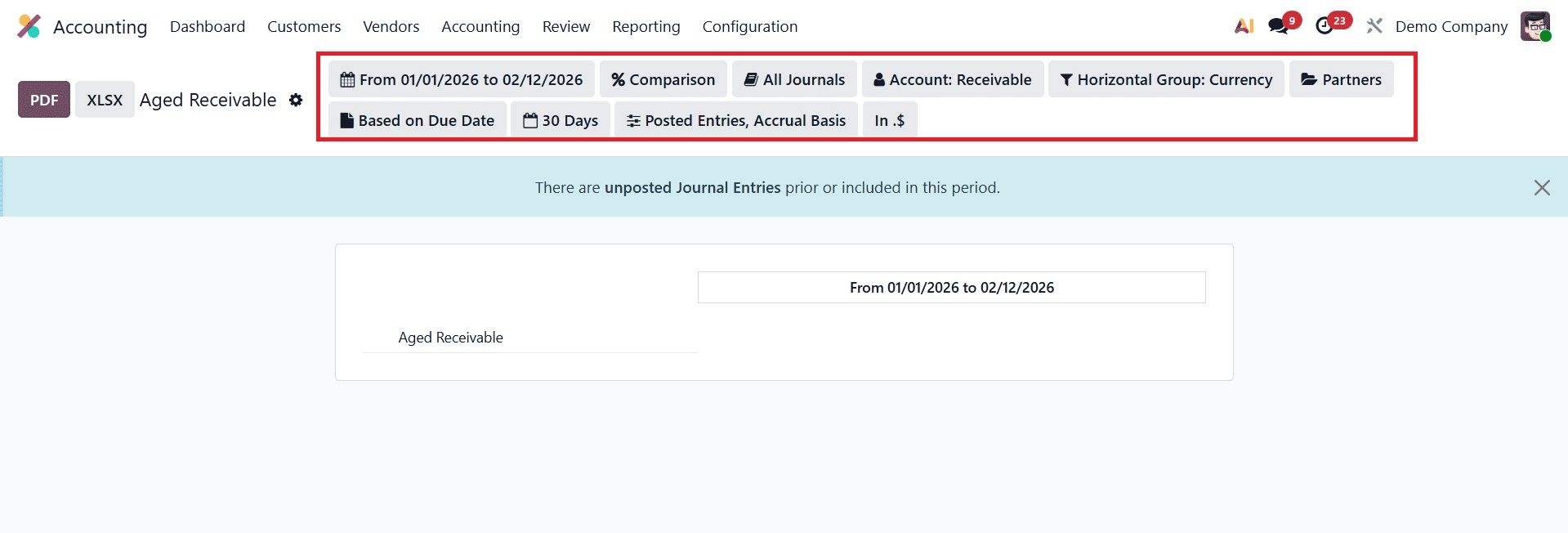
You may perform a comprehensive analysis of the financial activities that your company performs and modify your financial reports to make them more useful with the Accounting Reports tool.
To read more about An Overview of Odoo 18 Accounting Reports, refer to our blog An Overview of Odoo 18 Accounting Reports.