In Odoo 20, every project has a set of buttons at the top depending on the apps you have installed, like Tasks, Milestones, Updates, Sales Orders, Invoices, Purchase Orders, and more. Instead of switching between each app, these buttons take you straight to the linked records of the project.
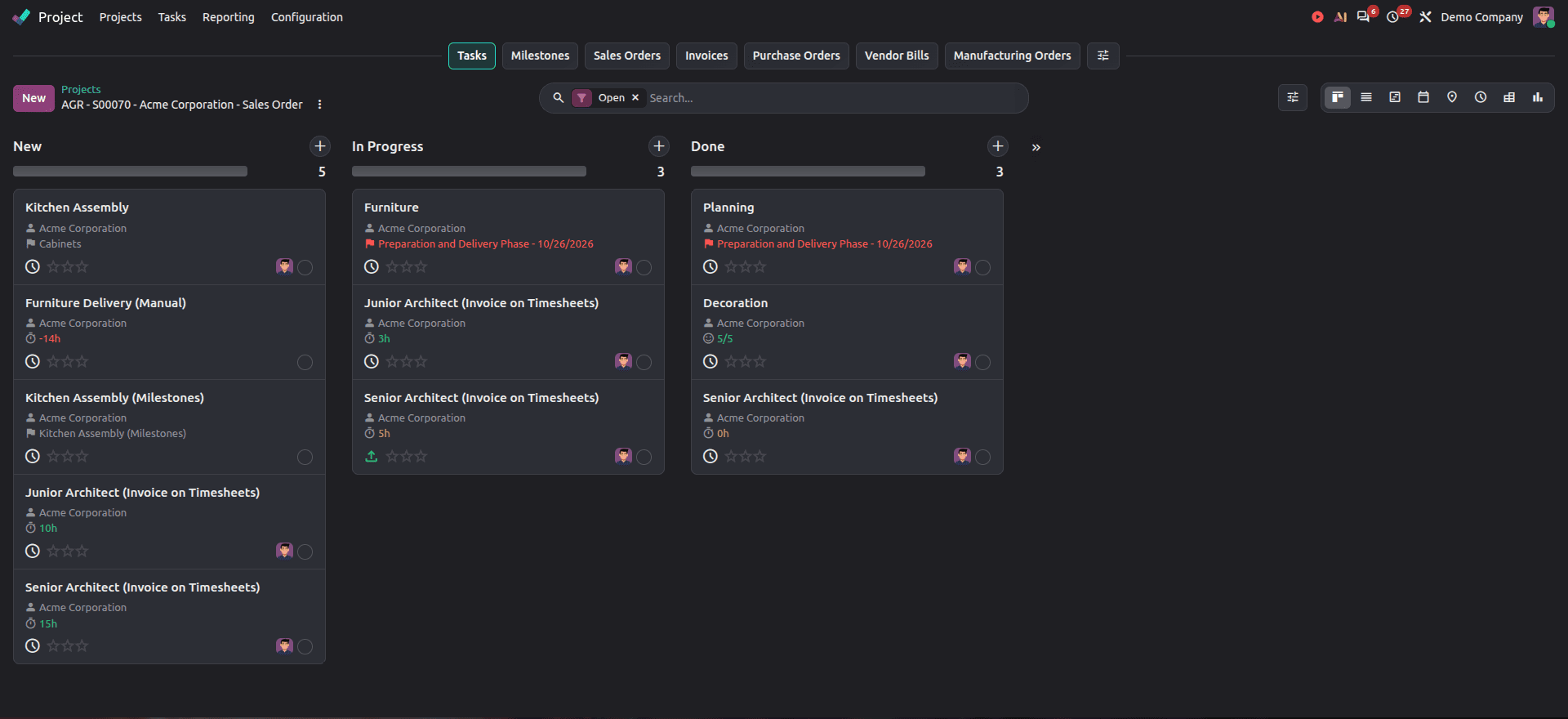
These buttons in the top bar are called Embedded Actions. In this blog, we will see how we can add or create a new embedded action in the project's top bar to see products purchased for a project.
Creating An Embedded Action
We first built an embedded action record in XML. The record joins the Project model to a Python function that provides the products. Your module should have project_purchase in its dependencies since the module associates purchase orders to projects.
<?xml version="1.0" encoding="utf-8"?>
<odoo>
<record id="project_embedded_action_purchased_products" model="ir.embedded.actions">
<field name="name">Purchased Products</field>
<field name="parent_res_model">project.project</field>
<field name="sequence">80</field>
<field name="parent_action_id" ref="project.act_project_project_2_project_task_all"/>
<field name="python_method">action_get_purchased_products</field>
<field name="domain">[('purchase_orders_count', '>', 0)]</field>
<field name="groups_ids" eval="[(4, ref('purchase.group_purchase_user'))]"/>
<field name="context">{"from_embedded_action": true}</field>
</record>
<record id="project_embedded_action_purchased_products_dashboard" model="ir.embedded.actions">
<field name="name">Purchased Products</field>
<field name="parent_res_model">project.project</field>
<field name="sequence">80</field>
<field name="parent_action_id" ref="project.project_update_all_action"/>
<field name="python_method">action_get_purchased_products</field>
<field name="domain">[('purchase_orders_count', '>', 0)]</field>
<field name="groups_ids" eval="[(4, ref('purchase.group_purchase_user'))]"/>
<field name="context">{"from_embedded_action": true}</field>
</record>
</odoo>
We create two records for this because the project has two pages with their own top bar: Tasks and Updates. If we don't create it on both pages, it will be missing on one of the pages.
- name: Name shown in the top bar of projects for users.
- parent_res_model: The model on which the embedded action is set up. Here, it is the project model.
- sequence: Position or order of the button action in the top bar.
- parent_action_id: Window action that links and shows the embedded action to the project's main action view. The record uses the Tasks action, and the second one uses the Updates action.
- python_method or action_id: Name of the method that returns the action. Only one can be filled.
- default_view_mode: Optional. This is used to set up the view mode. If not, the default view of the action is used.
- domain: Controls the visibility of the embedded action.
- groups_ids: Only users in this group will be able to see the action buttons.
- context: We can pass the params to the backend method to differentiate embedded action calls from normal actions. It helps control behaviour such as view switching or UI flow.
Define Python Method
Now, we extend the project model to call the button action method. The action collects products from purchase order lines of a project and returns a window to show them.
from odoo import models

class ProjectProject(models.Model):
    _inherit = 'project.project'
    def action_get_purchased_products(self):
        self.ensure_one()
        purchase_lines = self.env['purchase.order.line'].search([
            '|',
                ('analytic_distribution', 'in', self.account_id.ids),
                ('order_id.project_id', '=', self.id),
        ])
        products = purchase_lines.product_id
        action = {
            'type': 'ir.actions.act_window',
            'name': self.env._('Purchased Products'),
            'res_model': 'product.product',
            'view_mode': 'kanban,list,form',
            'views': [(False, 'kanban'), (False, 'list'), (False, 'form')],
            'domain': [('id', 'in', products.ids)],
        }
        if len(products) == 1 and not self.env.context.get('from_embedded_action'):
            action.update({
                'view_mode': 'form',
                'views': [(False, 'form')],
                'res_id': products.id,
            })
        return action
A project may be related to the purchase order by either using the Project field in the purchase order itself or by using the analytic account field in the order lines.
If there is just one product, then it displays the product directly in the form view. An exception to this is if the user takes an action from the top bar. In this case, we retain the list so that the top bar remains visible for access to the other buttons.
Make sure the name in python_method matches the method correctly. If it doesn’t, Odoo won't throw an error but will just hide the buttons.
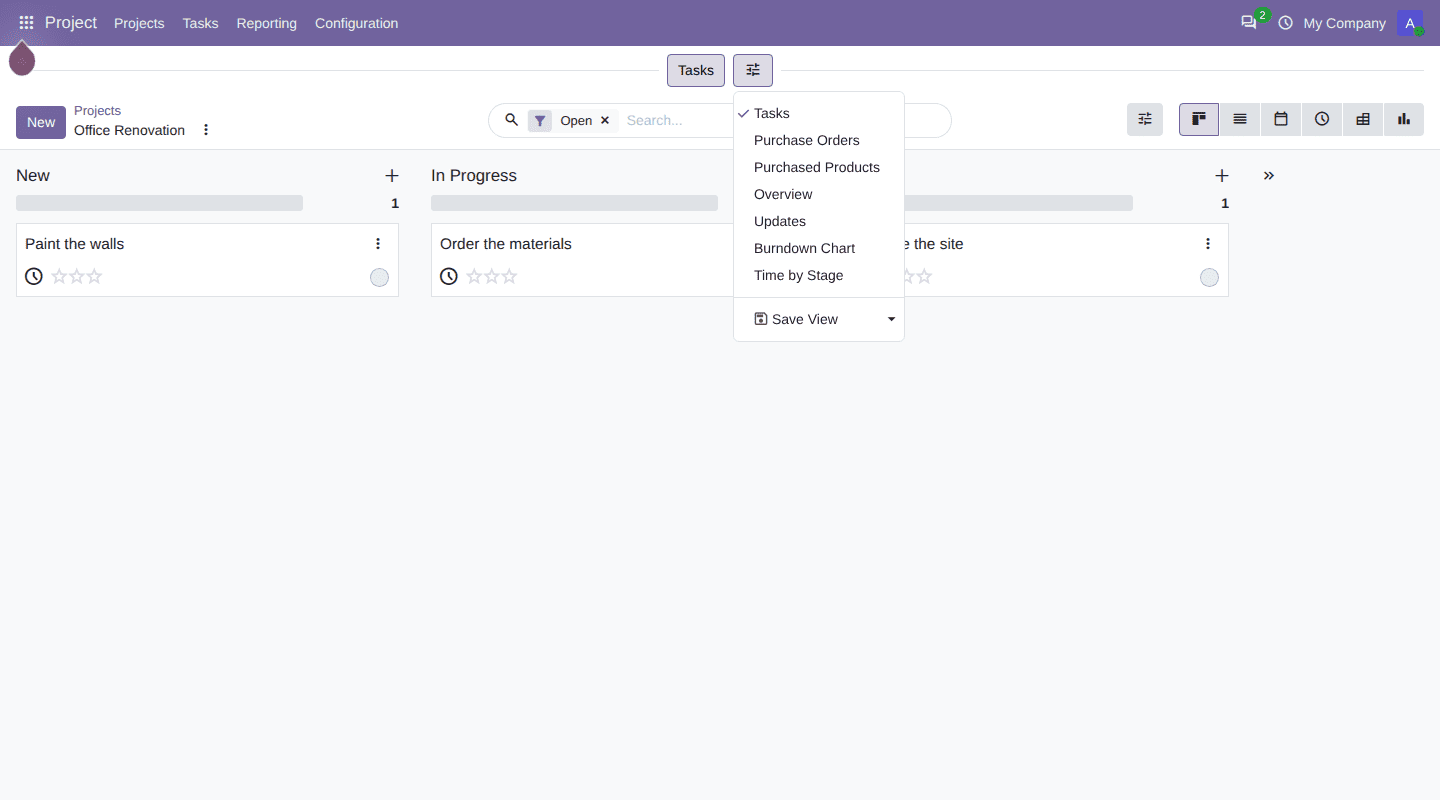
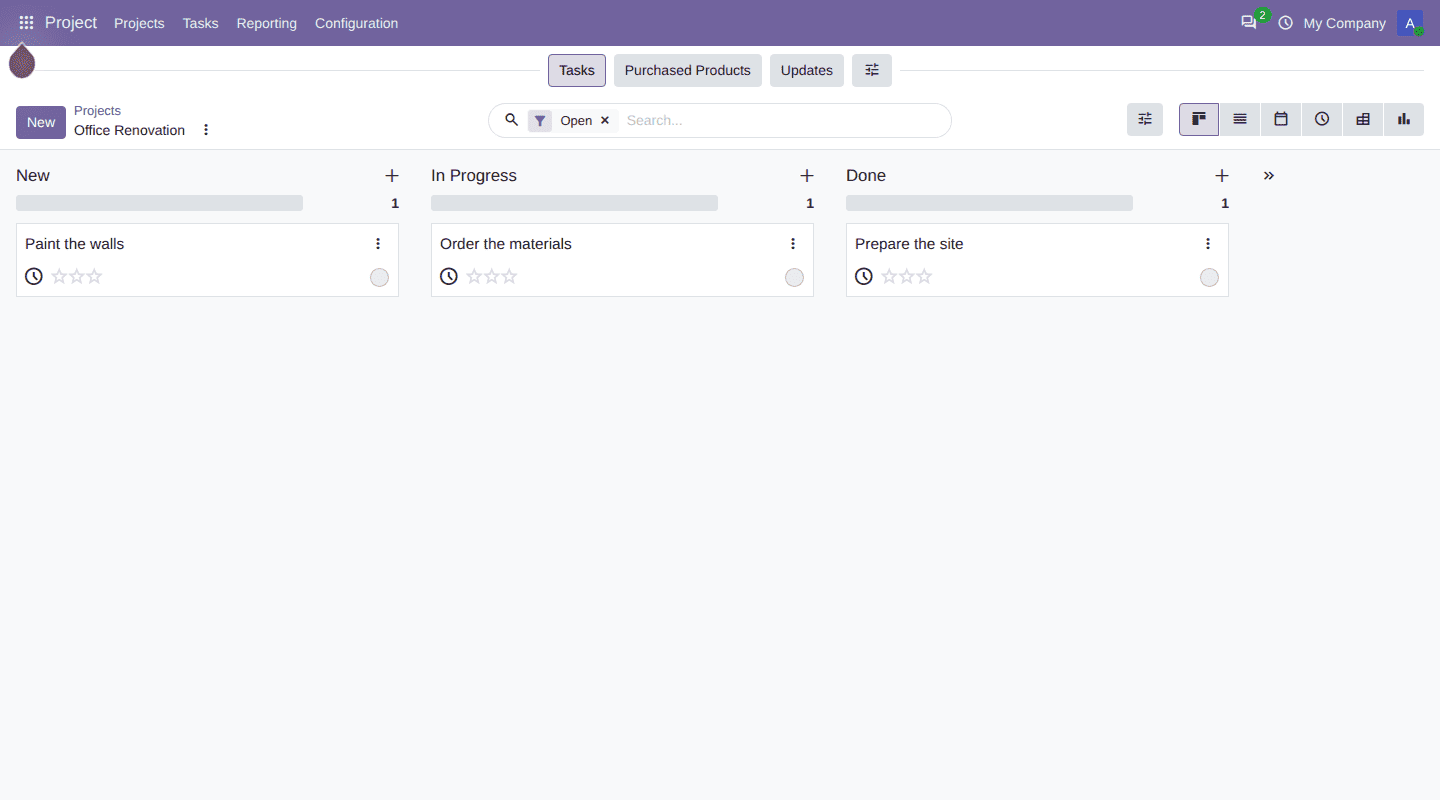
The top bar is different for every project because of the domain. Projects without purchase orders do not get the button, so the bar shows only what is useful for that project.
To read more about How to Create a New Embed Action in Odoo 19, refer to our blog How to Create a New Embed Action in Odoo 19.