Sooner or later, every Odoo project needs a button that just opens a link. Maybe it's the carrier's tracking page for a delivery, a help article for your users, or a file someone needs to download. You could hack it together with an HTML link in a view, but Odoo has a proper tool for the job: the URL action.
In Odoo, actions decide what happens when someone clicks a menu or a button. Window actions open views, server actions run code, and URL actions (ir.actions.act_url) open a web address. That address can be an outside website, a page inside Odoo, or a file.
In this post we'll build URL actions in XML and in Python, wire them up to menus, form buttons and wizards, and look at a few behaviours that catch people out.
So what is a URL action?
This is a record of the ir.actions.act_url model, which, when called, opens the URL that it stores. The only two fields that you have to care about are:
url describes the address to be opened, and it is mandatory. The second field is target, which indicates how the URL is opened; its default value is new, but it has three values to offer:
- new opens the link in a new browser tab, so your Odoo screen stays where it was.
- self opens the link in the current tab, replacing the Odoo page.
- download is meant for files. (It doesn't quite do what you'd expect. More on that later.)
Always include https:// in the URL
This one bites almost everyone once. If your URL doesn't start with http or /, Odoo assumes it's a path inside Odoo and quietly sticks a / on the front. So www.example.com becomes /www.example.com, and your user lands on a 404 page inside your own database.
The fix is simple: always write the full https://www.example.com for outside sites, and start internal paths with /, like /odoo/contacts.
What's actually happening: The web client (action_plugin.js) does a plain prefix check: url.startsWith("http") || url.startsWith("/"). Anything else gets a / added. That includes mailto: and tel: links, which means they break too. For those, use a normal <a href="mailto:..."> link in your view instead of a URL action.
A static URL action in XML
If the link never changes, just define it as a data record. This is perfect for things like documentation, your company website, or an outside help desk.
<!-- url_action_demo/views/url_actions.xml -->
<odoo>
    <record id="action_company_documentation" model="ir.actions.act_url">
        <field name="name">Official Documentation</field>
        <field name="url">https://www.odoo.com/documentation/20.0/</field>
        <field name="target">new</field>
    </record>
</odoo>
You might see older examples that also set a type field. You can skip it, because the model fills that in for you.
Putting it in a menu
<menuitem id="menu_company_documentation"
          name="Documentation"
          parent="base.menu_administration"
          action="action_company_documentation"
          sequence="50"/>
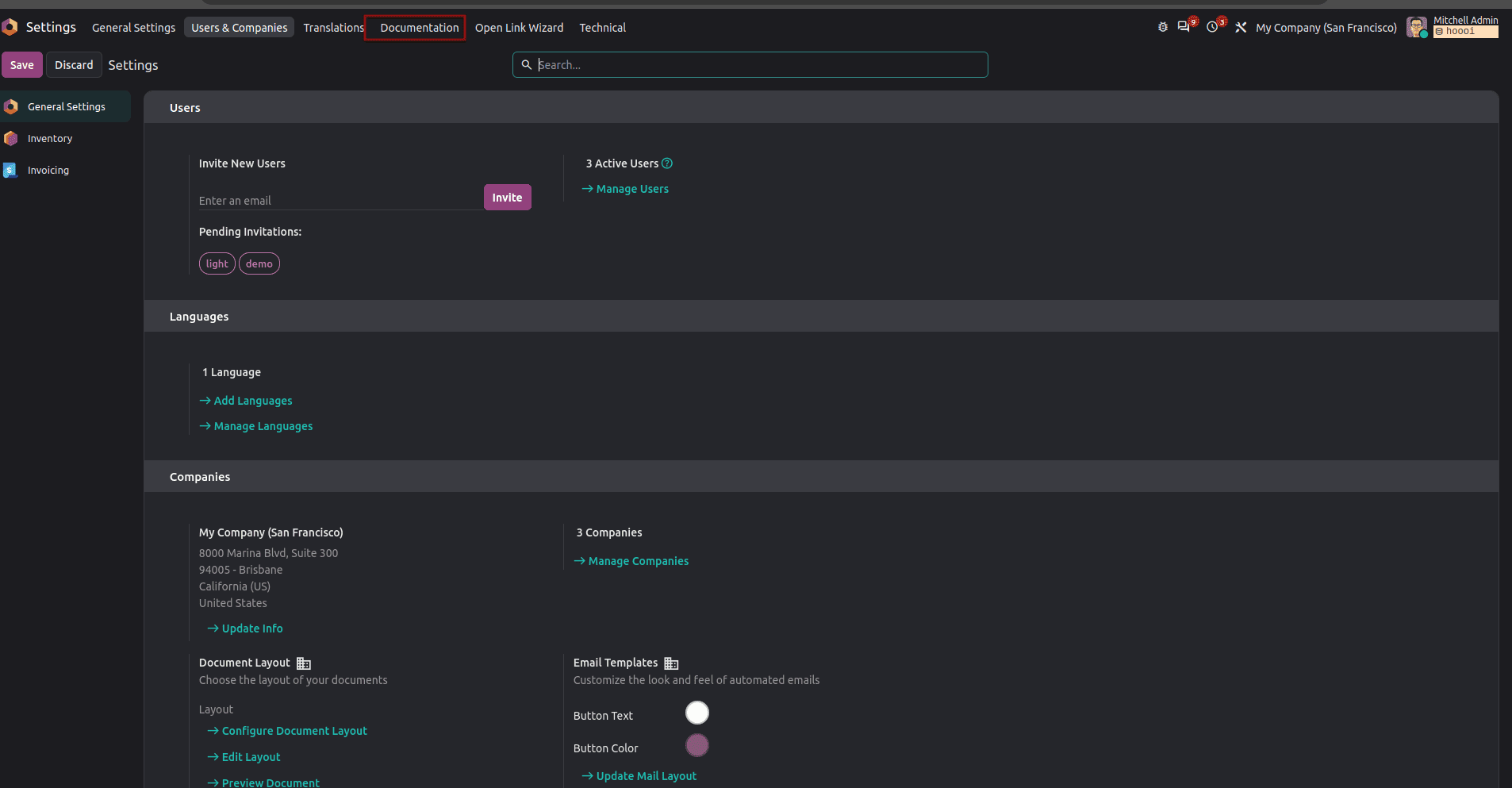
Click the menu, and the docs open in a new tab.
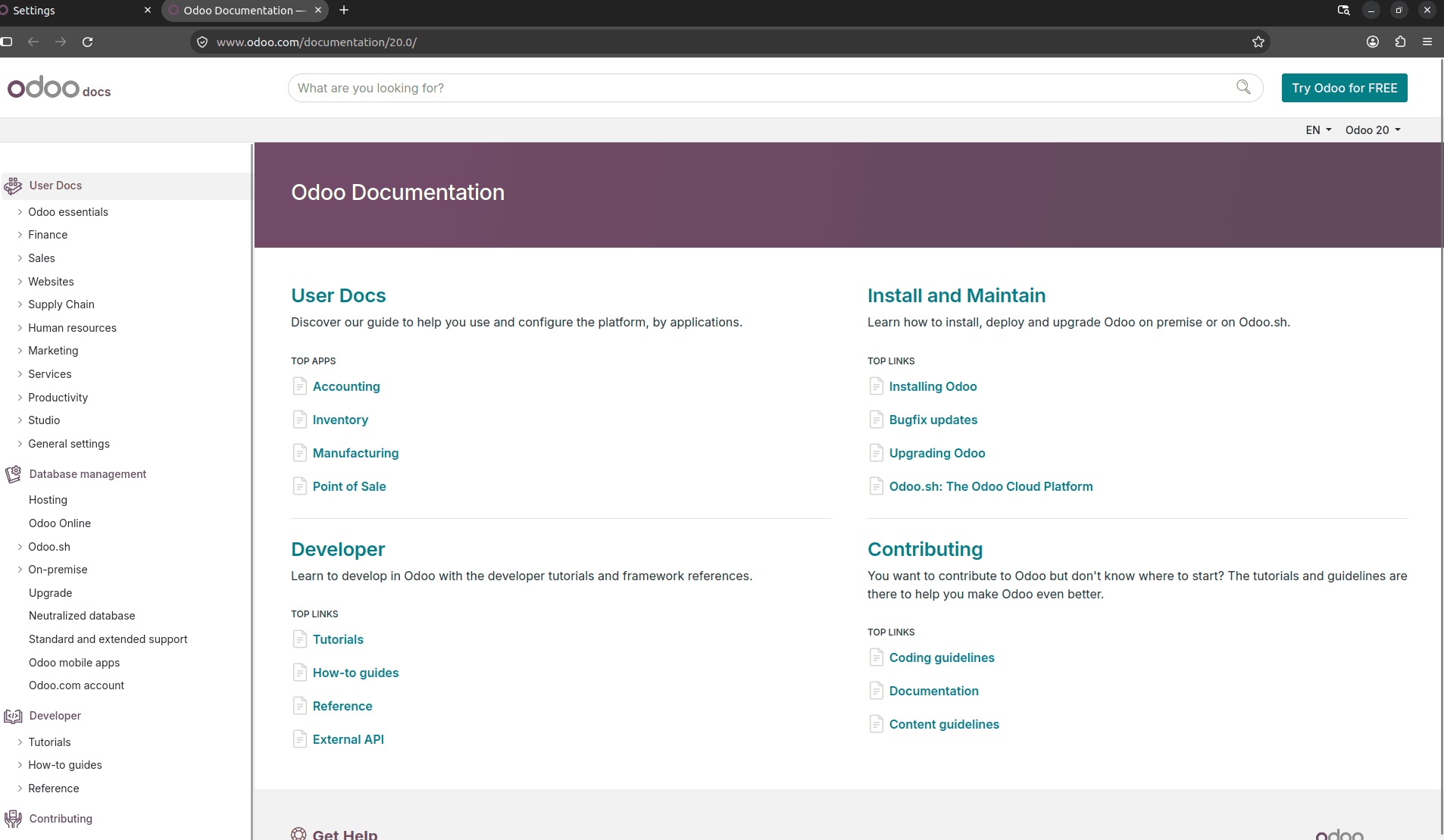
Opening a URL action from a form button
You can also fire a predefined URL action from a button on a form. Let's add one to the row of smart buttons at the top right of a contact.
<!-- url_action_demo/views/res_partner_views.xml -->
<odoo>
    <record id="view_partner_form_inherit_url_action" model="ir.ui.view">
        <field name="name">res.partner.form.inherit.url.action</field>
        <field name="model">res.partner</field>
        <field name="inherit_id" ref="base.view_partner_form"/>
        <field name="arch" type="xml">
            <xpath expr="//sheet//div[@name='button_box']" position="inside">
                <button name="%(url_action_demo.action_company_documentation)d"
                        type="action"
                        class="oe_stat_button"
                        icon="fa-book"
                        string="Knowledge Base"/>
            </xpath>
        </field>
    </record>
</odoo>
The odd-looking %(url_action_demo.action_company_documentation)d is how you point a button at an action record. Odoo swaps it for the action's database ID when the module installs. Just replace url_action_demo with your own module's name. The oe_stat_button class and the icon make it look like the other smart buttons in that row.
Now, a warning that cost me more time than I'd like to admit: check your quotes. The 'button_box' in XPath has to use plain straight quotes. Blog platforms and word processors love to turn them into curly ones (’), and if you copy that into your module, the XPath is invalid, and the module won't install. If you ever get a mysterious view error after pasting code from a web page, this is the first thing to check.
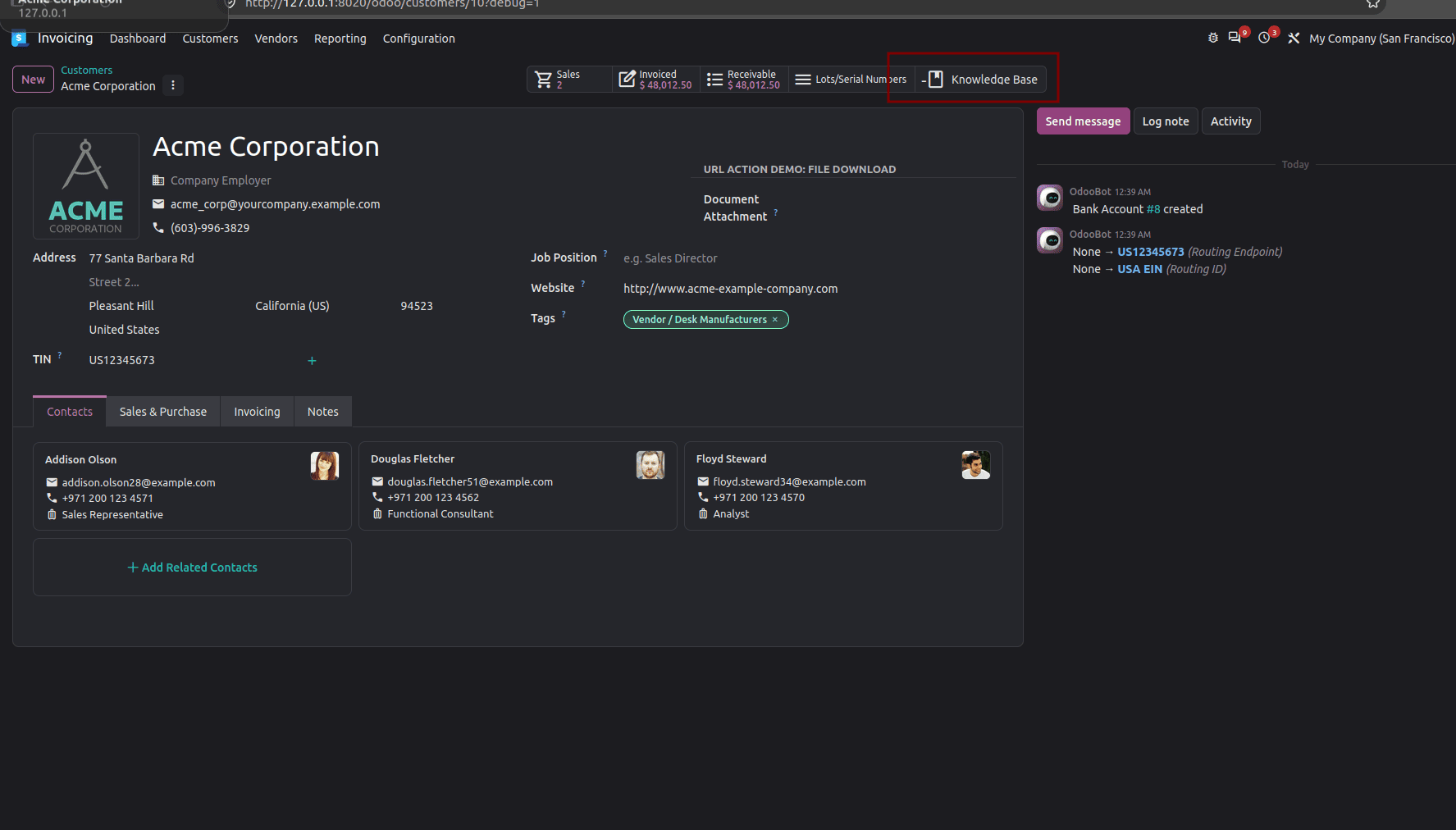
One more thing: the contact form doesn't have a <header> bar, which is why we're using the button box. If you want a button in a header, you'll need a form that has one, like the delivery order in the next section.
Building the URL in Python
Static links are great until the URL needs to change with the record. Shipment tracking is the classic example: every parcel has its own tracking number, and it needs to go into the URL.
Check what Odoo already has first
Before adding a new field, it’s worth a quick look at what’s already there. The stock_delivery module already gives delivery orders a Tracking Reference field (carrier_tracking_ref) and shows it on the form. It also adds a Tracking smart button that calls open_website_url(). That button opens the carrier’s tracking page, but only when the delivery method has a carrier integration that can build a tracking URL. Without one, the method raises an error instead of opening anything.
So, we won’t add our own tracking field. A second “Tracking Reference” would confuse users, and Odoo would log a warning about two fields with the same label. Instead, we’ll reuse the existing field and add a Track Order button that covers carriers without an integration, using a tracking link we control.
# url_action_demo/models/stock_picking.py
from urllib.parse import quote_plus
from odoo import _, models
from odoo.exceptions import UserError
class StockPicking(models.Model):
    _inherit = "stock.picking"
    def action_track_shipment(self):
        self.ensure_one()
        if not self.carrier_tracking_ref:
            raise UserError(_("Please set a tracking reference before tracking this shipment."))
        # Encode anything a user typed, so a stray space or "&" can't break the
        # link or sneak extra parameters into it.
        safe_ref = quote_plus(self.carrier_tracking_ref.strip())
        return {
            "type": "ir.actions.act_url",
            "url": f"https://www.trackingcarrier.com/track?num={safe_ref}",
            "target": "new",
        }
Don't forget to import the file in models/__init__.py, and import models in your module's top-level __init__.py.
Now, add the button to the delivery form's header:
<!-- url_action_demo/views/stock_picking_views.xml -->
<odoo>
    <record id="view_picking_form_inherit_track" model="ir.ui.view">
        <field name="name">stock.picking.form.inherit.track</field>
        <field name="model">stock.picking</field>
        <field name="inherit_id" ref="stock.view_picking_form"/>
        <field name="arch" type="xml">
            <xpath expr="//header" position="inside">
                <button name="action_track_shipment"
                        type="object"
                        string="Track Order"
                        class="btn-secondary"
                        invisible="not carrier_tracking_ref"/>
            </xpath>
        </field>
    </record>
</odoo>
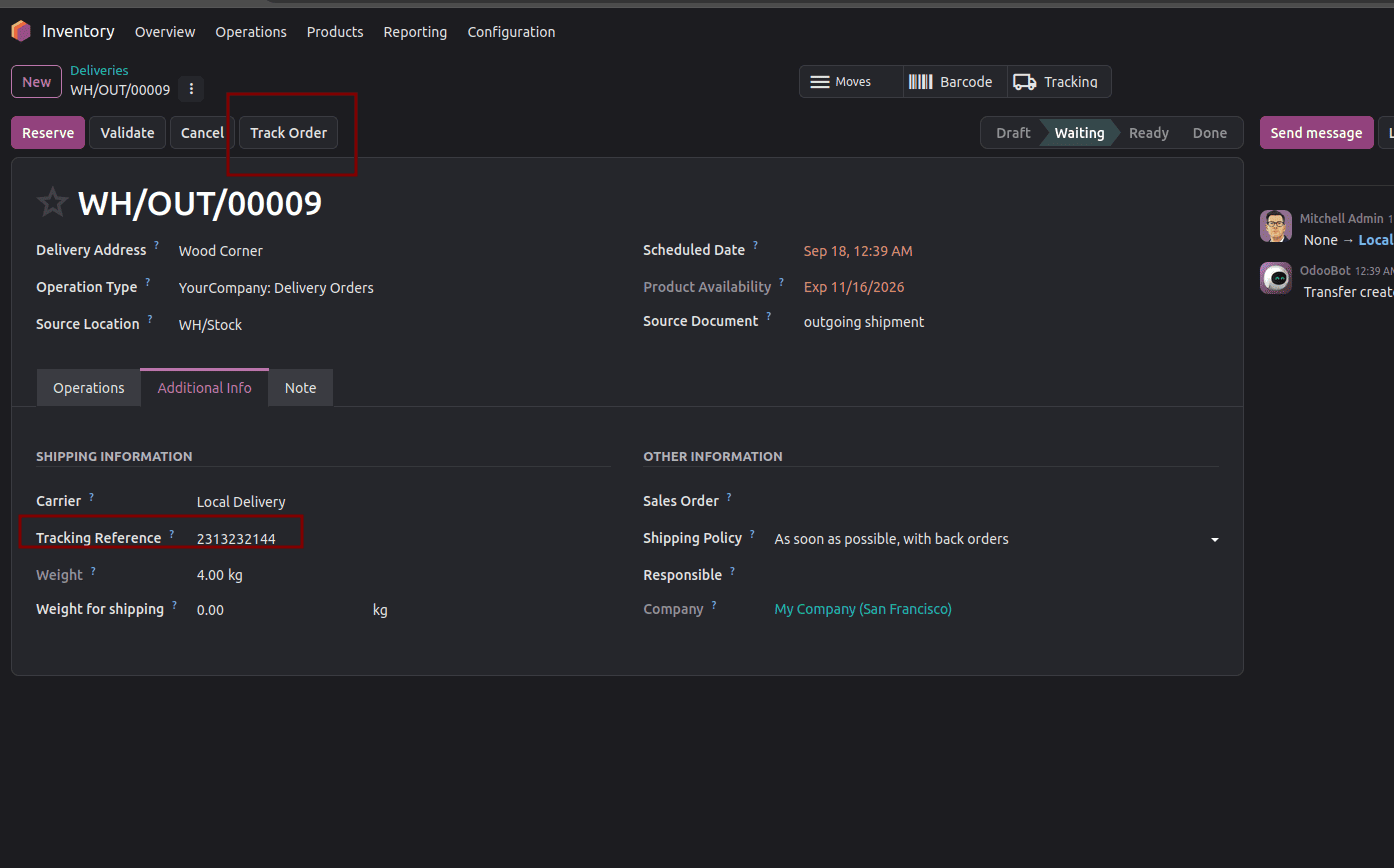
Click Track Order; Odoo calls the method, the method builds the URL, and the tracking page opens in a new tab. The button doesn't even show up until there's a tracking reference, so users won't normally hit that error message at all.
Sending users to pages inside Odoo
Set target to "self" and the URL opens in the same tab. That's handy for sending someone to a portal page or one of your own controller routes.
If the record has a customer portal page (sales orders, invoices, and anything else that inherits portal.mixin), let Odoo work out the URL for you with get_portal_url():
# url_action_demo/models/sale_order.py
from odoo import models

class SaleOrder(models.Model):
    _inherit = "sale.order"
    def action_view_customer_portal(self):
        self.ensure_one()
        return {
            "type": "ir.actions.act_url",
            "url": self.get_portal_url(),
            "target": "self",
        }
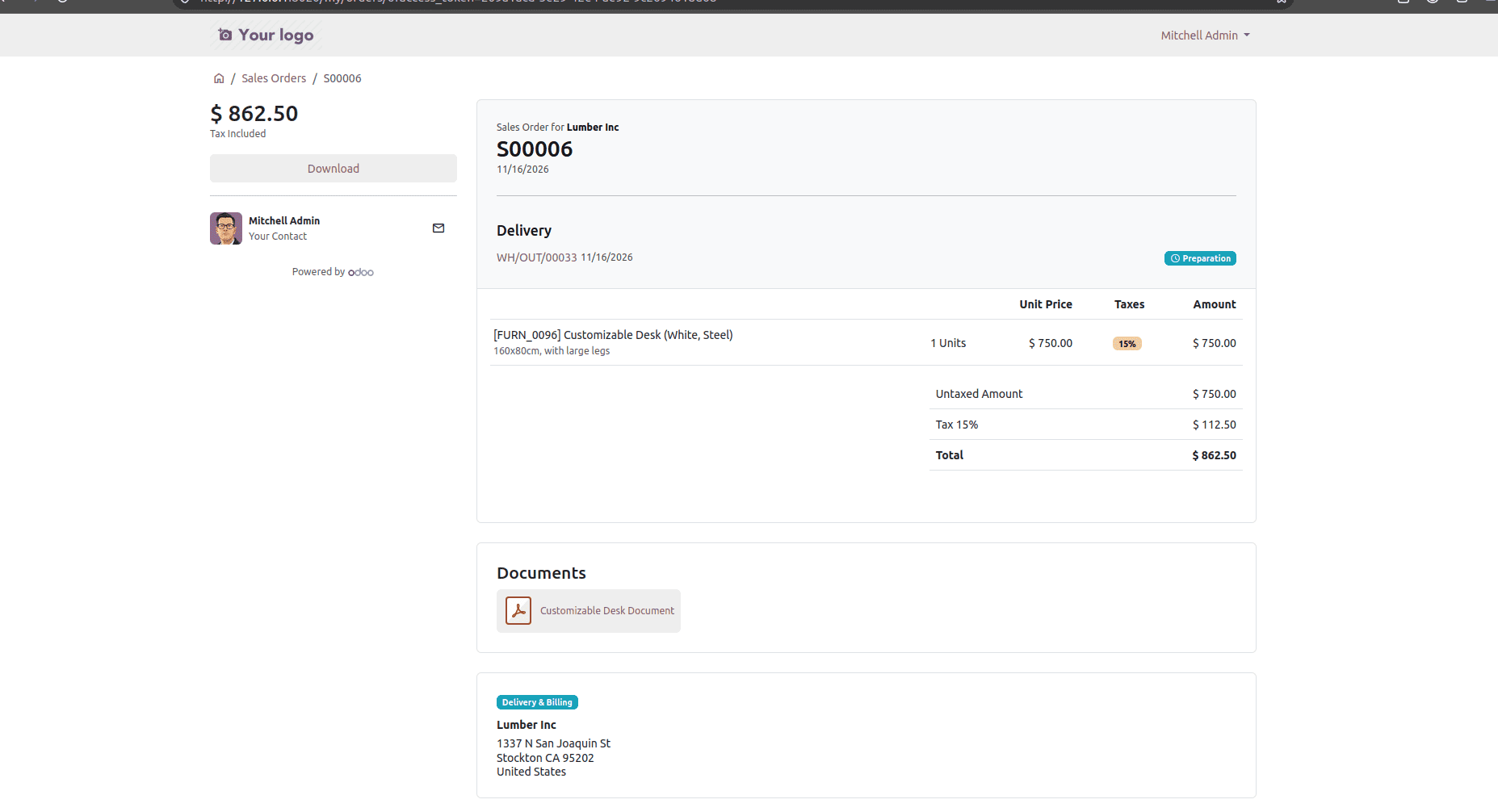
You could write f"/my/orders/{self.id}" by hand, and it would work for sale orders. But copy that method onto another model, and it quietly breaks, because that route only exists for sale orders. get_portal_url() reads each model's own portal address, and it adds an access token by default, so the link even works for someone who isn't logged in. If only logged-in staff would ever click it and you'd rather keep the token out of the URL, use self.get_portal_url(share_token=False).
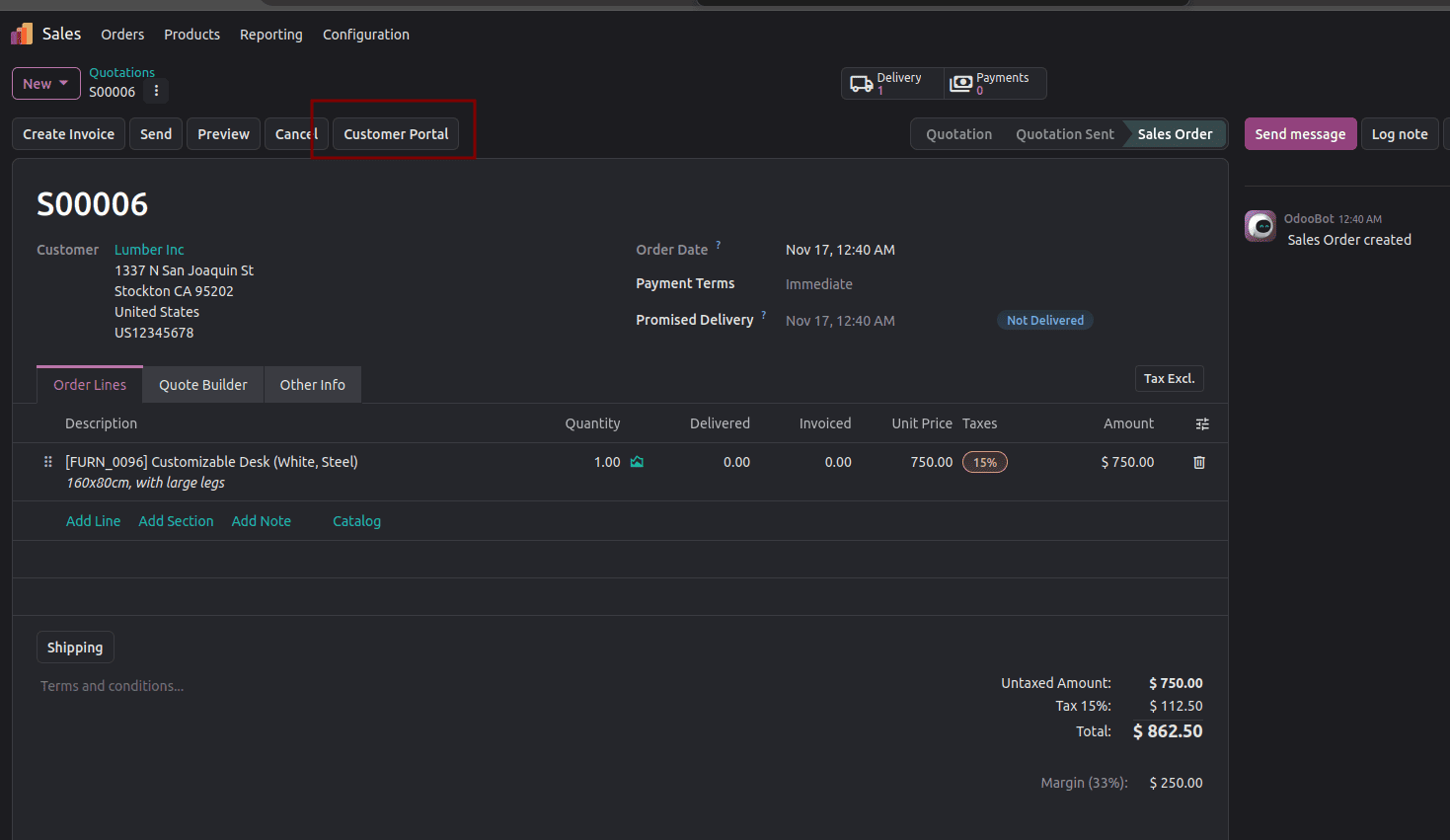
When you click on the Customer portal button, it will open the portal side
For your own controller routes, just return the path, like "url": "/my_module/report/42", and make sure the controller checks permissions on its own.
Letting users download files
To hand someone a file, point the URL at Odoo's /web/content route and ask for a download:
from odoo import _, models
from odoo.exceptions import UserError
def action_download_document(self):
    self.ensure_one()
    if not self.attachment_id:
        raise UserError(_("There is no document to download."))
    return {
        "type": "ir.actions.act_url",
        "url": f"/web/content/{self.attachment_id.id}?download=true",
        "target": "download",
    }
(This assumes your model has an attachment_id field pointing to an ir.attachment.)
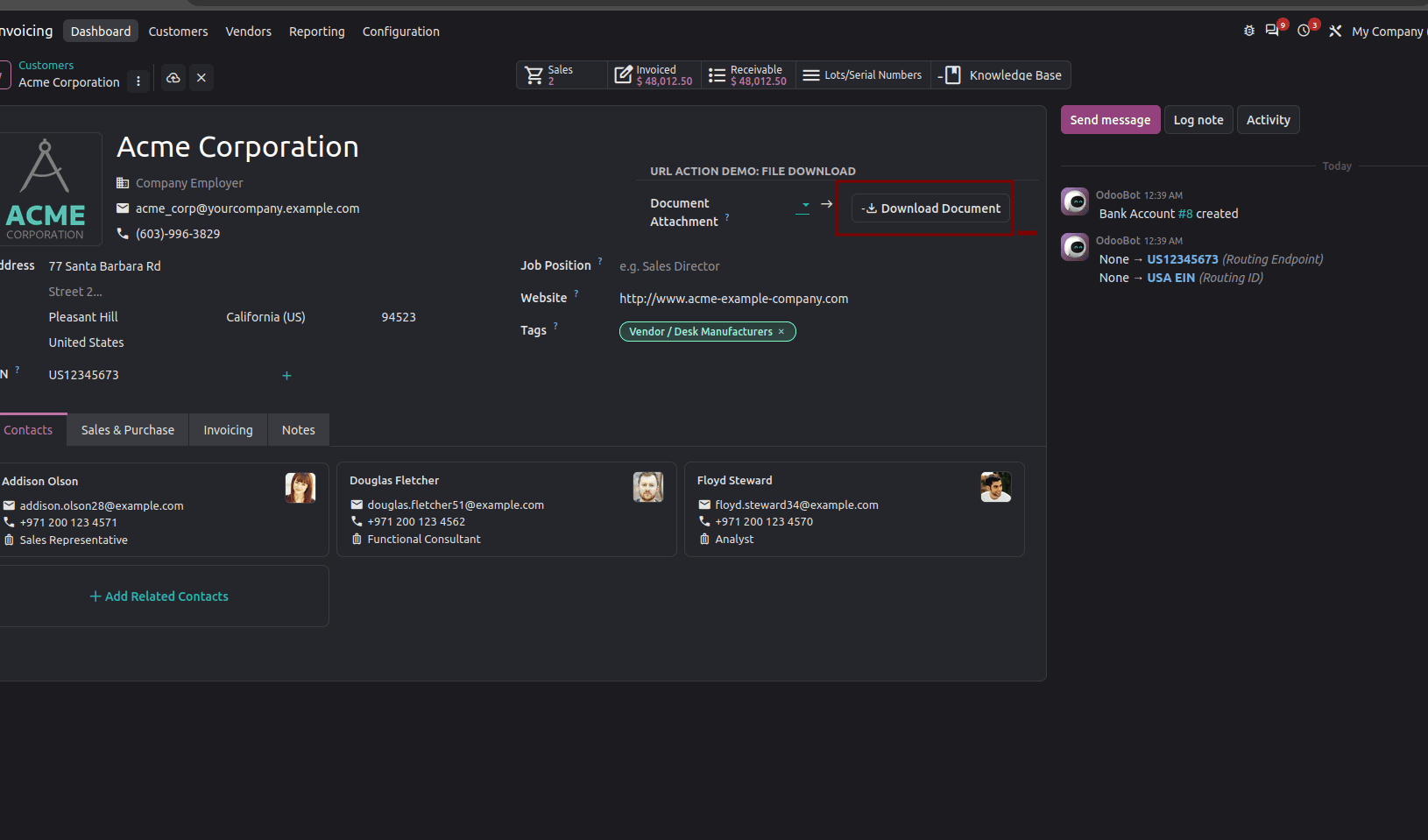
What's actually happening:
The Odoo 20 web client uses the same code for both the target "download" and the target "new" functions. The only difference is that the function of the target "download" will download the file instead of displaying it as a page on the web client. This happens because the parameter download=true requires the server to transfer the file as an attachment. So, do not remove it from the URL, or the file will still open in a new tab as a PDF document. It might also get blocked by pop-up blockers. The 'Close' option will not have any effect in this case. Treat 'download' as the name of your action, while the server is the one carrying out the operation.
Don't worry about security here: /web/content checks the user’s read access to the attachment (a valid access token or a public attachment also works), so a URL action doesn’t bypass permissions.
Opening a link from a wizard
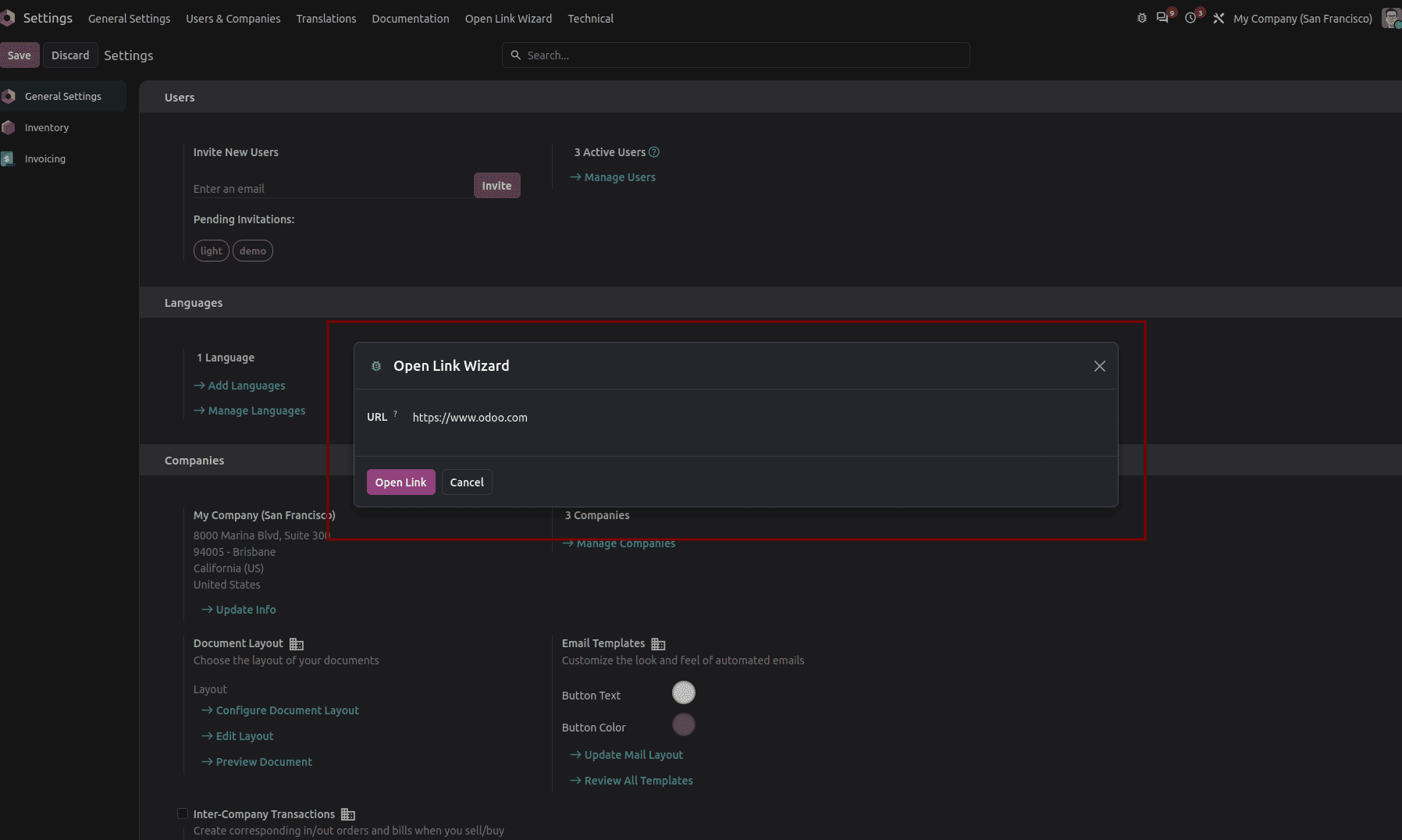
Wizards (the little pop-up dialogs built on TransientModel) can return URL actions too. If you want the dialog to close once the link opens, add "close": True:
from odoo import fields, models

class ExportLinkWizard(models.TransientModel):
    _name = "url_action_demo.export.link.wizard"
    _description = "Open Export Link"
    url = fields.Char(required=True)
    def action_open(self):
        self.ensure_one()
        return {
            "type": "ir.actions.act_url",
            "url": self.url,
            "target": "new",
            "close": True,  # close the wizard once the link opens
        }
What's actually happening: close only does anything when the target is new (or when you leave the target out, since new is the default). With self, the whole page gets replaced anyway, and with download the flag is simply ignored, so your dialog stays open.
Which target should you pick?
A quick rule of thumb:
- Opening an outside website and want Odoo to stay put? Use new. It's the default, and the only one that supports close.
- Taking the user somewhere else inside Odoo? Use self. They can always come back with the browser's Back button.
- Handing over a file? Use download, and don't forget ?download=true the URL.
URL actions are one of the easiest features of Odoo, as well as the most beneficial. Use an XML record when the link is fixed, and a Python function when the link depends on the record. Choose the destination based on where the user needs to reach. Finally, before coming up with something new, take some time to check if Odoo already provides a field/utility to do the task for you.
To read more about How to Create and Use URL Actions in Odoo 19, refer to our blog, How to Create and Use URL Actions in Odoo 19.