Whenever you open Sales Orders, Contacts, or Employees in Odoo, you are interacting with something called a Window Action. It works behind the scenes to decide which model to open, which views to display, and how the records should appear on the screen.
Window Actions are an important part of Odoo development. They connect menus and buttons to different views and allow developers to control how users access and interact with records.
In this blog, we will learn how Window Actions work in Odoo 20. Using a simple Library Management module as an example, we will go through creating Window Actions in XML, applying filters, setting default values through context, and returning actions from Python methods.
What is a Window Action?
In Odoo, a Window Action is represented by the ir.actions.act_window model. It tells the web client which model to open and which views should be available for displaying the records.
For example, when a user clicks on the Books menu in a Library Management system, Odoo uses a Window Action to open the book records in the corresponding views, such as List or Form.
- Name (name): The name displayed for the action in the Odoo interface.
- Model (res_model): Specifies which model should be opened.
- View Mode (view_mode): Defines the available views, like List, Form, Kanban, or Graph.
- Domain (domain): Conditions applied to decide what records will be shown.
- Context (context): Passes additional information, like default field values, search filters, and grouping options.
- Target (target): Decides where the action opens, such as the main interface or a popup window.
- Help (help): Displays a message whenever there is no record to be displayed.
Step 1: Create the Model and Views
First, we need a model to store information about the books in our library. For this example, we will create a model named library.book.
from odoo import fields, models
class LibraryBook(models.Model):
   _name = 'library.book'
   _description = 'Library Book'
   name = fields.Char(string='Title', required=True)
   author = fields.Char(string='Author')
   published_date = fields.Date(string='Published On')
   state = fields.Selection([
       ('draft', 'Draft'),
       ('available', 'Available'),
       ('borrowed', 'Borrowed'),
   ], default='draft', string='Status')
The model includes fields for the book title, author, publication date, and current status. Now, let's create the List and Form views to display the book records.
<record id="library_book_view_list" model="ir.ui.view">
   <field name="name">library.book.list</field>
   <field name="model">library.book</field>
   <field name="arch" type="xml">
       <list>
           <field name="name"/>
           <field name="author"/>
           <field name="published_date"/>
           <field name="state"/>
       </list>
   </field>
</record>
<record id="library_book_view_form" model="ir.ui.view">
   <field name="name">library.book.form</field>
   <field name="model">library.book</field>
   <field name="arch" type="xml">
       <form>
           <sheet>
               <group>
                   <field name="name"/>
                   <field name="author"/>
                   <field name="published_date"/>
                   <field name="state"/>
               </group>
           </sheet>
       </form>
   </field>
</record>
Step 2: Define the Window Action
The next step is to define a Window Action. This action tells Odoo how to open the library.book model.
<record id="library_book_action" model="ir.actions.act_window">
   <field name="name">Books</field>
   <field name="res_model">library.book</field>
   <field name="view_mode">list,form</field>
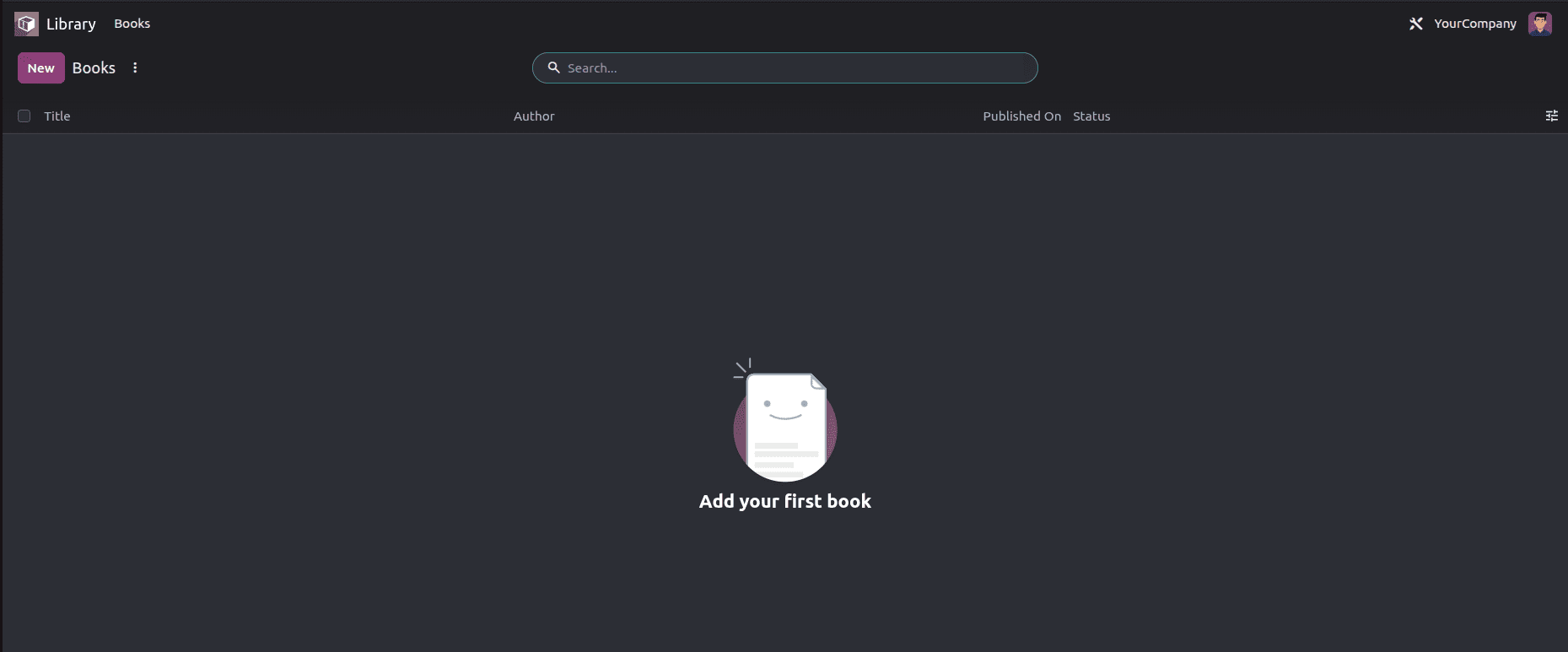
   <field name="help" type="html">
       <p class="o_view_nocontent_smiling_face">
           Add your first book
       </p>
   </field>
</record>
Here is what the main fields do:
- name: The name of the action shown on the Odoo screen is defined here.
- res_model: Indicates which model the action will use. In our case, it is library.book.
- view_mode: Determines which views are available and their order in the view switcher.
- help: Displays a message when the model does not contain any records.
Step 3: Link the Action to a Menu Item
Creating a Window Action is not enough on its own. Users also need a way to access it from the Odoo interface. We can do this by linking the action to a menu item.
<menuitem id="library_root_menu" name="Library" sequence="10"/>
<menuitem id="library_book_menu"
         name="Books"
         parent="library_root_menu"
         action="library_book_action"
         sequence="10"/>
When users click on Books, Odoo executes the library_book_action and opens the book records. This is how Window Actions connect menu items to the corresponding models and views.
Step 4: Filter Records with a Domain
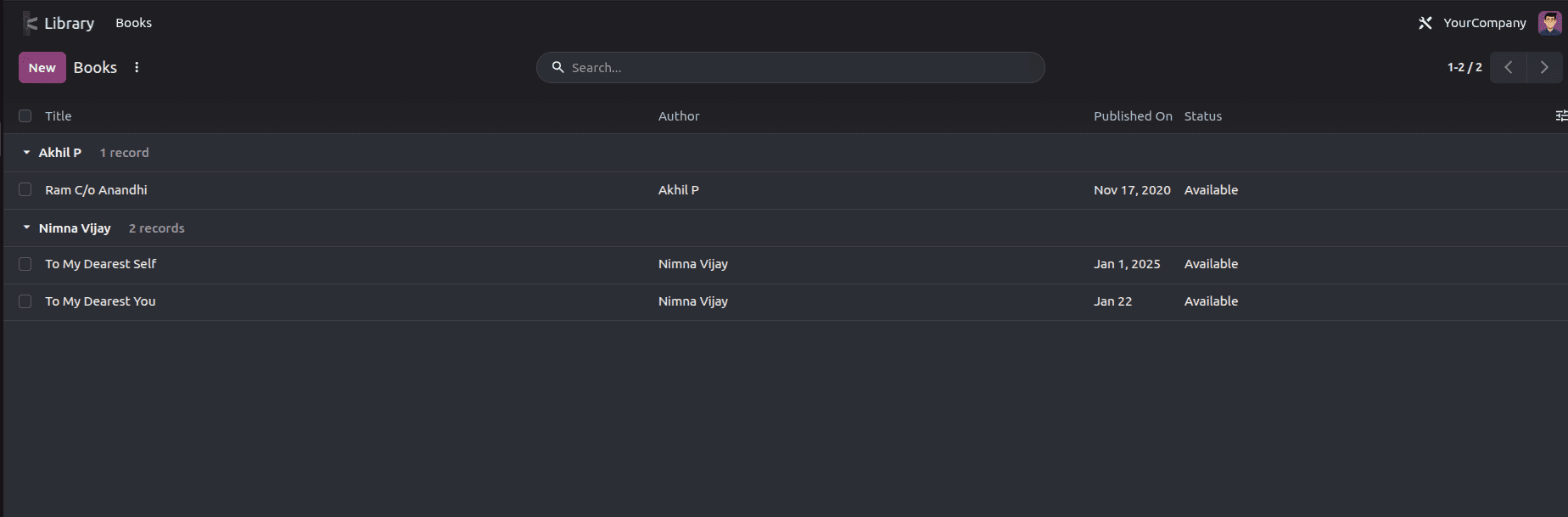
There are cases where showing all records might not be required. For instance, in our Library Management system, there could be cases where we want the Books menu to display only the available books.
<field name="domain">[('state', '=', 'available')]</field>With this condition, only records with the Available status are displayed in Odoo.
Step 5: Use the Context for Defaults and Behaviour
Another useful feature of Window Actions is the context field.
Context allows us to pass additional information when an action is executed. The context is usually used for setting default values during record creation, applying search filters by default, and organizing records.
- default_: Sets an initial value for a field when creating a new record.
- search_default_: Automatically activates a pre-selected filter on the search screen.
- group_by: Groups records based on a particular field.
<field name="context">
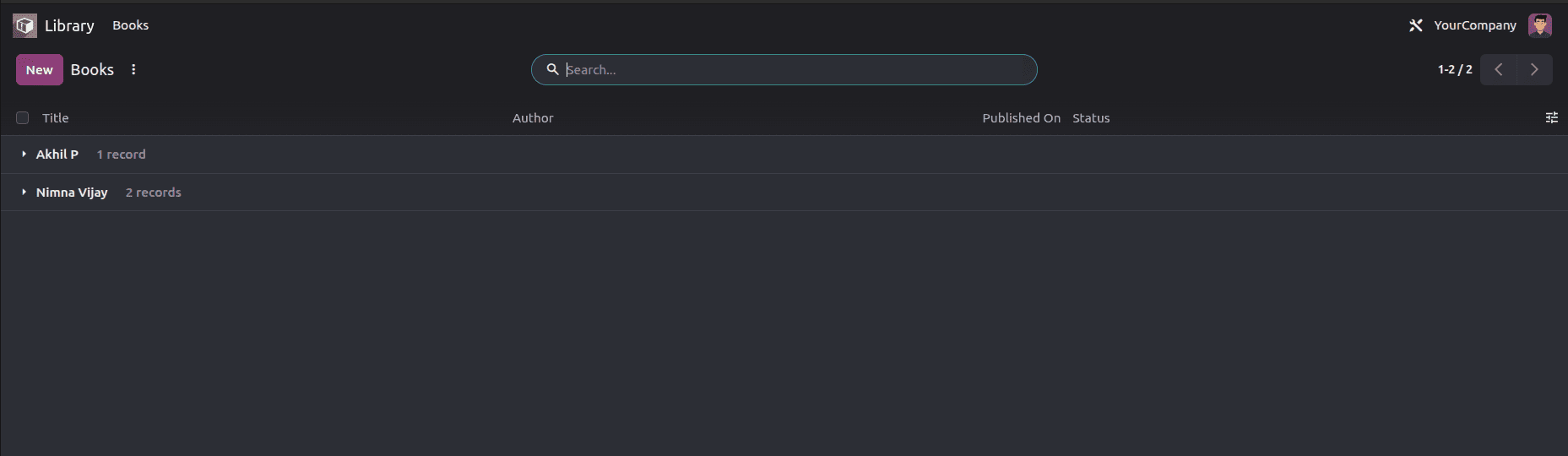
    {'default_state': 'available', 'group_by': 'author'}
</field>
In this scenario, the default status of any new book will be set to Available. Also, the existing books are categorized based on their authors.
This makes it easier to organize and work with book records without having to apply the same settings manually each time.
Step 6: Choose Where the Action Opens
Window Actions also allow developers to control where an action appears in the Odoo interface. This is configured using the target field.
Odoo supports the following target options:
- current: Opens the action in the main content area and keeps the normal breadcrumb navigation. This is the default behaviour.
- new: Opens the action in a popup window. This is useful when you want users to work with a form without leaving the current screen.
- main: Opens the action in the main content area and clears the existing breadcrumbs.
Return a Window Action from Python
We have created Window Actions using XML so far. But in Odoo, we can also return Window Actions directly from Python methods.
This can be especially helpful when the action needs to change based on the record or user interaction.
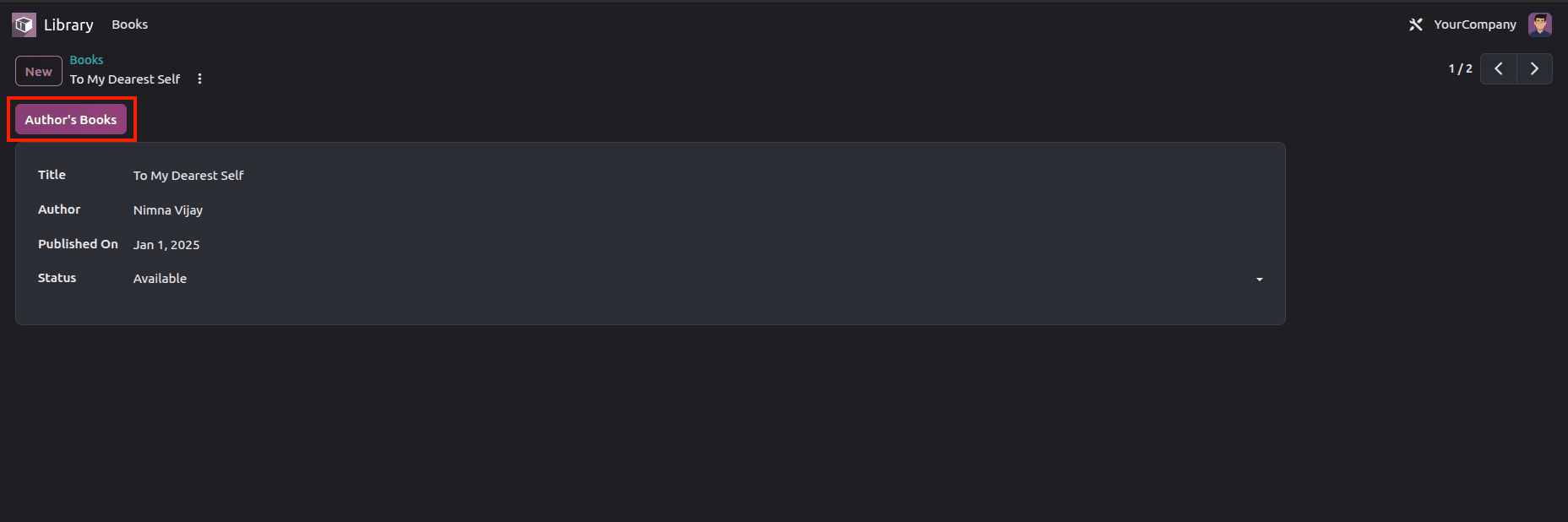
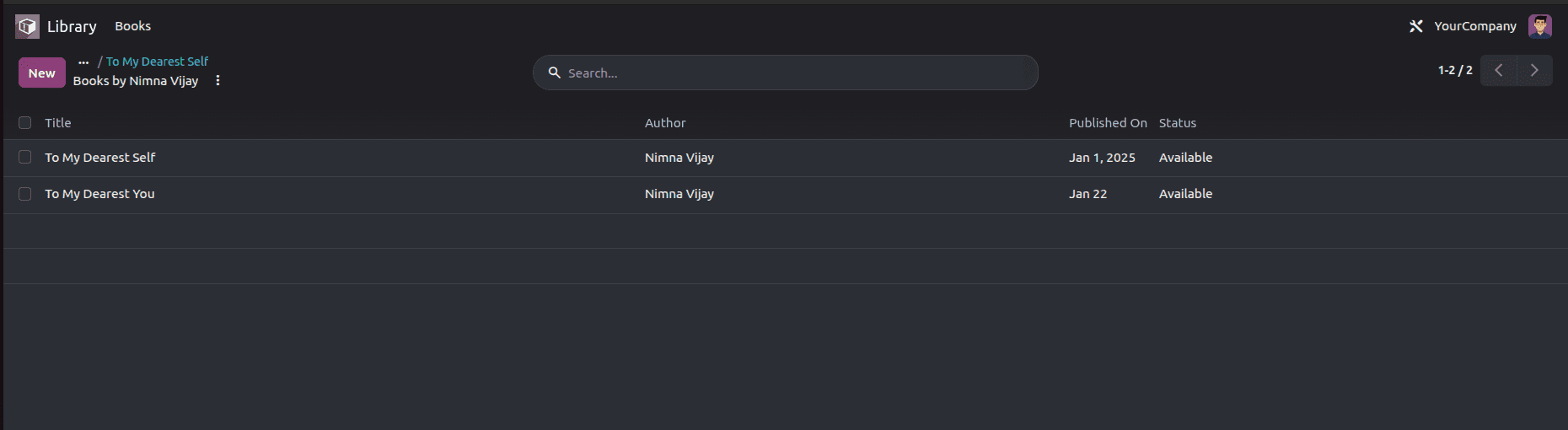
For example, if a user is reading a book and wants to find other books written by the same author. Instead of going back to the Books menu and searching manually, we can insert a button that opens those records directly. For this, we can define a Python method that returns a Window Action.
from odoo import _, models

class LibraryBook(models.Model):
   _inherit = 'library.book'
   def action_view_author_books(self):
       self.ensure_one()
       return {
           'type': 'ir.actions.act_window',
           'name': _('Books by %s', self.author),
           'res_model': 'library.book',
           'view_mode': 'list,form',
           'domain': [('author', '=', self.author)],
           'context': {'default_author': self.author},
           'target': 'current',
       }
The search will show books written by the same author. The domain will filter the record, and default_author will automatically set the author for any book added.
Add a button in the form view of the book:
<button name="action_view_author_books"
       type="object"
       string="Author's Books"
       class="btn-primary"/>
Here, type="object" tells Odoo to call the Python method specified in the button's name attribute when the user clicks it.
Once the button is added, opening a book and clicking Author's Books will display the other books written by the same author.
Window Actions play an important role in how users navigate and work with records in Odoo. They allow developers to decide which models and views should open, apply filters using domains, pass default values through context, and control how actions appear in the interface.
As demonstrated through our Library Management example, Window Actions can be defined in XML and also returned dynamically from Python methods.
Understanding these options makes it easier to build custom Odoo modules with better navigation and a more convenient user experience.
To read more about How to Create and Use Window Actions in Odoo 19 refer to our blog How to Create and Use Window Actions in Odoo 19.