In Odoo 19, the Project app provides a powerful and flexible way to manage project-related activities efficiently. One of its most useful features is the top bar, which gives users quick access to important records and documents linked to a project.
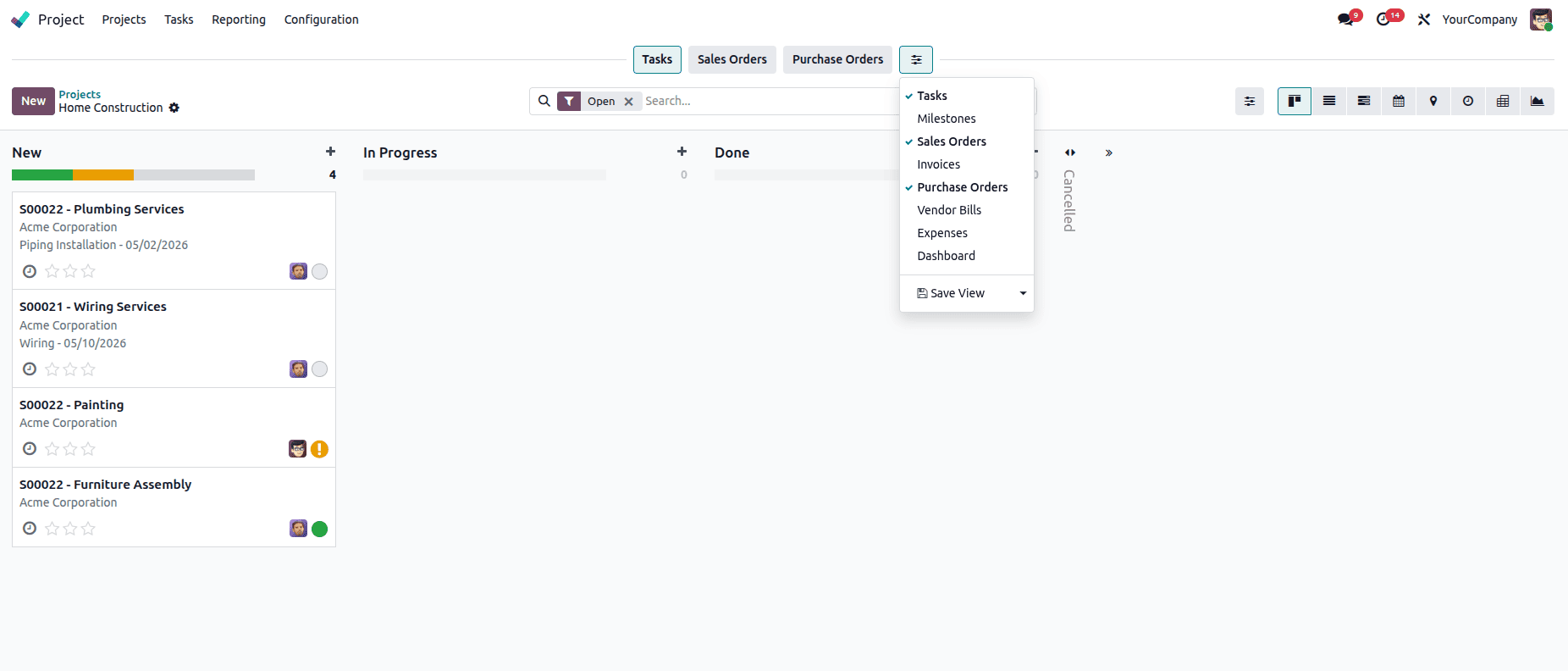
The top bar contains important and needy item such as the dashboard, sales orders, invoices, and other related documents, all accessible directly from the project view. Instead of switching between multiple menus or apps, users can instantly navigate to what they need.
In this blog, we are discussing how to add a new embedded action to the project top bar to see the purchase material for this project.
1. Creating the Embedded Action
First, we need to create a new embedded action record in XML. This record connects the Project model with a Python method that dynamically returns the required product view.
<?xml version="1.0" encoding="utf-8" ?>
<odoo>
 <record id="project_embedded_action_project_purchased_product" model="ir.embedded.actions">
   <field name="parent_res_model">project.project</field>
   <field name="sequence">20</field>
   <field name="name">Purchased Products</field>
   <field name="parent_action_id"
     ref="project.act_project_project_2_project_task_all"/>
   <field name="action_id" eval="False"/>
   <field name="python_method">action_get_products</field>
   <field name="domain">[('task_ids', '!=', False)]</field>
   <field name="groups_ids" eval="[(4, ref('product.group_product_variant'))]"/>
   <field name="context">
         {'from_embedded_action': true}</field>
   </record>
</odoo>
- parent_res_model: The embedded action is attached to the Project model.
- sequence: display order of the action in the top bar.
- name: This is the name shown to users in the Project top bar.
- parent_action_id: This links the embedded action to the Project’s main action view.
- action_id and python_method: Define the either action_id or python_method.
- default_view_mode: If the action is set, then we can define the view mode. If it is not set, the default view of the action is taken.
- domain: This controls visibility of this embedded action on the top bar.
- groups_ids: This restricts visibility of the action to users who belong to the Product Variant group, ensuring proper access control.
- Context: We can pass the params to the backend method to differentiate embedded action calls from normal actions. It helps control behavior such as view switching or UI flow.
2. Define Python method
We extend the Project model in Odoo 19 to introduce a custom smart action that allows users to quickly access purchased products related to a project.
# -*- coding: utf-8 -*-
from odoo import models
from odoo.tools.translate import _

class ProjectProject(models.Model):
   _inherit = "project.project"
   def action_get_products(self):
       self.ensure_one()
       purchase_lines =
          self.env['purchase.order.line'].search([
           '|', ('analytic_distribution', 'in',
            self.account_id.ids),
           ('order_id.project_id', '=', self.id)])
       products = purchase_lines.mapped('product_id')
       action = {
           'name': self.env._('Products'),
           'type': 'ir.actions.act_window',
           'res_model': 'product.product',
           'view_mode': 'kanban, list, form',
           'views': [             (self.env.ref('product.product_kanban_view').id, 'kanban'),
               (False, 'list'), (False, 'form'),],
           'domain': [('id', 'in', products.ids)],
           'context': dict(self.env.context),
       }
       if len(products) == 1 and
           self.env.context.get('from_embedded_action'):
           action.update({
               'view_mode': 'form',
               'res_id': products.id,
               'views': [(False, 'form')],
           })
       return action
This method provides a way for users to view all purchase-related products directly from the Project interface without navigating through multiple pages.
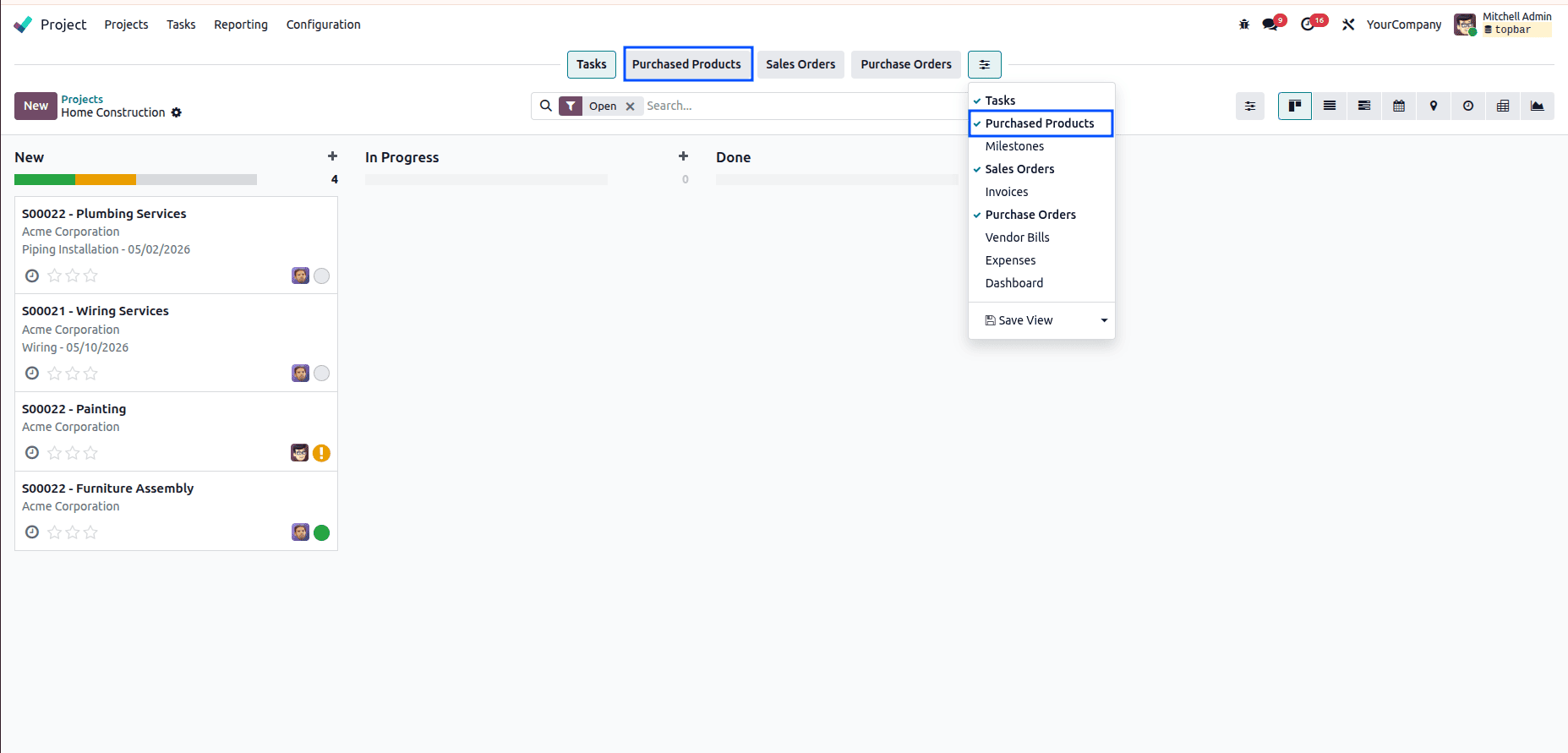
By clicking the purchased product button, we get all the purchased products for this project.
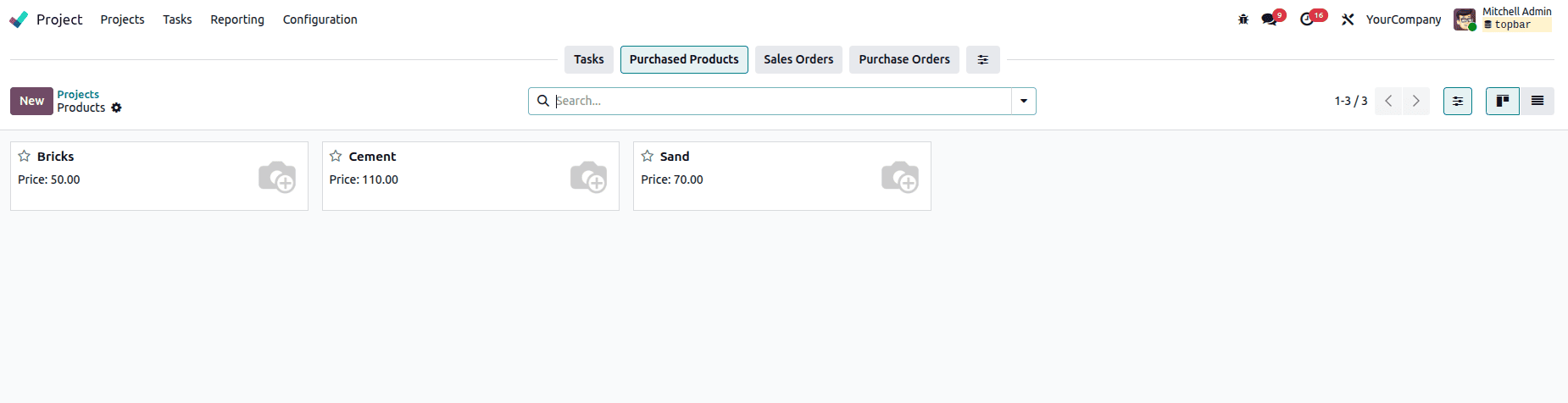
The top bar is fully customizable for each project. This allows teams to define it according to their workflow requirements, ensuring that only the most relevant resources are displayed. As a result, project management becomes faster, more organized, and highly efficient within the Odoo environment.
To read more about The Ultimate Guide to Action Types in Odoo 19, refer to our blog The Ultimate Guide to Action Types in Odoo 19.