There are a few tasks that need to be executed automatically daily and won’t require someone to perform the actions each day to get them done. For instance, reminders can be sent, currency rates updated, reports created, and temporary entries deleted. Performing such operations continuously may lead to a waste of time and missing important actions.
Odoo 19 is very useful for recurring jobs, which allow for executing a specific operation automatically on a programmed schedule. Instead of waiting for someone to press the button to perform a task, the system implements the task in the background.
This blog post will describe how to use the recurring jobs in Odoo 19, demonstrate how to create such a job in a customized module, and share some tips for best practices in implementing recurring jobs in Odoo 19.
What are Recurring Jobs?
Recurring jobs can be defined as automated jobs that are done automatically by Odoo on a regular basis. They are created by setting up Scheduled Actions, which are based on the ir.cron model.
Each scheduled action is able to instruct Odoo about the action it has to take. The following items have to be specified in a scheduled action:
- which function in Python should be executed
- the frequency of running such functions
- timing of the next execution of a function
- the requirement to keep a job running
While the Odoo server is functioning, the scheduler will keep on checking the scheduled jobs and execute them on time.
Some of the most typical jobs include:
- sending emails about payments
- verifying subscriptions automatically
- getting and processing data from external sources
- updating rates for currencies
- deleting obsolete records
- completing automatic reports instead of relying on users getting them done by themselves.
How Recurring Jobs Work
It’s an easy process.
- Scheduled action is created.
- The scheduled action triggers the Python method.
- Odoo checks for the next run of the job.
- When time passes, the scheduled job is completed.
- Next time for execution is determined on the basis of the interval set by the user.
Creating a Simple Recurring Job
Let's create a simple recurring job that logs a message every hour.
Step-1: Create the Python Method
Create a method inside your model.
As this all takes place in the background, a user can freely go ahead with his working process without interruption.
from odoo import models
import logging
_logger = logging.getLogger(__name__)

class Student(models.Model):
    _name = "student.student"
    _description = "Student"
    def cron_student_log(self):
        _logger.info("Scheduled job executed successfully.")
This method doesn't modify any records. It simply writes a message to the Odoo log whenever the scheduled action runs.
In a real application, this method could perform tasks such as updating records, sending emails, or synchronizing data.
Step 2: Create the Scheduled Action
Next, define the scheduled action in an XML file.
<odoo>
    <record id="ir_cron_student_log" model="ir.cron">
        <field name="name">Student Scheduled Job</field>
        <field name="model_id" ref="model_student_student"/>
        <field name="state">code</field>
        <field name="code">model.cron_student_log()</field>
        <field name="interval_number">1</field>
        <field name="interval_type">hours</field>
        <field name="active">True</field>
    </record>
</odoo>
- name - Name represented in the Scheduled Actions
- model_id - Model having the Python method
- state - Denotes the action's performance status. In case of Python methods, utilize code.
- code - Python code triggered by the scheduler
- interval_number - Value of the interval regarding execution
- interval_type - Time period unit (e.g., minutes, hours, days, weeks, months)
- active - A setting which indicates whether a scheduled operation is active or inactive.
Installation of Module
Following the addition of the XML file, insert it into the module manifest.
'data':[
               'data/student_cron.xml',
];
Then, upgrade the module.
odoo-bin -u your_module_name -d your_database
Now, scheduled action is available in Odoo.
How to view your scheduled action
Once you have installed the module, you must turn on Developer Mode and go to:
Settings > Technical > Automation > Scheduled Actions
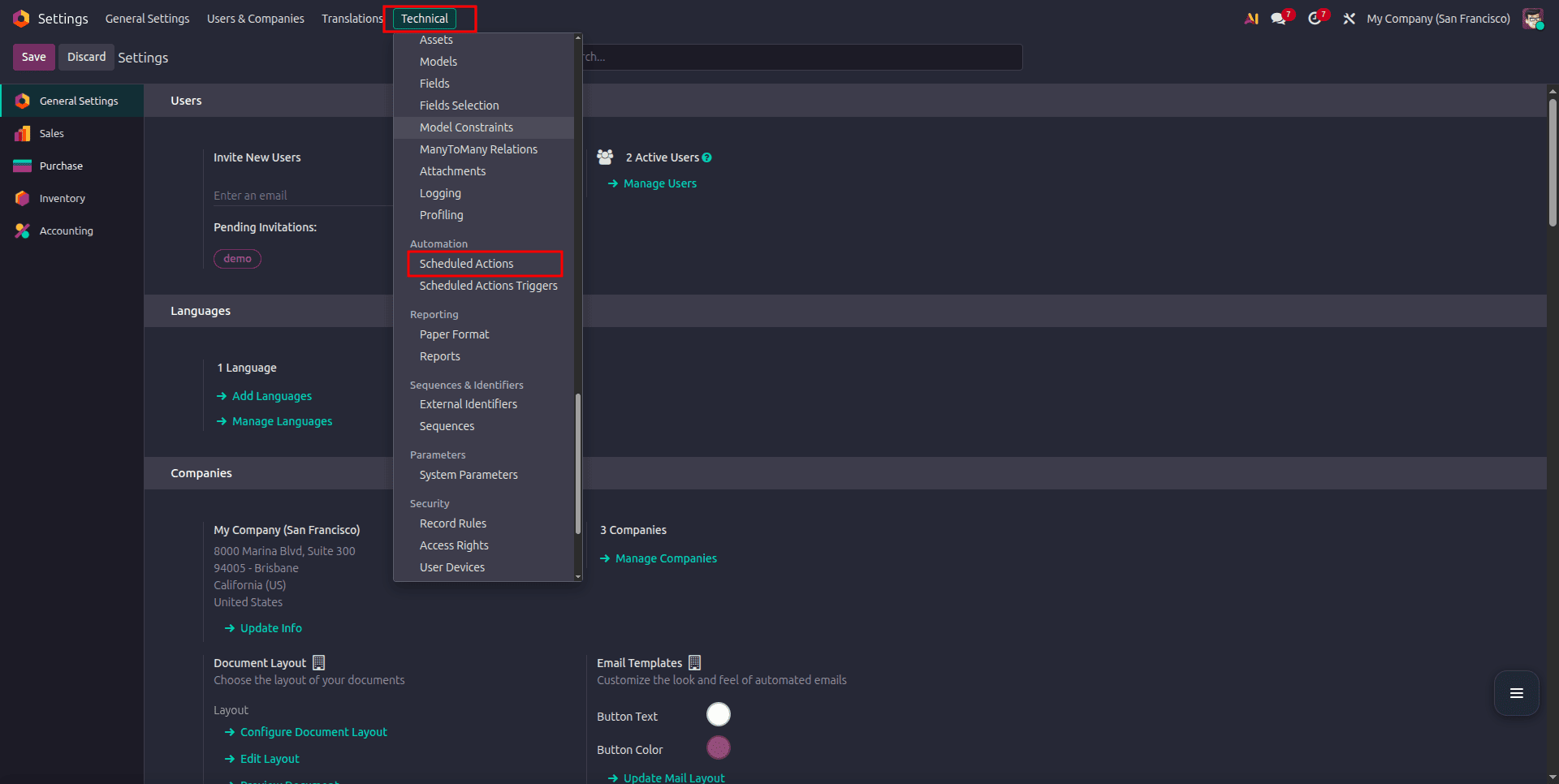
You will see the scheduled action that you have just created.
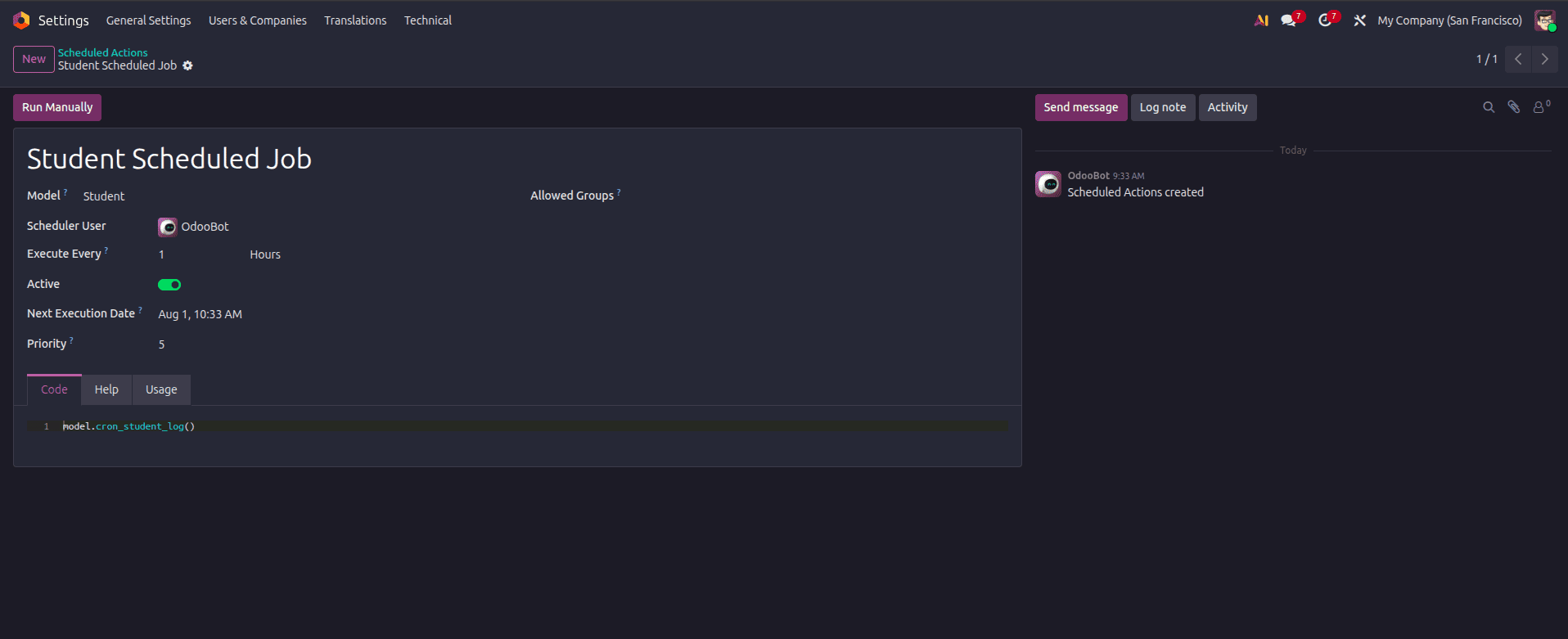
You can:
- Activate or deactivate the task
- Change when it runs
- Set when it will run next time
- Test it manually
This is useful for making sure that you have set your scheduled action up correctly.
Testing the Recurring Job
When developing, there is not always the option to wait for the scheduled time to arrive. Rather, access the scheduled action and click Run Manually. If everything is functioning, then the method executes right away. You can confirm this by checking the Odoo logs to see that the following message has been generated:
INFO Scheduled job executed successfully.
Running jobs manually is an easy way of testing your implemented solution before it hits the production stage.
Example:
Let's say that a school management system keeps temporary records of student enrolments. When a record stays in the Draft status for more than 30 days, it must go to the archives on its own.
Rather than getting an administrator to check the files periodically, one can set up a recurring task to do this automatically.
from datetime import timedelta
from odoo import fields, models

class Student(models.Model):
    _inherit = "student.student"
    def cron_archive_students(self):
        limit_date = fields.Datetime.now() - timedelta(days=30)
        students = self.search([
            ('state', '=', 'draft'),
            ('create_date', '<', limit_date)
        ])
        students.write({
            'active': False
        })
The purpose of the scheduled job is to find students’ records that are drafts and that have been in the system for more than 30 days and then archive them.
This is an example of how recurring jobs lessen workload and organize the database.
Choosing the Right Execution Interval
Selecting an appropriate interval is important.
For example:
| Task | Suggested Interval |
| Email reminders | Every day |
| Exchange rate updates | Daily |
| Report generation | Weekly |
| Database cleanup | Weekly or monthly |
| External API synchronization | Every 15–30 minutes |
Running a heavy job every minute when it only needs to run once a day wastes server resources. Choosing an interval that matches the business requirement helps maintain good performance.
Best Practices for Recurring Jobs
A recurring job may run hundreds or even thousands of times over its lifetime. Following a few good practices can make it more reliable and easier to maintain.
A scheduled action should perform one specific task. If a job is responsible for many unrelated operations, it becomes harder to maintain and troubleshoot.
- Avoid unnecessary processing
Instead of searching through every record in the database, filter only the records that actually need processing.
For example:
students = self.search([
    ('state', '=', 'draft')
])
Filtering records reduces execution time and improves performance.
- Handle exceptions properly
Unexpected errors should not stop future executions.
import logging
_logger = logging.getLogger(__name__)
try:
    # Business logic
    pass
except Exception as error:
    _logger.exception(error)
Logging errors makes debugging much easier.
- Avoid duplicate processing
If the same records can be processed multiple times, add conditions to ensure that already completed records are skipped.
This prevents duplicate emails, repeated updates, or inconsistent data.
- Choose sensible intervals
Not every task needs to run frequently.
Running expensive jobs too often increases server load without providing any real benefit.
Always choose an interval based on business requirements.
Business Use Cases for Odoo Applications
Tasks that are repetitive play an important role in many Odoo applications.
Samples of such tasks are the following:
- Sending reminders about invoices.
- Updating currency exchange rates.
- Synchronizing products with 3rd party online marketplaces.
- Generate reports of sales by week.
- Removing expired periods.
- Clearing temporary logs.
- Automatically finishing executed tasks.
- Synchronizing attendance information with biometric methods automatically.
The role of automation is significant in this context since these tasks are being repeated.
One of the simplest methods for Odoo 19 automation is through recurring jobs. Utilizing a combination of Python methods and scheduled actions helps to carry out tasks automatically without requiring user intervention.
From sending alerts to archiving old data, recurring jobs limit the amount of manual work in a process. Keeping the job focused, proper scheduling, and following the good coding guidelines will make sure that your tasks are executed properly.
To read more about How to Configure Scheduled Actions in Odoo 19, refer to our blog How to Configure Scheduled Actions in Odoo 19.