In today’s retail landscape, offering flexible product options is essential, as customers expect choices like size, color, and custom features. Odoo 19 Point of Sale (POS) makes this easy by providing a user-friendly system to configure products and their variants, helping businesses manage inventory efficiently while ensuring smooth transactions. This guide will walk you through the steps to set up products and variants in Odoo 19 POS, enabling you to streamline operations, minimize errors, and enhance the overall customer experience.
The products menu in Odoo 19 Point of sale contains options like Products, Product Variants, Combo Choices, Pricelists, Discount & Loyalty and Gift Card & eWallts.
Creating New Product
The Products menu gives users a complete overview of all retail products configured within the company’s Point of Sale system. Products are initially displayed in a Kanban layout, where each product card contains important information such as the Internal Reference Code, Sales Price, and Available Stock quantity. You can easily switch to the List view for a tabular display or open any product record to access a detailed form view containing complete product specifications and settings.
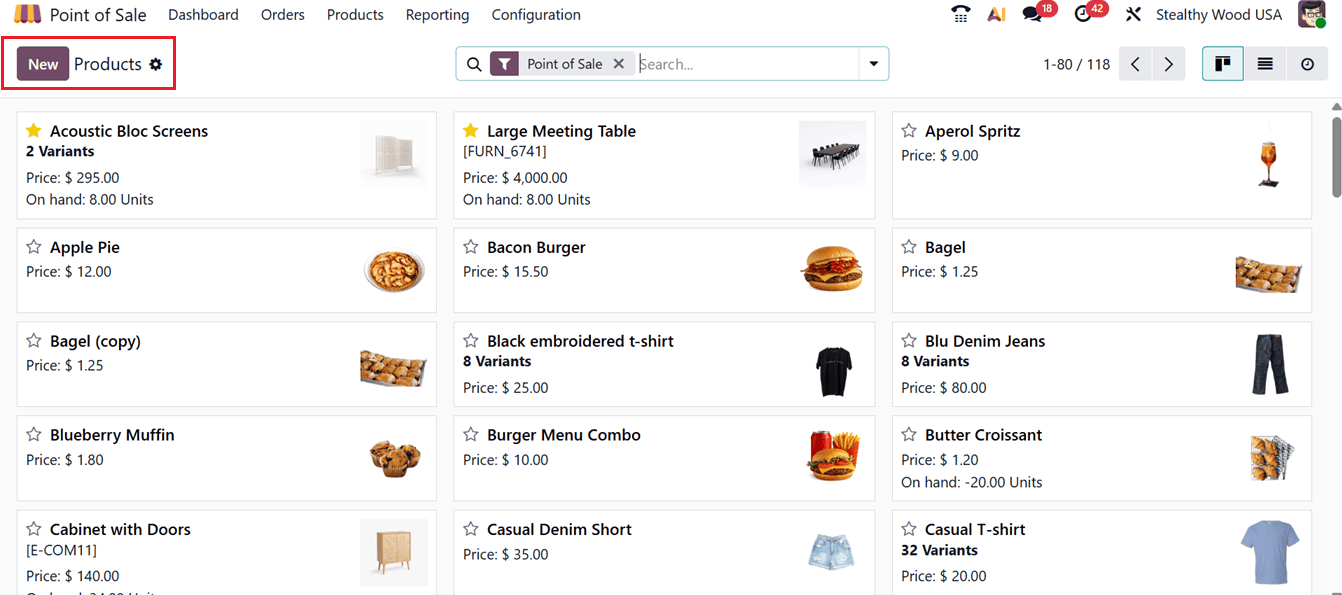
To create a new product, click the New button, enter the product name, and upload a suitable product image. For the product to become available in the Point of Sale interface, the Point of Sale checkbox must be enabled, as illustrated in the screenshot below.
Inside the General Information tab, users can define essential product details including Product Type, Sales Price, Customer Taxes, and Barcode information. Additional configurations such as Units of Measure, Product Category, and the related Company can also be specified in this section.
The Attributes & Variants tab allows businesses to create multiple variations of the same product using the Add a line option. This feature is useful for products available in different sizes, colors, styles, or other attributes.
Within the Sales tab, users can configure UPSELL & CROSS-SELL options along with ECOMMERCE SHOP settings, ECOMMERCE MEDIA, ECOMMERCE DESCRIPTION, QUOTATION DESCRIPTION, GELATO integration, and EXPENSE-related configurations, as shown in the screenshot below.
The Point of Sale tab provides several advanced options for managing products in the PoS environment. In the POINT OF SALE section, users can enable self-order functionality, configure weight-based pricing, assign PoS categories, and define product colors for easier visual identification.
The To Weigh With Scale option is especially useful for products sold by weight, such as fruits, vegetables, or bulk items, allowing integration with weighing hardware during checkout. The Category field determines where the product appears within the PoS interface, while the Color option helps visually organize products for faster identification by salespersons. The Available in Self Order option enables customers to purchase the item directly through self-service kiosks or self-order applications.
This tab also contains fields related to the product’s public-facing DESCRIPTION and food delivery configurations under the URBAN PIPER section. The DESCRIPTION field can be used to display additional information on receipts or product listings. The URBAN PIPER integration connects the product with external food delivery services such as Justeat, Doordash, EatEasy, and similar platforms.
Using the Available on Food Delivery option, businesses can specify whether the product should be displayed on online delivery platforms. The Meal Type field helps categorize products into groups such as Vegetarian, Non-Vegetarian, or Eggetarian, as demonstrated in the screenshot below.
The Is Recommended option highlights products that are frequently suggested or highly preferred by customers on food delivery platforms. Similarly, the Is Alcoholic option identifies products containing alcohol. The Available on field determines where the product can be sold, including PoS terminals, websites, or third-party delivery applications. Altogether, these settings improve product visibility, sales channel integration, and centralized product management.
In addition, users can configure POS Optional Products under the UPSELL & CROSS-SELL section. This feature allows the system to recommend complementary products whenever customers add specific items to their shopping cart.
The Prices tab enables businesses to define multiple pricing rules for a product according to different conditions using the Add a price button, as shown in the screenshot below.
Clicking the Add a price button opens a pop-up window where users can create pricelist rules by defining the Product, Product Variant, Pricing Type, Fixed Price, Minimum Quantity, Validity Period, and Pricelist, as depicted in the screenshot below.
This pricelist functionality makes it possible to assign different prices to individual product variants based on predefined conditions. After entering the required details, users can save the configuration using the Save & Close button.
Inside the Purchase tab, businesses can manage vendor information, define vendor-specific pricing in multiple currencies, and configure delivery lead times using the Add a line option, as shown in the screenshot below.
Users can also choose a Control Policy for vendor bills based either on ordered quantities or received quantities. Additionally, a dedicated PURCHASE DESCRIPTION field is available within the Purchase tab for storing supplier-related notes or purchase details.
The Inventory tab is used to configure product routes and operational settings related to logistics, traceability, receipts, delivery orders, and internal transfers, as illustrated in the screenshot below.
In the Accounting tab, users can specify the appropriate Income Account for recording PoS sales revenue and an Expense Account for tracking costs such as discounts, commissions, or operational expenses. Properly configuring these accounts ensures accurate financial reporting and seamless integration between sales and accounting operations, as shown in the screenshot below.
Once all product details are saved, you can later perform additional operations or access further configurations through smart buttons such as Bill of Materials, Documents, Go to Website, Sold, Purchased, and On Hand/Forecasted Quantity.
Finally, the product becomes available for sale in the respective Point of Sale session, as shown in the screenshot below.
After choosing the newly added product, you can proceed with the next sales options as usual.
Product Variants
The Product Variants section in Odoo helps businesses manage multiple versions of the same product efficiently. This includes variations based on size, color, material, or other attributes. The section displays a list containing important details such as Internal Reference, Product Name, Website Availability, Variant Values, Sales Price, Cost, On-Hand Quantity, and Forecasted Units, as shown in the screenshot below.
For instance, a single product may be available in several sizes and colors. This section allows users to organize and manage all variations conveniently. Users can also apply Filters and Group By options available in the search bar to sort and arrange variant data more effectively.
You can directly create a new product variant immediately using the ‘New’ button. This will open a configuration window, same as the normal product configuration window. But here, the ‘Attributes’ tab will not be available. So, you can edit the details accordingly, as shown in the screenshot below.
When a product containing multiple variants is selected during an active PoS session, Odoo automatically opens an attribute selection window. This allows the salesperson to choose the required attributes, such as color or size, before adding the product to the cart, ensuring accurate order processing and improved sales efficiency.
In this scenario, the previously created product and its multiple variants will be created and listed under the respective Point of Sale Session, as shown in the screenshot below.
In conclusion, properly configuring products and variants in Odoo 19 POS is essential for creating an efficient and user-friendly sales environment. By configuring exact product details, attributes, variants, POS-specific options, and sales channel integrations, businesses can streamline inventory management, improve order accuracy, and enhance the customer experience. Whether you operate a retail store, restaurant, or multi-channel business, leveraging these product configuration features helps ensure that your Point of Sale system remains organized, flexible, and aligned with your operational requirements. With a well-structured product catalog, Odoo 19 POS can support faster transactions, better product visibility, and more effective sales management across all channels.
To read more about How to Configure Products & Product Variants in Odoo 18 POS, refer to our blog How to Configure Products & Product Variants in Odoo 18 POS.