Accounting provides a clear financial picture that helps with strategic planning and educated decision-making, which is why a firm requires it. It ensures compliance with legal and tax standards, avoiding penalties and maintaining stakeholder confidence. Additionally, accurate accounting fosters transparency, boosts investor confidence, and supports sustainable growth by identifying opportunities and risks.
The Accounting Firms Mode is accessible through the Accounting Settings. It will help change the encoding of bills and invoices, as well as the firm's technique. This feature allows users to manually add a sequence number to the bills and invoices. A new field named "Total Tax Included" will also be included.
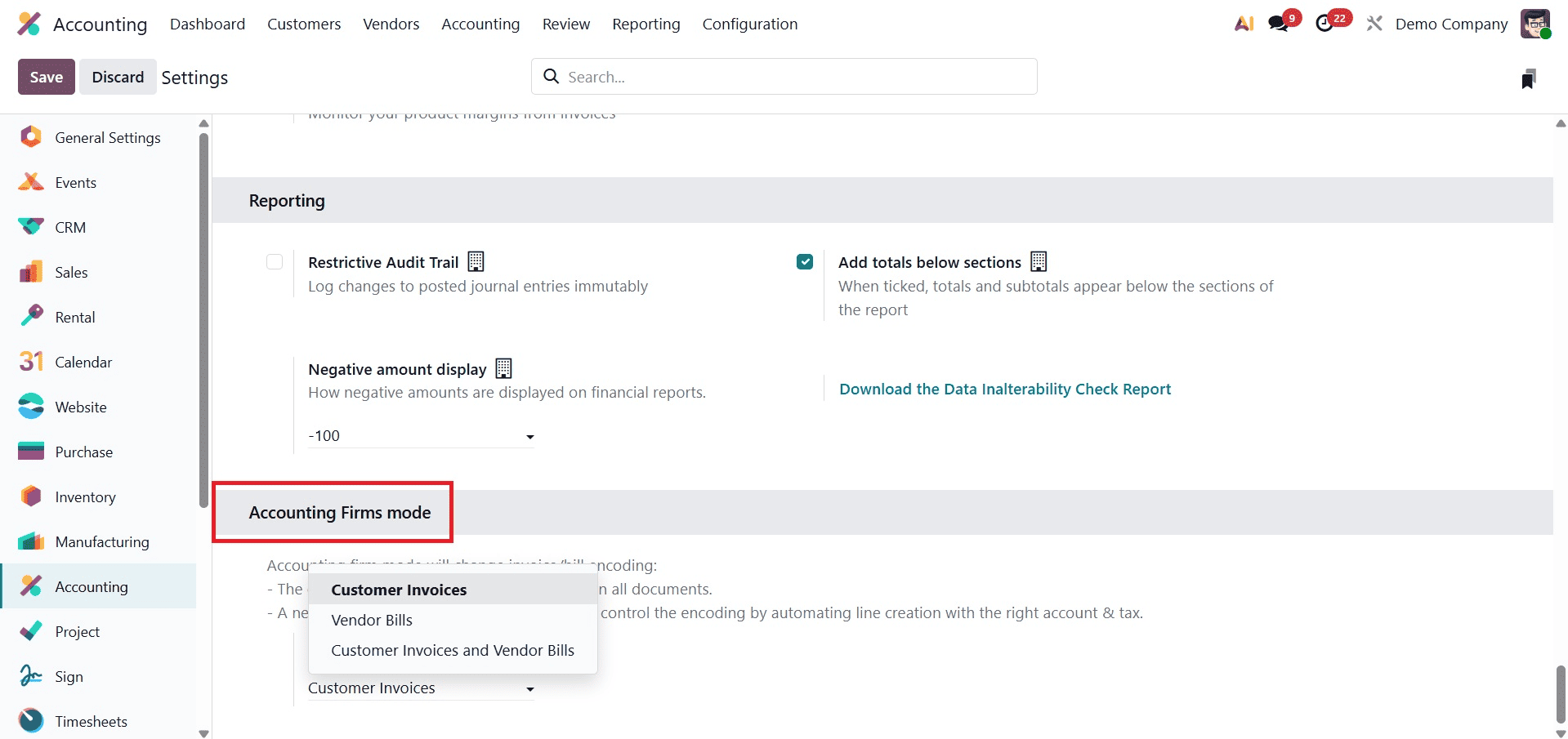
Disabled, Customer Invoices, Vendor Bills, and Customer Invoices and Vendor Bills are the four choices available in Accounting Firms mode.
If the user does not want to add these options, choose Disabled. If the accounting firm's mode is restricted to adding invoices, choose Customer Invoices. To add those changes, select the Vendor Bills. You may also enter bills and invoices by choosing Customer Invoices and Vendor Bills.
In this case, the Accounting Firms Mode is selected for both invoices and bills. Save the configuration after that.
Let's draft a fresh invoice. To do it, select the Accounting module's Customers menu. A list will then show up. Invoices, credit notes, payments, products, and customers are displayed in the list. Select the invoices, then. It will display every invoice that was previously added. Sequence number, customer, invoice date, due date, tax excluded price, total, and status are all added in the list view of the invoice. Click the New button to add a new one, and click the Upload button to upload a new one.
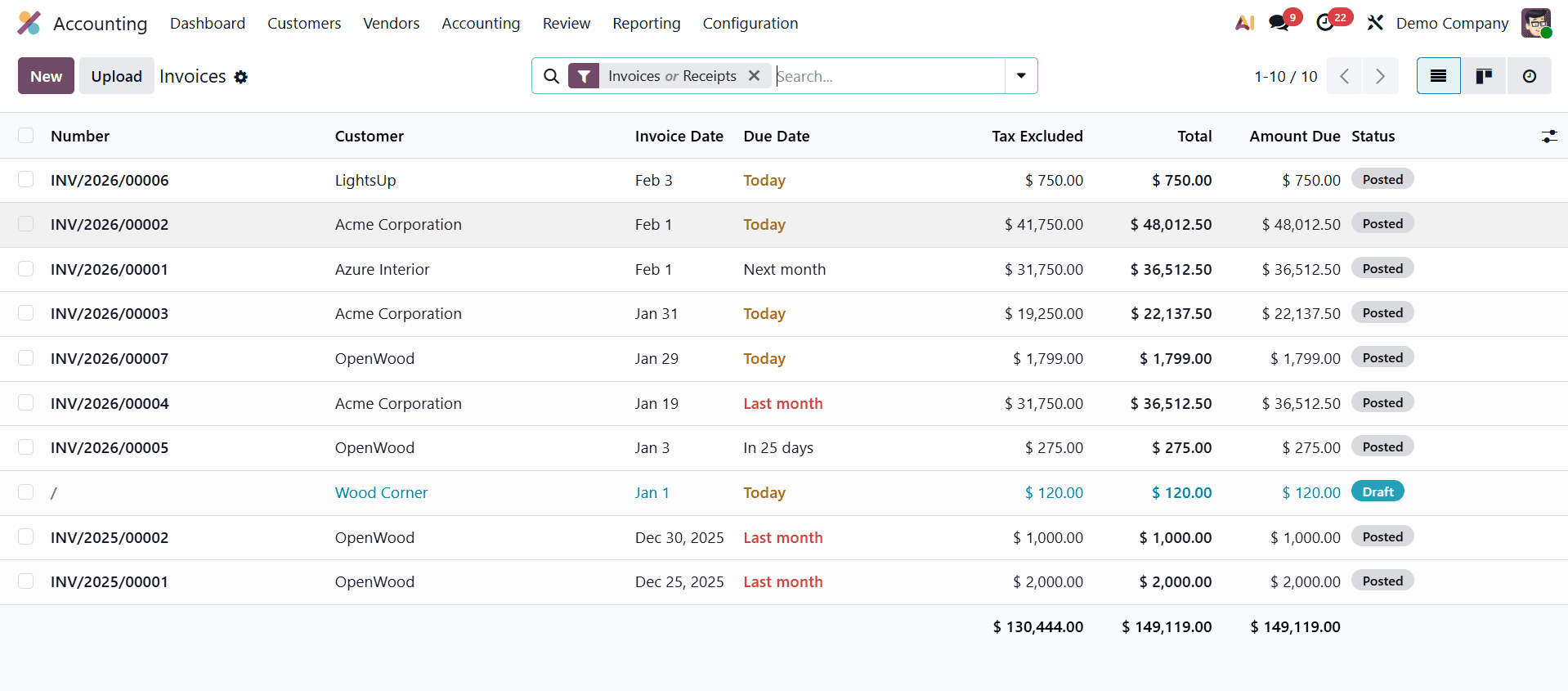
It is evident which invoices had an order when looking at their sequence number. This indicates that INV/2025/00001 is the initial invoice sequence number created. Additionally, the second invoice's sequence number is INV/2025/00002. As can be seen, the third one's sequence number should be INV/2025/00003. Thus, this is where Accounting Firms Mode's initial use is effective.
To add a new invoice, click the New button.
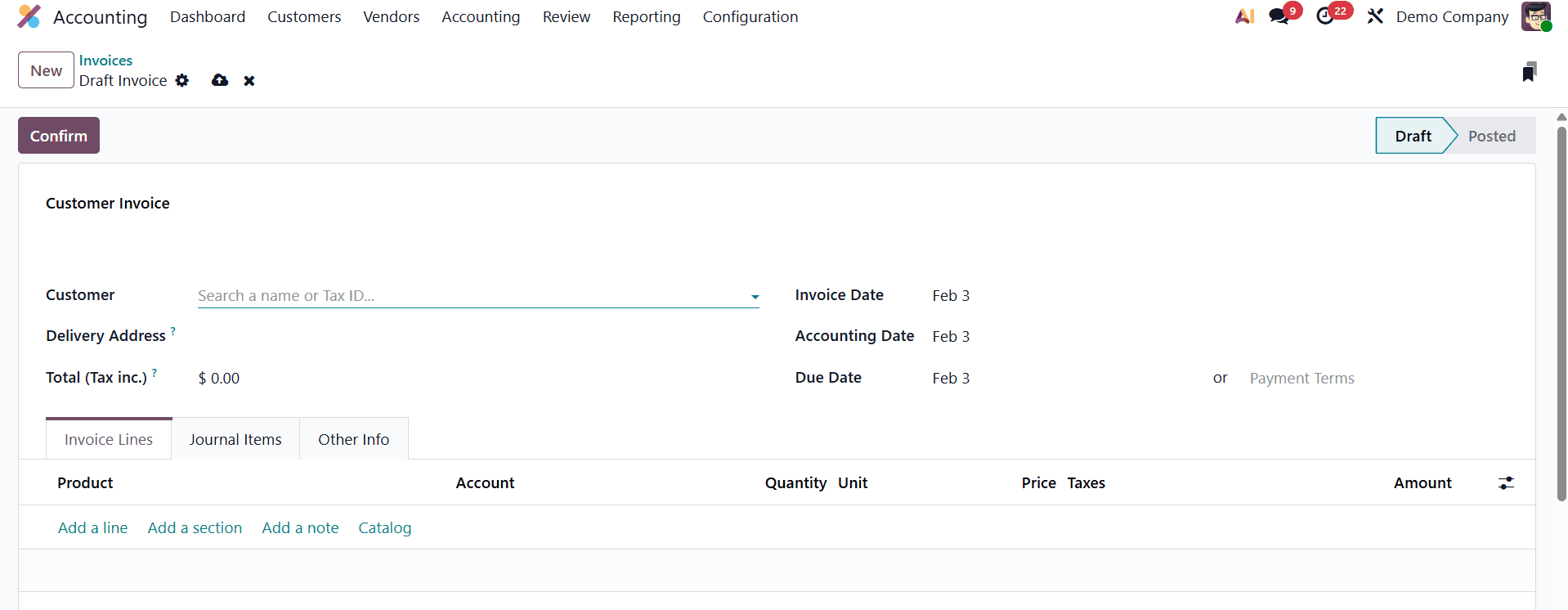
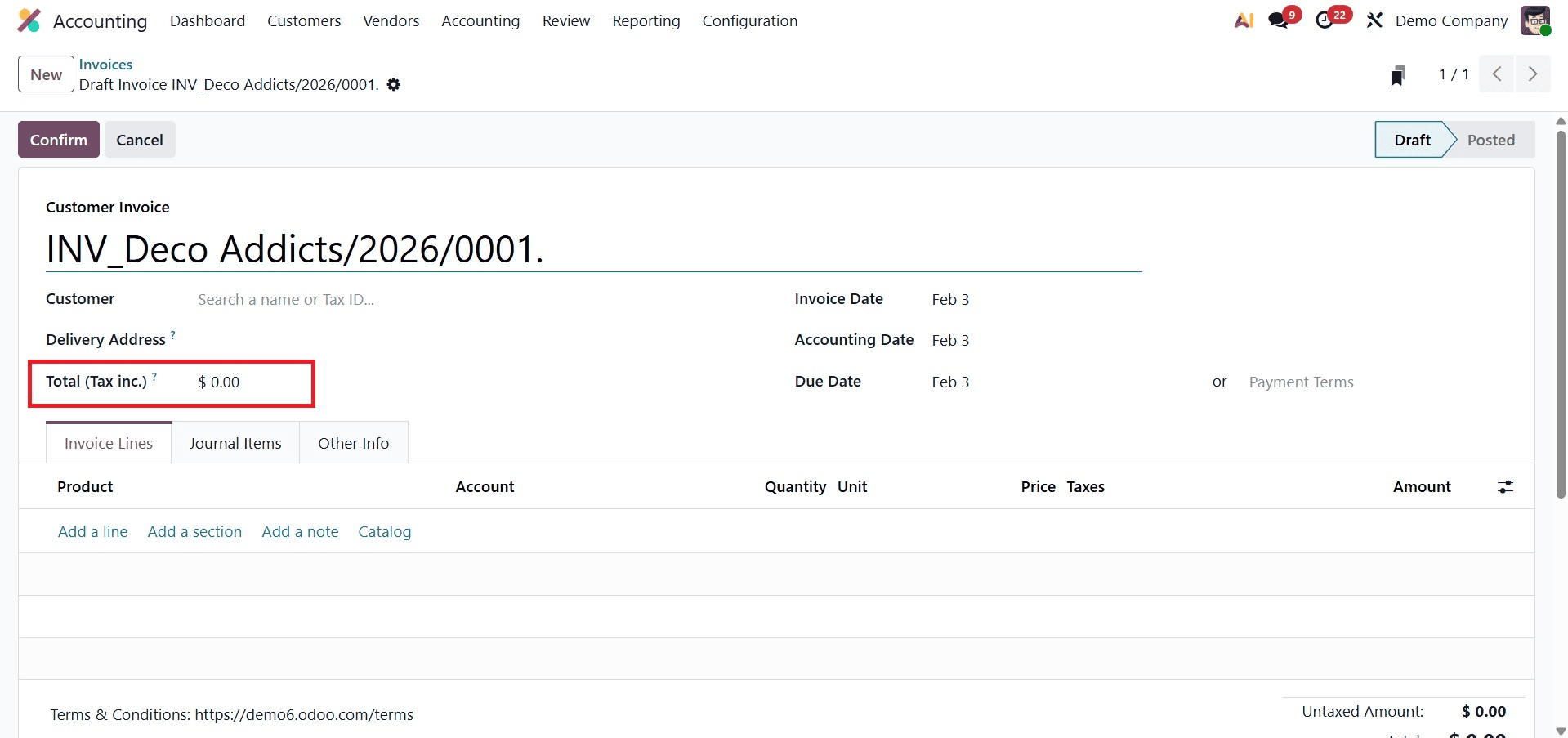
Here, users can manually add the invoice's sequence number, as seen in the figure above. Thus, the order of the sequence can be altered. Here, for instance, the user adds the invoice sequence as INV_Deco Addicts/2026/0001.
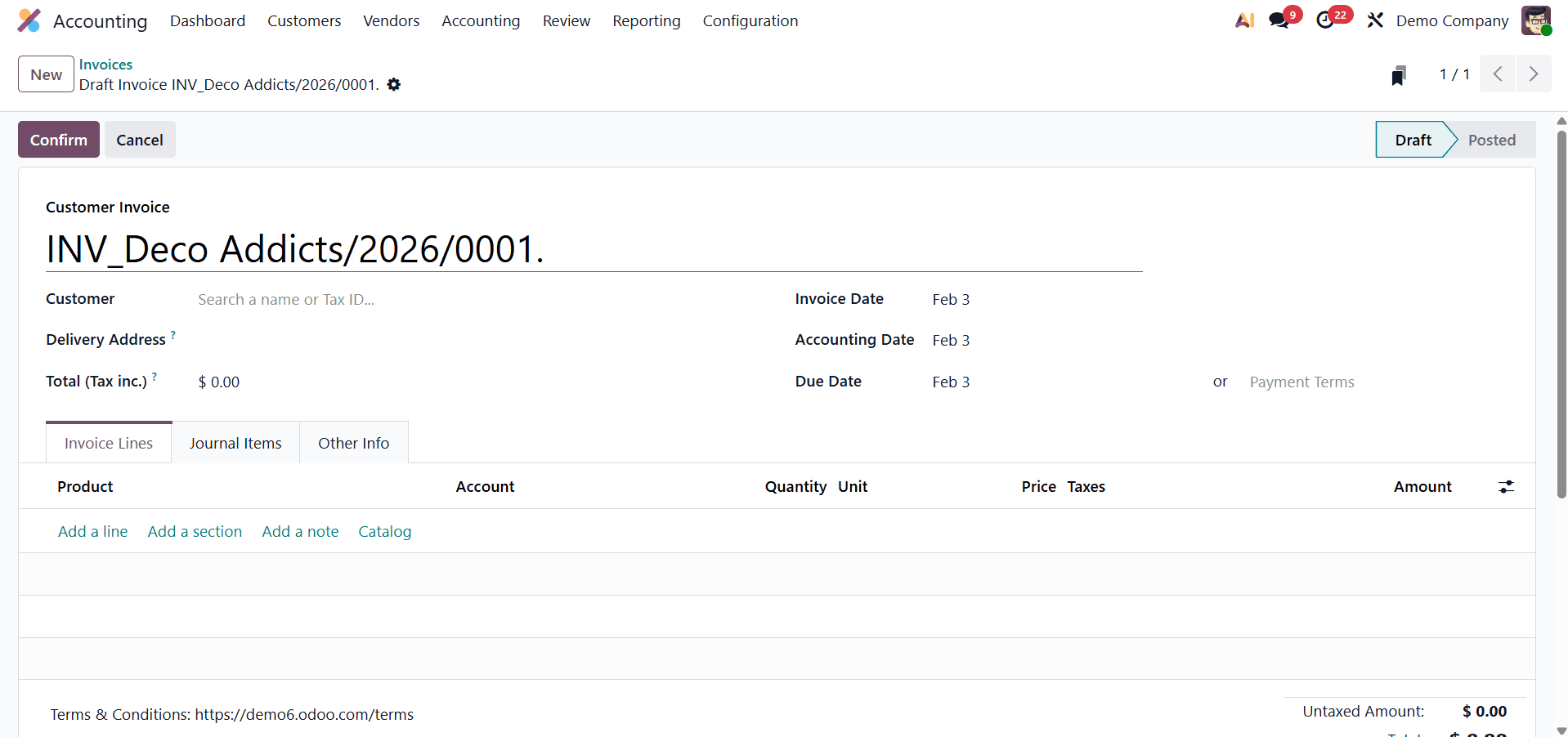
The second change was that Odoo added a new field named "Total (Tax Inc.)". The entire amount inside the invoice line should equal the amount contributed, thus you can put a sum there.
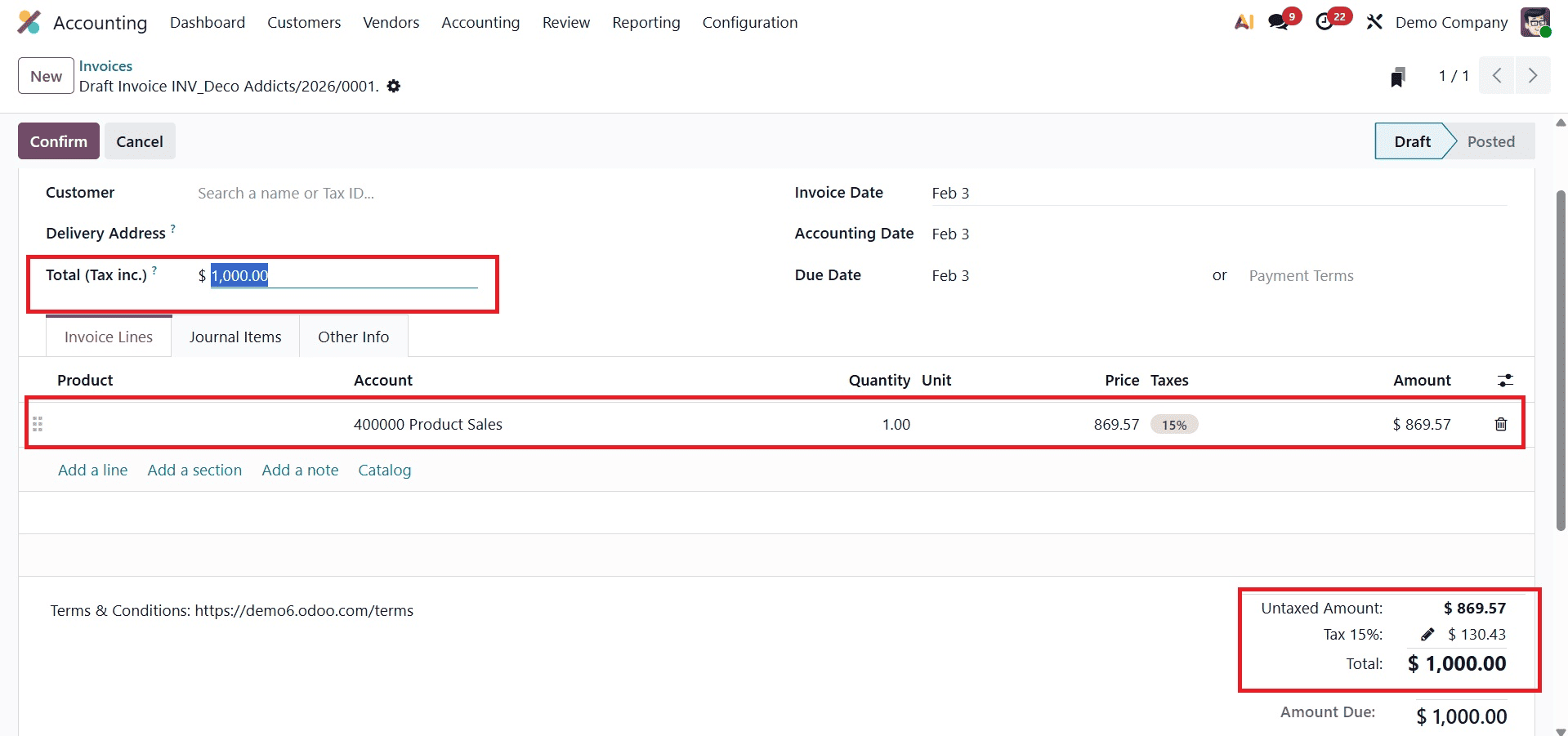
If the user inputs an amount in the Total (Tax Inc.), an order line without a product will be automatically added. The amount shown on the order line will then automatically match the total (Tax Inc.) amount. The user input $1000 for Total (Tax Inc.) in this instance. The default company tax rate is 15%. Therefore, the price that is tax-free is $869.57. The bottom of the invoice shows additional details, such as the total cost, the 15% tax amount, and the untaxed amount.
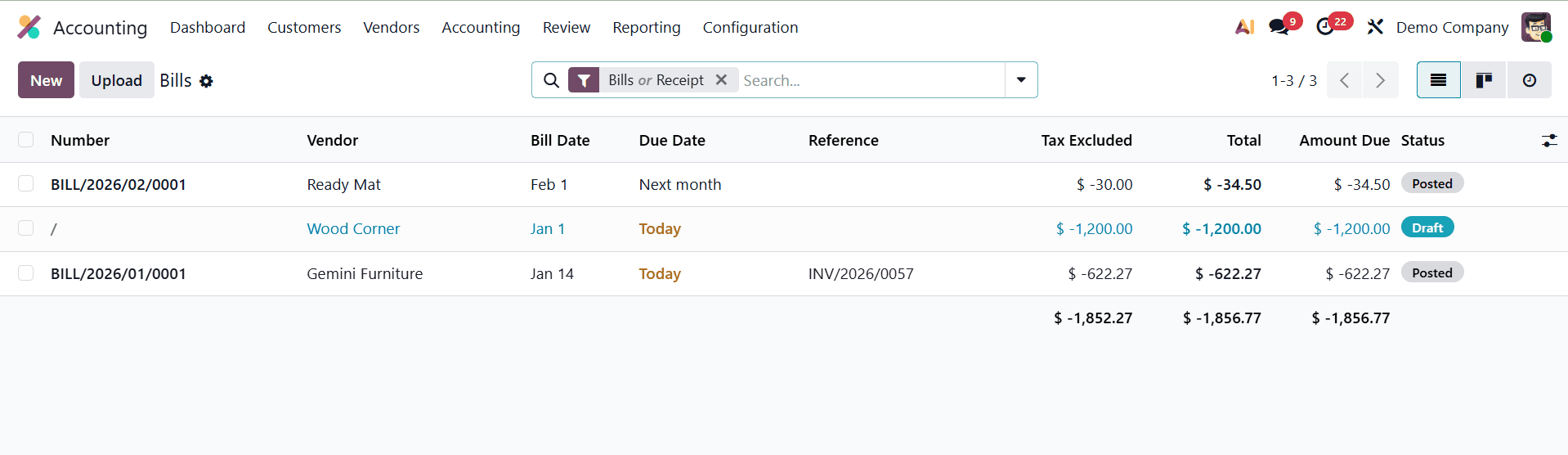
These configurations can also be seen within the bills if checking on them. When you select the Vendors option, a list view will show up. The list includes bills, refunds, payments, products, and vendors. From there, select the Bills.
The Bill's sequence number, Vendor, Bill Date, Due Date, Reference, Tax Excluded, Total, and Status are displayed. To add a new bill, click the New button.
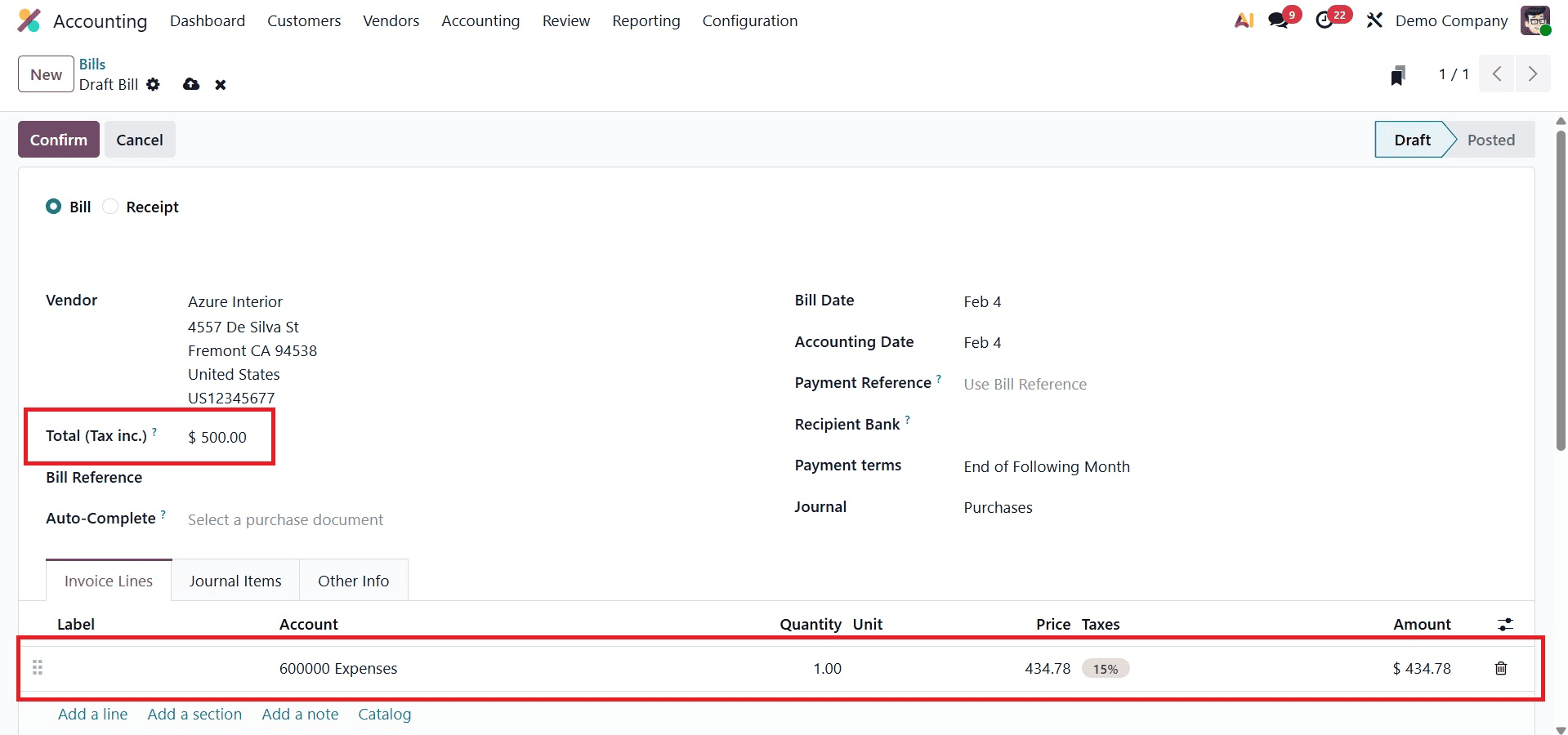
Users can enter the sequence number if they so choose while reviewing the form to add the new bill. Therefore, the bill sequence can be customized and its typical order can be altered. Then, provide the bill date in the allotted space as well.
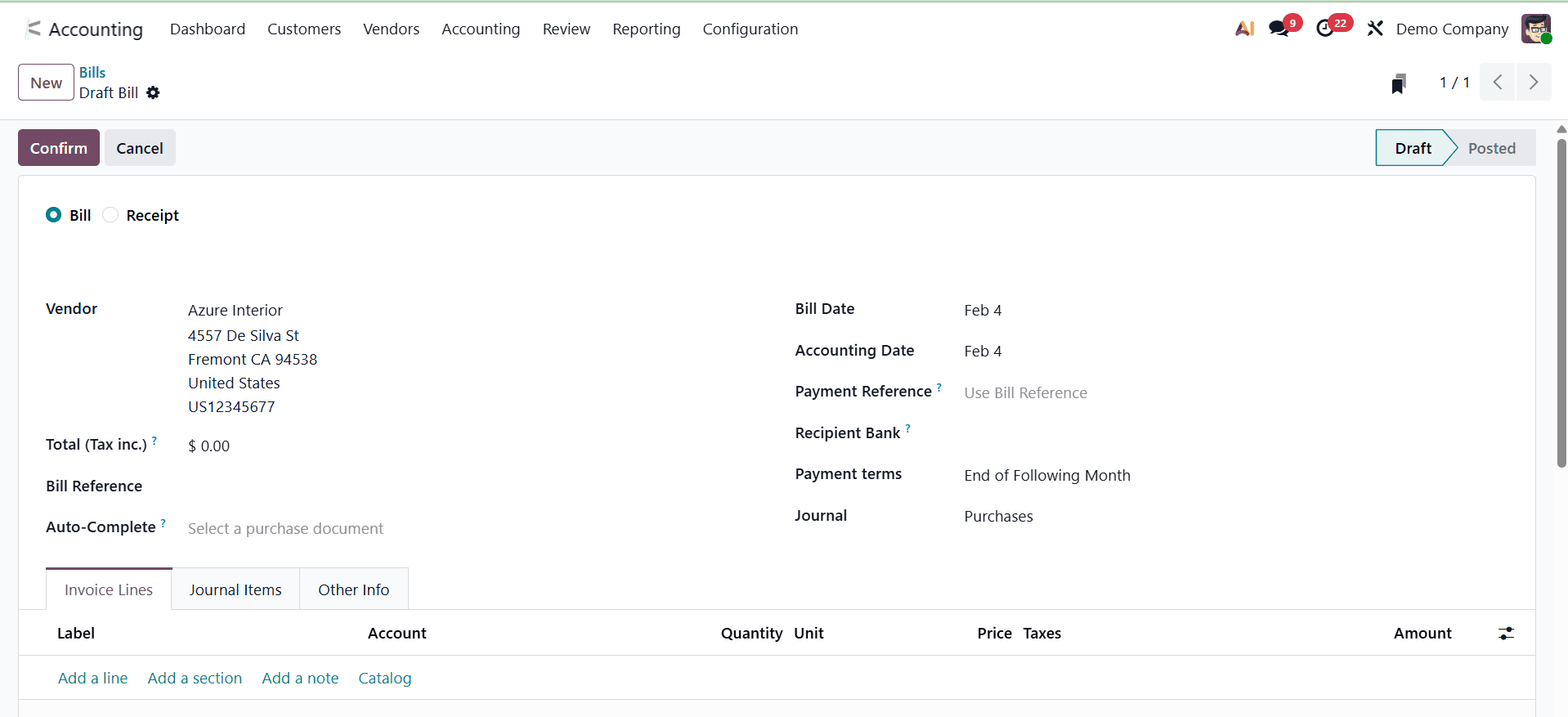
Then, inside the bill, the Total (Tax inc.) field is also inserted. This option allows users to encode the bill's total amount. One invoice line with matching default values will be automatically generated by Odoo.
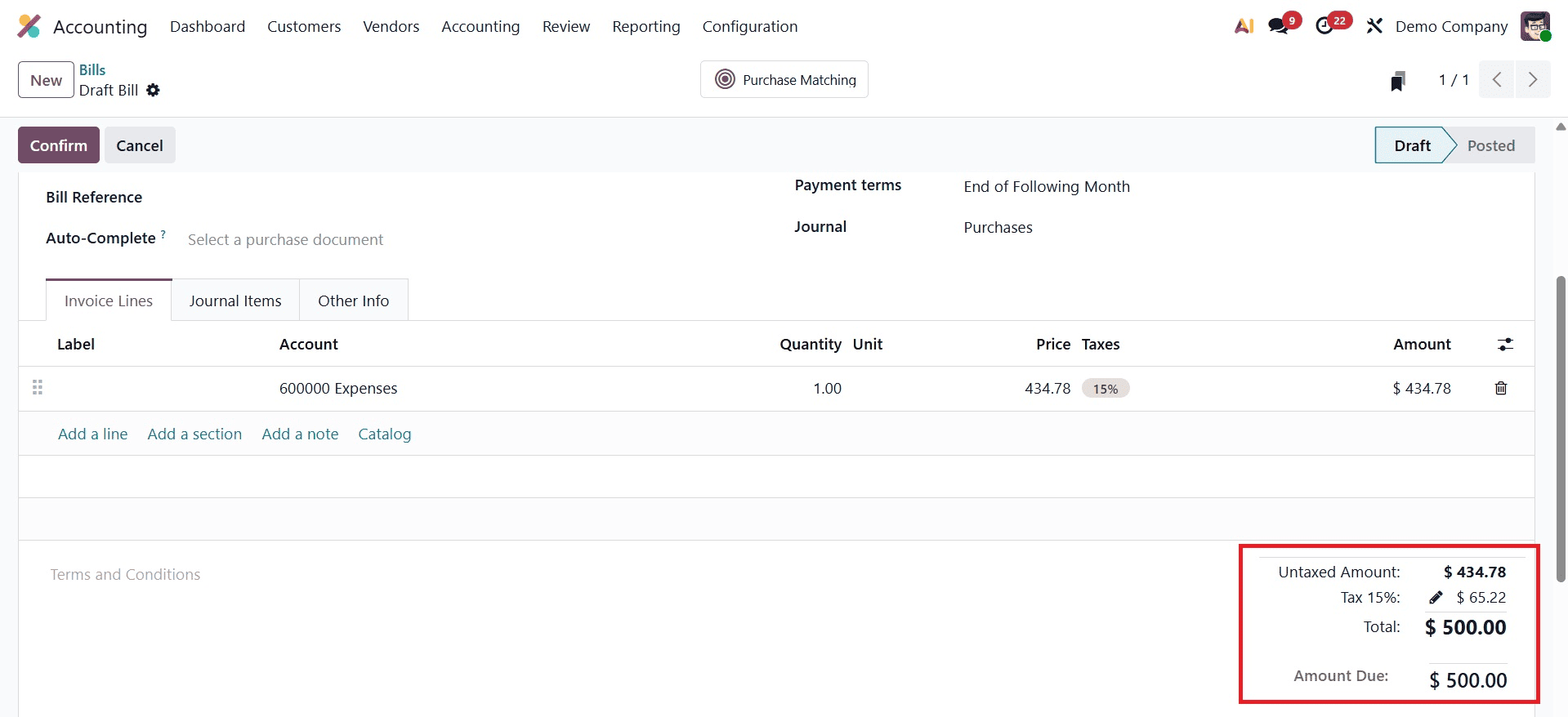
The Untaxed Amount, 5% Tax Amount, and Total can all be found by scrolling down. It is evident that the total amount and the amount the user entered in the Total(Tax inc.) field match.
Customizing the bills and invoices is quite simple when using Odoo 19's Accounting Firms Mode.
To read more about An Overview of Accounting Firms Mode in Odoo 18 Accounting, refer to our blog An Overview of Accounting Firms Mode in Odoo 18 Accounting.