Customers can easily access their personal information and engage with business services through Odoo 19's customer portal, which is a safe and user-friendly web platform. Based on the modules that are activated, users can monitor deliveries, track orders, view invoices, and manage project tasks using this simplified interface. By providing increased accessibility and transparency, Odoo 19 improves the customer experience by fostering stronger client relationships and engagement.
In order to make it simpler for clients to download crucial documents like invoices or sales orders straight from both the list view and the form view, this blog describes how to add a PDF report download button to the Odoo 19 customer portal.
Clicking "My Account" in Odoo brings up the customer portal, where users may access a number of functions like quotations, sales orders, purchase orders, and more. As shown in the graphic below, each menu option offers more information.

As seen in the example below, clicking "Our Orders" (Purchase Orders) takes you to the purchase order list page view.

You may create a custom module and define the XML view as follows to add a download button for every purchase order in the list view:
<?xml version="1.0" encoding="UTF-8"?>
<odoo>
    <!-- Inherit Purchase Orders List Page & Download PO Report Button -->
    <template id="portal_my_purchase_orders_report_button_inherit" inherit_id="purchase.portal_my_purchase_orders">
        <xpath expr="//t[@t-foreach='orders']//tr" position="inside">
            <td class="text-end">
                <a t-att-href="'/my/purchase_report/%s?download=pdf' % order.id" class="btn btn-secondary btn-sm">
                    <i class="fa fa-download"/>
                    Download PO Report
                </a>
            </td>
        </xpath>
    </template>
</odoo>
This code extends the purchase order template and adds a download button for each order, customising the list view of the customer portal. Customers can now easily download their purchase orders as PDFs straight from the list view.
Create a new controller by following the instructions below to manage Purchase Order PDF downloads from the Odoo 18 customer interface. In order to define the controller, start by creating a portal.py file.
Python:
from odoo import http
from odoo.http import request
from odoo.addons.portal.controllers.portal import CustomerPortal

class CustomPortal(CustomerPortal):
    @http.route('/my/purchase_report/<int:order_id>', type='http', auth='user', website=True)
    def portal_my_purchase(self, order_id, download=False, **kwargs):
        order = request.env['purchase.order'].sudo().browse(order_id)
        if not order:
            return request.redirect('/my/purchase')
        if download:
            pdf_content, _ = request.env['ir.actions.report']._render_qweb_pdf(
                'purchase.action_report_purchase_order', [order_id]
            )
            headers = [
                ('Content-Type', 'application/pdf'),
                ('Content-Length', str(len(pdf_content))),
                ('Content-Disposition', f'attachment; filename="{order.name}.pdf"'),
            ]
            return request.make_response(pdf_content, headers=headers)
        return request.redirect(order.get_portal_url())
Following the implementation of these modifications, the user interface will appear as follows:
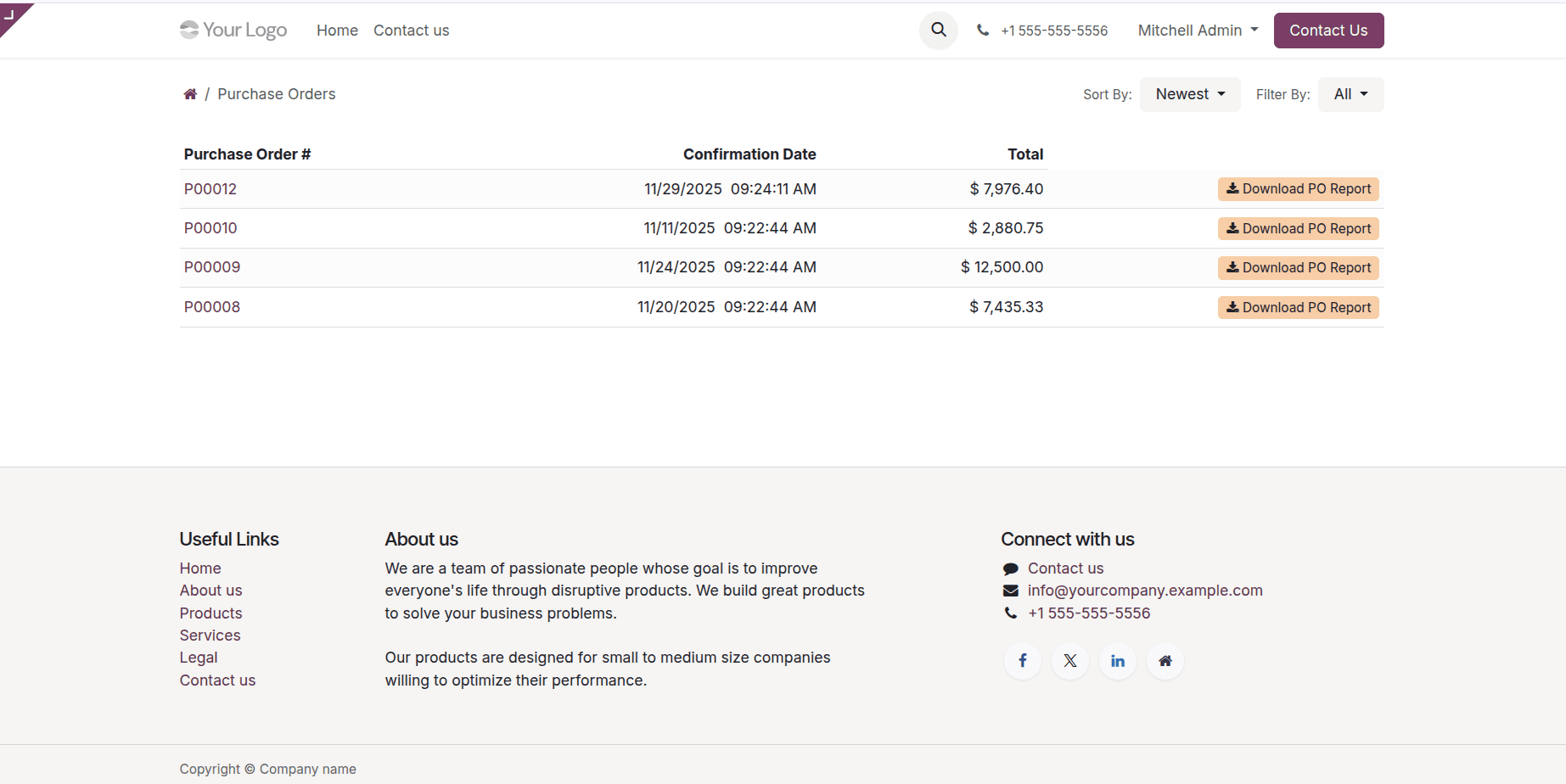
As seen in the illustration below, clicking this button will download the matching Purchase Order as a PDF.

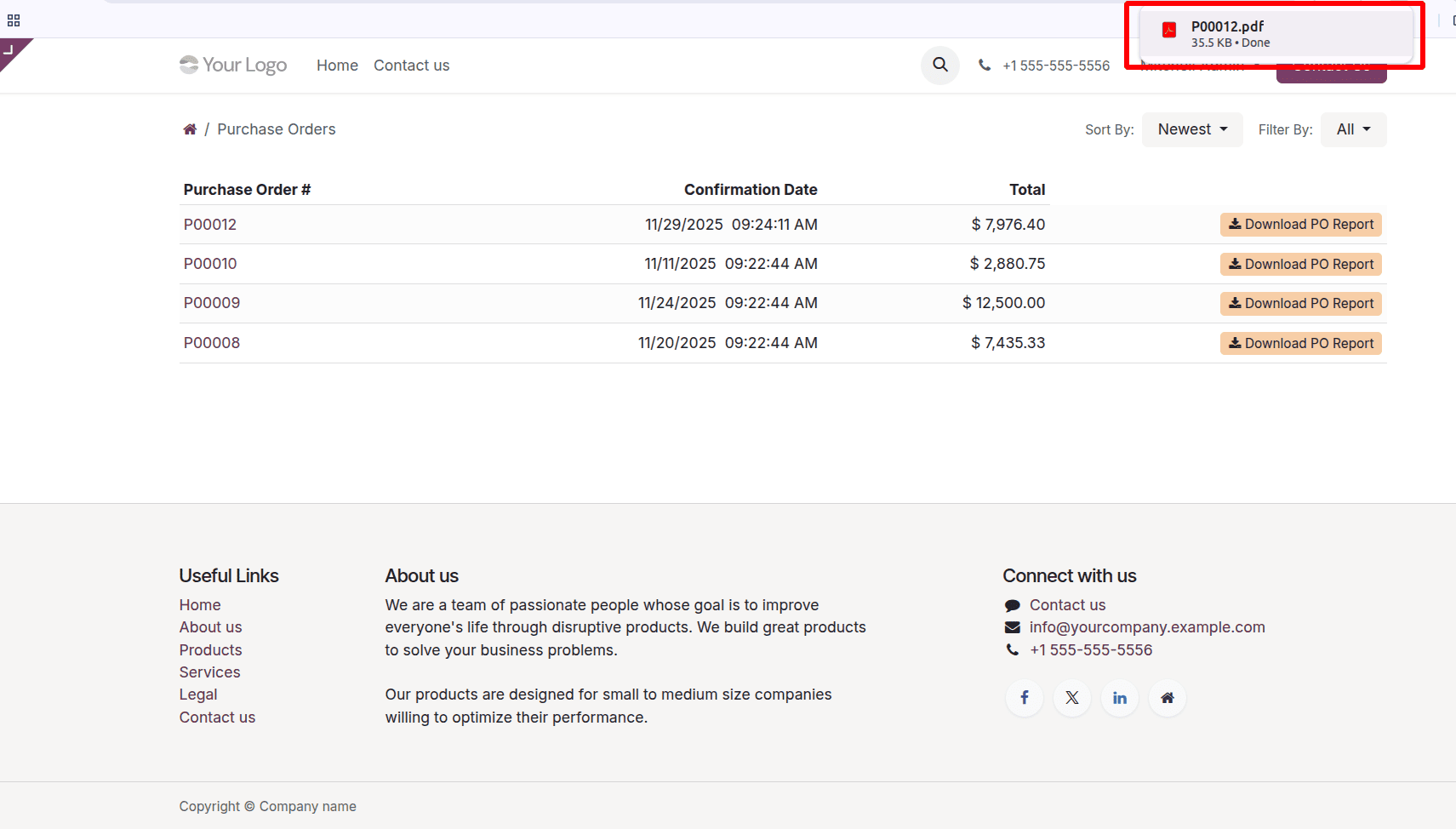
With this method, you can rapidly add download buttons to the customer portal's list and form views, allowing customers to obtain PDF reports.
Users can more easily access important documents like purchase orders, sales orders, and invoices by adding a PDF download button to the list or form views of the Odoo 18 customer interface. This feature simplifies document retrieval and administration, making it easier for users to get vital information directly from the website.
Customising portal templates and setting up paths for PDF creation increases accessibility, streamlines document processing, and reduces human labour. This increases customer happiness and streamlines processes by allowing customers to receive their documents more quickly.
To read more about How to Add a PDF Report Download Button to the Odoo 18 Customer Portal, refer to our blog How to Add a PDF Report Download Button to the Odoo 18 Customer Portal.