By incorporating sophisticated watermarking capabilities straight into its PDF report generation system, Odoo 19 improves business document management. Businesses can maintain consistent branding and create strong document security with this functionality. In contrast to traditional solutions, Odoo 19's native watermarking system integrates easily with QWeb templates, giving developers a wide range of customization options for PDF, image, and text watermarks.
Technical Implementation Architecture
Odoo 19's QWeb Templating Engine has improved because of the ability to add watermarks in multiple ways. The watermark can be added for one report per instance, where only specific PDFs have this feature, or through an option for a company-wide watermark that will automatically be applied to all documents that are created by the system. The developer side has made it so that it can be dynamic, and a report can show "Draft," "Cancelled," and other options, such as custom branding, based on the rules of the document state and business. As it's still QWeb, you have full control over the end result because you can use XML Template Inheritance to control the positioning, opaque, and rotation of the watermark through CSS code.
Strategic Business Applications
While many users of Odoo 19 may utilize watermarking features to provide both security and branding, watermarks within this application are often used to fulfill both of these functions at the same time. The watermarking functionality allows many different document formats to be leveraged and supports many types of watermarks, from simple text to extremely high-quality company logos or even entire-page-coverage watermarks, depending on user preference regarding how dominant or subtle the Watermarking should be. Because of the nature of the user interface within Odoo systems, Daily Office Use documents, through the use of watermarking, become "professional-grade," "branded" documents that are far more difficult than standard file formats to reproduce without the user's consent. In addition, watermarked documents have the appearance of consistency for customers.
Implementation Steps
Adding watermarks to Odoo 19 PDF reports requires template customization using QWeb and proper CSS styling. The process involves inheriting existing report templates and inserting watermark elements with specific positioning properties.
Your watermark code snippet demonstrates the essential approach for text-based watermarks in Odoo 19:
<div class="watermark-text" t-if="report_type == 'pdf'"
     style="position: absolute;transform: translate(0%, -170%) rotate(-45deg);-webkit-transform: translate(0%, -170%) rotate(-45deg);color: coral;font-size: 6em;opacity: 0.15;pointer-events: none;z-index: 0;">
    CONFIDENTIAL
</div>
Image-Based Watermarks
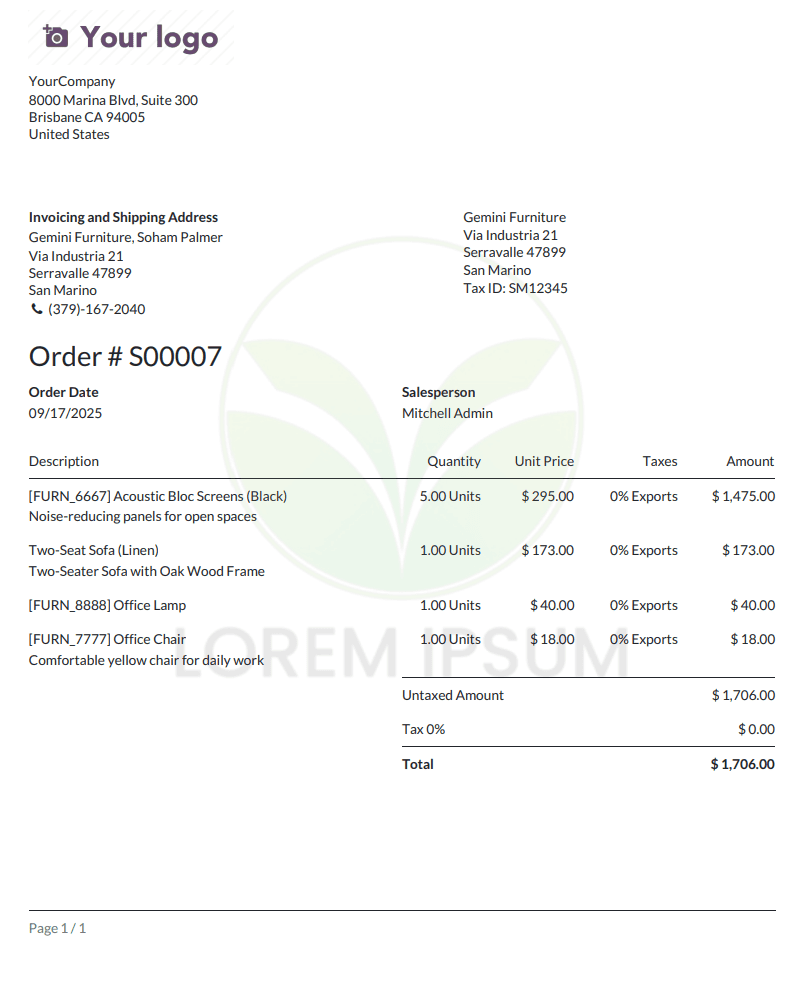
Adding image watermarks to Odoo 19 PDF reports allows you to display company logos or custom graphics directly in your documents.
Basic Image Watermark Code
Your code snippet shows the simple implementation for image watermarks:
<div class="watermark-img" t-if="report_type == 'pdf'">
               <img src="/sale_report_watermark/static/src/img/watermark.png"
                    style="position: absolute;top: 25%;left: 15%;width: 70%;opacity: 0.1;pointer-events: none;z-index: 0;"/>
           </div>
Adding Watermarks to Sale Order Reports
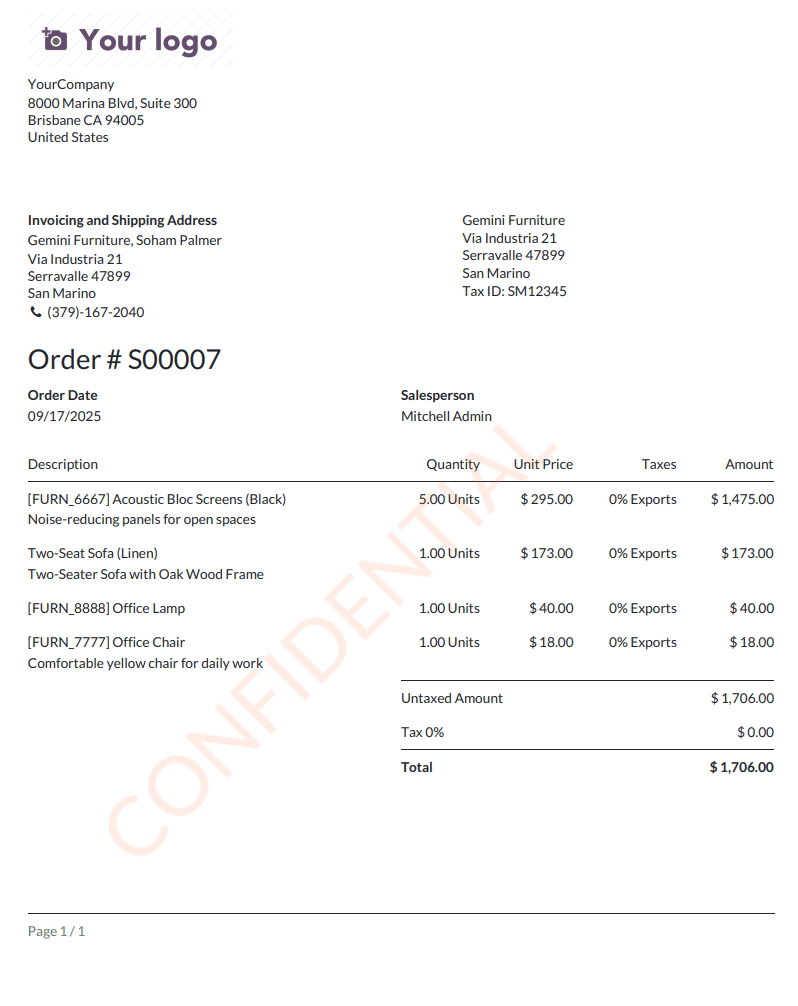
Now let's take your watermark code and apply it to a real sale order report in Odoo 19. This example shows how to add a "CONFIDENTIAL" watermark that appears on every page of your sale order PDFs.
Creating the Template File
First, create a new XML file in your custom module to inherit the sale order template. Your code shows the perfect structure:
<?xml version="1.0" encoding="UTF-8"?>
<odoo>
    <!-- Custom Watermark Template for Sale Order Reports -->
    <template id="custom_sale_order_document_watermark" inherit_id="sale.report_saleorder_document">
        <xpath expr="//div[@class='page']" position="inside">
            <!-- TEXT WATERMARK -->
            <div class="watermark-text" t-if="report_type == 'pdf'"
                 style="position: absolute;
                        transform: translate(0%, -170%) rotate(-45deg);
                        -webkit-transform: translate(0%, -170%) rotate(-45deg);
                        color: coral;
                        font-size: 6em;
                        opacity: 0.15;
                        pointer-events: none;
                        z-index: 0;">
                CONFIDENTIAL
            </div>
        </xpath>
    </template>
</odoo>
You can adjust positioning using CSS properties like top, left, and rotation angles to create unique watermarks that match your business needs. Whether you want different colors, sizes, or positions like "DRAFT" status indicators, CSS styling gives you complete control over your watermark appearance.
Visual Results
The images below demonstrate how the watermark function we implemented in Odoo 19 works in PDF reports. The sample reports show how both text and image watermarks are incorporated so they do not interfere with the readability of the document and also provide the necessary security markings through proper placement and clarity.
Conclusion
Businesses can take advantage of Odoo 19's watermarking feature to create a safe and professional brand image through PDF report watermarking. We've shown how adding an image or text watermark can change a basic template into an asset that protects sensitive information with a text watermark like "CONFIDENTIAL," whereas adding a company logo creates consistency across all communications for that specific business. By making it difficult to recreate documents with the watermark, these methods protect against unauthorized copies and maintain the professional appearance of business documents.
The technical capabilities of Odoo 19's watermarking system allow for unlimited customization, including positioning and rotation, as well as changing opacity and colour. With the steps provided in this guide, businesses can easily improve their document workflows, protect their intellectual property, and develop a consistent brand image through all the reports they generate. Watermarking is one of the most critical elements of today’s modern business document management systems, which not only provides the highest level of security but also creates the strongest branding impact with very little technical skill.
To read more about How to Add a Watermark in PDF Reports in Odoo 18, refer to our blog How to Add a Watermark in PDF Reports in Odoo 18.