The website acts as the first point of contact between customers and the business. Using the Odoo 19 Website Builder, you can develop an attractive and professionally designed website without any knowledge of programming or advanced design skills. The drag-and-drop feature of the builder makes it easier to build pages and add various components such as the contact form.
This blog post provides a step-by-step guide to creating and managing a complete website using Odoo 19. You will be able to understand the process of designing and managing the website.
Odoo 19 Website Builder Overview
- Serves as an effective and efficient tool for controlling different aspects of websites.
- It lets users develop and customize pages without needing programming skills.
- Odoo 19 supports multiple languages, allowing businesses to reach and serve customers across different regions.
- It enables firms to create e-stores complete with customized product layouts and payment systems.
- It is compatible with the CRM system, thereby assisting businesses in tracking customer interactions.
- There are communication tools available in the form of live chat, contact forms, and interactive widgets.
- It offers a responsive design for websites that function effectively on mobile devices.
- It provides flexibility for developing and arranging different types of pages such as blogs.
Creating a New Website
Starting a website in Odoo 19 requires the use of the Website module. The website setup can begin by opening the Website module from the Odoo home screen.
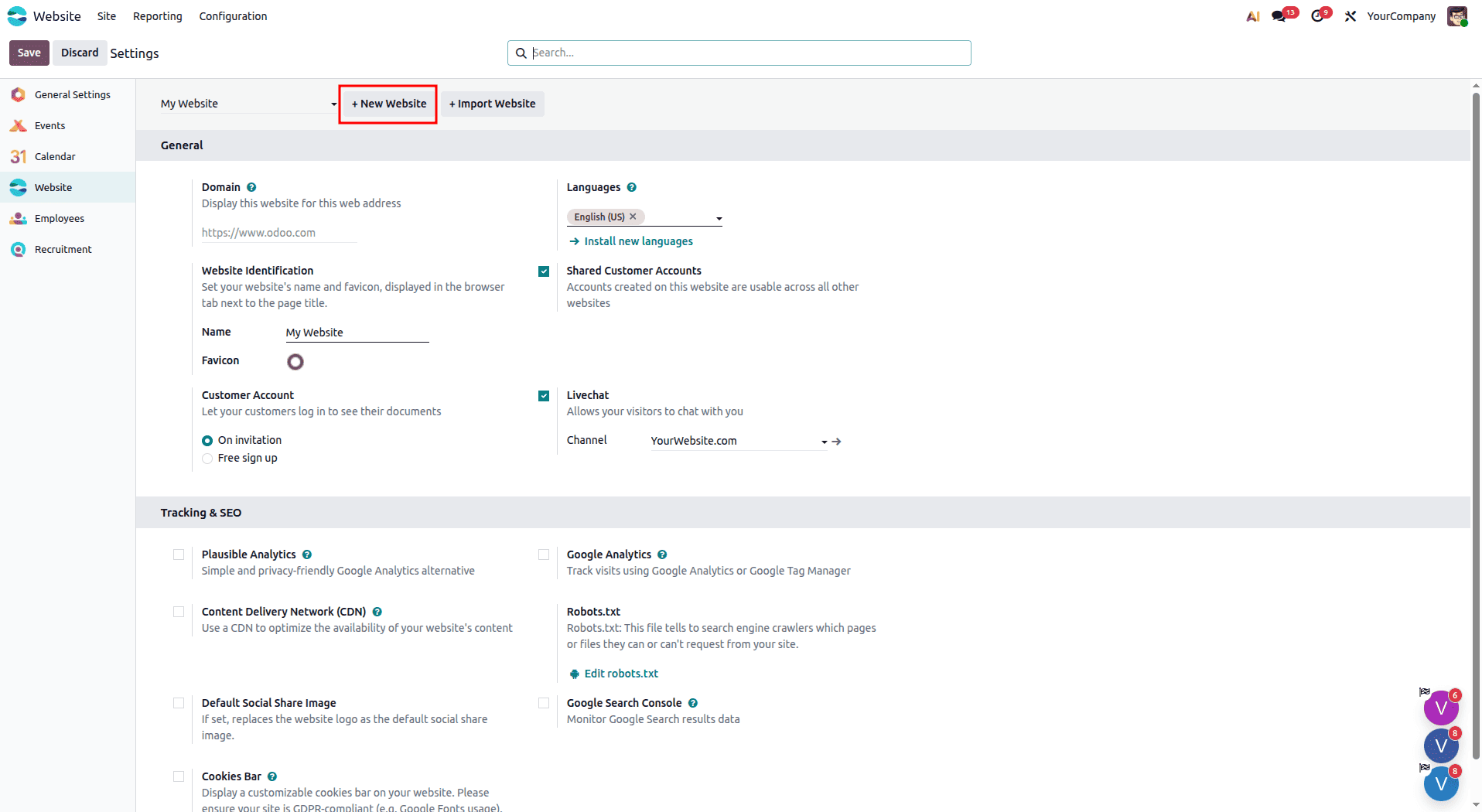
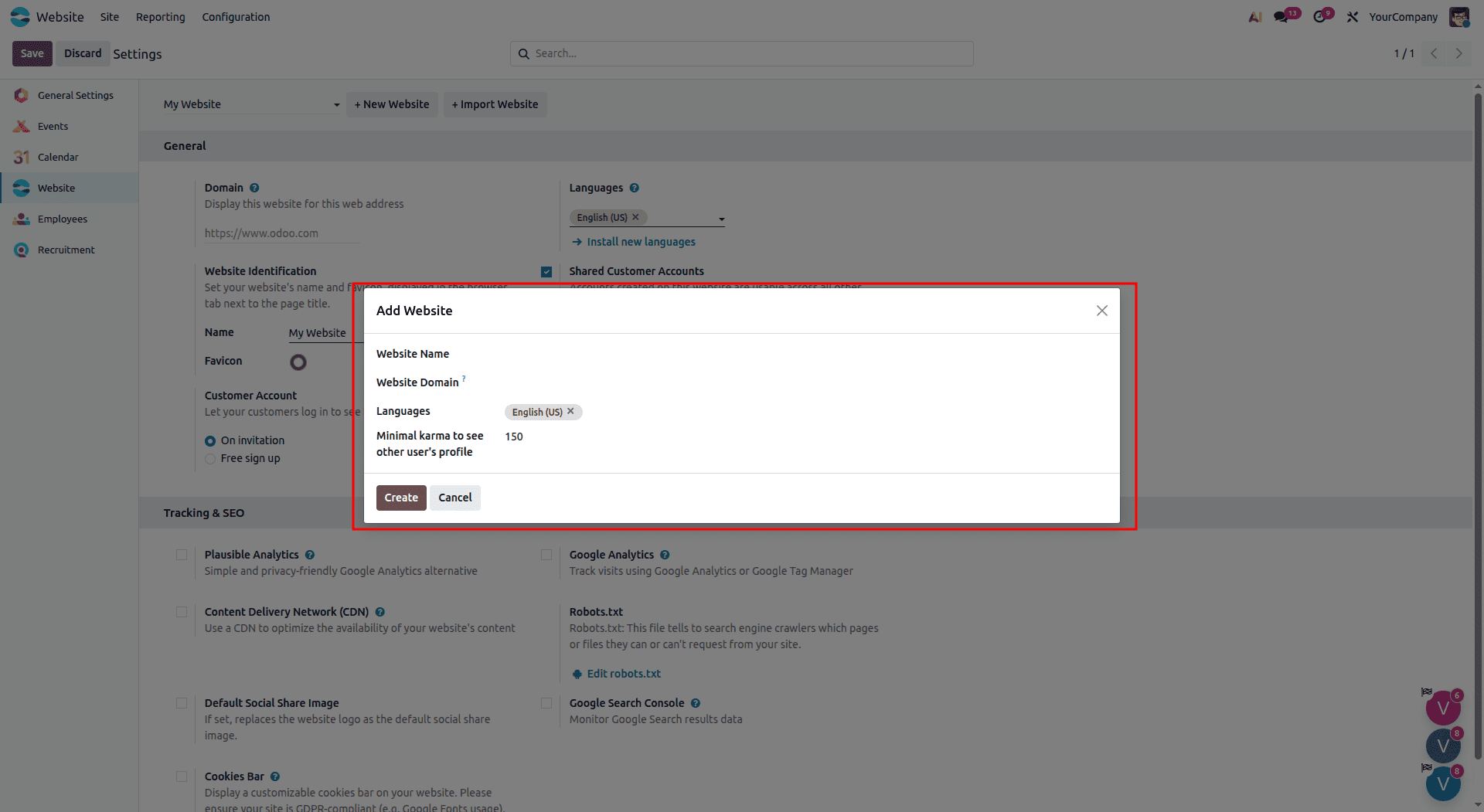
A setup window will appear asking you to provide a website name. You can also specify a unique domain name if required.
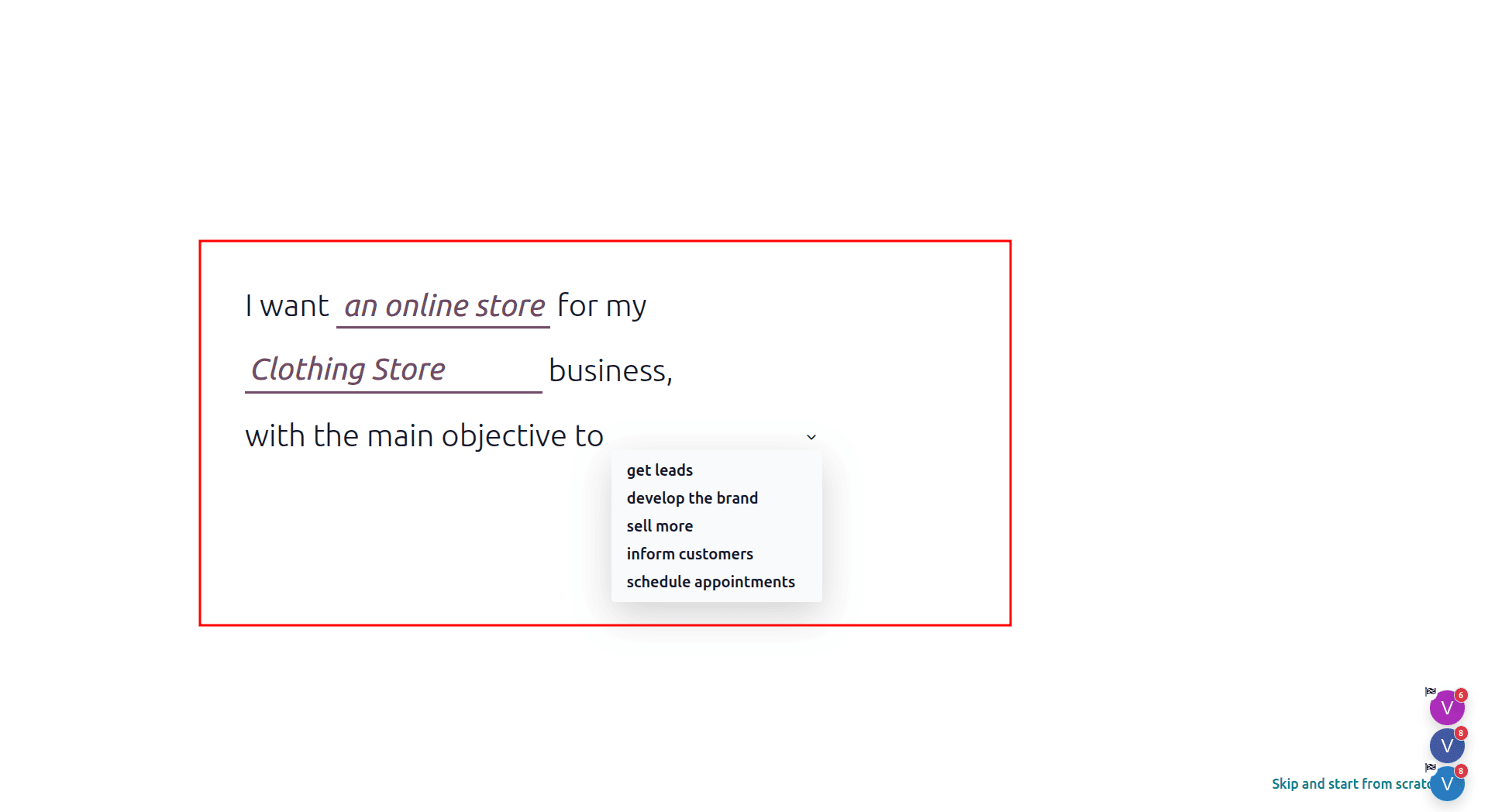
After these details have been entered, Odoo 19 provides an easy-to-use wizard that assists in configuring your website. You are allowed to state the kind of business, which can either be an eCommerce store, a service business, or an informational website, and also state what the main purpose of your site is.
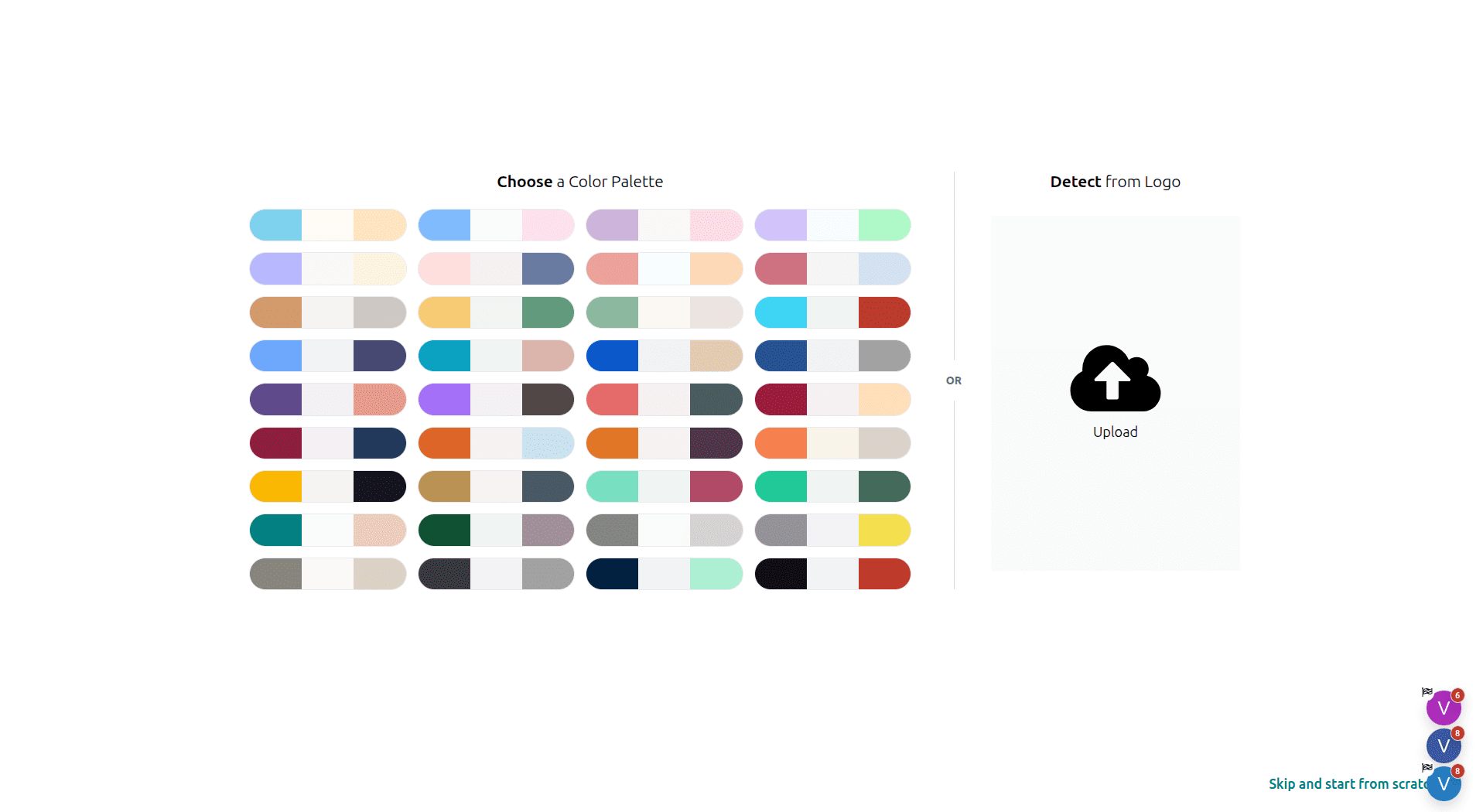
Next, choose a color palette that complements your brand, or upload your logo and let Odoo 19 generate a website theme that aligns with your brand identity.
You can then choose the pages and features you want to include from the start, such as About Us, Shop, Appointments, Blog, and Live Chat. You can modify these elements or add new ones to your website later as your business needs evolve.
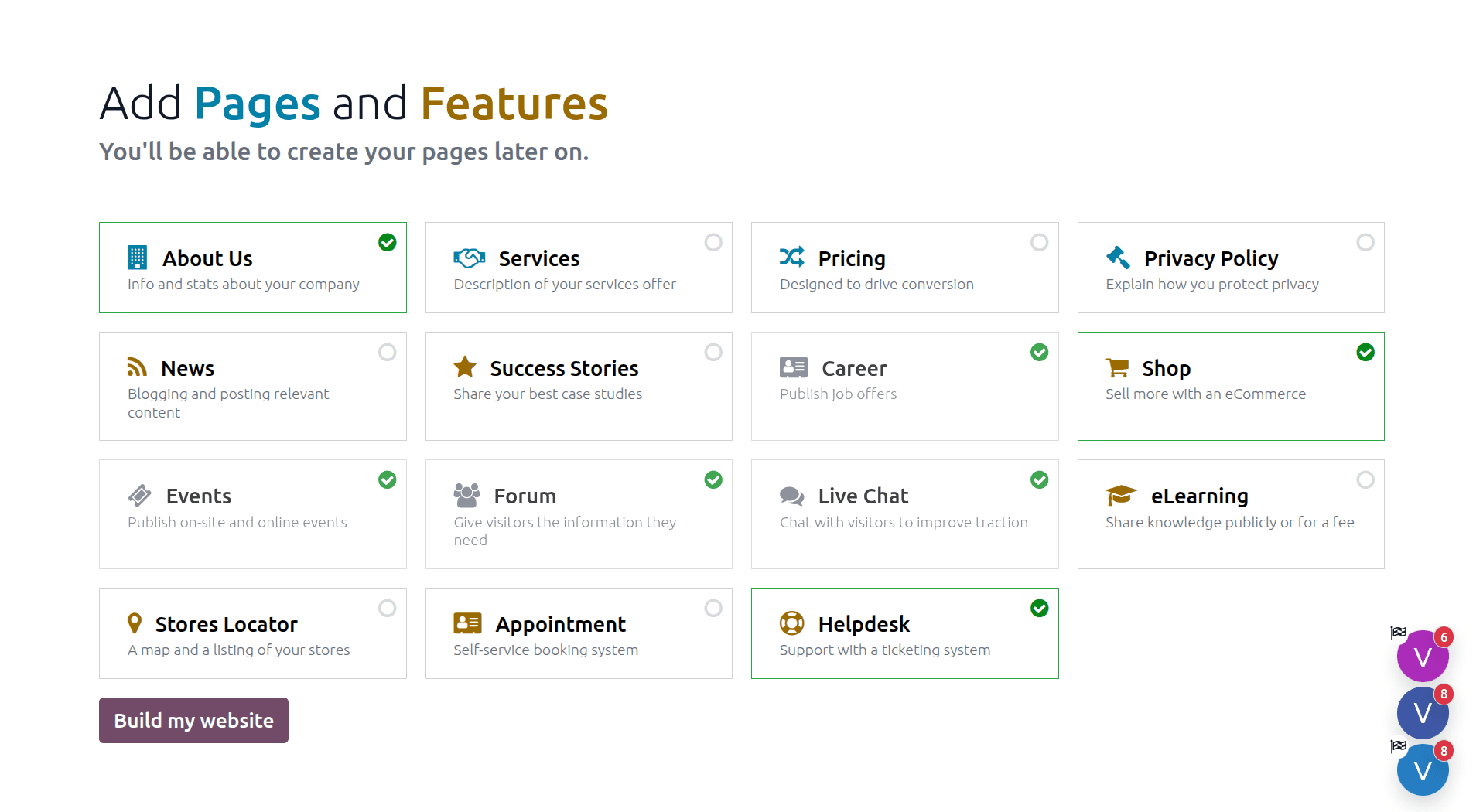
After making the necessary selections, click “Build My Website” to launch the visual editor. From there, you can start customizing the website’s layout, content, and overall appearance.
Customize Your Website in Odoo 19
Once the initial website setup is complete, you can begin creating pages and adding content to establish your website’s structure. Odoo 19 provides an easy-to-use visual builder that simplifies this process.
To add a new page, select the “New” button located in the upper-right corner of the website dashboard.
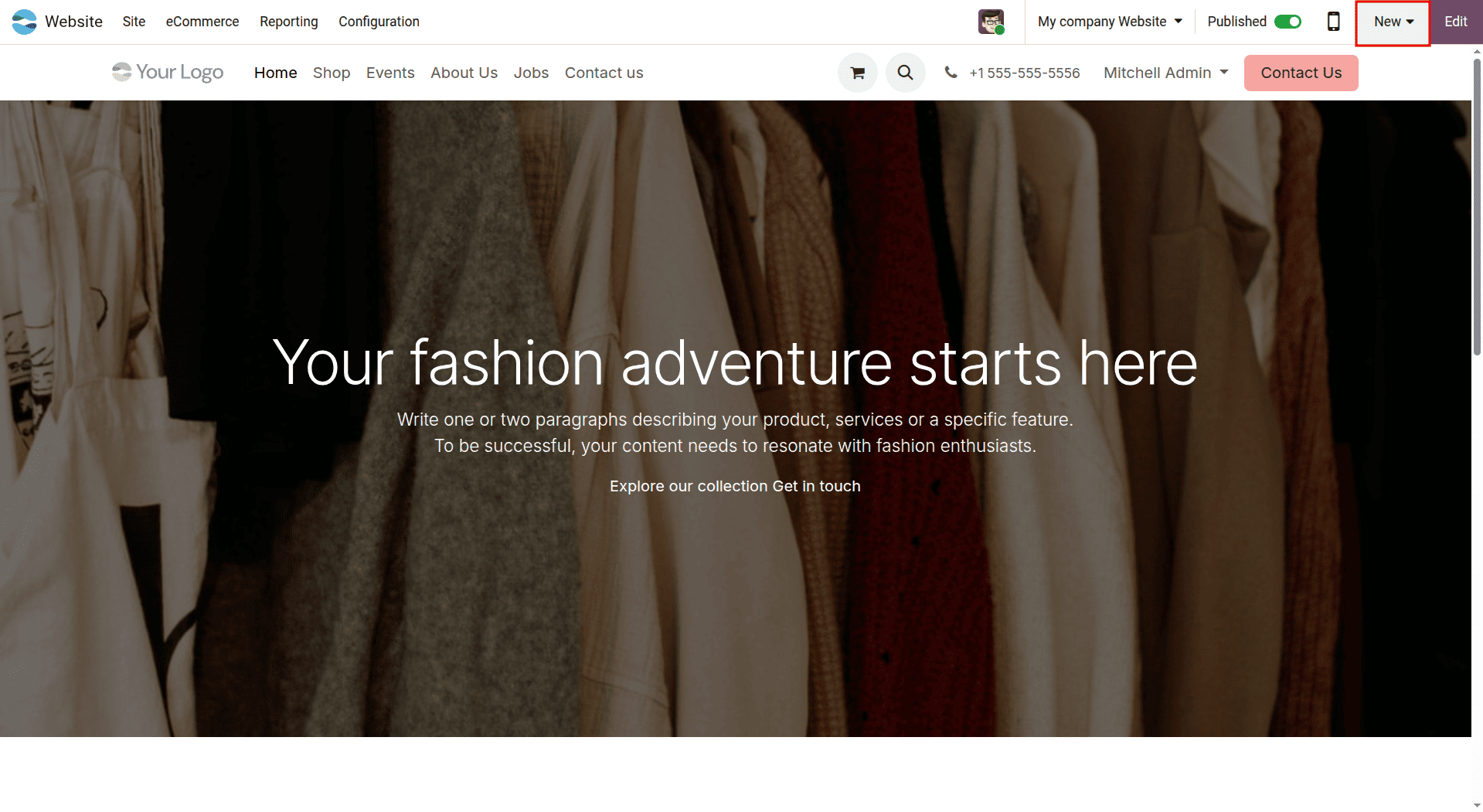
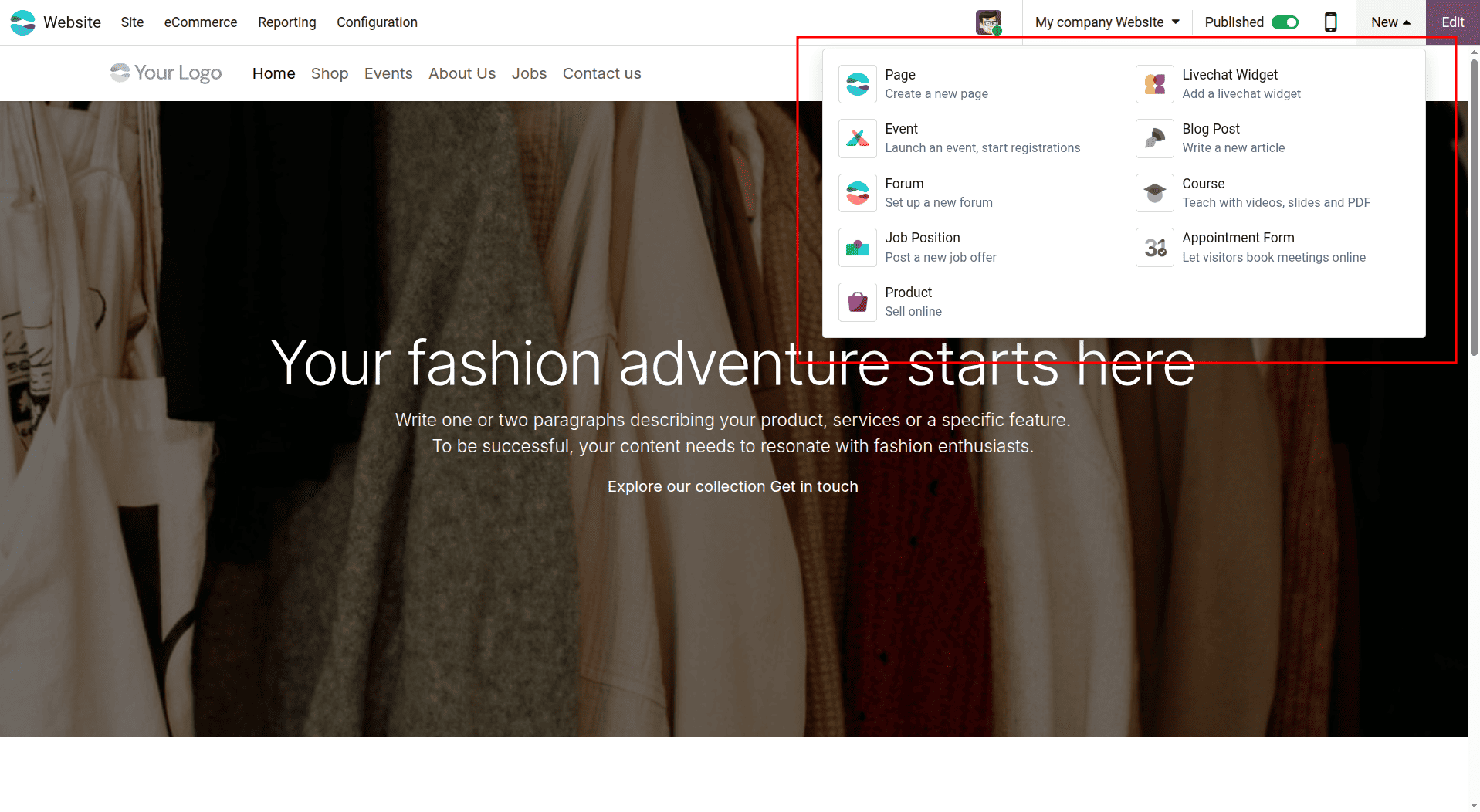
Clicking the “New” button opens a radial menu with different options for creating new website content. Choose the option that best suits the type of content you want to create.
After selecting “Page,” the template library will appear, offering a variety of layouts, including Basic, About, Landing Pages, Gallery, Services, Pricing Plans, Team, and Custom.
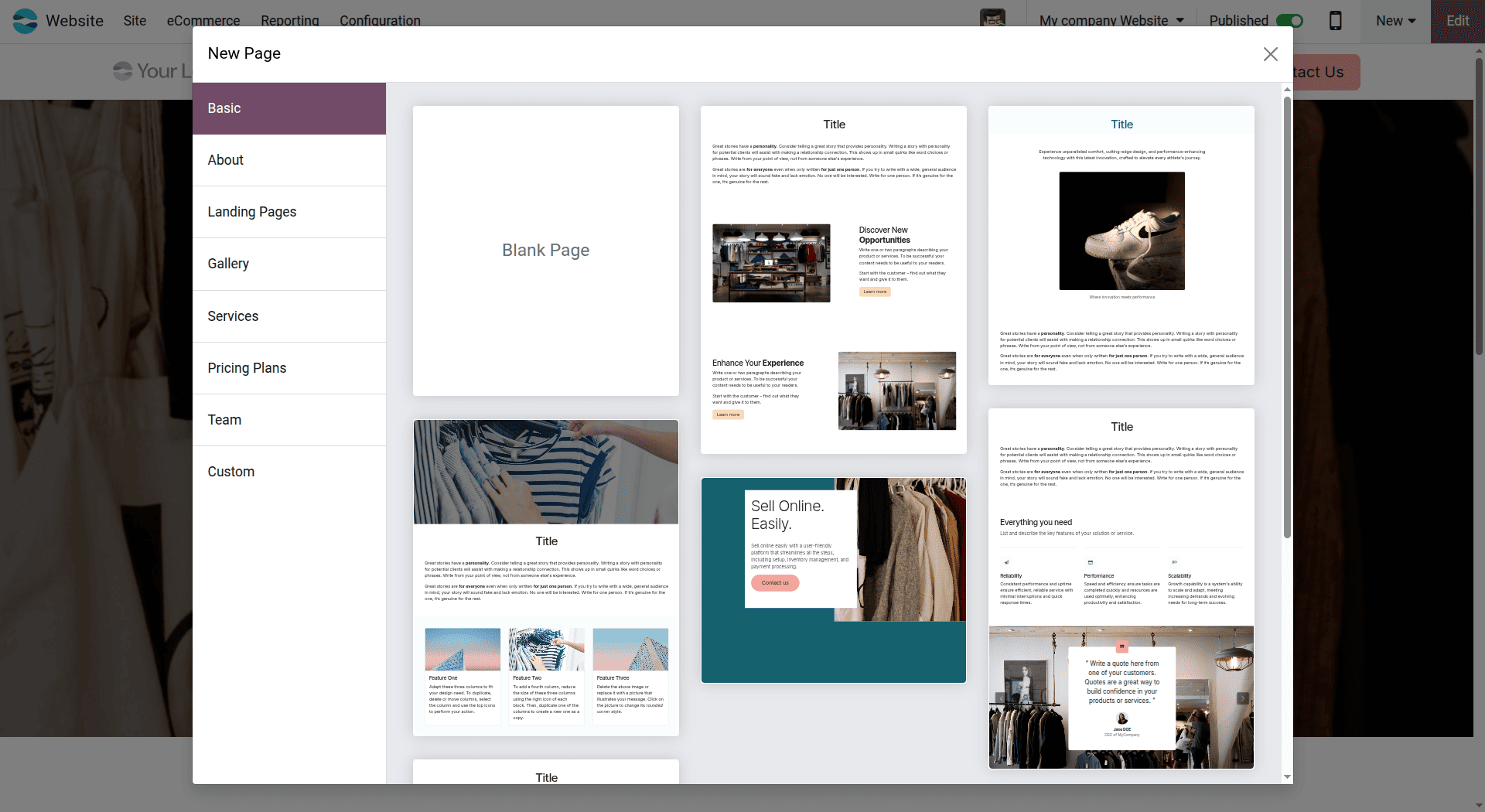
Each template comes with a predefined layout that can be customized according to your requirements. This makes it easier to create professional-looking pages without having to design the entire structure from the beginning.
Editing Pages with Blocks and Inner Elements
After adding the page or blog as required, you need to click on “Edit” in the top right-hand corner of the Odoo website builder. The editor lets you edit the page visually by adjusting the layout, content, and design elements.
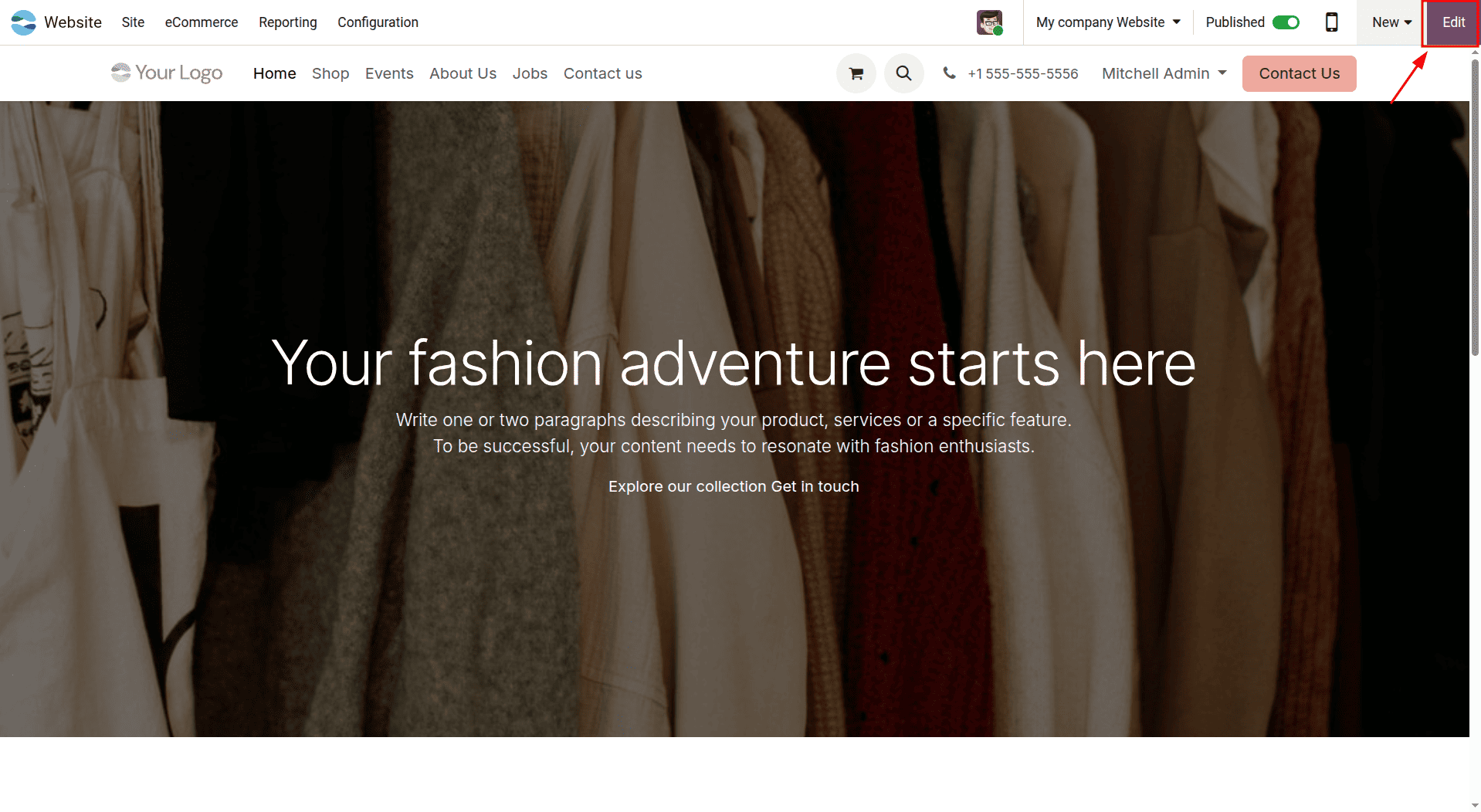
When you click the “Edit” button, three tabs - Blocks, Customize, and Theme - appear in the left sidebar. Each tab provides different tools for managing the website’s layout, content, and overall appearance.
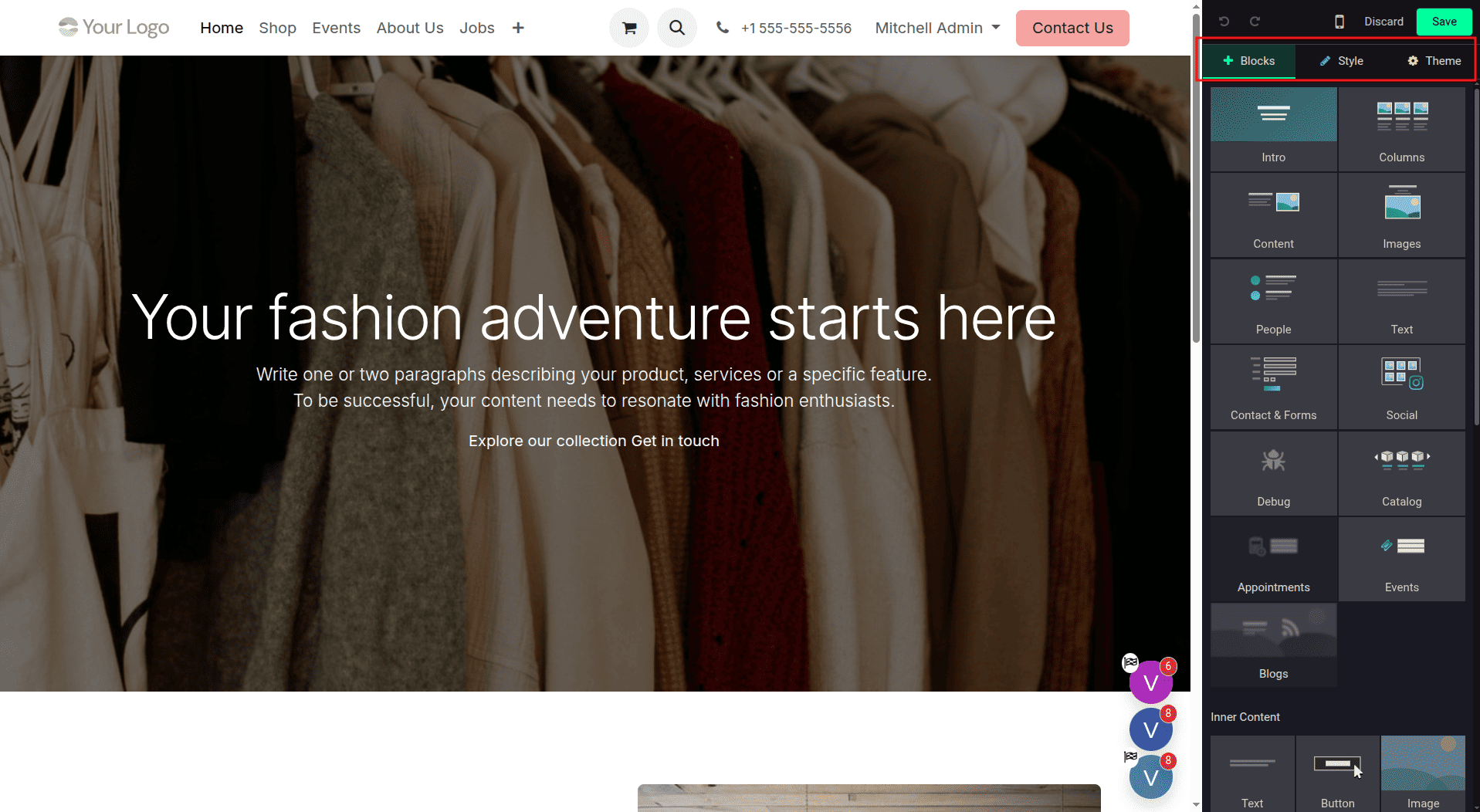
The Blocks tab is the main area for adding content to your website. It offers a variety of pre-designed elements that you can easily drag and drop onto the page. These blocks are grouped into categories such as Structure, Content, Features, and more, making it easier to find and add the elements you need. Using them, you can easily add headings, banners, image sections, multi-column layouts, and other elements without building them from scratch. Simply select the required block and place it where you want it on the page.
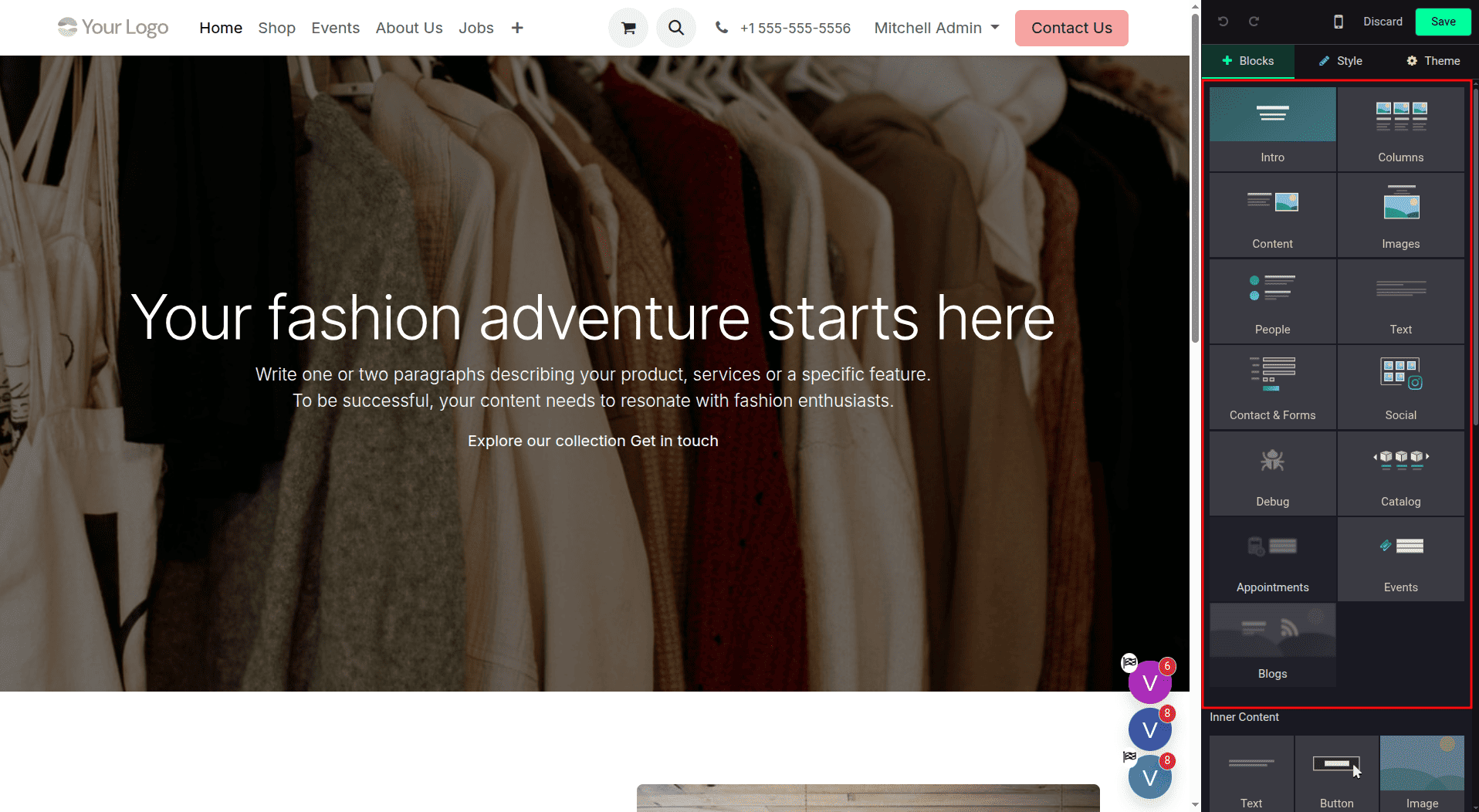
Dynamic Content is one of the categories that has various blocks through which users can display content automatically pulled from other Odoo modules. A wide variety of blocks is available, including Products, Content, Images, People, Text, Contact & Forms, Social Blog Snippets, Events, and Testimonials, allowing you to add different types of dynamic content to your website. These blocks pull content from modules like eCommerce, Blog, and Events, among others.
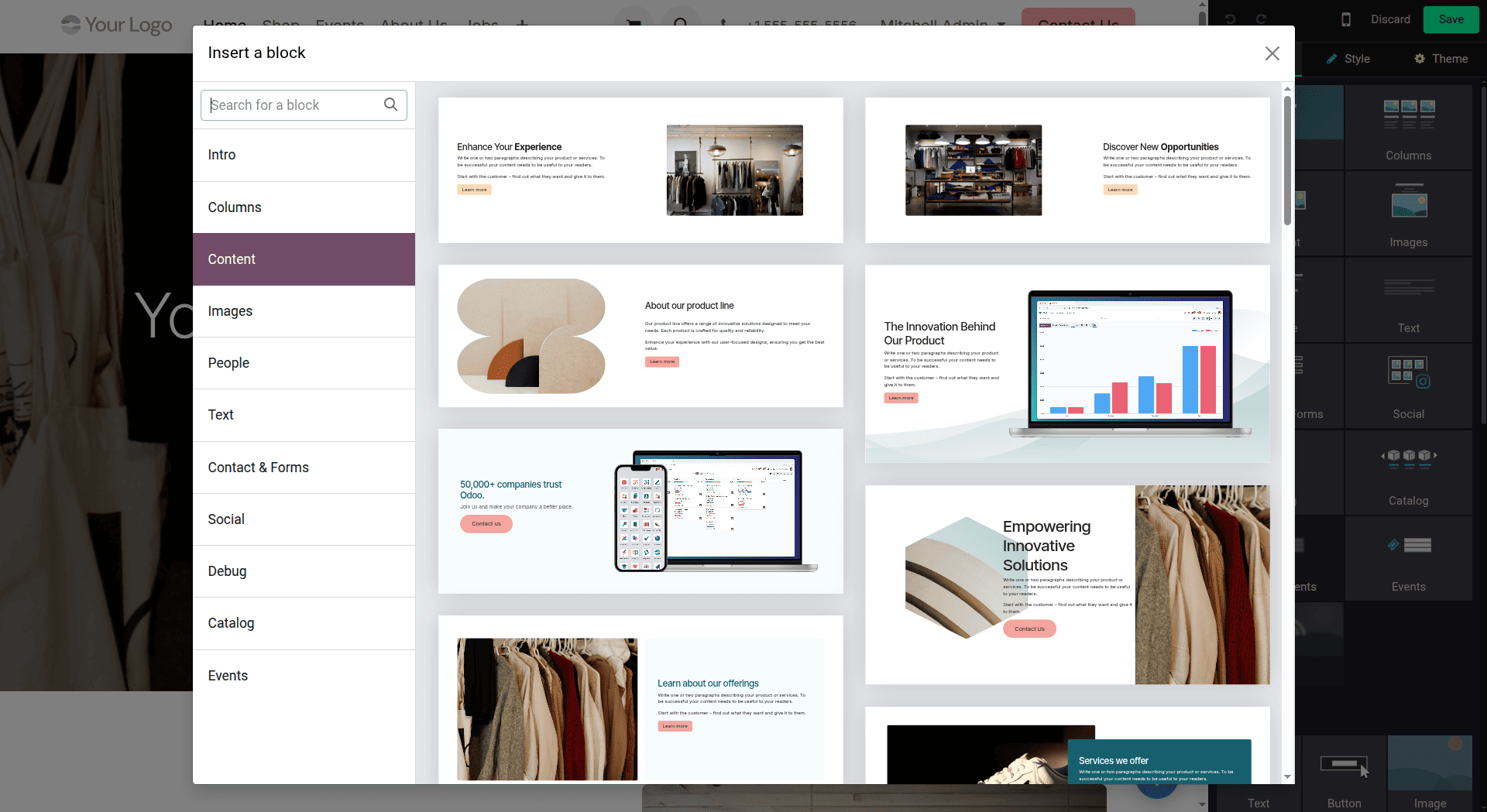
The dynamic blocks make it possible for the website content to always be up-to-date with information from other parts of Odoo 19. The search bar can also be used to locate a particular block.
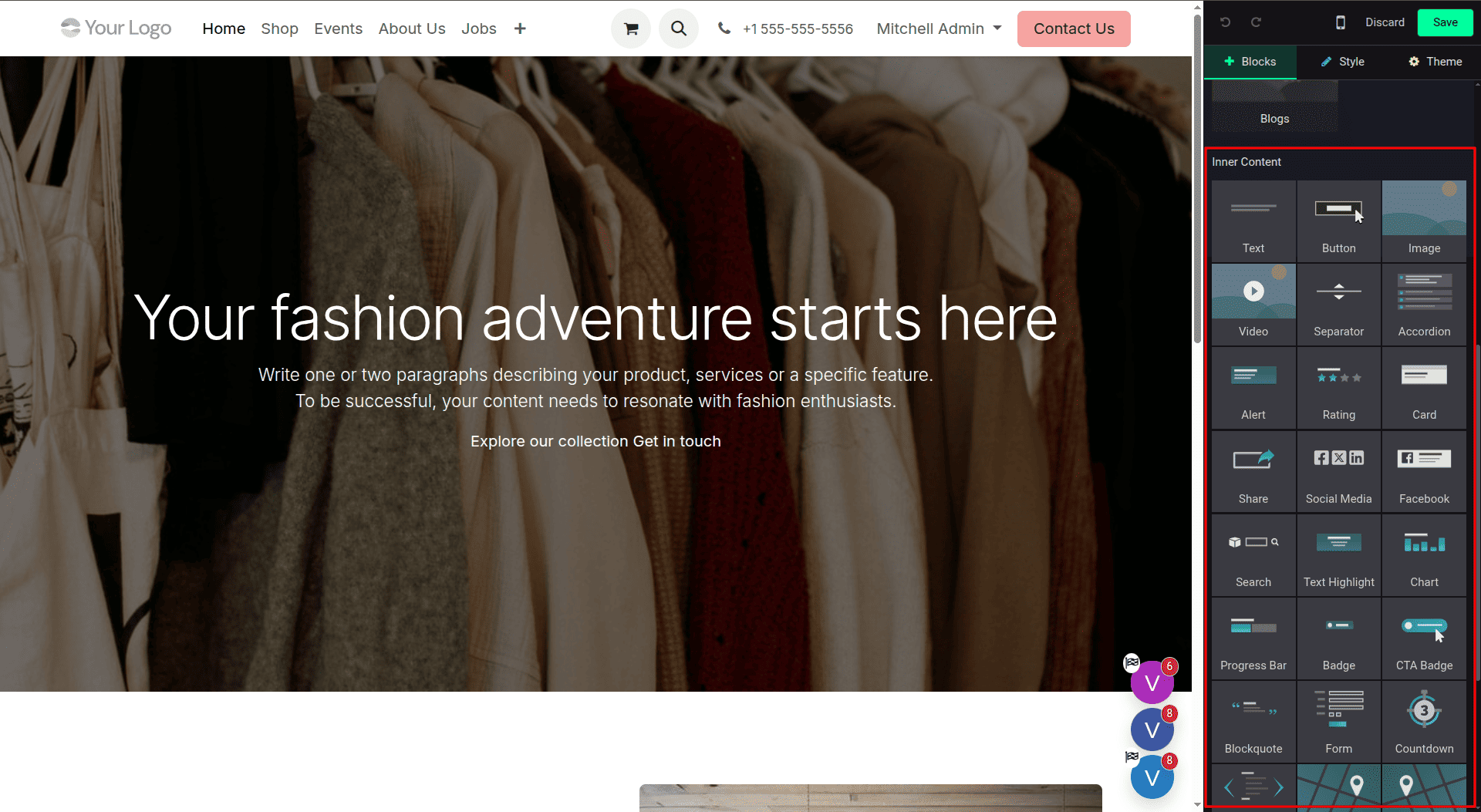
There is an option known as Inner Content where you can find small blocks that will be placed in the bigger page structures. This option includes the following blocks: text, buttons, video, separators, icons, progress bars, tabs, accordions, image tiles, cards, and social media blocks.
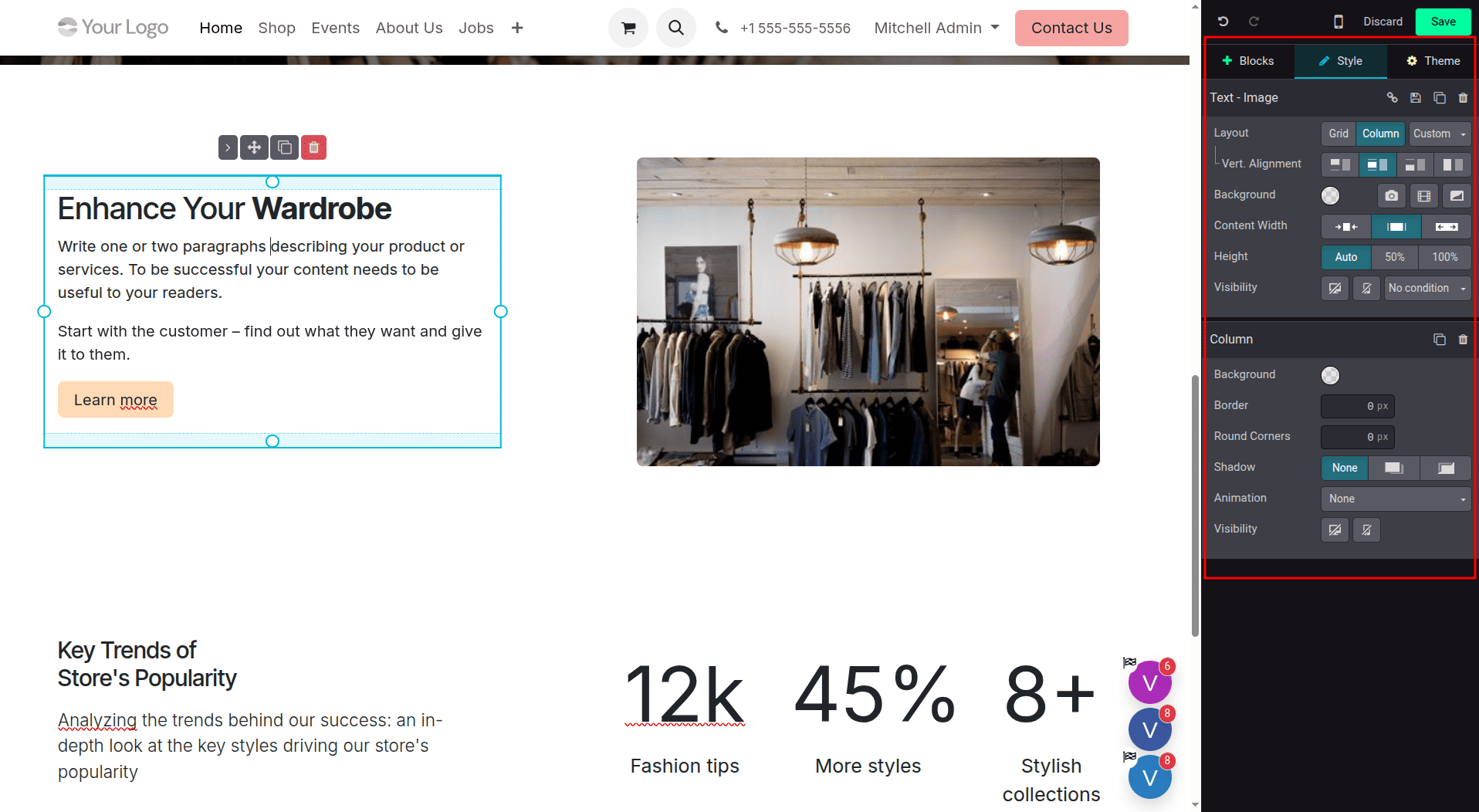
As soon as you drag and drop a block into the page from the left sidebar, Odoo 19 gives you the opportunity to edit that block right there in the editor. By selecting a block, a small toolbar appears where you can modify the width and height of the block, align the block, move it up and down, or delete the block. Besides that, you have an option to edit text and swap out the image, button, or other elements within the block.
The Customize tab provides global settings for controlling common elements across your website. From here, you can show or hide the header, footer, breadcrumbs, top menu, social media icons, and newsletter subscription options. For eCommerce websites, you can also manage elements such as the shopping cart, wishlist, and customer login. These settings make it easier to maintain a consistent layout across multiple pages without modifying each element individually.
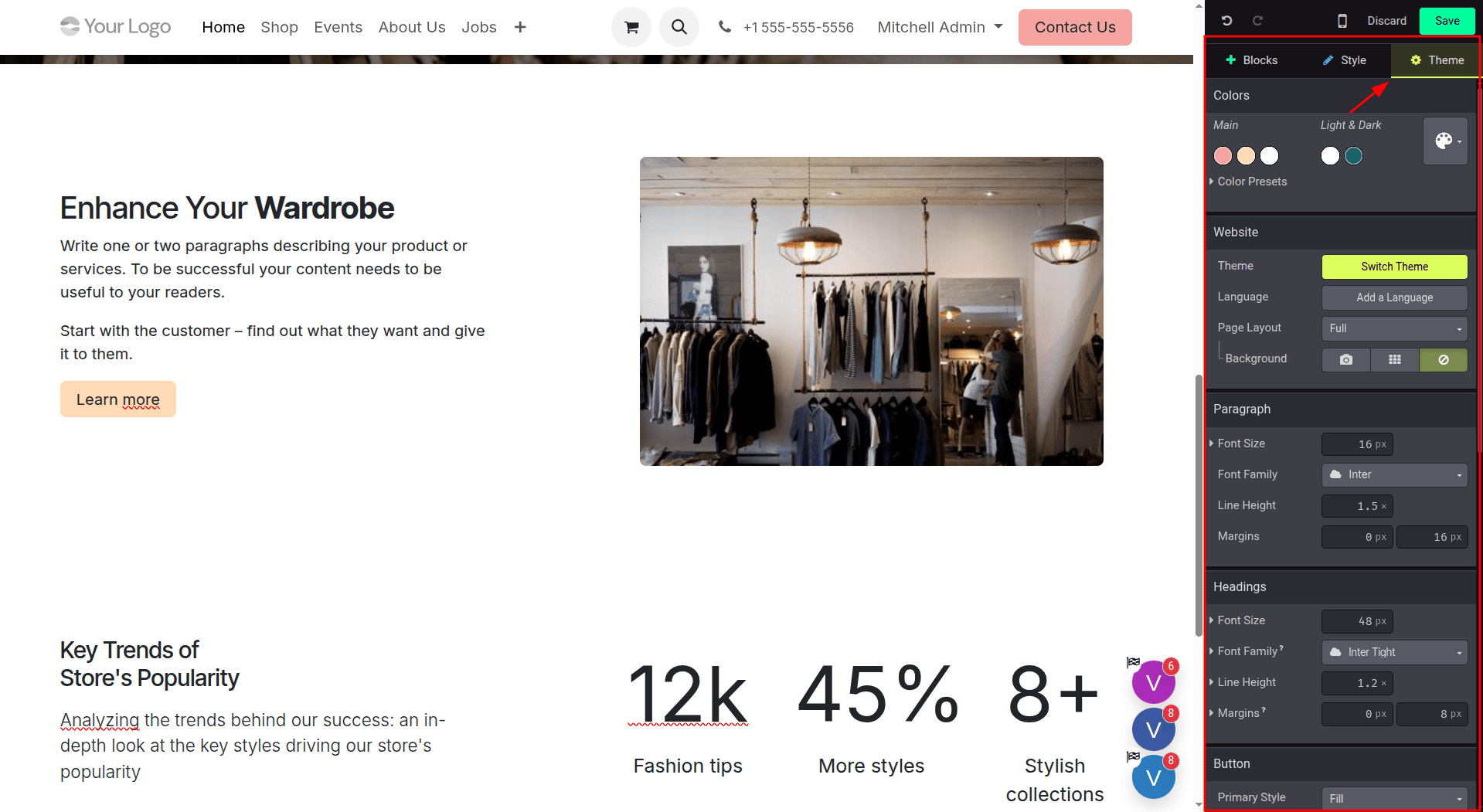
The theme tab deals with the overall style of your website. In this tab, you will be able to manage settings like the language of your website, the color theme, fonts, and spacing. Through this tab, you will be able to configure font families, font sizes, line height, text alignment, margins, padding, and spacing between sections of your website to give it a professional look and feel.
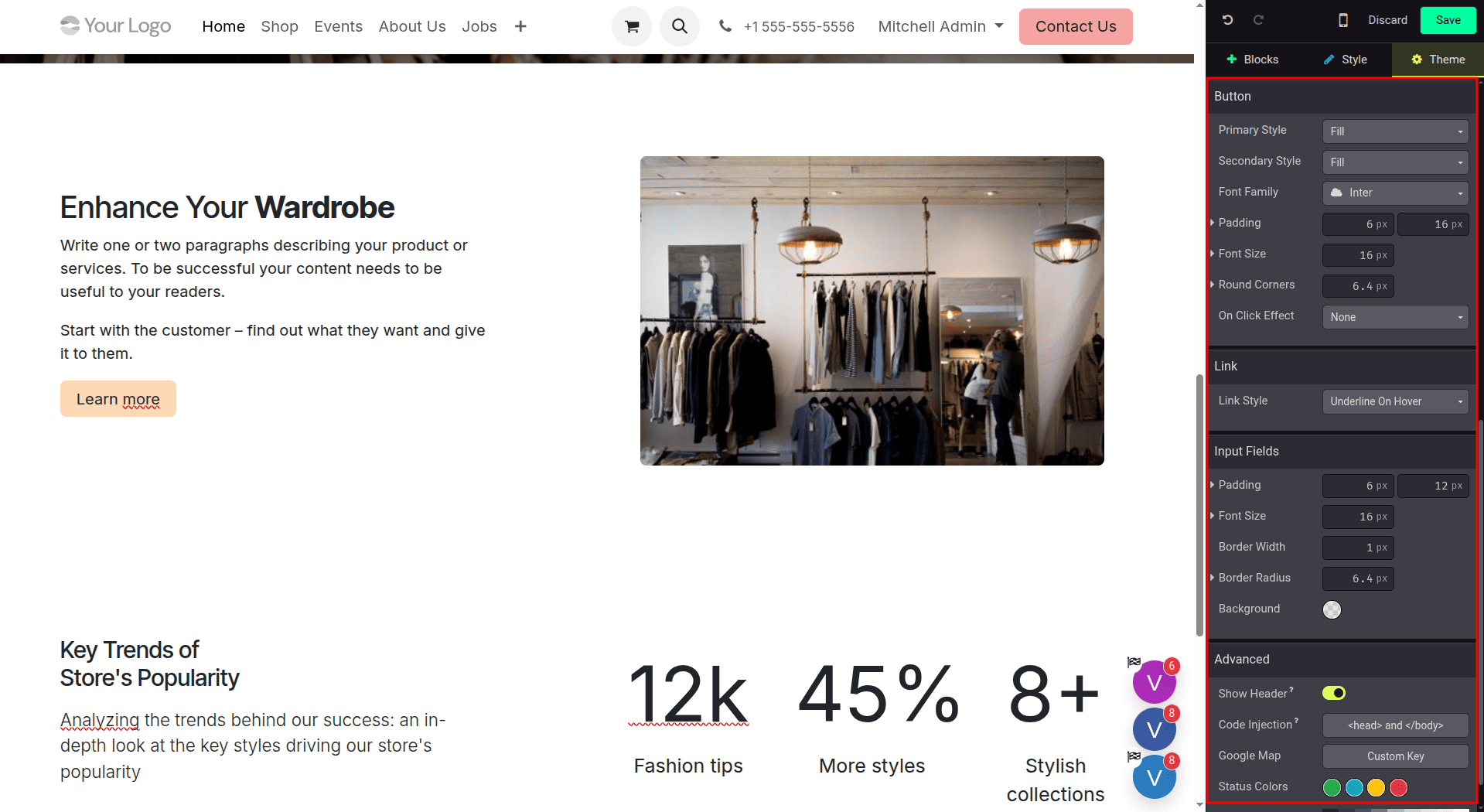
The Theme tab also provides detailed styling options for individual elements such as input fields, buttons, and links. You can adjust their shape, border radius, colors, hover effects, and typography to maintain a consistent design throughout the website. For advanced requirements, Odoo 19 also allows developers to add custom HTML, CSS, or JavaScript code, which can be useful for integrating analytics, custom scripts, or external resources. In addition, you can configure colors for different statuses, such as information, warning, error, and success, and customize the default grayscale palette used for elements like backgrounds and borders.
Theme configuration affects the whole website, and thus pages added in the future will already use the theme styles. You do not have to worry about applying the style yourself, as this is done for you.
In order to modify the website logo in Odoo 19, you need to go to the website in edit mode and move the cursor over the current logo. Click the logo to make the editing tools available.
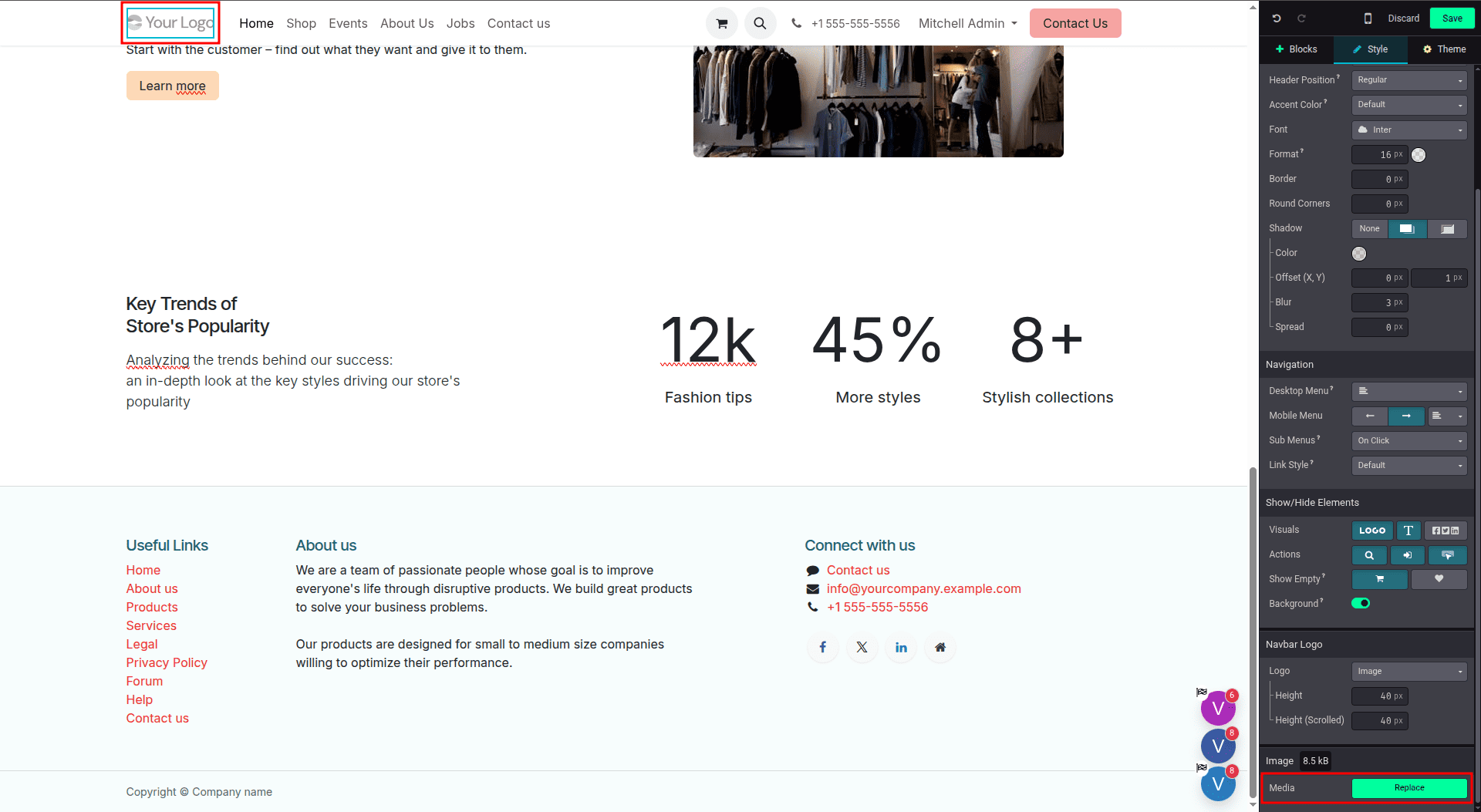
Click “Replace” to change the existing logo. Odoo 19 allows you to upload an image from your device, provide an image URL, or select an image from the existing media library.
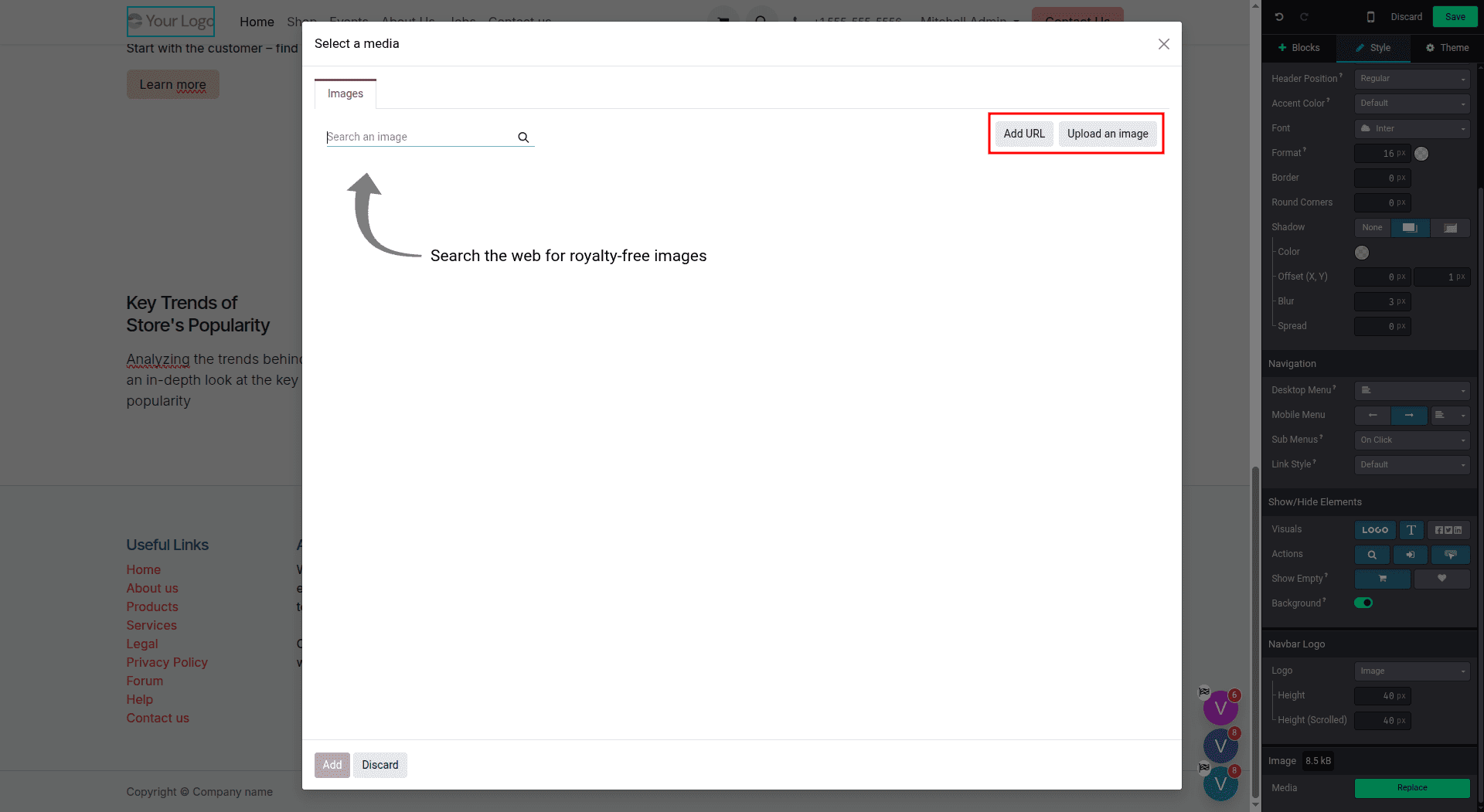
Once the new logo is added, it can be resized and positioned appropriately within the header. This makes it convenient to implement your brand without going into the backend of the website settings.
Configuring the Website Menu
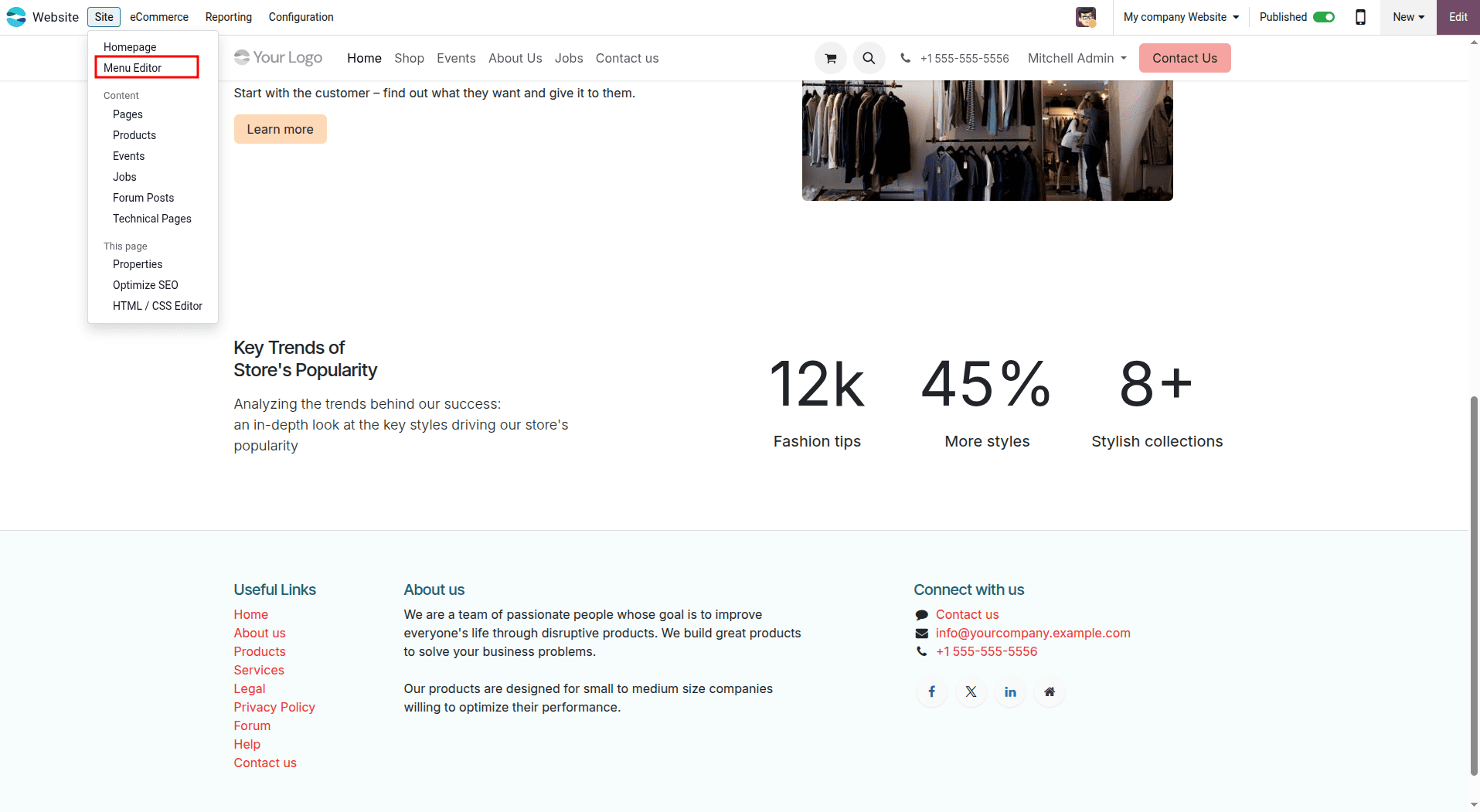
Odoo 19 includes a Menu Editor that helps you organize the website’s navigation and control how visitors access different pages. To open it, click “Site” in the website’s top navigation bar and select “Menu Editor” from the dropdown menu.
The Menu Editor displays all the existing navigation items in one place. You can select any item to change its label, update the URL, or link it to a specific website page. You can also easily rearrange navigation items by dragging and dropping them into your preferred position.
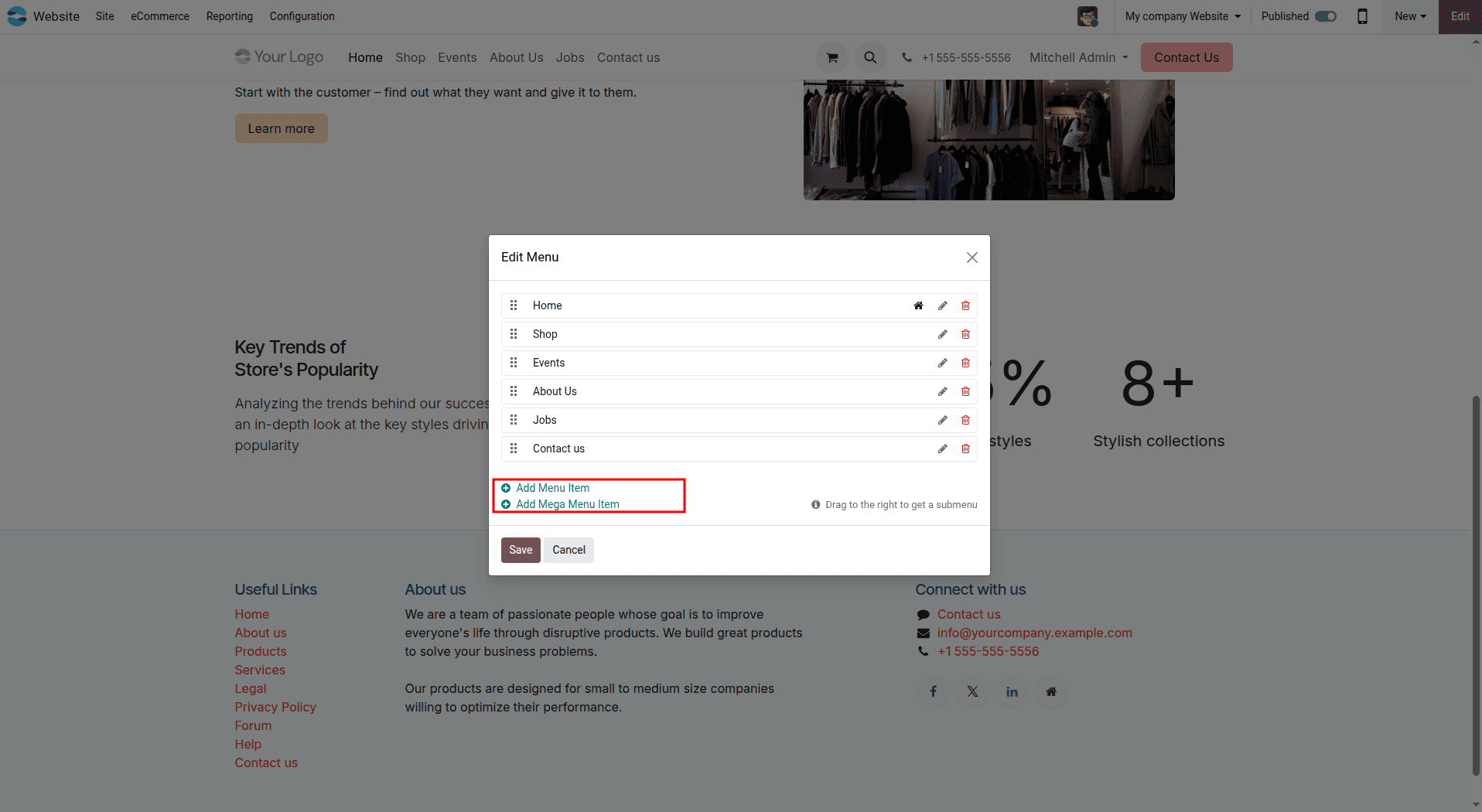
When a menu item is placed below another item, Odoo 19 automatically treats it as a child menu under the selected parent. You can also use “Add Menu” to create a new navigation item or dropdown by entering its name and URL. For websites with extensive navigation, Mega Menus can be used to organize multiple columns of links under a single menu item, making it easier for visitors to find the required content.
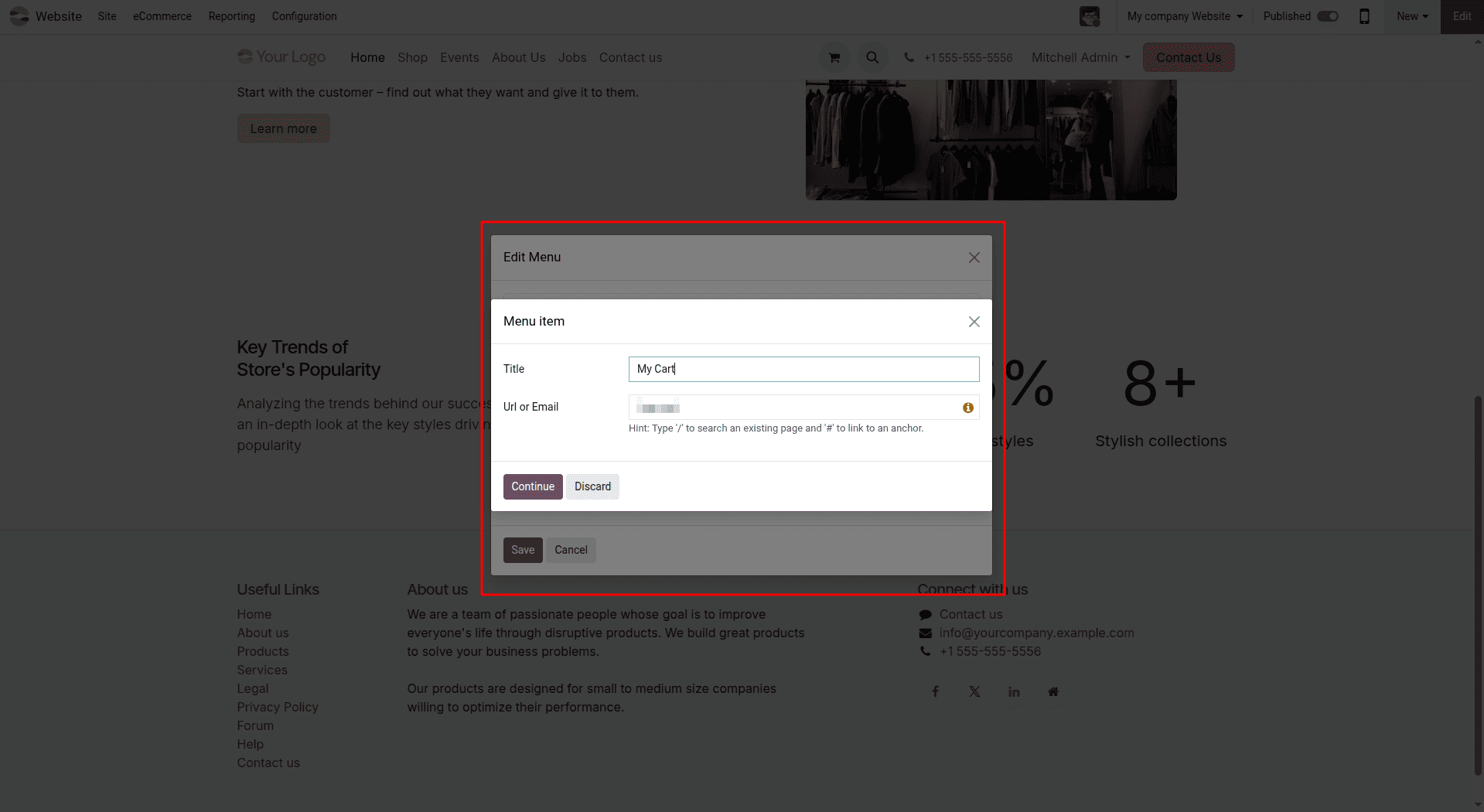
Once the sub-menu has been arranged properly, it will show up below the respective parent menu item on the site itself. Visitors just need to hover over the parent menu to be able to see the respective items of the sub-menu.
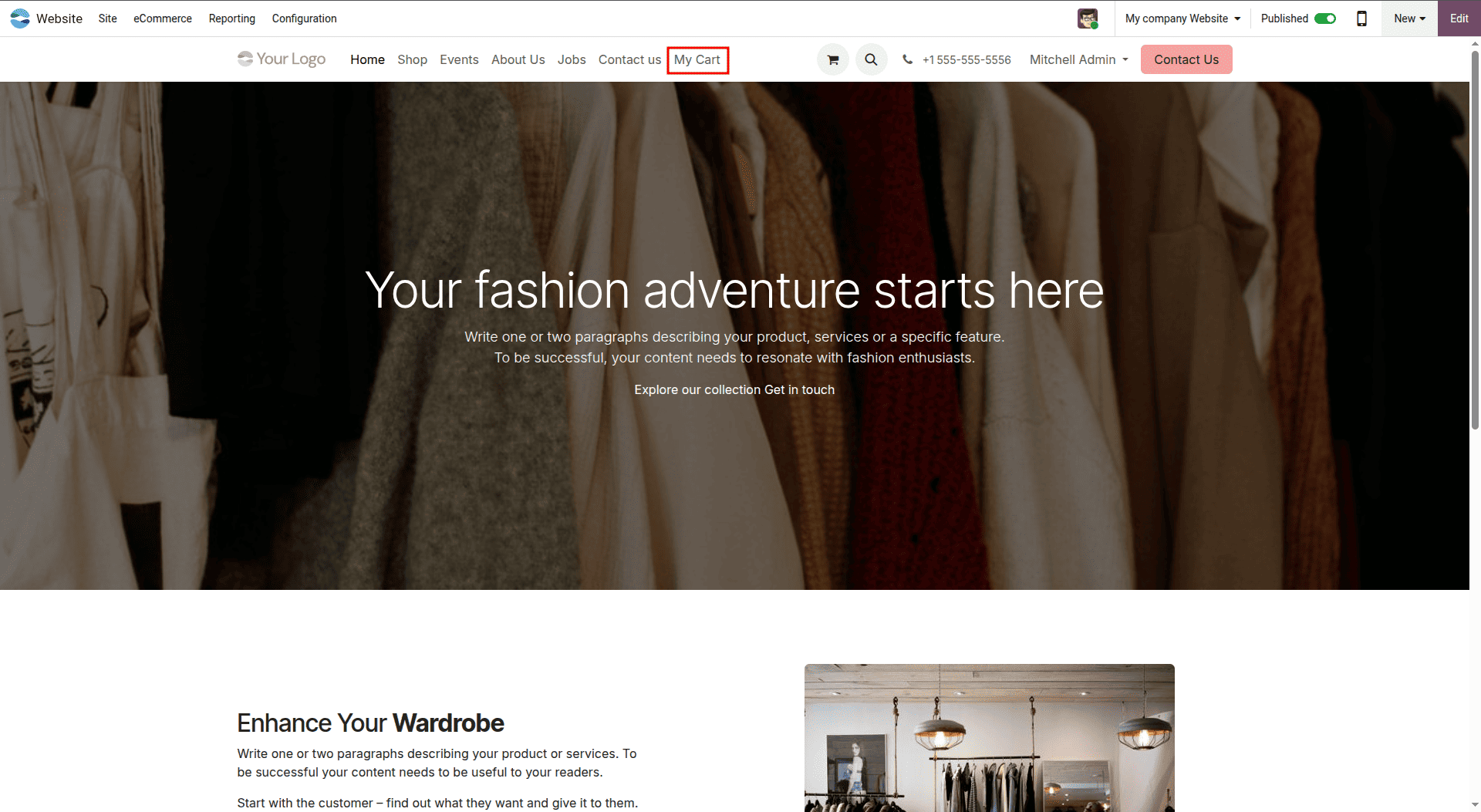
With just a few clicks, Odoo 19’s Menu Editor lets you manage your website structure efficiently, making navigation clearer and helping visitors access the required content more easily.
Designing a Contact Form
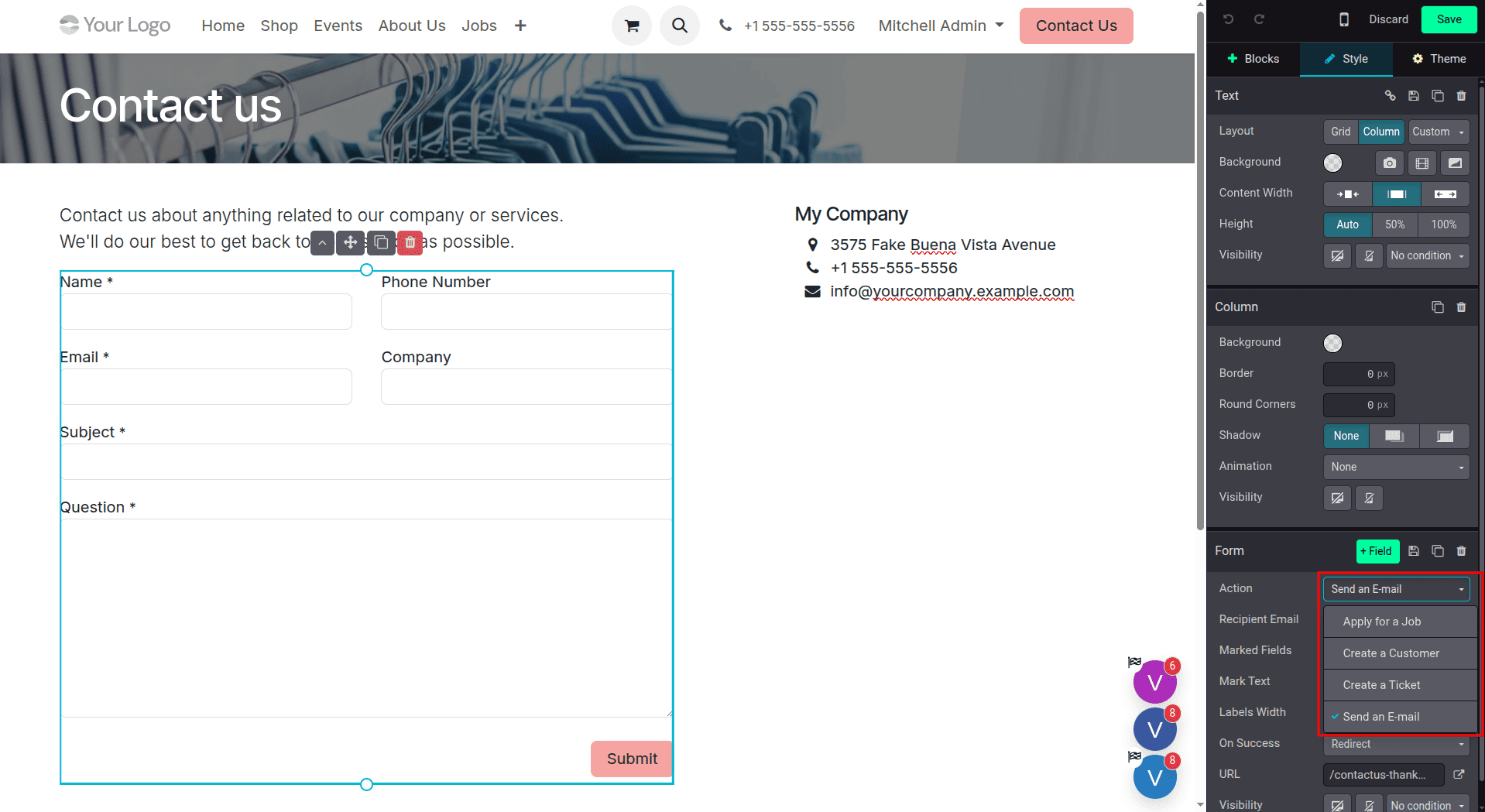
To add a contact form in Odoo 19, click “Edit” in the top-right corner of the website to open the visual editor. From the Blocks tab, locate the Form block, which is generally available under the Inner Content or Dynamic Content section. Drag the block onto the page and place it where you want the contact form to appear.
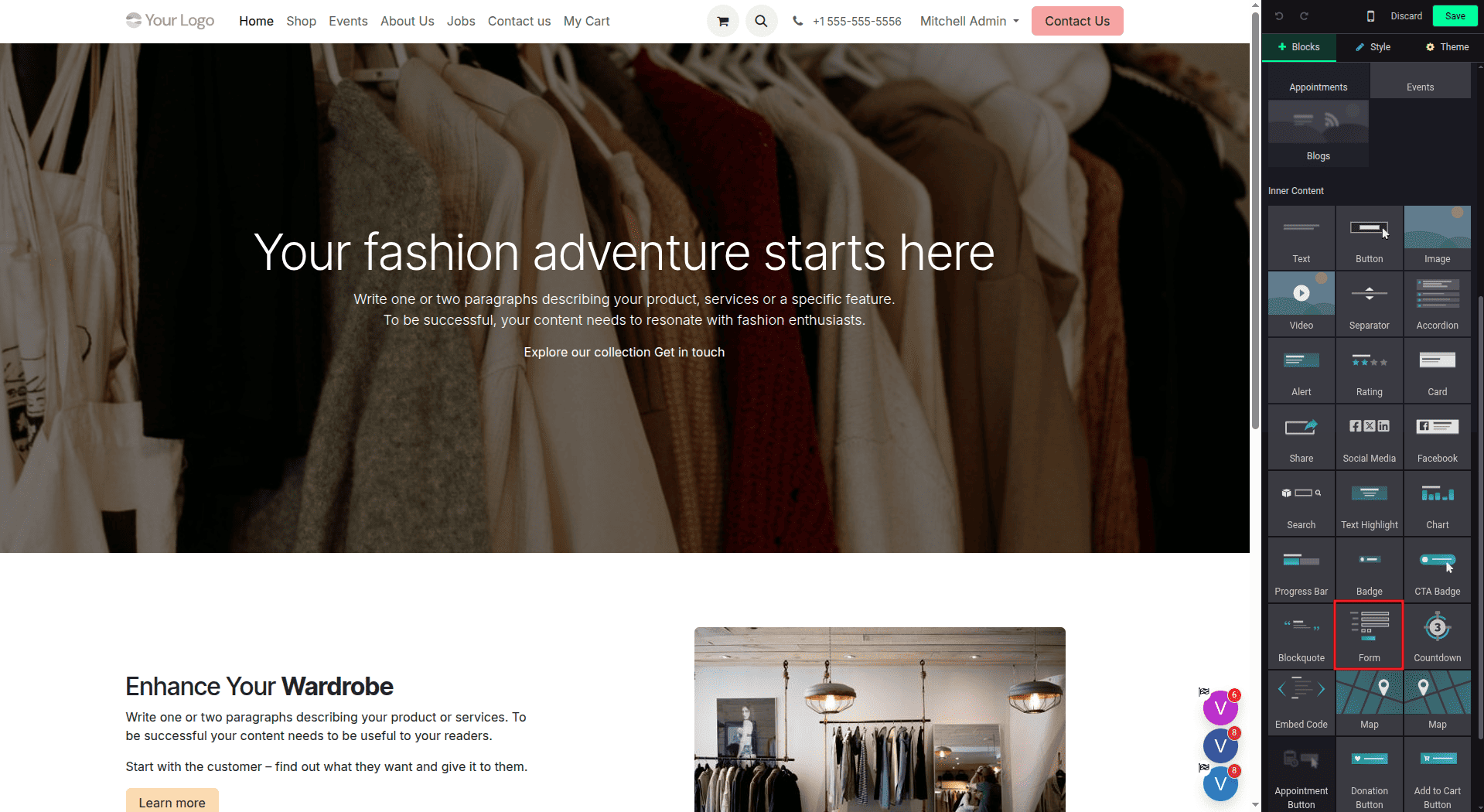
Once the form is added, Odoo 19 automatically includes default fields such as Name, Email, Phone, and Message. Click on the respective field in order to edit its name, placeholder, and whether or not it is required. Moreover, extra fields can be added, while irrelevant fields can be deleted.
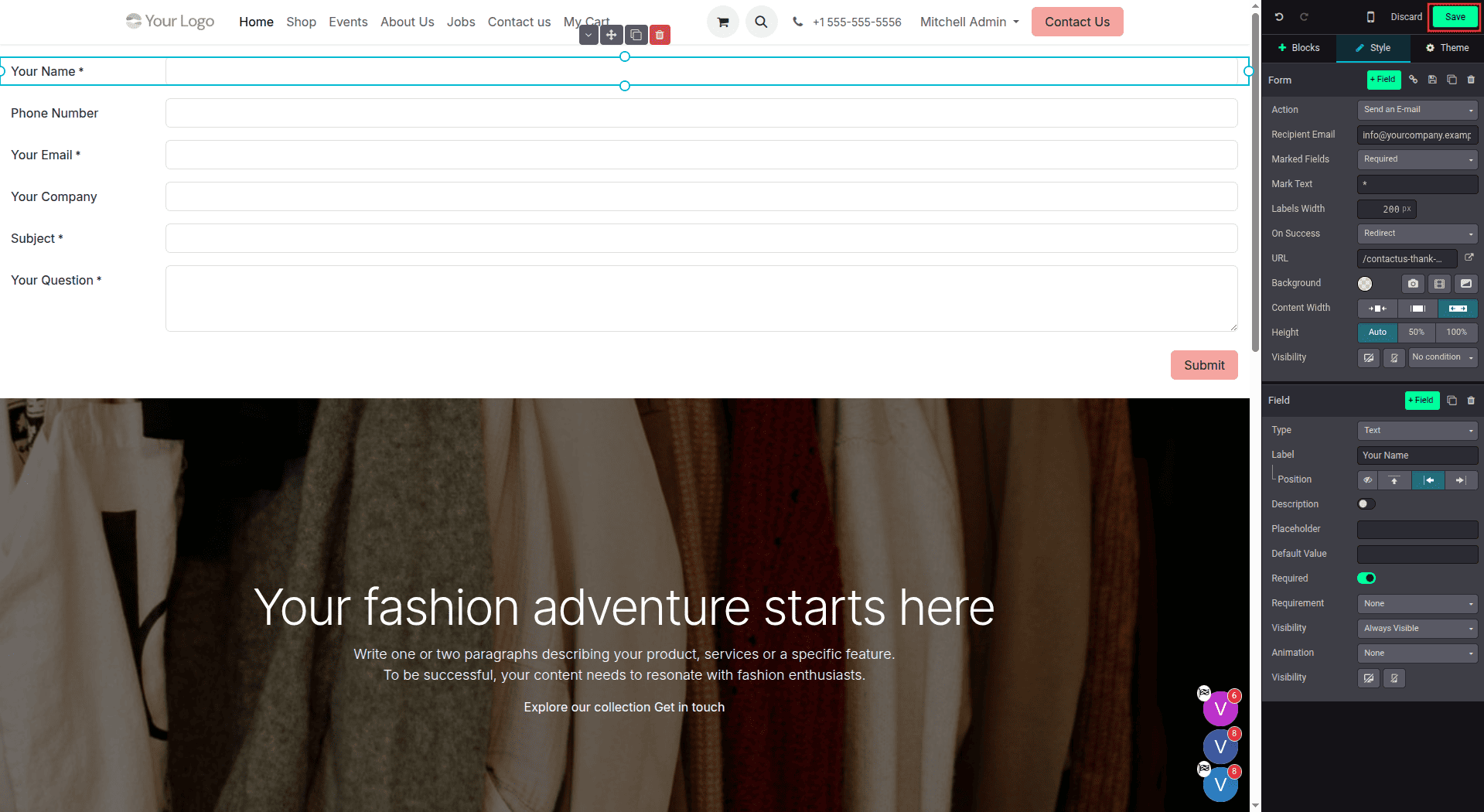
After the design of the form layout is complete, click on the Submit button to configure the settings of that button. Using the button configuration settings, one can set the action to be taken when the form is filled and submitted by a user, such as sending an email with the form data, creating a lead in the CRM system, and saving the information in the database according to a certain model. One can also specify a confirmation message to appear on the web page after filling out the form, such as “Thank you for reaching out to us”. In addition, the button can be customized according to its color, text, and size.
Publishing Your Website Live
When the website is finally designed, Odoo 19 makes it easy to publish it. At the top right-hand corner of the website designer, there is an icon that indicates whether the website is visible to the outside world. Simply click on this icon to publish the website.
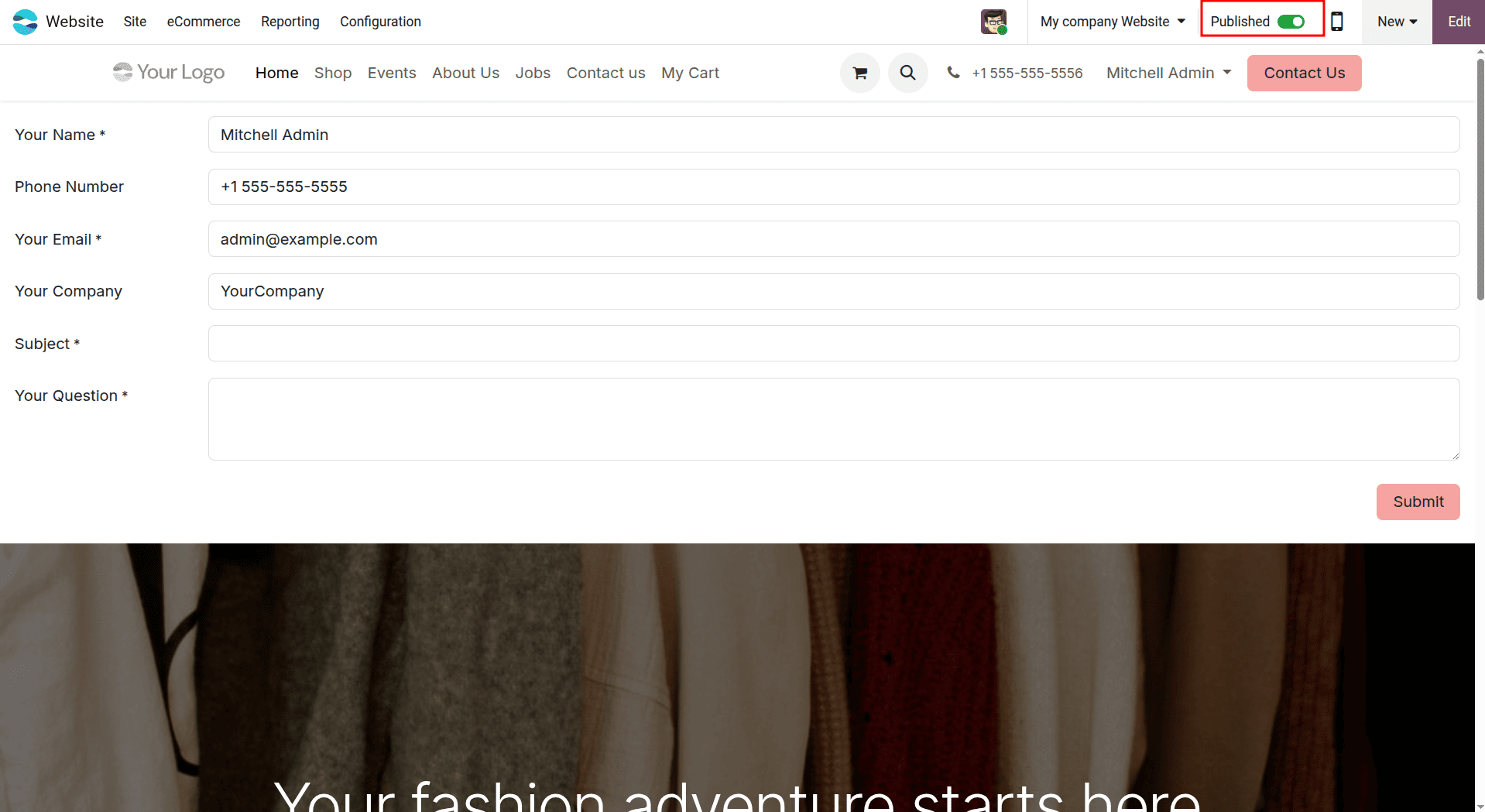
Once the website is published, it becomes accessible to visitors, allowing them to browse the pages and interact with the available features.
These are the basic steps for creating a website with Odoo 19. Once the initial setup is complete, you can further configure the available features and settings to meet your specific business needs.
The Odoo 19 Website module offers a convenient way to create and manage a professional online presence without requiring advanced coding skills. With ready-to-use layouts, a visual editor, responsive design options, and integration with applications such as CRM, eCommerce, and Marketing, businesses can create websites that are both engaging and functional.
Odoo 19 Website Builder provides a straightforward way to create and manage a complete website without requiring advanced technical skills. From choosing a theme and creating pages to customizing blocks, managing navigation, adding contact forms, and publishing the site, the entire process can be handled through the visual editor. Its integration with other Odoo applications also makes it easier to connect website content with business operations. With these features, businesses can build a professional, responsive, and user-friendly website that can be customized as their needs grow.
To read more about How to Build & Customize Your Website Using Odoo 18 Design Tool, refer to our blog How to Build & Customize Your Website Using Odoo 18 Design Tool.