Switching between platforms while working on different projects helps in monitoring task completion as well as collaborating with your team. Although Trello offers a simple Kanban project management tool. Odoo is a business management system that integrates projects with accounting, sales, CRM, HR, and many other modules.
The Odoo Trello Connector allows you to sync projects and tasks from Trello to Odoo and vice versa. Instead of replicating your boards or tasks in several applications, you may transfer projects and tasks from Trello to Odoo in just a few steps.
In this article, we will show you how to configure and use the Odoo Trello Connector to import and export projects.
Why Use the Odoo Trello Connector?
Whether your developers use Trello and your business relies on Odoo for managing your processes, or you need everything managed from one place, this connector will make it easier for you.
Advantages:
- Import Trello boards and tasks into Odoo.
- Export Odoo projects and tasks to Trello.
- Auto synchronization of project statuses.
- Easy handling of bulk imports through Odoo Queue Jobs.
- No more duplicates and double work.
- Works with Odoo Community and Odoo Enterprise.
Step 1: Generating Trello API Credentials
Access the Trello Power-ups Admin Portal
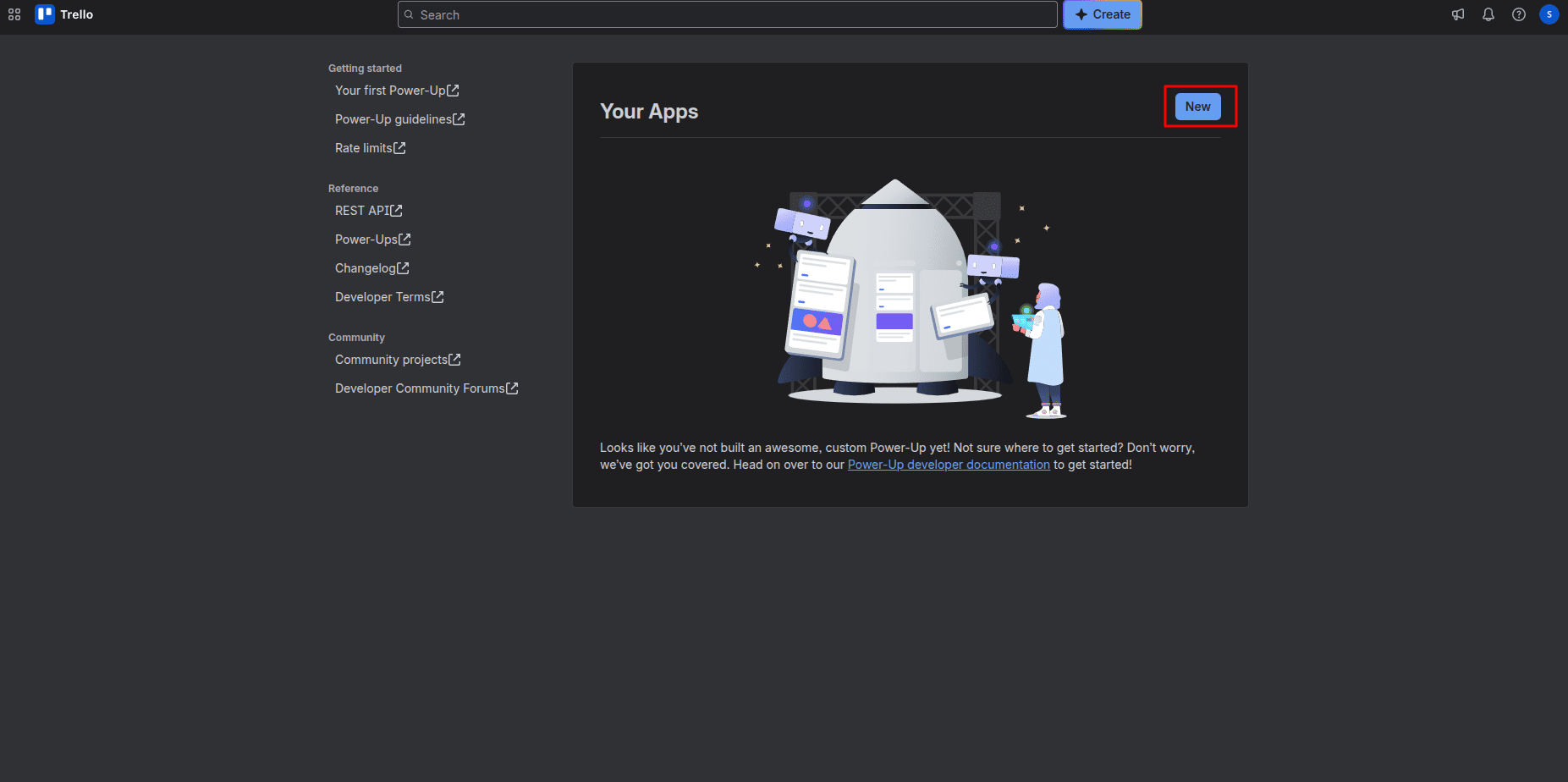
Sign up with Trello Power-ups admin, and click the New button to create a new app.
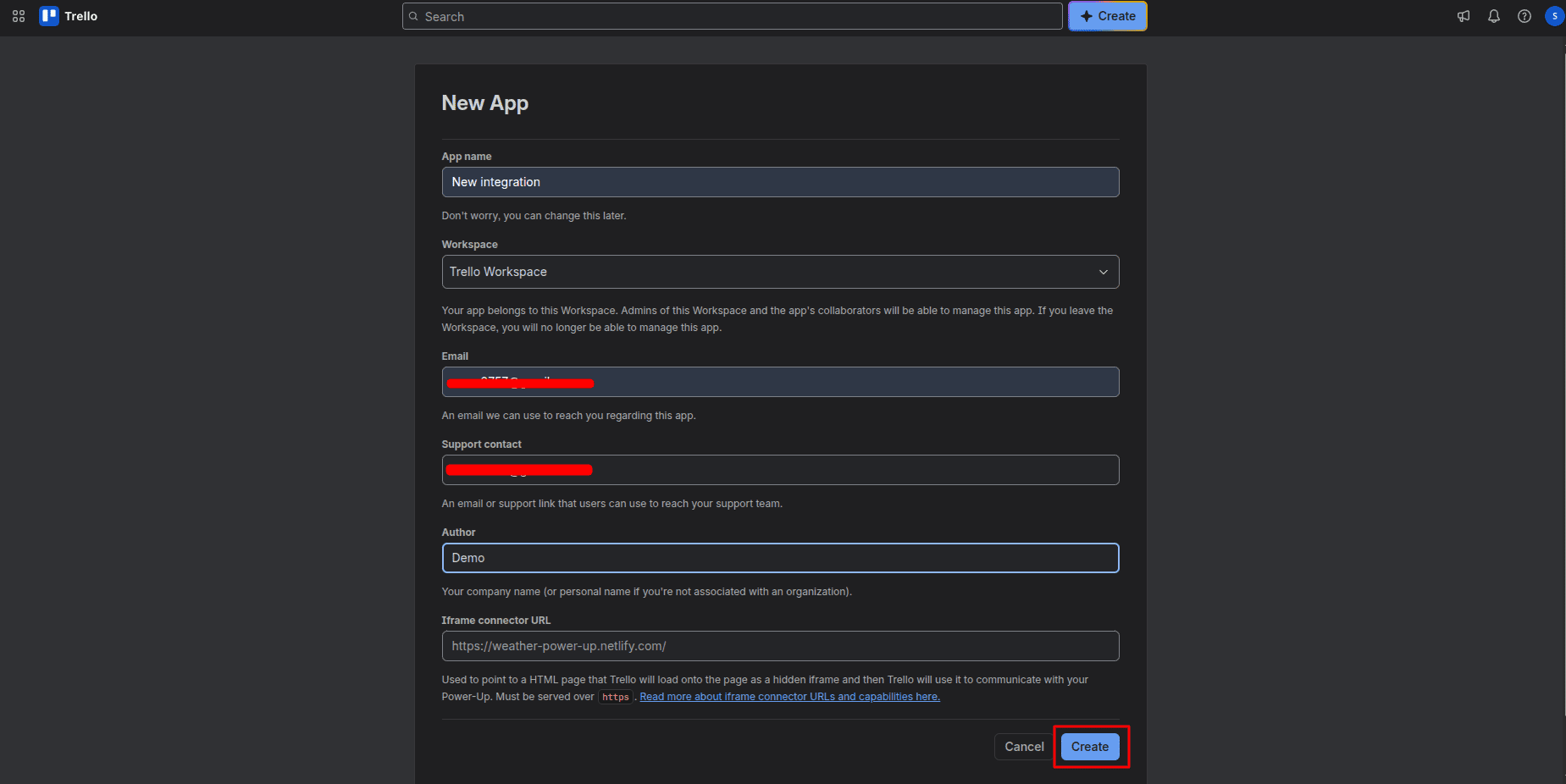
Fill out the form that appears and click on Create.
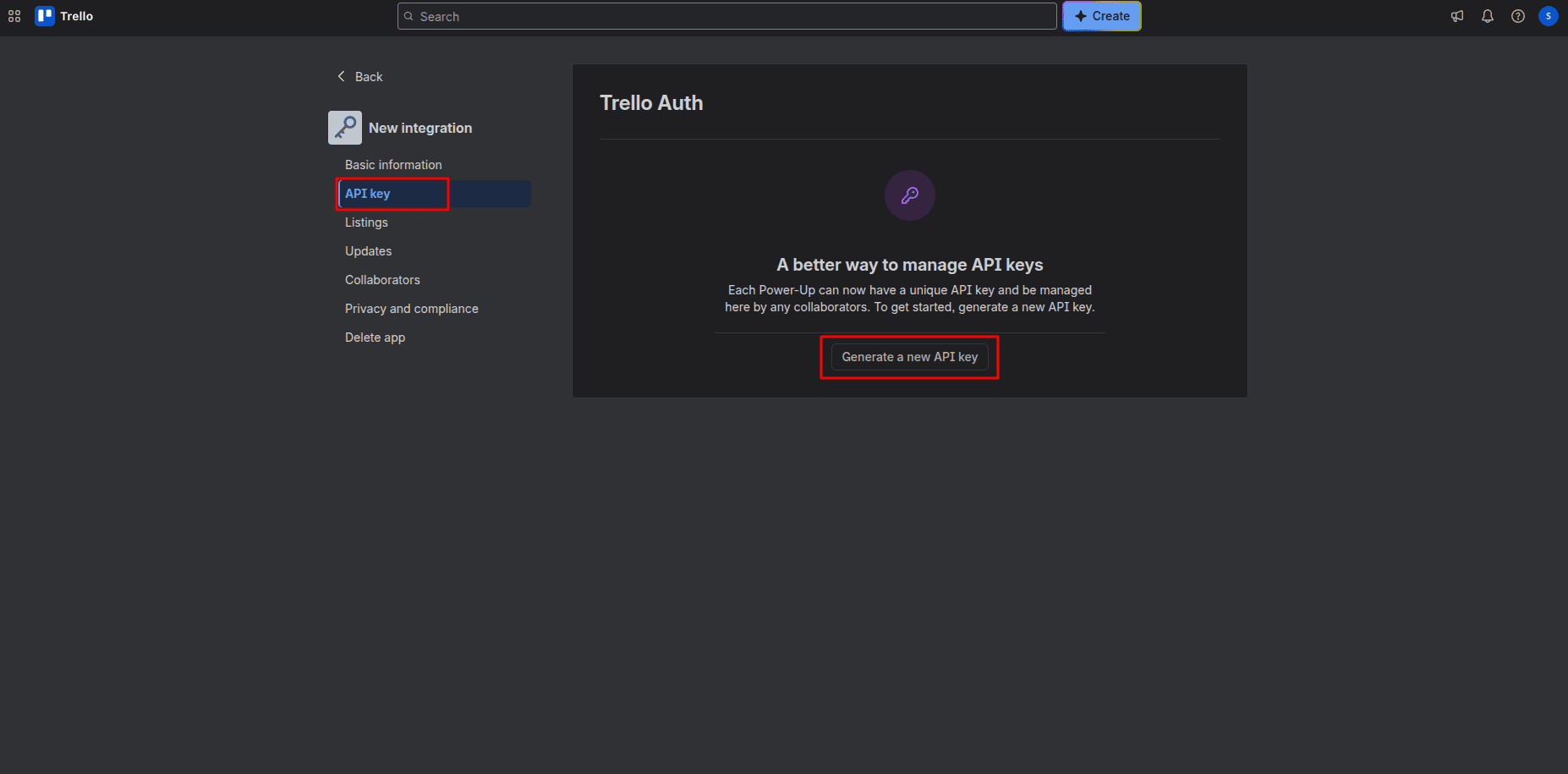
Generate the API Key
By clicking the Create button, you will be redirected to another page where you can generate an API key by clicking Generate new API Key.
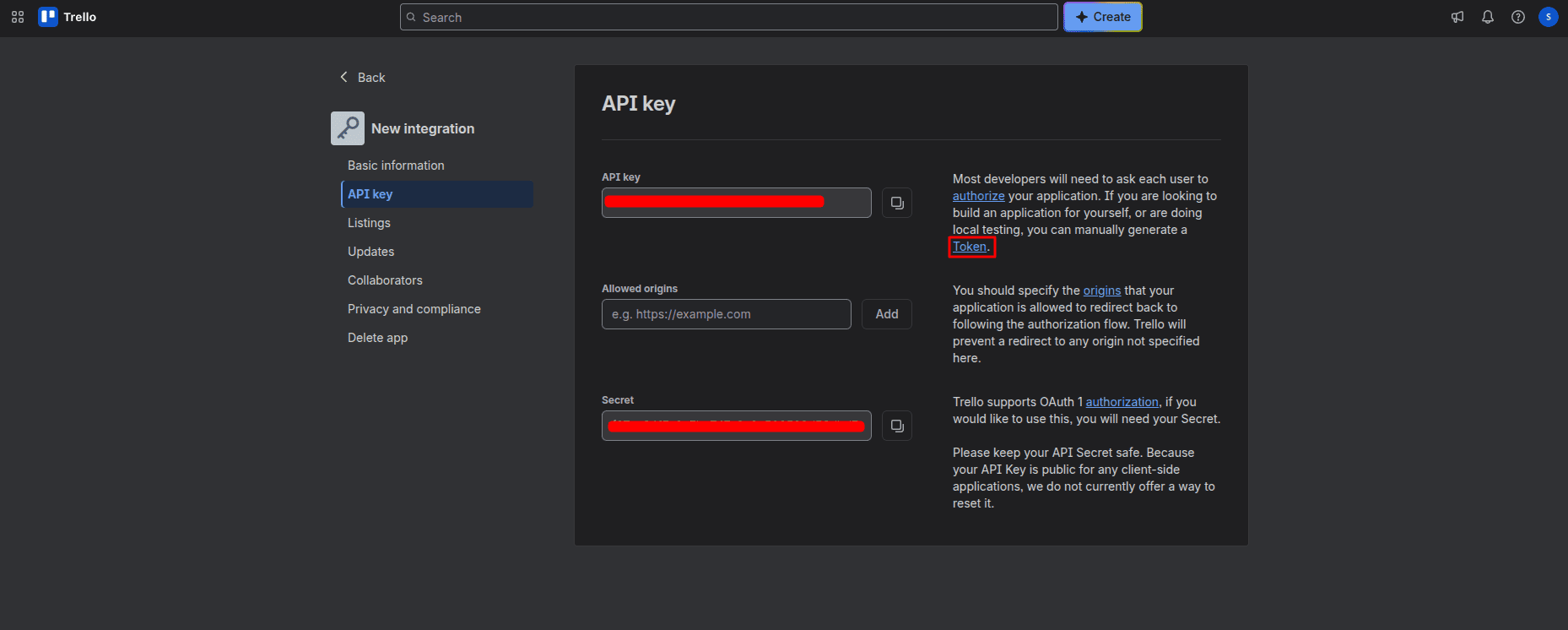
Authorize Token Generation
After that, you will get the API key and click on the token to generate a token.
Grant Permissions
Scroll down and click the Allow button to authorize access.
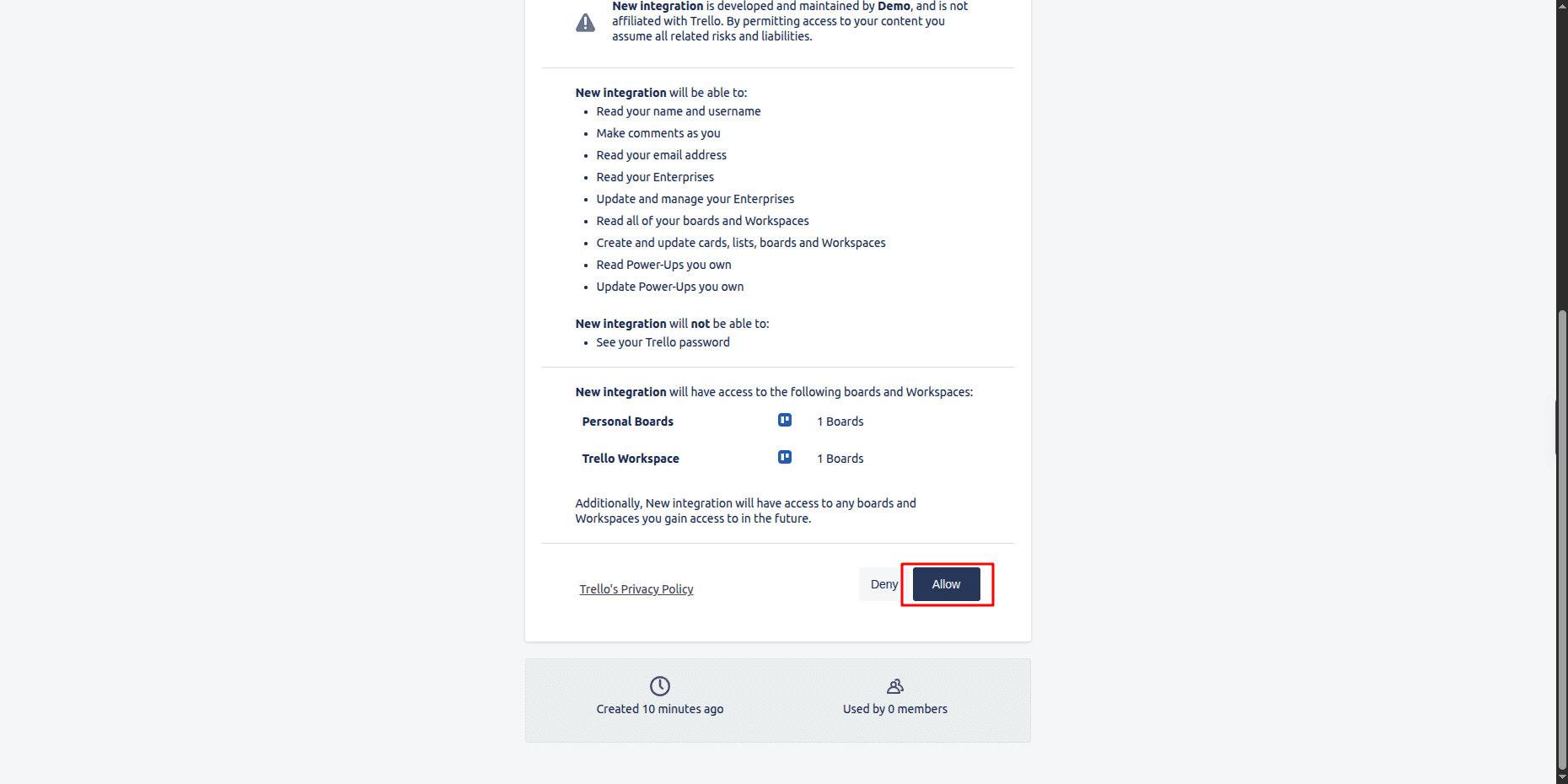
Copy the Access Token
Copy the generated access token.

Step 2: Configuring Credentials in Odoo 18
Navigate to User Settings
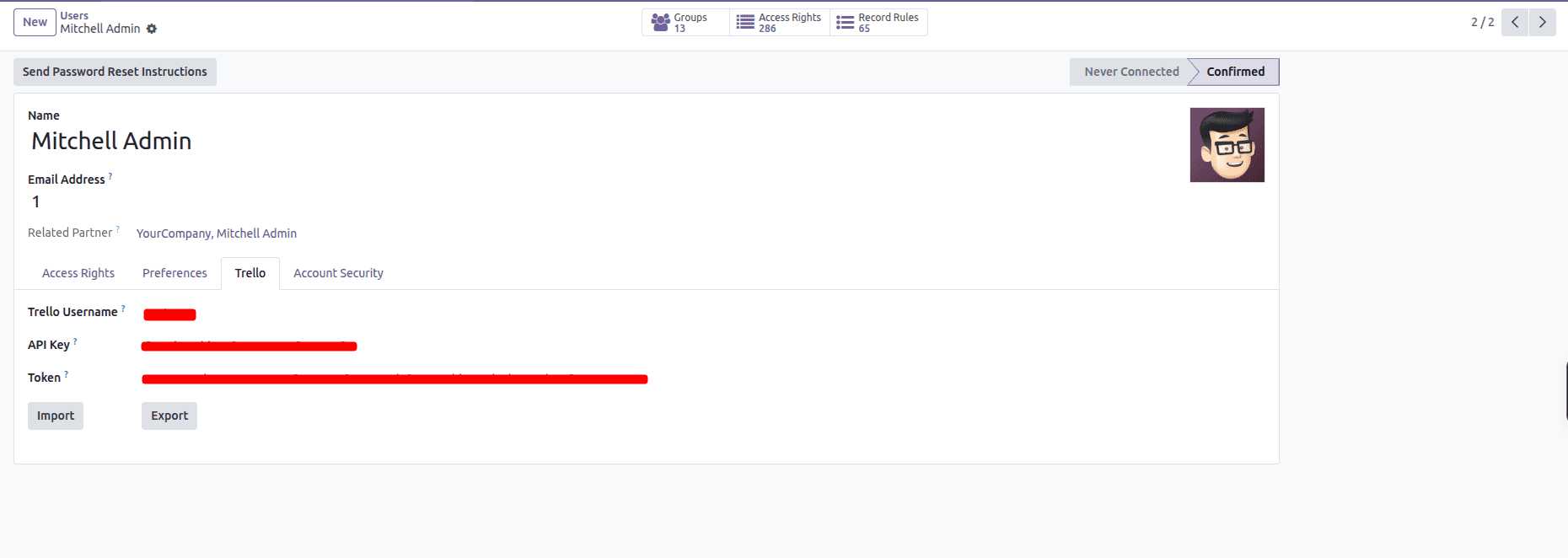
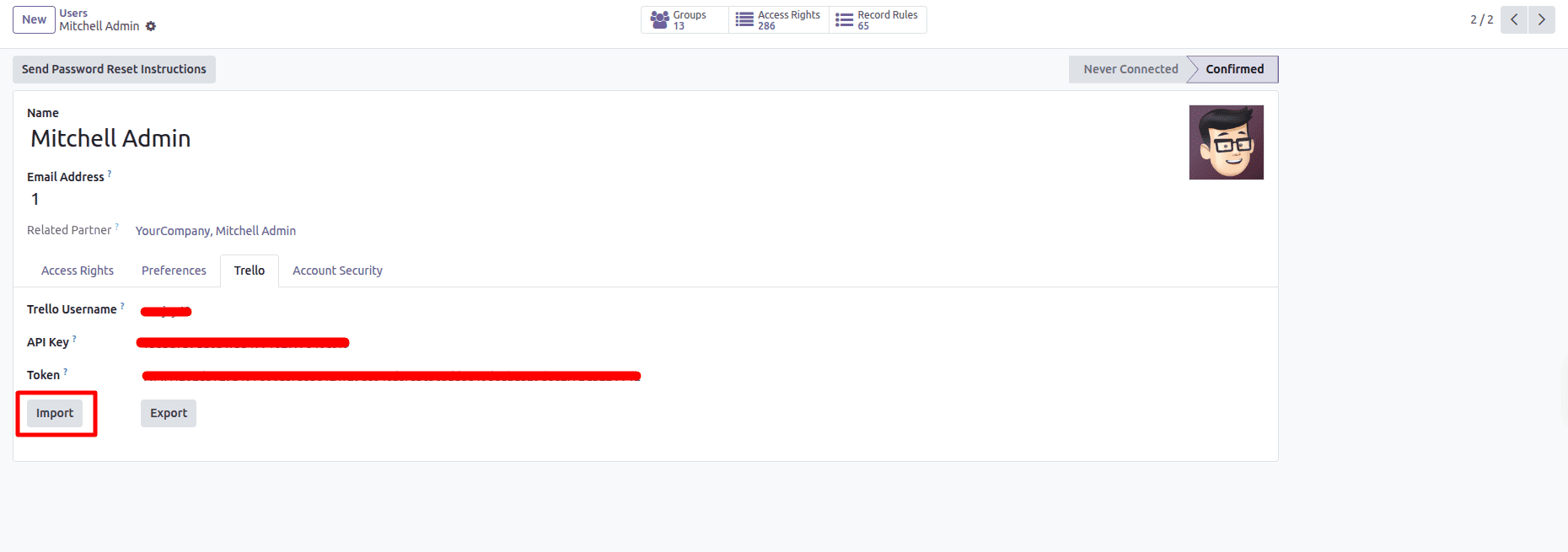
Go to Settings > Users & Companies > Users, open your user, and the Trello tab.
Enter the Trello Username, API key, and Token.
You can find the username by clicking the profile icon, and select Profile and visibility.
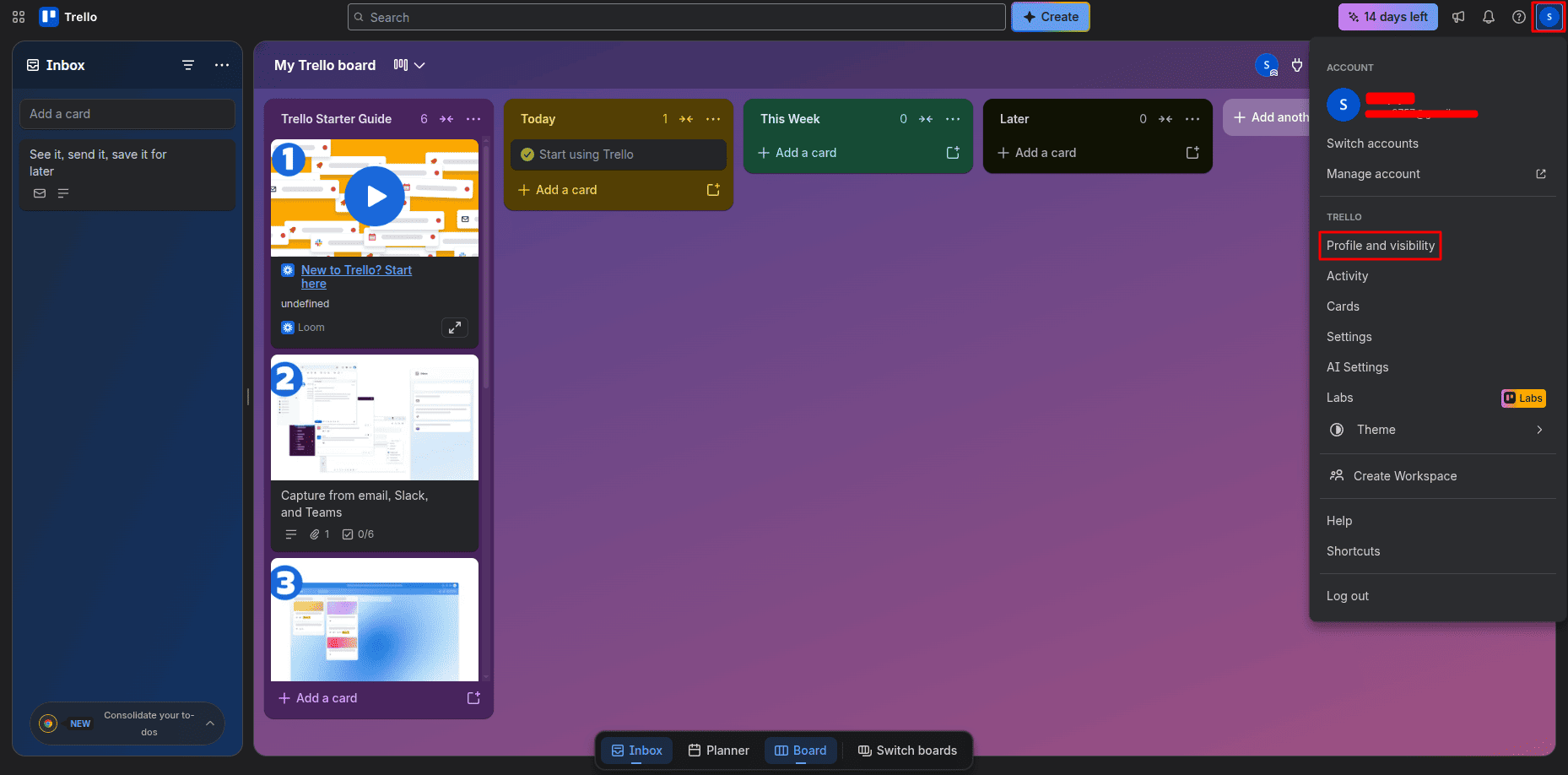
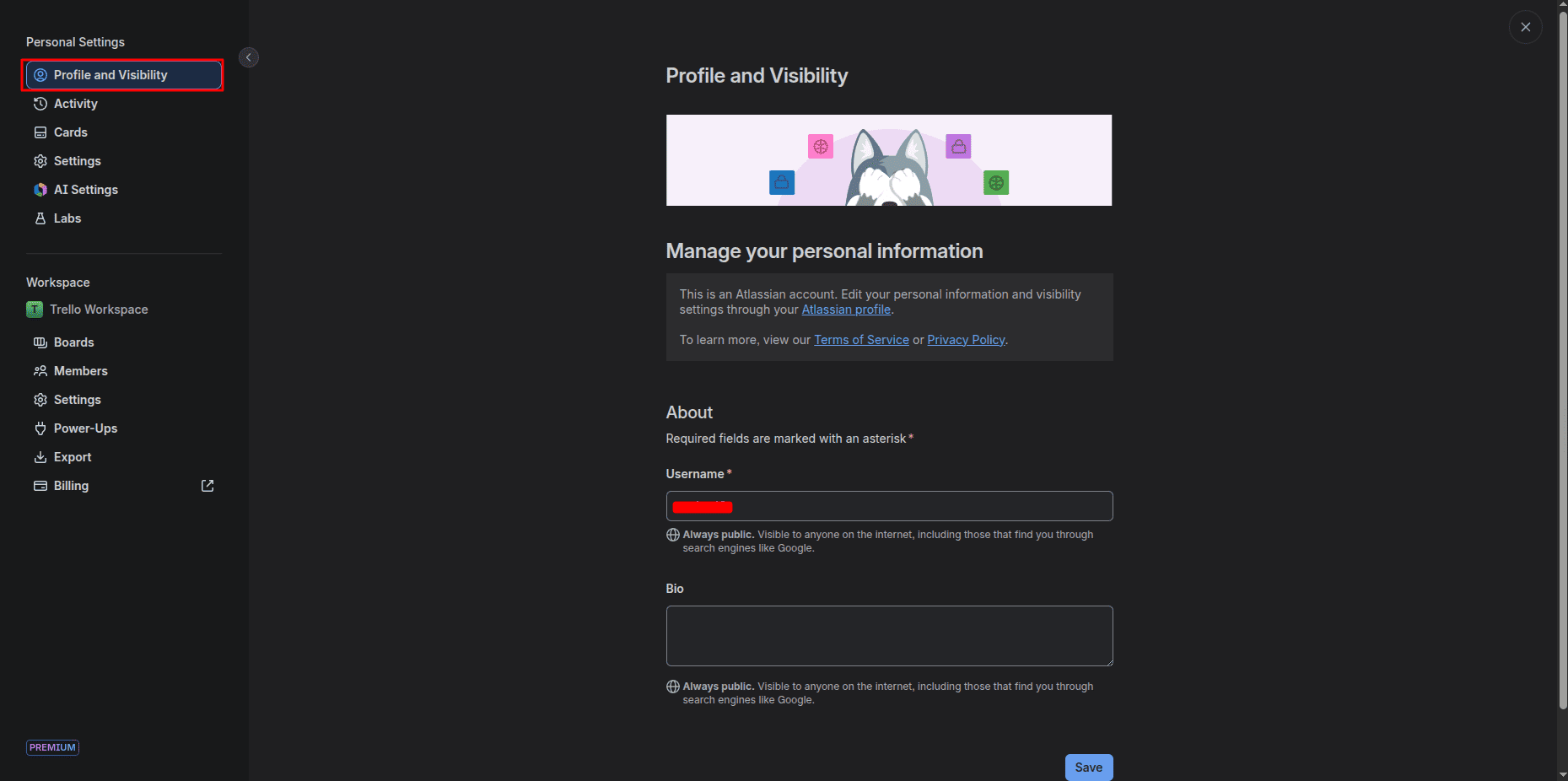
Fill in the credentials that we gathered in the Trello tab.
Before importing, these are the Boards in Trello and Projects in Odoo
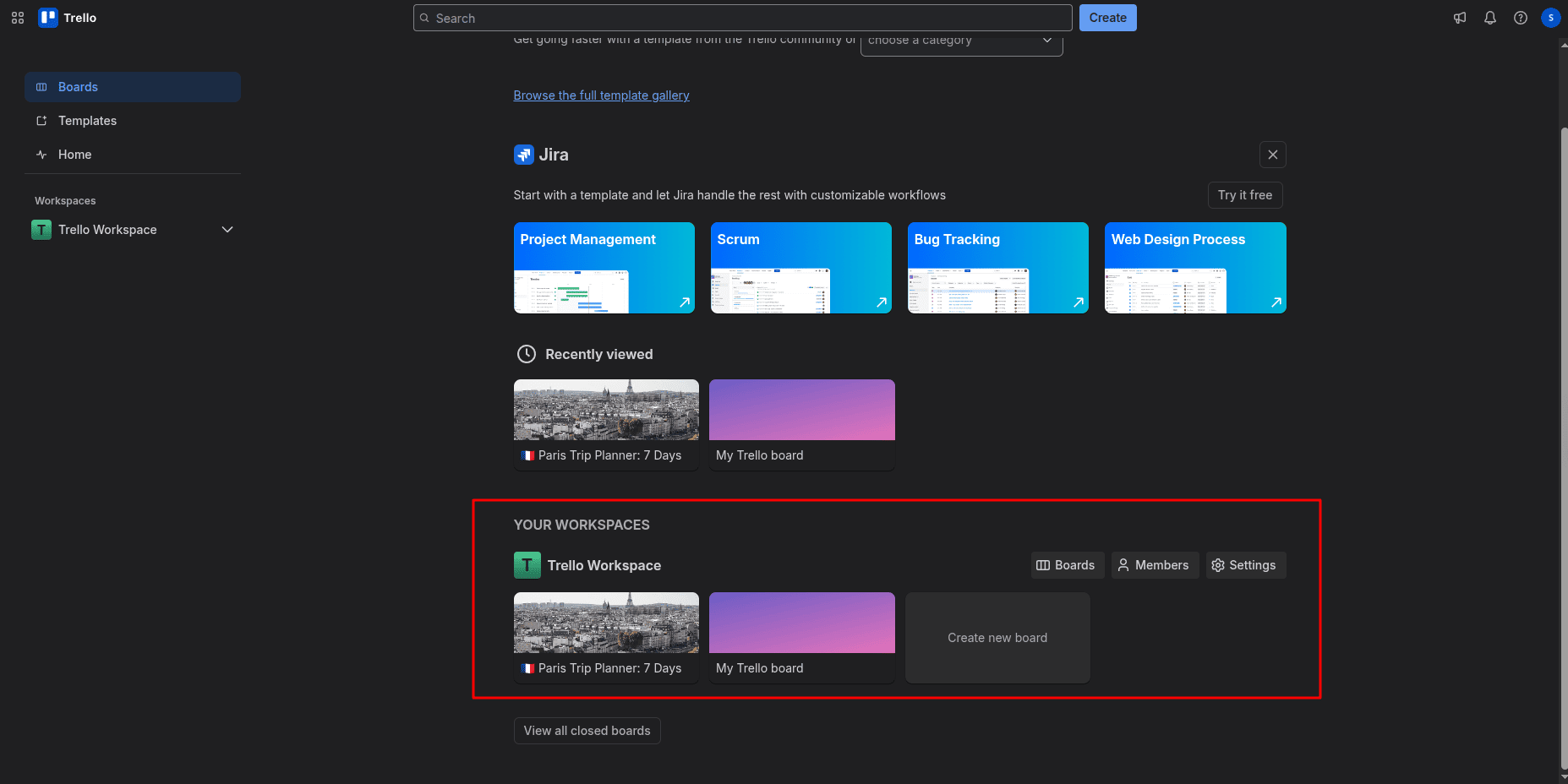
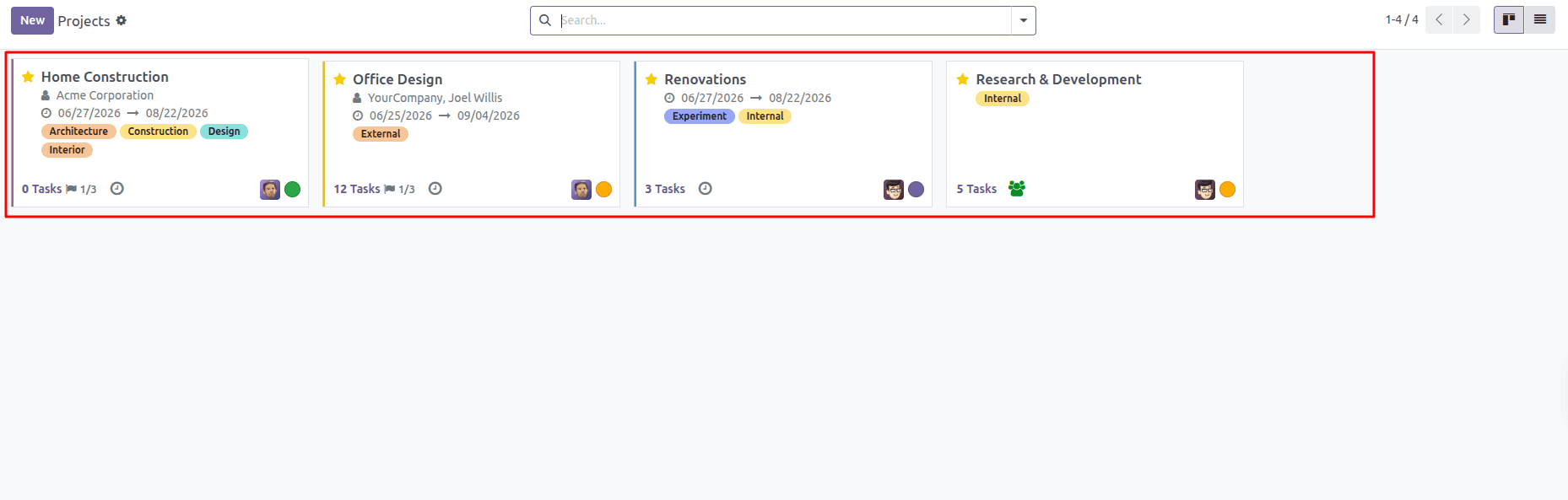
Step 3: Importing Trello Boards into Odoo
Import Boards
Click Import.
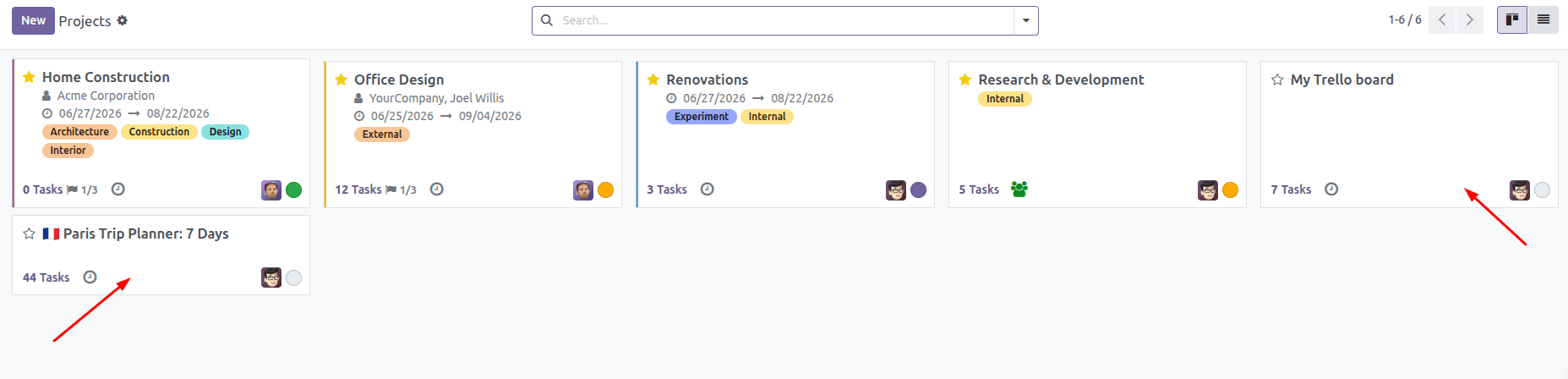
Verify Imported Projects in Odoo
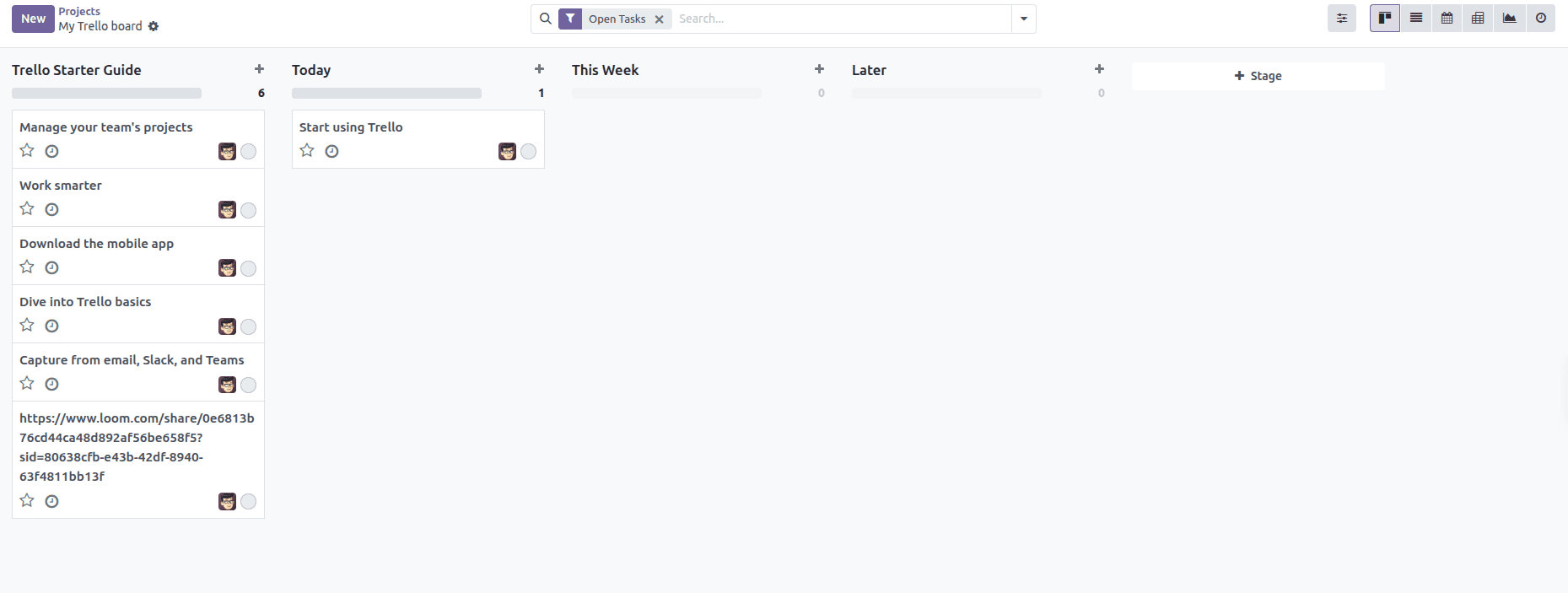
Navigate to the Project module; you can see the projects are imported.
Task Details
By clicking the project, we can see the task details.
Step 4: Exporting Odoo Projects to Trello
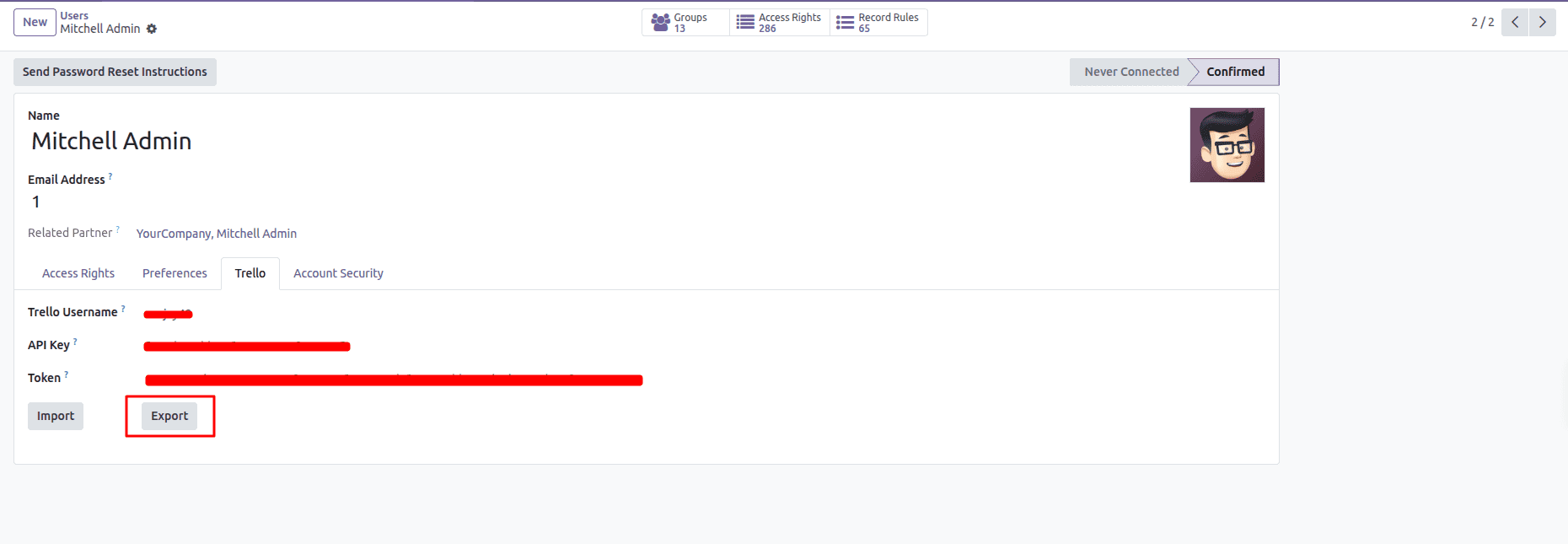
Export Projects
Navigate to User, and under the Trello tab, we can see the Export button; click on it.
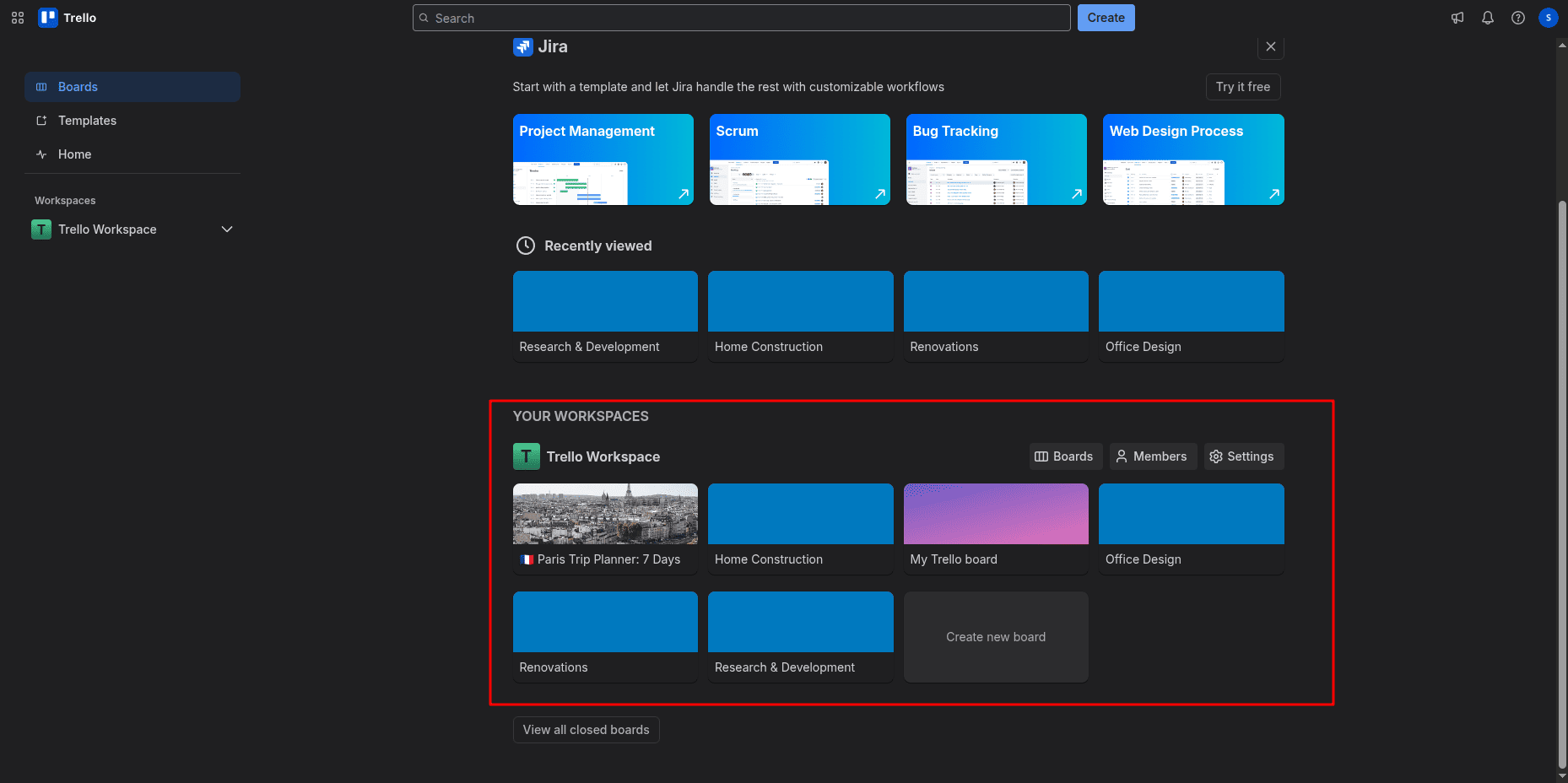
Verify Exported Boards
Open the Trello workspace; we can see that projects in odoo are exported to Trello Boards.
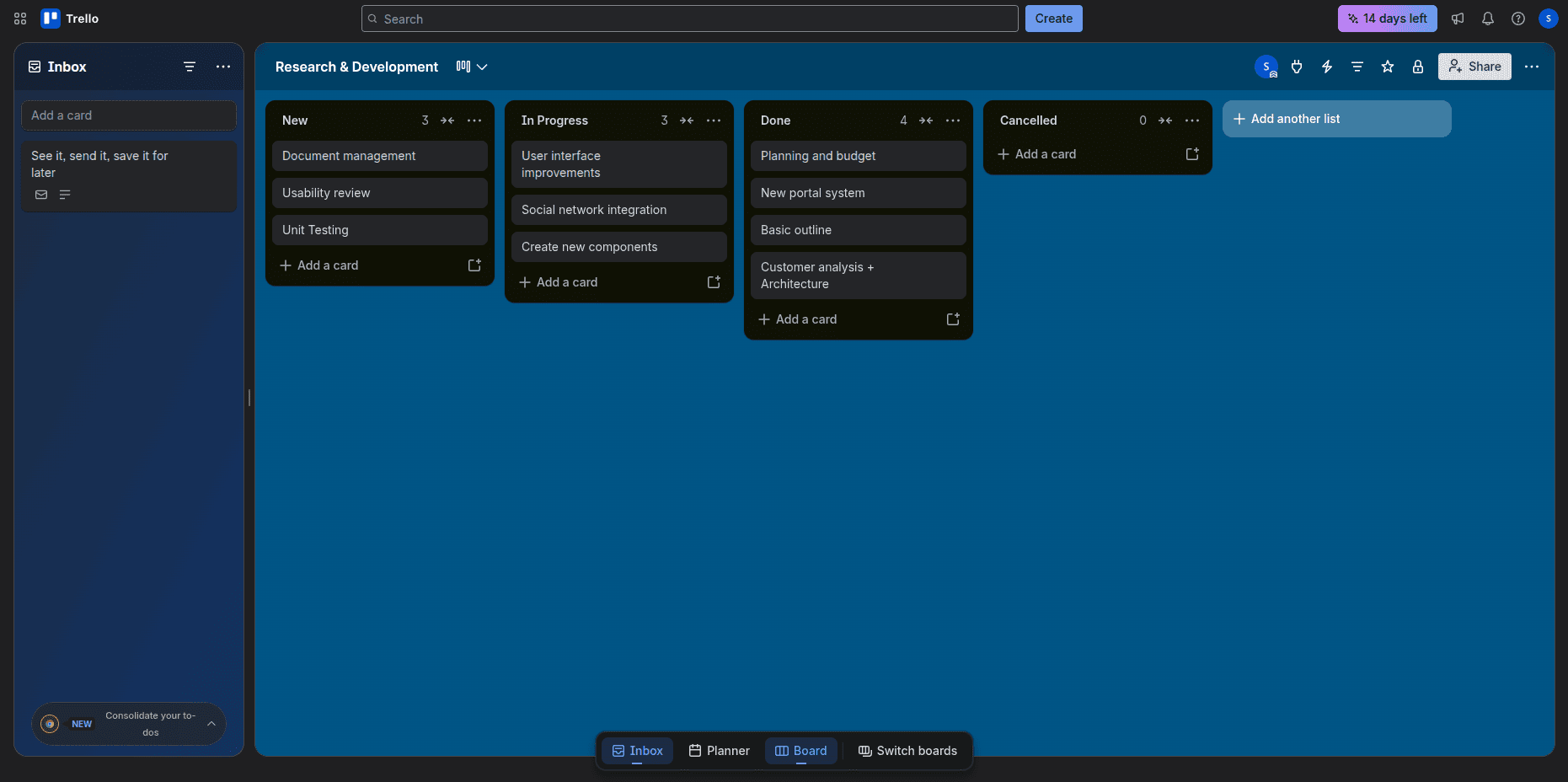
Task Details
By clicking the project, we can see the task details.
Use cases
Odoo Trello Connector can be highly beneficial to:
- Software development teams
- Marketing agencies
- Construction companies
- Product development teams
- Consulting companies
- Companies that use Trello for daily activities and Odoo for their businesses
The Odoo Trello Connector is a useful tool for organizations using both Trello and Odoo for project management. This connector allows synchronizing projects, tasks, and stages from both tools, thus saving users from performing the same actions several times and keeping project information synchronized.
The queue job makes the synchronization process fast enough for even big workspaces so that the tool can be used by any company regardless of its size. If you need to import Trello boards to Odoo or export new Odoo projects to Trello, this integration will suit your needs perfectly well.
To read more about How to Configure and Use the Odoo Jira Connector in Odoo 18, refer to our blog, How to Configure and Use the Odoo Jira Connector in Odoo 18.