The Odoo 19 eCommerce module offers built-in features that help customers compare products and make confident, informed purchasing decisions, enhancing the overall online shopping experience. Odoo 19 rises to this challenge by introducing a powerful Product Comparison feature within its eCommerce module, designed to elevate the online shopping experience right from the website frontend. With this feature, shoppers can select multiple products from the product listing page or product detail page and compare them side by side on a dedicated comparison page. Key product attributes, specifications, and details are displayed in a clean, structured layout, making it effortless for buyers to evaluate their options without switching between multiple tabs or pages. For businesses running on Odoo 19, this means reduced purchase hesitation, improved customer satisfaction, and ultimately, higher conversion rates on the website shop. Whether you're managing a multi-category storefront or a niche product catalog, enabling the product comparison tool through the Odoo backend configuration is straightforward and impactful. In this blog, we'll walk you through how to configure and use the Product Comparison feature in Odoo 19 step by step.
Product Comparison
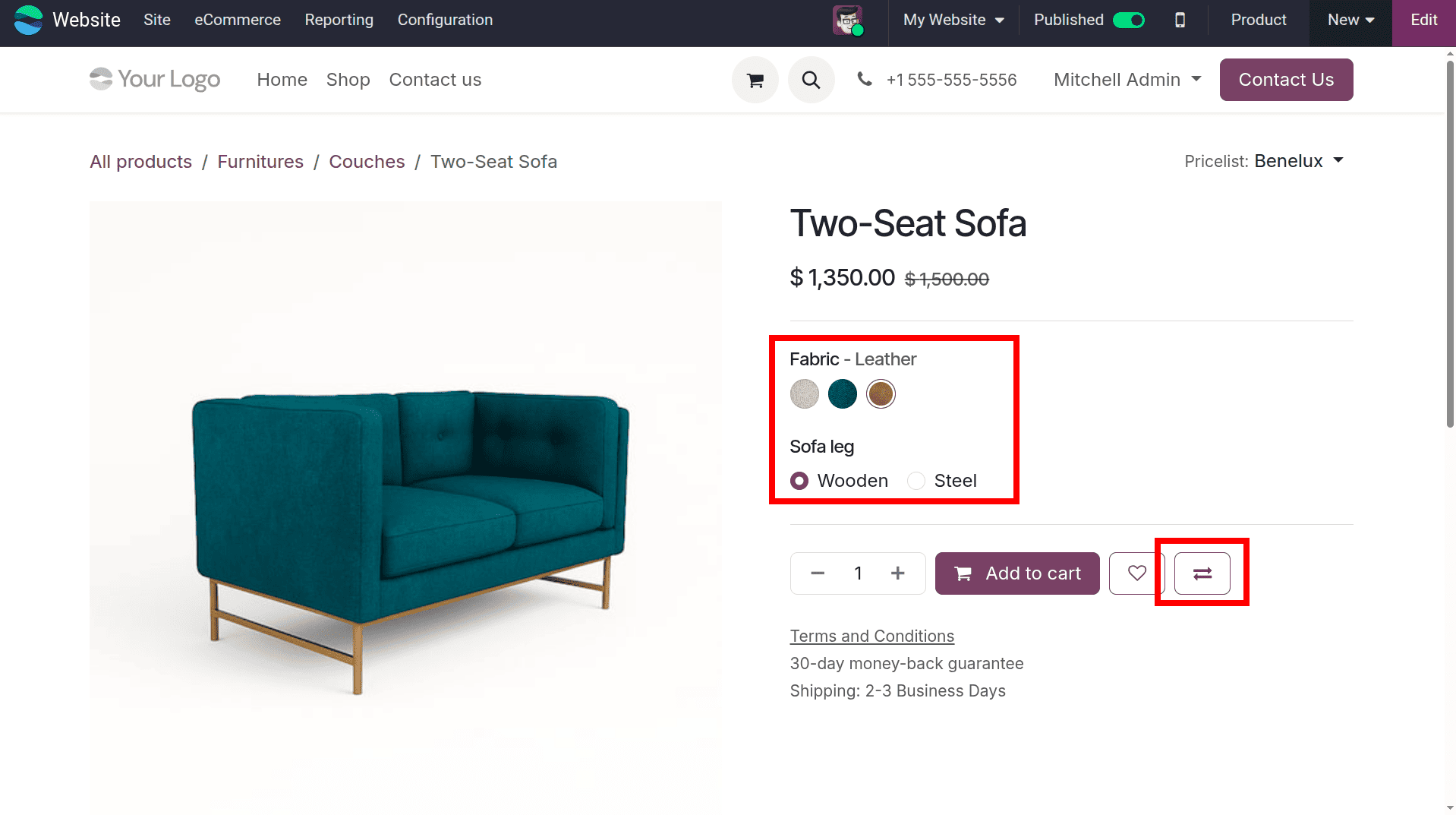
Product Comparison is a customer-centric feature in Odoo eCommerce that allows shoppers to evaluate multiple product variants before making a purchase decision. As shown in the screenshot, the product page displays a Two-Seat Sofa with selectable attributes such as Fabric and Sofa Leg variants, enabling customers to customize the product according to their preferences. Once the desired combination is selected, users can click the Compare button highlighted on the right side of the page to add the product to the comparison list. This feature simplifies the buying process by allowing customers to compare specifications, attributes, pricing, and other details of multiple products on a single page, helping them make informed purchasing decisions while improving the overall shopping experience and increasing customer satisfaction.
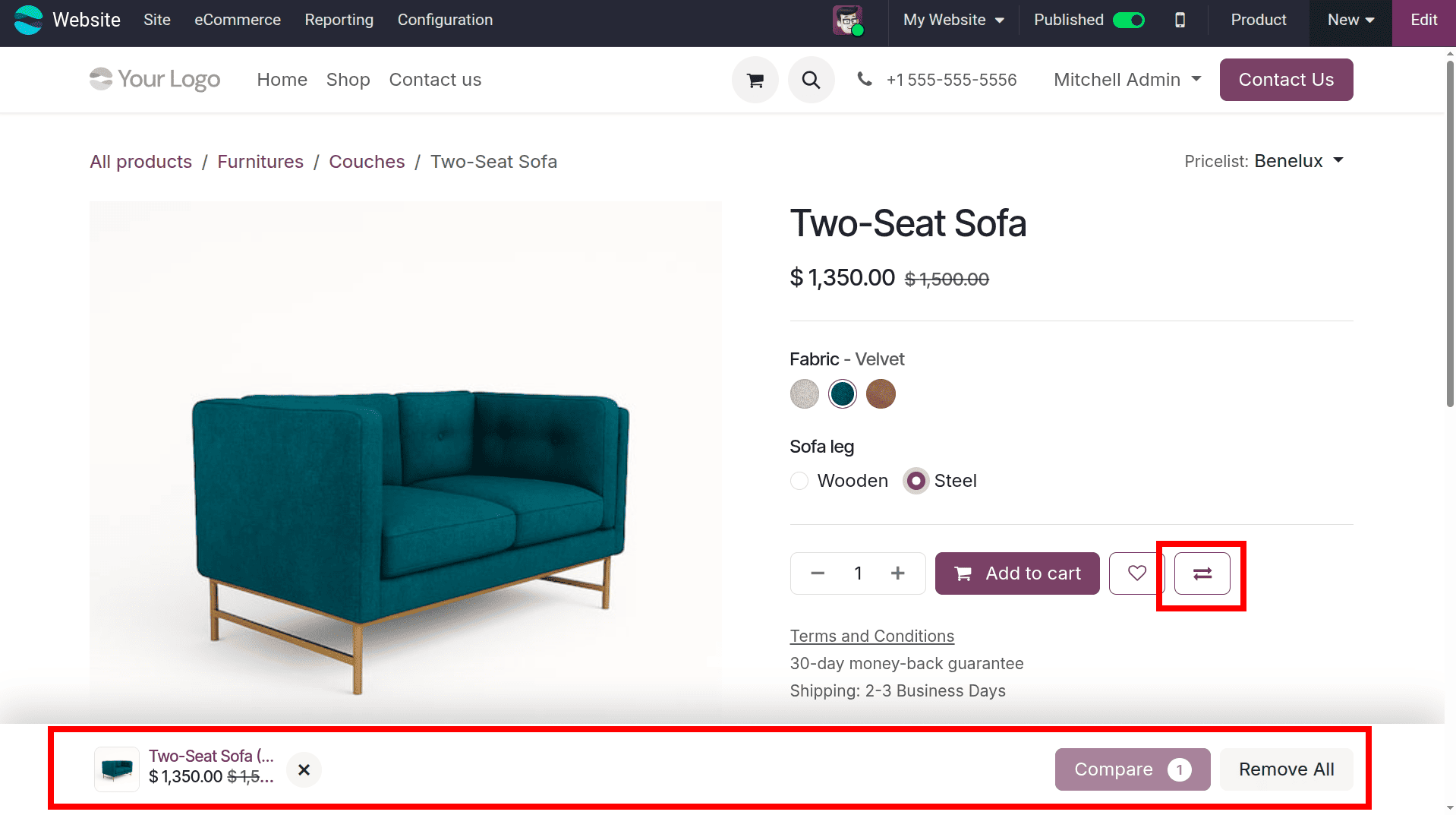
After selecting another product variant, the product is added to the comparison list, which appears as a comparison bar at the bottom of the website, as highlighted in the screenshot. This bar provides a quick overview of the products selected for comparison, displaying their names and prices while allowing customers to manage their selections. The Compare button indicates the total number of products currently added and enables users to proceed directly to the comparison page with a single click. Additionally, the Remove All option allows customers to clear the entire comparison list instantly if they wish to start over. This floating comparison bar remains accessible as customers continue browsing, making it convenient to add more products and compare multiple items without interrupting their shopping experience.
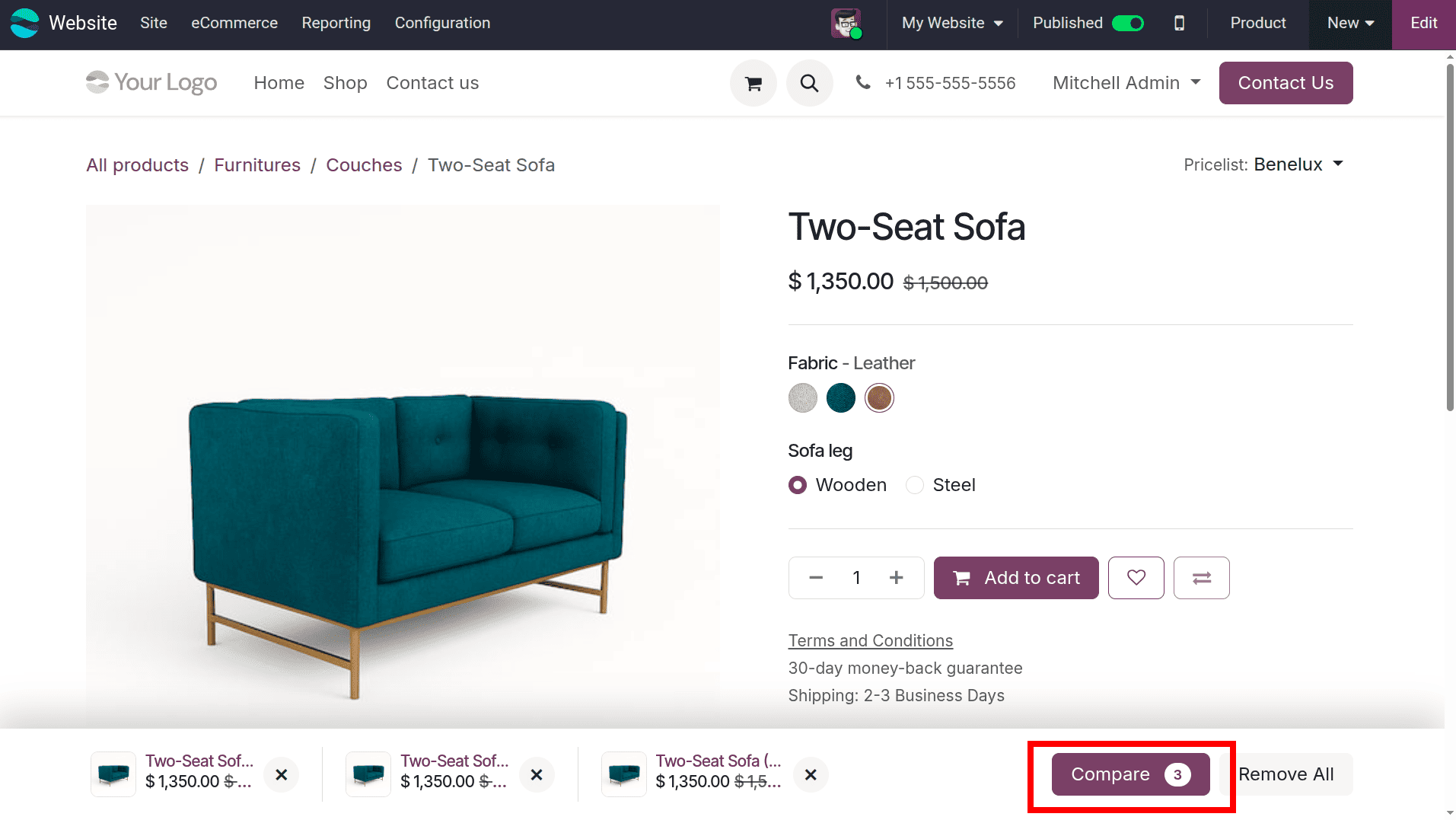
Similarly, add one more variant of the product to compare. Then, three product variants have now been added to the comparison list, and the Compare button displays the total number of selected products. Once all the required variants have been added, click the Compare button to open the product comparison page, where the selected variants can be viewed side by side. This enables customers to easily compare their attributes, prices, and other product details, helping them identify the most suitable variant before proceeding with the purchase.
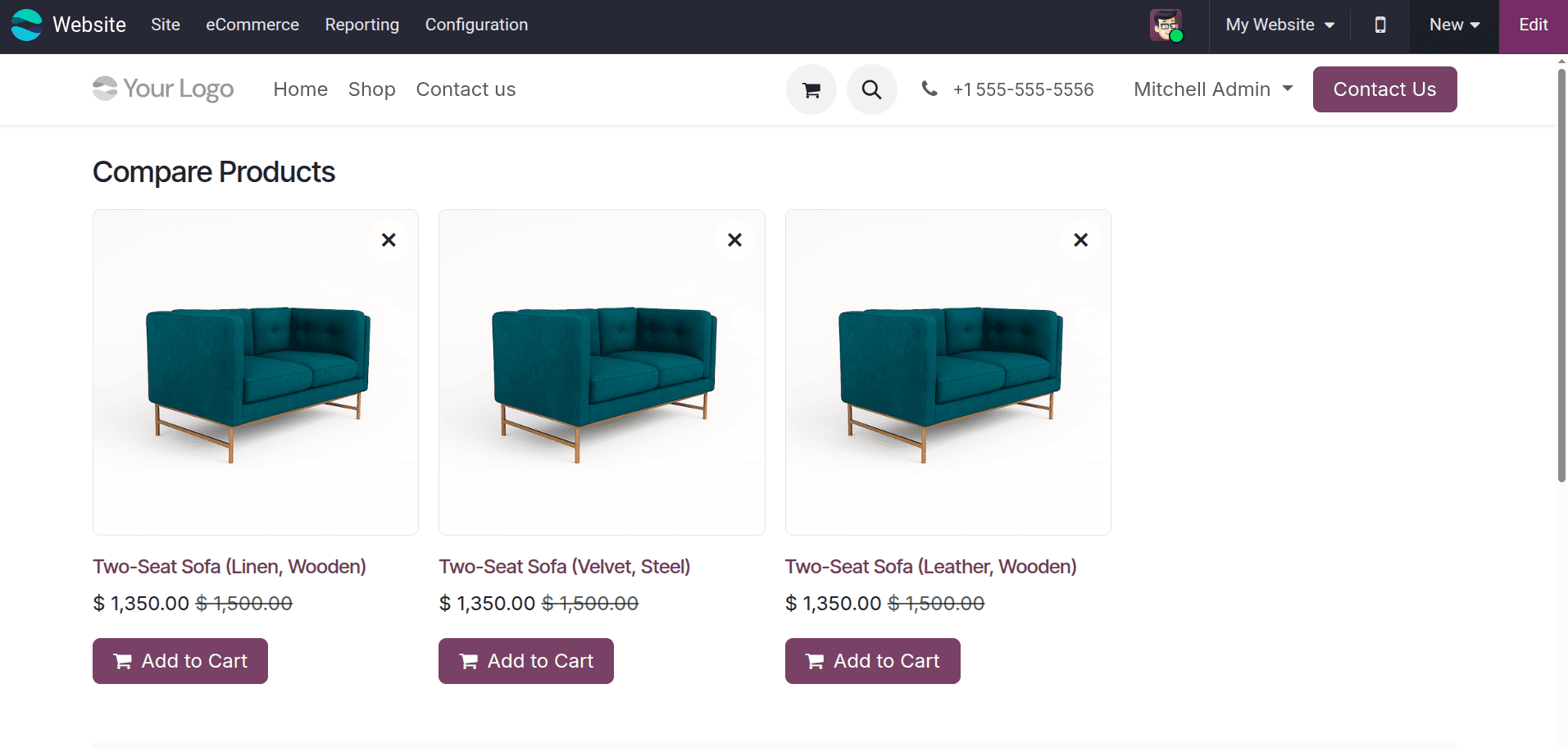
After clicking the Compare button, Odoo opens the Compare Products page, where all the selected product variants are displayed side by side. As shown in the screenshot, each variant appears with its image, name, price, and an Add to Cart button, allowing customers to review and purchase the preferred variant directly. Customers can also remove any product from the comparison using the × icon, making the comparison process simple and convenient.
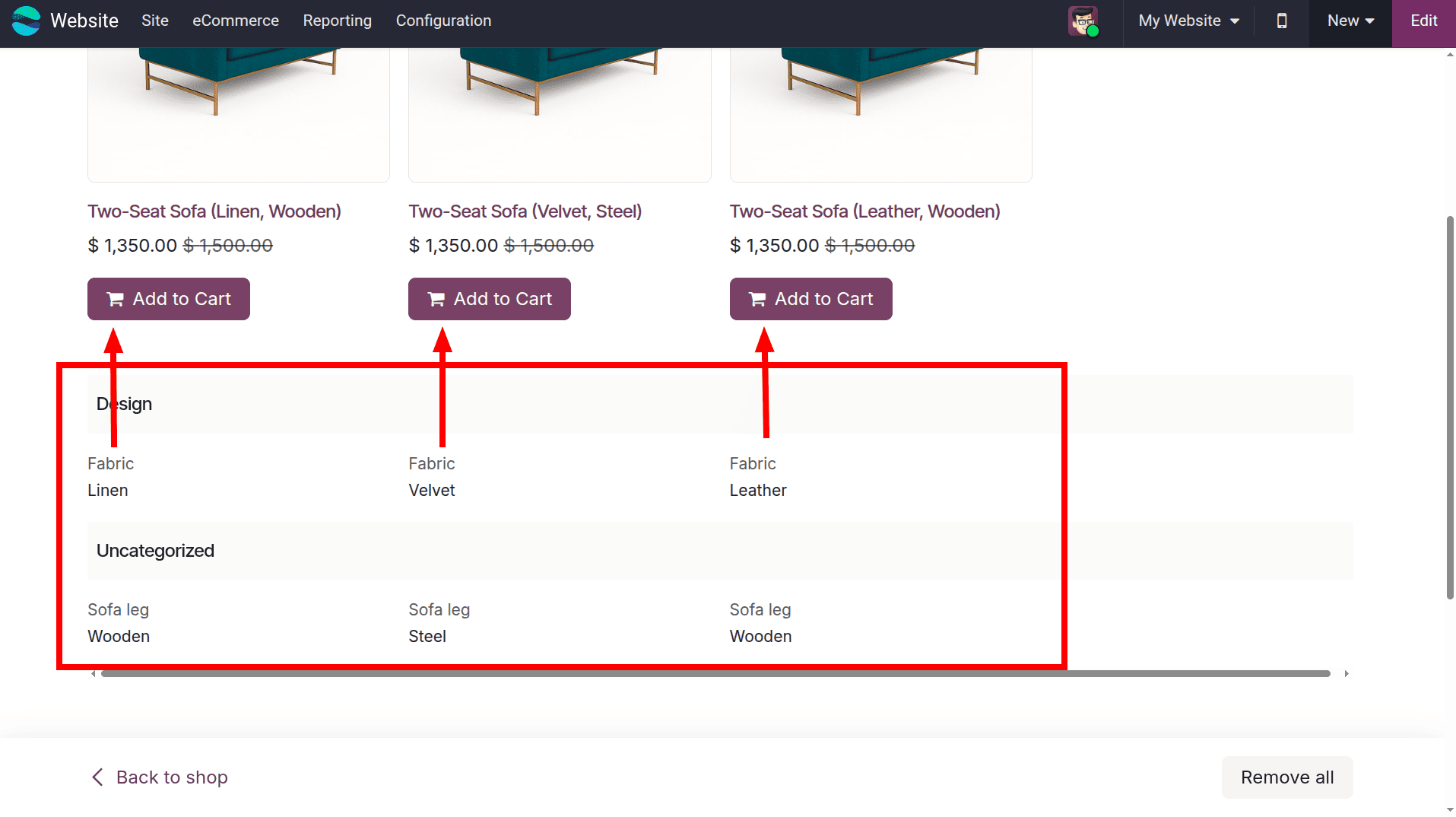
Scrolling further down, the Compare Products page displays the selected variants in a tabular comparison format. As shown in the screenshot, the values of each product attribute, such as Fabric and Sofa Leg, are presented side by side for every variant, making it easy to identify their differences. This structured comparison helps customers quickly evaluate the available options and choose the variant that best matches their requirements before adding it to the cart.
Product Price Comparison
The Product Price Comparison feature in Odoo eCommerce enables businesses to display a product's original price alongside its current selling price. By showing the original price with a strikethrough, customers can easily identify discounts or promotional offers, making products more attractive and encouraging purchase decisions.
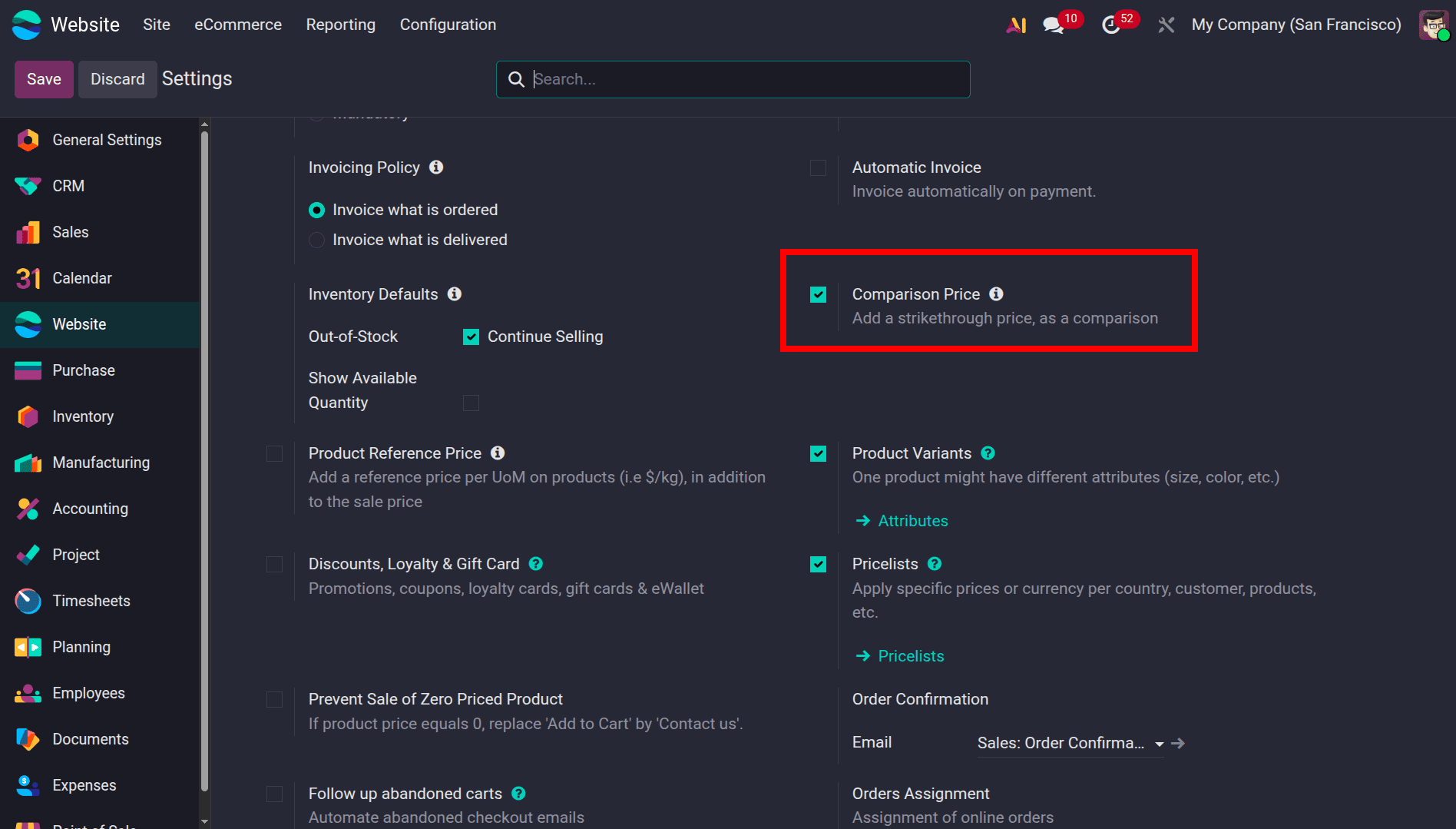
As shown in the screenshot, this feature must first be enabled from Website > Configuration > Settings. Under the Shop - Products section, enable the Comparison Price option and save the settings. Once activated, Odoo allows you to define a comparison price for products, which is displayed as the crossed-out original price on the website while the discounted selling price remains prominently visible. This enhances price transparency and effectively highlights promotional pricing.
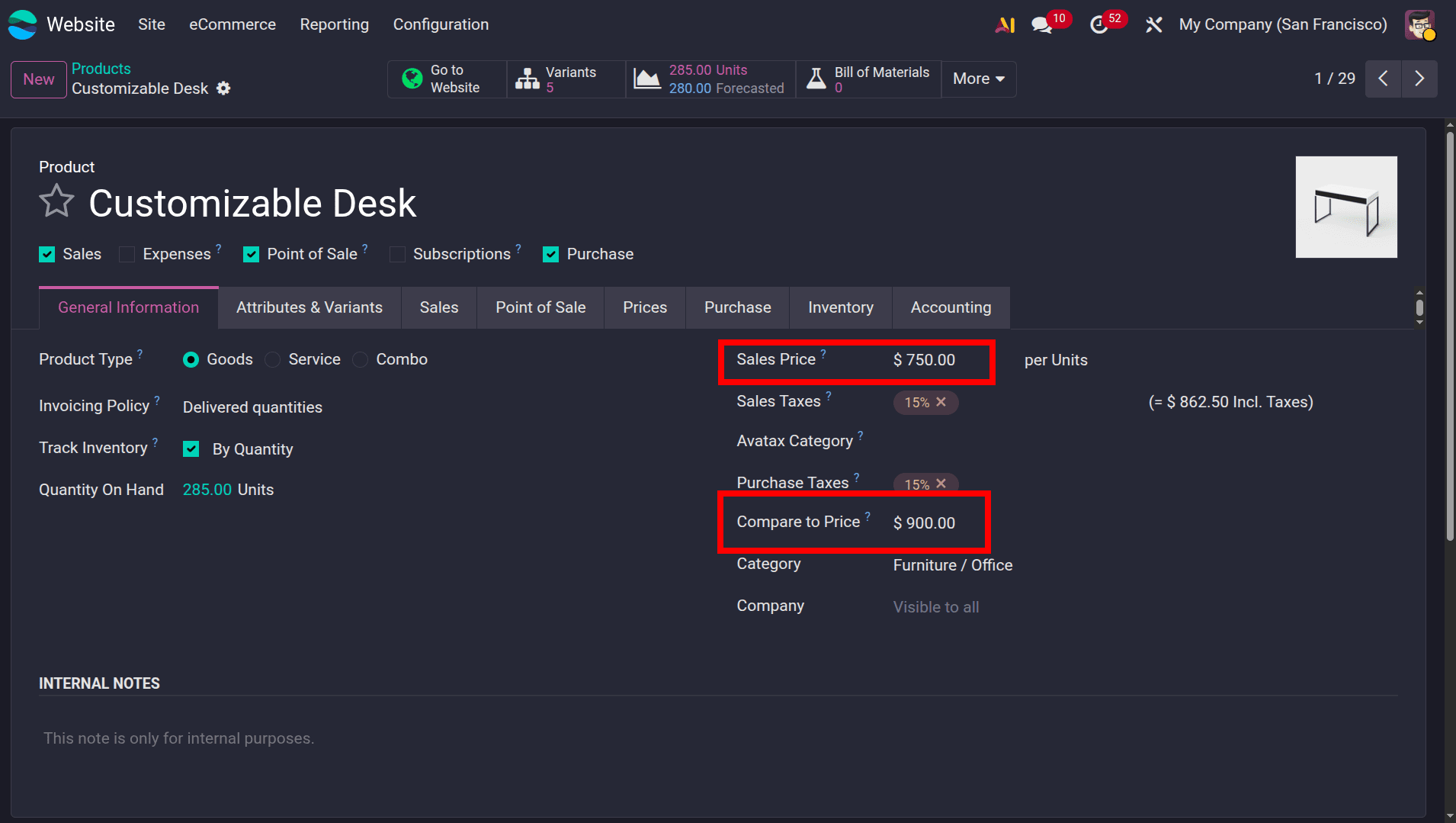
Next, open the required product form and navigate to the General Information tab. As shown in the screenshot, enter the product's actual selling amount in the Sales Price field and specify the original price in the Compare to Price field. In this example, the Sales Price is $750.00, while the Compare to Price is $900.00. When the product is published on the website, Odoo displays the comparison price with a strikethrough alongside the current selling price, clearly highlighting the discount. This helps customers recognize promotional pricing at a glance and encourages informed purchasing decisions.
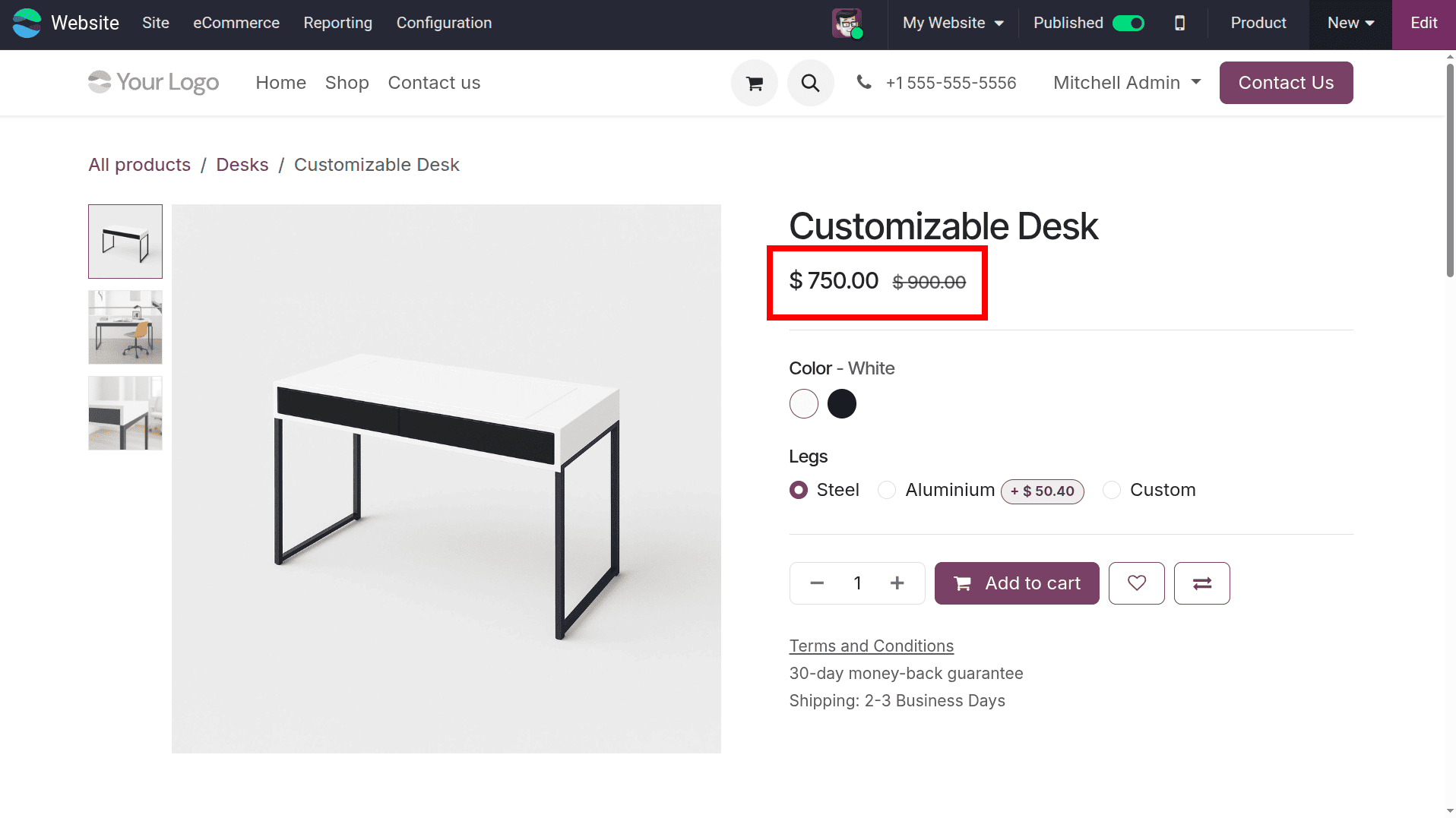
As shown in the screenshot, the product page displays both the Sales Price and the Compare to Price. The Sales Price is $750.00, while the Compare to Price of $900.00 is displayed with a strikethrough above it, indicating the original price. The product page also allows customers to select the desired Color and Leg variants before adding the product to the cart.
Product Reference Price
The Product Reference Price feature in Odoo eCommerce allows businesses to display a unit reference price for products in addition to the selling price. This is especially useful for products sold based on weight, volume, length, or similar units, as it enables customers to easily understand the price per unit of measure and compare products of different package sizes.
As shown in the screenshot, this feature must first be enabled from Website Configuration Settings, enable the Product Reference Price option, and save the settings. Once activated, Odoo allows you to configure a reference price based on the product's unit of measure, which is then displayed on the product page along with the selling price. This provides customers with clear pricing information for unit-based products.
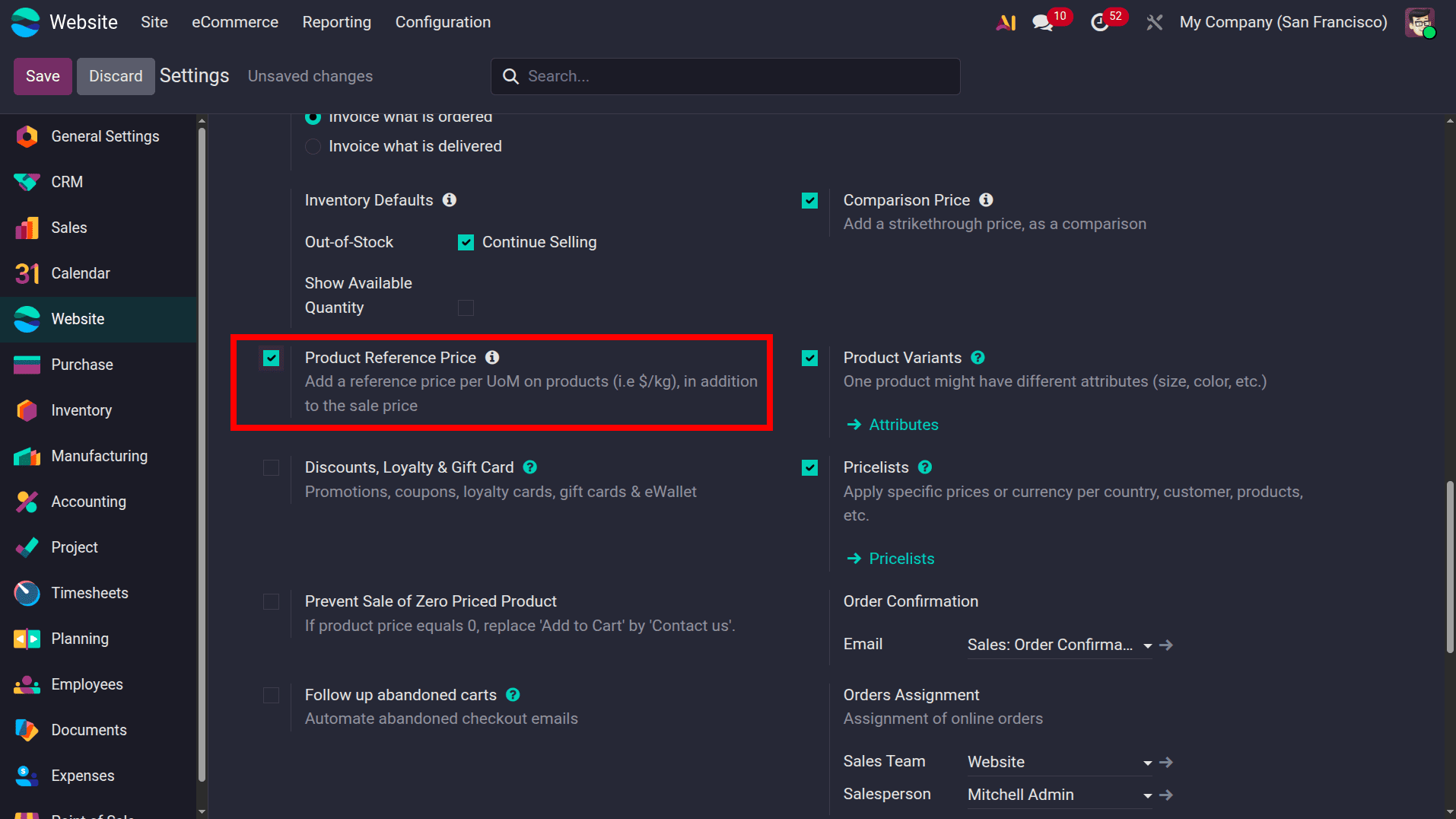
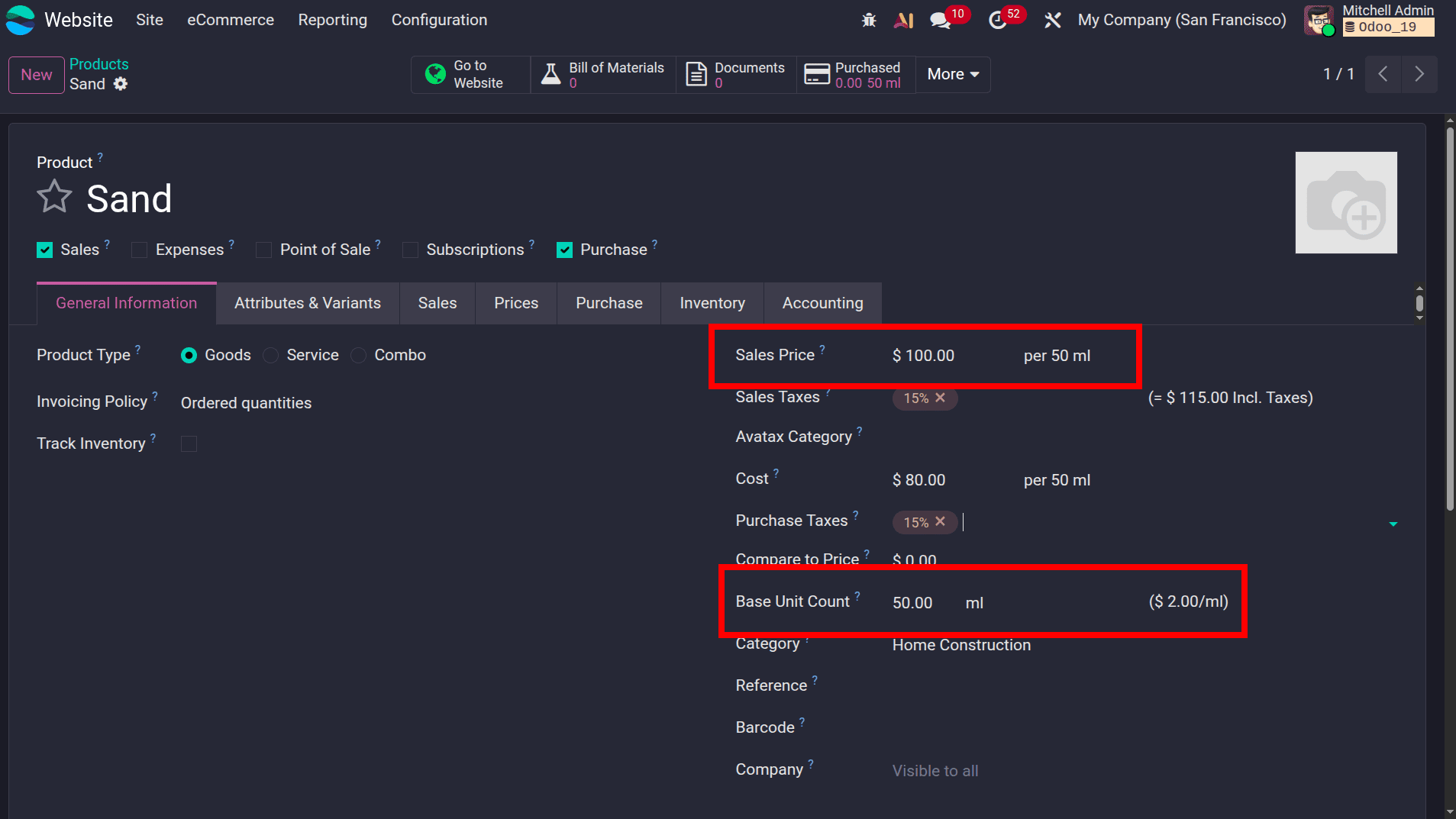
Next, open the required product form and navigate to the General Information tab. As shown in the screenshot, the Sales Price is set to $100.00 for 50 ml. In the Base Unit Count field, enter the quantity that will be used as the reference unit. Based on these values, Odoo automatically calculates and displays the reference price per unit, which is shown as ($2.00/ml) beside the Base Unit Count field. This reference price is then used on the website to display the unit price along with the product's selling price.
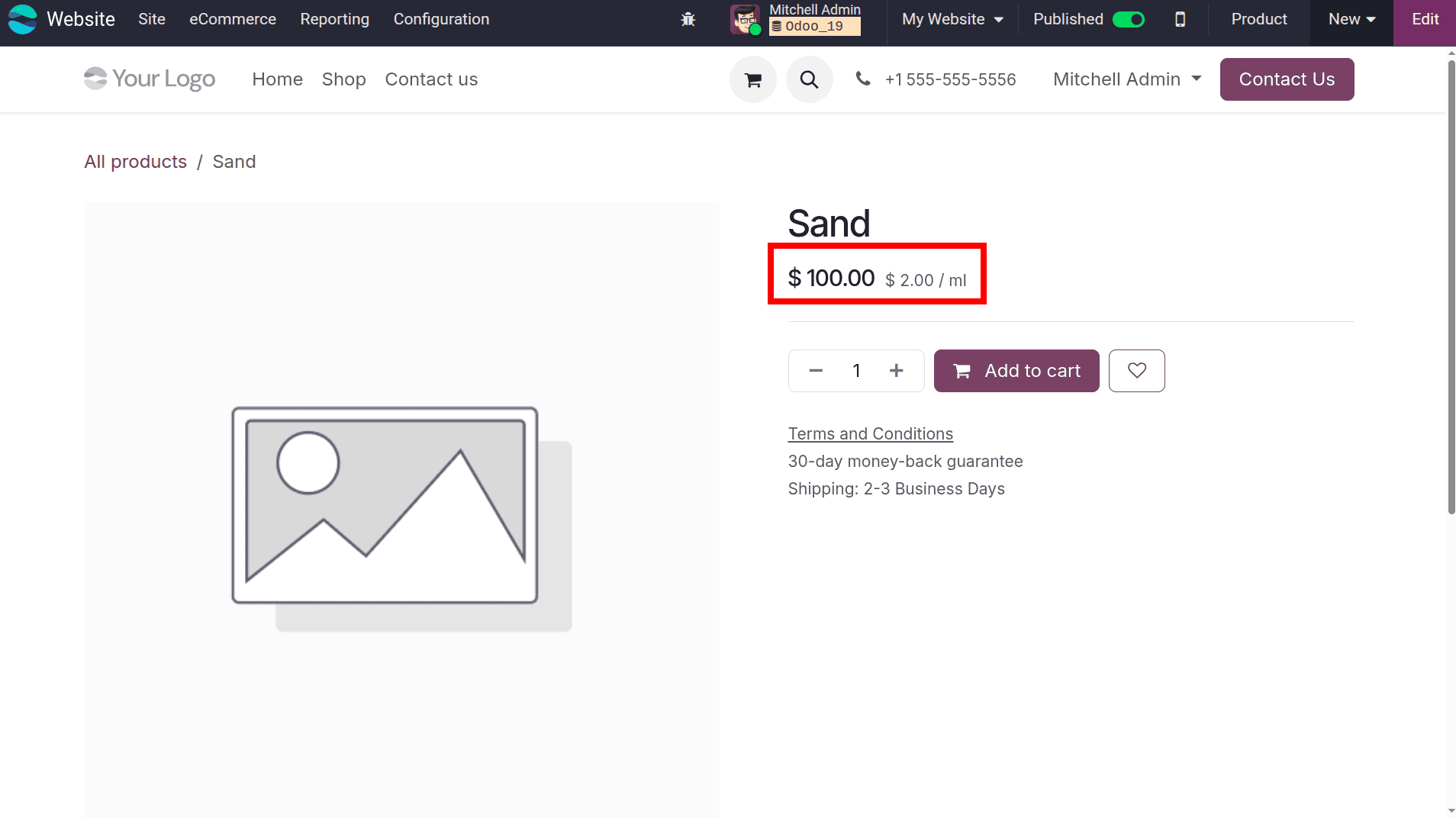
As shown on the eCommerce product page, the Sales Price is displayed as $100.00, along with the Product Reference Price of $2.00/ml. The reference price appears next to the selling price, allowing customers to view the unit price directly on the product page. This pricing information is displayed automatically based on the values configured in the product form, providing a clear view of both the total selling price and the price per unit of measure.
The enhanced product presentation features available in Odoo 19 Website and eCommerce provide businesses with effective tools to improve the online shopping experience. Features such as Product Comparison, Comparison Price, and Product Reference Price enable customers to evaluate product variants, identify discounted prices, and view unit-based pricing directly from the website. These capabilities are fully integrated with Odoo's product management system, ensuring that any configuration made in the backend is automatically reflected on the eCommerce storefront. By leveraging these features, businesses can present product information in a clear and structured manner while maintaining accurate pricing and variant details. The seamless integration between the Website, Sales, and Inventory modules ensures consistent product data across the platform, allowing organizations to efficiently manage their online catalog and deliver a more informative and user-friendly shopping experience.
To read more about How To Enhance Customer Choices With Product Comparison Tool in Odoo 18, refer to our blog How To Enhance Customer Choices With Product Comparison Tool in Odoo 18.